Android
How to Fix Android Phone Not Unlocking With Correct PIN or Pattern
Does your Android phone fail to unlock with the correct PIN or pattern? Here are the top ways to troubleshoot the problem.
By Madalina Dinita
Quick Tips
Restart your phone as a starting point. The issue might be a software glitch, which should be fixed with a simple reboot.
While you can use 3rd-party tools and apps for this, not every app works with every Android device
Thankfully, there are a handful of tricks you can try before spending money on paid recovery software
Method 1: Unlock Using Find My Services for Samsung phones
Samsung, Google, and Apple allow you to locate your devices through their respective “Find My Device” networks. However, unlike Google, Samsung’s option actually allows you to remotely unlock your device, which can come in handy if you can’t log in directly on the phone.
Note: The steps below only apply to Samsung phones with the ‘Find My Mobile’ functionality enabled.
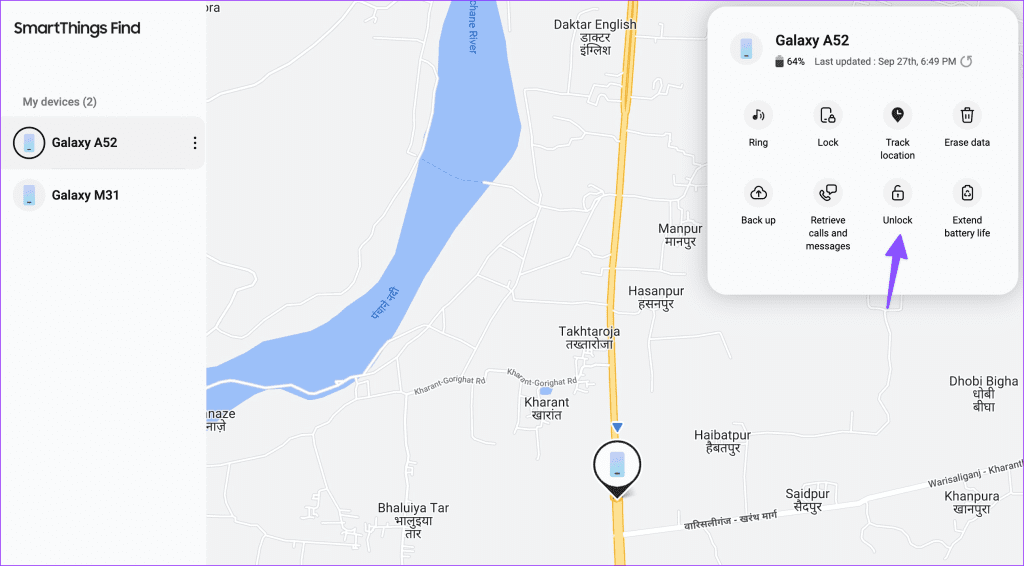
Step 1: Visit the Find My Mobile website and sign in with your Samsung account credentials to see a list of your Samsung devices that are linked to your account.
Step 2: Select the device that you’re trying to unlock. In the top right corner, you’ll see a menu with various options. Click the Unlock button that appears within the menu.
Method 2: Bypass Using ADB
Android Debug Bridge ( ADB ) is a command-line tool that communicates with Android devices. It offers several device actions, such as installing and debugging apps. Once you install ADB on the desktop, use the steps below to unlock your phone.
Step 1: Connect your Android phone to your computer using the provided USB cable. Check our dedicated guide if your Android phone isn’t connecting to your PC .
Step 2: Right-click the Windows Start Menu button, and select Terminal (Admin) from the list that appears. Now, type the following command,
adb shell rm /data/system/gesture.key
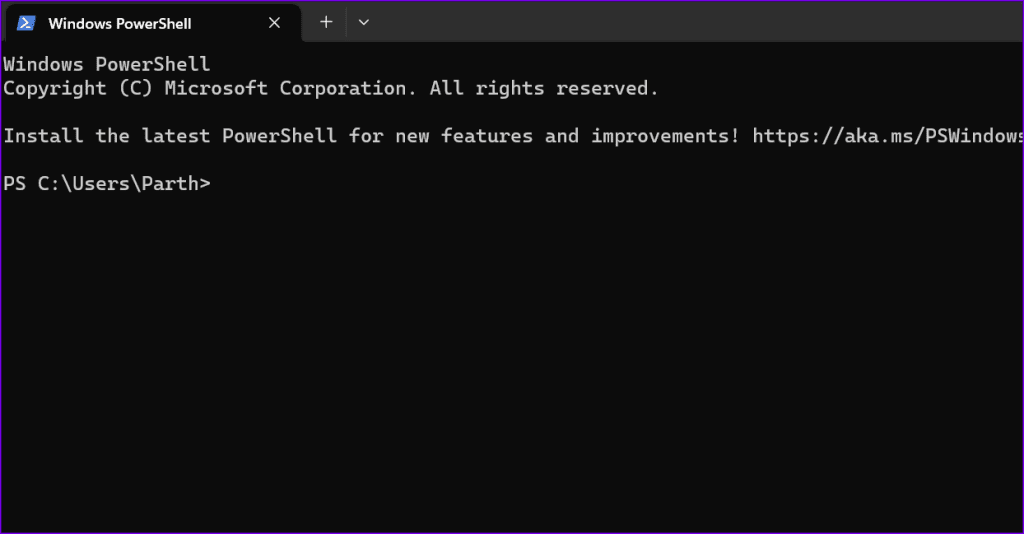
Step 3: Press the Enter key on your keyboard. Once the command has been run, restart your phone.
Method 3: Factory Reset Android Phone From Recovery Mode
If your Samsung or Android phone is still not accepting the correct password, it’s time you factory reset it from the recovery menu. To do so, follow the steps below,
Step 1: Power off the phone and long-press the Power and Volume Down buttons until the phone turns up. Use the Power button to select Recovery mode .
Step 2: Once you’re in Recovery mode, hold the Power button and press the Volume Up button once.
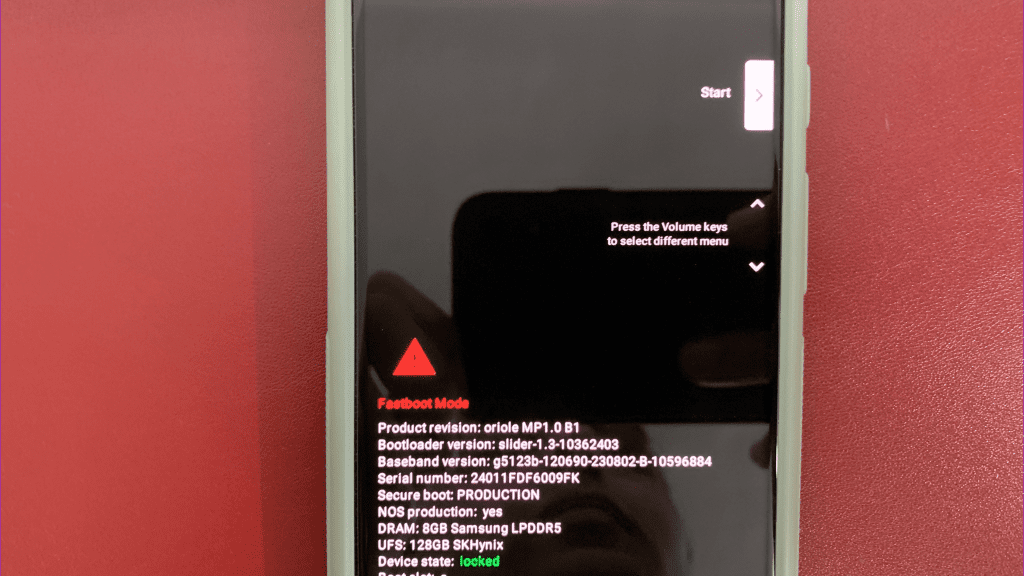
Step 3: Release the Power button now, and use the Volume Down button to scroll down to Factory reset .
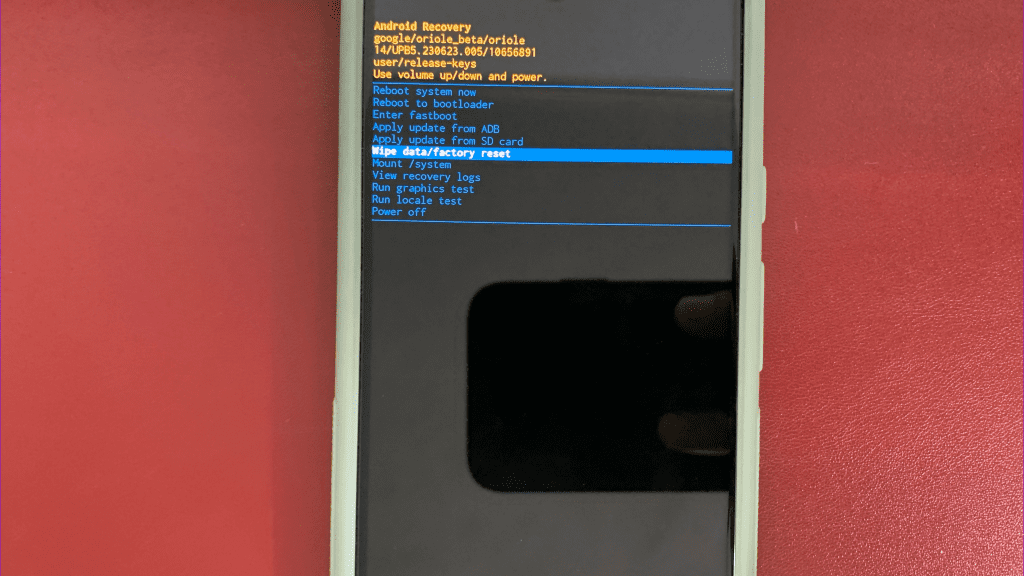
Method 4: Clear Your Phone Cache
Since you can’t actually get into the phone’s Settings app to clear the cache, you’ll need to rely on the built-in Android Recovery Mode to wipe the cache partition. Here’s how you can do so.
Note: The trick below works only on old Android phone.
Step 1: Turn your phone off, and press and hold the Volume up and Power buttons simultaneously until your phone turns on.
Step 2: Next, use the Volume Down button to navigate to the Wipe cache partition. Press the Power button to select it.
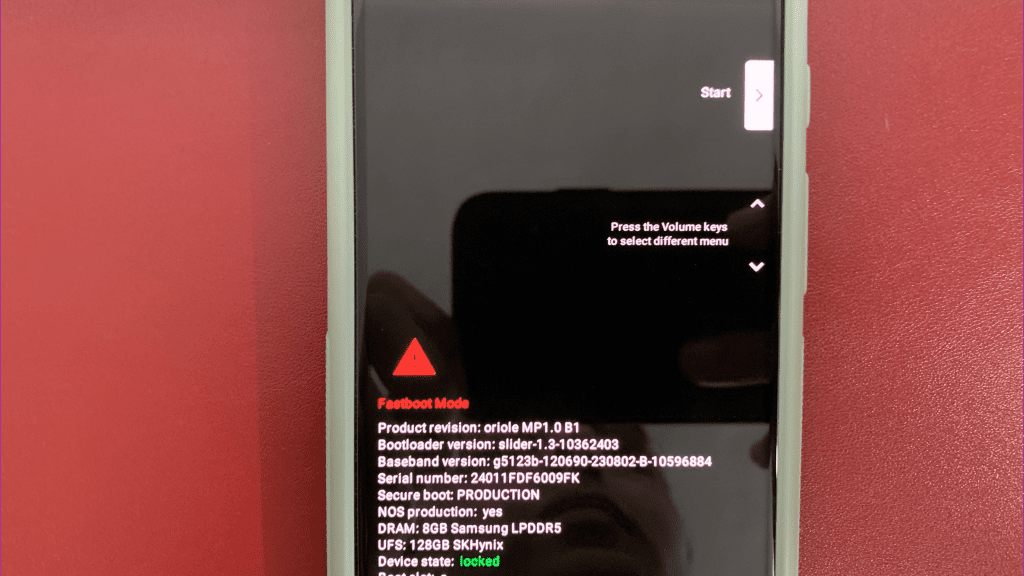
Step 3: Use the Volume Down button to highlight YES , and use the Power button to select it.
You can also read our dedicated guide if Android Recovery mode isn’t working .
Step 4: Once you have wiped the device cache, reboot your phone, and if everything goes according to plan, you should be able to unlock it.
However, the first thing you need to do is go into the Settings app and set a new PIN or password . Otherwise, the “old” password may reappear if you have to restart your phone for any reason.
Was this helpful?
Submit Cancel
Thanks for your feedback!
Keep reading