Android
How to Auto Connect Wi-Fi on Samsung Galaxy Phones
Tired of manually switching Wi-Fi networks? Learn how to use Intelligent Wi-Fi and Routines on a Samsung phone to save battery life.
By Parth Shah
Quick Tips
Intelligent Wi-Fi automatically connects to known Wi-Fi networks when in range, and turns off Wi-Fi when not near any known networks.
Mode and Routines creates automated tasks based on time and location, such as auto-connecting to Wi-Fi upon arrival or turning it off when leaving.
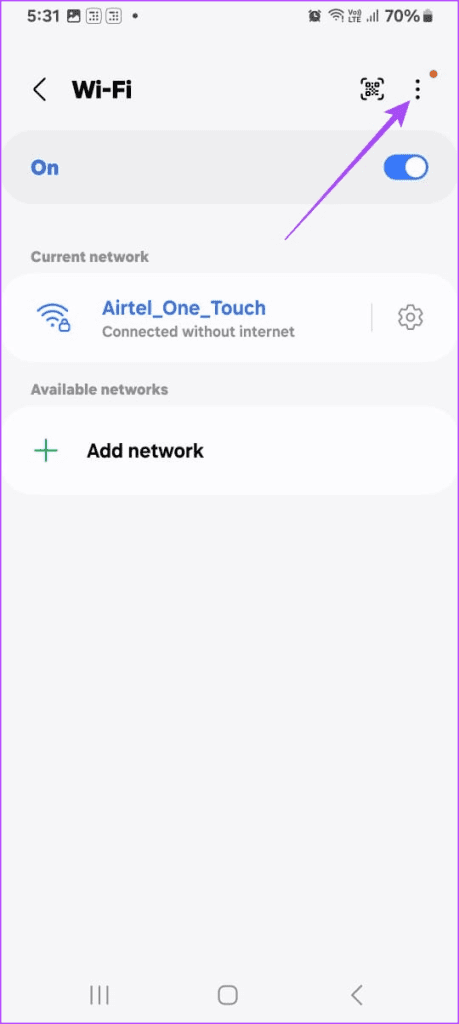
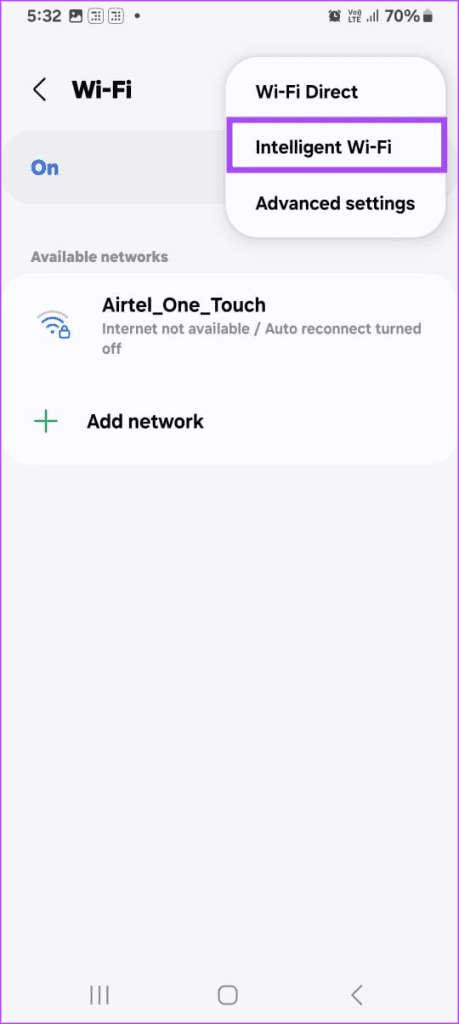
To enable Intelligent Wi-Fi, go to Settings > Connections > Wi-Fi. Then tap on the three dots > Intelligent Wi-Fi.
Use Intelligent Wi-Fi on Your Samsung Phone
Intelligent Wi-Fi is a feature on Samsung Galaxy phones that automatically connects to known Wi-Fi networks when in range. To use this feature, you must enable it on your Samsung device.
Step 1: Open the Settings app on your Samsung phone.
Step 2: Tap on Connections > Wi-Fi .
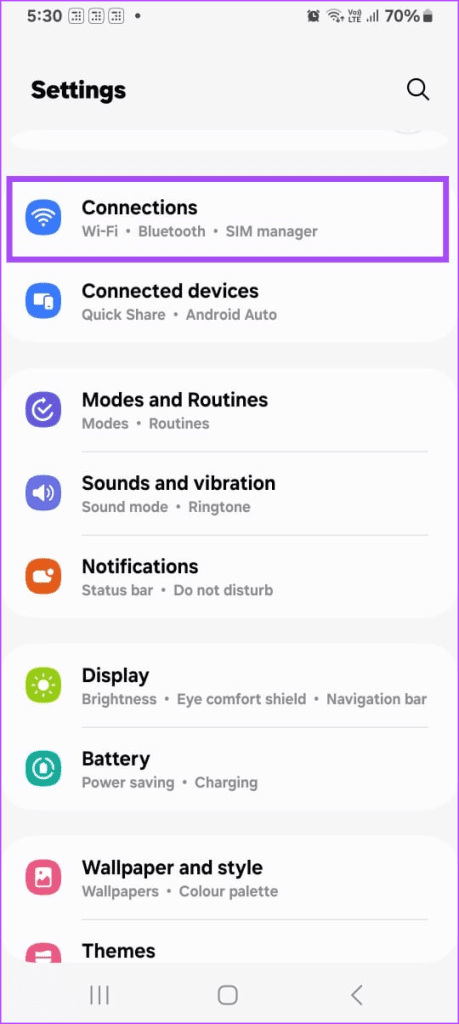
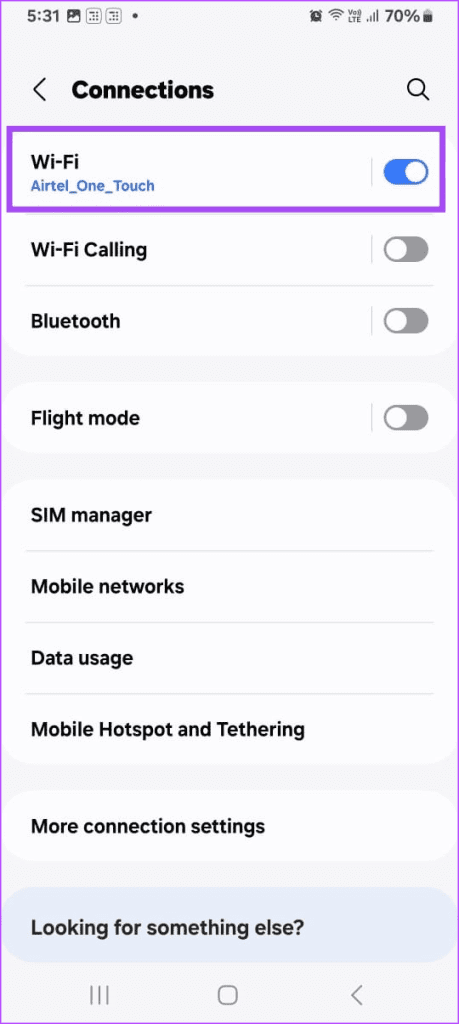
Step 3: In the Wi-Fi settings, tap on three dots and select Intelligent Wi-Fi .
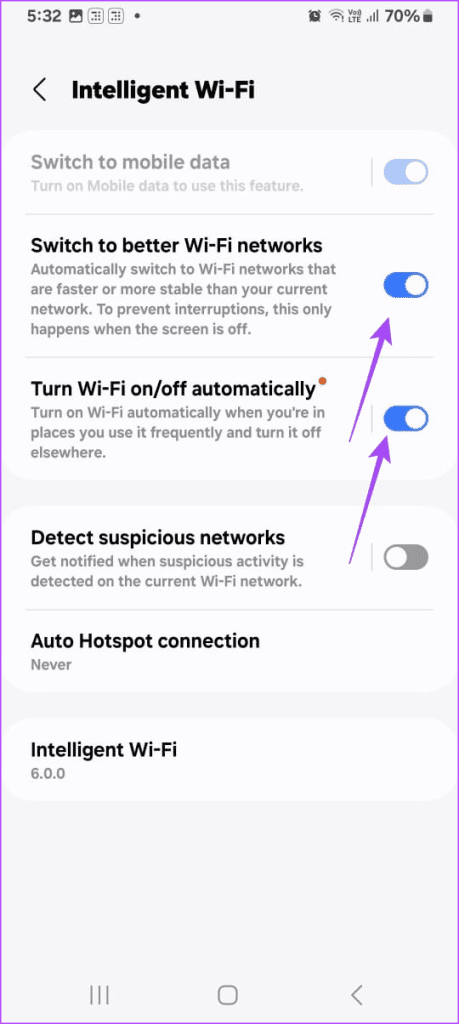
Step 4: Toggle on Switch to better Wi-Fi networks and Turn Wi-Fi on/off automatically .
Once enabled, the Intelligent Wi-Fi feature will automatically switch to a better Wi-Fi network if it detects a stronger signal or if your current connection is unstable. It will also turn off Wi-Fi when you’re not near any known networks to conserve battery life.
How Does Intelligent Wi-Fi Work?
Intelligent Wi-Fi analyzes your device’s location services and network information stored on your phone to determine which Wi-Fi networks you frequently use. It then automatically switches to those networks when you’re in range.
This feature is especially useful when you frequently commute between home, work, and other locations. It saves you from manually switching Wi-Fi networks every time you change locations.
Use Modes and Routines
Modes and Routines on Samsung Galaxy phones that lets you create custom routines based on your time and location. With this, you can automate tasks such as connecting to Wi-Fi upon arrival or turning it off when you leave.
To set up a location-based routine, follow these steps:
Note: This feature is only available for mid-range and high-end Samsung Galaxy phones. The function isn’t available on several Galaxy M-series smartphones.
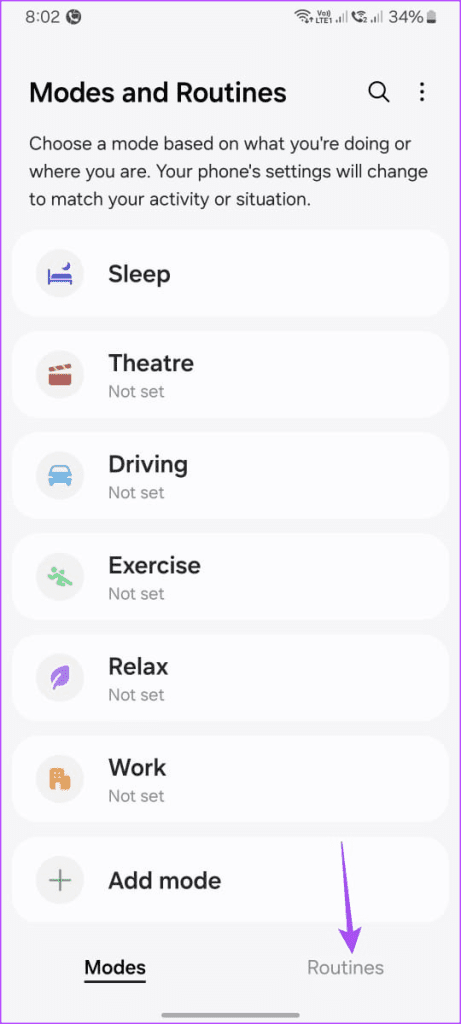
Step 1: Open the Modes and Routines app and switch to the Routines tab.
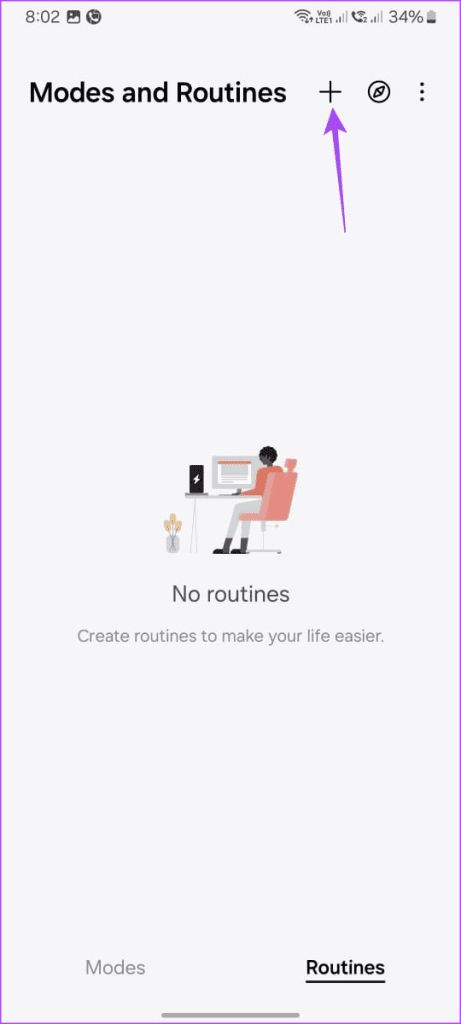
Step 2: Tap the + icon in the top right corner to create a new routine.
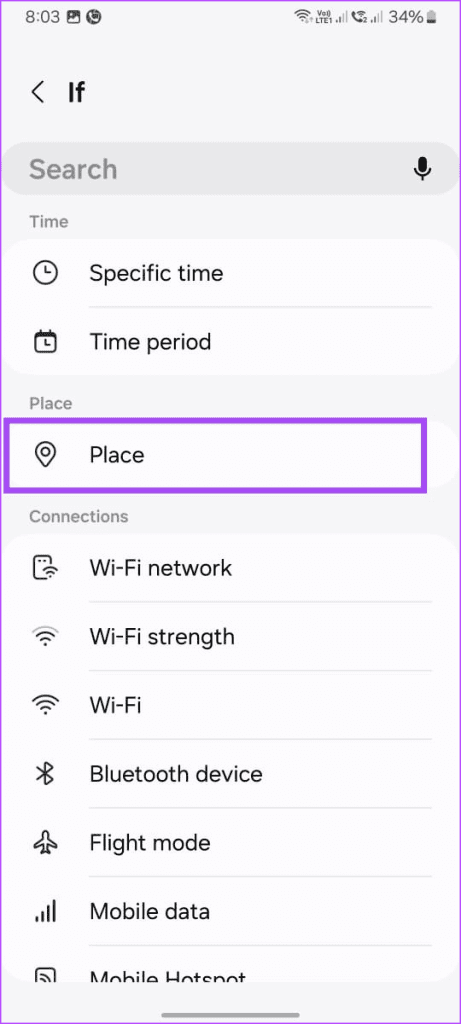
Step 3: In the If section, tap on Place .
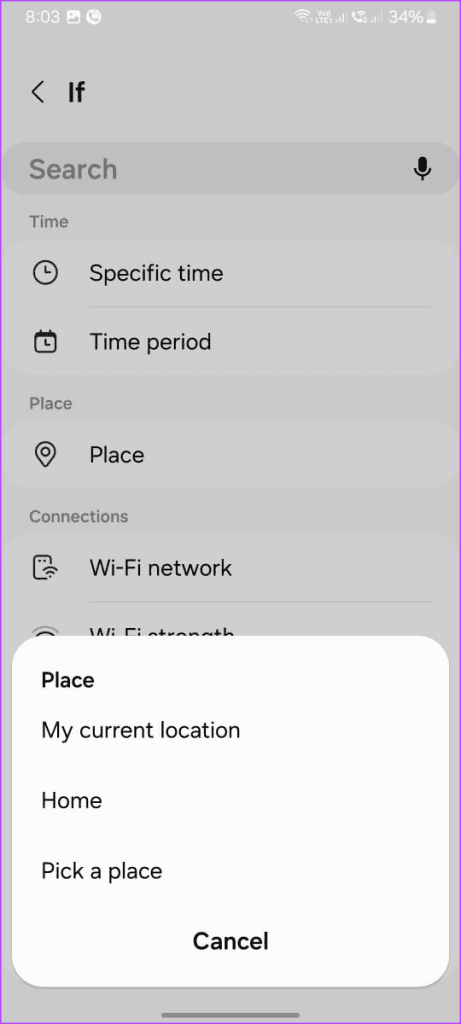
Step 4: Choose from My current location , Home , or Pick a place , then enter the address.
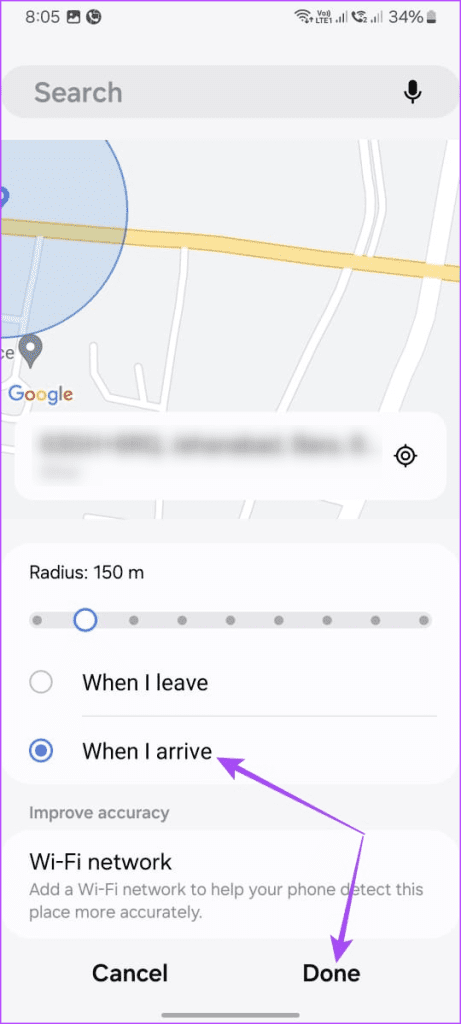
Step 5: Select When I arrive , then tap Done .
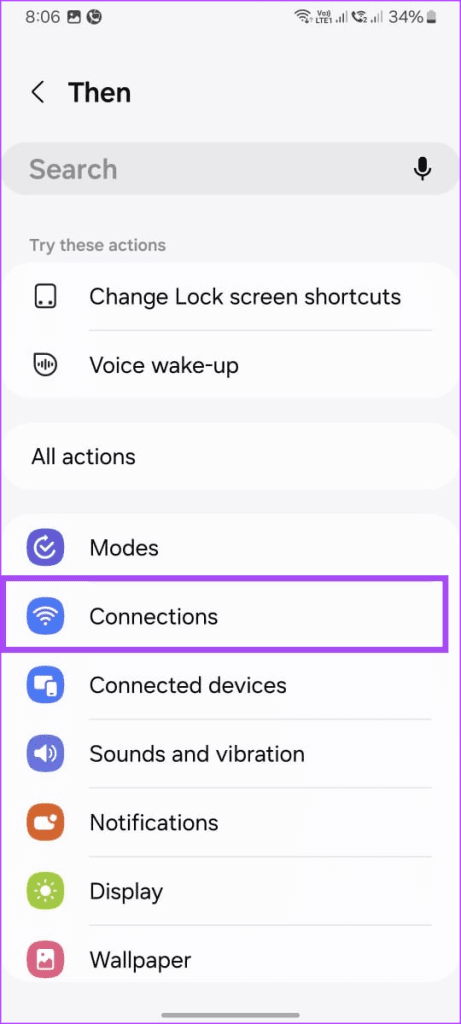
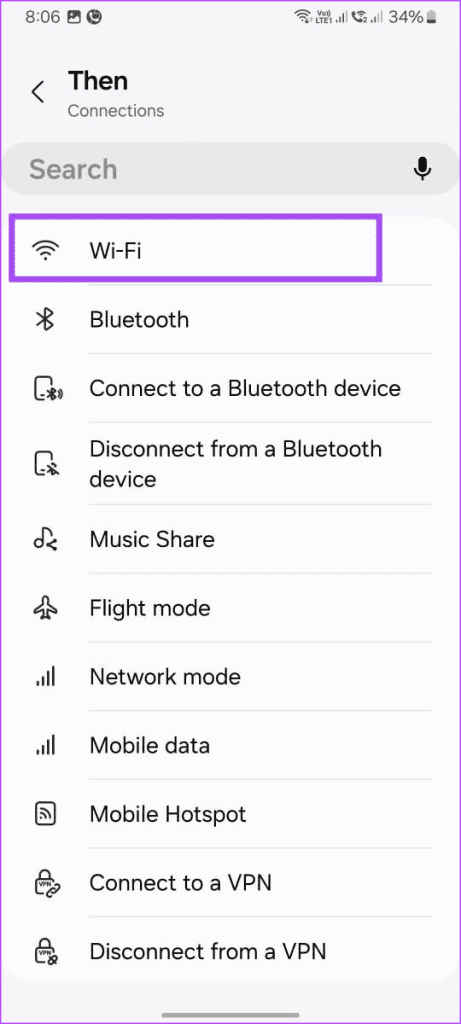
Step 6: Tap on Connections > Wi-Fi .
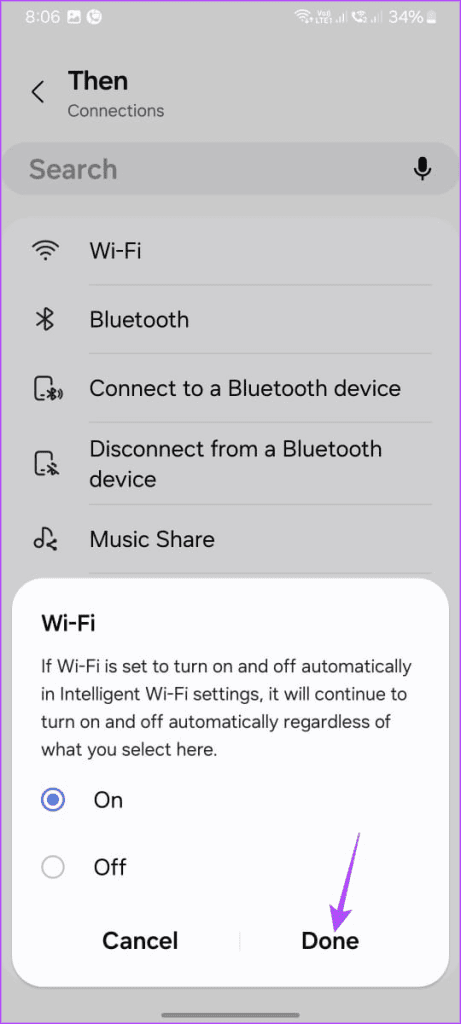
Step 7: Choose On , then tap Done .
Step 8: Review the summary of your routine, then tap Save to proceed.
Step 9: Name your routine and tap Done .
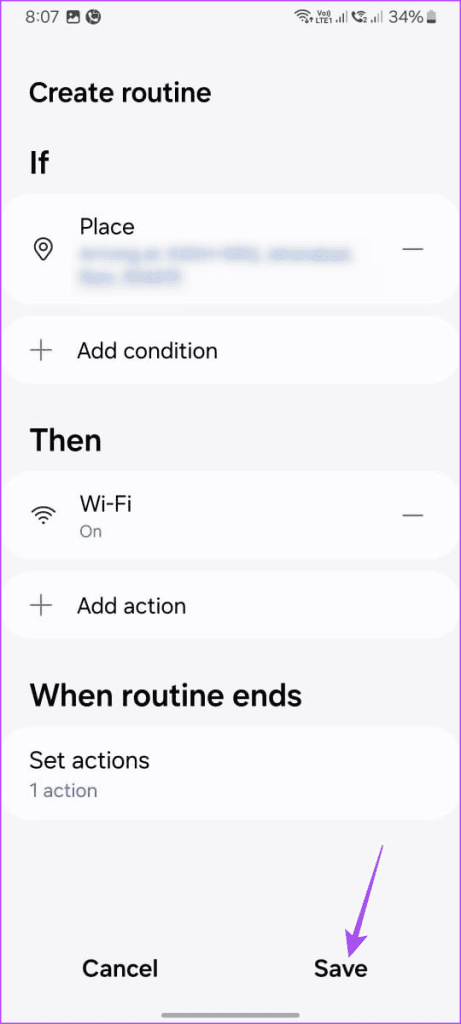
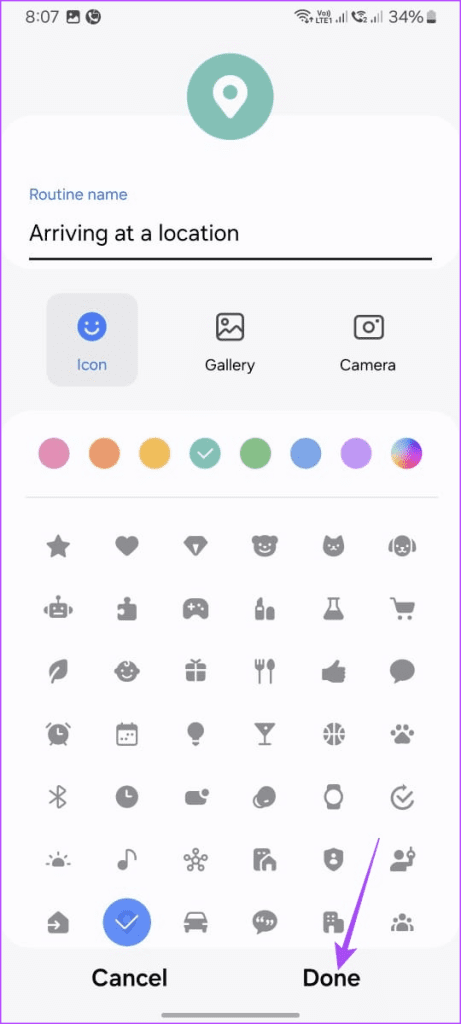
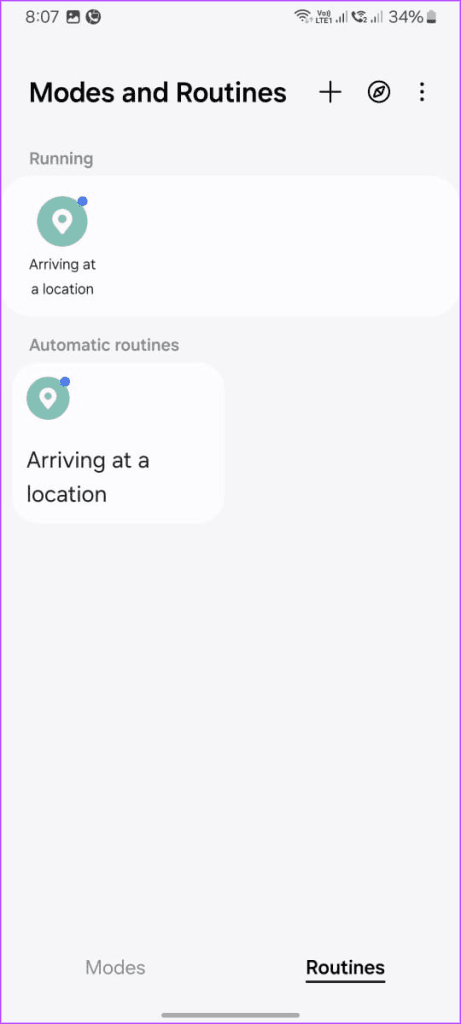
Now, whenever you arrive at the selected location, your phone will automatically connect to Wi-Fi.
Similarly, you can also create routines based on time. For example, you can set your phone to automatically turn off Wi-Fi every night when you go to bed.
Was this helpful?
Submit Cancel
Thanks for your feedback!
Keep reading