
Android
2 Fixes for Microphone Not Working on Android
If the Microphone is not working properly on your Android phone, here are some solutions that will help you fix the same.
By Paurush Chaudhary
Quick Tips
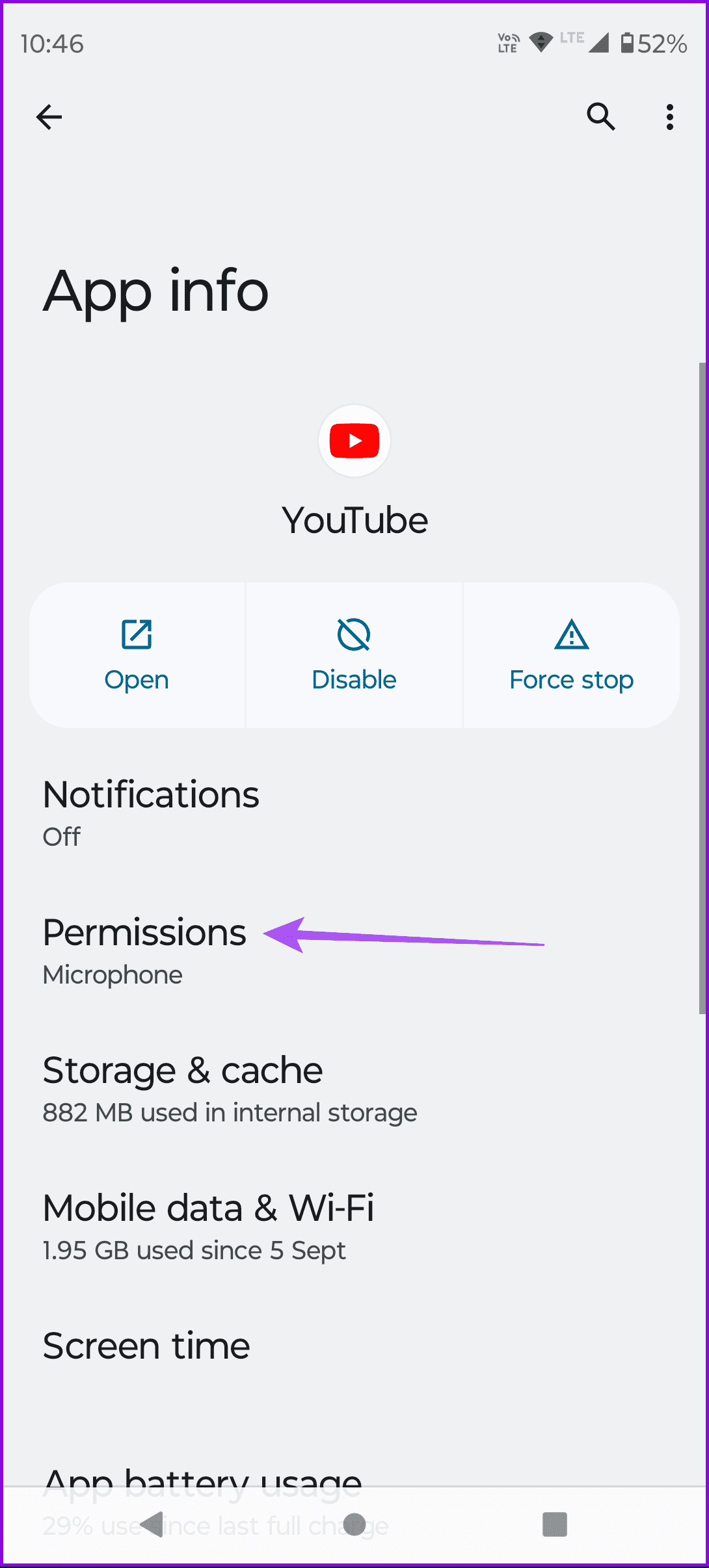
Open the app info of the respective app > Permissions > enable Microphone permissions.
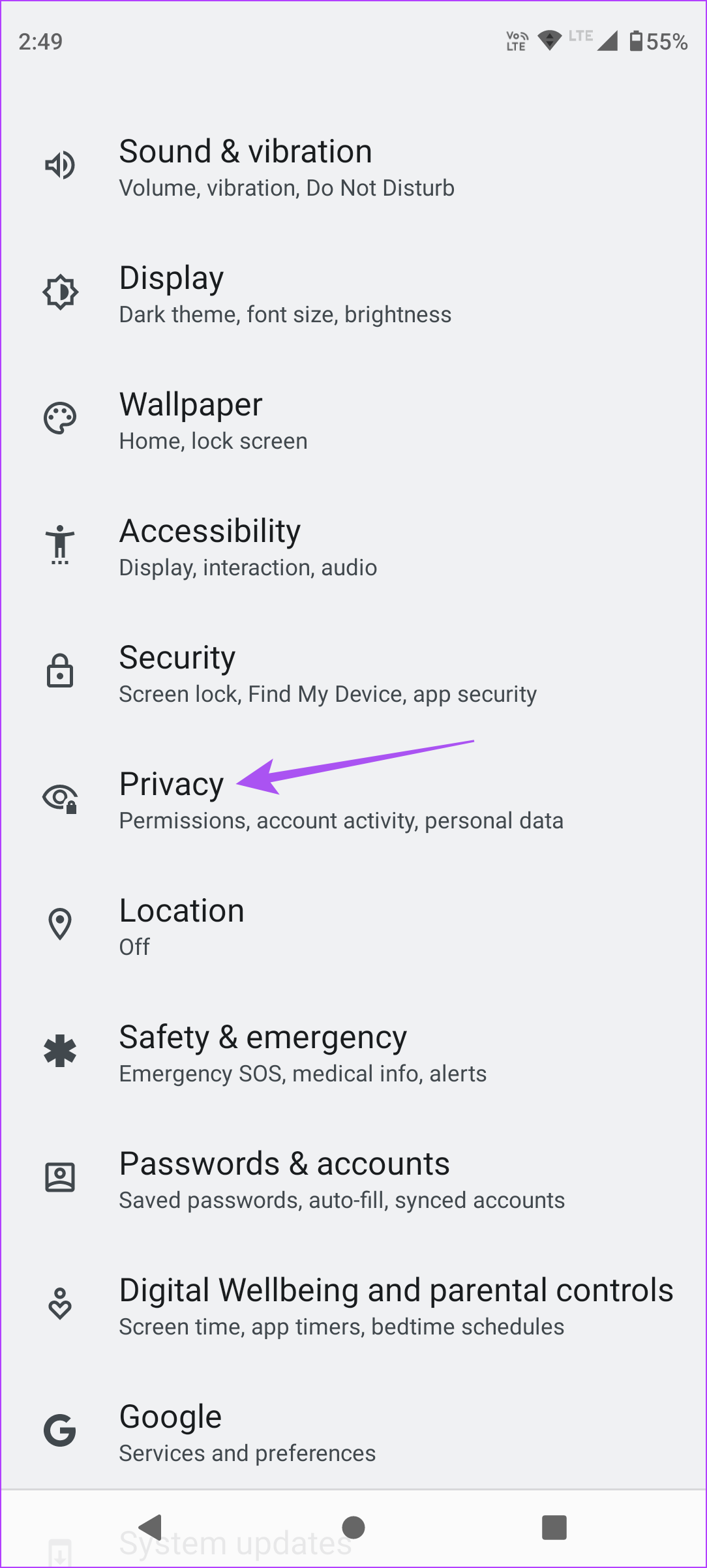
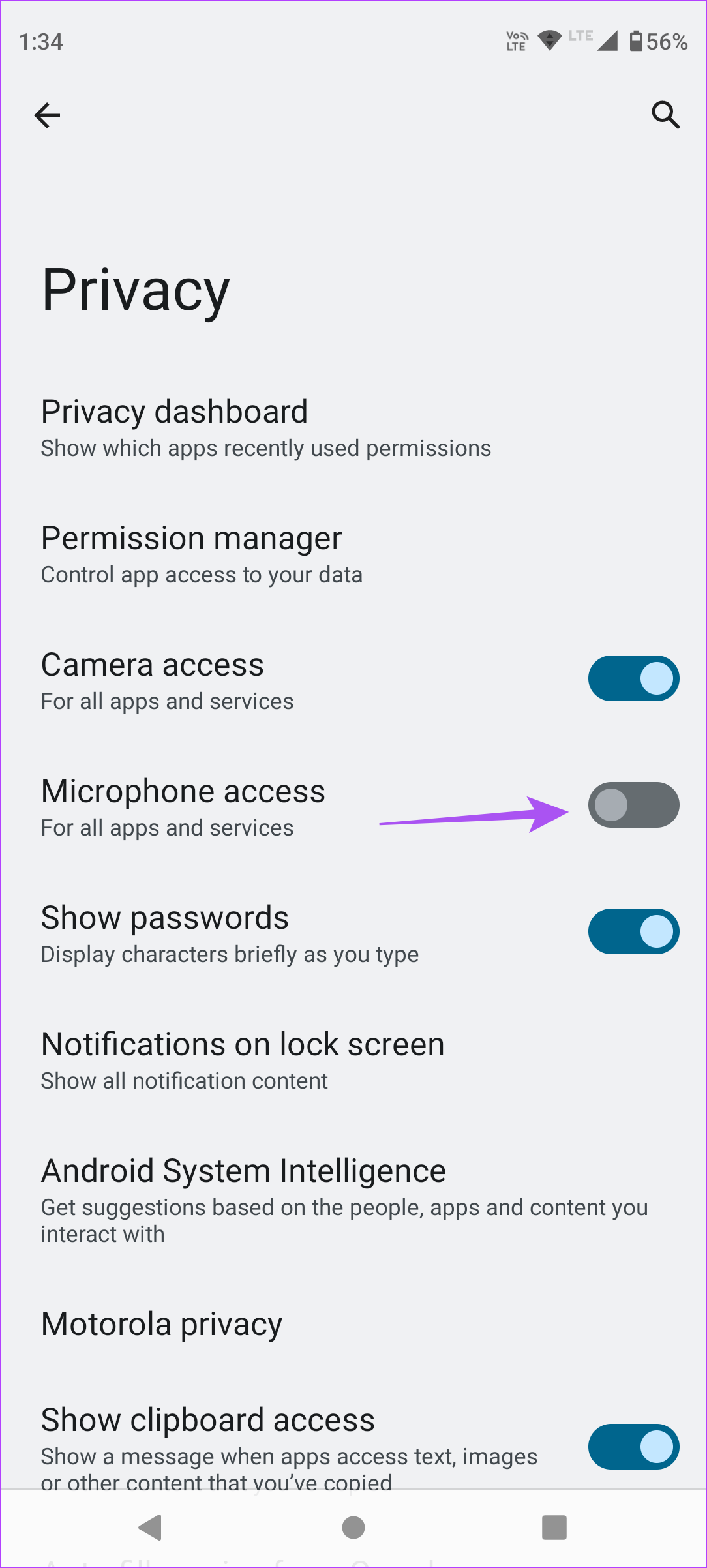
Open Settings > Privacy > enable Microphone access.
Boot your Android device in Safe Mode.
Basic Fixes
Clean your Microphone grille: The dust and debris inside the microphone can cause it to malfunction.
Turn off Bluetooth devices: If a Bluetooth device is connected, disconnect it from your Android phone.
Update the Android version and apps: Install the latest software version on your device and update the apps as well from Play Store.
Fix 1: Check Microphone Access Settings
The Privacy settings in the recent updates prevent several apps from gaining unnecessary permissions on Android. You might have disabled microphone access for apps and services on your Android.
In Settings App
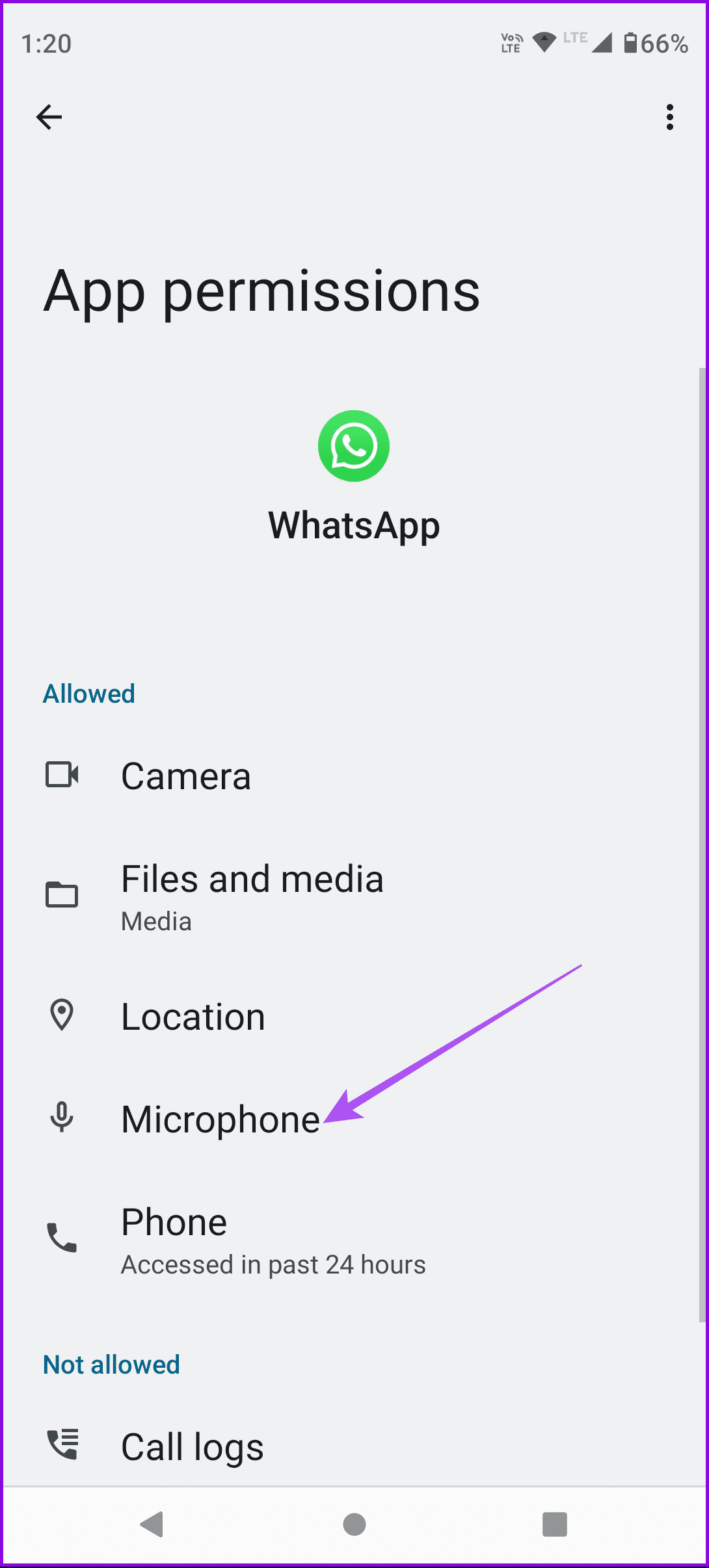
Open Settings > Privacy > enable Microphone access .
Using App Settings
Open the app info of the respective app > Permissions > enable Microphone permissions.
Tip: Check out the best USB Type-C Earbuds with Microphones for Android devices .
Fix 2: Use Safe Mode
Safe Mode is a built-in troubleshooting tool for Android phones. It lets you detect if any third-party app is causing any issue with features on your Android phone.
On Google Pixel Devices
Pixel 5a and earlier – press and hold the Power Button for a few seconds and then tap on Power Off.
Pixel 6 or later and Pixel Fold – press and hold the Power and Volume Up buttons for a few seconds > tap and hold either the Power off or Restart buttons > tap Ok .
On Samsung Galaxy Phones
Long-press the Power button > long-press the Power off option on your screen > tap on Safe Mode .
Tip: You can refer to our post in case your Android phone gets stuck in Safe Mode .
Was this helpful?
Submit Cancel
Thanks for your feedback!
Keep reading
![9 Pet Care Apps in 2024 [Free and Paid]](https://bcdn.seocloud.biz/seo-articles/82a3ce5485f5bc506feb1226aca9bcb4/cover.jpg)