Android
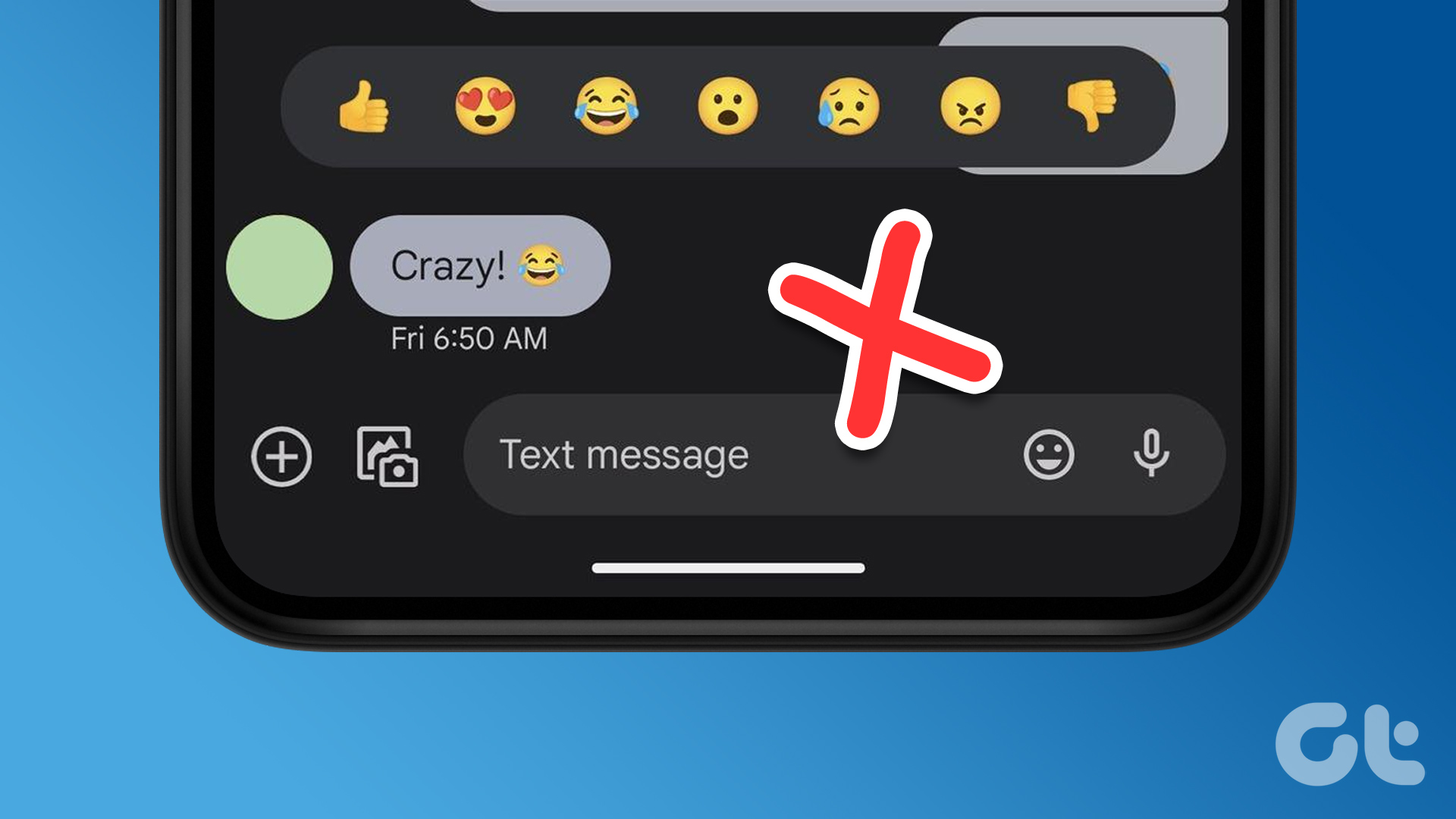
3 Fixes if Reactions Are Not Working on Google Messages
If the Message Reactions feature is not working on your Android phone, here are the solutions to help fix the issue.
By Paurush Chaudhary
Quick Tips
Check and enable chat features in the Google Messages app. Open the app > Profile icon > Messages Settings > Chat Features > enable the feature.
Enable emoji reactions for messages you receive from your iPhone. Do note that this applies only to US users.
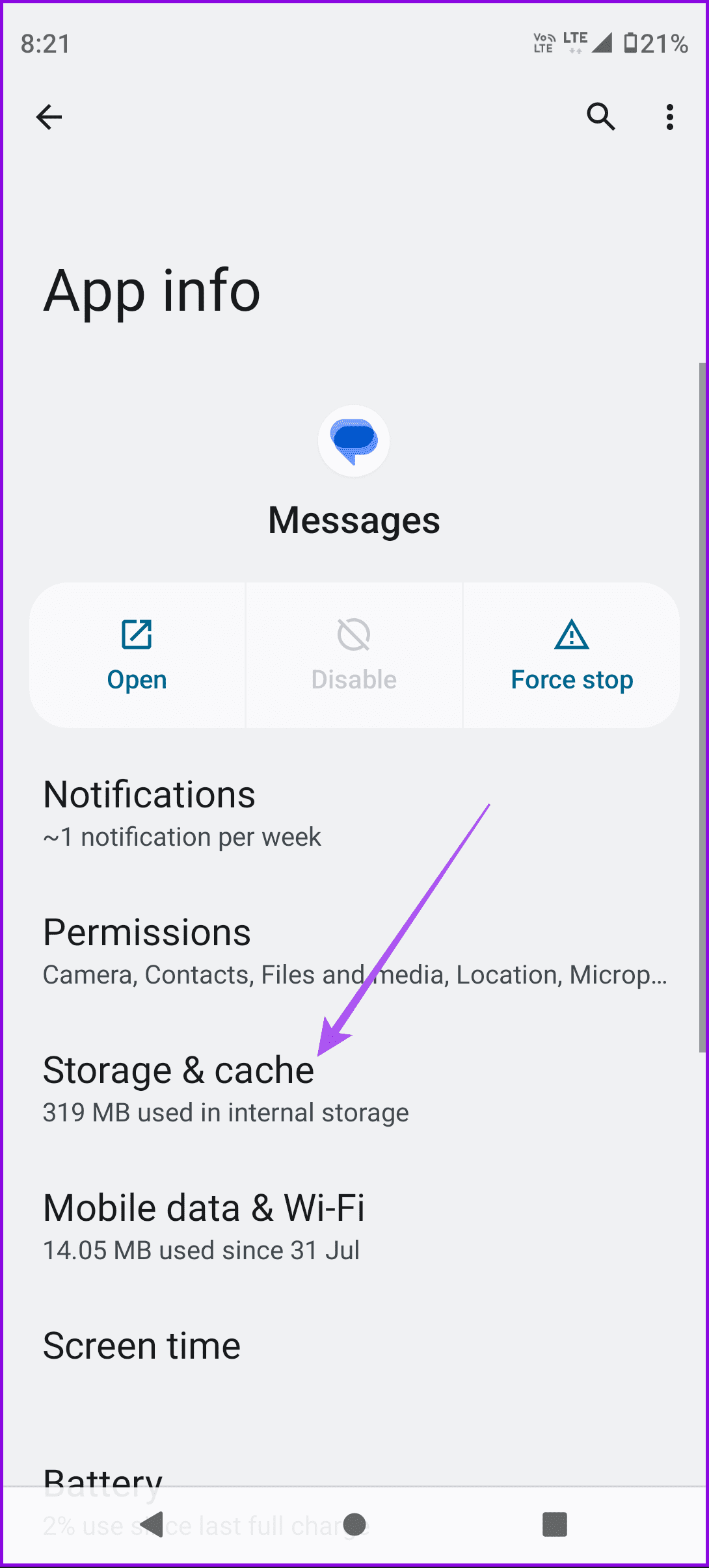
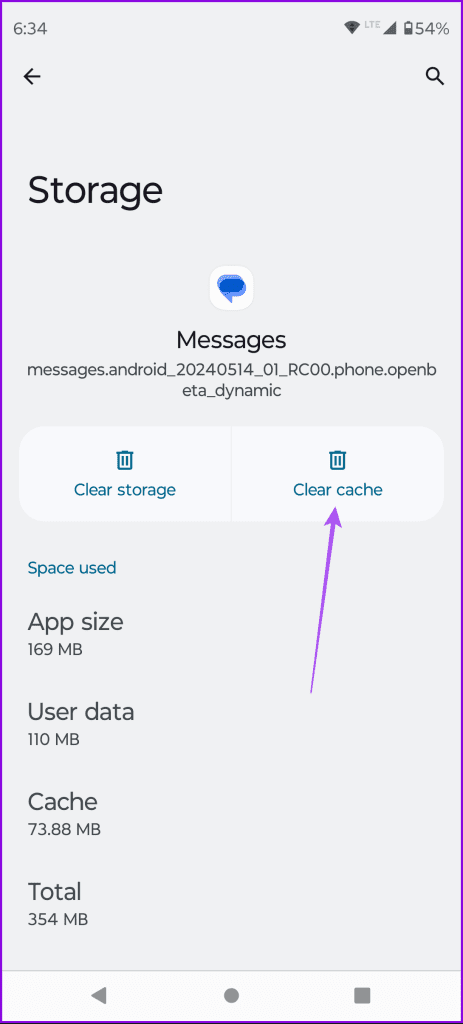
Clear the app cache for the Messages app by opening App Info > Storage and cache > Clear cache.
Basic Fixes
Force quit and relaunch Google Messages : This will give the app a fresh start.
Update Google Messages and Android OS version : This will rid the app of bugs that are causing the issue.
Fix 1: Check if Chat Features Are Enabled
Message Reactions on Android won’t work unless you enable Chat Features or RCS Messaging. These are requirements so that your messages aren’t sent as MMS, and you’ll be charged a lot for them.
Step 1: Open the Messages app on your Android phone.
Step 2: Tap the profile icon at the top-right corner and tap on Messages Settings .
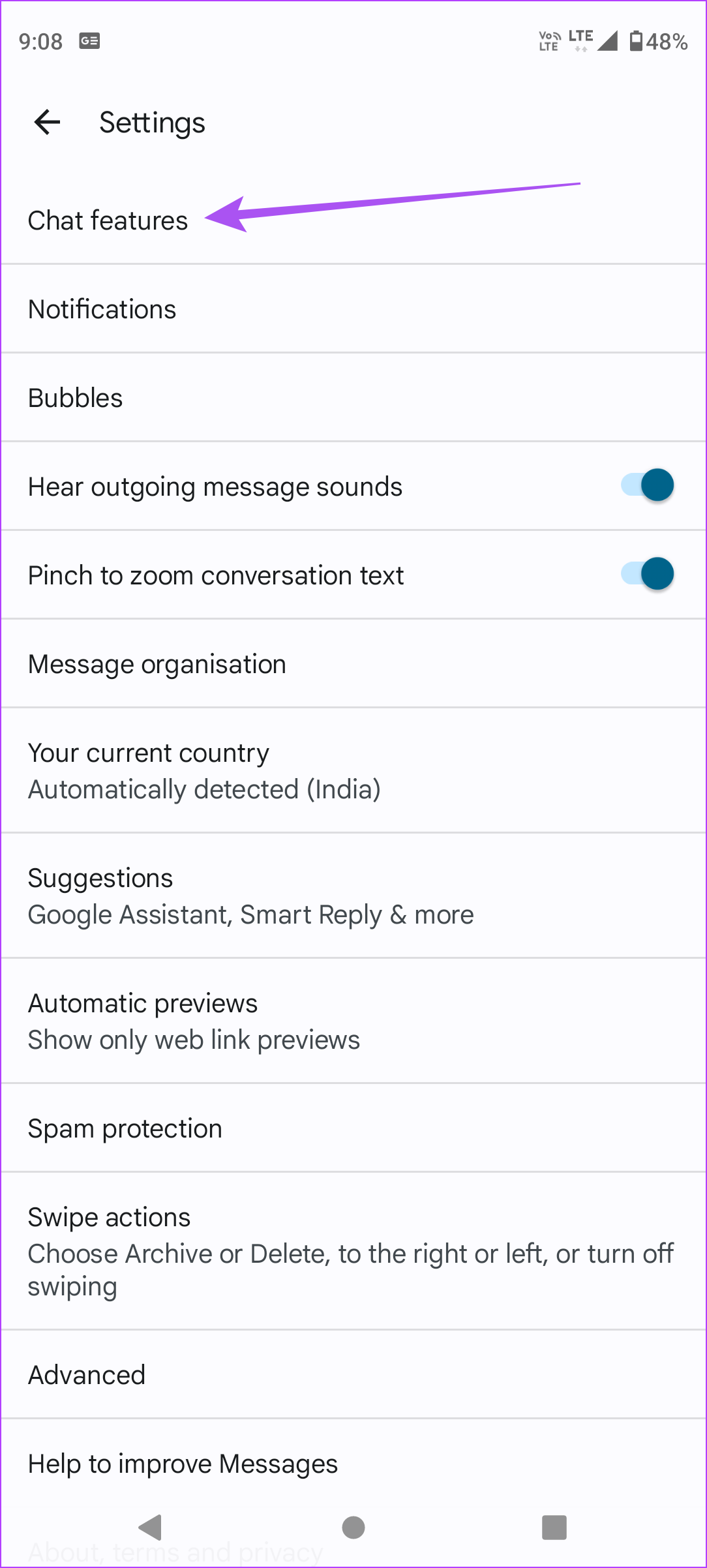
Step 3: Tap on Chat Features and enable the toggle for Enable Chat Features .
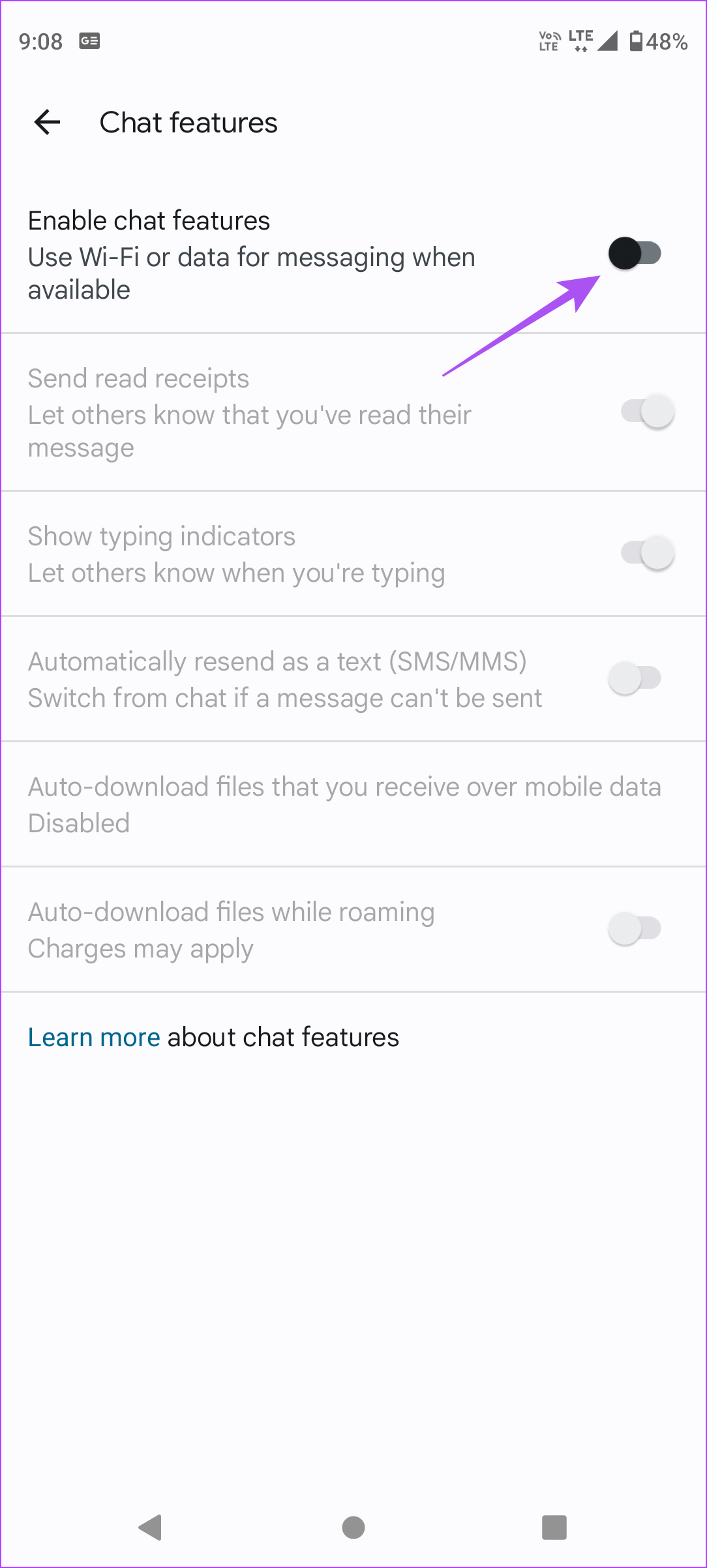
Step 4: Tap on Verify Your Number and follow the on-screen instructions.
Wait until your number is verified. Then, try sending a Message Reaction to your contact with Chat Features enabled in the Messages app.
Fix 2: Check if iPhone Reactions Are Enabled
Please note that you can react only to text messages and not images. This feature is available only for users in the United States .
Step 1: Open the Messages app on your Android phone.
Step 2: Tap the profile icon at the top-right corner and then tap on Messages Settings .
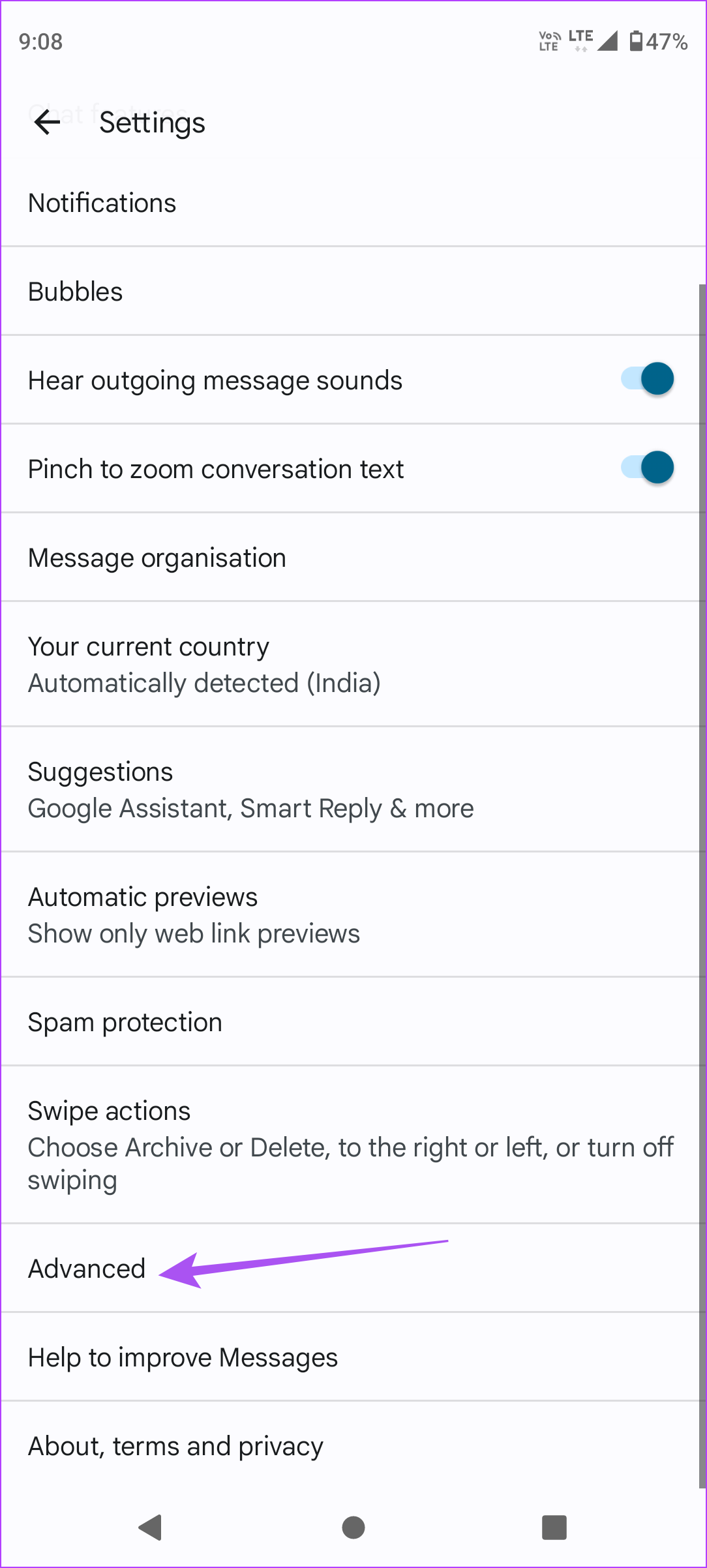
Step 3: Scroll down and tap on Advanced . Then, check if the toggle for Show iPhone Reactions as Emoji is enabled.
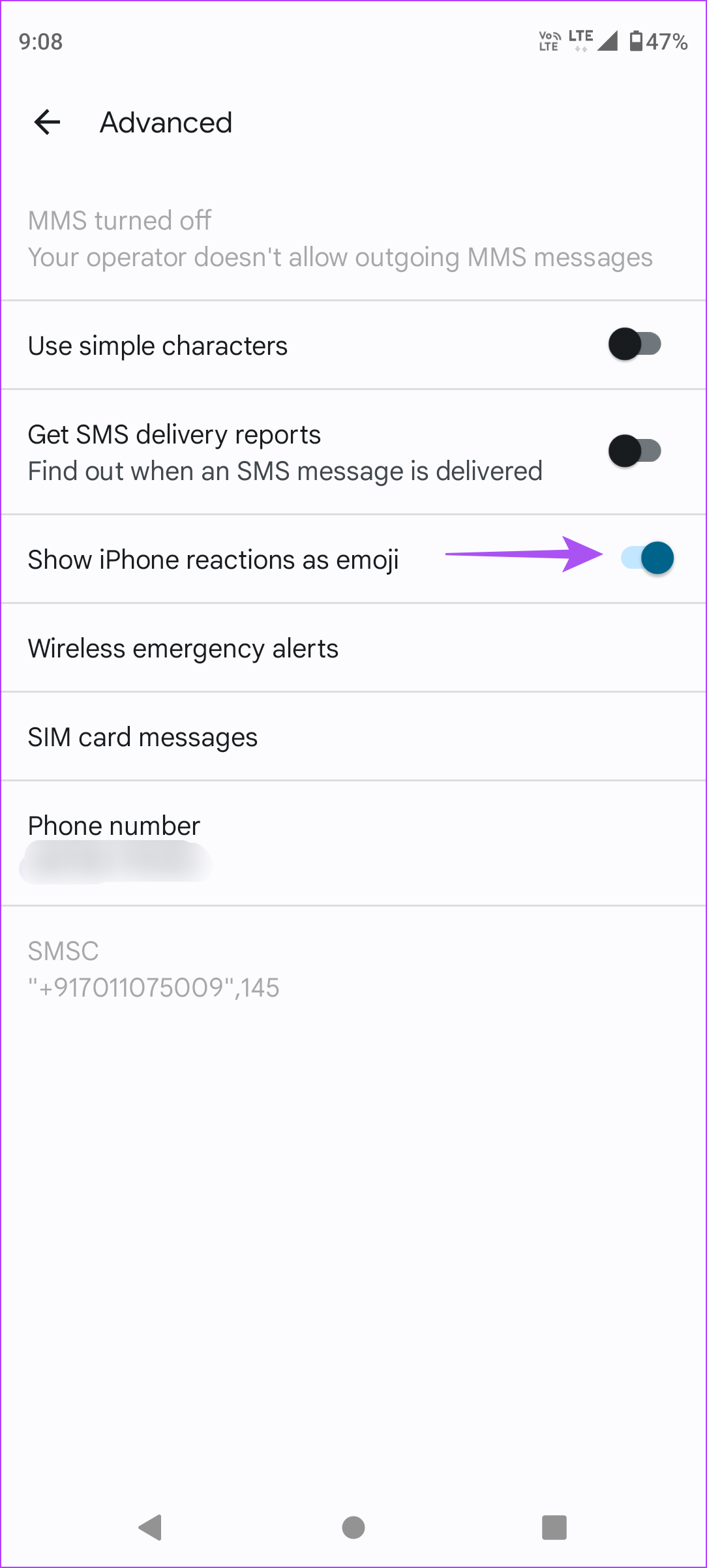
Step 4: Go back to the chat window and check if the problem is solved.
Fix 3: Clear Messages App Cache
The app cache gets corrupted over extended periods of app usage. You can try clearing the app cache and check if the problem is solved.
Step 1: Long-press the Messages app icon and select App Info .
Step 2: Tap on Storage and Cache > select Clear cache .
You can also refer to our post on transferring SMS from Android to Android .
Was this helpful?
Submit Cancel
Thanks for your feedback!
Keep reading