Android
3 Ways to Hide Photos and Videos on Samsung Galaxy Phones
Do you want to hide specific photos and videos from others on your Samsung Galaxy phone? Here are the best three ways to hide media files on Galaxy phones.
By Parth Shah
Quick Tips
You can use Samsung’s Secure Folder, Google Photos’ Locked Folder, or OneDrive’s Personal Vault to keep your confidential photos and videos hidden from others.
If you choose Google Photos or Microsoft OneDrive to hide your photos and videos, you can also view them on a desktop or via the web.
Method 1: Use Secure Folder
With Samsung’s Secure Folder, you can hide apps, documents, media, and more. Here’s how to use it to hide your photos and videos:
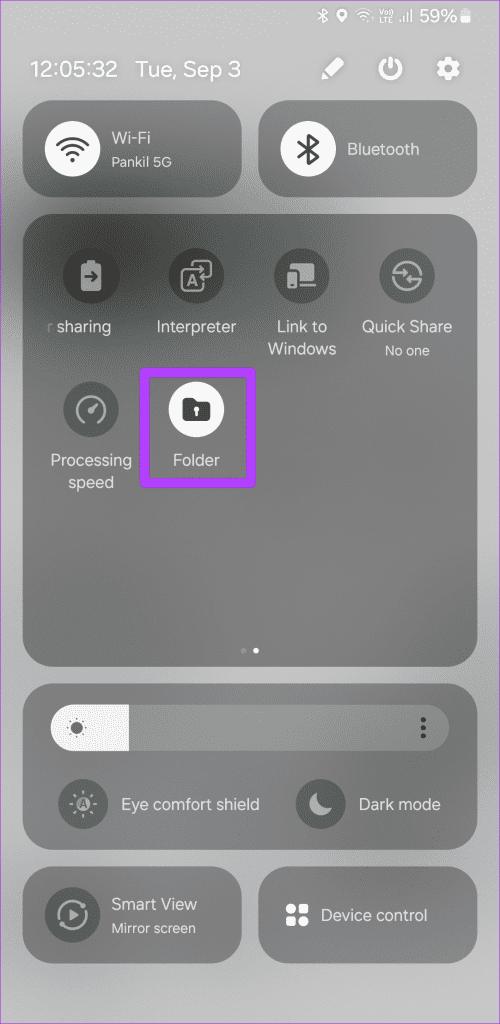
Step 1: Swipe down from the top to access the quick settings menu. Then, tap Folder to enable Secure Folder.
Step 2: Open the Gallery app and go to the photo or video you want to hide.
Step 3: Tap the three-dot menu in the top-right corner and select Move to Folder .
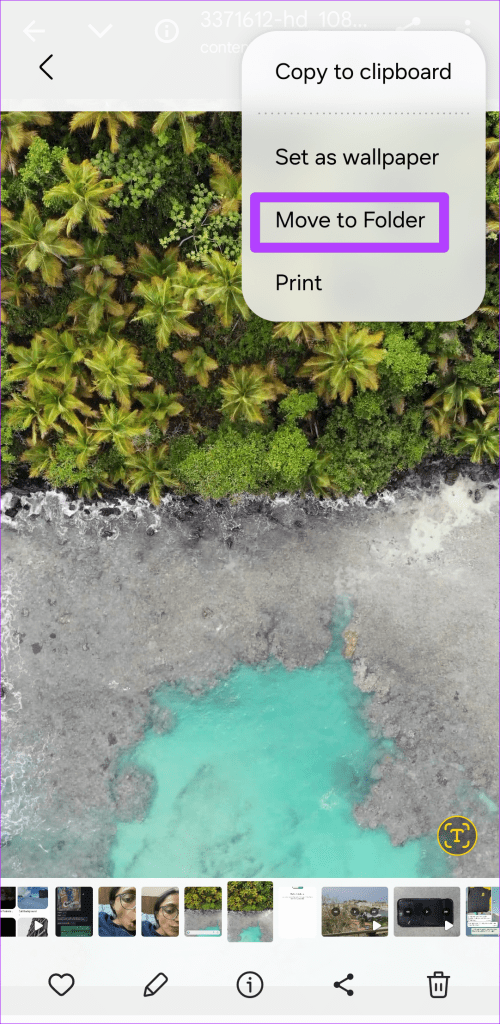
You can also select multiple images or videos and move them directly to the Secure Folder. You can then open Secure Folder to view your hidden files.
Method 2: Use Locked Folder in Google Photos
The default Gallery app on Android—Google Photos—also offers the ability to hide photos and videos in its Locked Folder. Here’s how to use it.
Step 1: Open the Google Photos app on your phone.
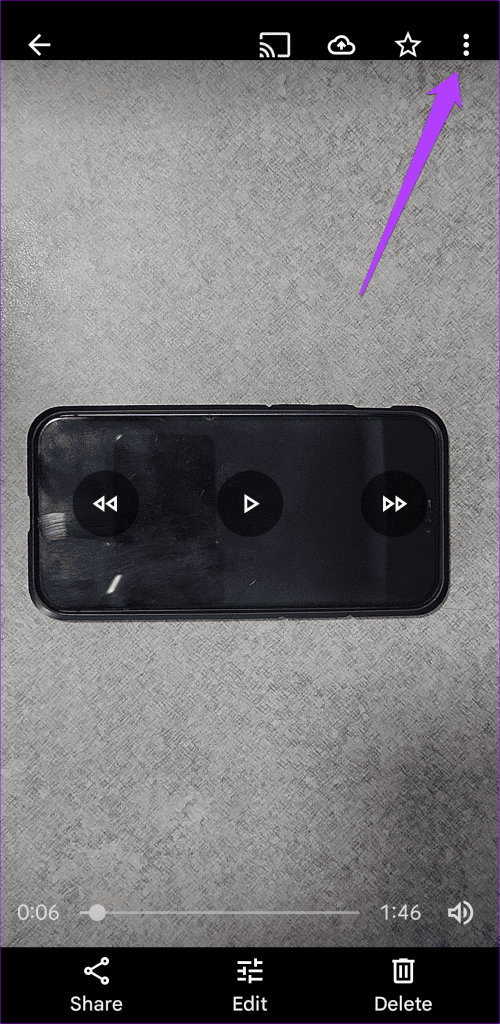
Step 2: Find the photo you want to move to the Locked Folder. Tap the three-dot menu icon in the top right corner.
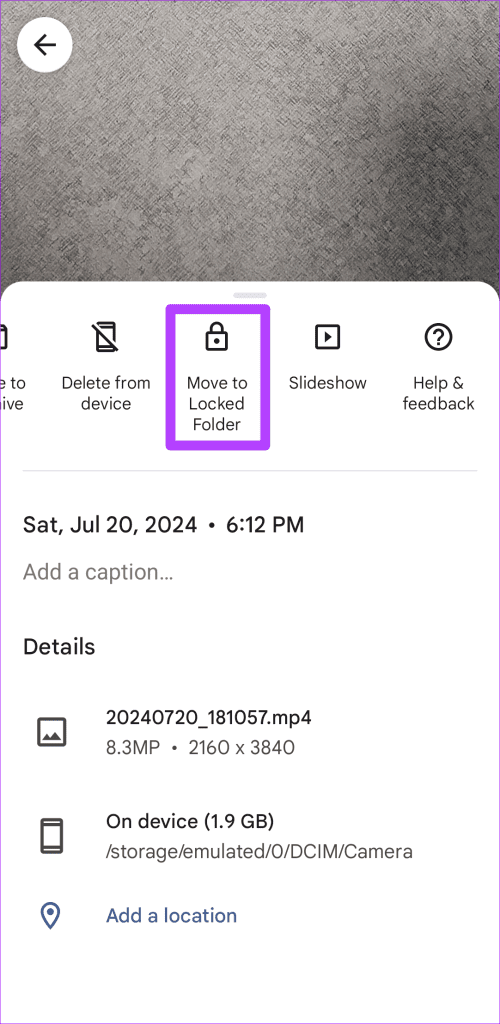
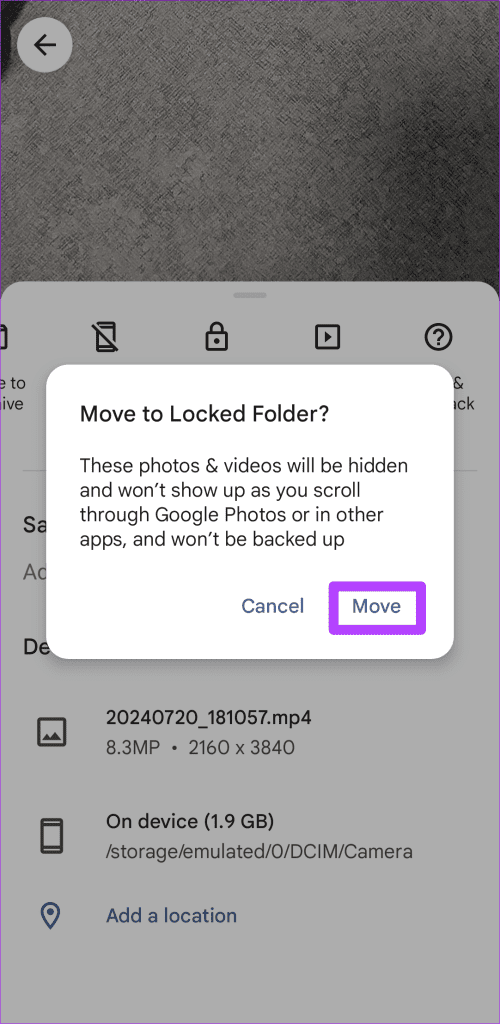
Step 3: Select Move to Locked Folder and hit Move to confirm. You will be prompted to set up Locked Folder if you haven’t used it before.
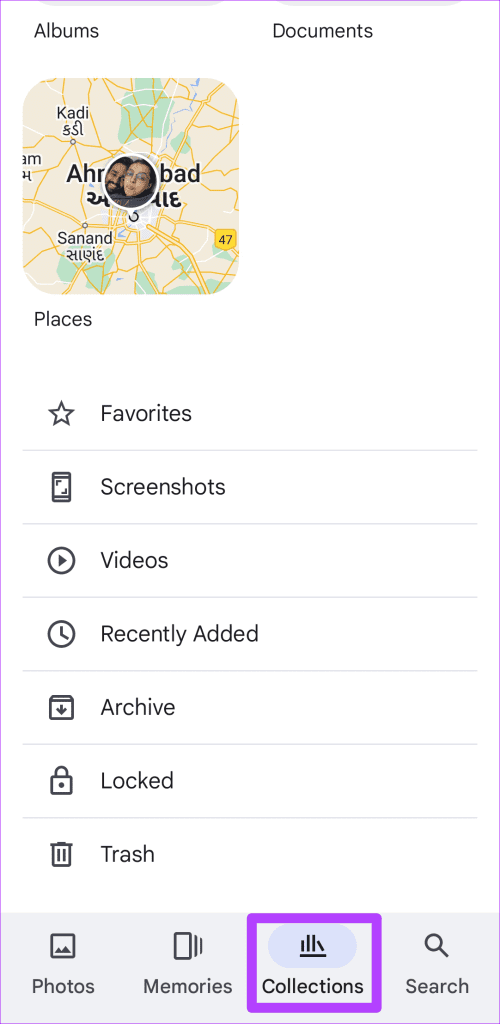
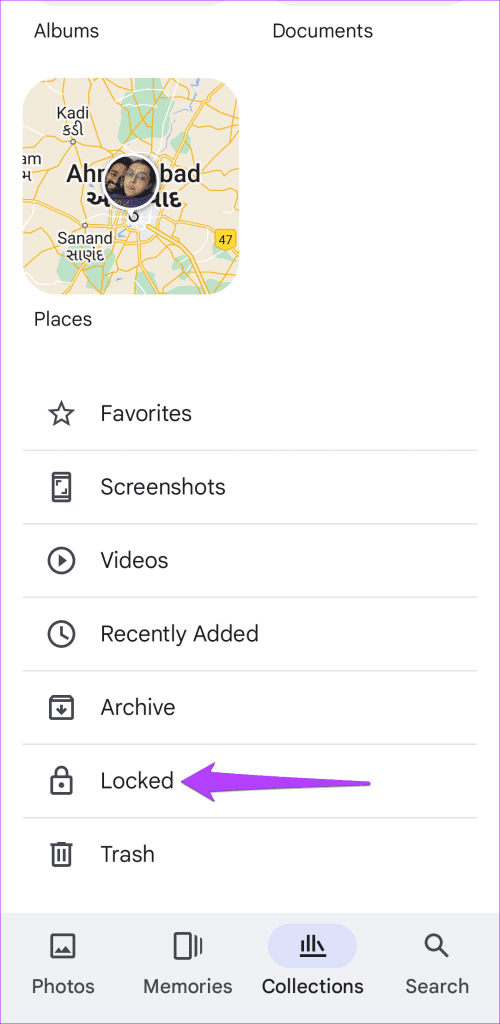
Step 4: You can go to Collections > Locked to view your hidden photos and videos.
Method 3: Use OneDrive Personal Vault
Microsoft OneDrive comes by default on all Galaxy phones . The cloud storage app offers the Personal Vault function to hide confidential media files. Here’s how you can use it.
Step 1: Open the OneDrive app on your Galaxy phone.
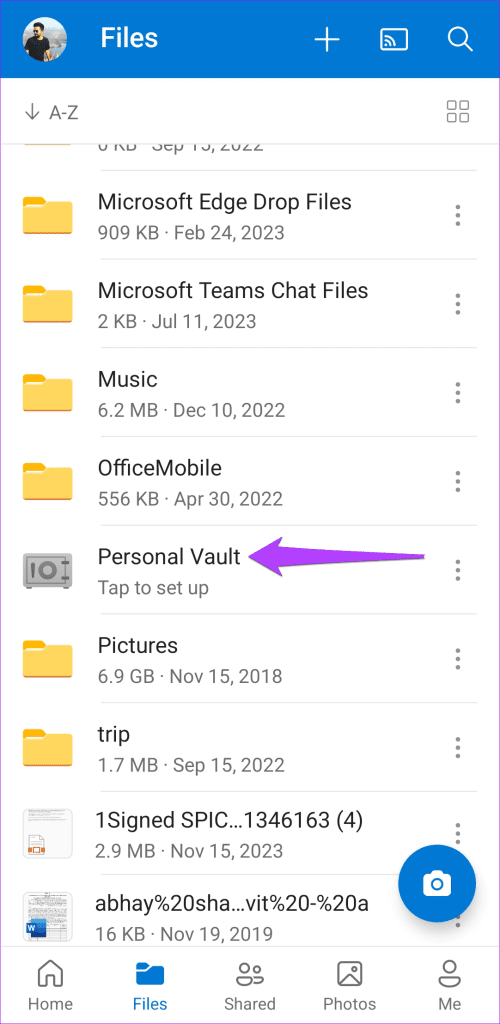
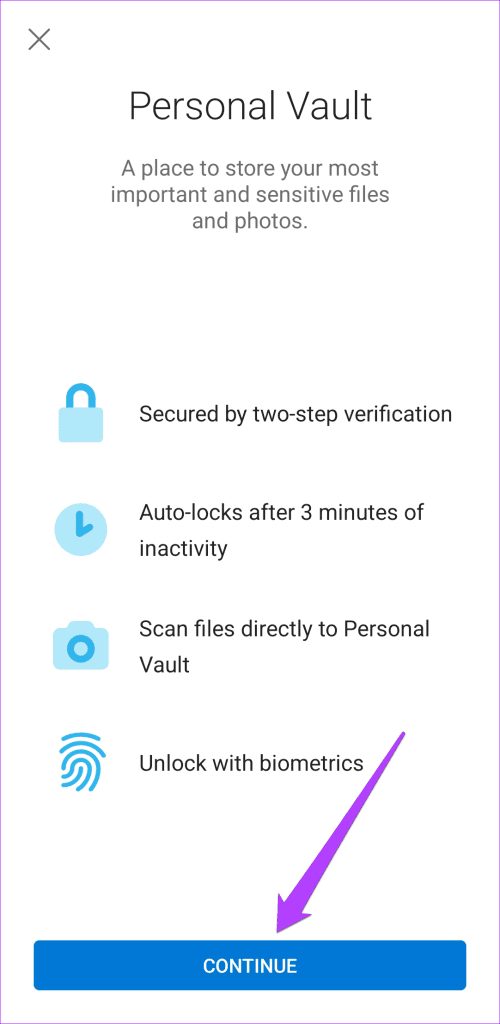
Step 2: Go to the Files tab and select Personal Vault . You will be prompted to set up the Personal Valut if you haven’t used it before. Tap Continue to proceed.
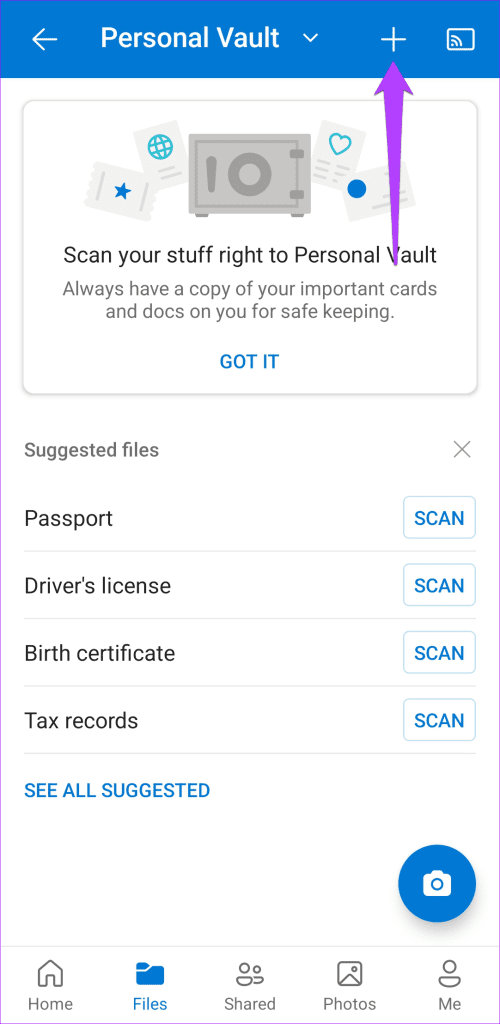
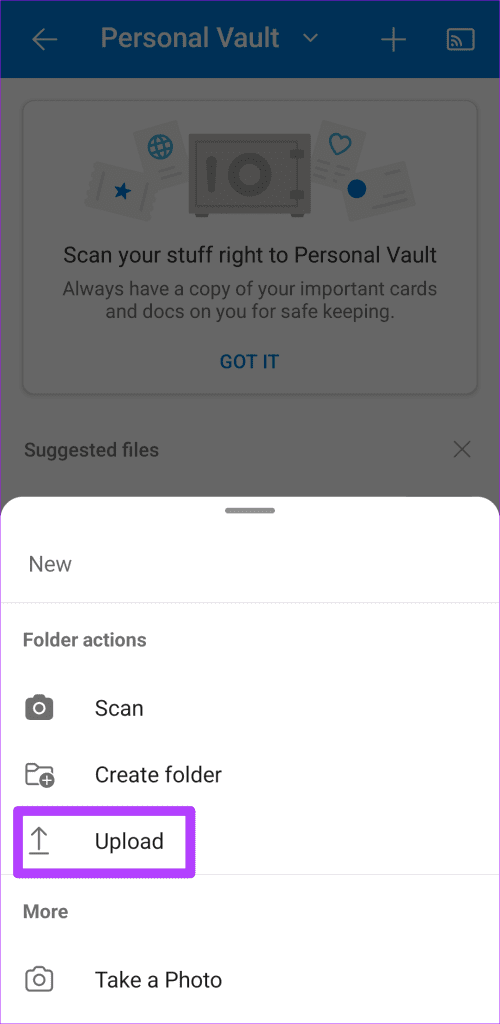
Step 3: Once you are in Personal Vault, tap the + icon in the top-right corner and select Upload .
Step 4: Select photos that you want to hide and move them to Personal Vault.
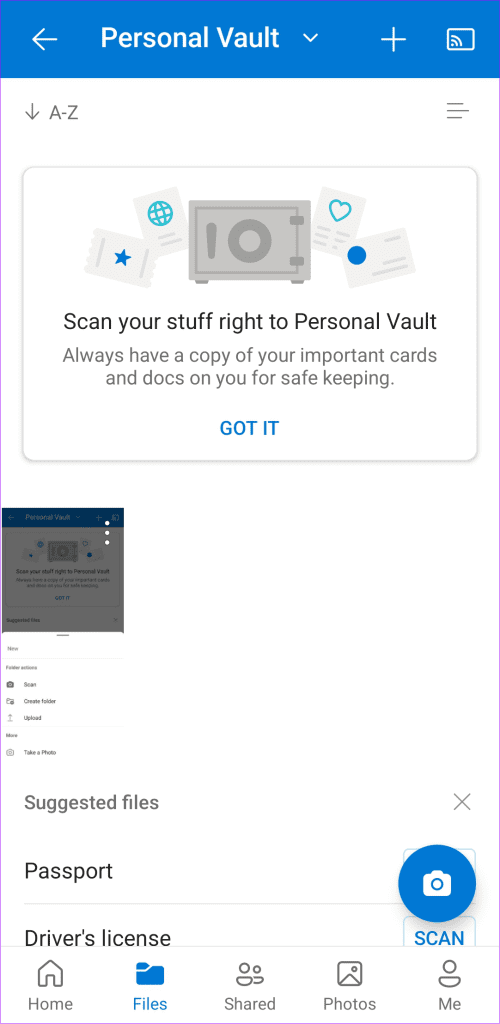
Do note that Microsoft OneDrive will upload all the media files on the cloud. That way, you can access hidden images and videos from the OneDrive app on desktop too. Once you hide media files in the OneDrive Personal Vault, you need to go back to the Gallery app and delete uploaded media files from the phone’s storage.
Was this helpful?
Submit Cancel
Thanks for your feedback!
Keep reading