Android
4 Fixes for Android Not Showing Contact Names for Incoming Calls
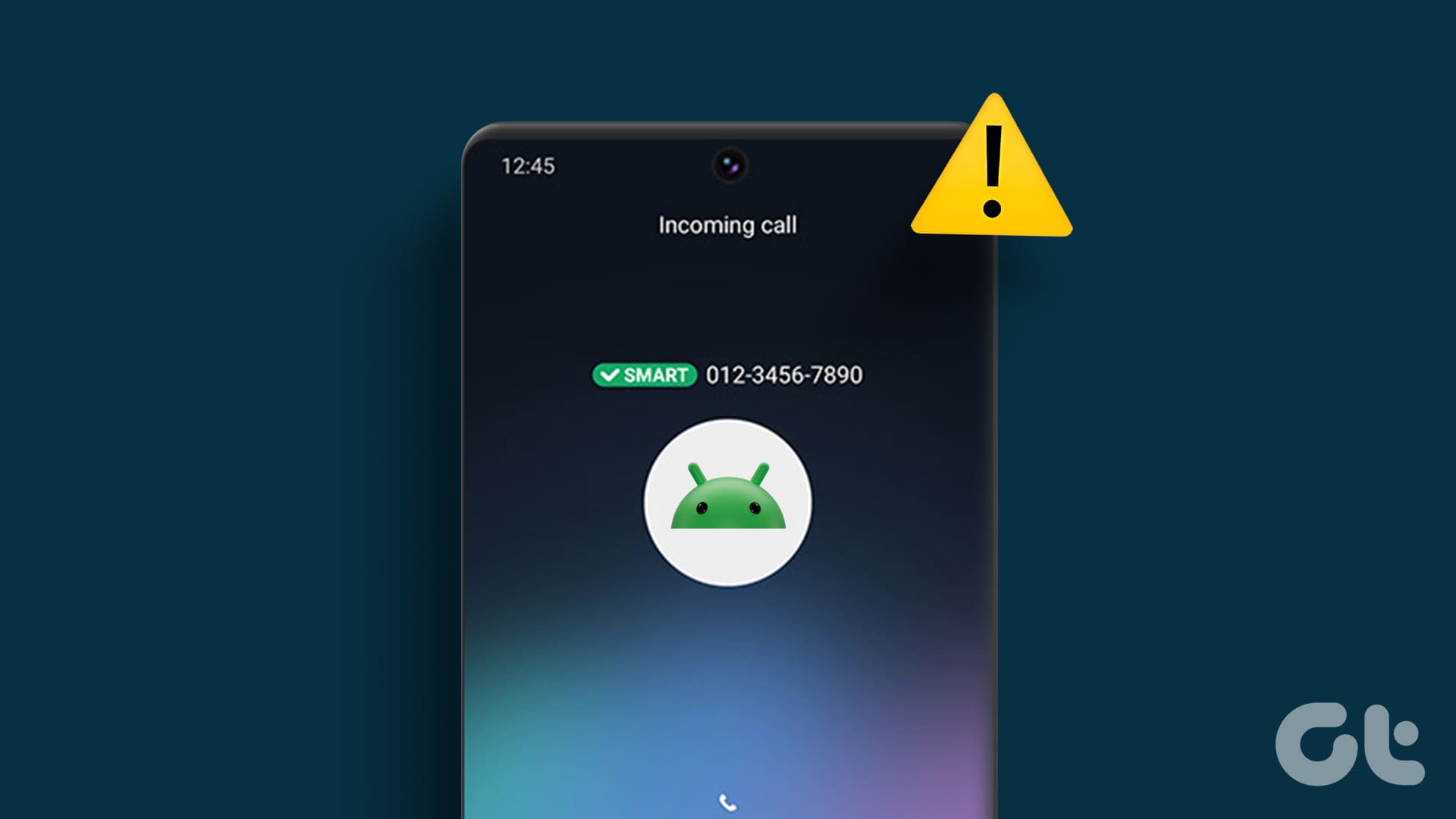
Is your Android phone not showing contact names during incoming calls? Apply these tips to fix the problem and avoid any confusion.
By Pankil Shah
Quick Tips
Bugs within the default Phone app on your Android can cause anomalies, so make sure to update it from the Play Store.
Ensure the Phone app is allowed to access your contacts list and that contact sync is enabled.
Consider clearing the Phone app cache to fix issues caused by temporary app files.
Fix 1: Allow the Phone App to Access Your Contacts
Like most apps, the Phone app on your Android also requires permission to access your contact list. If you have previously disallowed this permission to the Phone app, your Android will display numbers instead of contact names during incoming calls.
To allow the Phone app to access your contacts:
Step 1: Long-press on the Phone app icon and tap the info icon from the resulting menu.
Step 2: On the App info page, select Permissions .
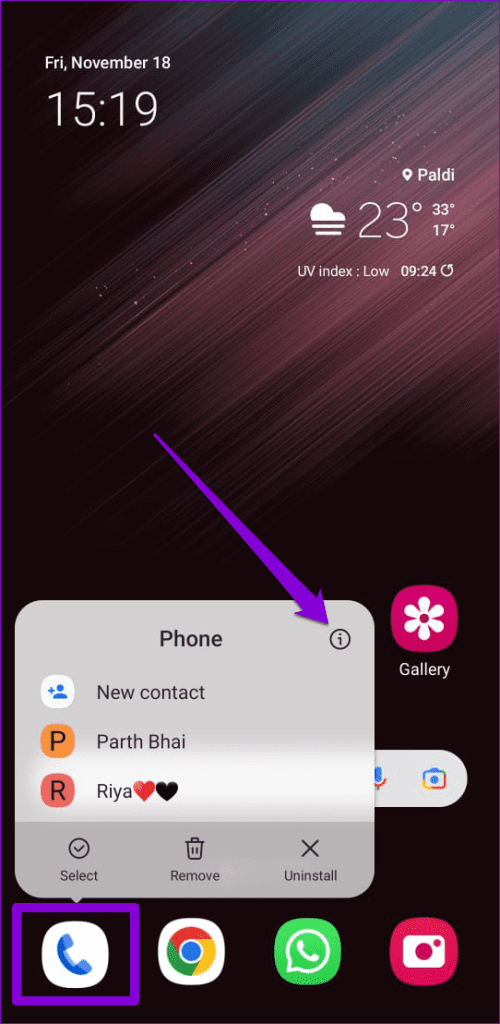
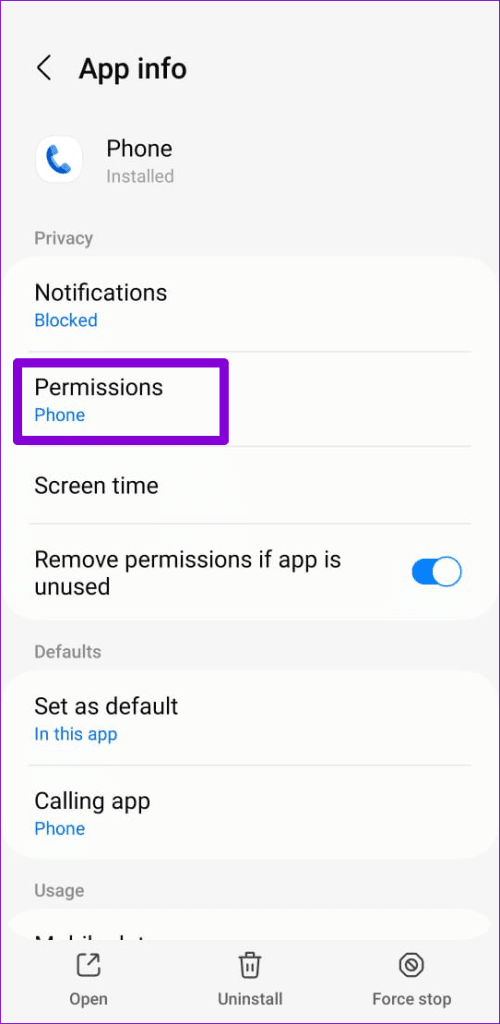
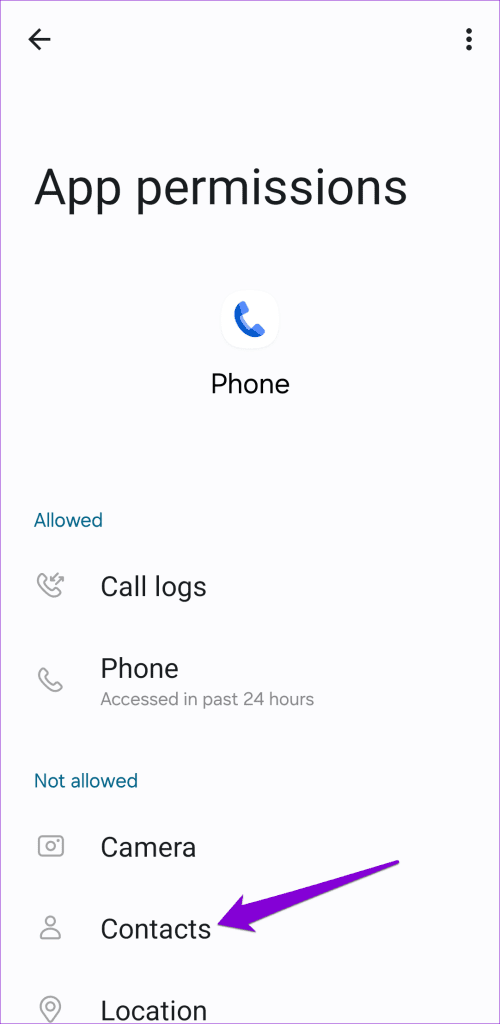
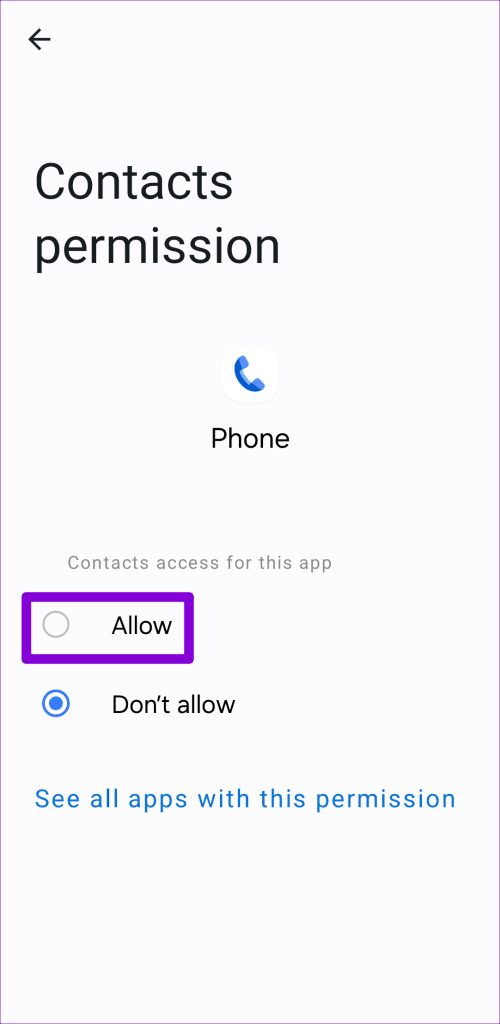
Step 3: Tap on Contacts and select Allow from the following menu.
Fix 2: Enable Contact Sync
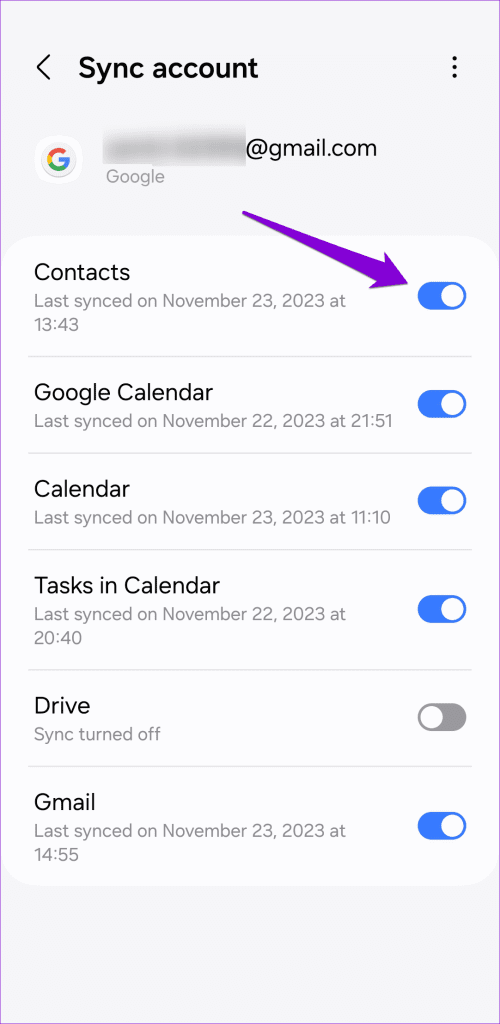
Enabling contact permission for the Phone app may not help much if your Android is not syncing any contacts. In that case, you may also have trouble searching for contacts on your Android phone . To avoid these issues, you should enable contact sync on your Android using these steps:
Step 1: Open the Settings app and scroll down to tap on Accounts and backup .
Step 2: Tap on Manage accounts and select your Google account from the following menu.
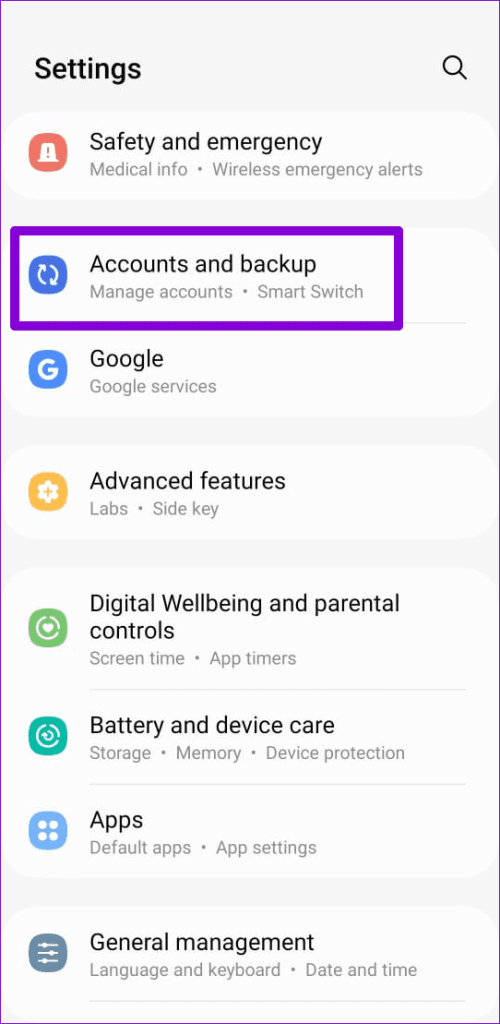
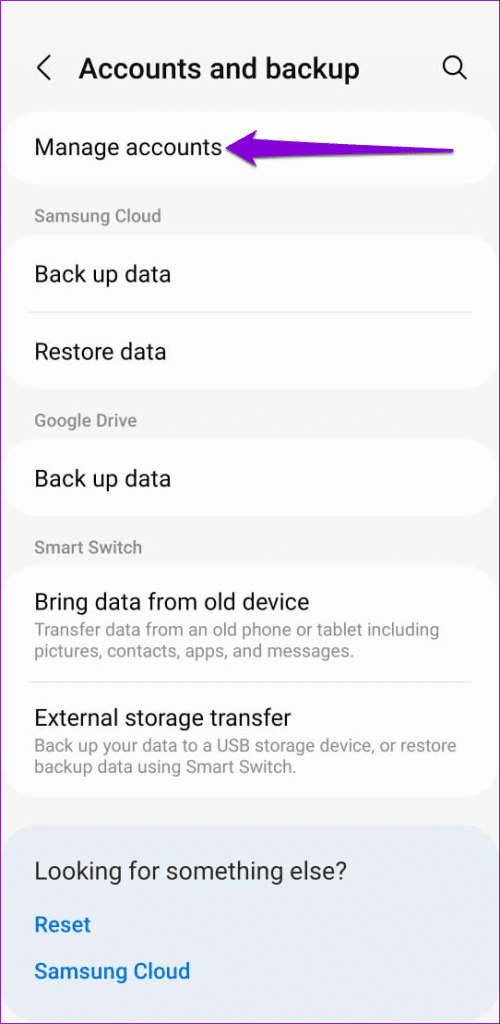
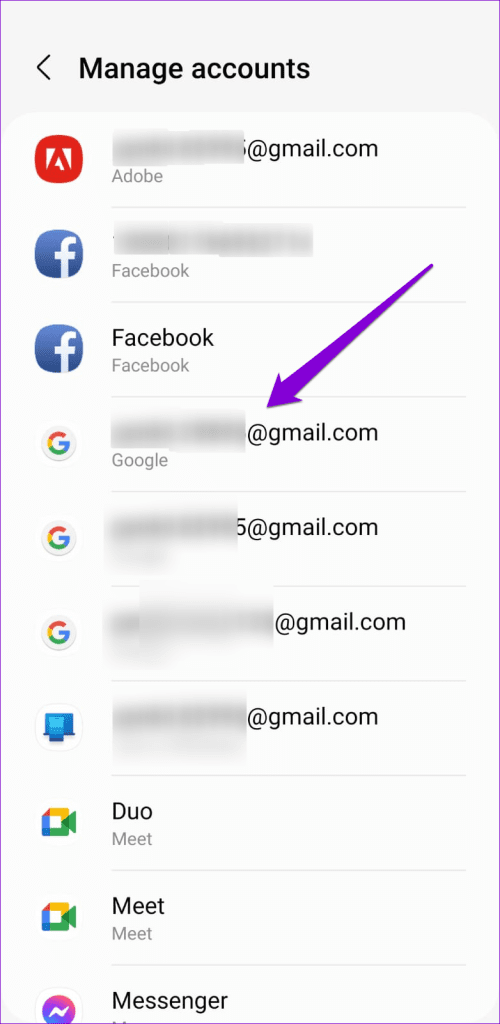
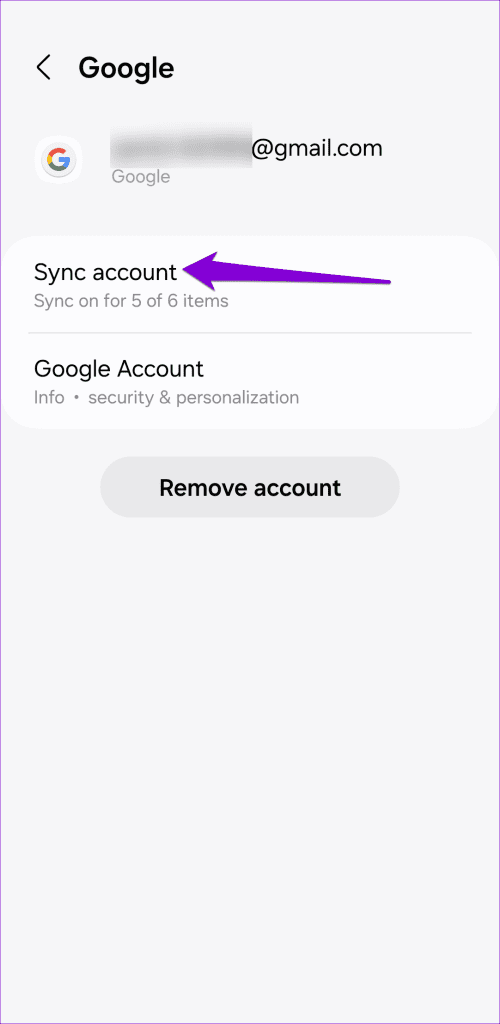
Step 3: Tap on Sync account and enable the toggle next to Contacts .
Fix 3: Remove the Problematic Contact and Add It Again
Is your Android phone not showing the contact name for a specific person only? If so, delete the contact from your phone and add it back. Here’s how you can go about it.
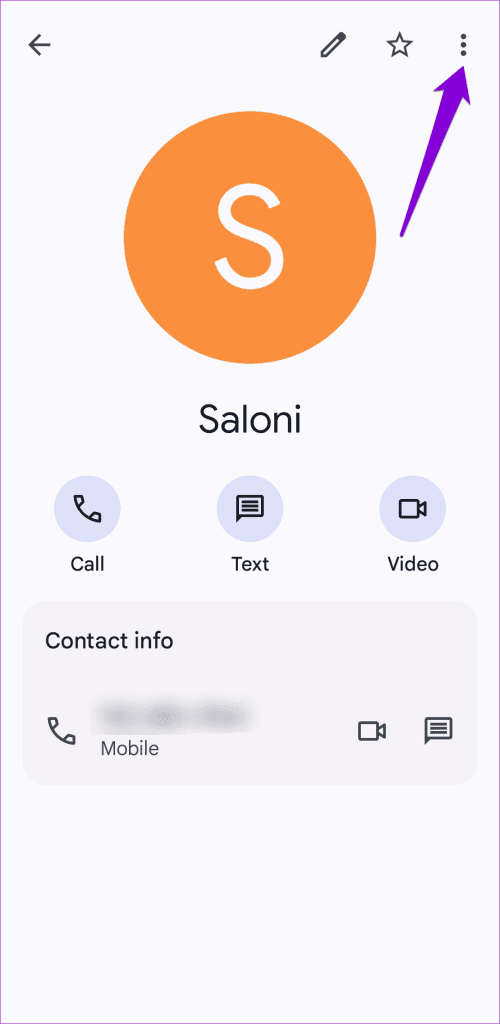
Step 1: Open the Contacts app. Locate the problematic contact on the list and tap on it.
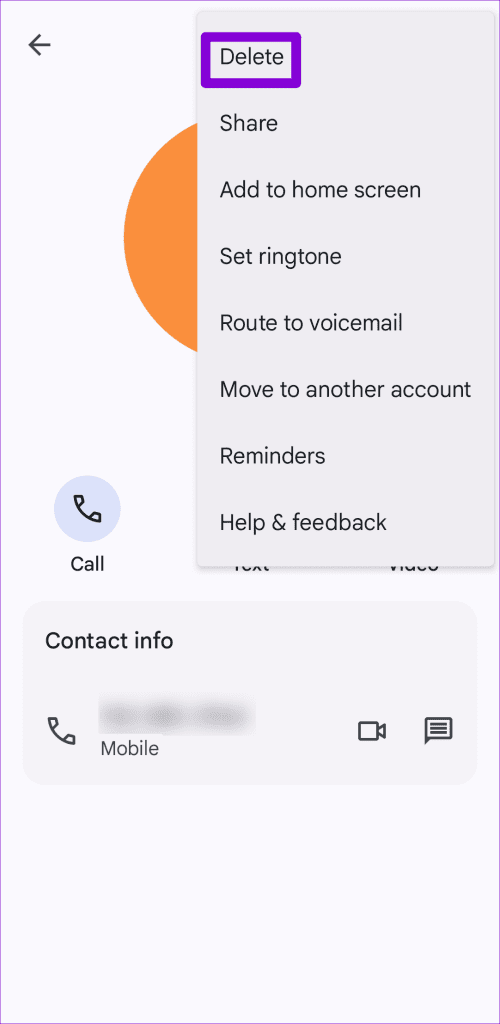
Step 2: Tap the three-dot menu icon at the top-right corner and select Delete from the resulting menu.
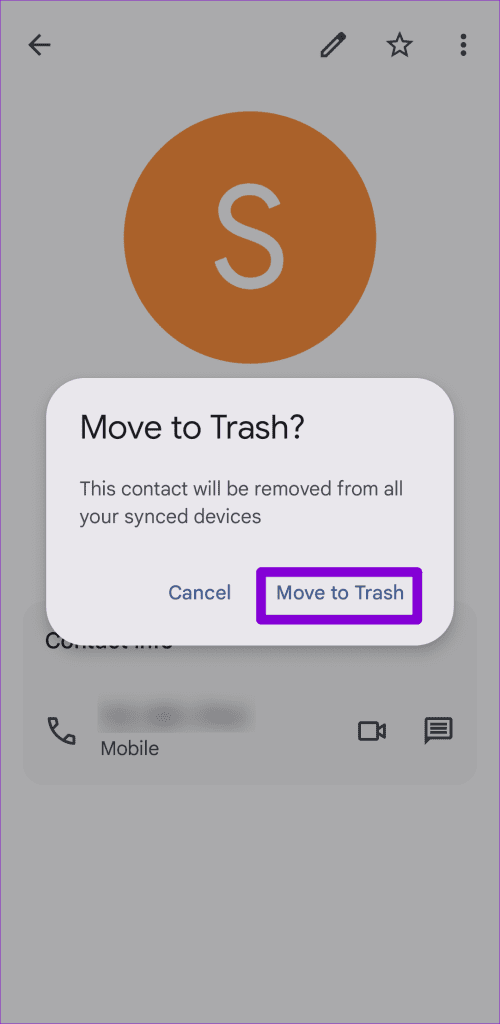
Step 3: Tap Move to Trash to confirm.
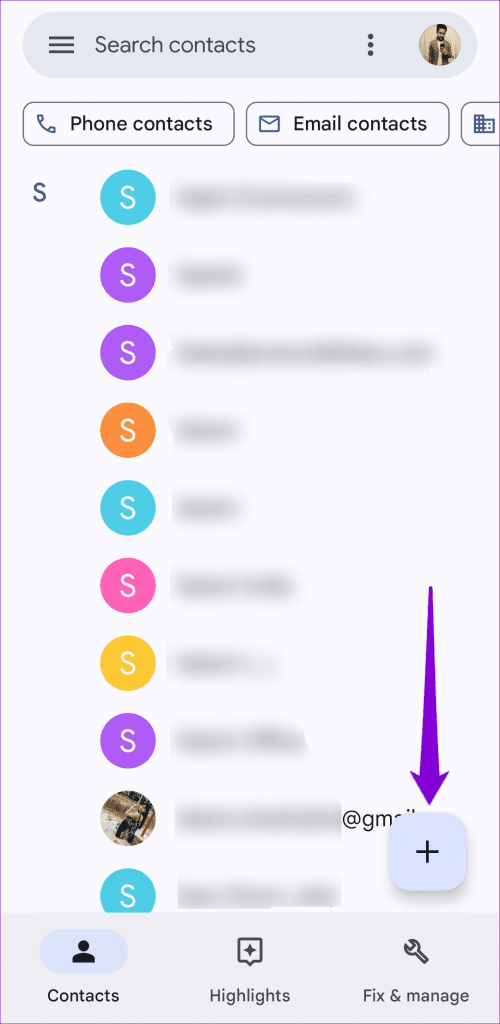
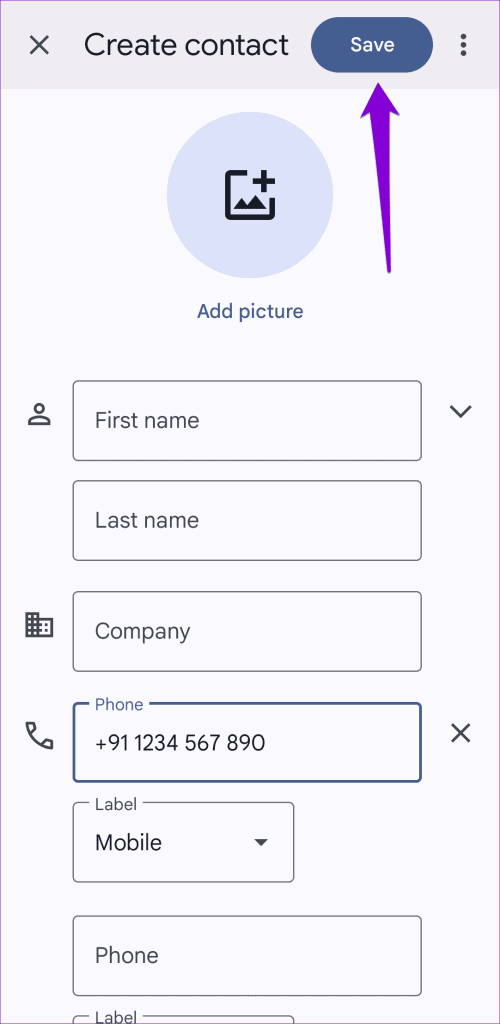
Step 4: Return to the Contacts app, tap the plus icon in the bottom-right corner, and add your contact again. If you are saving a number with a different country code than yours, specify the relevant country code as well.
Fix 4: Clear Phone App Cache
This is a rudimentary fix that can help fix issues with most apps on your Android, including the Phone app. If the issue occurs due to a bad or outdated cache, clearing it should help fix the problem. This won’t affect your call logs or app settings.
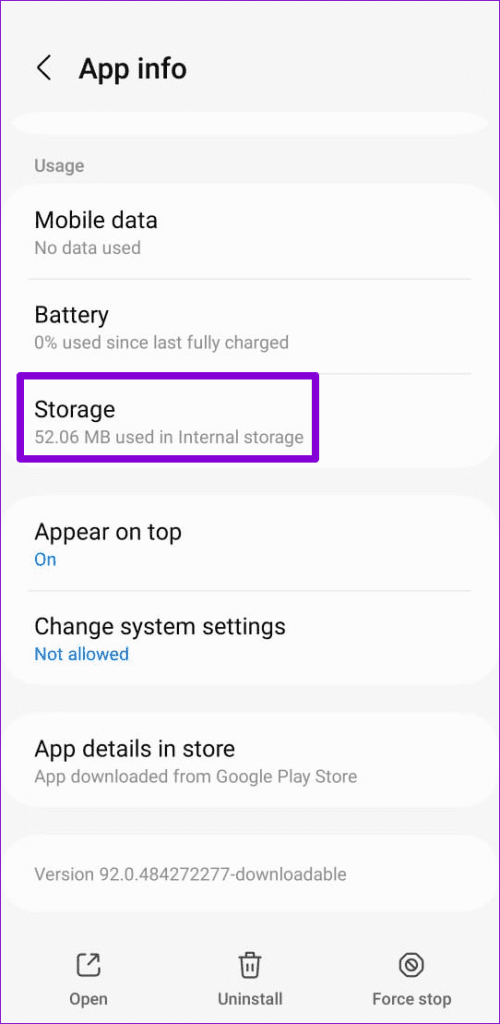
Step 1: Long-press on the Phone app icon and tap the info icon from the resulting menu.
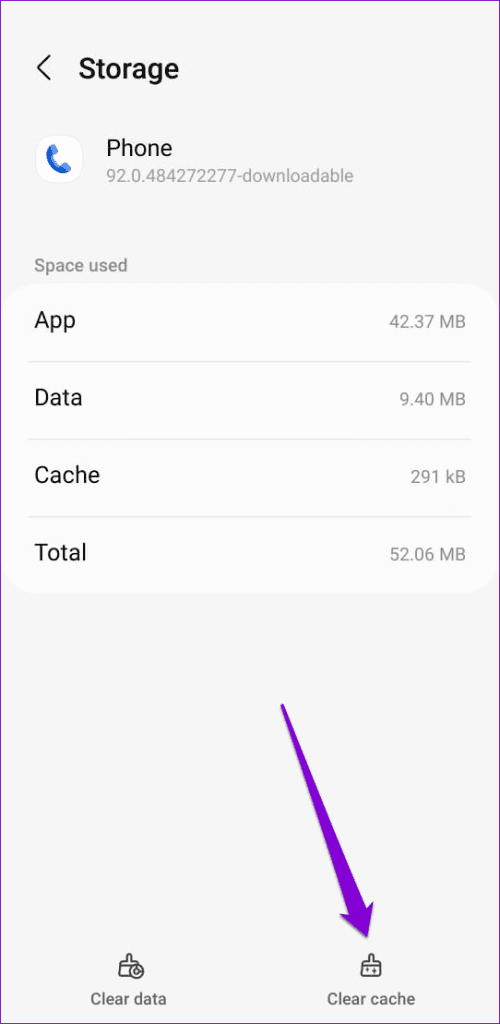
Step 2: Go to Storage and tap the Clear cache option in the bottom-right corner.
Was this helpful?
Submit Cancel
Thanks for your feedback!
Keep reading