Android
3 Ways to Fix Android Developer Options Not Showing Up
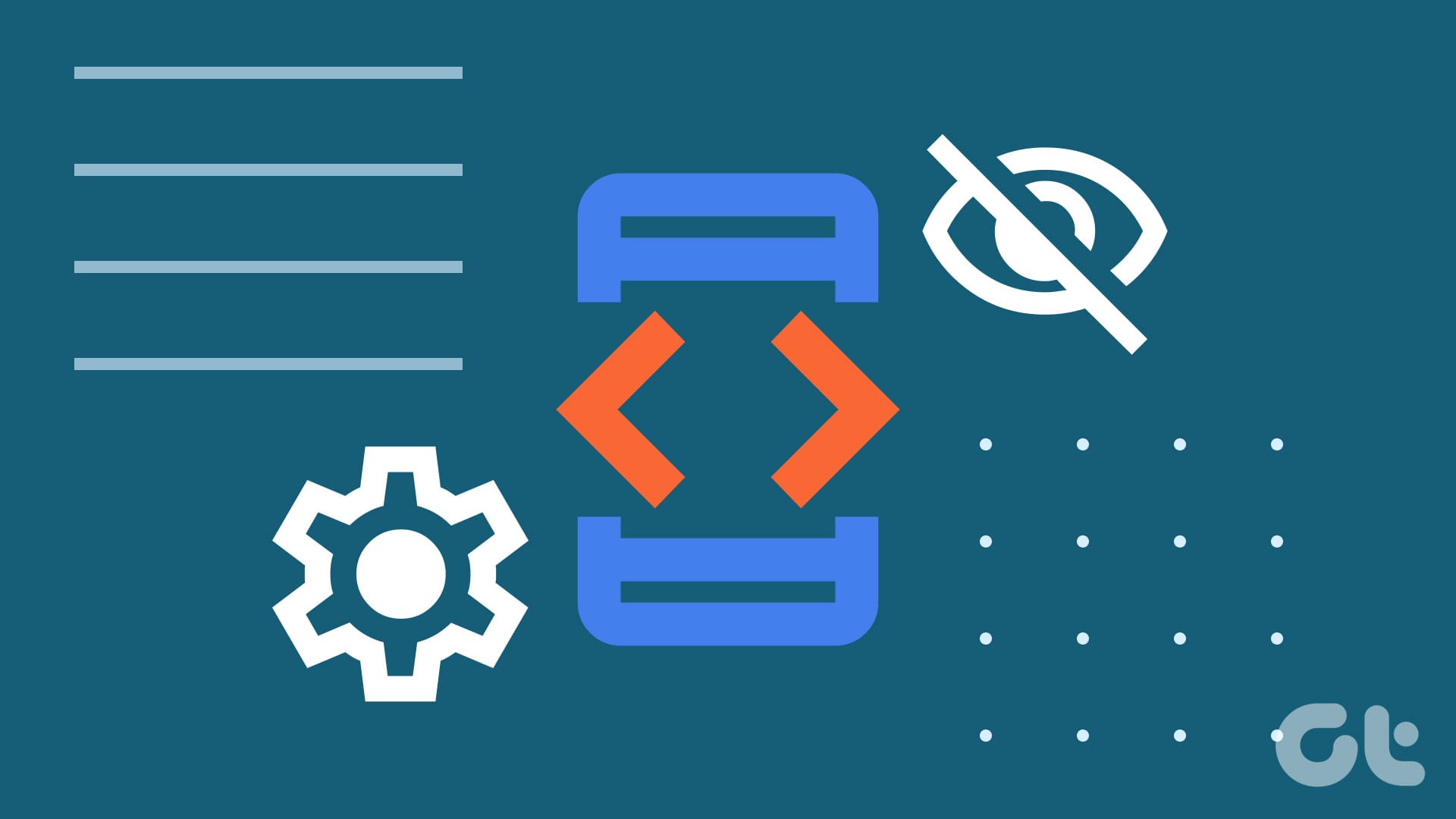
Is the Android "Developer Options" menu not showing up on your smarpthone or tablet? Here are some effective ways to fix the problem.
By Mitch Bartlett
Quick Tips
Restart your phone to eliminate any sort of temporary issues that may be preventing you from accessing Developer Options.
Update your phone to the latest software version to fix bugs related to Developer Options.
Fix 1: Enable Developer Options Once Again
By default, Developer Options are disabled on all Android devices. You will have to enable them manually. If you’ve already done that but still don’t see the menu after a while, try enabling developer options again.
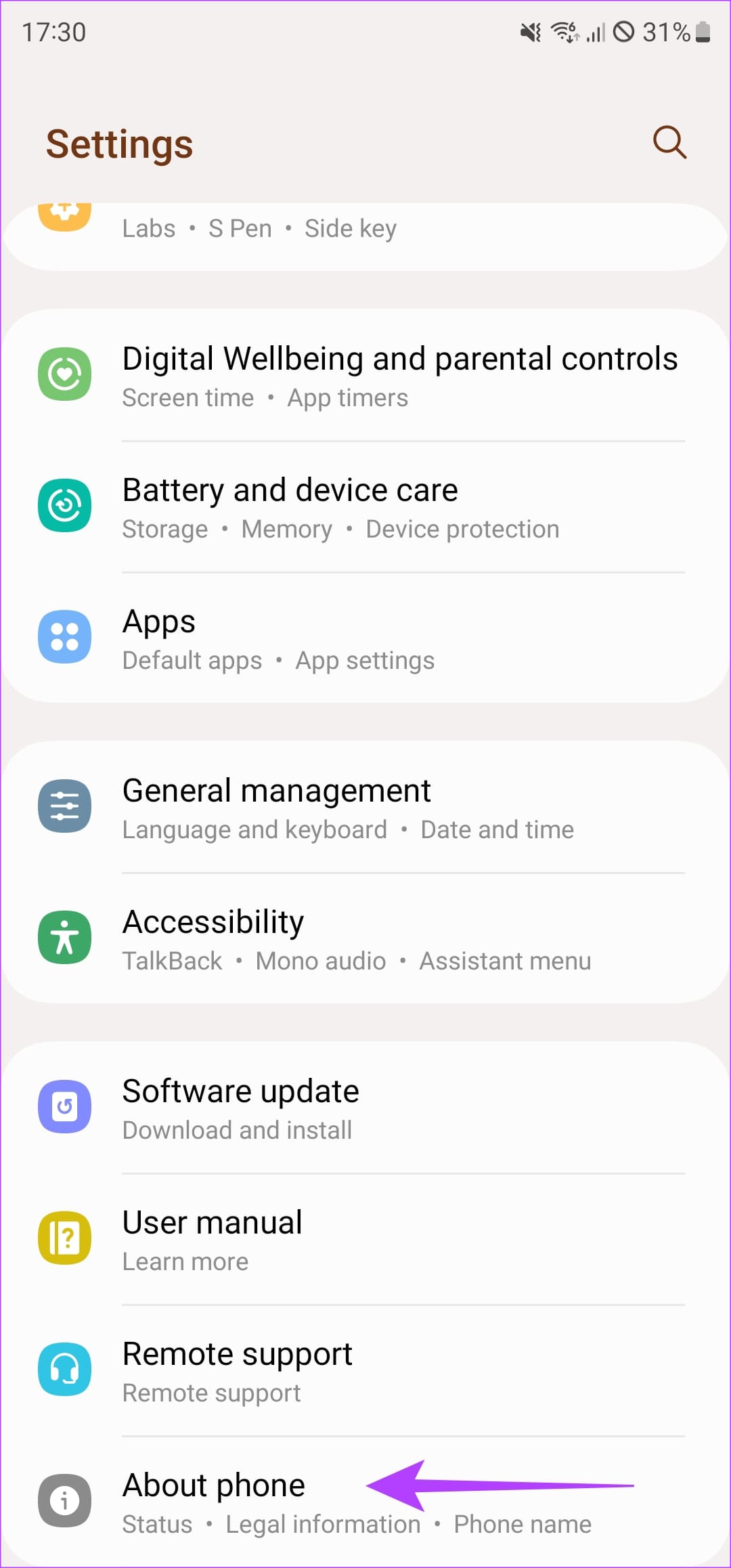
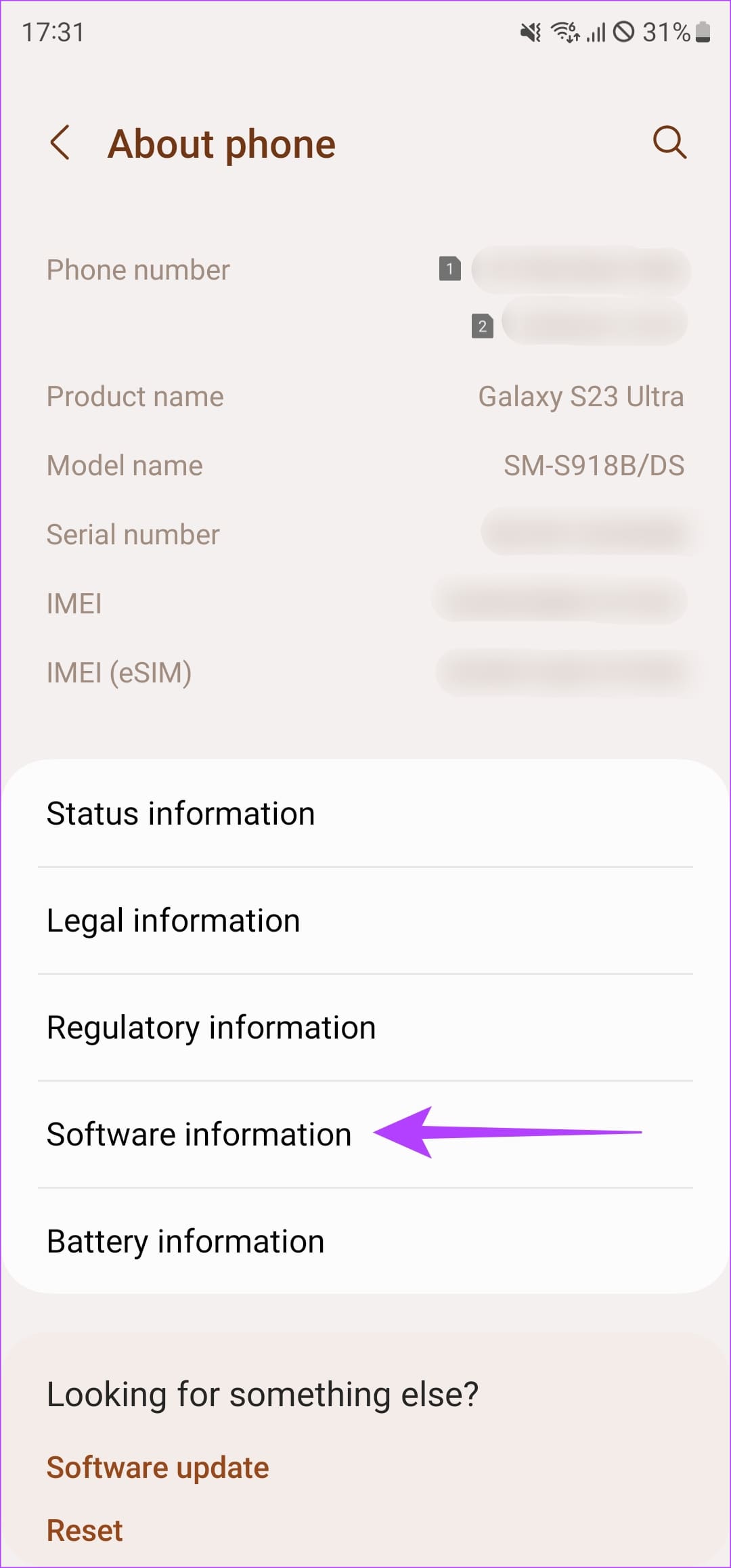
Step 1: Open the Settings app on your Android Phone. Head to the About Phone section, and navigate to Software Information .
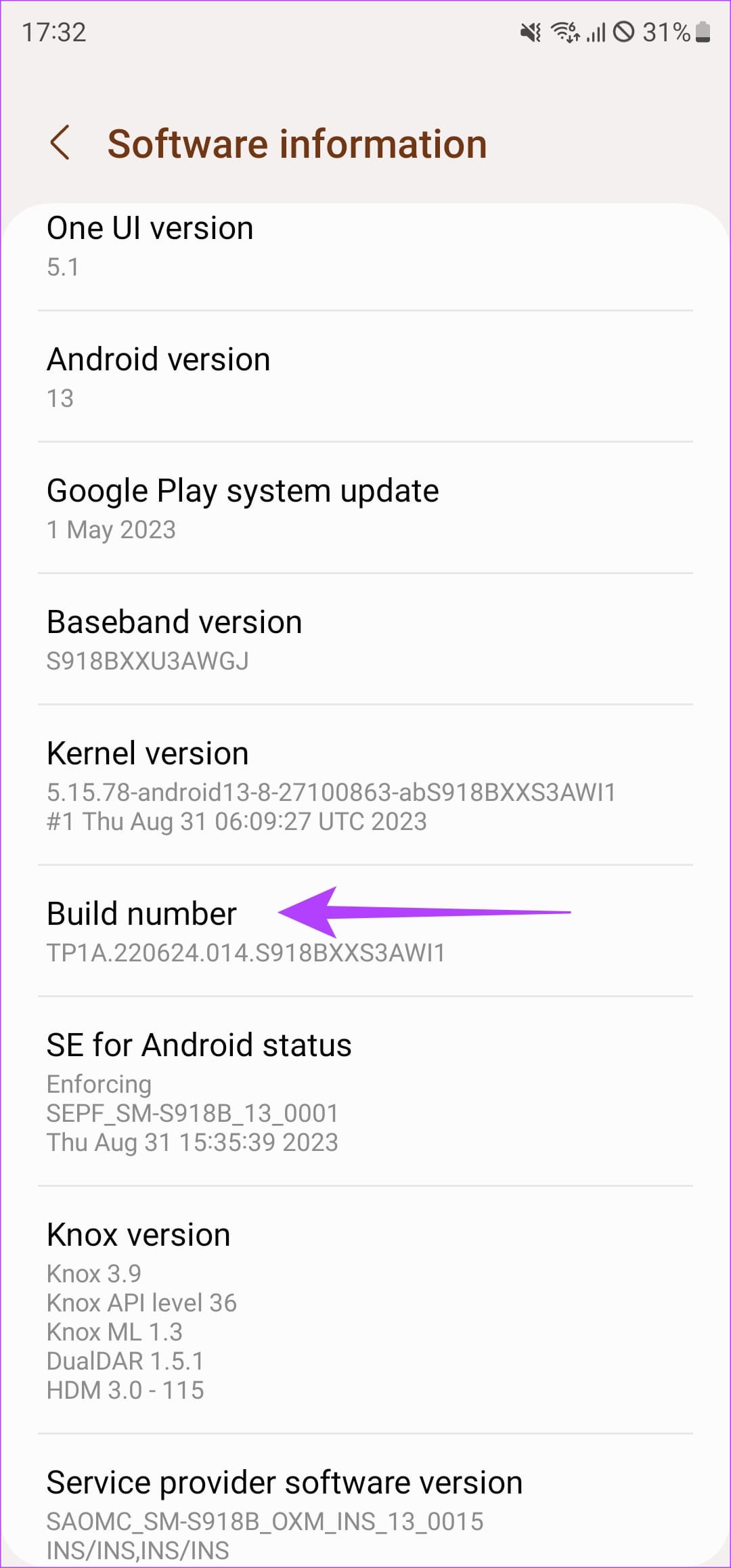
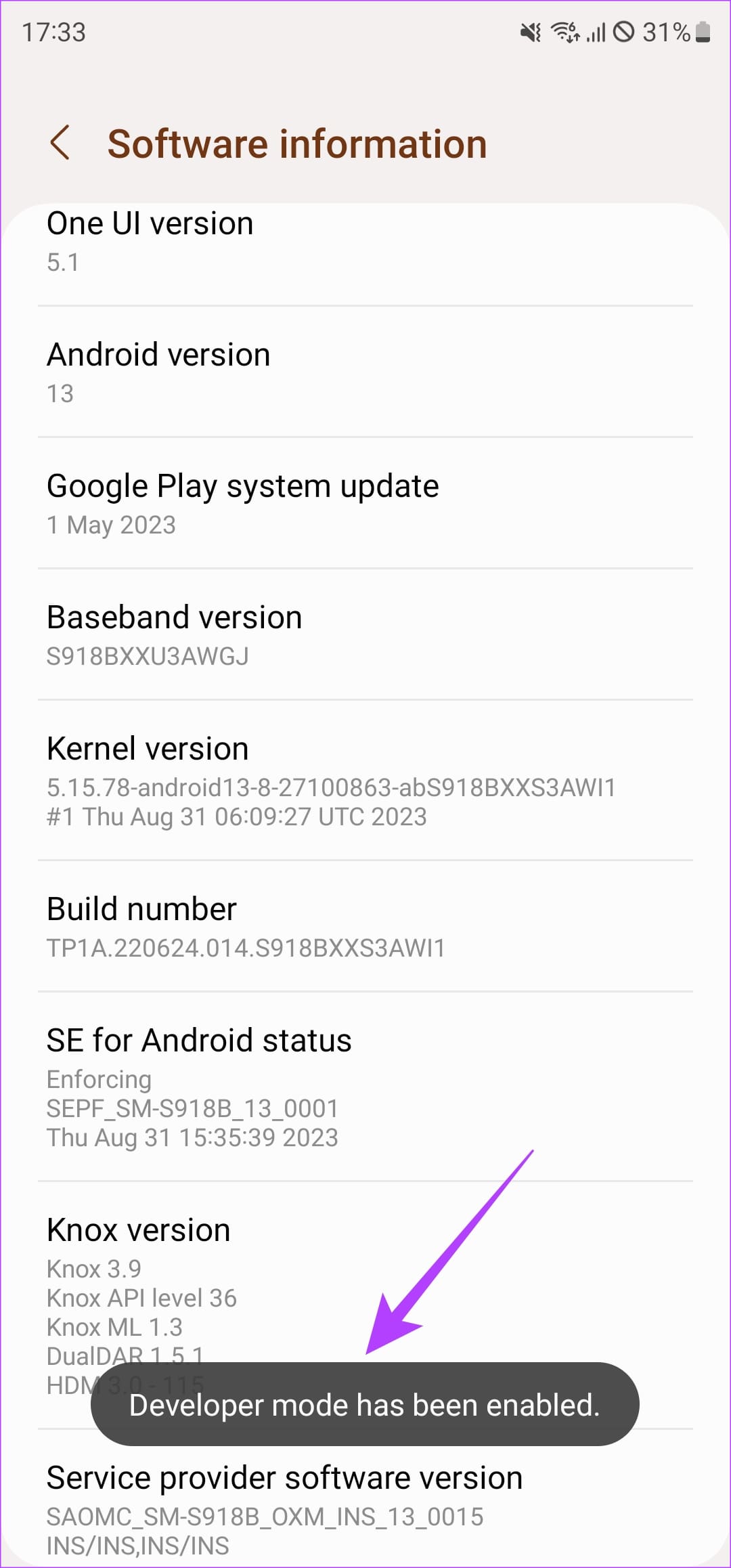
Step 2: Find the Build number . Tap on it constantly seven times before you see the ‘Developer Mode has been enabled’ message.
Enter your PIN if prompted.
Also Read: How to force high refresh rate on all Android apps without root
Fix 2: Enable the Toggle for Developer Settings
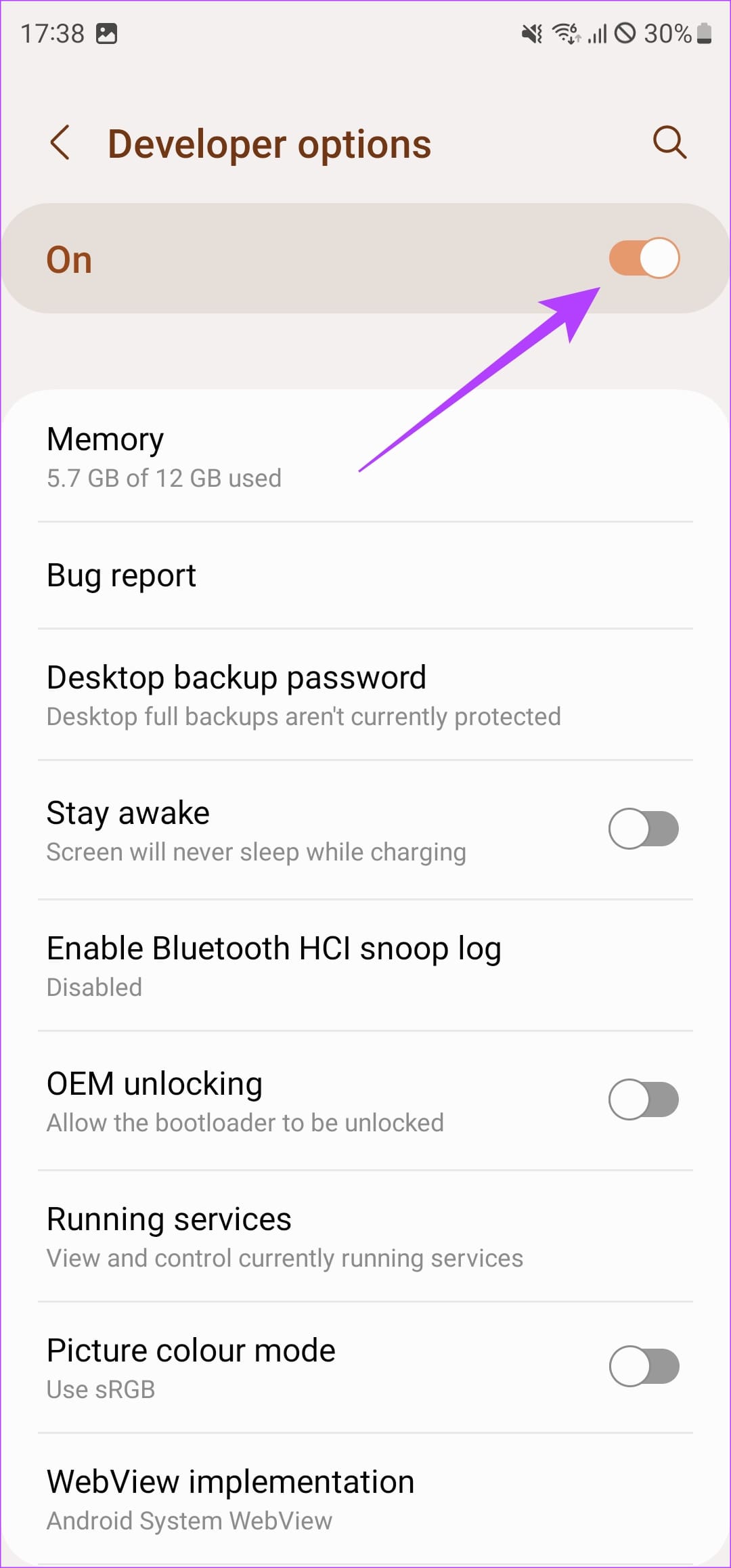
If you see the ‘Developer Mode has already been enabled’ message after performing the above steps, it might mean the toggle on the Settings page is turned off. Ensure it always stays enabled to use Developer Options.
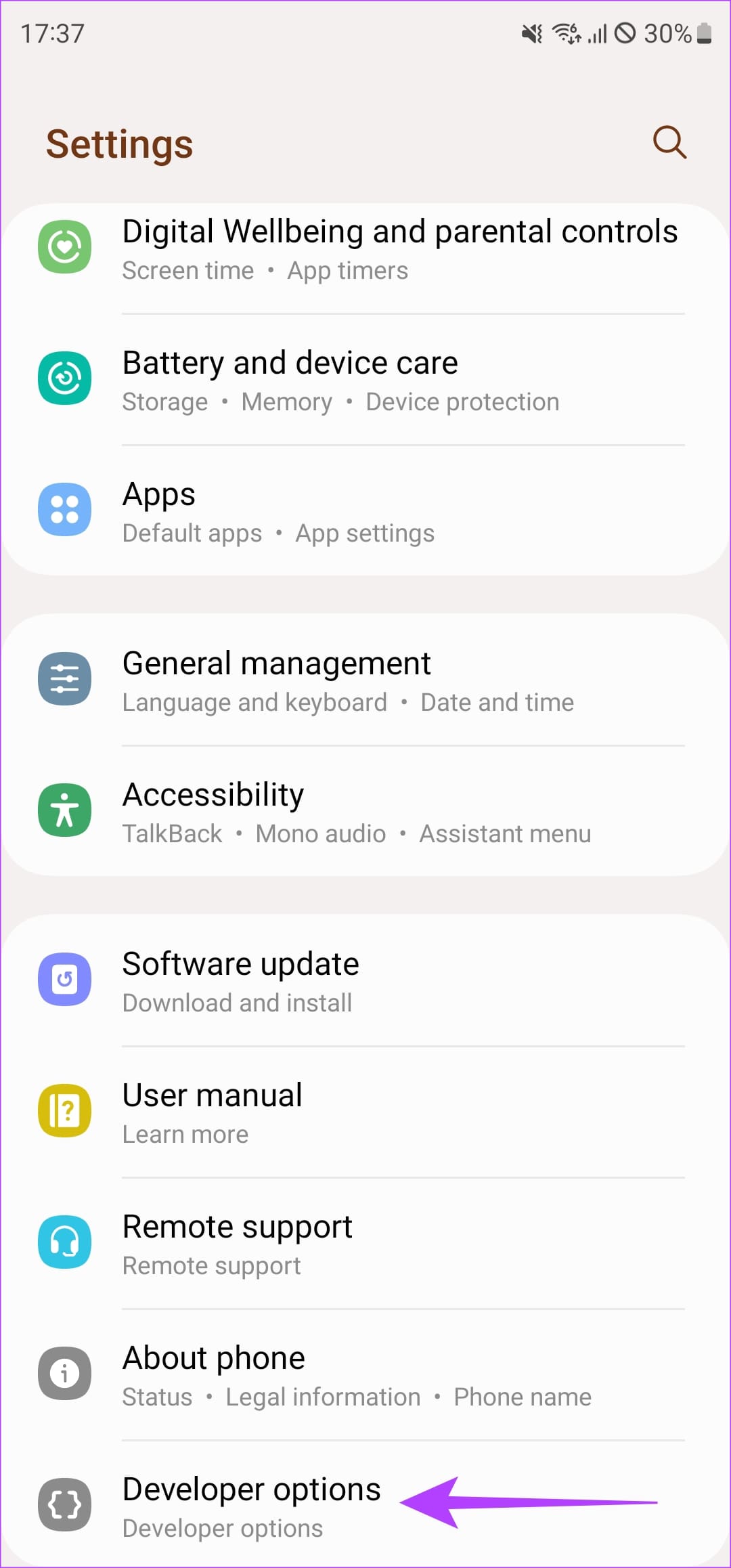
Open the Settings app on your Android Phone. Scroll down and head to the Developer Options section. Ensure the toggle at the top of the page is enabled. If not, turn it on .
Fix 3: Disable System Administrators
If your Android device was issued to you by a school or company, they may have enforced policies that prevent Developer Options. The policy can also be enforced if you have added a company account to your phone or if your company’s app has been set as the administrator. This is where you’ll see the “Developer Options are not available for this user” toggle.
If this is the case, you will need to talk to the IT department or remove any third-party app with those permissions from your phone. Here’s how to do it.
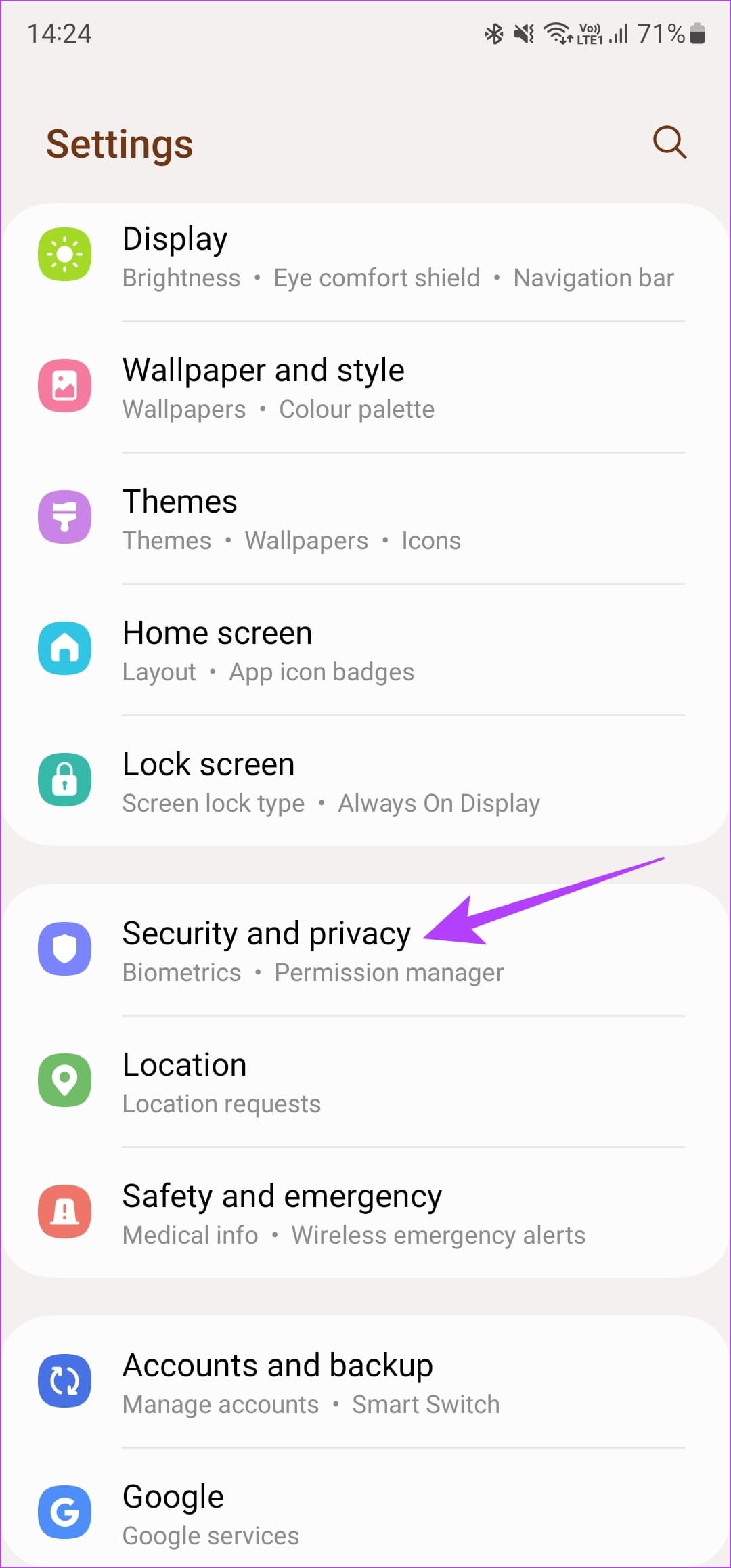
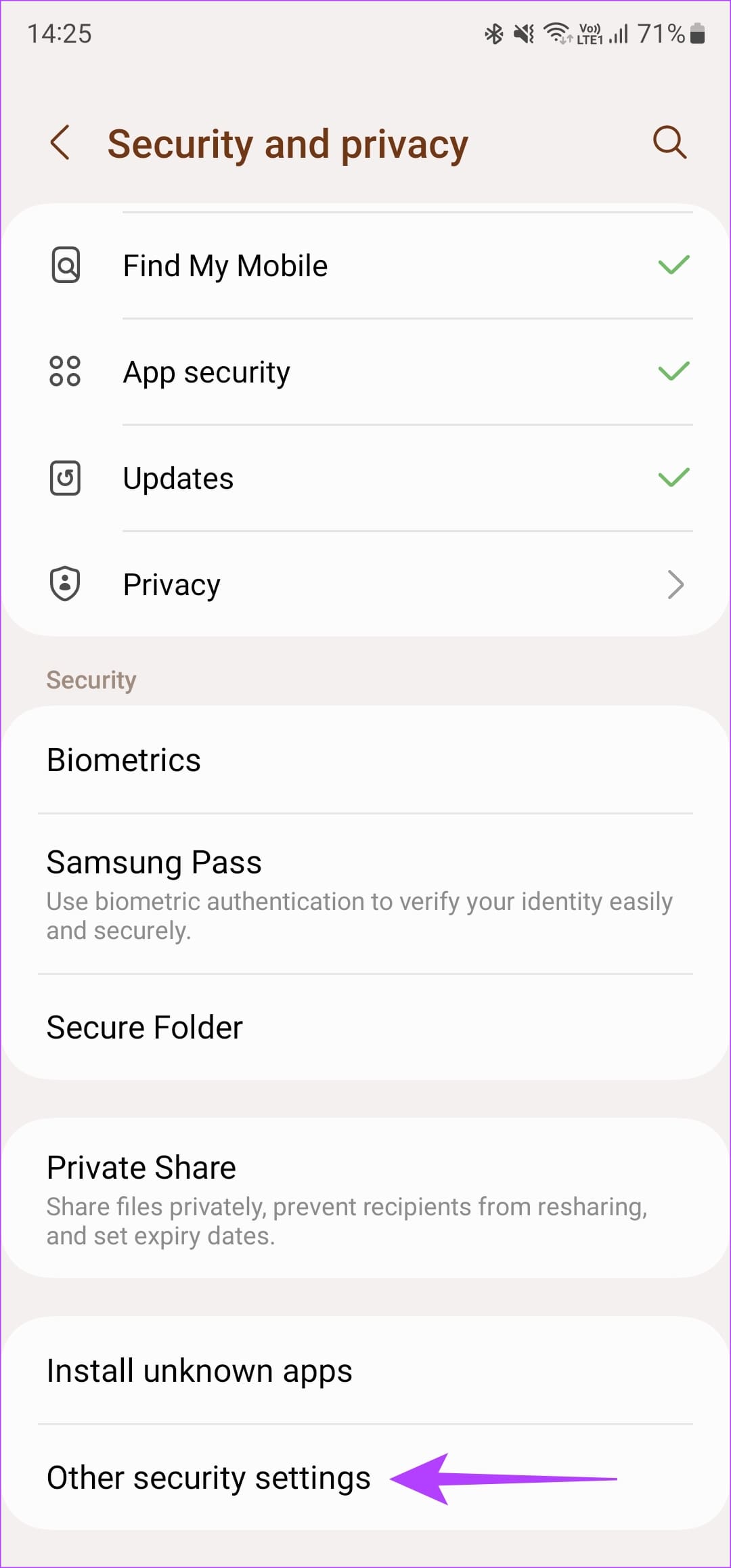
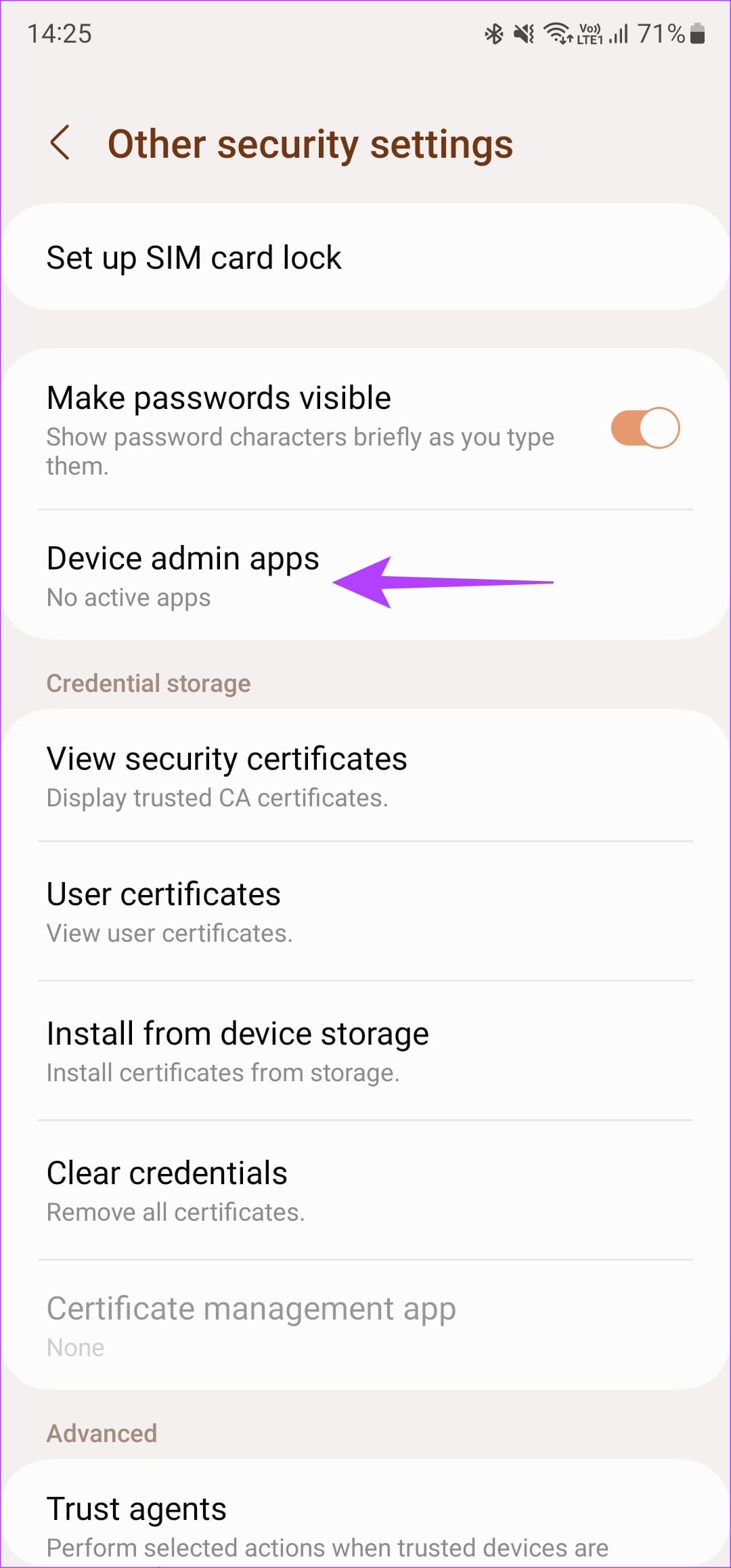
Step 1: Open the Settings app and navigate to the Security and Privacy section. Then, head to other security settings .
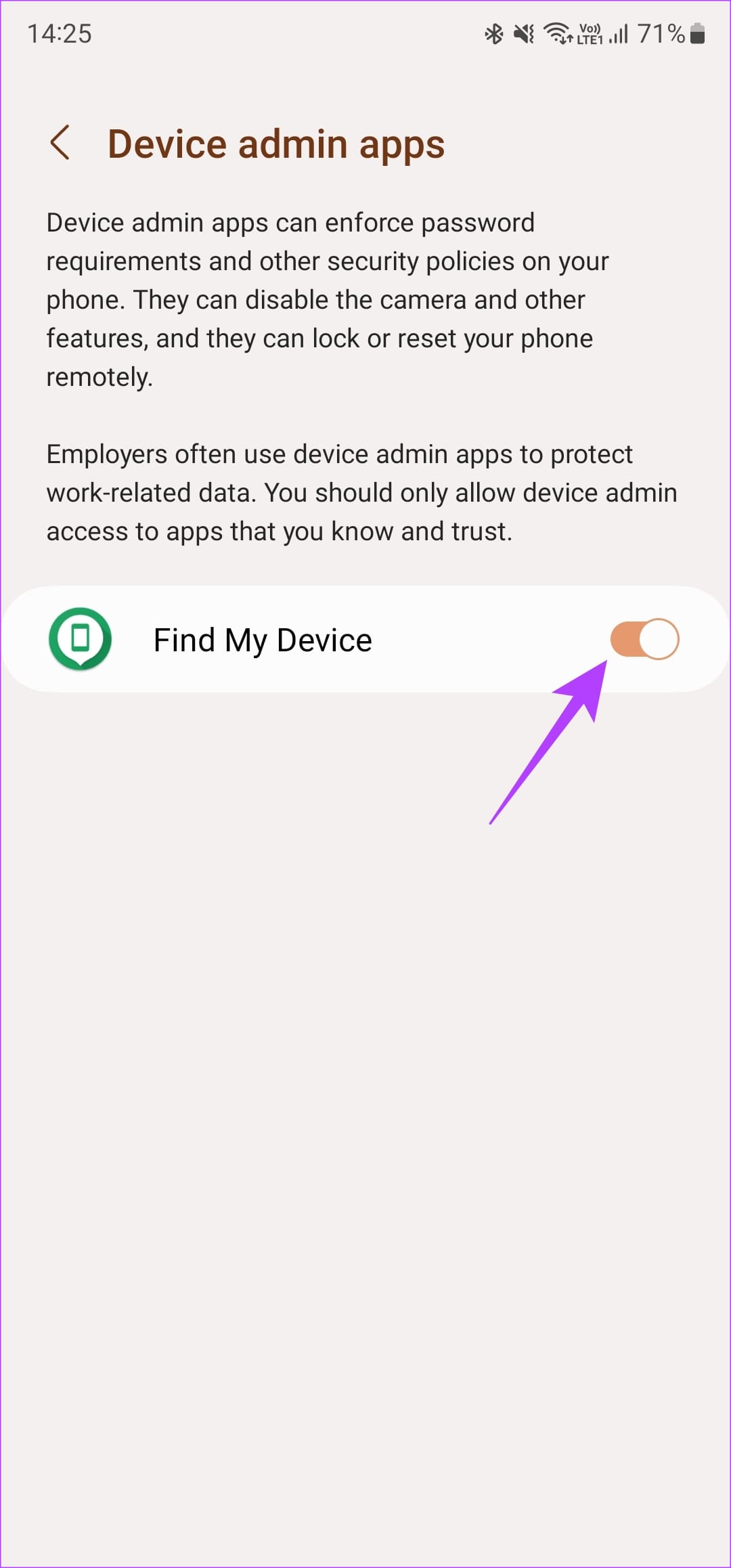
Step 2: Tap on Device admin apps . If you see any app you don’t recognize here, turn off the toggle next to it.
Was this helpful?
Submit Cancel
Thanks for your feedback!
Keep reading