Android
3 Ways to Fix Android Not Connecting to Bluetooth Devices
Can't connect headphones, speakers, or other Bluetooth devices to your Android device? Here are eight ways to fix the problem.
By Olanrewaju Sodiq
Quick Tips
Ensure the Bluetooth device isn’t connected to another device. Try forgetting the device and reconnecting to it.
You can also try updating the firmware or resetting the Bluetooth device to fix the issue.
If nothing works, try resetting the network settings on your Android device.
Basic Fixes
Use 5GHz Wi-Fi : Bluetooth uses a 2.4GHz frequency band, which can overlap the signals and cause problems. Therefore, use a 5Ghz Wi-Fi.
Disconnect other devices: Not all Bluetooth devices can connect to multiple devices at once. So, if your Bluetooth device is not connecting to your phone, it may have already connected to another device.
Restart devices: Restart both your smartphone and the Bluetooth device to fix any bugs and glitches.
Fix 1: Forget Device
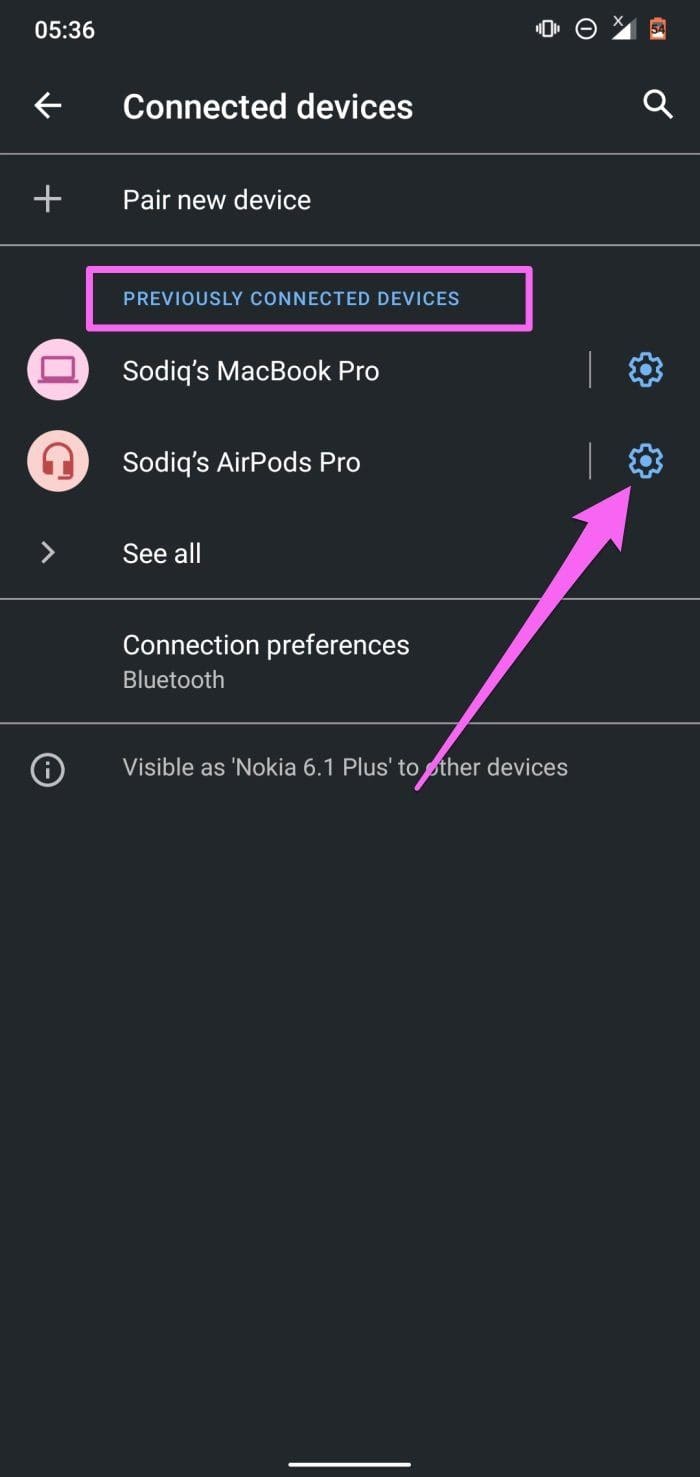
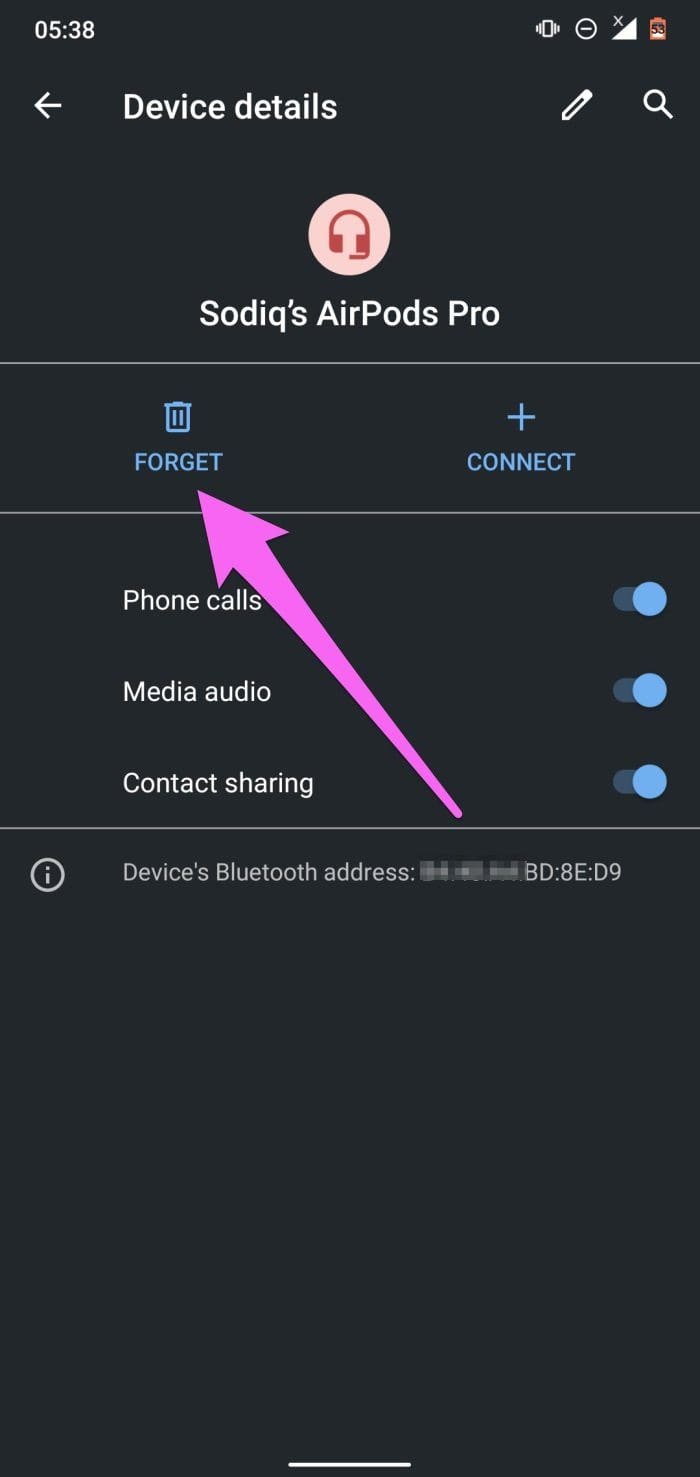
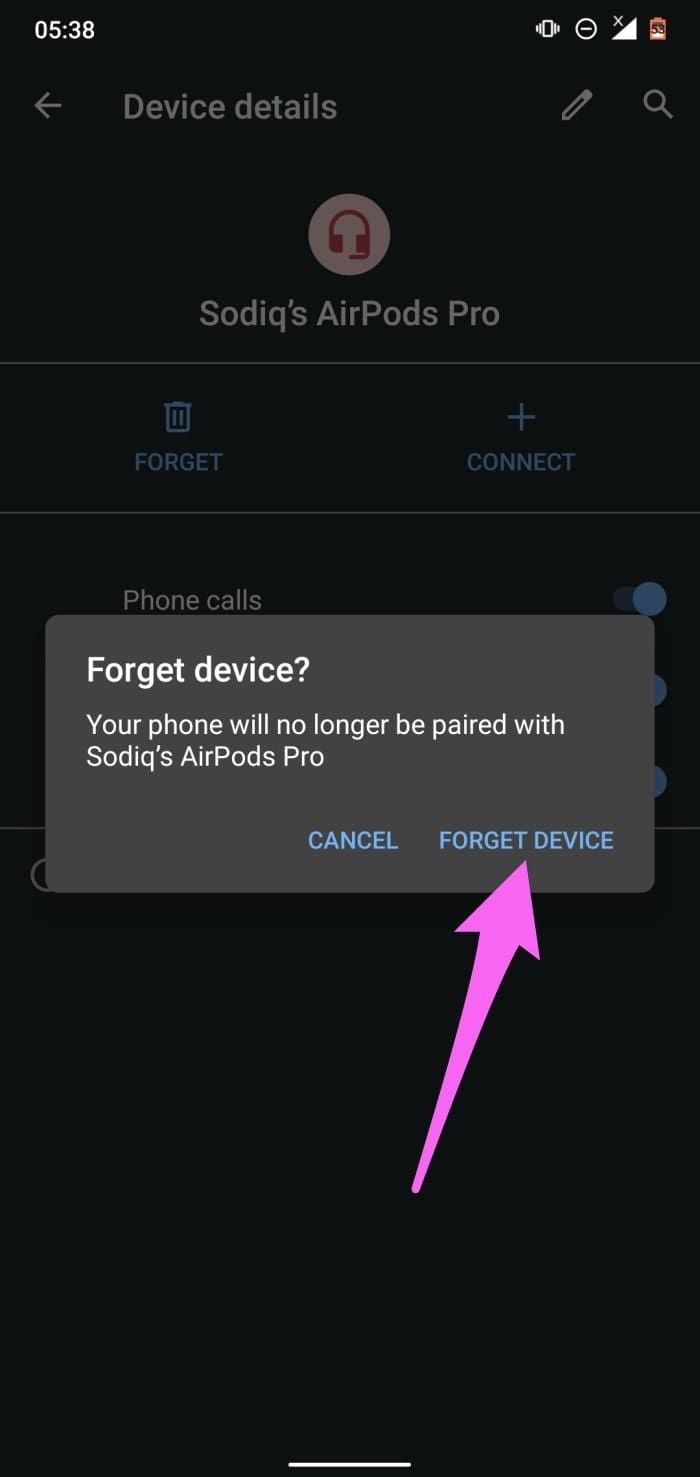
If you’ve previously paired and used the Bluetooth device, but it suddenly refuses to connect to your smartphone after some time, forgetting the device, and attempting to reconnect might help.
Open the Settings app > go to Bluetooth > select the settings icon next to your Bluetooth device > select Forget .
Fix 2: Update or Reset Bluetooth Device
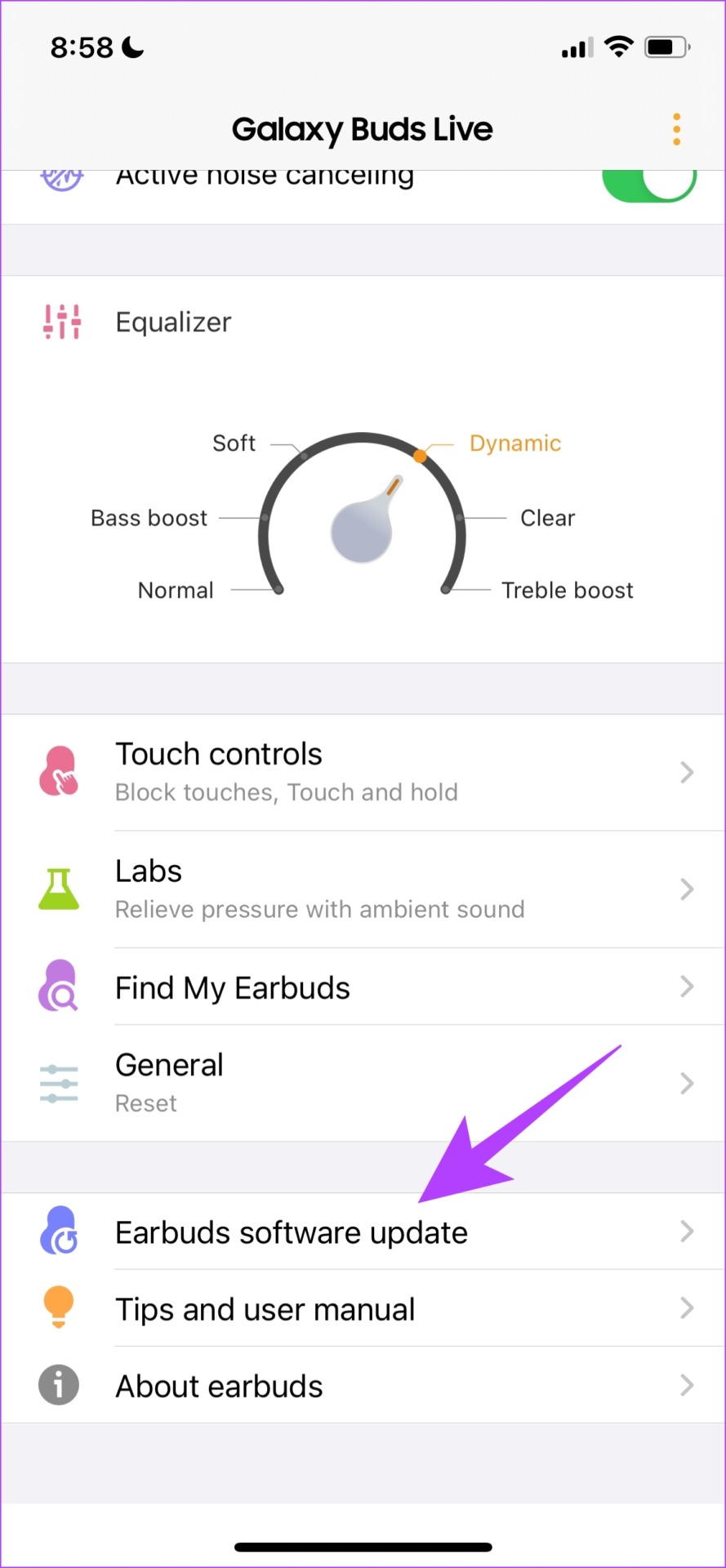
Some Bluetooth devices come with a dedicated app for controlling and configuring them. These apps also offer the option to update the firmware.
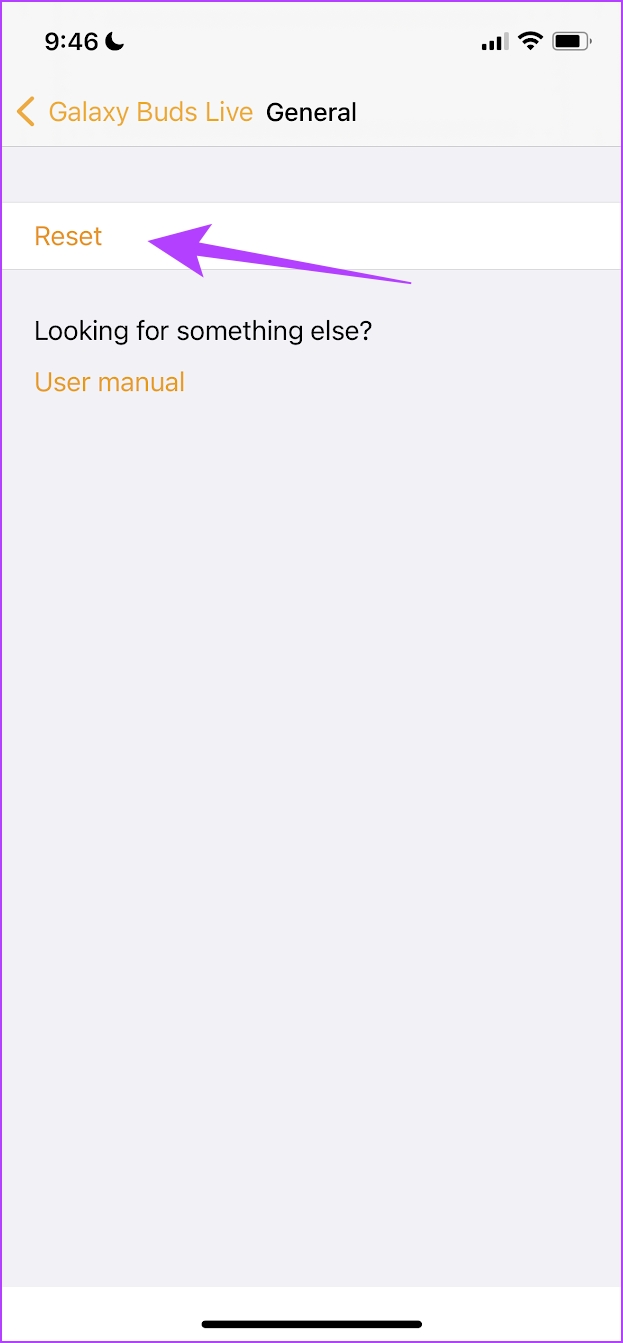
Resetting the Bluetooth device will reset all the applied configurations to default, which means that most issues will likely be fixed. This is also possible on the official Bluetooth device app. Here’s how it looks on the Samsung Galaxy Buds app.
For example, here’s how it looks on the dedicated app for Samsung Bluetooth devices to update the firmware .
Fix 3: Reset Network Settings
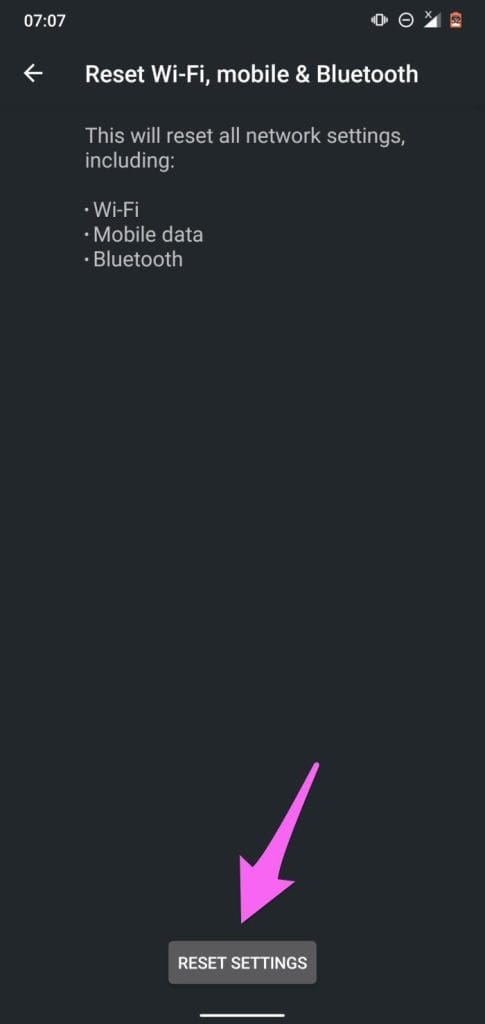
Performing a network reset is recommended when your phone won’t connect to any Bluetooth device but can connect to other devices. When you reset network settings, all Bluetooth connections, devices, and configurations will be deleted from your device. Learn more about resetting network settings on Android .
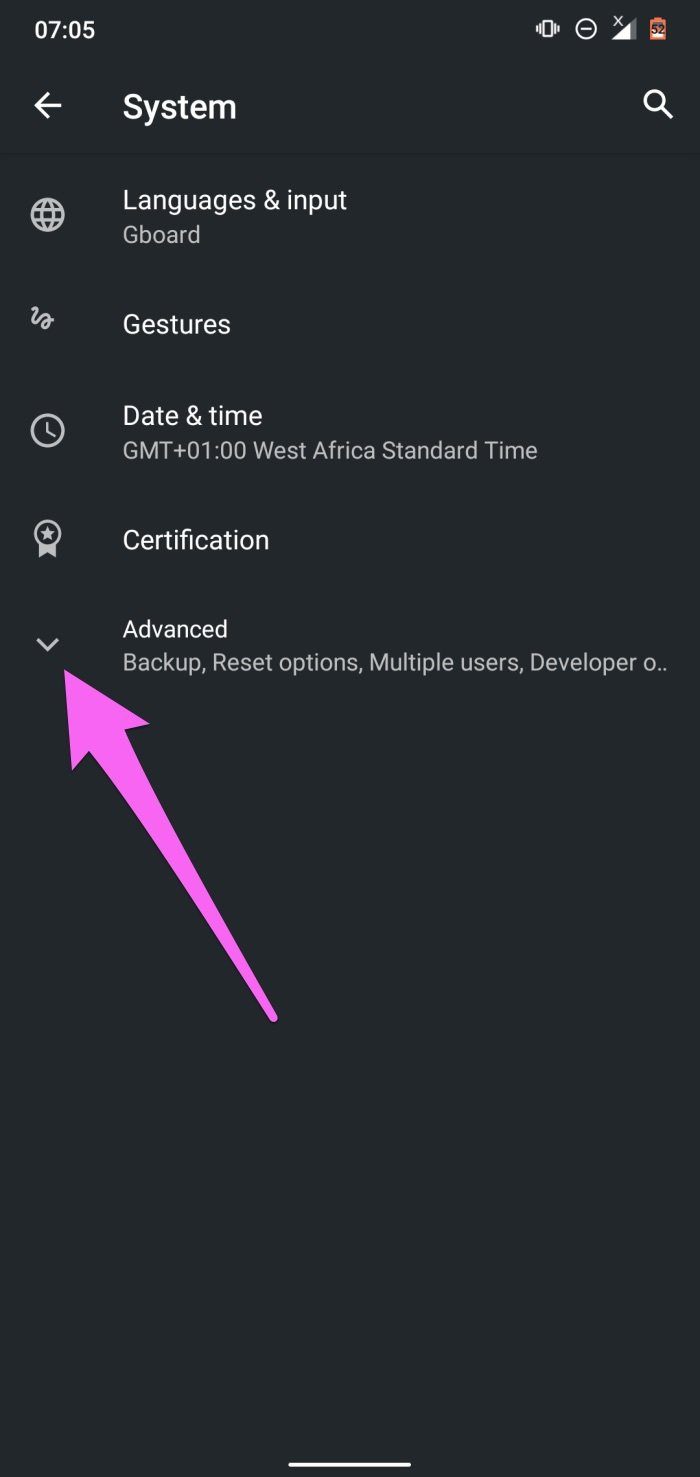
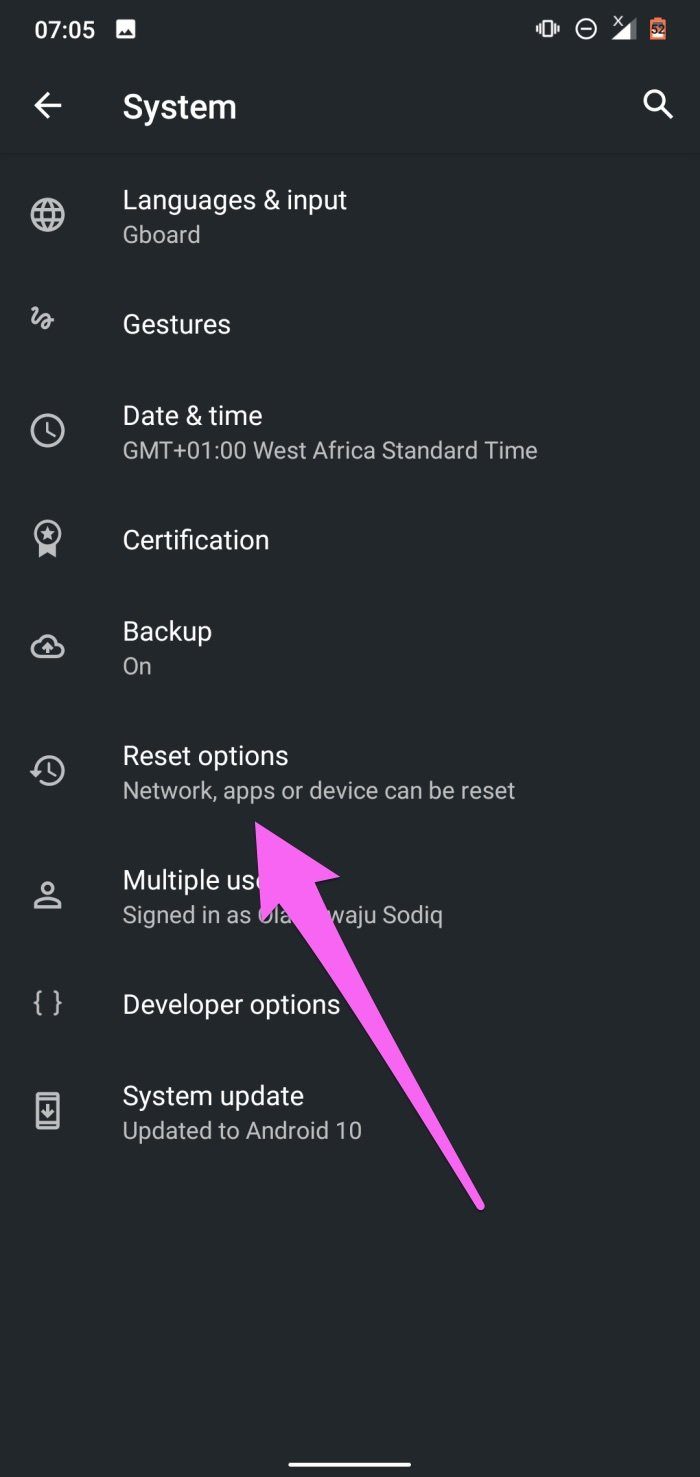
Open the Settings app > go to System > Advanced > Reset options > select Reset Wi-Fi, mobile & Bluetooth (or Reset Network settings).
Also Read: How to fix Bluetooth keeps disconnecting on Android
Was this helpful?
Submit Cancel
Thanks for your feedback!
Keep reading