Android
5 Ways to Fix Android Phone Not Making Calls But Can Text
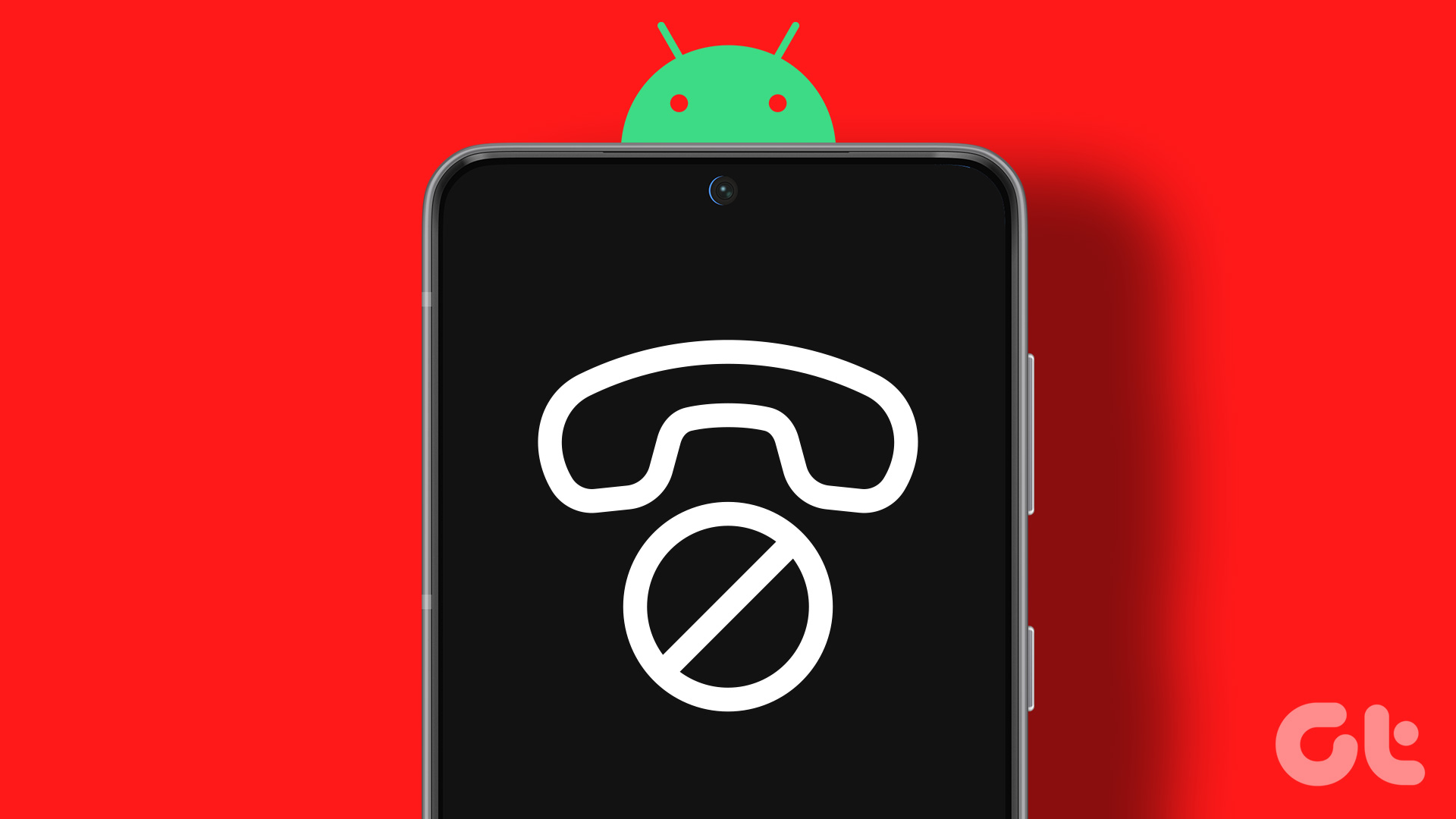
Does your Android phone fail to make calls but send or receive text messages as expected? It's a weird situation. Here are the best ways to fix the problem.
By Parth Shah
Quick Tips
Check the default SIM for calls, and ensure you’ve subscribed to a cellular plan that supports outgoing calls.
Clear cache, and uninstall updates from the Phone app.
Try changing the preferred network on your SIM to improve the phone call quality. You may not receive good 5G signal strength in all areas.
Basic Fixes
Eject and re-insert SIM: Eject the SIM card from your phone, and insert it again – doing this can refresh the network connection.
Move to a different surrounding : You might be trying to place a call in an area with less network coverage, or the problem is localized due to the presence of network jammers
Restart device : Restart your Android device to fix temporary bugs and glitches with the network.
Check the caller’s network connection: Sometimes, it may not be the problem with your phone or network.
Update device: Update your device to the latest available Android version for a bug-free experience.
Fix 1: Fix Issues With Dialer App
If the Phone app is facing issues on your Android device – it may not let you place phone calls. Here’s how you can fix it.
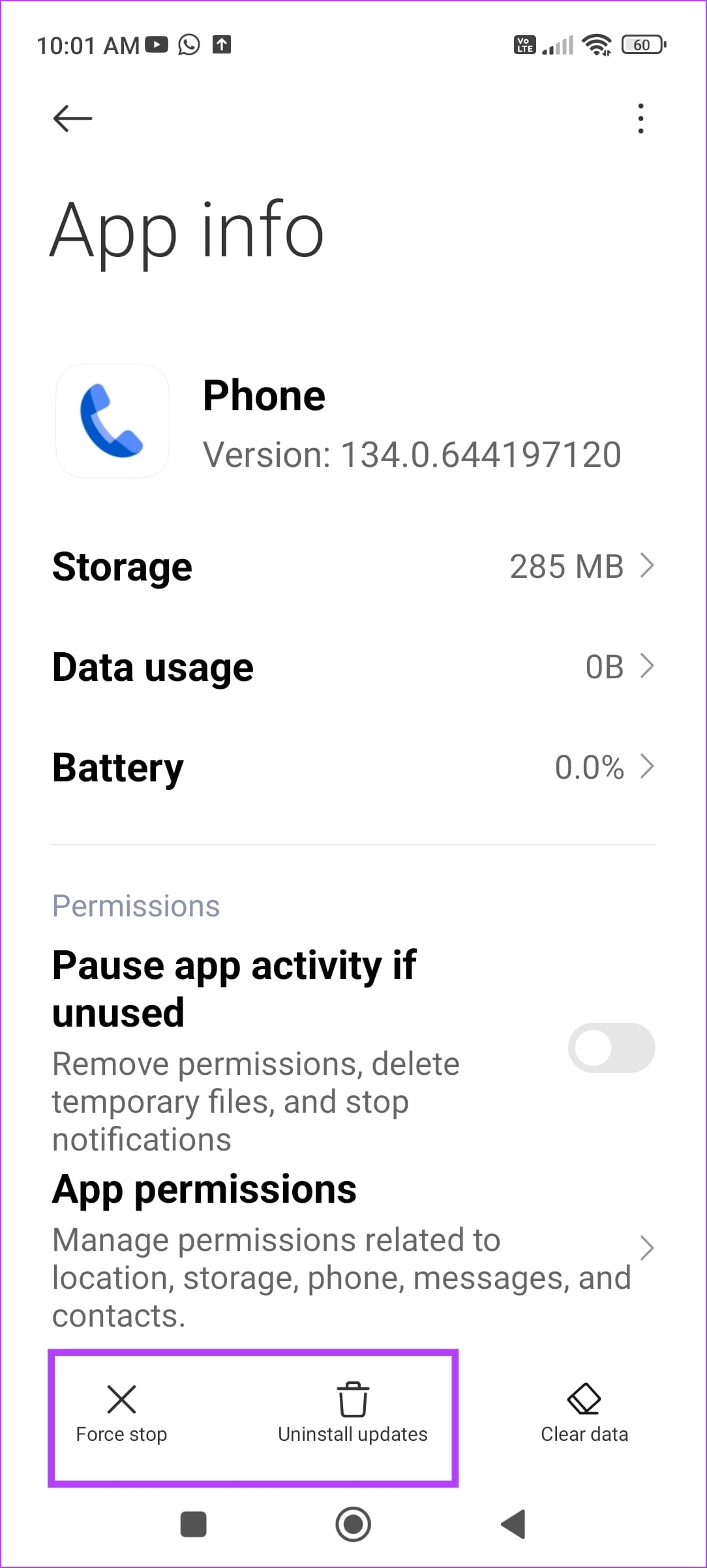
Tap and hold the Phone app icon, and select app info.
You can Force Stop the app, and restart it to resolve temporary glitches.
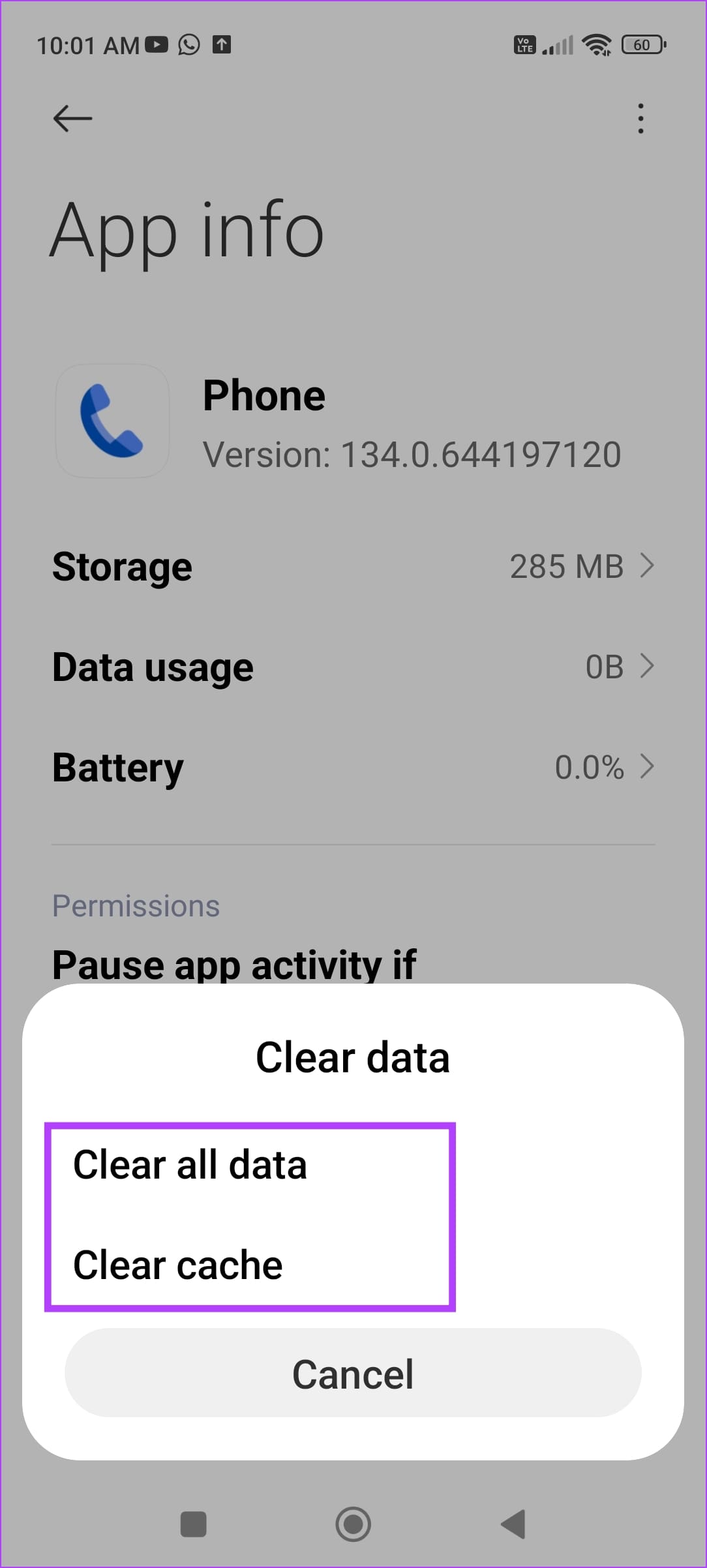
You can also try clearing the cache to remove junk files that may cause issues.
A recent update to the app may be causing issues – tap on the three-dots icon, and select Uninstall Updates .
Fix 2: Check Default SIM for Calls
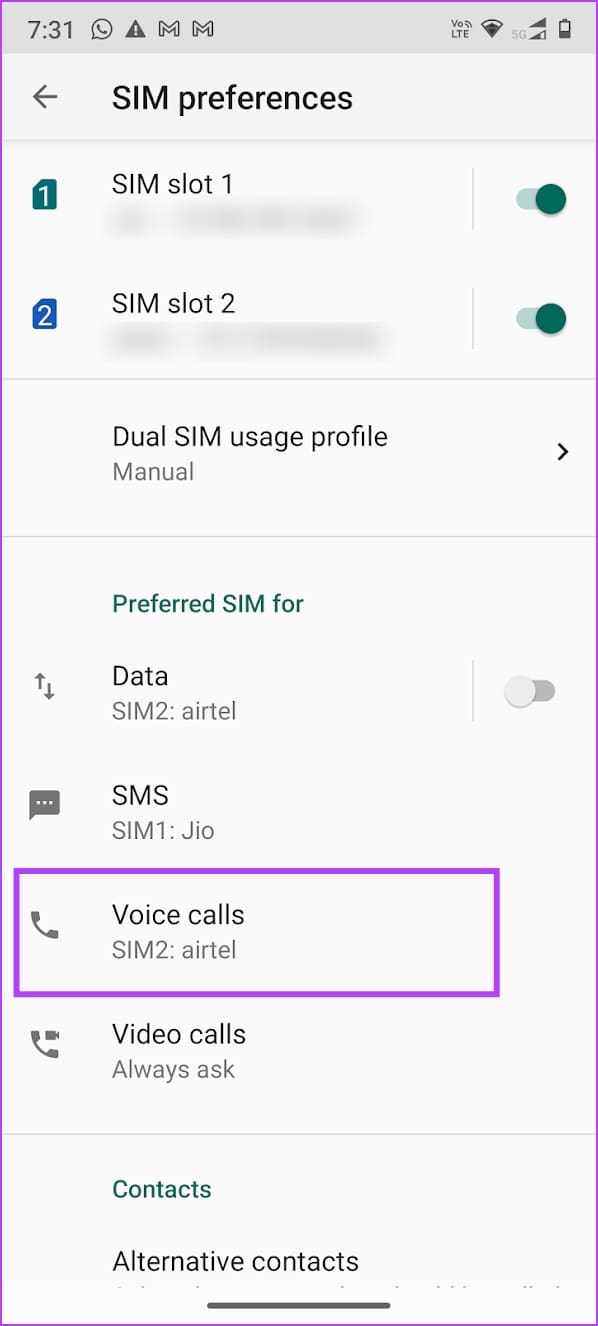
Ensure the preferred SIM selected for making calls has an active plan and supports outgoing calls.
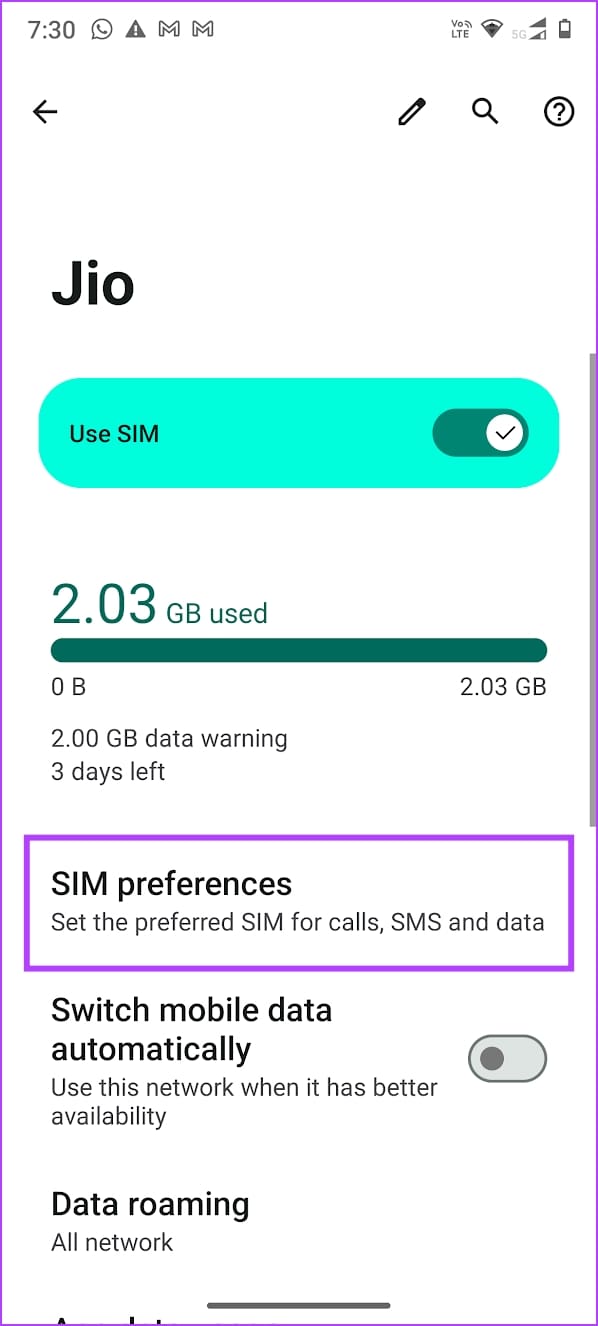
Open Settings , go to Mobile Network > SIM preferences, and check the preferred SIM for Voice Calls .
Fix 3: Change Preffered Network
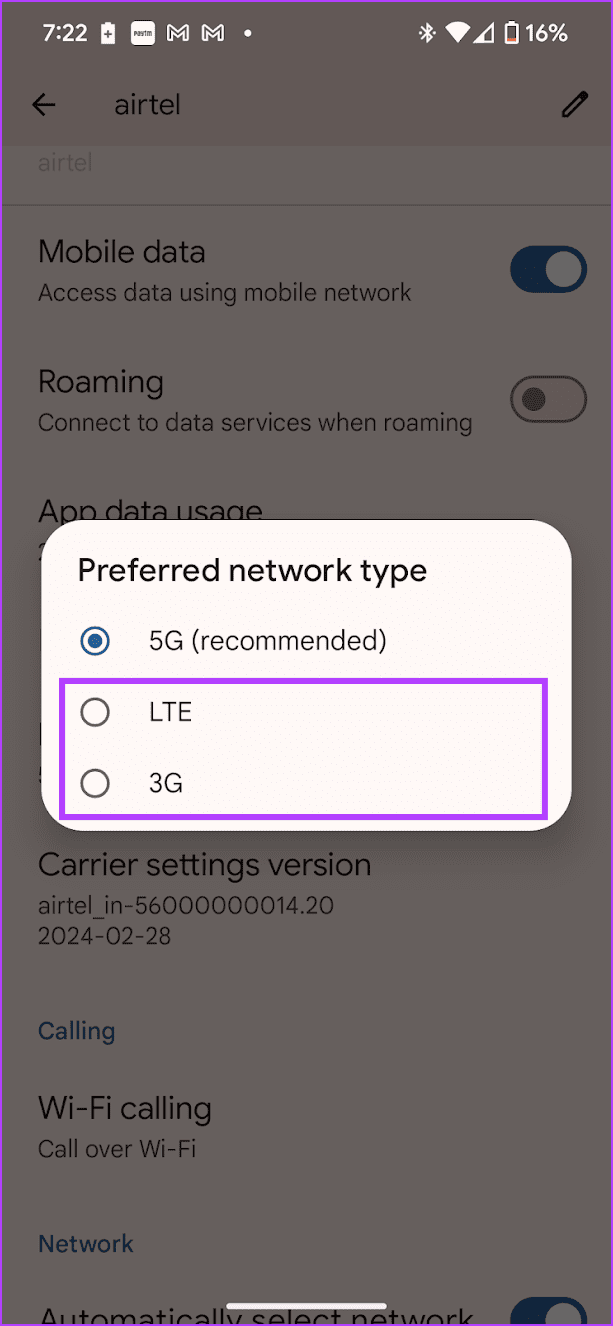
Try changing the preferred network on your SIM to improve the phone call quality. You may not reciev good 5G signal strength in all areas.
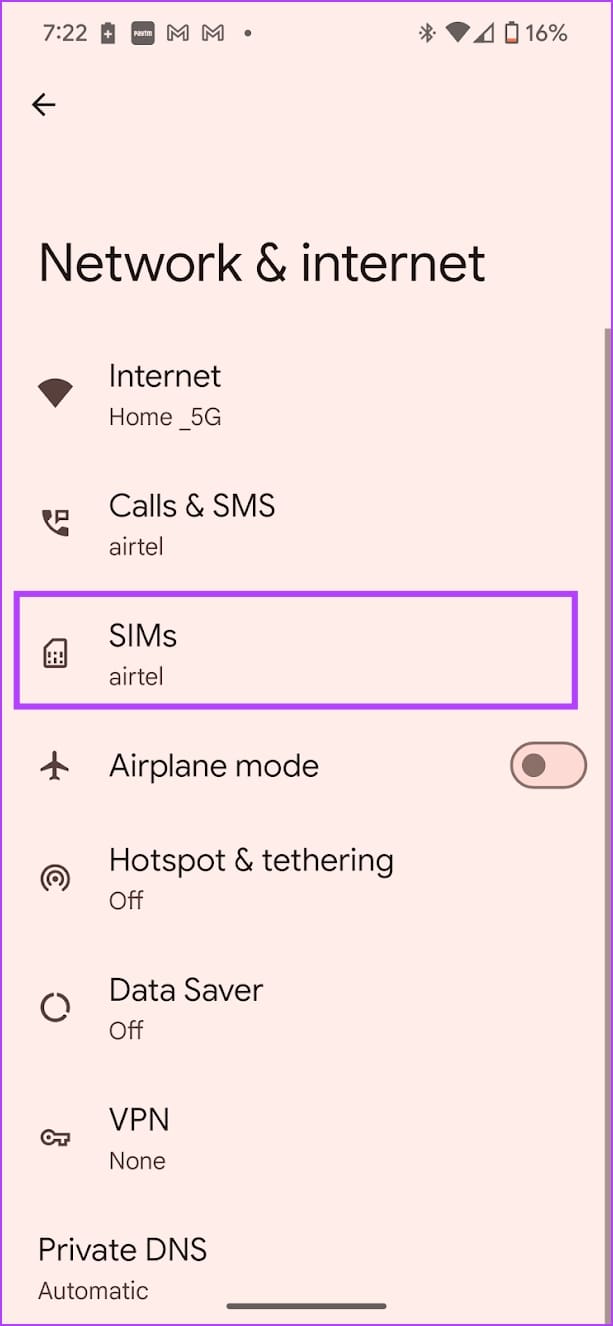
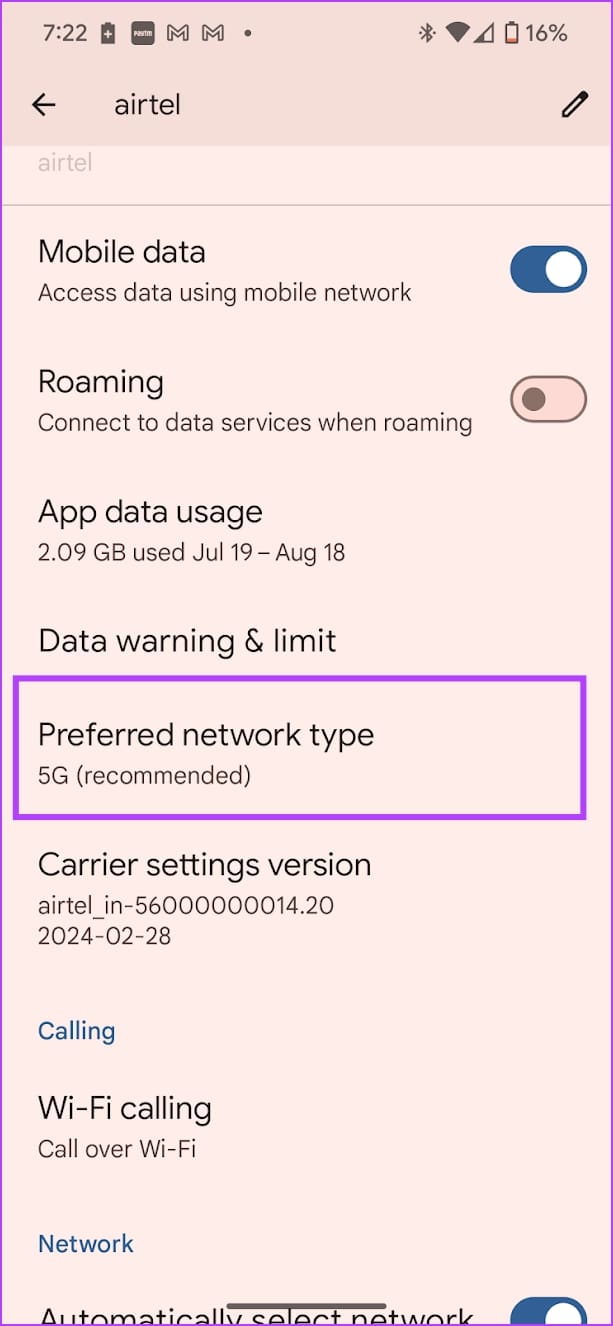
Open Settings > Network and Internet > SIMs > Preferred network type and select LTE or 3G .
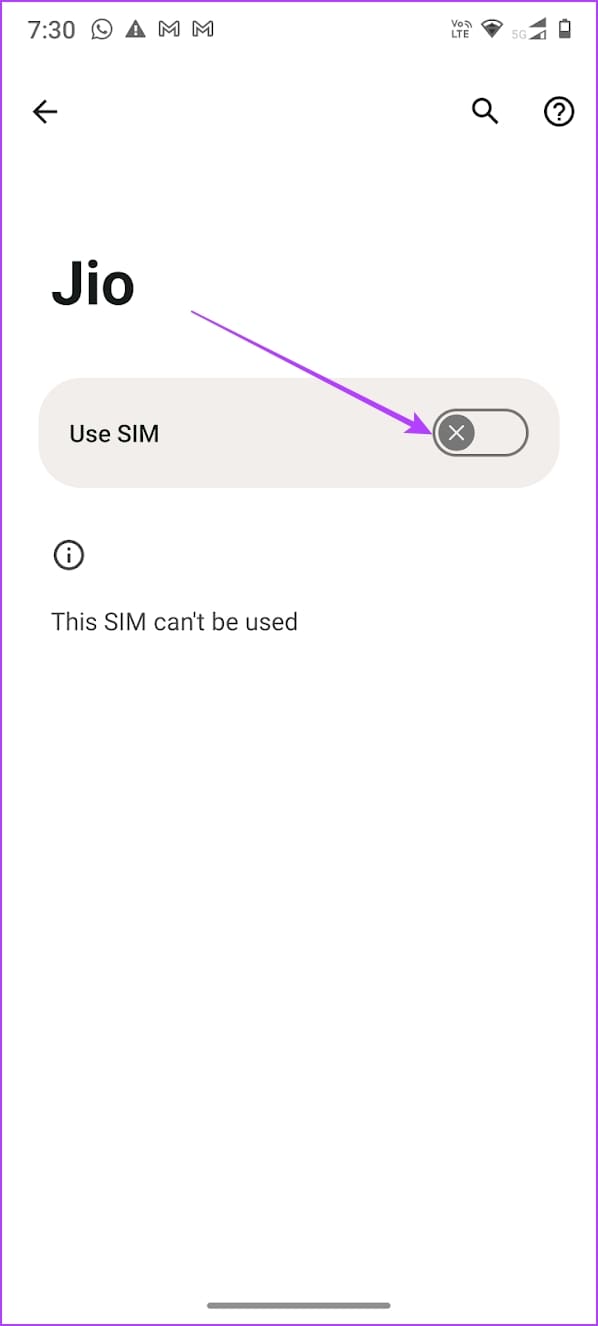
Fix 4: Disable and Enable SIM
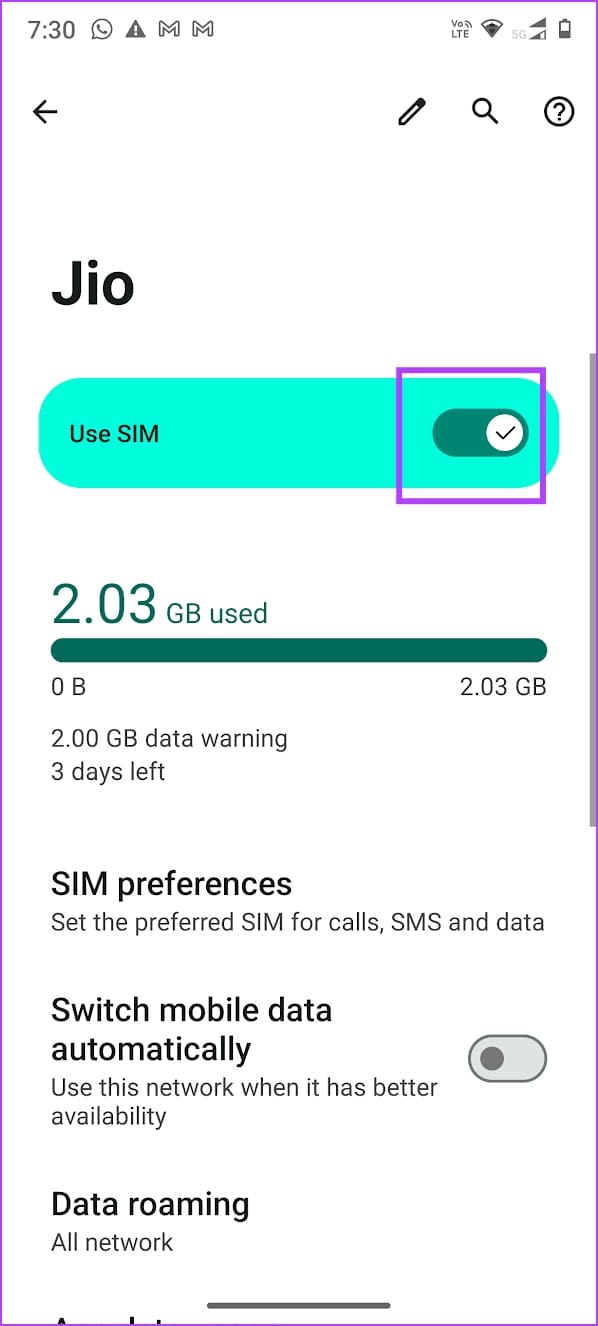
Re-activating SIM cards can establish a fresh connection, thereby removing any bugs that is prevent you from making phone calls.
Open Settings > Mobile network , select the SIM card, and turn it off and turn it on.

Fix 5: Reset Network Settings
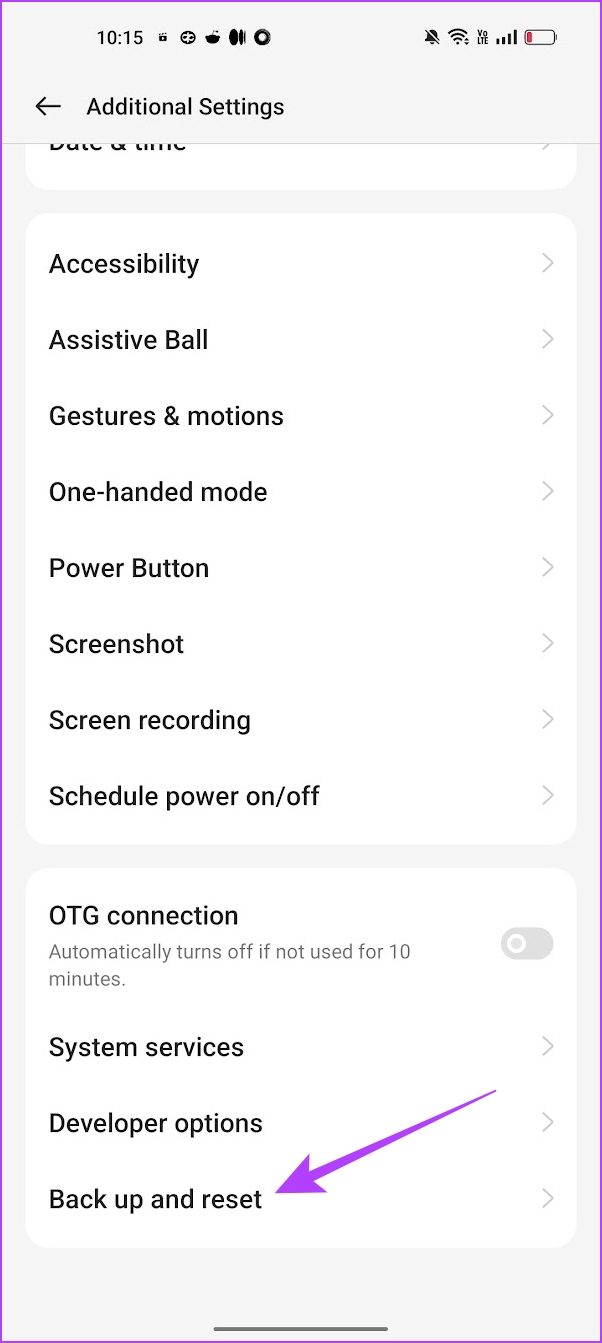
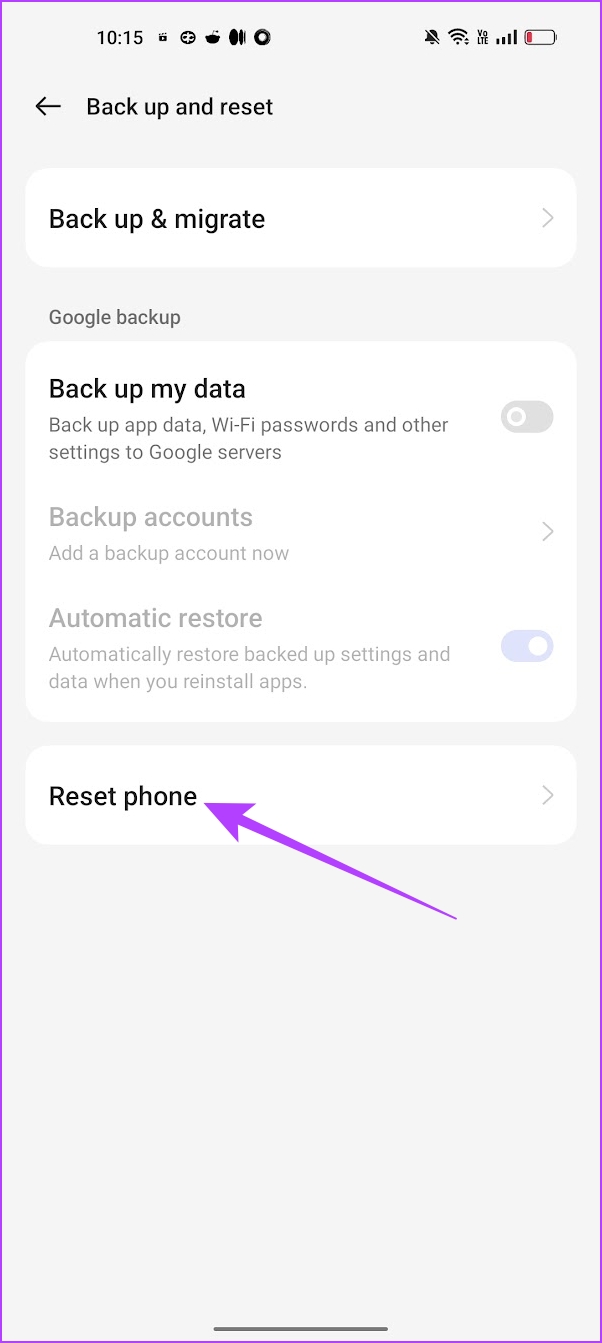
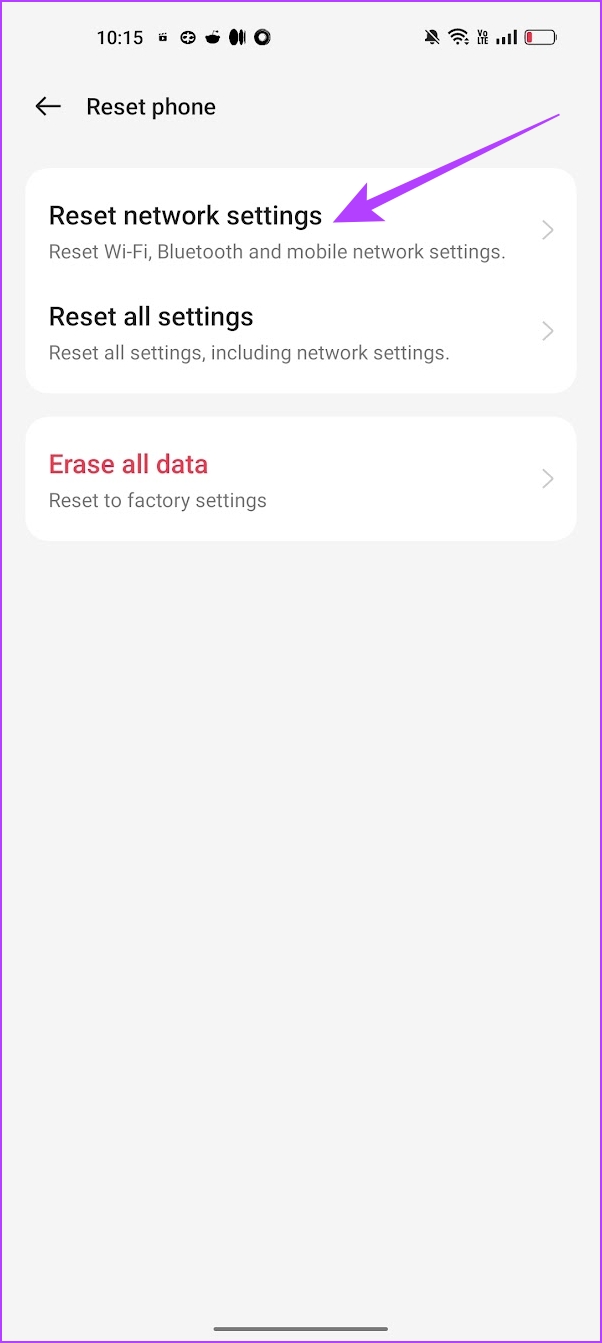
Resetting network settings can help erase any bugs that are affecting phone calls on your Android device. Therefore, doing so can also fix the problem.
Open the Settings app, go to Back up and Reset > Reset Phone > Reset network settings .
Was this helpful?
Submit Cancel
Thanks for your feedback!
Keep reading