Android
4 Ways to Fix Bluetooth Keeps Disconnecting on Android
Does your Android phone's Bluetooth connection act weirdly? Here are the best ways to fix Bluetooth keeps disconnecting on Android.
By Parth Shah
Quick Tips
Ensure the Bluetooth device is close to your phone, and check its battery level.
Forget the Bluetooth device from the Settings app and pair it again.
Open the Bluetooth app in System Apps, and clear the cache to remove junk files that may cause problems.
Basic Fixes
Use 5GHz Wi-Fi : Bluetooth uses a 2.4GHz frequency band, which can cause the signals to overlap and can cause problems by disconnecting the device. Therefore, try using a 5Ghz Wi-Fi.
Charge Bluetooth device: Ensure there’s enough battery left on your Bluetooth device.
Check distance between devices : Maintain a close distance between your phone and Bluetooth device. If there are physical obstructions like walls in between, Bluetooth will keep disconnecting
Restart devices: Restart both your smartphone and the Bluetooth device to fix any bugs and glitches.
Fix 1: Reconnect Bluetooth Device
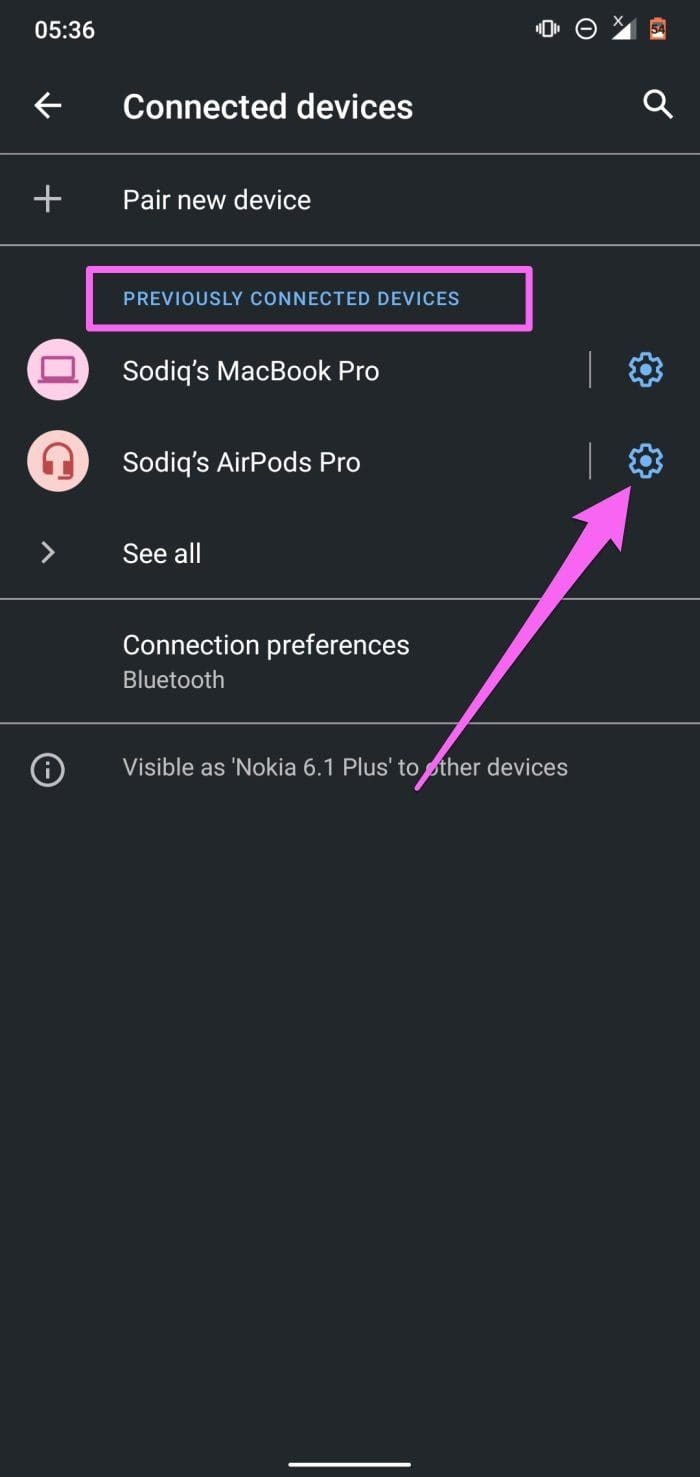
It’s a good idea to pair it with your phone again to get rid of any bugs by establishing a fresh connection.
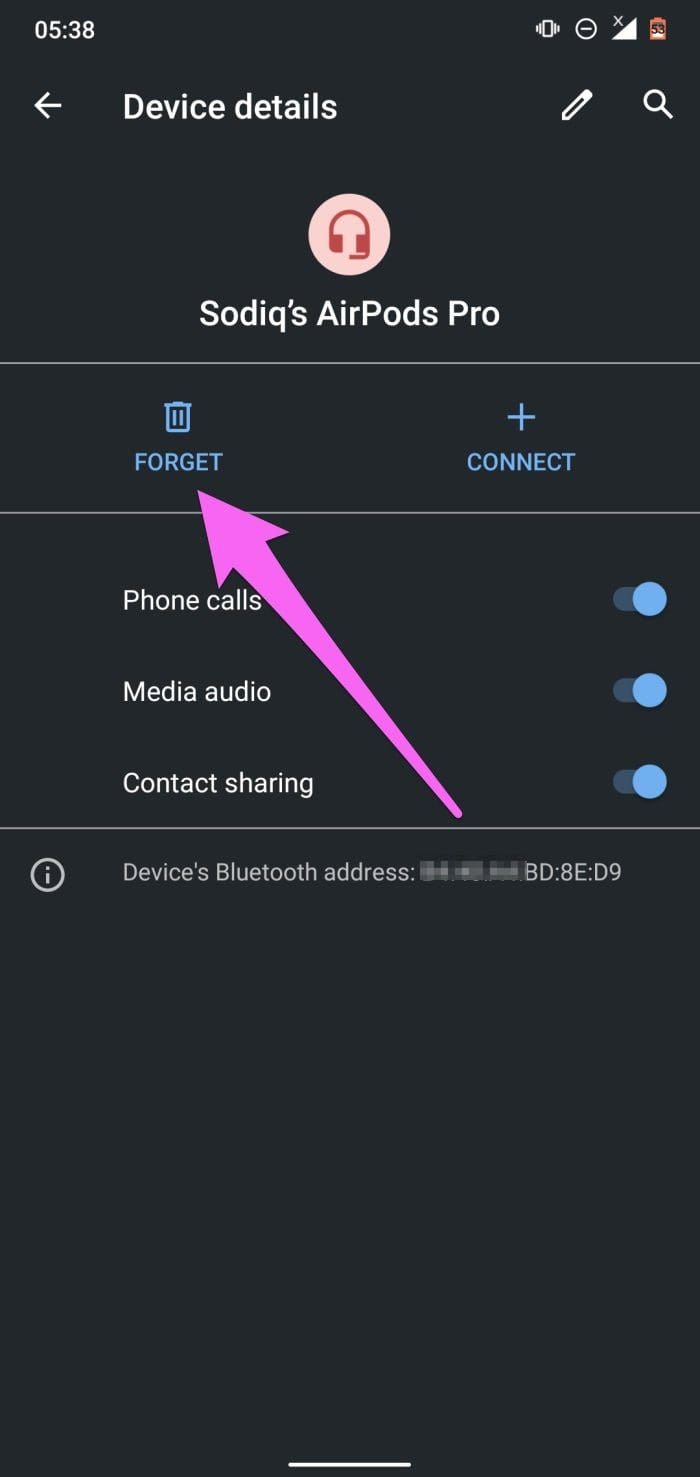
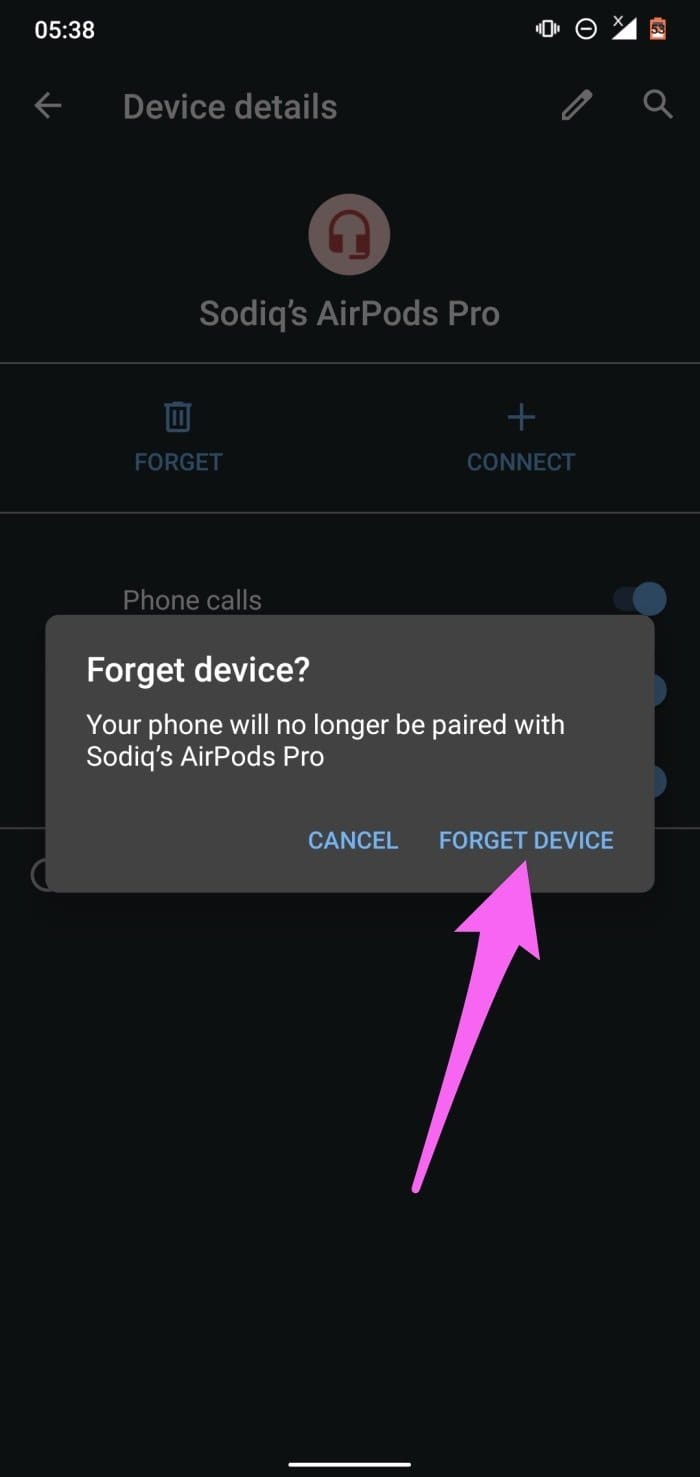
Open the Settings app, go to Bluetooth , select the settings icon next to your Bluetooth device, and select Forget .
Fix 2: Enable Unrestricted Battery Usage to Bluetooth
If you’ve enabled any battery usage restrictions for Bluetooth, you may face problems.
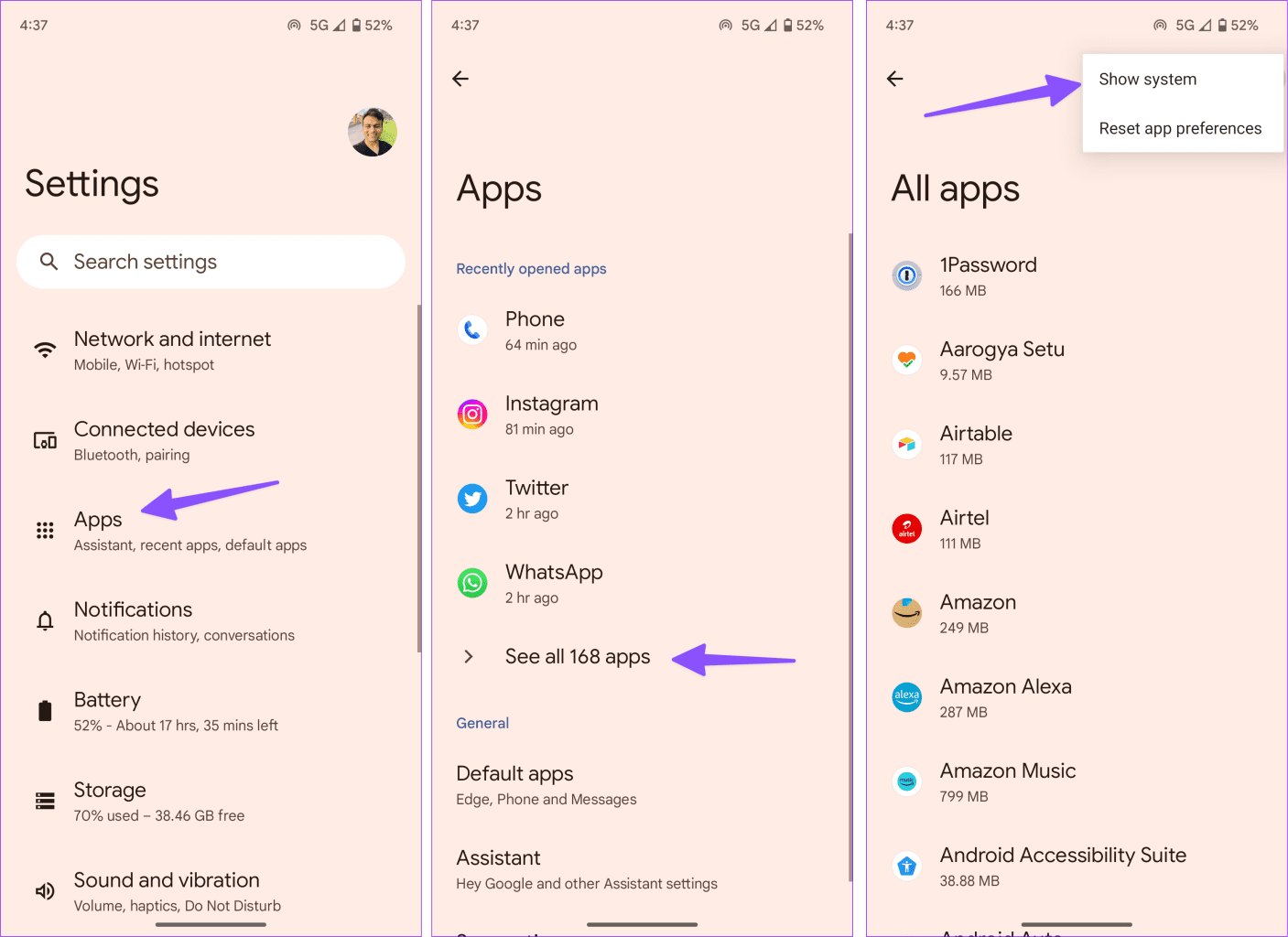
Step 1: Open Settings > Apps > Show All Apps , tap on the three-dots icon at the top right, and select Show System .
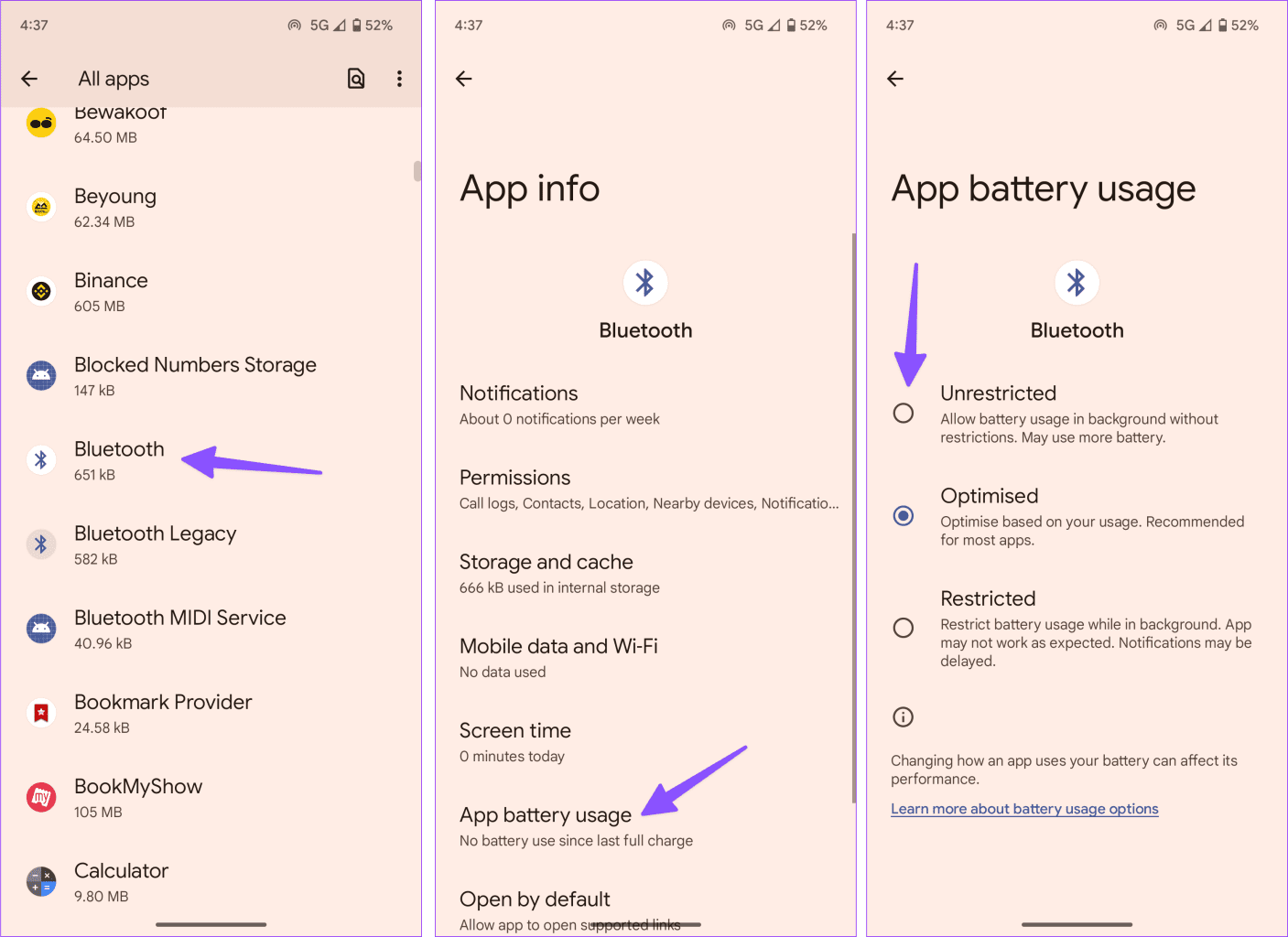
Step 2: Select Bluetooth from the list of apps, select App battery usage, and select Unrestricted .
Fix 3: Clear Cache
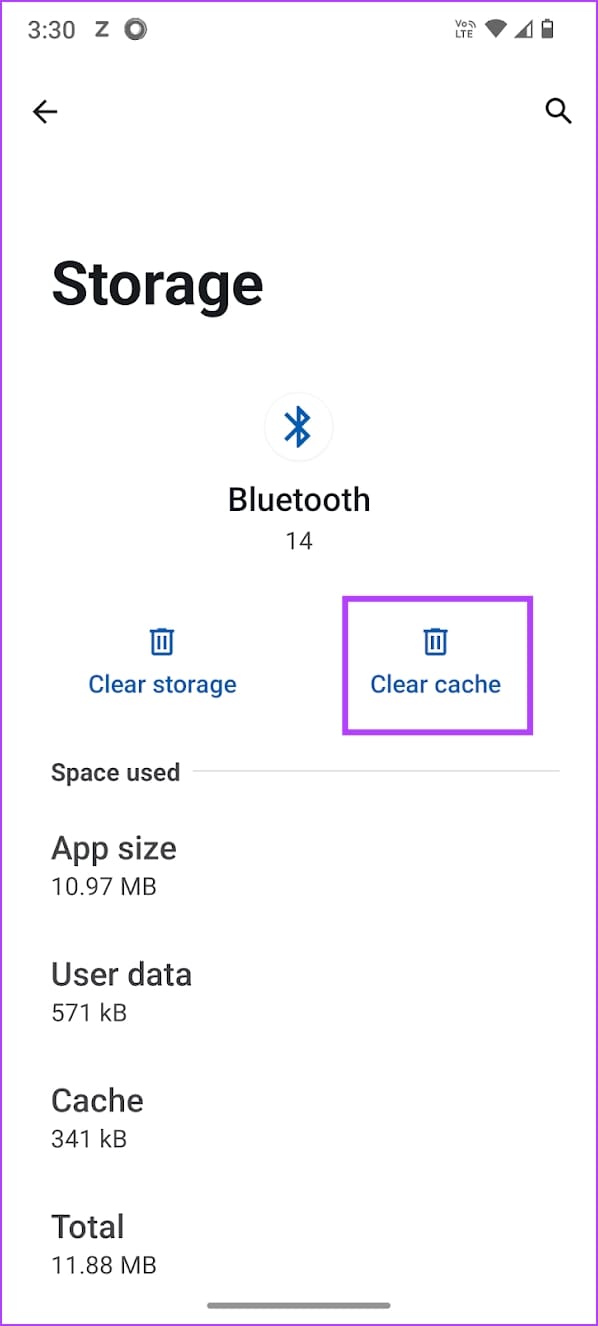
If the software components that control Bluetooth connectivity on your Android device are affected by a bug, you can clear the cache and junk files from the service.
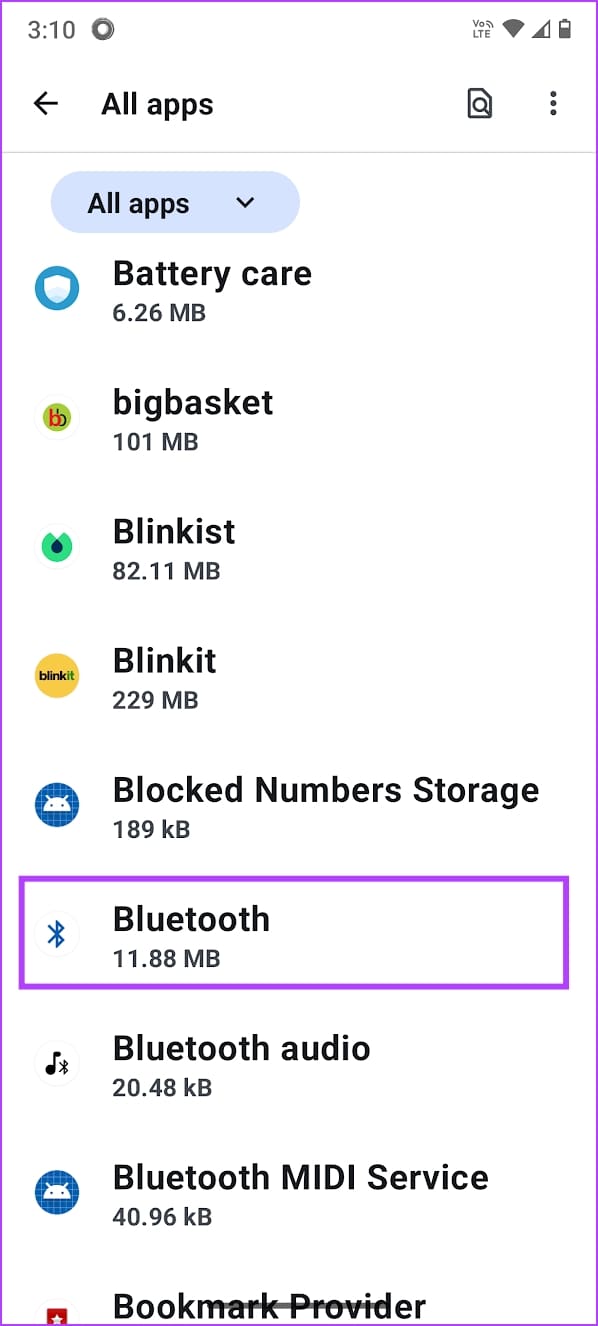
Step 1 : Open Settings > Apps > Show All Apps , tap on the three-dots icon at the top right, and select Show System .
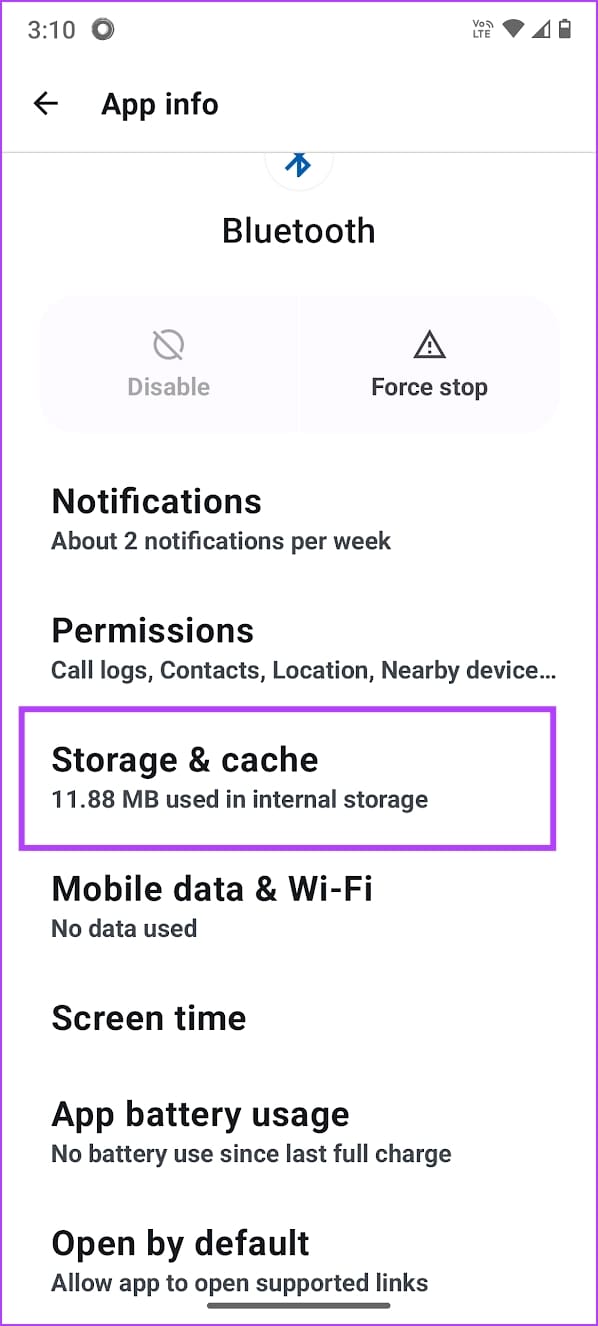
Step 2: Select Bluetooth from the list. Select Storage & Cache > Clear Cache .
Also Read: 3 ways to fix Android can’t find nearby Bluetooth devices
Fix 4: Update or Reset Bluetooth Device
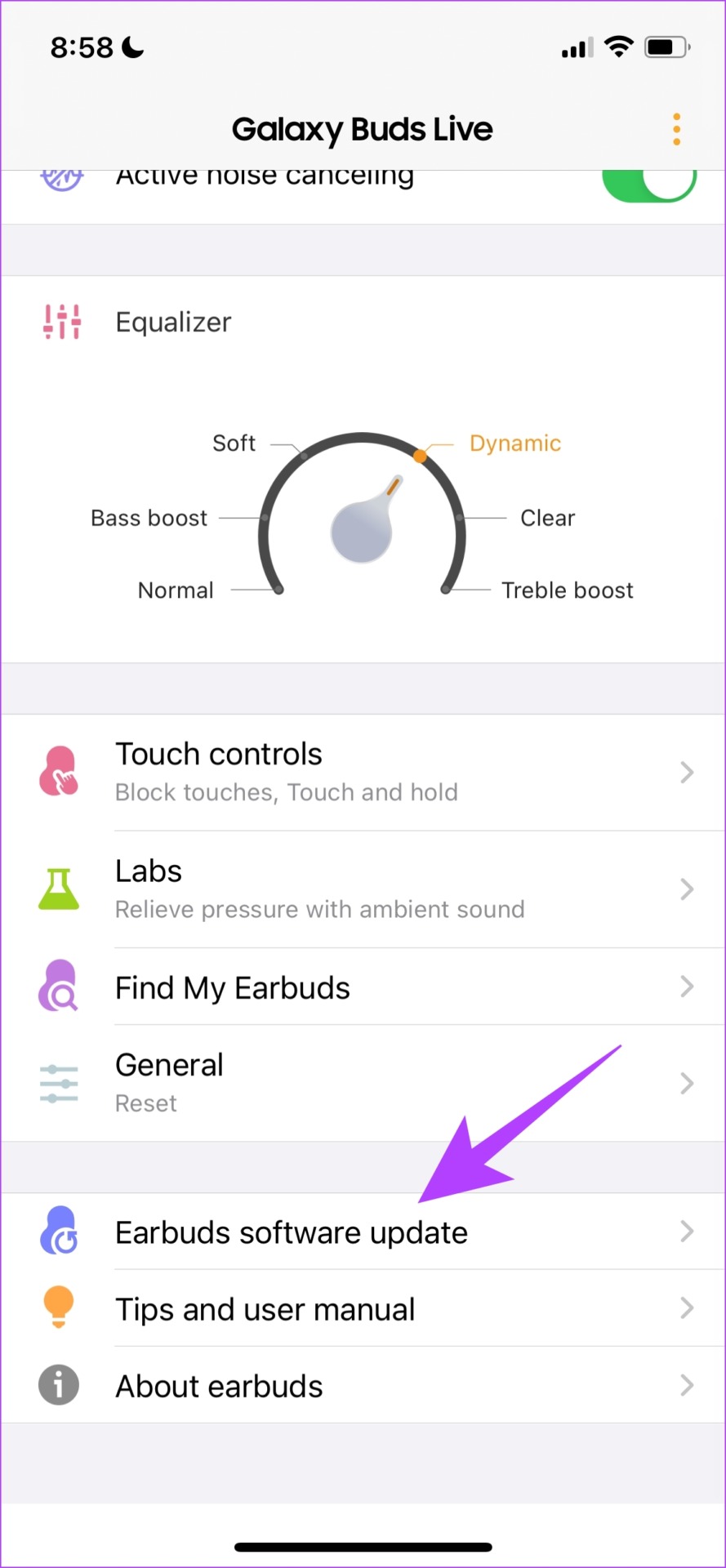
Some Bluetooth devices come with a dedicated app to control and configure them. These apps also present you with an option to update the firmware.
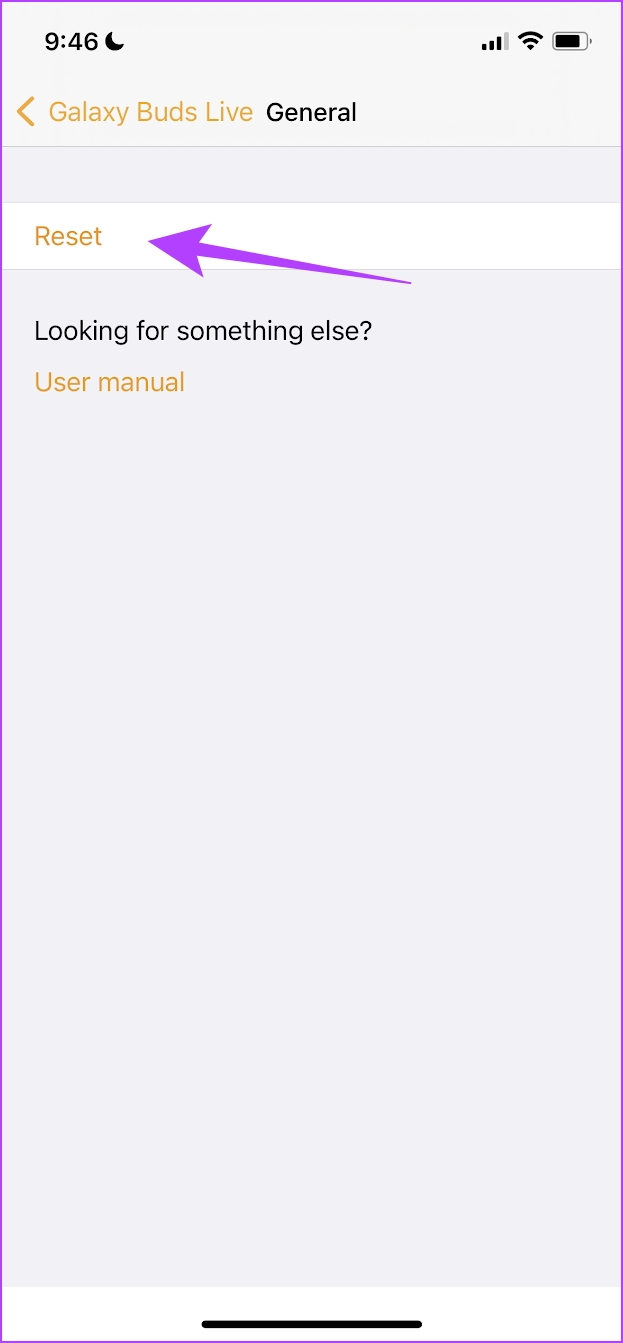
Resetting the Bluetooth device will reset all the applied configurations to their default states. There is a good chance that most issues are fixed. This is also possible on the official app for the Bluetooth device. Here’s how it looks on the Samsung Galaxy Buds app.
For example, here’s how it looks on the dedicated app for Samsung Bluetooth devices to update the firmware .
If none of the above methods work, try resetting the network settings on your Android device.
Was this helpful?
Submit Cancel
Thanks for your feedback!
Keep reading