Android
6 Fixes for the “Connection Problem or Invalid MMI Code” Error on Android
Do you keep getting the ‘Connection problem or invalid MMI code’ error while dialing MMI code on your Android phone? Here's how to fix it.
By Pankil Shah
Quick Tips
If you are using a dual-SIM phone, try turning off the other SIM and see if it works.
Set the network mode to auto and enable SMS over IMS to allow your Android phone to send and receive SMS over an IP-based network.
Consider booting your phone into safe mode and resetting the network settings if the issue remains.
Try Basic Fixes
Toggle the airplane mode: Turning airplane mode on and off is an effective way to refresh your phone’s network connections. If you are getting the “Connection problem or invalid MMI code” only due to a network glitch, toggling the airplane mode should help.
Insert a comma at the end of the prefix code: In some cases, adding a comma at the end of the prefix code can help you fix the invalid MMI code error on your Android. For instance, if you are trying to dial the *#0589# code, add a comma at the end by long-pressing the asterisk (*) on the dial pad to dial *#0589#, instead.
Fix 1: Turn Off the Other SIM
Such MMI code errors are common among Android phones with dual SIM cards. If that’s the case with you, try turning off the other SIM and see if it works.
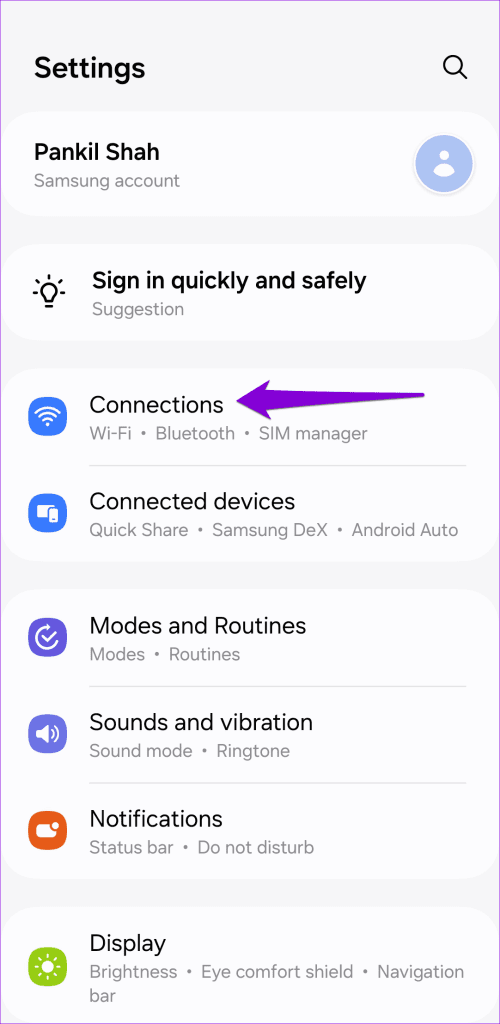
Step 1: Open the Settings app and tap on Connections .
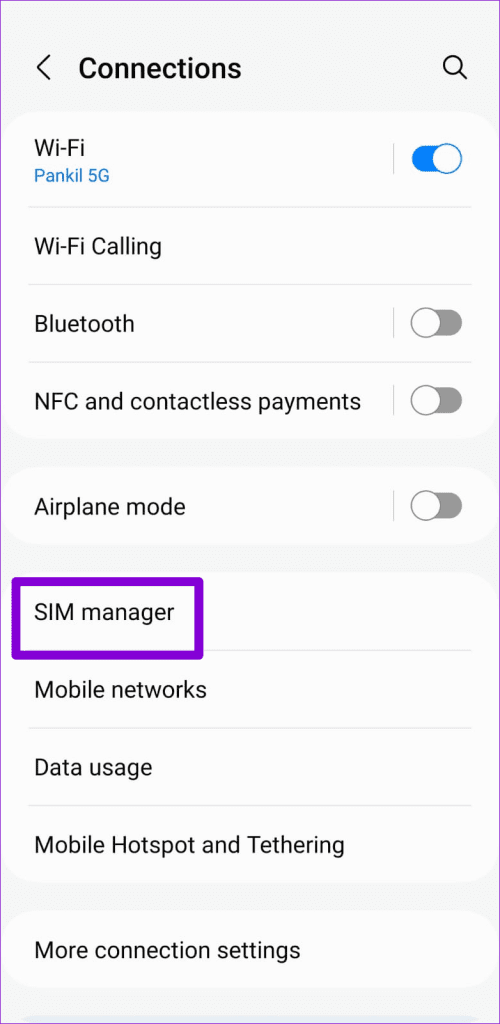
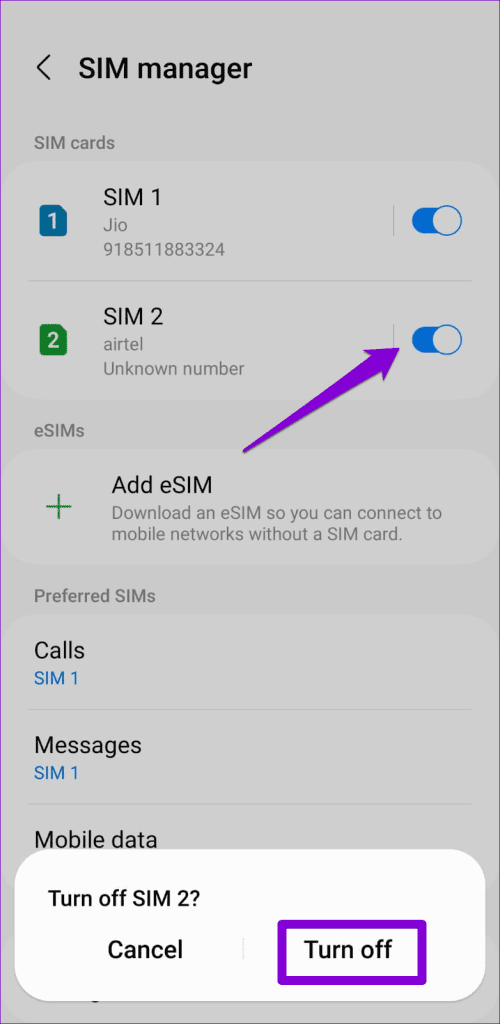
Step 2: Tap on SIM manager , disable the toggle next to the unused SIM, and select Turn off to confirm.
Fix 2: Set Network Mode to Auto
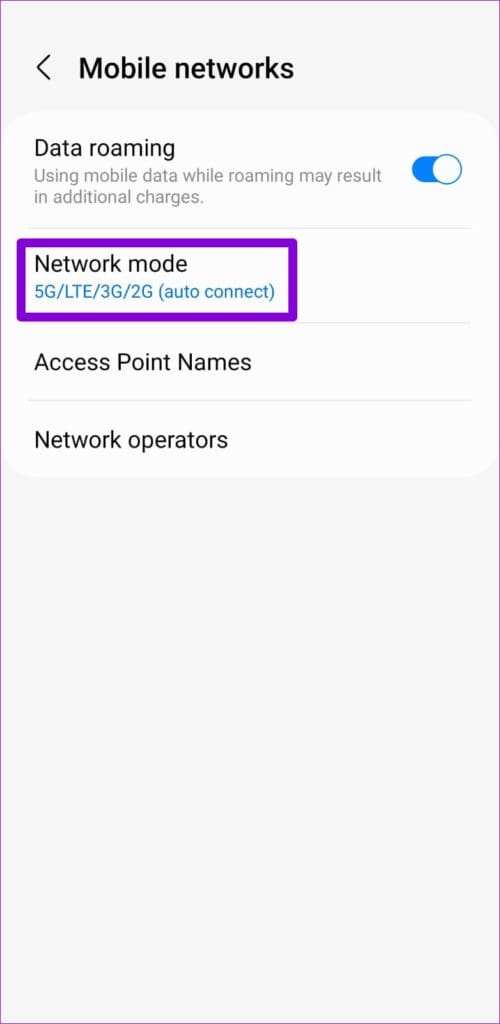
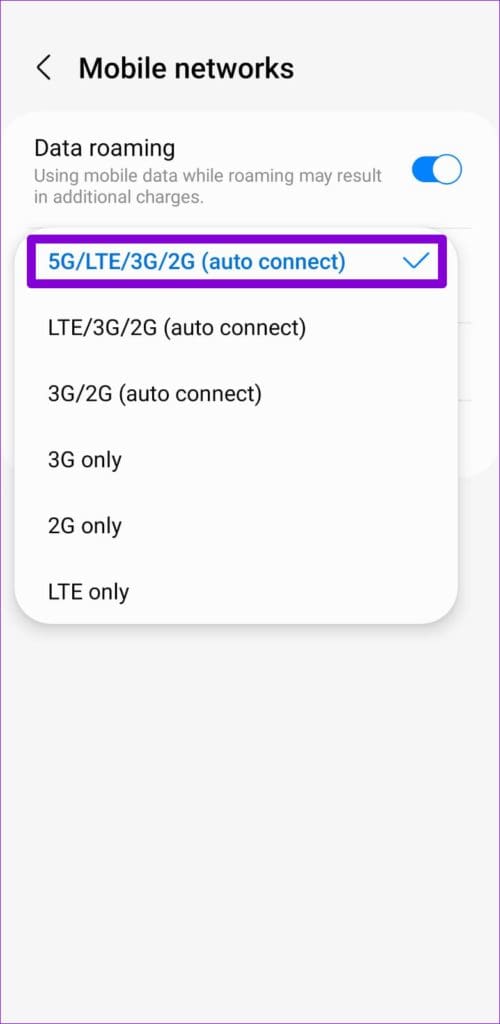
Selecting a network mode unavailable in your current region can also trigger such errors. It’s best to allow your Android to select the network mode automatically. Here’s how to do it.
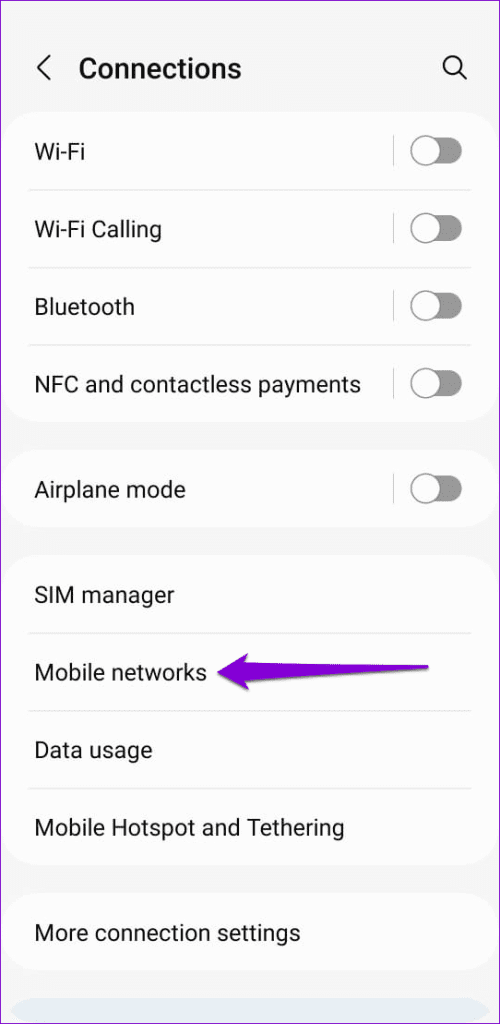
Step 1: Open the Settings app and go to Connections > Mobile networks .
Step 3: Tap on Network mode and select the 5G/LTE/3G/2G (auto connect) option.
Fix 3: Turn On SMS Over IMS
Turning on SMS over IMS (IP Multimedia Subsystem) allows your Android phone to send and receive SMS (Short Message Service) messages over an IP-based network. This can help mitigate compatibility issues and fix the “Connection problem or invalid MMI code” error on your Android.
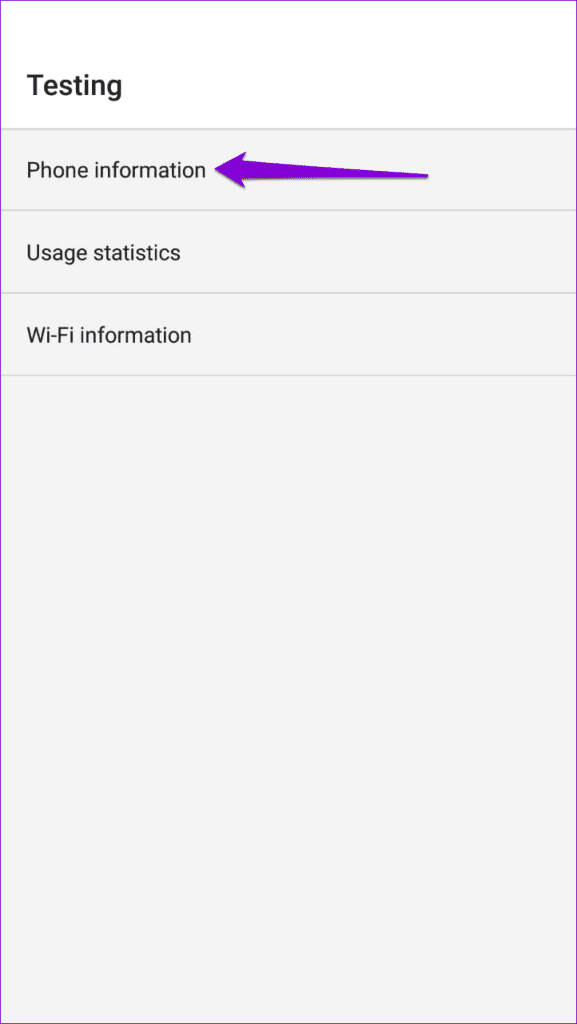
Step 1: Launch the Phone app on your Android and dial *#*#4636#*#* to bring up the service menu.
Note: The exact code for entering the service menu may differ based on your phone’s manufacturer.
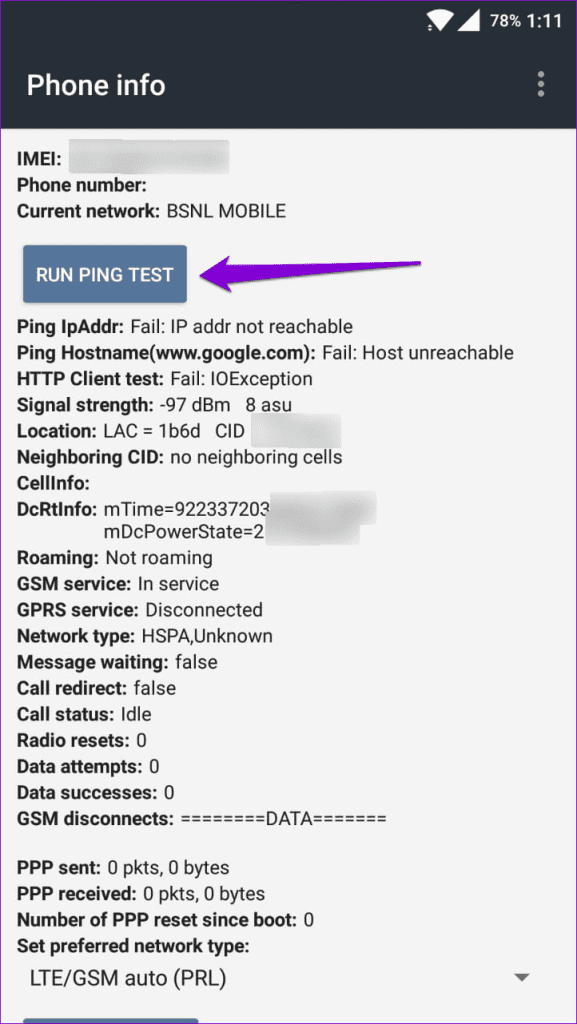
Step 2: Select Phone information and tap the Run Ping Test button.
Step 3: Tap the Turn Off Radio button and then tap the Turn on SMS Over IMS button.
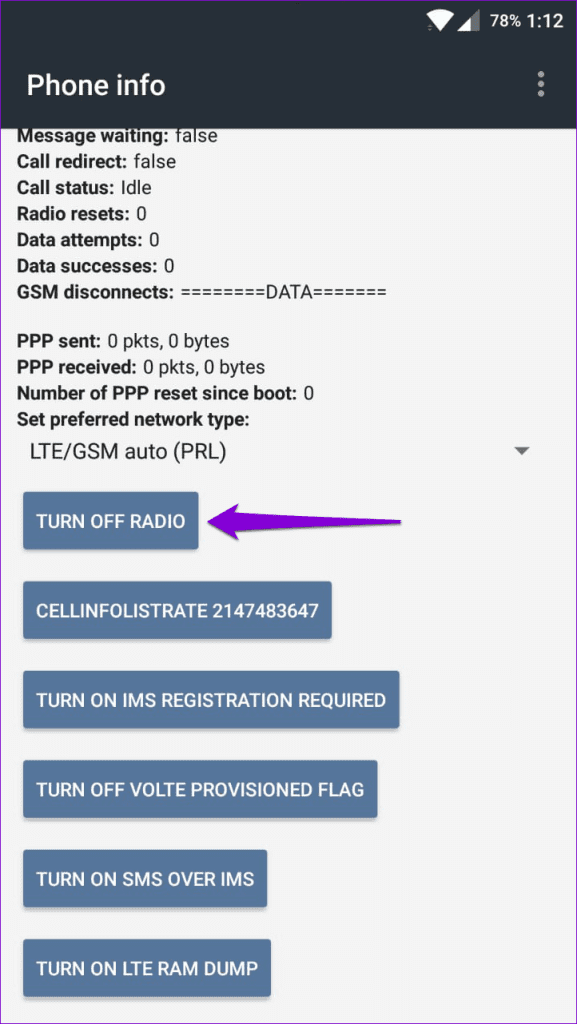
Restart your phone after this and see if you still get the error.
Fix 4: Correct Date and Time
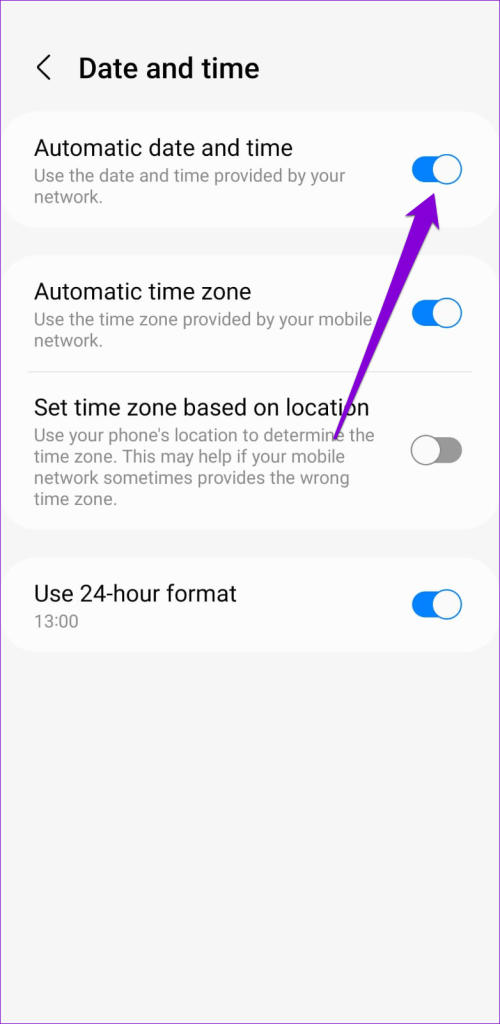
Such errors can also occur if your phone is set to an incorrect date and time . To avoid this, you can configure your phone to use the network-provided date and time. Here’s how:
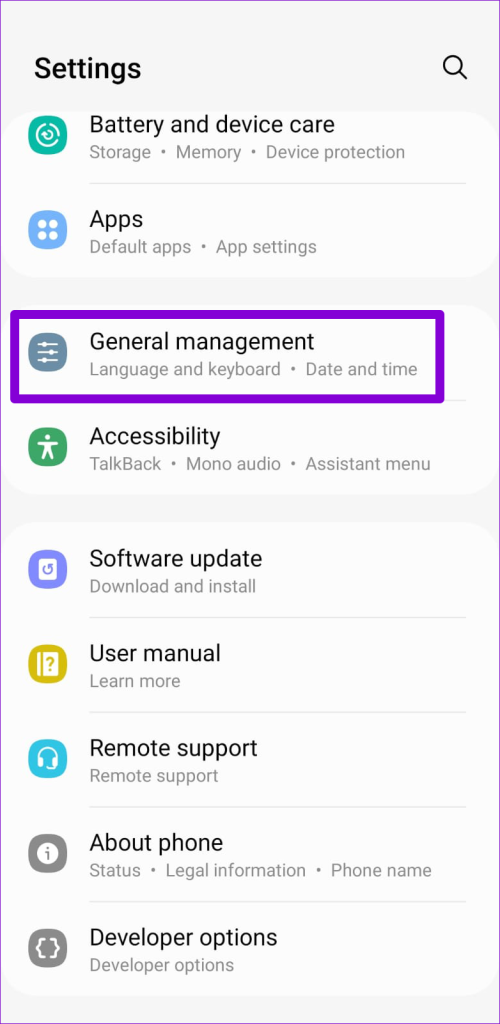
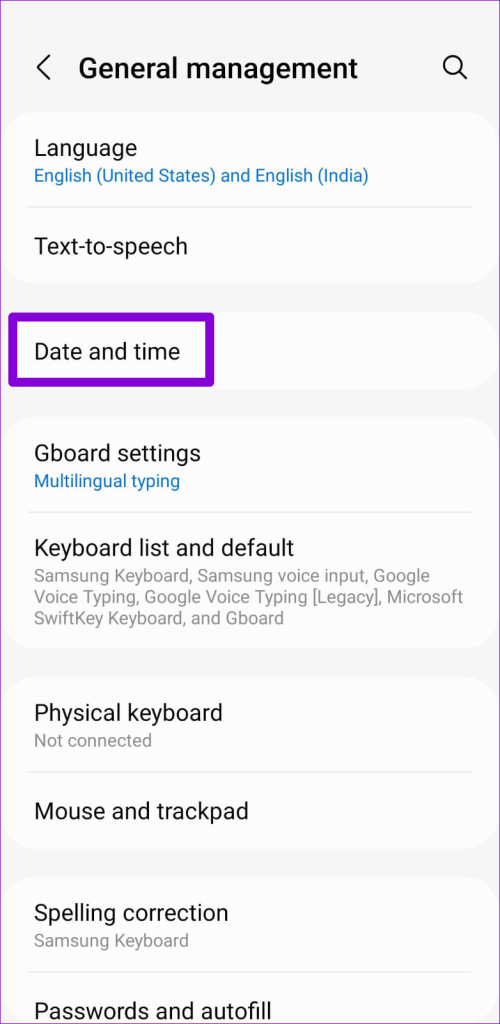
Step 1: Open the Settings app and navigate to General Management > Date and time .
Step 2: Enable the Automatic date and time option.
Fix 5: Try Safe Mode
The third-party apps running on your Android can disrupt network communications and lead to the “Connection problem or invalid MMI code” error. You can use your phone in safe mode to check for this possibility.
To boot your Android into safe mode:
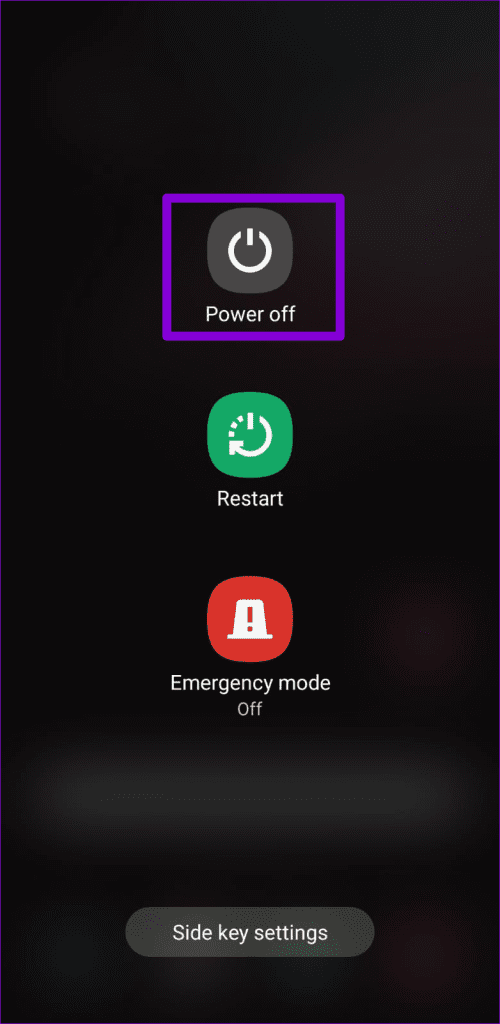
Step 1: Press and hold the Power button until you see the power menu.
Step 2: Long-press on the Power off icon and then tap the green checkmark to boot into safe mode.
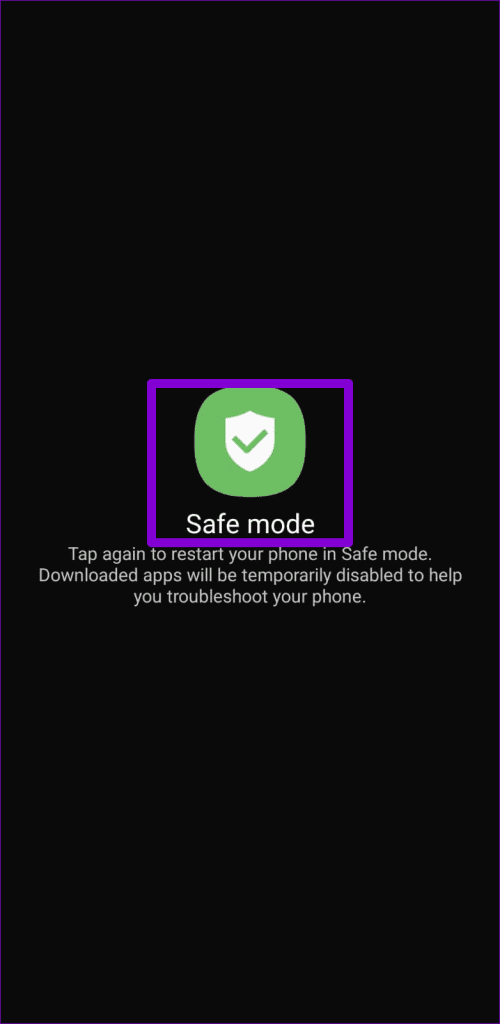
After booting your phone into safe mode, try dialing an MMI code again. If you don’t get any errors, it means one of the third-party apps on your phone is to blame. Apps you installed recently are more likely to have caused the problem. Consider removing those apps one by one to avoid the error for good.
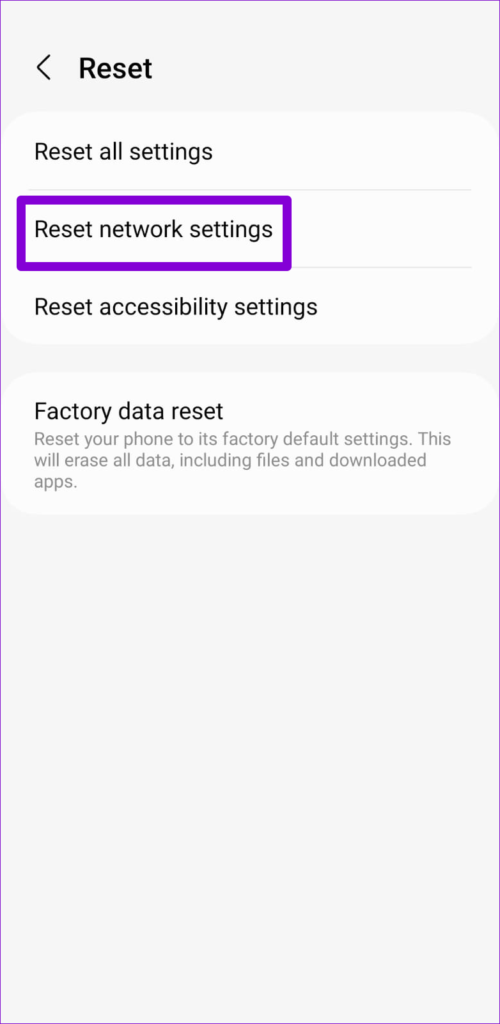
Fix 6: Reset Network Settings
If you are here, it’s safe to assume that none of the above fixes have helped. You can consider resetting the network settings on your Android as your last option.
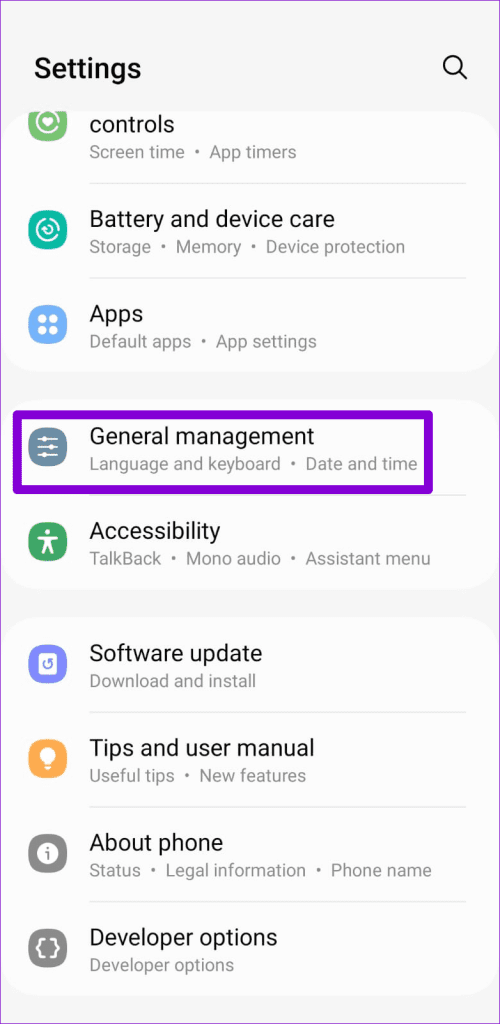
Step 1: Open the Settings app on your phone and tap on General management .
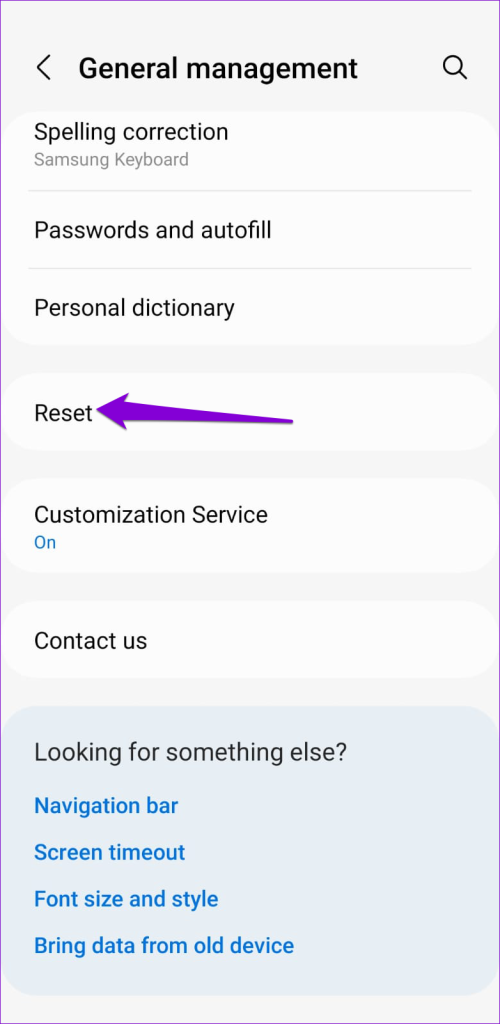
Step 2: Tap Reset and select Reset network settings from the following screen.
Step 3: Tap the Reset settings button to confirm.
Was this helpful?
Submit Cancel
Thanks for your feedback!
Keep reading