Android
5 Best Ways to Fix Do Not Disturb Turning on Itself on Android
Does Do Not Disturb automatically enable on your Android phone? It's never an ideal situation. Here are the best ways to fix Do Not Disturb turning on itself on Android.
By Parth Shah
Quick Tips
Sometimes, a simple restart can resolve various issues, including unexpected Do Not Disturb mode activation.
Ensure that automatic Do Not Disturb (DND) mode rules are not enabled under Settings > Sound > Do Not Disturb.
Verify that automation apps or routines are not triggering DND mode.
Fix 1: Check the Do Not Disturb Schedule
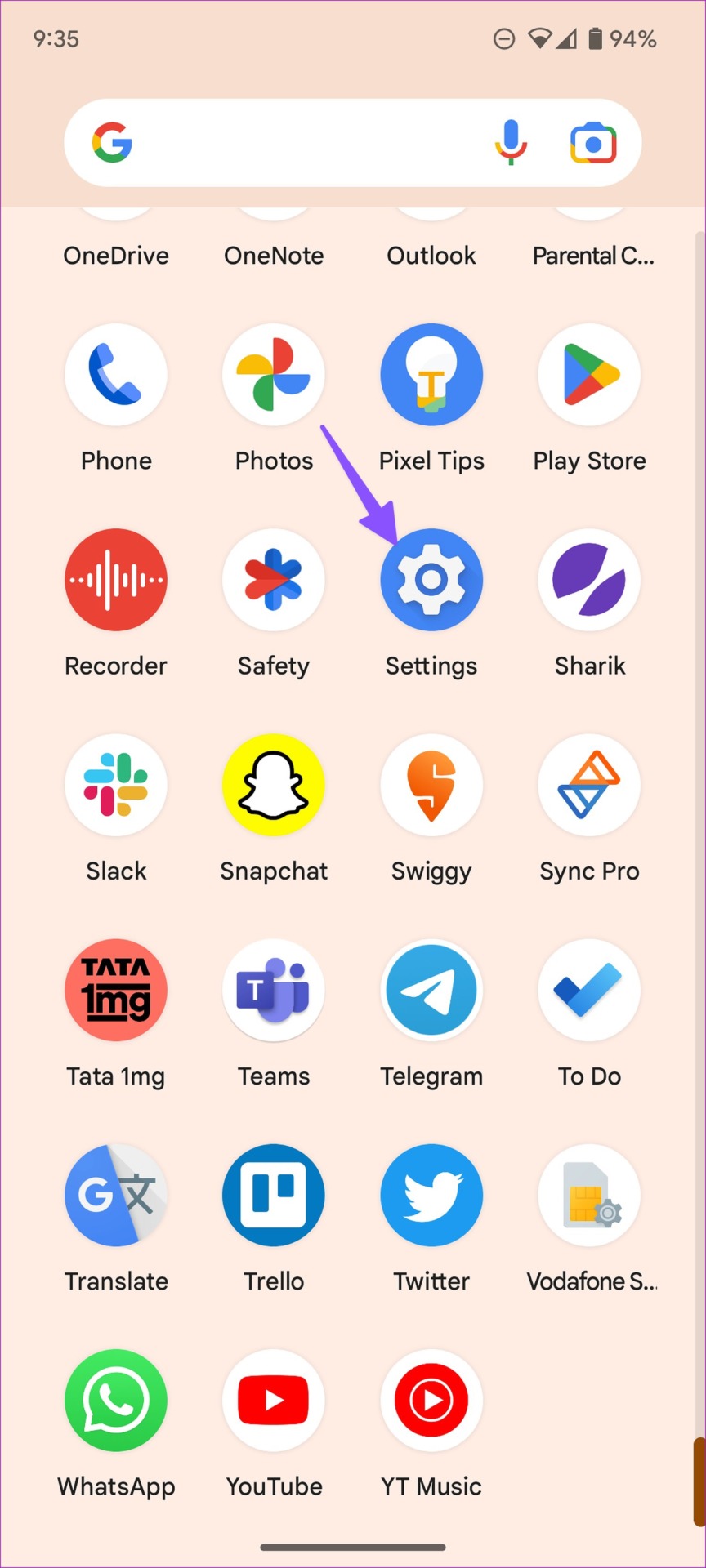
Step 1: Swipe up from the home screen to open the app drawer menu.
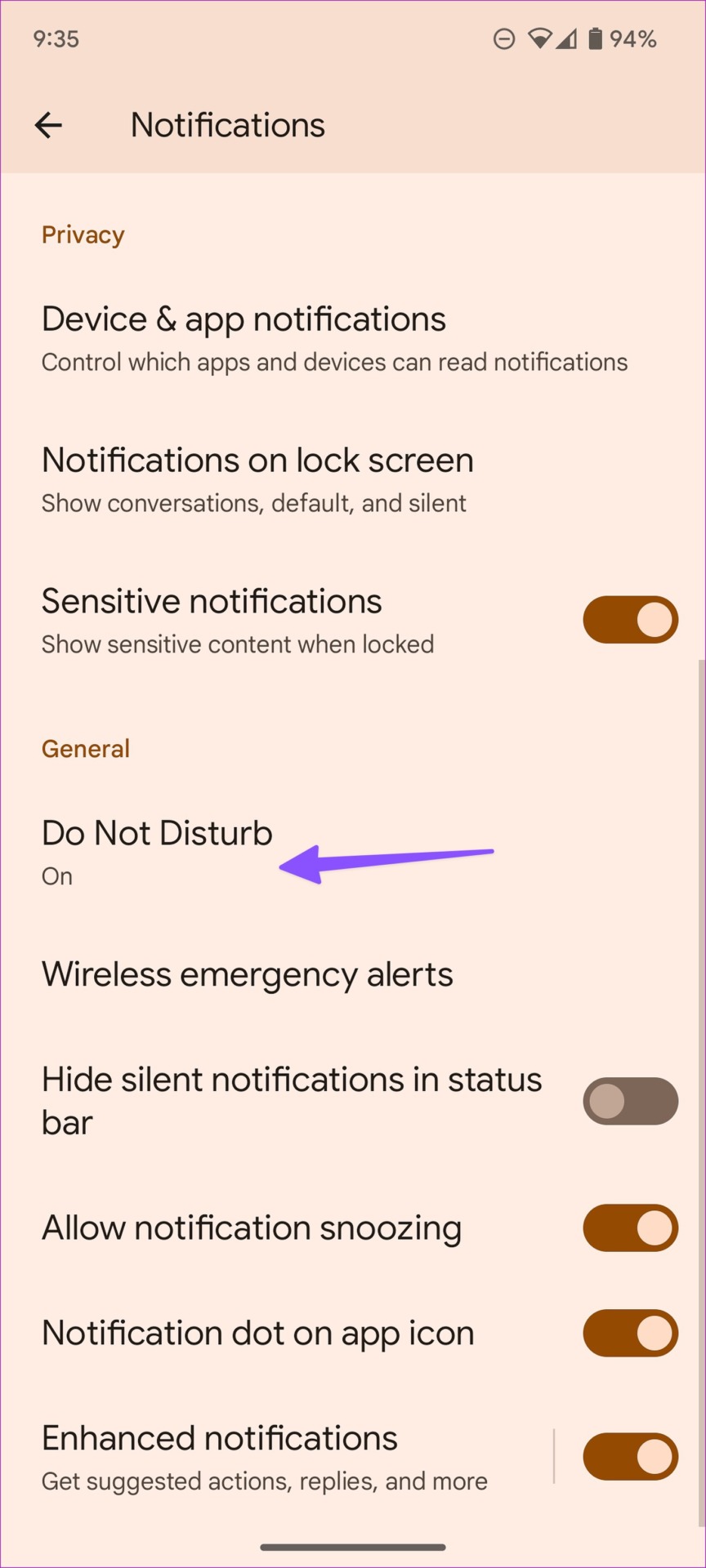
Step 2: Open the Settings app and tap Notifications .
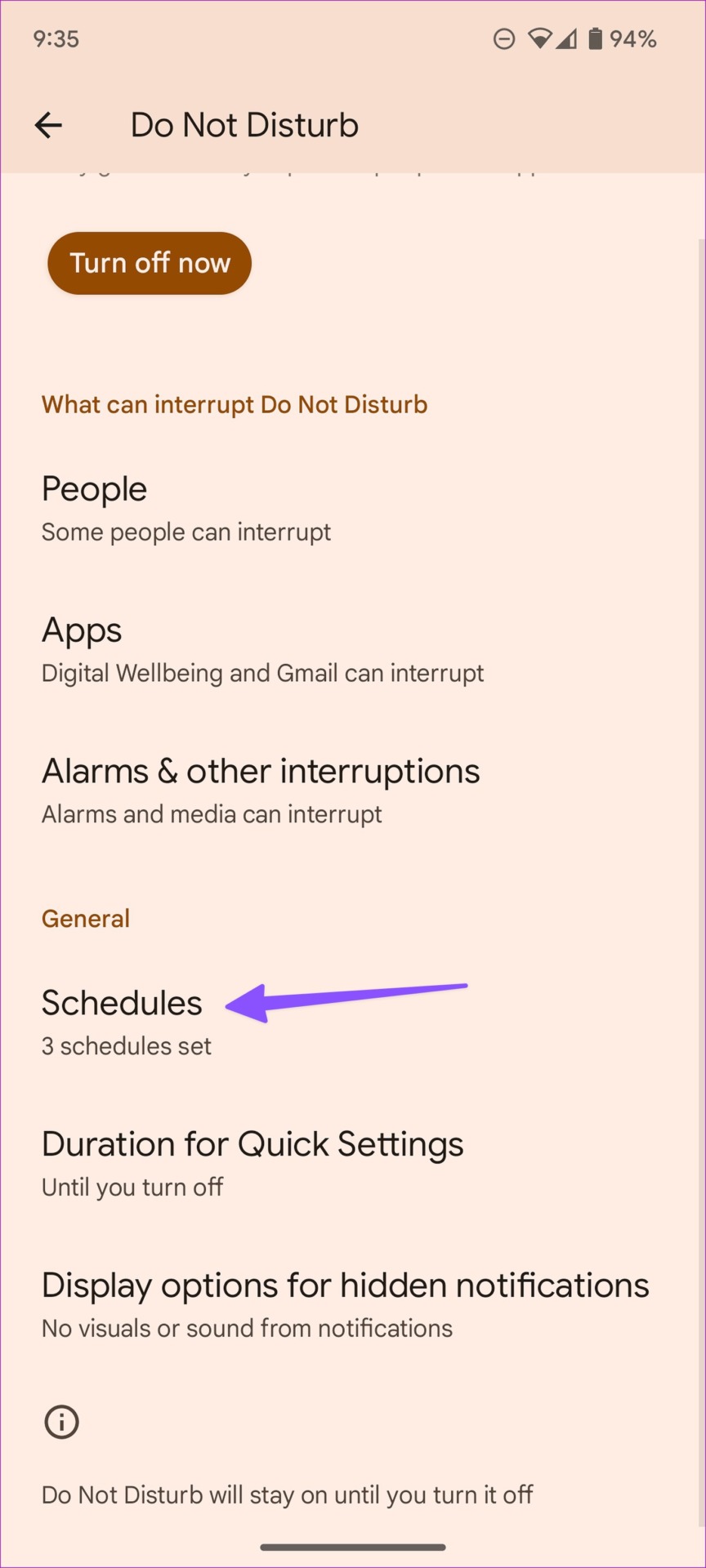
Step 3: Tap Do Not Disturb under the General section.
Step 4: Tap Schedules .
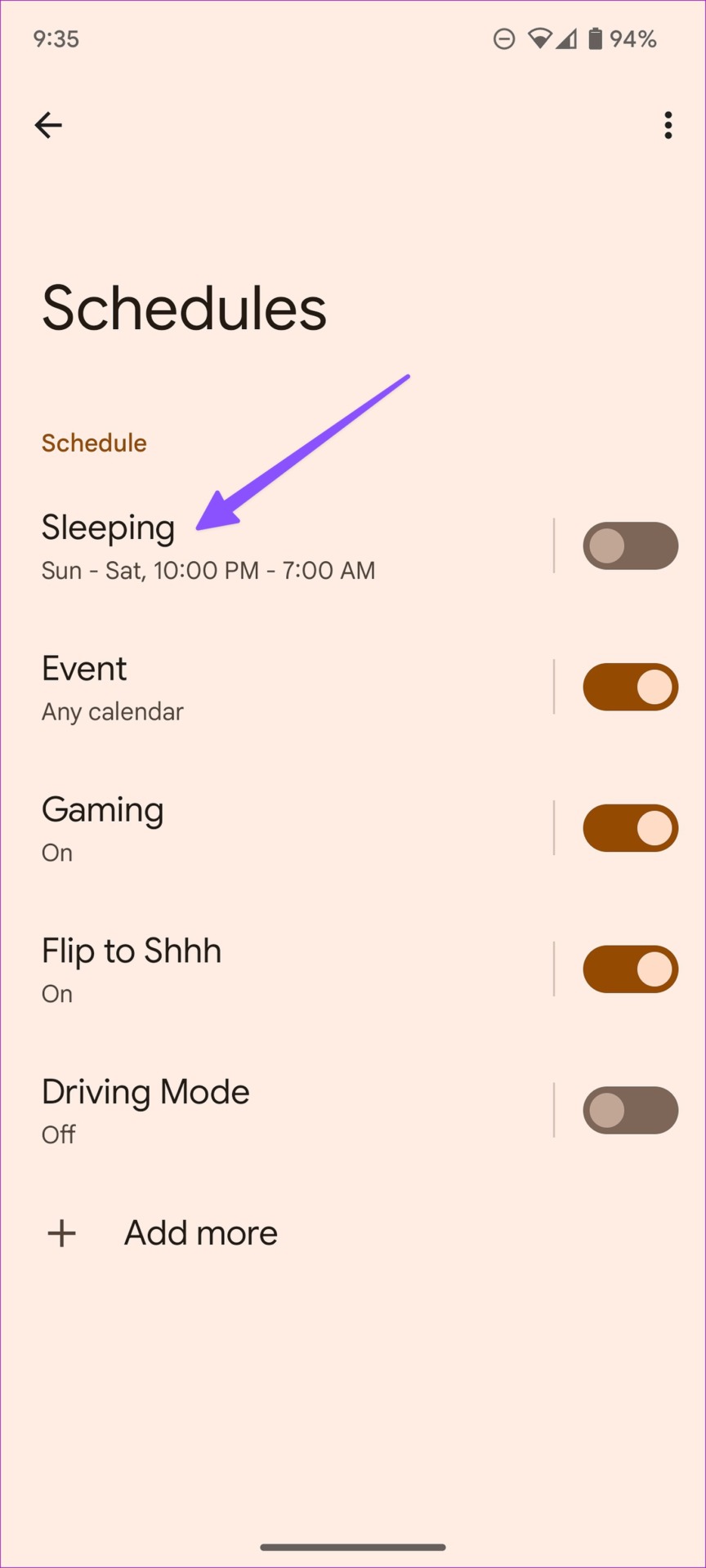
Step 5: Check your schedules from the following menu. Tap on one of the active or unwanted schedules.
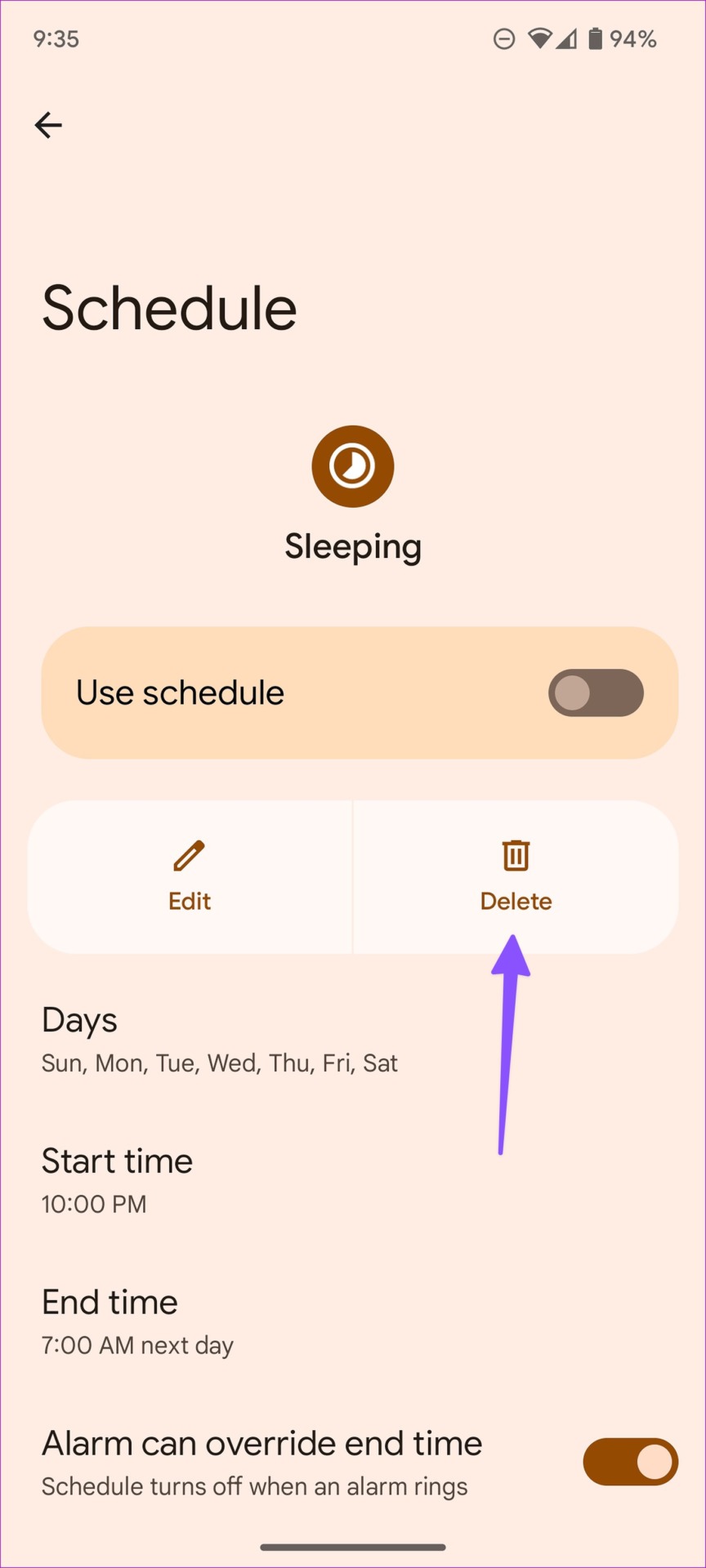
Step 6: You can edit days, start time, end time, or even delete the schedule.
Fix 2: Disable Do Not Disturb During Bedtime
Step 1: Open Settings on your Android phone.
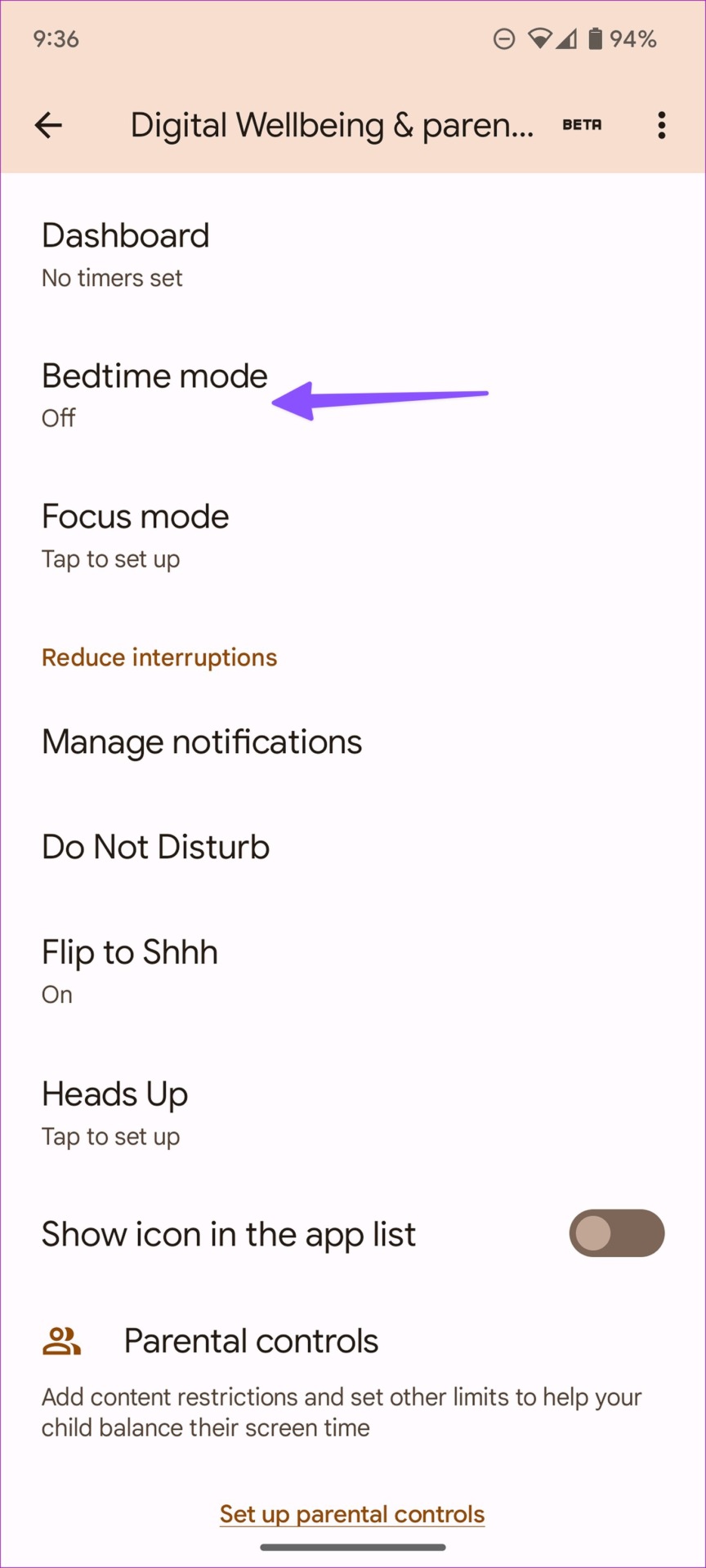
Step 2: Scroll down and tap on Digital Wellbeing & parental controls .
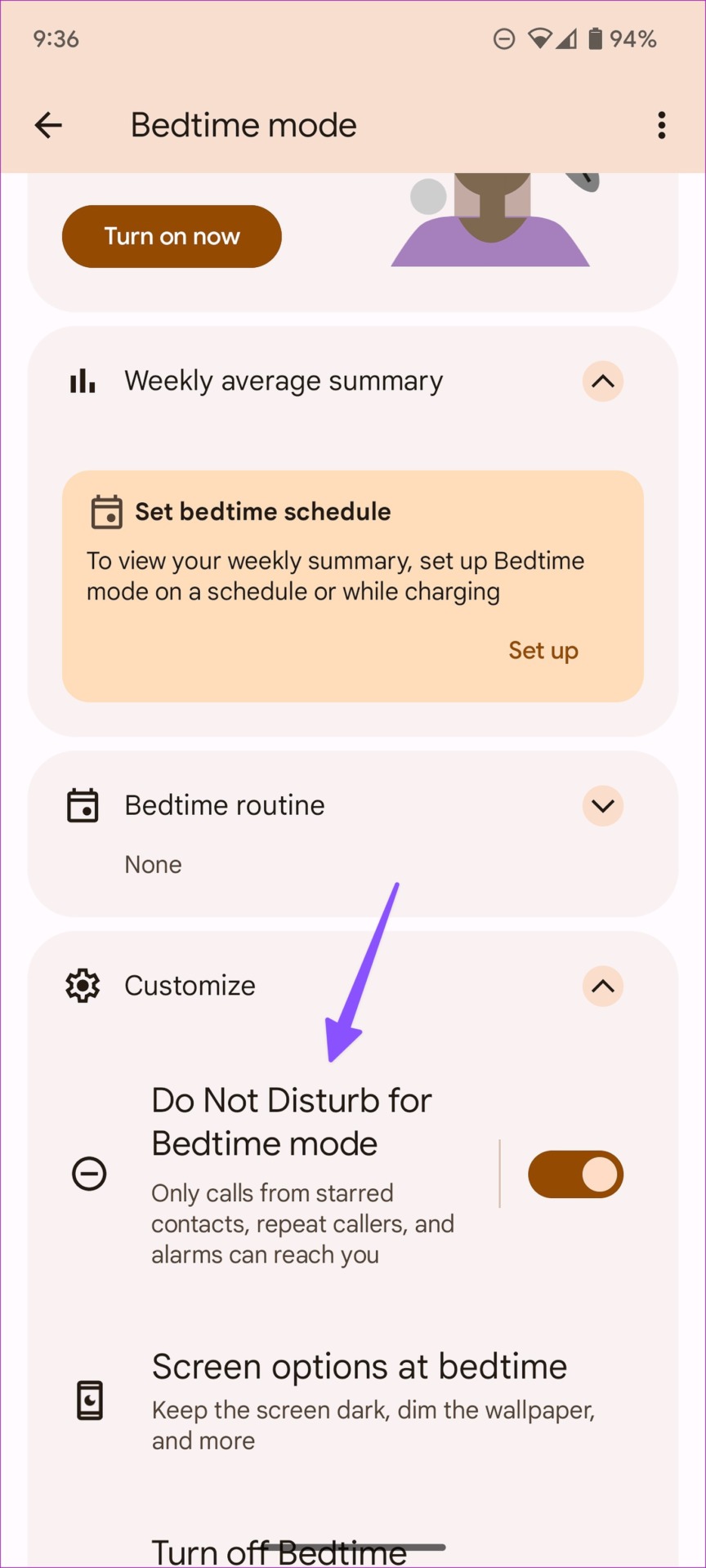
Step 3: Tap Bedtime mode and expand the Customize menu.
Step 4: Turn off the toggle next to disable the Do Not Disturb for Bedtime mode .
Fix 3: Turn off Focus Mode
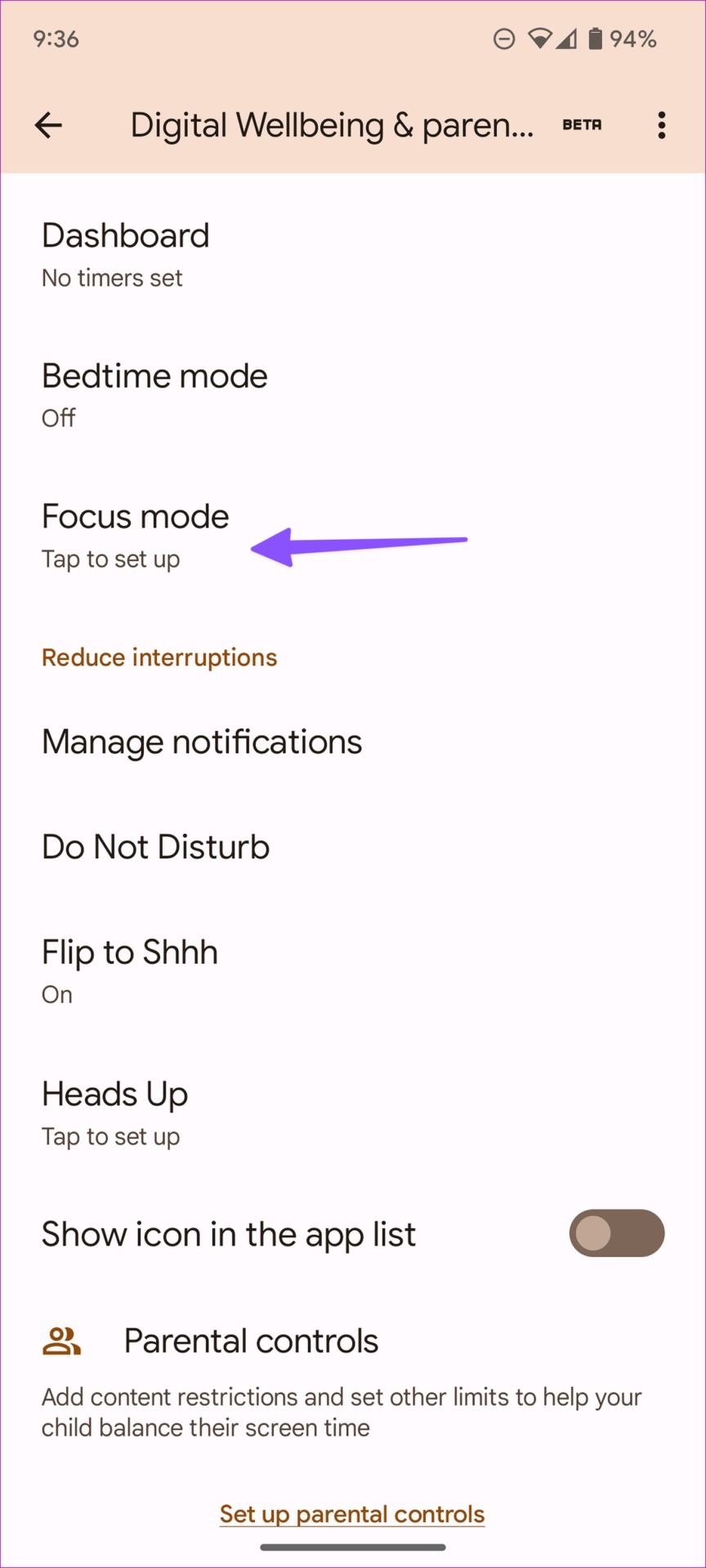
Step 1: Open Digital Wellbeing & parental controls in the Settings (refer to the steps above).
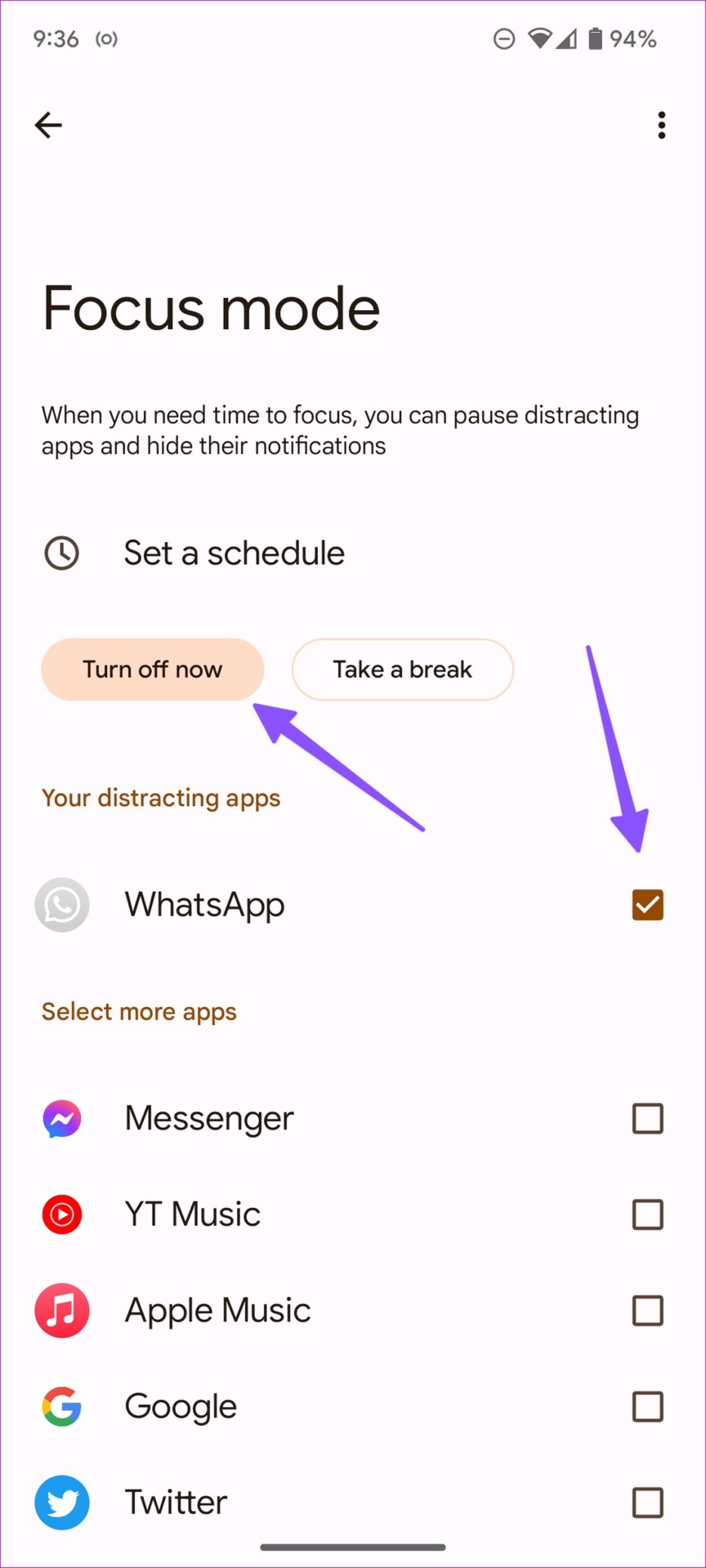
Step 2: Tap Focus mode .
Step 3: Disable Focus mode or exclude relevant apps from it.
Fix 4: Disable Flip to Shhh (Pixel Phones)
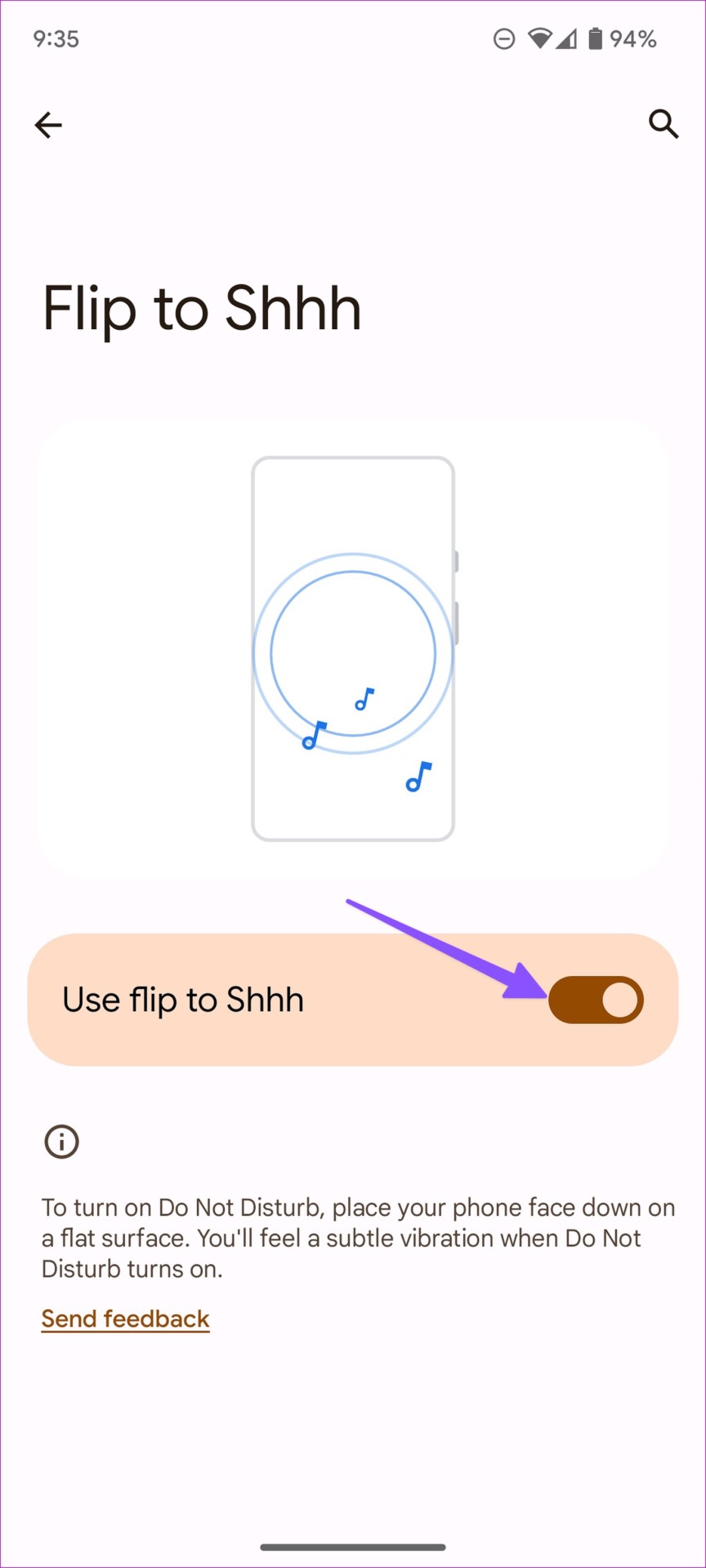
Flip to Shhh is a neat Android add-on for Pixel phones that automatically enables Do Not Disturb when you put your phone face down. While the features come in handy, you may accidentally trigger it.
Step 1: Open the Settings app with a familiar gear icon.
Step 2: Tap Notifications .
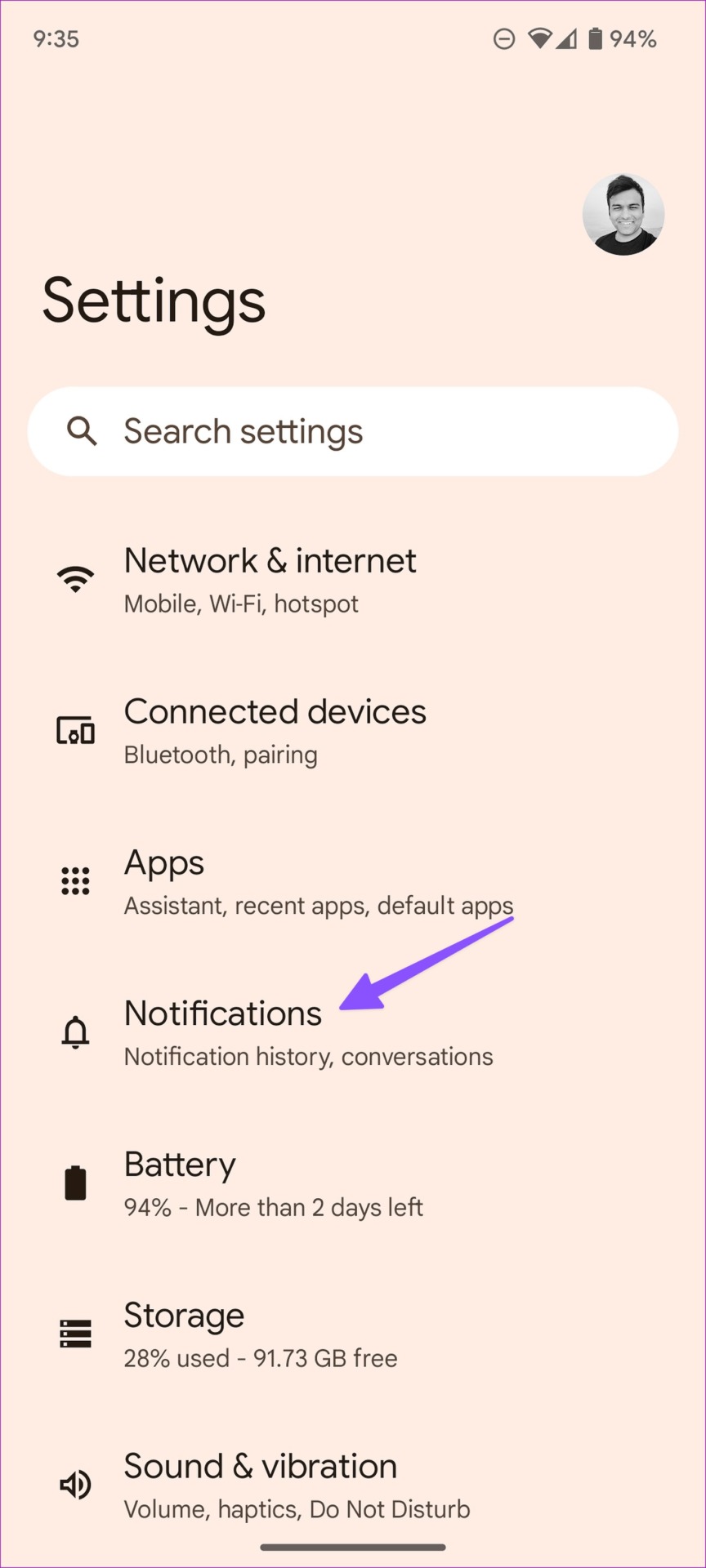
Step 3: Tap Do Not Disturb under the General section.
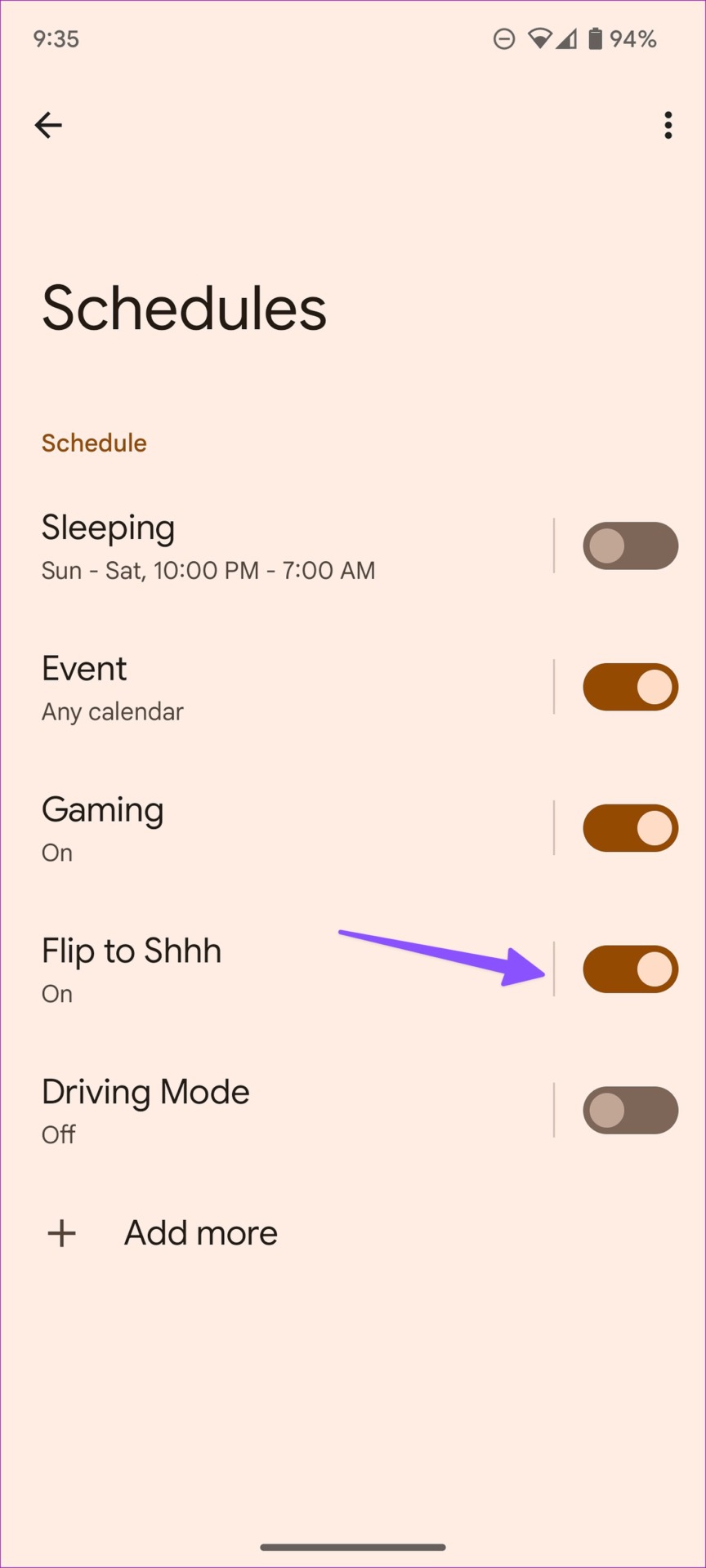
Step 4: Tap Schedules .
Step 4: Tap on Flip to Shhh and turn off the toggle for the feature.
Fix 5: Disable Do Not Disturb While Gaming or Driving
Most users don’t prefer to be disturbed by constant alerts while playing their favorite games or driving. The system automatically enables Do Not Disturb while gaming on Android or when connected to your car Bluetooth. Follow the steps below to disable such behavior.
Step 1: Open the Settings app with a familiar gear icon.
Step 2: Tap Notifications .
Step 3: Tap Do Not Disturb under the General section.
Step 4: Tap Schedules .
Step 5: Turn off the toggle next to Gaming or Driving.
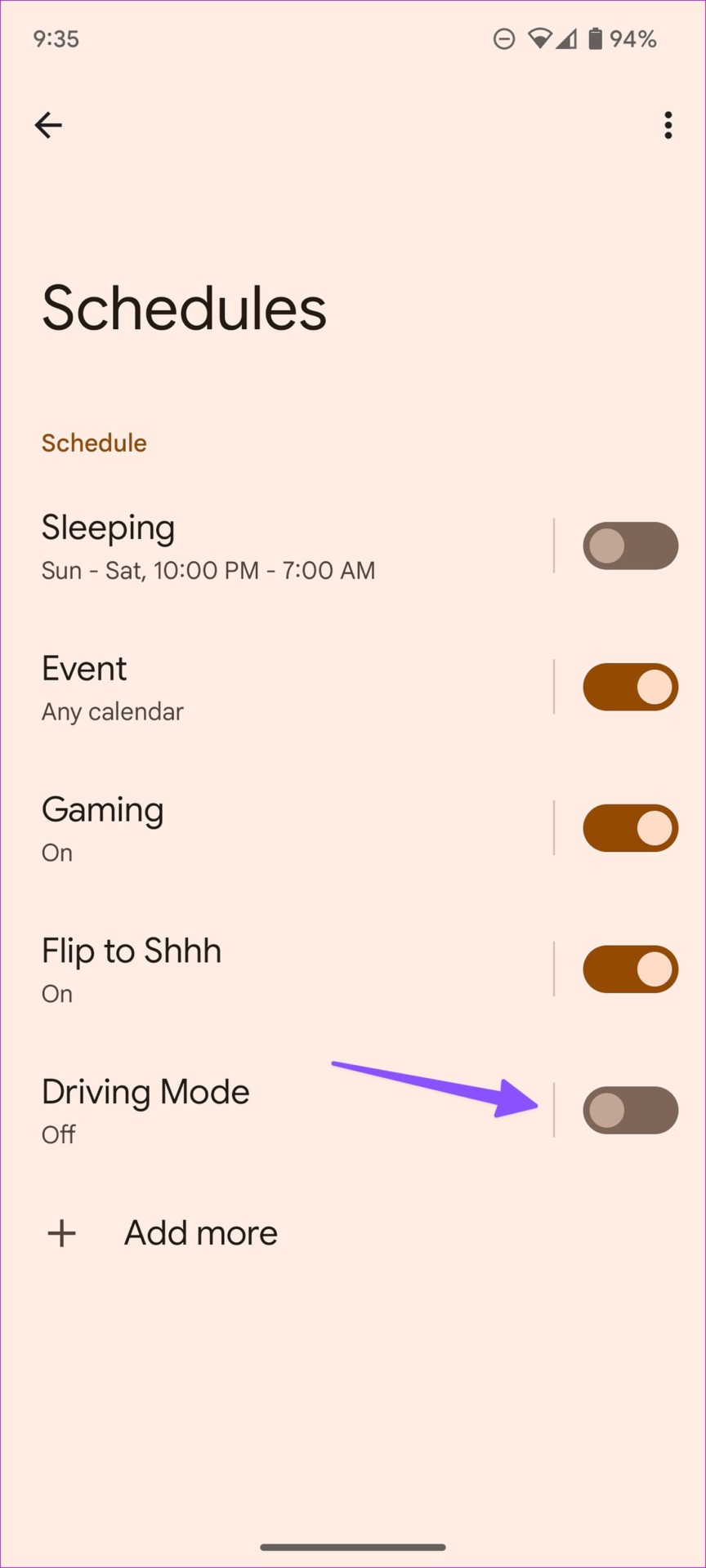
After this, Do Not Disturb won’t turn on itself while you play games on Android or while driving.
While the Do Not Disturb option works well for specific activities, it need not be turned on automatically. You may follow the solutions above to prevent that from happening.
Was this helpful?
Submit Cancel
Thanks for your feedback!
Keep reading