Android
3 Ways to Fix Ear Speaker Not Working on Android
Is the ear speaker not working on your Android phone? Apply these effective solutions to get it working again in no time.
By Pankil Shah
Quick Tips
Clean the ear speaker of your phone with a soft-bristled brush and remove any improperly applied screen protector.
Ensure your Android isn’t muted from the accessibility menu and check if your phone is stuck in headphone mode.
If the issue persists, you may need to reset all settings on your phone.
Try Basic Fixes
Turn off Bluetooth: If your phone is connected to any Bluetooth headphones or earbuds, it might redirect the in-call audio to the connected device rather than the ear speaker. To avoid any unwanted connections, turn off Bluetooth on your phone.
Check if the phone is stuck in headphone mode: Your Android phone may be stuck in headphone mode , which could be why it is not emitting any sound through the ear speaker. In most cases, you can fix this problem by connecting and disconnecting your headphones. If that doesn’t work, you can restart your Android phone.
Install software updates: It’s always a good idea to update your Android phone with the latest software version available. If the issue is due to a bug within Android, installing newer updates will help.
Fix 1: Check the Accessibility Settings
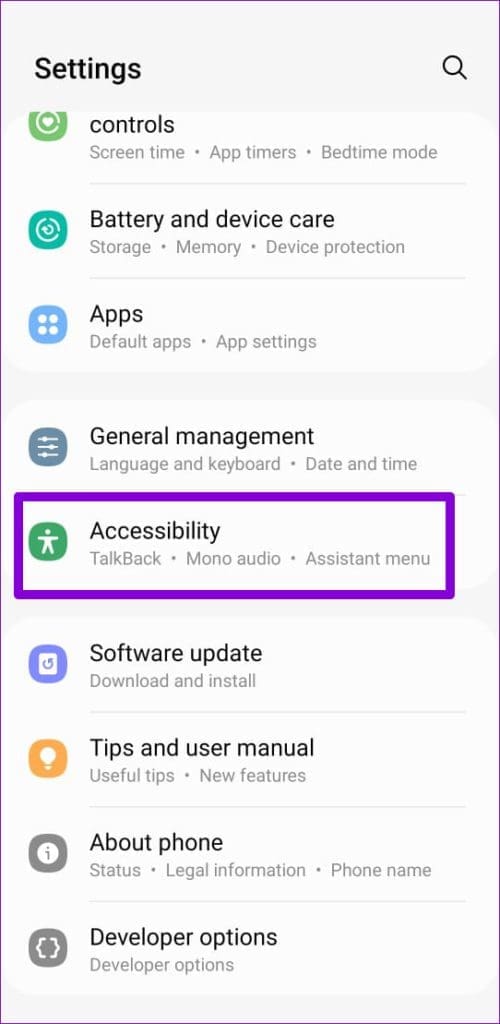
Your Android phone includes several accessibility settings to aid users with hearing disabilities. If you have unintentionally muted your phone through these accessibility settings or enabled hearing aid compatibility, the earpiece may stop working during calls. Here’s what you can do to fix it.
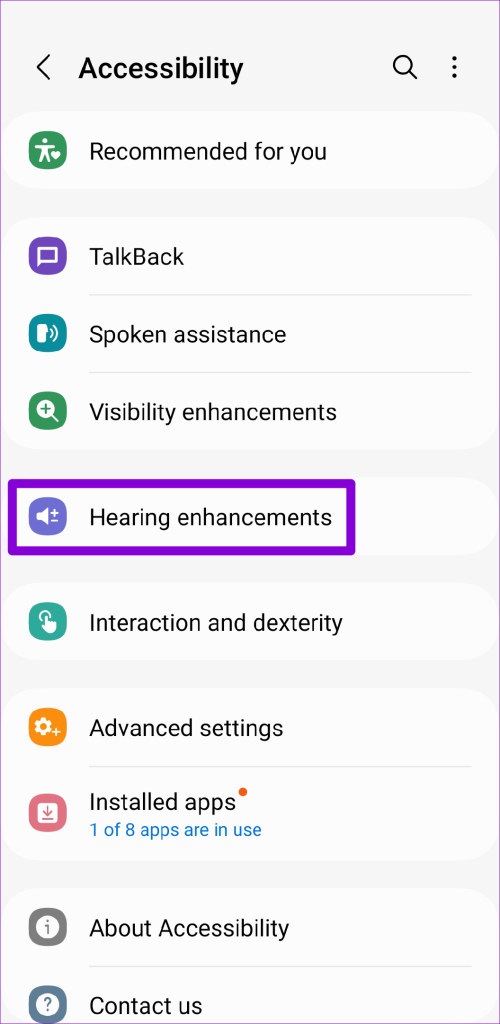
Step 1: Open the Settings app on your phone. Then, head to Accessibility > Hearing enhancements .
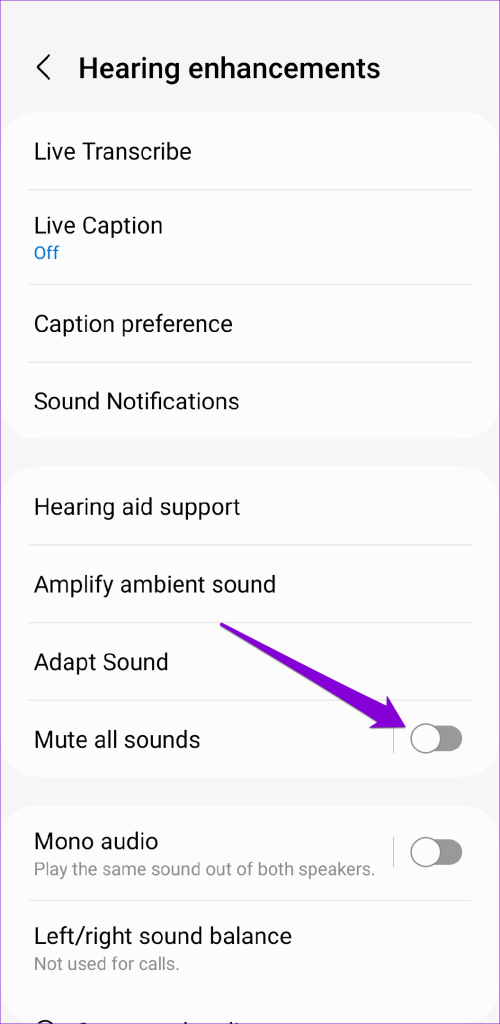
Step 2: Turn off the toggle next to Mute all sounds .
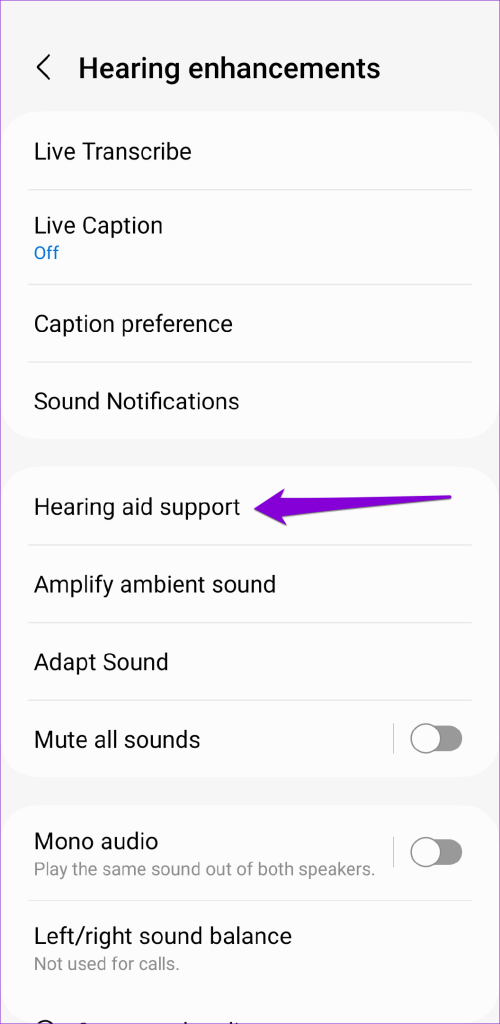
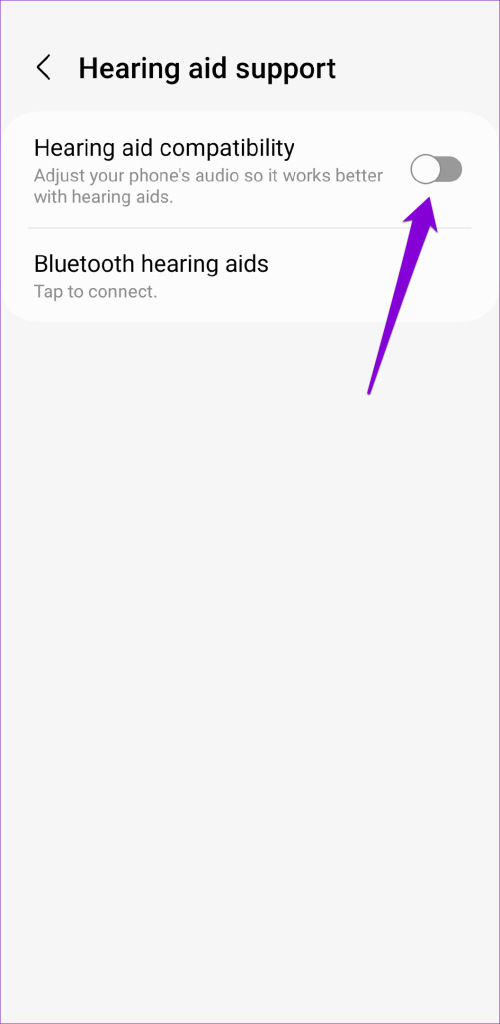
Step 3: Tap on Hearing aid support and disable the toggle next to Hearing aid compatibility .
Fix 2: Clear App Cache
If the ear speaker is not working problem affects only a particular app, there may be an issue with the app itself. In that case, you can try clearing the cache data to fix the problem.
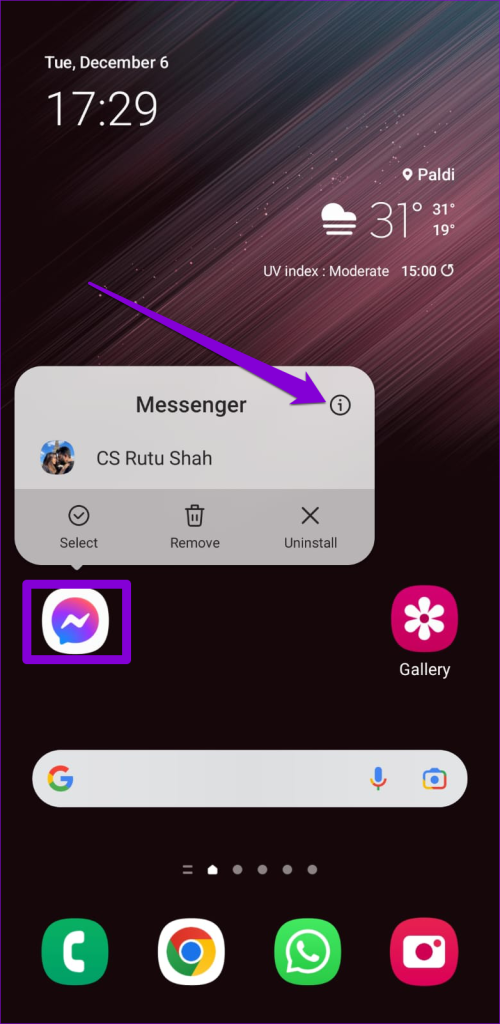
Step 1: Long-press on the problematic app and tap the info icon from the resulting menu.
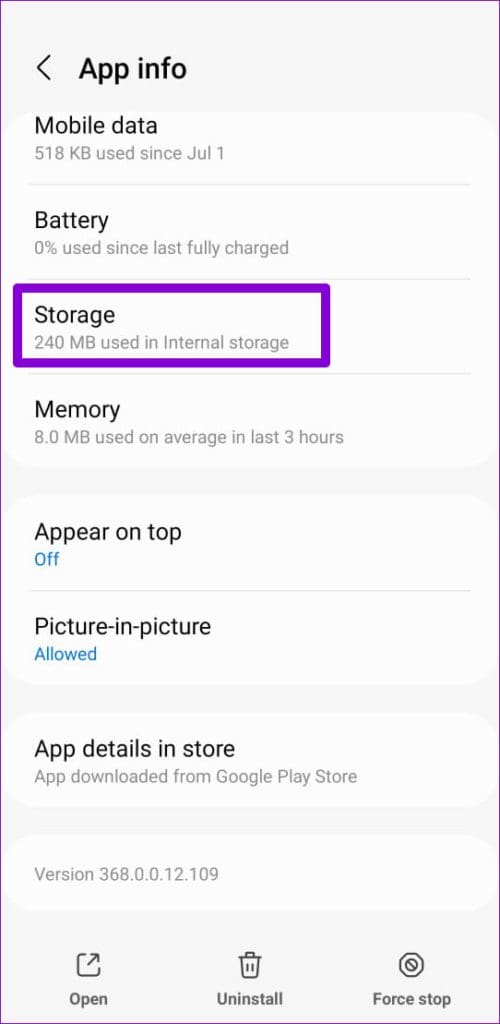
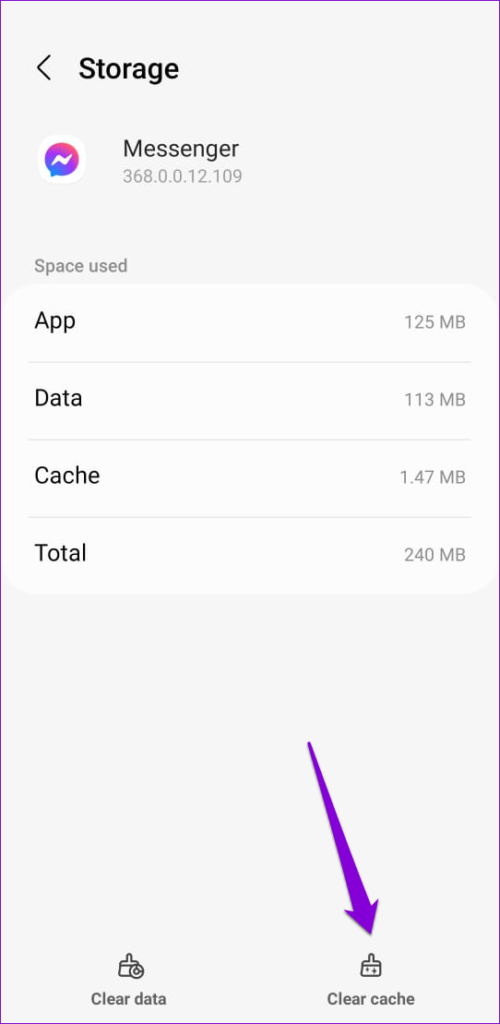
Step 2: Go to Storage and tap the Clear cache option at the bottom.
If the issue remains, head to the Play Store and try updating the app to its most recent version.
Fix 3: Reset All Settings on Your Phone
If you still can’t hear through your phone’s ear speaker, your best option is to reset your Android. Don’t worry, this process will not remove your personal data or files.
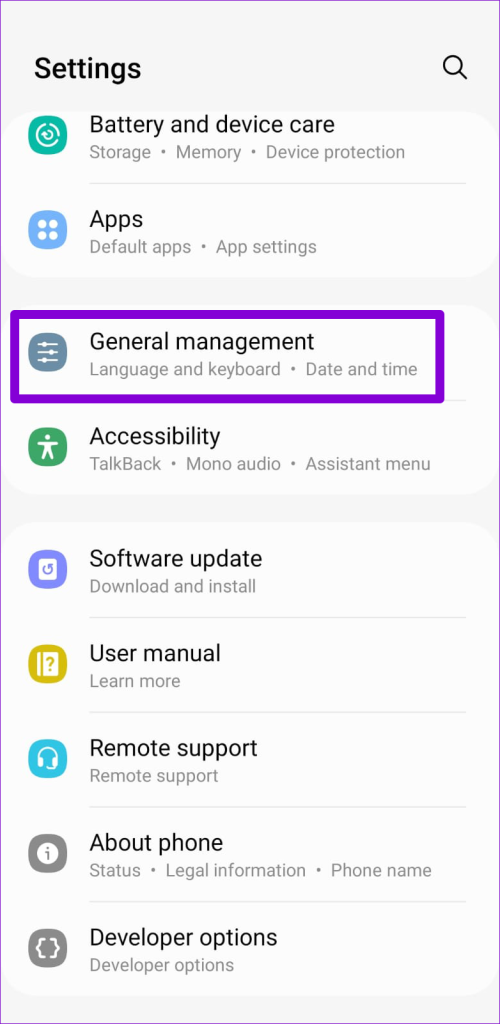
Step 1: Open the Settings app, navigate to General management , and select Reset from the following menu.
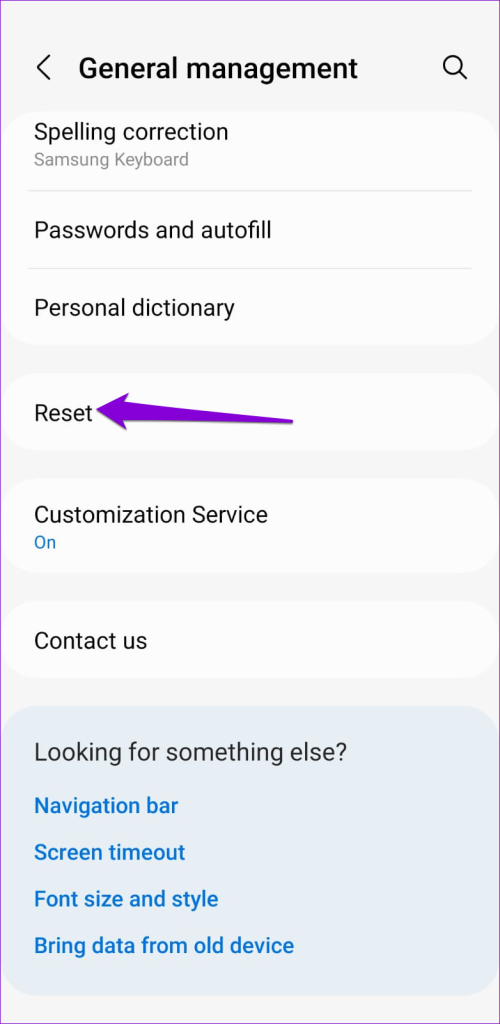
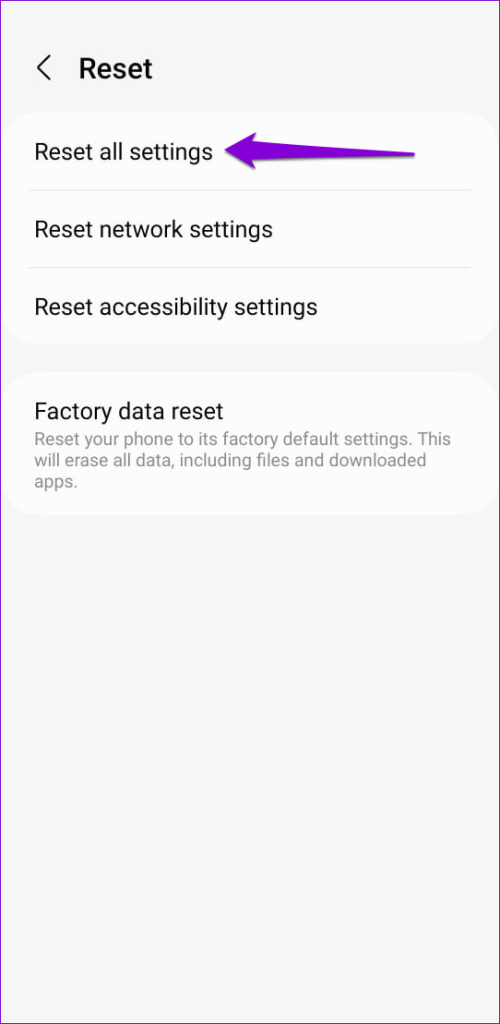
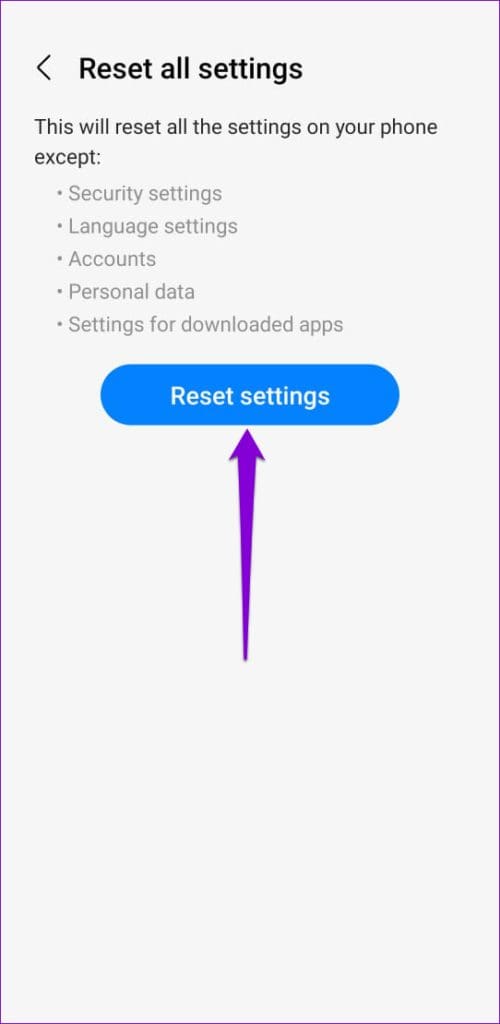
Step 2: Select Reset all settings and tap the Reset settings button to confirm.
Was this helpful?
Submit Cancel
Thanks for your feedback!
Keep reading