Android
4 Ways to Fix Google Chrome Not Working on Mobile Data
Do you usually face issues with using Google Chrome on mobile data? Read along to learn the best ways to fix the issue.
By Parth Shah
Quick Tips
Ensure you haven’t disabled cellular data access for Chrome on your device.
Disable any data saver settings that restrict cellular data usage on Chrome.
Clear cache from the Google Chrome app to remove junk files that may cause issues.
Basic Fixes
Restart device : Restart your device to fix temporary bugs and glitches.
Update Chrome: Update Chrome to the latest version on your device from the Play Store (Android) or App Store (iPhone).
Check if the website is blocked: Some websites can be region-specific and may not be available in your area. Google Chrome may not work when you visit such websites.
Check mobile data plan: Ensure you have an active cellular data plan with a stable network signal on your device,
Fix 1: Enable Cellular Data for Chrome
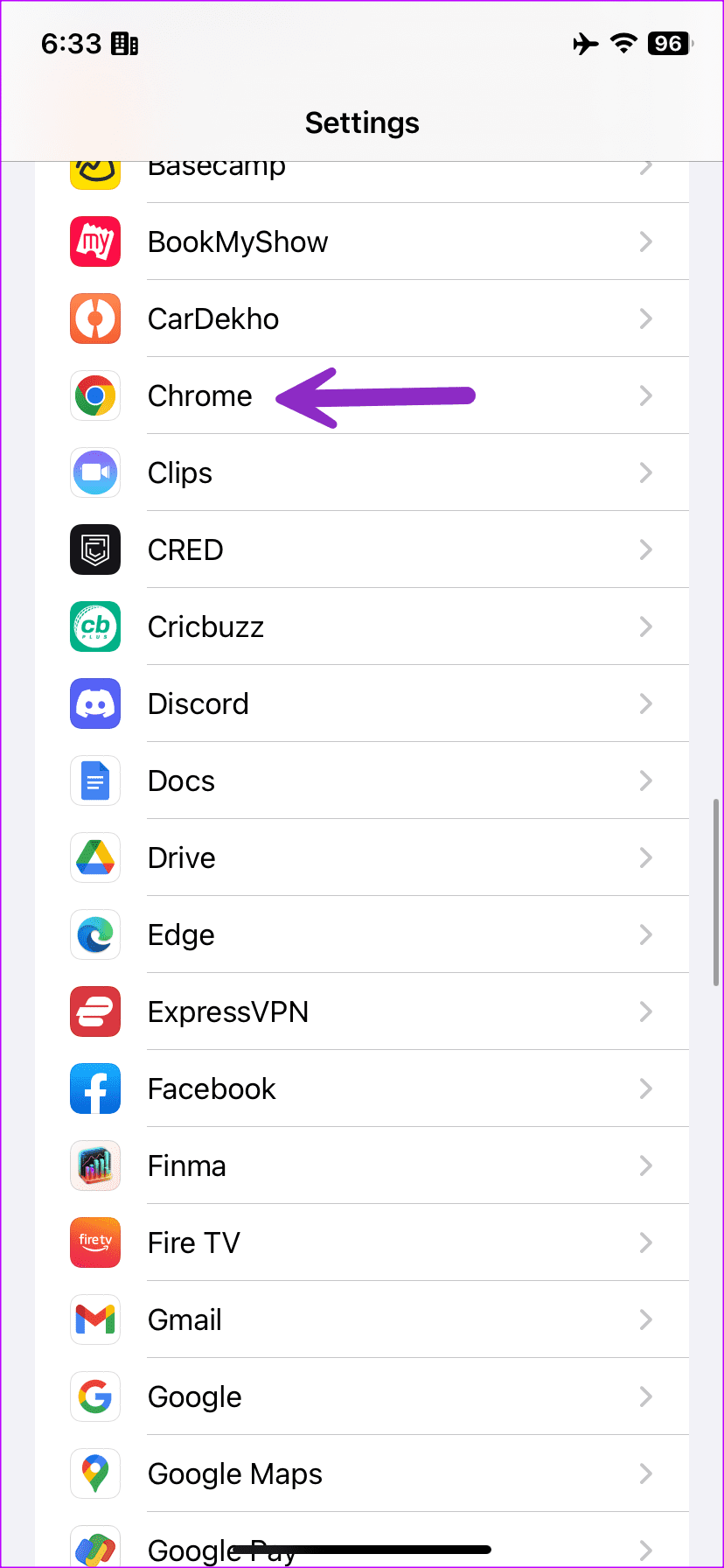
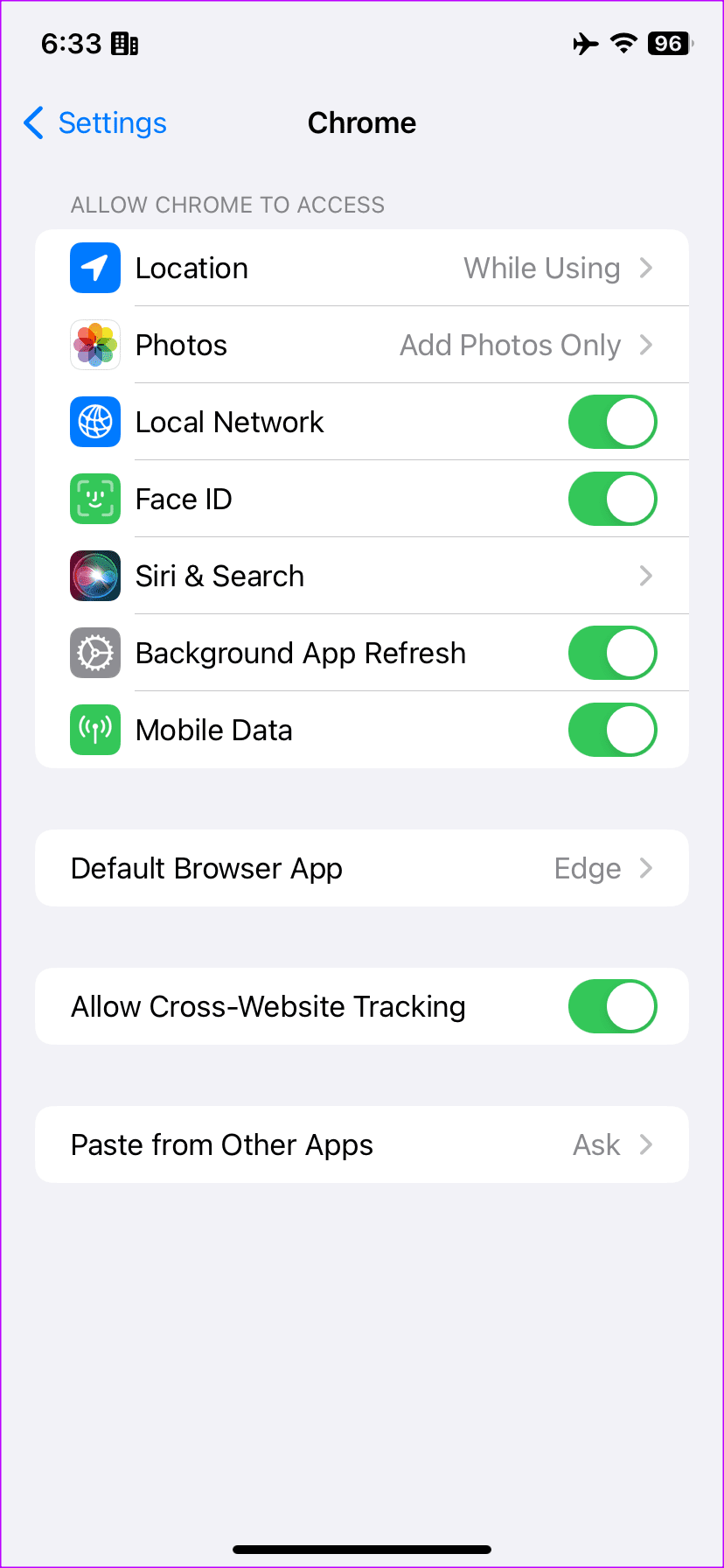
Did you disable the mobile data permission for Google Chrome? You need to enable it from Settings.
Step 1: Open the Settings app on your iPhone and scroll to Google Chrome .
Step 2: Enable the Mobile Data toggle.
Also Read: How to fix Google Chrome not loading pages on Android and iPhone .
Fix 2: Disable Data Saver
Using any data saver settings on your device can restrict Google Chrome from using cellular data.
On iPhone
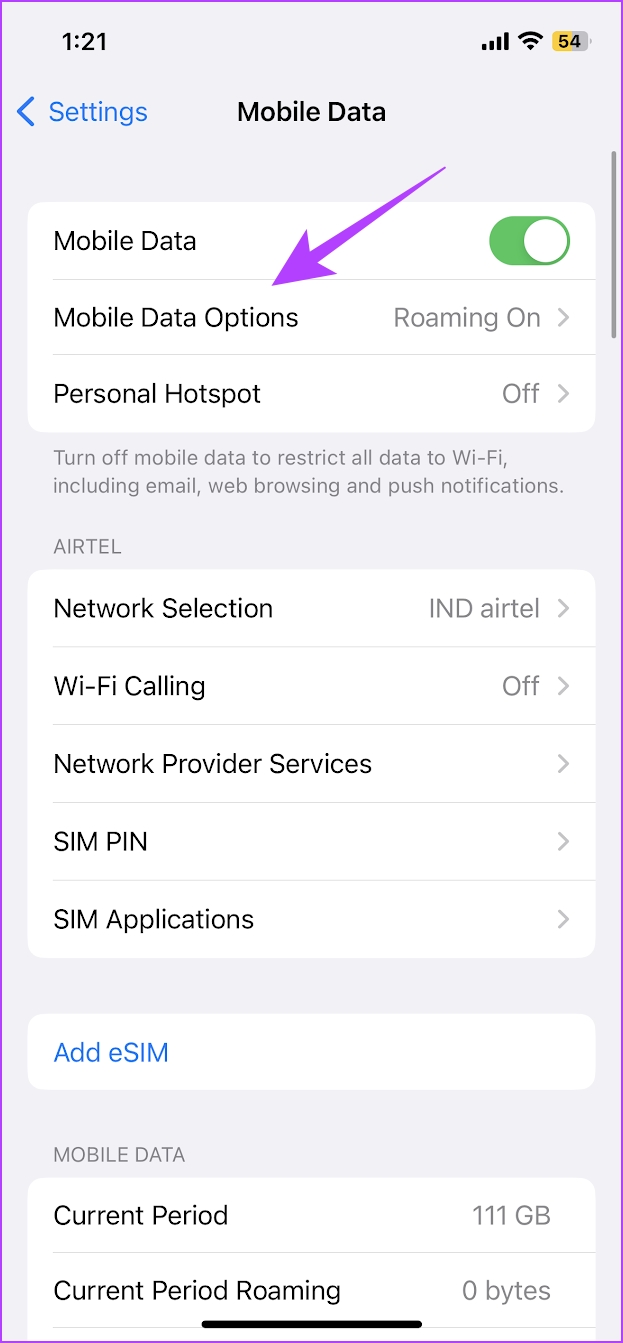
Step 1: Open Settings > tap on Cellular Data/Mobile data .
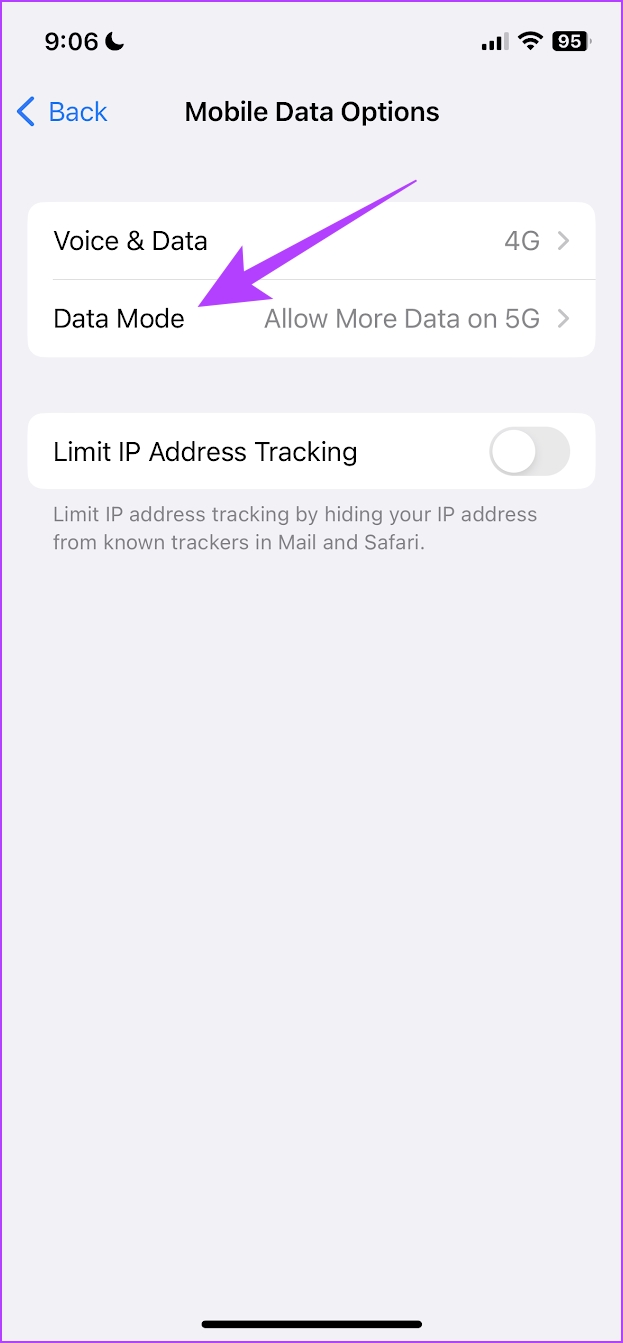
Step 2: Tap on Mobile Data Options (or Cellular Data Options).
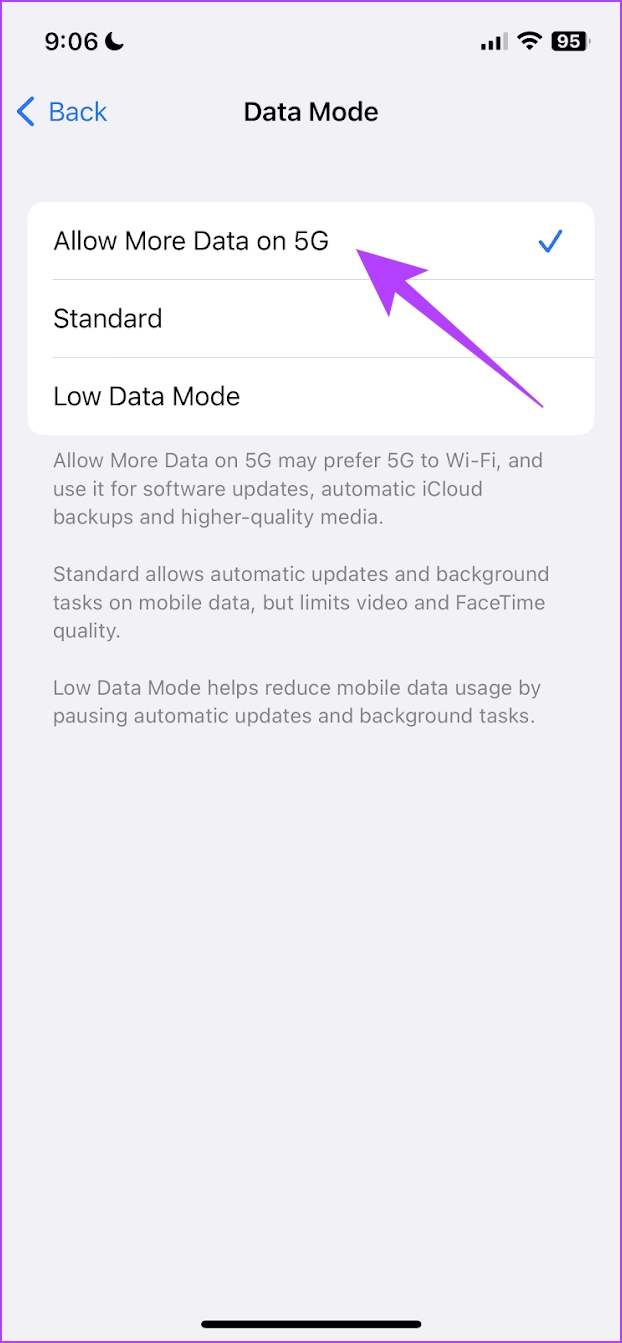
Step 3 : Tap on Data Mode . Ensure you haven’t selected Low Data Mode . Select Allow More Data on 5G or Standard .
On Android
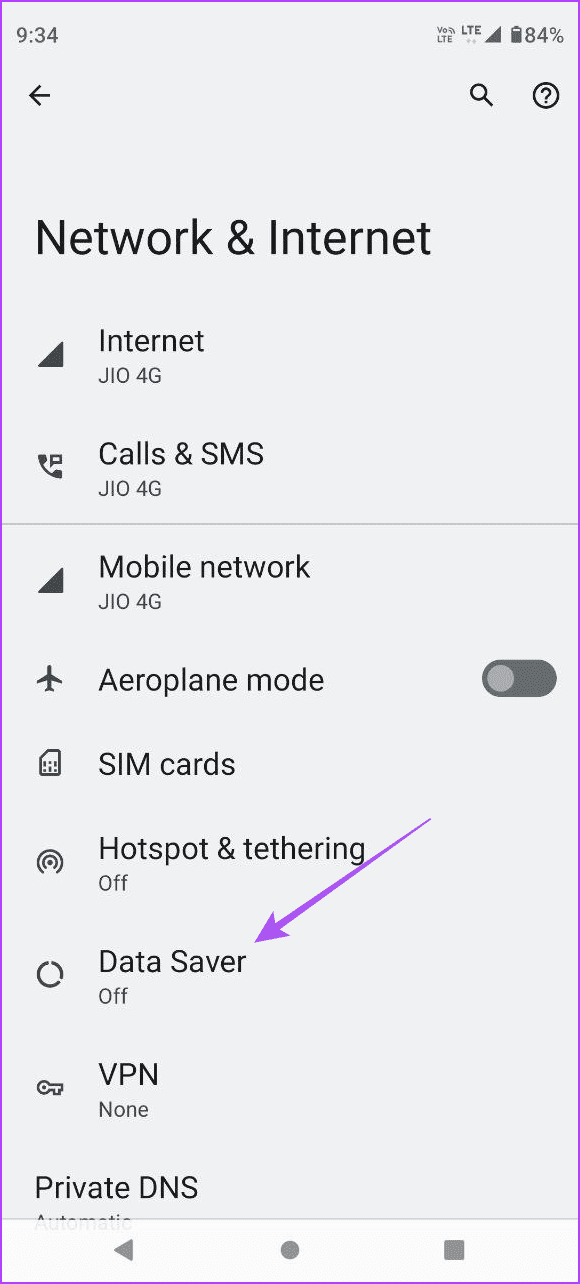
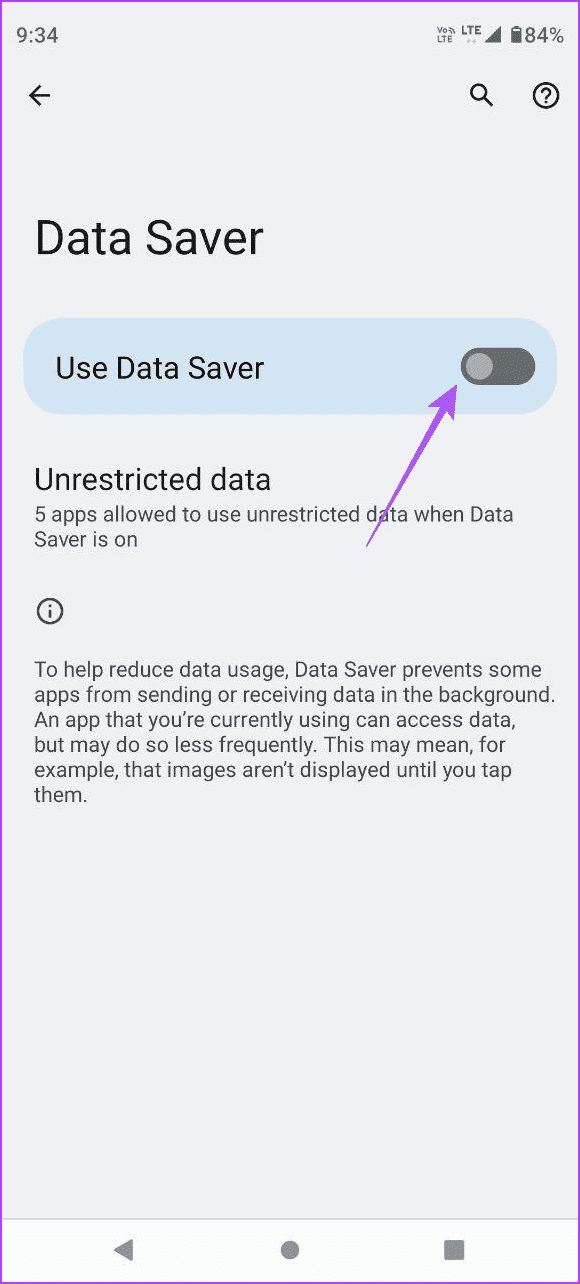
Open the Settings app > go to Network & Internet > ensure you have not enabled the toggle for Use Data Saver .
Fix 3: Enable Unrestricted Data Usage (Android)
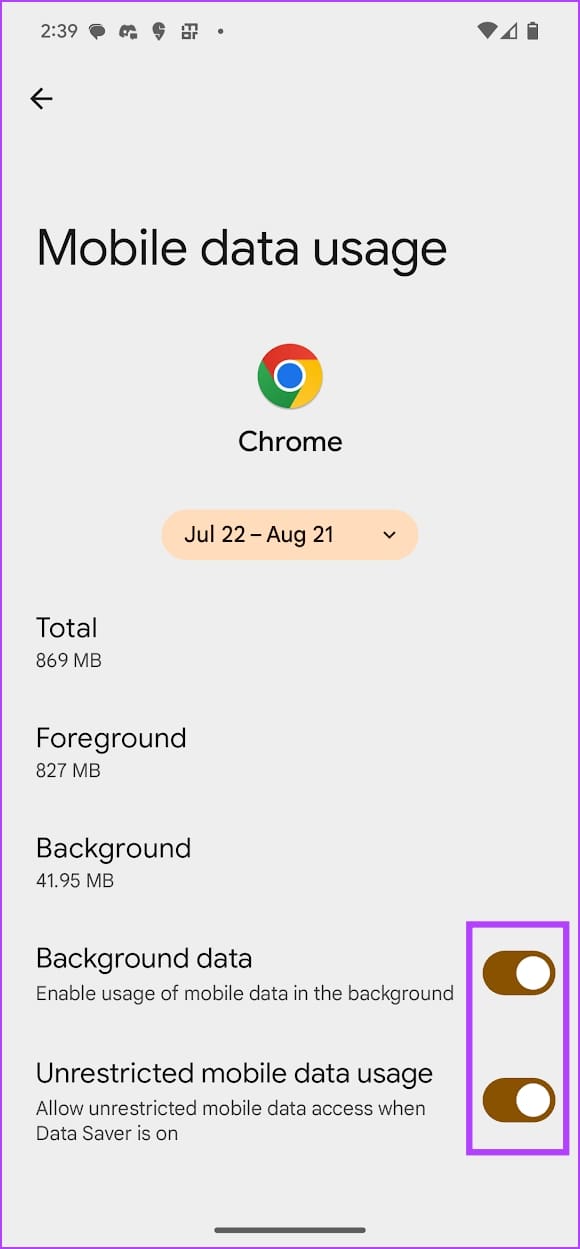
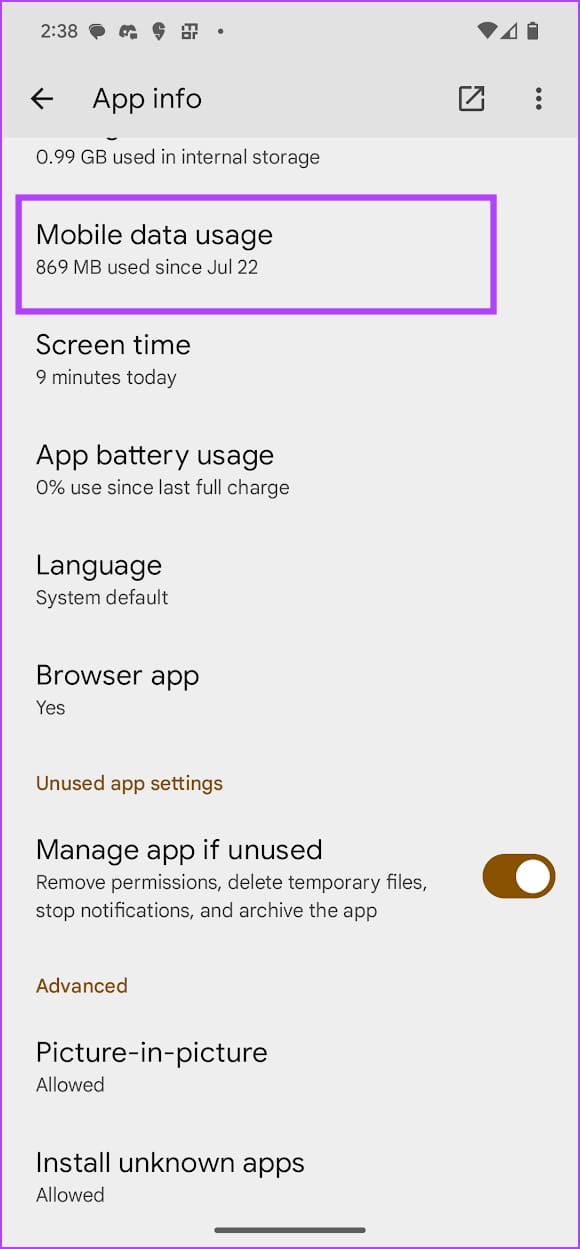
Tap and hold the Chrome app icon, select App Info, and go to Mobile Data Usage . Turn on the toggle for Background Data and Unrestricted mobile data usage .
This lets Google Chrome use mobile data for background downloads without any restrictions.
Also Read: How to switch Google Accounts in Chrome .
Fix 4: Clear Cache
The problem can be due to the accumulation of cache that may execute bugs.
iPhone
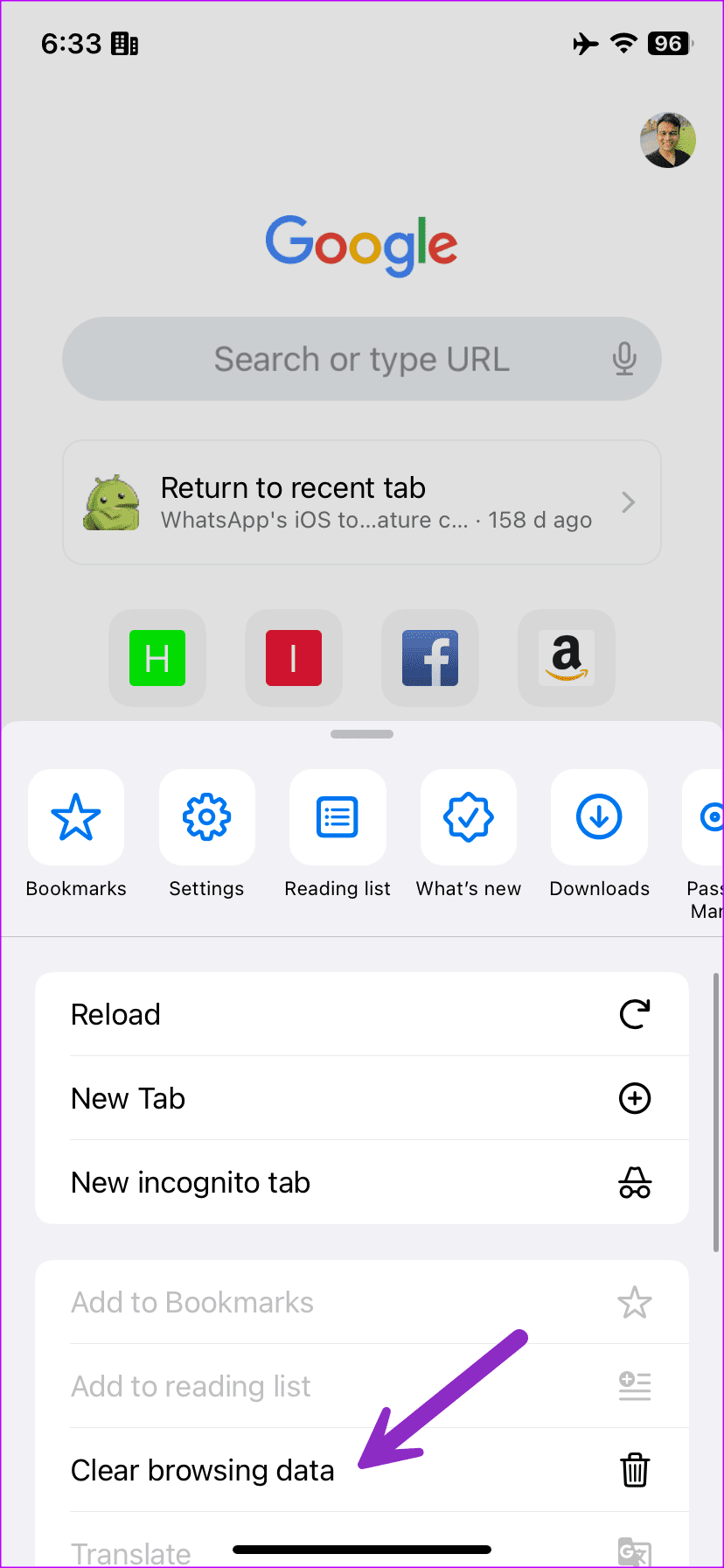
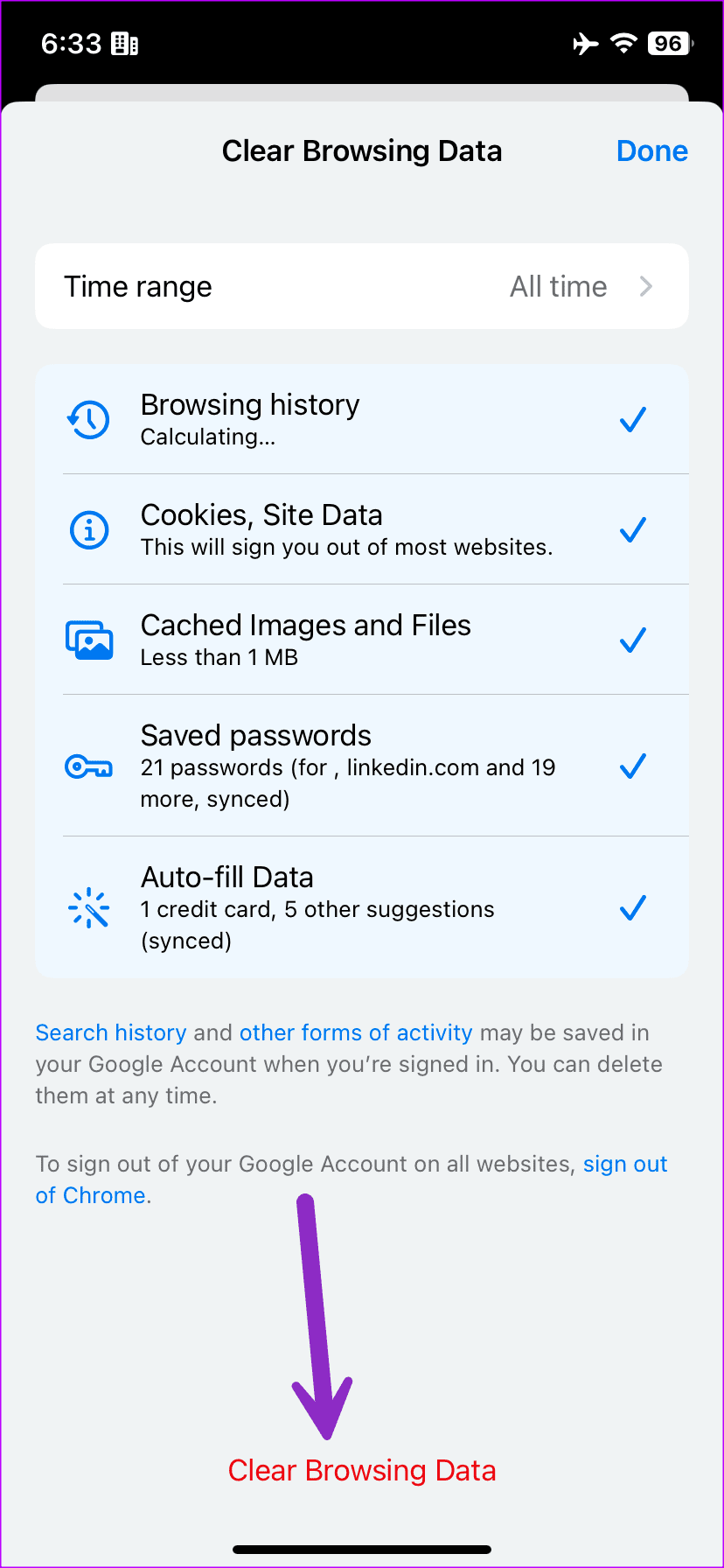
Step 1: Launch Google Chrome and tap the three-dot menu. Select Clear browsing data .
Step 2: Confirm the same to delete history, cookies, site data, cached images, and saved passwords.
Android
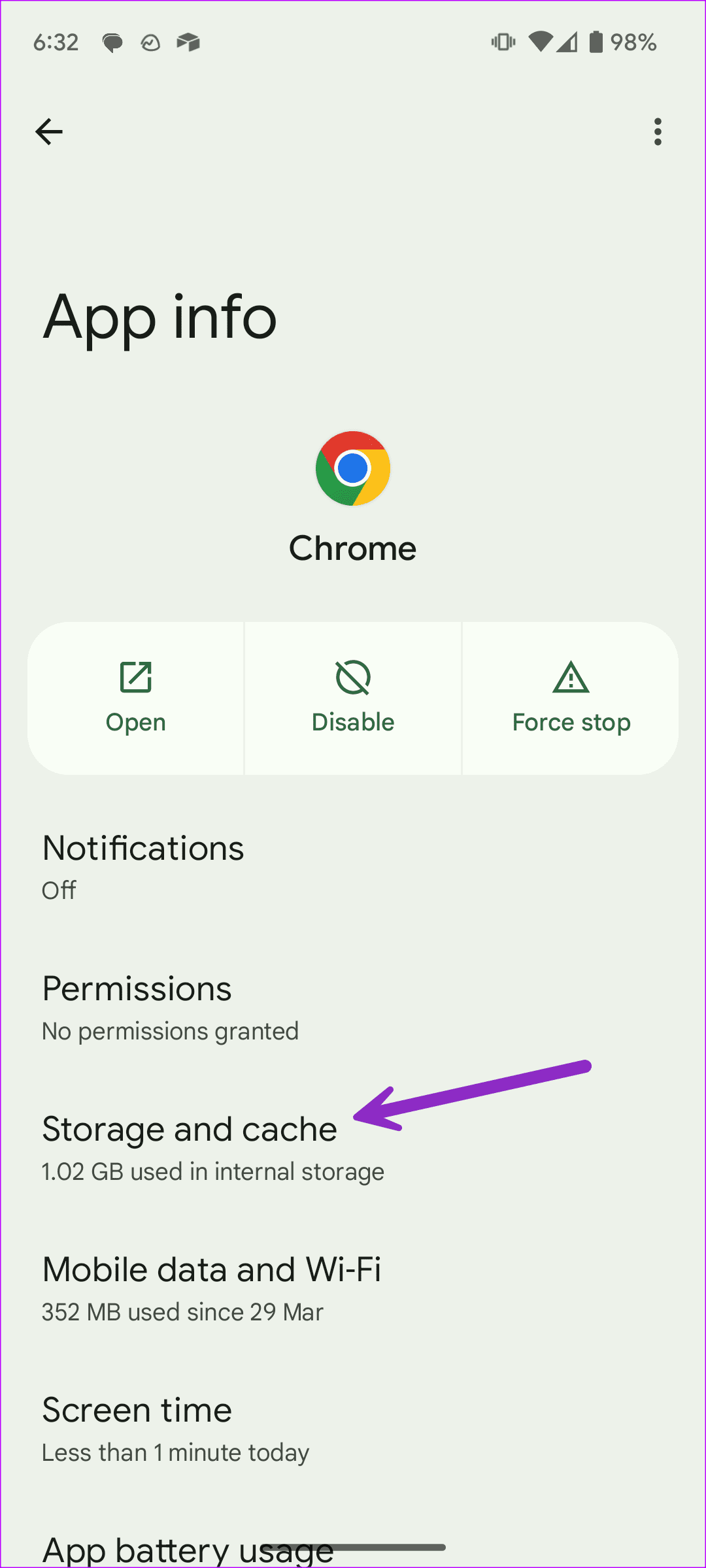
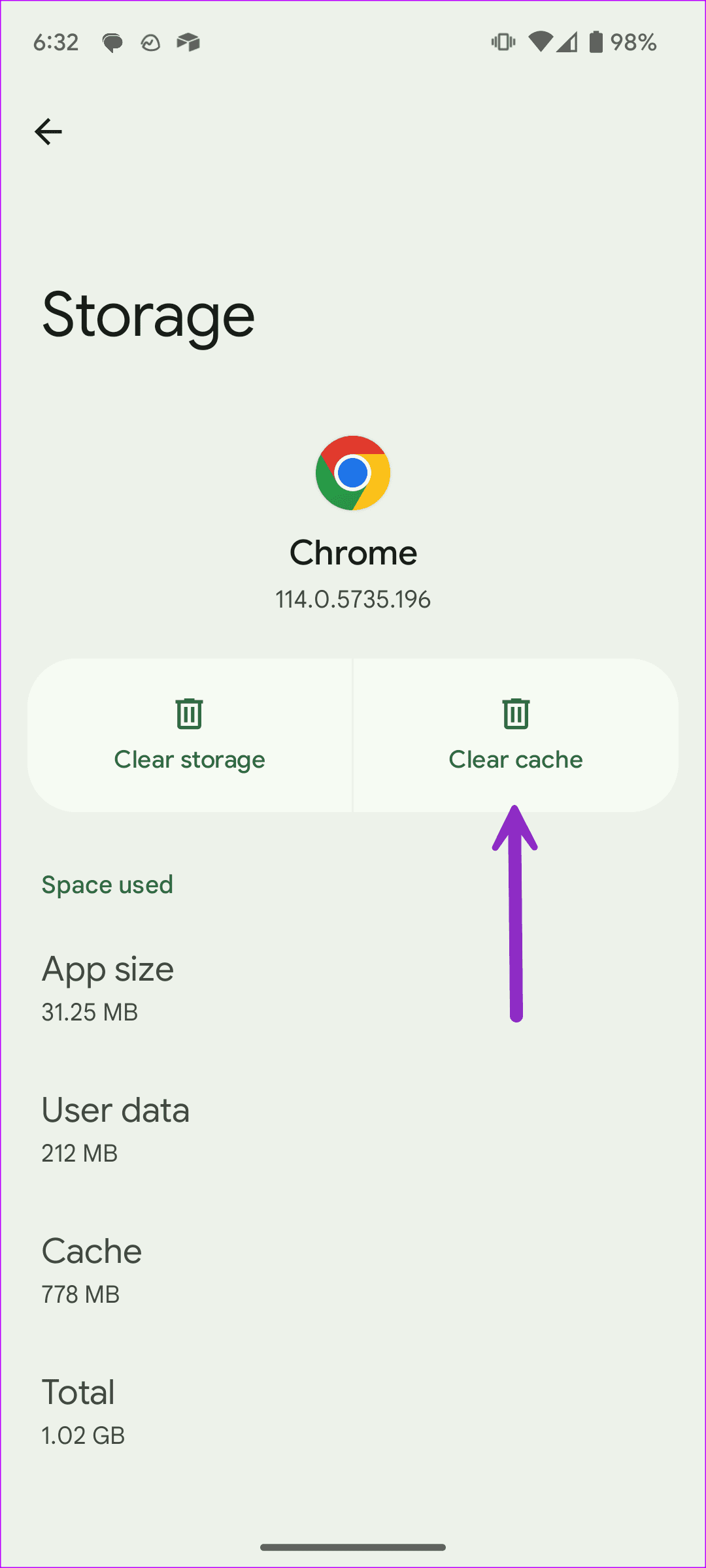
Step 1: Tap and hold the Google Chrome icon and open the app info menu. Select Storage and Cache .
Step 2: Tap Clear cache .
If none of the above methods work, you can try resetting the network settings on your device.
Was this helpful?
Submit Cancel
Thanks for your feedback!
Keep reading