Android
5 Ways to Fix Location Sharing Not Updating in Google Maps on Phone
It can be frustrating when location sharing fails to update in real-time in Google Maps. Here's what you can do to fix it.
By Pankil Shah
Quick Fixes
Modify Location permissions for Google Maps.
Reset location sharing session under profile options > Location Sharing.
Recalibrate the compass in Google Maps.
Common Fixes
Check your internet connection – Google Maps will fail to update the location if your internet is unstable. Test your connection speed online .
Update the Google Maps app – Open Google Play Store or Apple App Store > search Google Maps > tap Update (if available).
Allow background activity for Google Maps – On Android, enable Background data usage and Unrestricted access to Google Maps under Mobile Data and Battery settings, respectively. Alternatively, enable Background App Refresh for Google Maps on iOS.
Fix 1: Disable Battery Saver or Low Power Mode
Activating battery saver or low power mode on your phone limits background app activity , such as location tracking in Google Maps. Disabling it should fix the issue of location sharing not updating.
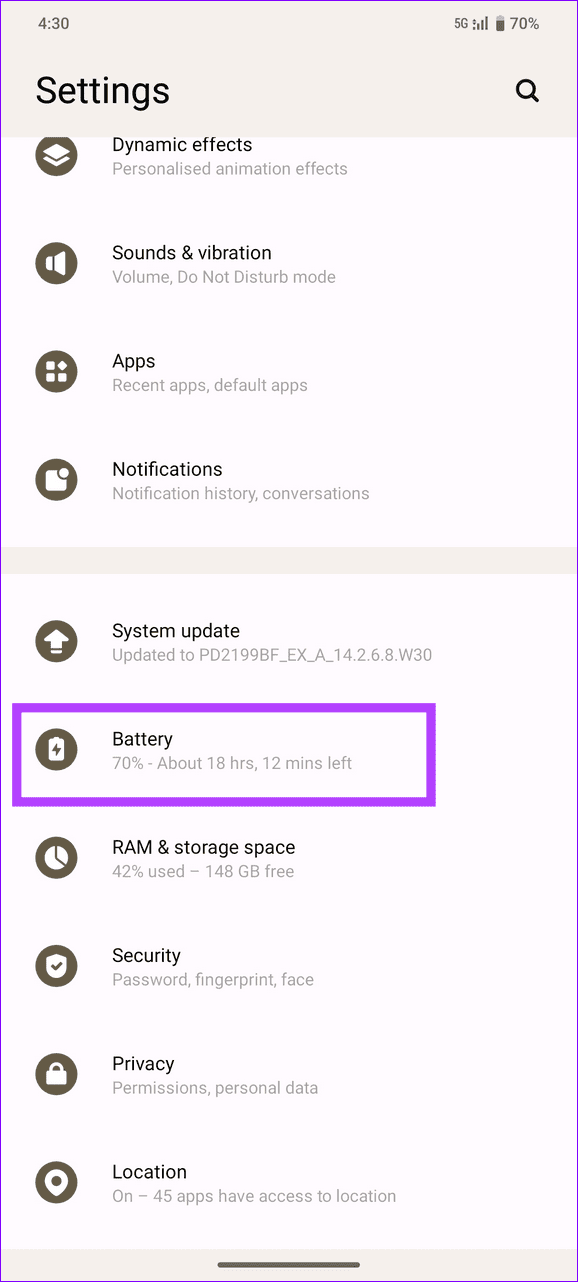
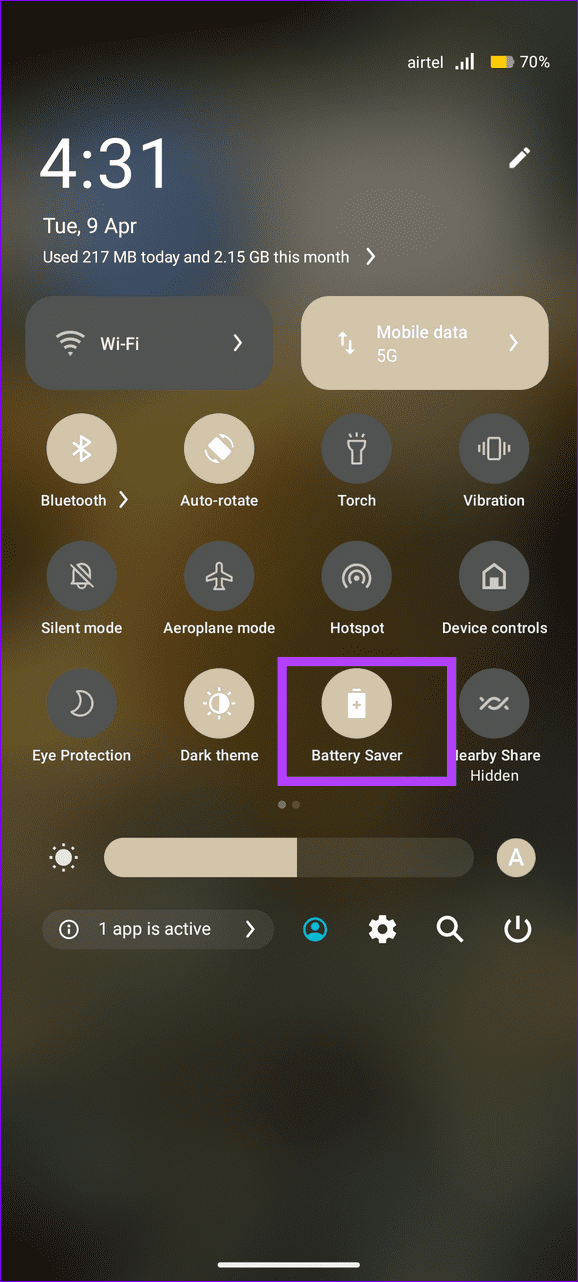
On Android: Open the Settings app > tap Battery > turn off the Battery saver mode . Alternatively, tap the Battery Saver toggle in the notification panel to disable it.
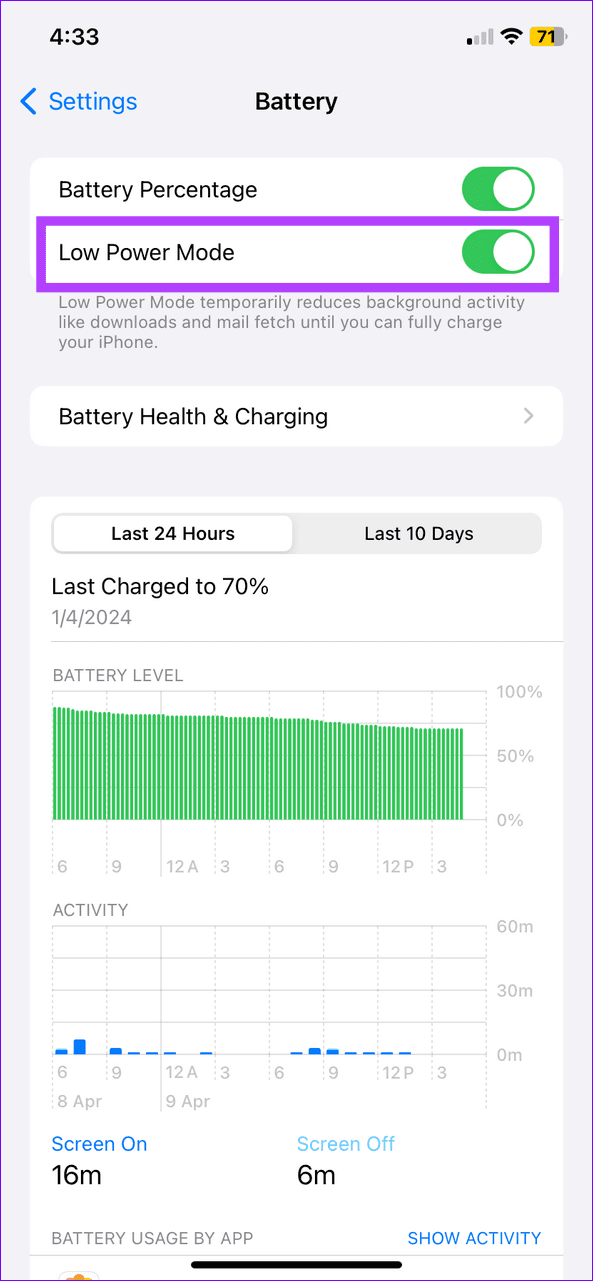
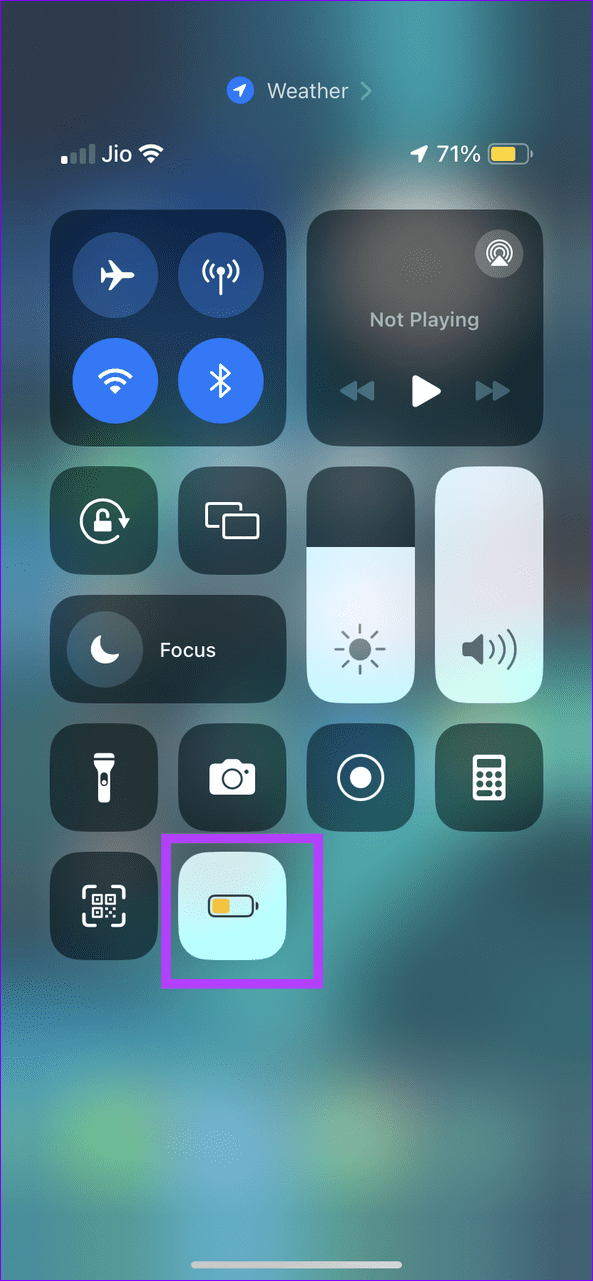
On iOS: Launch the Settings app > tap Battery > toggle off the Low Power Mode . You can also do it by pressing the Low Power Mode toggle in iOS Control Center.
Fix 2: Modify Location Permissions
Google Maps requires continuous access to your location data to update your location in real time. Setting the app’s location permissions to always track your location should resolve the issue.
Note: Setting Google Maps location permissions to Always on your device will consume more battery.
Android
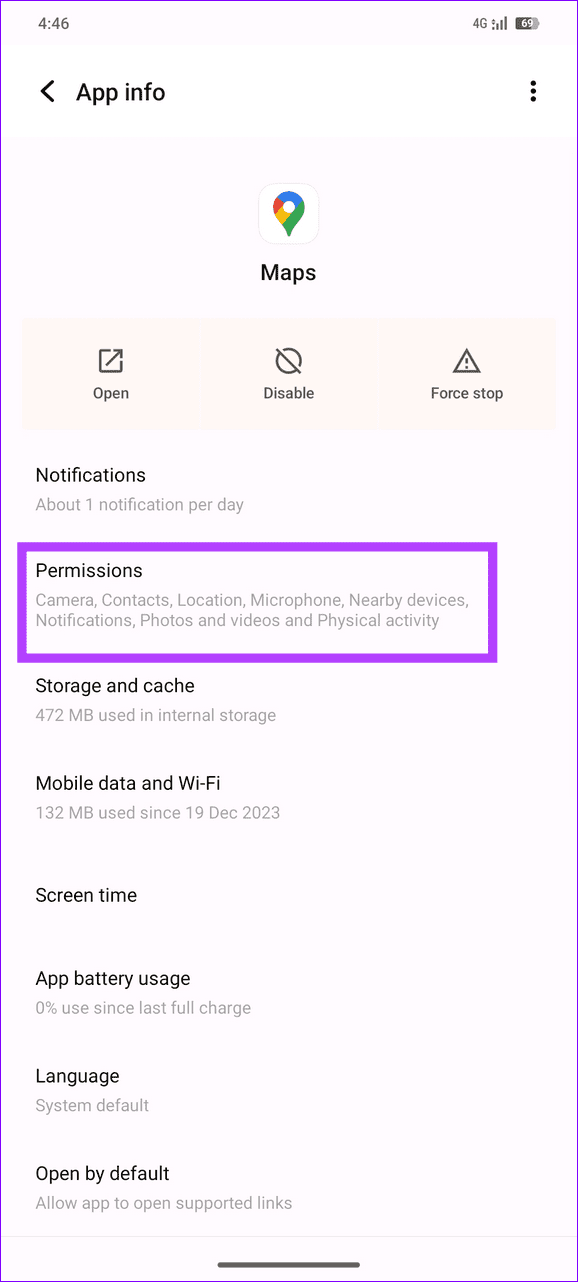
Step 1: Long-press the Google Maps icon > select App Info > Permissions .
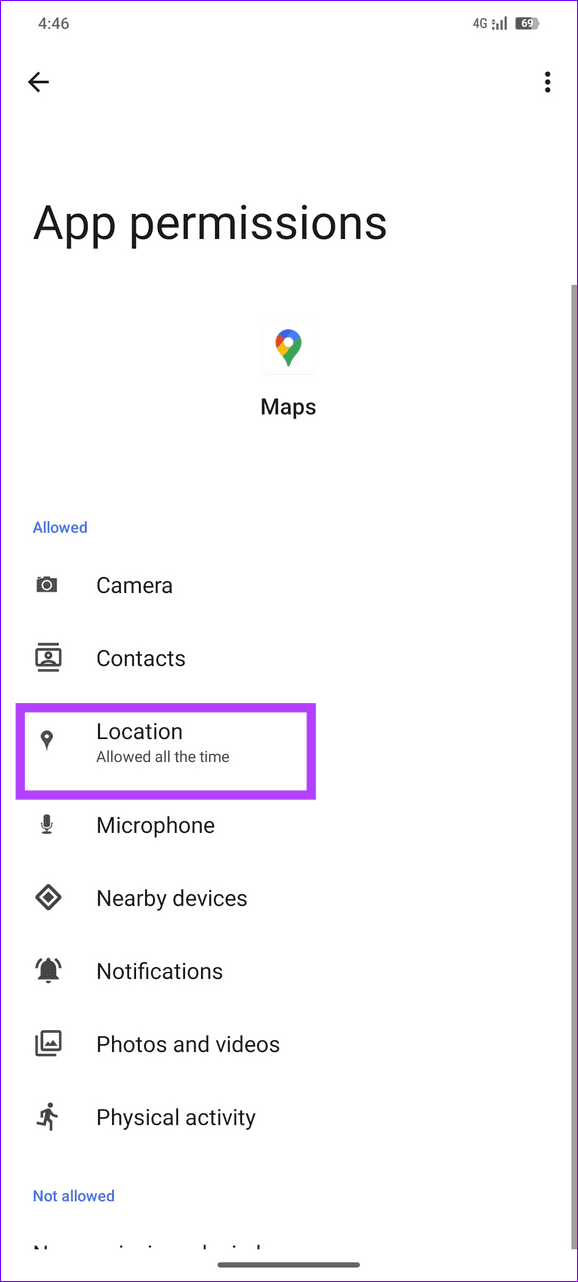
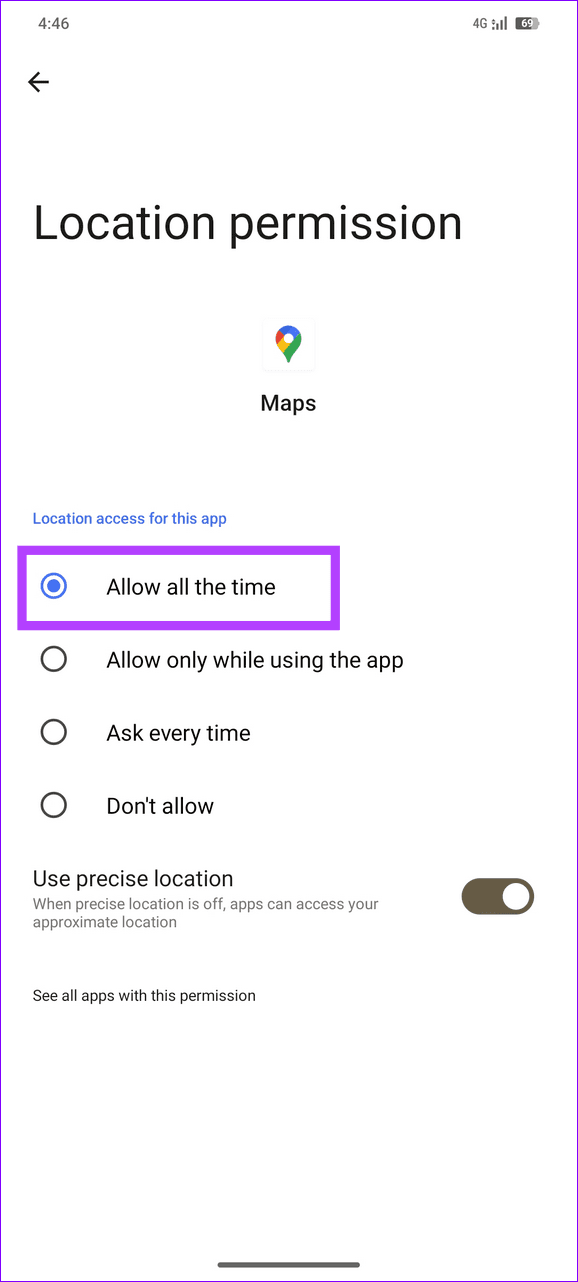
Step 2: Select Location and set it to Allow all the time . Further, toggle on Use precise location .
iOS
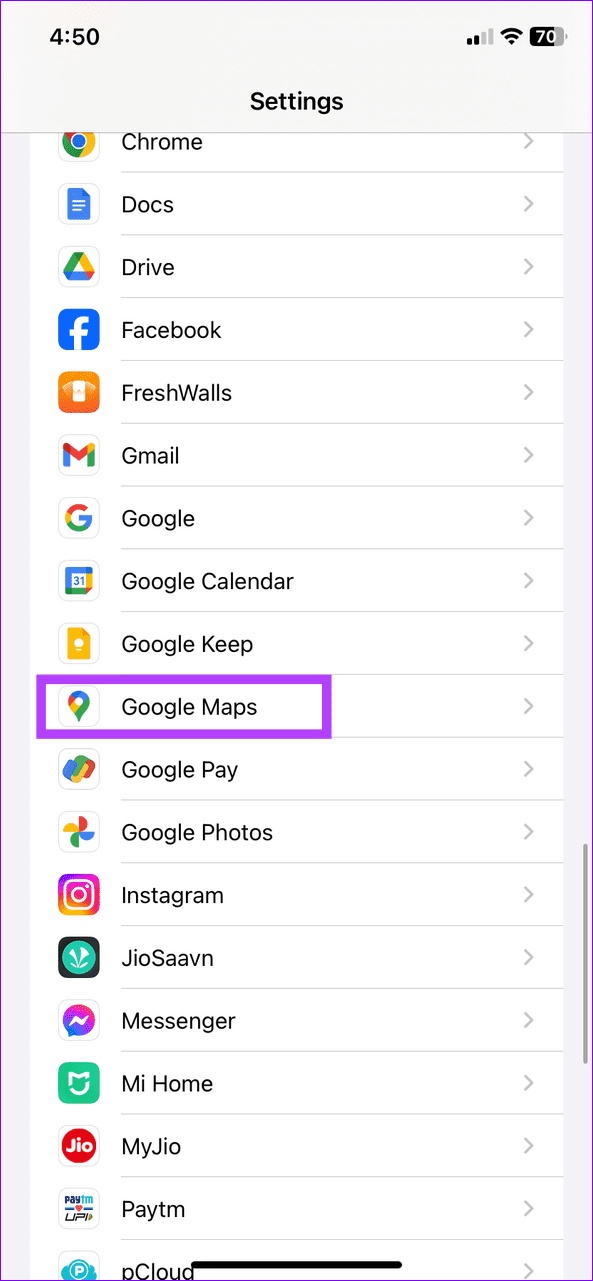
Step 1: Open the Settings app > scroll down to select Google Maps and tap Location .
Step 2: Set location access to Always and turn on Precise Location .
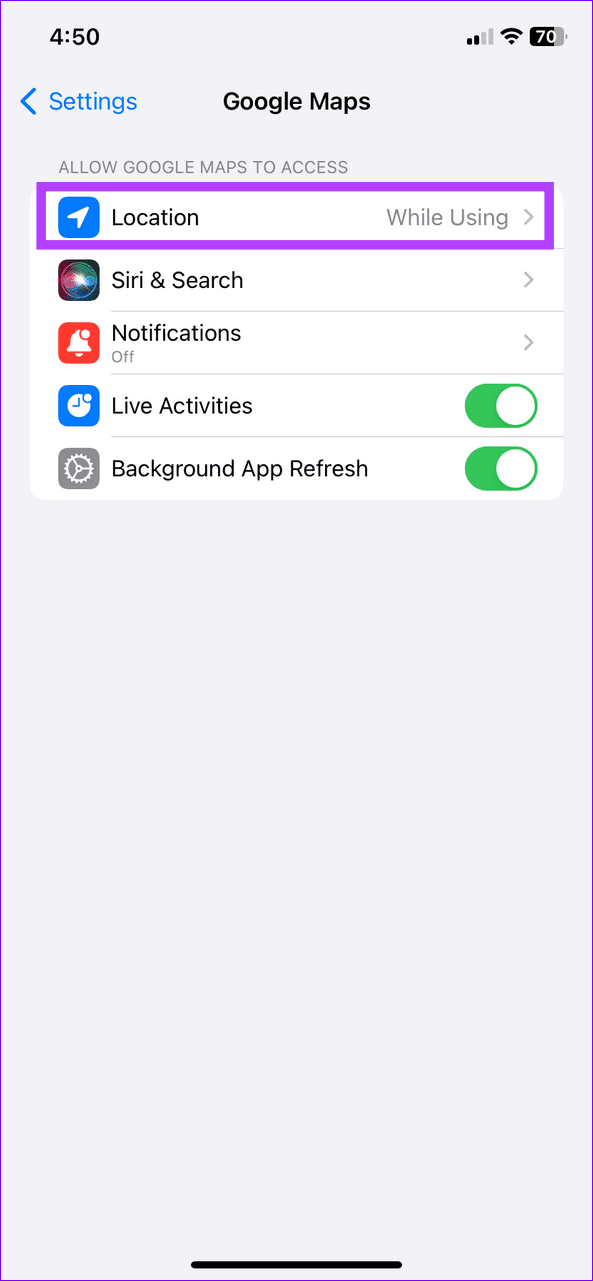
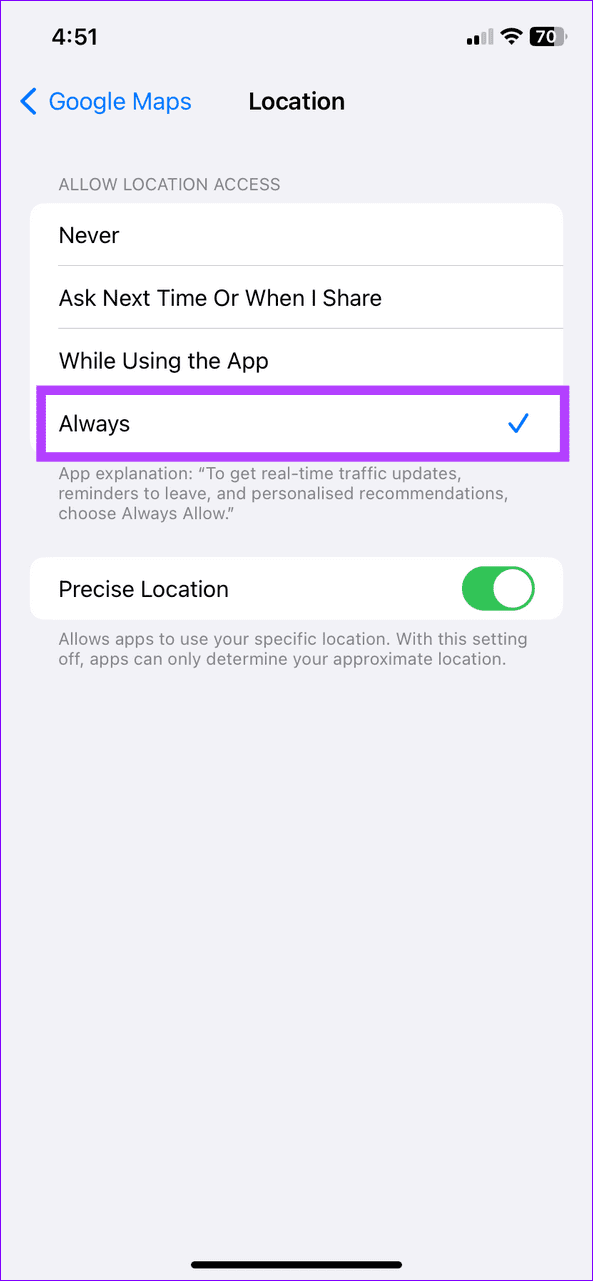
Fix 3: Reset the Location Sharing Session
If your live location isn’t updating in Google Maps, terminate your current location-sharing session and start afresh.
Step 1: Tap your profile icon at the top right corner in Google Maps and select Location sharing .
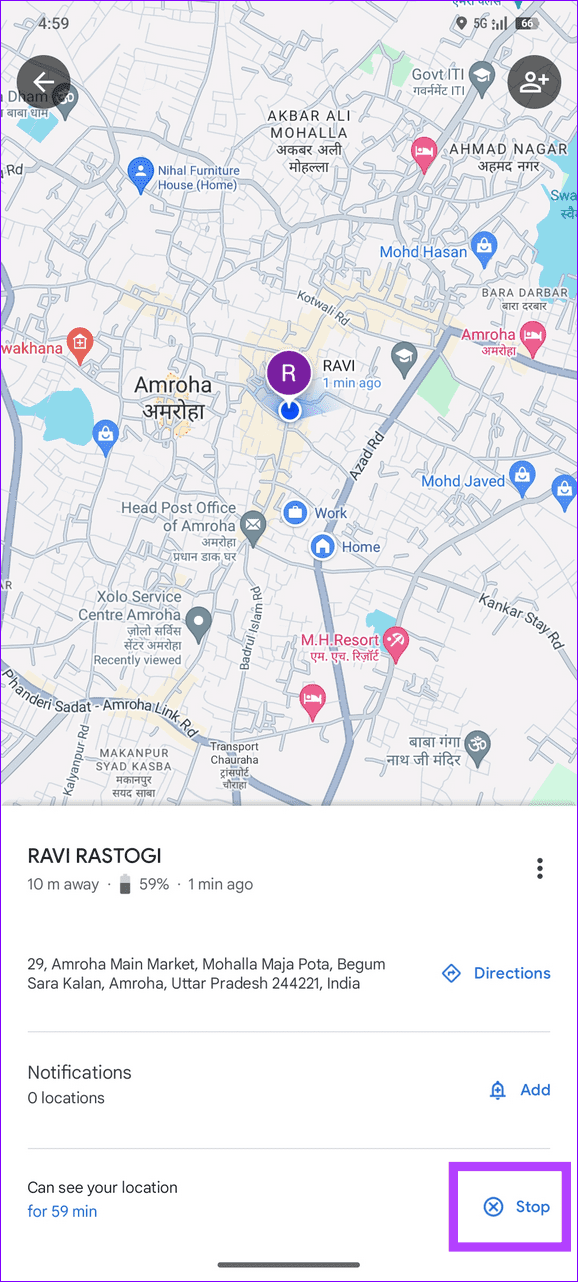
Step 2: Select the contact with whom you previously shared your location and press Stop .
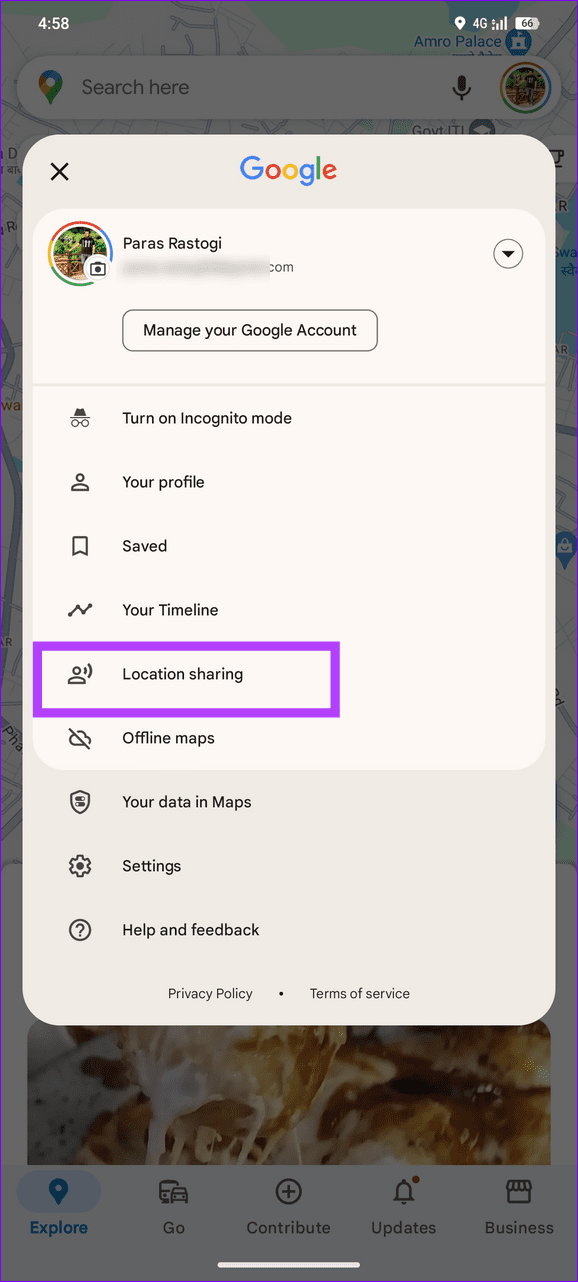
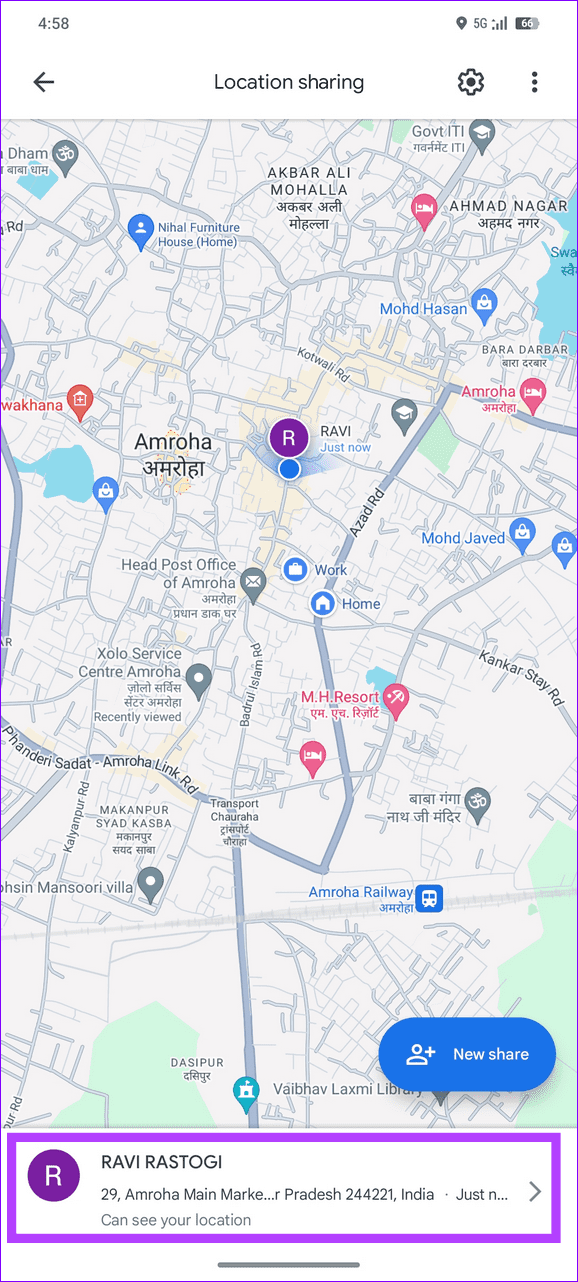
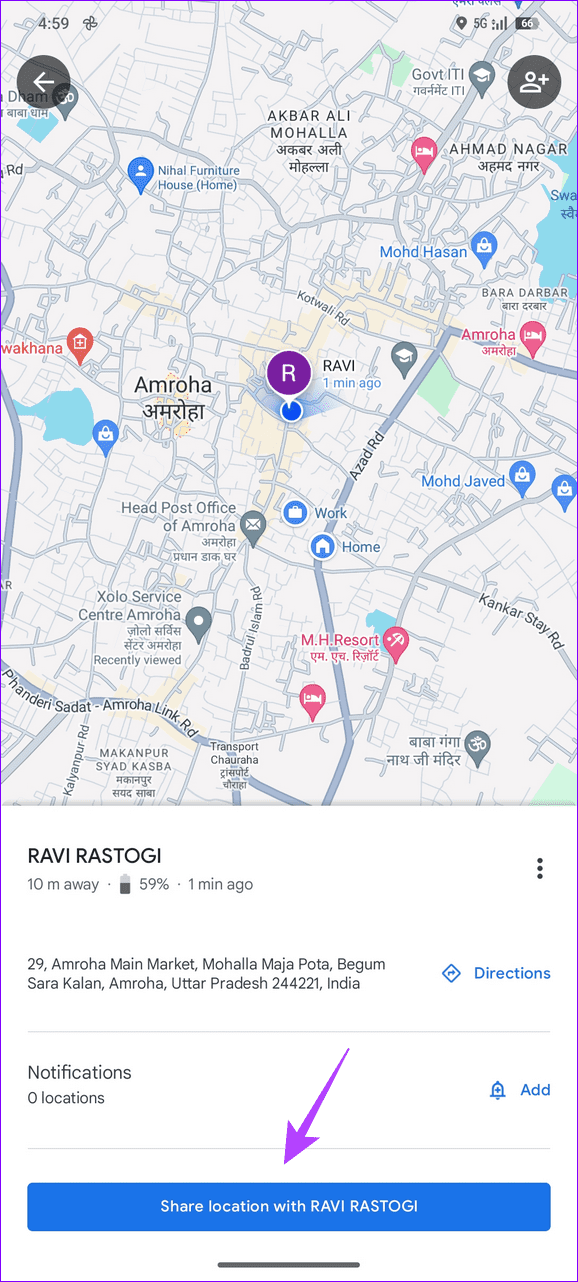
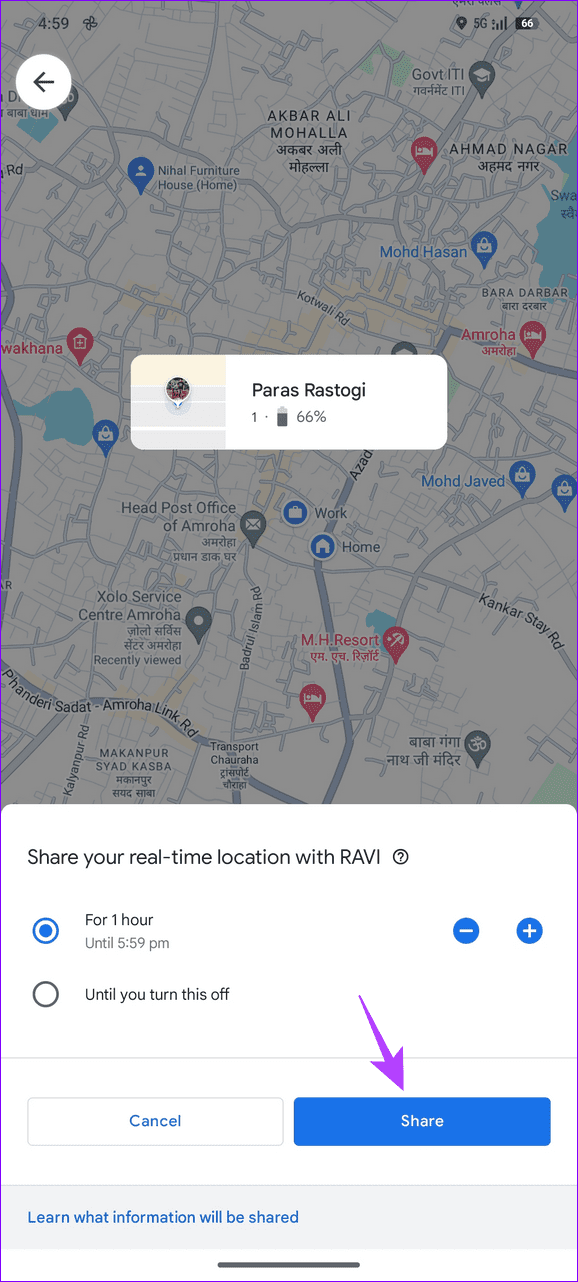
Step 3: Finally, tap Share location with contact > pick your desired duration > select Share .
Fix 4: Recalibrate the Compass
If the location-sharing feature malfunctions despite correcting all settings, try calibrating the compass on your smartphone.
Android
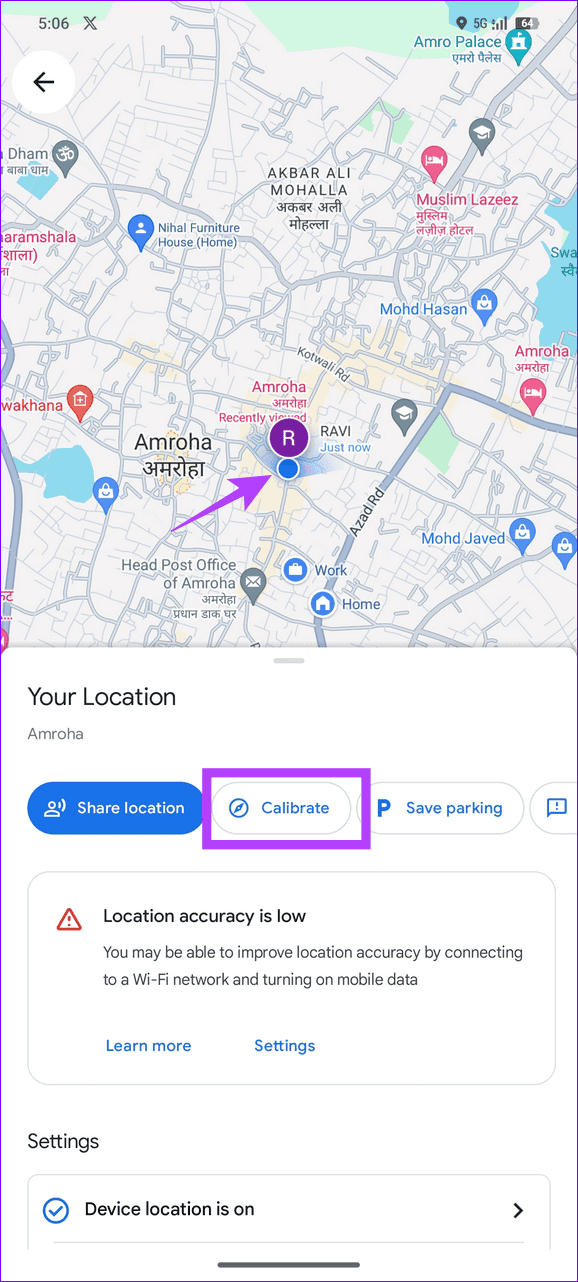
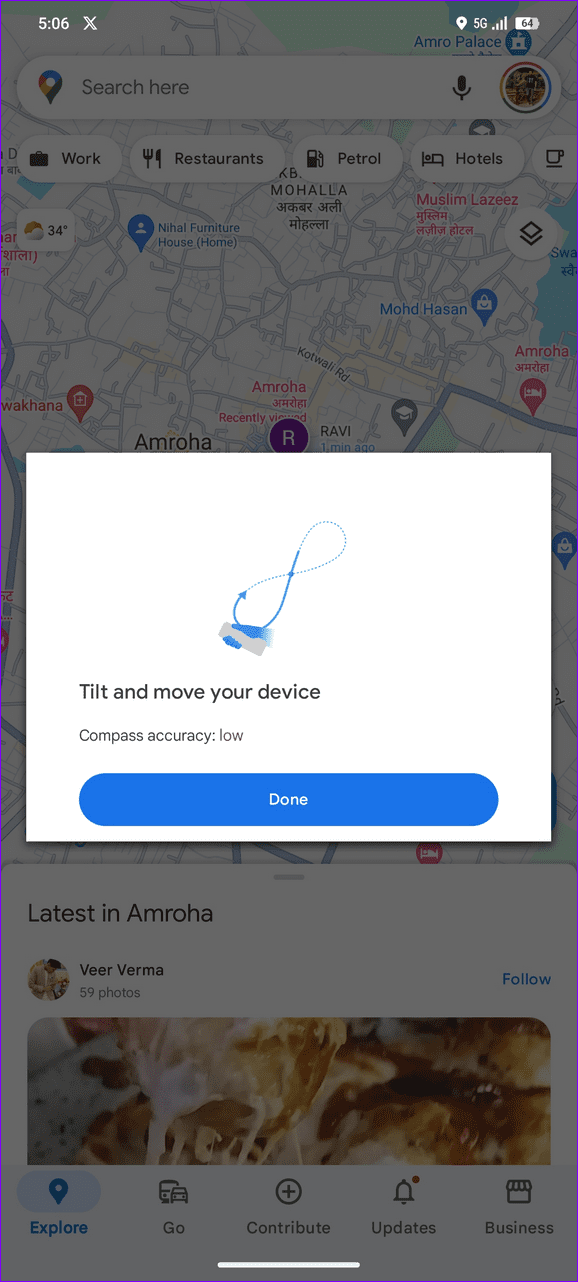
Step 1: Launch the Google Maps app > tap the blue dot signifying your current location > select Calibrate .
Step 2: Tilt and move your device as instructed to calibrate the compass.
iOS
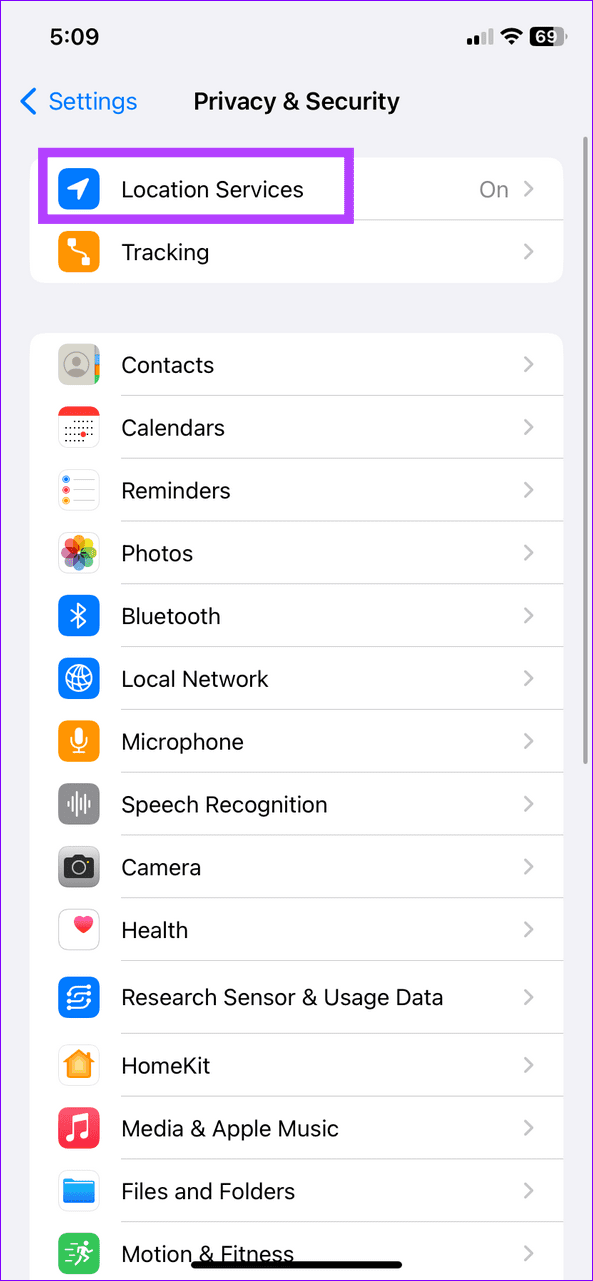
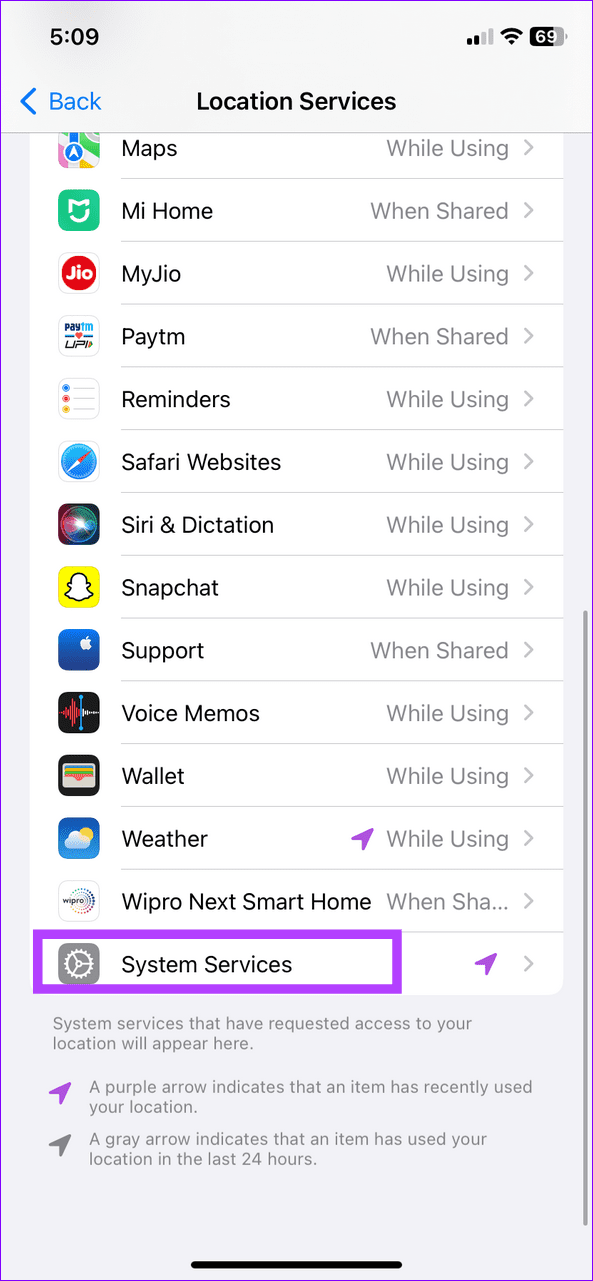
Step 1: Open Privacy & Security settings > tap Location Services > select System Services .
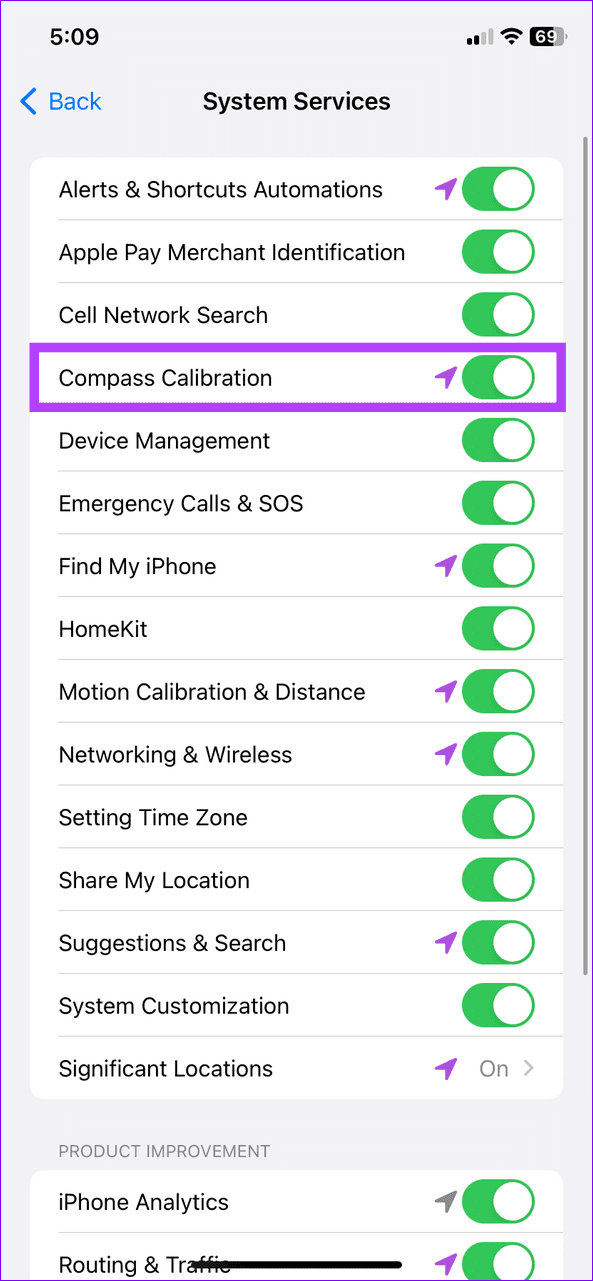
Step 2: Toggle off and re-enable Compass Calibration .
Fix 5: Clear Google Maps Cache
Clearing the Google Maps cache comes in handy when the app cache gets corrupted, creating location-sharing issues. Alternatively, delete and re-install the Google Maps app on iOS to begin afresh.
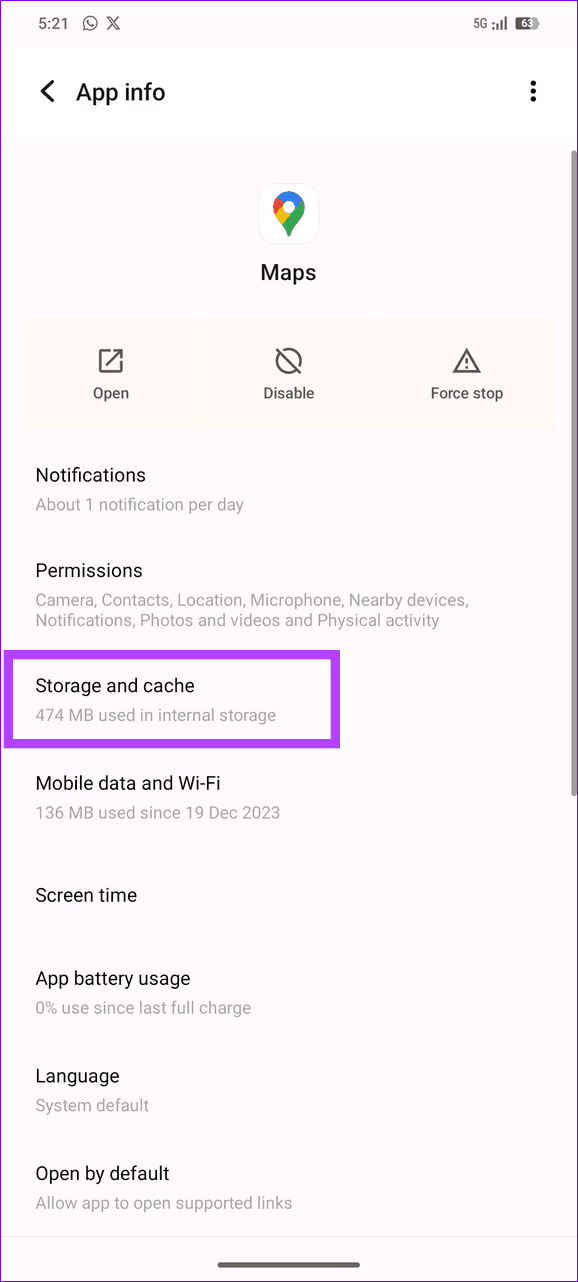
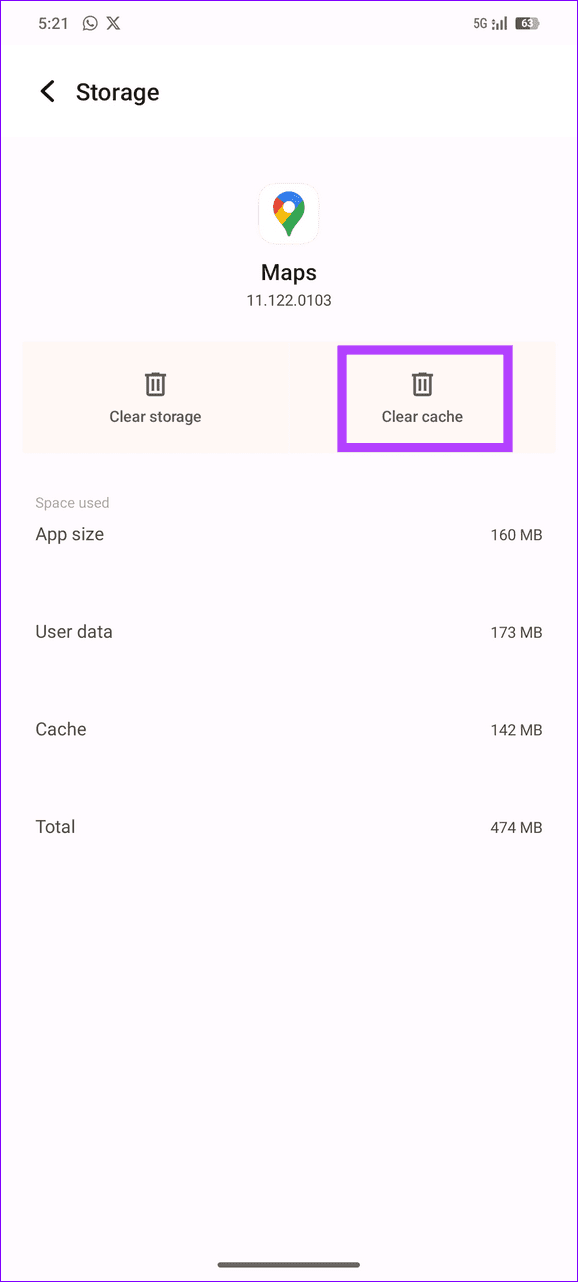
Long-press the Google Maps icon > select App info > Storage and cache > Clear cache .
Was this helpful?
Submit Cancel
Thanks for your feedback!
Keep reading