Android
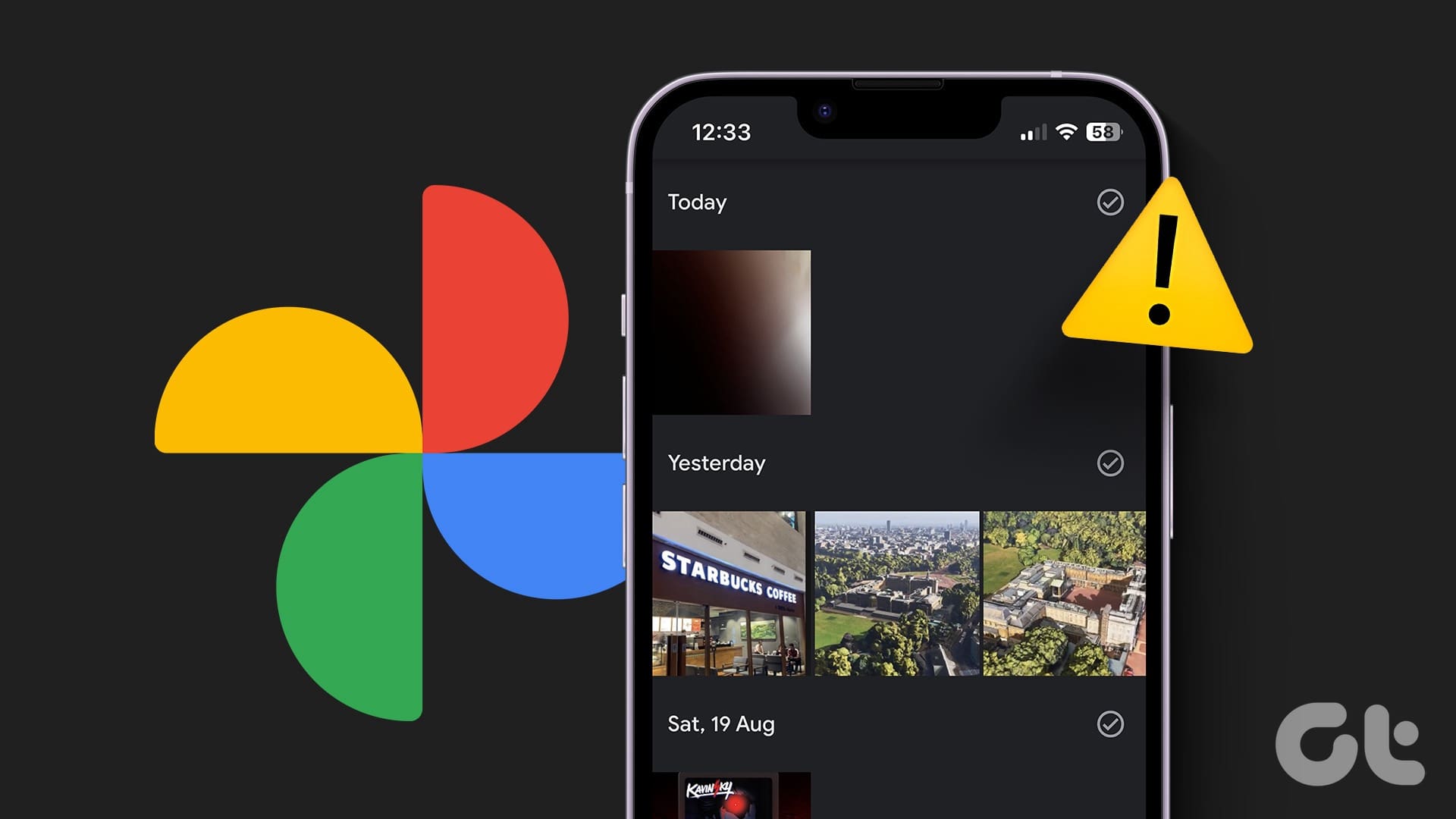
5 Ways to Fix Google Photos App Not Showing All Photos
Are you unable to see your backed up photos and videos in the Google Photos app? Here are the best ways to fix Google Photos app not showing all photos.
By Parth Shah
Quick Fixes
Toggle on Backup in the Google Photos app.
Check Device Folders to backup photos from a specific folder.
Clear the Google Photos app cache (Android) and enable Background App Refresh (iOS).
Basic Fixes
Check your network connection – Ensure your phone is connected to a good internet connection. Check its speed online .
Inspect your phone’s storage – Head to Android settings, search Storage , and click the storage result to view the phone storage. On iPhone, navigate to Settings > General > iPhone Storage to inspect the available free space.
Check Archive and Bin folders – Open Google Photos, select the Library tab at the bottom, and tap Archive to view all archived photos. Similarly, tap Bin to view all the deleted photos in the Google Photos app.
Update or reinstall the Google Photos app – Open the Google Play Store or Apple App Store, search Google Photos , and tap Update (if available). Alternatively, delete and reinstall it from their respective app stores.
Fix 1: Enable Backup in Google Photos
The Google Photos app won’t show all photos if you haven’t enabled backup and sync for your device’s media. Head to the app settings to resolve it.
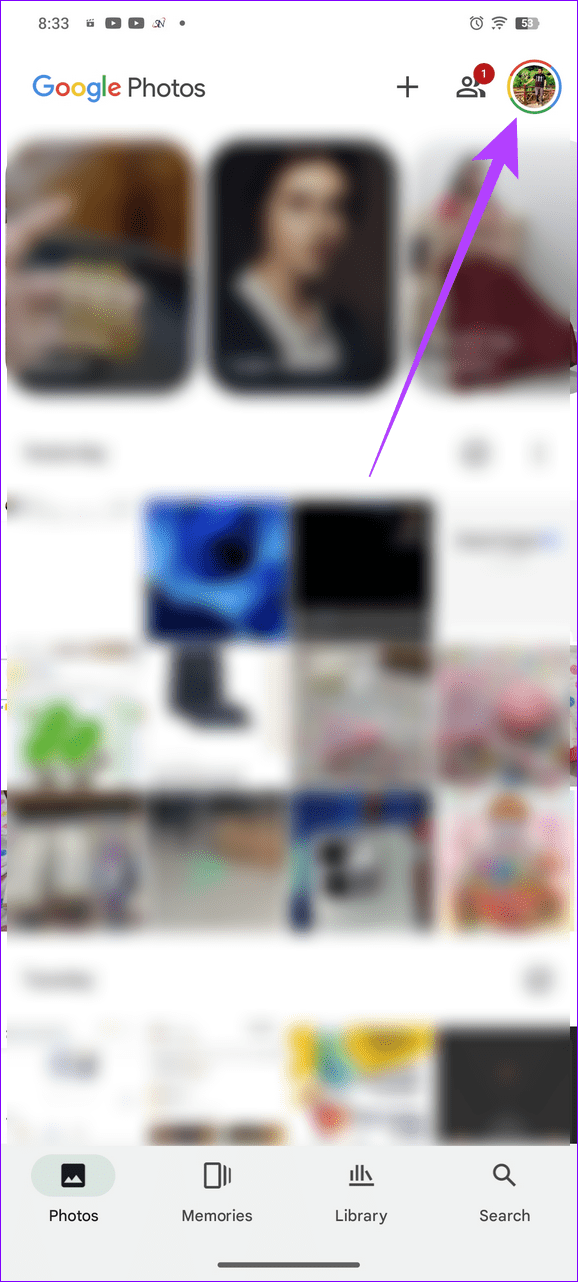
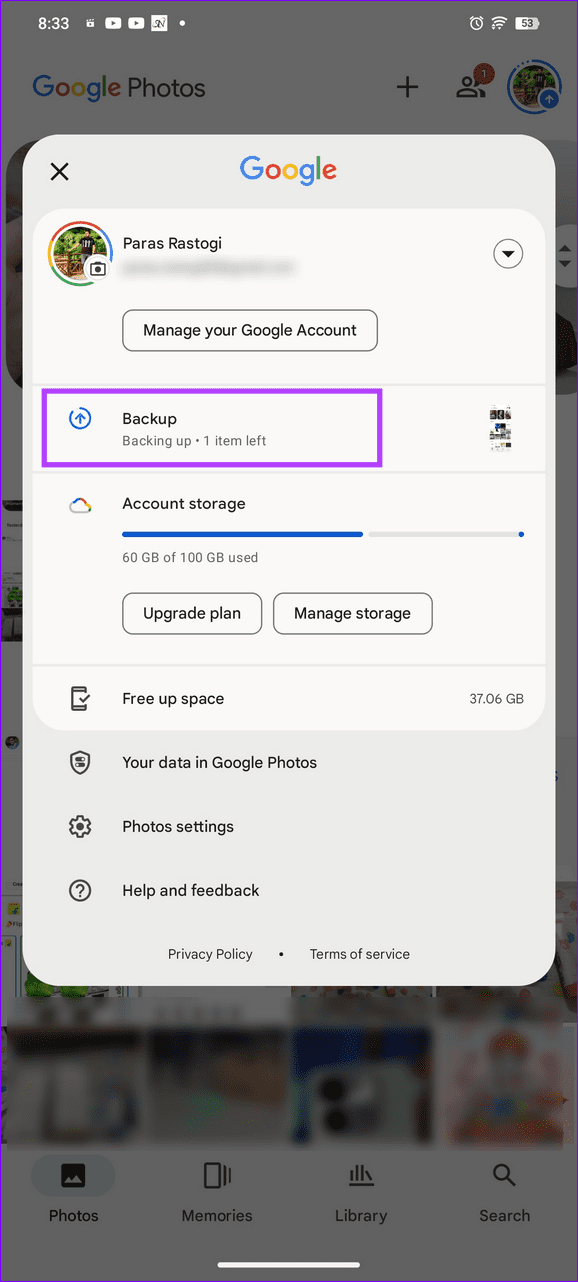
Step 1: Tap your profile picture at the top right corner of Google Photos and select Backup .
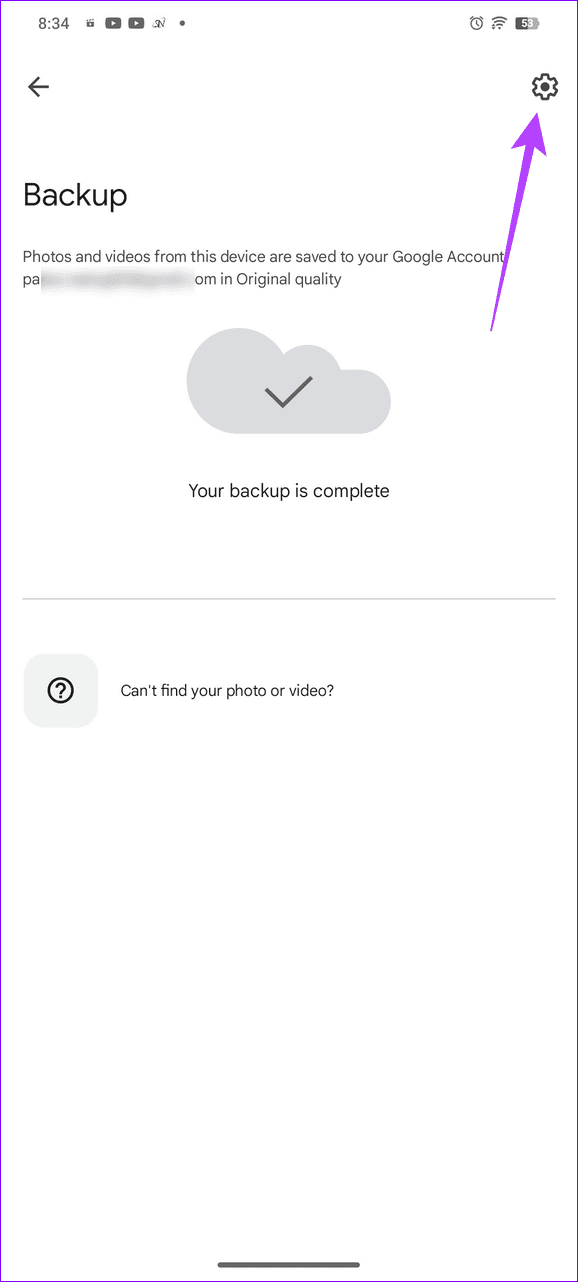
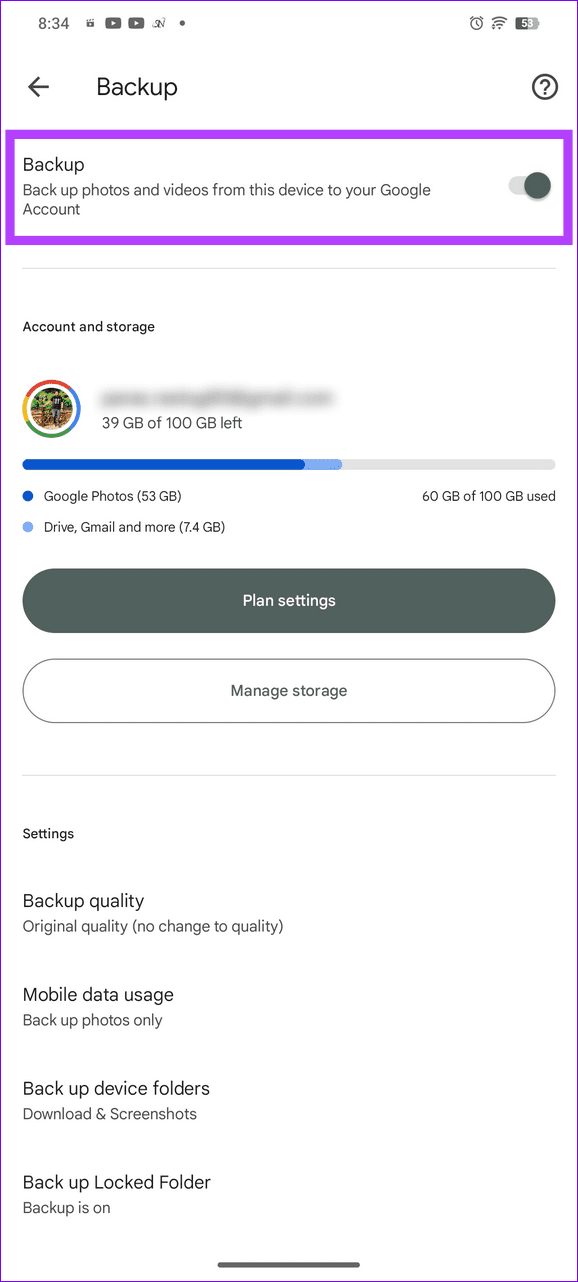
Step 2: Select the Gear icon at the top right and enable the Backup toggle.
Fix 2: Enable App Permissions
Google Photos may fail to show all photos on your phone if it doesn’t have the necessary photo and video permissions. Open your device settings to enable it manually.
Android
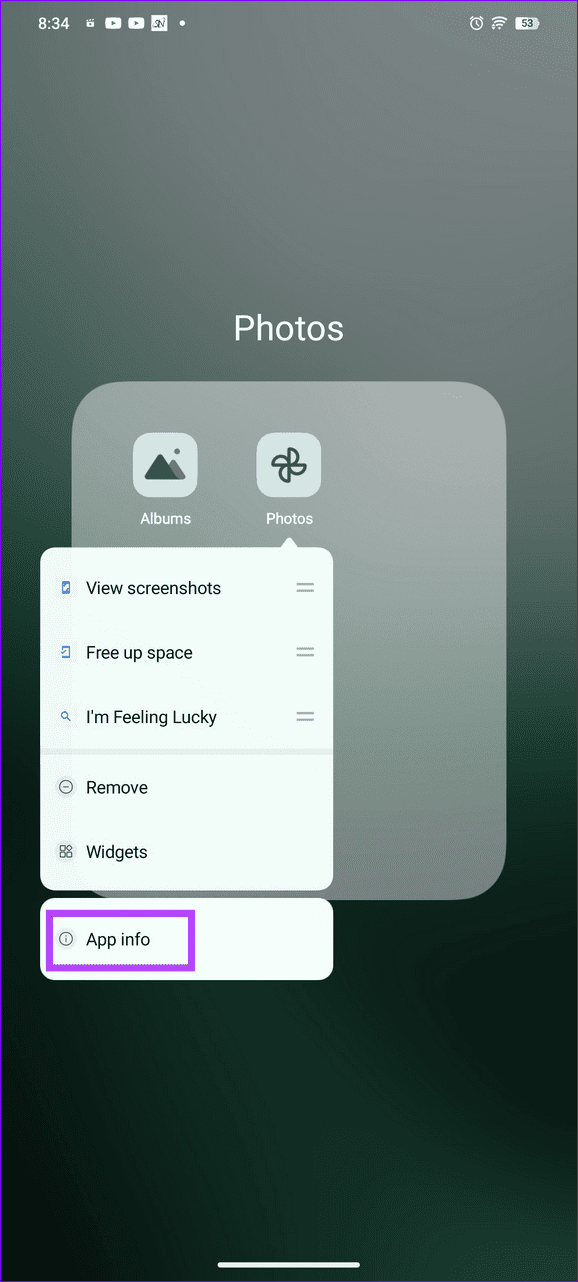
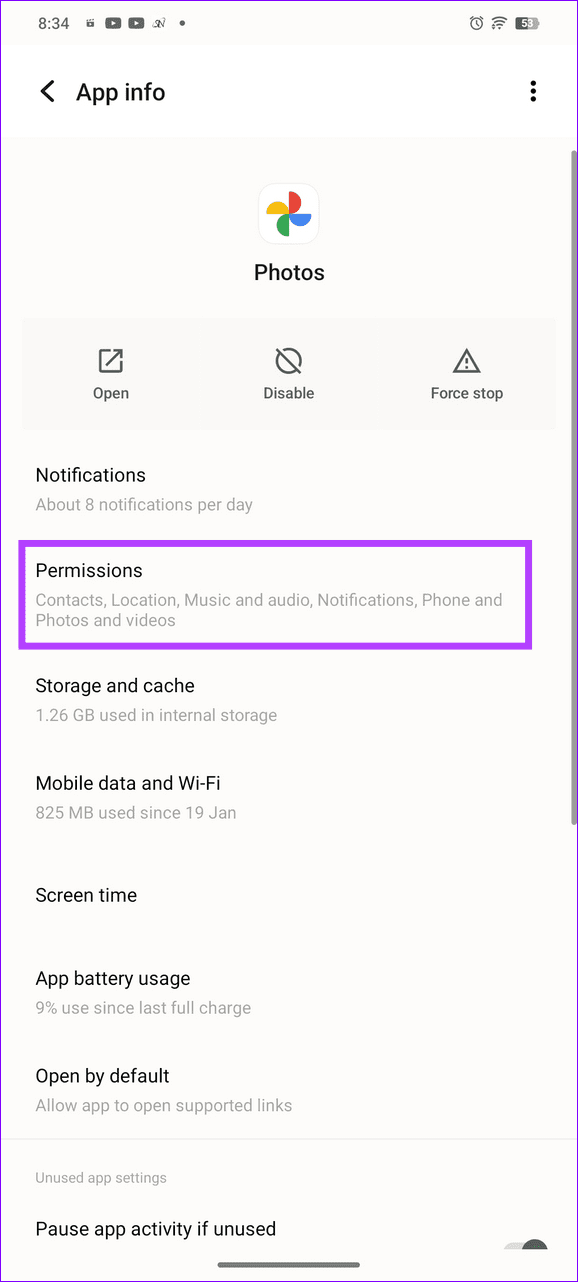
Step 1: Long-tap the Google Photos icon to open App info and select Permissions .
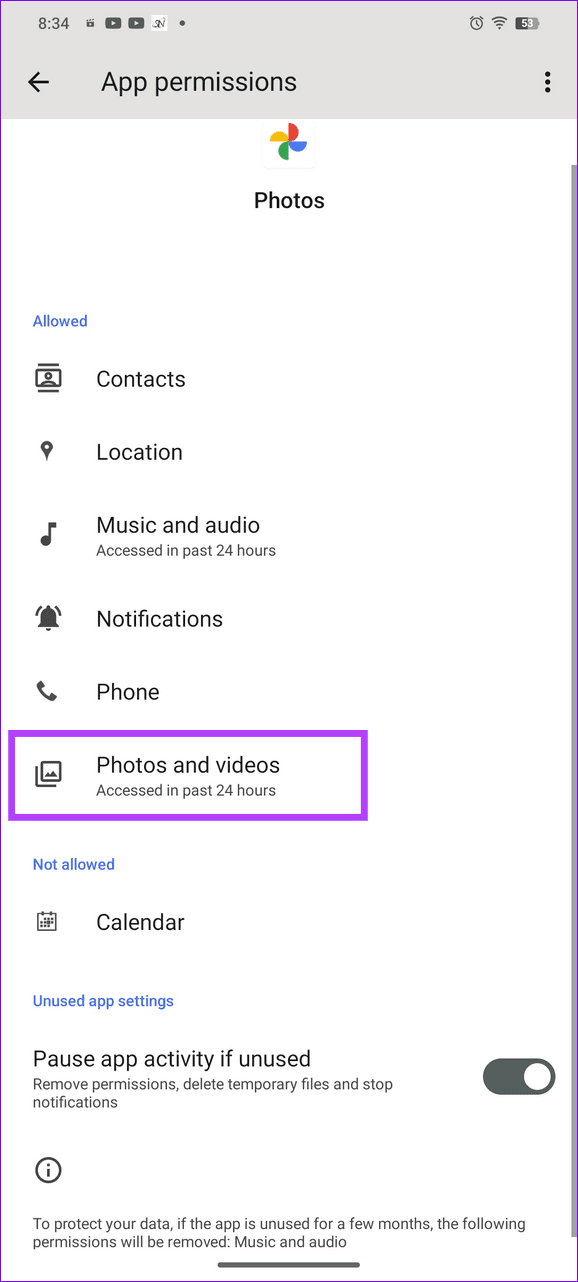
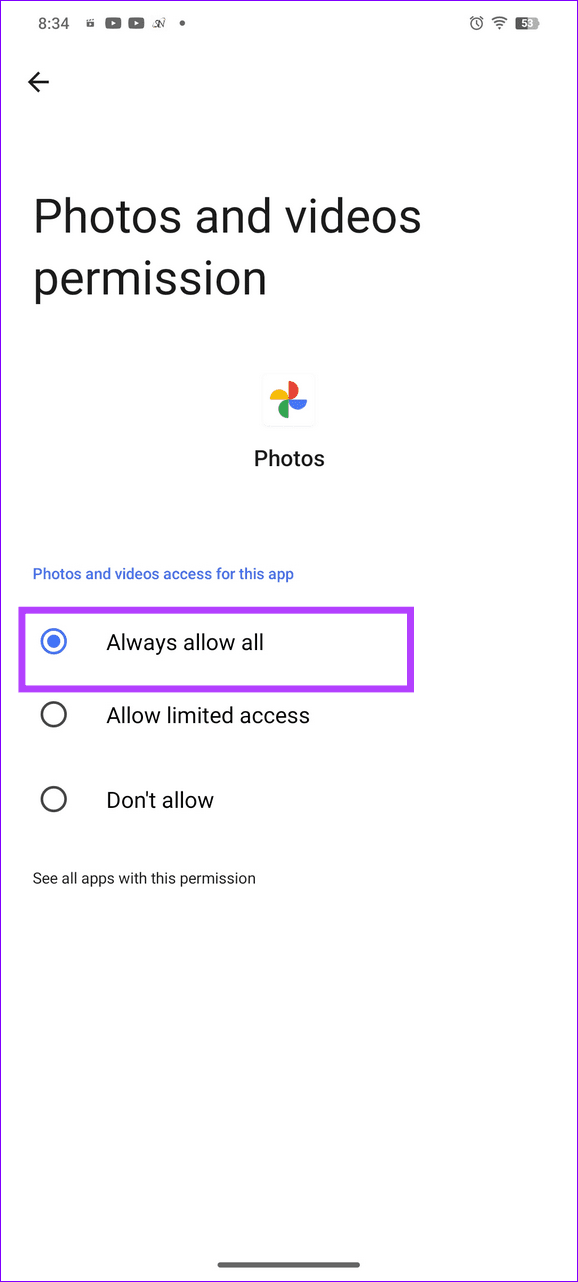
Step 2: Tap Photos and videos and set it to Always allow all .
iOS
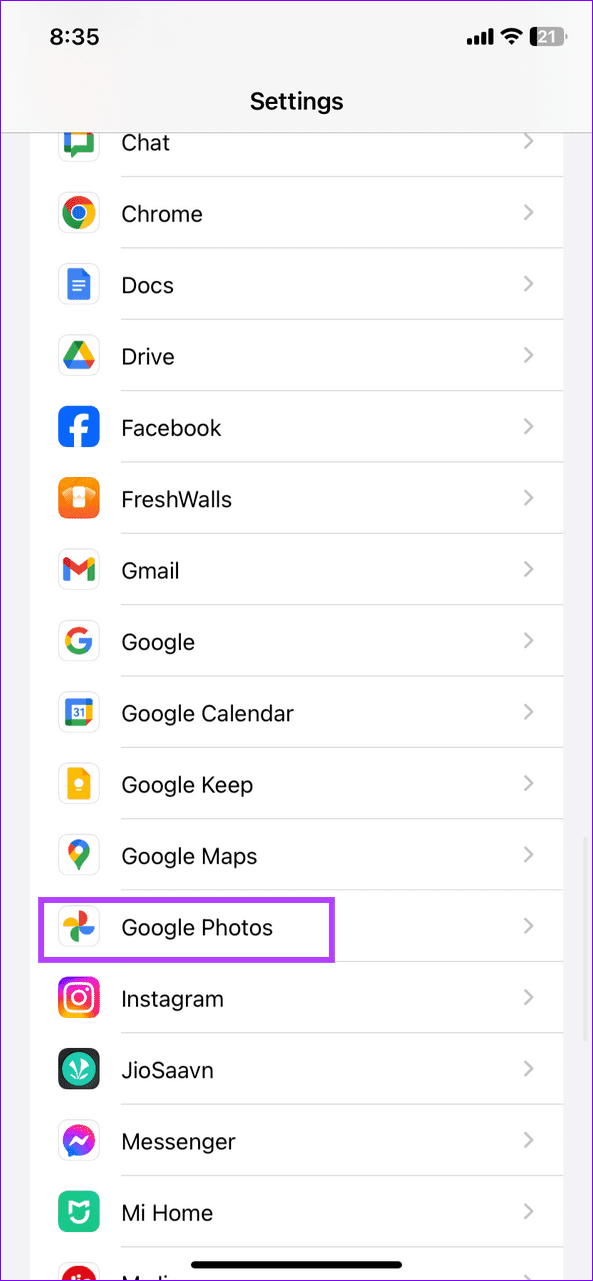
Step 1: Open iPhone settings and scroll down to select Google Photos .
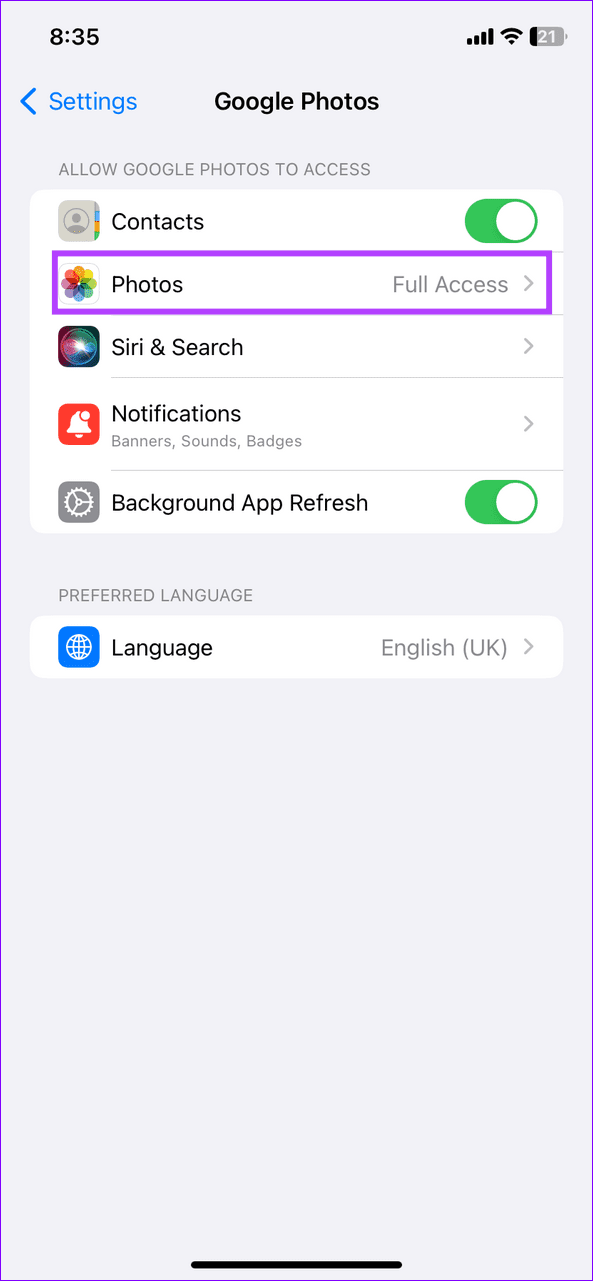
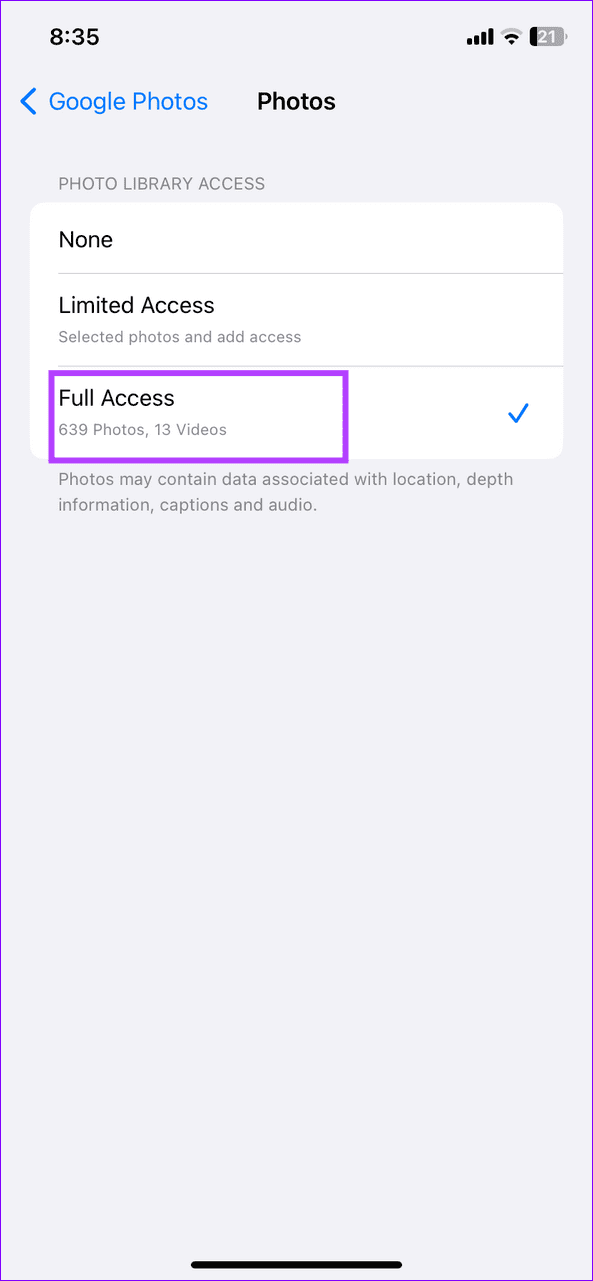
Step 2: Tap Photos and assign it Full Access .
Fix 3: Check Device Folders
If you can’t find certain photos from a specific device folder in Google Photos, its sync might be disabled. Head to Google Photos settings to enable its backup manually.
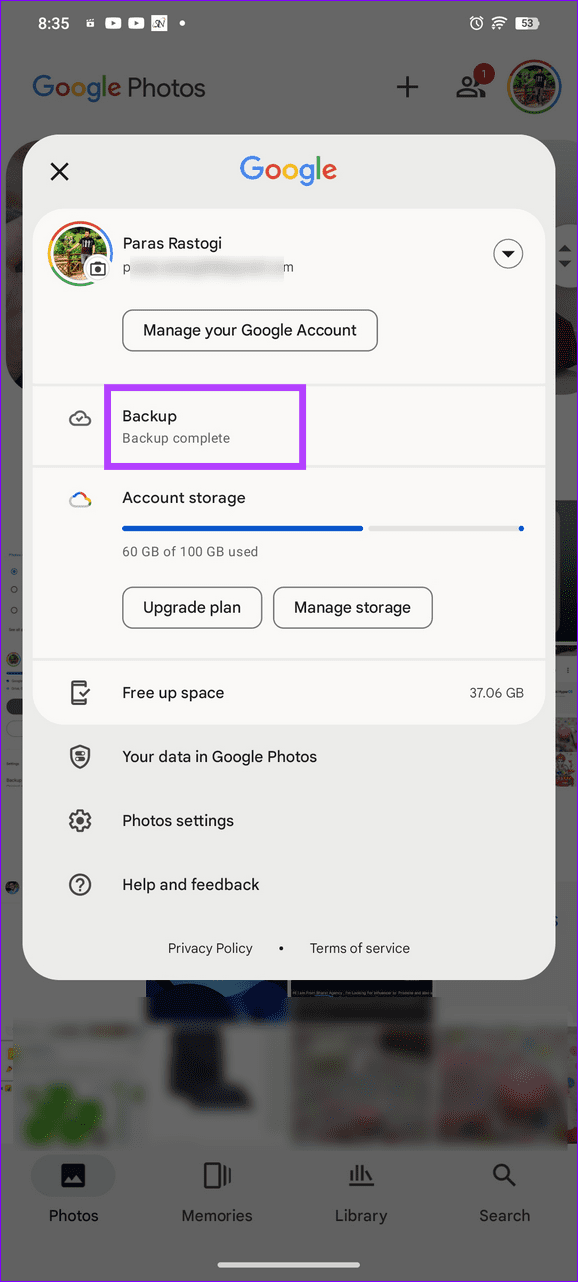
Step 1: Tap your profile picture at the top right of Google Photos and select Backup .
Step 2: Select Can’t find your photo or video? and tap Check device folders .
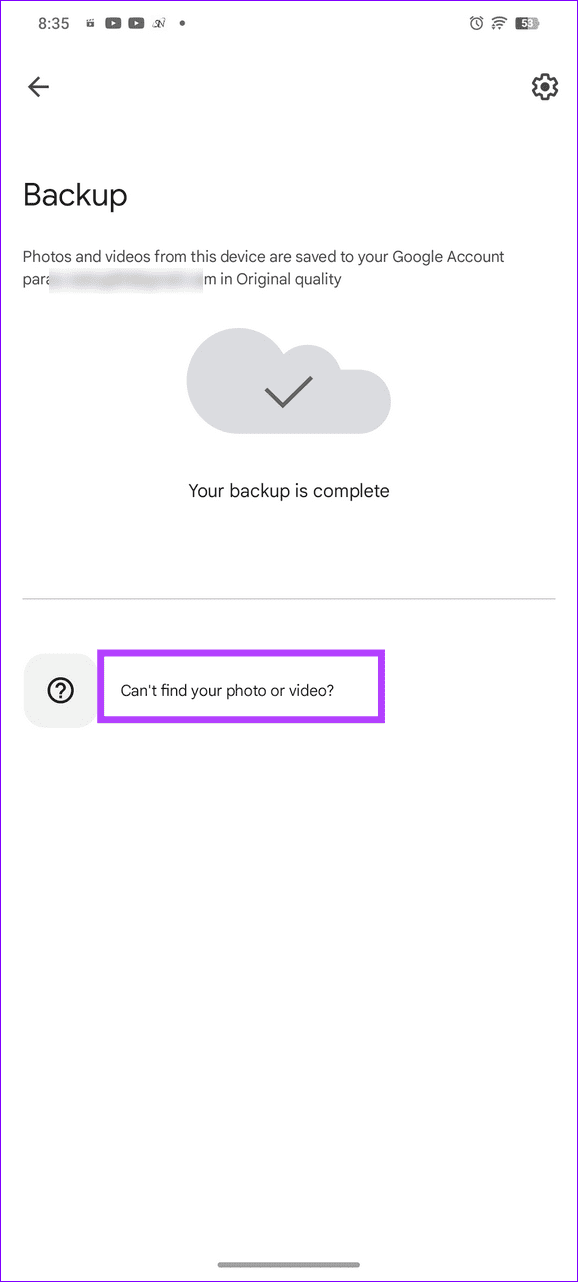
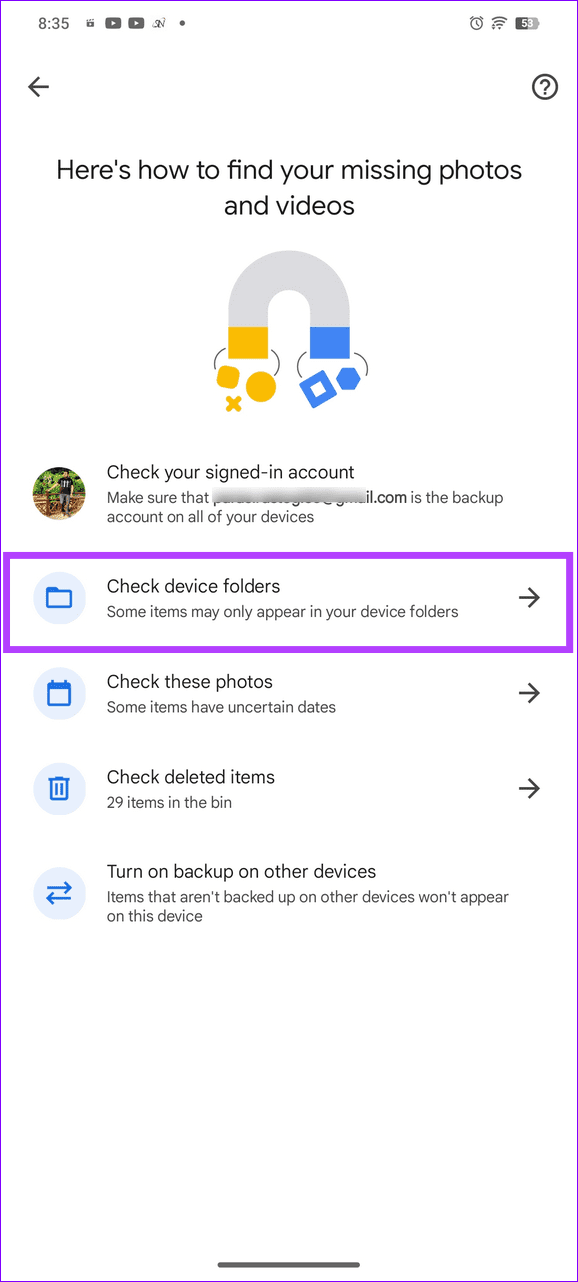
Step 3: Open your desired folder containing the photos and enable its toggle from the top right.
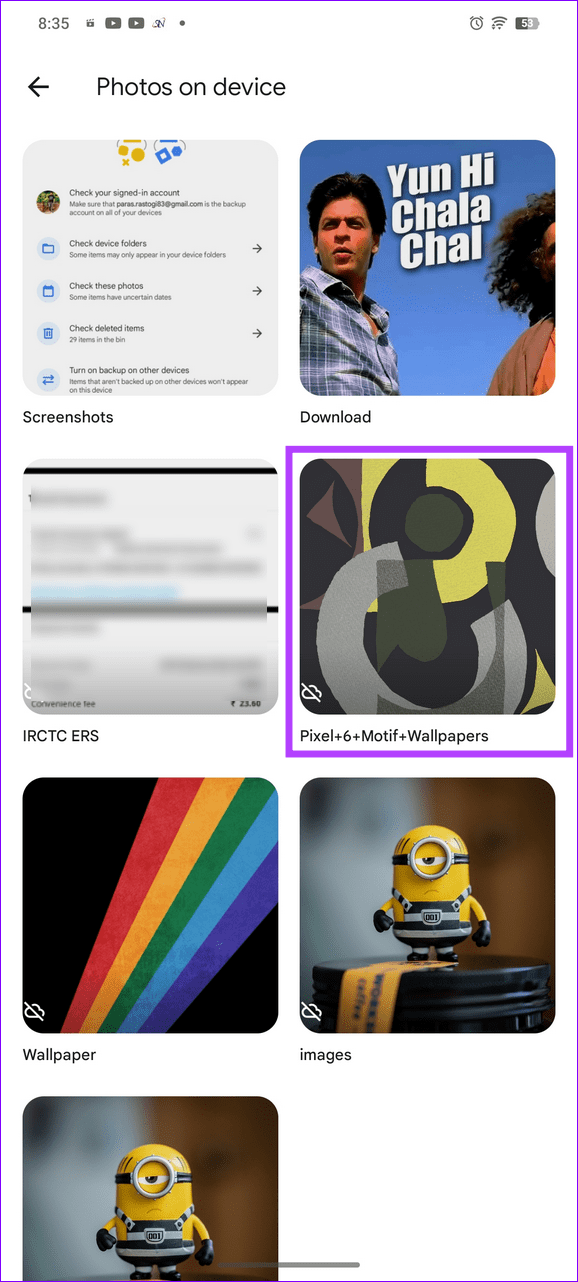
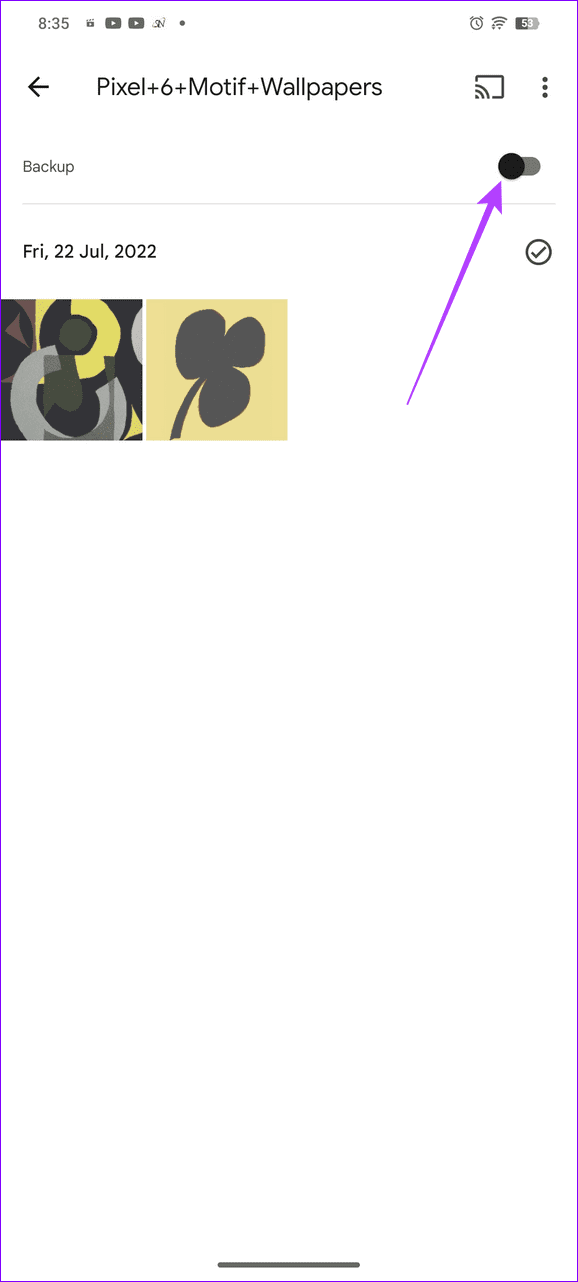
Fix 4: Clear the Google Photos Cache (Android)
Corrupt cache files are a common culprit behind Google Photos not showing all photos on your Android phone. Clear them manually to restore normalcy.
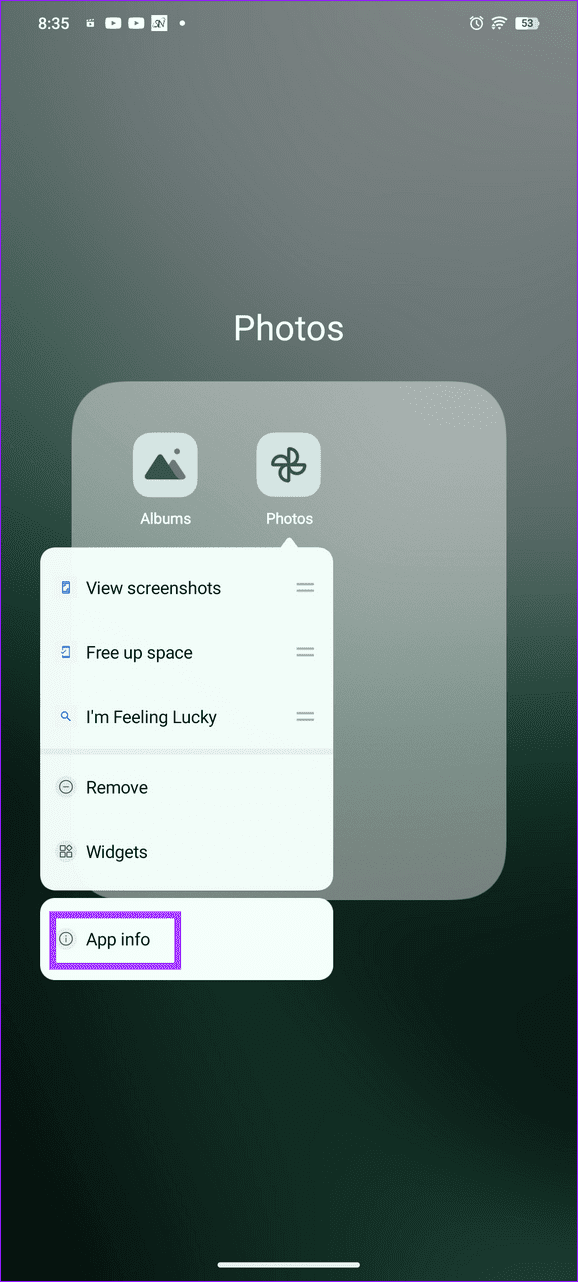
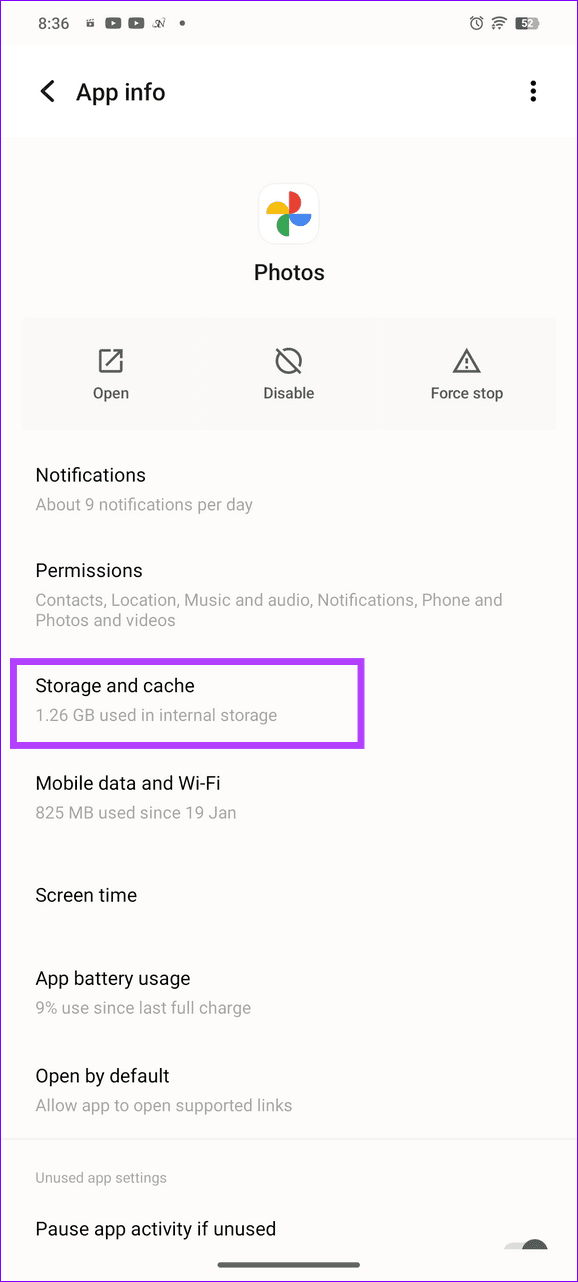
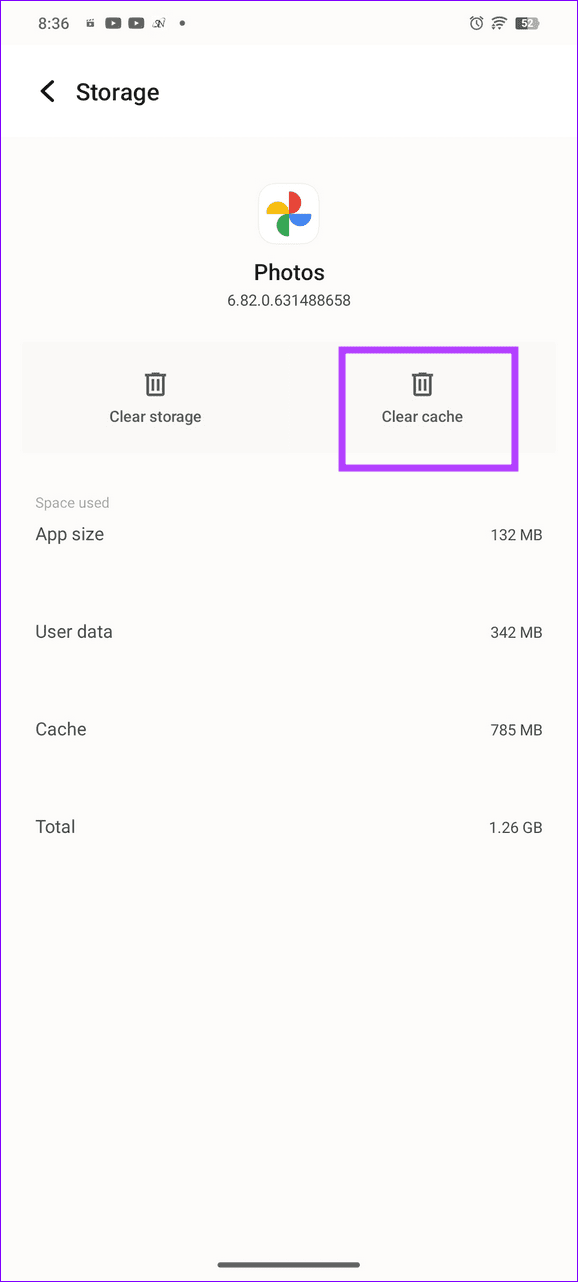
Long-tap the Google Photos icon to open App info , select Storage and cache , and tap Clear cache .
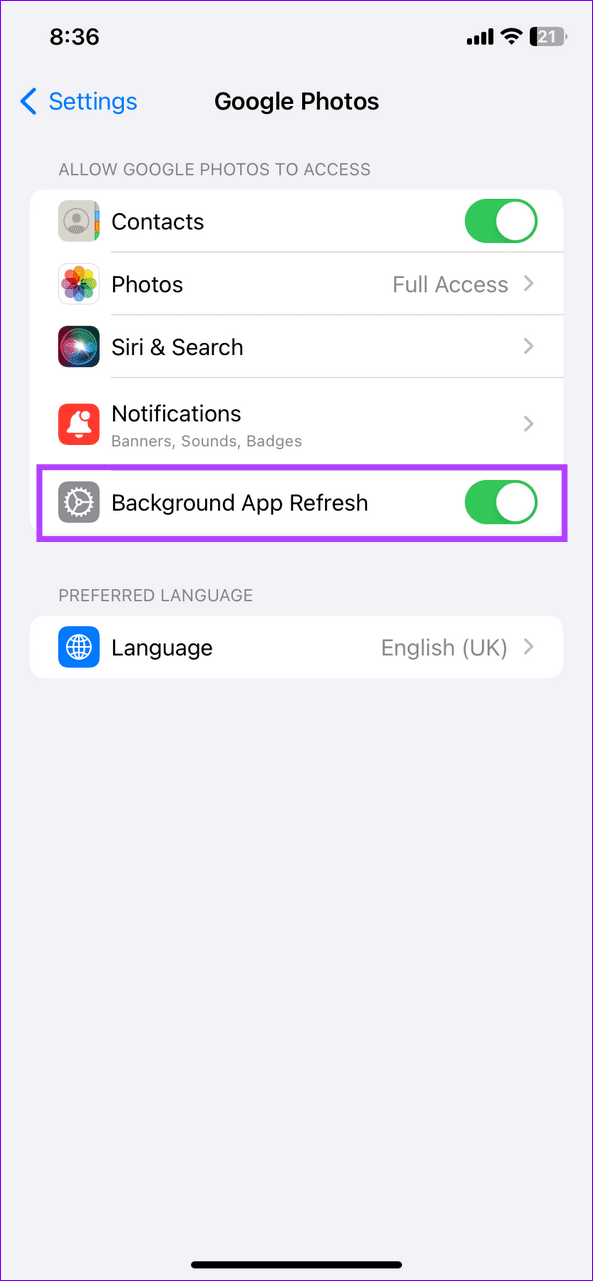
Fix 5: Enable Background App Refresh (iOS)
If Google Photos doesn’t have the necessary permission to run in the background, it will stop syncing the photos when you close the app. Enable the Background App Refresh manually to resolve it.
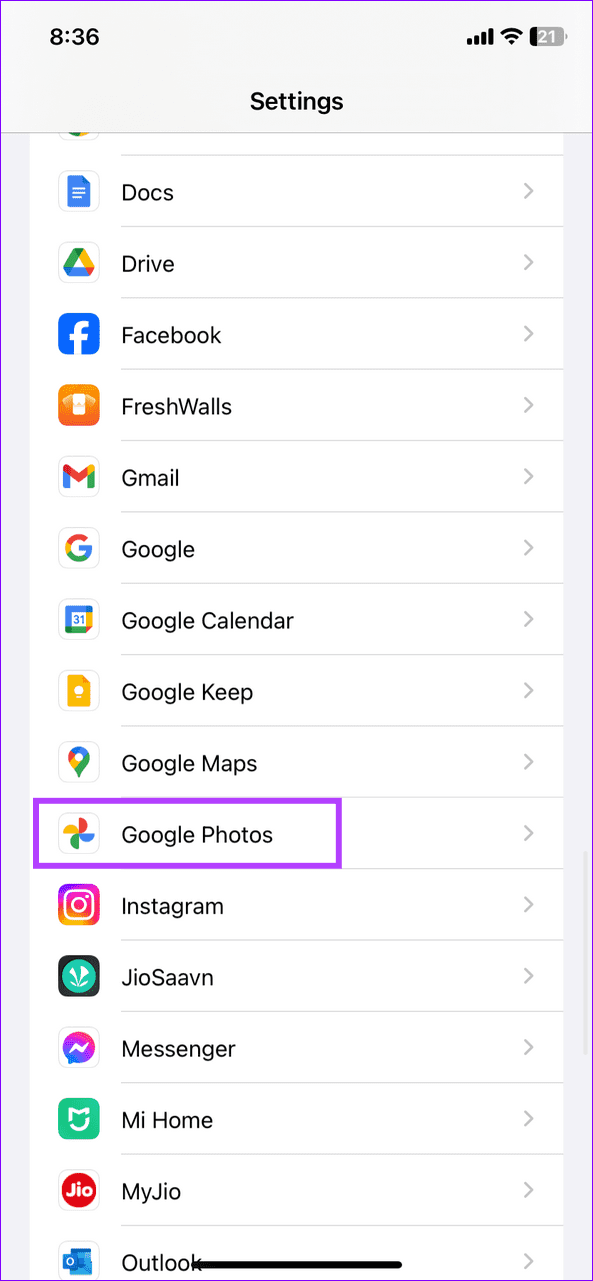
Open iPhone settings, scroll down to select Google Photos , and toggle on Background App Refresh .
Was this helpful?
Submit Cancel
Thanks for your feedback!
Keep reading