Android
5 Ways to Fix Instagram Calls Not Ringing or Working
Unable to make or receive Instagram calls on your phone? Here's how to fix Instagram calls not working issue on Android.
By Pankil Shah
Quick Tips
Voice and video calls on Instagram may fail if there is a problem with your internet or Instagram’s servers.
If you can’t call a specific person on Instagram, it’s possible that they have restricted you.
Try clearing the Instagram app cache if nothing else works.
Try Basic Fixes
Check your internet connection: A weak or unstable internet connection can cause Instagram to malfunction. Hence, ensure that your internet connection is working properly.
Check if Instagram is down: Visit Downdetector to ensure Instagram is not facing a server outage. If the servers are down, wait for Instagram to fix the issue.
Update the app: If Instagram calls are not ringing or working due to a buggy or outdated app build, updating the app from the Play Store (Android) or App Store (iPhone) should help.
Fix 1: Check Instagram App Permissions
Instagram requires access to your phone’s camera and microphone to make audio and video calls. It also needs permission to use data in the background. You must ensure that Instagram has all the necessary permissions it requires.
Android
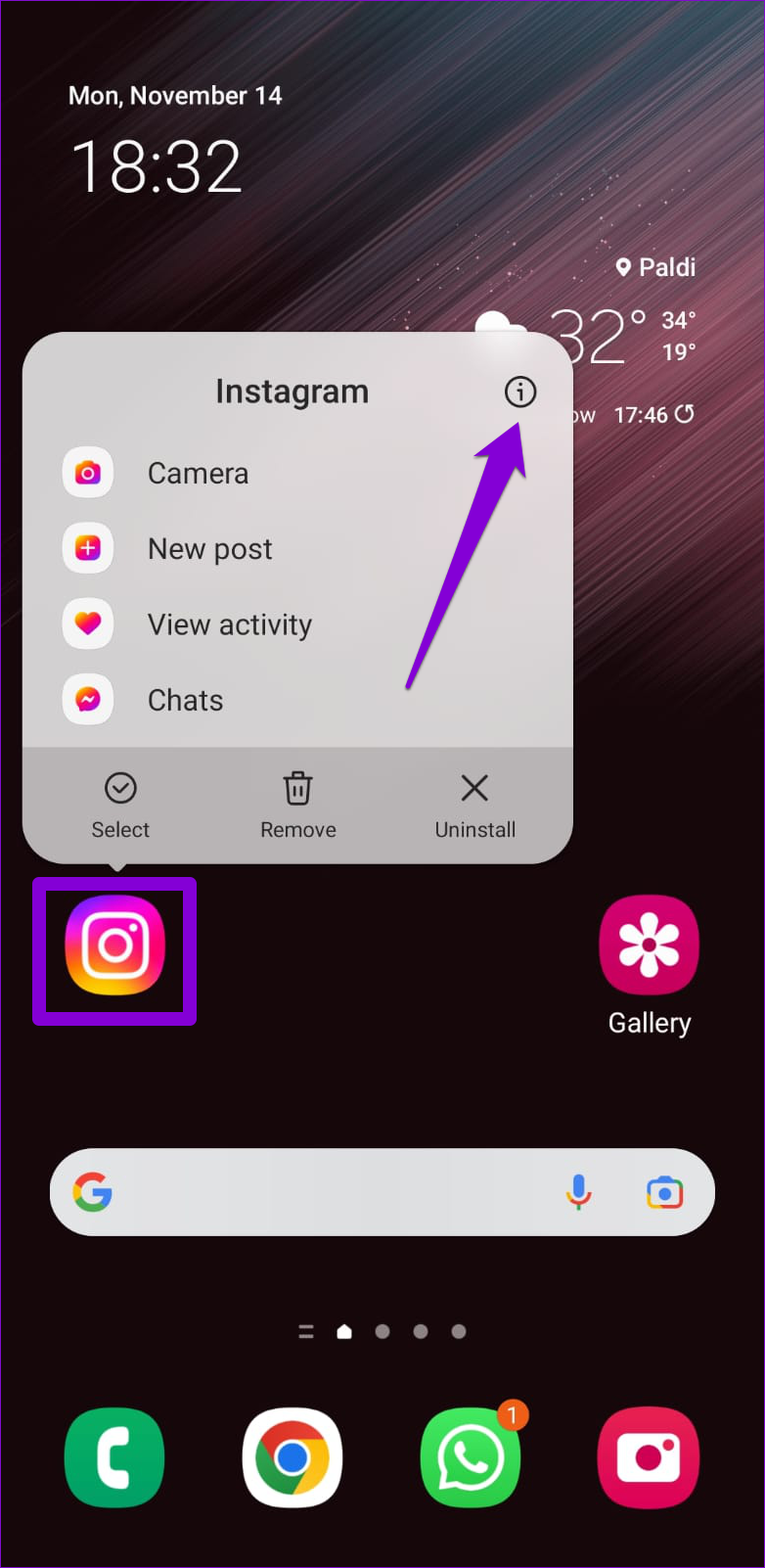
Step 1: Long-press on the Instagram app icon and tap the info icon from the menu that appears.
Step 2: Tap on Permissions .
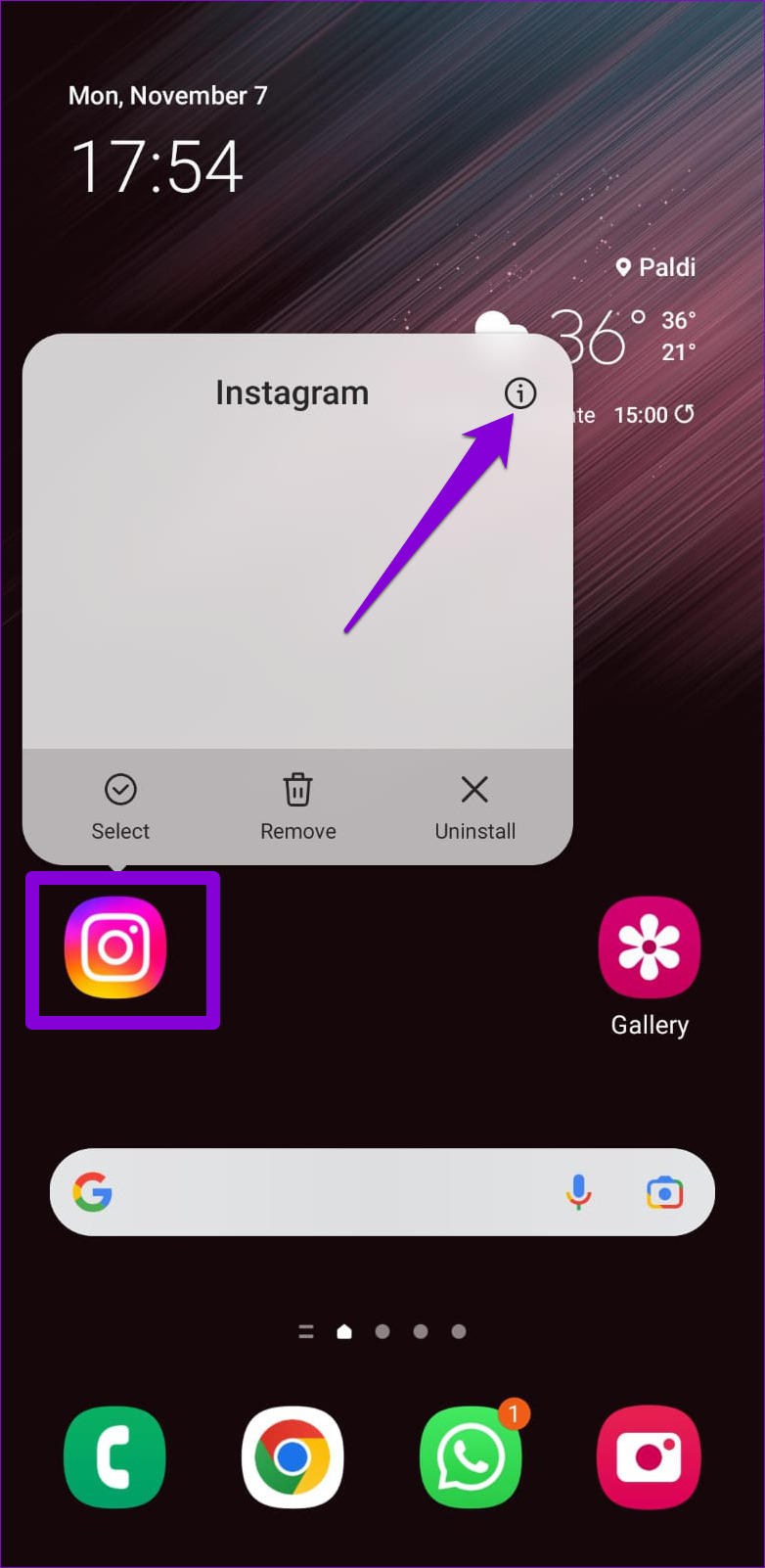
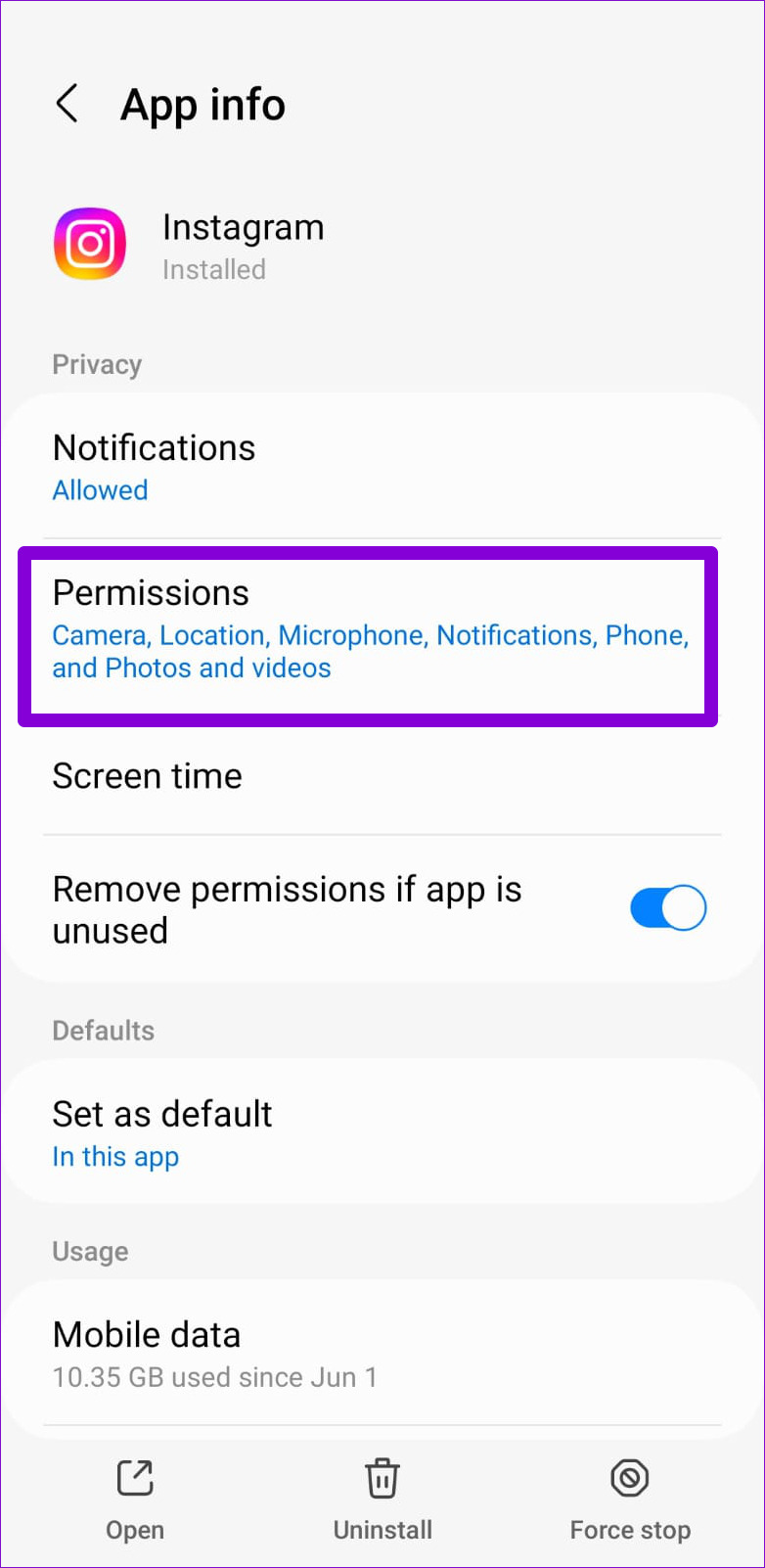
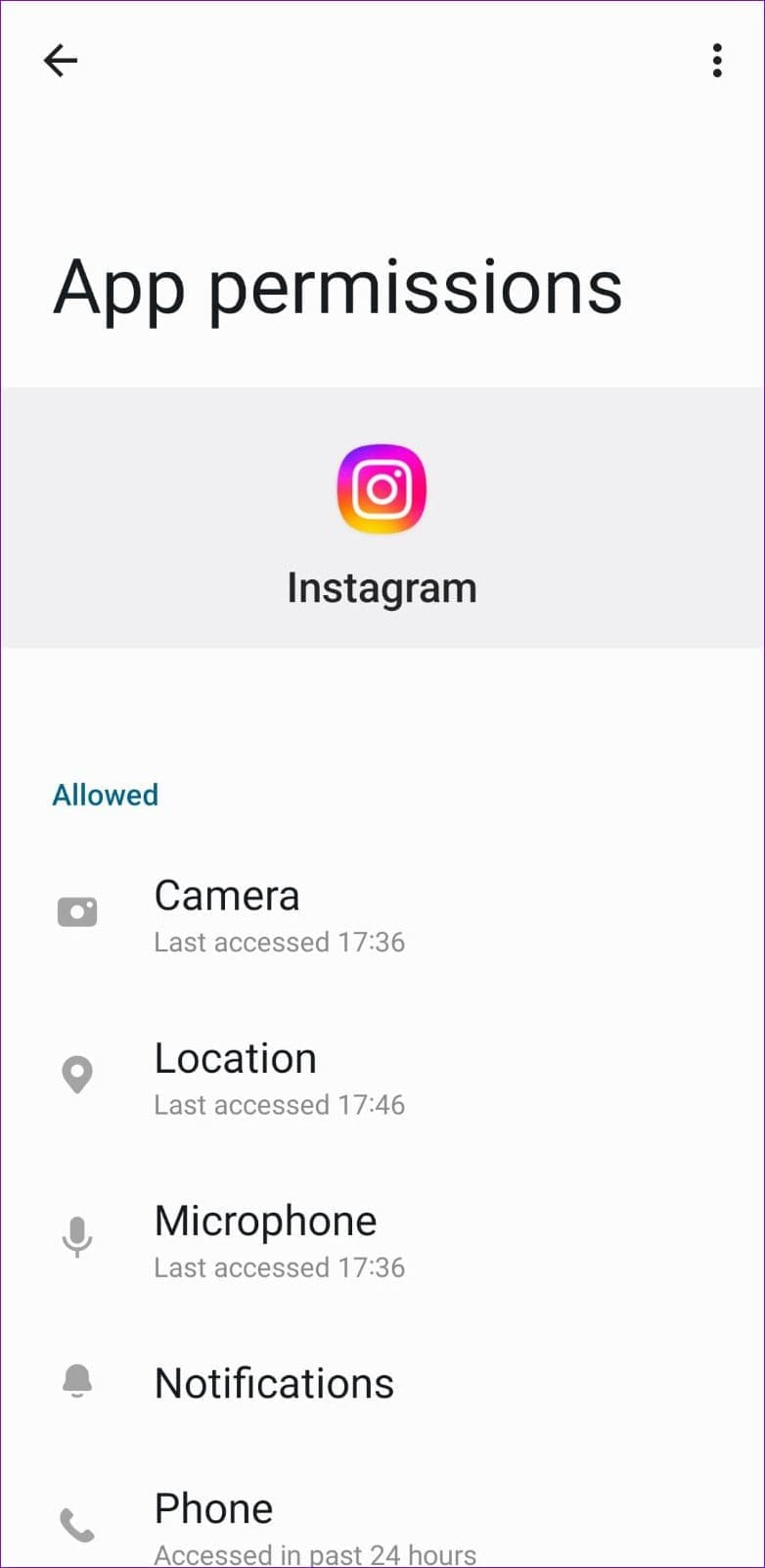
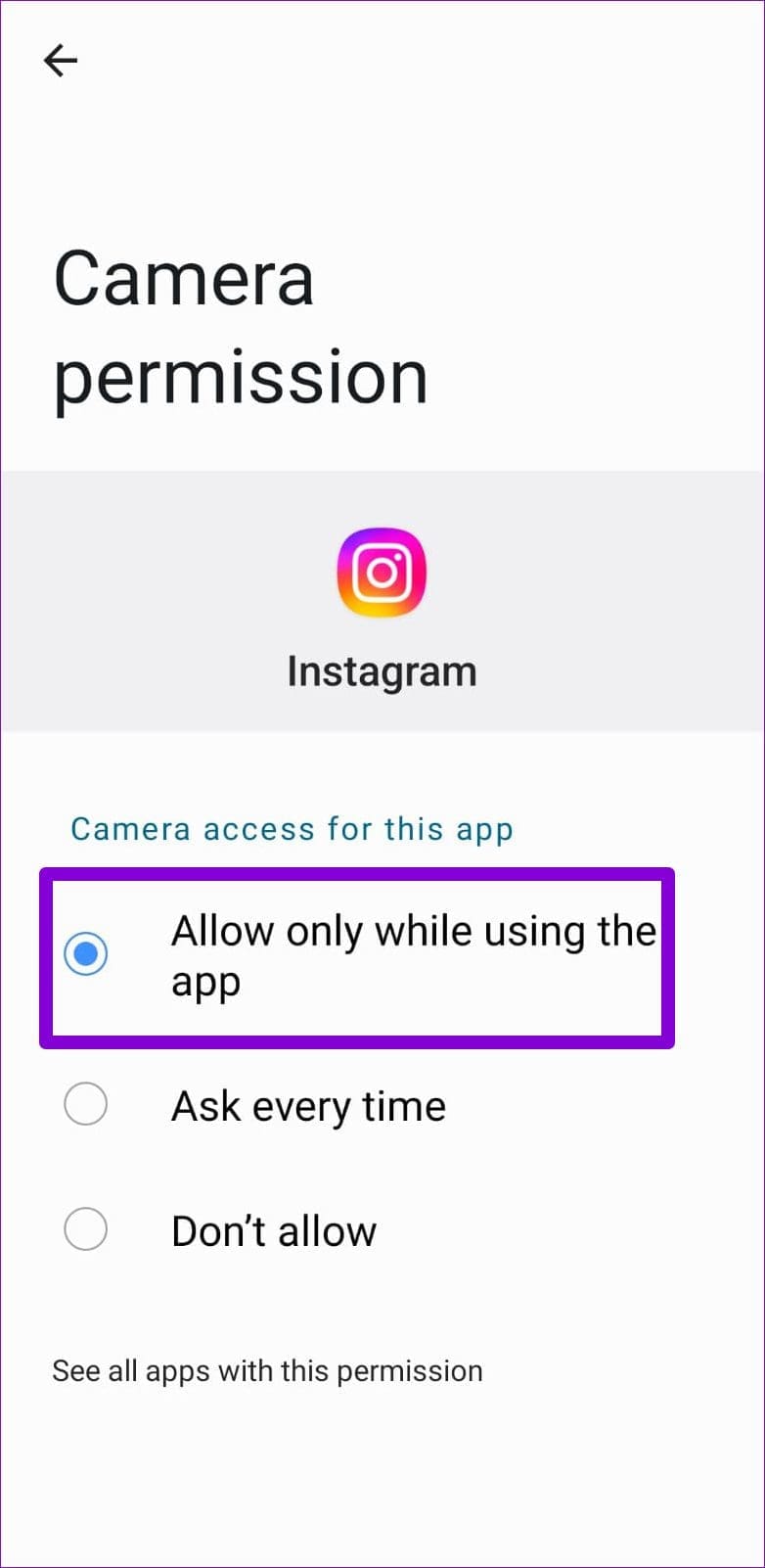
Step 3: Go through each permission one by one and allow it.
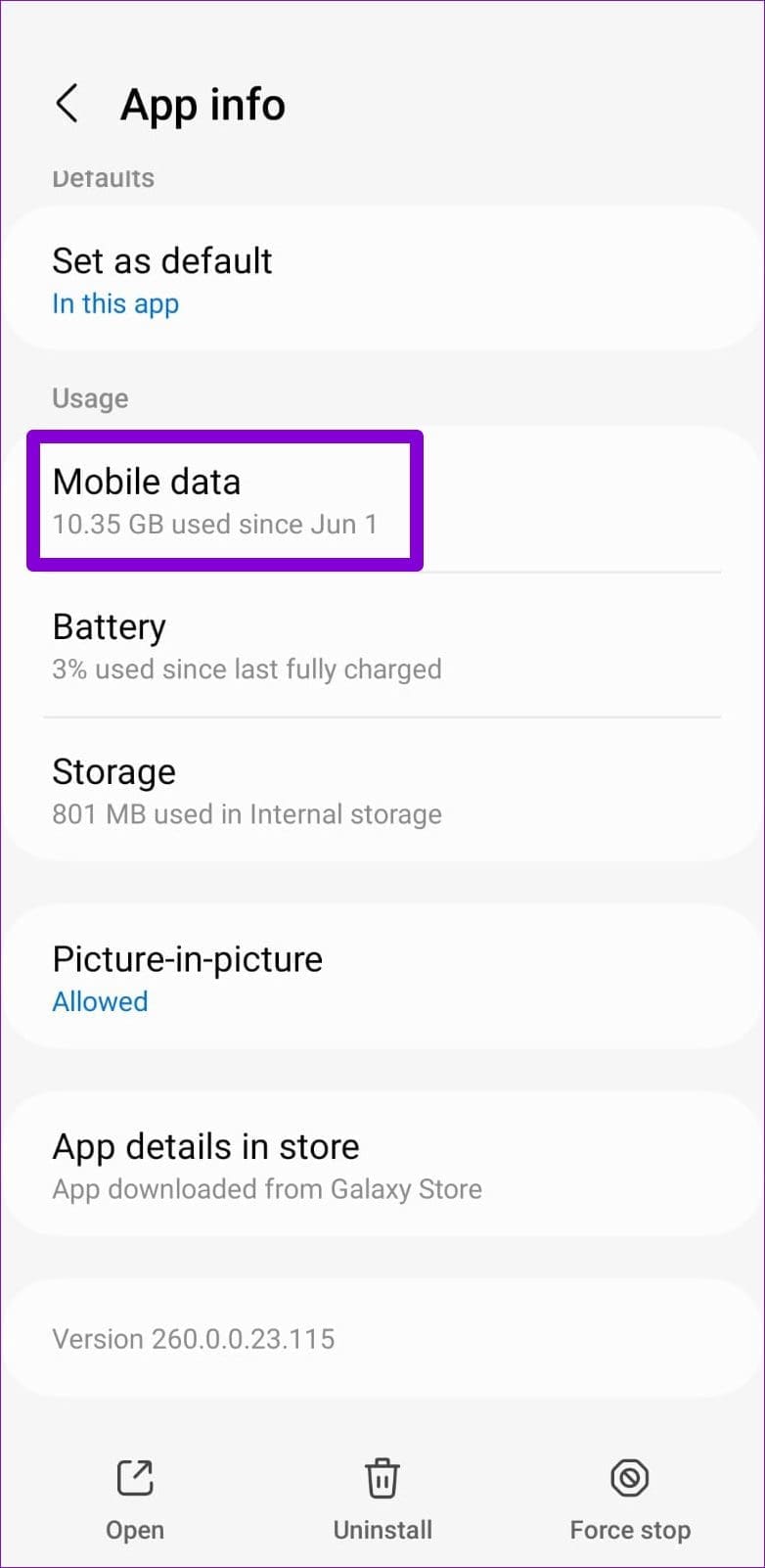
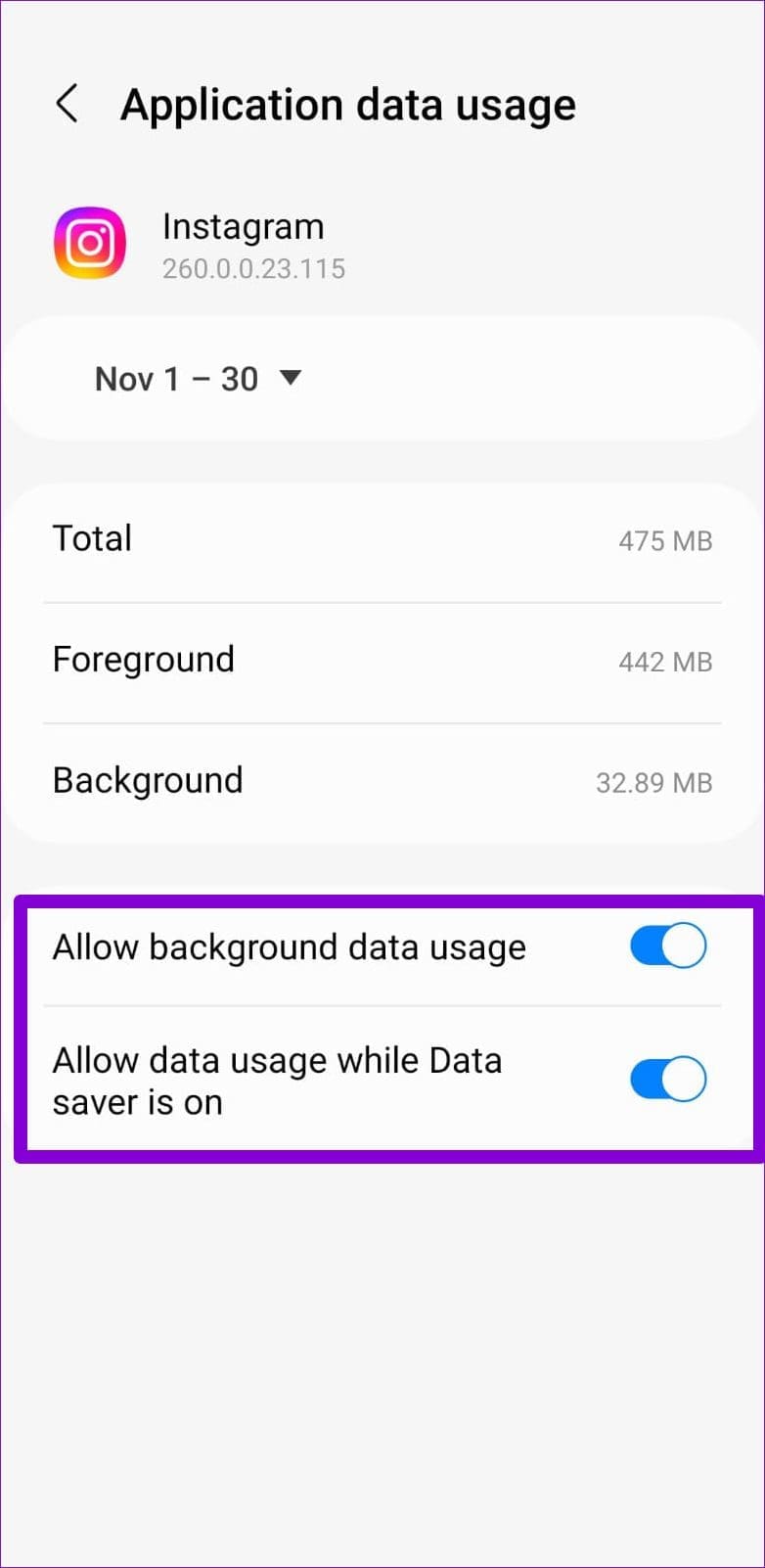
Step 4: Return to the app info page and tap on Mobile data .
Step 5: Enable toggles for Allow background data usage and Allow data usage while Data saver is on .
iPhone
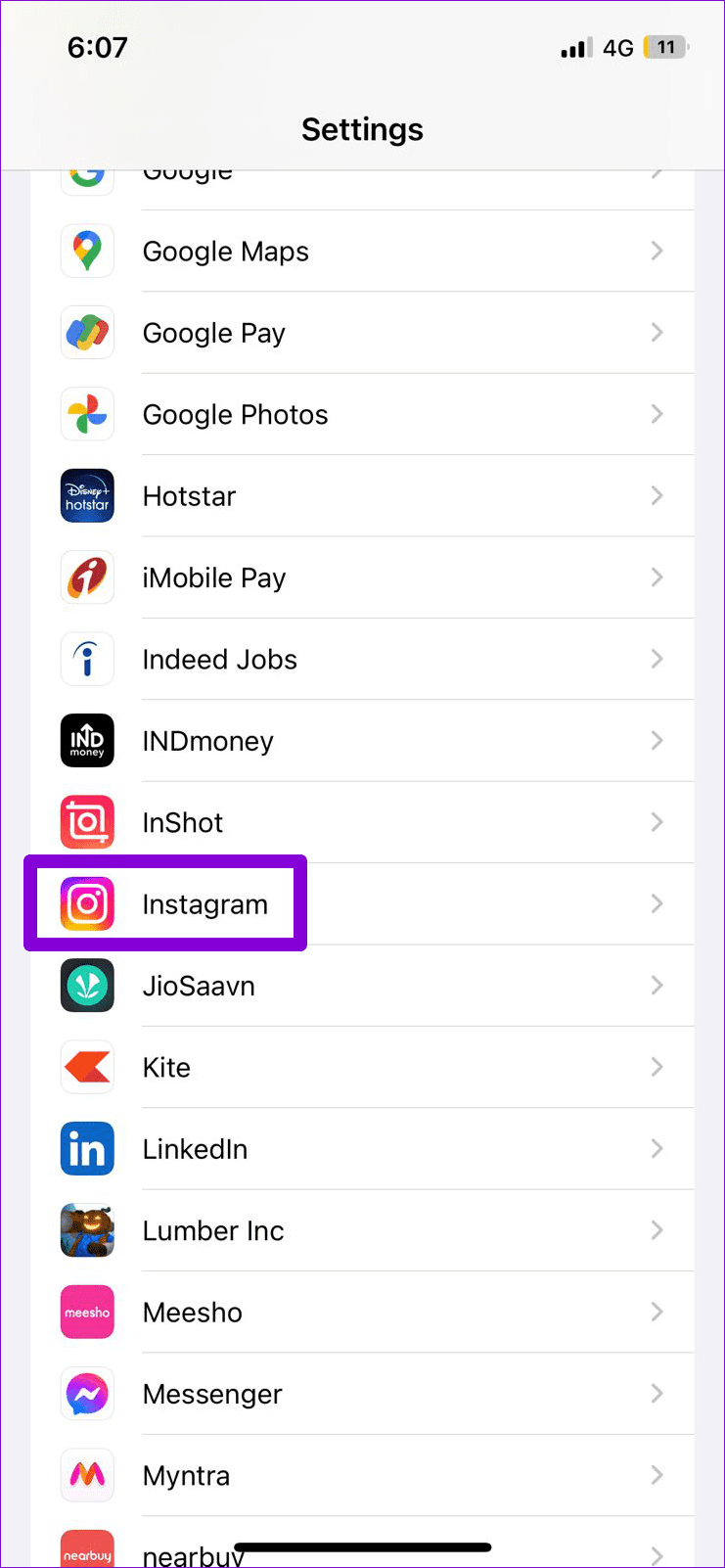
Step 1: Open the Settings app and scroll down to tap on Instagram .
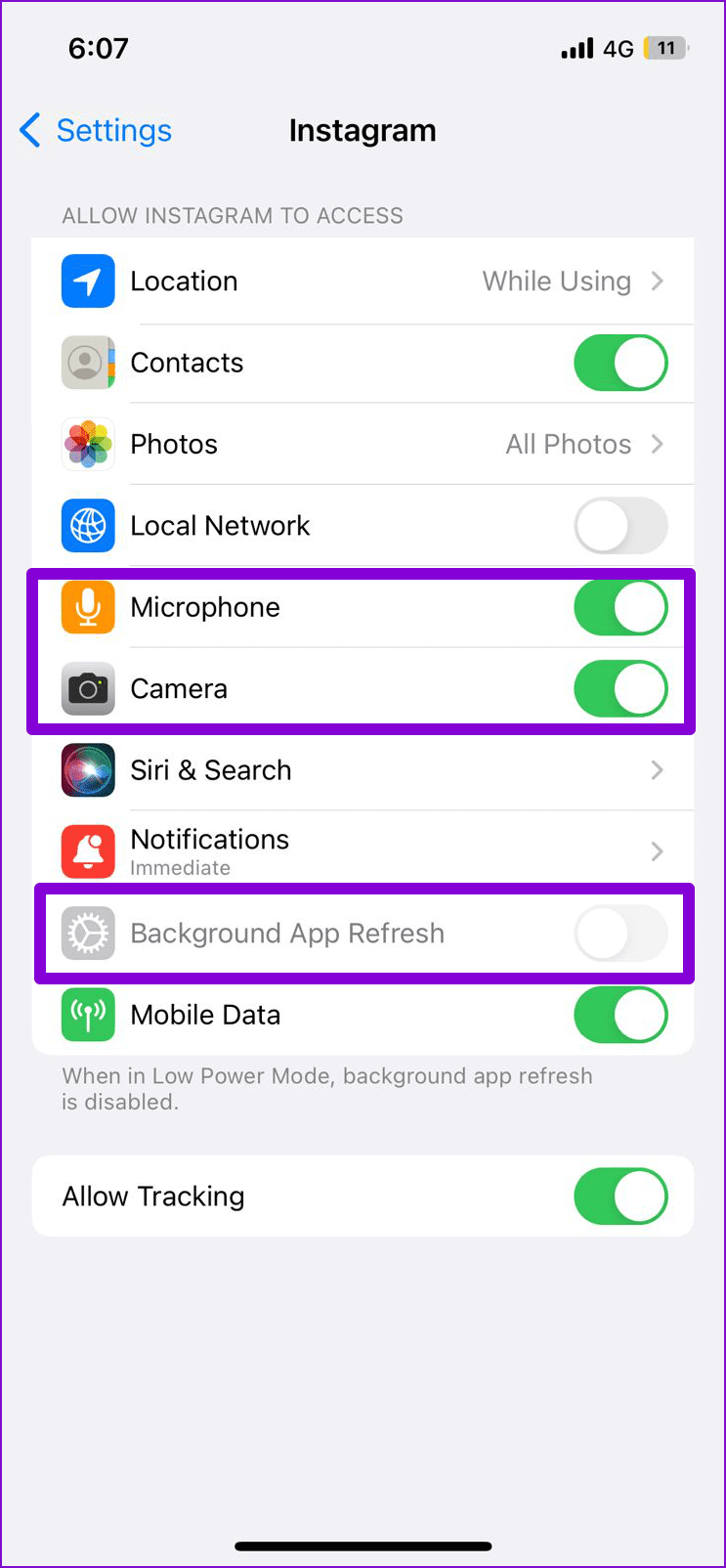
Step 2: Enable the toggles for Microphone , Camera , and Background App Refresh .
Note: If the Background App Refresh toggle appears grayed out, turn off Low Power Mode on your iPhone.
Fix 2: Disable Instagram’s Data Saver Feature
The data saver feature in the Instagram app comes in handy when you’re running low on mobile data. However, if you leave it on all the time, your experience with audio and video calls may suffer. Hence, it’s best to disable it.
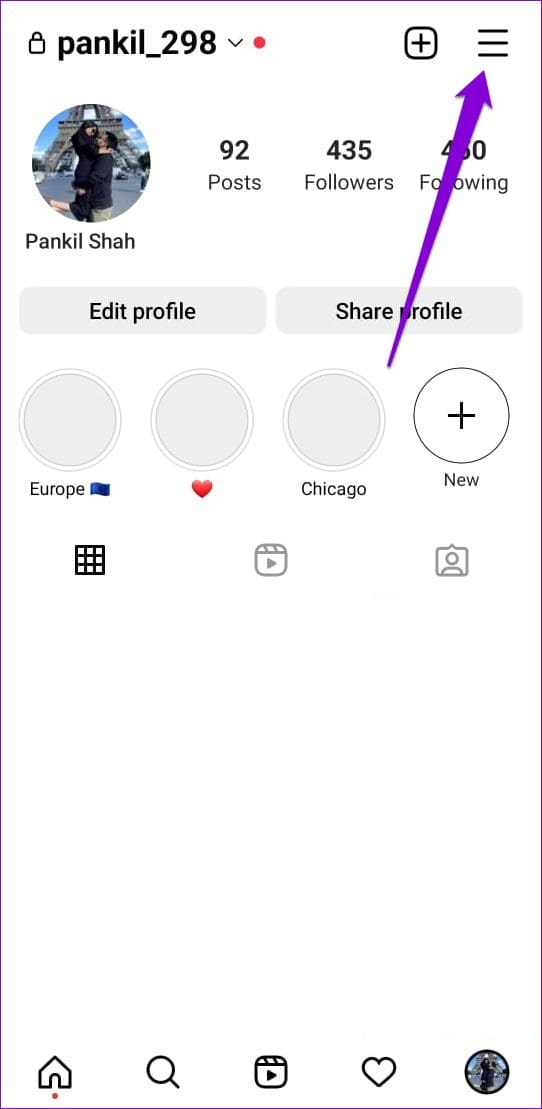
Step 1: In the Instagram app, navigate to the profile tab.
Step 2: Tap the menu icon (three horizontal lines) in the top right corner and select Settings .
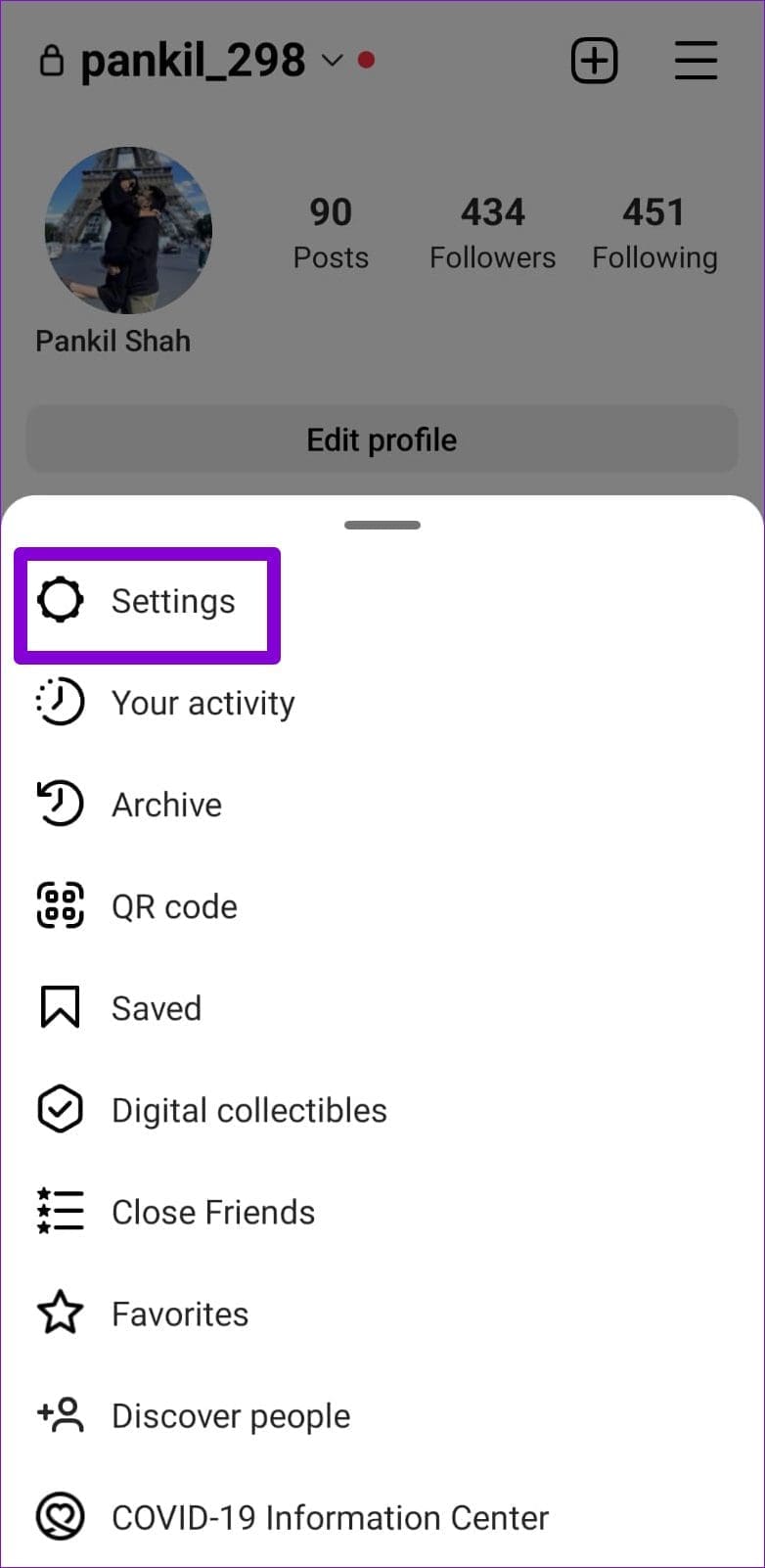
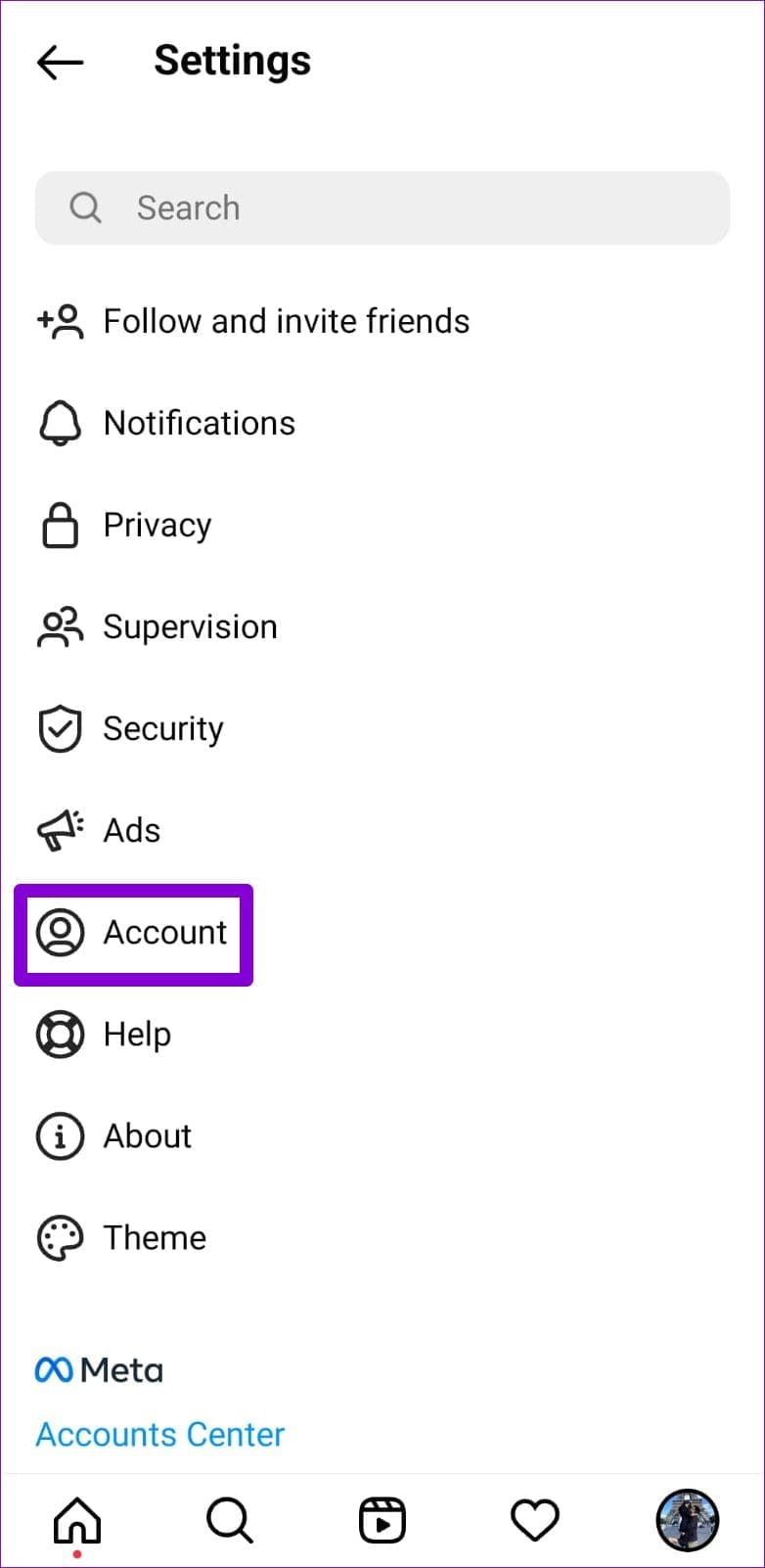
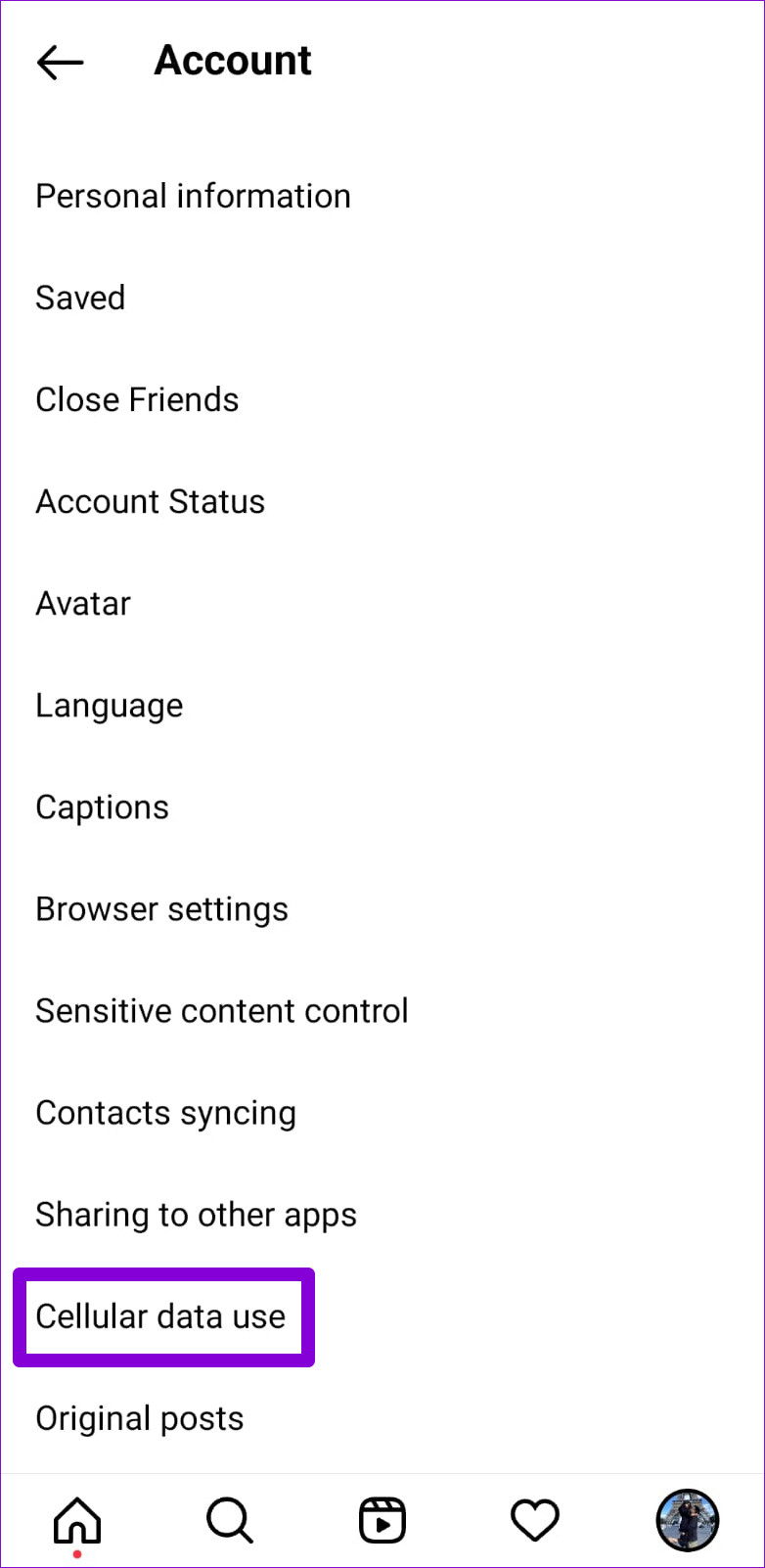
Step 3: Tap on Account and select Cellular data use from the following menu.
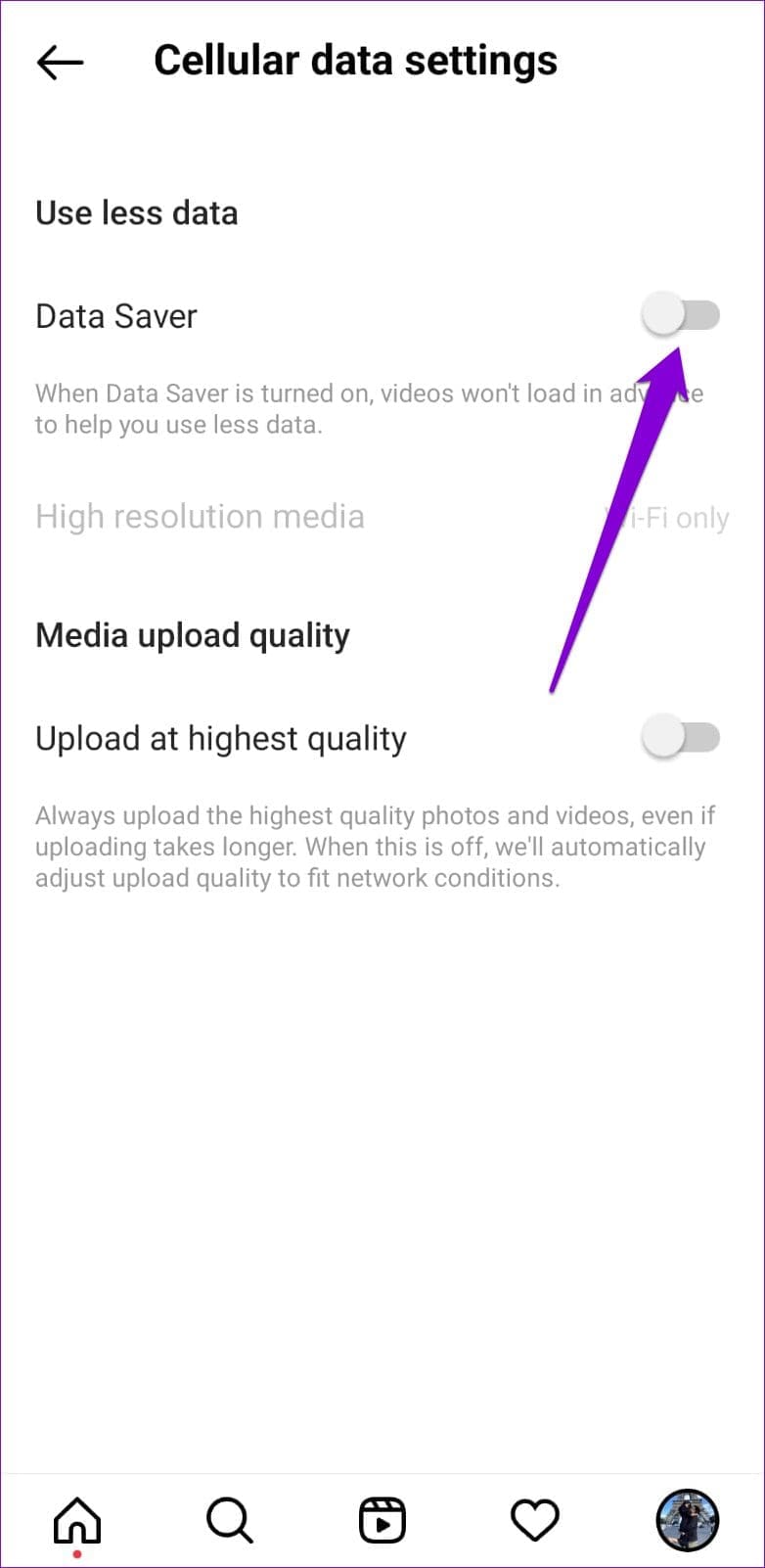
Step 4: Toggle off the Data Saver option.
Fix 3: The Other Person Has Restricted You
If you’re having trouble calling only a particular person on Instagram, the other person may have restricted you. In that case, your Instagram call screen will display “Calling” instead of “Ringing” even if the other person is online.
Unlike Instagram’s block option , there’s no surefire way to tell if someone has restricted you. You can try calling someone else to see if the problem is limited to one person.
Fix 4: Unmute Notifications for Calls
Another thing you must do is check Instagram’s in-app notification settings to ensure the app is allowed to alert you for incoming calls.
Step 1: Open Instagram on your phone and navigate to the profile tab.
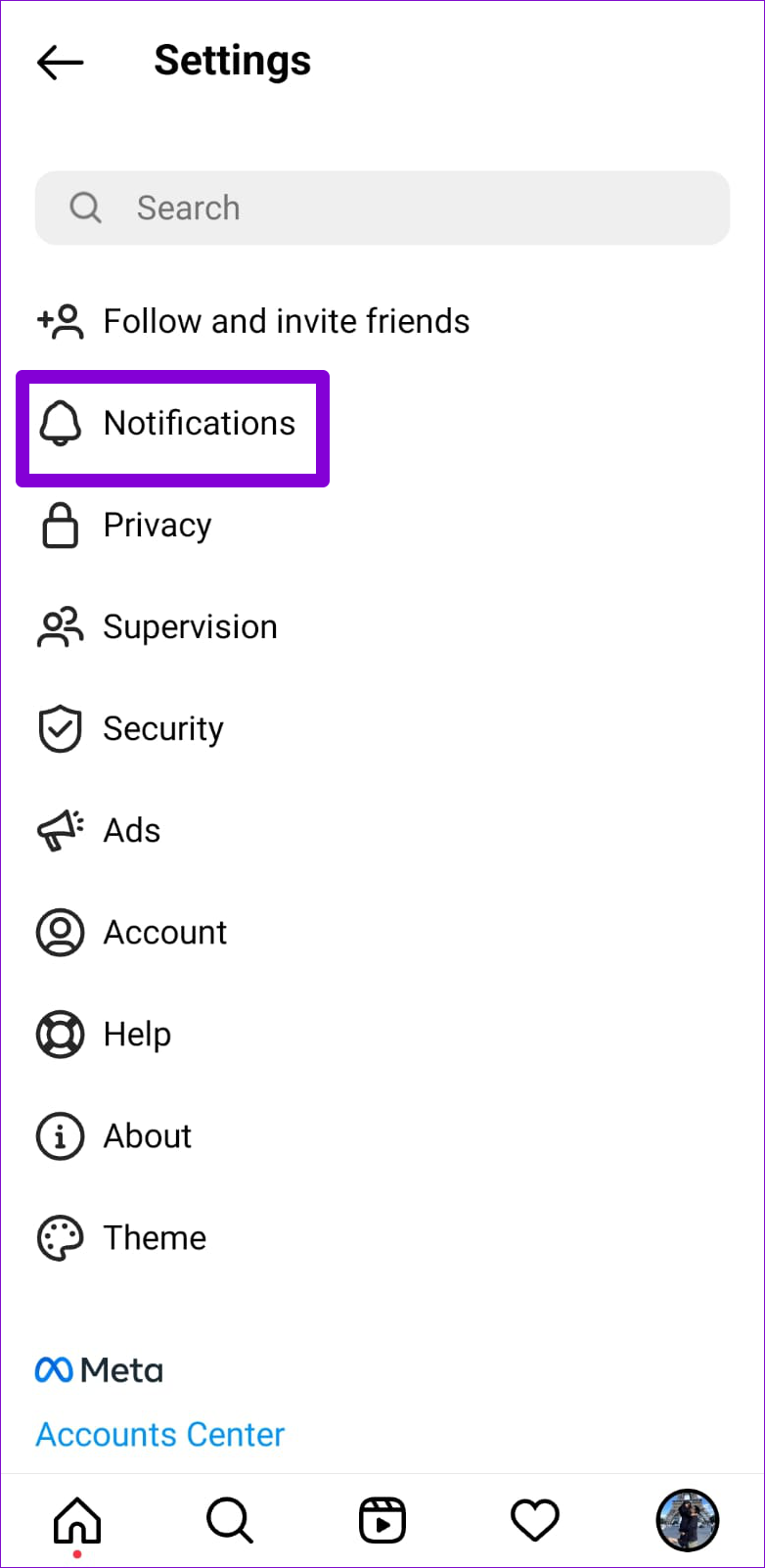
Step 2: Tap the hamburger menu icon in the top-right corner and select Settings .
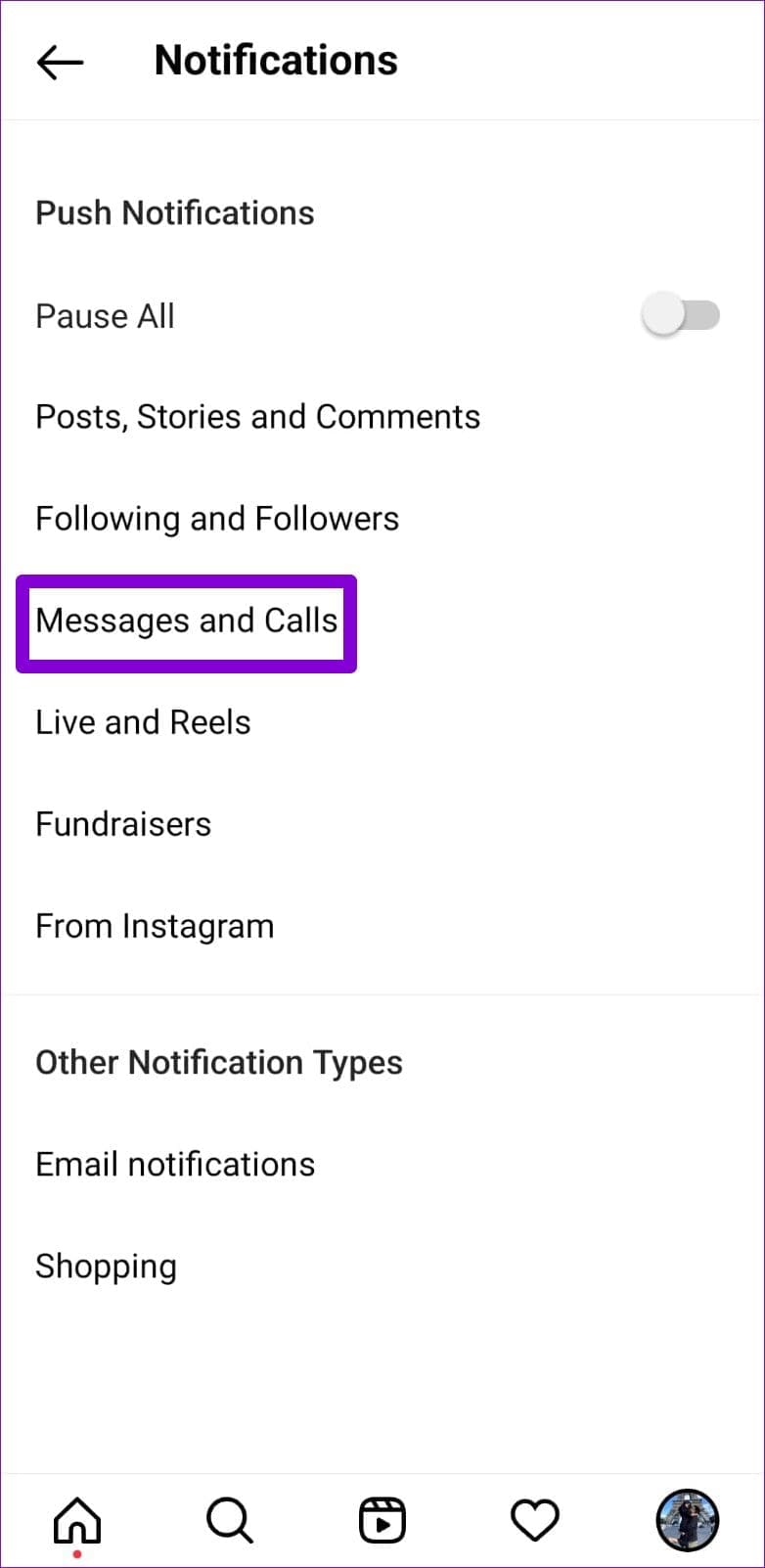
Step 3: Tap on Notifications and select Messages and Calls from the following menu.
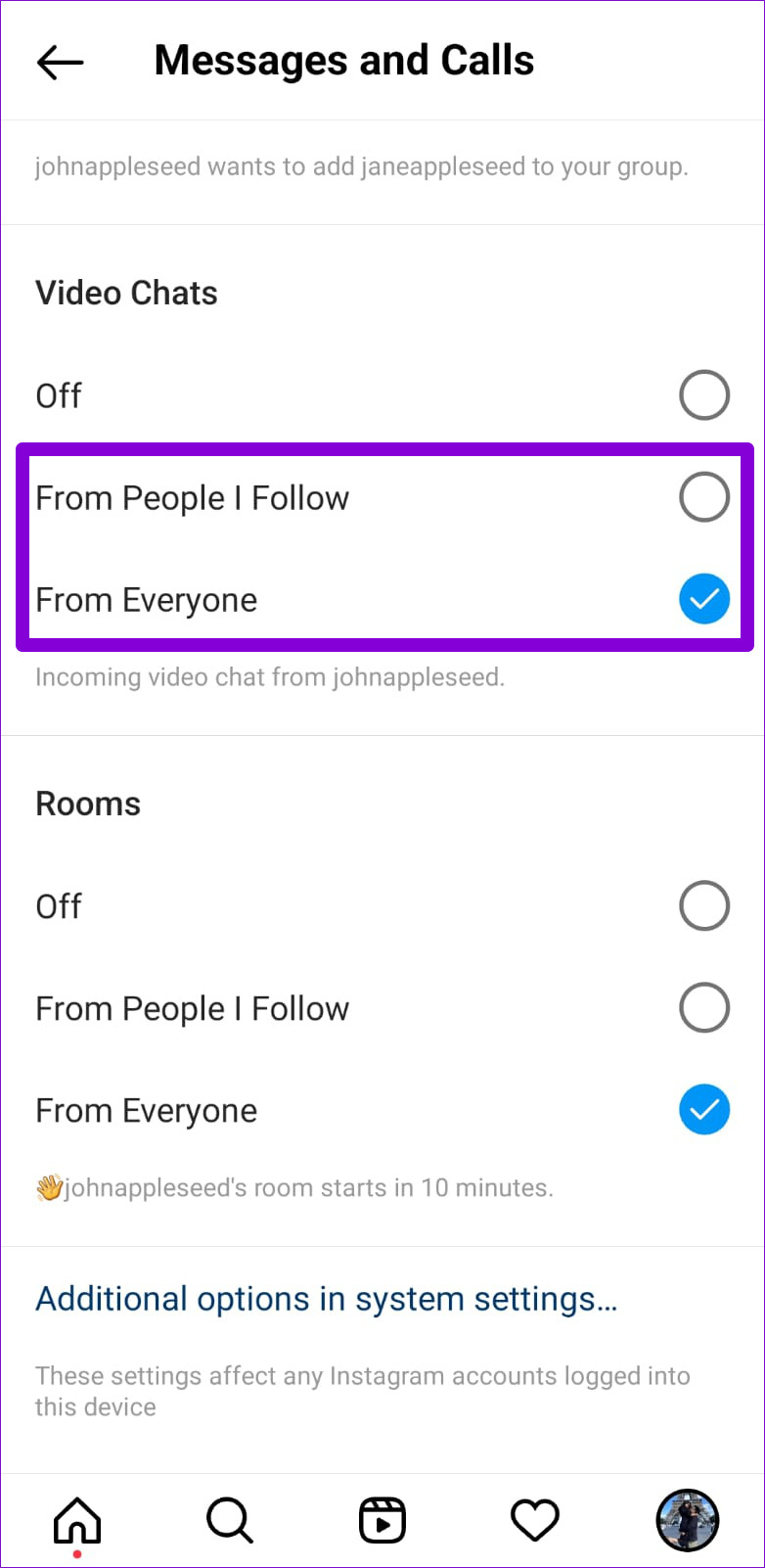
Step 4: Under Video Chats, select From People I Follow or From Everyone .
Fix 5: Clear Instagram App Cache
Outdated or corrupt cache data can also cause such problems. Fortunately, it’s both safe and easy to get rid of the Instagram app cache on your phone. Here’s how to do it.
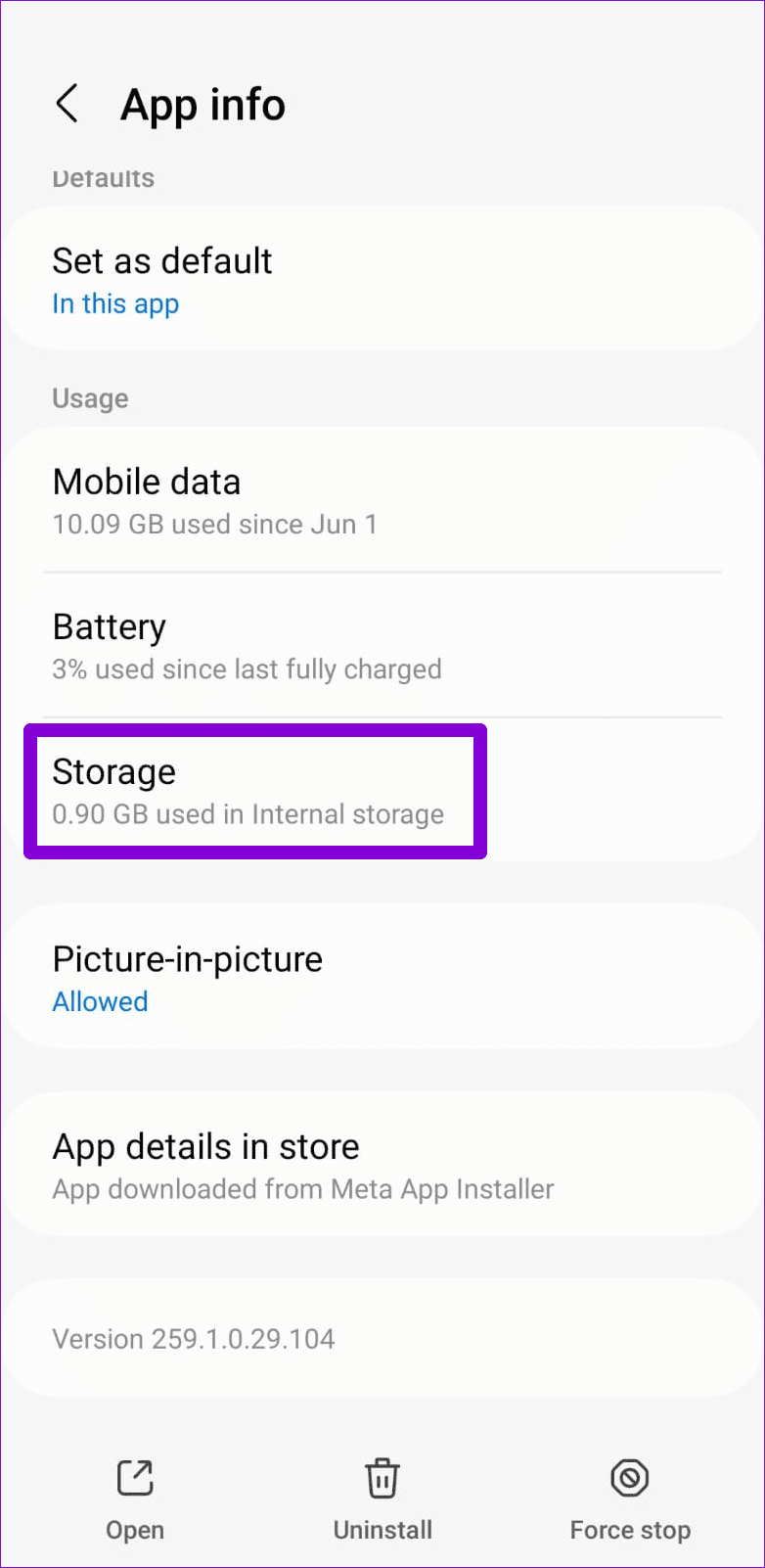
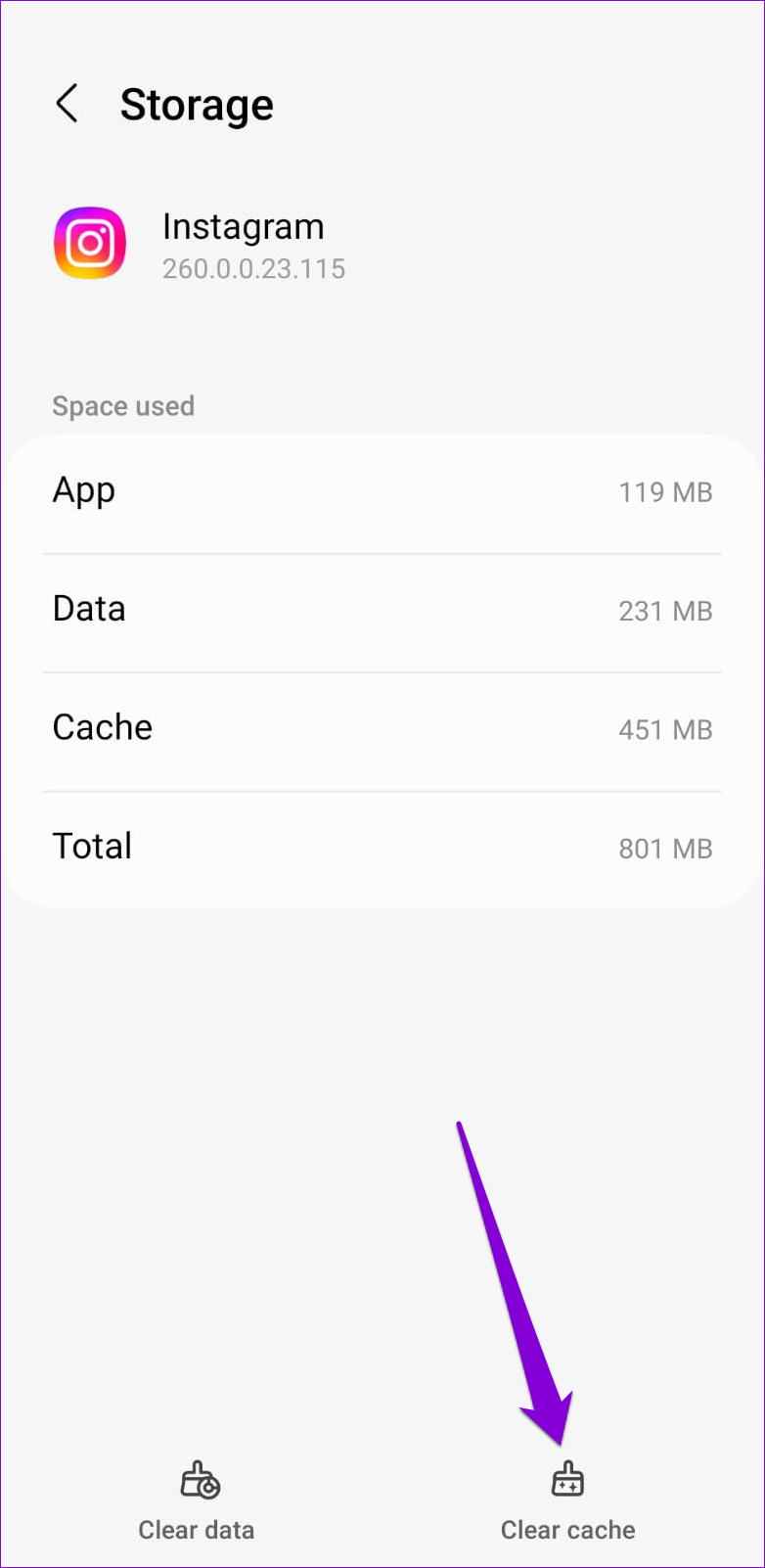
Step 1: Long-press on the Instagram app icon and tap the info icon from the menu.
Step 2: Go to Storage and tap the Clear cache option in the bottom right corner.
Was this helpful?
Submit Cancel
Thanks for your feedback!
Keep reading