Android
4 Ways to Fix Instagram Something Went Wrong Error
Are you struggling to use Instagram on your phone? Read this guide to fix the Instagram Something Went Wrong error.
By Eunice Njuguna

Quick Fixes
Open the desired web browser on your phone, search Instagram, and tap its link to open the Instagram app via browser.
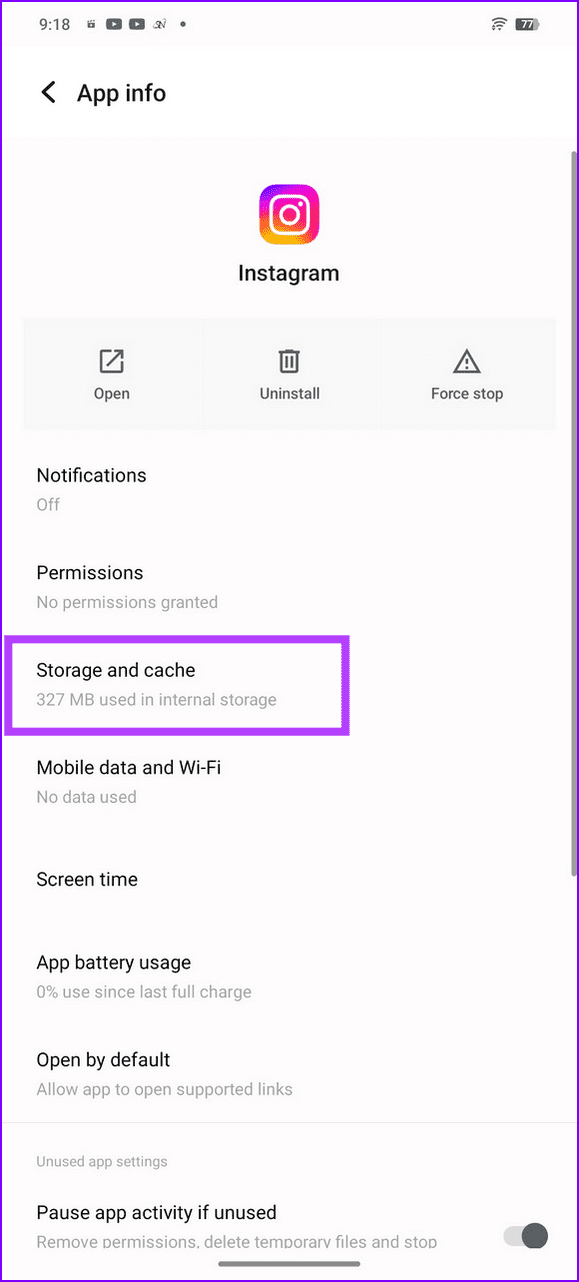
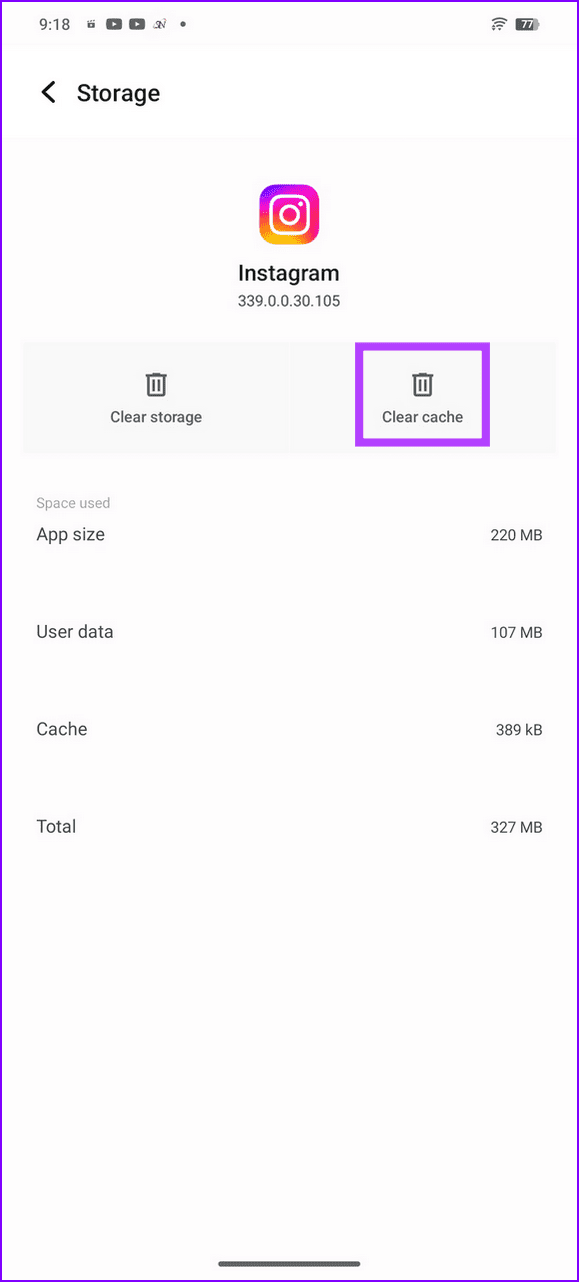
On Android, clear the Instagram app cache from its App info > Storage and cache > Clear cache, and relaunch the app.
Basic Fixes
Check your network connection : Ensure your device has a good internet connection. Test its speed online .
Check the Instagram server : Visit Downdetector to check an active Instagram server outage.
Log into the Instagram app via Facebook : If you’ve linked your Instagram account with Facebook, you’ll get an option to log into the app via Facebook. Open the Instagram app and tap ‘Log in with Facebook’ to sign in.
Switch between Wi-Fi and mobile data : An unstable internet connection can often create the ‘Something Went Wrong’ error in Instagram. Switch between Wi-Fi or mobile data, and retry opening Instagram.
Update the Instagram app : Open the Google Play Store or Apple App Store, search Instagram, and tap Update (if available).
Fix 1: Force Close and Restart Instagram
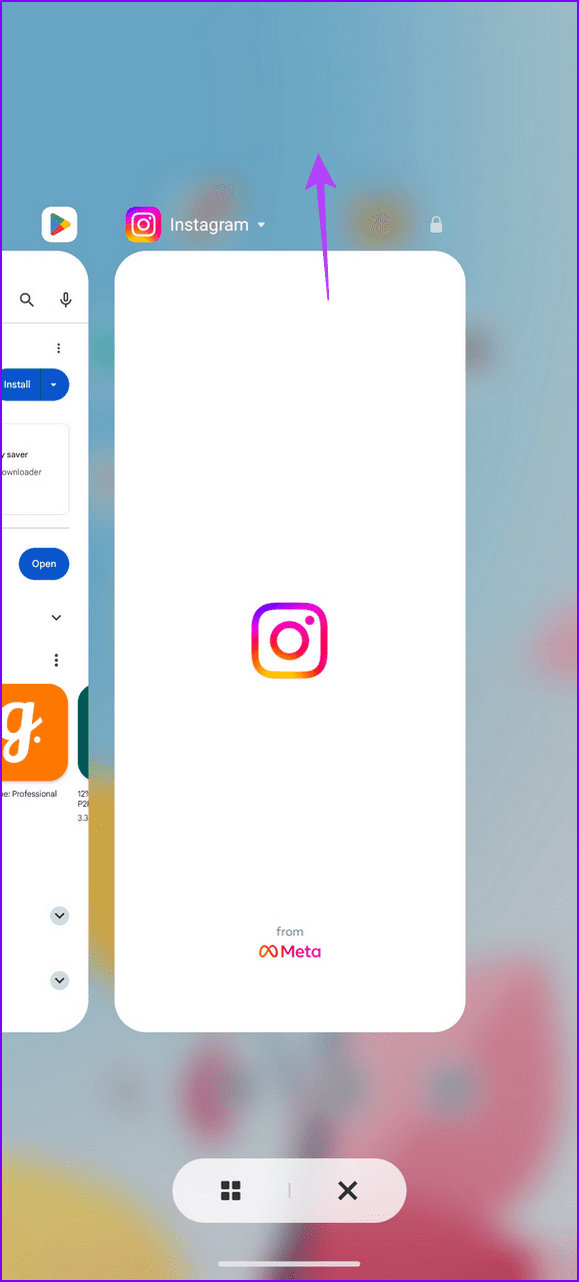
Force closing and restarting the Instagram app refreshes it, fixing existing issues resulting in the ‘Something Went Wrong’ error.
Step 1: Swipe up from the screen bottom to switch apps and slide up the Instagram card to force close it.
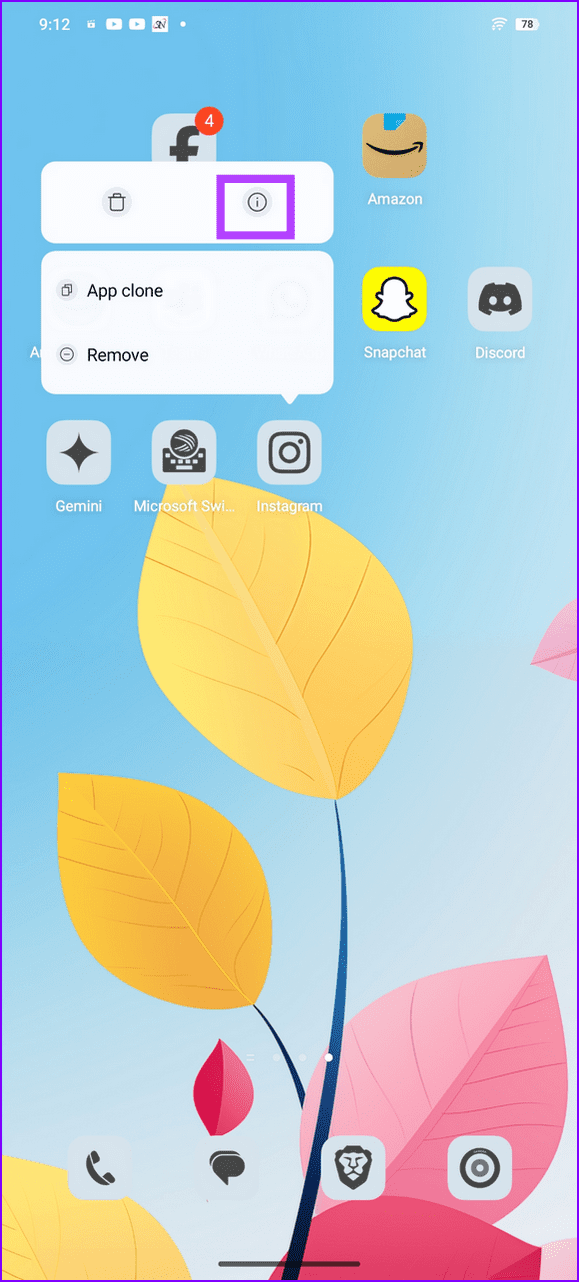
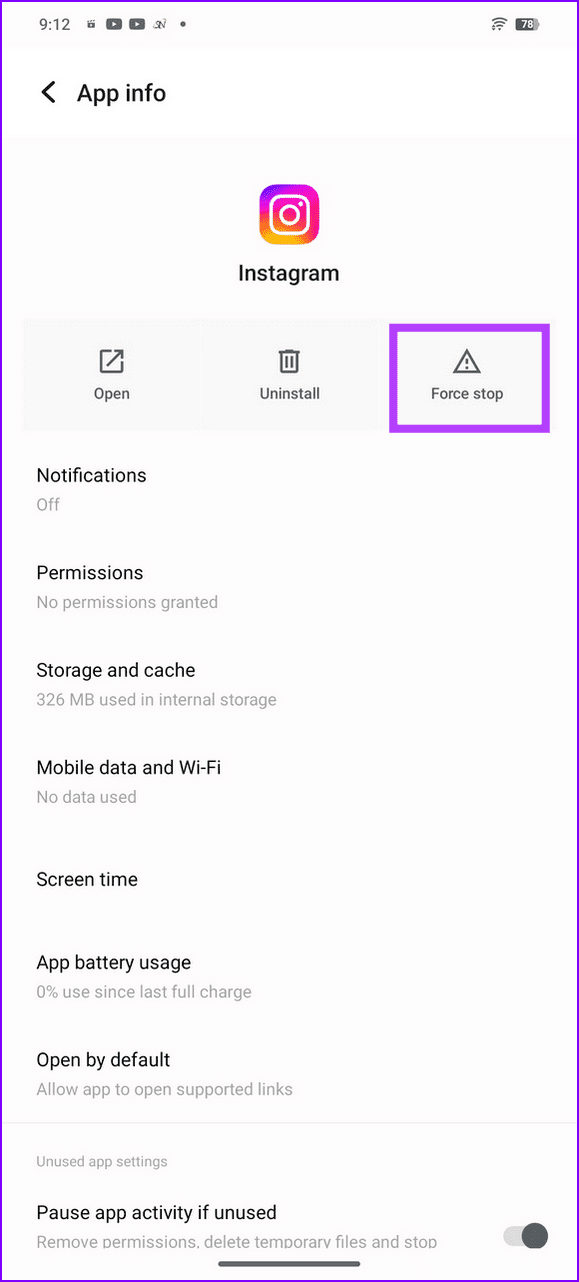
Step 2: If you’re using an Android phone, long-tap the Instagram app icon > select App info > Force stop > reopen the app.
Fix 2: Open Instagram Through a Browser
If the Instagram app fails to launch with a ‘Something Went Wrong’ error message, try opening it from a browser .
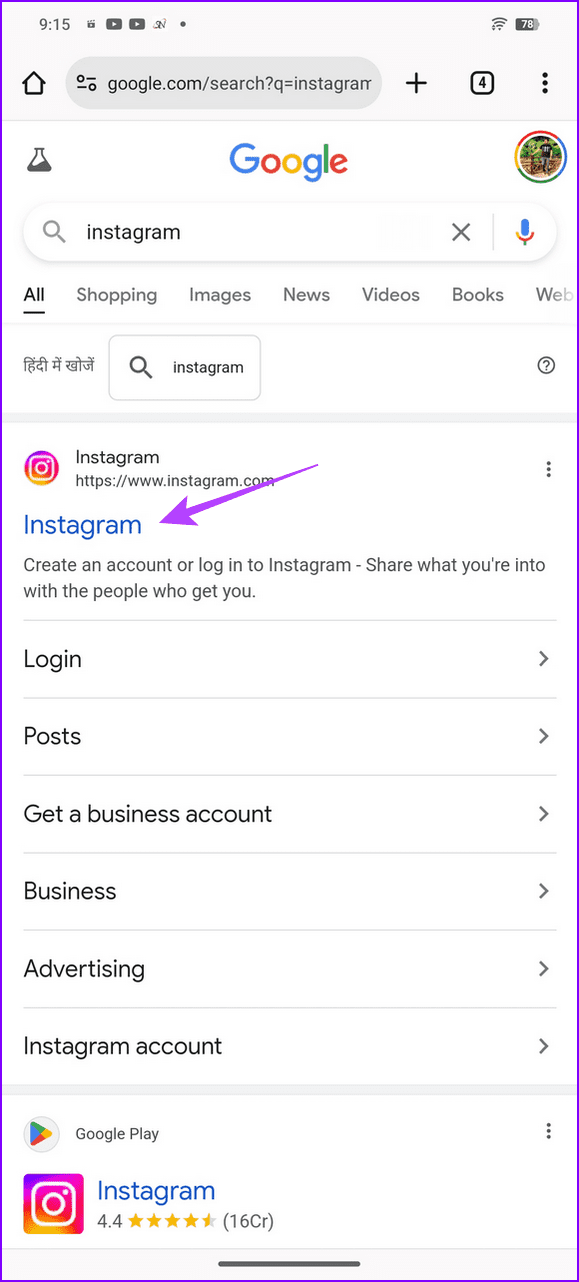
Step 1: Open your desired mobile browser (e.g. Google Chrome, Brave, etc.) search Instagram , and tap the link. Your browser app should automatically redirect to open the Instagram app.
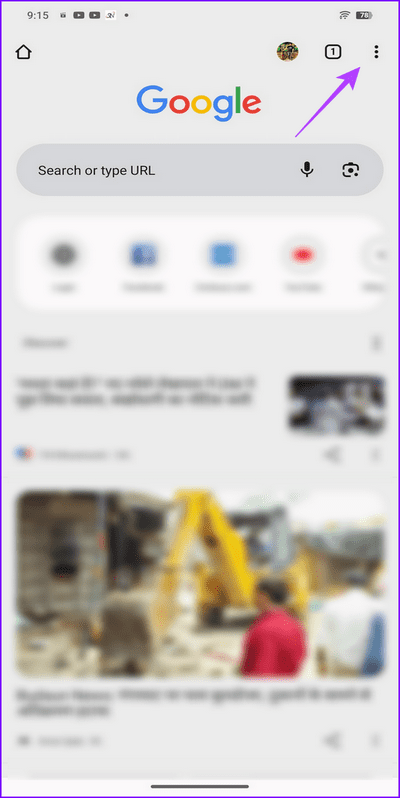
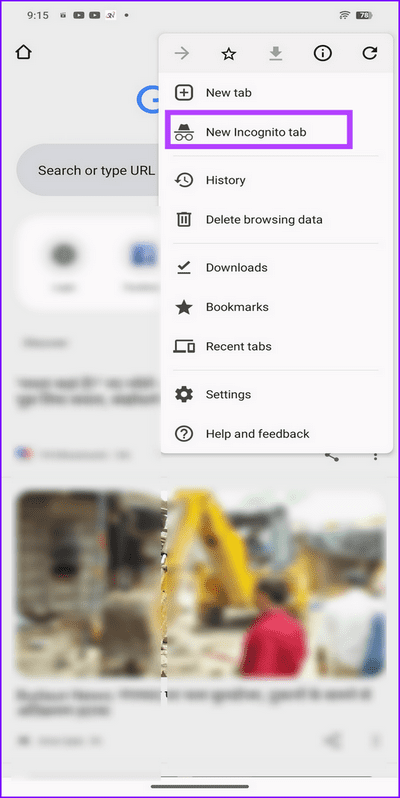
Step 2: Alternatively, tap the three-dot menu at the top right of the Google Chrome app to launch a New Incognito tab .
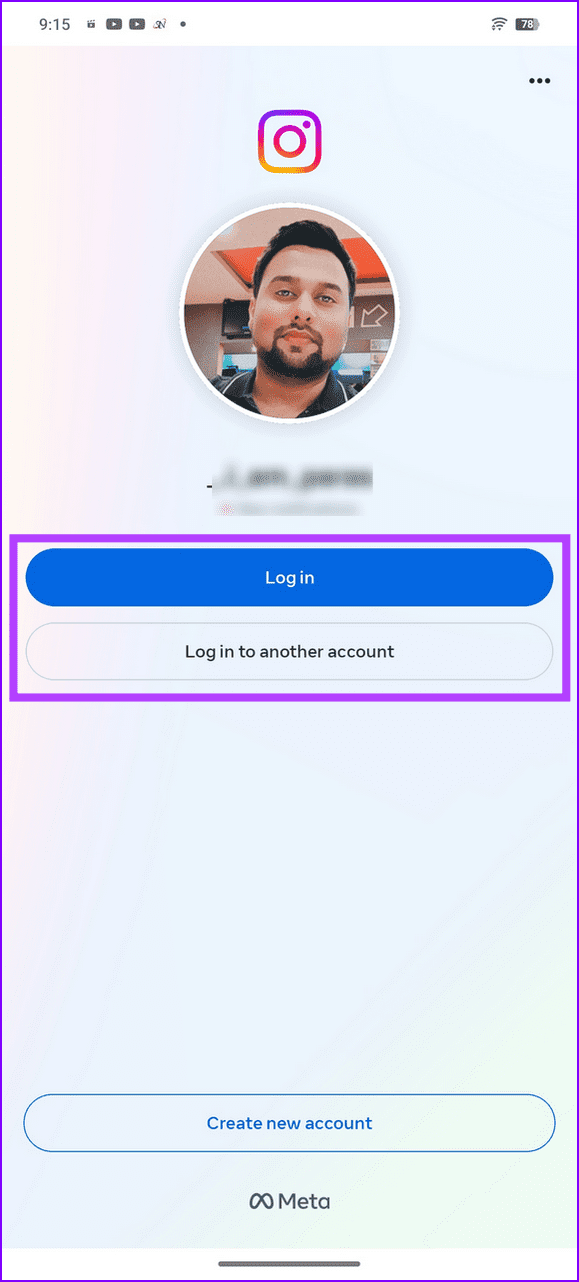
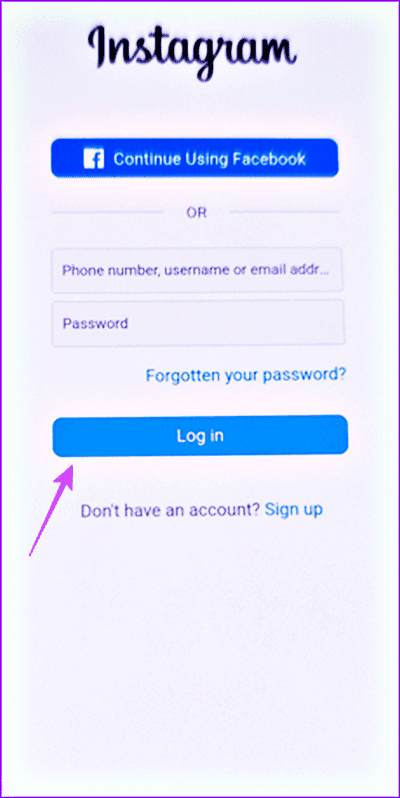
Step 3: Search and open Instagram, select Login, and type your account credentials to access Instagram in the browser.
Fix 3: Clear the Instagram App Cache (Android)
A corrupt app cache is a common reason behind the ‘Something Went Wrong’ error in Instagram on Android. Clear it manually and reopen the app.
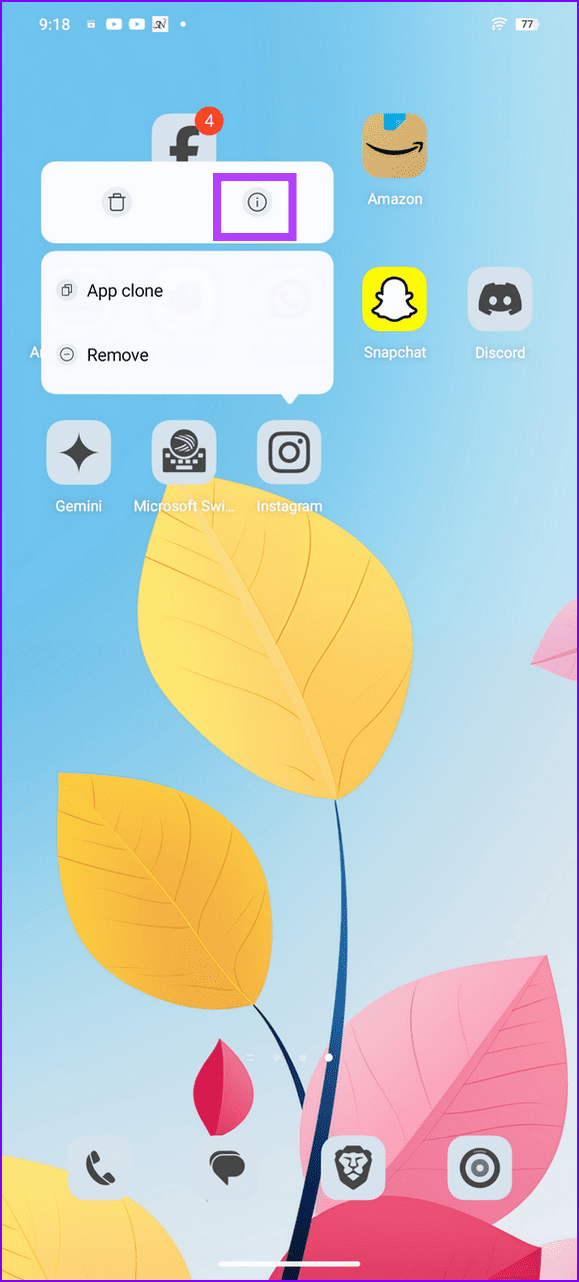
Long-tap the Instagram app icon > select App info > Storage and cache > Clear cache .
Fix 4: Offload and Reinstall Instagram (iOS)
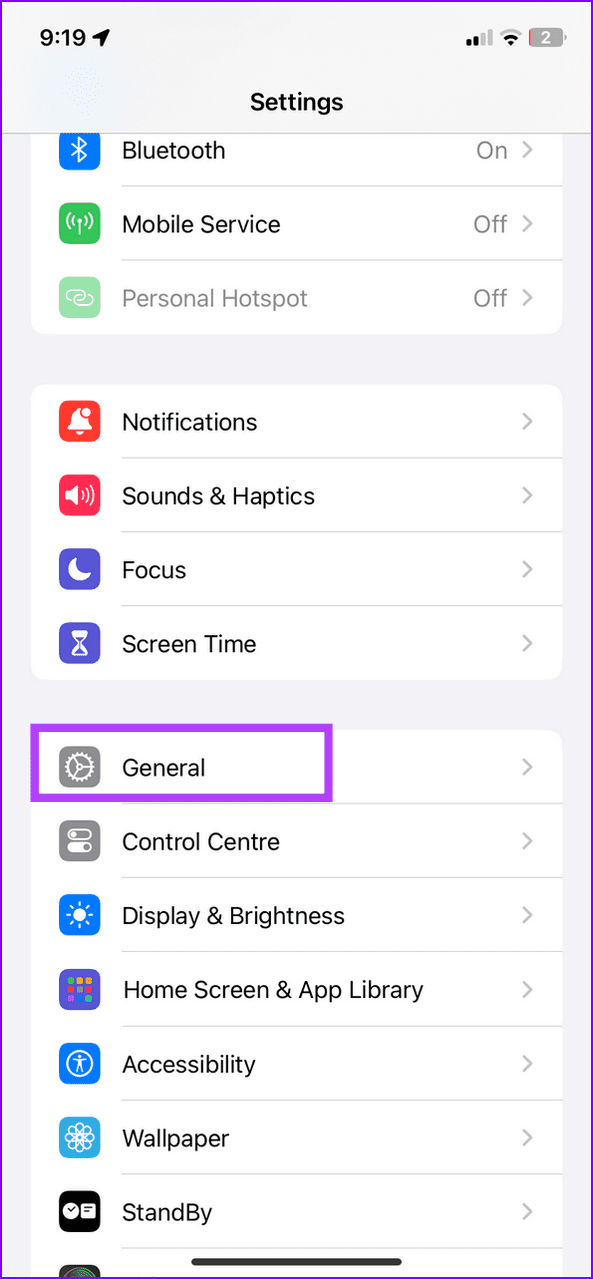
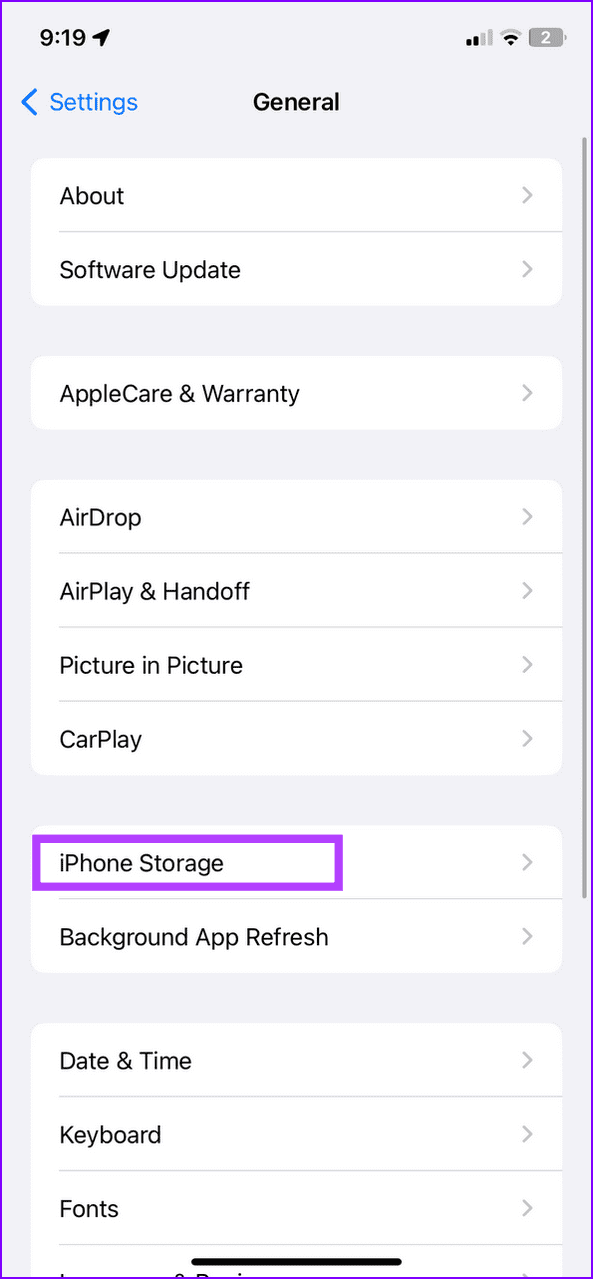
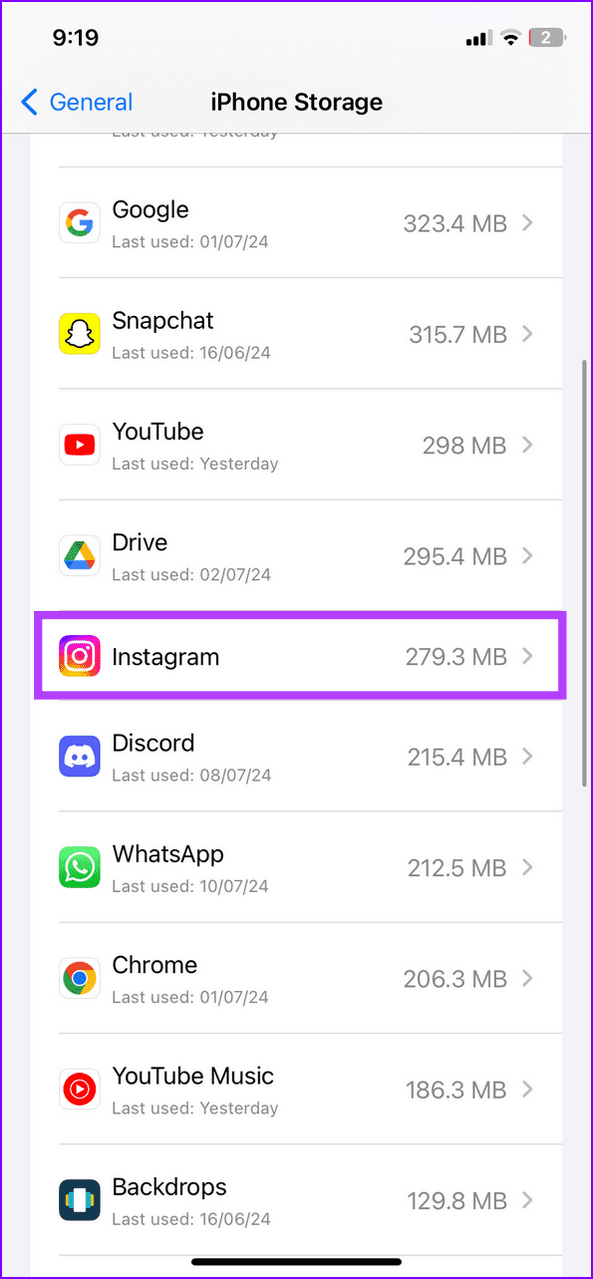
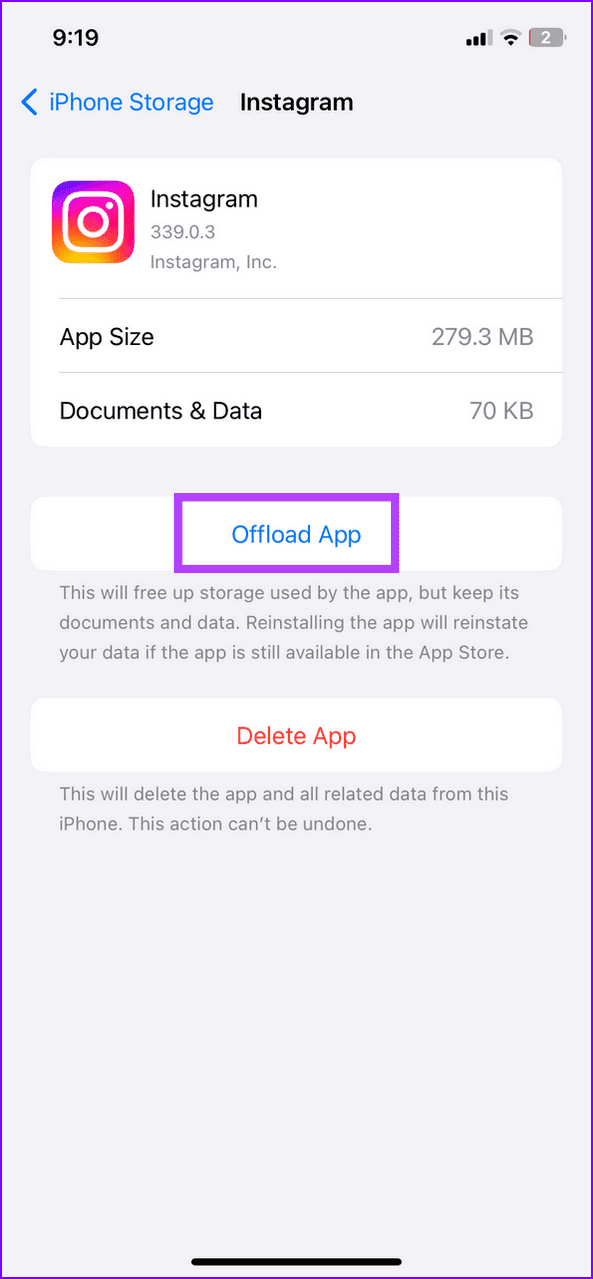
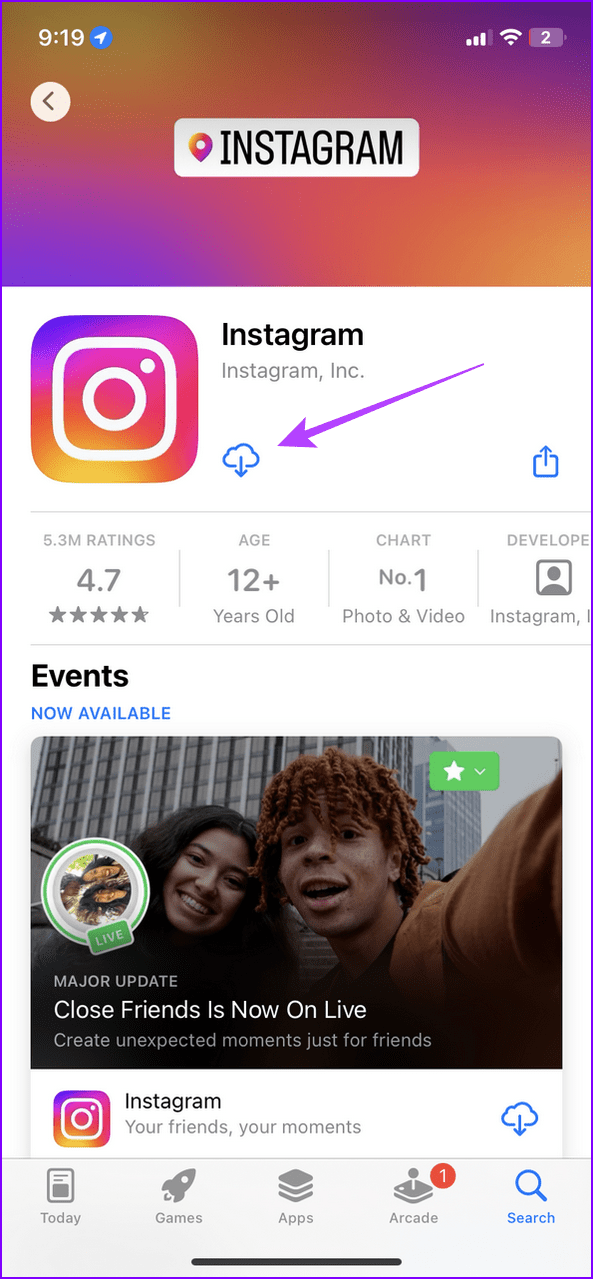
Unlike Android, iOS doesn’t offer a direct way to clear the Instagram cache. Instead, you can offload the app and reinstall it from the App Store.
Step 1: Open iPhone Settings , select General , and tap iPhone Storage .
Step 2: Select Instagram and tap Offload App .
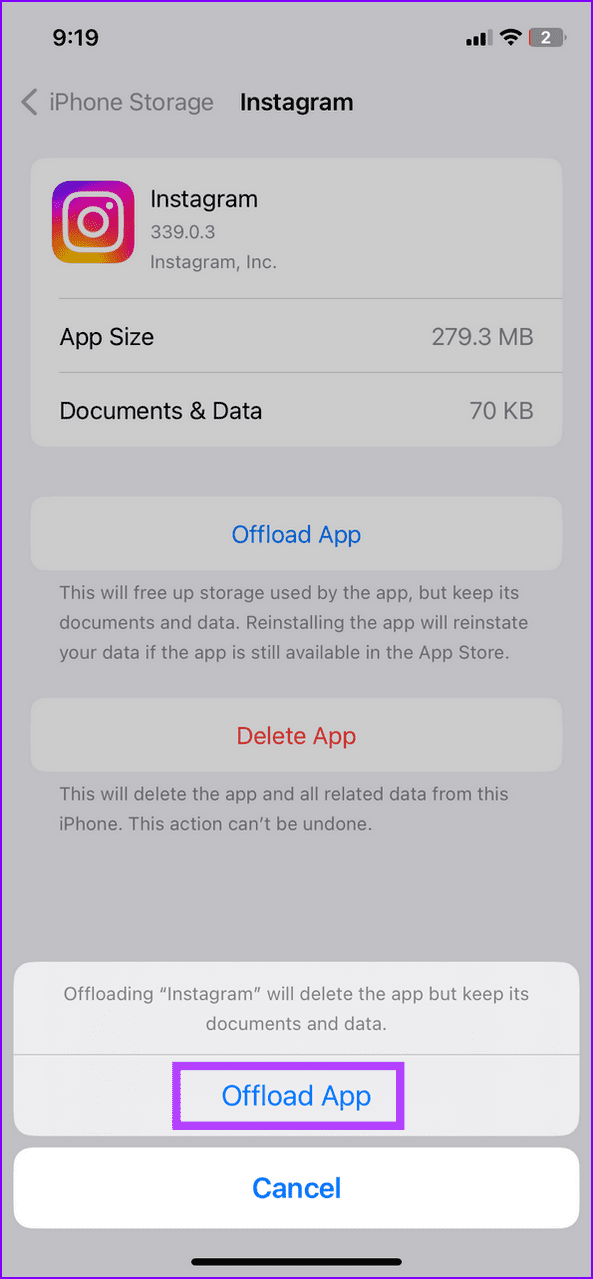
Step 3: Confirm it using the Offload App option when prompted and head to the Apple App Store to reinstall it.
Was this helpful?
Submit Cancel
Thanks for your feedback!
Keep reading