Android
3 Ways to Fix OneNote App Not Working on Android
Is OneNote not opening or syncing on your Android phone? You are not alone. Here are three ways to fix the issue quickly.
By Pankil Shah
Quick Fixes
Provide missing permissions to the OneNote app.
Review sync settings.
Clear the OneNote app cache.
Common Fixes
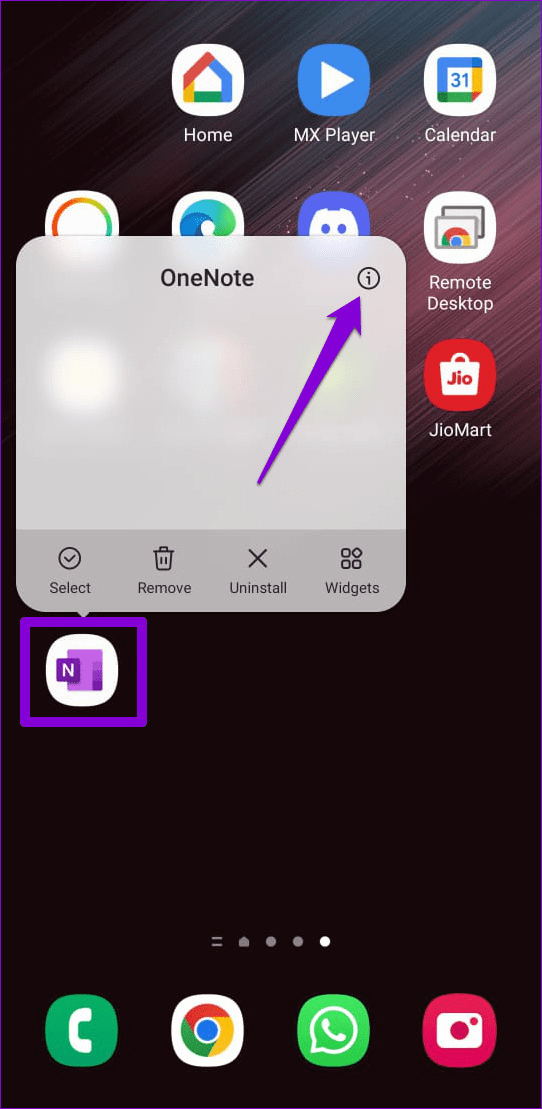
Force stop and re-open OneNote – Long tap the OneNote app icon , select App info , and tap Force stop .
Sign out and reauthenticate your account – Open the OneNote app, tap your account picture at the top left, and select Sign out of OneNote at the bottom. Further, sign into the app again.
Update the app – Open Google Play Store, search OneNote , and tap Update .
Update system software – Head to Android settings, tap System update , and select Update Now (if available).
Fix 1: Provide Permissions to the OneNote App
Missing app permissions are a common reason behind OneNote not working properly on Android. Head to its app settings to resolve it.
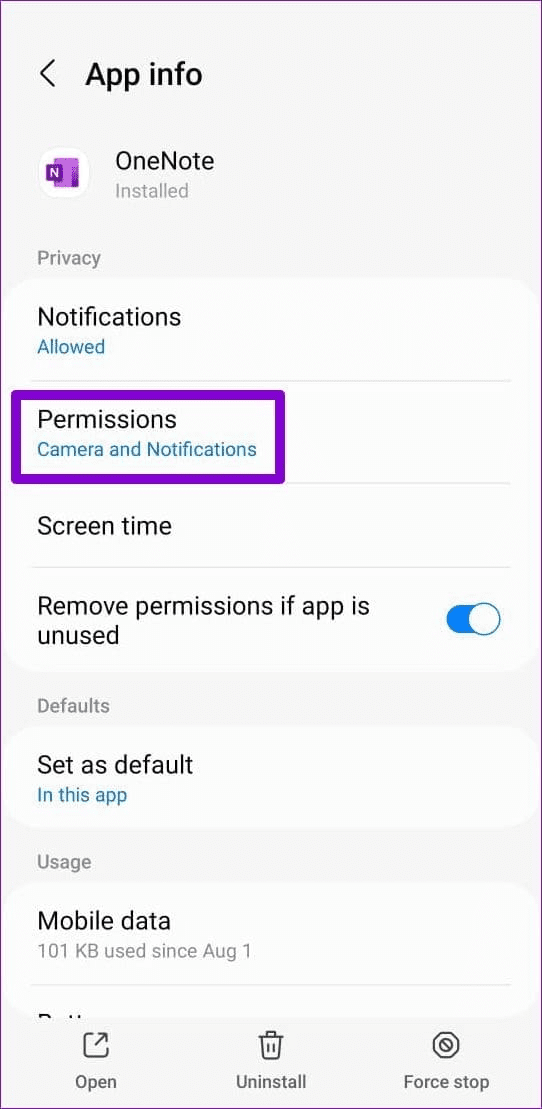
Step 1: Long-tap the OneNote icon > open App info > select Permissions .
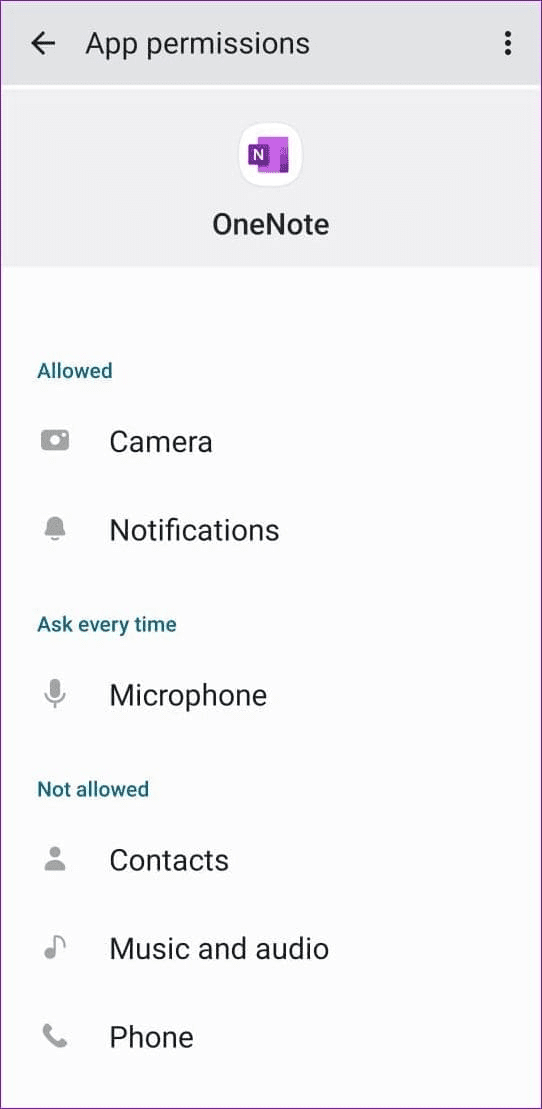
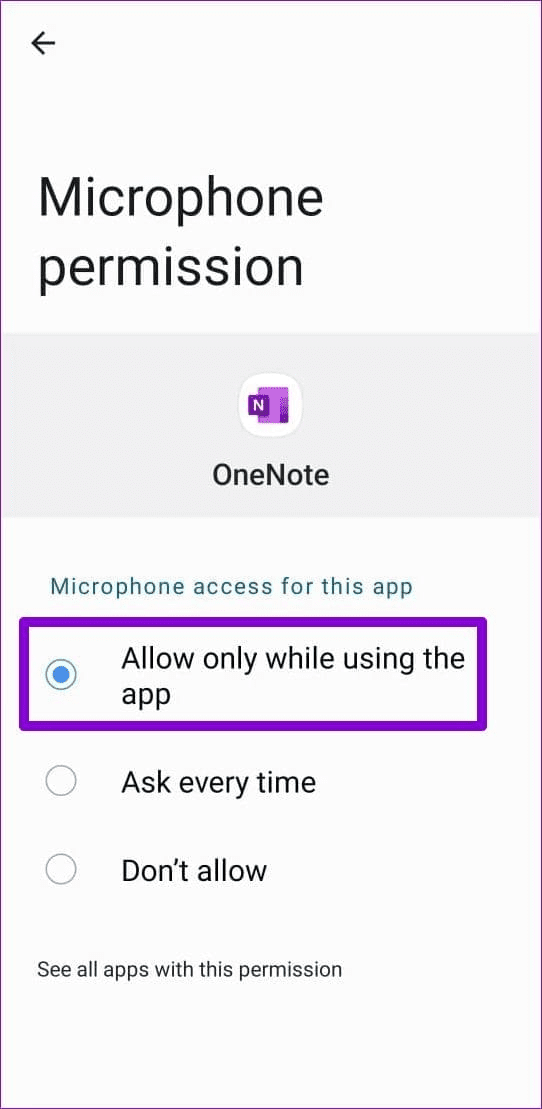
Step 2: Tap each permission sequentially and set it to Allow only while using the app .
Fix 2: Check OneNote Sync Settings
If you can’t view the notes you created in the OneNote app, check and adjust its sync settings to restore normalcy.
Step 1: Open OneNote, tap your profile icon at the top left, and select Settings .
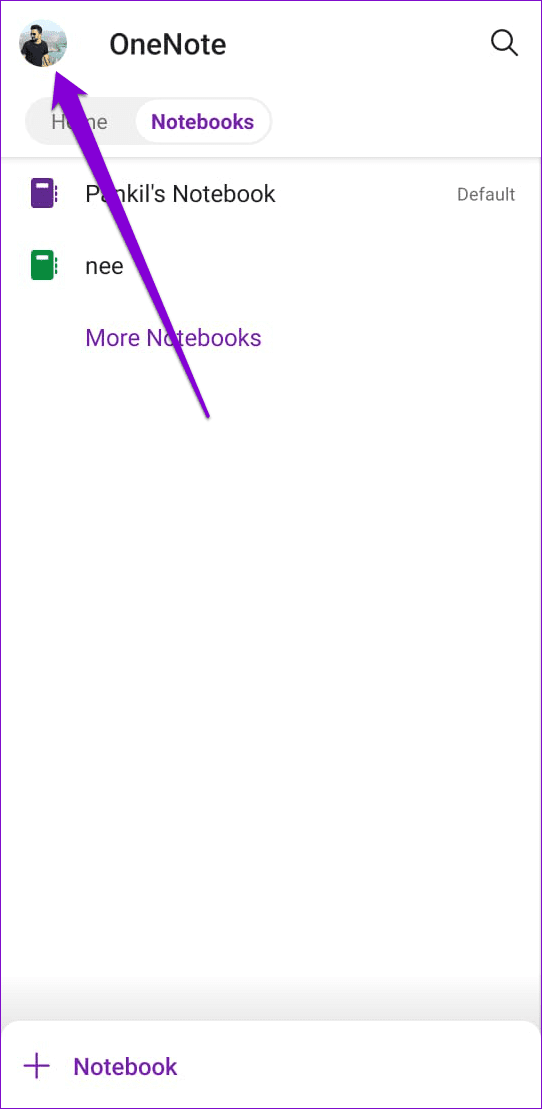
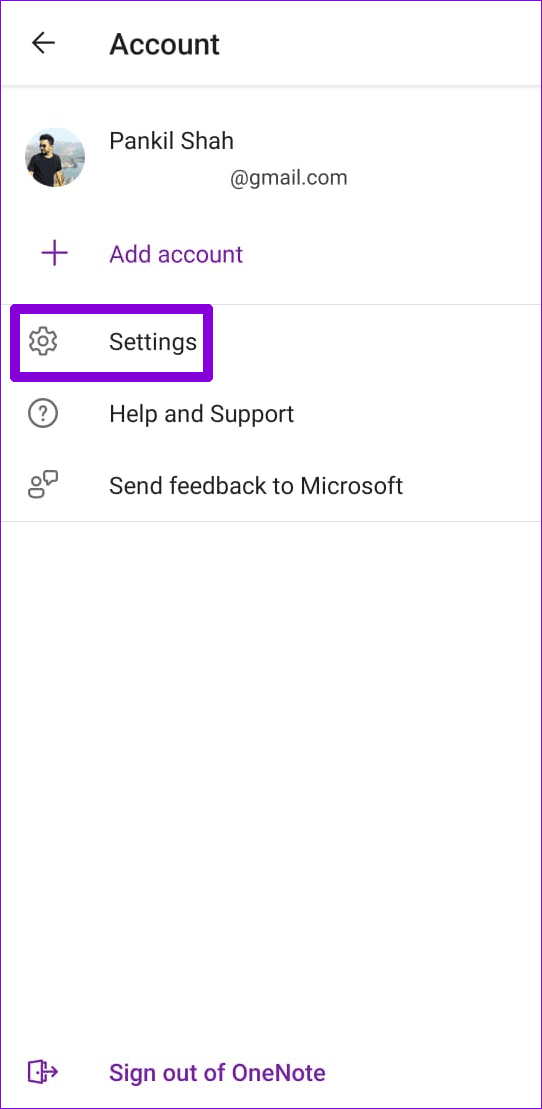
Step 2: Enable Sync all page content and toggle off Sync notebooks on Wi-Fi only .
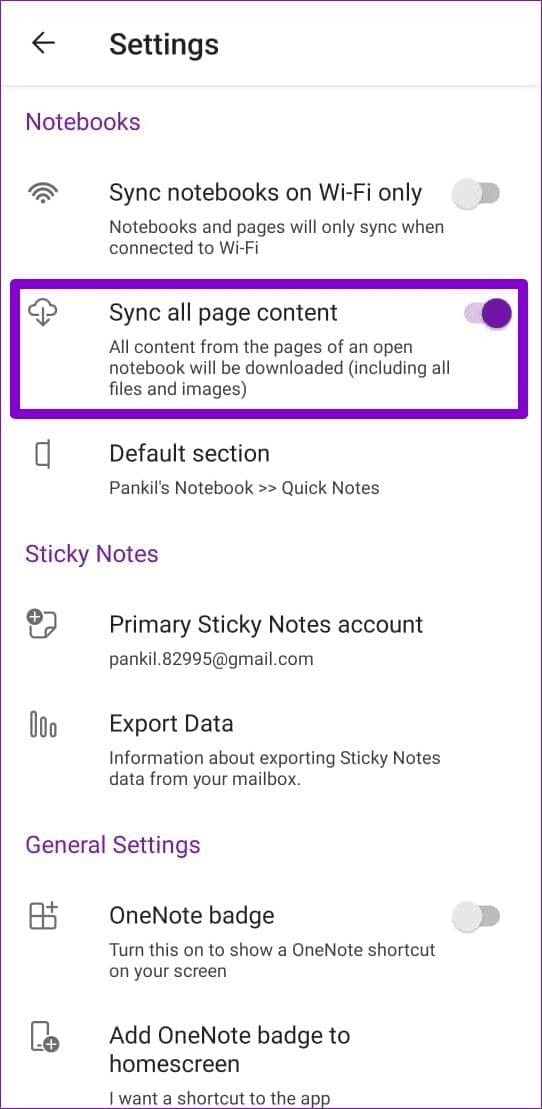
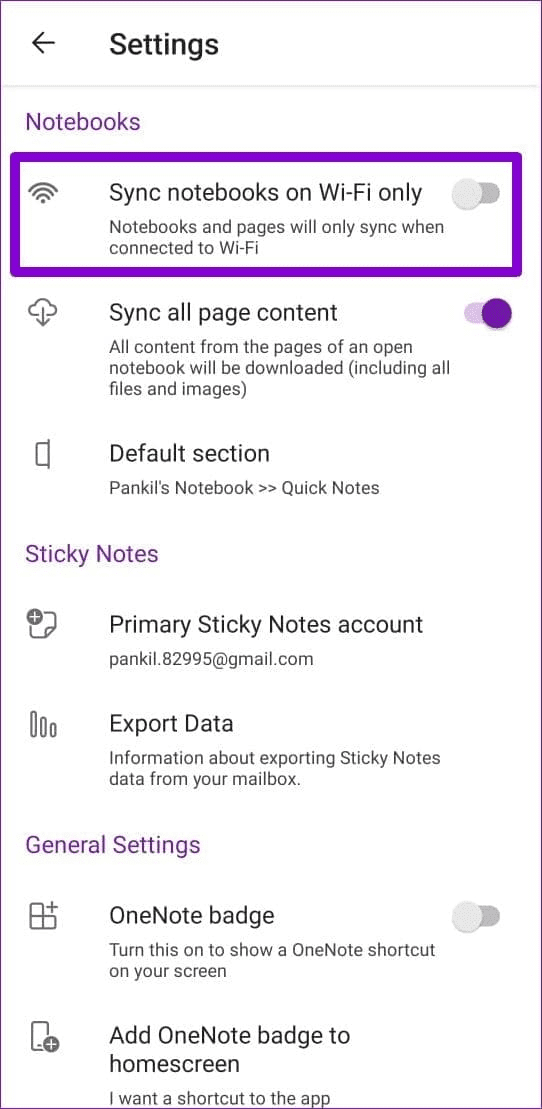
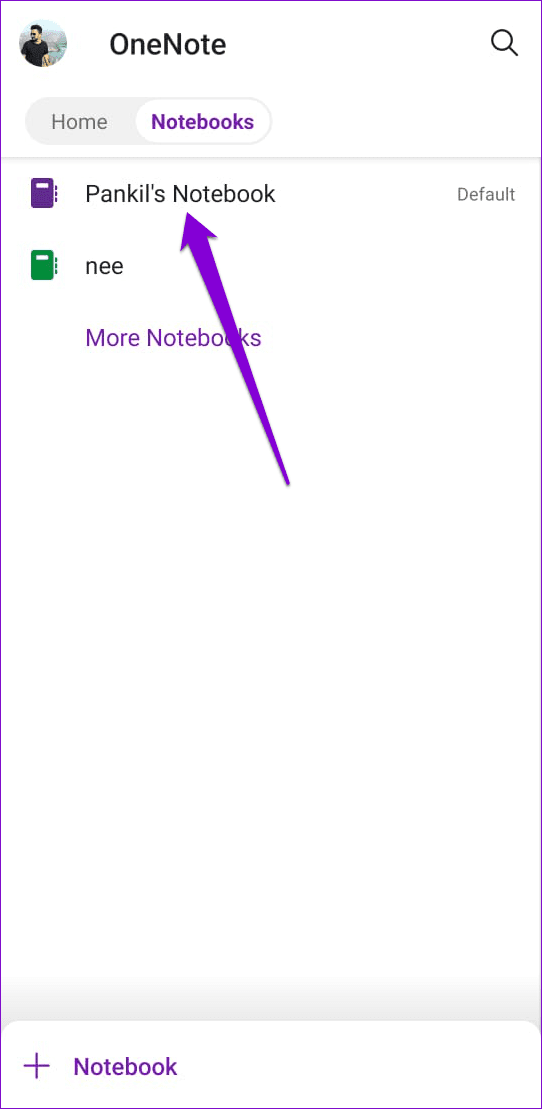
Additionally, you can sync your OneNote Notebook manually by picking your Notebook and tapping the sync icon at the top.

Fix 3: Clear OneNote App Cache
When the OneNote app cache gets corrupted, it creates issues when using basic services such as syncing and opening the app. Clearing the cache manually resolves the problem.
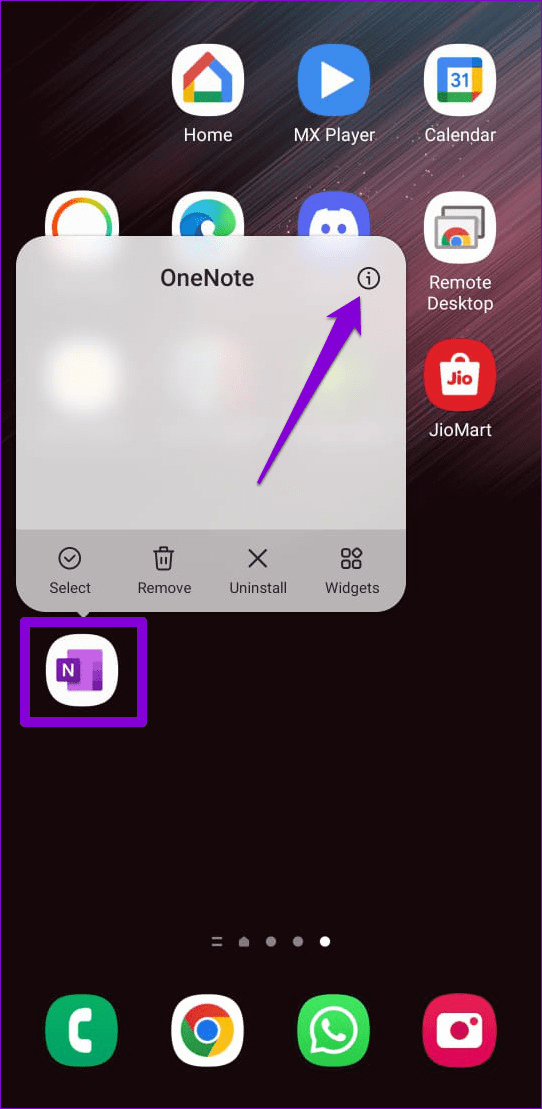
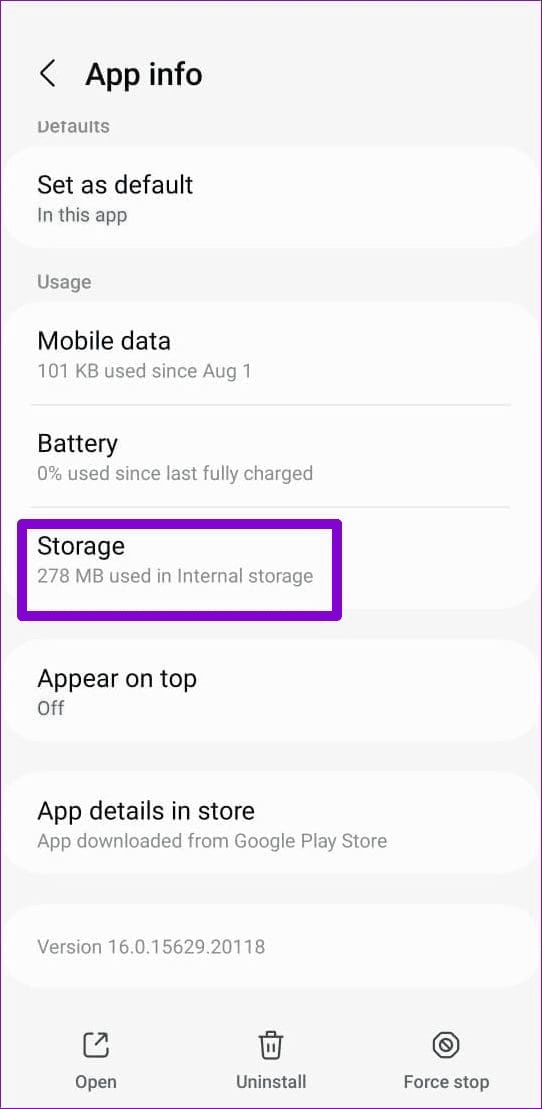
Step 1: Long-tap the OneNote app icon > open App info > select Storage .
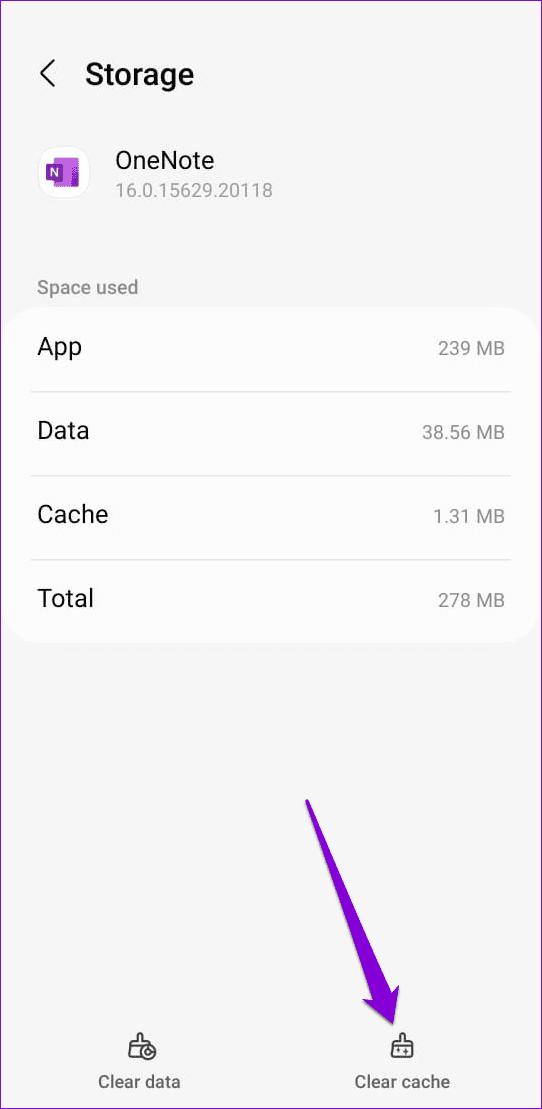
Step 2: Tap the Clear cache button at the bottom right and reopen the app.
Was this helpful?
Submit Cancel
Thanks for your feedback!
Keep reading