Android
Top 8 Ways to Fix Proximity Sensor Not Working During Calls on Android
Is the proximity sensor not working to turn on the screen on your Android phone during calls? Here are some simple solutions to fix it.
By Sumukh Rao
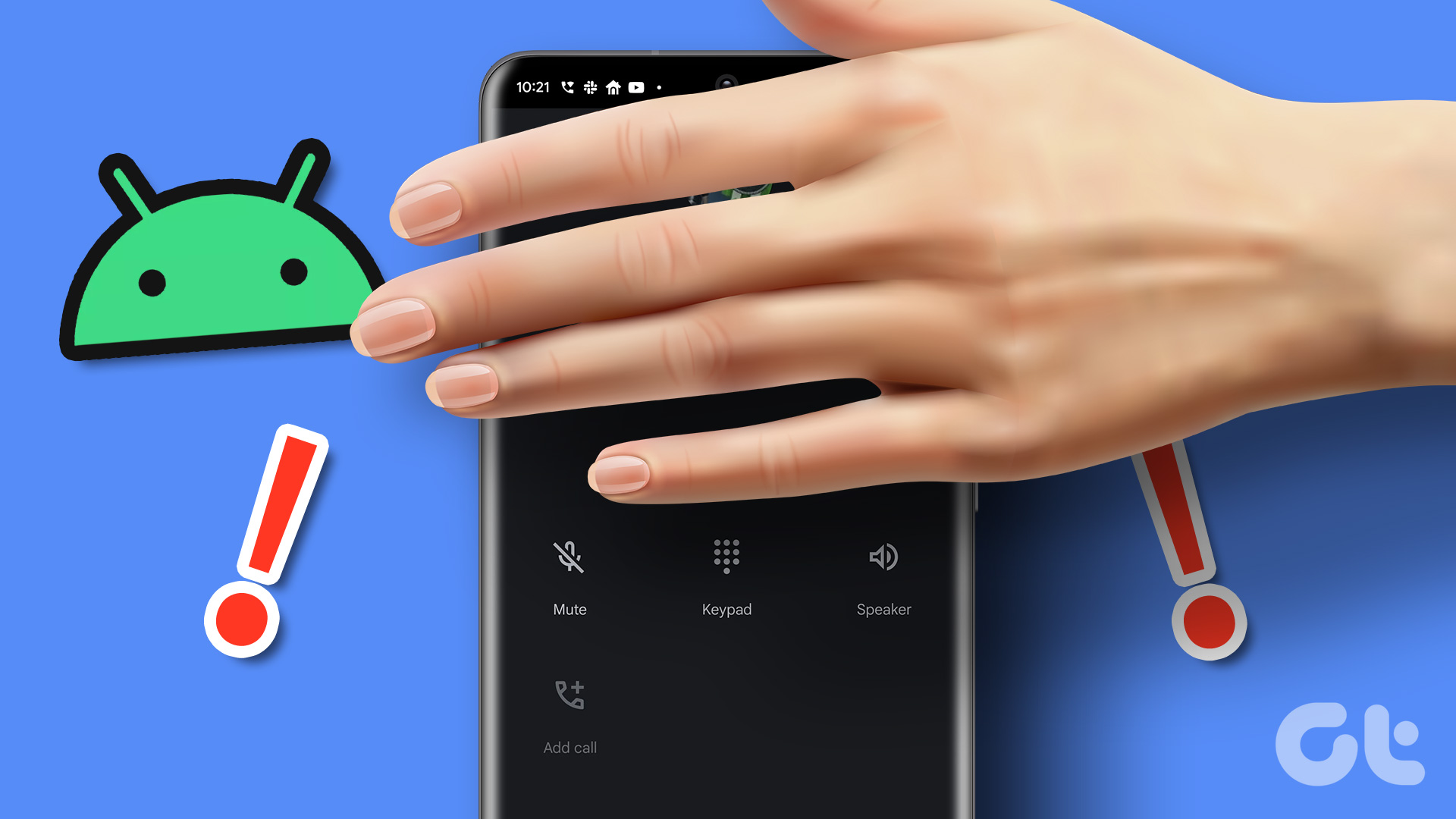
There are several components that contribute to the basic functioning of a smartphone. One of them is the proximity sensor. The proximity sensor on your phone aids in turning off the phone’s display while you’re on a call or even turning it back on after you’re done talking. Quite useful, right? But, if the proximity sensor is not working, your Android phone’s screen may not turn back on during calls. Extremely inconvenient, right?
Imagine you want to switch to speakerphone, or you want to mute a call. But the screen just doesn’t turn on to show you those options. Now, before you fling your phone away in frustration, try out these simple fixes to solve all the issues related to the proximity sensor on your Android phone.
1. Ensure Your Screen Protector Is Not Blocking the Proximity Sensor
Most of us use screen protectors on our phones to prevent the display from scratches or cracks. While they’re certainly useful, some screen protectors can interfere with the functioning of the proximity sensor. The proximity sensor is located on the top bezel of your smartphone. If your screen protector has black borders around the edges, there’s a chance that it is covering the proximity sensor on your phone if not applied properly.
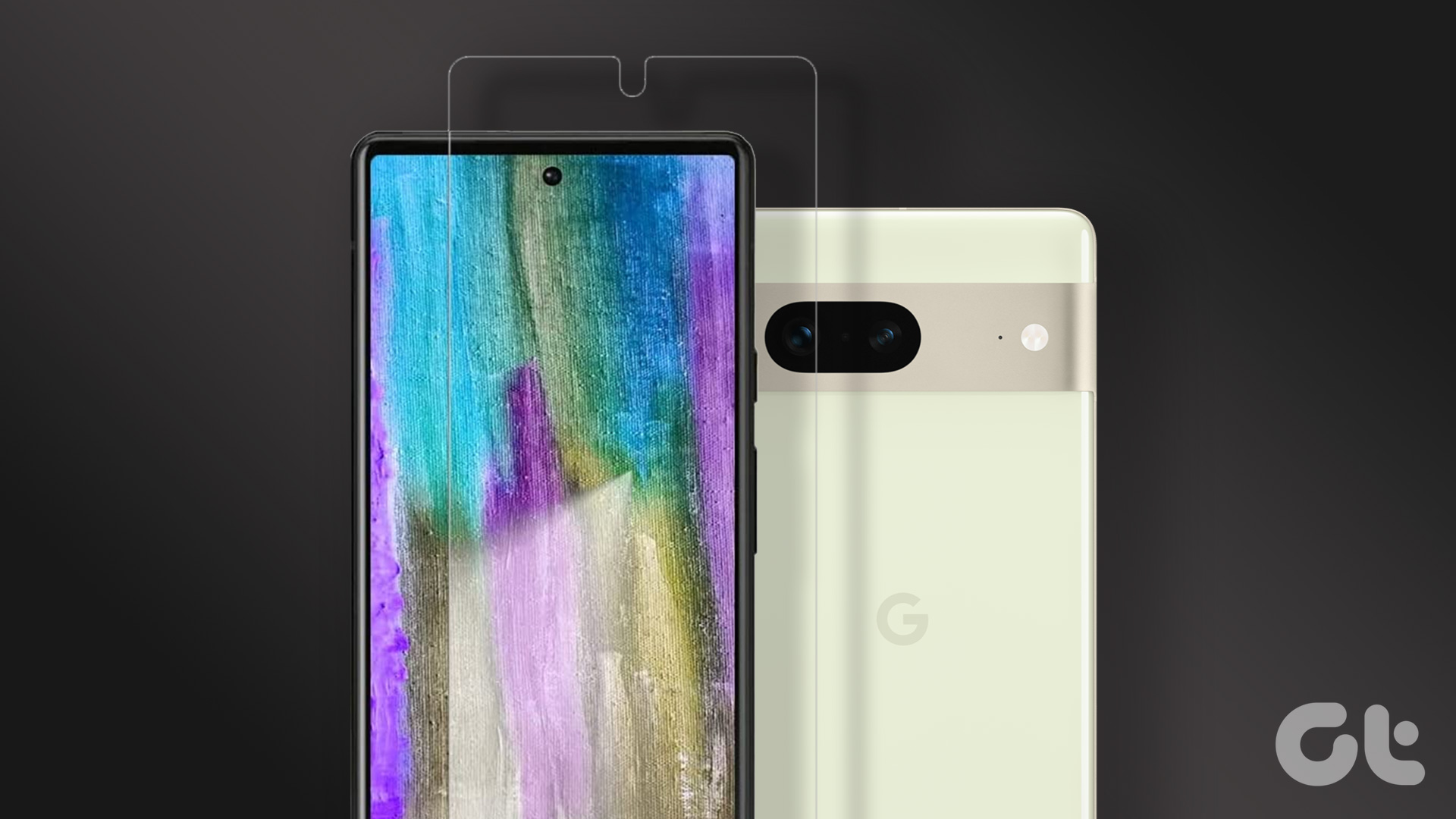
To check if this is indeed the issue, remove your screen protector and check if the proximity sensor on your Android phone turns the screen on during a call. If it does, it’s time to replace your screen protector with a different one.
While you’re at it, also note that some cases are thick and hence, may cover the proximity sensor leading to the same issue. Use a thinner case to fix this problem.
2. Clean the Proximity Sensor Area
Keeping your phone’s screen tidy not only keeps bacterial growth at bay but also aids in the better functioning of the proximity sensor. Several times, dust or grime settled near the proximity sensor hinders its working.
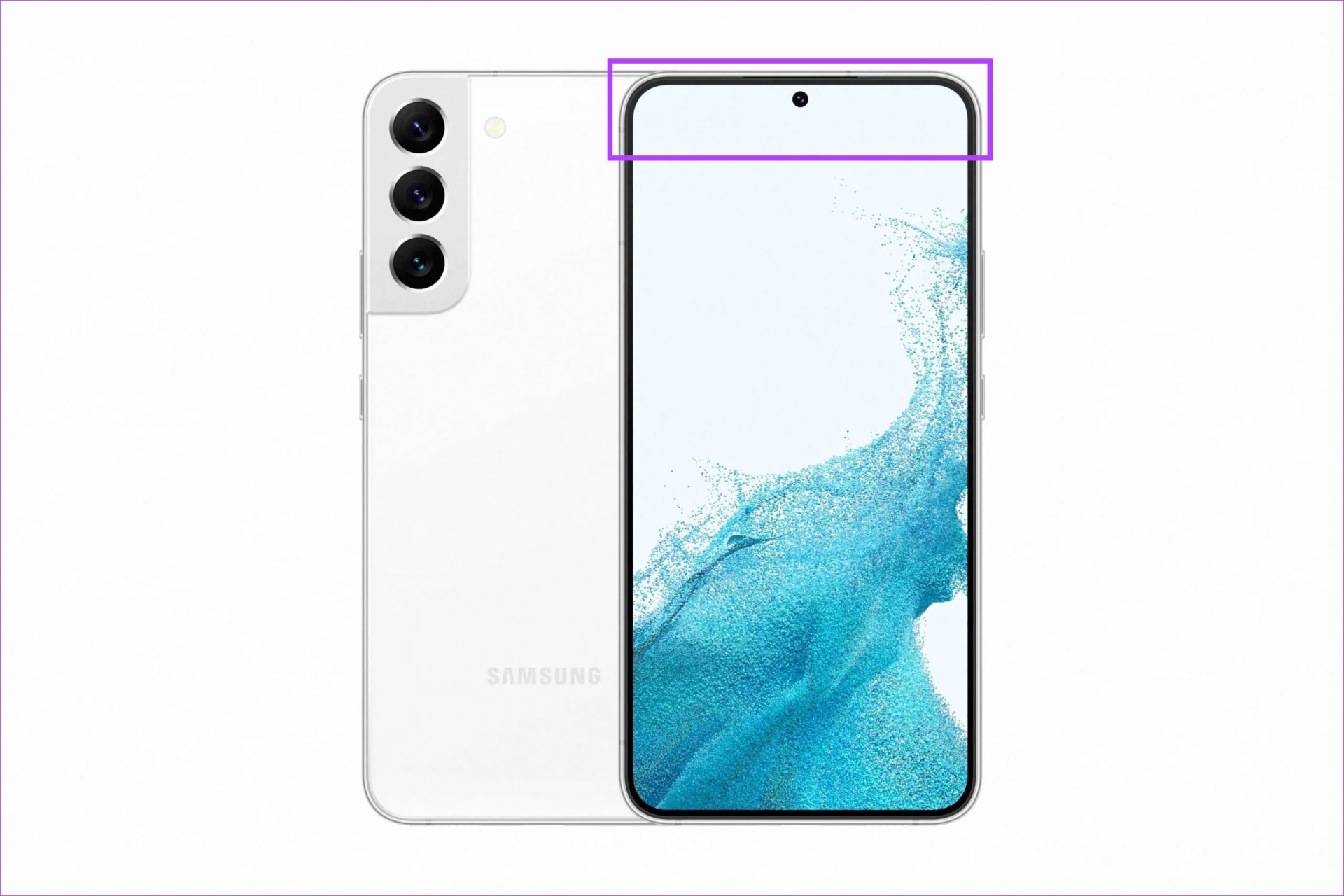
So, simply dab some cleaning solution on a microfibre cloth to wipe off all unwanted particles that are settled on your phone’s screen, especially at the top near the proximity sensor.
3. Hold Your Phone Close to Your Ear
The proximity sensor is triggered twice during a phone call. First, to shut the phone’s screen off while you start a call and put your Android phone close to your ear. Second, to wake the screen once your phone call concludes and you take the phone away from your ear.
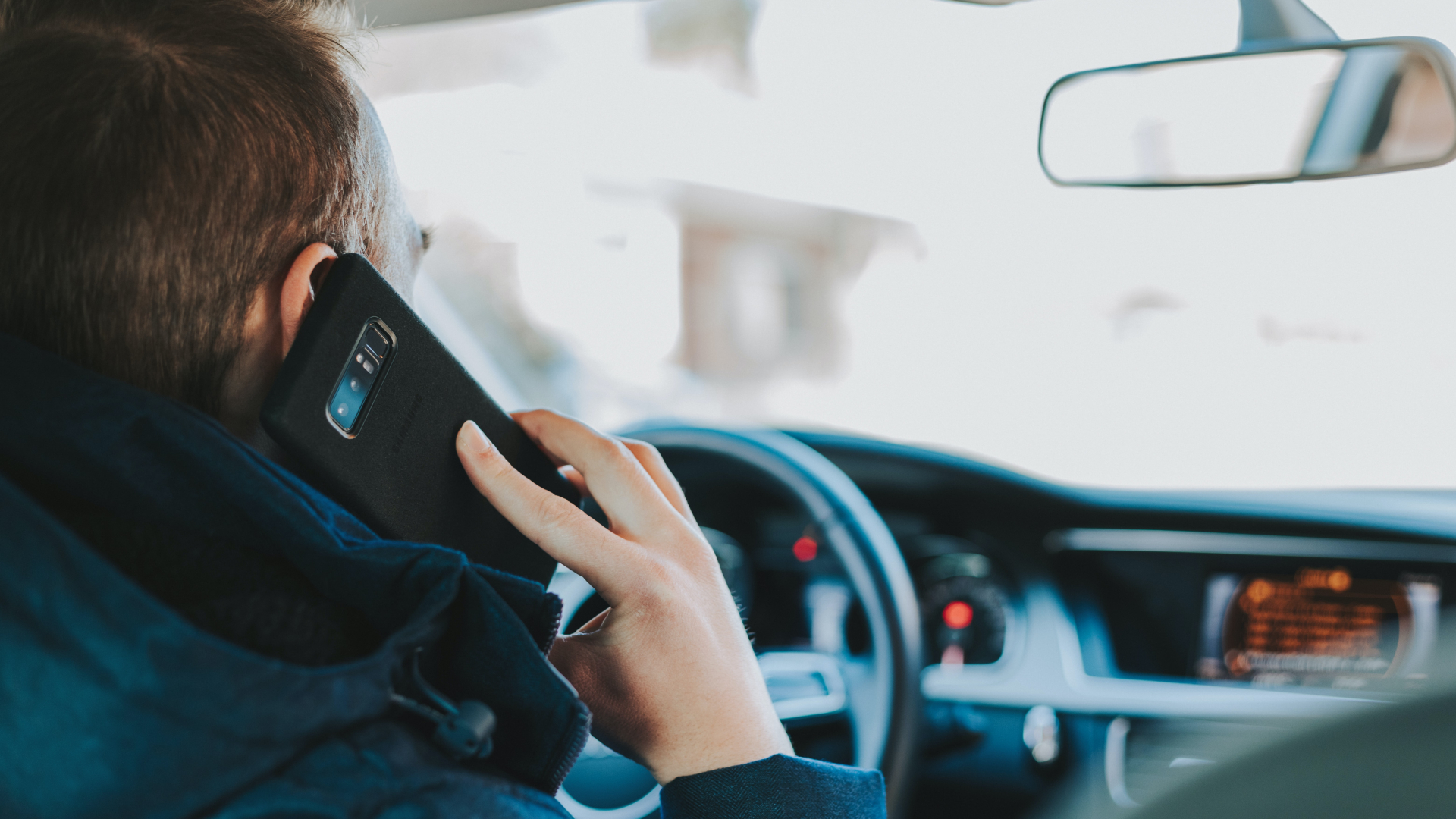
Since the proximity sensor relies on the distance from your ear to your phone, your screen will turn off only when the phone is sufficiently close to your face. Similarly, the screen will turn on only once you’ve taken the phone adequately far from your face. Ensure you follow this practice to get the proximity sensor on your Android to turn the screen on or off properly.
4. Switch Audio Output to Handset Mode
You might have faced an issue where your phone’s screen doesn’t turn on after you end a phone call on speaker. This is because the proximity sensor comes into action only in the handset mode. That is when you’re using the earpiece to speak on a call. So, obviously, it doesn’t work when you’re talking on loudspeaker.
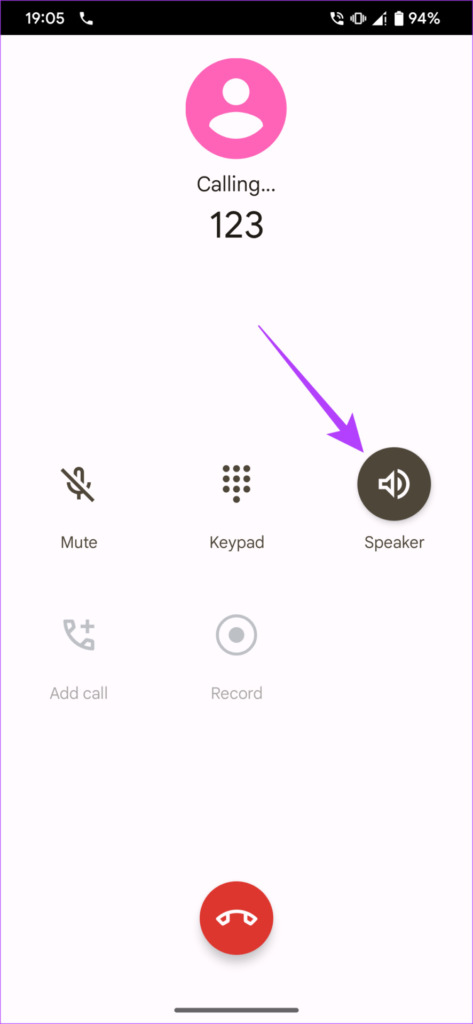
The solution is to switch to the handset mode if you’re using your phone’s speakers. The same principle applies to using a pair of wired/wireless headphones. If you’re using any external device to make or receive a call, the proximity sensor will not kick in.
5. Clear the Cache and Data of the Phone App
This is a rudimentary step that can fix several issues with most apps on Android devices. Deleting the Phone app’s cache will clean up any residual files that may be causing the proximity sensor to glitch on your device. After all, the proximity sensor is related to the dialer.
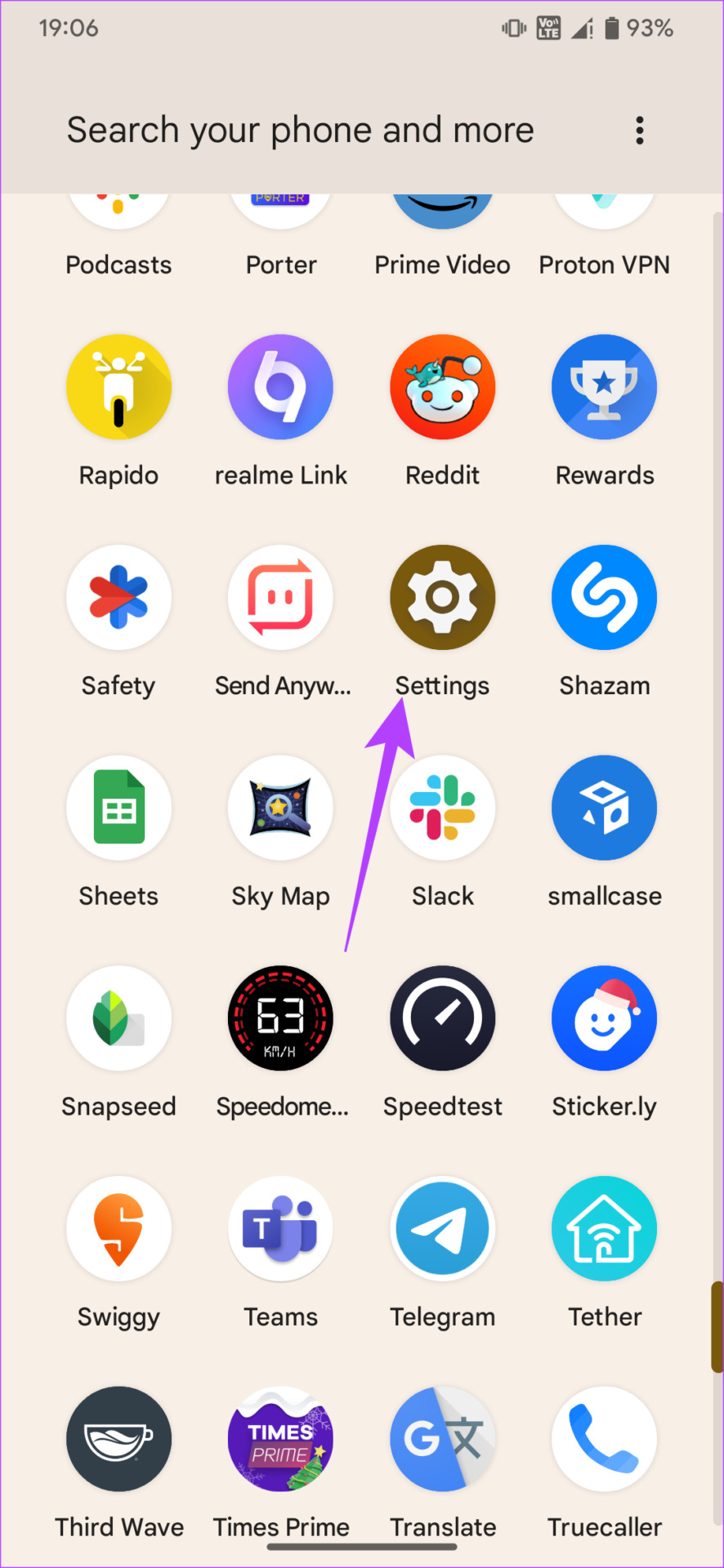
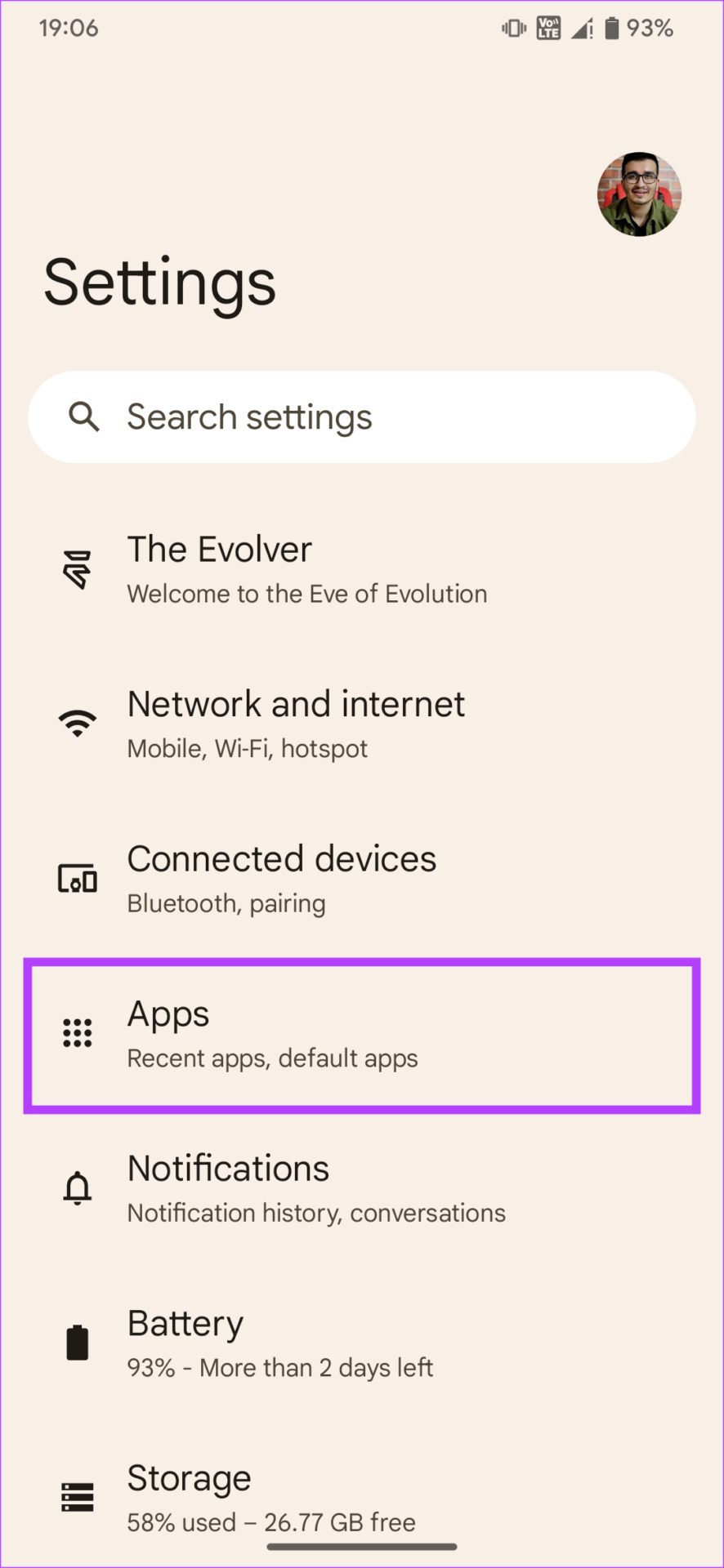
Step 1: Open the Settings app on your Android phone. Navigate to the Apps section.
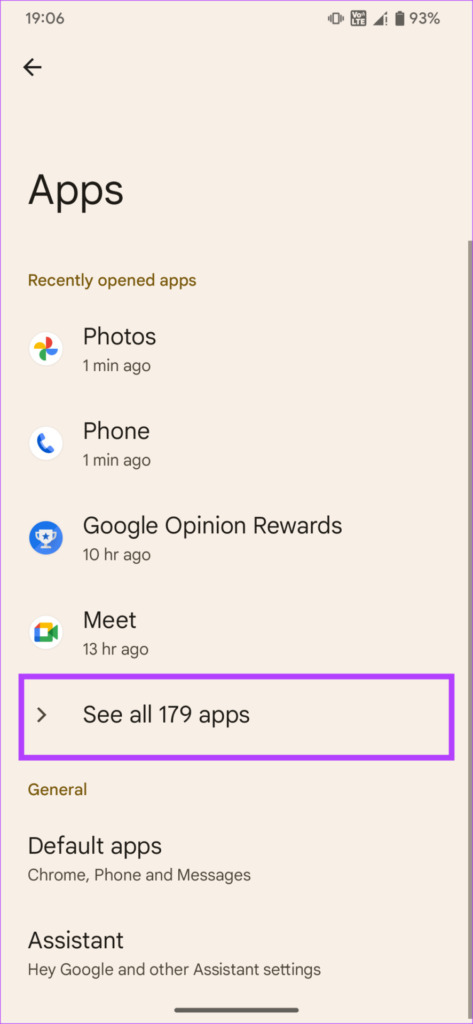
Step 2: Tap on See all apps.
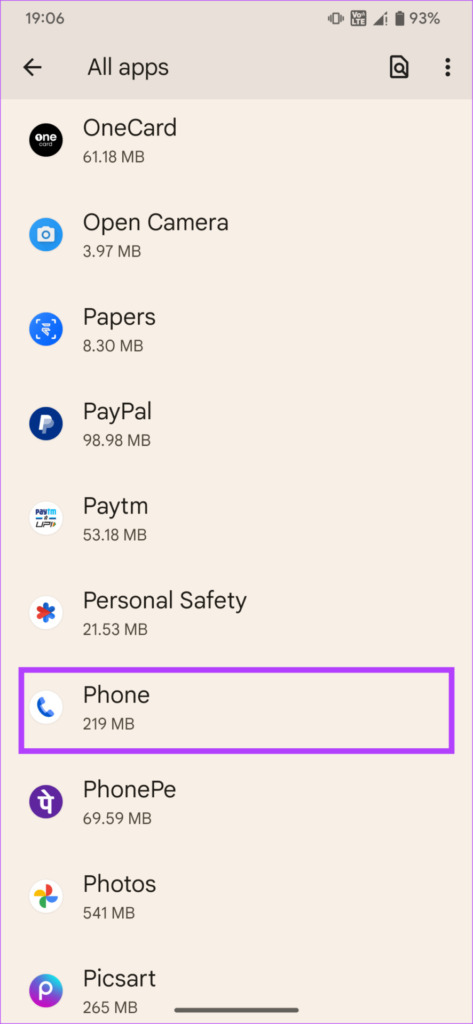
Step 3: Scroll down. Select Phone from the list of apps.
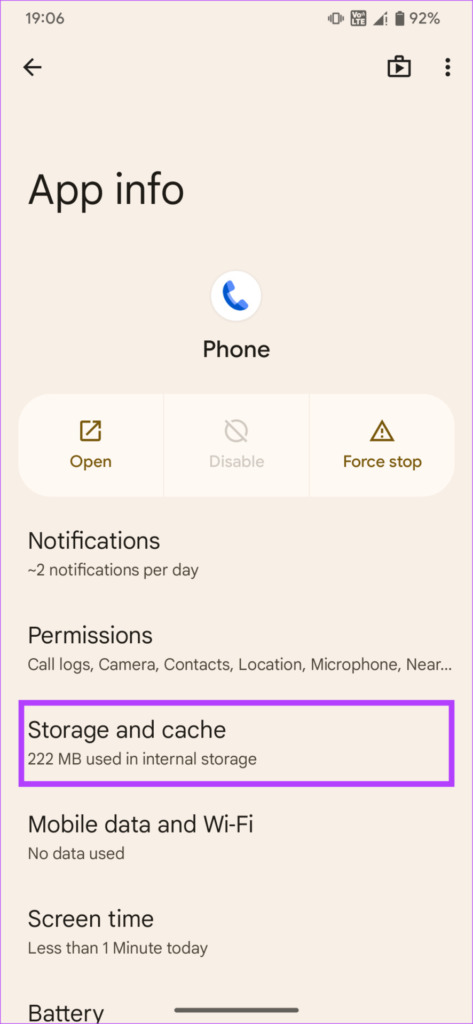
Step 4: Now, select the ‘Storage and cache’ option.
Step 5: First, tap on Clear Cache and then tap on Clear Storage.
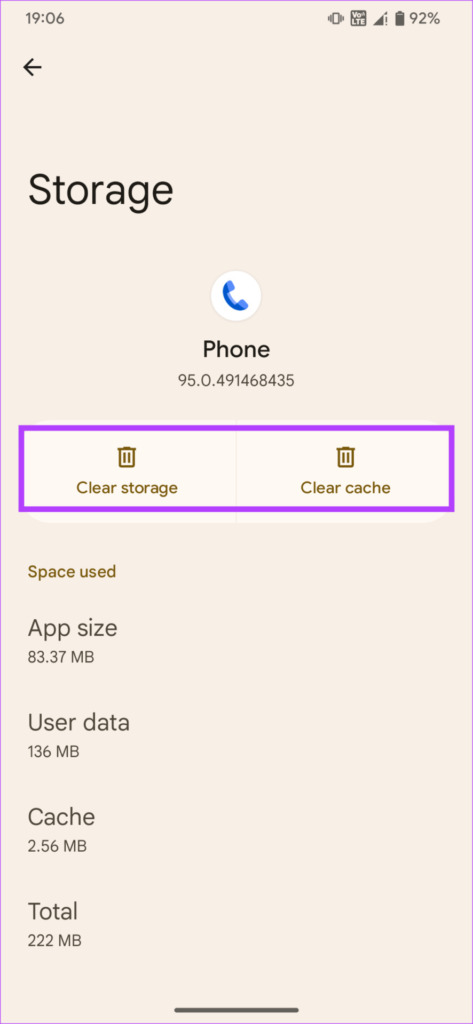
Use the dialer now to make a call and see if there’s a difference.
6. Update the Phone App to the Latest Version
At times, some versions of an app may contain bugs or glitches causing related functions to crash or stop working all of a sudden. So, it’s best to keep your apps updated to the latest version at all times. Try updating the Phone app on your Android phone to see if a newer version fixes the proximity sensor.
Step 1: Open the Google Play Store on your phone.
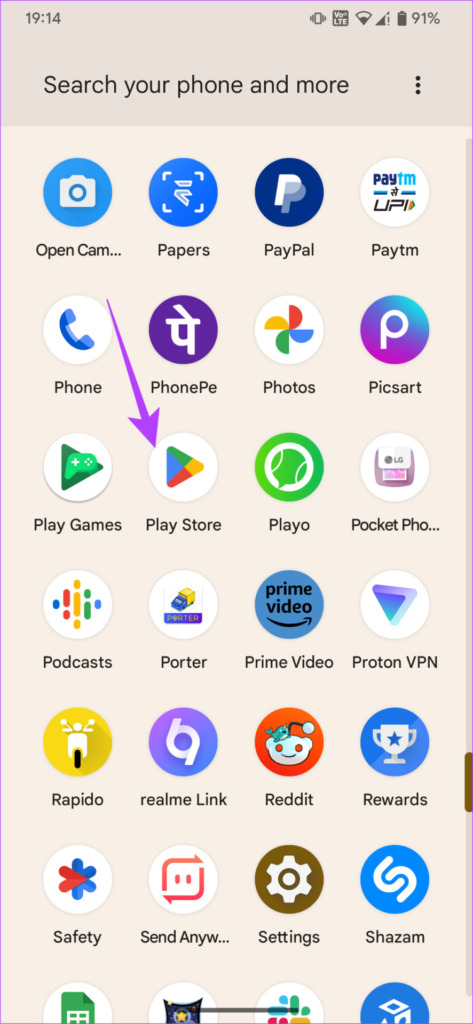
Step 2: Tap on your profile in the top-right corner of the app. This will bring up preferences.
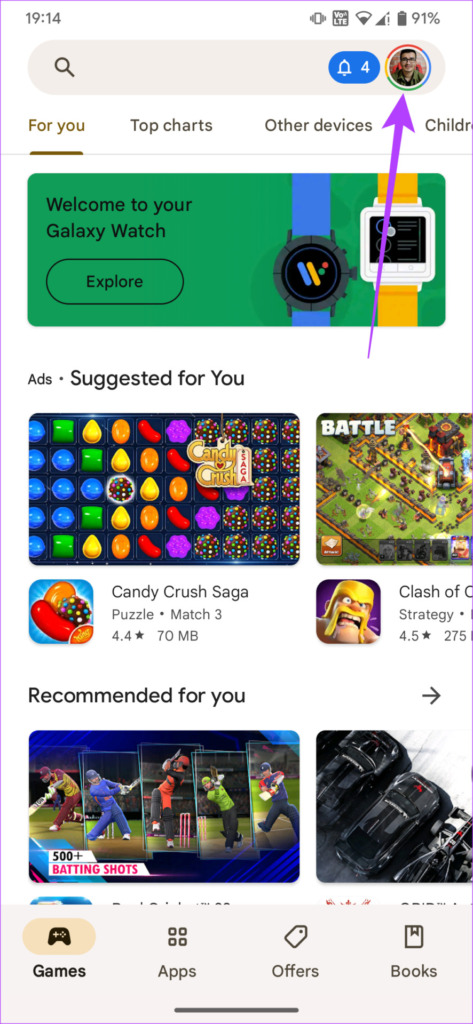
Step 3: Now, select ‘Manage apps and device’.
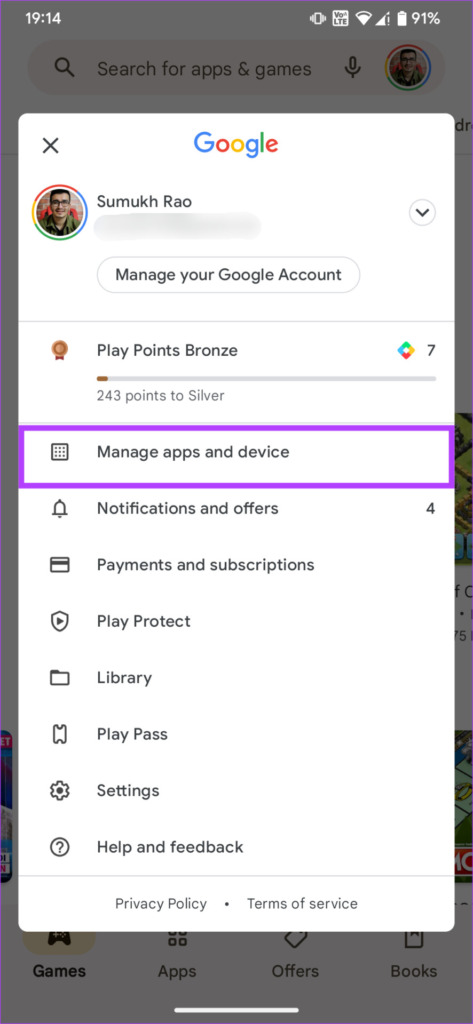
Step 4: You will now see a section that says Updates available. Tap on See details under it.
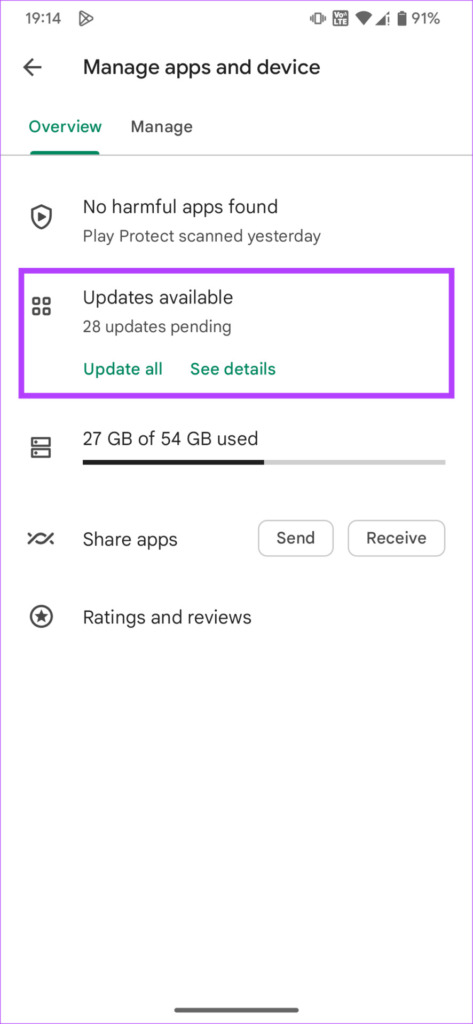
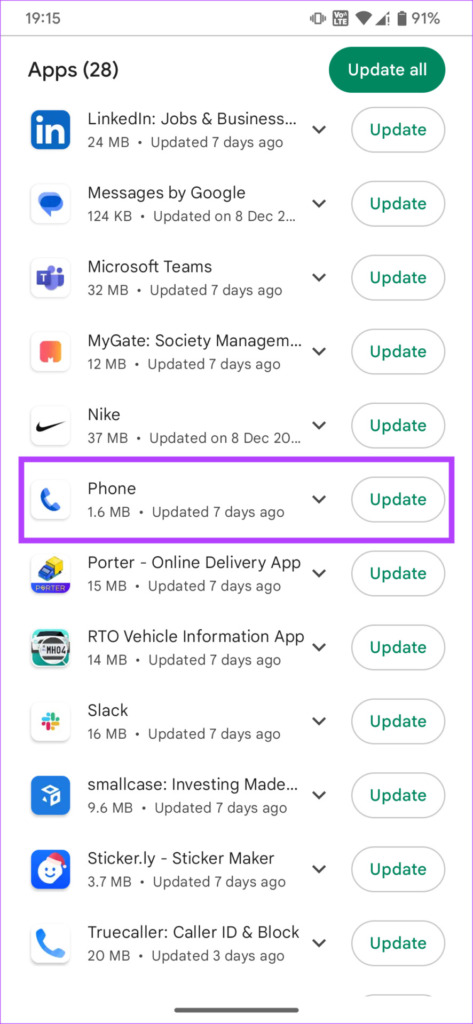
Step 5: Select the Update option either next to the Phone app or use the Update all button to update all your apps.
7. Update Your Phone to the Latest Software Version
If there is an underlying problem in the software of your phone leading to the proximity sensor failing, the best way to fix it would be via a software update. Here’s how to check for updates on your Android phone and install an update if it’s available.
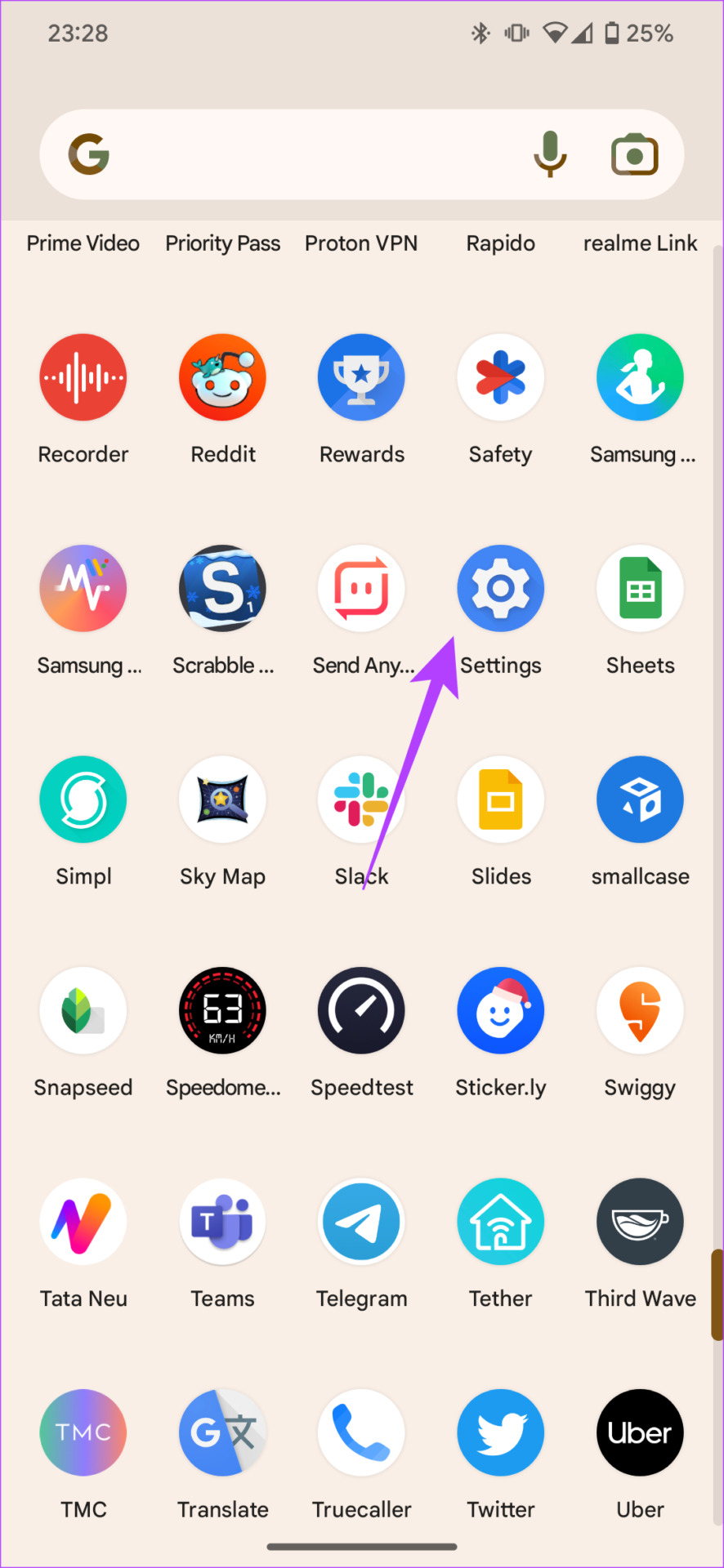
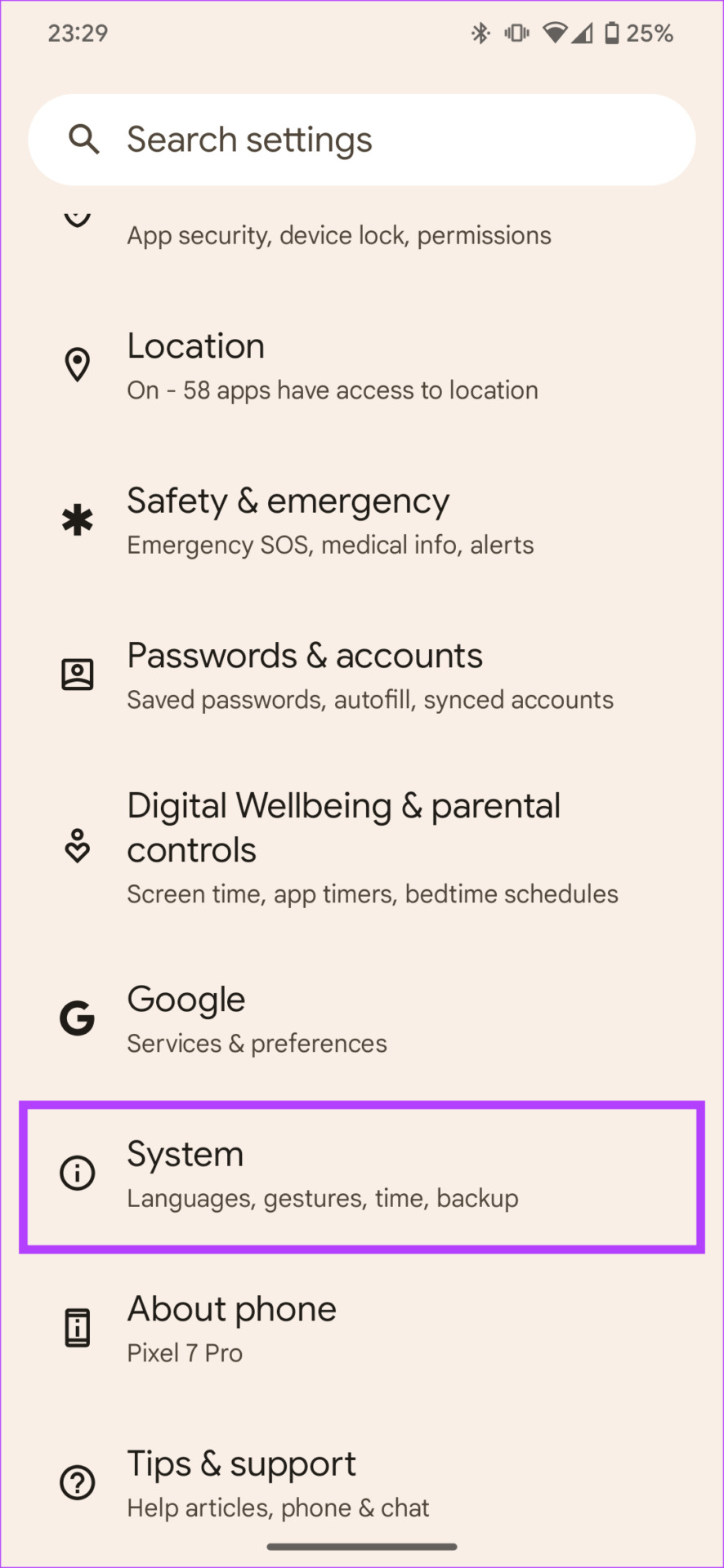
Step 1: Open the Settings app. Scroll down and tap on System.
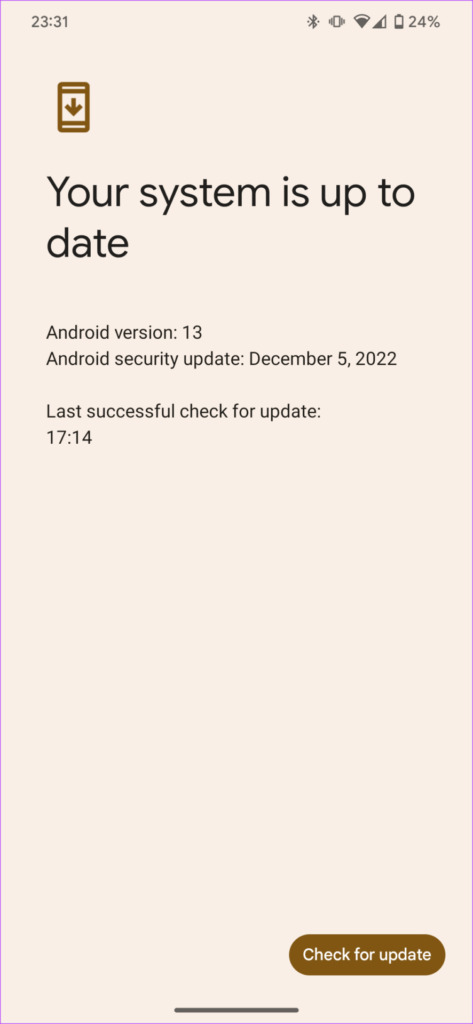
Step 2: Select the System Update option.
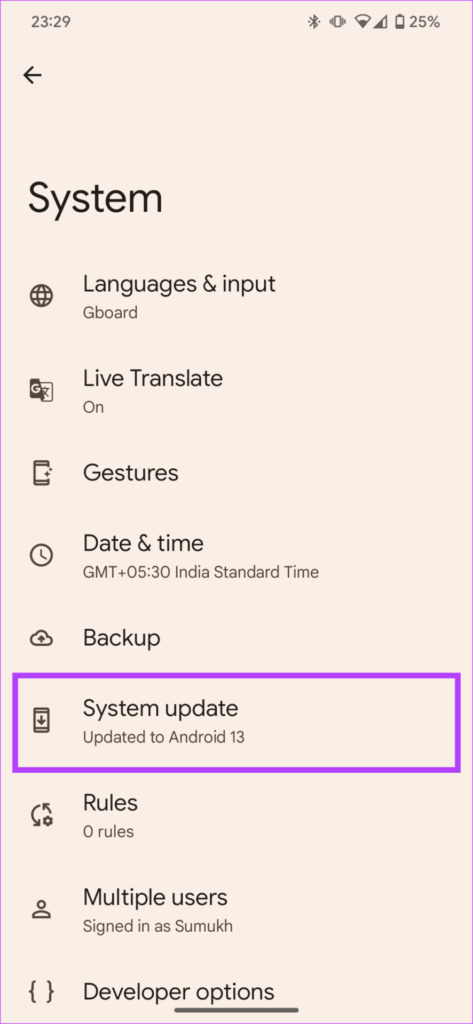
Step 3: If you see an update here, hit the Install button and wait for the process to complete.
8. Use a Third-Party Dialer
If none of the above solutions worked for you, it’s time to replace the default Phone app with a third-party one from the Play Store. This might help you with the proximity sensor not working on your Android phone issue.
Step 1: Head over to the Play Store and download the Right Dialer app. You can also download any other third-party dialer app of your choice but this is the one we recommend.
Download Right Dialer
Step 2: Open the app once installed, and grant all the required permissions.
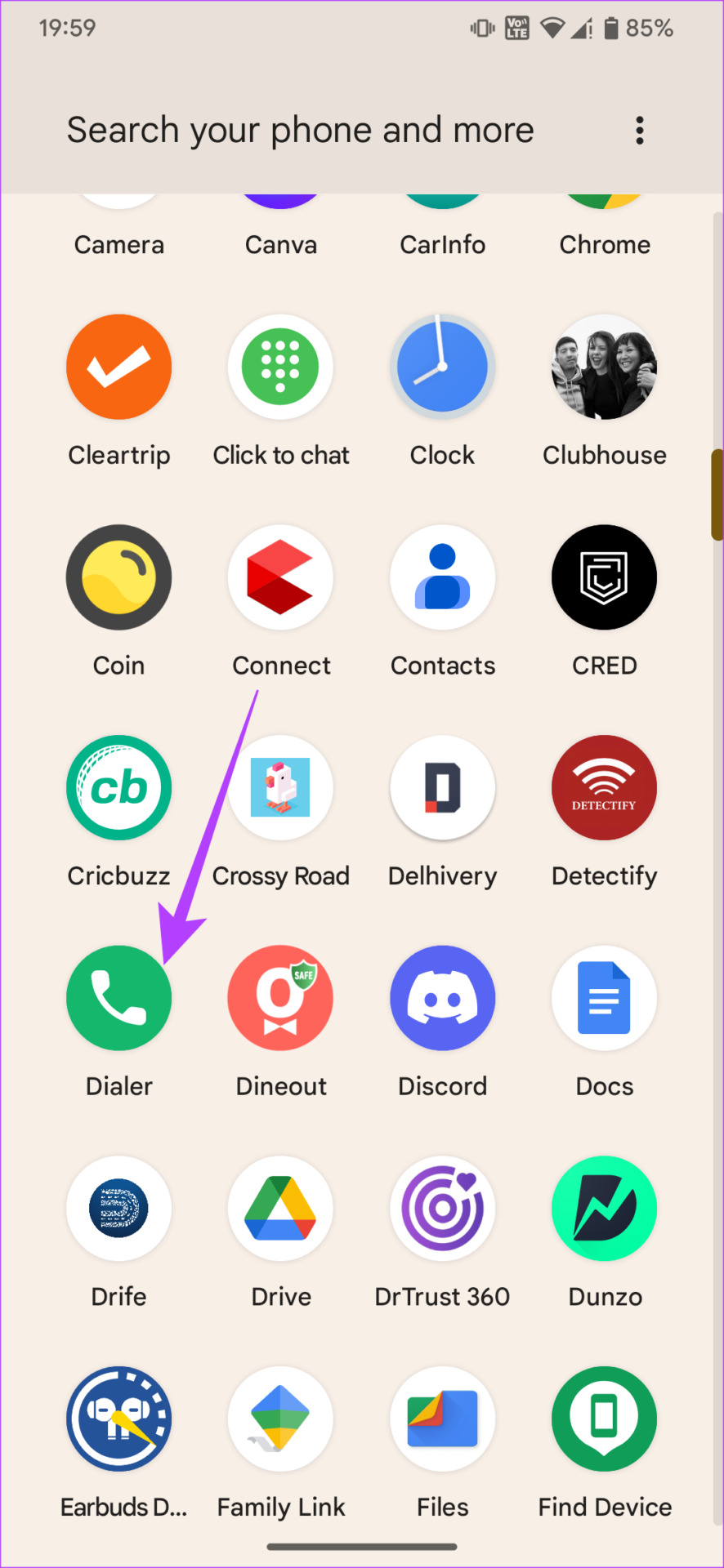
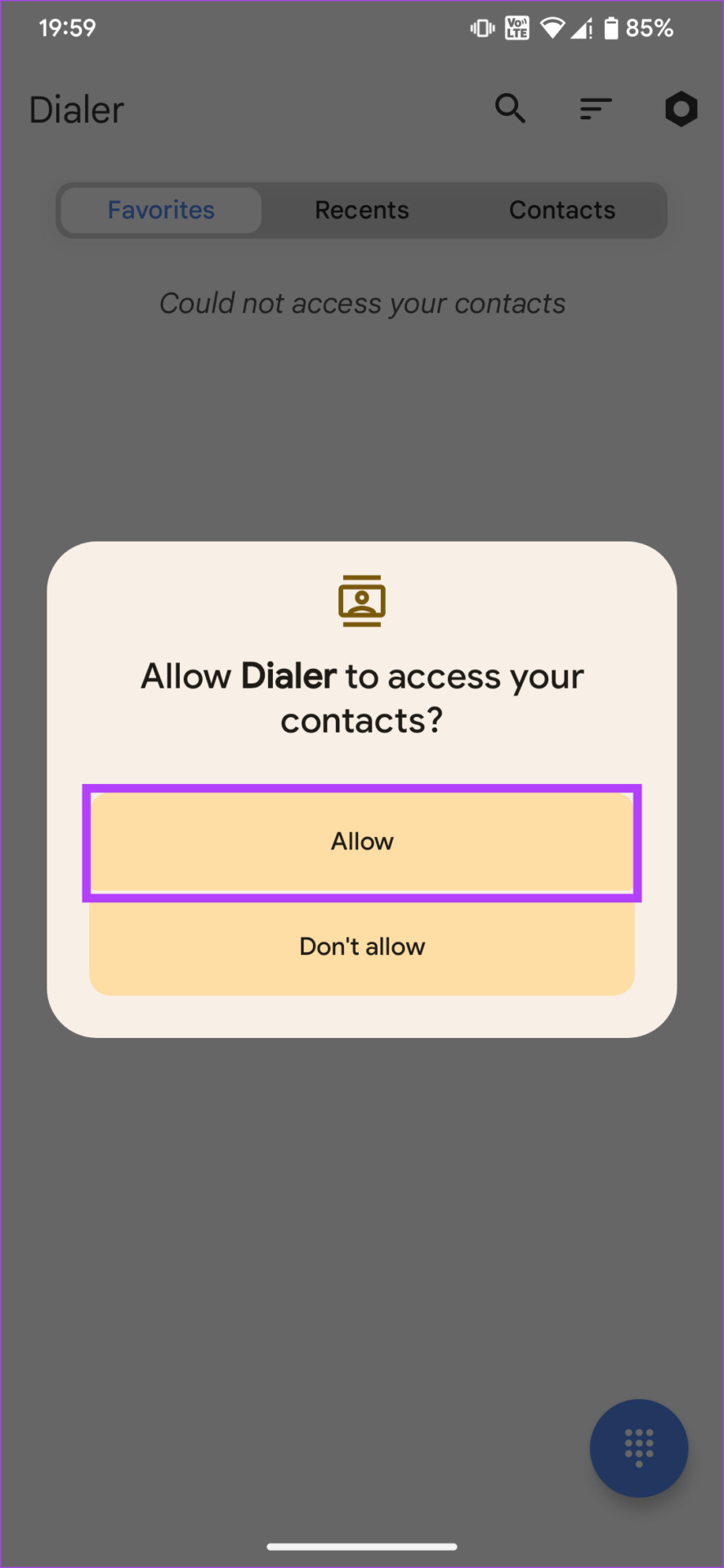
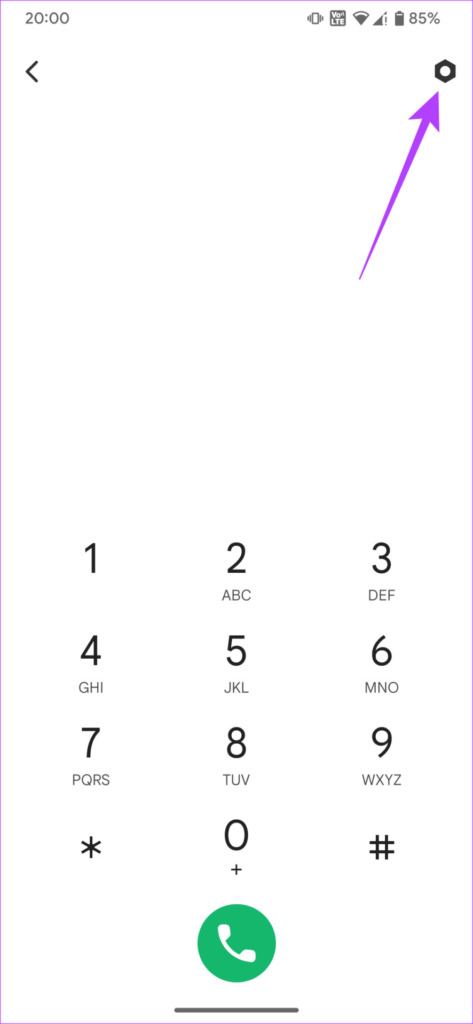
Step 3: Head over to the Settings section.
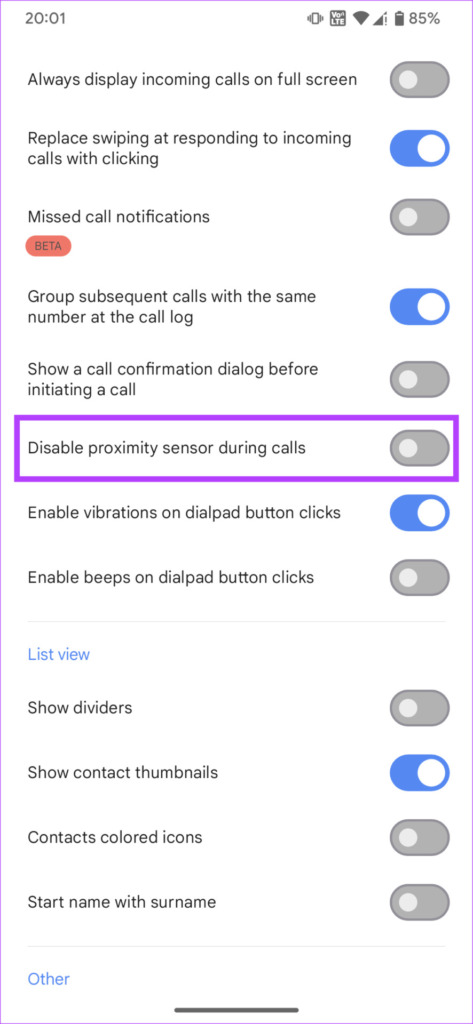
Step 4: Scroll down and enable the toggle next to ‘Disable proximity sensor during calls’. Close the app once done.
Note : You might be wondering why we’re asking you to disable the proximity sensor during calls. Well, that’s because the app will then use its own algorithm to turn your screen on and off when on a call.
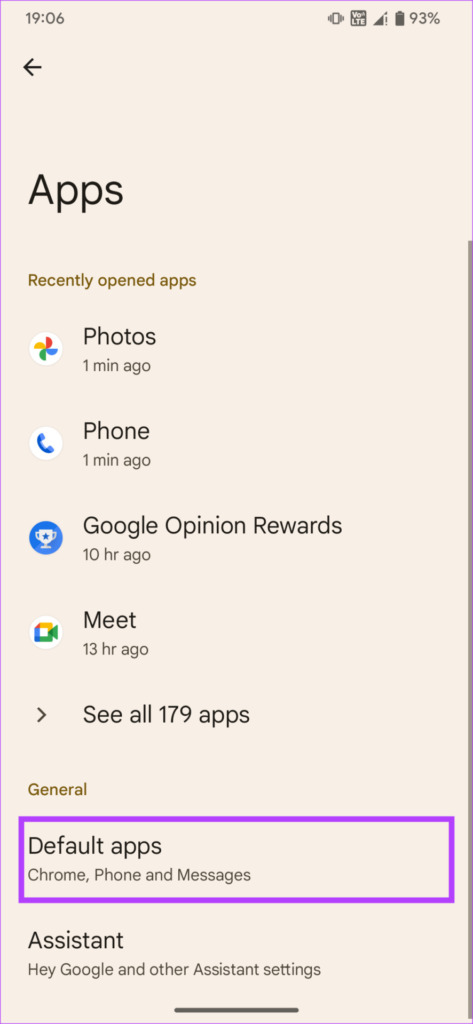
Step 5: Open the Settings app on your Android phone. Navigate to the Apps section.
Step 6: Tap on Default apps.
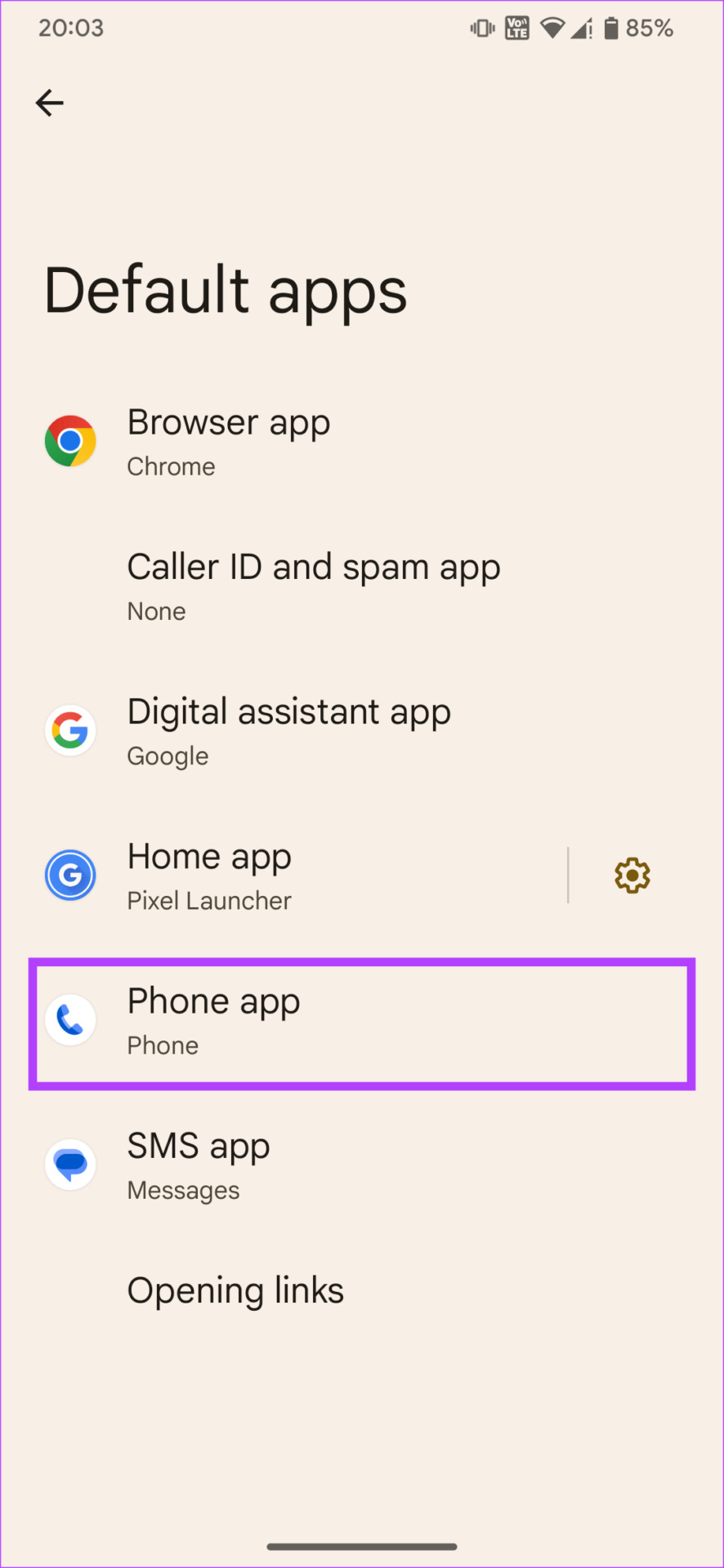
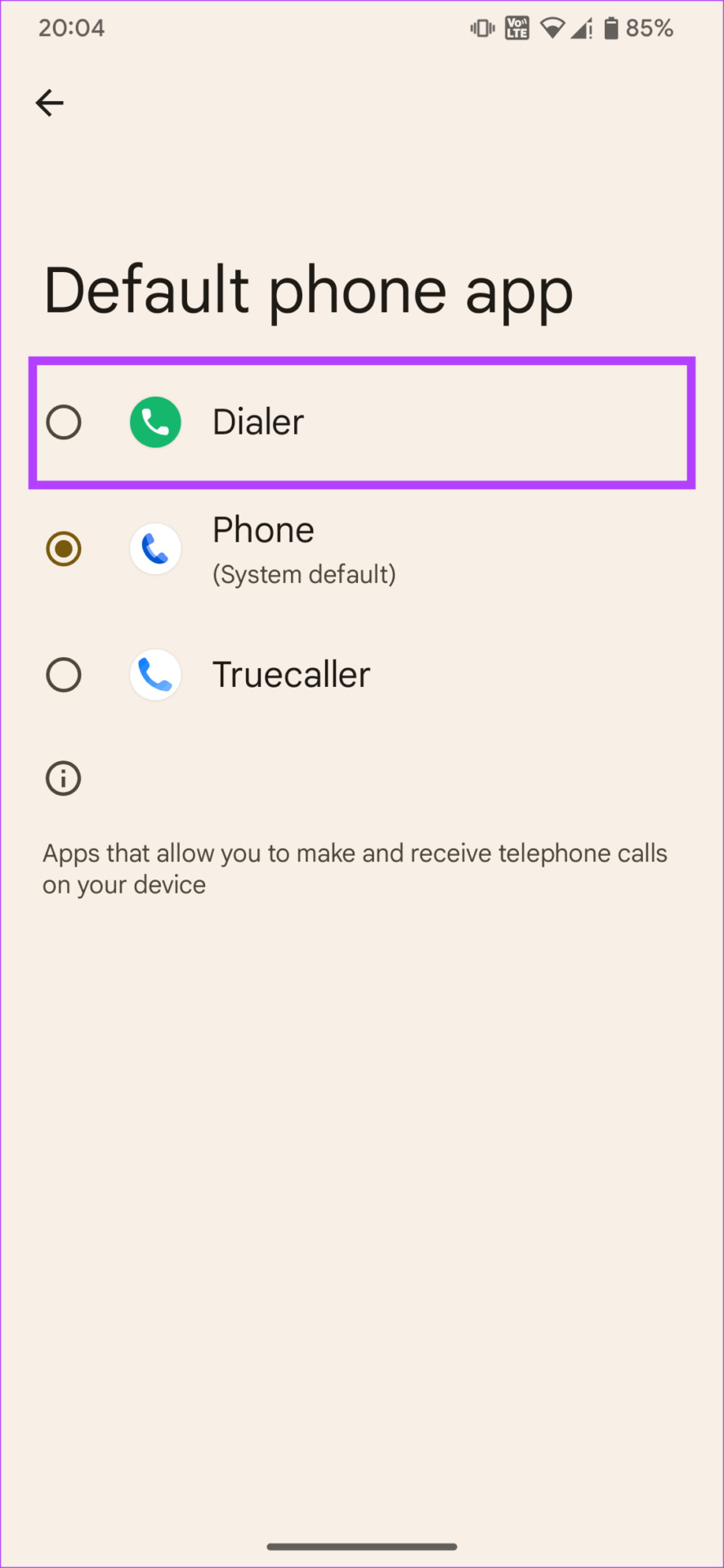
Step 7: Select the Phone app option. Then, tap on Dialer from the list of apps.
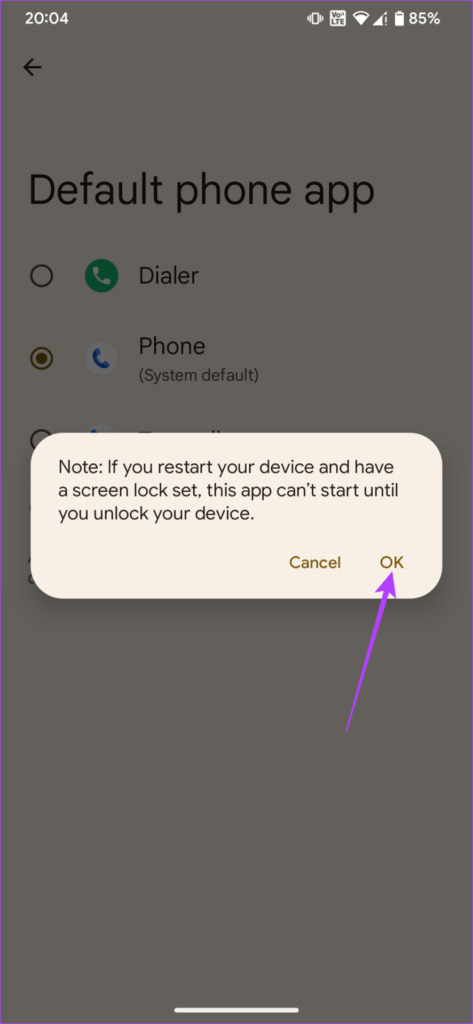
Step 8: Tap on OK when prompted.
The issue where the screen doesn’t turn off or on during calls on your Android phone should now be fixed.
9. Visit a Nearby Service Center
If none of the above solutions worked for you, there’s a chance that your phone has encountered a hardware issue. If the proximity sensor is broken, your only option is to visit the nearest service center to let an expert analyze the damage.
If your phone is under warranty, you should get it repaired free of cost. If not, you might have to pay for the repair based on the nature of the problem. You can find the nearest service center on your phone manufacturer’s website.
Fix the Proximity Sensor
It’s extremely annoying when your phone goes blank and the screen doesn’t turn on during or after a call. However, with some simple steps, you can address the issue of the proximity sensor not working on your Android phone. All you need is a bit of patience.
Was this helpful?
Submit Cancel
Thanks for your feedback!
Keep reading
![9 Pet Care Apps in 2024 [Free and Paid]](https://bcdn.seocloud.biz/seo-articles/82a3ce5485f5bc506feb1226aca9bcb4/cover.jpg)