Android
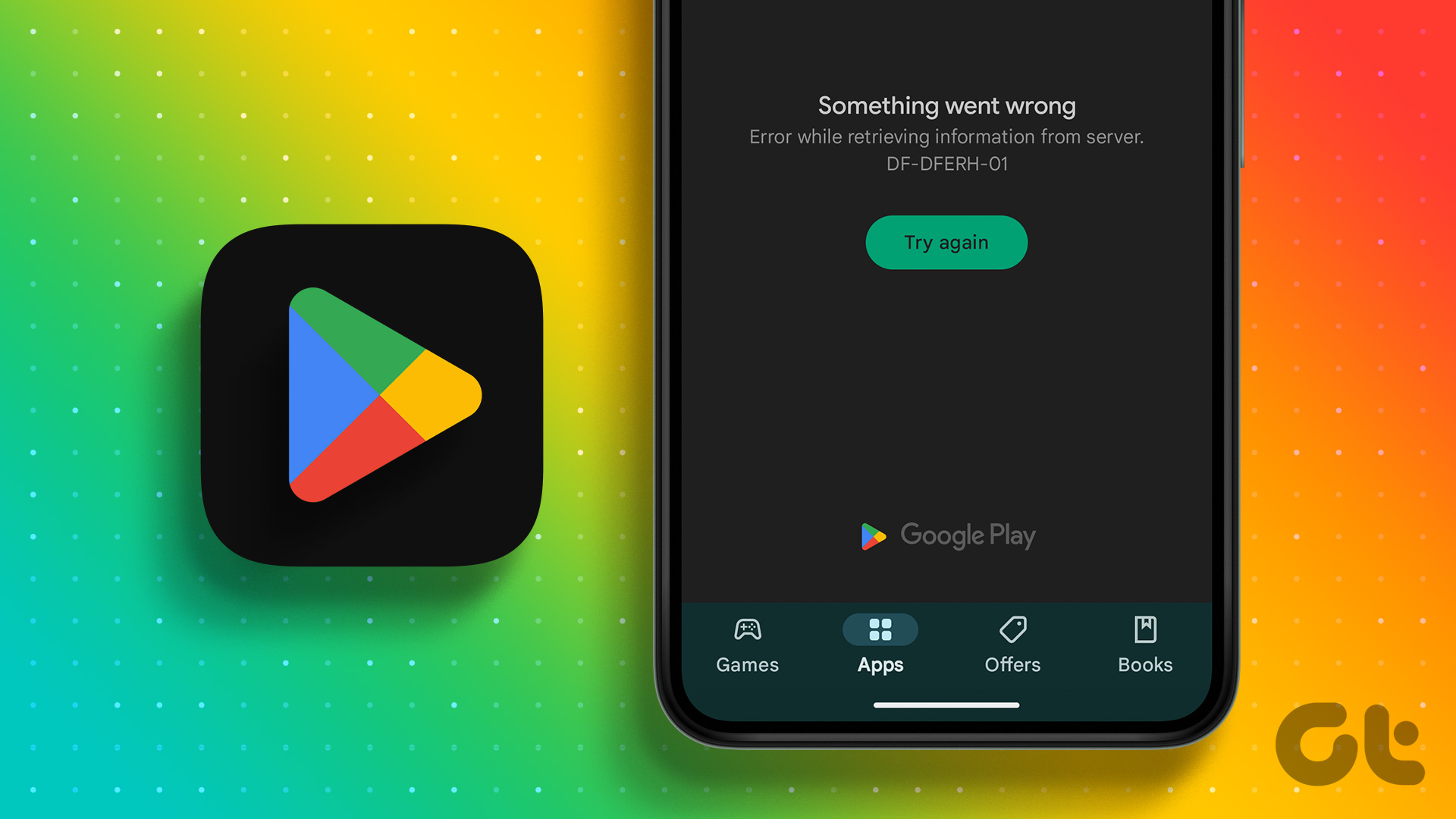
6 Ways to Fix ‘Something Went Wrong’ Error in Play Store
Facing the 'Something went wrong' error in Play Store? Here are 6 ways to fix the problem on your Android device.
By Anoop Varghese
Quick Tips
Problems with Google Play Store and Play Services can cause the issue – try clearing the cache and uninstalling updates for both apps.
Ensure your device is connected to a stable Wi-Fi or a cellular network.
Alternatively, you can log in to a new Google account on the Play Store, and check if it works without issues.
Basic Fixes
Restart Play Store: Long tap on the Play Store app, select App Info, and tap on Force Stop. Now, open the Play Store and check if it works without issues.
Check internet connection: Ensure your device is connected to a functional and stable Wi-Fi or a cellular network.
Check if Play Store is down : Check if Play Store is facing downtime – if so, you will have to wait until the services are restored.
Fix 1: Login From Another Account
If there’s a problem with the current login session on the Play Store, try downloading apps with a new account.
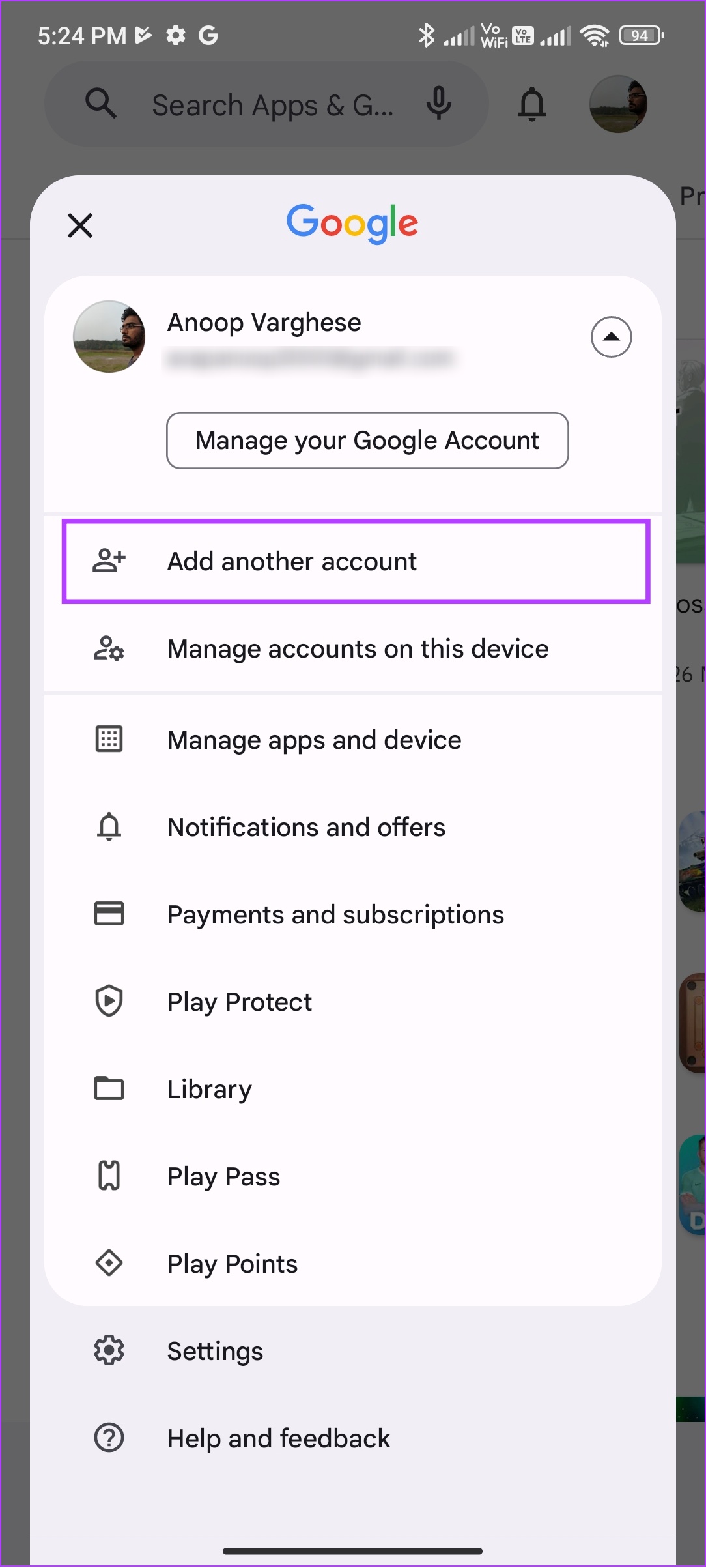
Step 1: Open Play Store and tap your profile picture icon at the top right corner. Tap the down arrow button next to your account.
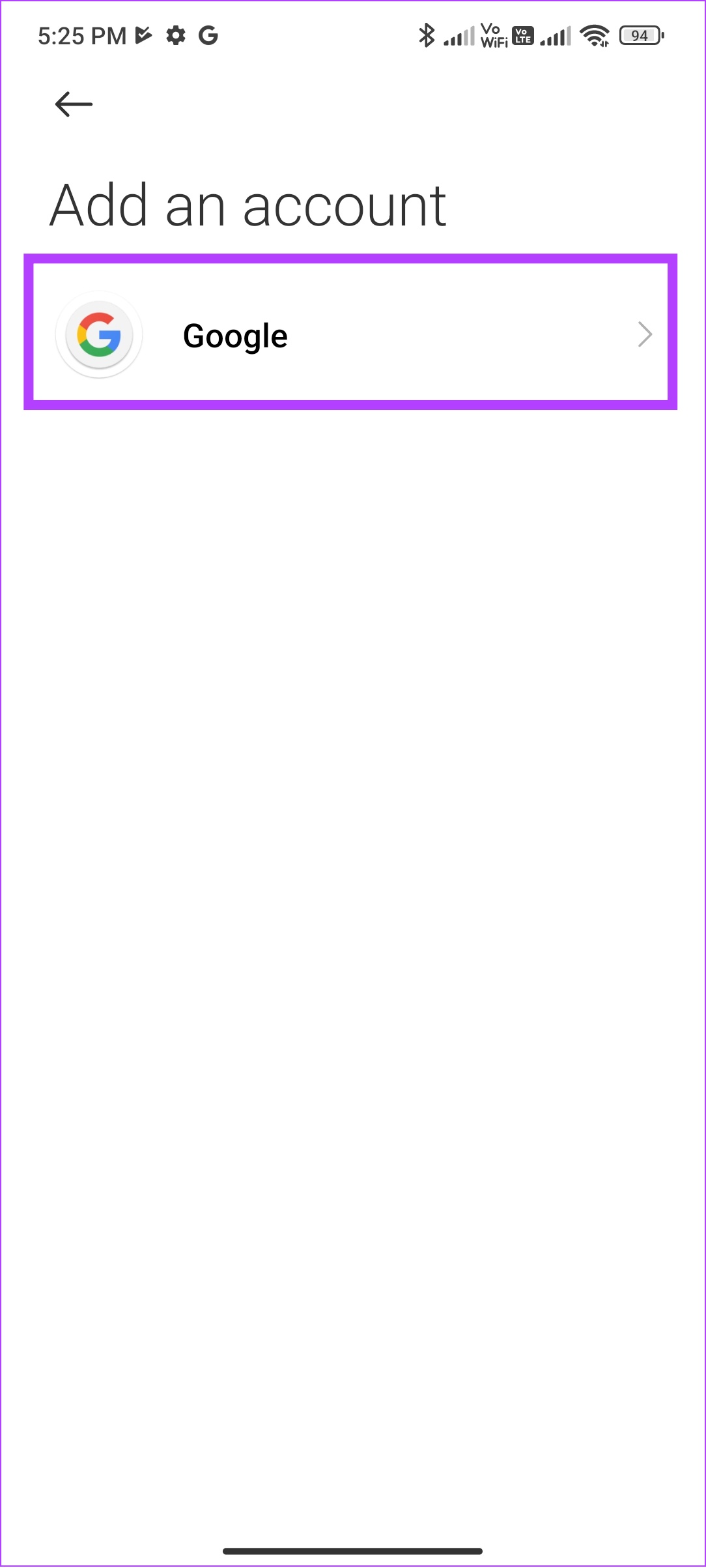
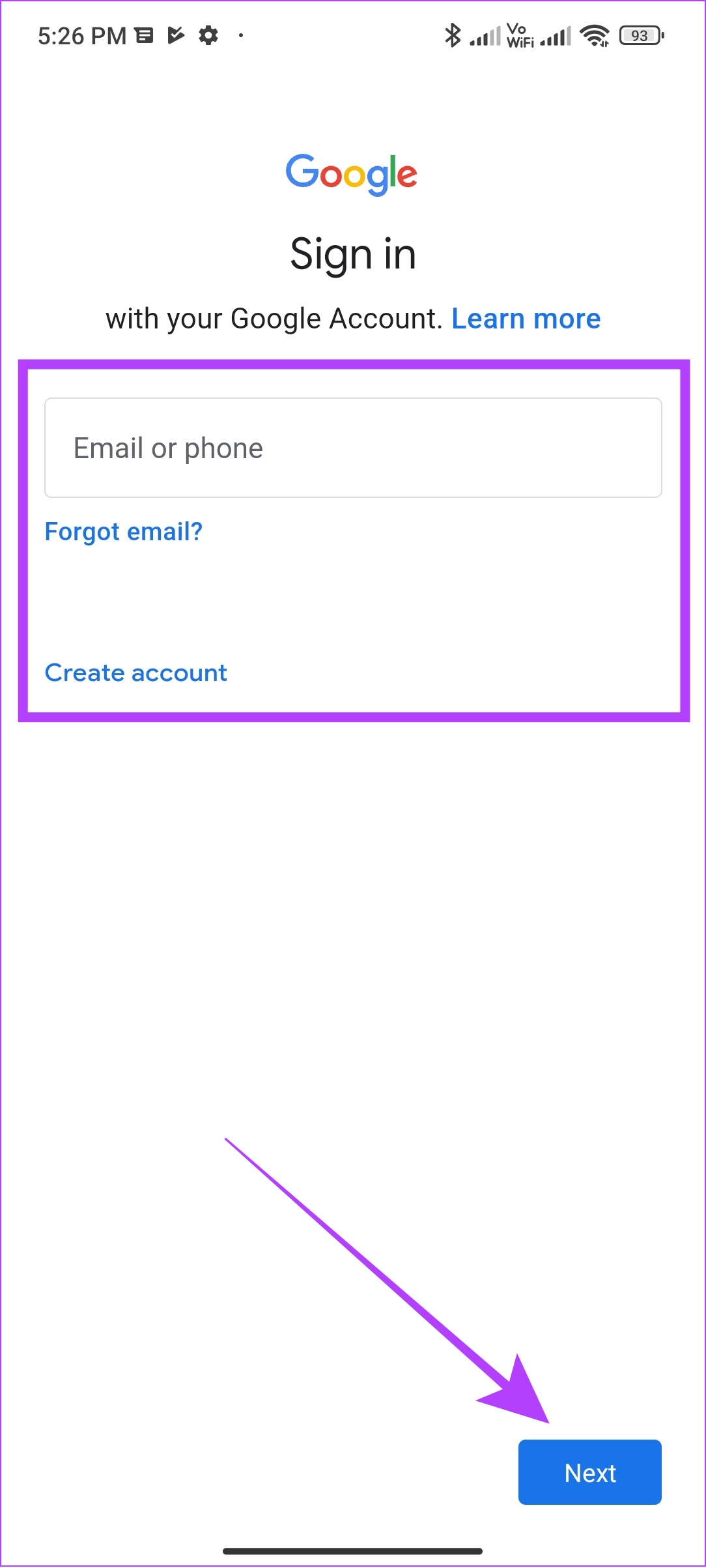
Step 3: Tap Add another account . Select Google , and enter the credentials.
You will be logged into the Play Store with the new account, and you can check if it fixes the issue.
Fix 2: Reset App Preferences
Resetting the app preferences can help fix any misconfigured settings for the Google Play Store.
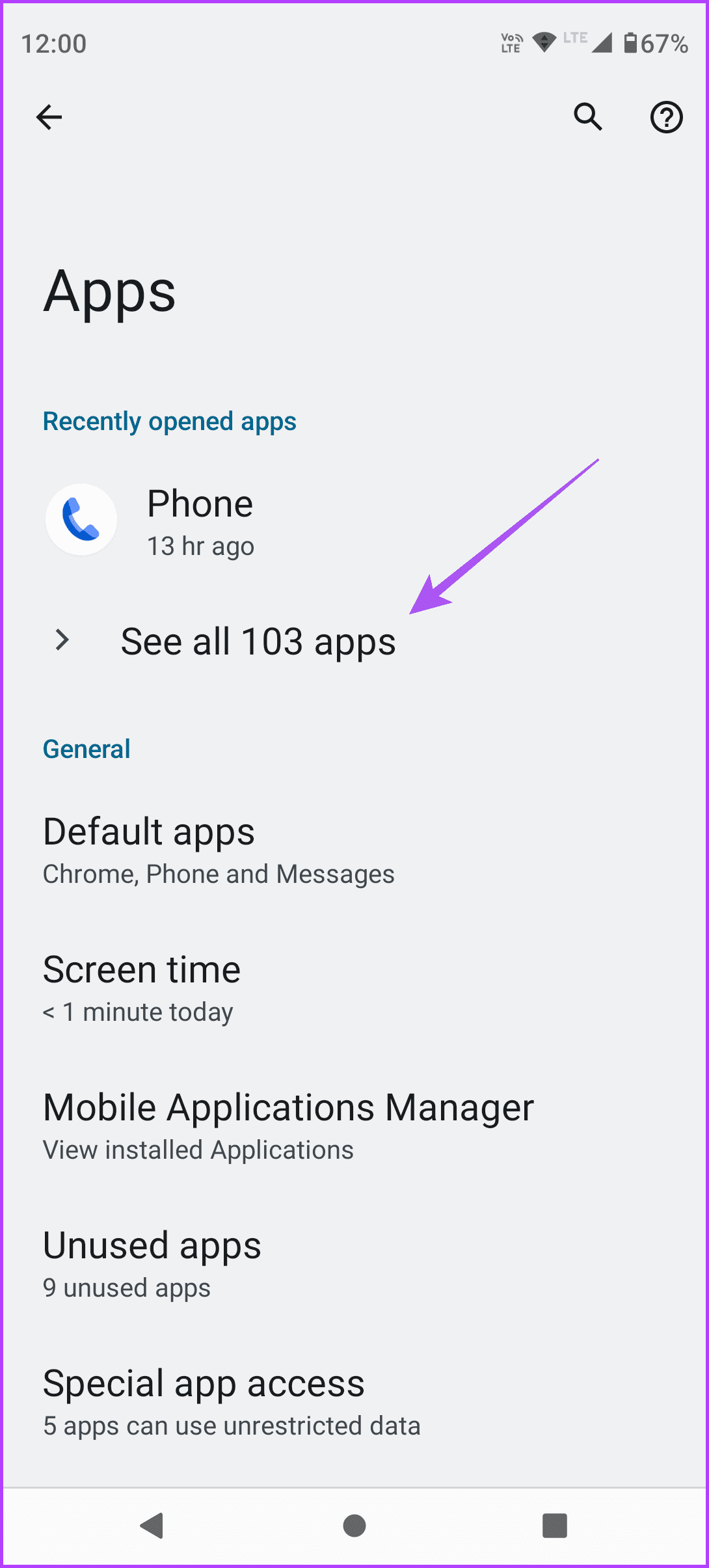
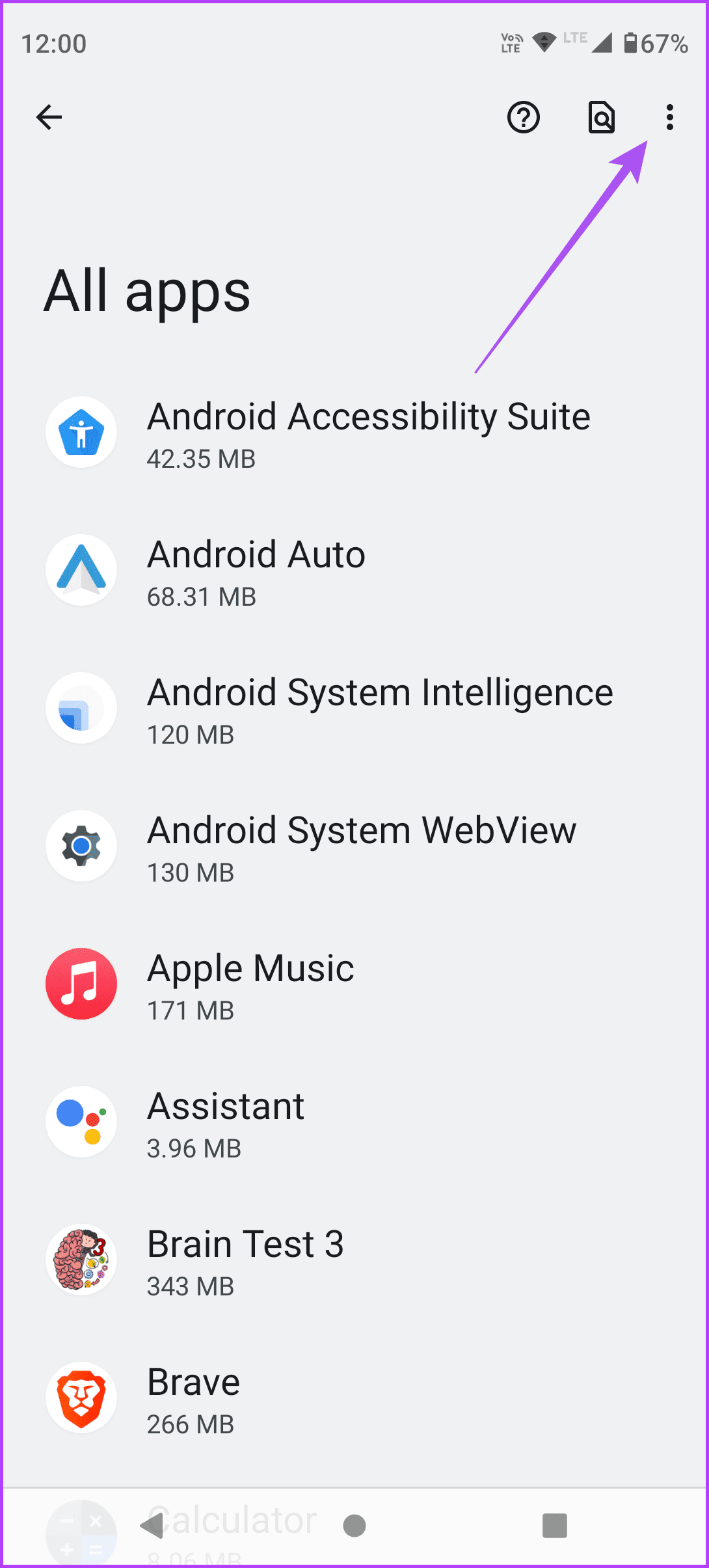
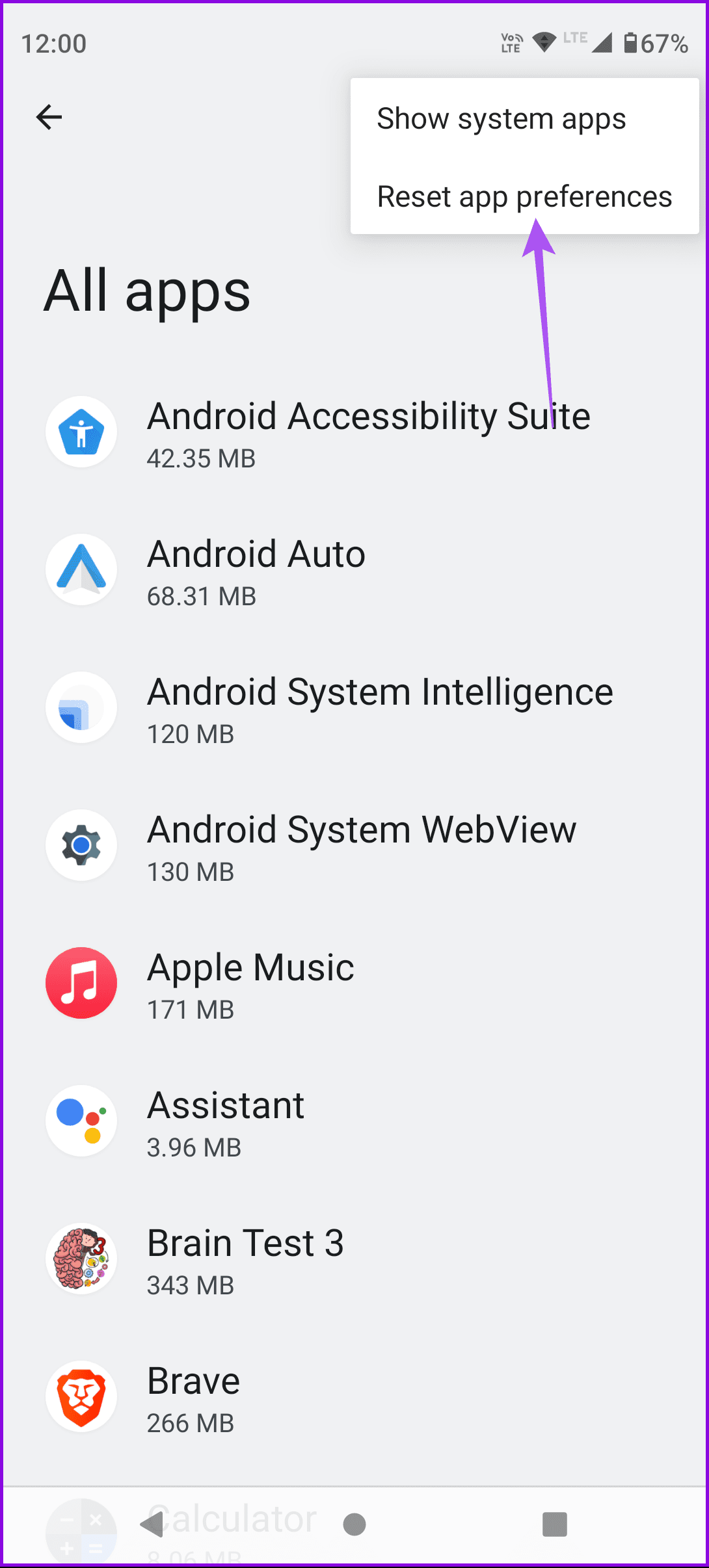
Open the Settings app and tap on Apps. Select All Apps , tap on the three-dot menu at the top right, and select Reset app preferences.
Fix 3: Clear Cache for Play Store and Play Services
Cache and junk files accumulated within the Google Play Store, or the Play Services app may result in bugs and temporary glitches.
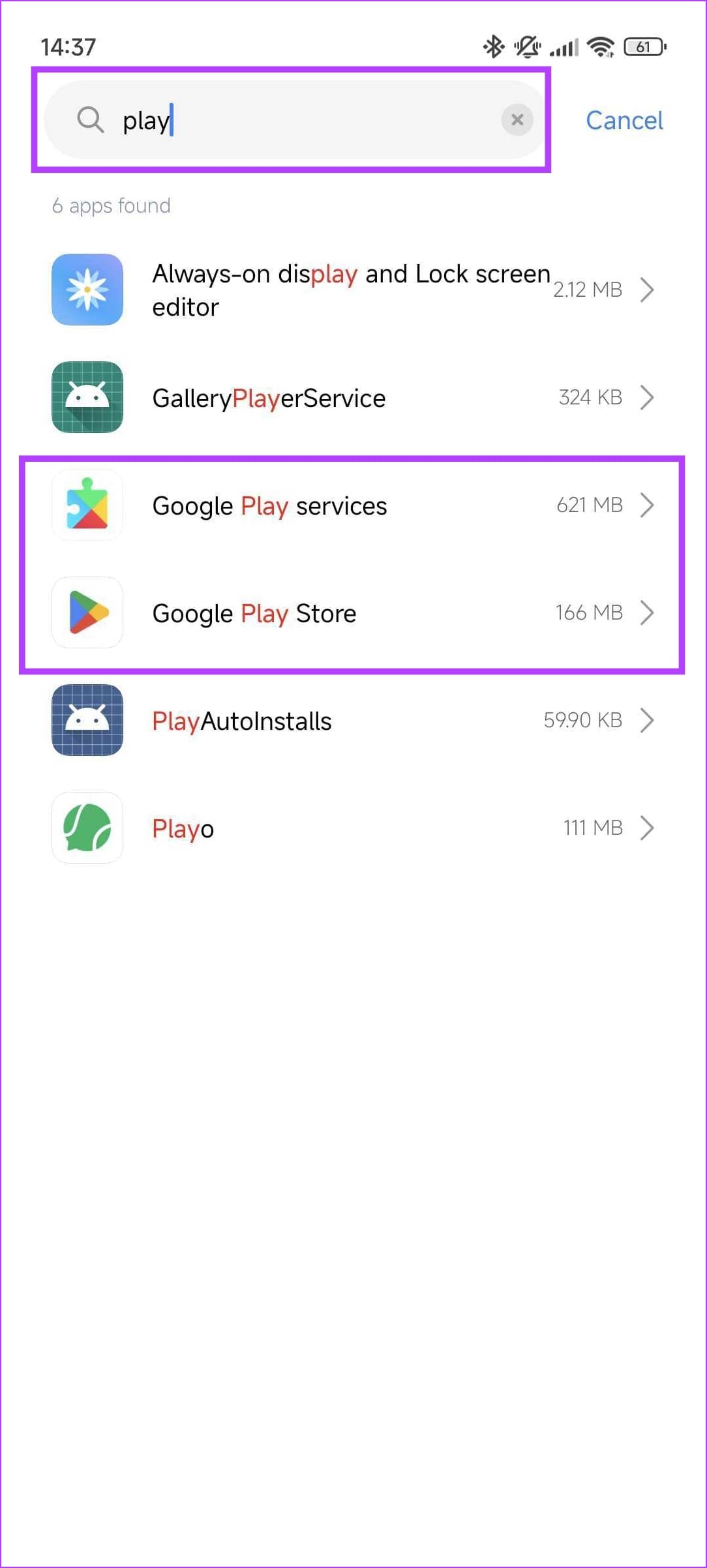
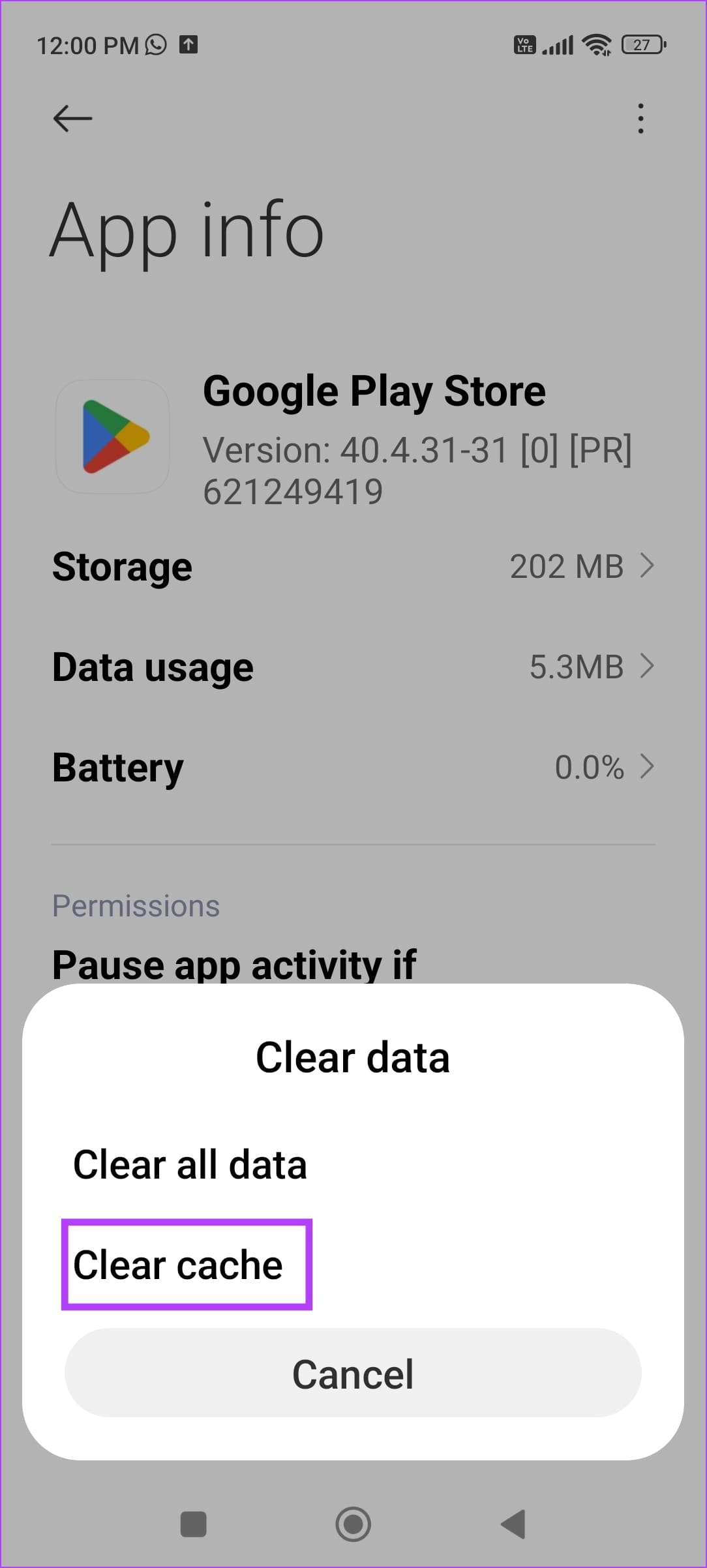
Step 1: Open the Settings app. Go to Apps > Manage apps . Find Google Play Store and Google Play Services from the list.
Note : If you don’t find them, open the list that says System Apps .
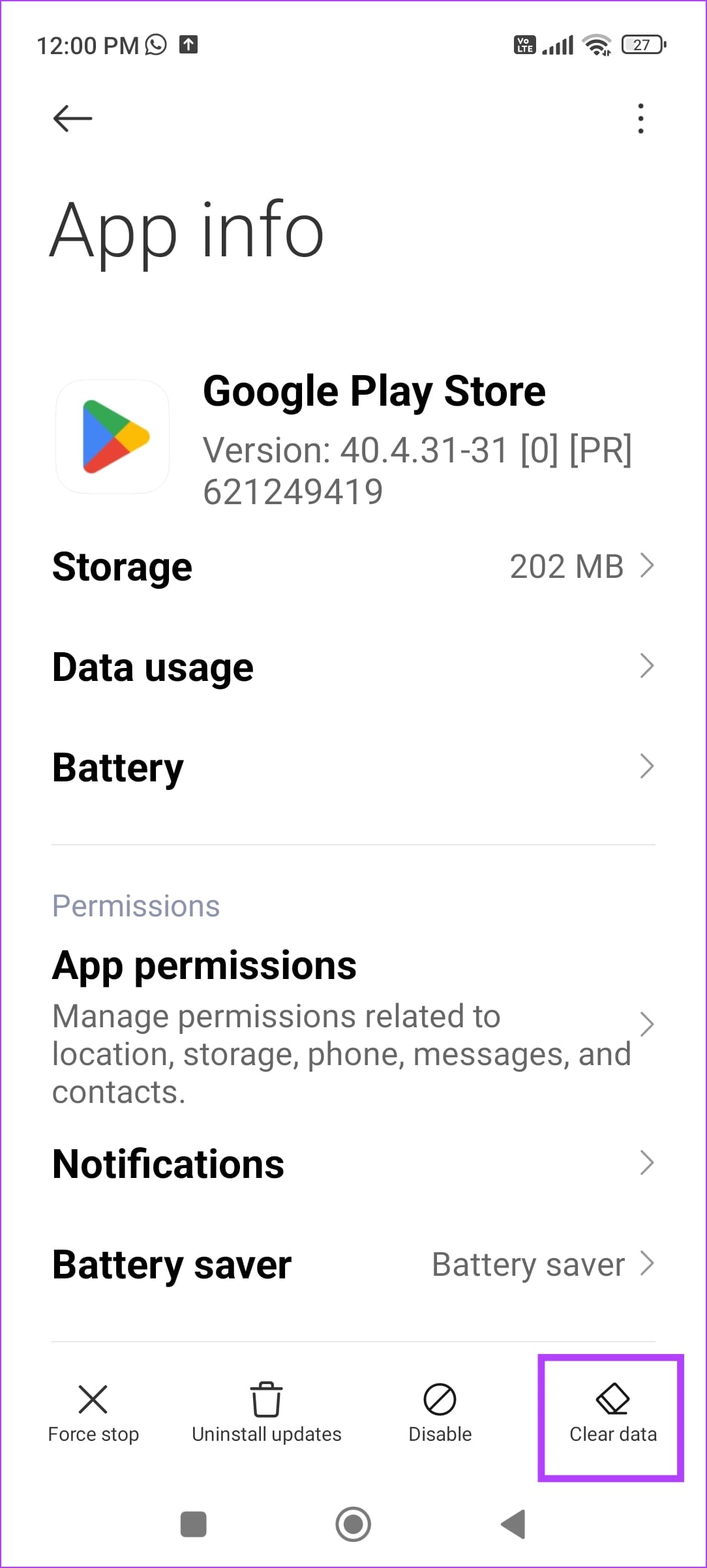
Step 2: Tap on Clear data > Clear cache for both apps.
Fix 4: Provide Permissions for Play Store and Play Services
Make sure the Google Play Store and the Play Services app have the necessary permissions to function on your device.
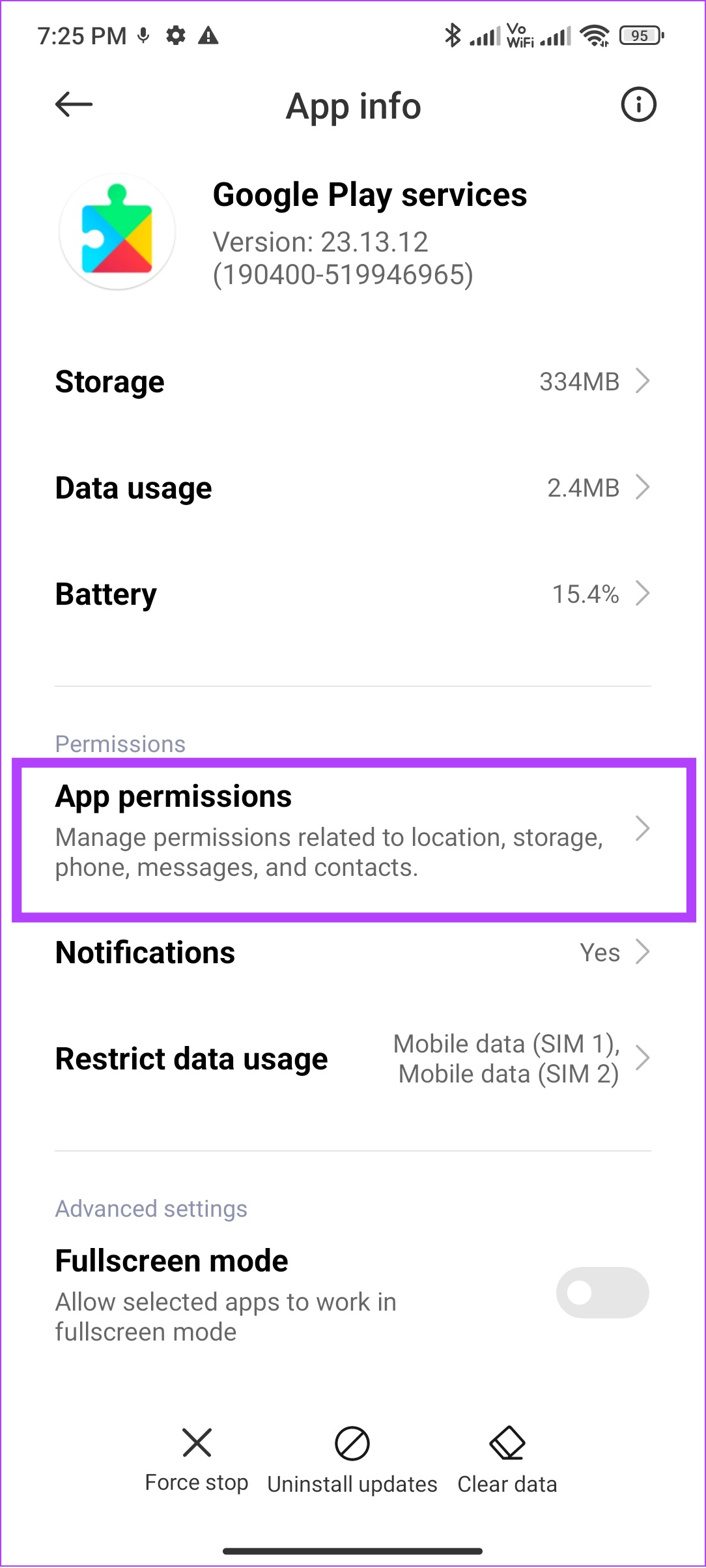
Step 1: Open the Settings app. Go to Apps > Manage apps . Find Google Play Store and Google Play Services from the list.
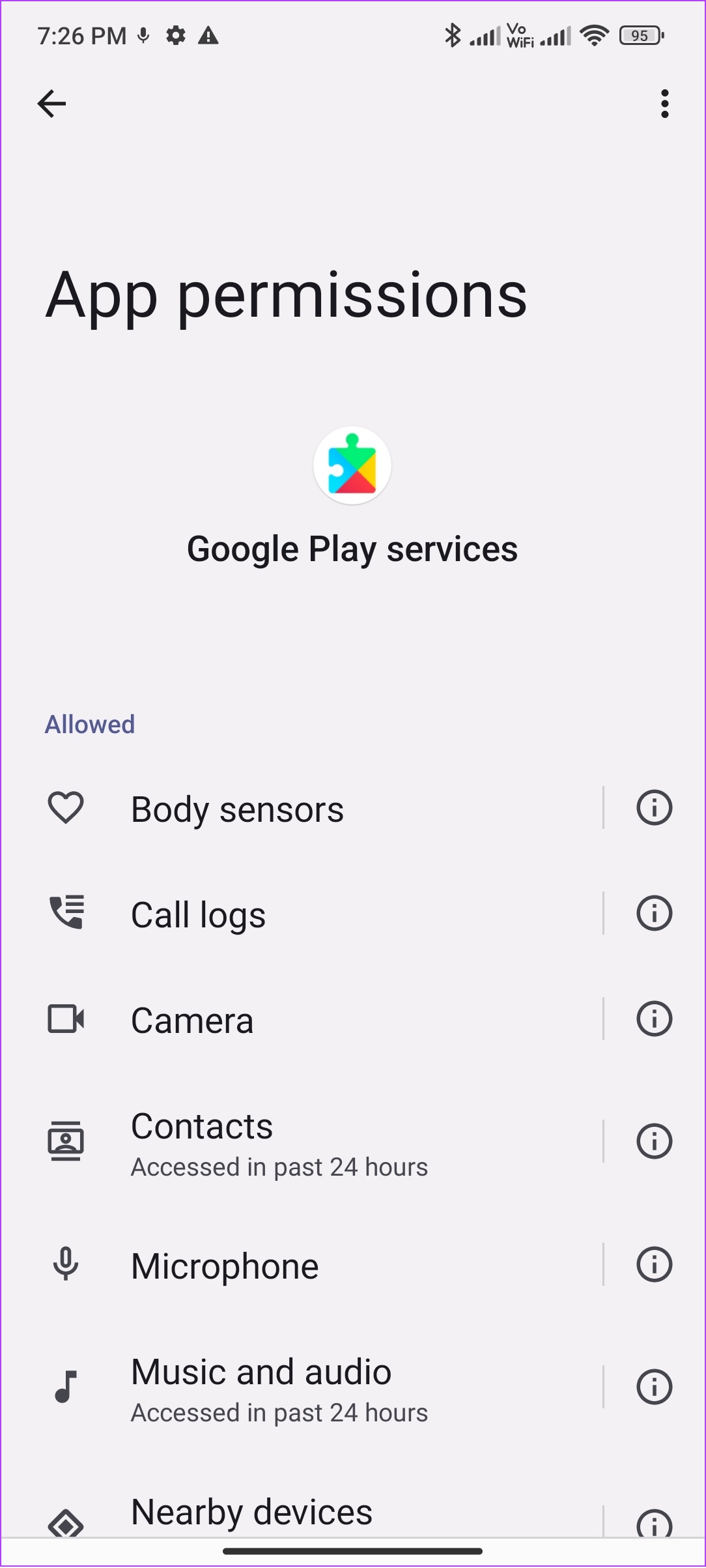
Step 2: For both apps, select App permissions and allow all the permissions in the next screen.
Fix 5: Update Play Store
Update the Play Store app to the latest version for a bug-free experience.
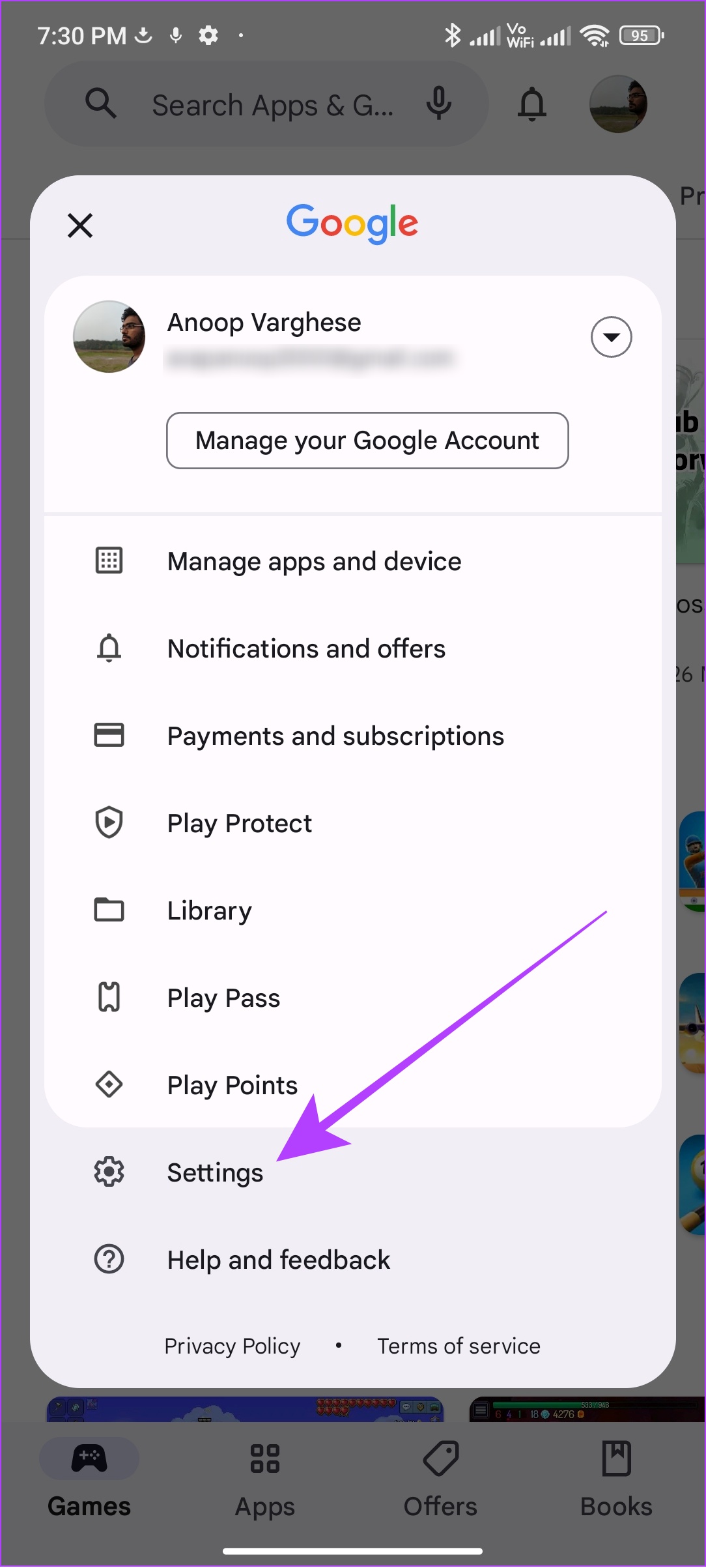
Step 1: Open Play Store and tap your profile picture icon at the top right corner.
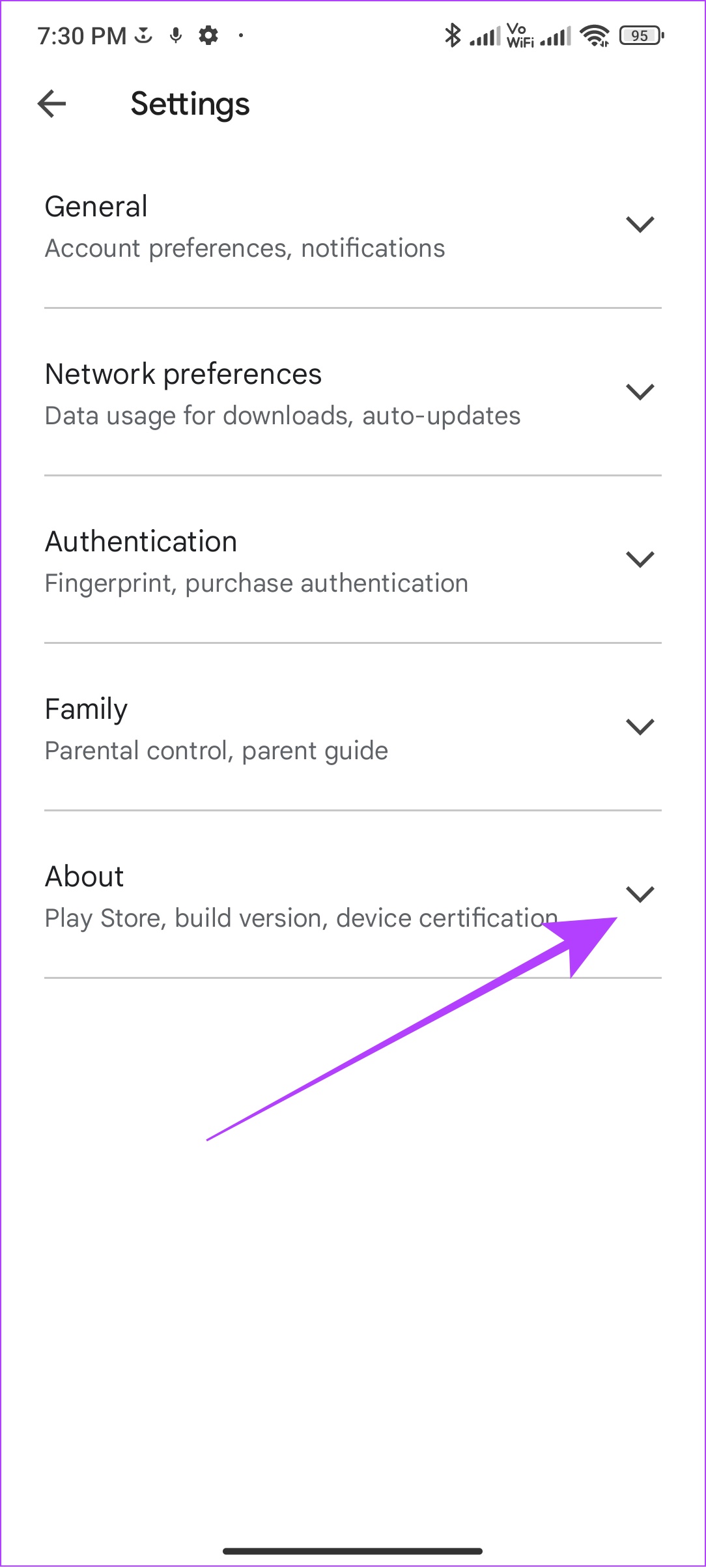
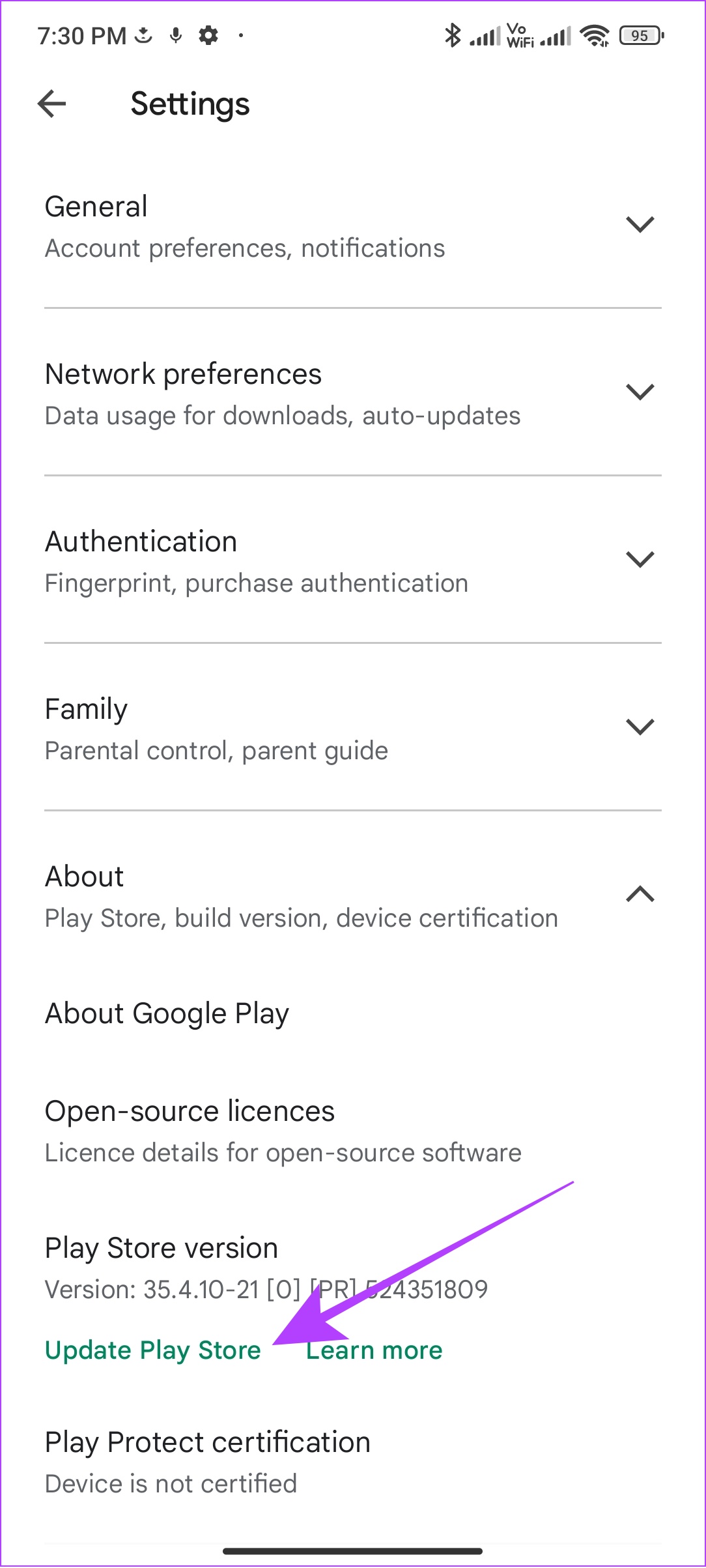
Step 2: Choose Settings and tap About . Tap Update Play Store under Play Store version .
Also Read: How to manually update Google Play Services .
Fix 6: Uninstall Updates for Play Store
On the other hand, a recent update may be causing issues with Play Store or Play Services. You can try uninstalling these updates – and the apps will revert to an older version.
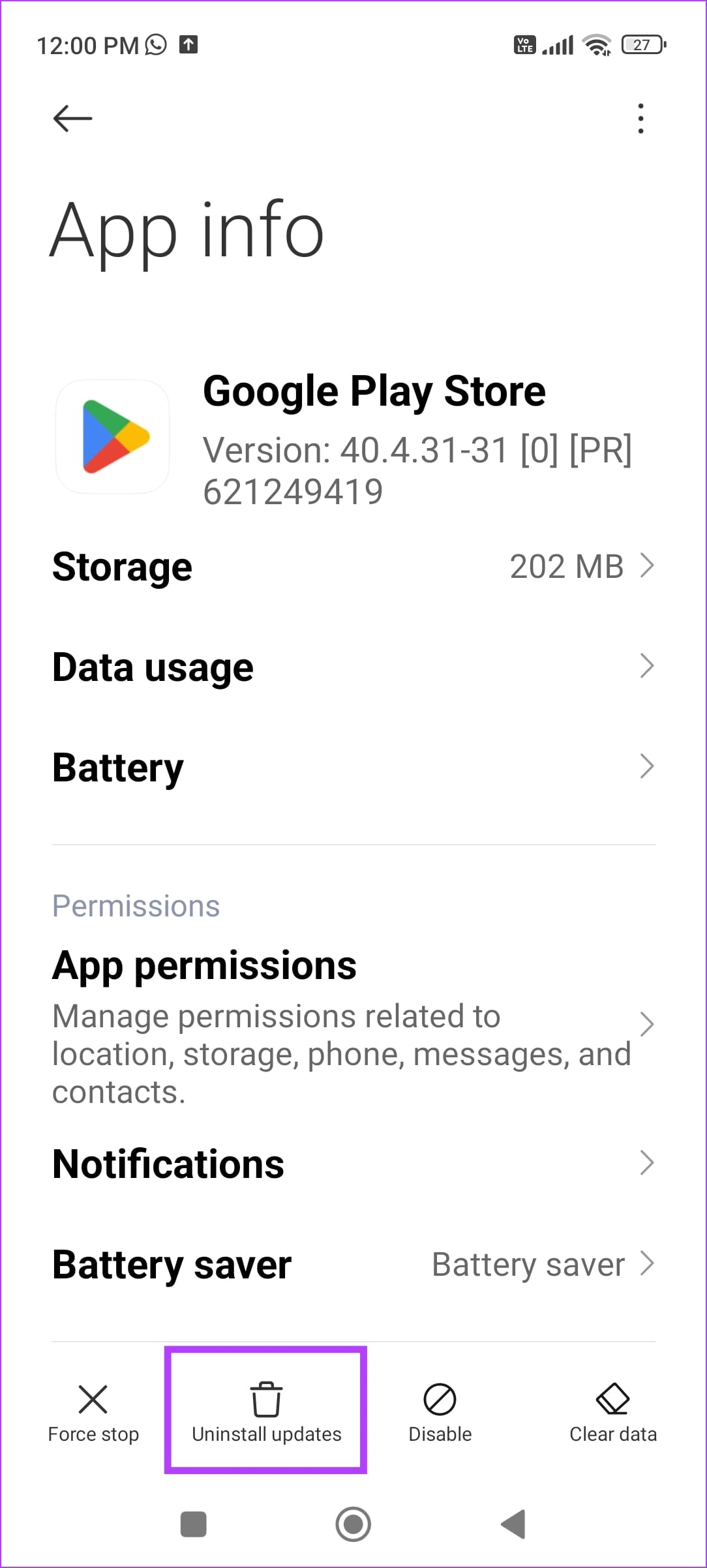
Step 1: Open the Settings app. Go to Apps > Manage apps . Find Google Play Store and Google Play Services from the list. If you don’t find them, open the list that says System Apps.
Step 2: Select Uninstall Updates .
Wait for the process to complete, and then both these apps will get updated to the latest version in the background.
Was this helpful?
Submit Cancel
Thanks for your feedback!
Keep reading