Android
5 Ways to Fix Voice-to-Text Not Working on Android
Voice-to-text not working on Android can prevent you from typing by speaking into the phone. Here are the best ways to fix the issue.
By Parth Shah
Quick Fixes
Clean your device’s microphone for better voice input.
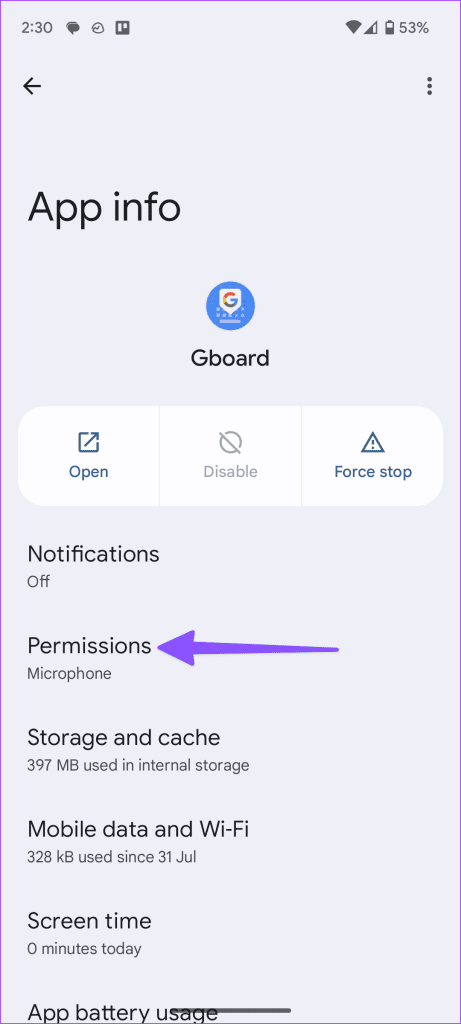
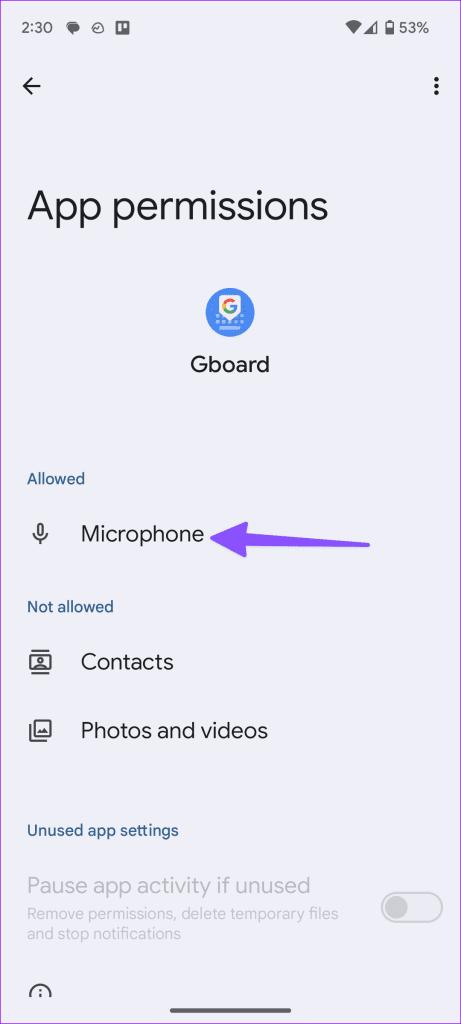
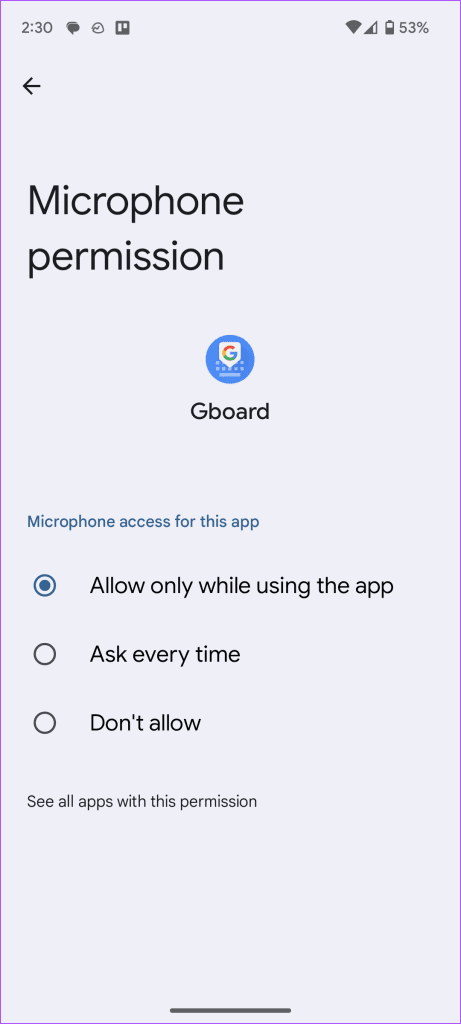
Verify microphone access for Gboard under App info > Permissions > Microphone .
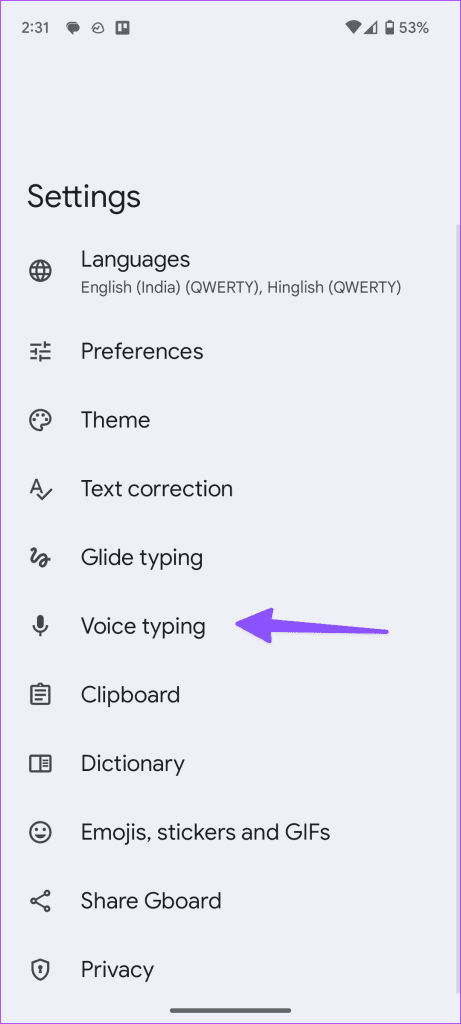
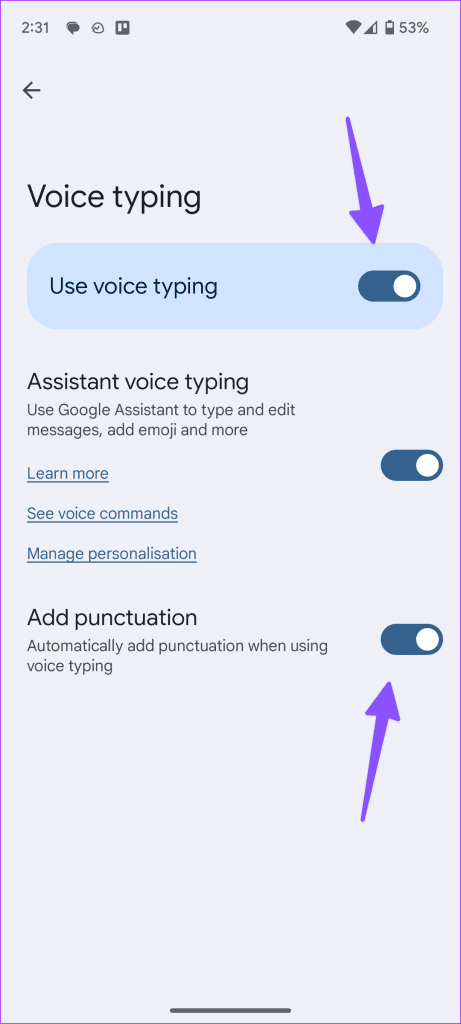
Enable voice typing under Gboard settings > Voice typing .
Basic Fixes
Enable system-wide microphone access – Go to Settings > Security and Privacy > enable Microphone access .
Force stop Gboard and reopen – Open Android settings, locate Gboard among installed apps, open the app, and tap Force Stop .
Update Gboard – Head to Google Play Store, search Gboard , and tap Update .
Fix 1: Verify Microphone Permissions for the App
If you have denied microphone permissions for a specific app, it can’t detect your voice and convert it into text. Enabling the required permission should fix it.
Step 1: Long-press the app icon to open App info, select Permissions , and tap Microphone .
Step 2: Set Microphone access to Allow only while using the app .
Fix 2: Enable Voice Typing
If voice typing is disabled in your device’s keyboard such as Gboard, you won’t be able to use its Voice-to-text feature. Head to Gboard settings to enable it.
Step 1: Open Gboard, tap its menu in the top left, and press the Settings gear icon.
Step 2: Select Voice typing and enable its toggle. Additionally, turn on the Add punctuation feature if available.
Fix 3: Temporarily Disable Multilingual Typing in Gboard
Turning off the multilingual typing in Gboard temporarily is another effective technique to fix Voice-to-text related issues on Android.
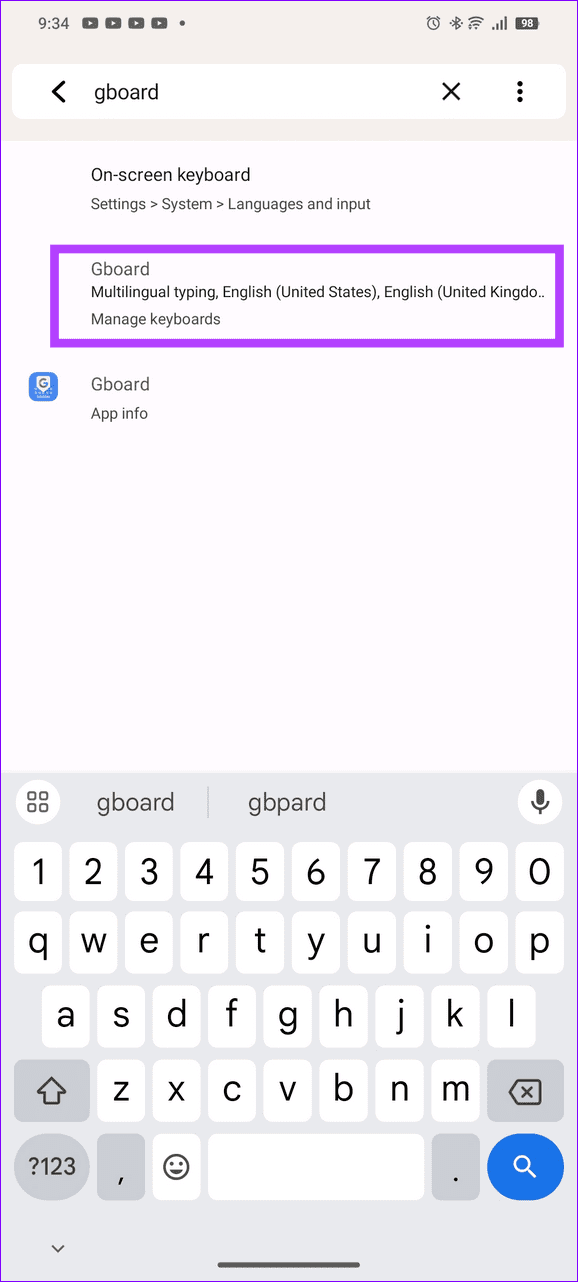
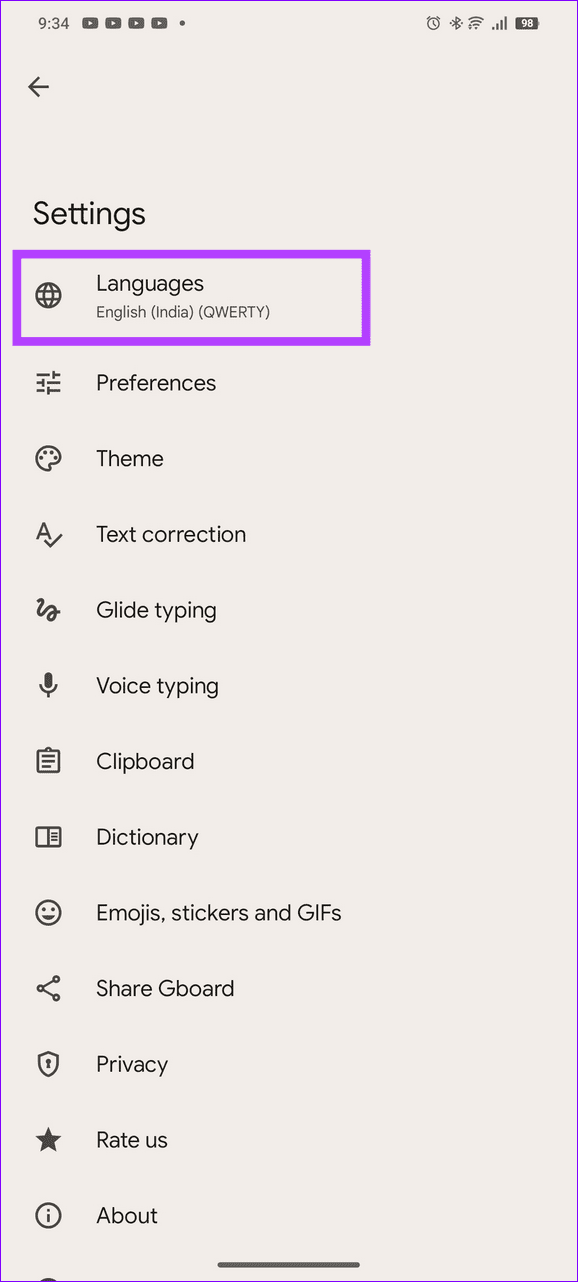
Step 1: Open Gboard settings, tap Languages , and select your preferred language.
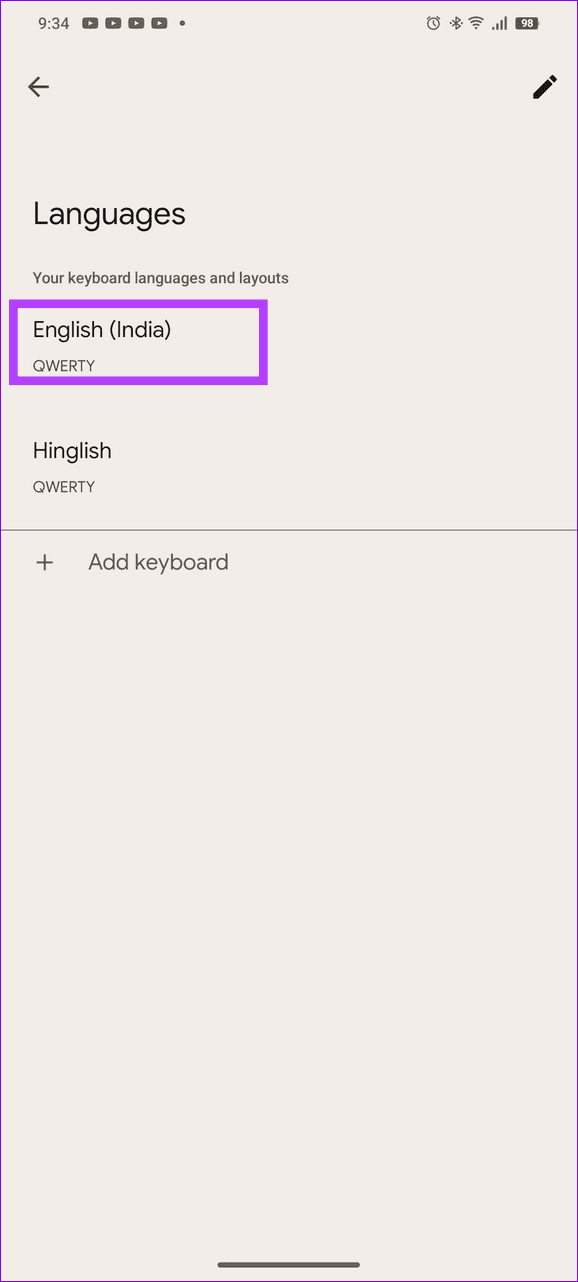
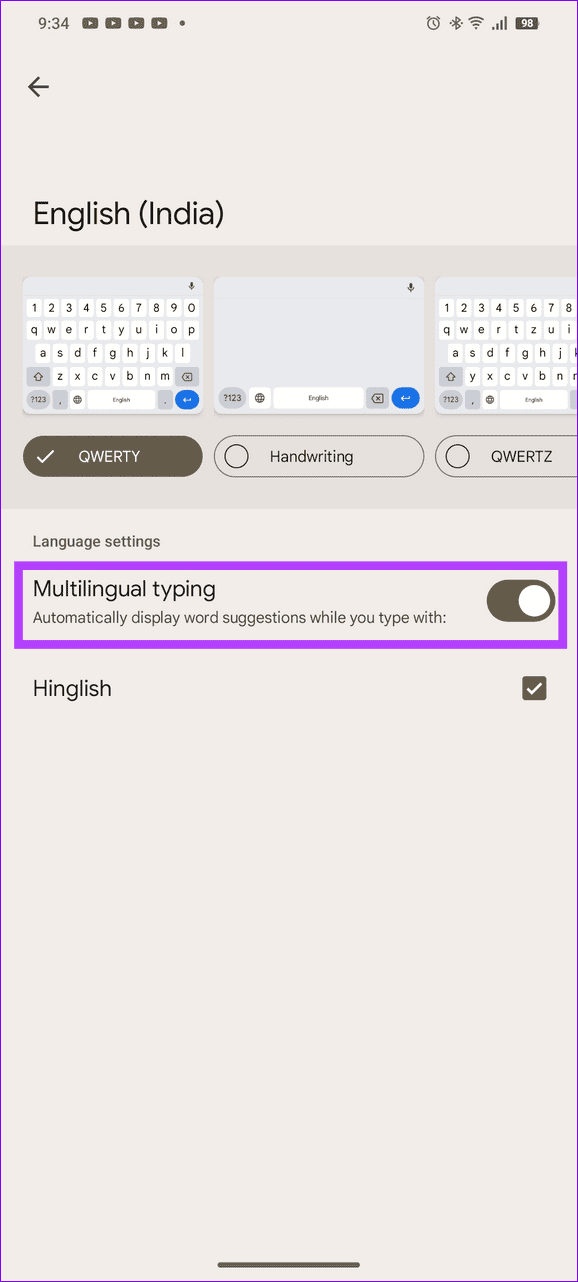
Step 2: Toggle off Multilingual typing .
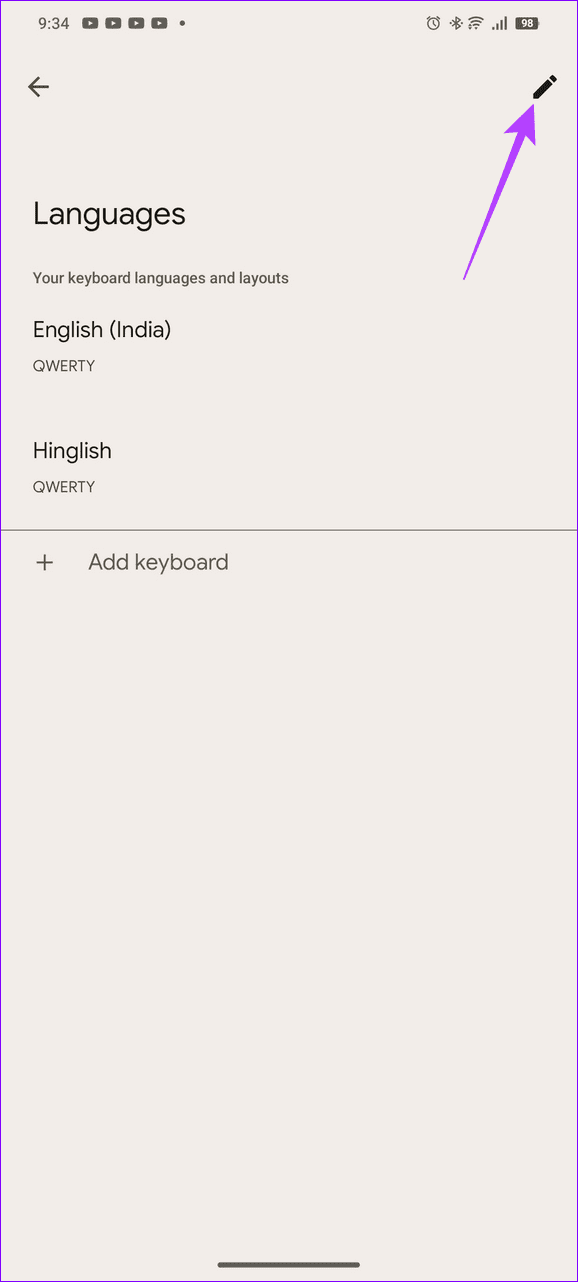
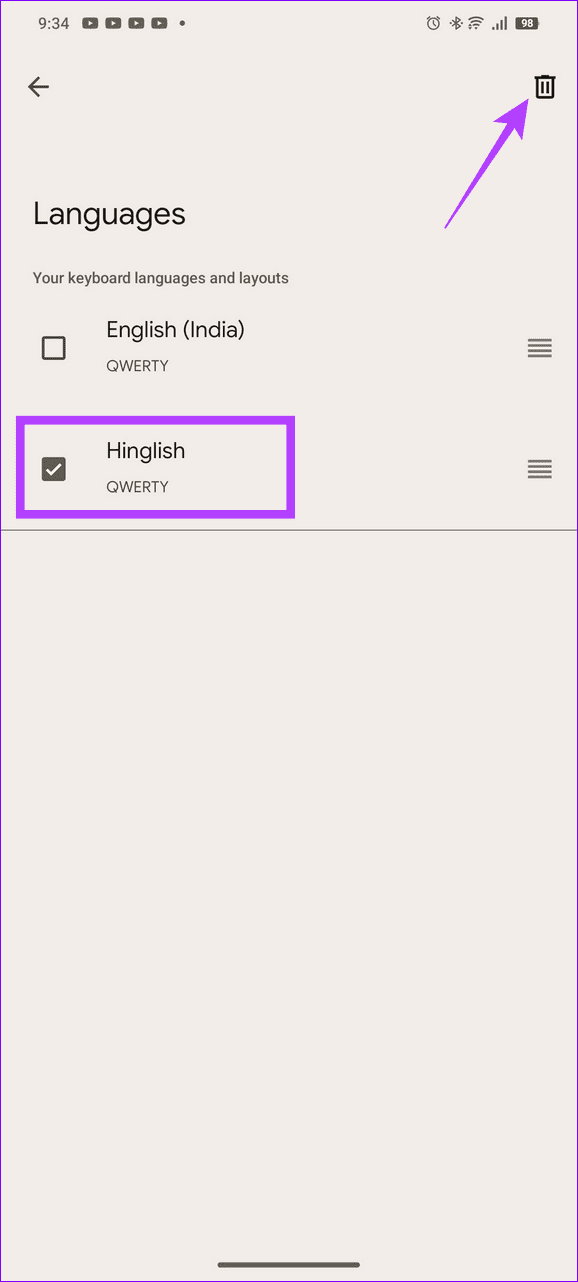
Step 3: Alternatively, tap the Pencil icon in the top right, and select the secondary language to delete it. This will disable the Multilingual typing support.
Fix 4: Download Languages for Better Voice Typing
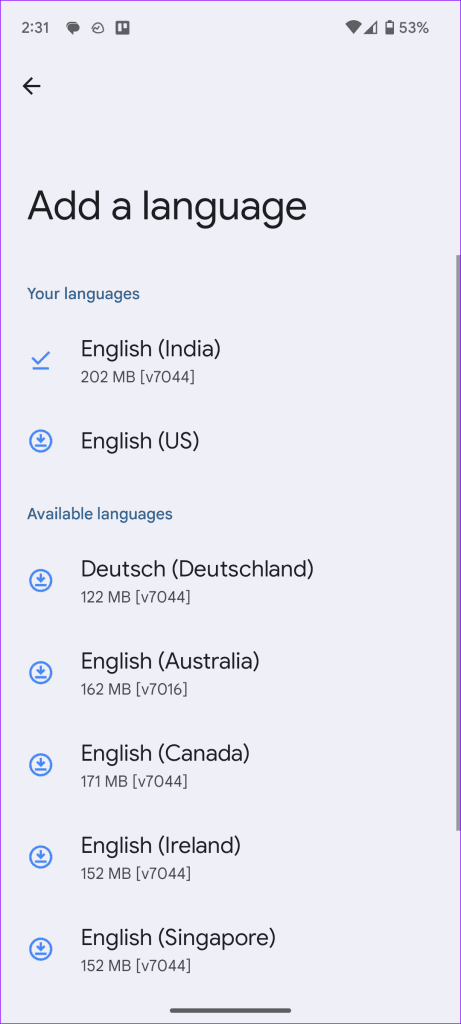
You should download speech recognition languages when using Gboard to improve voice typing and fix voice-to-text issues in low network strength areas.
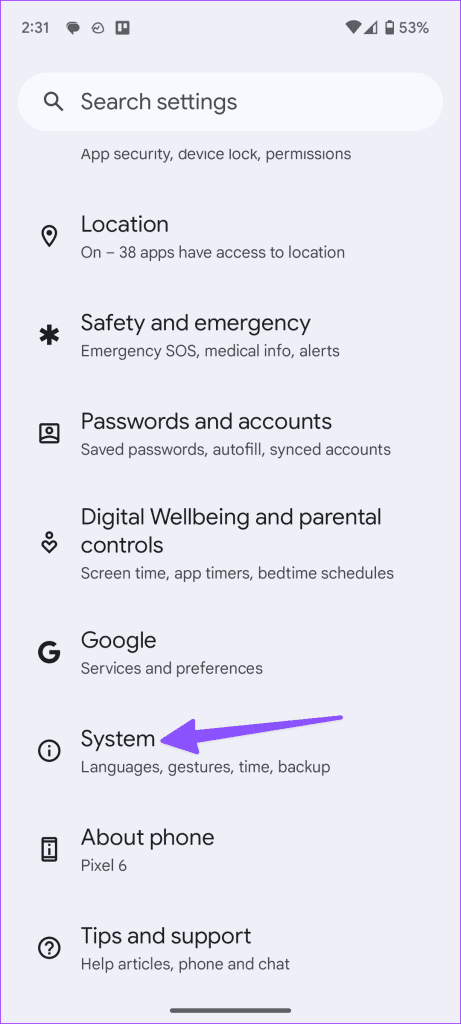
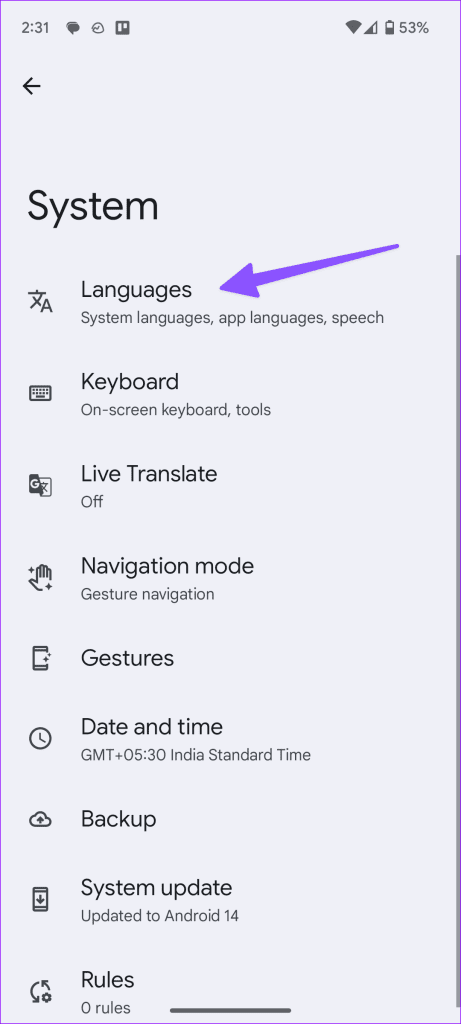
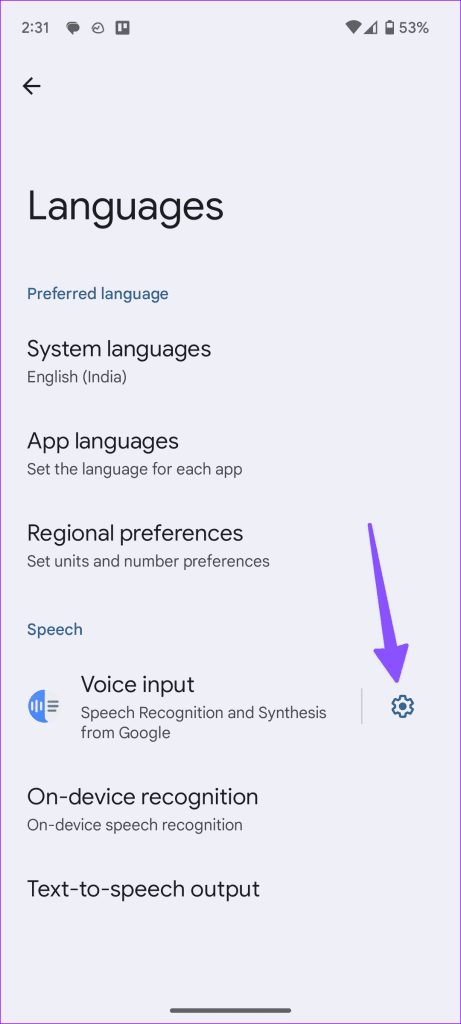
Step 1: Open Android settings, tap System , and press Languages .
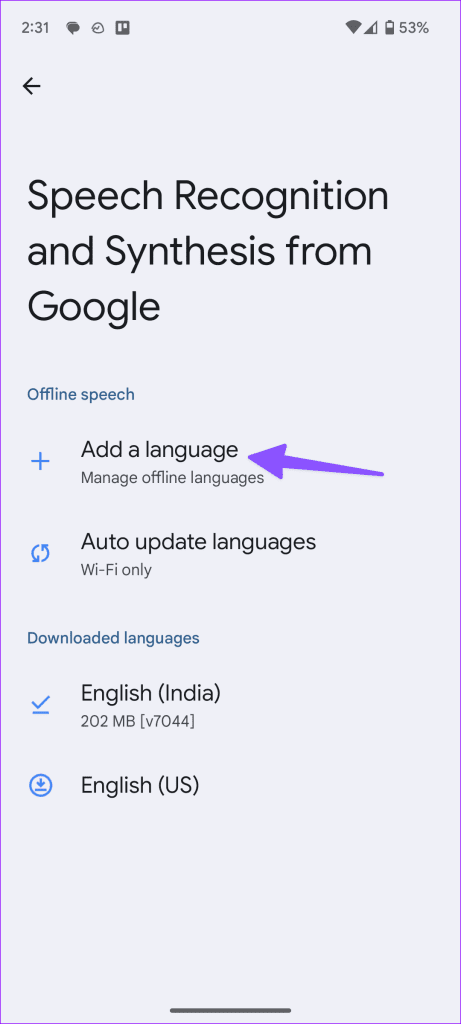
Step 2: Tap the Settings gear beside Voice input and press Add a language . Download relevant voice packs for a better voice typing experience.
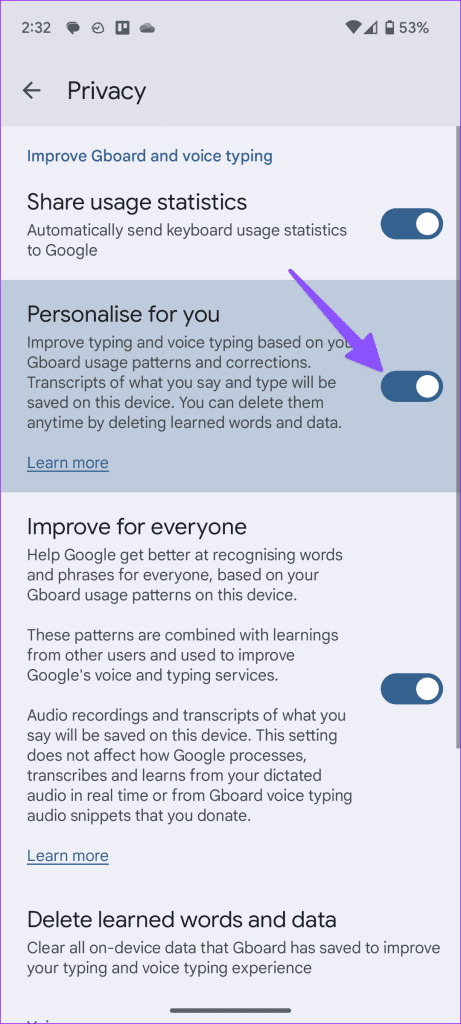
Fix 5: Turn On Personalization for Voice Typing
Enabling personalization for voice typing fine-tunes it and improves voice detection by analyzing your Gboard usage pattern and corrections, fixing existing voice-to-text issues.
Note: This feature may be unavailable on certain Android smartphones. Update Gboard from the Google Play Store.
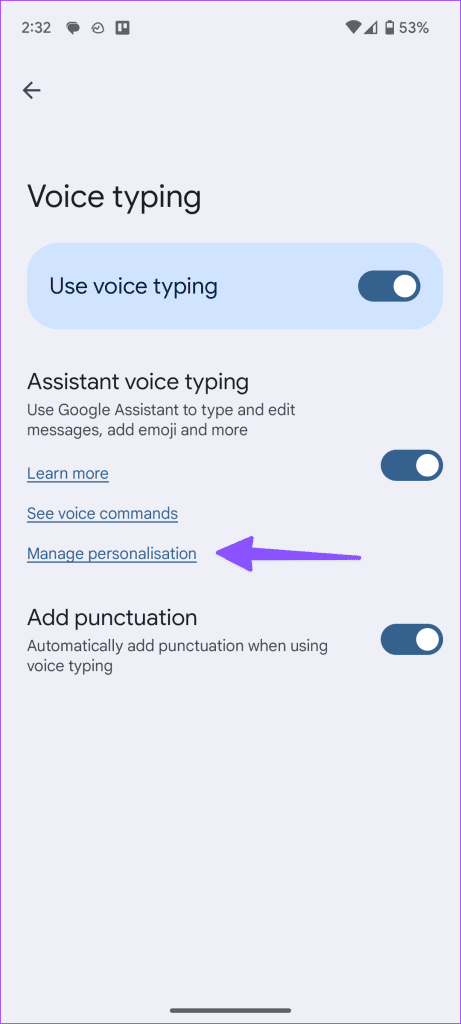
Step 1: Open Gboard settings, select Voice typing , and tap Manage personalization .
Step 2: Enable the Personalize for you toggle.
Was this helpful?
Submit Cancel
Thanks for your feedback!
Keep reading