Android
5 Ways to Fix Android Phone Automatically Turning Down Volume
Does volume keep going down automatically on Android? Here's how to fix volume keeps going up/down on Android.
By Parth Shah
Quick Tips
Go to Settings > Sound and Vibration and adjust the volume levels.
Disable any volume limitation settings inside the Sound and Vibration menu.
Check if your phone case is automatically clicking the volume buttons.
Basic Fixes
Restart device: Restart your Android device to get rid of temporary bugs and glitches.
Remove phone case: Check if your phone case is pressing the physical buttons and automatically turn the volume up and down
Check headphone controls: If you’ve connected to a pair of headphones/earphones, check if the volume buttons are being accidentally pressed.
Fix 1: Understand Sound Profiles
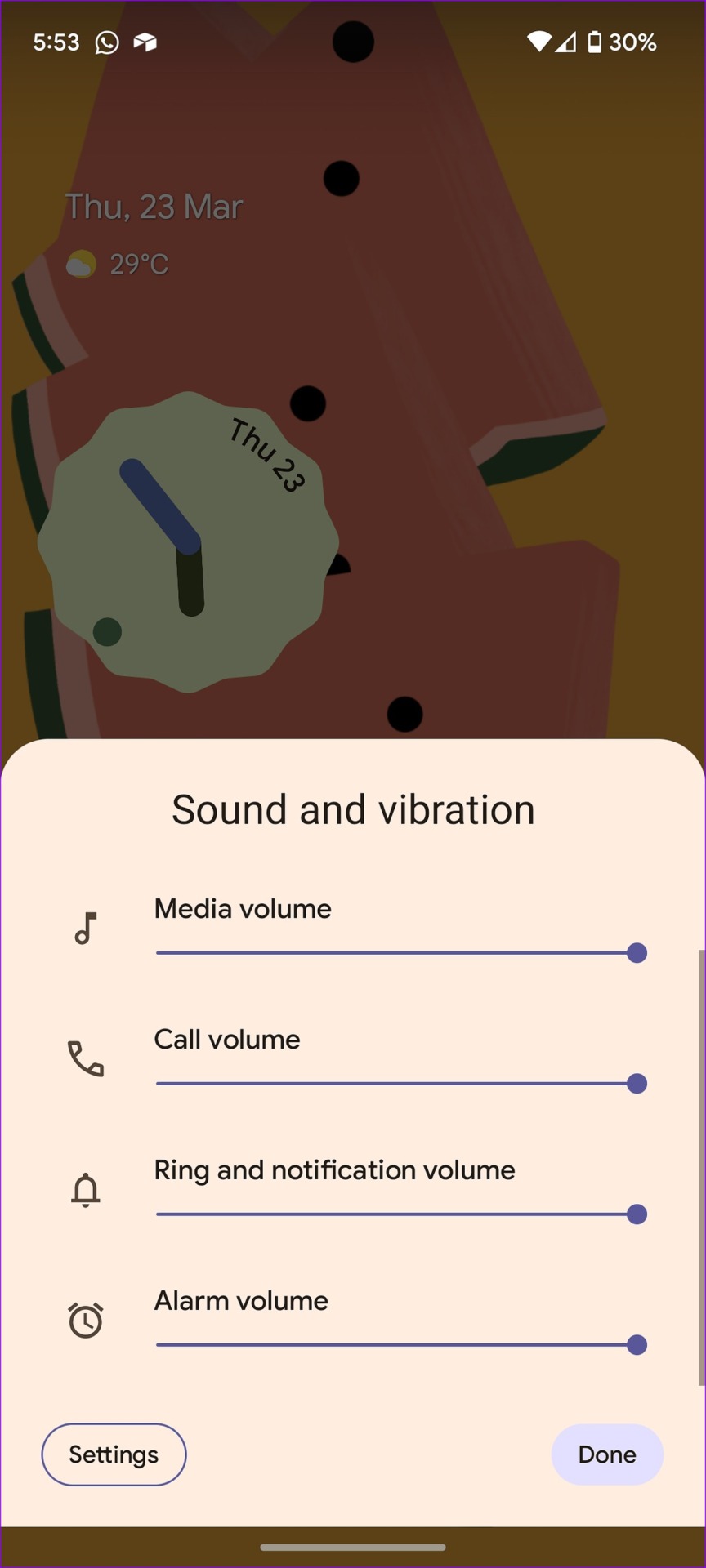
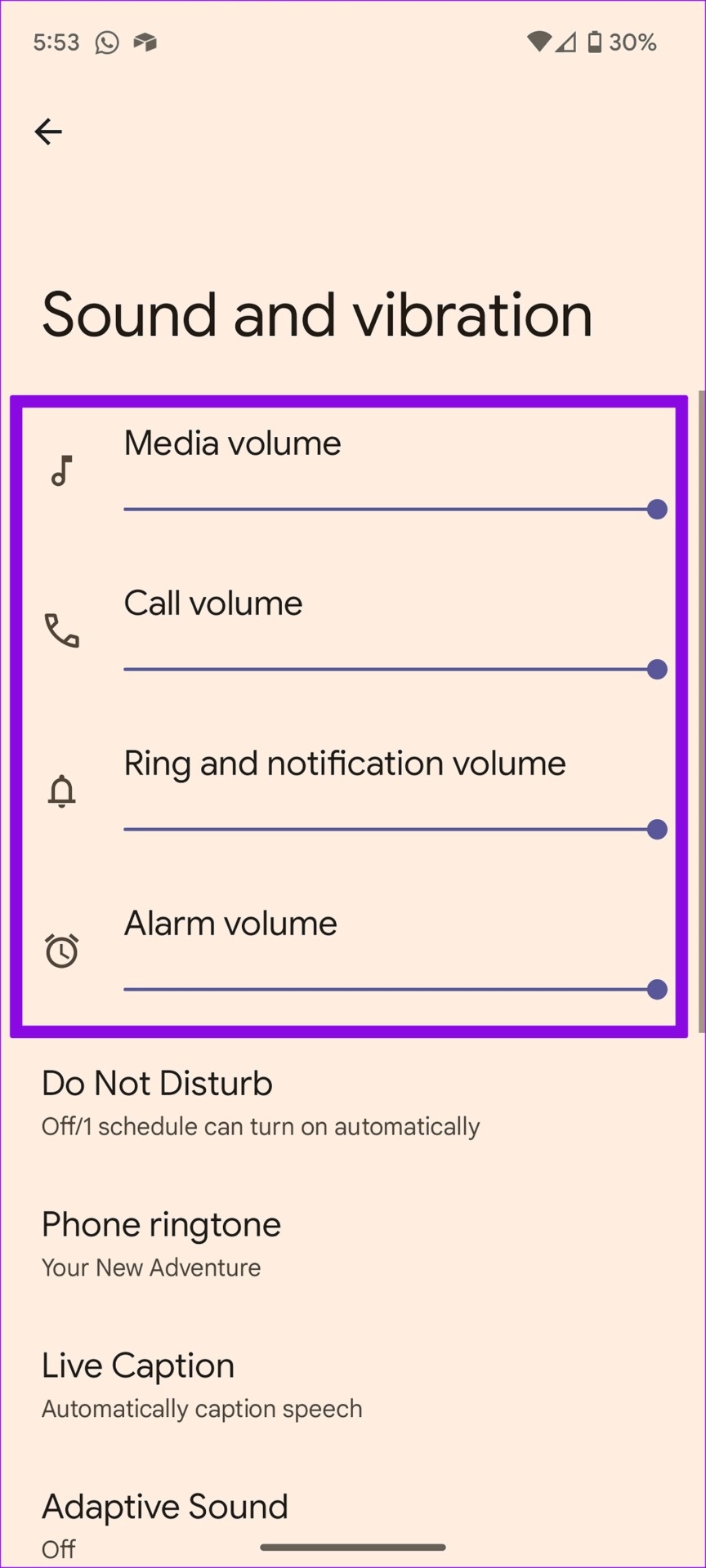
You can keep a separate volume for media, calls, notifications, and alarms. If you have turned down the volume for incoming calls or media, make the necessary changes.
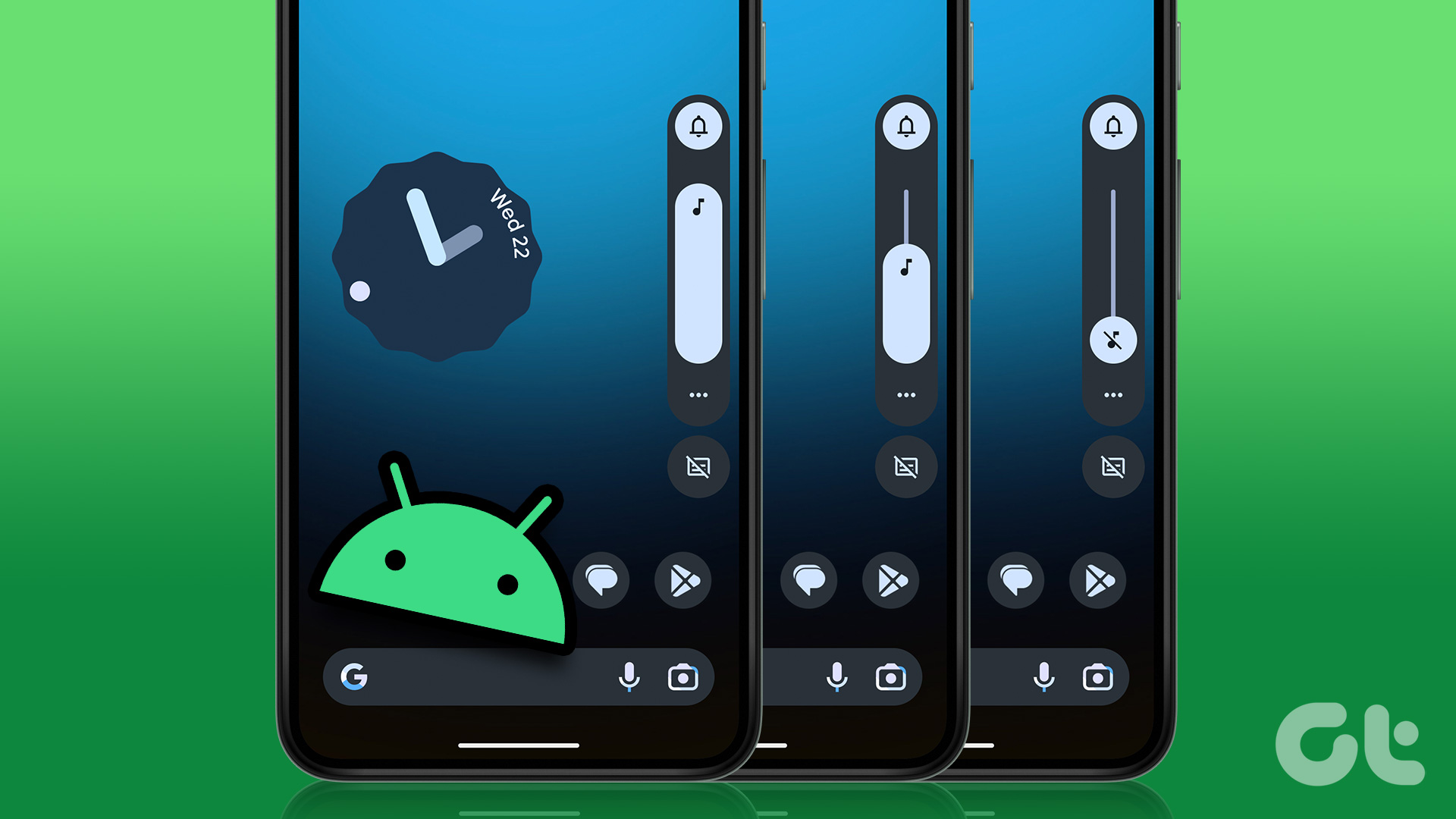
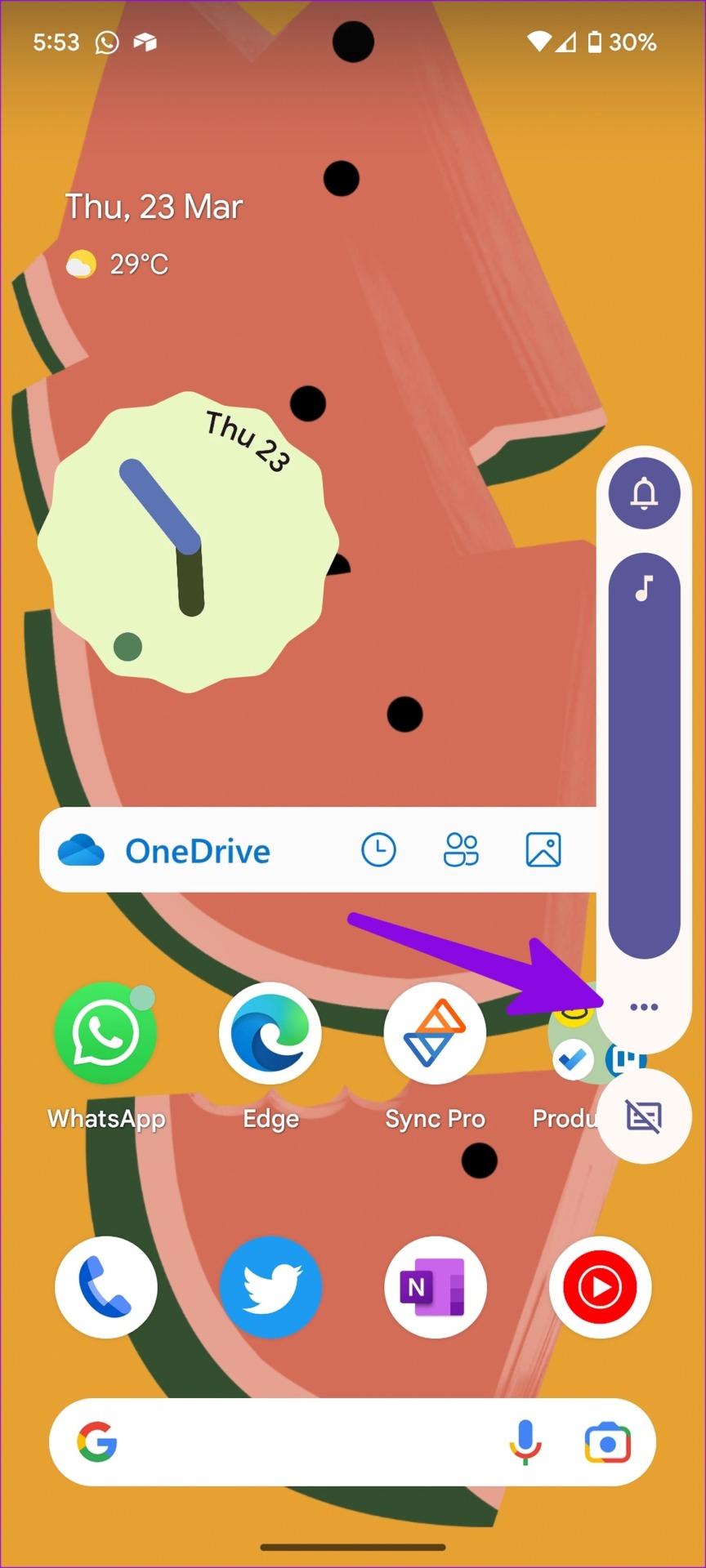
Press any volume button to open a small sound menu. Select the three dots menu to open the familiar Sound & vibration menu.
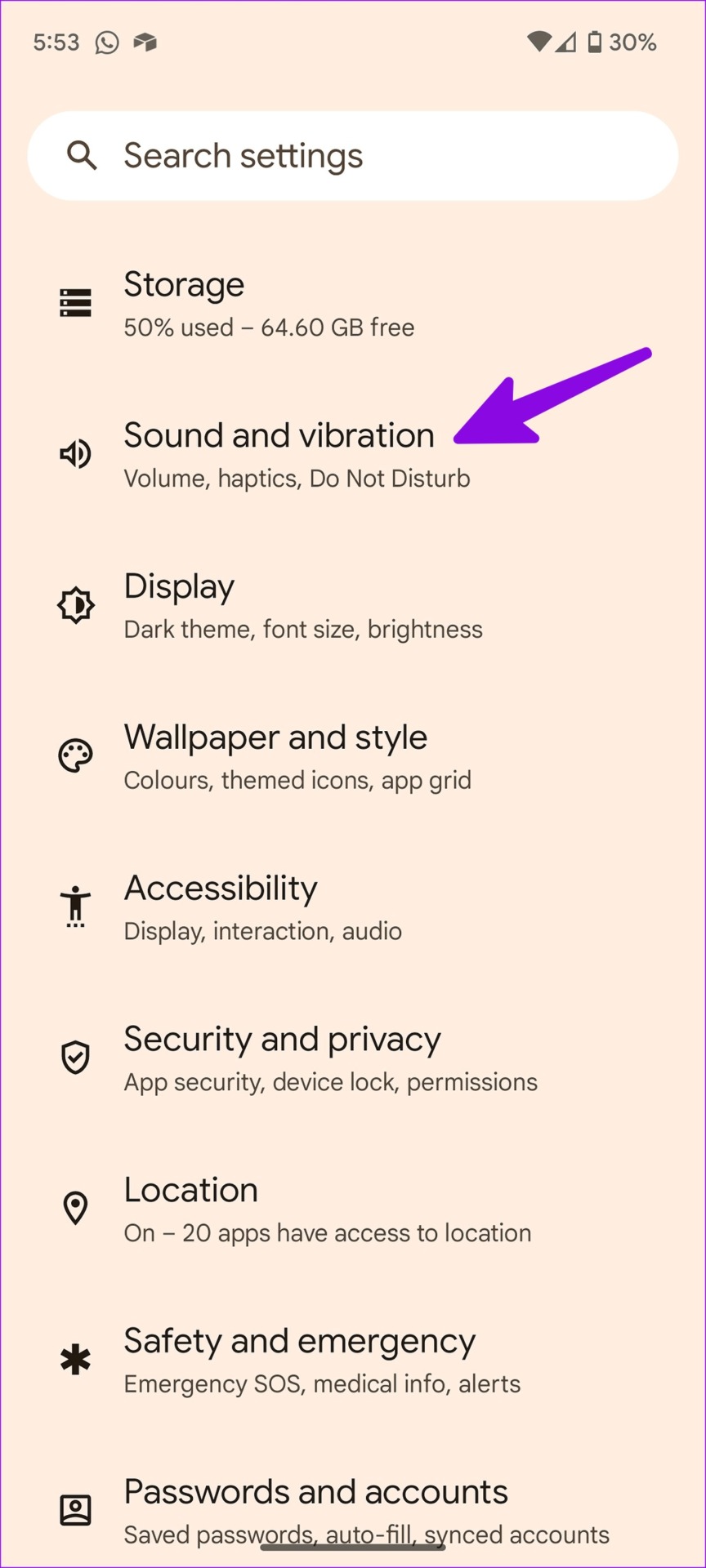
Alternatively, you can also go to Settings > Sound and Vibration , and use the slider to adjust the volumes.
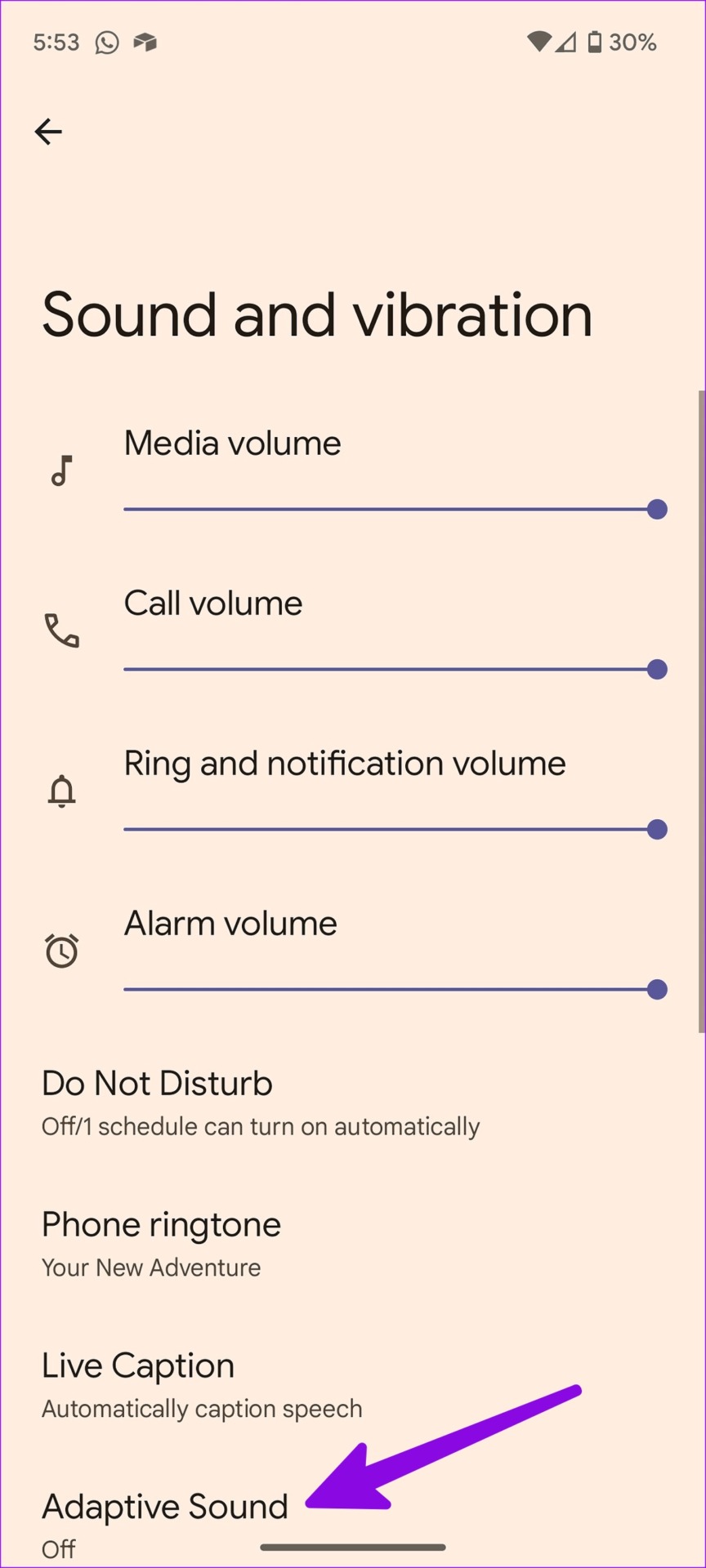
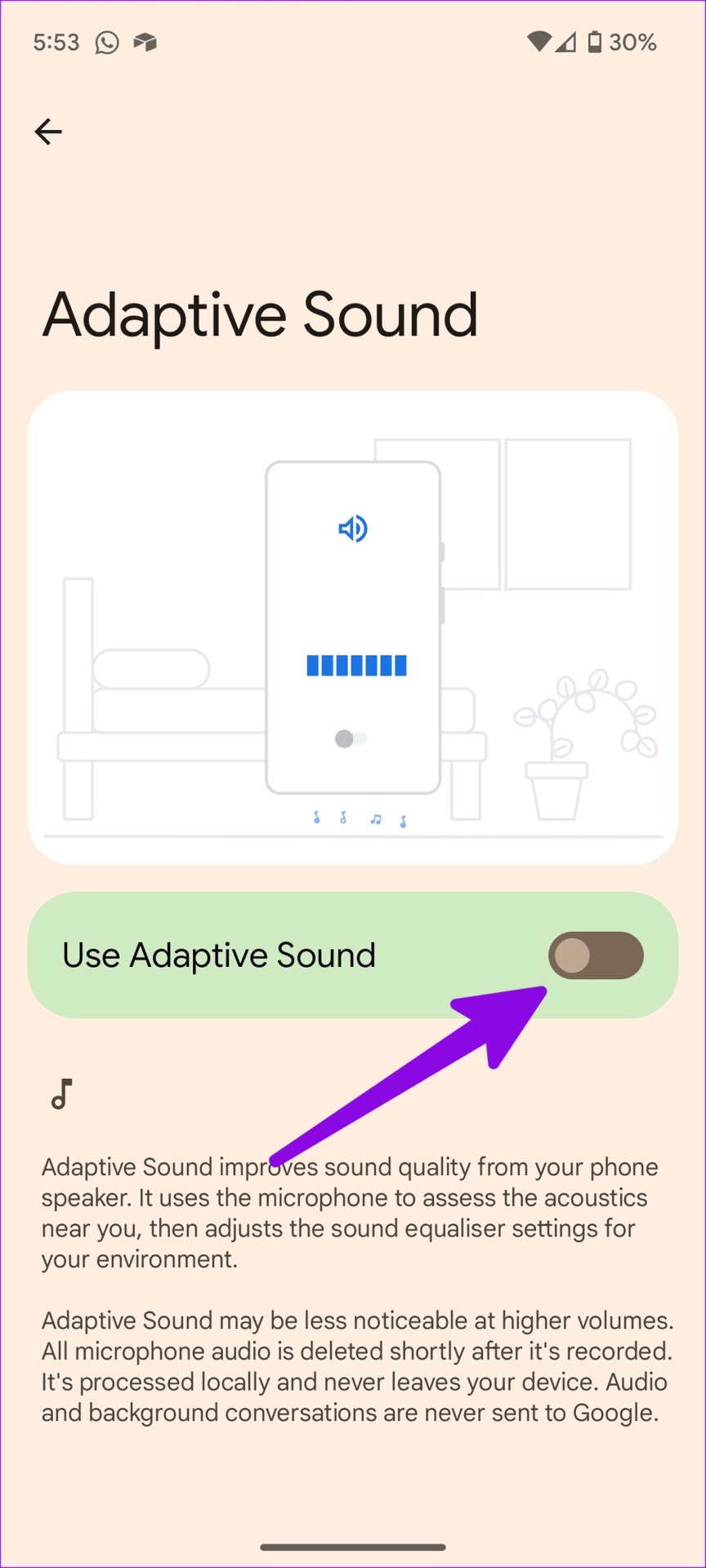
Fix 2: Disable Adaptive Sound
Adaptive sound improves sound quality by using the microphone to access the acoustics near you. The function adjusts the sound equalizer settings for your environment. It can be the reason if the volume keeps going down automatically.
Open the Settings app > Sound and Vibration> Adaptive Sound and turn it off.
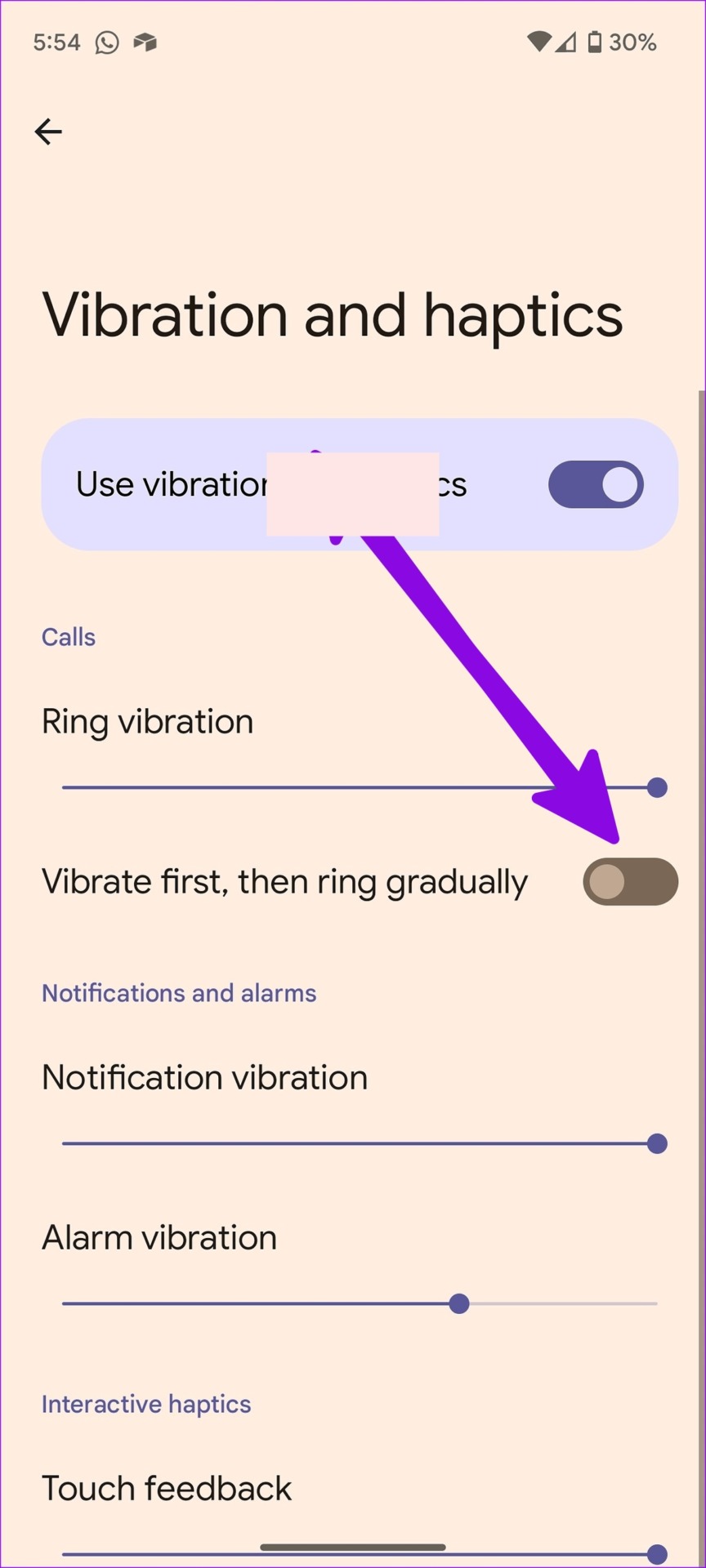
Fix 3: Disable Ring Gradually
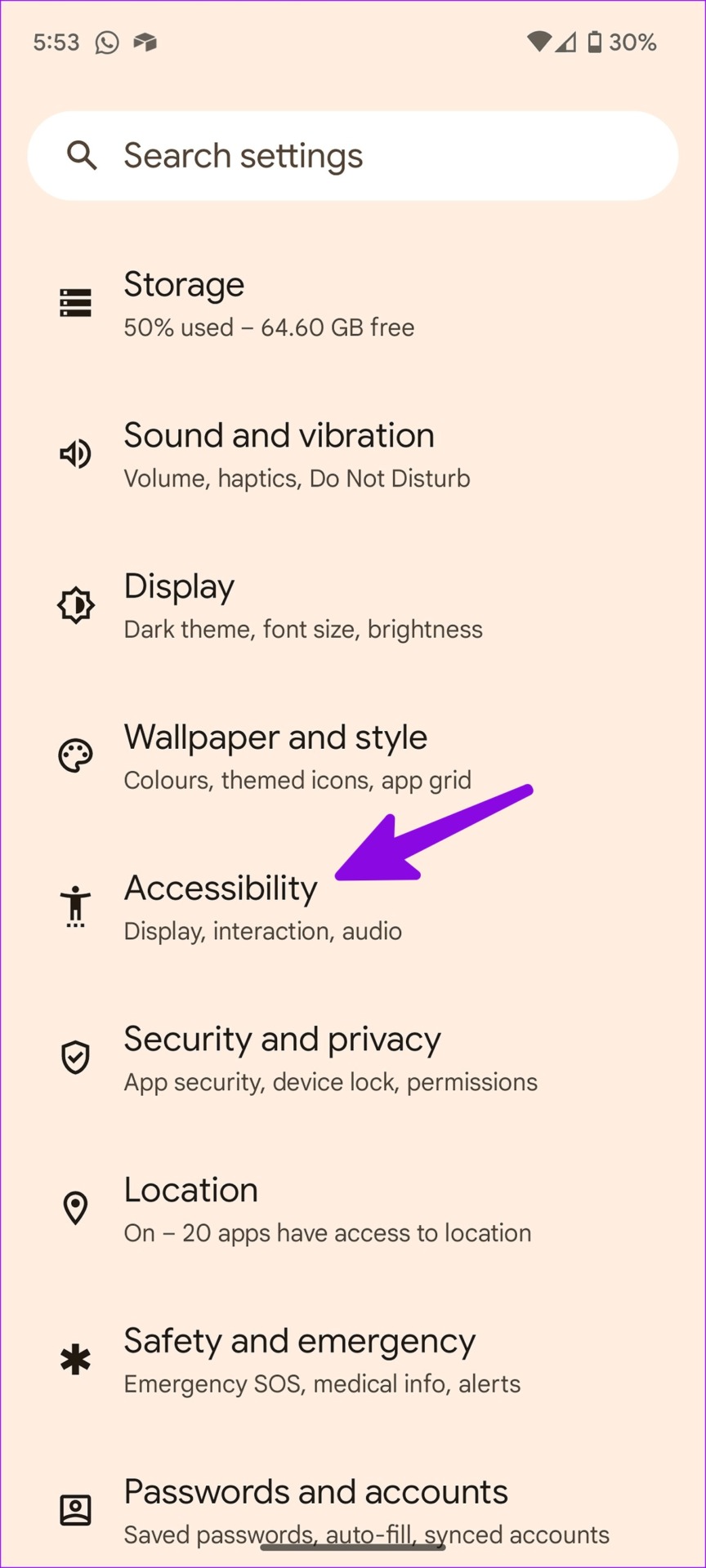
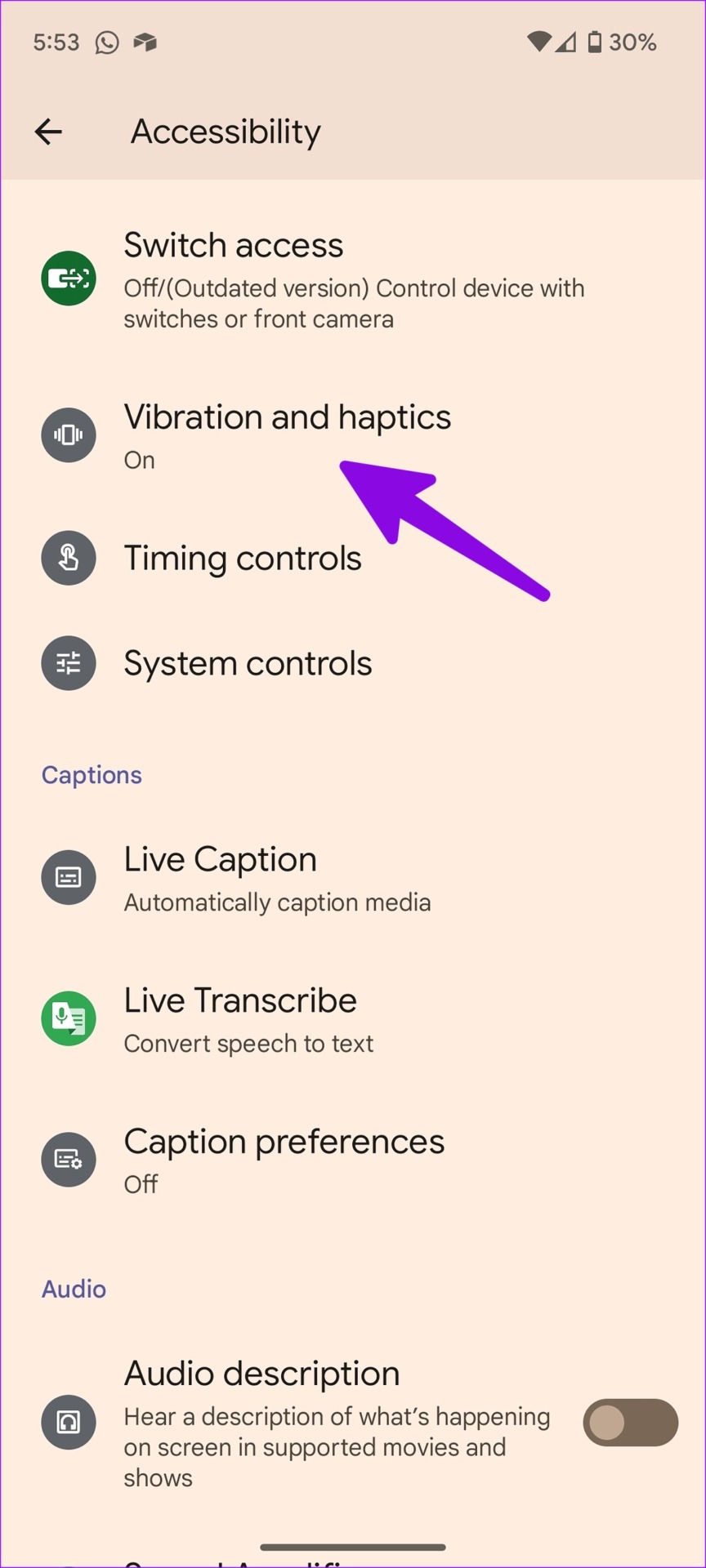
If enabled, your Android phone begins to vibrate for an incoming call, starts ringing with a low volume, and gradually increases it. To disable it, go to Settings > Accessibility > Vibration and Haptics and turn it off.
Fix 4: Disable Routines on Samsung Phones
Samsung’s One UI has modes and routines to automate tasks on your Galaxy phone . If a specific routine is turning down the volume, you need to edit or delete it.
For example, you may have created a routine to reduce the volume at night, during work hours, or when you reach the office. Here’s how you can edit or delete such routines.
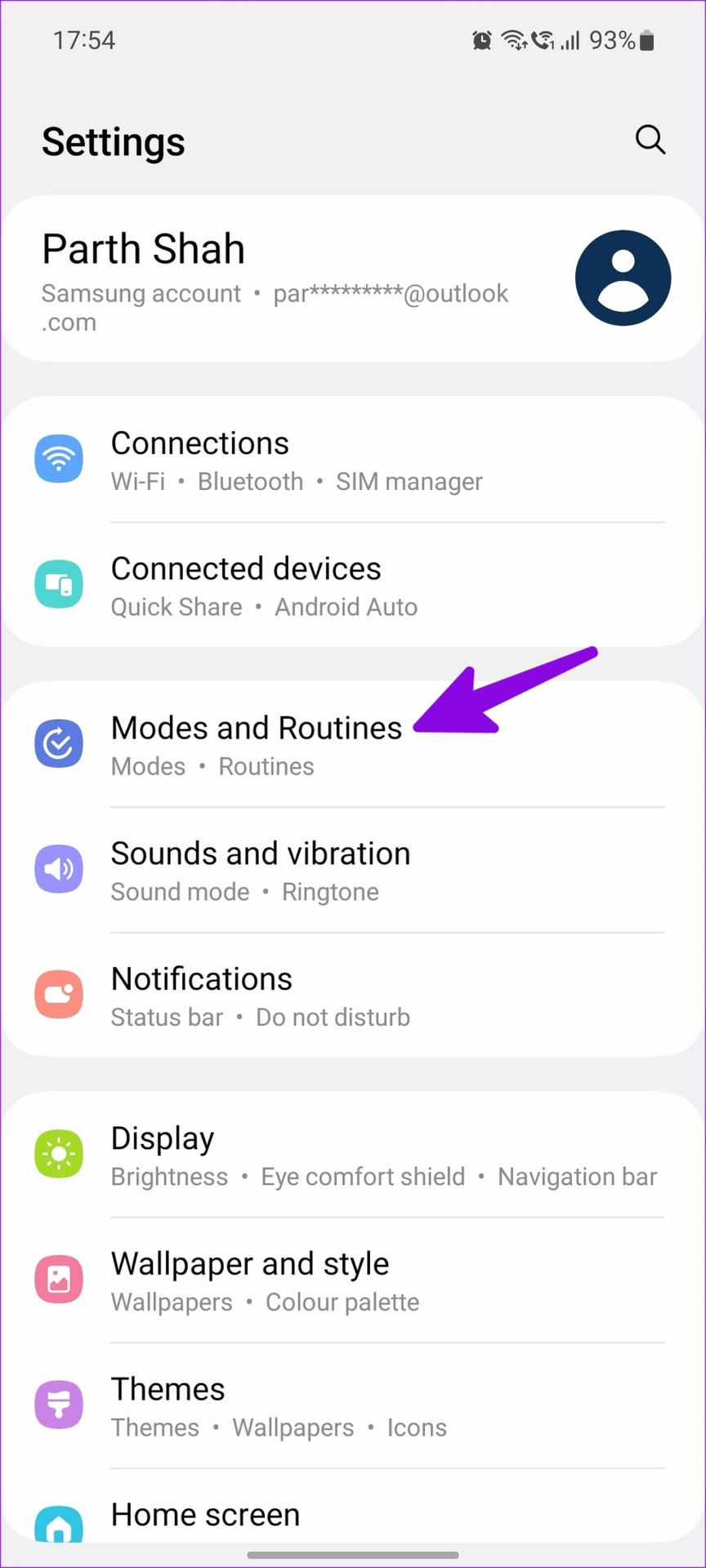
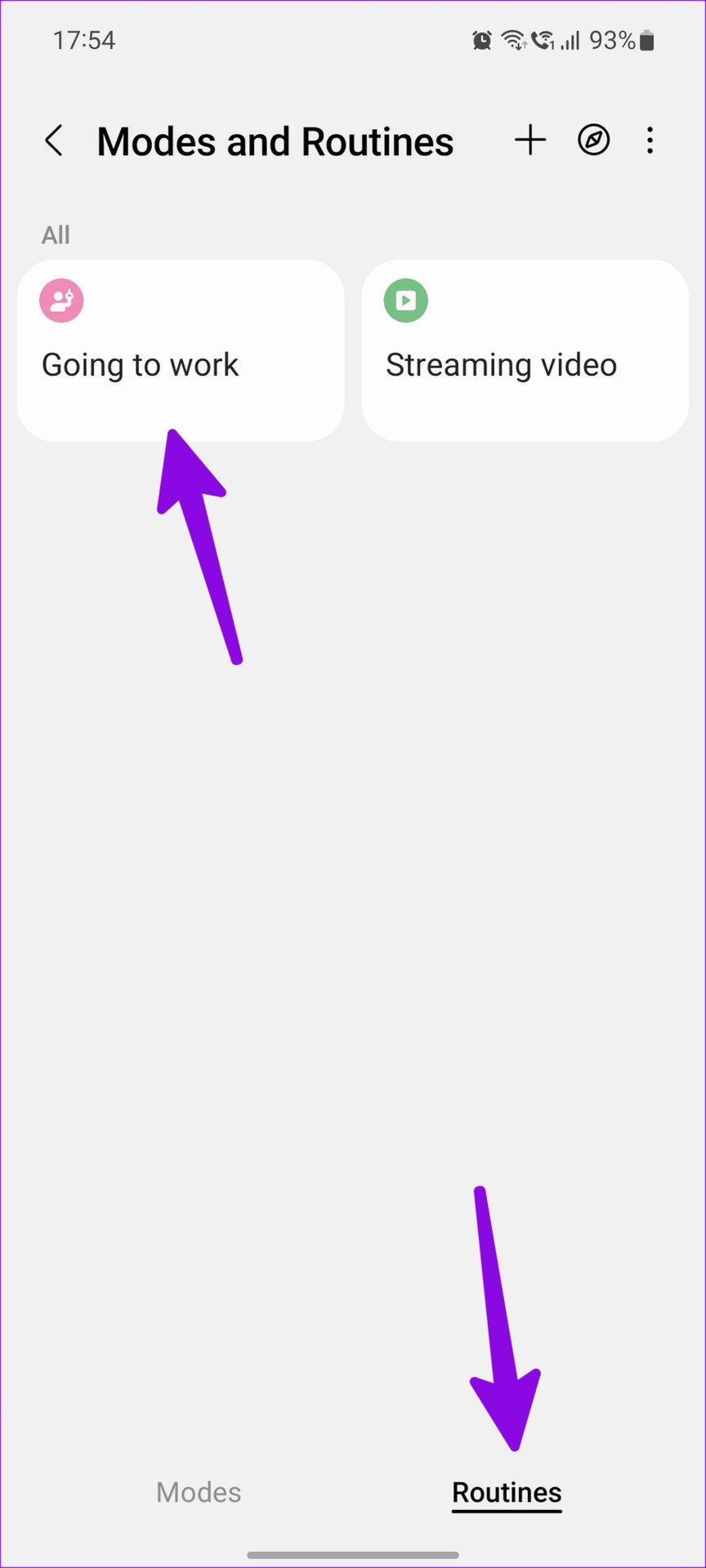
Step 1: Open the Settings app, select Modes and Routines, and go to the Routines tab.
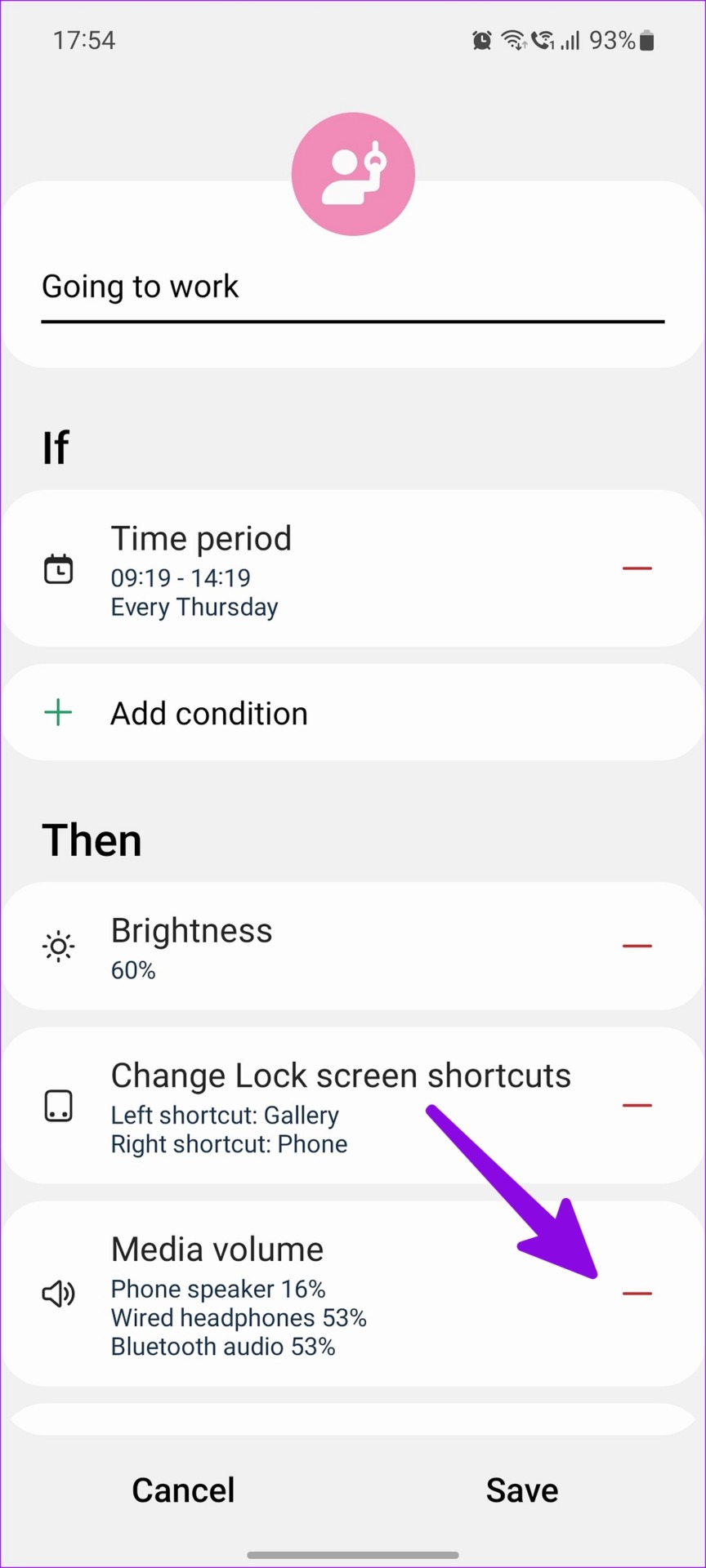
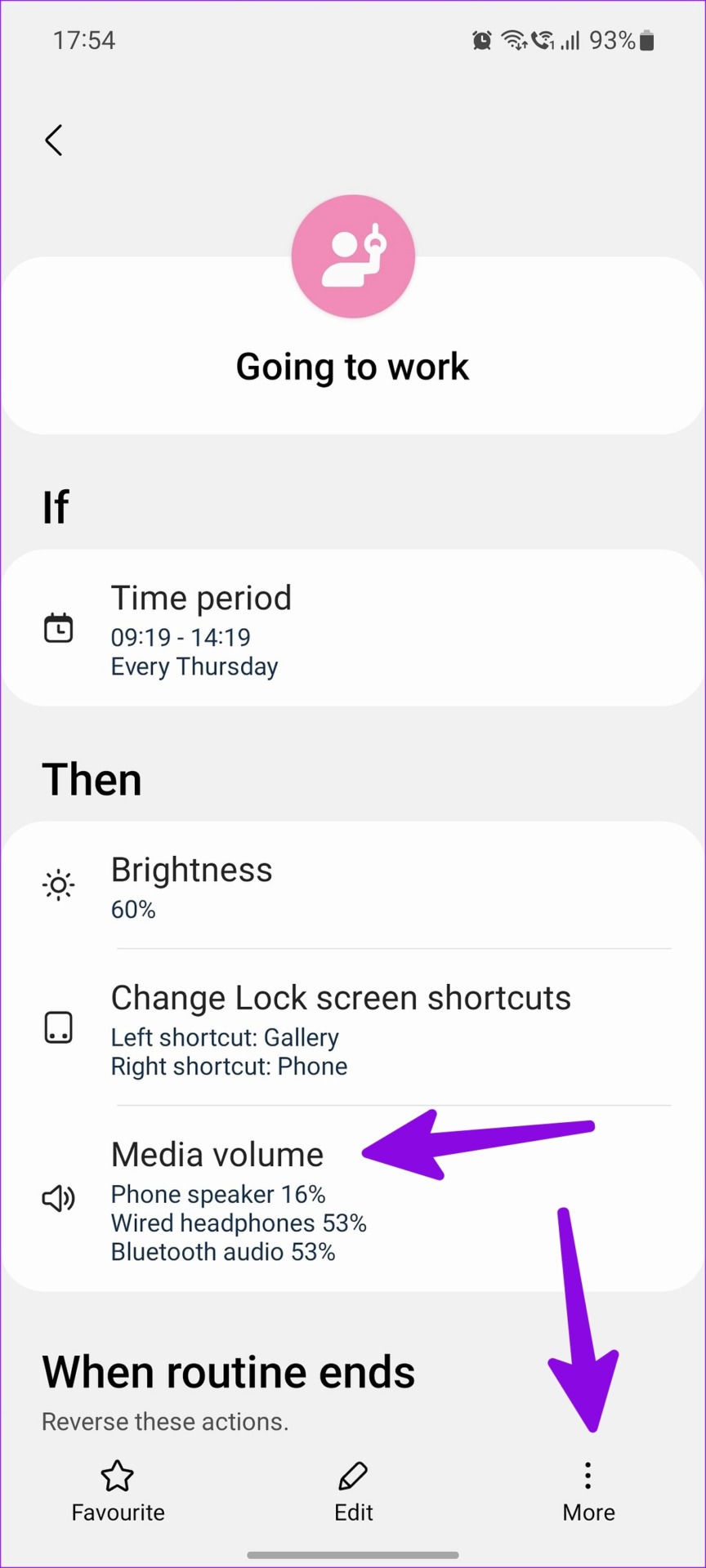
Step 2: Select a routine and check the conditions. If it’s turning up or down volume levels, hit the edit button.
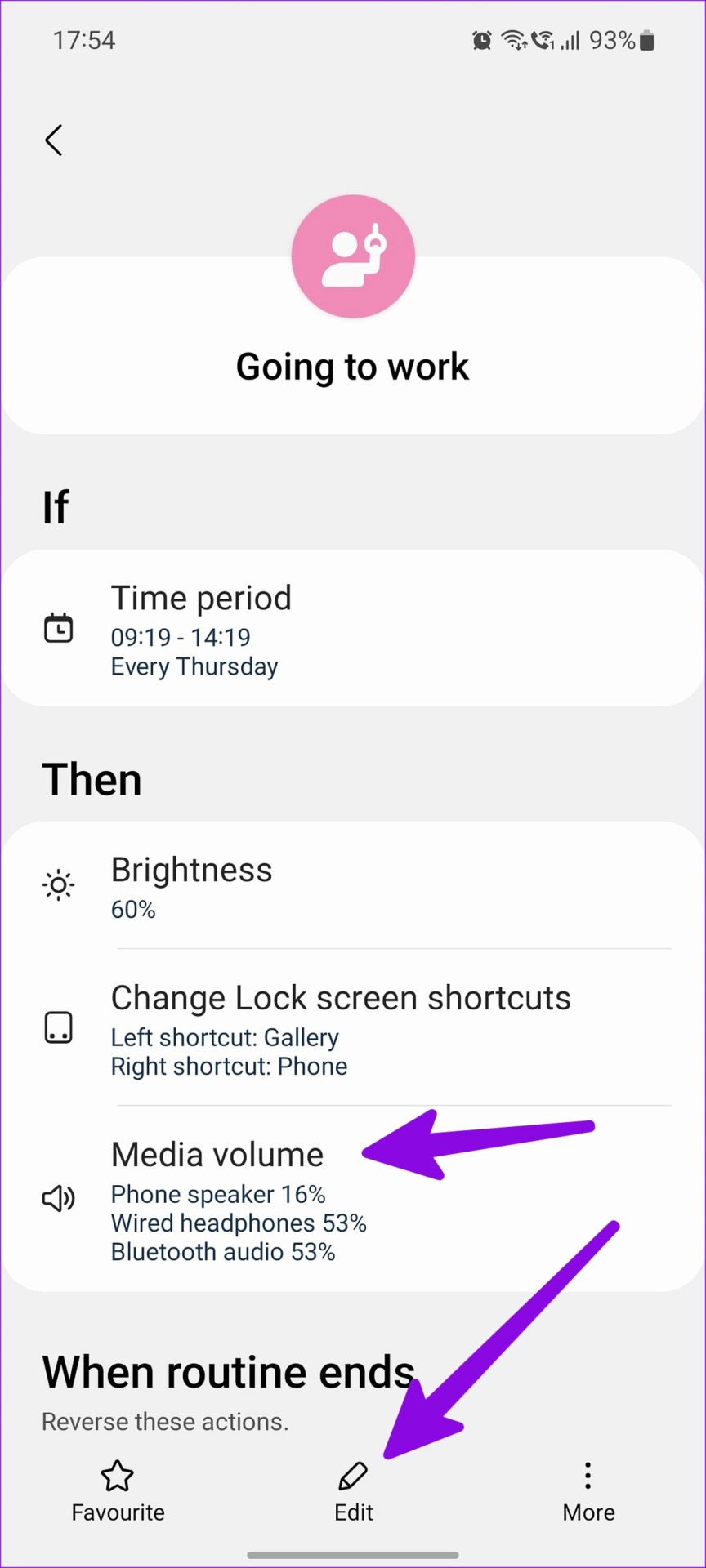
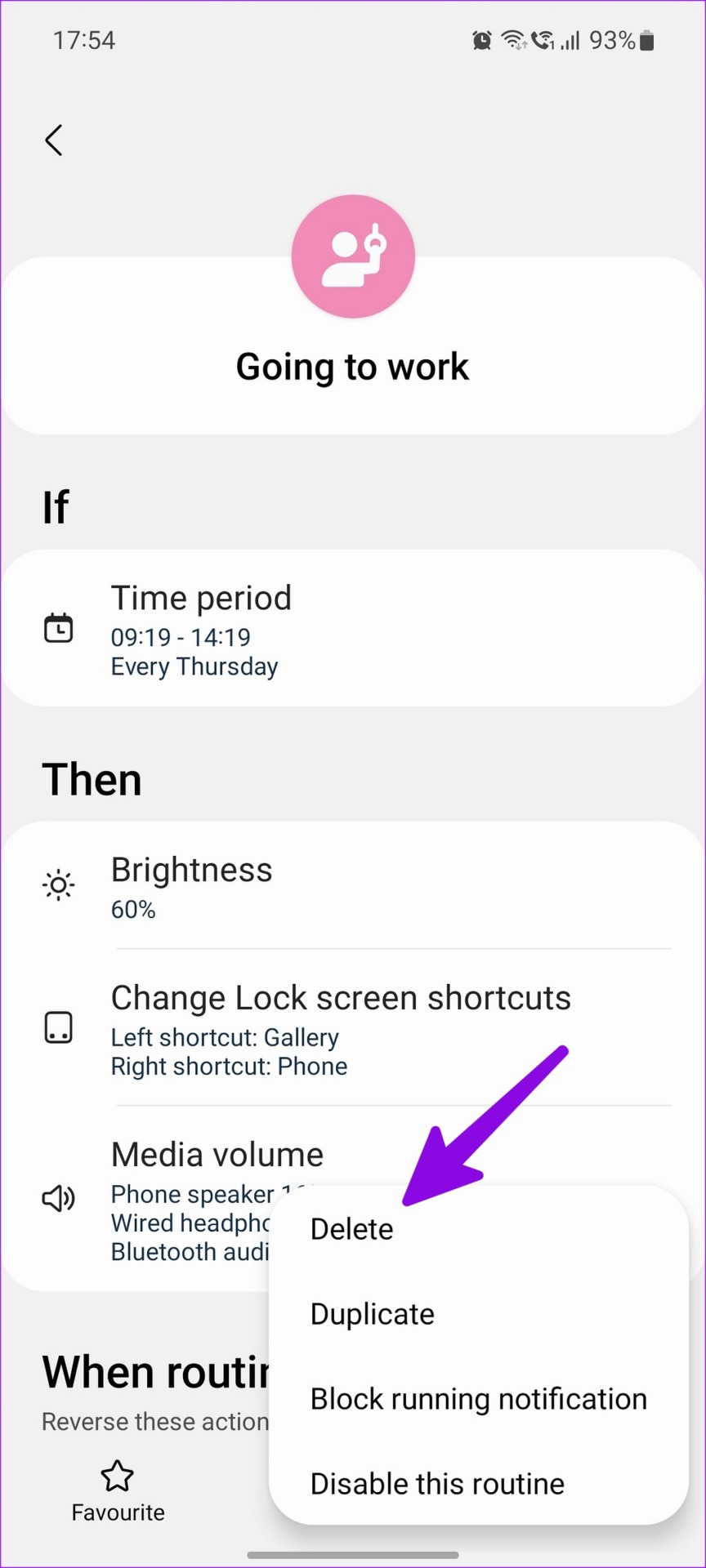
Step 3: You can tap the ‘ – ‘ button and remove the condition. You can also tap More in the bottom right corner and delete the routine.
Also Read: 6 ways to fix volume buttons not working on Android
Fix 5: Disable Media Volume Limit
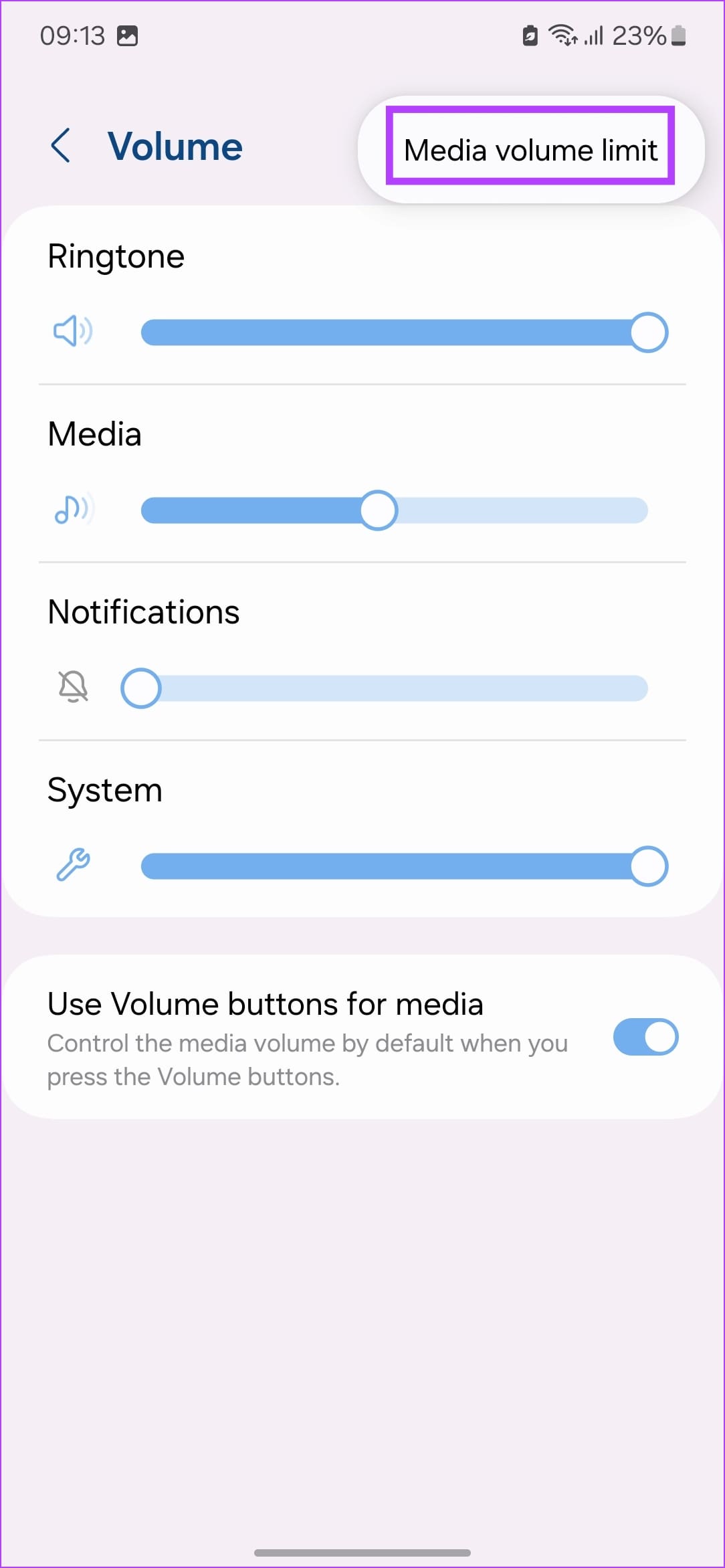
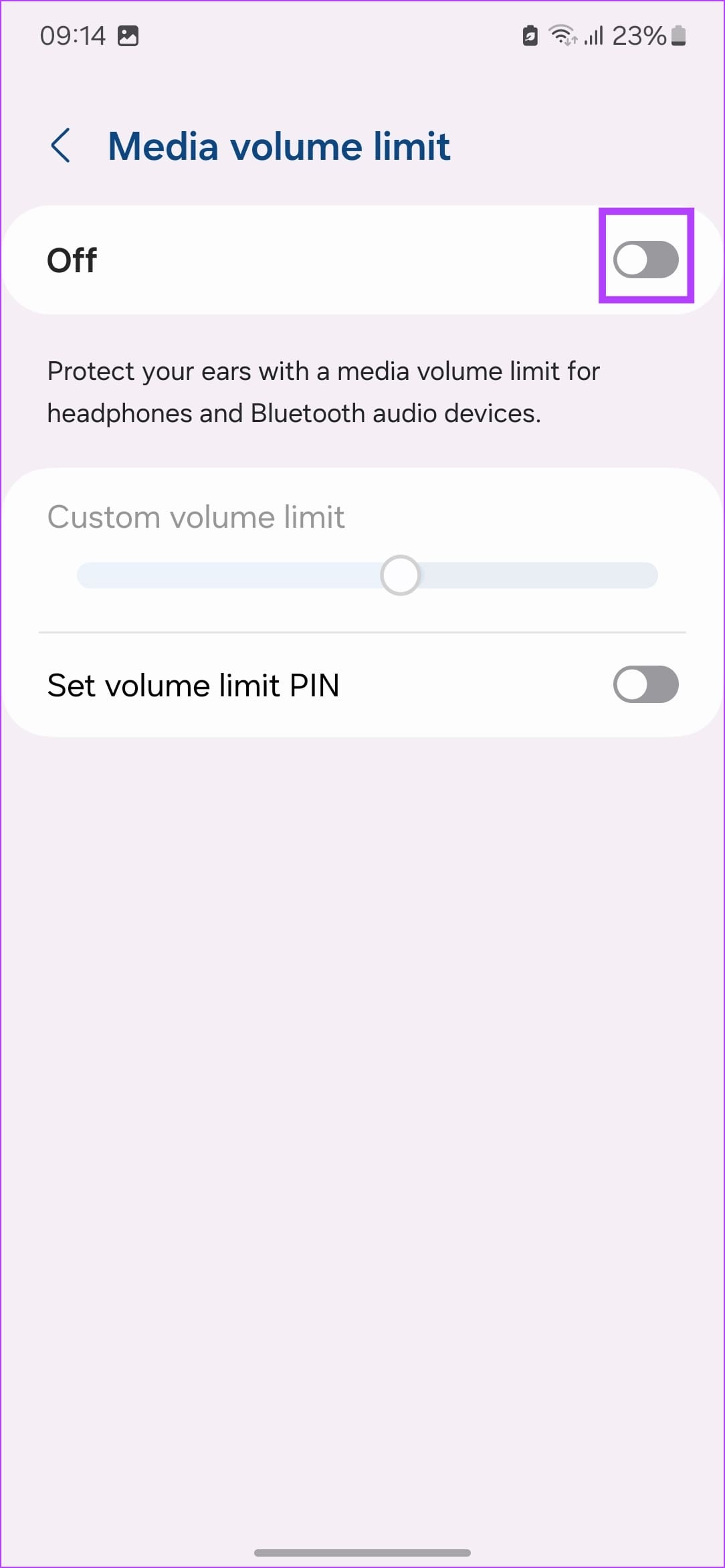
If your device is automatically decreasing the media volume, you will need to disable the Media Volume Limit feature.
Here’s how you can do it on a Samsung Galaxy device.
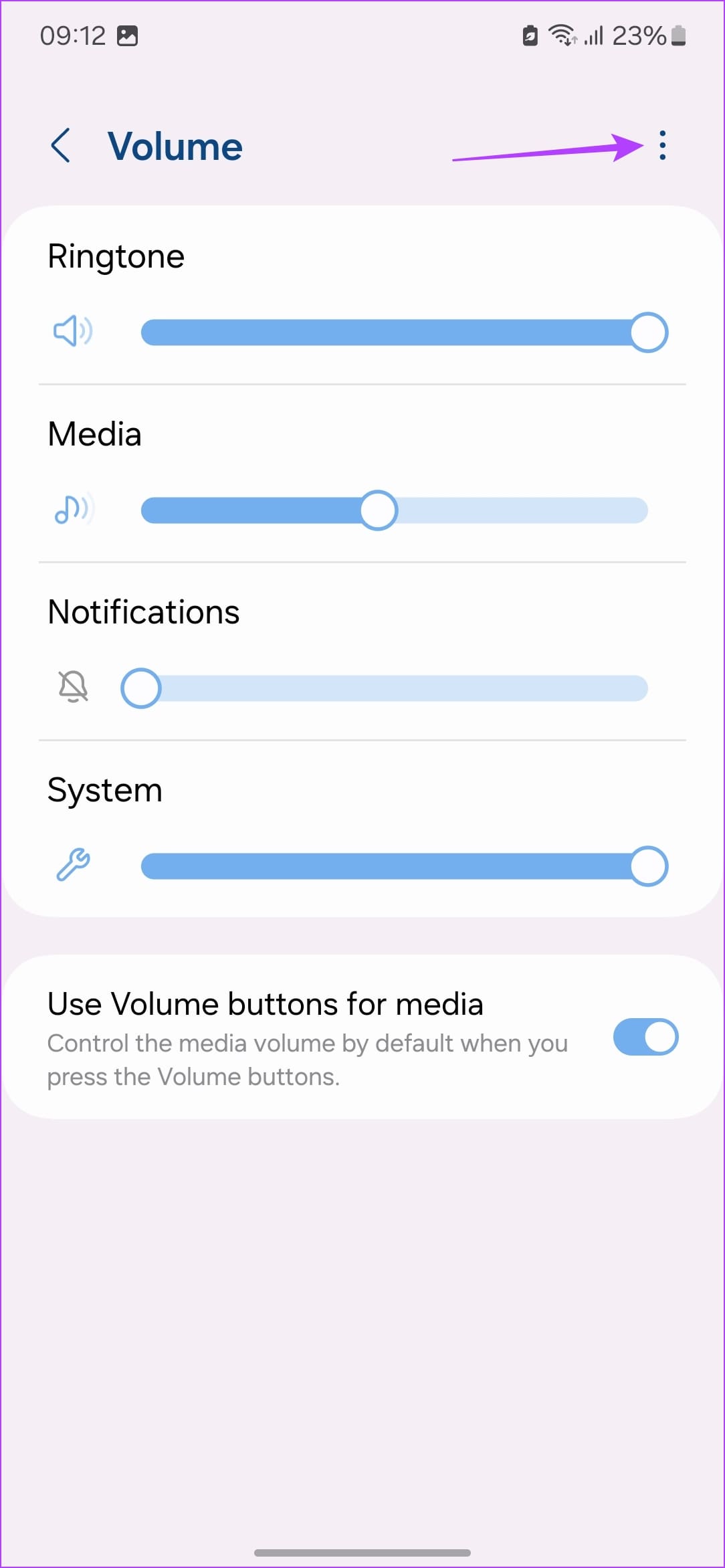
Step 1: Go to Settings > Sound and Vibration> Volume .
Step 2: Click on the three-dots icon, select Media Volume Limit, and turn it off.
Was this helpful?
Submit Cancel
Thanks for your feedback!
Keep reading