Android
5 Ways to Fix WhatsApp Not Downloading PDFs on Phone
Are you facing PDF download issues with WhatsApp? Here's how to fix the file downloading issues in WhatsApp on iPhone and Android.
By Parth Shah

Quick Fixes
Enable Media auto-download under WhatsApp settings > Storage and data.
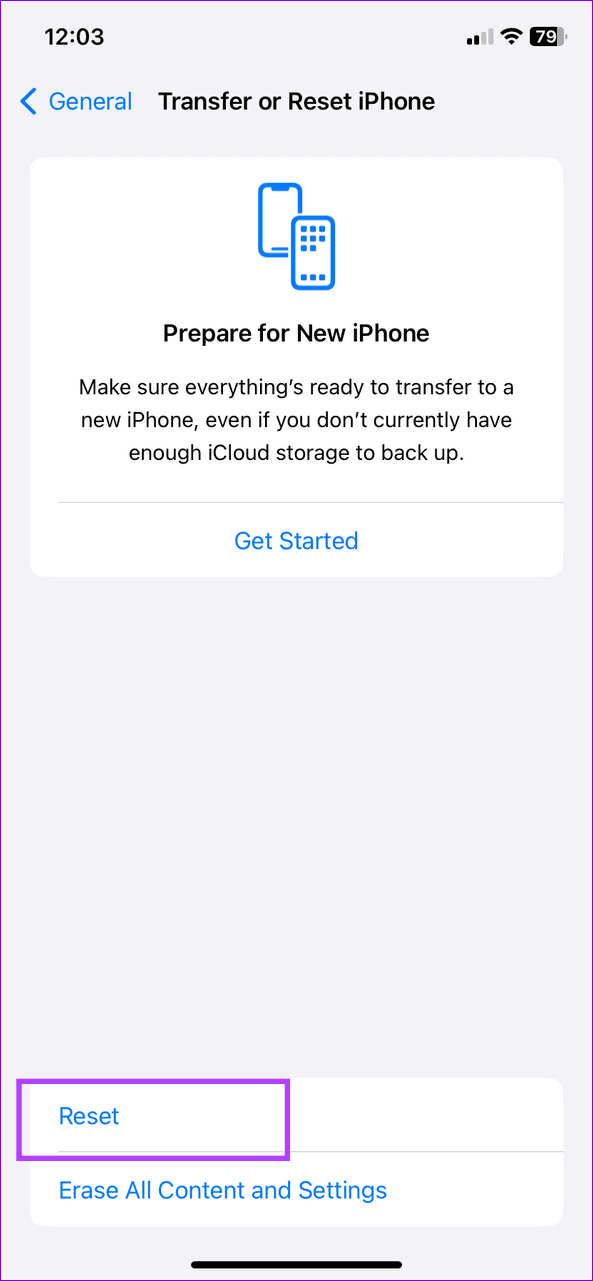
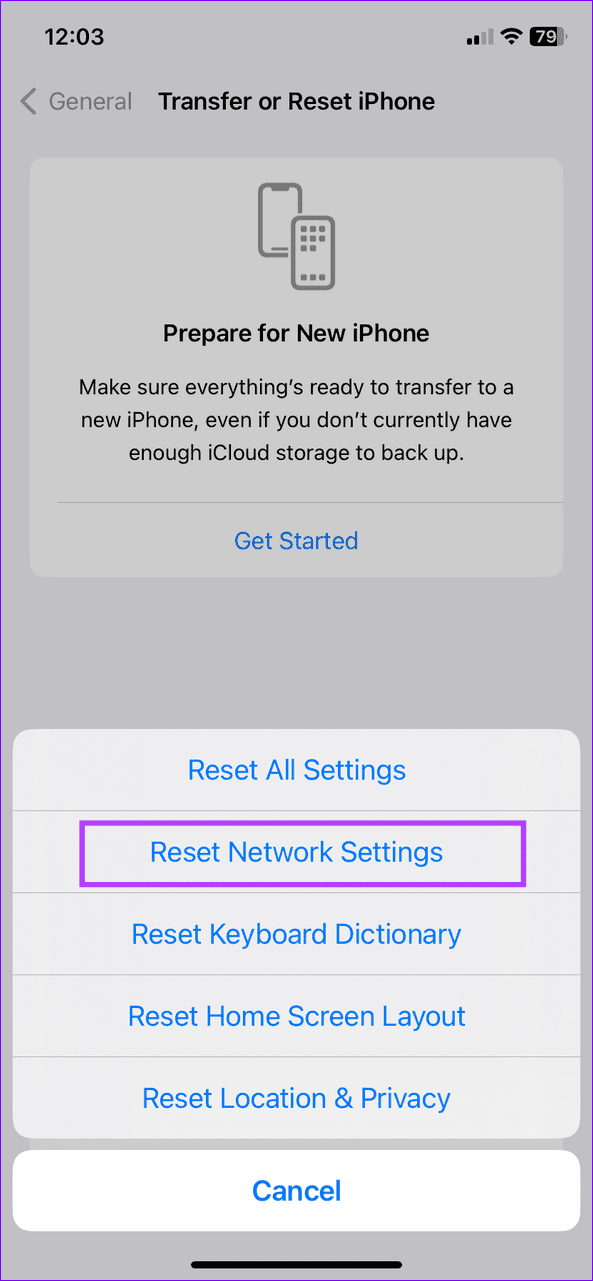
Reset network settings to resume downloading PDFs. Head to Settings > System > Reset options on Android, and Settings > General > Transfer or Reset iPhone > Reset on iPhone.
Basic Fixes
Check WhatsApp server status : Use Downdetector to check an active WhatsApp service outage.
Leave beta and switch to a stable version : A bug in the WhatsApp Beta app can prevent you from downloading PDFs. To fix this, leave the Beta program , install its stable version, and retry downloading the PDF.
Check WhatsApp storage permissions on Android : Long-tap the WhatsApp icon to open App info, select Permissions, and ensure all required storage permissions (e.g., Photos and videos) are enabled.
Free up phone storage : Uninstall unnecessary apps on your device to reclaim some free space for downloading PDFs in WhatsApp.
Update or reinstall WhatsApp : Search WhatsApp in the Google Play Store or Apple App Store and tap Update (if available). Alternatively, uninstall the app and reinstall it from your respective device store.
Fix 1: Enable Media Auto-Download
If WhatsApp isn’t downloading PDFs automatically and you have to manually do it in a chat, enable the Media auto-download feature under WhatsApp settings to automate it.
Note: Enabling media auto-download doesn’t work on existing PDF files. You may need to ask the person to send the file again after turning on the feature.
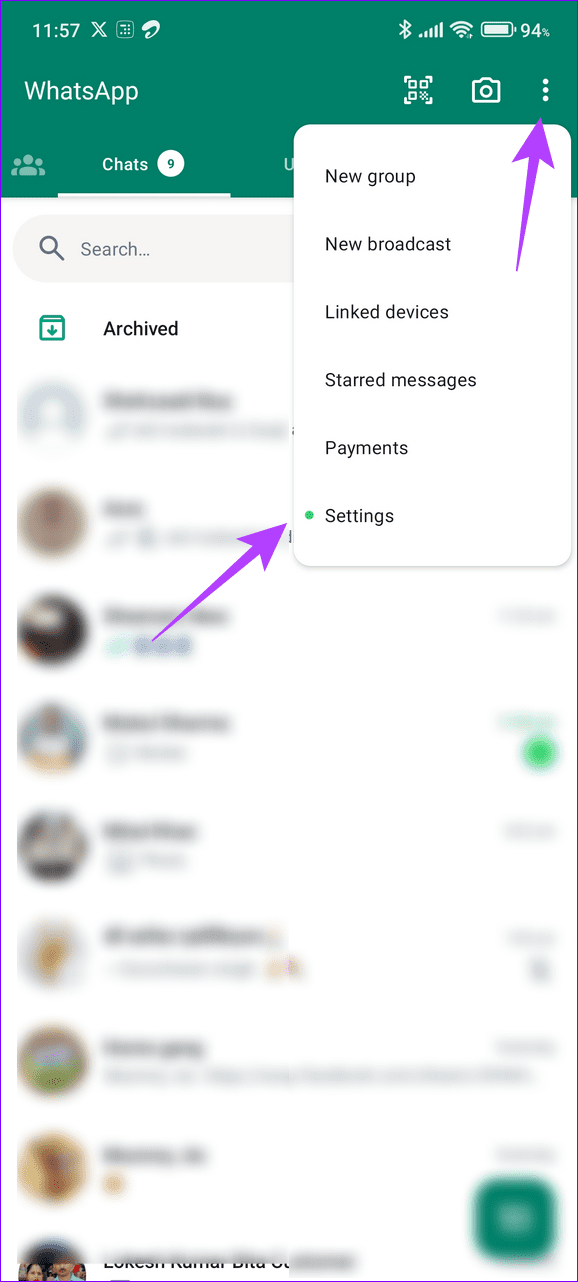
Step 1: Tap the vertical three-dot menu at the top right of WhatsApp and select Settings .
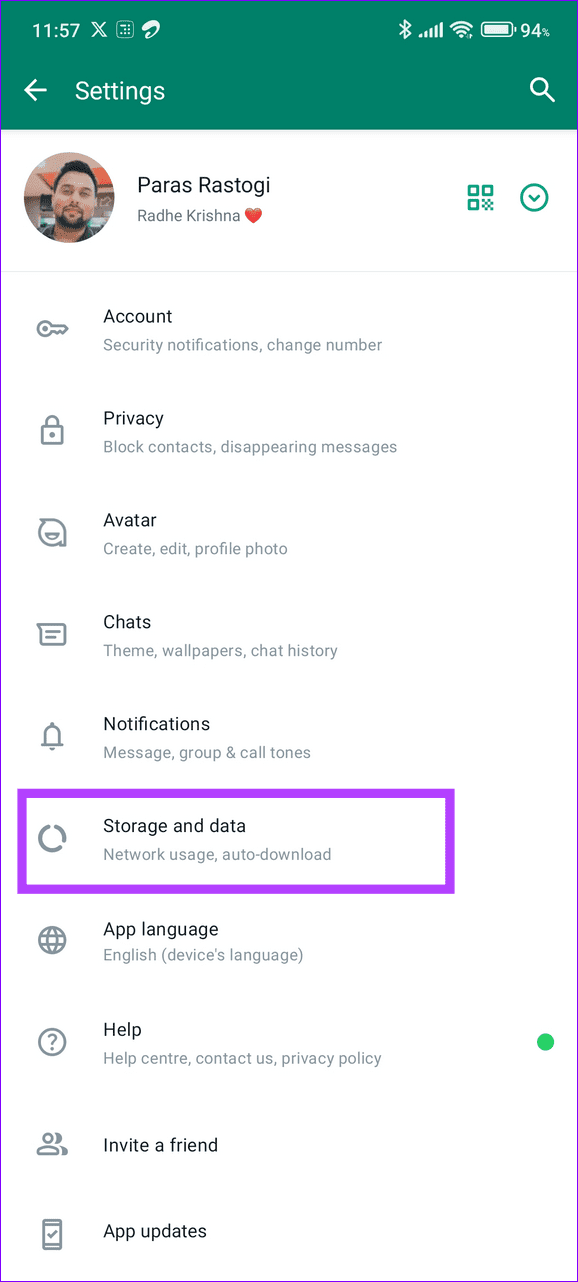
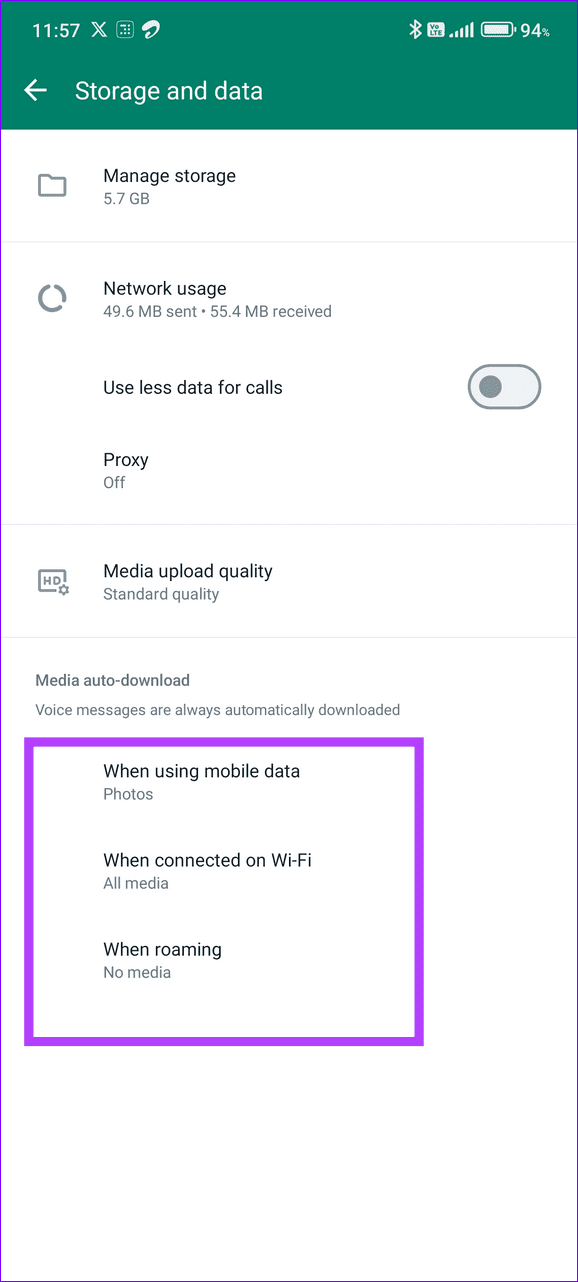
Step 2: Select Storage and data , locate the Media auto-download section, and tap When using mobile data .
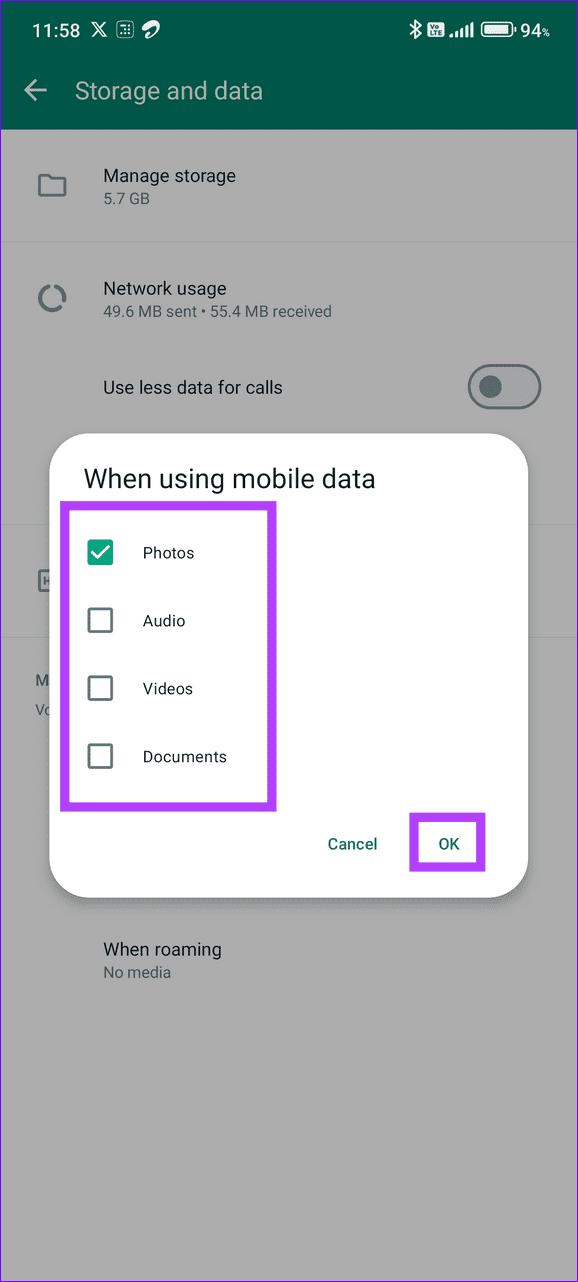
Step 3: Mark Photos, Audio, Videos, and Documents and tap OK . Repeat the same for When connected on Wi-Fi , and When roaming to automatically download the received media (including PDFs).
Caution: Enabling media auto-download for Mobile data and Roaming will consume more mobile data.
Fix 2: Enable Background App Refresh (iOS)
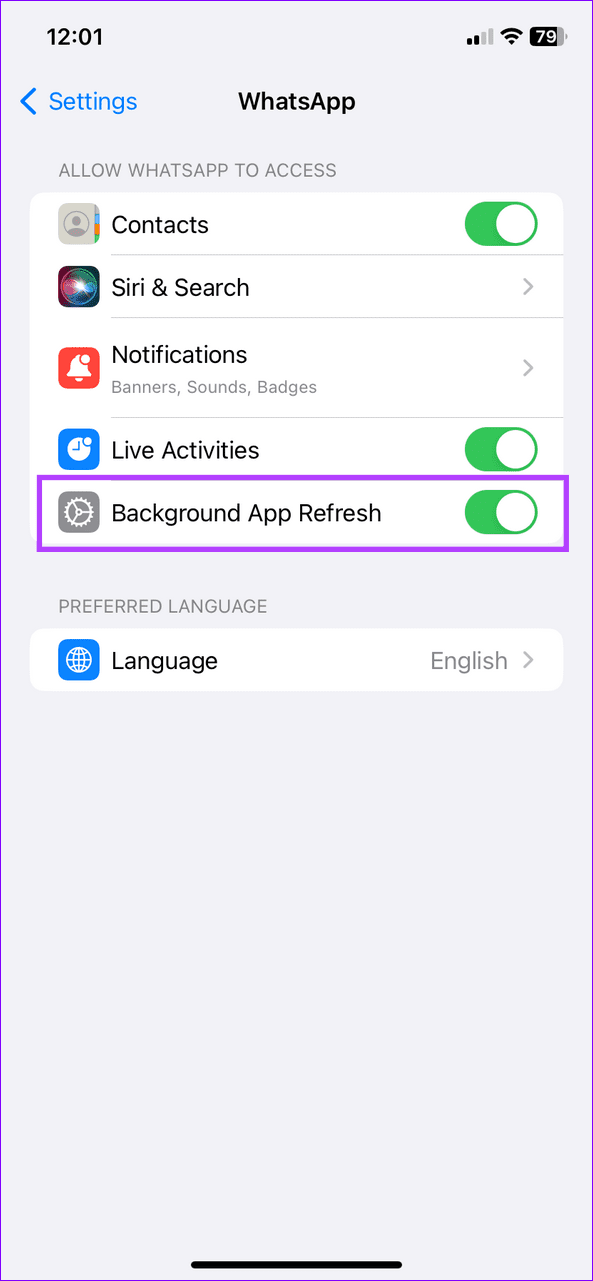
If PDF downloading in WhatsApp halts as soon as you close the app on your iPhone, missing background activity permissions are the underlying culprit. Enable Background App Refresh for WhatsApp to resolve it.
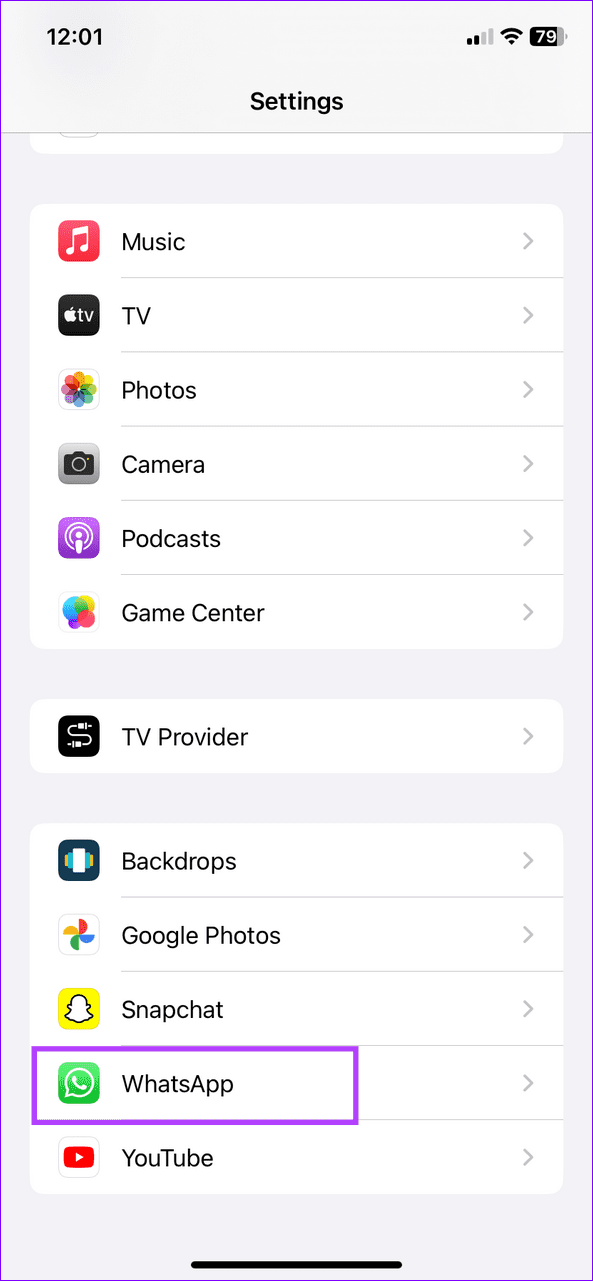
Open iPhone settings, scroll to the bottom, and select WhatsApp . Toggle on Background App Refresh .
Fix 3: Turn on Unrestricted Data for WhatsApp (Android)
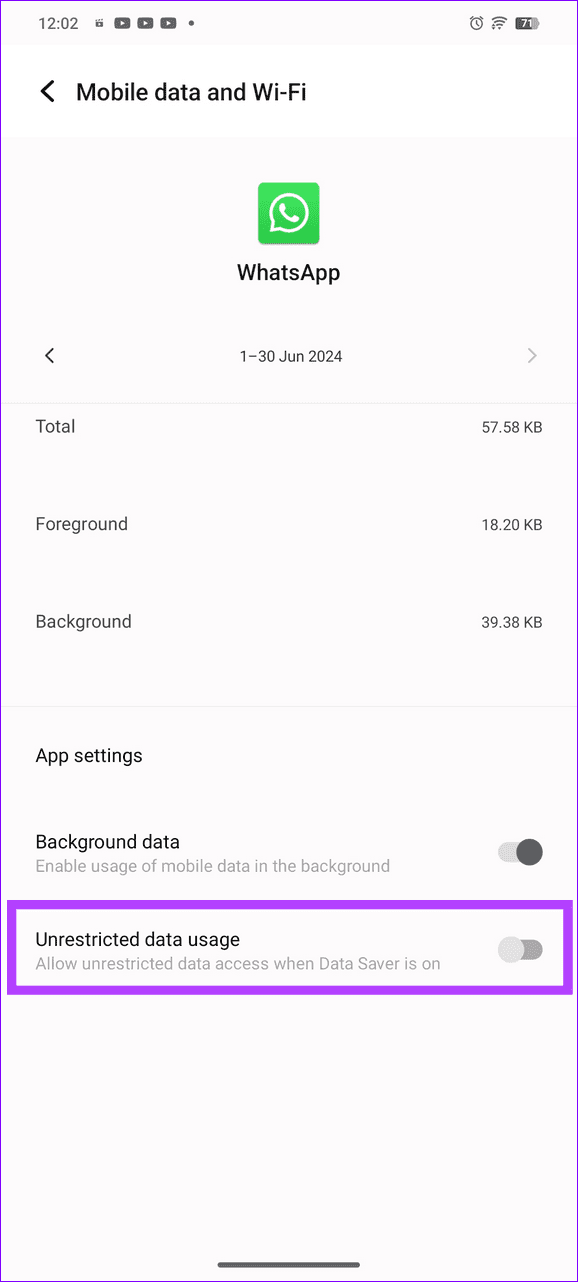
An active battery saver mode on your Android phone can prevent WhatsApp from downloading PDFs to limit data consumption. To fix it, turn on Unrestricted Data usage for WhatsApp.
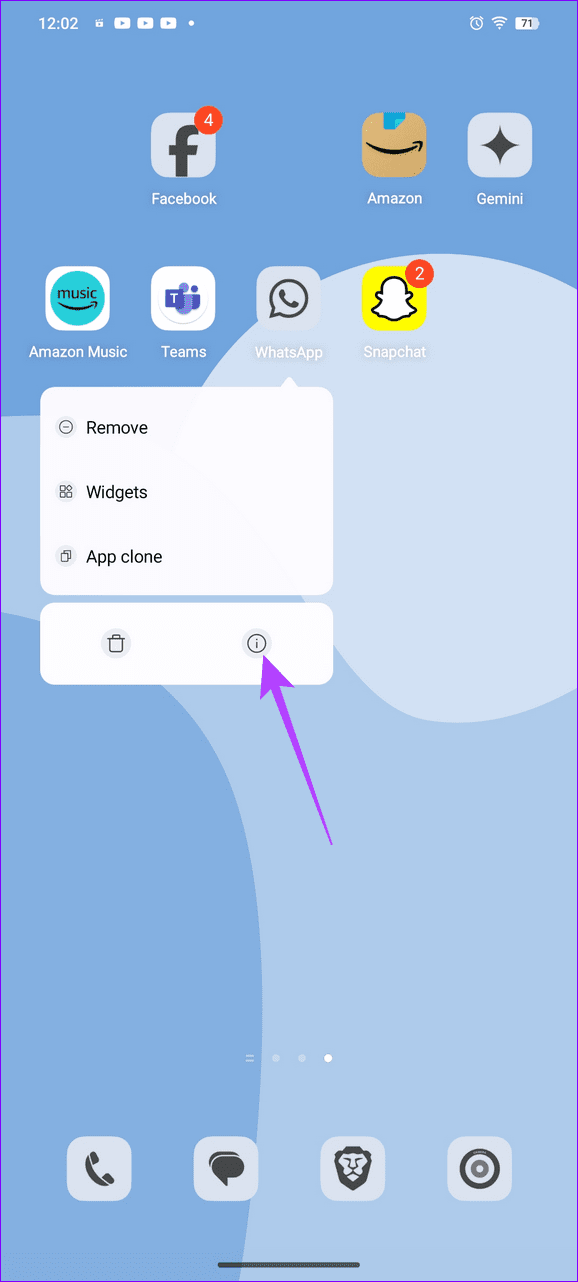
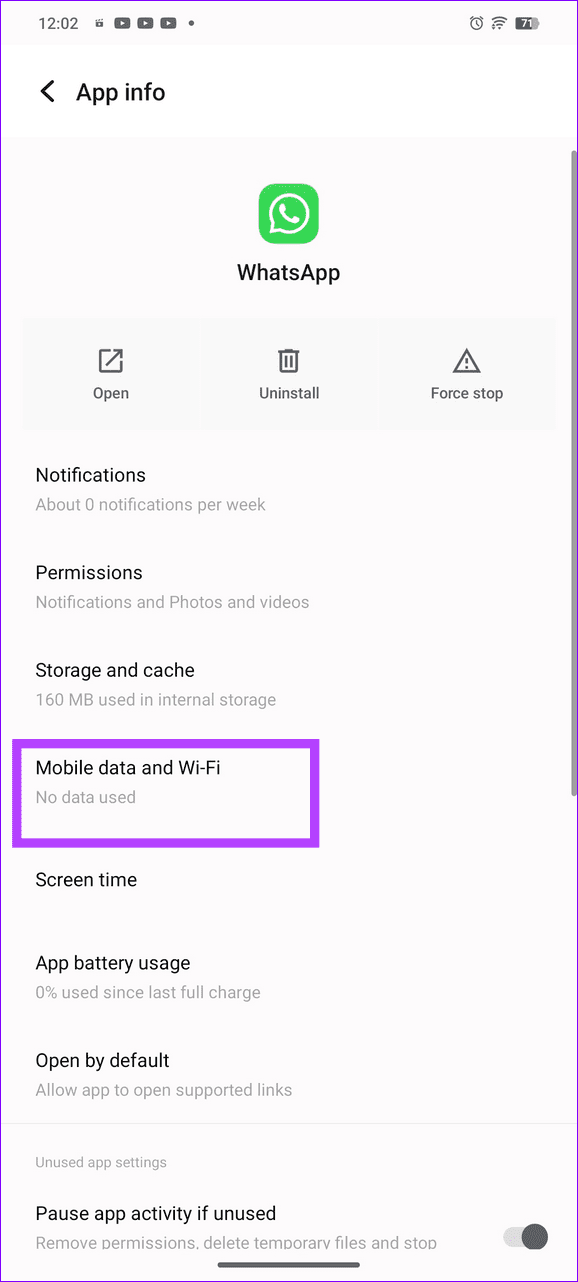
Long-tap the WhatsApp icon to open App info , select Mobile data and Wi-Fi , and enable Unrestricted data usage .
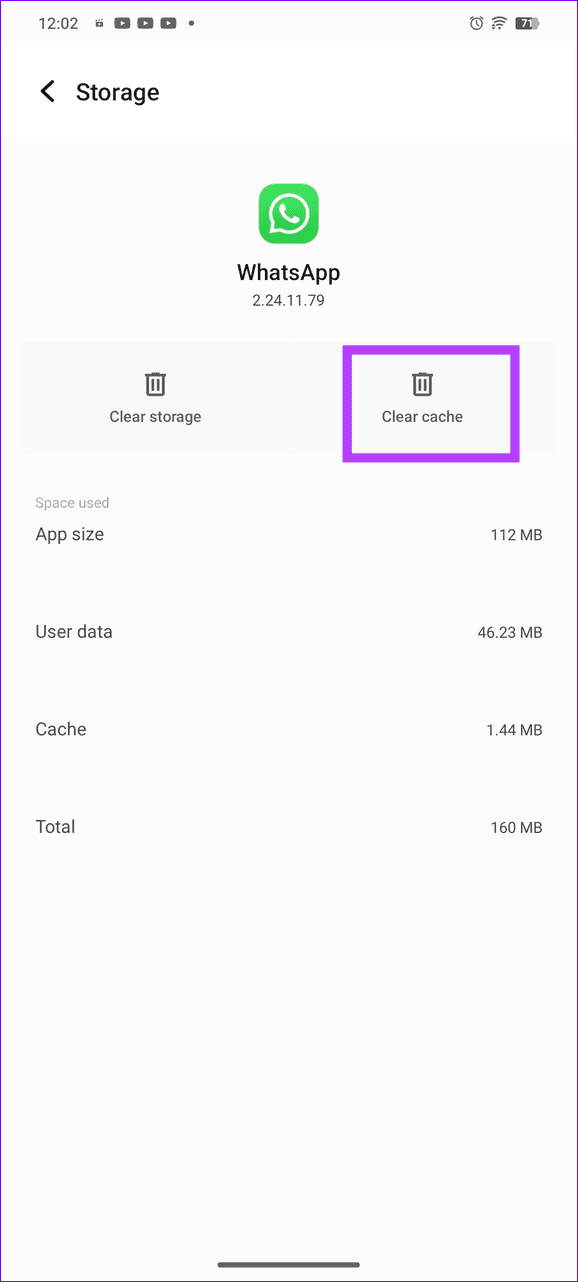
Fix 4: Clear the WhatsApp Cache (Android)
A corrupt WhatsApp app cache can affect its basic services, such as sending a message or downloading a media attachment (e.g., photo, video, or PDF). Clearing it manually from Android settings should restore its normal functioning.
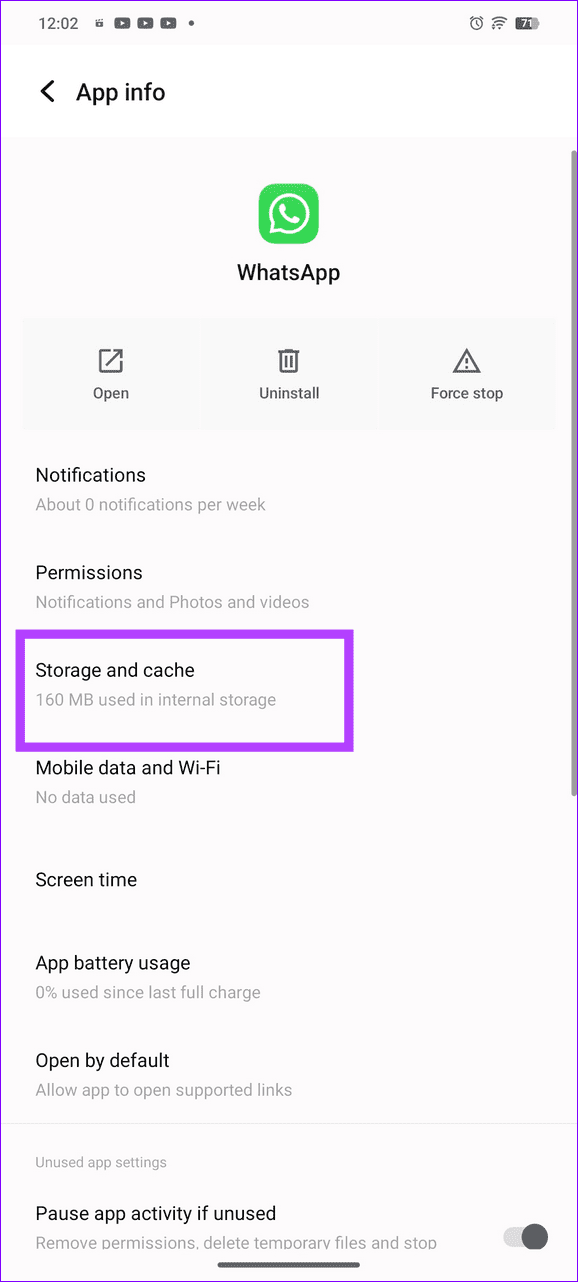
Open WhatsApp app info, tap Storage and cache , and select Clear cache .
Fix 5: Reset Network Settings
Lastly, incorrect network settings can prevent you from downloading PDFs in WhatsApp. Reset them manually under your device settings.
On Android
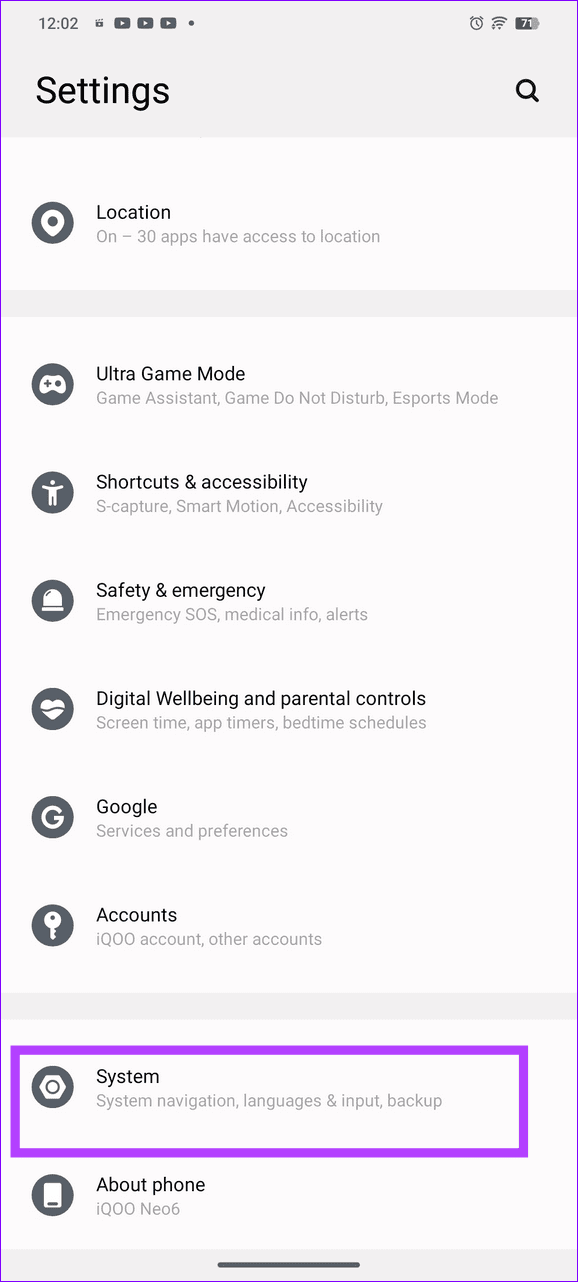
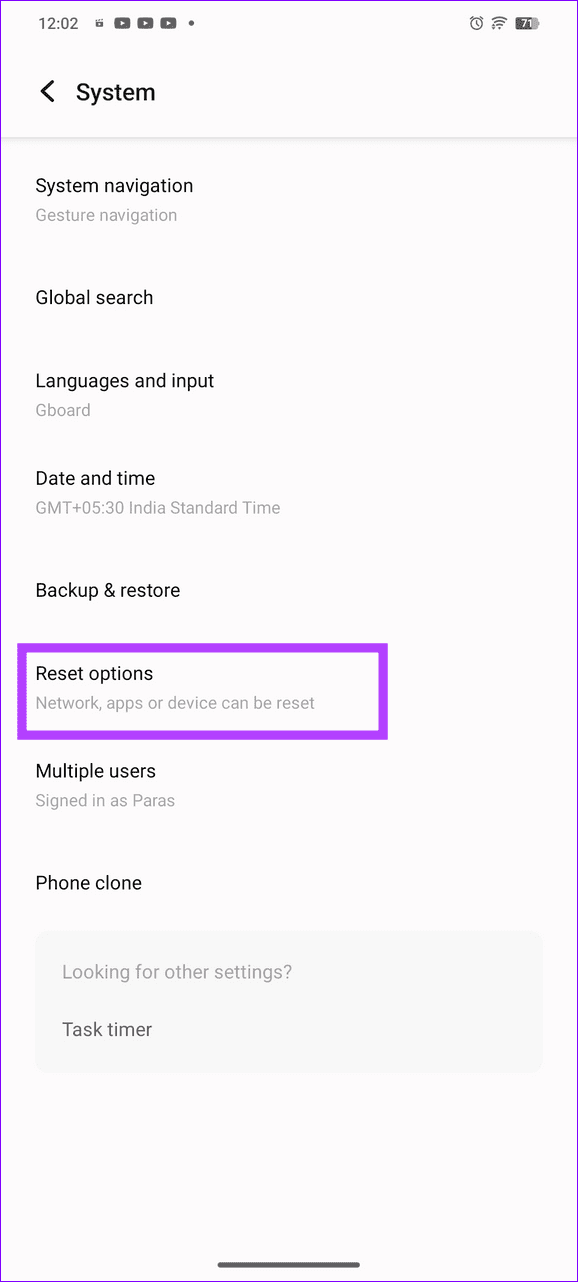
Step 1: Open the Settings app, select System , and tap Reset options .
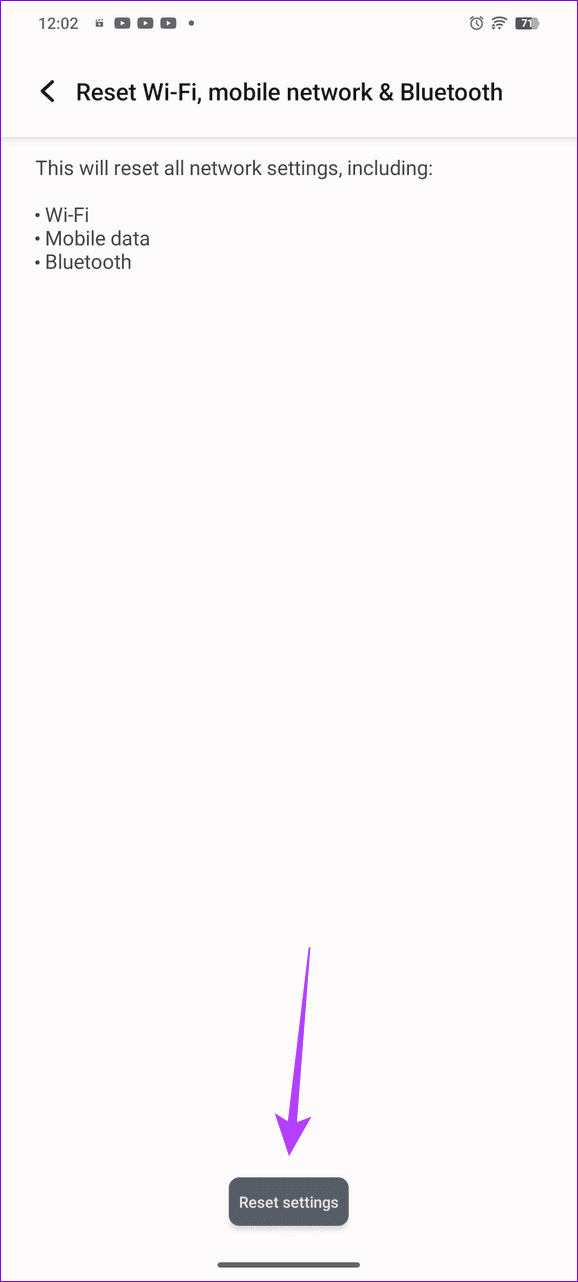
Step 2: Select Reset Wi-Fi, mobile network & Bluetooth , and tap Reset settings to confirm.

On iOS
Step 1: Select General under iPhone settings and tap Transfer or Reset iPhone .
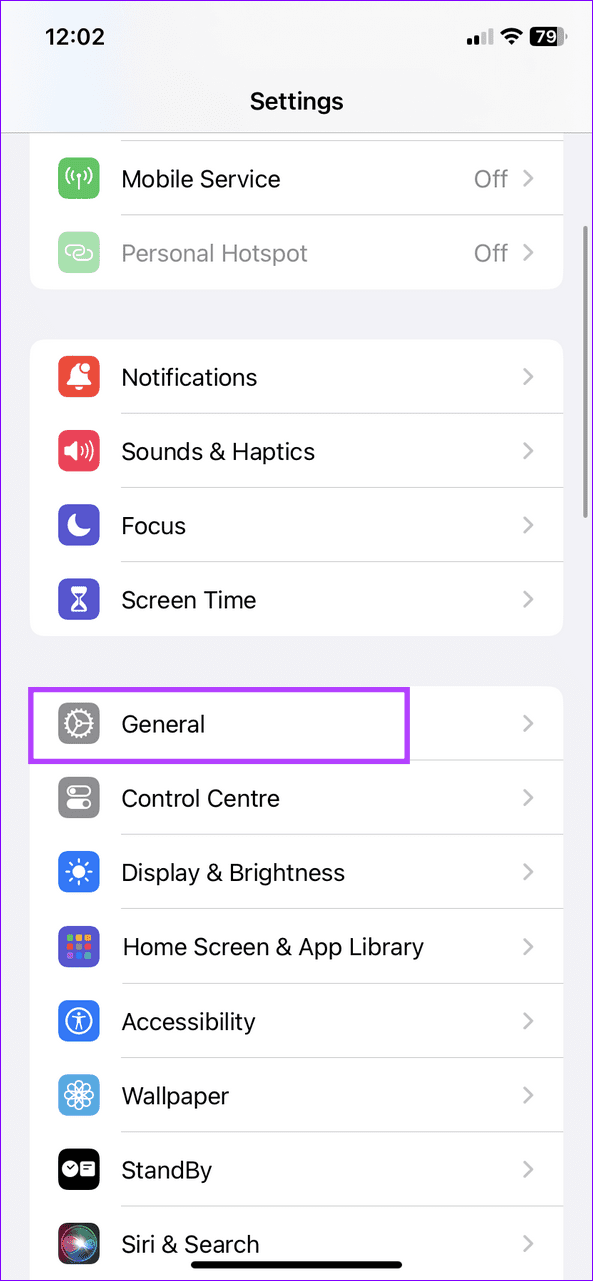
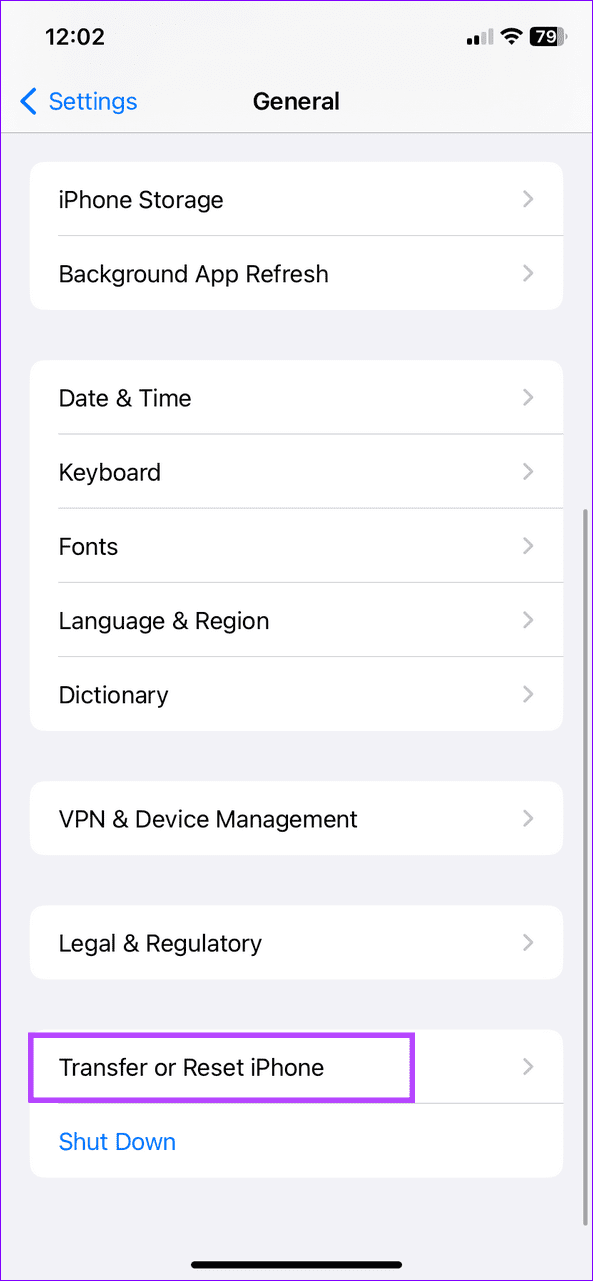
Step 2: Tap Reset and select Reset Network Settings . When prompted, enter your device passcode to confirm it.
Was this helpful?
Submit Cancel
Thanks for your feedback!
Keep reading