Android
6 Ways to Fix WhatsApp Not Responding on Android
WhatsApp not responding on your Android device? Check out these easy fixes to get it to working normally again.
By Parth Shah
Quick Fixes
Clear WhatsApp cache and app data on Android from App info > Storage and cache.
Reset app preferences from Android settings > System > Reset Options.
Basic Fixes
Check WhatsApp servers : Access DownDetector to check an active WhatsApp server outage.
Force stop and re-open WhatsApp : Swipe up from the screen bottom to switch apps and slide up the WhatsApp card to force close it. Re-open WhatsApp.
Free up your device storage : Inspect your device storage from Settings > Storage, and uninstall unnecessary apps to reclaim the free space.
Update or reinstall WhatsApp : Open the Google Play Store, search WhatsApp, and tap Update (if available). Alternatively, long-tap the WhatsApp icon, select uninstall, and reinstall it from the Play Store.
Update your Android phone : Head to Settings > search and open System Update > tap Install Now to update your Android phone.
Fix 1: Clear WhatsApp Cache and App Data
Corrupt cache and app data are common underlying culprits behind WhatsApp not responding on Android. Clear them manually from the app’s settings.
Note: Back up all your conversations from WhatsApp Settings > Chats > Chat backup before clearing its app data.
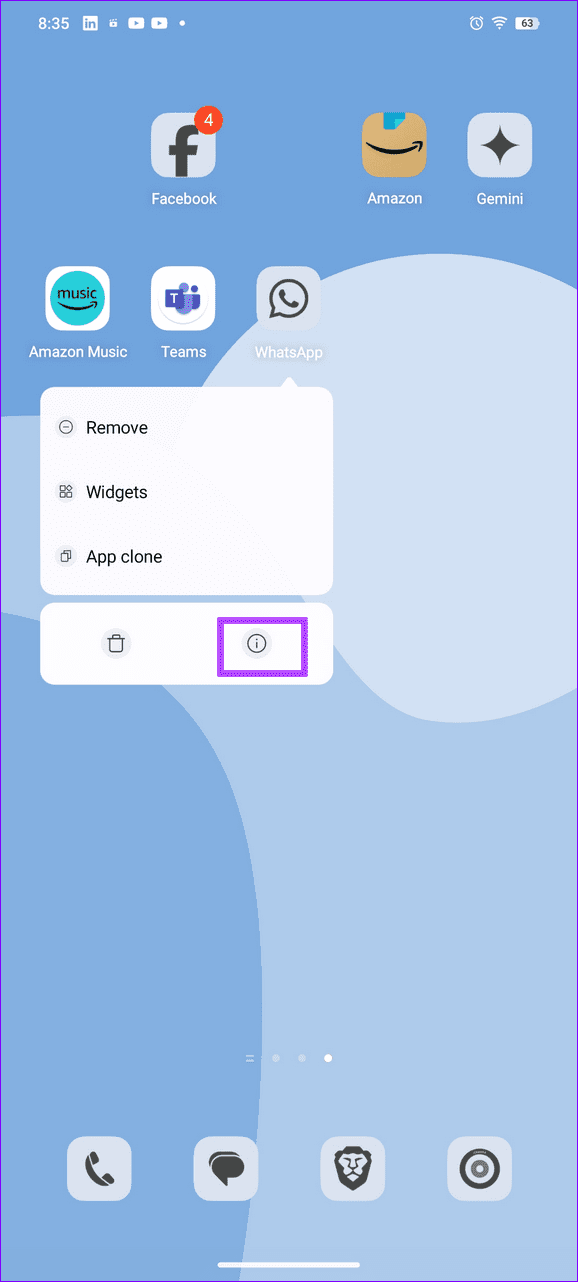
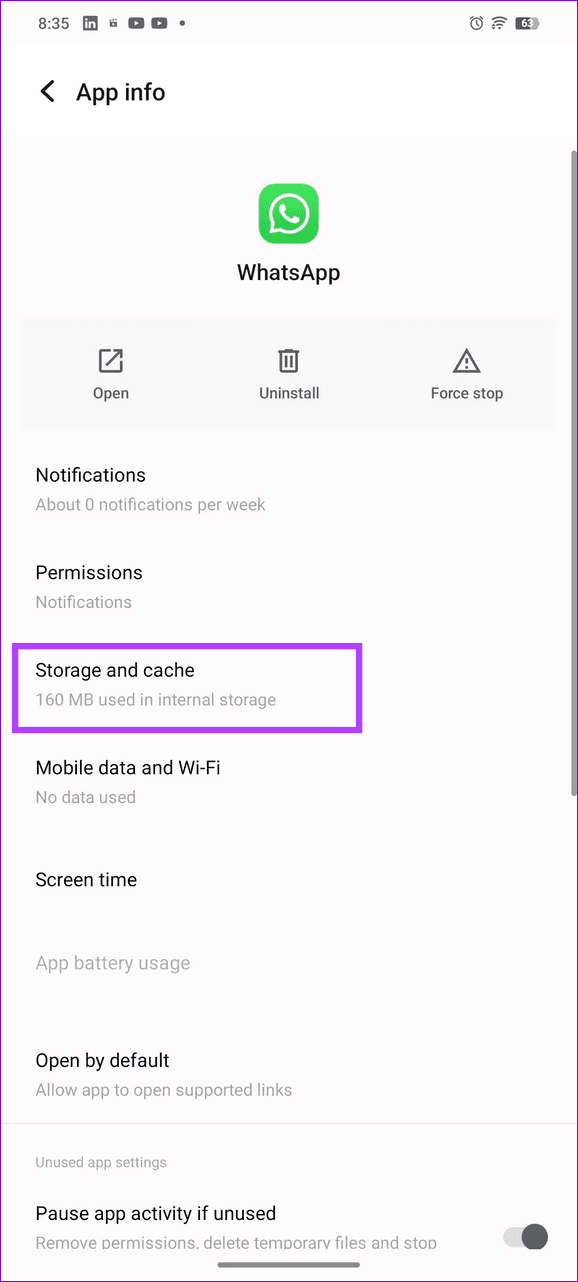
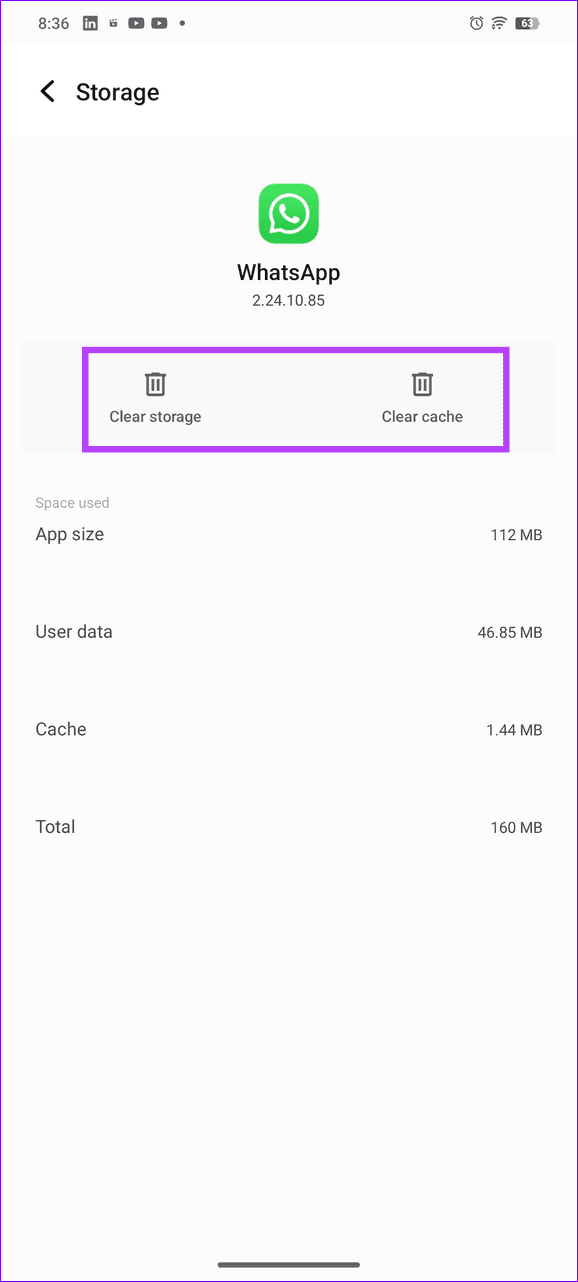
Step 1: Long-tap the WhatsApp icon > open App info > select Storage and cache .
Step 2: Tap on Clear cache > Clear storage .
Fix 2: Allow Necessary Permissions
If WhatsApp lacks the required permissions to run on Android, it may fail to respond or function properly. Open its App info settings and enable all the necessary permissions.
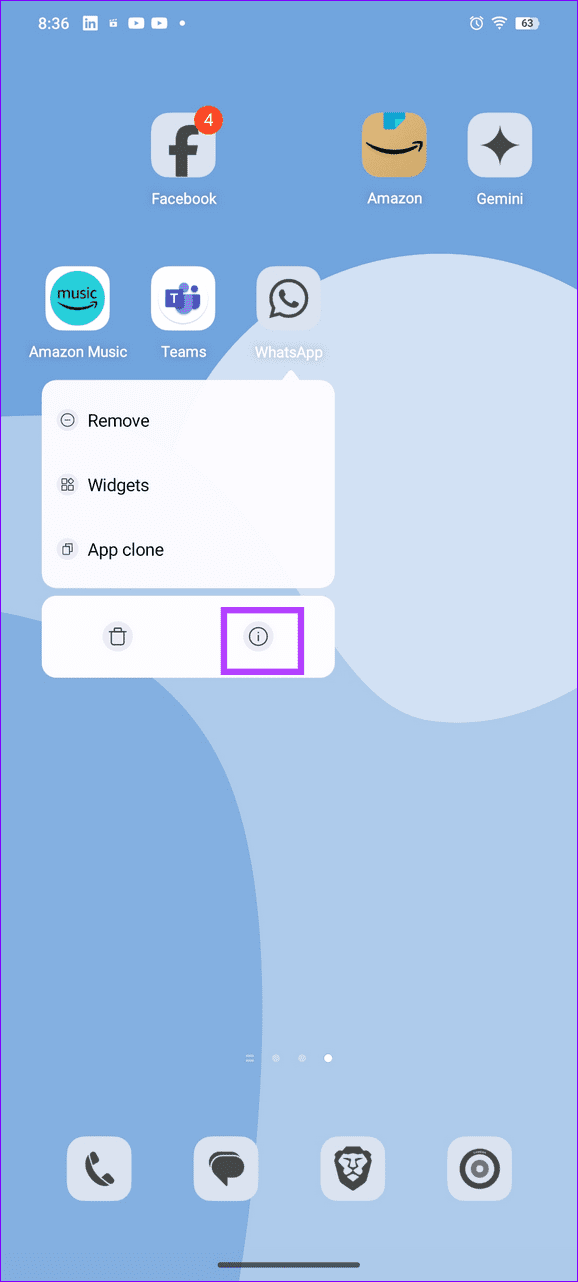
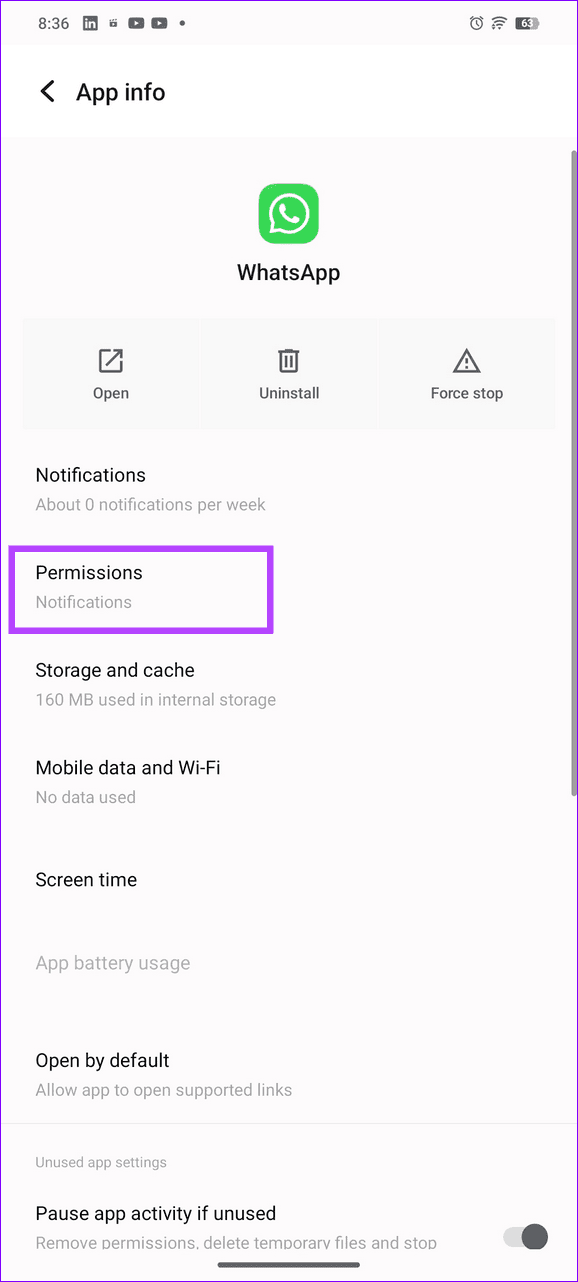
Step 1: Long-tap the WhatsApp icon > select the i icon > tap on Permissions .
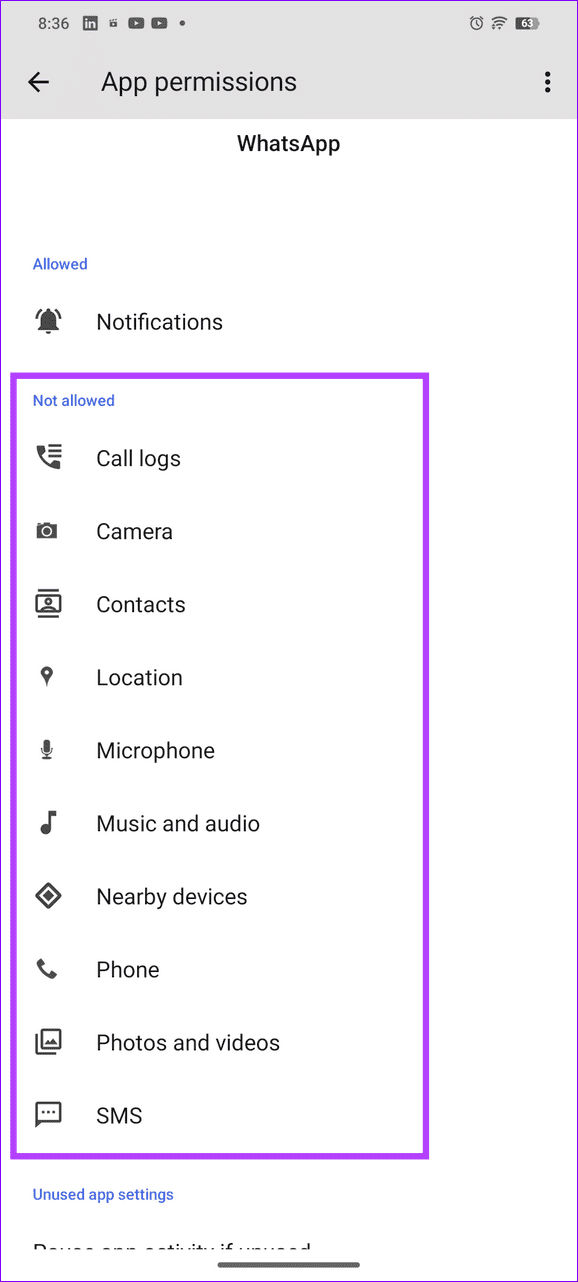
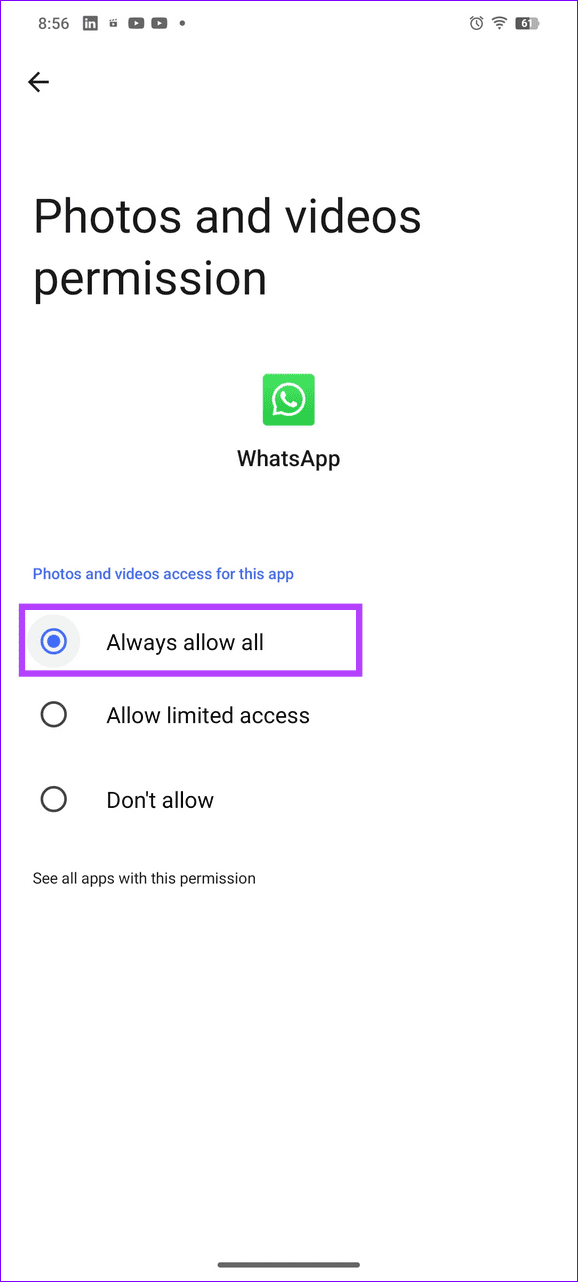
Step 2: Review Not Allowed permissions and set Notifications, Camera, Contacts, Microphone, Music and audio, Phone, Photos, and videos to Always allow all .
Fix 3: Reset App Preferences
Besides missing permissions, WhatsApp may fail to respond if you’ve configured app settings incorrectly on your Android device. Head to system app settings to reset app preferences manually.
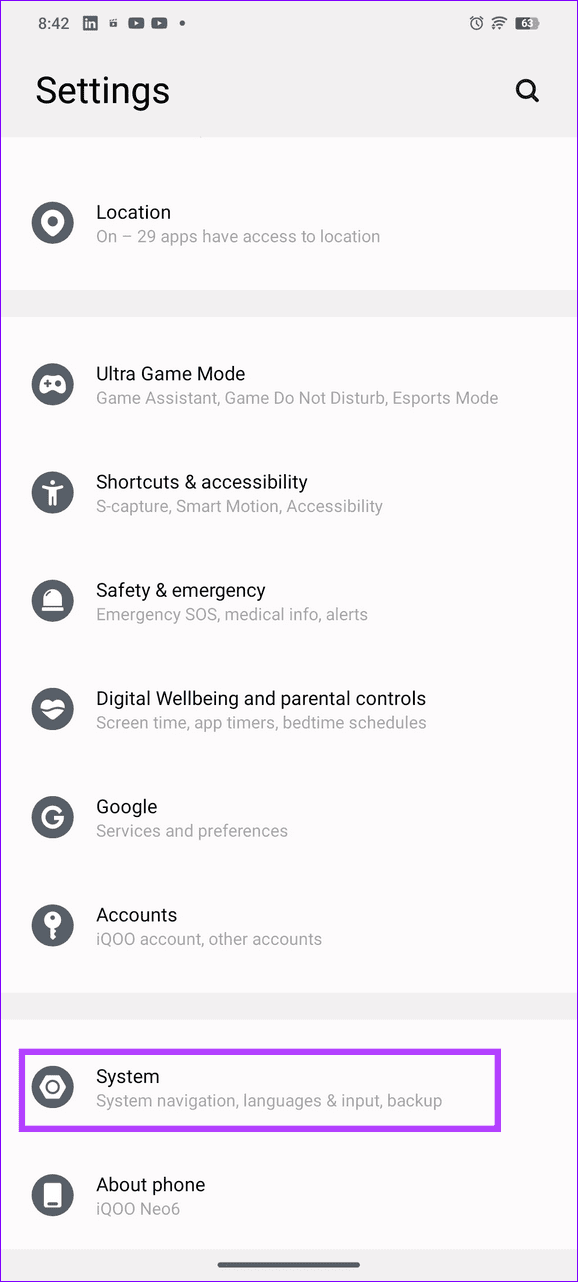
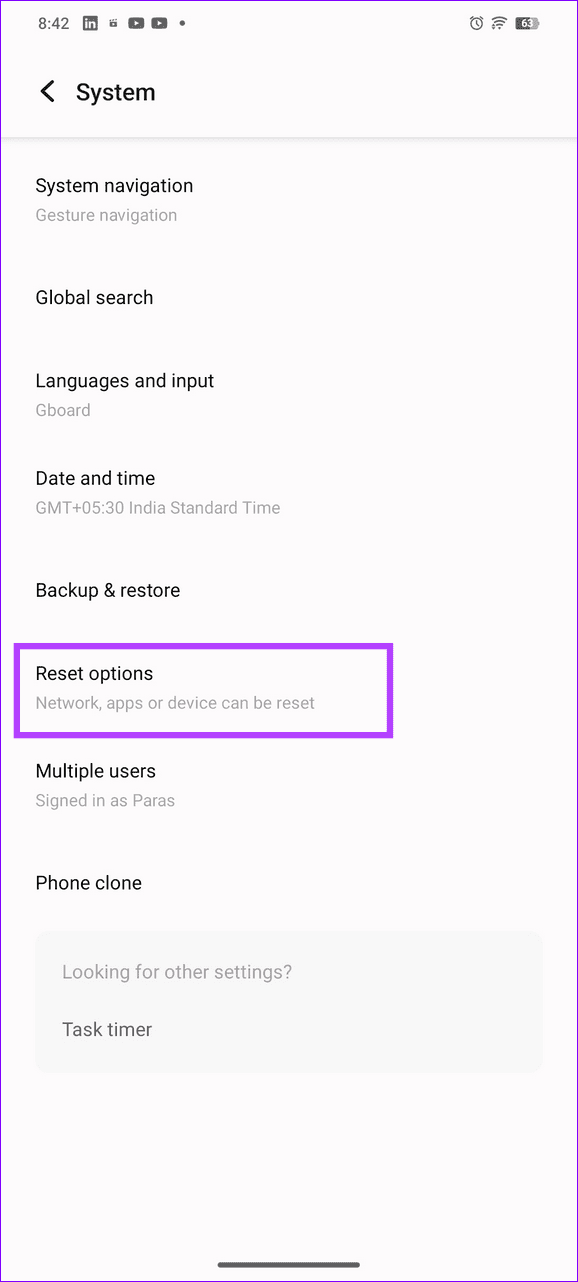
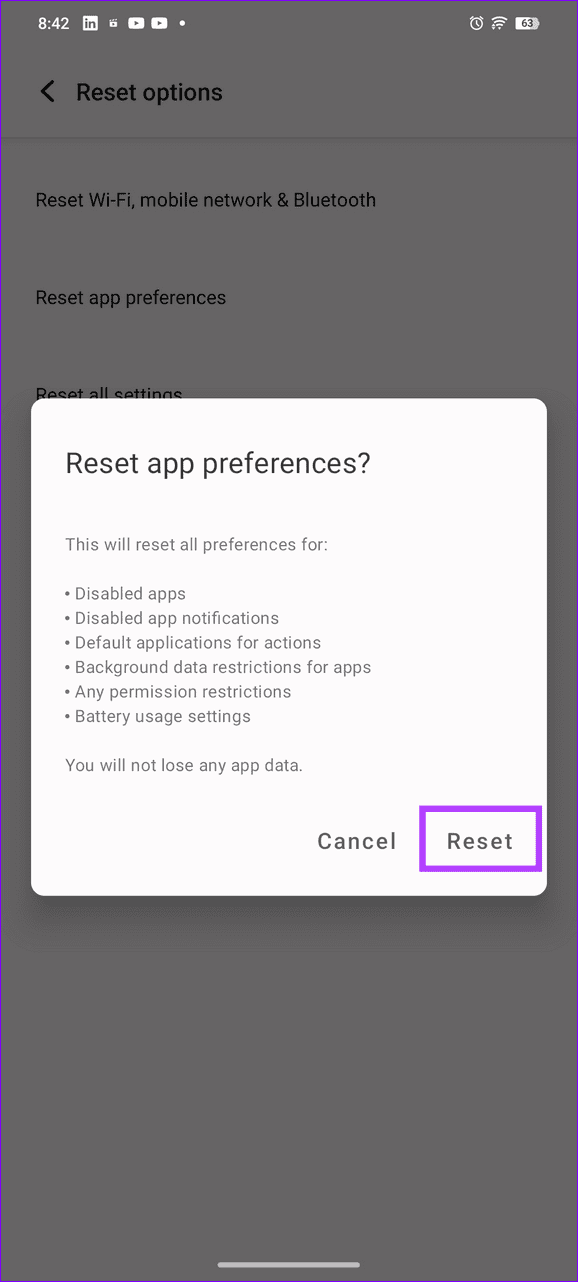
Step 1: Open the Settings app > select System > tap on Reset options .
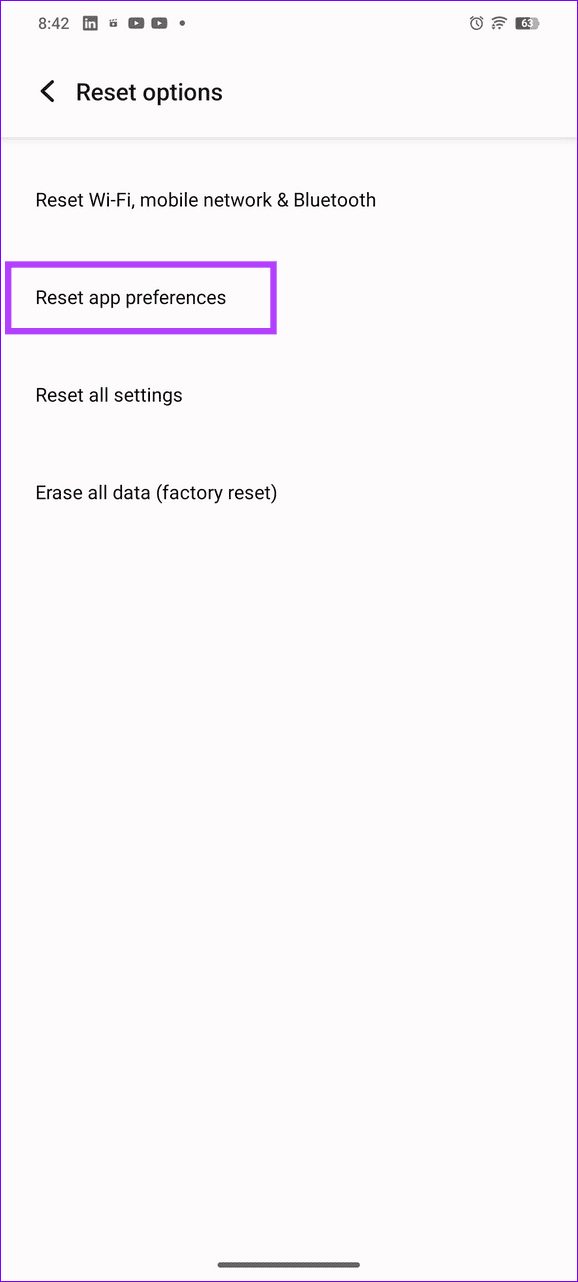
Step 2: Select Reset app preferences > tap on Reset to confirm your action.
Fix 4: Provide Unrestricted Data Usage to WhatsApp
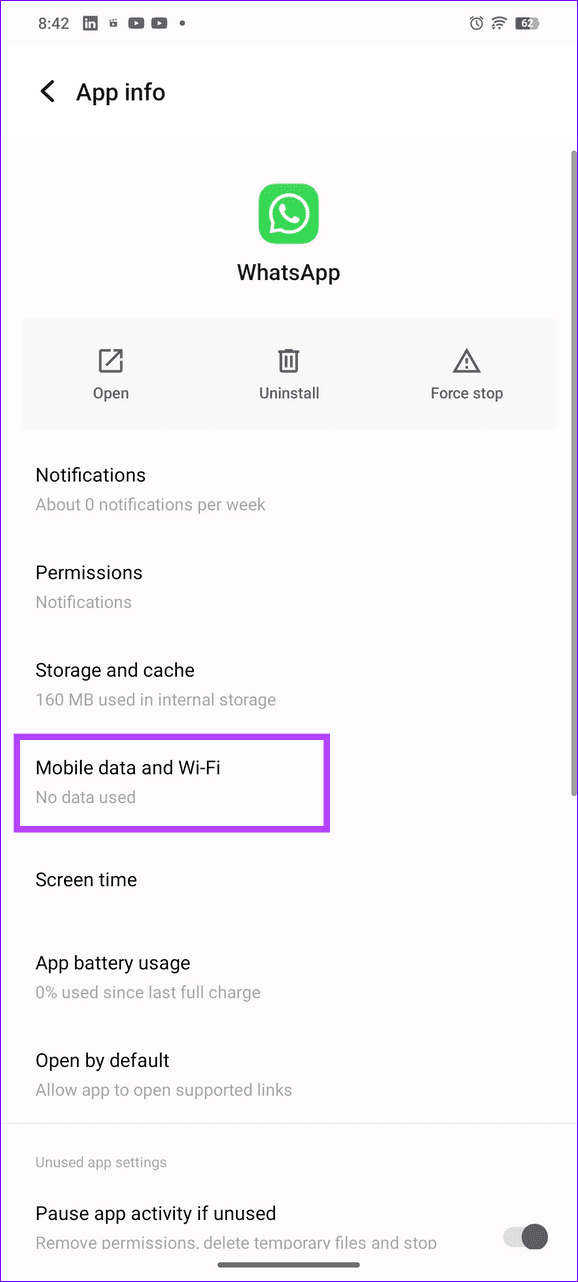
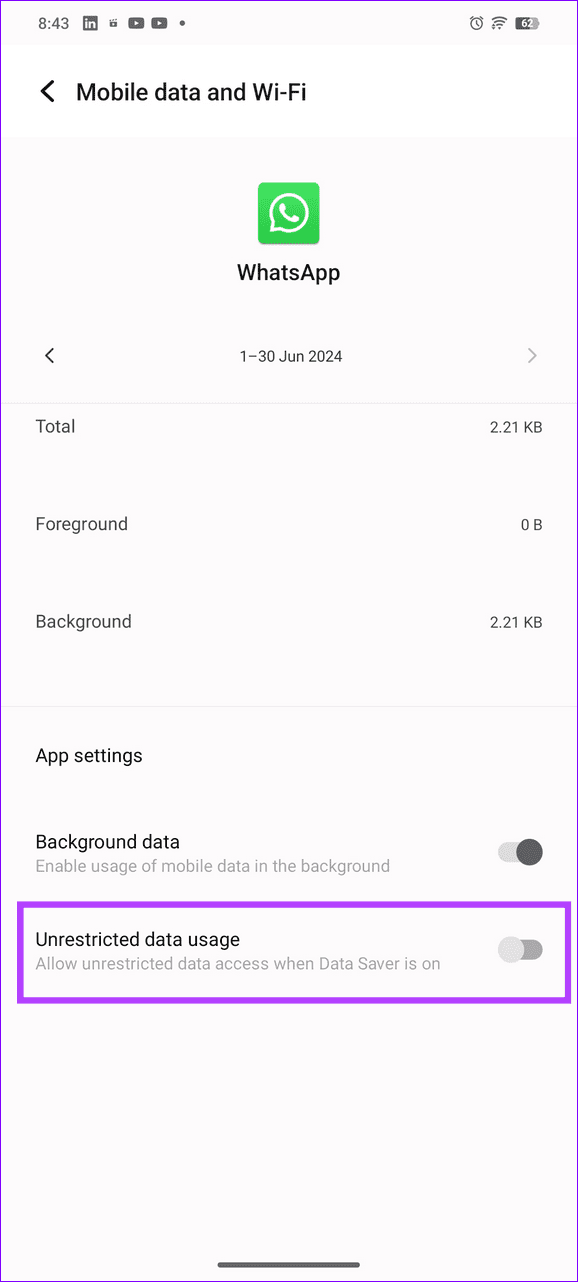
An active Data Saver mode on your Android device can hamper internet connectivity for installed apps like WhatsApp by limiting mobile data . Enable unrestricted data usage for WhatsApp to avoid the situation.
Open the WhatsApp App info menu > select Mobile data and Wi-Fi > toggle on Unrestricted data usage .
Fix 5: Exclude WhatsApp From Screen Time
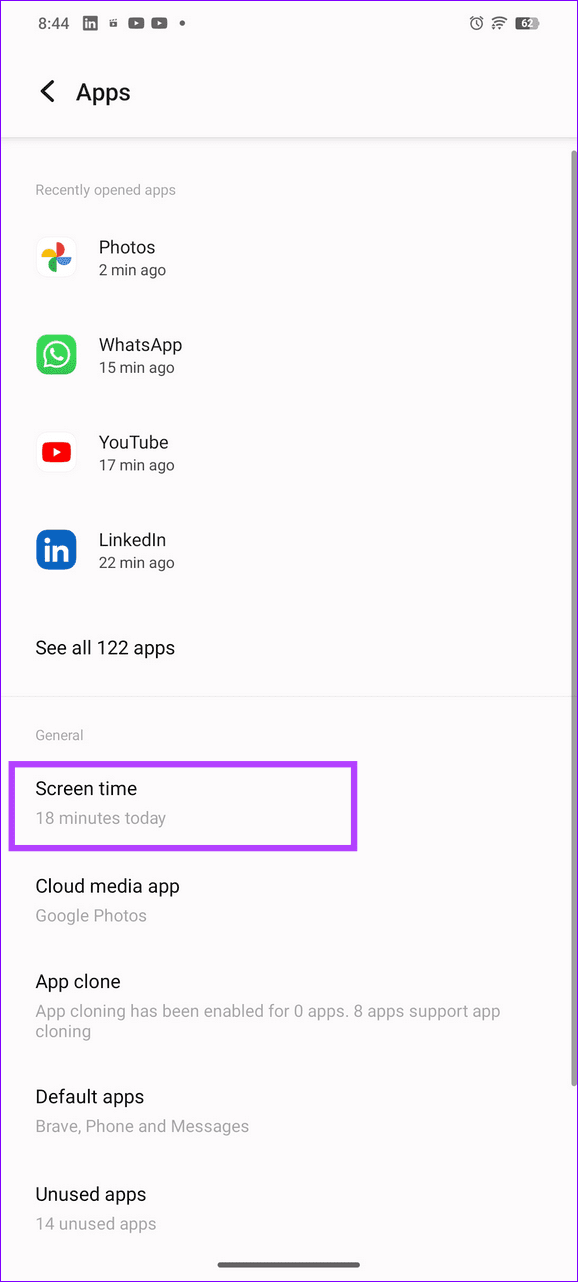
Did the WhatsApp icon suddenly turn grey on your home screen? It happens when you’ve breached its screen time limit . Open the Android screen time settings to disable it.
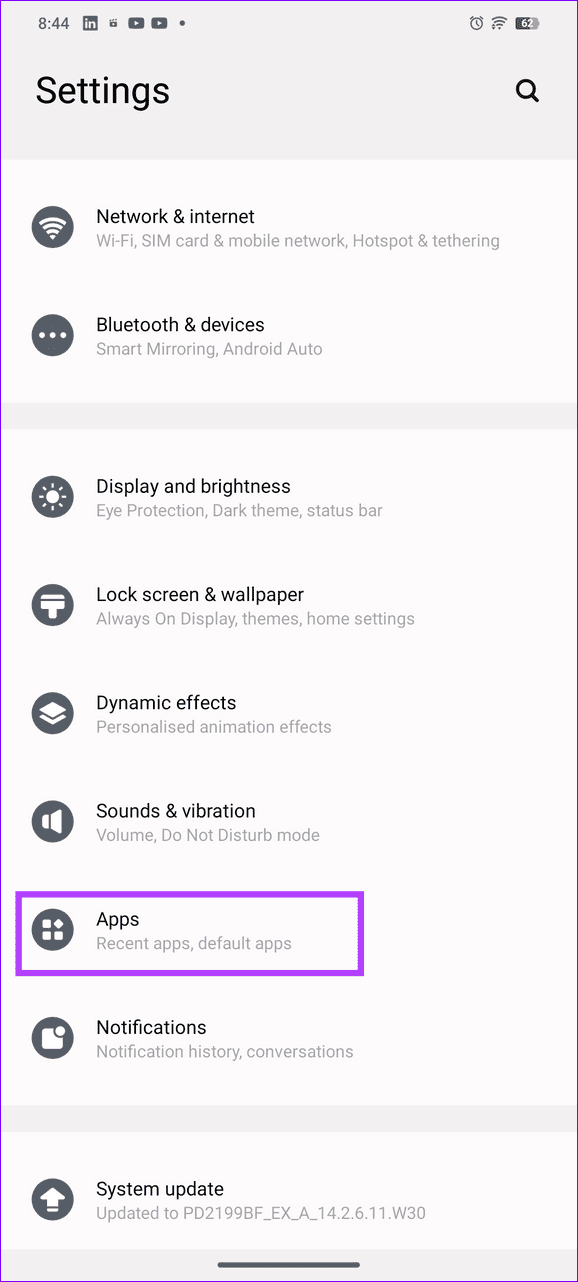
Step 1: Open Android settings > select Apps > tap Screen time .
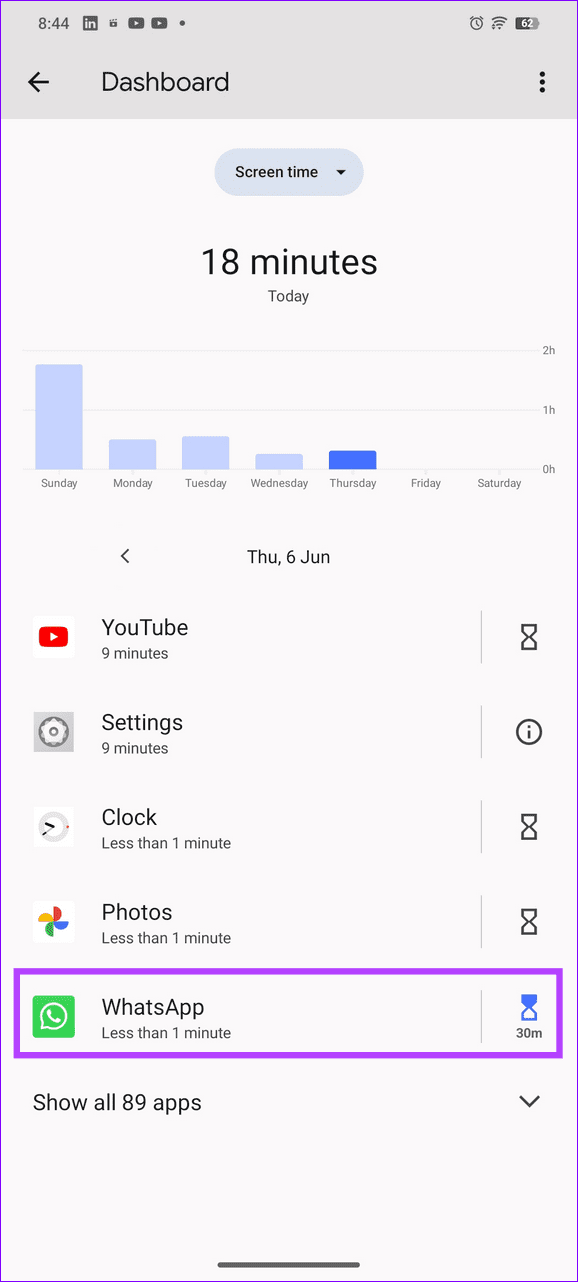
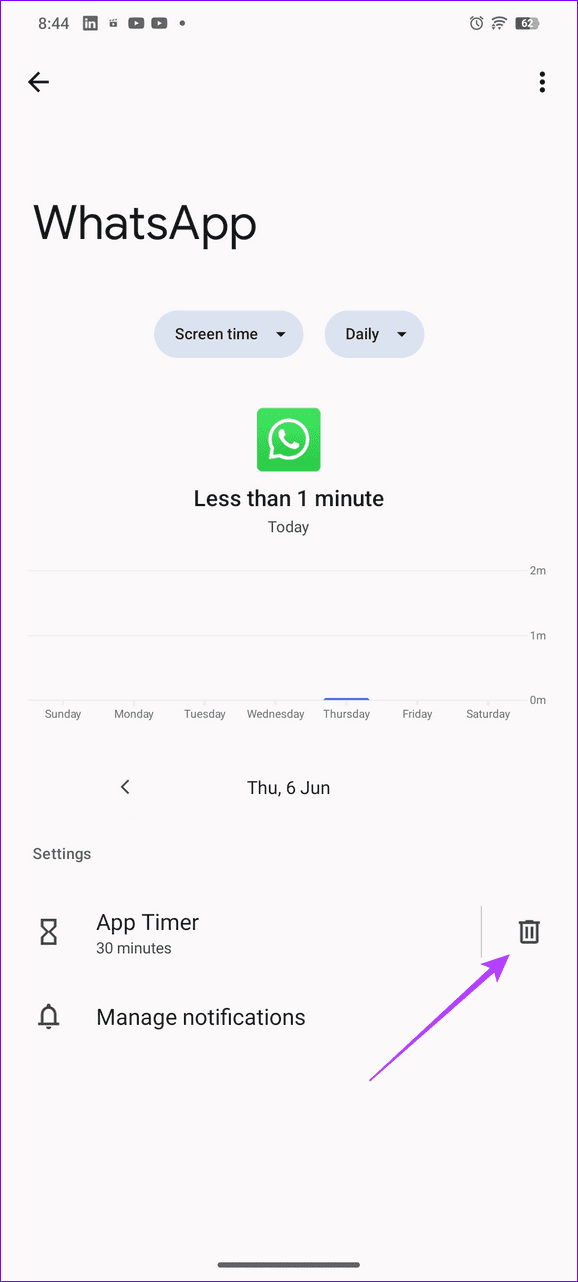
Step 2: Select WhatsApp > tap on the Delete icon next to App Timer to remove it.
Fix 6: Reset All Network Settings
Lastly, reset all network settings on your Android phone to delete incorrect network configurations that prevent WhatsApp from functioning accurately.
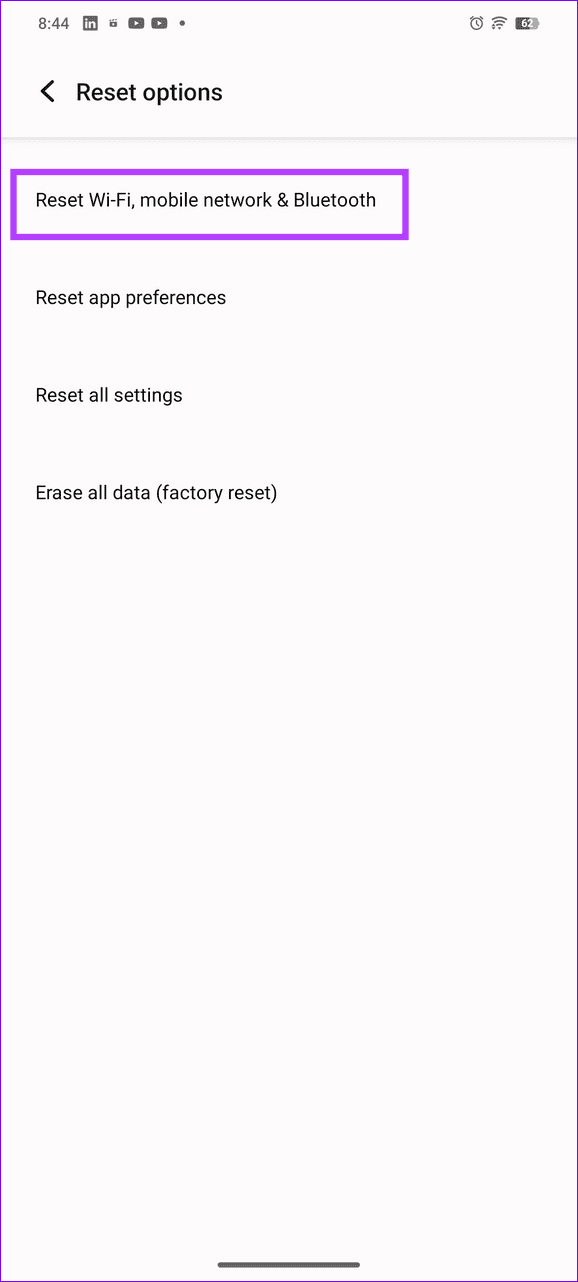
Step 1: Select System under Android settings > tap on Reset options .
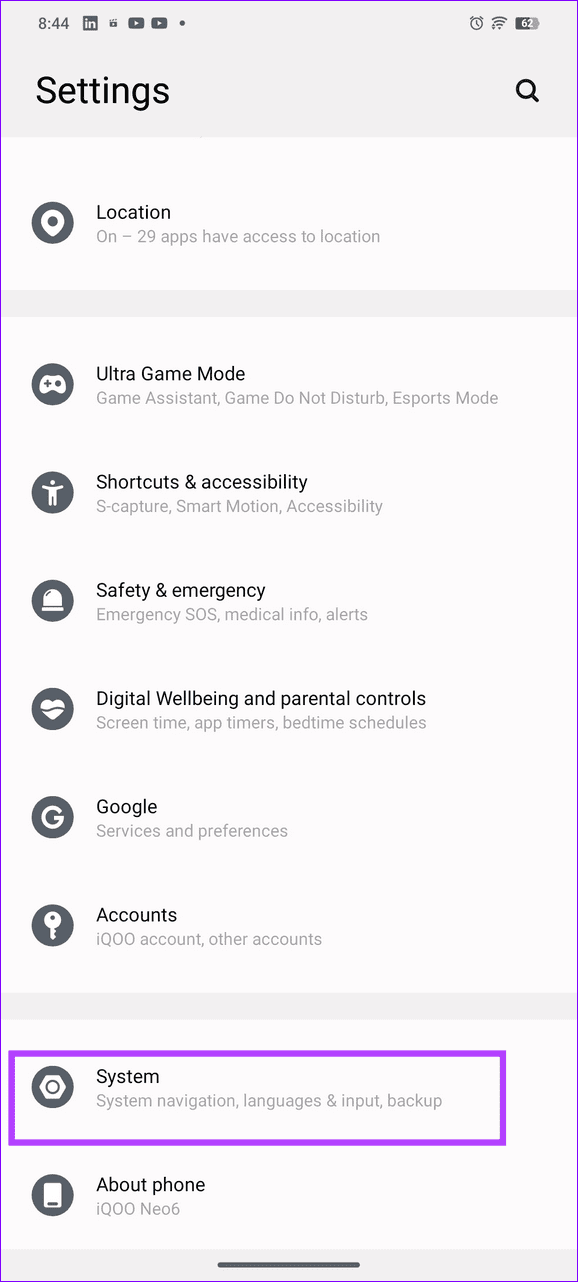
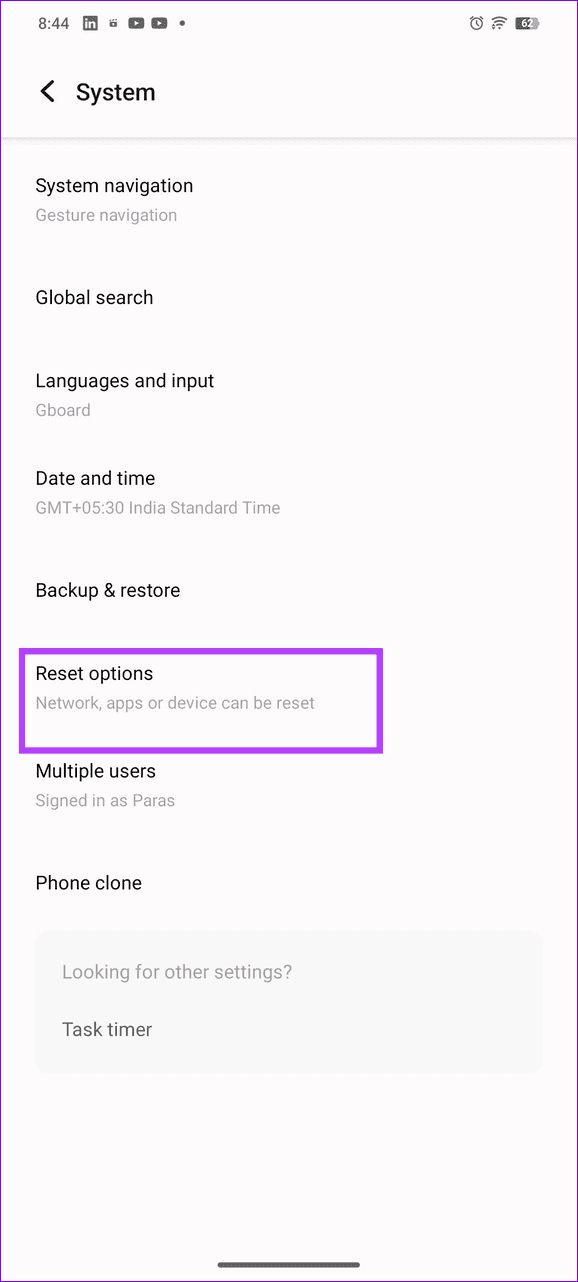
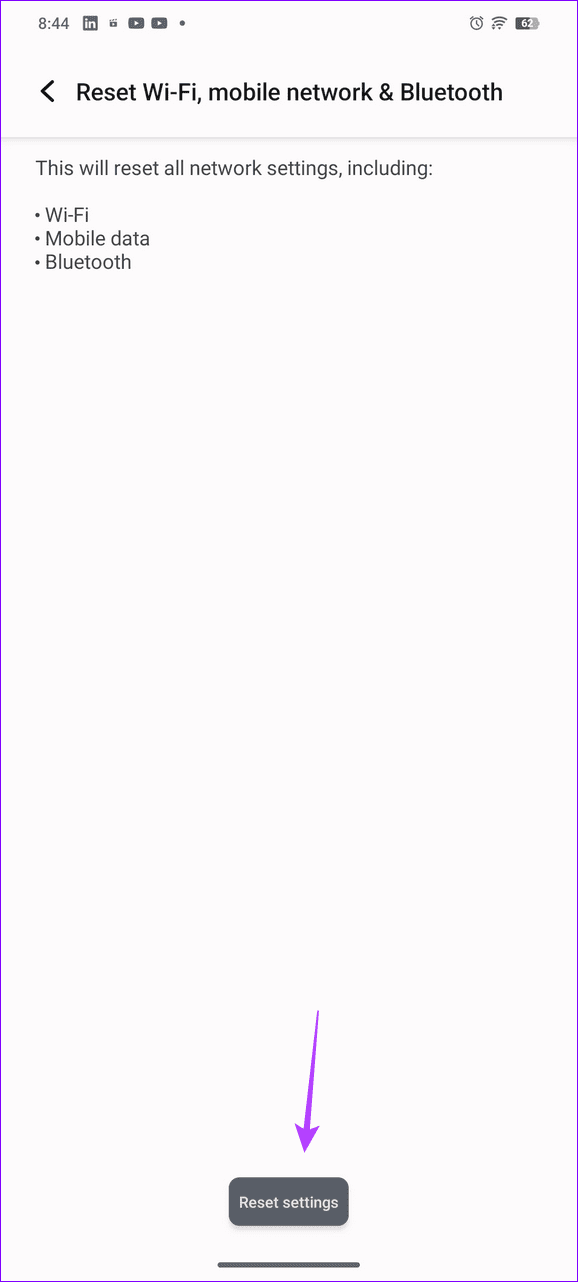
Step 2: Tap on Reset Wi-Fi, mobile network & Bluetooth > select Reset settings to restore defaults.
Was this helpful?
Submit Cancel
Thanks for your feedback!
Keep reading
![9 Pet Care Apps in 2024 [Free and Paid]](https://bcdn.seocloud.biz/seo-articles/82a3ce5485f5bc506feb1226aca9bcb4/cover.jpg)