Android
How to Fix WhatsApp Notification Sound Not Working
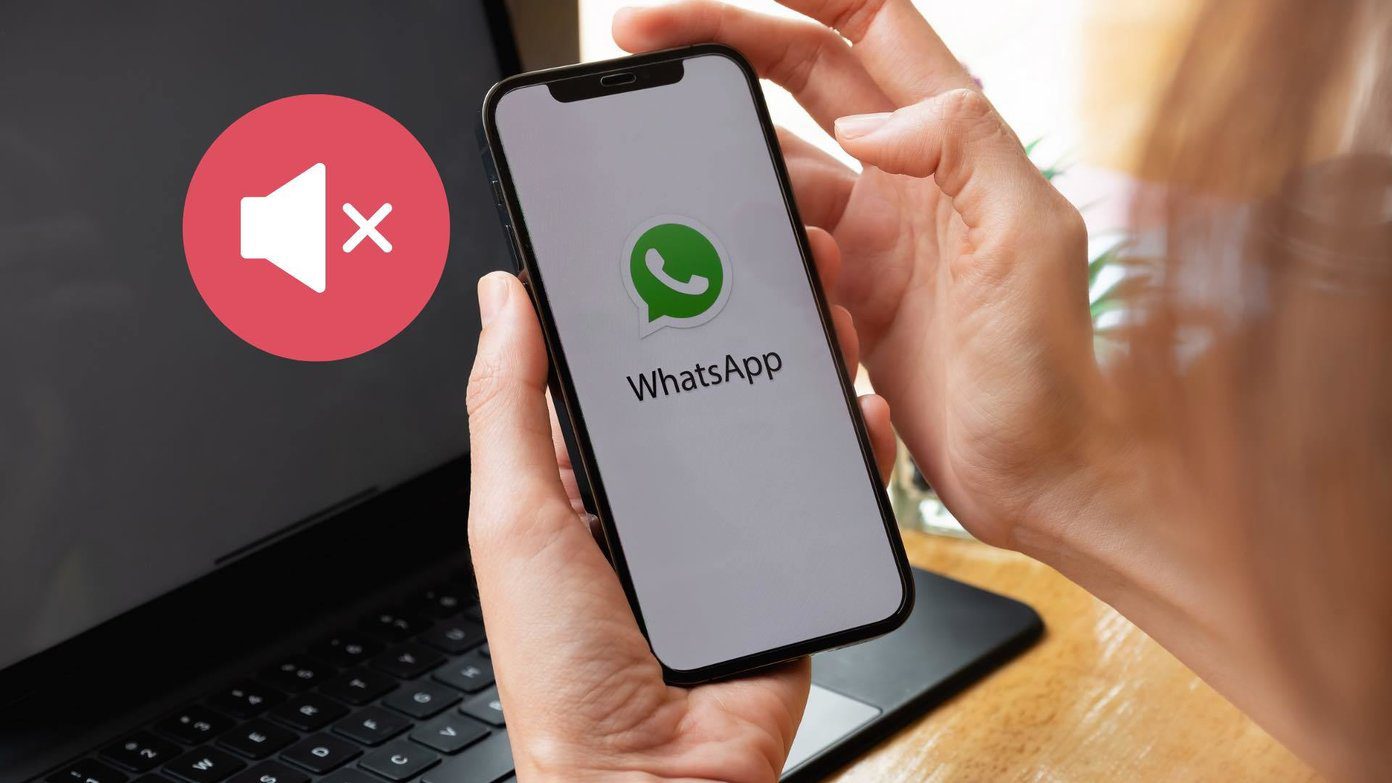
Are you getting WhatsApp notifications without any sound? Here's how you can fix WhatsApp notification sound not working on iPhone and Android.
By Parth Shah
Quick Tips
If you’re using WhatsApp on multiple devices, check if those devices are receiving notifications instead of your main device.
Ensure WhatsApp is allowed to send you notifications. Go to Settings > WhatsApp > Notifications > toggle on Allow Notifications.
Also, check WhatsApp notification settings. Go to WhatsApp Settings > Notifications, ensure notification is enabled and the right tone is selected.
Basic Fixes
Ensure silent mode is turned off – The first thing you should do is to check and turn off Vibrate/Silent mode on your iPhone or Android.
Unmute conversations – If the issue is with some chats, you might have muted some conversations or specific groups. So, check the setting and correct it.
Close WhatsApp on other devices – If WhatsApp is open on the desktop or other linked devices , you might receive notifications on those devices. Getting no or delayed WhatsApp notifications on this one.
Disable Focus or Do Not Disturb mode – If you have DND (Android) or Focus (iPhone) enabled, you won’t receive any notifications from WhatsApp, let alone hear the sound of it. Check and disable the settings.
Disconnect Bluetooth devices – You can’t hear the sound of WhatsApp notifications because it’s directed to your Bluetooth device. Disconnect all devices for some time and see if notifications ping.
Update or reinstall the app – WhatsApp notification sound not working on Android and iPhone might be related to an outdated app or some error. Try updating or reinstalling the app to fix the issue.
Fix 1. Allow WhatsApp to Show Notifications
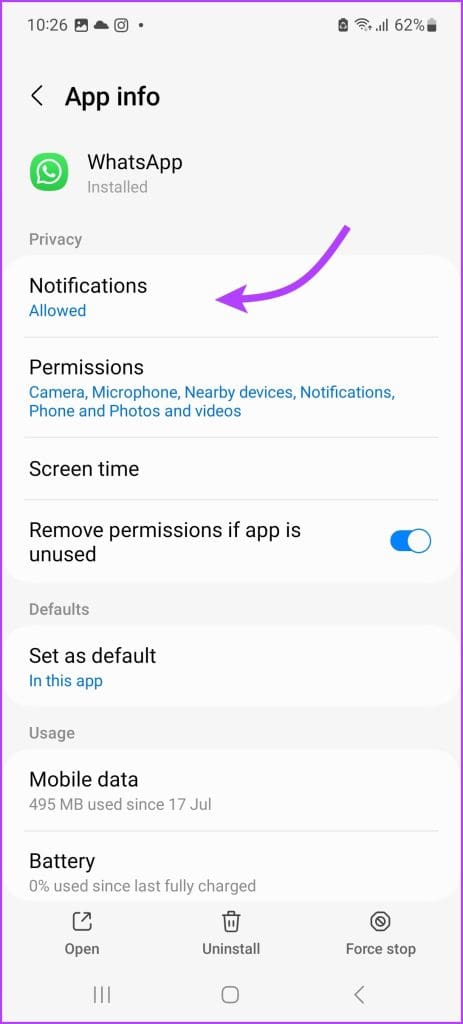
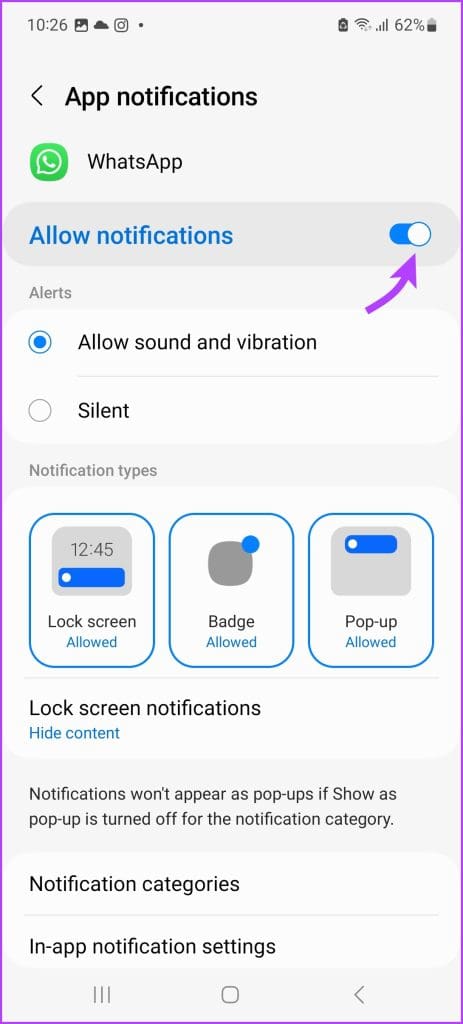
Maybe you mistakenly did so while setting up WhatsApp or it accidentally happened due to a system error. Whatever the reason may be, if you’re not receiving WhatsApp notifications , check if the app is allowed to send you notifications.
On iPhone – Go to Settings > WhatsApp > Notifications . Here, ensure that the toggle next to Allow Notifications is on.
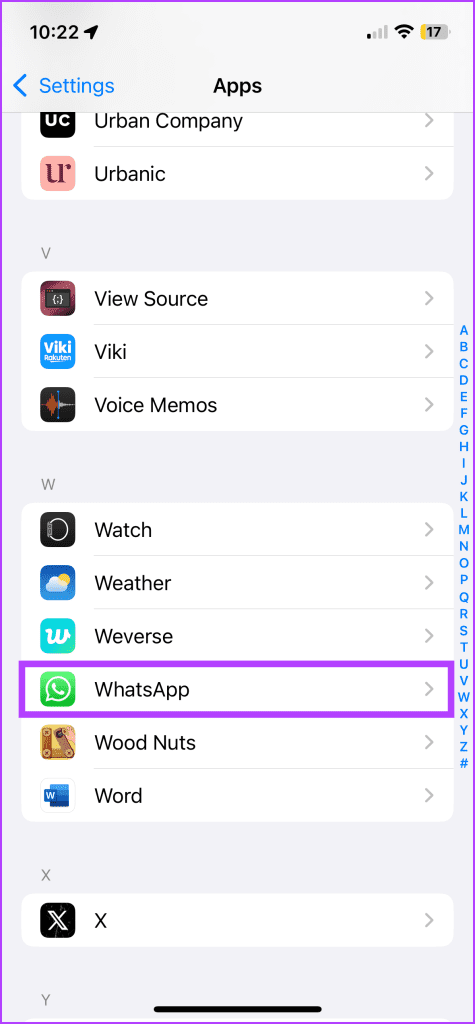
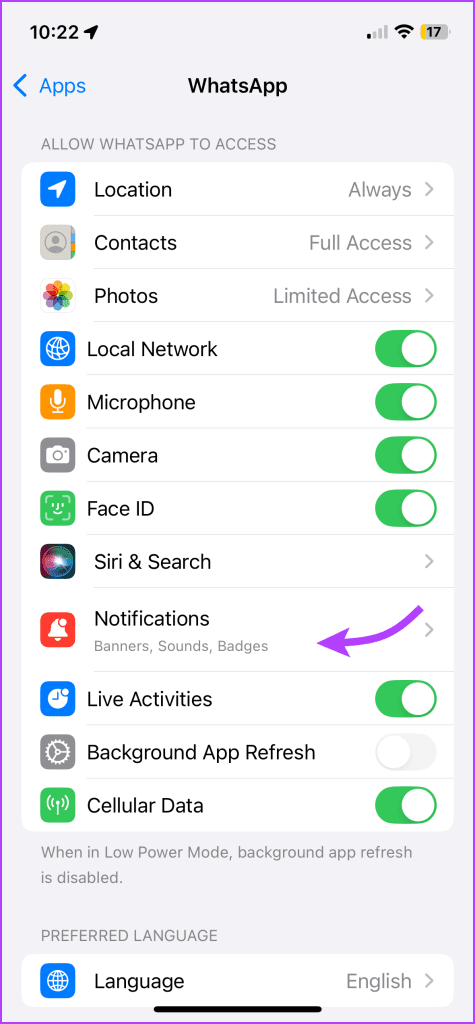
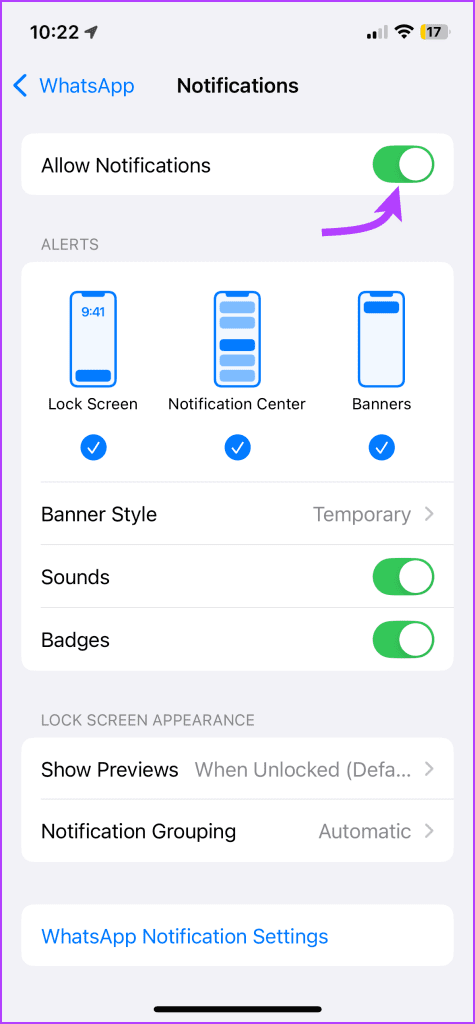
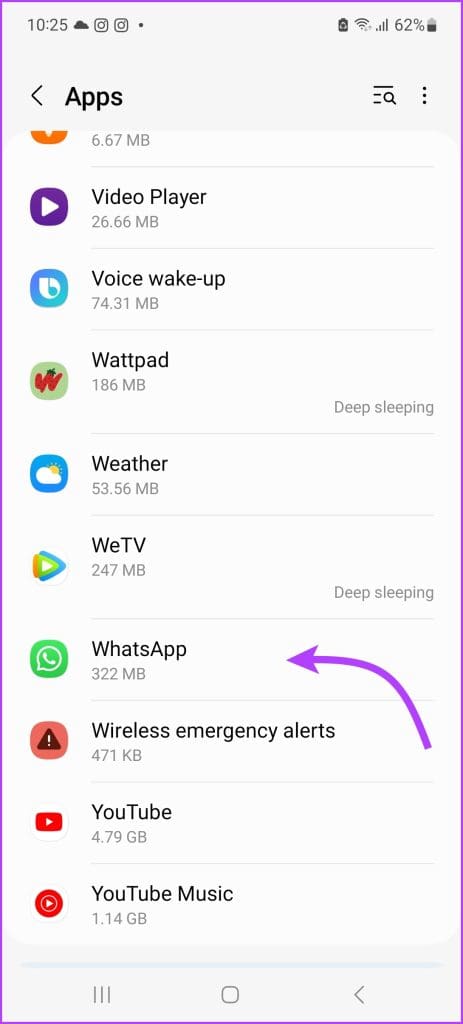
On Android – Go to Settings > Apps > WhatsApp > Notifications . Here, ensure that the toggle next to Allow notifications is on.
Fix 2. Check for Notification Summary or Notification grouping
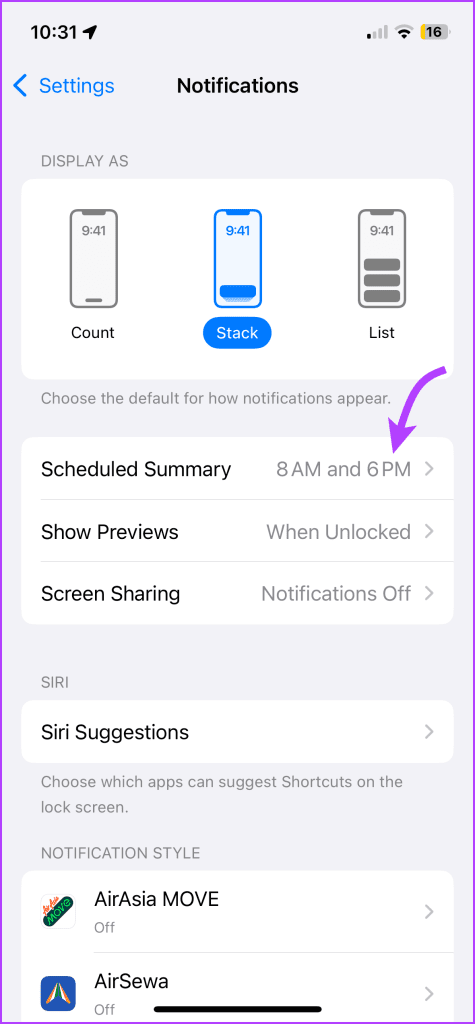
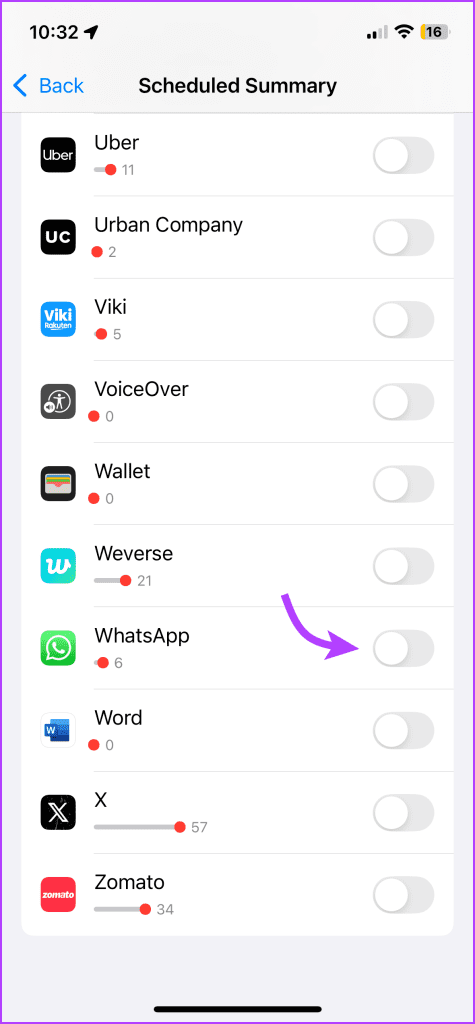
Both iPhone and Android have built-in features that stop notifications from popping and disturbing you during working/studying time. If you often use Notification Summary (iPhone) or Notification grouping (Android), remove WhatsApp from their list.
On iPhone – Go to Settings > Notifications > Scheduled Summary . You can either toggle off the switch next to WhatsApp or disable the summary option completely.
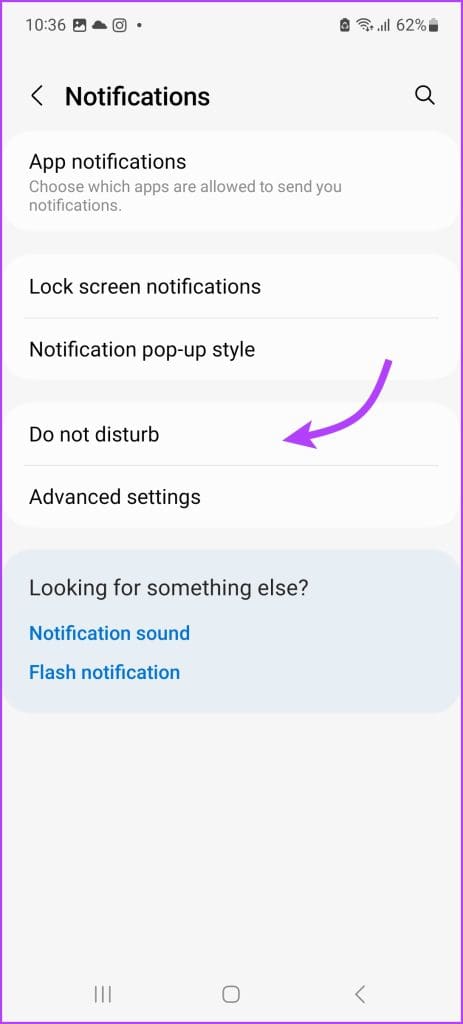
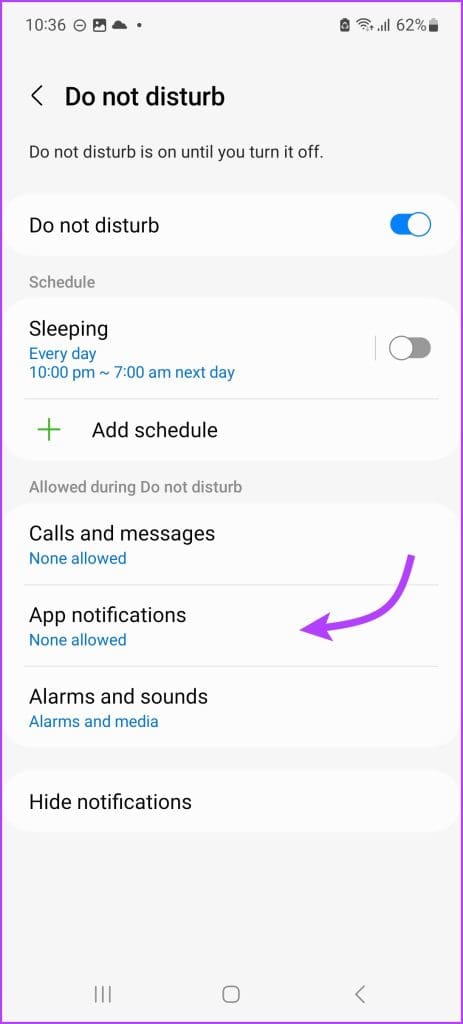
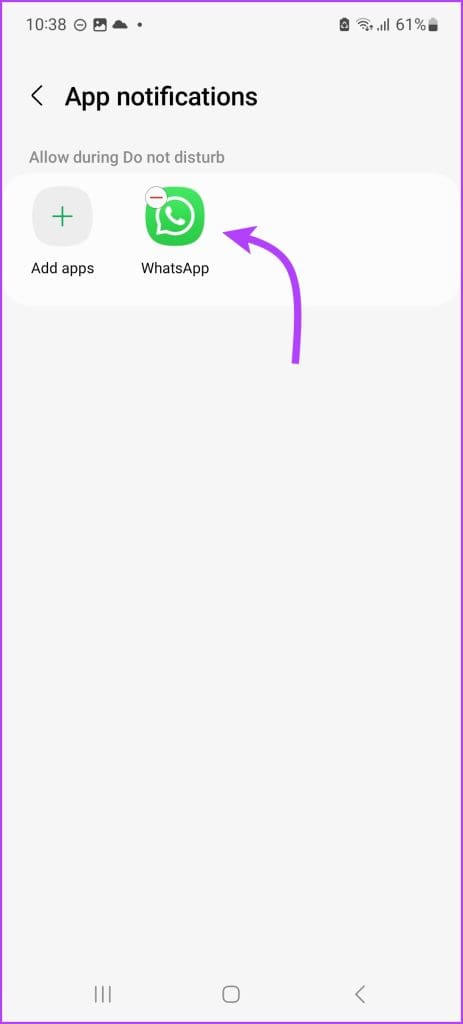
On Android – Go to Settings > Notifications > Do not disturb > App Notification → Add WhatsApp (to allow the app to send notifications). Or you can simply toggle off Do not disturb all together.
Fix 3. Check WhatsApp In-App Notification Setting
Maybe you intended to turn off notifications for message reactions or accidentally changed the notification setting while setting a custom ringtone for someone . Whatever, the reason, it wiser to check WhatsApp’s notification settings.
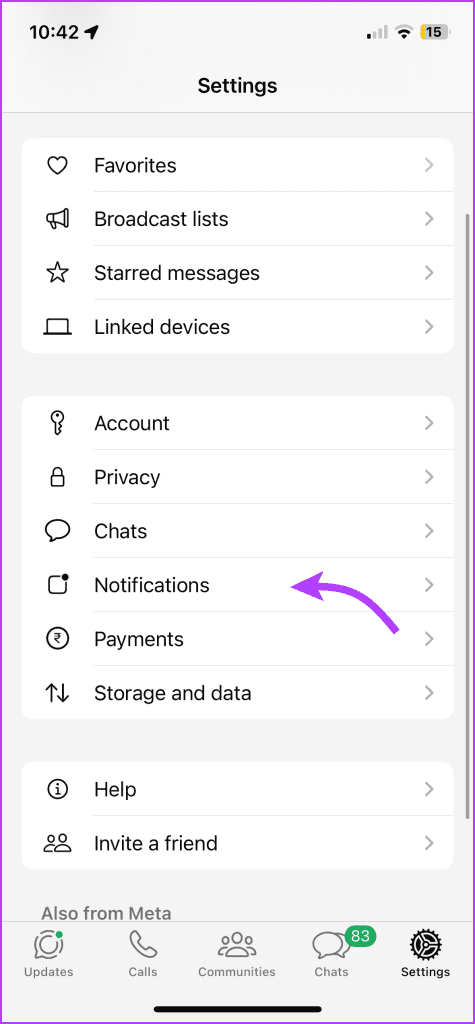
On iPhone – Open WhatsApp and go to Settings (tap the gear icon for iPhone and three-dot icon > Settings for Android.) Tap Notifications and check that notifications for messages and calls are enabled. Plus, there is a ringtone selected in front of the Sound section and not none.
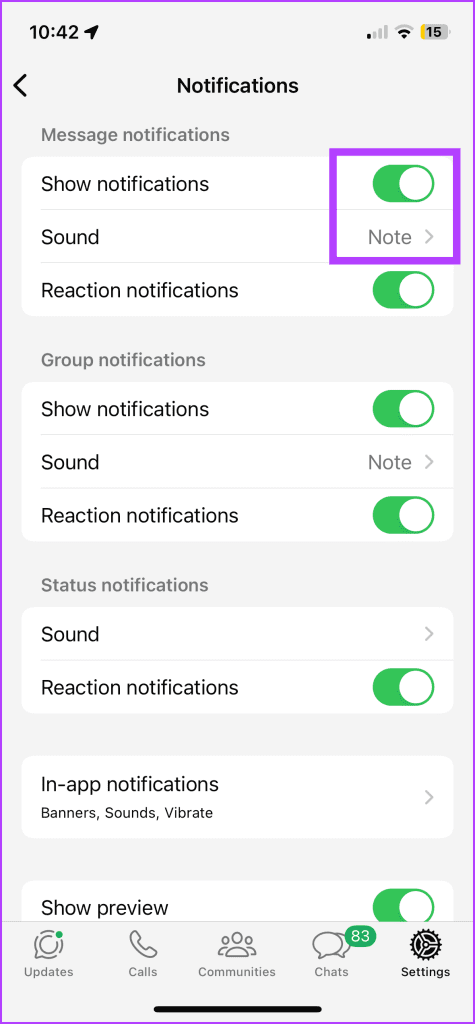
You might miss some important messages when the WhatsApp notification sound fails to work. So select a loud and clear notification tone for your WhatsApp.
Was this helpful?
Submit Cancel
Thanks for your feedback!
Keep reading