Android
4 Ways to Fix White Screen on Samsung and Other Android Phones
Has your Android phone's screen turned white all of a sudden? Know how to fix white screen of death on Samsung and other Android phones.
By Madalina Dinita
Quick Tips
Try force restarting your phone by holding down the power button to rule out any temporary glitches.
Update your smartphone to the latest OS to keep bugs at bay.
A factory reset can help you fix the issue if a new update caused the display issue.
Fix 1: Remove the Battery
Most new phones don’t have the ability to replace the internal battery. But, if you own an old Android phone, you may be able to remove the battery If it’s possible remove the battery and reinsert it to see if the display is back to normal.
Fix 2: Check the Charger
You should try charging your Android phone for a while. Maybe your phone is low on battery juice, and that’s why it’s unable to boot, thus causing the white screen issue. If you have already tried charging the phone, use a different charger . There are chances that you are using a defective charging adapter or cable.
Fix 3: Find the Problematic App
If you are somehow able to bypass the white screen on your Android phone, you should try clearing the cache of any recently installed app. For that, go to Settings , followed by Apps , and tap on a recently installed app that you think is causing the issue. Then, tap on Storage followed by Clear cache . Doing so will not delete any data from the app.
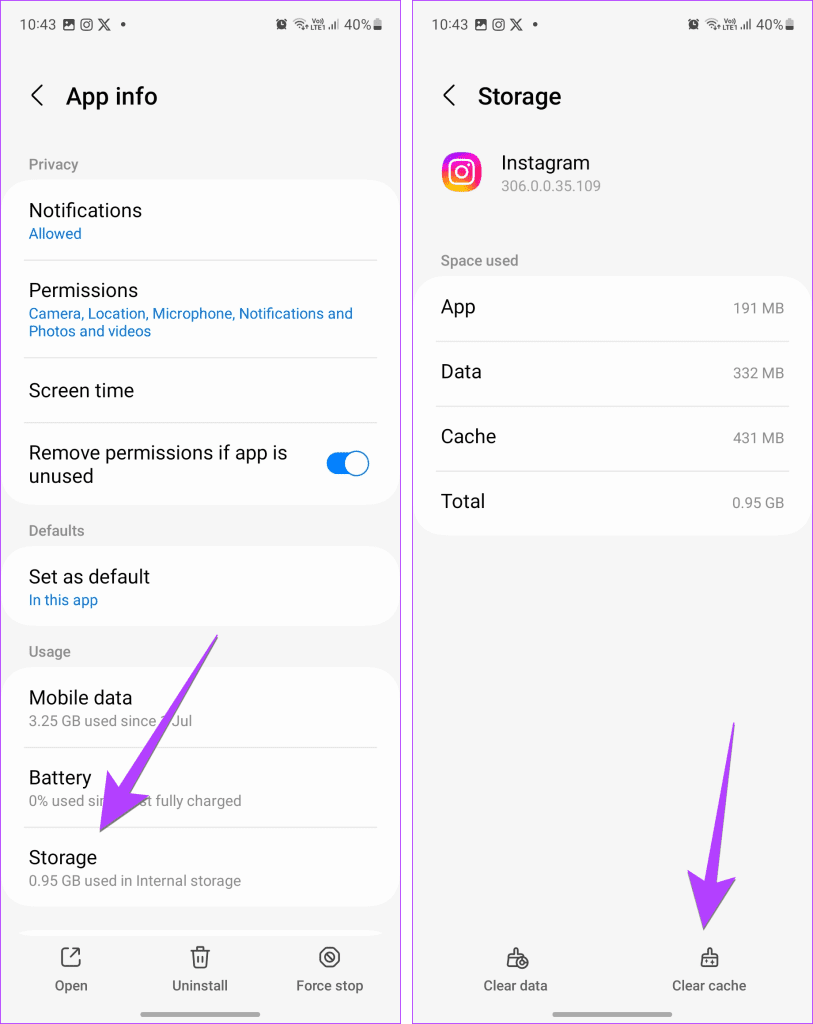
Alternatively, you should uninstall the app that you might think is responsible for the white screen issue on your Android phone.
Fix 4: Reboot Your Phone in Safe Mode
If you are still unable to get rid of the white screen or if you see vertical or horizontal lines on your Android phone , you should try rebooting your phone in Safe Mode. In Safe Mode, your phone will start only with the apps that came preinstalled. So if a third-party app is responsible for the white screen of death issue, your phone can boot up in Safe Mode.
Step 1: When the device is on, press the Power button on the side until you see the Power pop-up menu. On some phones, you might have to press Power and Volume Up or Power and Volume Down buttons together to see the Power Menu.
Step 2: In the Power pop-up menu, long-press the Power option until the Reboot to Safe mode message shows up. Tap on OK to go to Safe Mode. You will see Safe Mode text at the bottom of the screen when your phone is in Safe Mode.
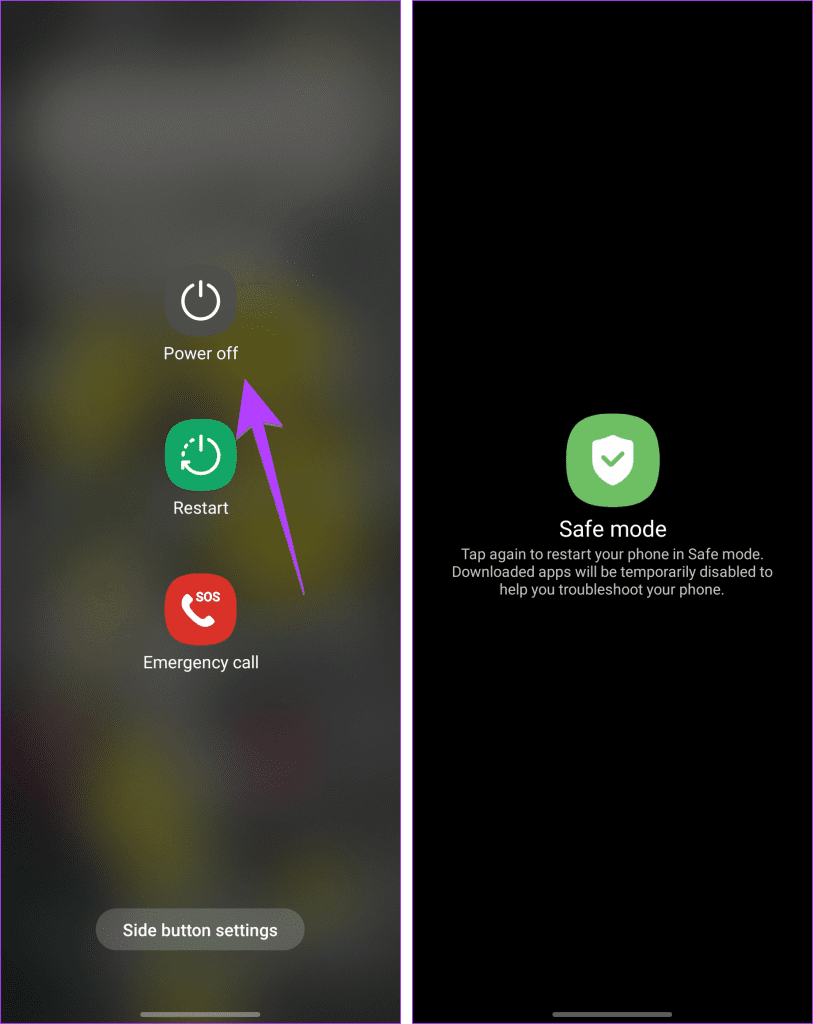
Step 3: Now, go to Settings > Apps and uninstall the problematic app.
Note: To exit Safe Mode, restart your Android phone. If you’re unable to, learn how to fix Android phone stuck on Safe Mode.
Was this helpful?
Submit Cancel
Thanks for your feedback!
Keep reading