Android
4 Ways to Fix Wi-Fi Grayed Out on Android
Are you facing Wi-Fi issues on your Android phone? Check the best ways to fix Wi-Fi greyed out on Android.
By Parth Shah
Quick Tips
Network glitches on your Android phone may lead to Wi-Fi grayed out issue. You have the option to reset network settings and start from scratch.
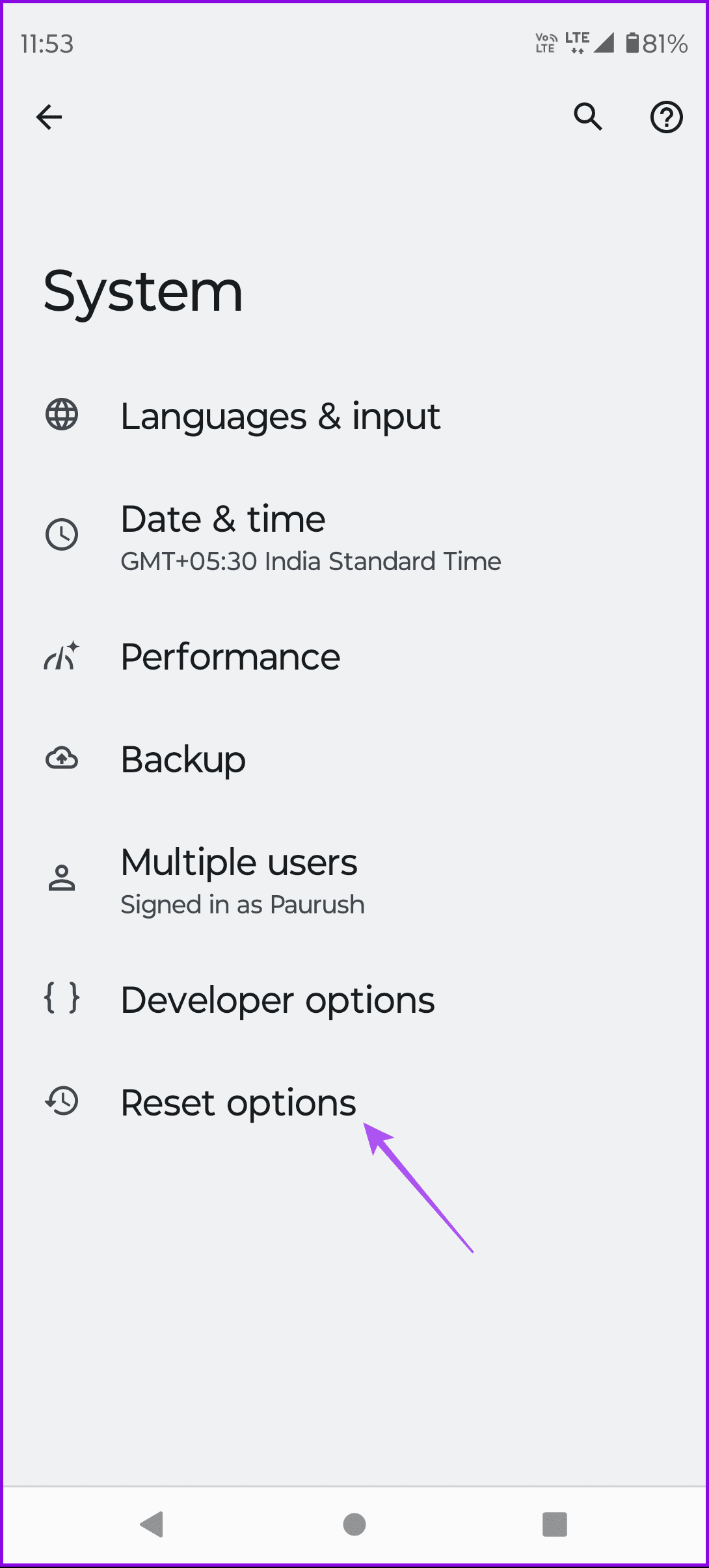
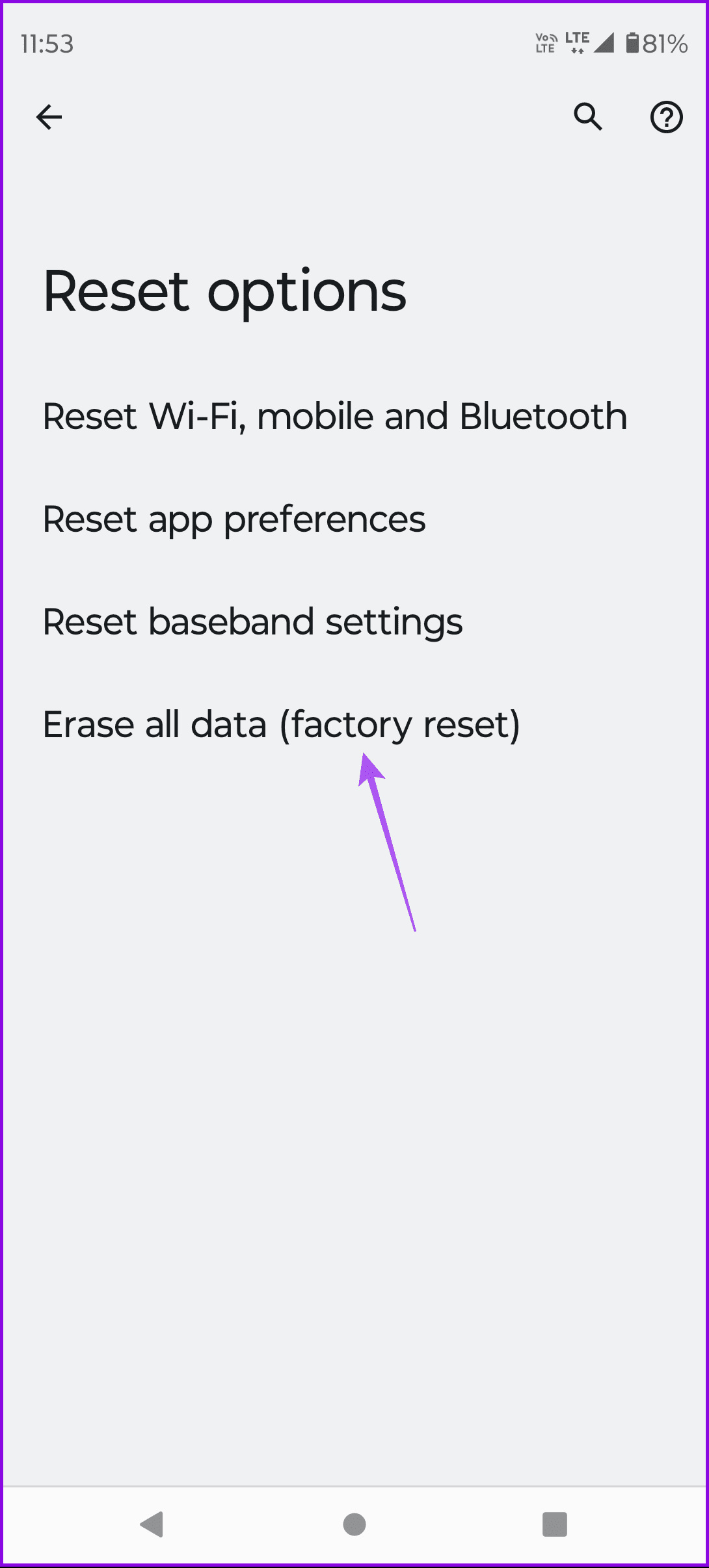
Open Settings > System > Reset options > Erase all data (factory reset).
If you are using a Samsung device, we suggest disabling the hotspot.
Basic Fixes
Restart your phone: Sometimes, a simple reboot fixes connectivity issues on Android phones.
Check for physical damage: If there’s a physical damage, you have no option but to visit the nearest service center to get it checked by professionals.
Enable and disble Airplane Mode: When you turn on the Airplane mode, the system suspends all the incoming and outgoing network connections.
Update Android version: Install the latest version of the Android software on your device.
Fix 1: Reset Network Settings
Network glitches on your Android phone may lead to Wi-Fi grayed out issue. You have the option to reset network settings and start from scratch. You can learn the steps for resetting network settings and further understand its implications.
Fix 2: Boot Into Safe Mode
Booting your Android phone into safe mode can help troubleshoot various issues, including the one you’re currently experiencing.
Step 1: Turn off your phone completely. Then, press and hold the power button until the logo appears.
Step 2: Once you see the logo, press and hold the volume down button until your phone boots into safe mode.
Fix 3: Perform Factory Reset
A factory reset will restore all system settings and apps to default on your Android device. You should also note that following this process will require you to set up your device again from scratch.
Open Settings > System > Reset options > Erase all data (factory reset) .
Fix 4: Disable Mobile Hotspot
If you are using a Samsung device, we suggest disabling the hotspot. If you have connected a device via a hotspot, you won’t be able to connect to a Wi-Fi network on your Android phone. However, you can also check out our post if the mobile hotspot is not working on your Samsung device .
Was this helpful?
Submit Cancel
Thanks for your feedback!
Keep reading