Android
3 Ways to Fix YouTube Comments Not Showing on iPhone and Android
YouTube comments not showing on iPhone or Android? Check out these 10 fixes: 1. Check if YouTube Is Down, 2. Check Internet Connection...
By Supreeth Koundinya
Quick Tips
You probably can’t see comments on YouTube for various reasons, the most common being poor network connectivity.
It may also be that YouTube’s server is down or there’s a problem with your phone’s software.
There are also times when switching the account or updating the YouTube app has fixed the issue.
Basic Fixes
Check if YouTube is down: You can check YouTube’s server status on Downdetector to know if it is facing downtime.
Check internet connection: Since YouTube has to load many elements apart from the video, you must have a good internet connection to load the comments.
Reload the video: Refresh the video, and check if you can see the comments section.
Update or Reinstall YouTube : Updating or reinstalling the latest version of YouTube from the Play Store or App Store can fix the missing comment section.
Fix 1: Change Your YouTube Account
Sometimes, a weird bug might affect your Google account signed into YouTube. Changing your YouTube account is one way to fix YouTube comments not showing up.
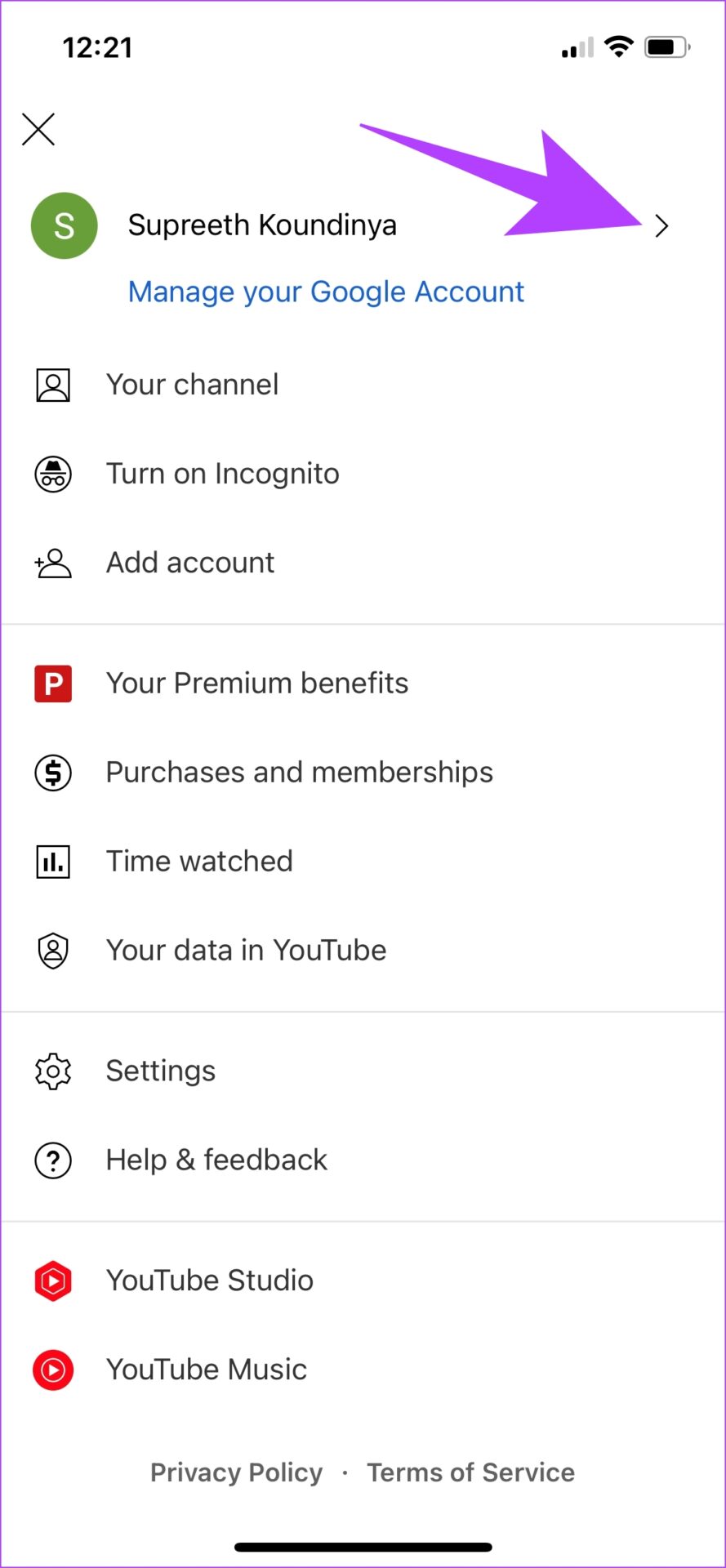
Step 1: Tap on the profile icon at the top right corner. Tap on the > icon next to your account name.
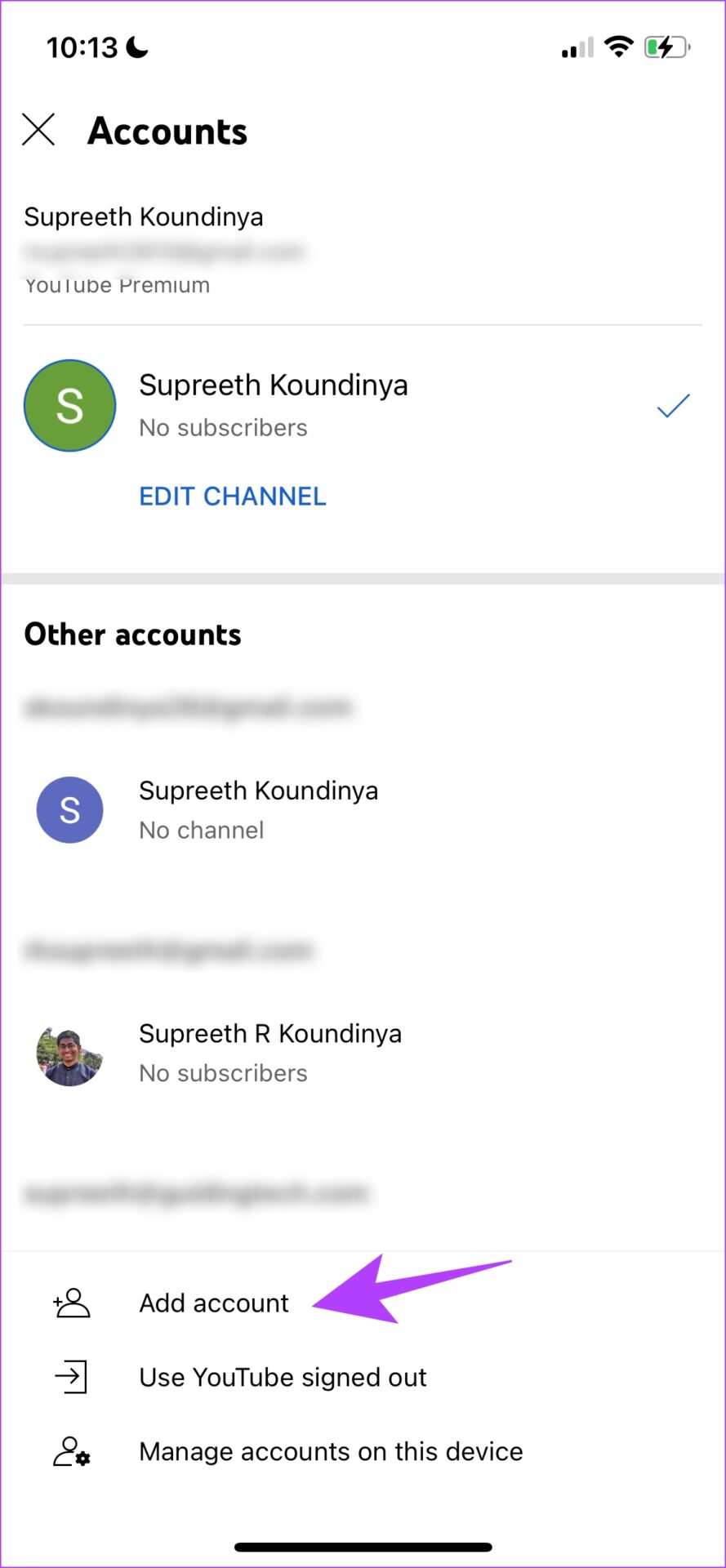
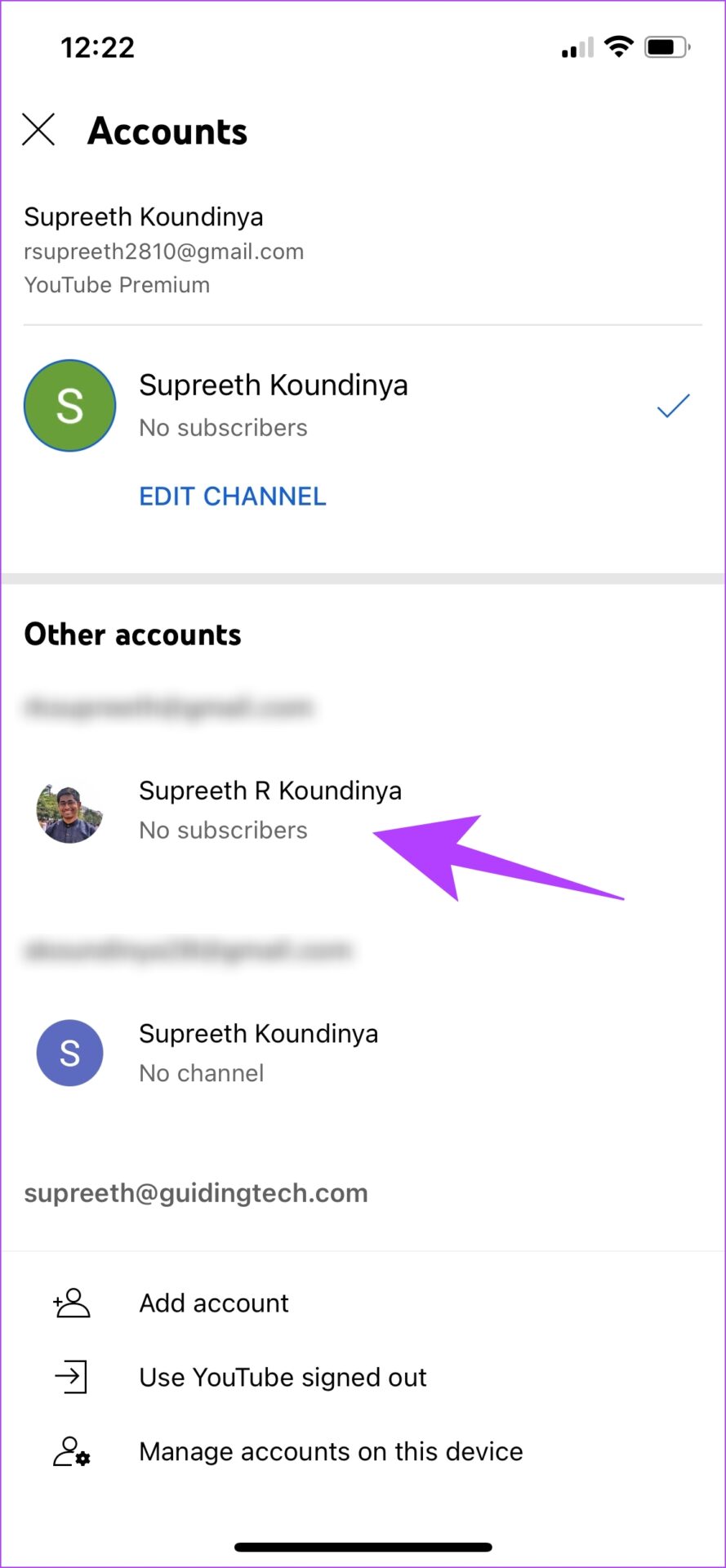
Step 2: You will be shown the Accounts page. Tap on Add Account . Once you add a new account, it will show up under Other accounts . Select the new account to switch.
Fix 2: Clear Cache
Accumulation of cache and junk files can execute bugs that can cause issues with the YouTube app. Here’s how to get rid of it on your smartphone.
On iPhone
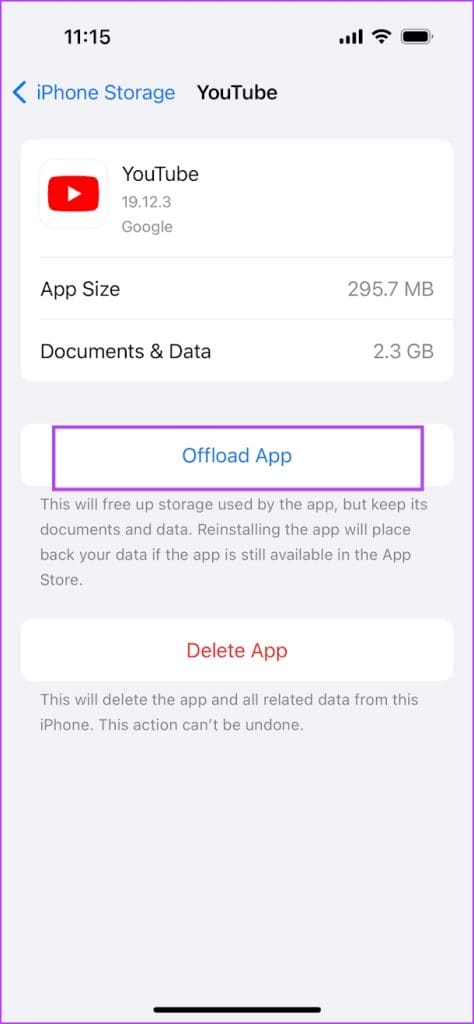
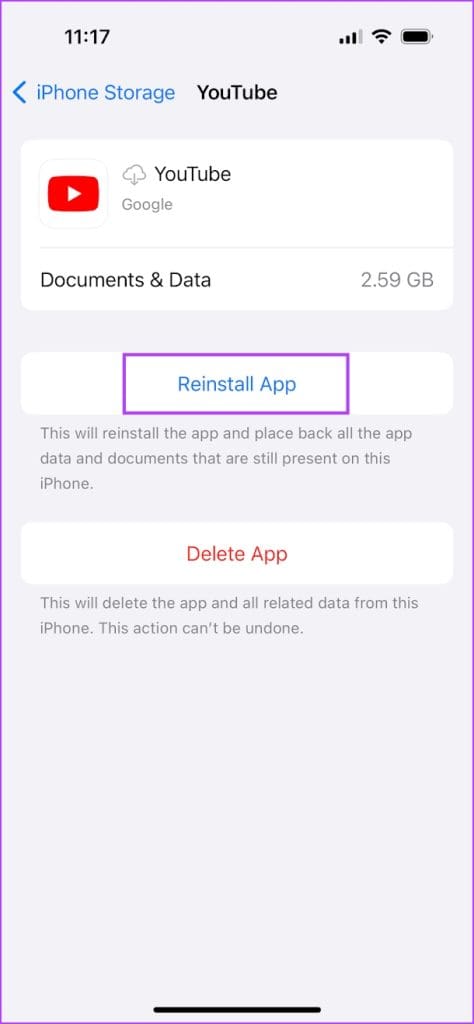
Offloading an application on your iPhone removes temporary data, including cache and junk files. However, it maintains all the other essential data, such as your sign-in information, in-app downloads and purchases, etc.
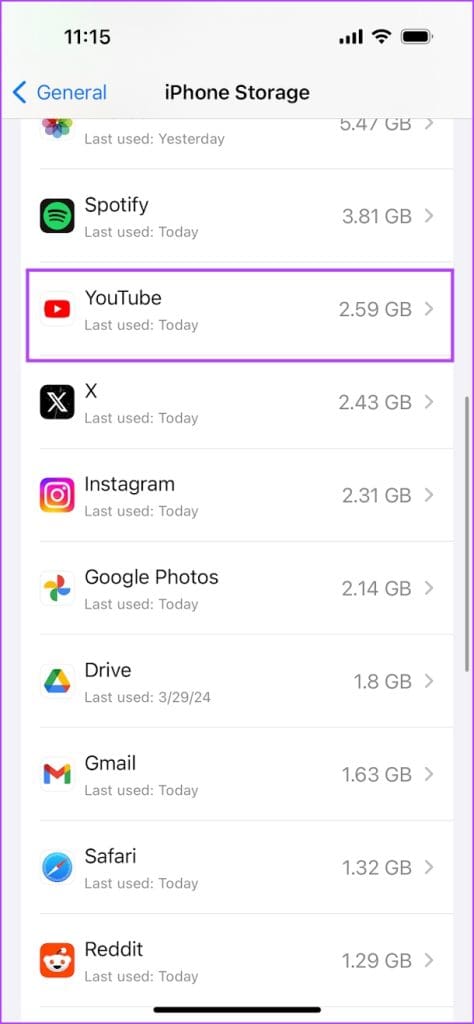
Step 1: On your iPhone, go to Settings > General > iPhone Storage
Step 2: Scroll down, select the YouTube app , and tap on Offload App . Tap on the Offload App again to confirm.
Step 3: Now, tap on Reinstall App .
On Android
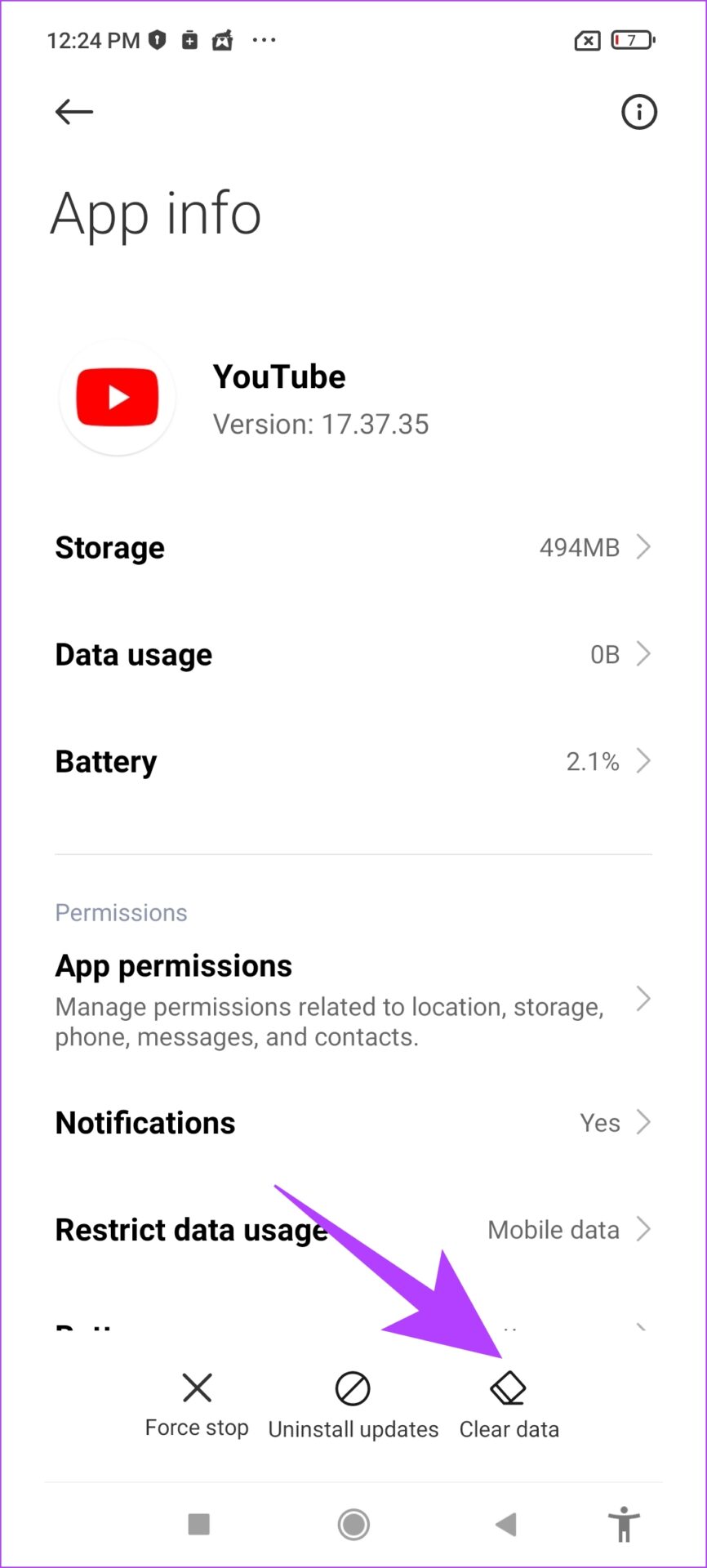
Step 1: Long-press on the YouTube app icon and select App info . Here, tap on Clear Data .
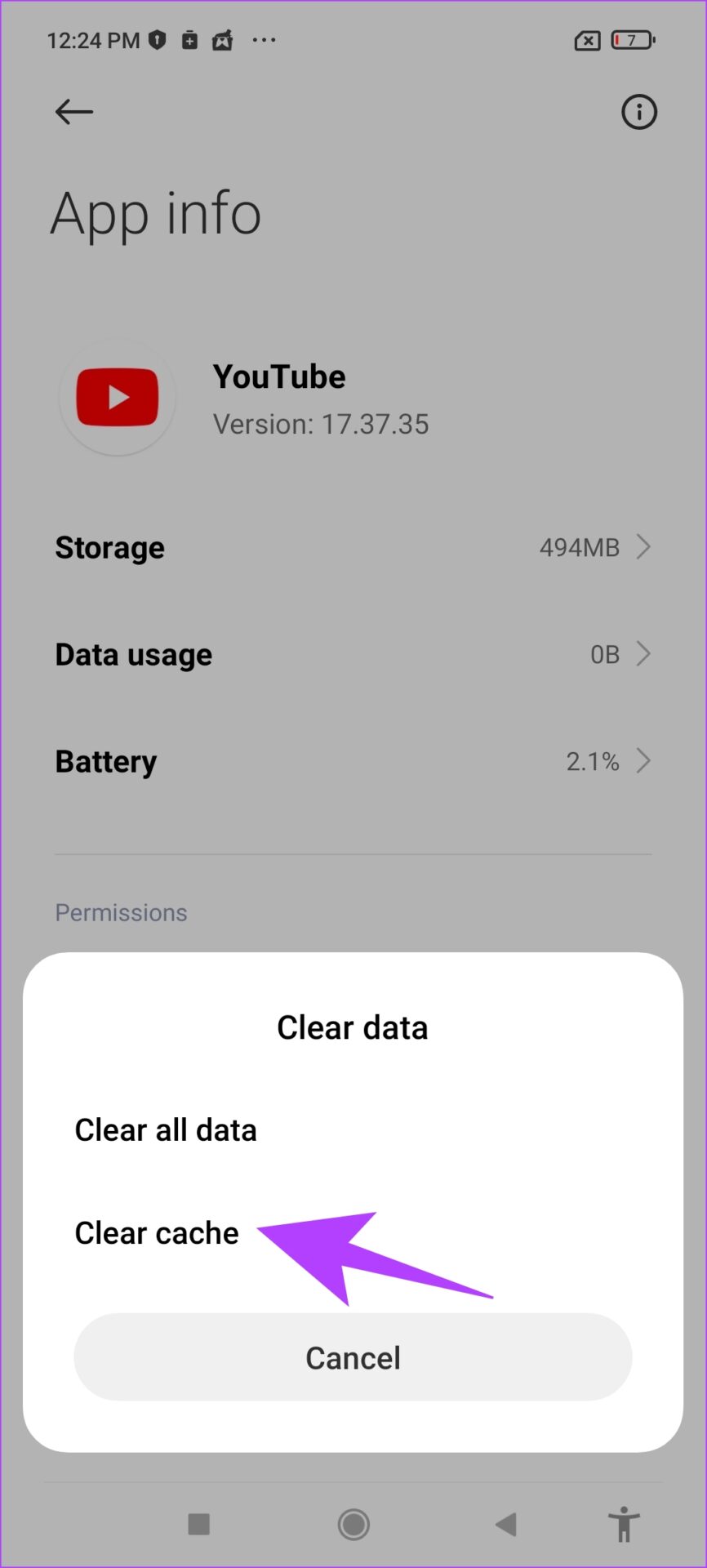
Step 2: Now, select clear cache .
Fix 3: Disable Ad Blockers
Ad Blockers might help you block intrusive and annoying ads but might cause a few issues with the functioning of the application.
On iPhone
If you are watching YouTube on Safari, here’s how to disable the ad blocker on your iPhone to get back the comments section.
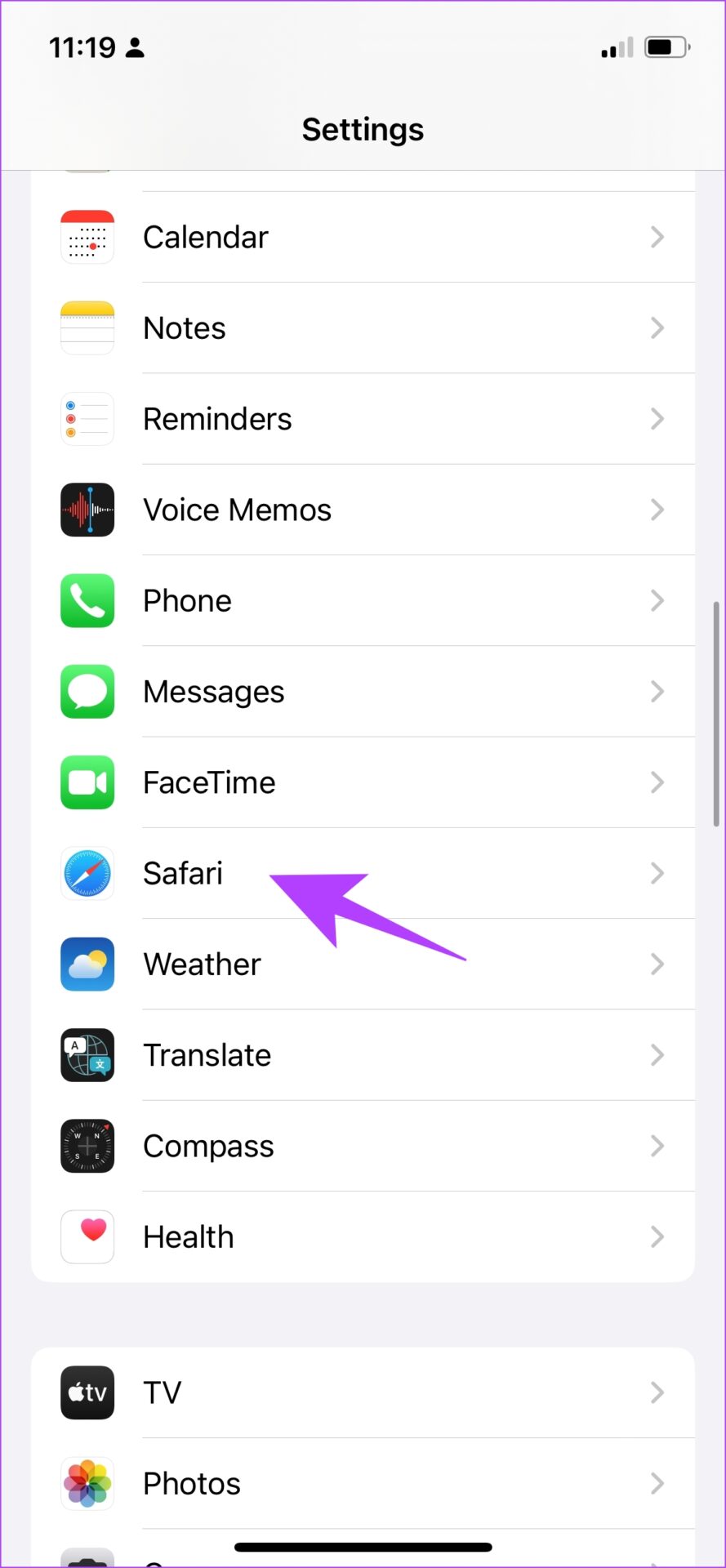
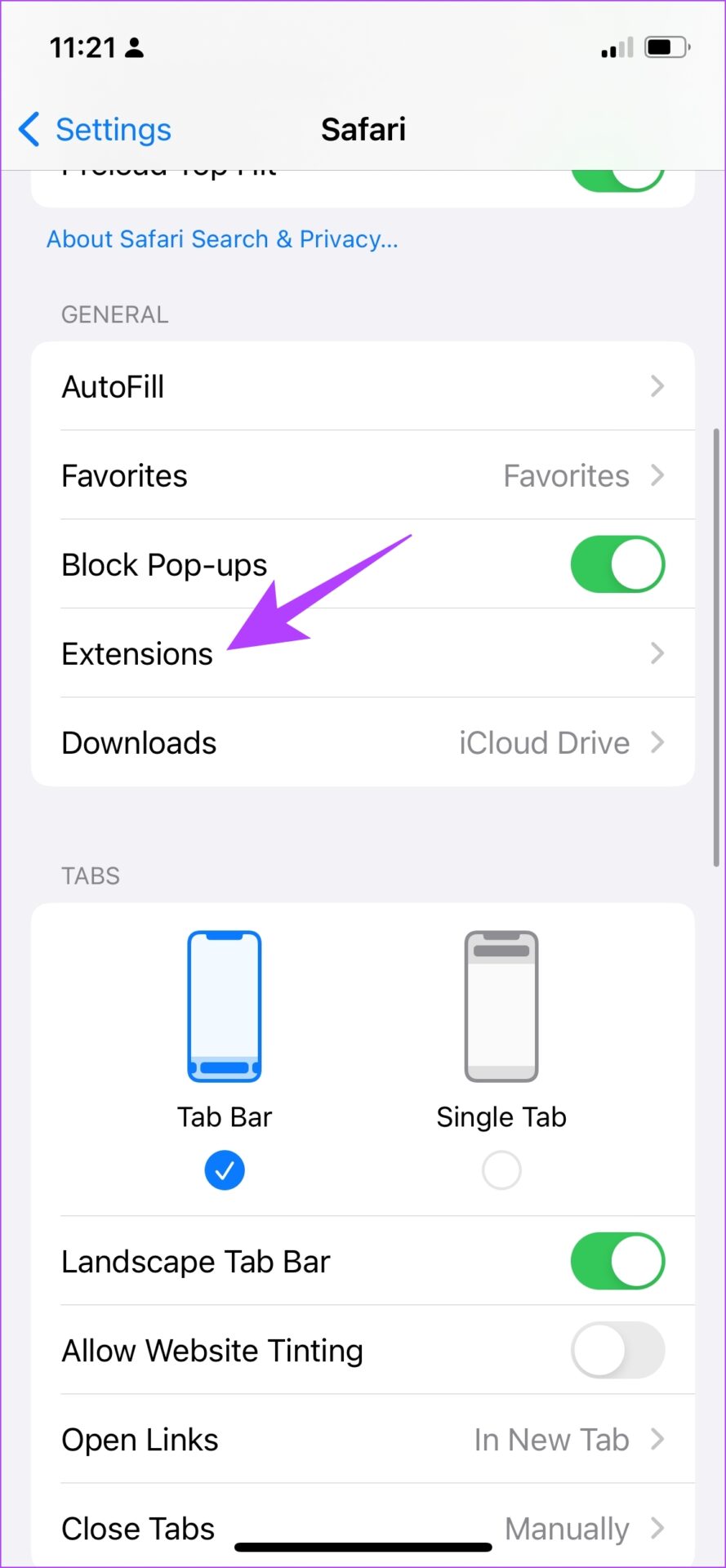
Step 1: Open the Settings app and select Safari . Tap on Extensions .
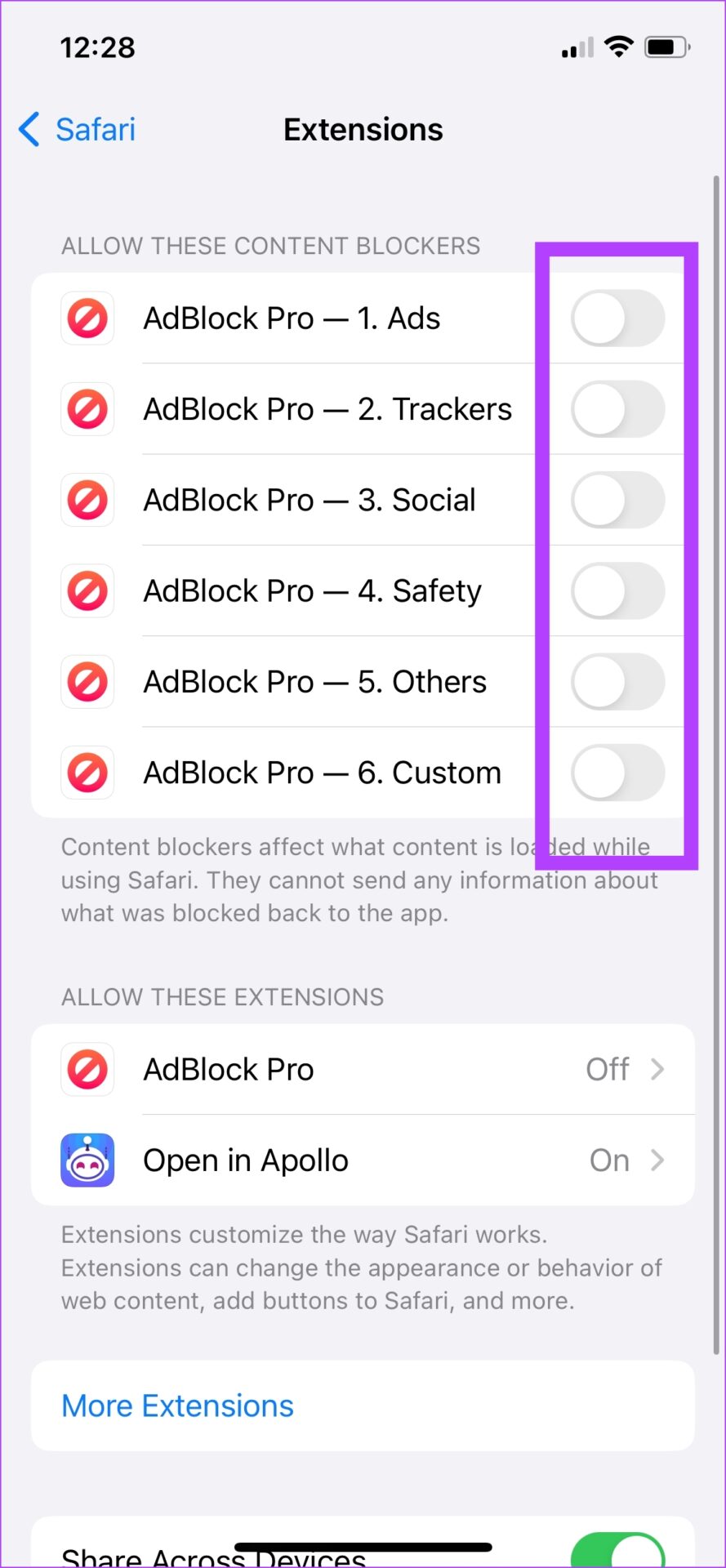
Step 2: Ensure all the toggles are turned off for any ad blockers which are extensions for Safari.
On Android
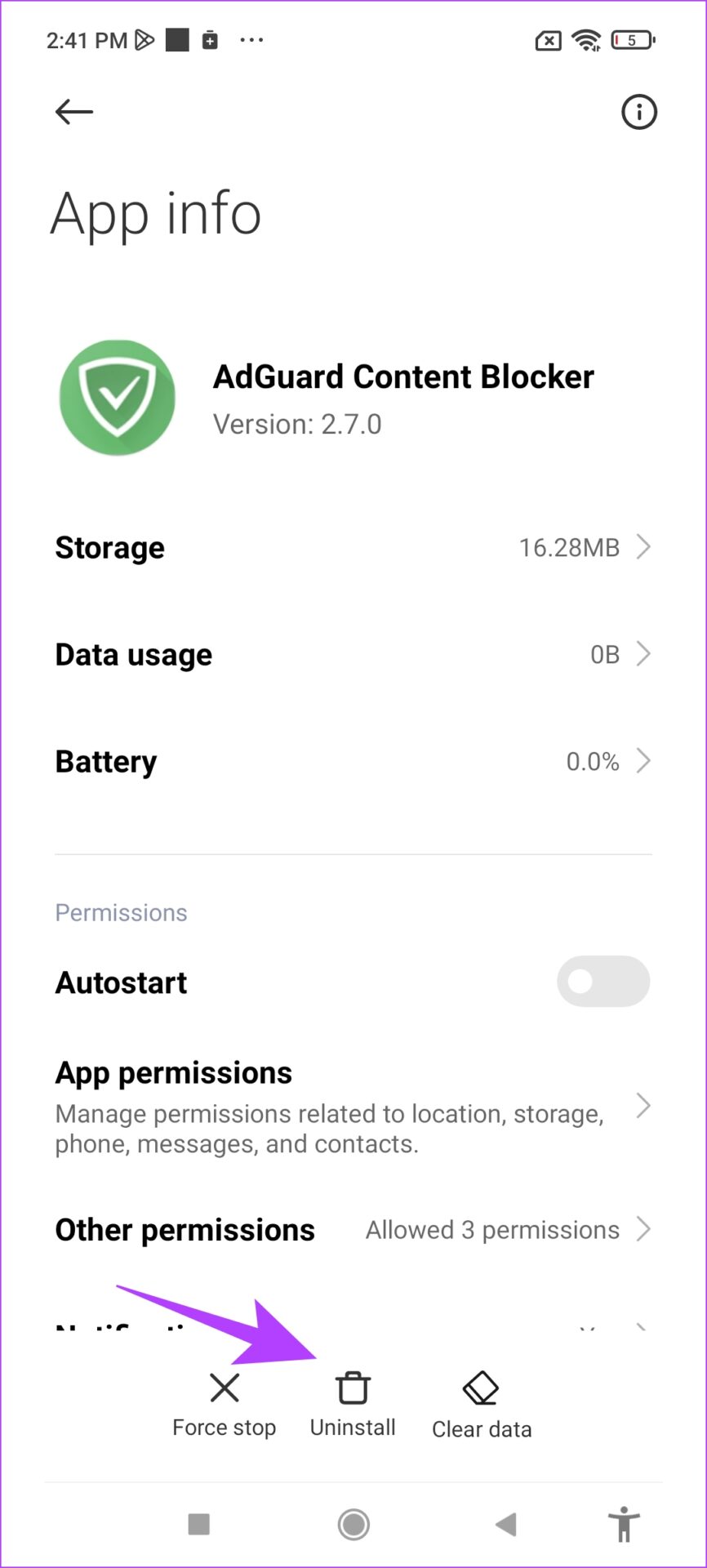
If you have an ad blocker app installed on your Android device, uninstall it to try and restore the comment section under a YouTube video.
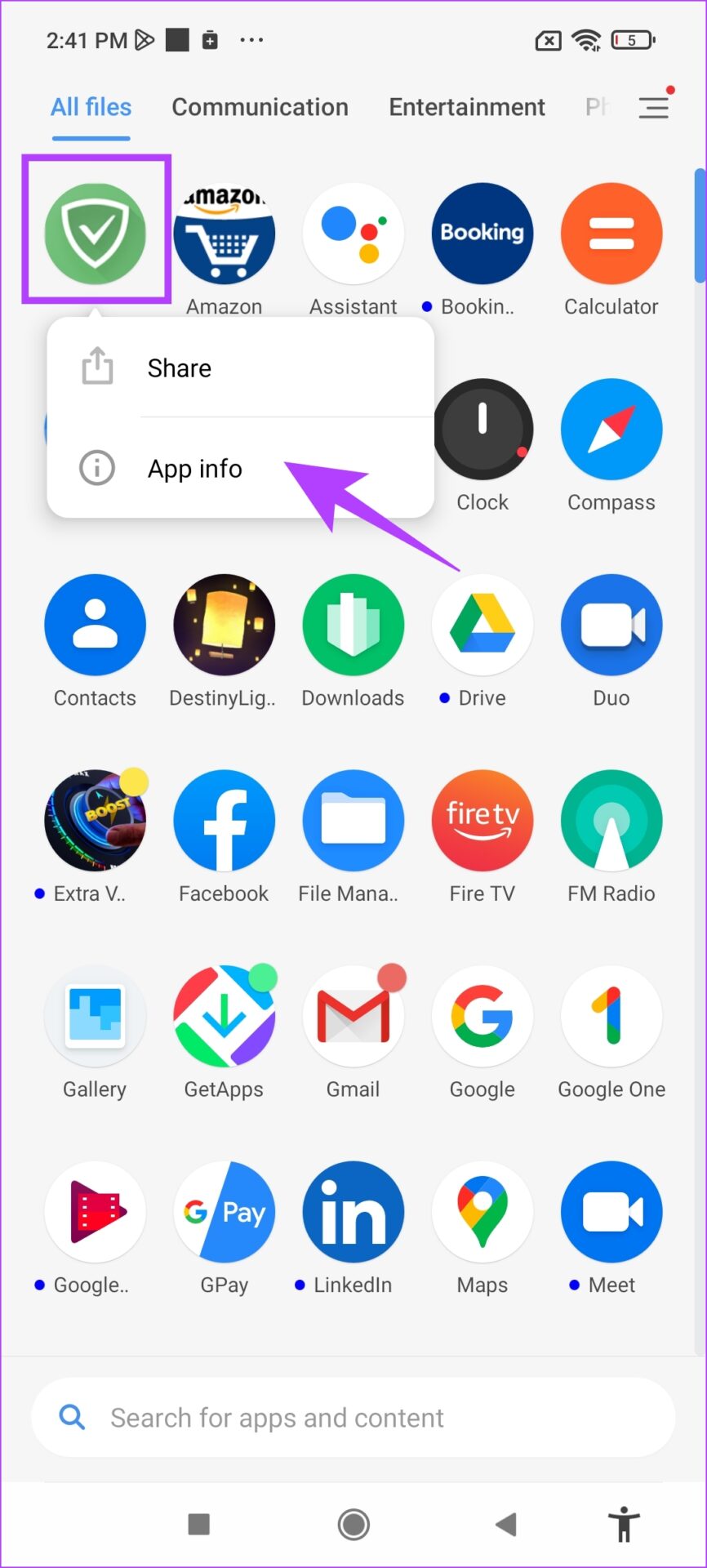
Step 1: Long-press on the app icon > select App Info .
Step 2: Now, tap on Uninstall to delete the ad blocker app.
Was this helpful?
Submit Cancel
Thanks for your feedback!
Keep reading