Android
3 Ways to Fix if YouTube Keeps Crashing on Android
Does the YouTube app keep crashing on your Android phone? Here's what you can do to fix the issue.
By Pankil Shah
Quick Tips
The YouTube app on your Android can crash due to temporary app glitches, corrupt app data, or a buggy app build.
In most cases, restarting your Android phone can help fix such issues.
You can consider clearing the YouTube app cache or resetting Google Play Services if the issue remains.
Basic Fixes
Free up storage space: The YouTube app requires sufficient storage space to stream content on your Android. If your phone’s storage is nearly full, consider deleting unused apps or transferring some of your large files to the cloud to free up space.
Update the app: Google regularly releases updates to add new features and fix performance issues. Hence, update the YouTube app . Also, if you’re using a beta version of the YouTube app, consider switching to avoid abrupt crashes.
Fix 1: Allow Necessary App Permissions to YouTube
YouTube requires some permissions to operate on your Android . If you’ve previously denied the app any permissions, it may throw various errors or crash.
Follow these steps to allow the necessary permissions to the YouTube app.
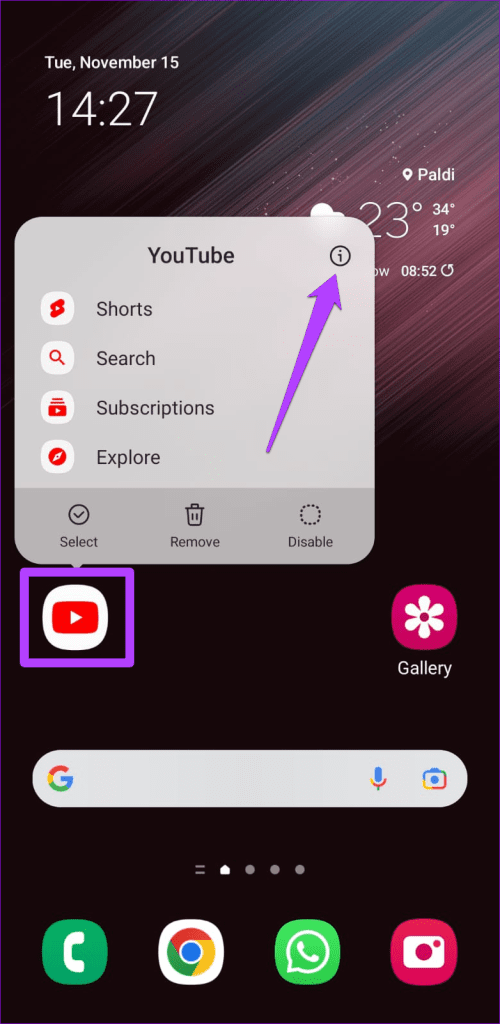
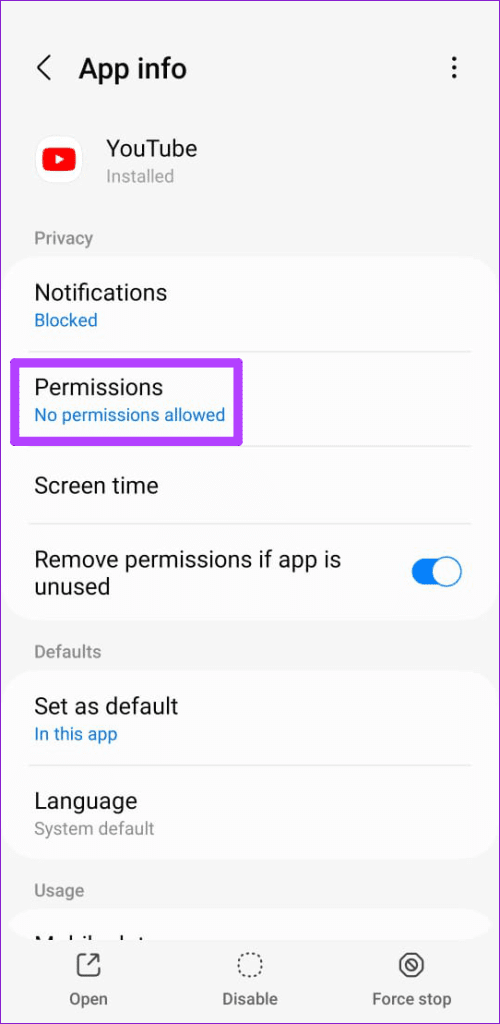
Step 1: Long-press on the YouTube app icon and tap the info icon from the resulting menu. Then, tap on Permissions .
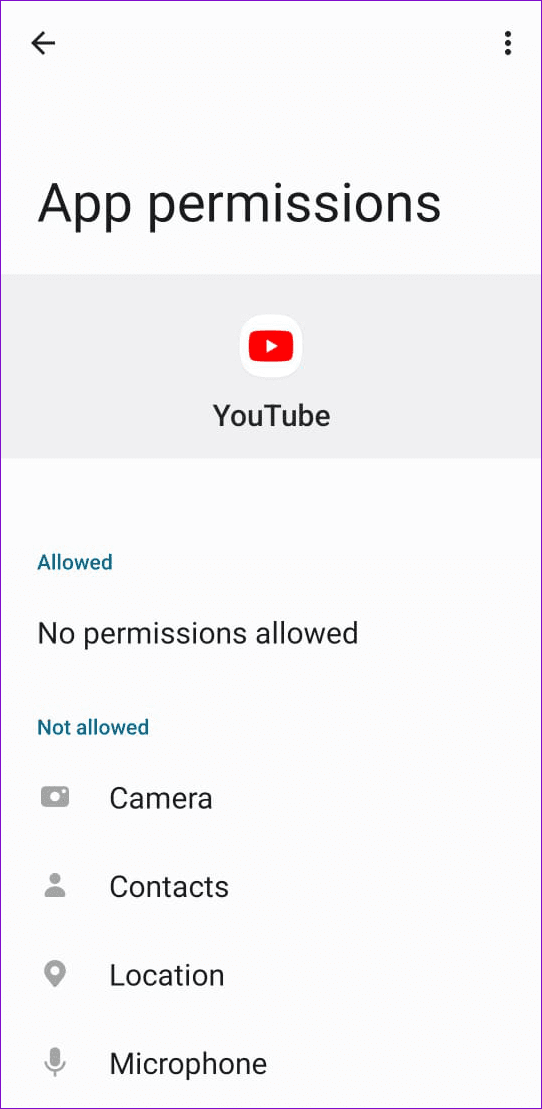
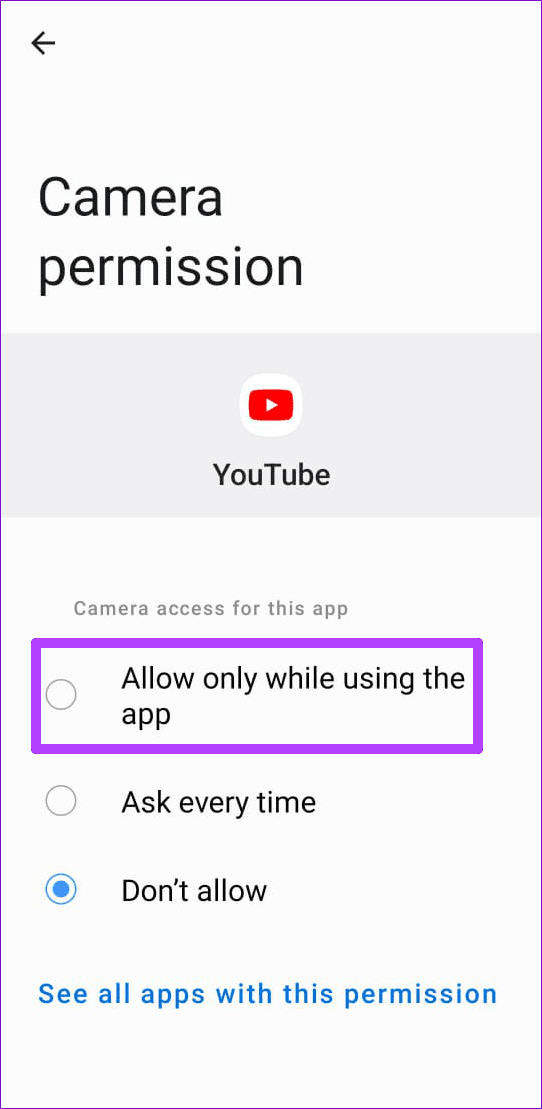
Step 2: Go through each permission one by one and enable it.
Fix 2: Clear YouTube App Cache or Data
Streaming apps like YouTube gather a significant amount of cache data as you continue to watch content. Once this data becomes old or inaccessible, it can conflict with the app and result in unusual behavior. Thankfully, it’s simple to get rid of this.
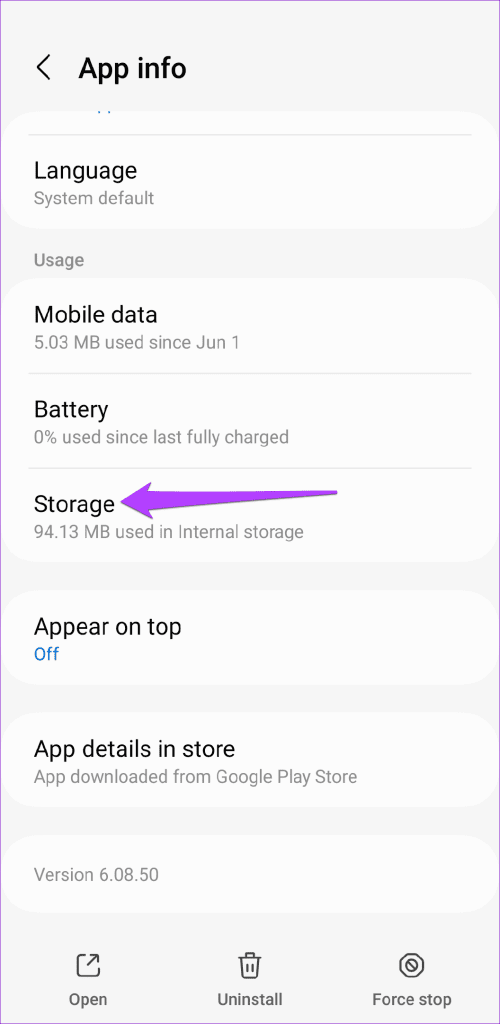
Step 1: Long-press on the YouTube app icon and tap the info icon from the resulting menu.
Step 2: Go to Storage and tap the Clear cache option at the bottom.
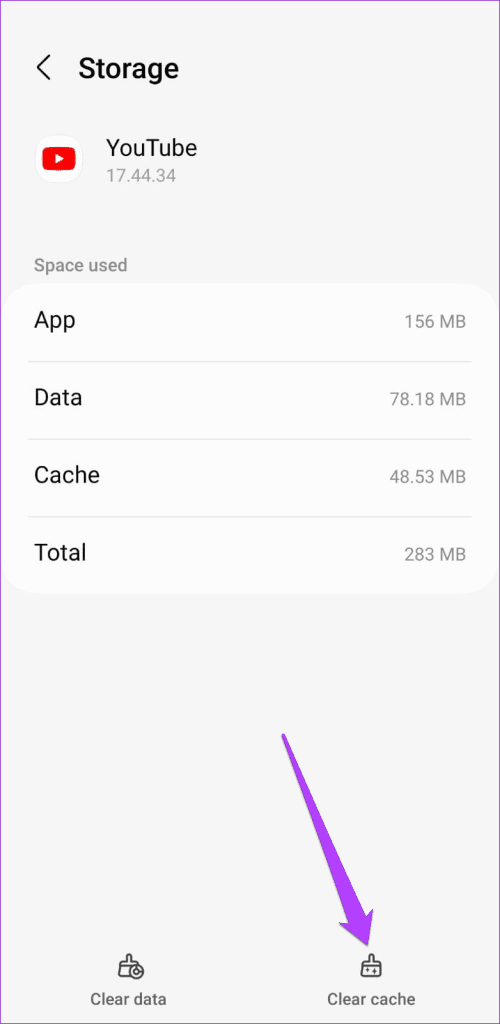
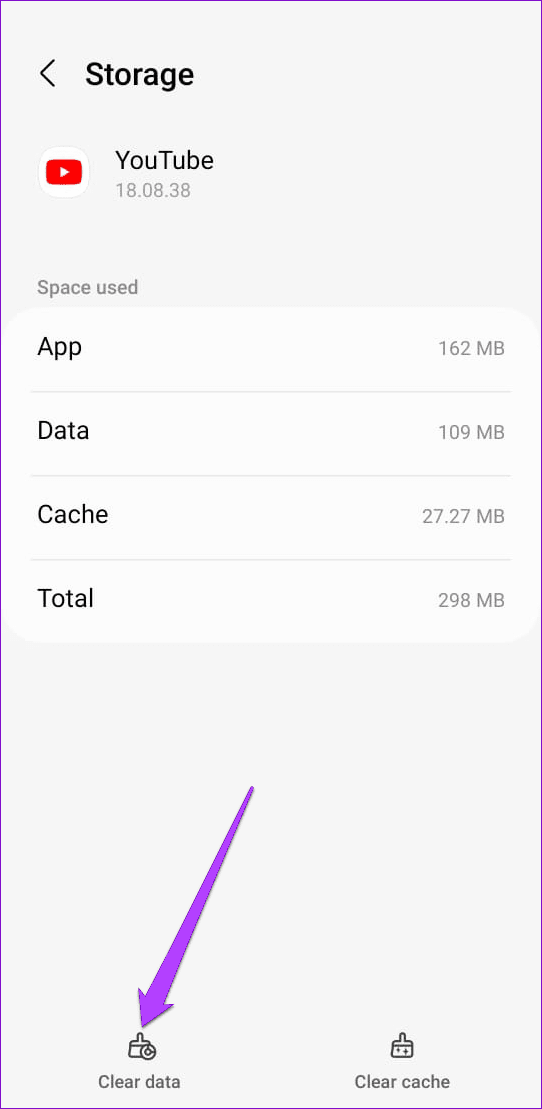
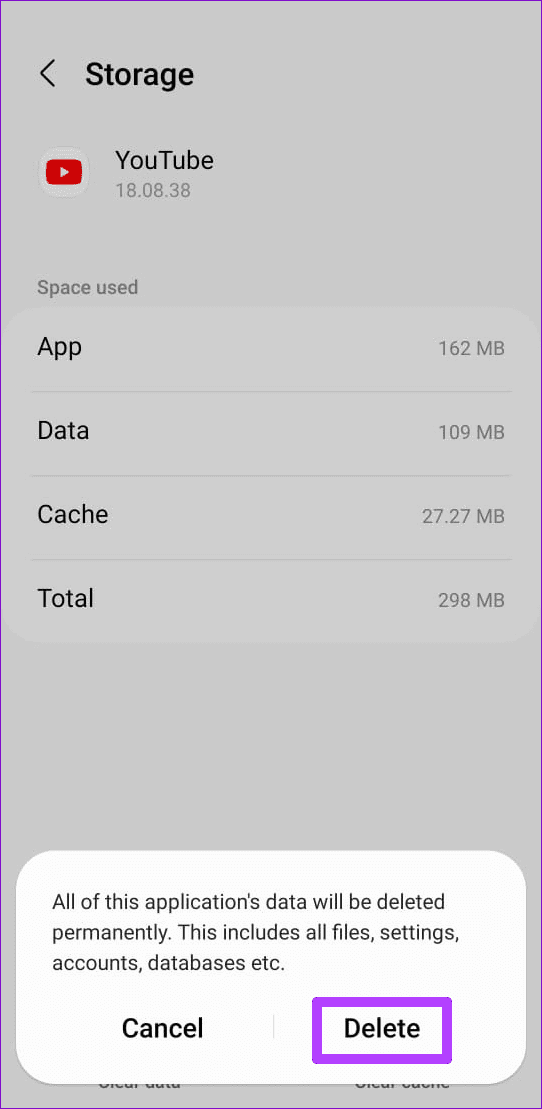
After this, restart the app and use it again. If it continues to crash, there may be an issue with the app’s data files. In that case, you can try clearing YouTube’s app data. For that, open YouTube’s app info and go to Storage . Tap the Clear data option, and then hit Delete to confirm.
Fix 3: Reset Google Play Services
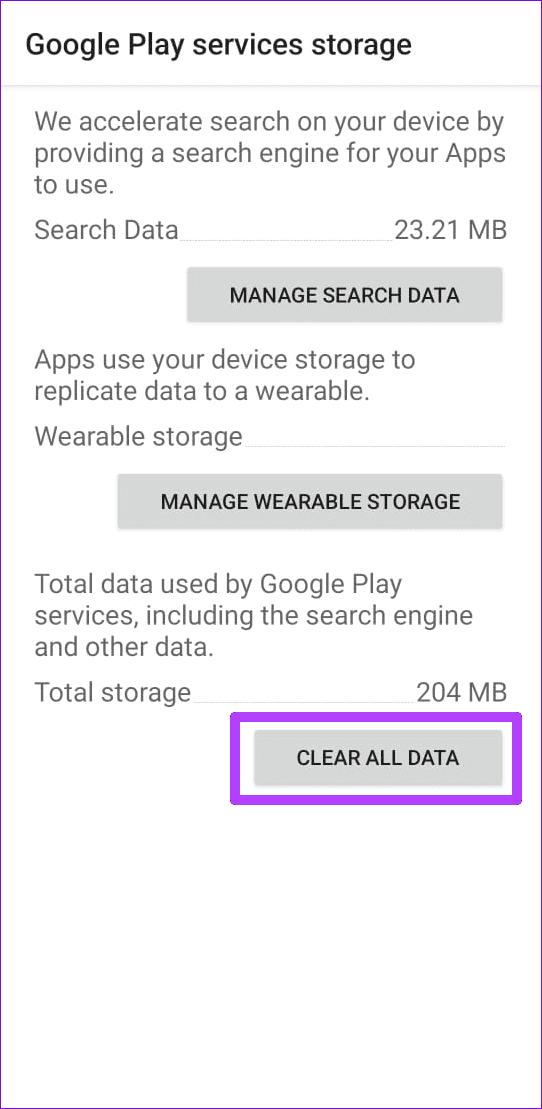
Google Play Services is a system app that connects apps on your phone to Google services. Problems with Google Play Services could cause your apps, including YouTube, to crash on your Android. To fix this, reset Google Play Services using these steps:
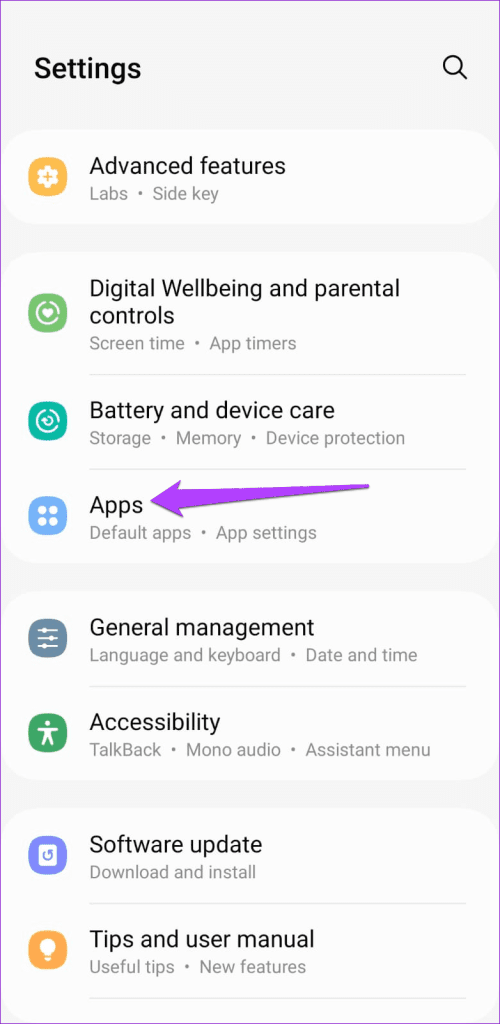
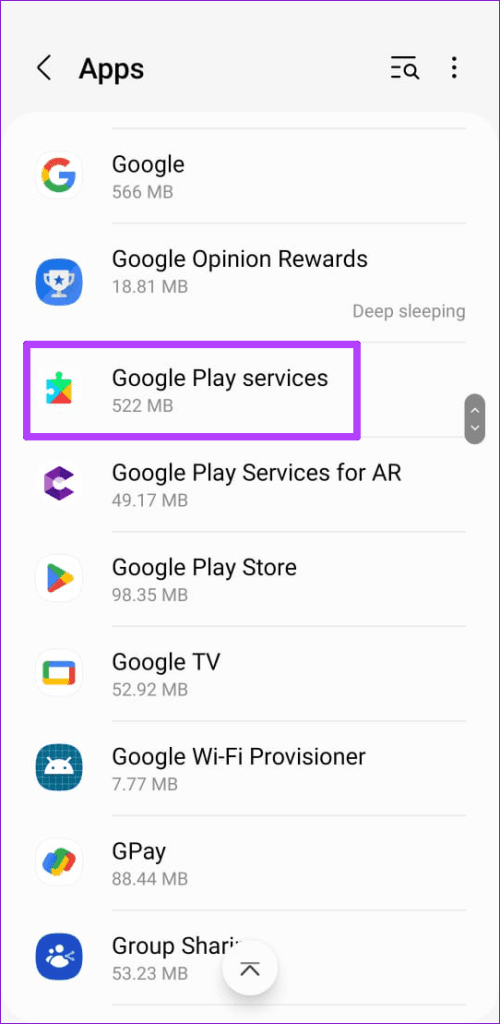
Step 1: Open the Settings app > navigate to Apps > scroll down and tap on Google Play Services .
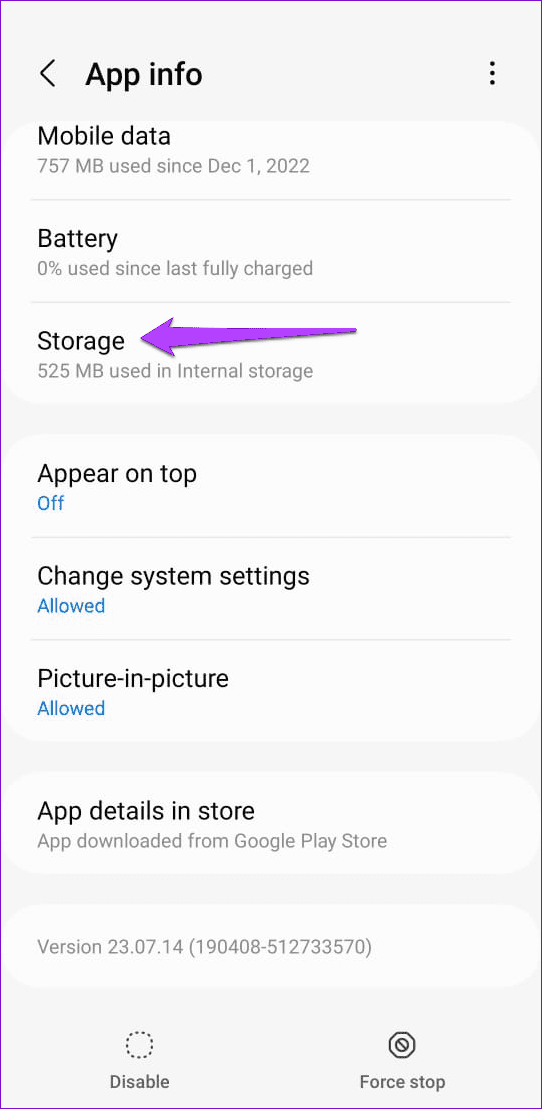
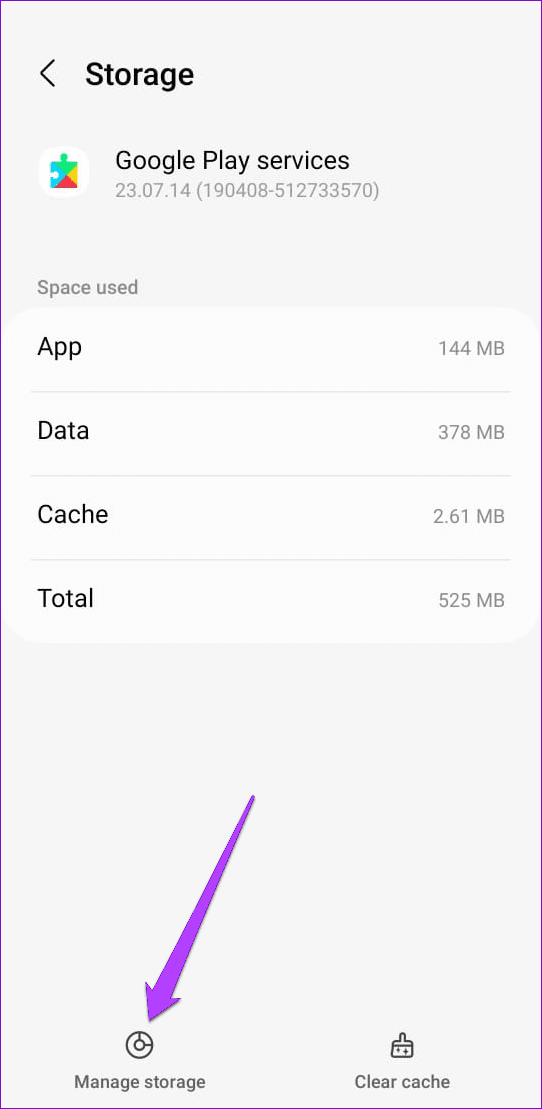
Step 2: Go to Storage > Manage storage . Then, tap the Clear All Data button.
Was this helpful?
Submit Cancel
Thanks for your feedback!
Keep reading