Android
How to Get LED Notification Light on Samsung Galaxy Smartphones
Don't want to miss a notification again? Here's how to get LED notification light on Samsung Galaxy S23 series to replace the onboard AOD.
By Sumukh Rao
Quick Tips
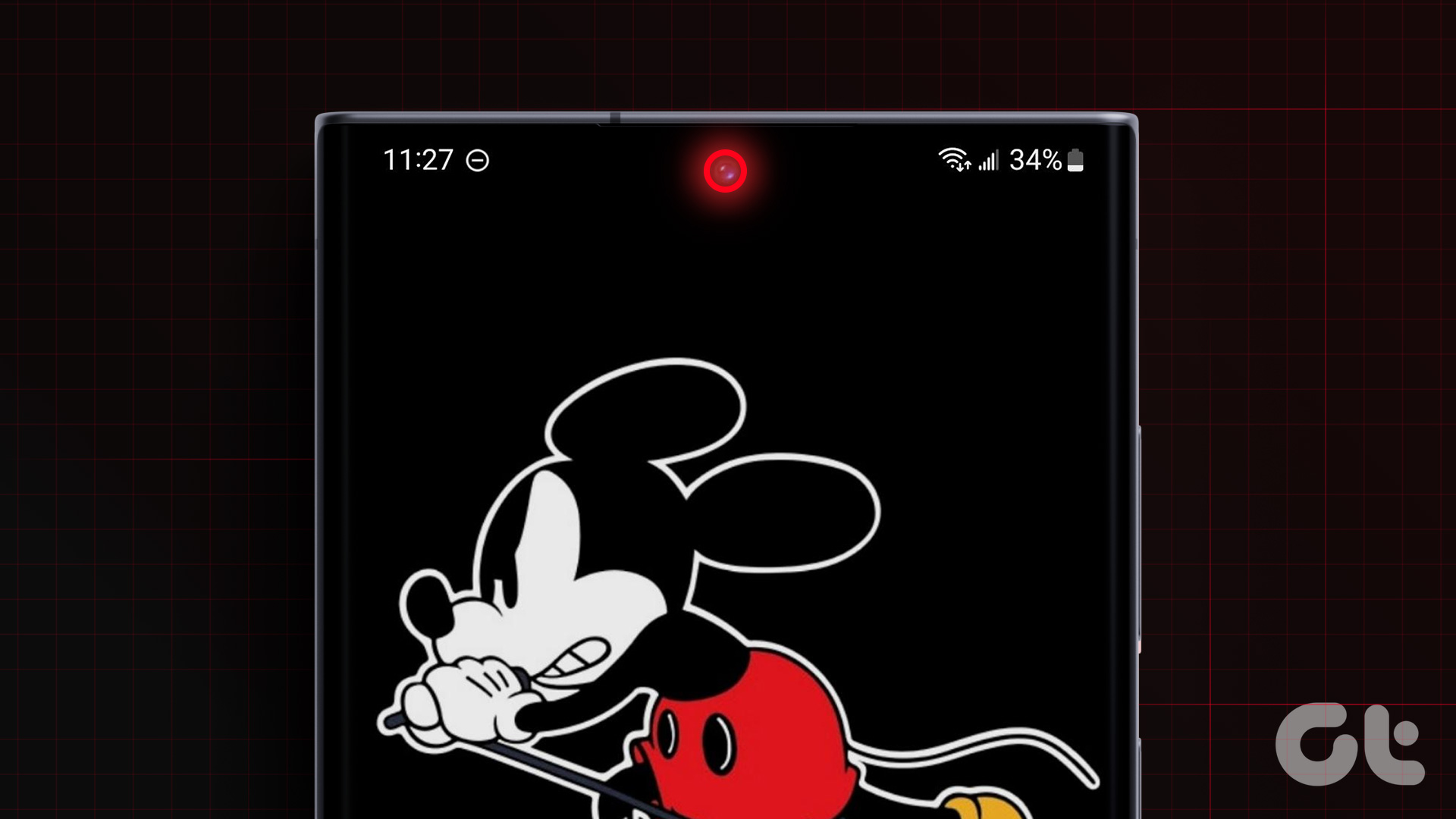
Since the ‘S’ series flagships have OLED displays, we can use it to display a virtual notification LED.
This can be done using an app called Notification Light from the Play Store.
You can customize the LED for notifications from different apps.
Note: This trick is valid only on Galaxy phones with an OLED display, like the S23, S24 series, etc.
Step 1: Download the Notification Light for Samsung app from the Play Store. Tap on Next when you open the app to start the setup process.
Step 2: Then tap on Select apps . Choose all the apps whose notifications you want to see.
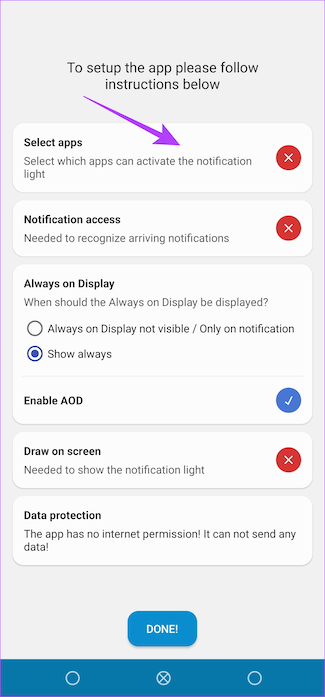
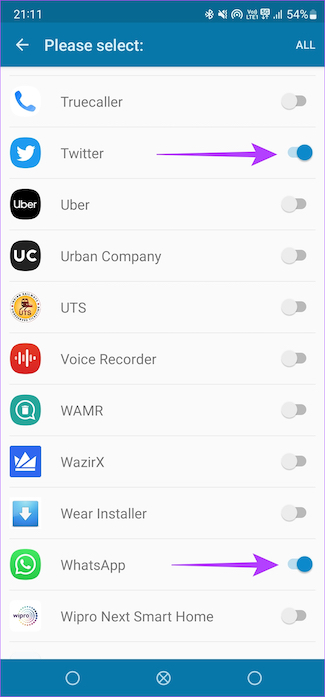
Step 3: Select Notification access . Enable the toggle next to aodNotify and tap on Allow .
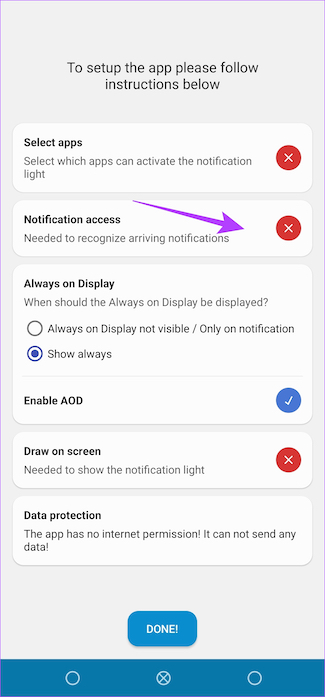
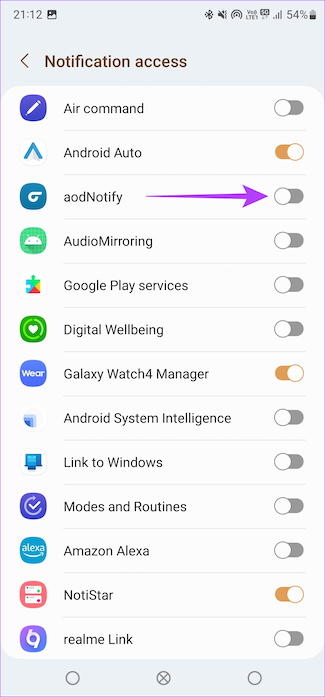
Step 4: Finally, tap on Draw on screen to enable the permission. Navigate to the Installed apps section and select aodNotify .
Step 5: Enable the toggle and tap on Allow to complete the process.
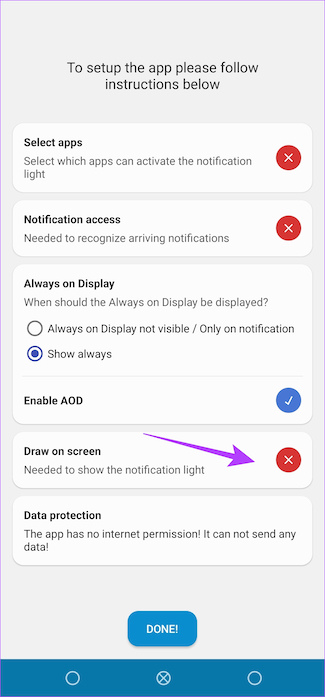
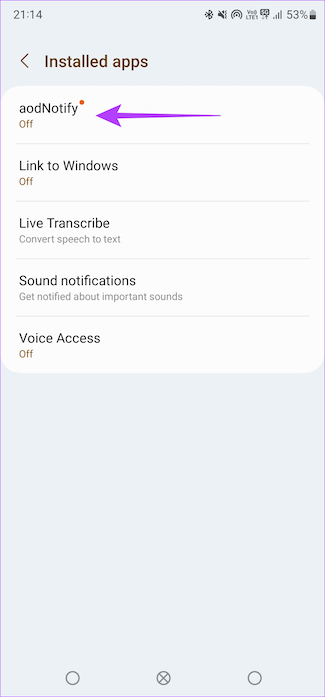
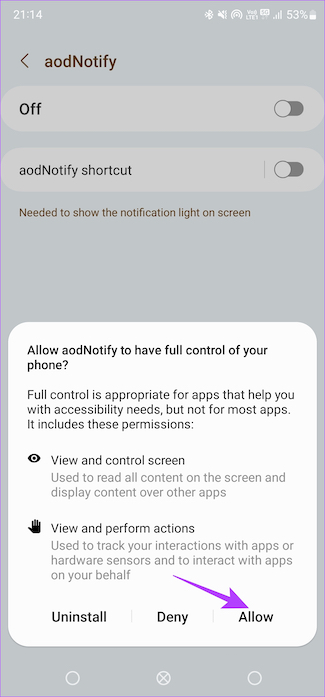
Step 6: Once all the steps are complete, tap on Done at the bottom of the screen.
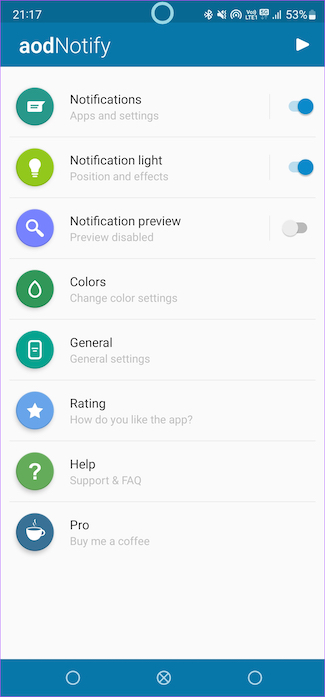
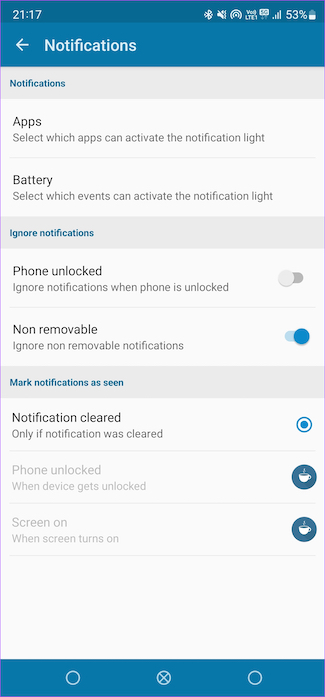
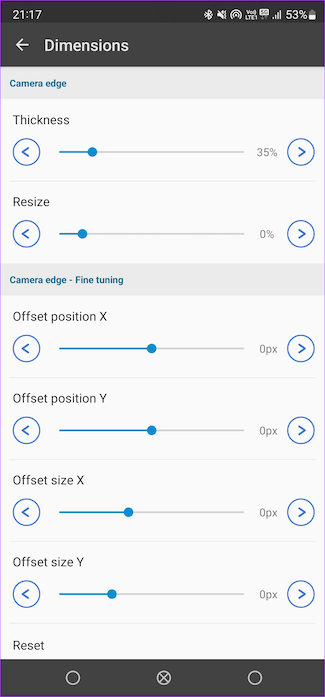
The notification LED is now set up on your phone and is ready to use. You can also customize it using the various menus within the app. You can select custom colors for different apps, pulsing patterns and durations, and even the position of the light.
FAQs
1. Can I use the LED notification with Always On Display? Yes, you can use both Always On Display and the LED notification light in tandem.
2. Does the LED notification light drain more battery? While the app drains slightly more battery, it’s going to be insignificant throughout the day. Compared to Always On Display though, the app consumes less battery.
3. How to disable the notification LED light? You can stop the LED notification service by uninstalling the aodNotify app from your Samsung phone.
Was this helpful?
Submit Cancel
Thanks for your feedback!
Keep reading