Android
How to Change Lock Screen Shortcuts on Samsung Galaxy Phones
Here's how to change or remove lock screen shortcuts on Samsung Galaxy smartphones and add up to six apps.
By Sumukh Rao
Quick Tips
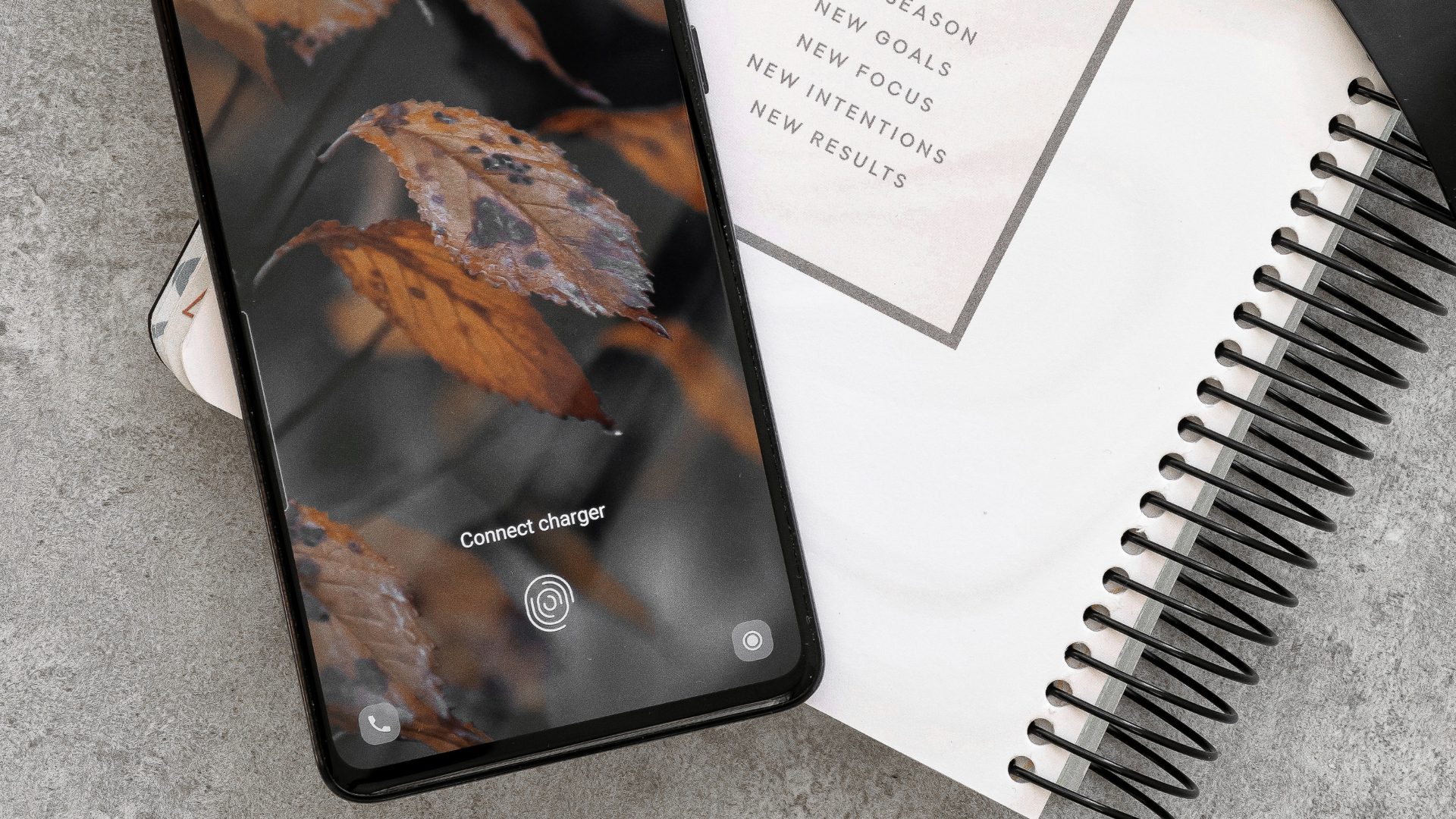
You can change the default lock screen shortcuts on your Samsung phone by heading to Settings > Lock screen > Shortcuts.
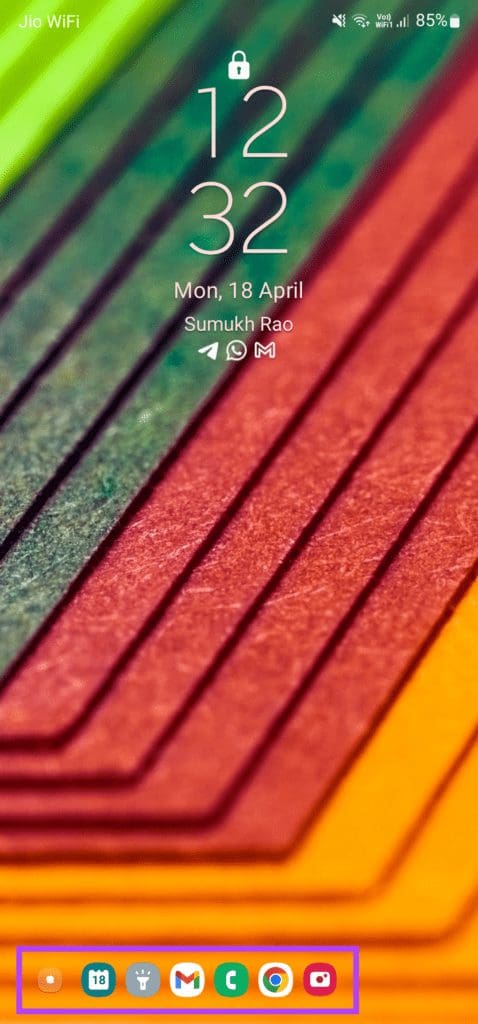
Good Lock’s LockStar module allows you to add multiple app shortcuts to the lock screen on your Samsung phone
How to Change Lock Screen Shortcuts in One UI
The new One UI offers a few native settings to modify the lock screen shortcuts. That’ll get you by if you just want to replace them. However, you can take help of the Samsung’s Good Lock app to further customize your phone’s lock screen.
Customizing Using Default Options
First, let’s check out how you can change the lock screen shortcuts using the native options.
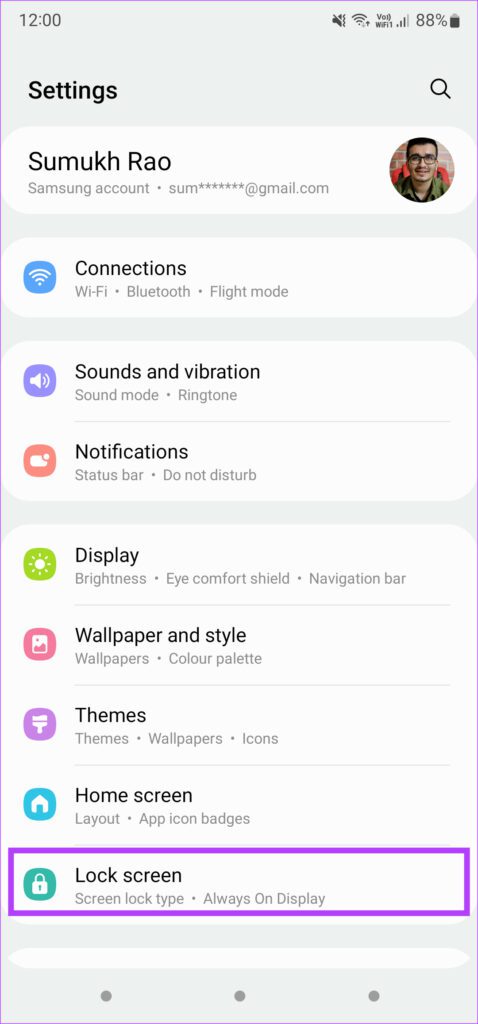
Step 1: Open the Settings app and tap on Lock screen .
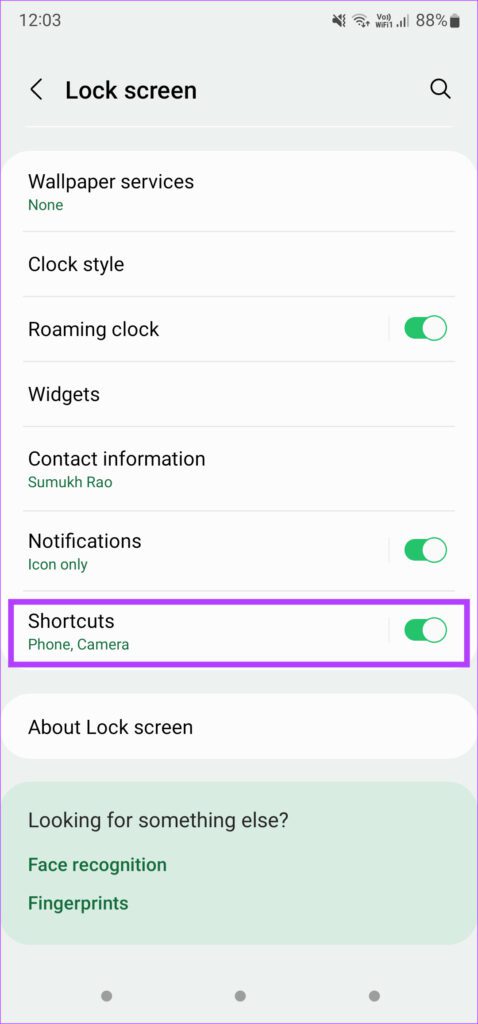
Step 2: Scroll down to the Shortcuts option and enable it. Then, tap on it.
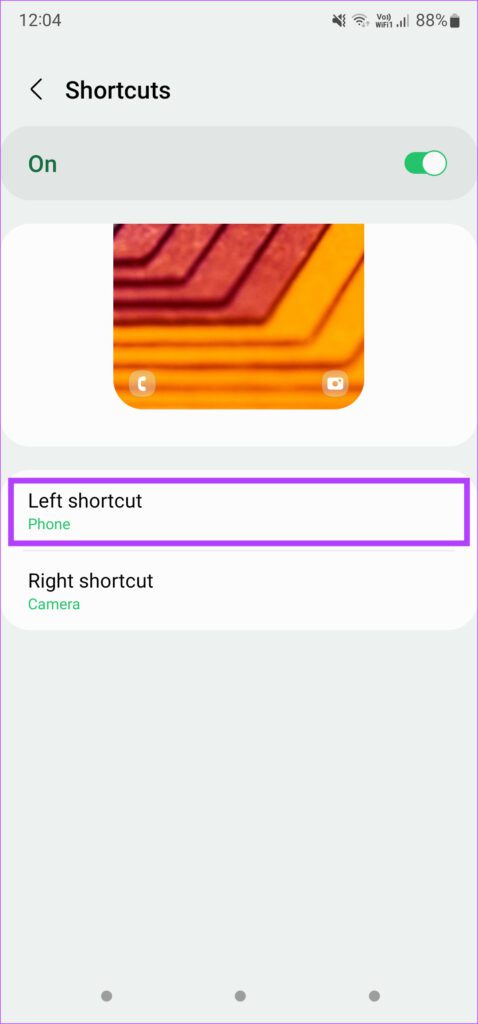
Step 3: Select Left shortcut and pick the app you want to launch when you swipe left on the lock screen.
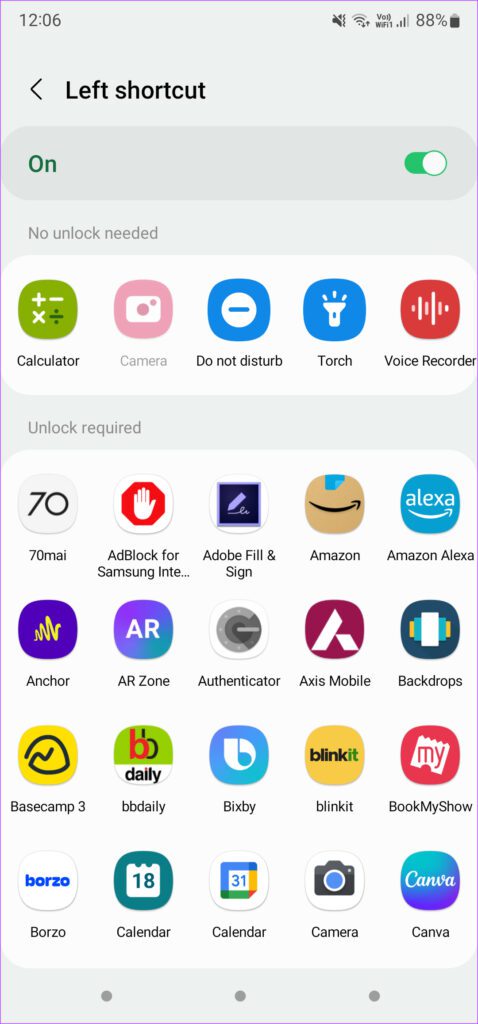
Step 4: Similarly, select Right shortcut and pick what you want to open when swiping from the right.
Customizing Using Good Lock
You can also use Samsung’s Good Lock to add more shortcuts to your phone’s lock screen. Here’s how to do it.
Step 1: Download and install the Good Lock app on your Galaxy smartphone.
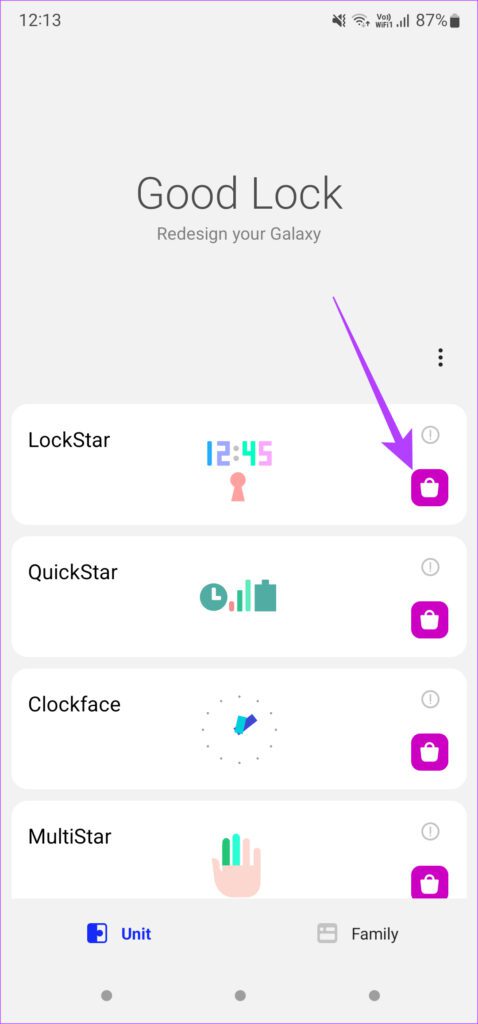
Step 2: Open the app and tap the install button next to LockStar to install the module.
Step 3: After the module installs, return to the Good Lock app and tap on LockStar . Then, enable the toggle at the top to turn the module on.
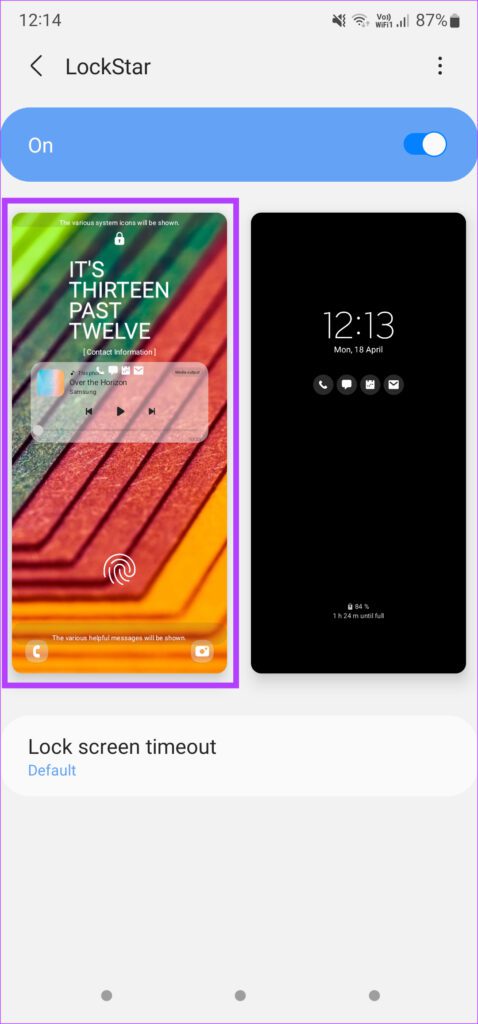
Step 4: Select the lock screen to make alterations to it.
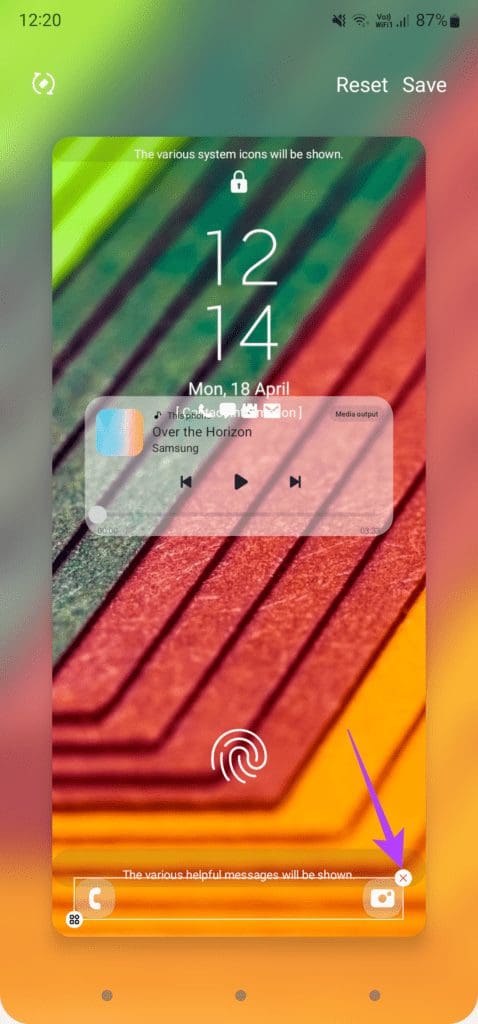
Step 5: Tap on one of the shortcuts at the bottom. If you want to completely get rid of the lock screen shortcuts, you can tap on the small X icon in the top-right corner of the rectangular outline.
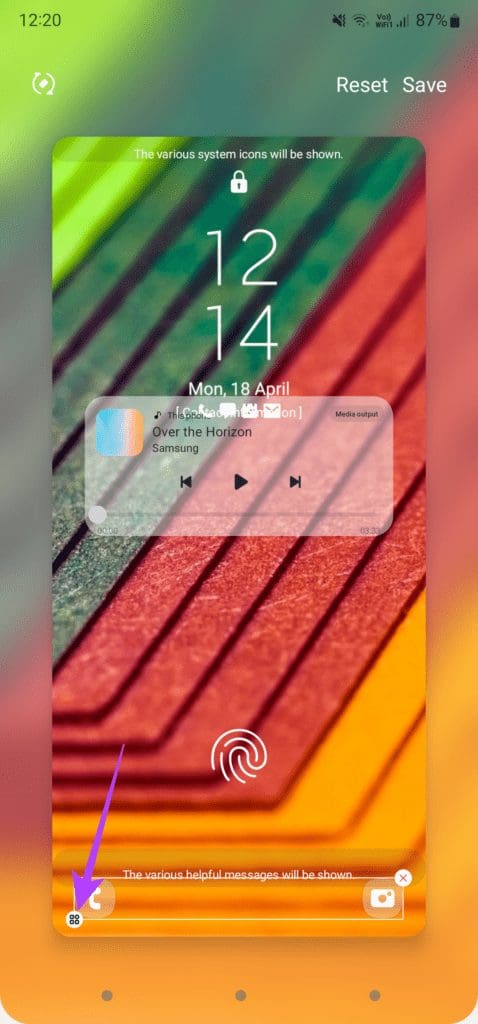
Step 6: To customize the shortcuts, select the small edit button in the bottom-left corner of the outline.
Step 7: Select the option that shows six different shortcuts.
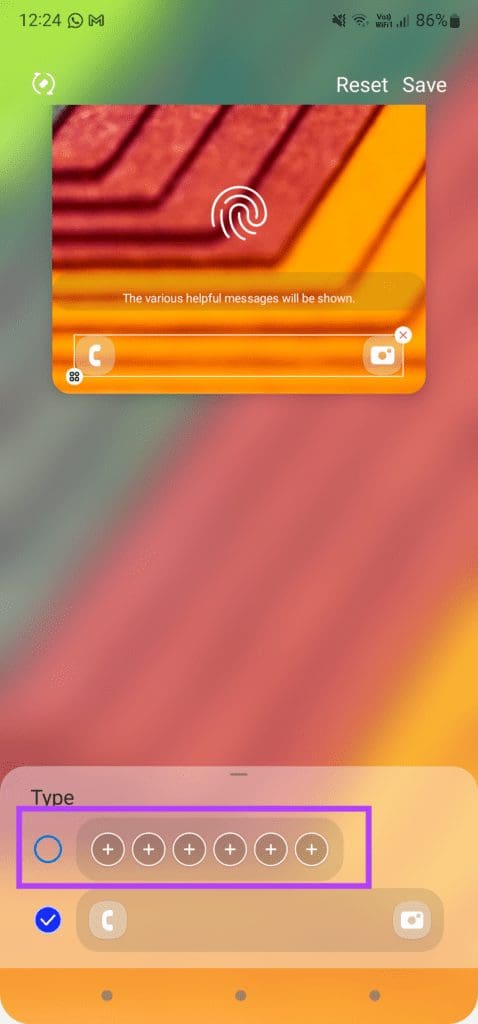
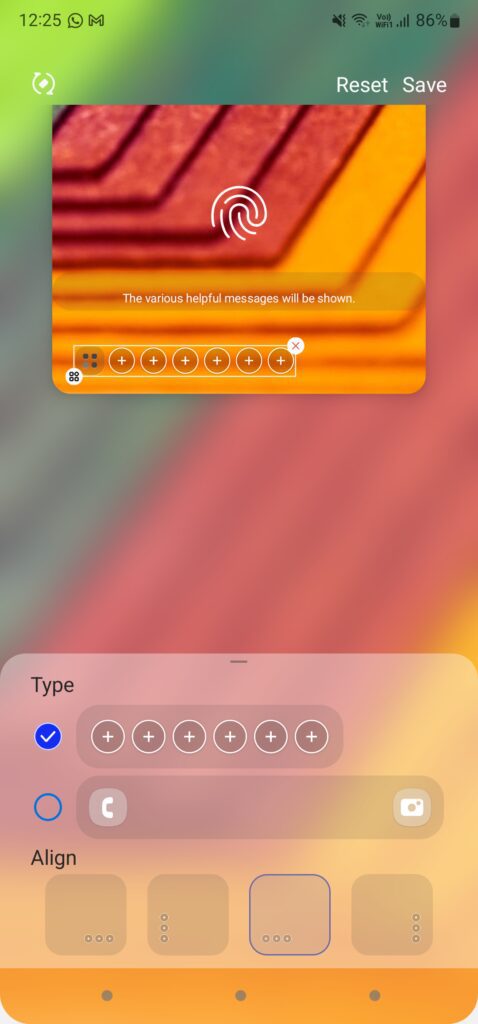
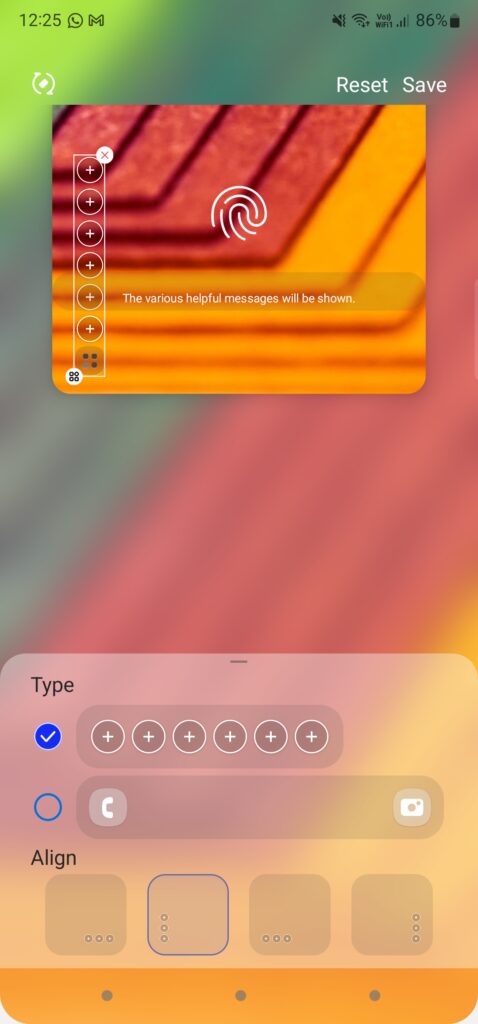
Step 8: After you select the options, you can pick the alignment of the lock screen shortcuts. Try out all the options and pick the one that suits your requirements.
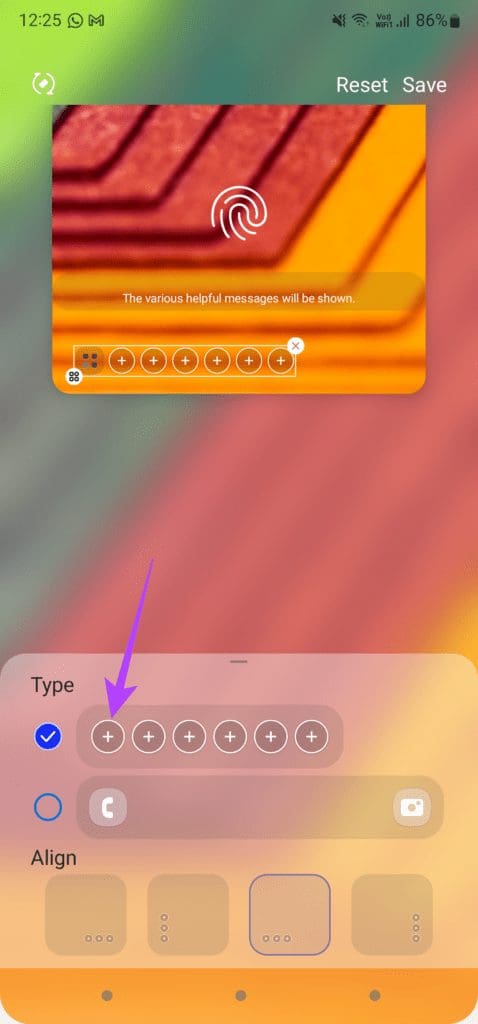
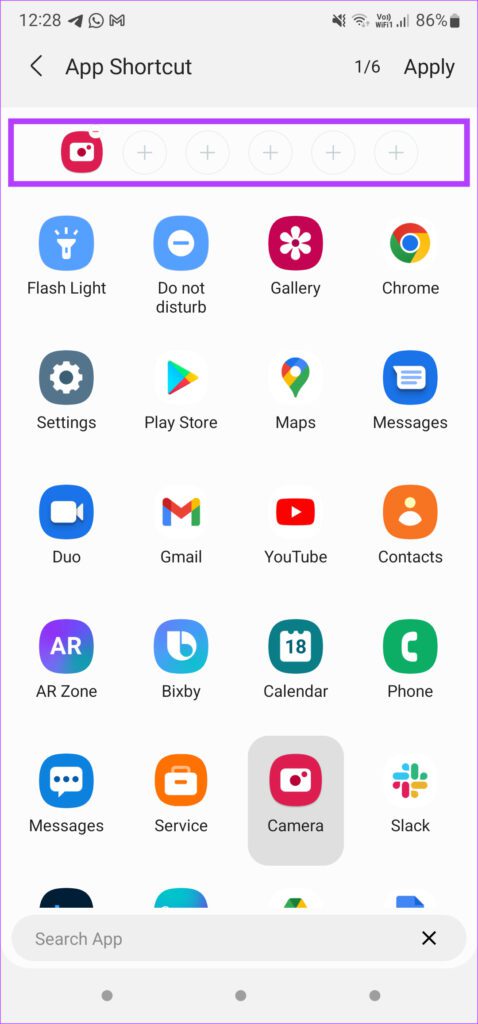
Step 9: Tap the first + button inside the shortcuts tray to add a shortcut.
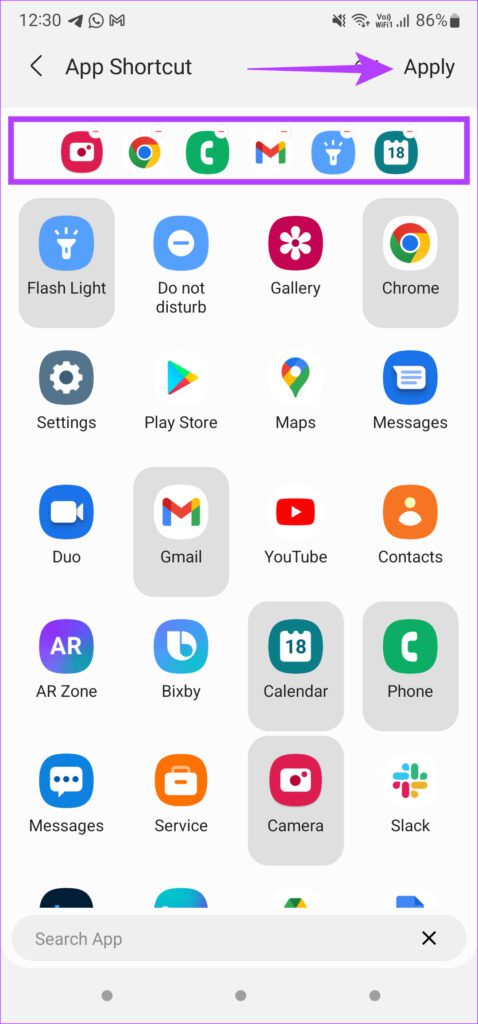
Step 10: Select the app of your choice for the first shortcut. Continue to select the other apps that you want to add as shortcuts until you have selected all six. Then, hit Apply .
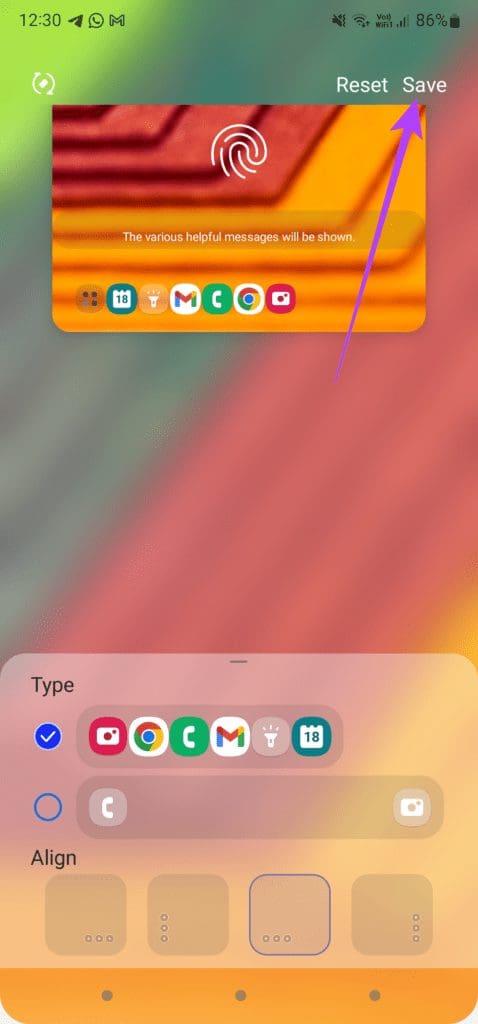
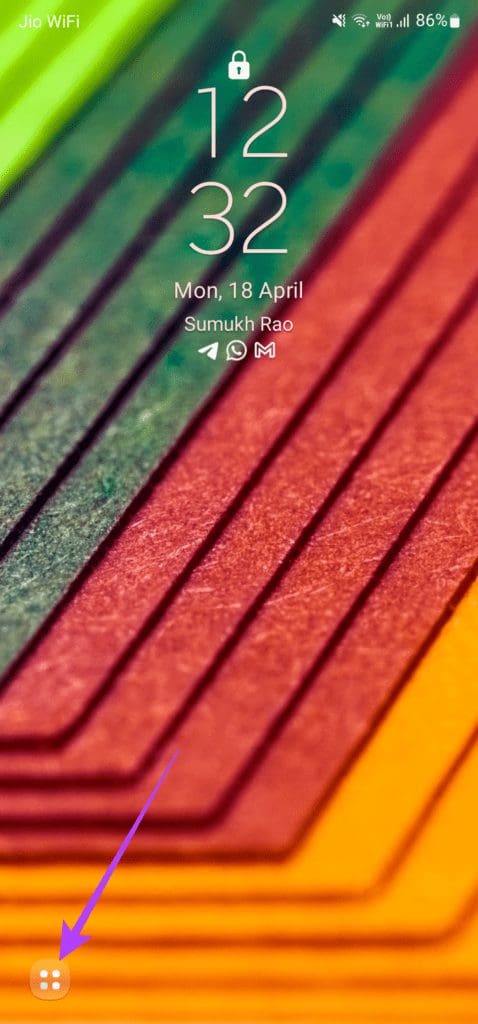
Step 11: Tap Save in the top-left corner to apply all the changes. You can then tap the small icon in the bottom-left corner to bring up all your shortcuts.
Was this helpful?
Submit Cancel
Thanks for your feedback!
Keep reading