Android
How to Create a Discord Channel on Desktop and Mobile
Are you looking to create a Discord channel on desktop or mobile? This guide explains how to set up a text and voice channel on Discord.
By Maria Victoria

Quick Tips
To rearrange the channels, drag and drop them into your preferred order.
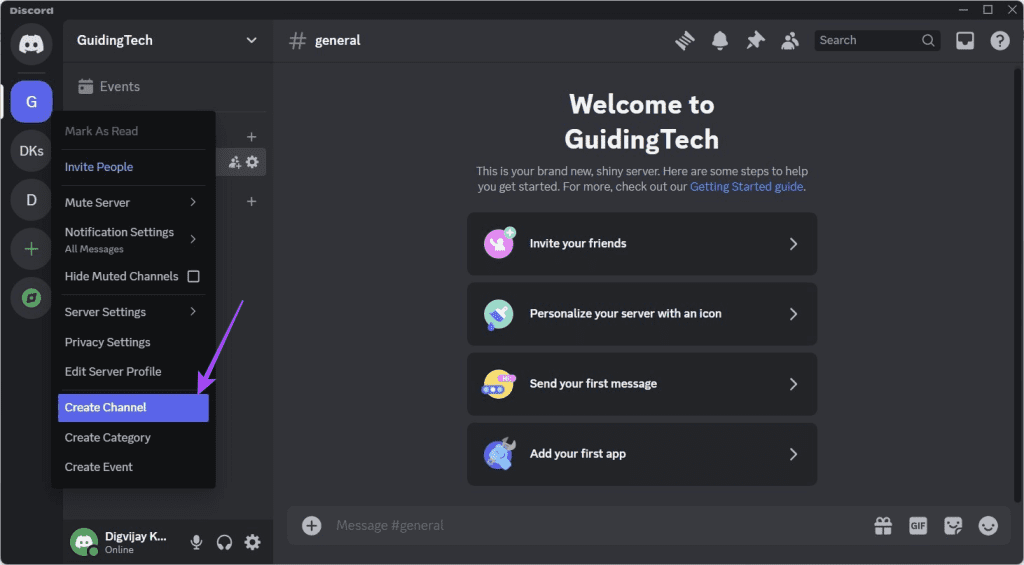
On your desktop, right-click on your server and choose Create Channel.
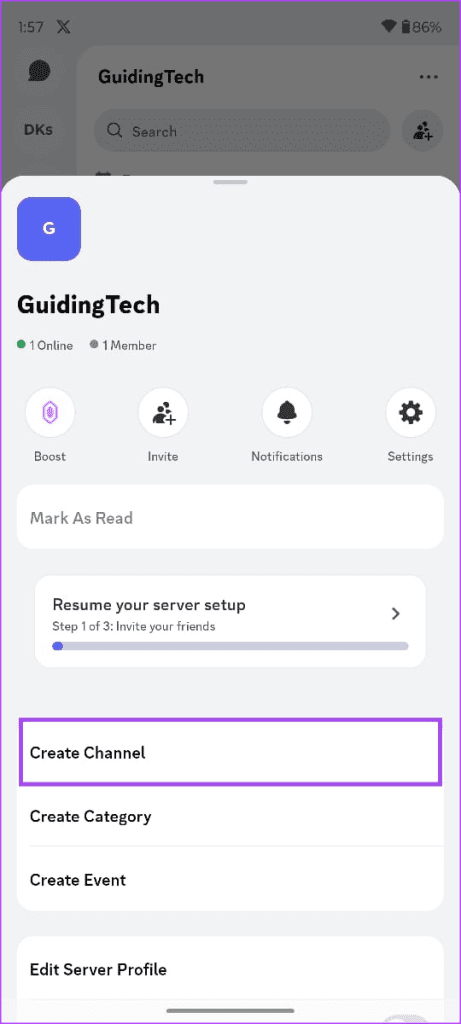
If you are using a mobile device, tap on your server, select the three dots, then select Create Channel.
How to Create a Discord Channel on Desktop
To improve Discord organization, you can categorize channels by topic. Keep in mind that channels can be text or voice-based. Follow these steps:
Step 1: Open Discord on your computer and log in to your account.
Step 2: In the left sidebar, right-click on your server and choose Create Channel .
Step 3: Name your channel and select its type ( TEXT or VOICE ) in the pop-up window.
Step 4: Toggle on the Private Channel to limit access to selected members.
Step 5: Click Create Channel .
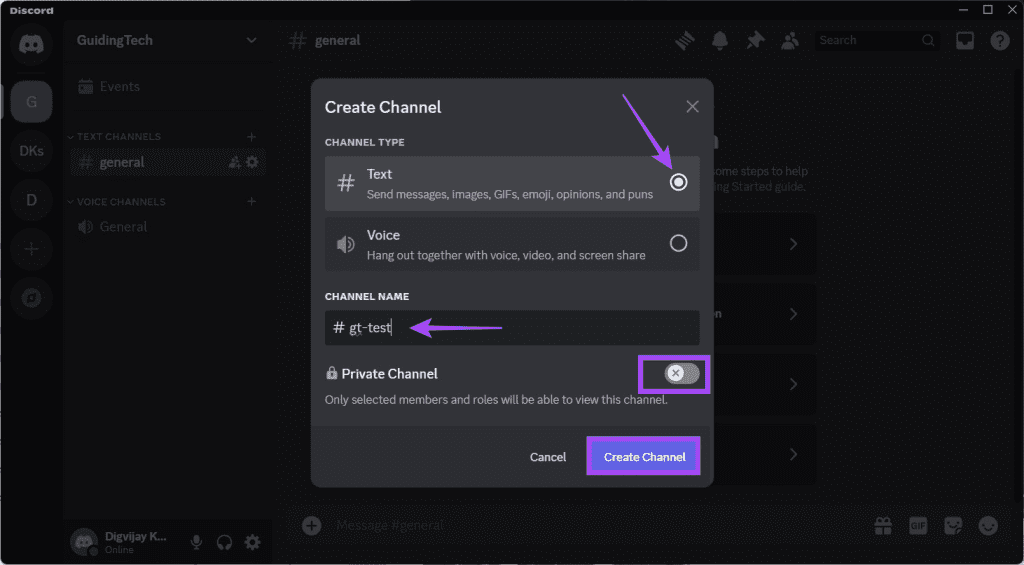
Your newly created channel will now appear in the server’s sidebar. To change its position, drag and drop it where you want.
Also read: How to Fix Screen Share Not Working on Discord
How to Create a Discord Channel on Android
You can also create a Discord channel on your mobile device. The process is similar for both Android and iOS devices.
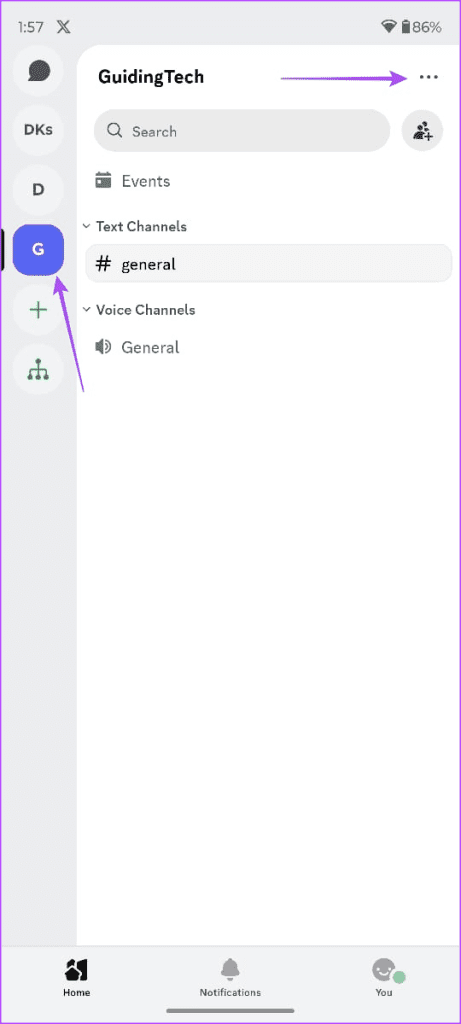
Step 1: Open Discord and select your server from the left sidebar.
Step 2: Tap on the three dots and select Create Channel .
Step 3: Name your channel and choose the channel type ( Text or Voice ).
Step 4: Toggle Private Channel on if you want it private. Otherwise, leave it off for a public channel.
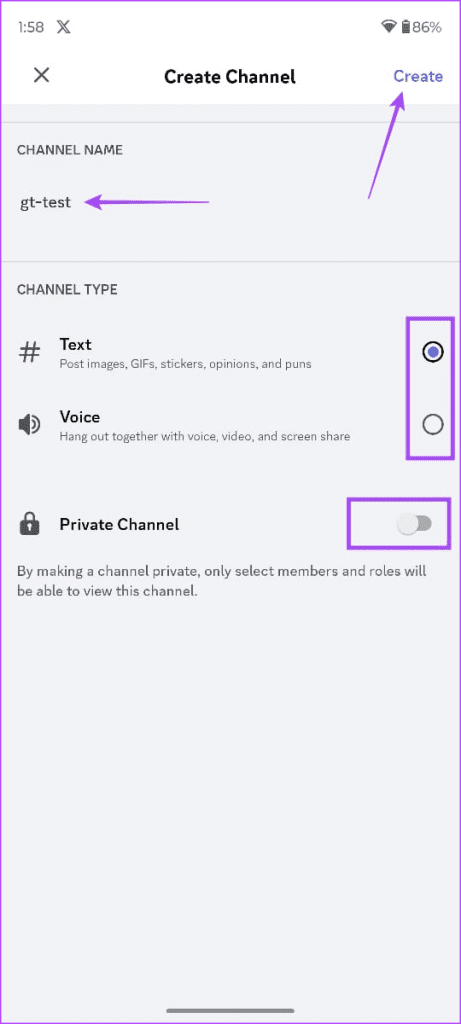
Step 5: Tap Create to finish creating the channel.
So that’s how you can create a new voice or text channel on Discord. If notifications aren’t working properly for the new channel, check out our guide on fixing Discord’s notification issues .
Was this helpful?
Submit Cancel
Thanks for your feedback!
Keep reading