Android
How to Enable Two-Factor Authentication on Steam
Afraid your Steam account might get hacked? Here is how to enable two factor authentication for added protection to your Steam account.
By Sagar Naresh

Quick Tips
You can either use the Steam mobile app or email for authentication.
Setting up email-based authentication will log you out of the current device.
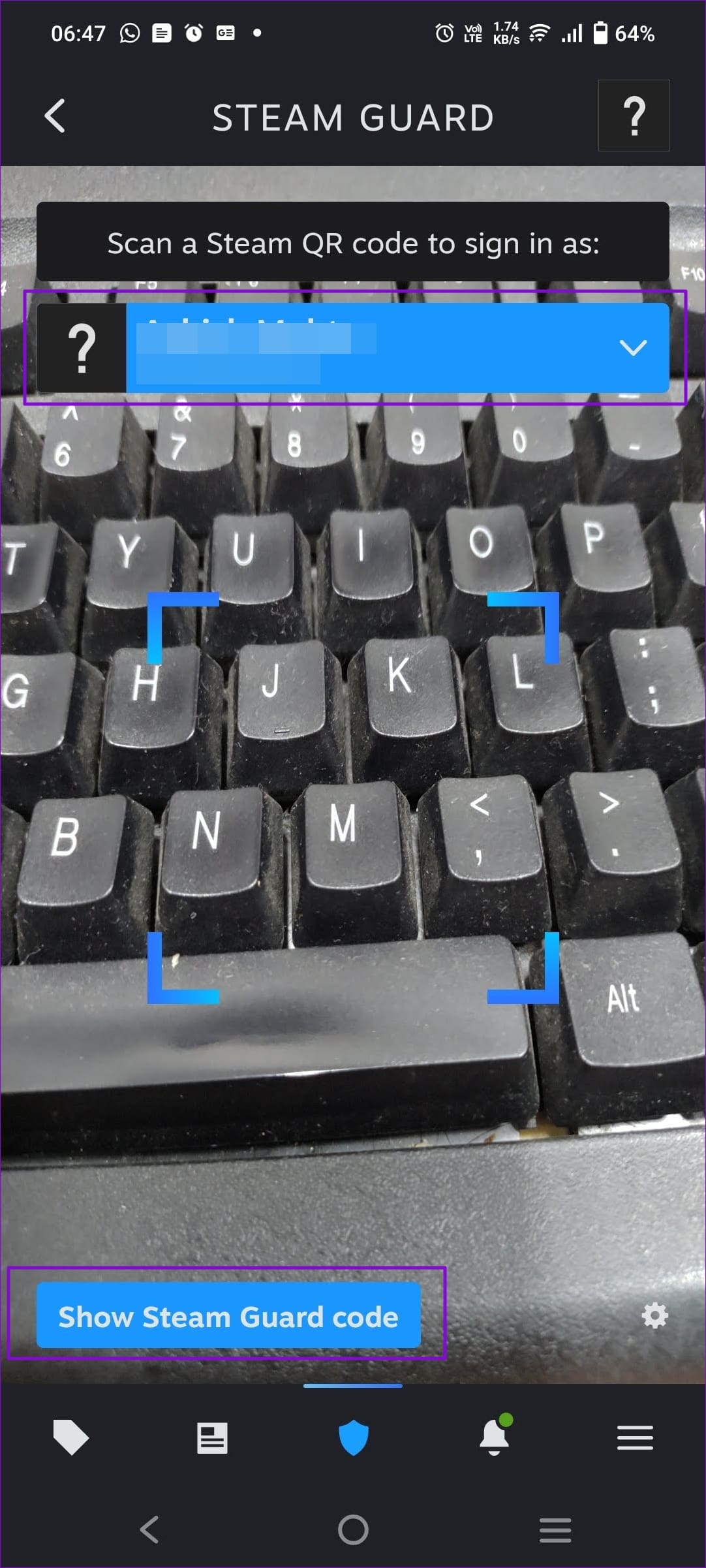
You can log in to your account by scanning the QR code with Steam Guard.
How to Enable Two-Factor Authentication on Steam
Step 1: Open Steam on your PC and ensure your account is in use.
Step 2: Click on the Steam menu at the top left of the Steam app interface. From the drop-down menu, select Settings .

Step 3: In the Settings window, click on the Security section in the left pane > click on Manage Steam Guard .
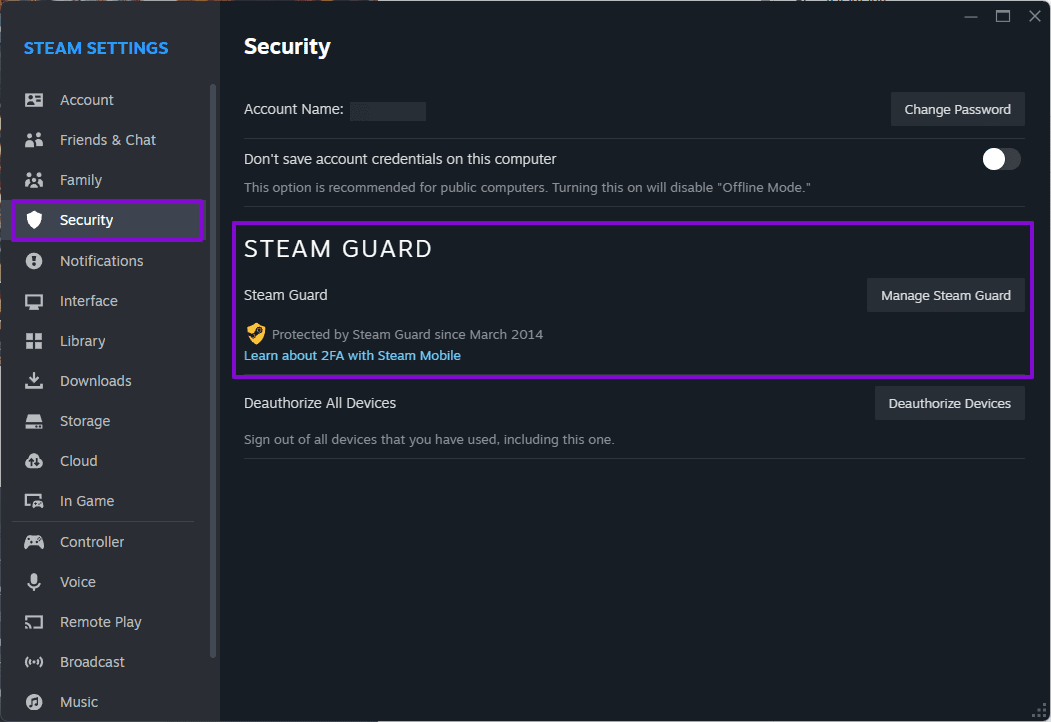
Step 4: It will open the Manage Steam Guard window, where you can get Steam Guard codes via the Steam app on your phone or email.
Get Steam Guard Codes From the Steam App on My Phone
Step 1: If you use the Steam app on your phone, launch it from the Steam home screen.
Step 2: Tap on the three-line icon > Steam Guard .

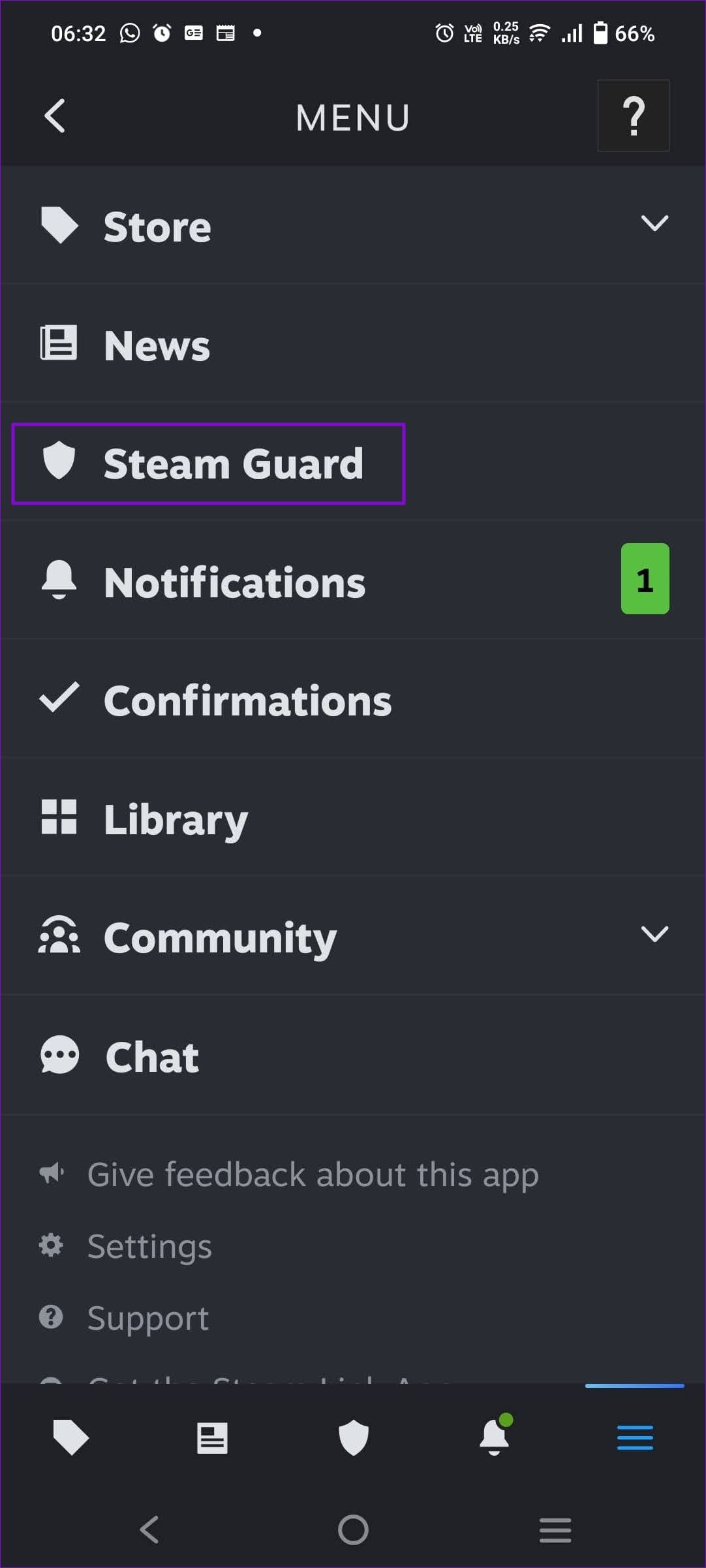
Step 3: Now, tap on Add Authenticator to add your phone as the authentication device for 2FA. After you add your phone number, the app will prompt you to verify it through email.
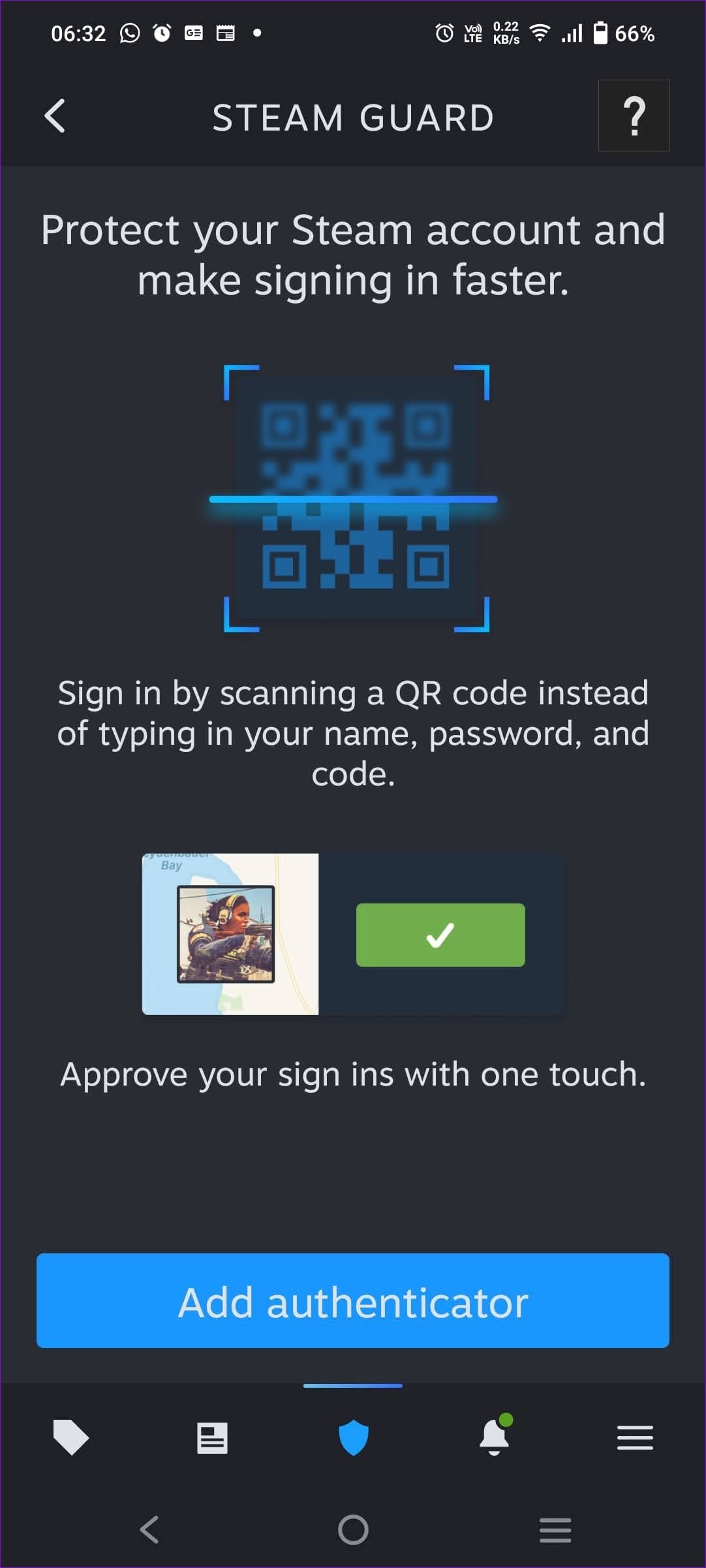
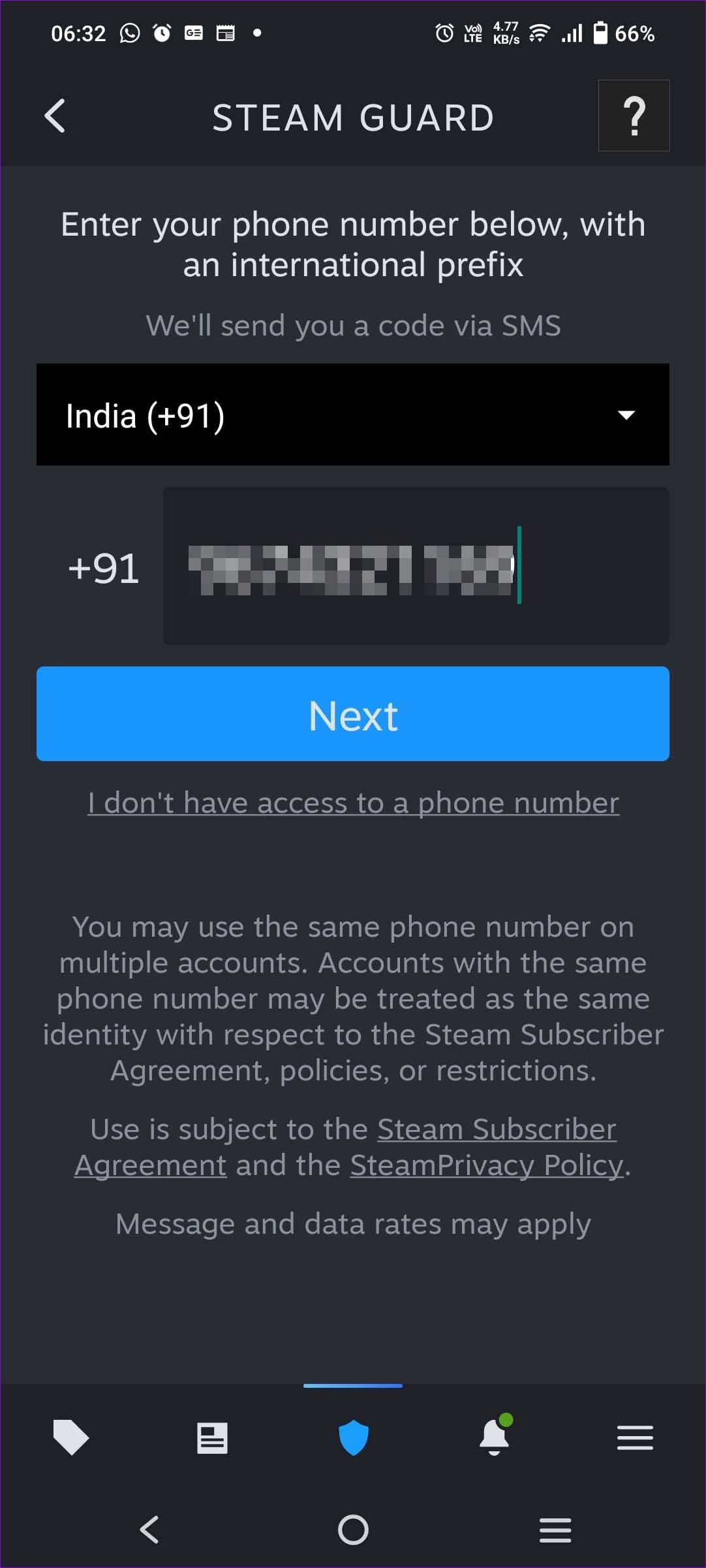
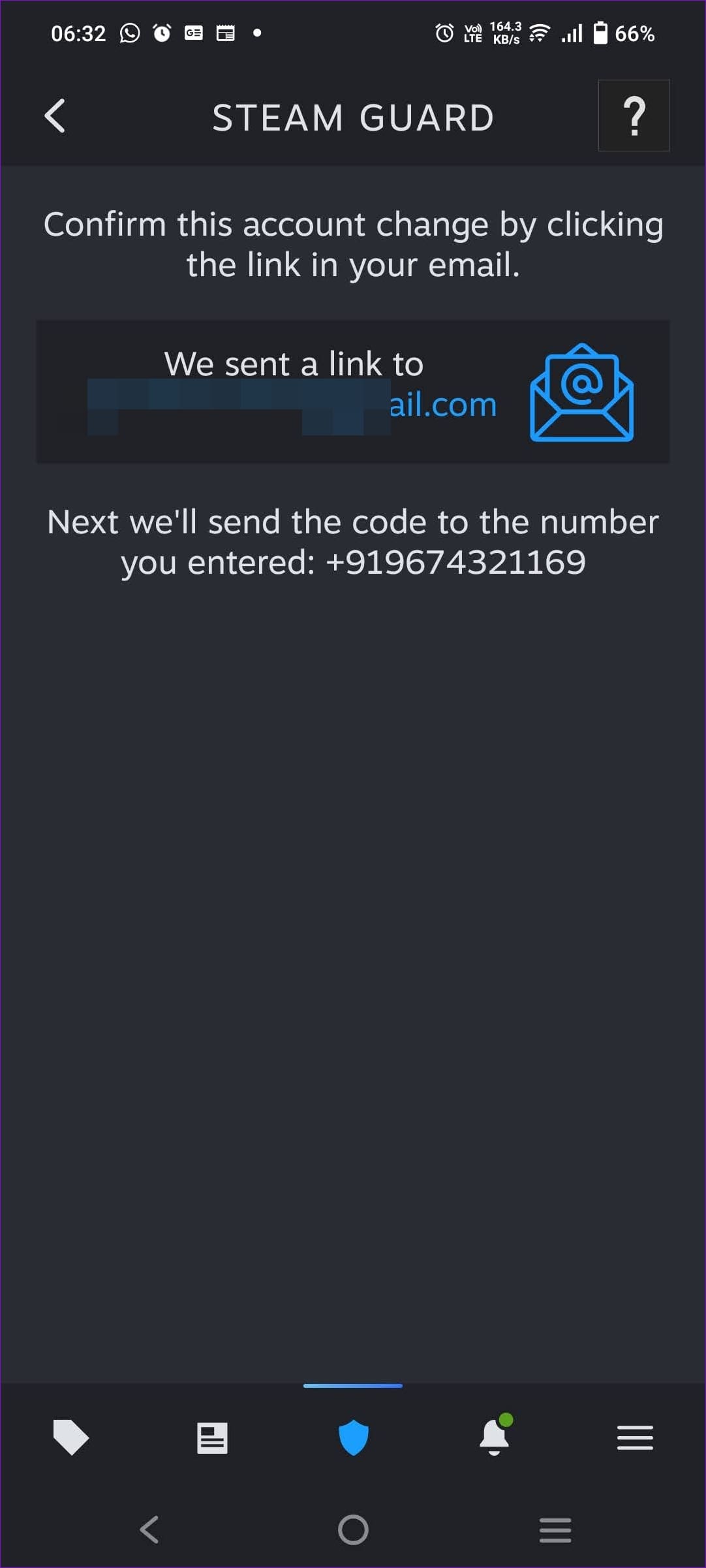
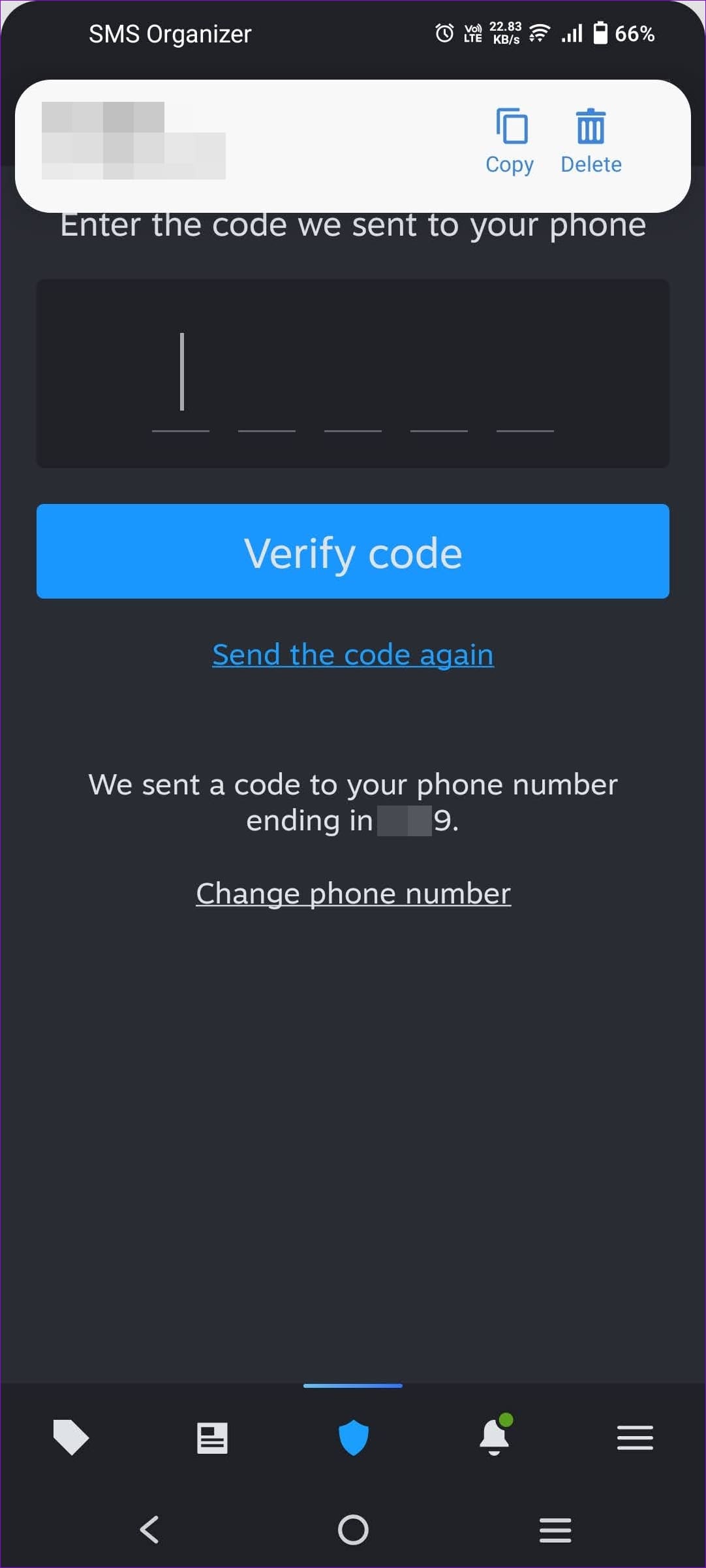
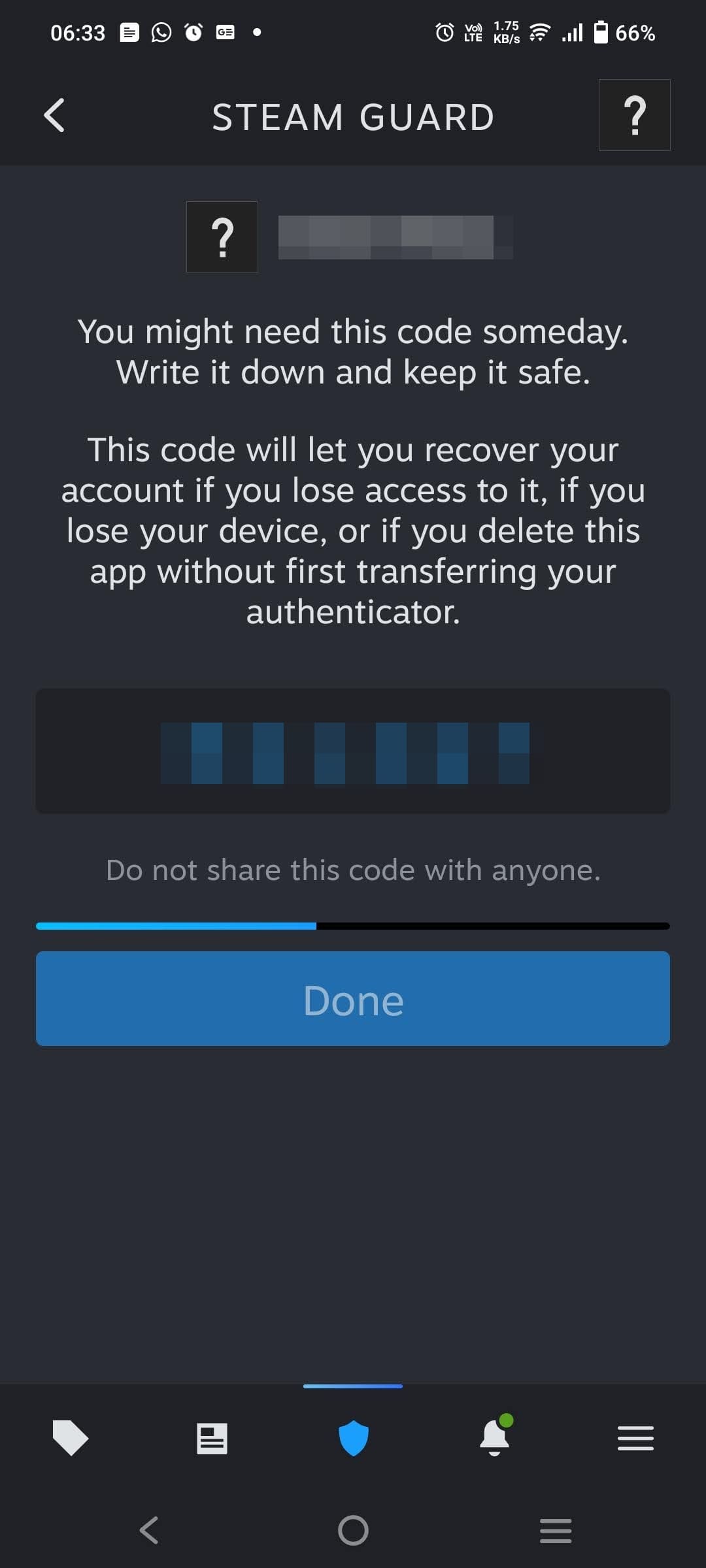
Step 4: A one-time password will be sent to your phone. Enter it in the SMS code box to confirm the mobile phone. You will also receive a backup or Recovery Code ; note it somewhere.
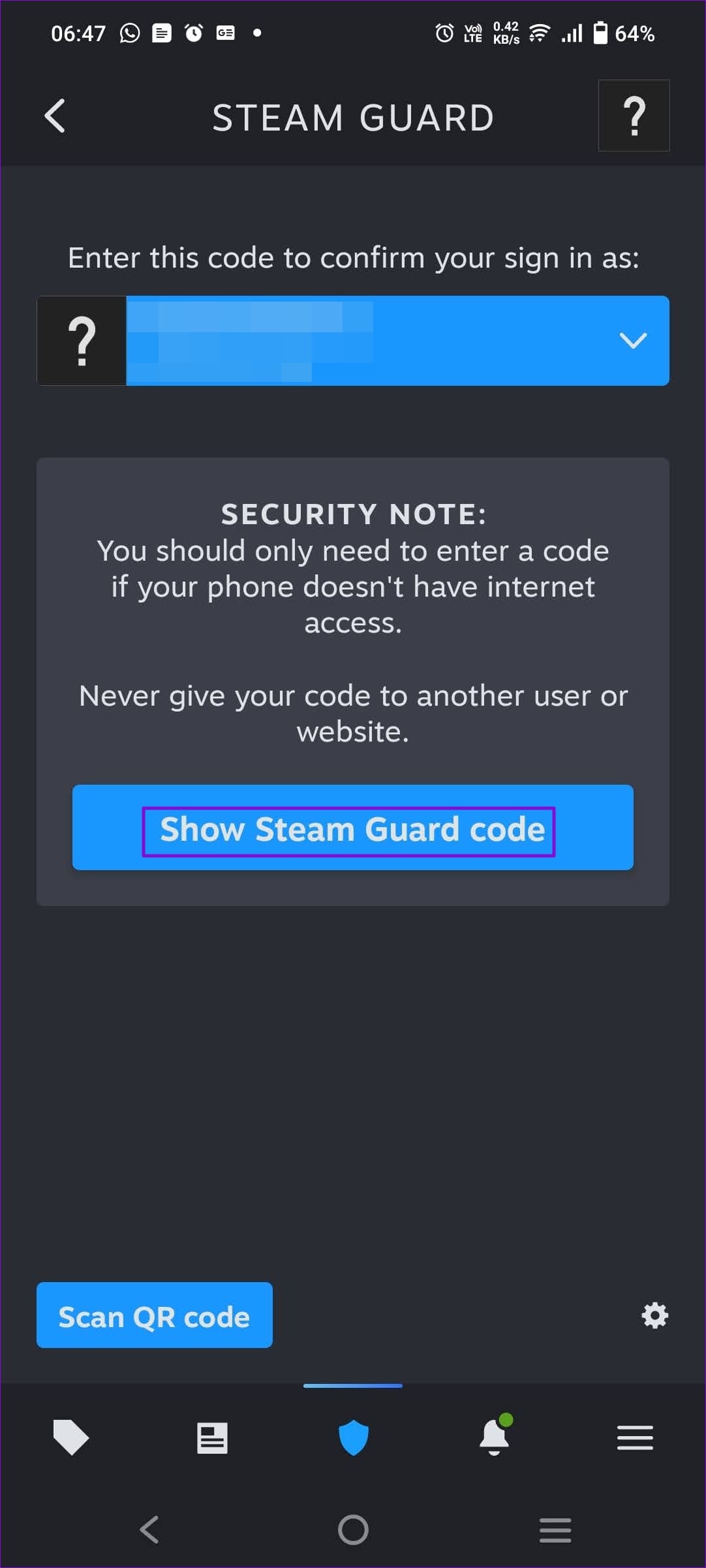
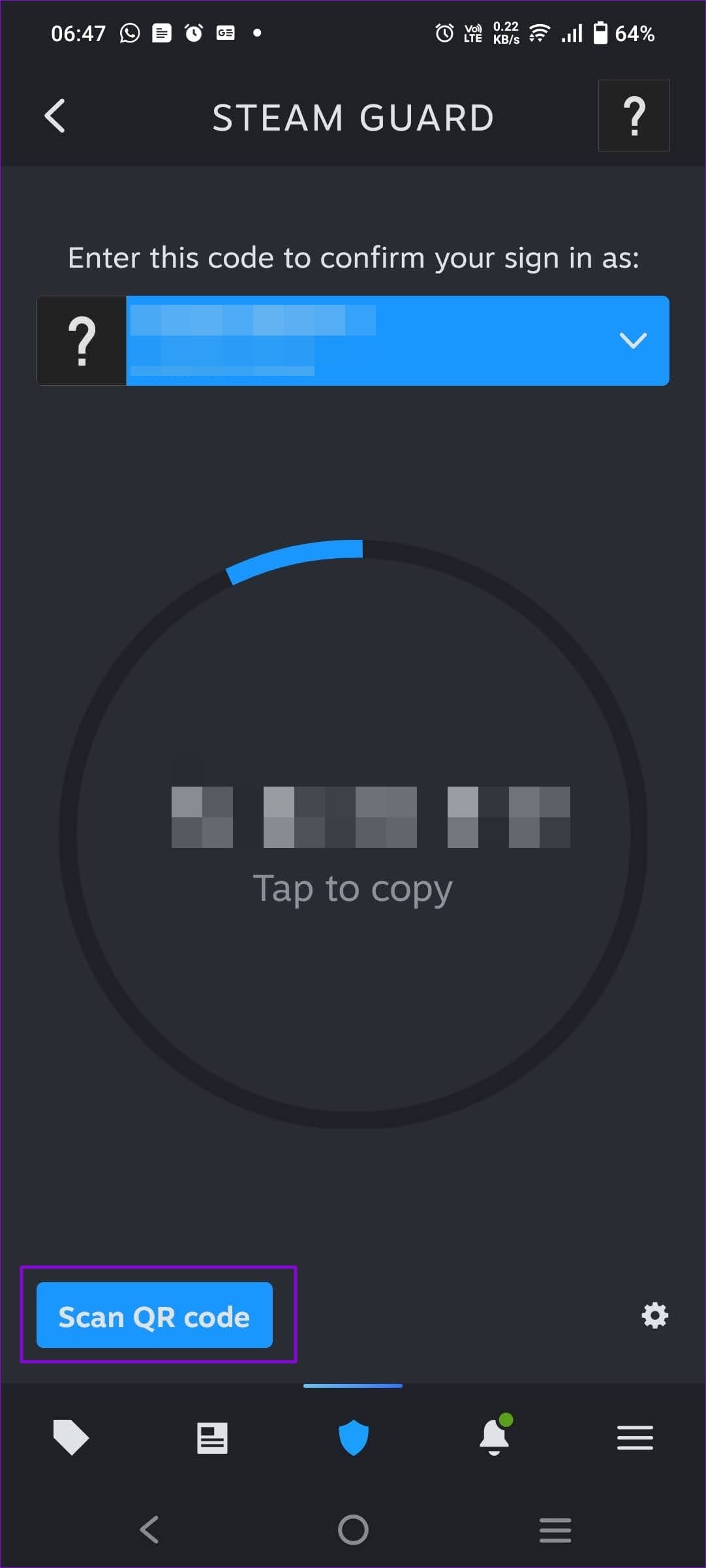
Step 5: The Steam app acts as an authenticator app to log in to your Steam account anywhere. To access it, tap on the Shield icon in the app > scan or use the code to log in.
Get Steam Guard Codes by Email
Step 1: Select Get Steam Guard code by email in the Manage Steam Guard window and save the change.
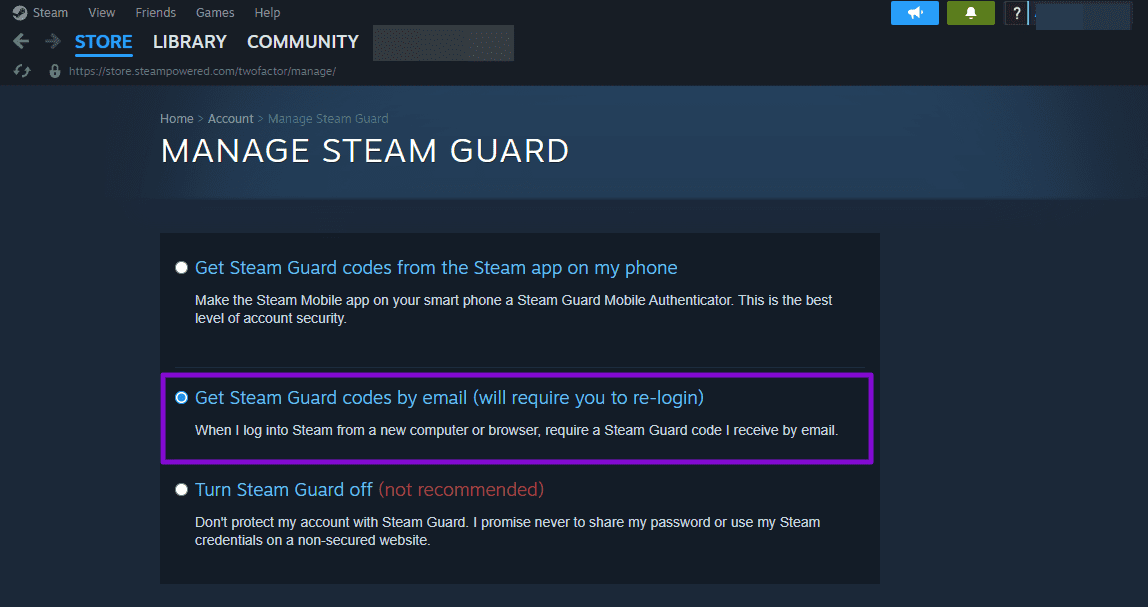
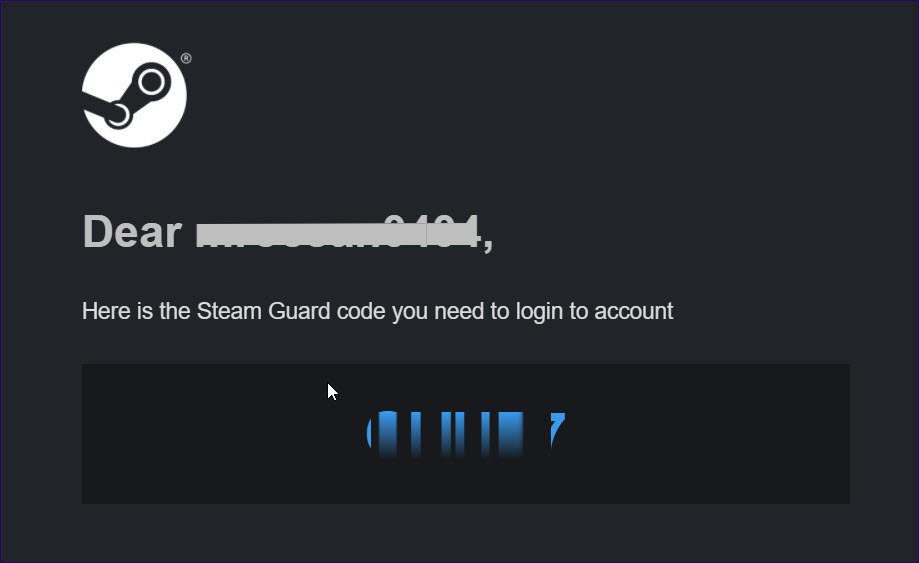
Step 2: It will instantly log you out of your current device and ask you to use the code you received in your Email to log in again. Next time you log in to another device, you will get a code in your email.
Was this helpful?
Submit Cancel
Thanks for your feedback!
Keep reading