Android
6 Ways to Fix Amazon Music App Not Working on Phone
Do you frequently run into playback errors on Amazon Music? Here are the best ways to fix the Amazon Music app not working on your phone.
By Parth Shah
Quick Fixes
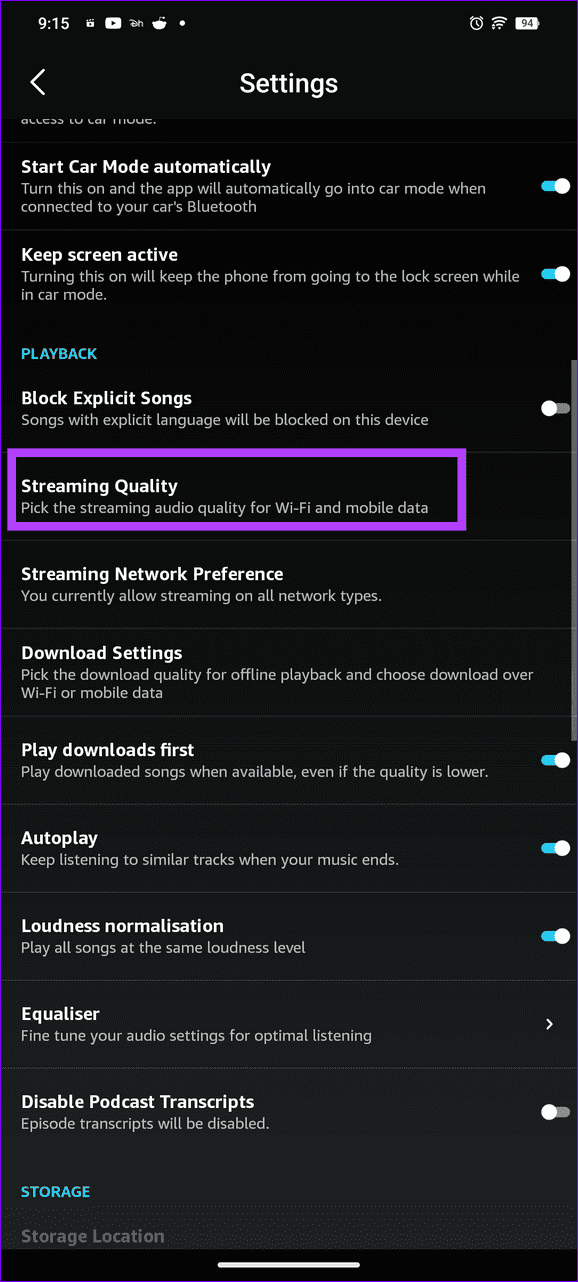
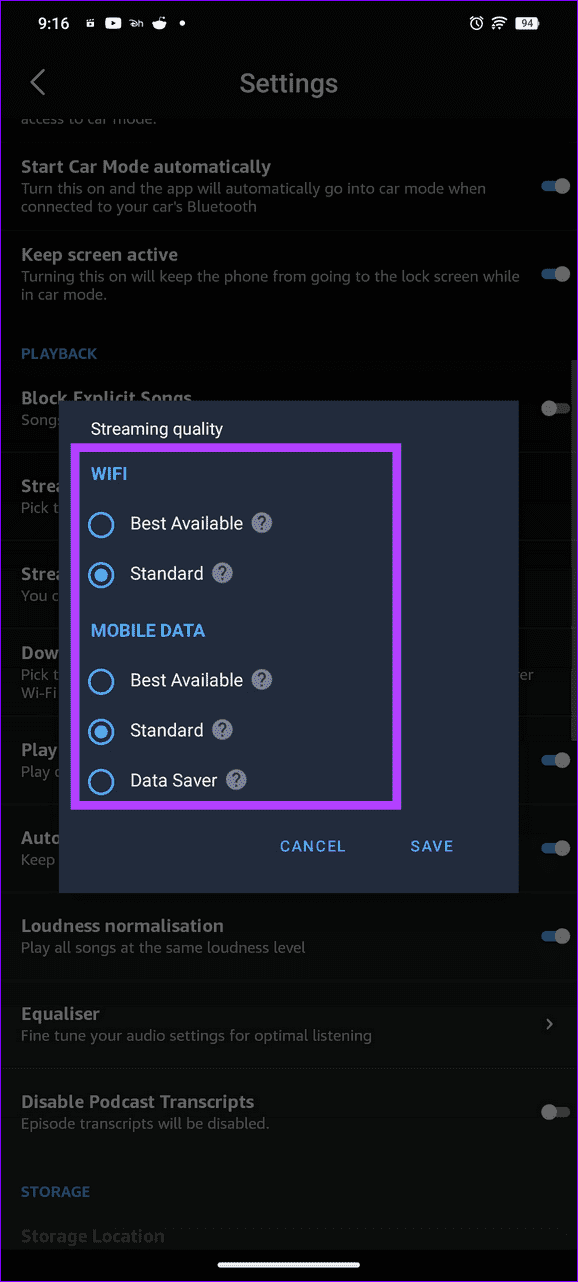
Switch music streaming quality under Amazon Music app Settings > Music Settings > Streaming Quality.
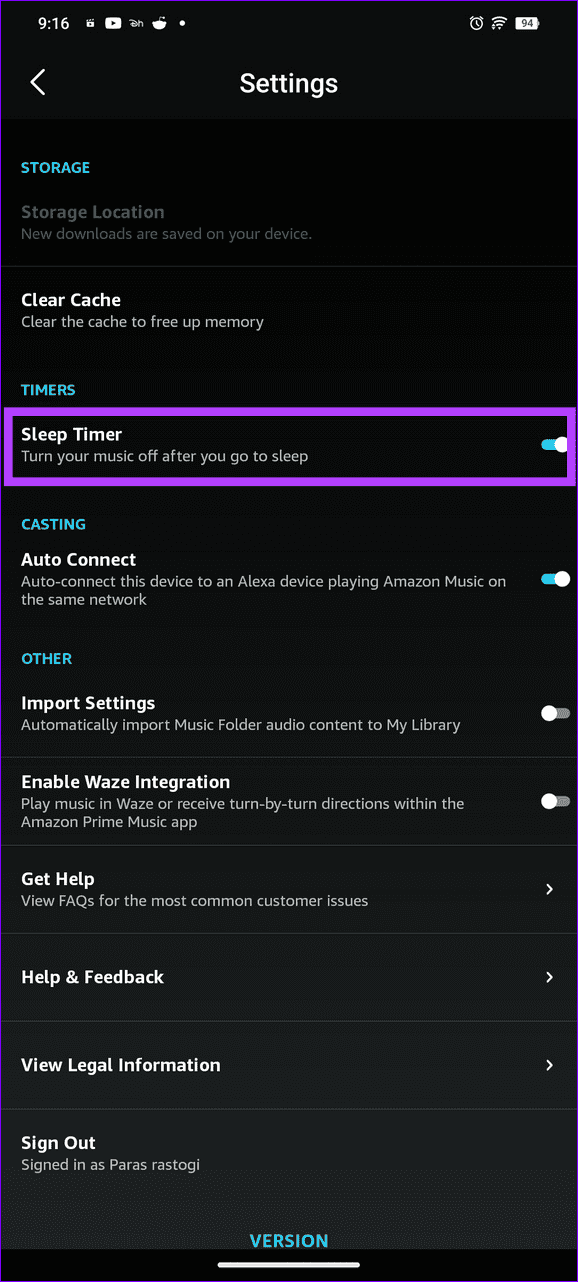
Disable the Sleep Timer feature from Music Settings > Sleep Timer.
Sign out and log back into the Amazon Music app.
Common Fixes
Check your network connection : Ensure your phone is connected to a good internet connection. I recommend an internet speed of at least 5Mbps to stream music. Also, switch between Wi-Fi and mobile data to resolve network issues.
Check the Amazon Prime subscription : Open the Amazon app, expand the You tab at the bottom, and select Your Account. Tap Manage Prime membership to view your subscription status.
Disconnect Bluetooth devices : Disconnect all connected Bluetooth devices on your phone to prevent the music from routing to the connected accessory.
Turn off Battery Saver or Low Power Mode : Head to Android settings, select Battery, and turn off the Battery Saver mode. On iPhone, open Settings, tap Battery, and toggle off the Low Power Mode.
Disable VPN : Open the dedicated VPN app , disconnect the active connection, and reopen Amazon Music.
Update or reinstall the Amazon Music app : Head to the Google Play Store or Apple App Store, search Amazon Music, and tap Update (if available). Alternatively, delete the app and install it.
Fix 1: Force Stop Amazon Music and Reopen
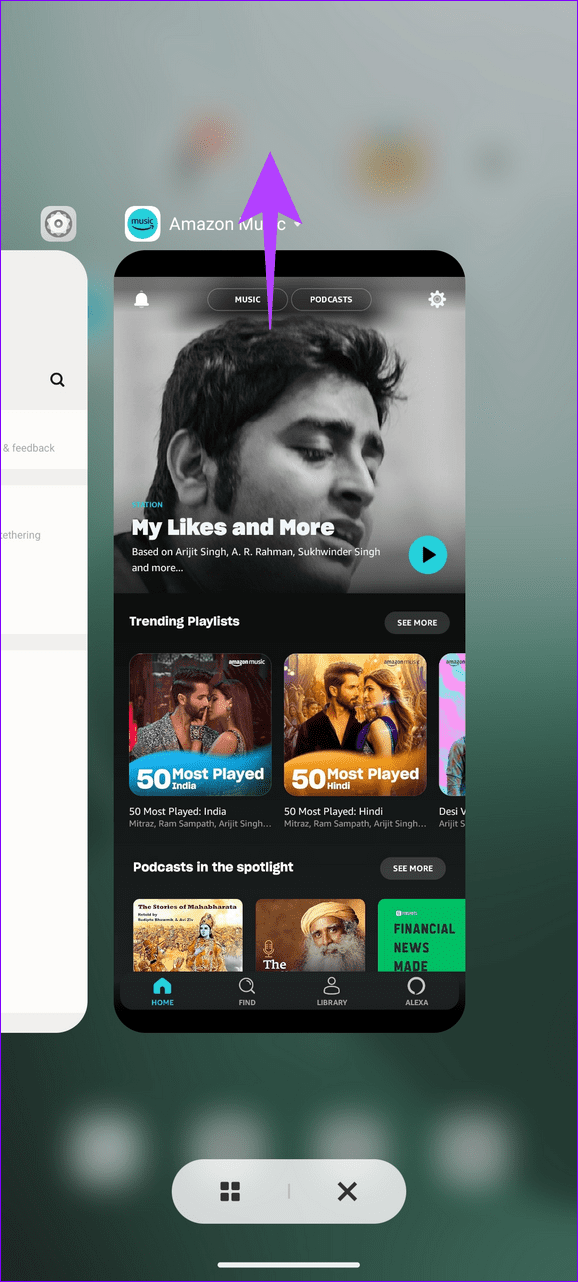
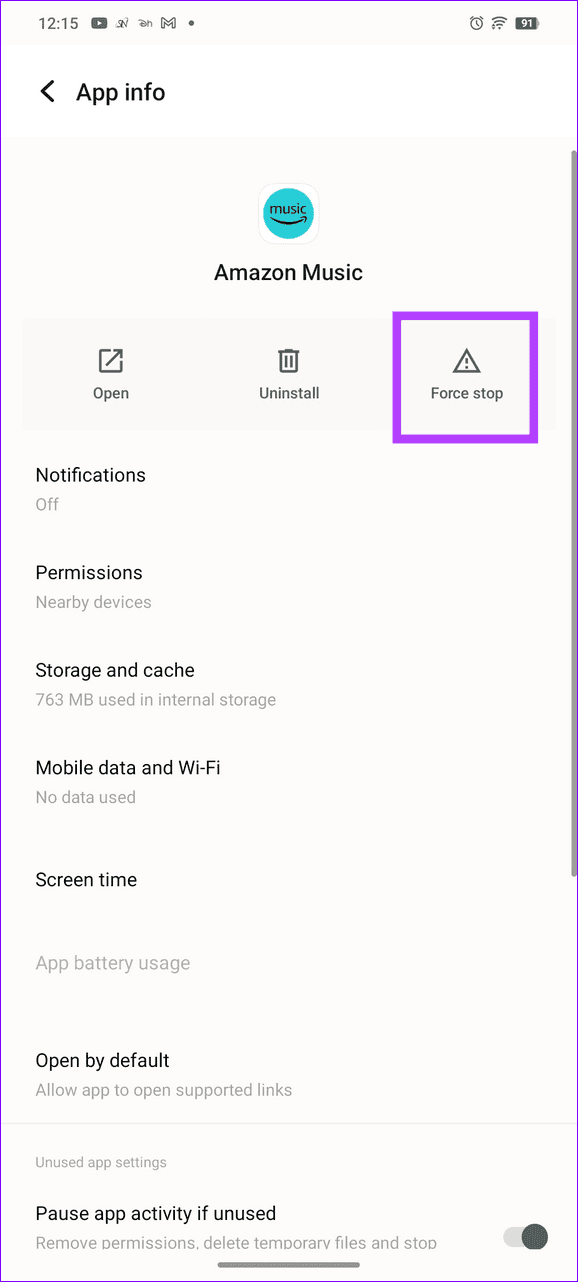
Force-stopping the Amazon Music app refreshes it, fixing existing glitches preventing you from opening it.
Swipe up from the bottom edge of your screen to switch apps and slide up the Amazon Music card to force stop it. Additionally, you can force close the Amazon Music app on Android via Settings > Apps > Amazon Music > Force stop .
Fix 2: Sign Out and Sign into Amazon Music
Account authentication issues are a common reason the Amazon Music app does not work on your phone. Sign out and sign back in to restore normalcy.
On Android
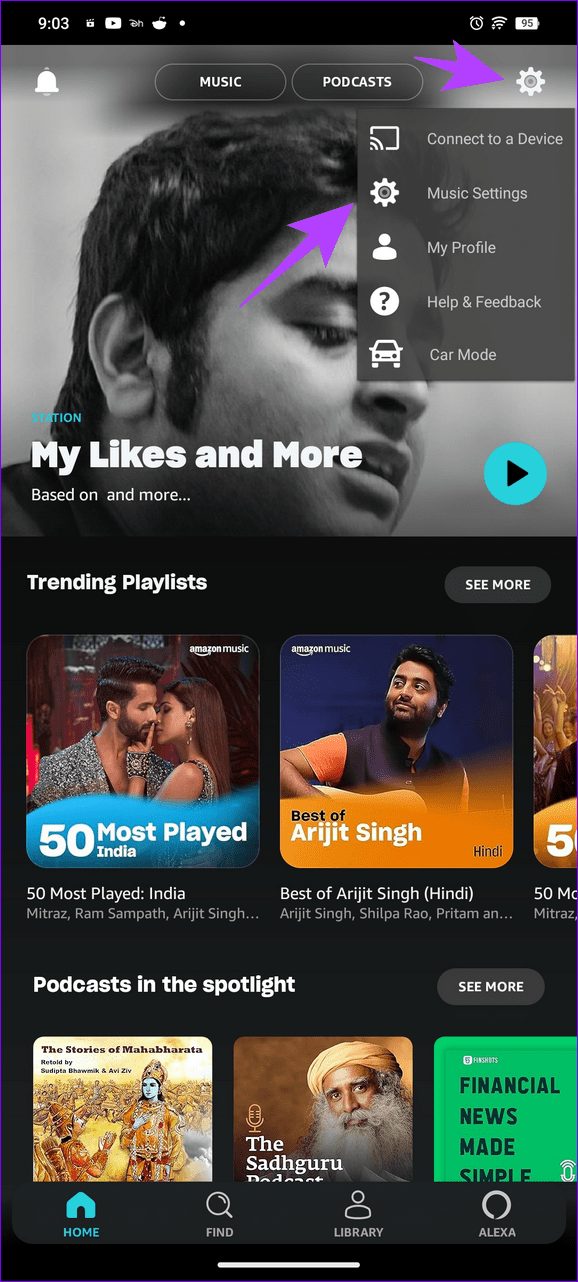
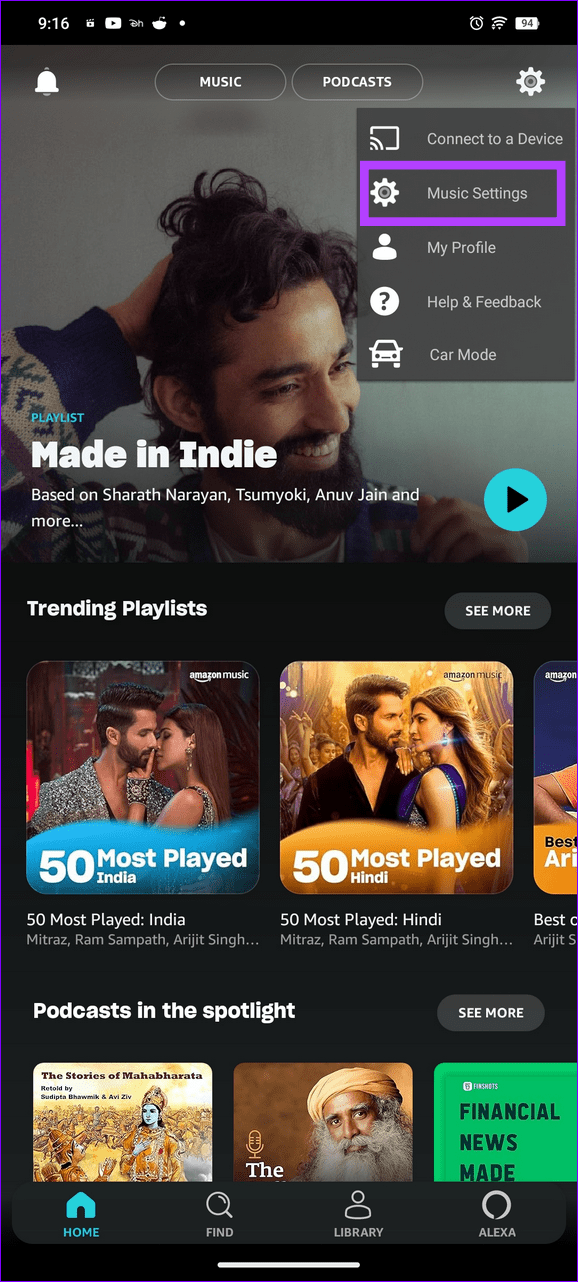
Step 1: Open Amazon Music > tap the Gear icon at the top-right > select Music Settings .
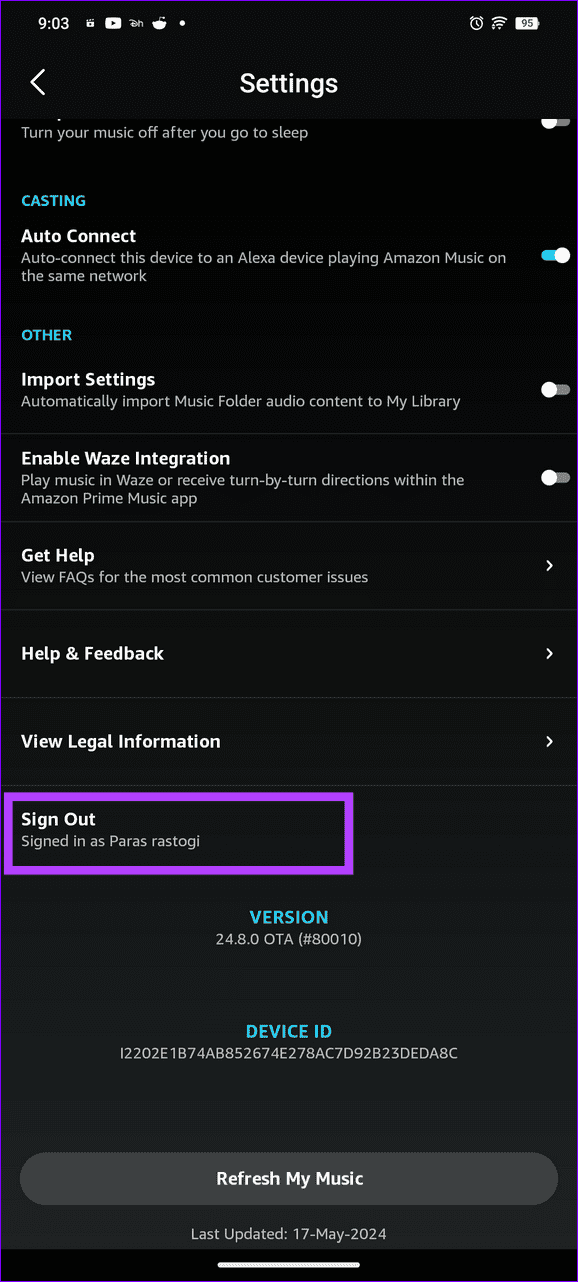
Step 2: Scroll to the bottom and tap Sign Out . Re-enter your account credentials to log in.
On iOS
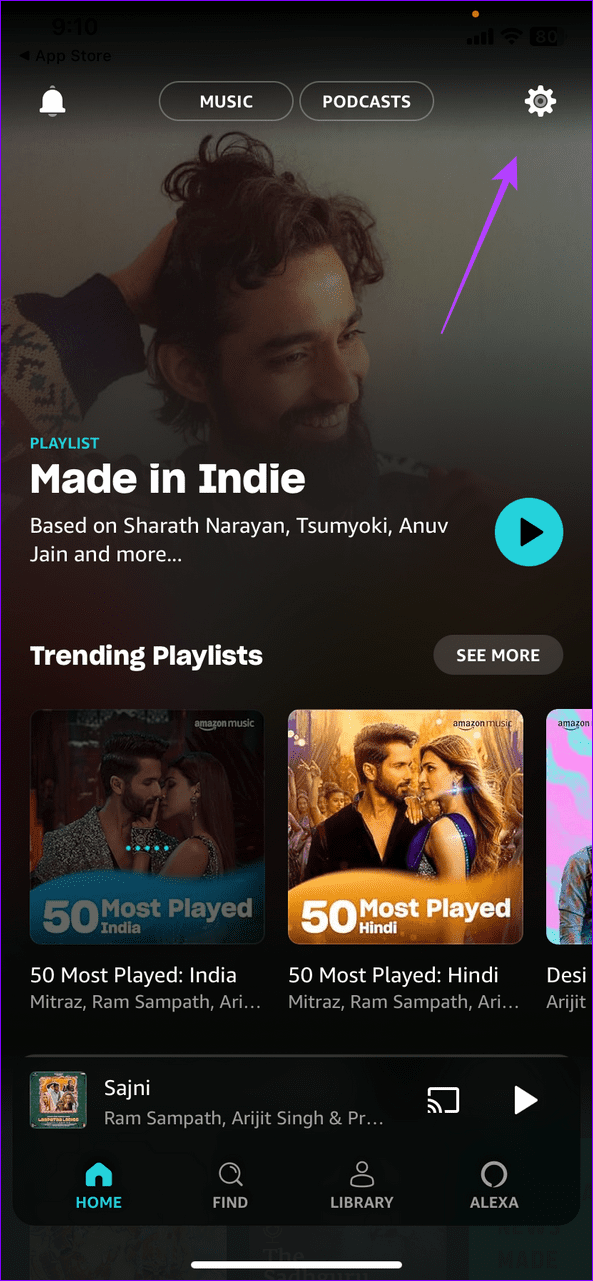
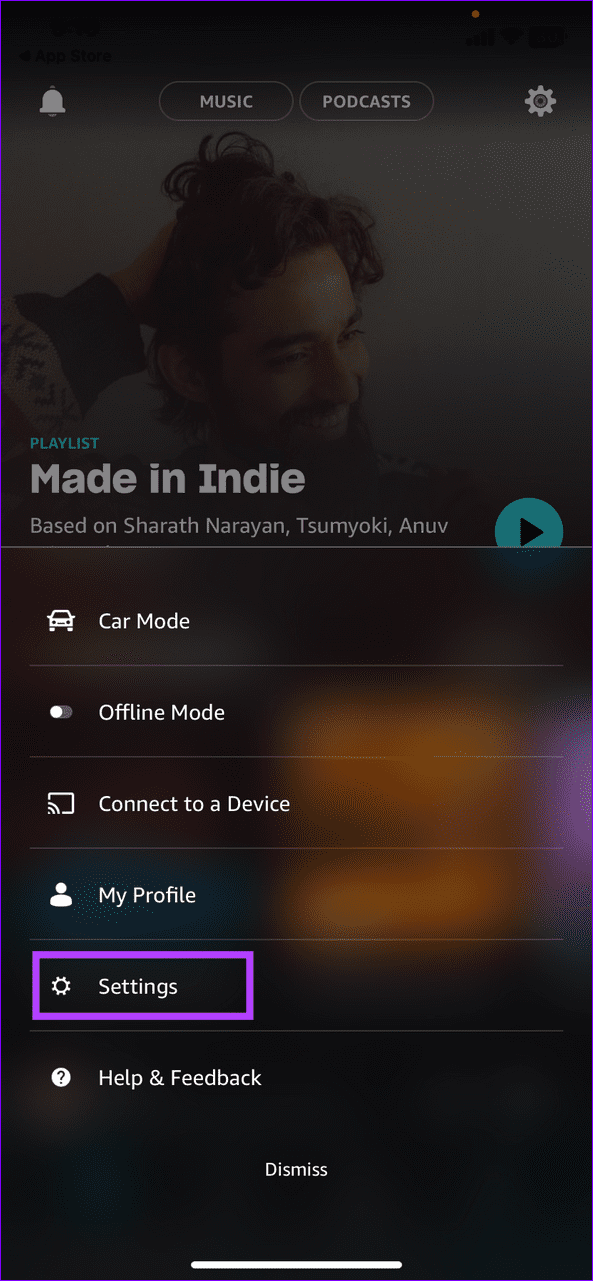
Step 1: Open Amazon Music > tap the Gear icon at the top right > select Settings .
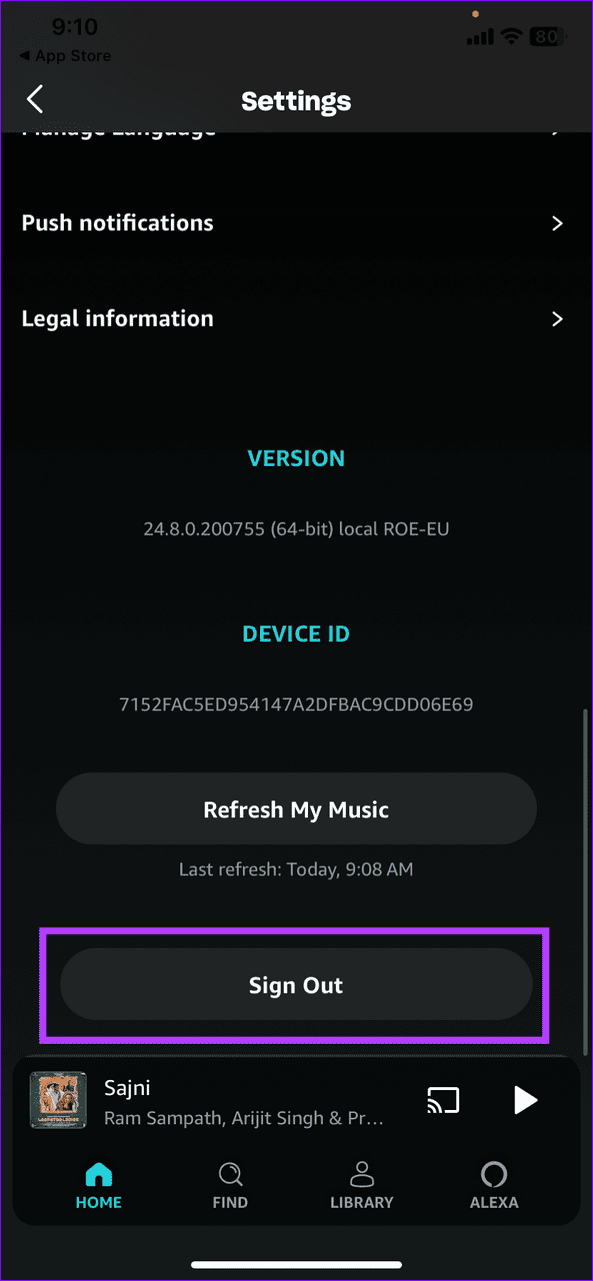
Step 2: Scroll to the bottom and tap Sign Out . Select Sign in and enter your Amazon account credentials to sign back in.
Fix 3: Disable Data Saver or Low Data Mode
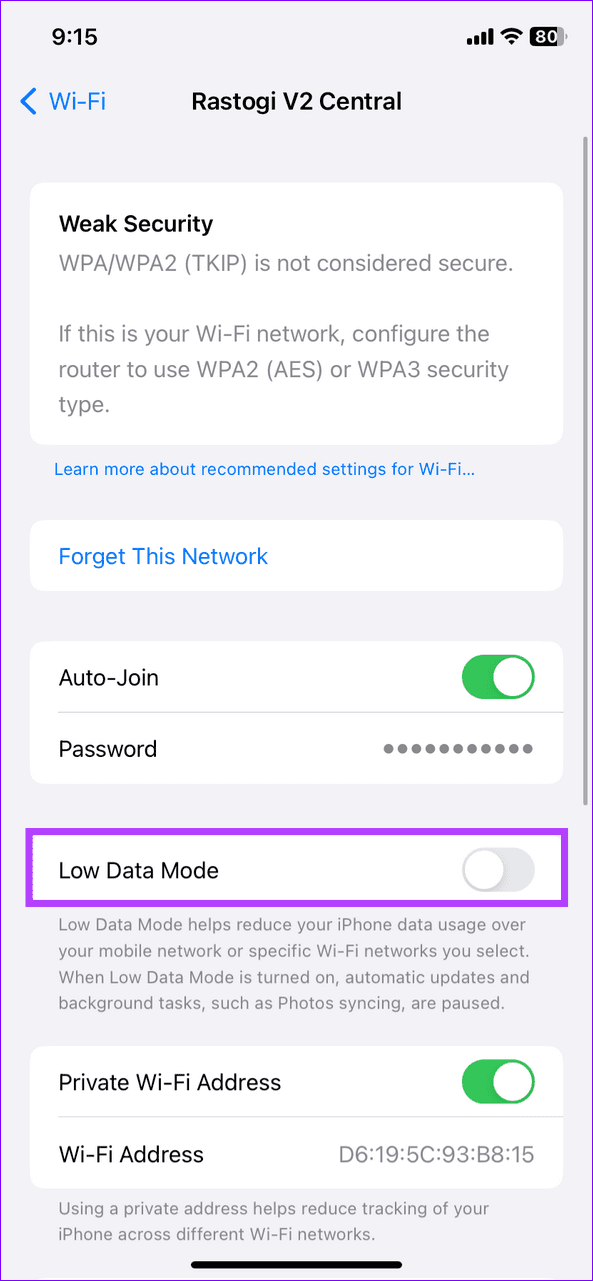
An active Data Saver or Low Data mode restricts data consumption on your phone, preventing Amazon Music from functioning correctly. Disable it to resume streaming music without errors.
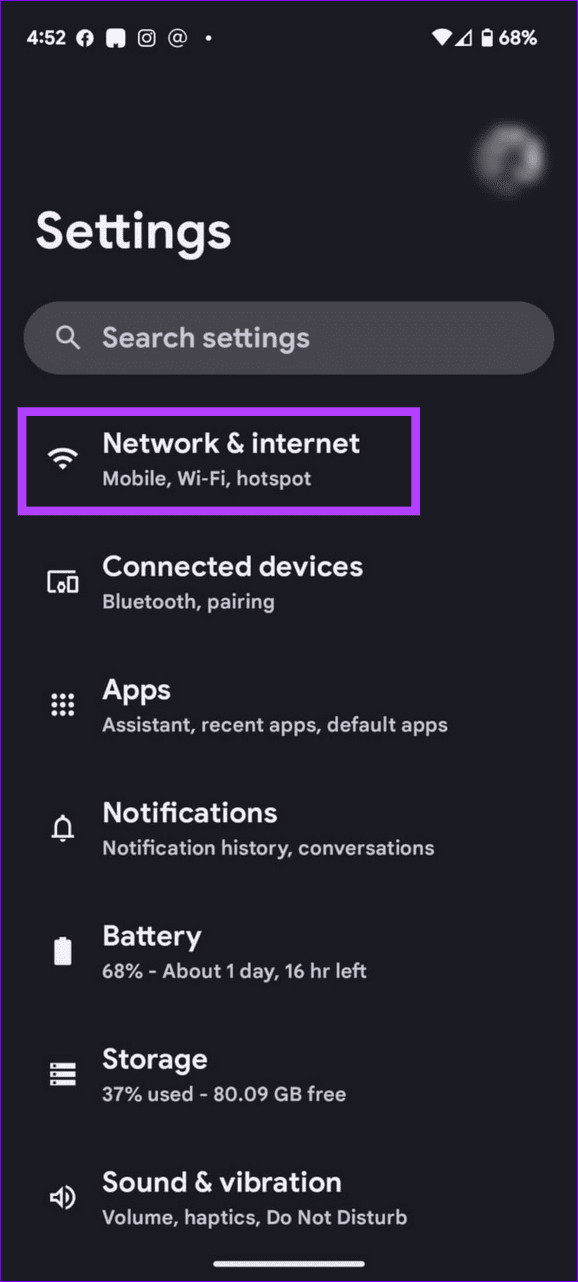
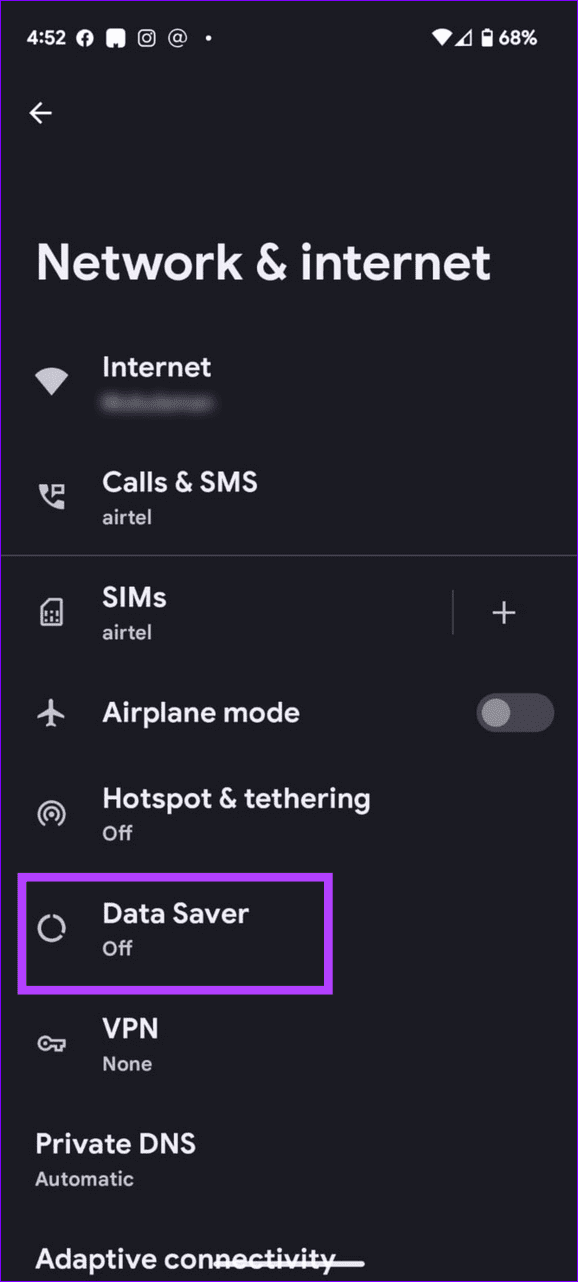
On Android: Open the Settings app > tap Network & internet > select Data Saver > turn off its toggle.
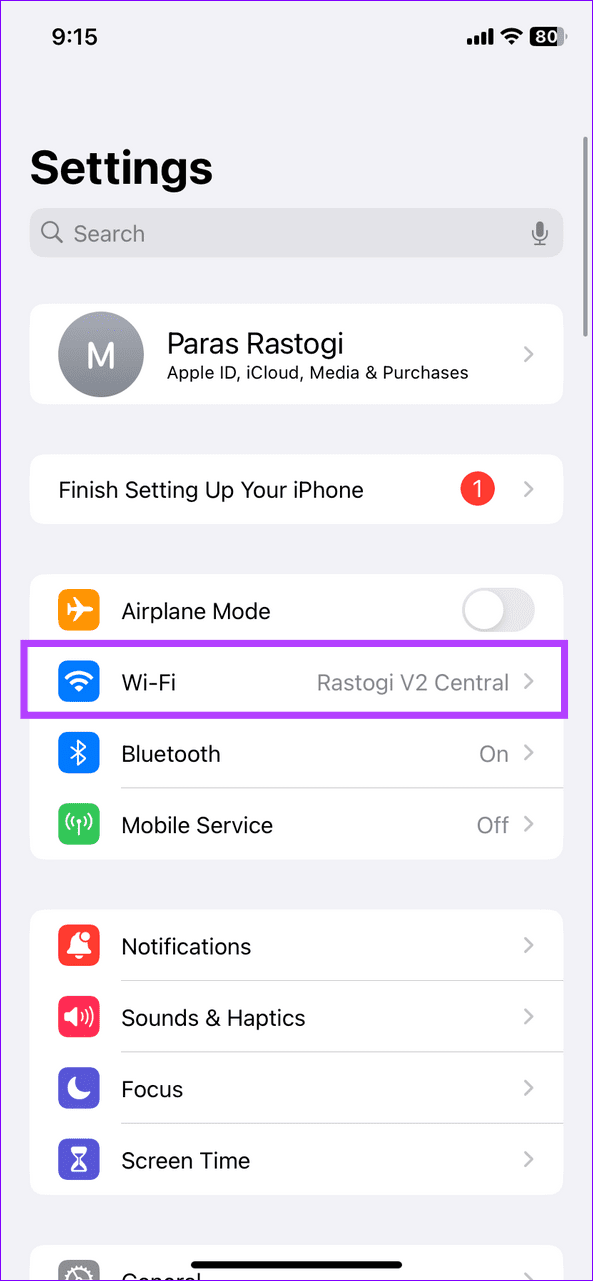
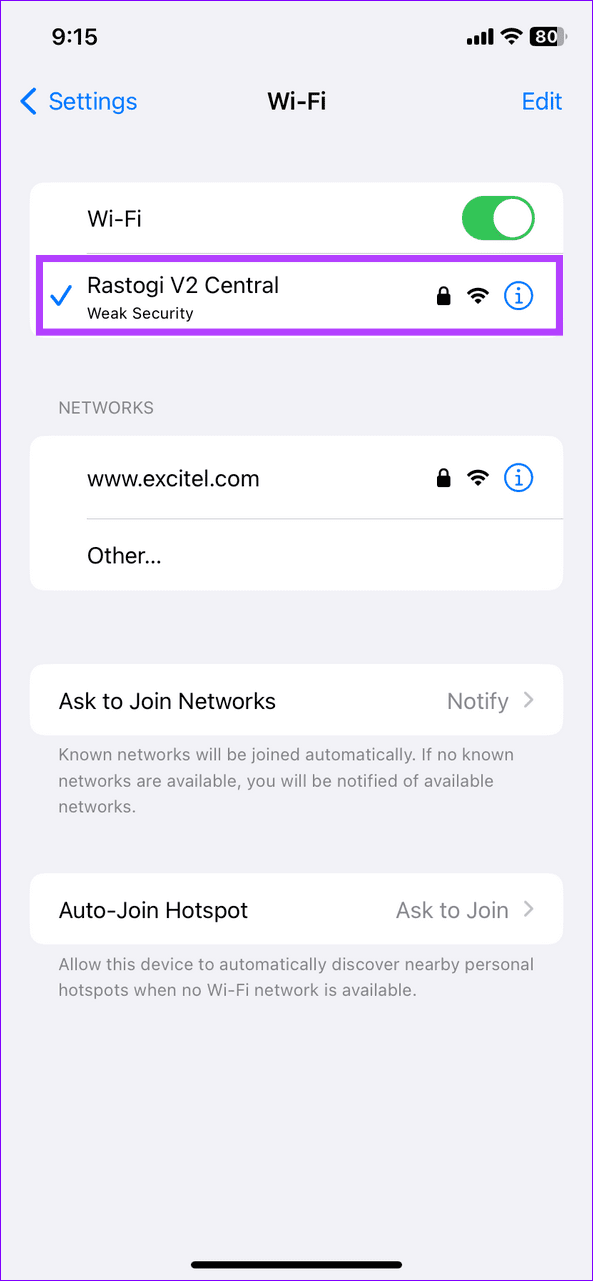
On iOS: Open iPhone Settings > tap Wi-Fi or Mobile Service > select your network connection > toggle off the Low Data Mode .
Fix 4: Switch the Streaming Quality
If you’re running Amazon Music on a slow or intermittent network connection, you might run into playback errors. Switch the music streaming quality manually to play songs without hiccups.
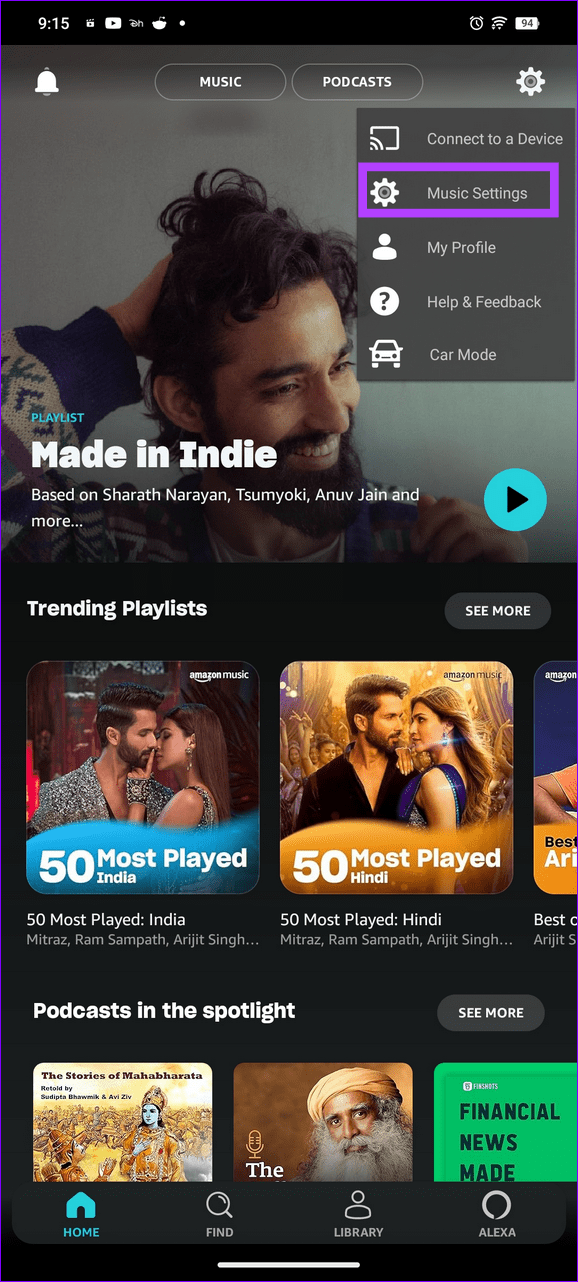
Step 1: Open Amazon Music > tap the Gear icon at the top right > select Music Settings .
Step 2: Scroll down and select Streaming Quality under Playback settings.
Step 3: Switch the existing streaming quality settings to resume playing music.
Fix 5: Turn off Sleep Timer in Amazon Music
If Amazon Music automatically stops playing songs after a certain duration, its Sleep Timer feature might be active. Head to the app settings to turn it off.
Open Music Settings in the Amazon Music app (check the steps above) > scroll to the bottom > toggle off Sleep Timer under the Timers section.
Fix 6: Clear the Amazon Music Cache and App Data (Android)
Lastly, Amazon Music may fail to work on your phone if its app data or cache files are corrupt. Open Android Settings to clear them manually.
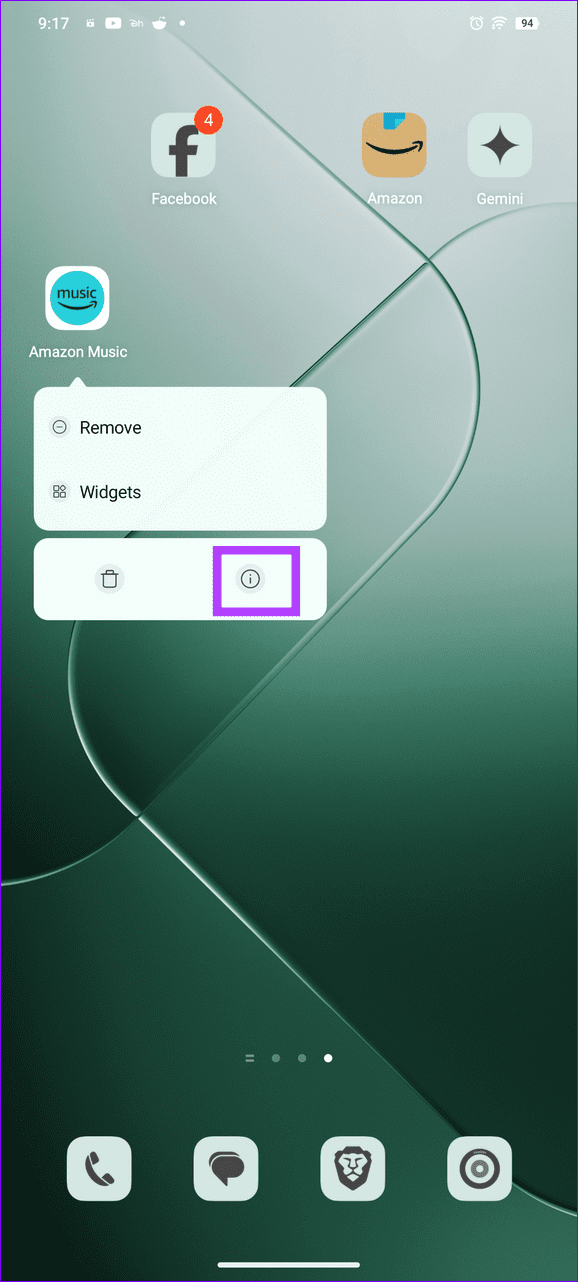
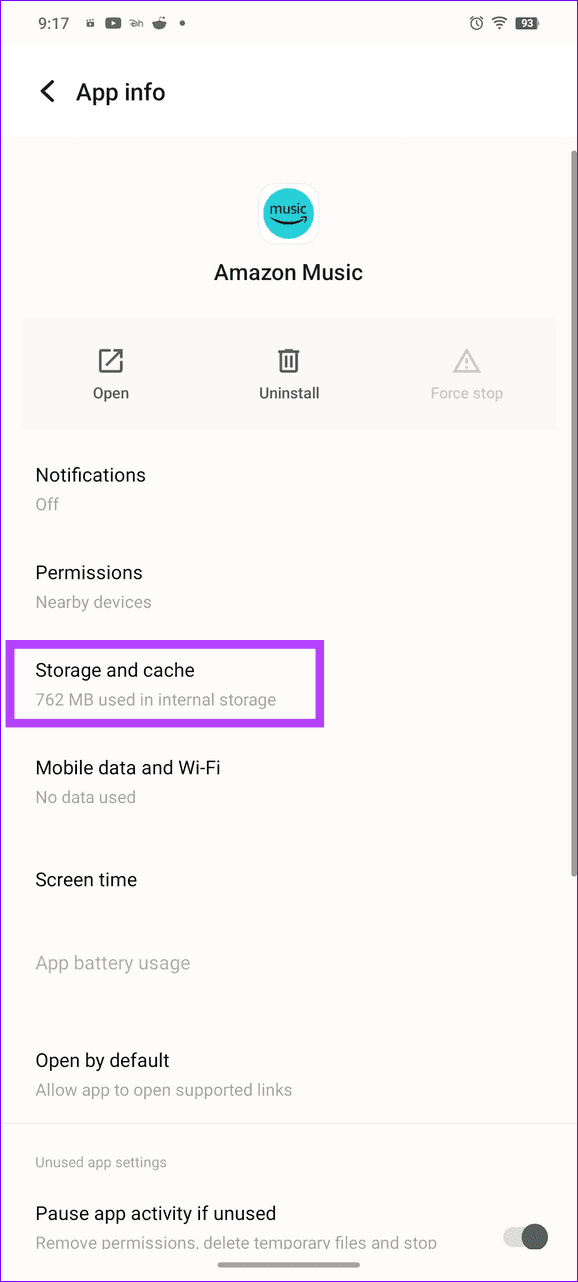
Step 1: Long-tap the Amazon Music app > tap on App info > select Storage and cache .
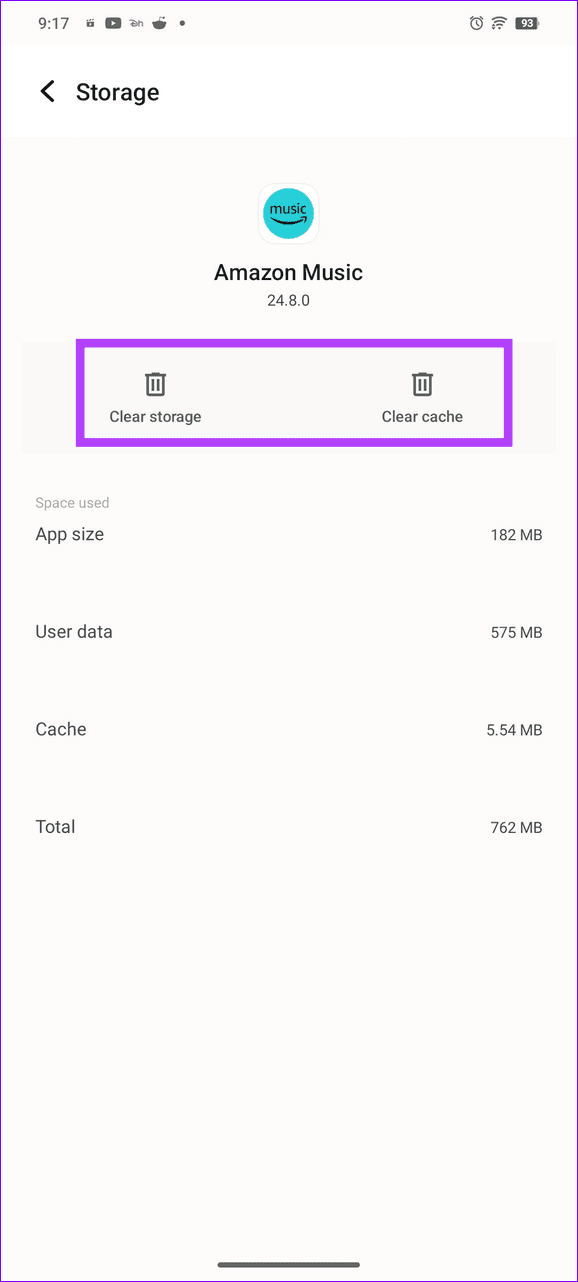
Step 2: Tap Clear cache , followed by the Clear storage button.
Was this helpful?
Submit Cancel
Thanks for your feedback!
Keep reading