Android
How to Force High Refresh Rate on All Android Apps Without Root
Does YouTube or Snapchat, or any other app not work at 90/120Hz? Take a look at how you can force high refresh rate on all apps!
By Supreeth Koundinya
Quick Tips
Go to Settings > Display & Brightness and select the refresh rate.
If you suspect an app runs on a lower refresh rate – go to Developer Options > turn on the Show refresh rate.
To force apps to run at the highest refresh rate, you will have to use a third-party app called SetEdit.
How to Enable a High Refresh Rate on Android
Step 1: Open the Settings app. Tap on Display & brightness .
Step 2: Tap on Screen refresh rate . You’ll find options to select a high refresh rate in this window. Check the box for the same.
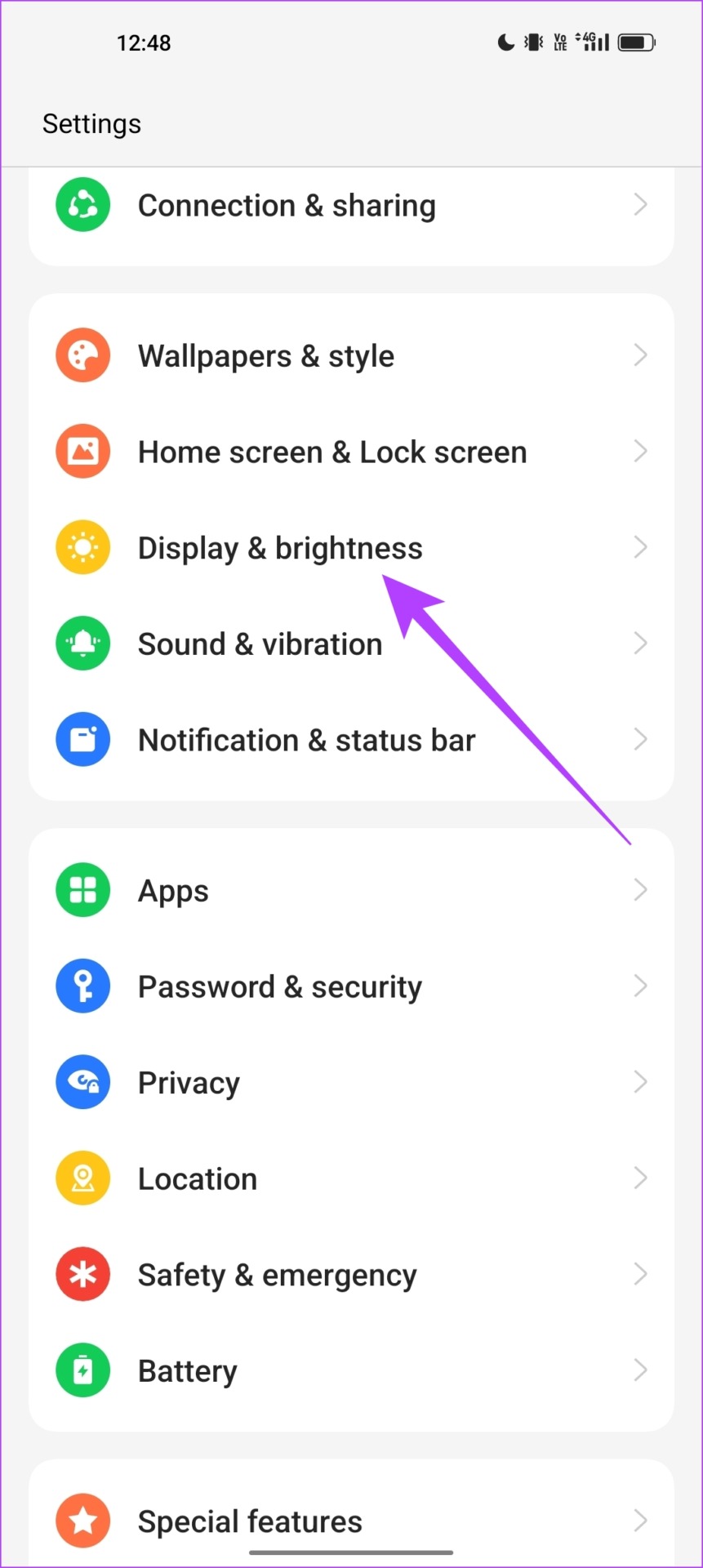
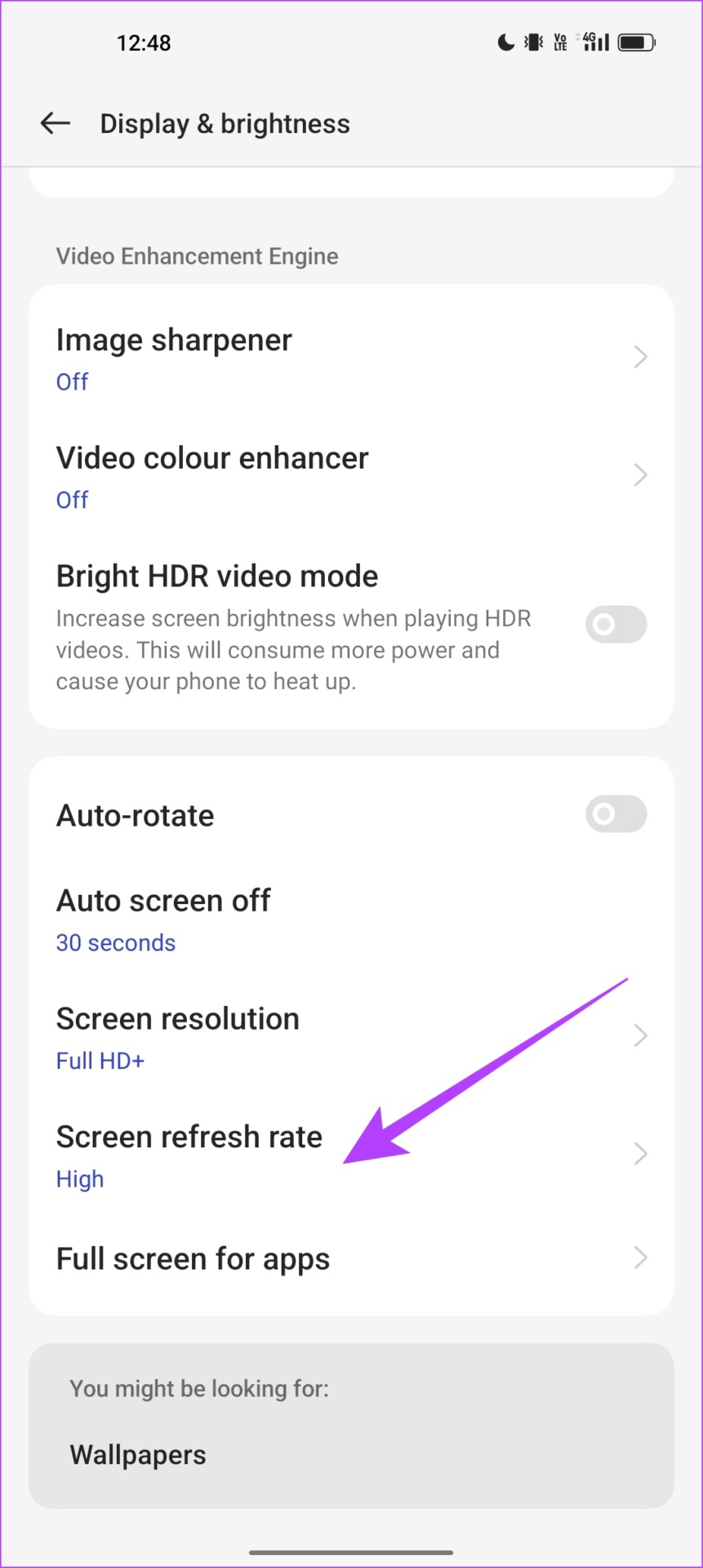
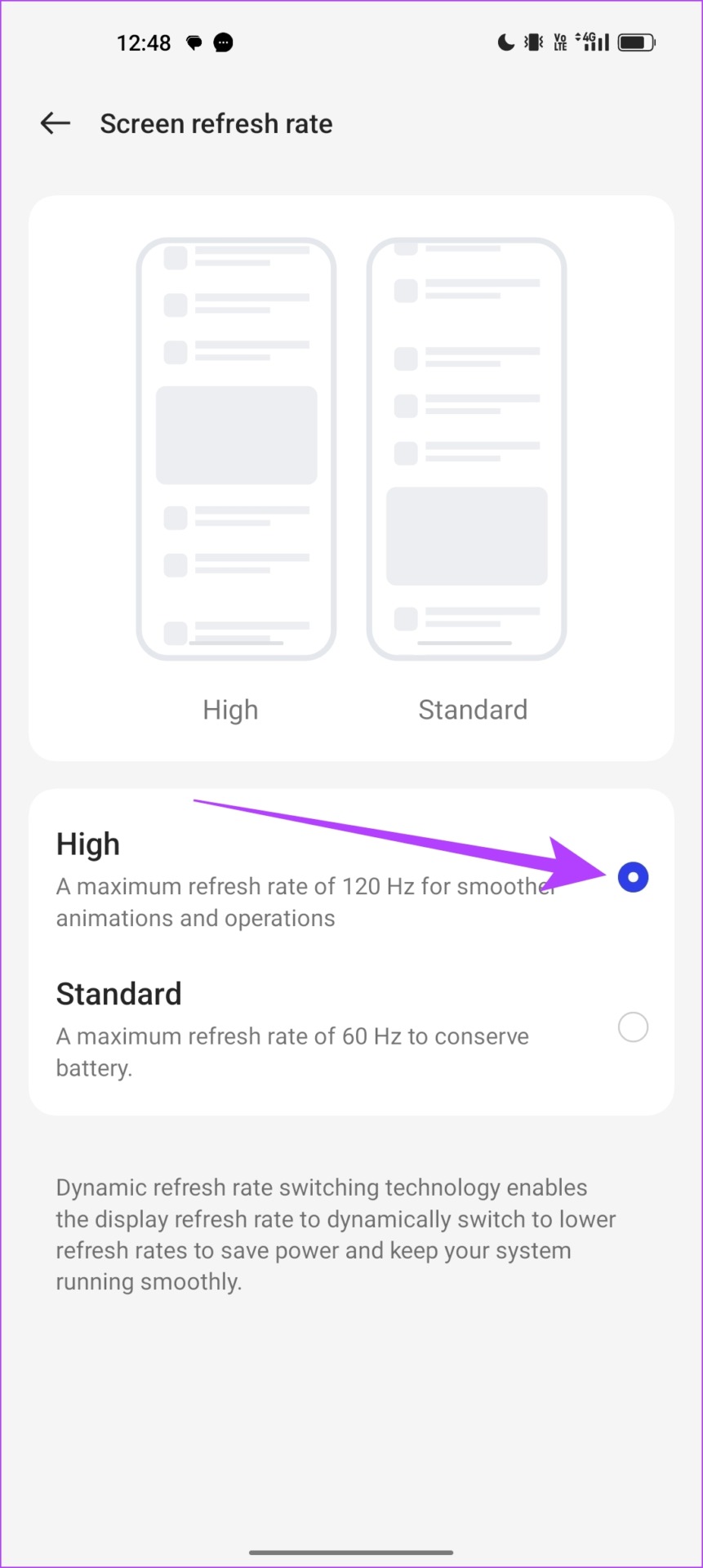
Ideally, this will enable a high refresh rate for all applications. Smartphones don’t offer to opt for a refresh rate on a per-app basis, therefore all your apps should run on the selected refresh rate.
However, a few apps refuse to run on a high refresh rate. They seem to be sluggish even when you opt for a 90Hz or 120Hz refresh rate. If you noticed the same too, let’s verify your doubt and check the refresh rate while using your phone.
Check Which Apps Don’t Work With a Higher Refresh Rate
In our case, the YouTube app felt slow and sluggish at 120Hz. Whereas, other applications operated as expected, with a high refresh rate. So, we ran a test and checked the refresh rate while using the app. We first need to enable developer options.
Note : These are experimental features meant for the purposes of development. Proceed with caution and at your own risk.
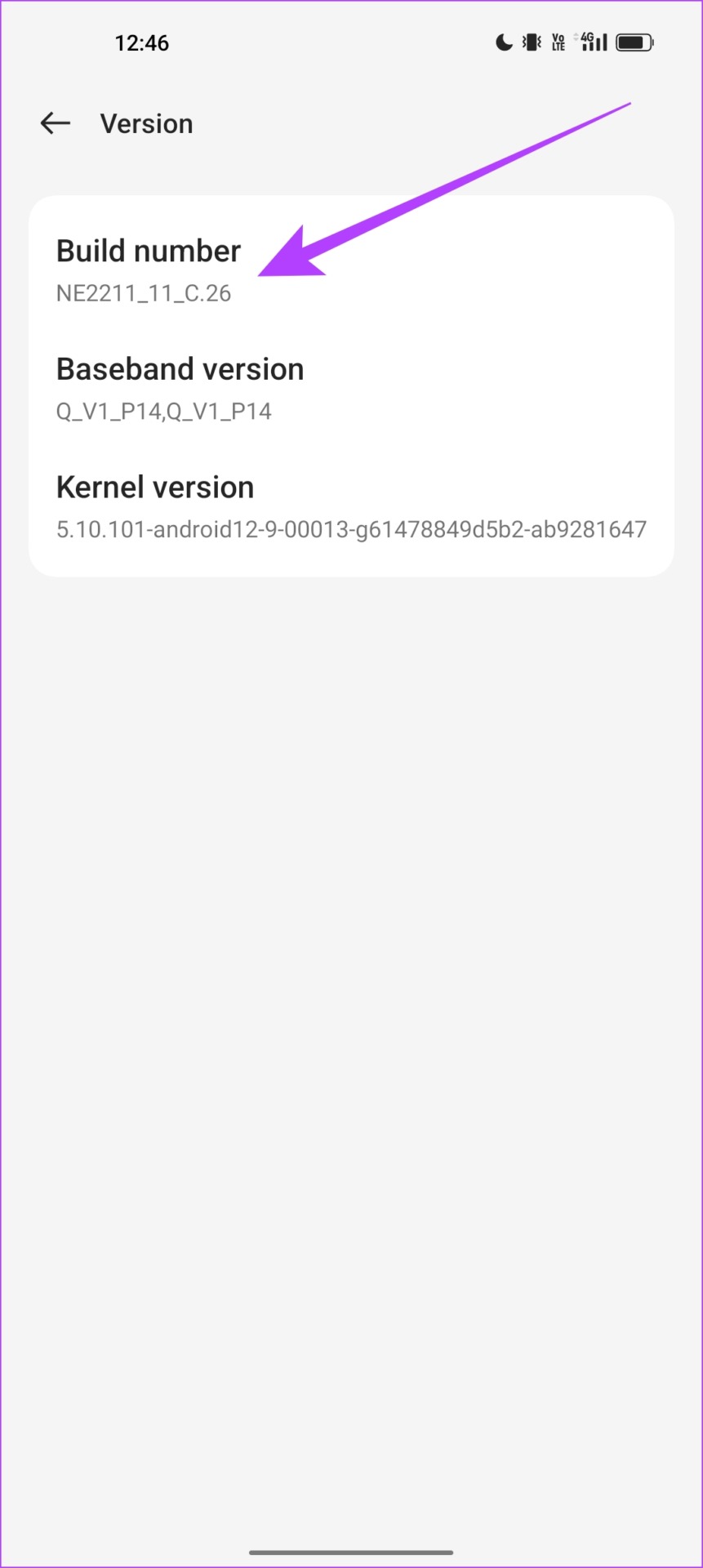
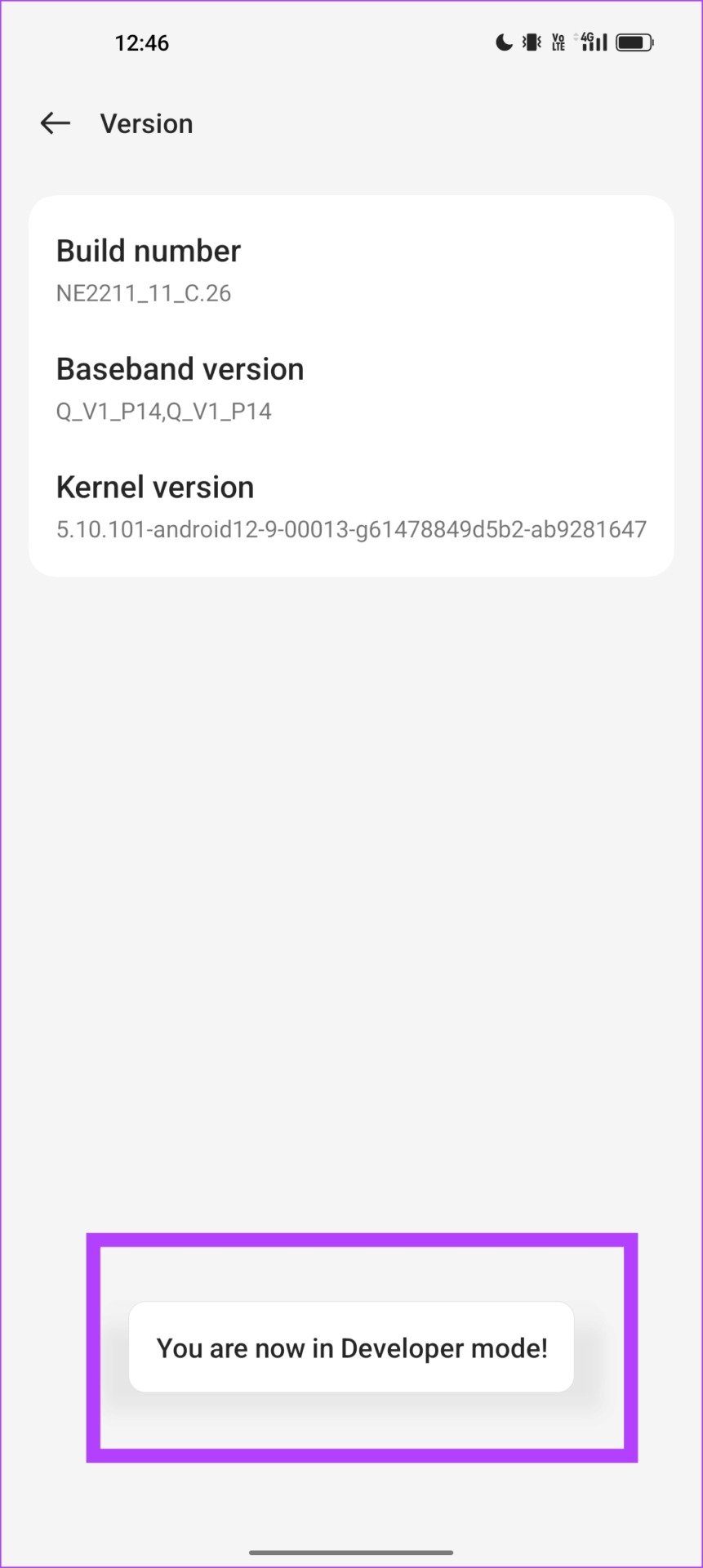
Open Settings > About Device > Version . Tap several times on the Build number until you get a message that says You are now in Developer mode .
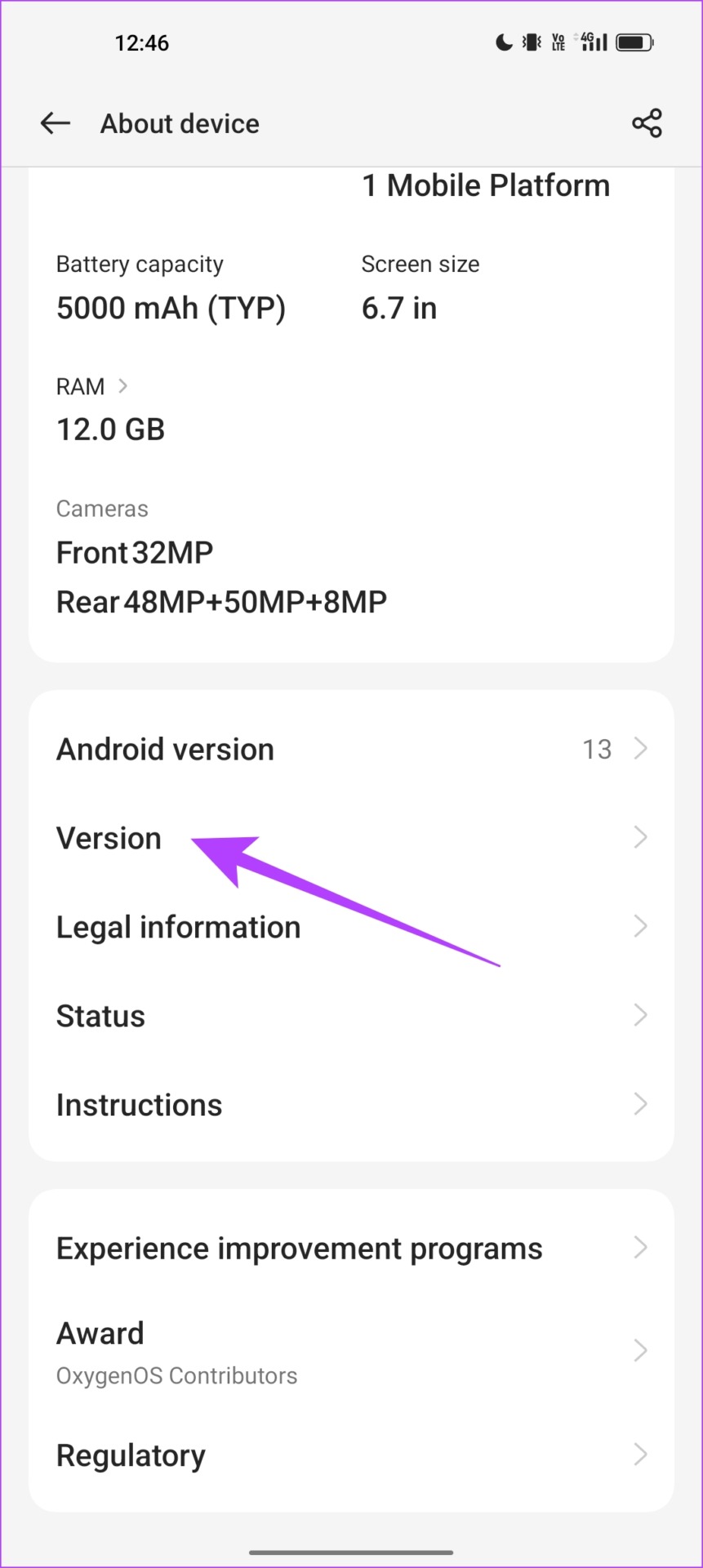
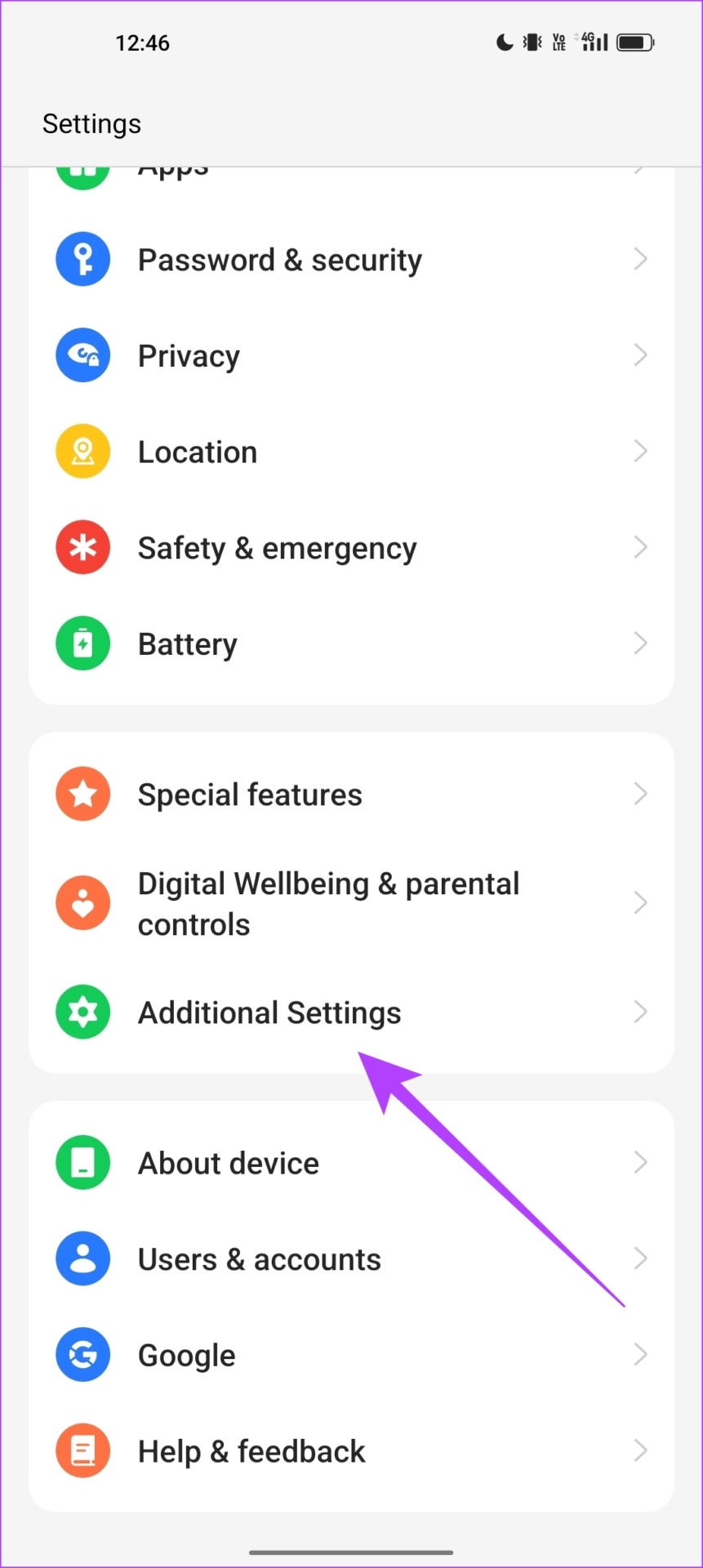
Step 1: We now need to open developer options. Open the Additional Settings menu in the settings app.
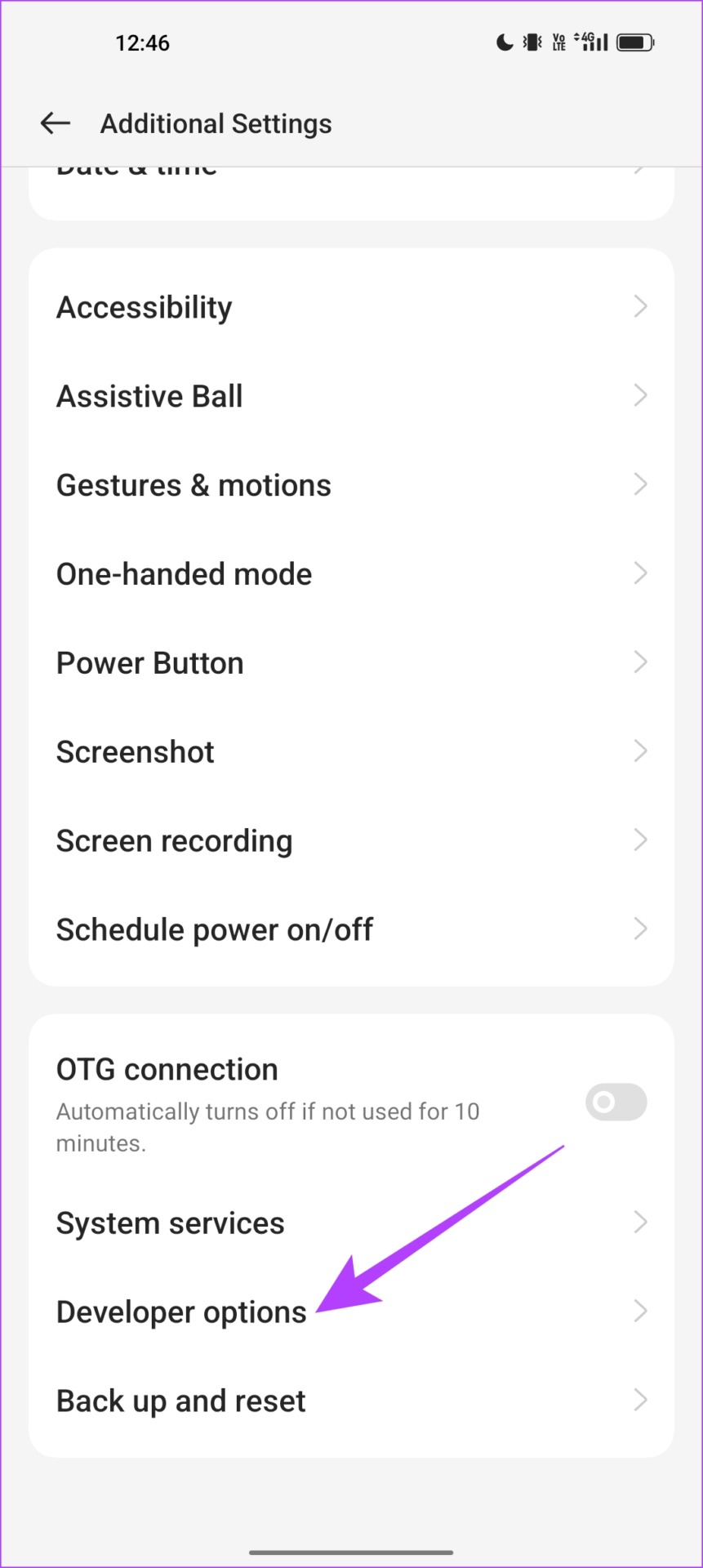
Step 2: Tap on Developer options . Scroll down to find and turn on the toggle for Show refresh rate . It will be present under the Display settings.
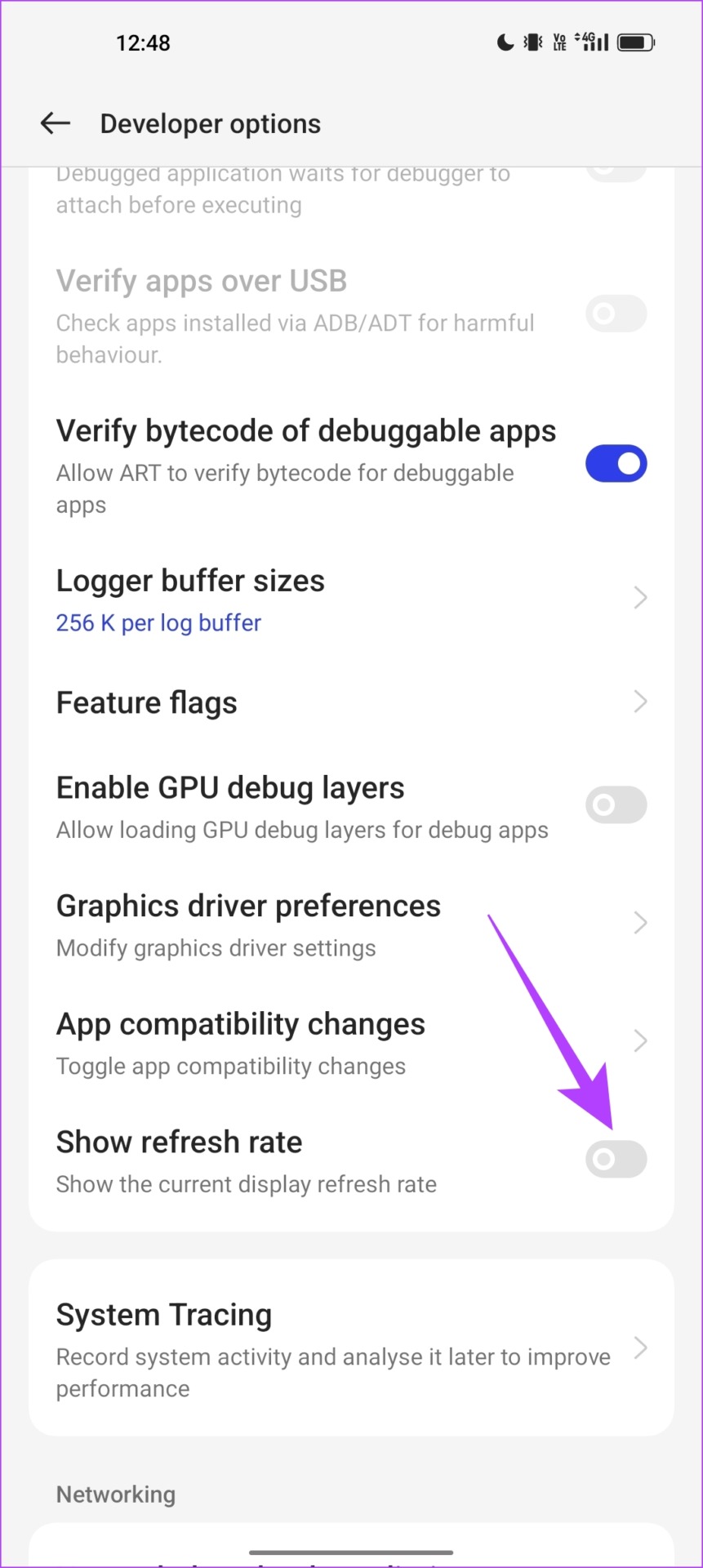
You will now see the value of the refresh rate in the top left corner of your screen.
Take a look at the two images below – the first screenshot was taken when we were navigating around our home screen, it said 120Hz which is what we opted for.
Since we observed that the YouTube app was running slow, we checked the refresh rate on the app. Turns out what we suspected was true – the YouTube app was running at 60 Hz.
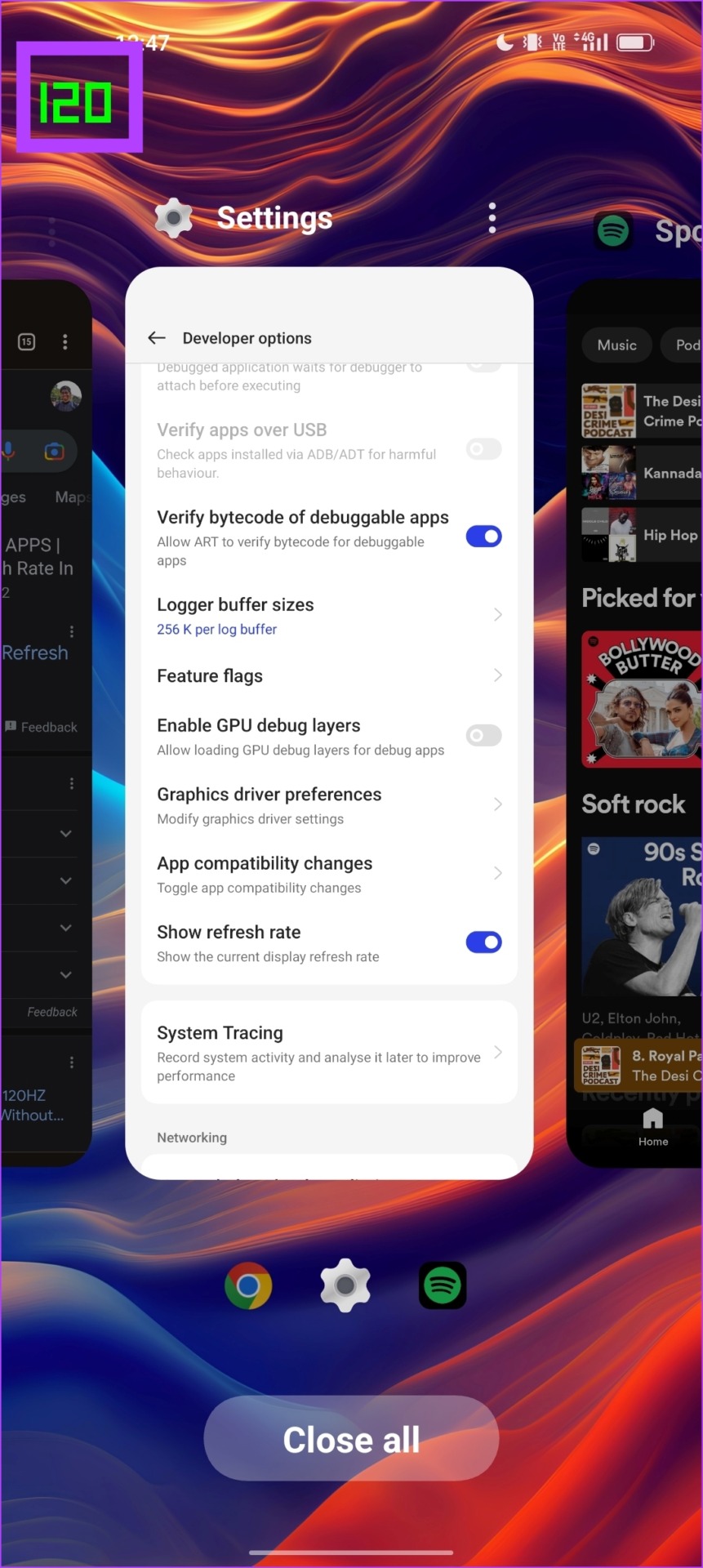
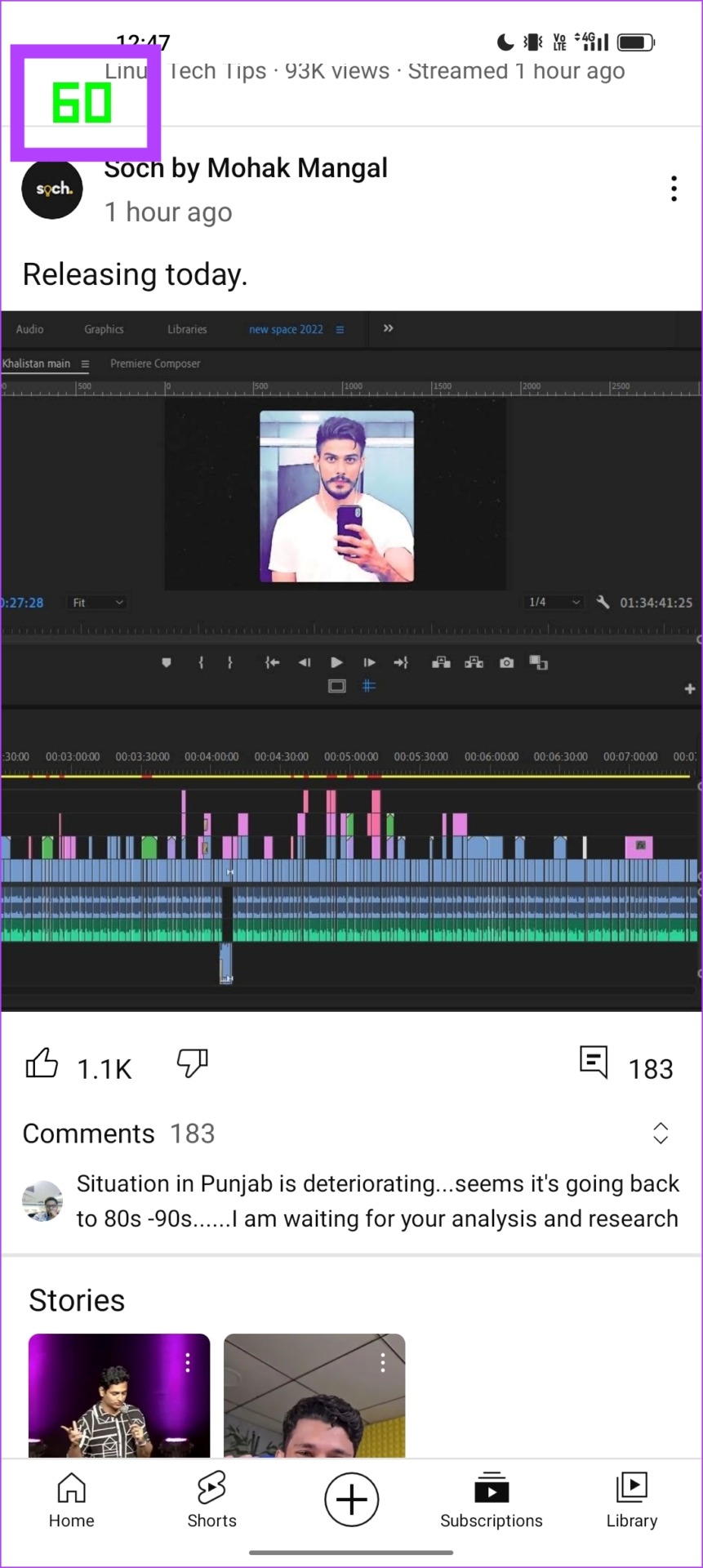
Luckily in our case, it was just the YouTube app and Snapchat at times. However, it can be frustrating if you’re facing this issue with more apps. Given the fact that you pay a premium for a phone with a high refresh rate display, you’d want to fix the issue as soon as you can.
Force Peak Refresh Rate on Your Android Device (Without Root)
SetEdit is a database editor app for your Android device. It helps modify a few configurations by editing their values. Therefore, you can adjust the display refresh rate values so that apps run on the maximum refresh rate.
Note : This involves modifying a few settings of your device that you otherwise can’t on the Settings app. Proceed carefully, and at your own risk. We advise taking a full backup of your device before you proceed.
Step 1: Download the SetEdit app from the Play Store.
Read warnings and cautionary notes mentioned by the app developer. Neither does the app developer nor we guarantee the safety of your device.
Step 2: Give necessary permissions and ignore any error message about the app’s incompatibility.
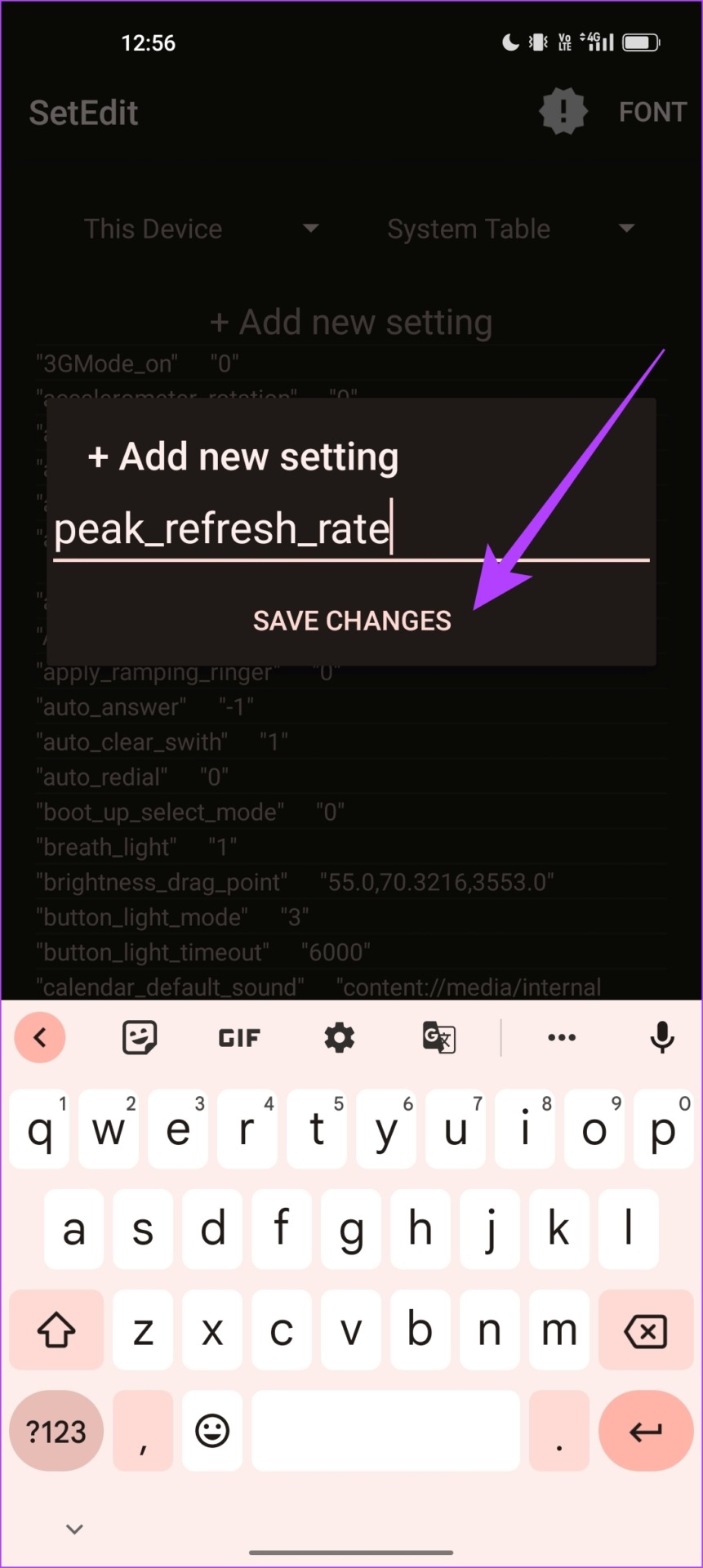
Step 3: On the app’s main screen, tap Add New Setting . Enter the below text in the field:
peak_refresh_rate
Tap on Save Changes .
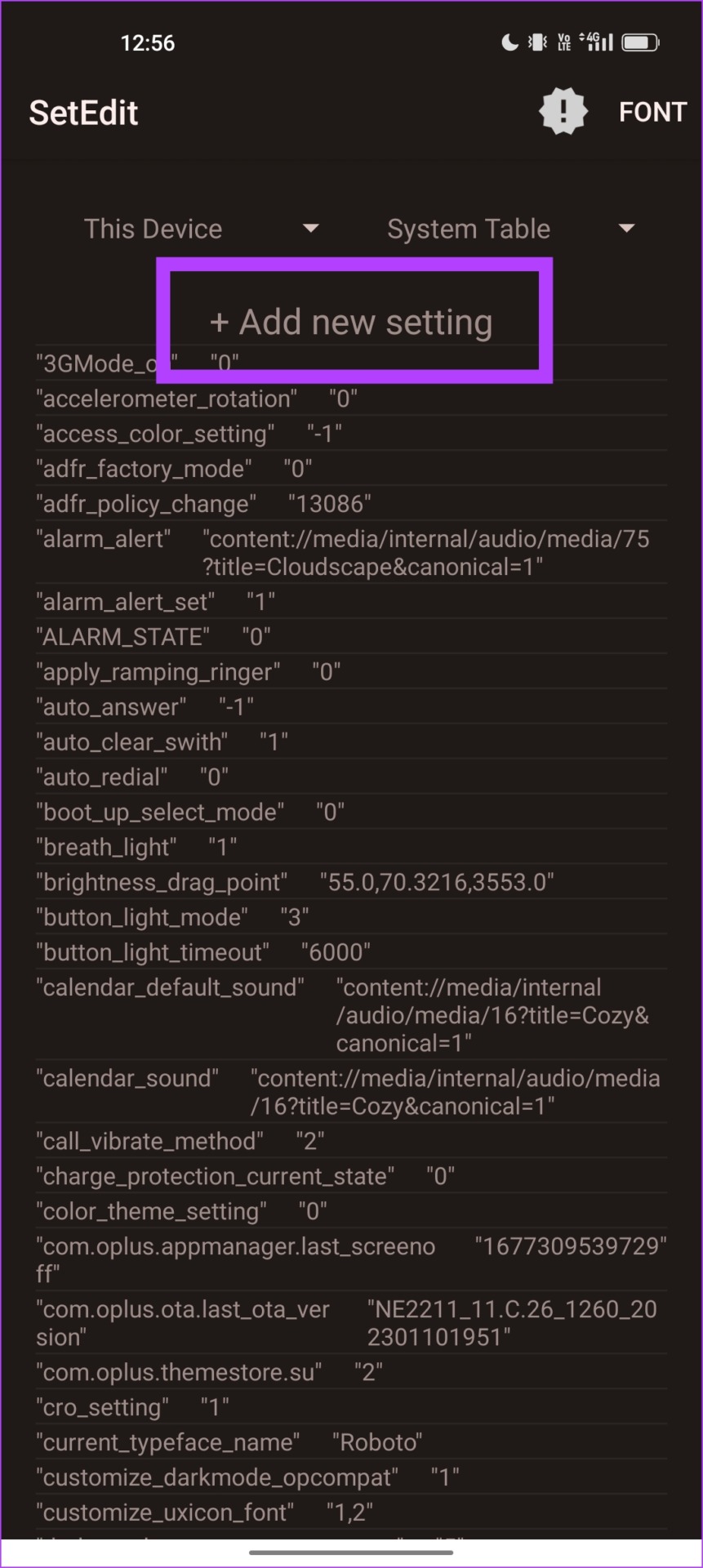
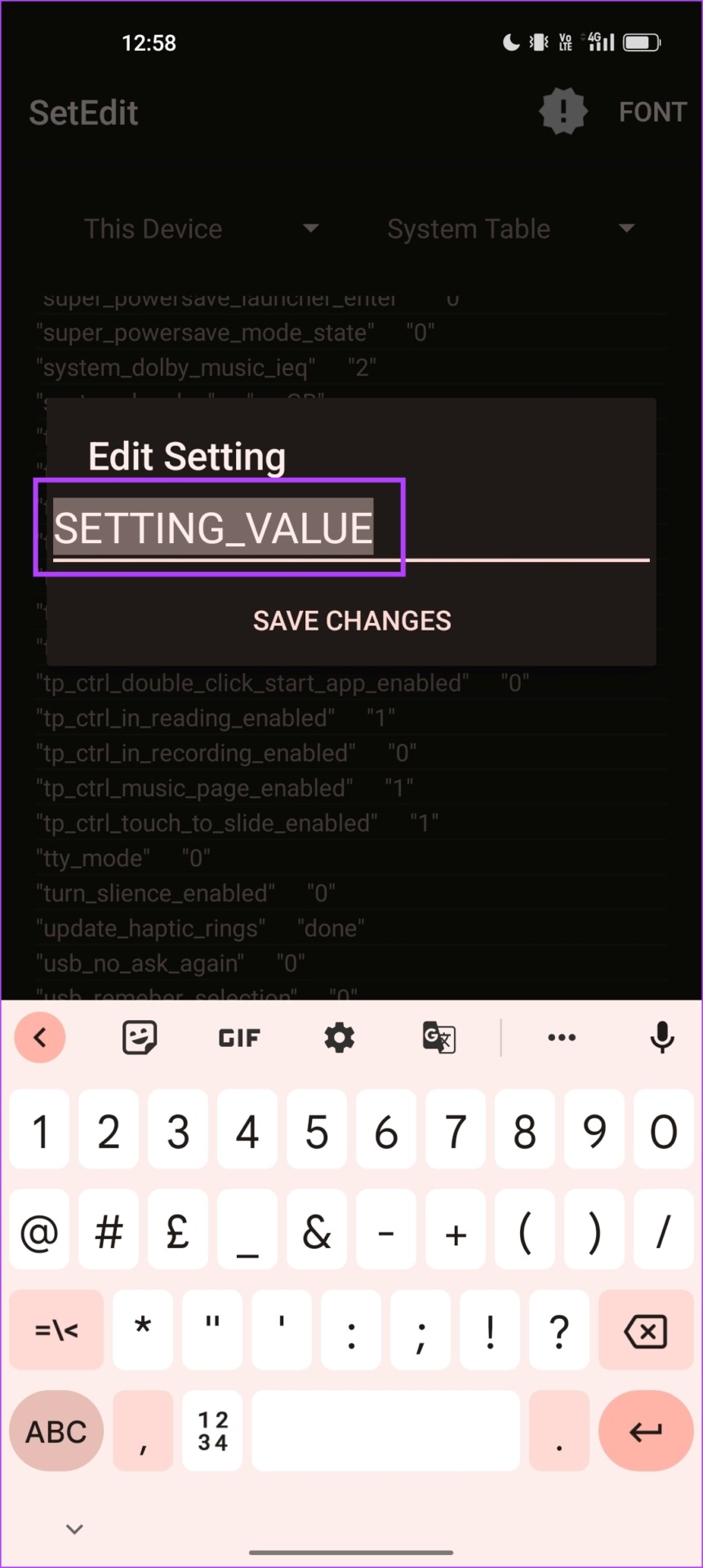
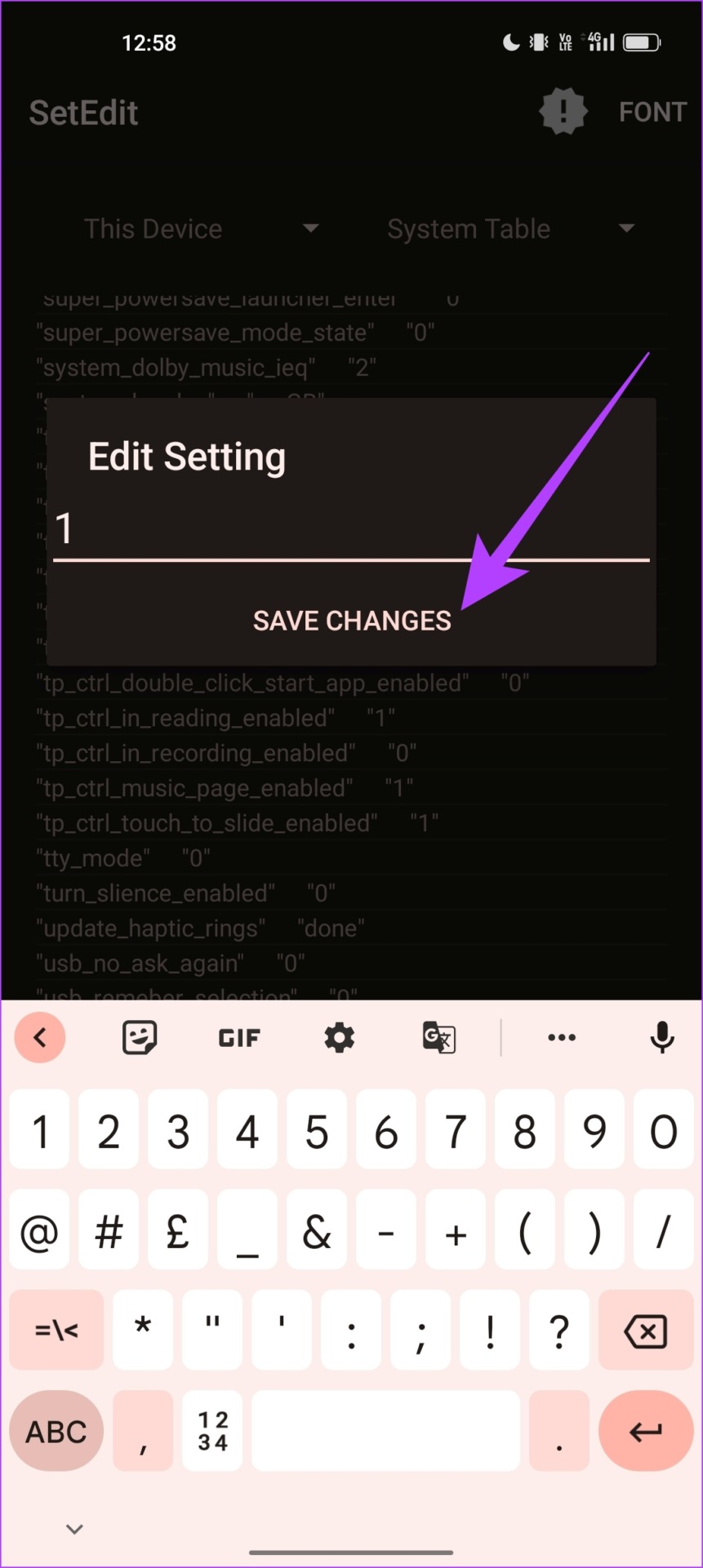
Step 4: Now, add the value in the Edit Setting pop-up box . Remove the text ‘SETTING_VALUE’ and enter ‘1’.
Tap on Save Changes .
Step 5: Repeat the same procedure (starting with step three) to add two more settings with values as ‘1’.
user_refresh_rate min_refresh_rate
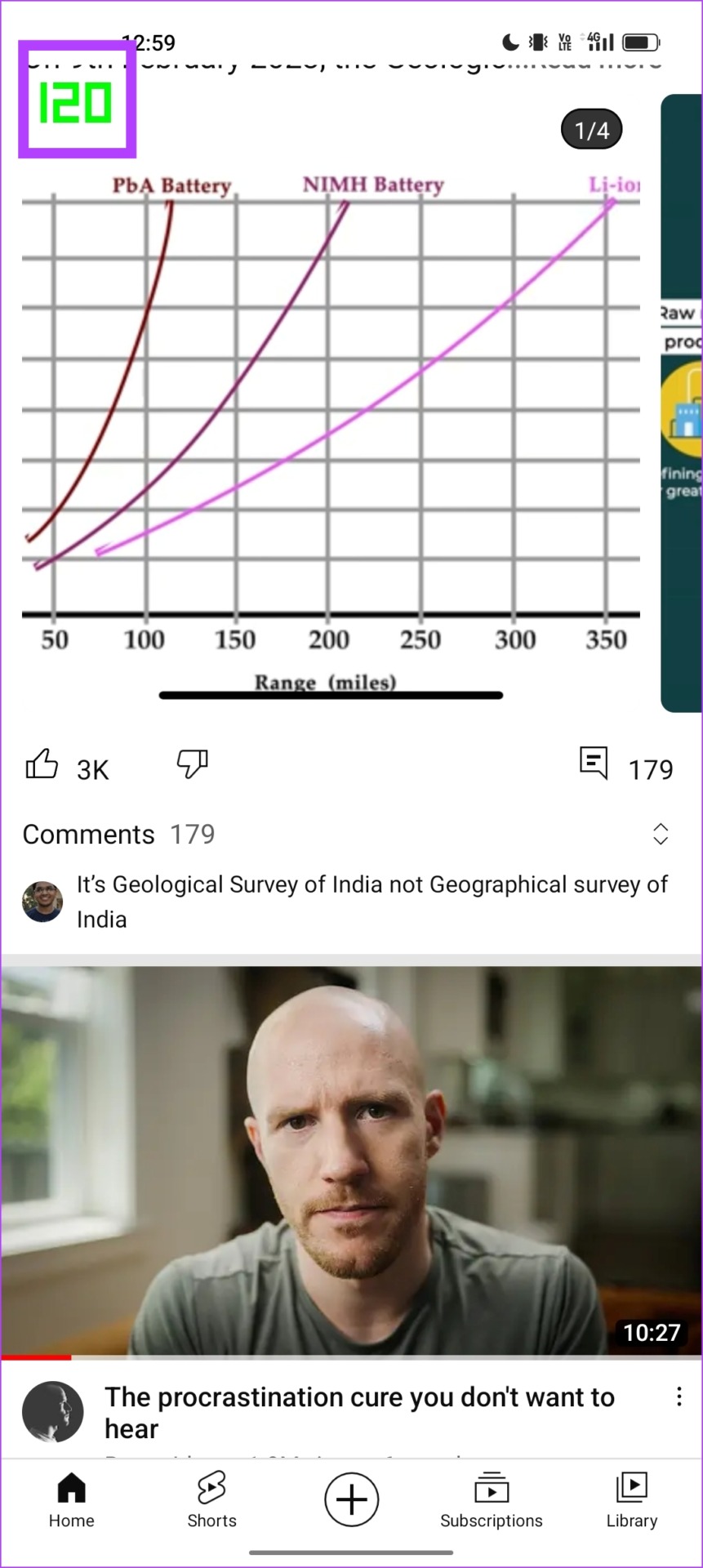
Once you complete the above steps, all apps should run on 120Hz.
We recommend this method since it worked in our case. Take a look at the screenshot below where our YouTube app is successfully up and running at a 120Hz refresh rate.
Also Read: Why does my Android phone’s battery drain overnight?
Was this helpful?
Submit Cancel
Thanks for your feedback!
Keep reading