Android
How to Get Battery Full Notification on Android Phones
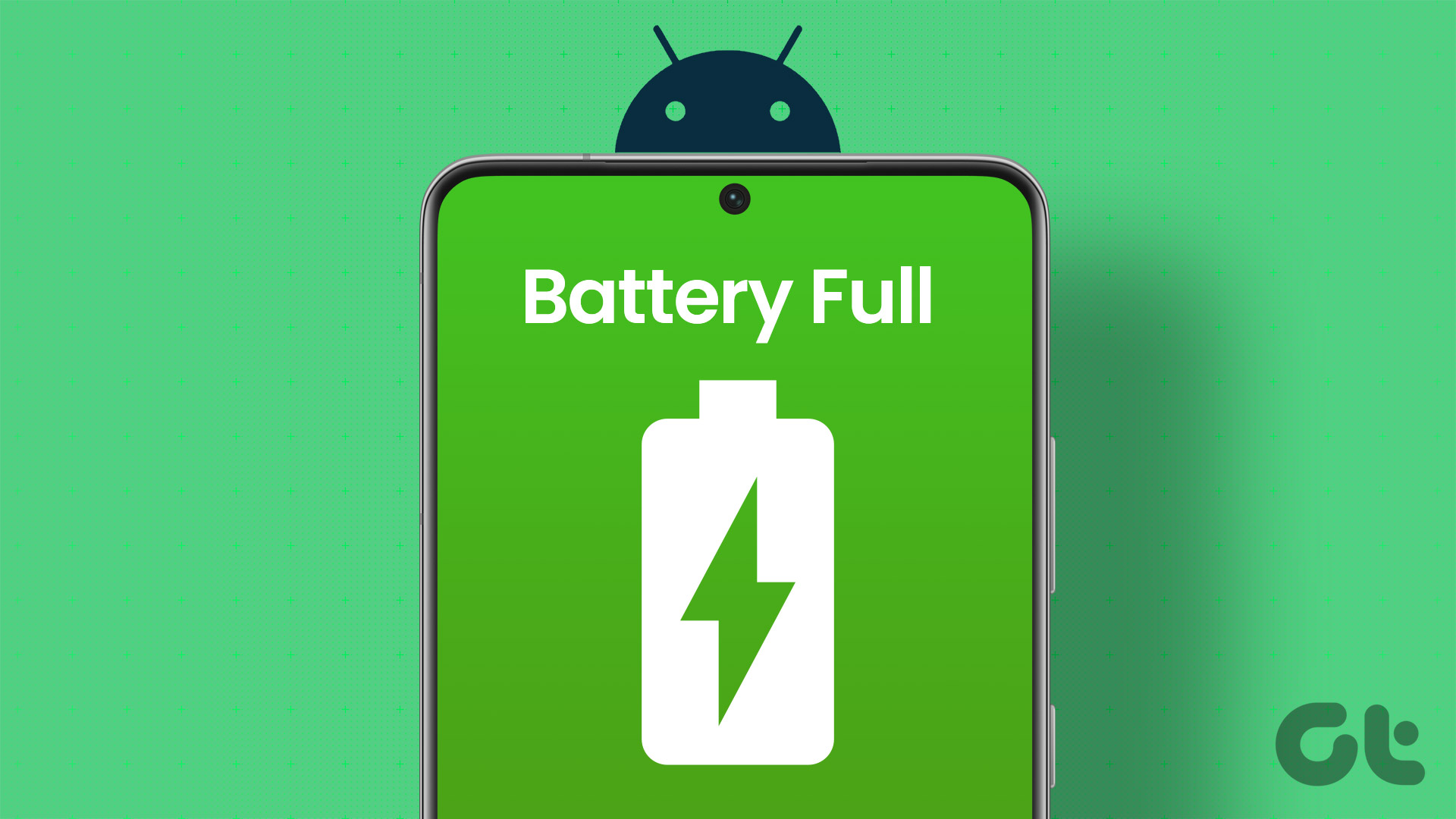
Want to be notified when battery level reaches 100% on your Android phone? Learn how to get full battery notification on Android.
By Mehvish
Quick Tips
Samsung Galaxy Users: Use Bixby Routines to set a battery full notification. Go to Settings > Advanced features > Bixby Routines and create a custom routine for a 100% battery alert.
Other Android Devices: Install a third-party app like Full Battery Charge Alarm to get notified when your battery is fully charged.
1. Get Battery Full Alert on Samsung Galaxy Phones
Step 1: Open Settings on your Samsung Galaxy phone.
Step 2: Go to Advanced features . Then, toggle Bixby Routines , followed by Bixby Routines text.
Step 3: Tap on the Add Routine tab at the bottom.
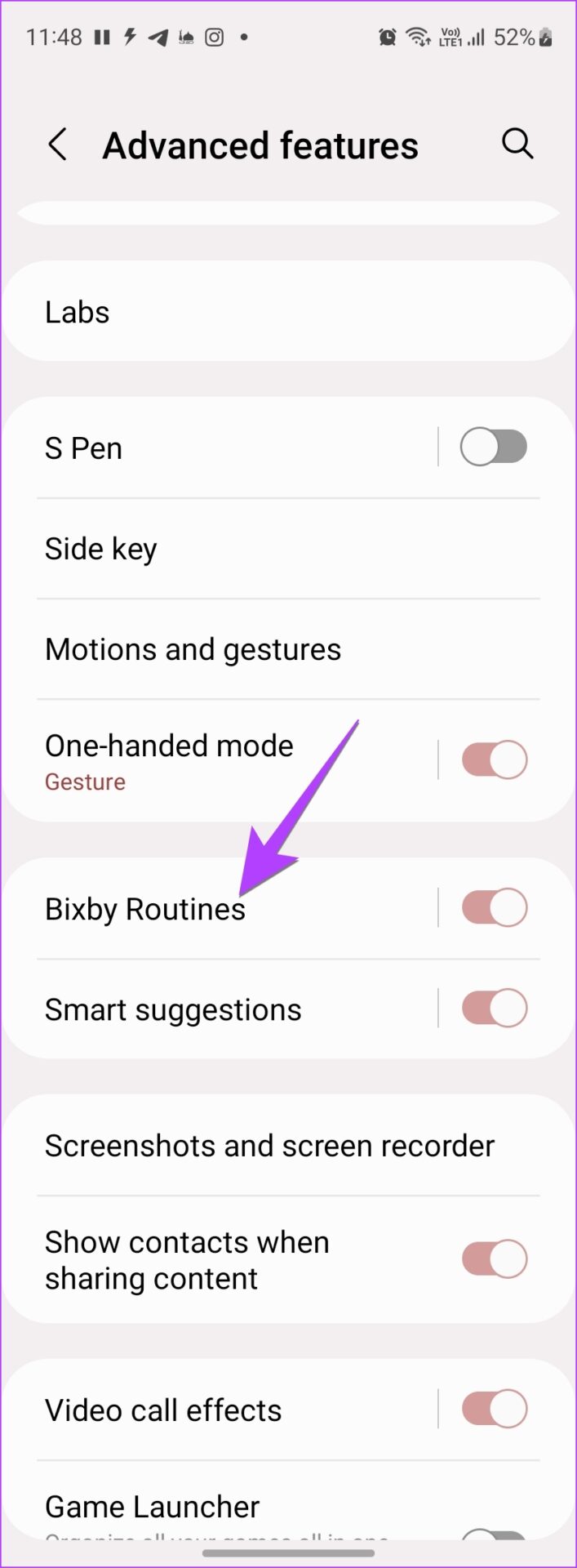
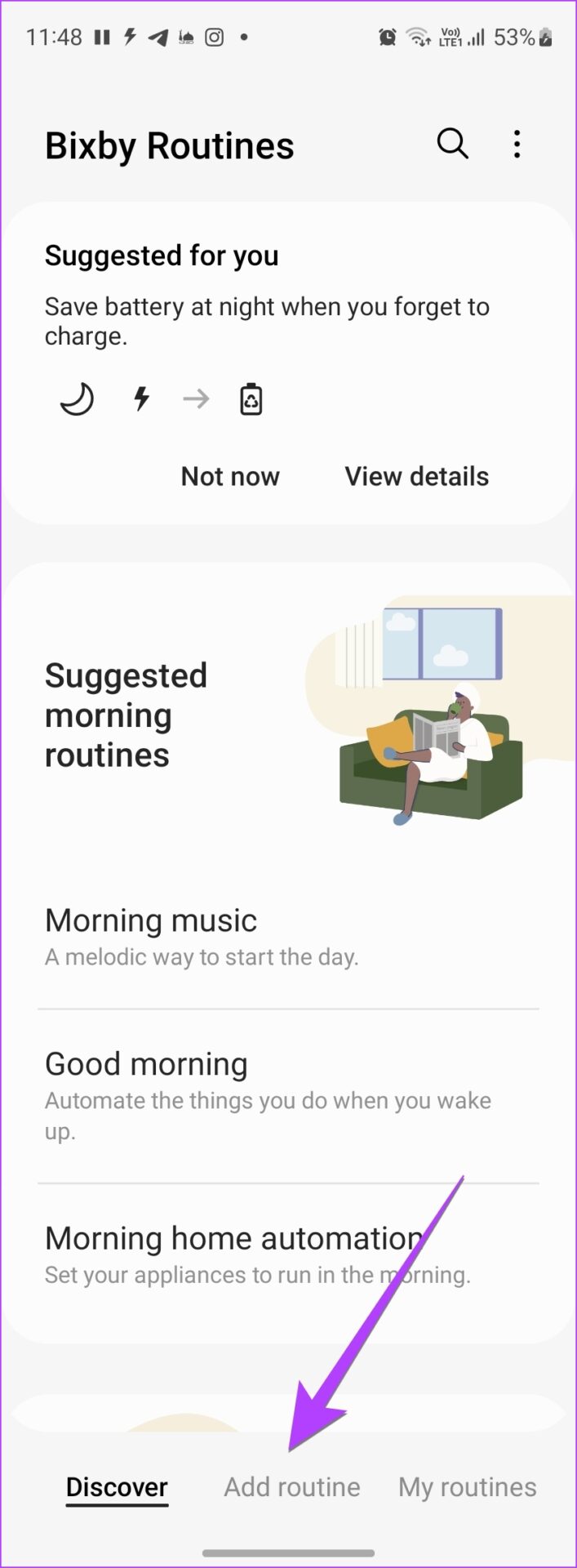
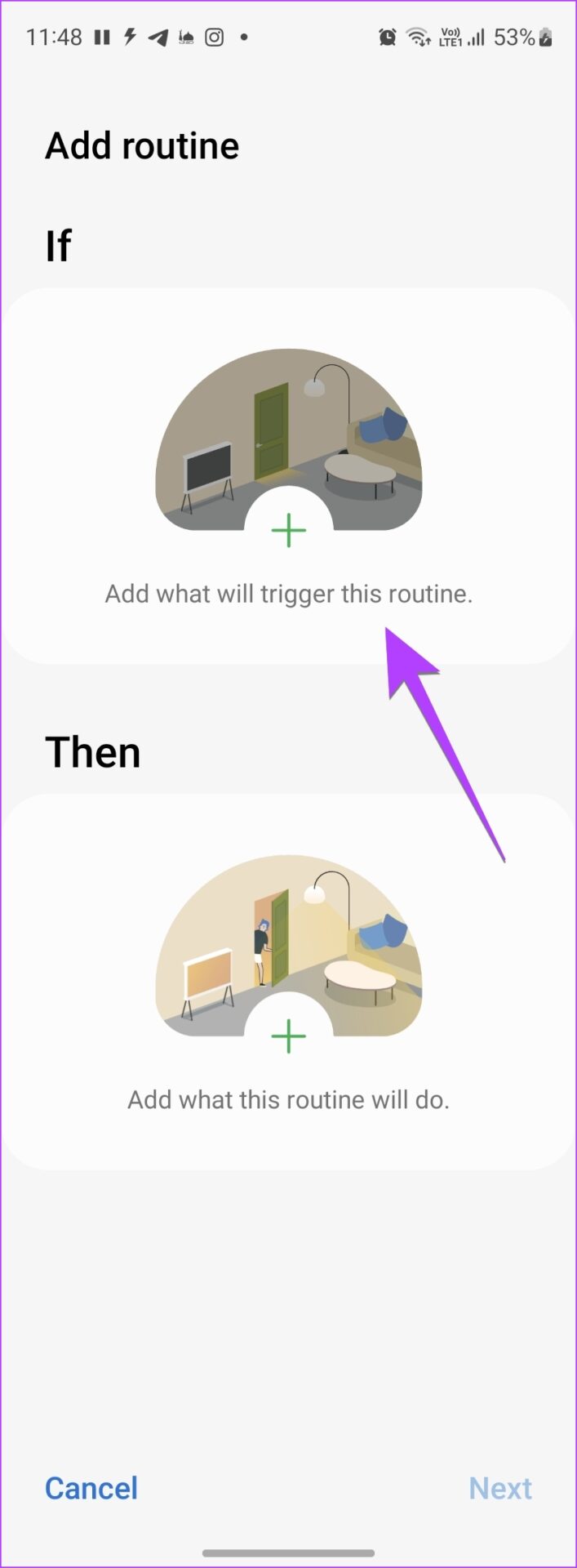
Step 4: Tap on the (+) Add icon under the If condition. Scroll down and tap on Battery level .
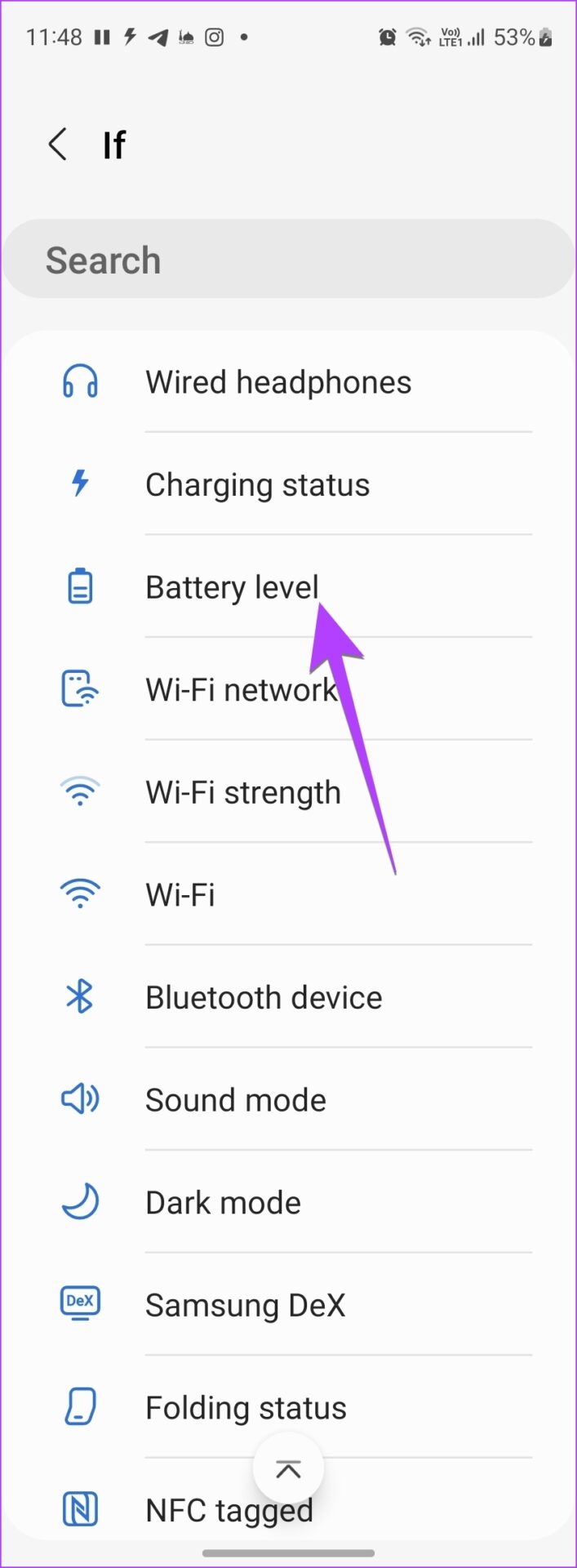
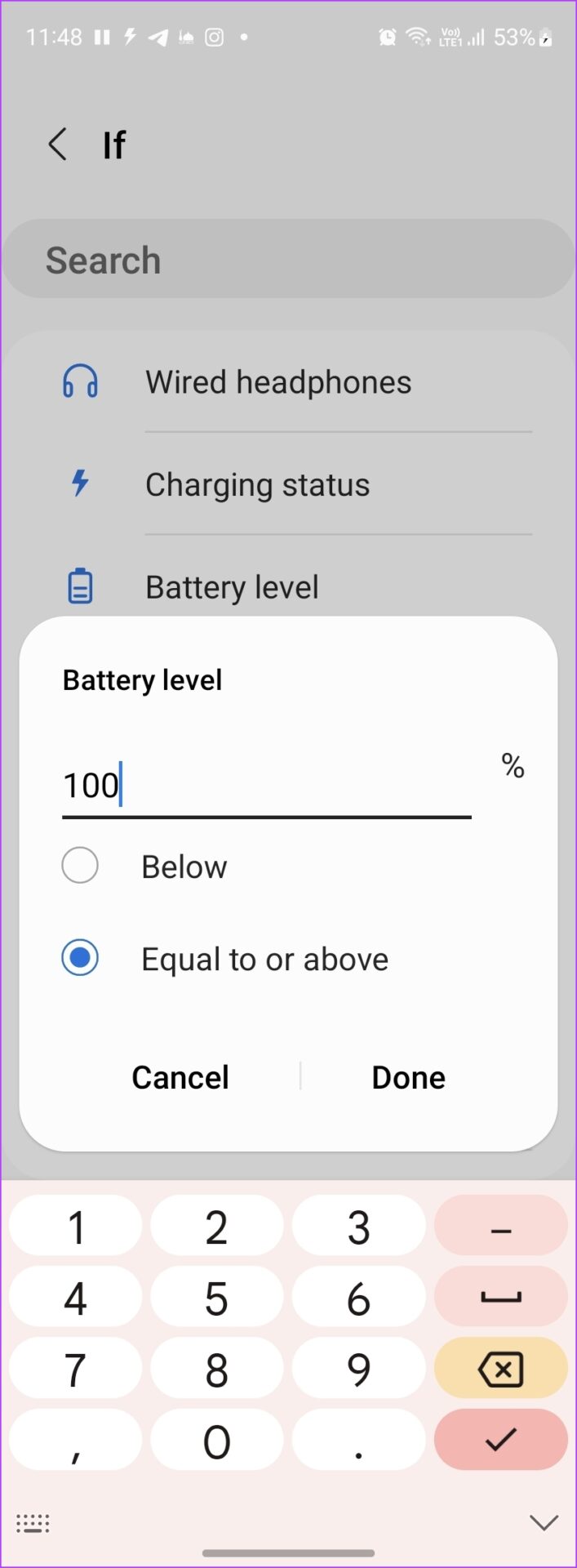
Step 5: Enter the battery level percentage at which your Samsung phone should alert you. Since we want to get full battery alerts, enter 100 and select the Equal to or above option. Press the Done button.
Step 6: Now, tap the (+) Add button under the Then section.
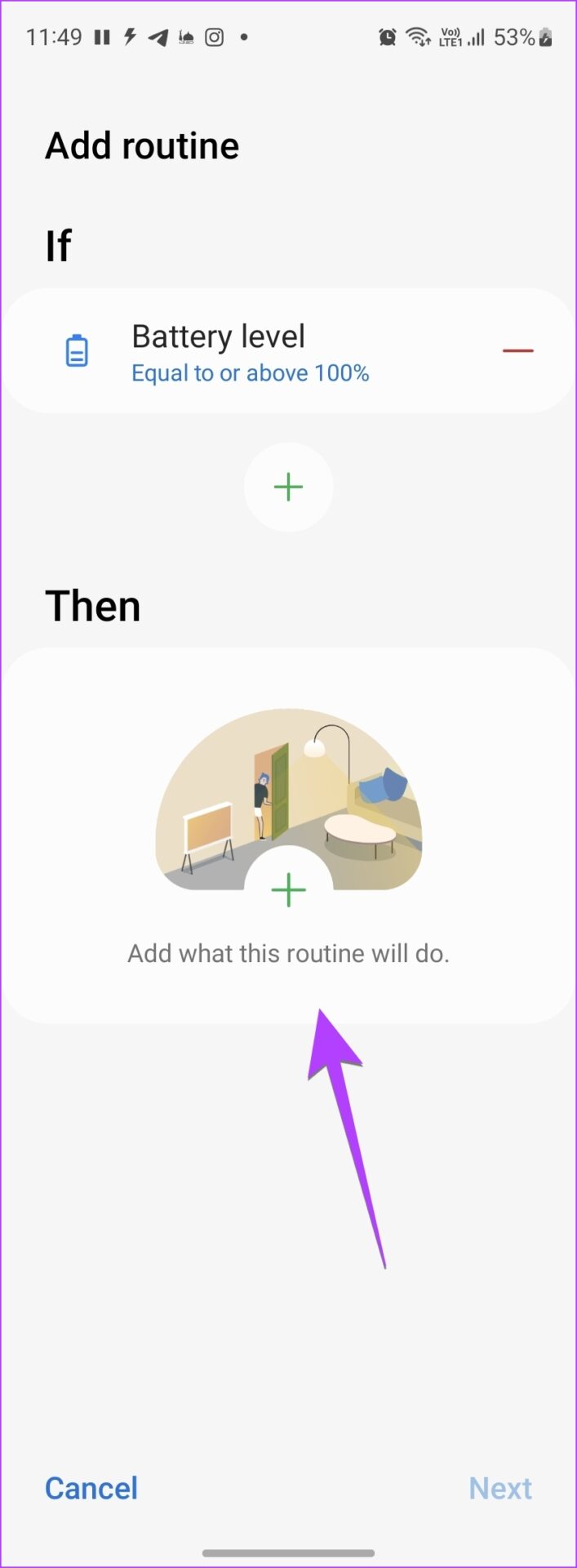
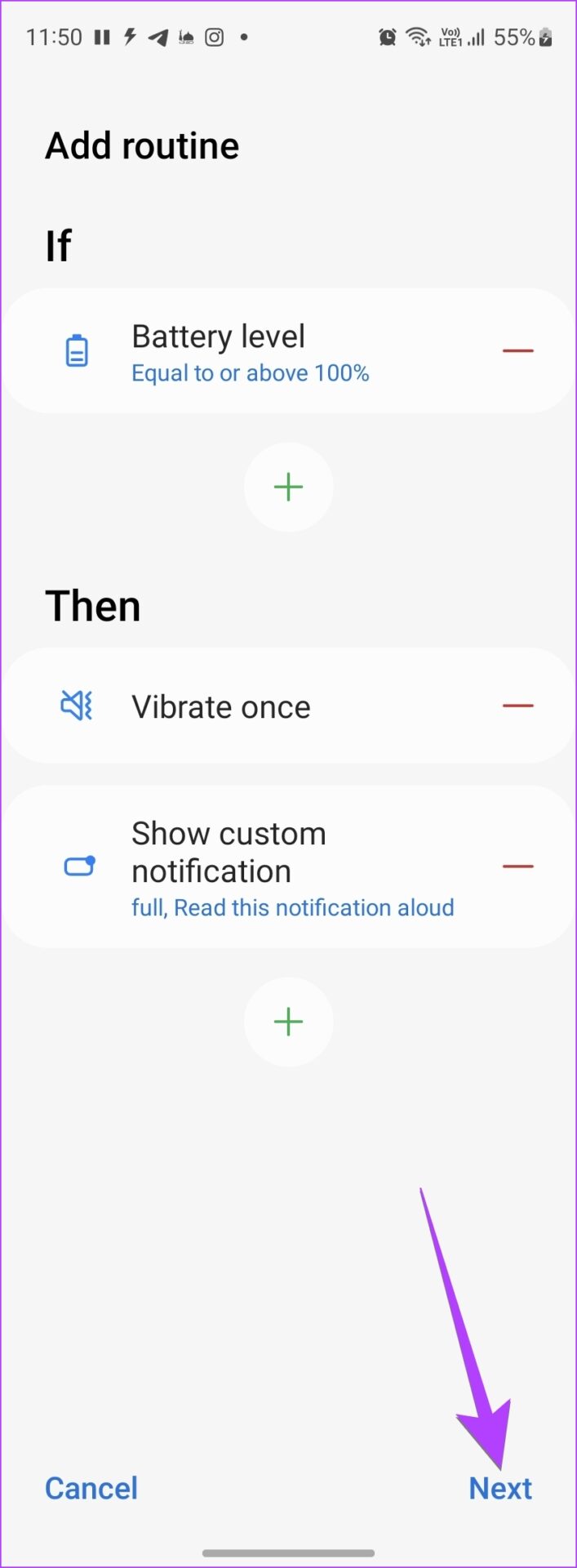
Step 7: Depending on your preference, you can make your phone do a variety of things when the battery is fully charged. For instance, you can make it vibrate, announce that the battery is fully charged, play notification, or activate edge lighting.
Note : The actions will activate in the order they appear under the Then section. You may reorder the actions as you prefer.
Step 8: Finally, tap on the Next button at the bottom.
Step 9: Give a name to your routine and select an icon for it. Hit Done at the bottom.
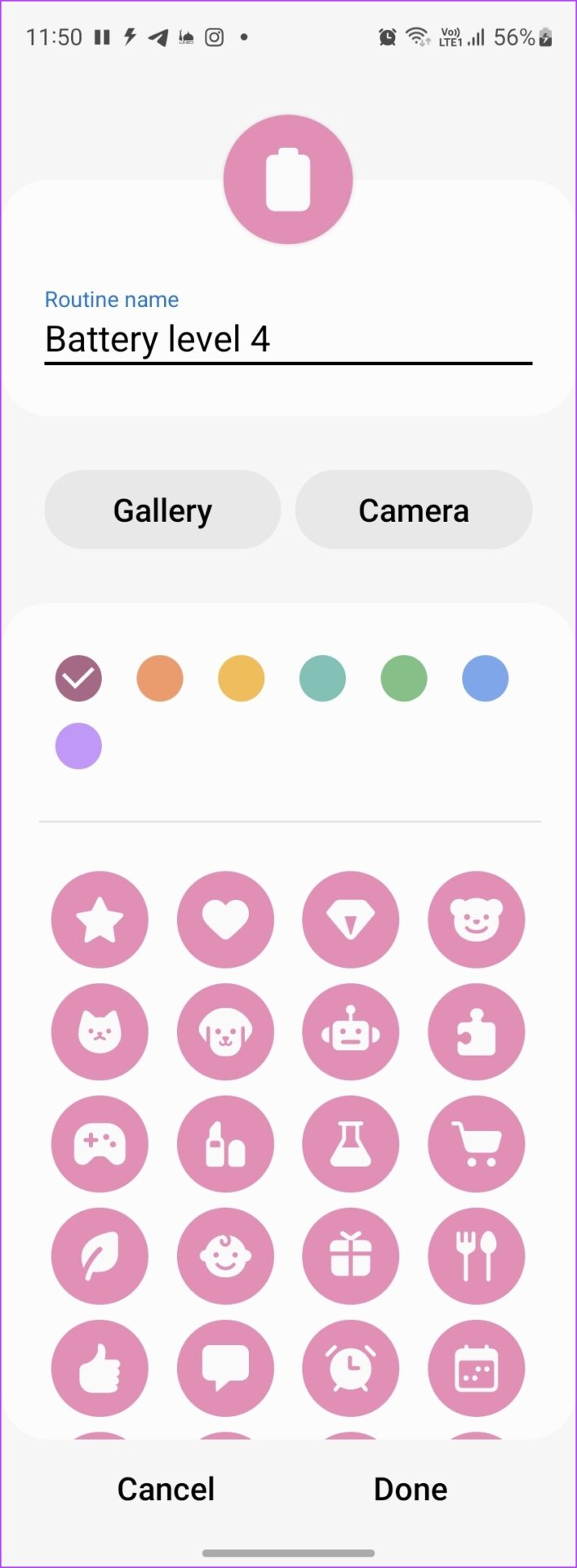
That’s it. Now, the Routine will run automatically and alert you whenever the battery is fully charged on your Samsung Galaxy phone.
2. Get Battery Full Alarm on Any Android Phone
Sadly, not all Android phones come with a native battery full alert feature. However, you can use third-party battery alert apps to notify you about the battery’s full status on any Android phone. Follow these steps:
Step 1: Install and open the Full Battery Charge Alarm app on your Android phone.
Step 2: Tap on the Enable Alarm button.
Step 3: A notification permission pop-up will show up. Tap on Continue followed by Allow .
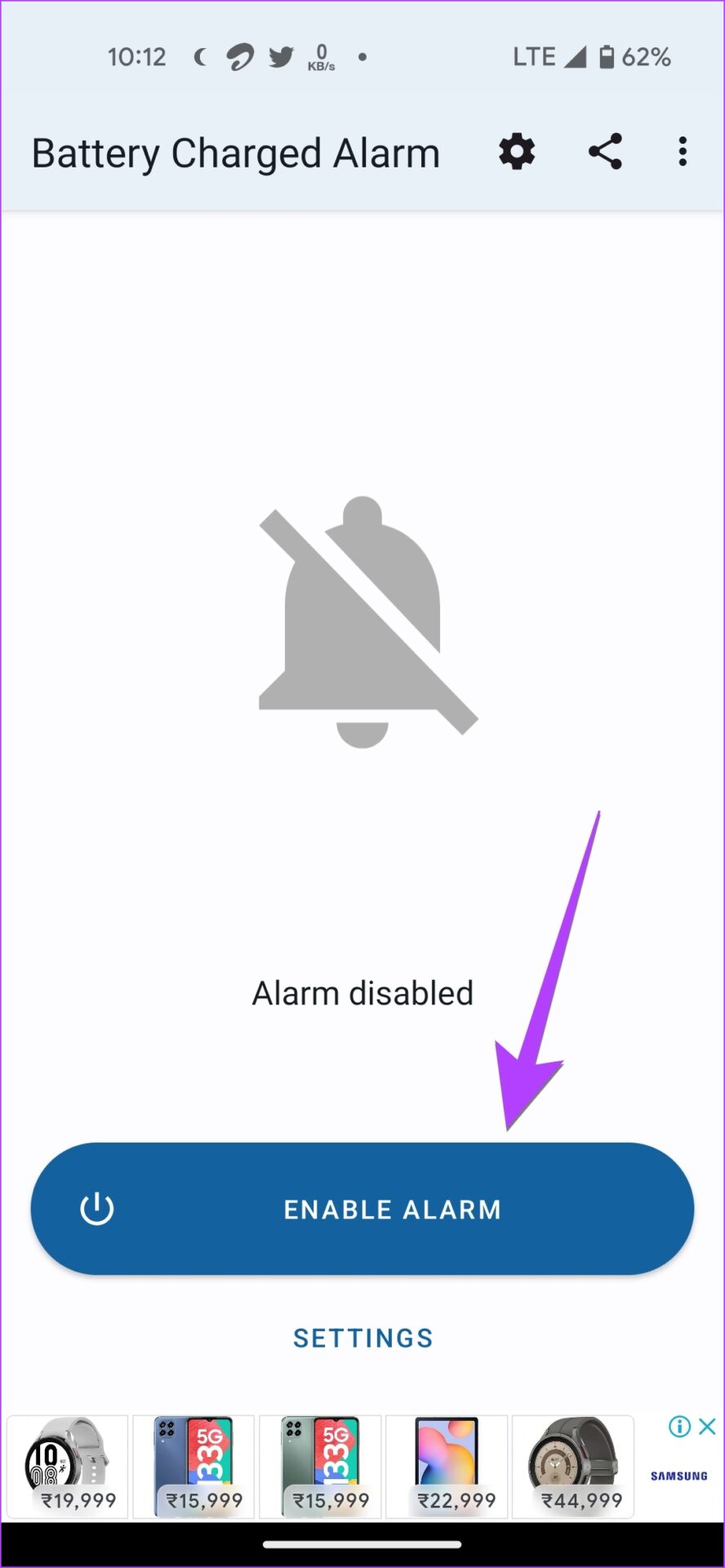
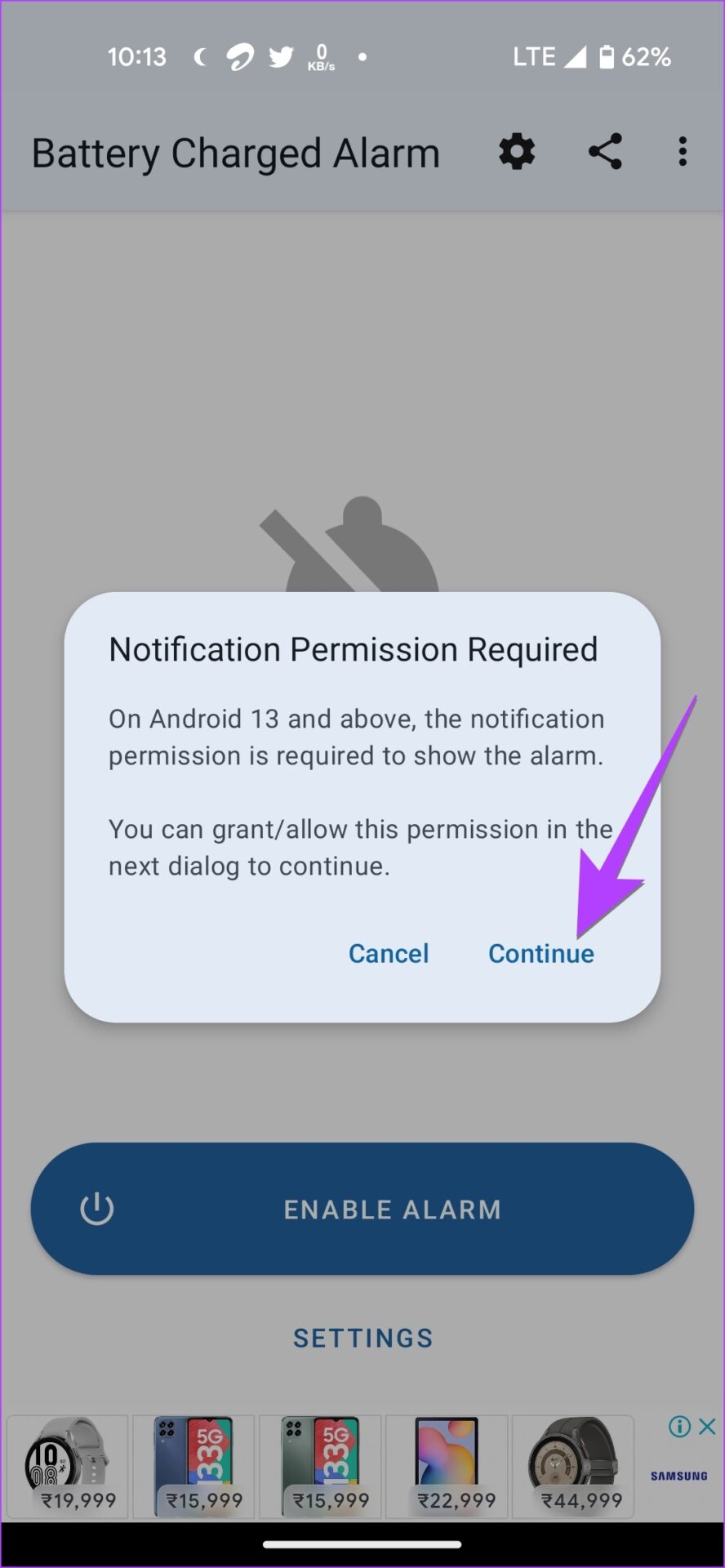
Step 4: Another pop-up will show up saying that you will see this app’s notification in the notification panel. Tap on OK .
Note : It’s important for that notification to stay in the notification area. If the battery alarm doesn’t work, open the app and ensure you see that notification in the notification area.
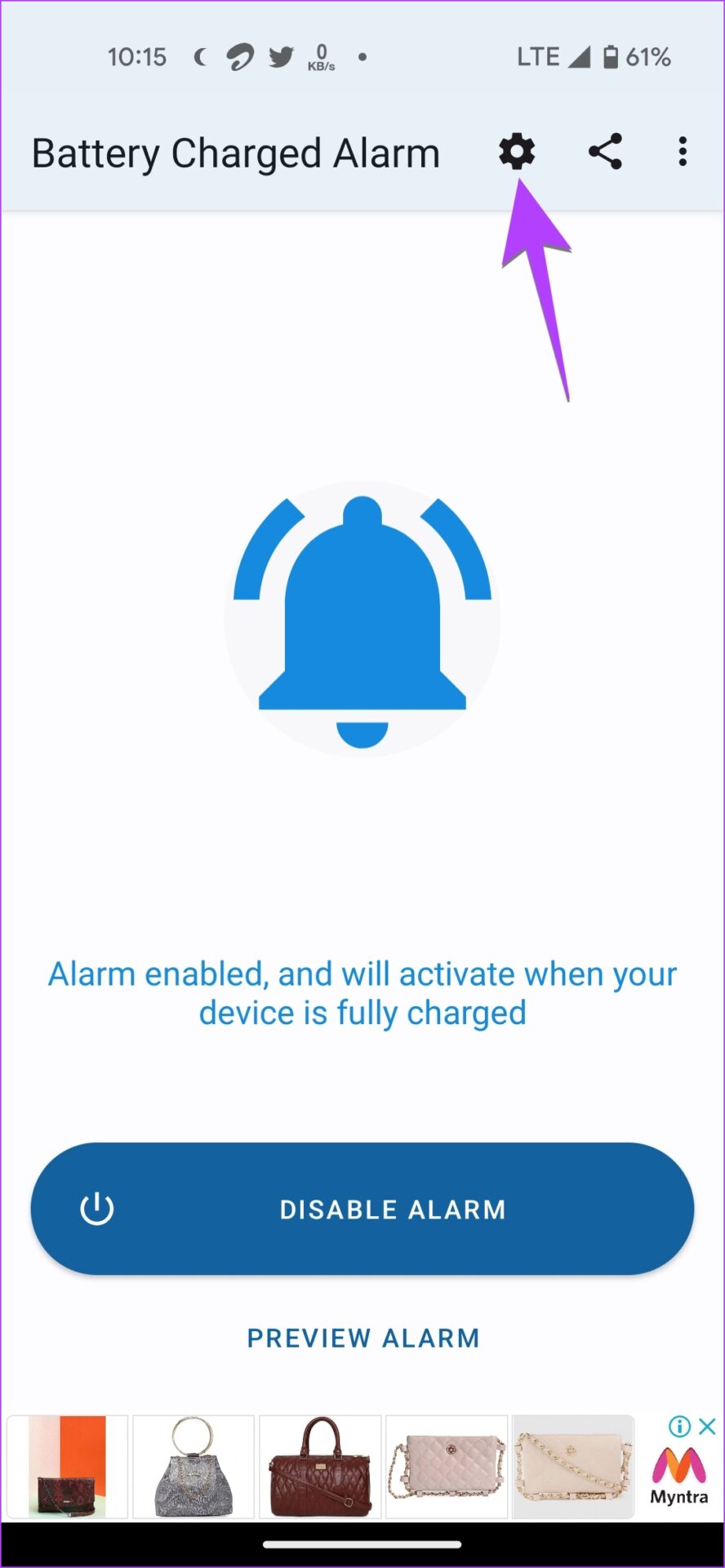
Step 5: You will see that the Enable Alarm button has converted to Disable Alarm. Now, tap on the Settings icon at the top and customize the battery full alarm notifications.
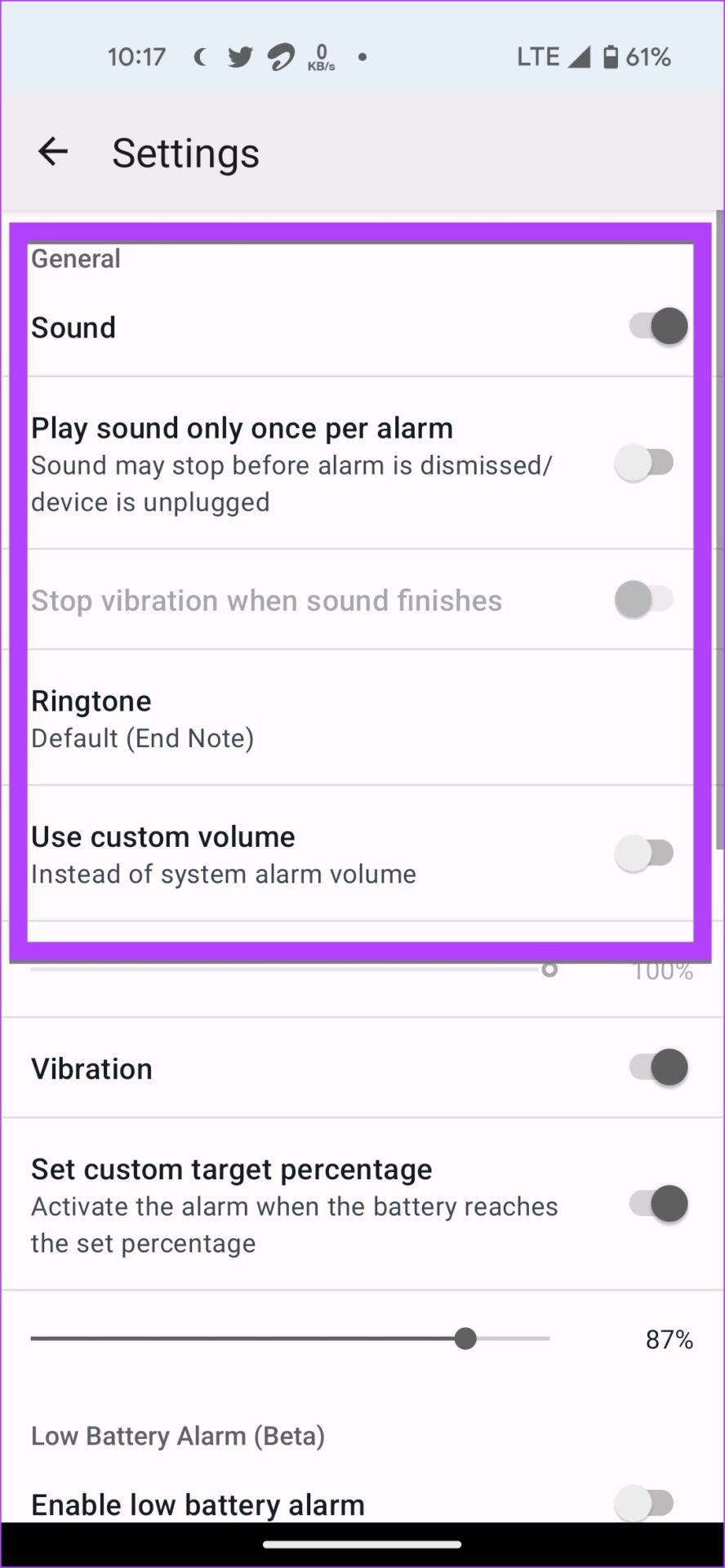
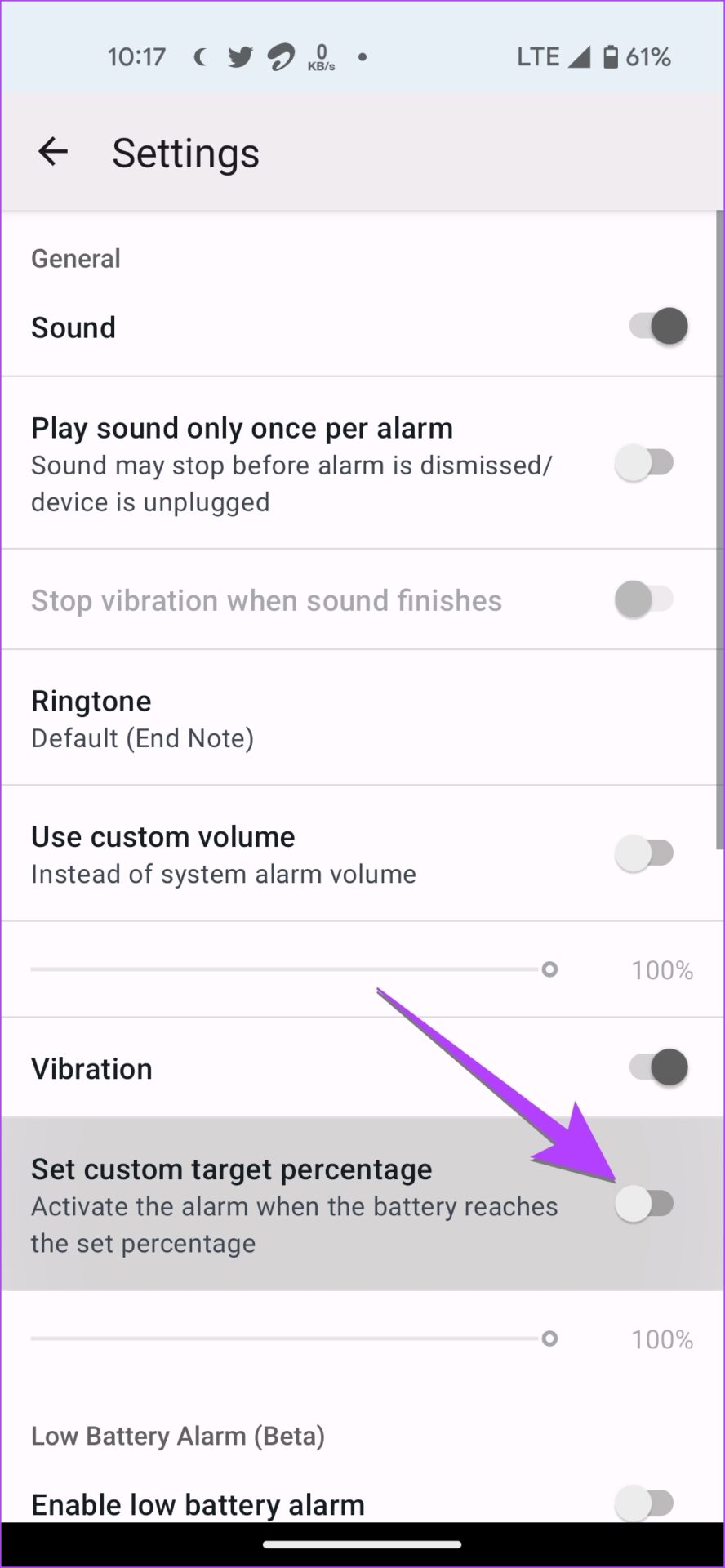
Step 6: By default, you will be alerted when the battery level reaches 100%. But, you can customize and change the target percentage. For that, first, enable the toggle next to Set custom target percentage . Then, set the desired battery percentage.
Step 7: Now, whenever you charge your phone, the app will alert you when the battery is fully charged.
Tip: Use this app to set low battery alarms as well.
Some other battery-full alarm apps for Android that you can try are:
Battery Alarm
Battery 100% Alarm
Full Battery & Theft Alarm
FAQs About Full Battery Notification on Android
1. Why does my Samsung phone stop charging at 85%? Samsung Galaxy phones come with a feature that limits the maximum charge to 85%. To disable this feature, go to Settings > General management > Battery > More battery settings. Turn off the toggle for Protect battery.
2. How do I know my Android phone is charging? When you connect your charger to the phone, you will see a lightning icon inside the battery icon in the status bar. You will also see the charging status on the always-on display on your phone.
Was this helpful?
Submit Cancel
Thanks for your feedback!
Keep reading