Android
How to Install APKs on Wear OS Smartwatches
Here's how you can install APK files on Wear OS smartwatches and sideload unsupported apps that are not present on the Google Play Store.
By Sumukh Rao
Key Takeaways
Side loading apps can enable you to install apps not available in your region
It can allow you to enhance functionality of your WearOS watch
How to Install an APK on a Wear OS Smartwatch Using ADB
There are a few ways to sideload an APK onto a Wear OS smartwatch but we’re going to take the universal route which is via ADB. You will need a computer to install APKs on your smartwatch via this method. It’s the safest as there’s no third-party app involved.
Setting up ADB
Step 1: Download the relevant ADB files based on the OS you use on your computer.
Get ADB for Windows
Get ADB for Mac
Get ADB for Linux
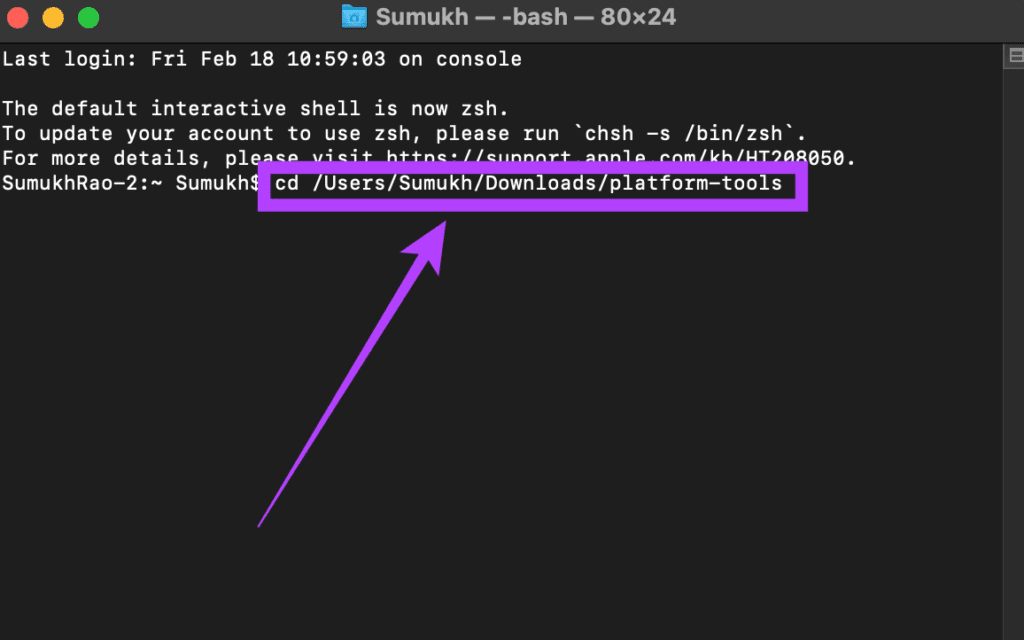
Step 2: Extract the ZIP file to a location of your choice. On Windows, hold the Shift key and right-click on the extracted file, and select ‘ Open command window here .’ On Mac and Linux, open Terminal , type in cd and hit Enter to change the active directory. Then drag the folder you unzipped and drop it in the Terminal window. You will now get a path to that folder on Terminal. Press Enter.
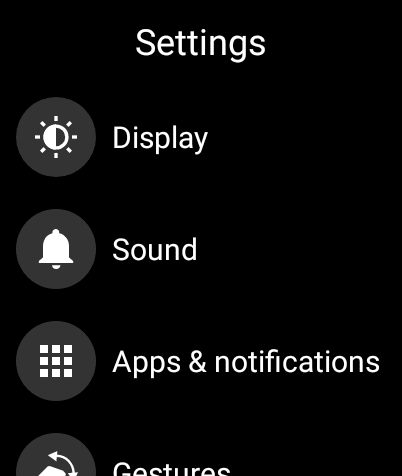
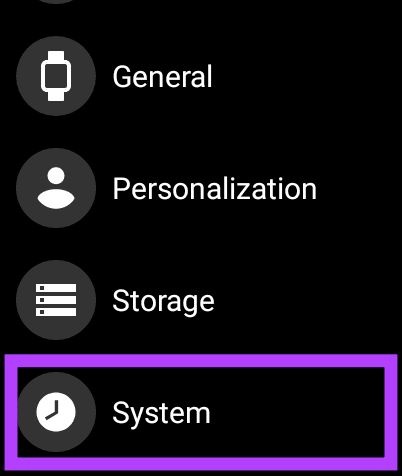
Step 3: To enable ADB debugging on the watch, open the Settings app. Scroll down to the System section and tap on it.
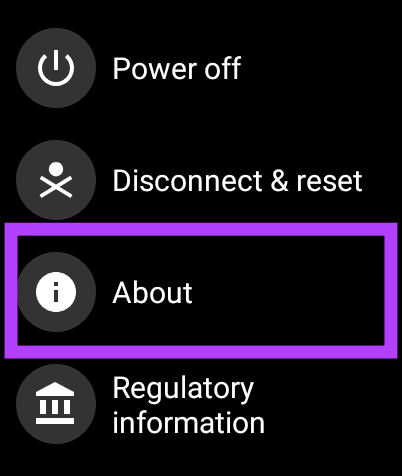
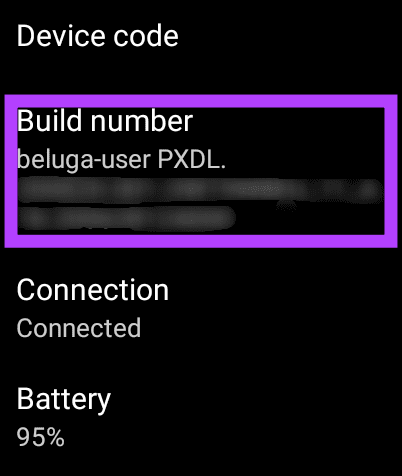
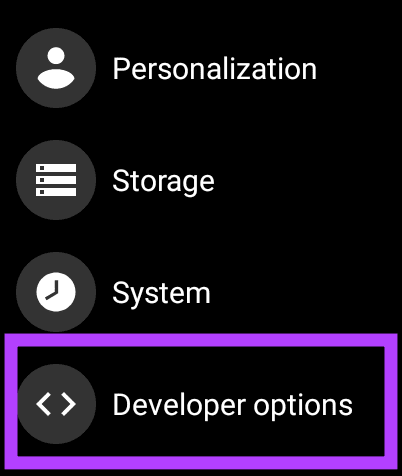
Step 4: Tap on About . Scroll till you find the Build Number . Tap on it 7 times repeatedly to unlock Developer Options on your watch. When you open the Settings app, you will find Developer Options at the bottom of the page. Tap on it.
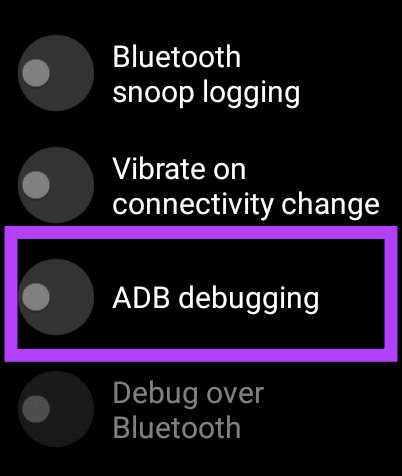
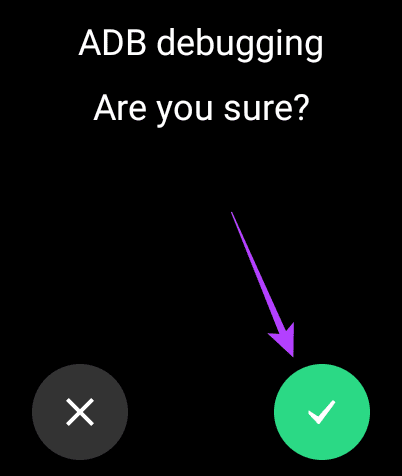
Step 5: Tap on the toggle next to ADB debugging to enable it. Tap on the green tick when prompted to confirm. Scroll down slightly and also enable the toggle next to Debug over Wi-Fi.
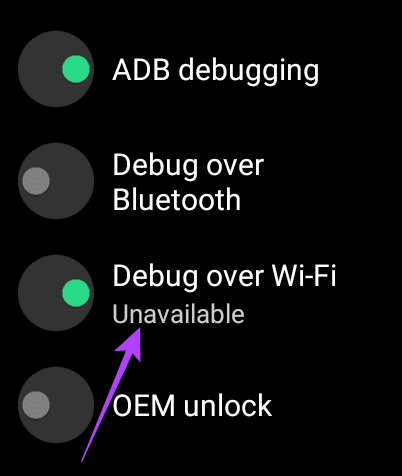
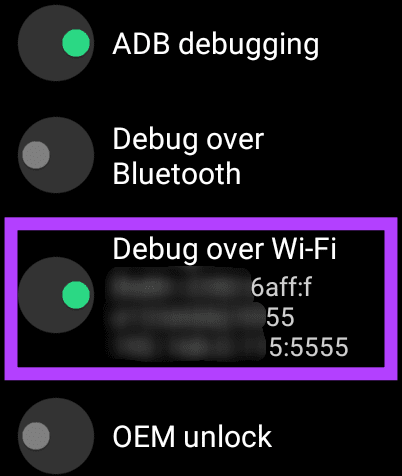
Step 10: The watch may initially display a message saying Unavailable that will soon be replaced by a string of characters including the IP address. This means ADB over Wi-Fi has been enabled. Note down the IP address displayed here. It’s going to be something like 192.168.1.325:5555.
Installing APKs via ADB
Now that you’ve enabled ADB via Wi-Fi, let’s get to transferring the APK to the watch and installing it via the PC.
Step 1: Download the APK of the app you want to install from renowned sources like APK Mirror . Copy it to the platform-tools folder where ADB is installed.
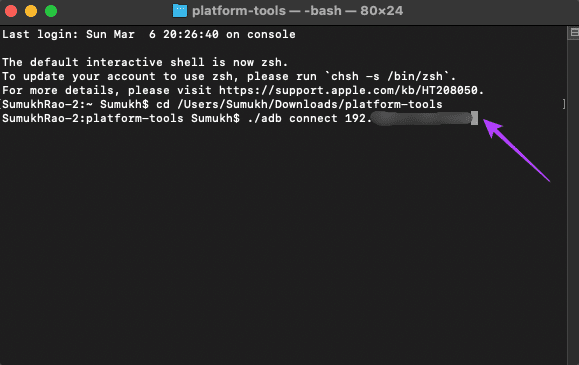
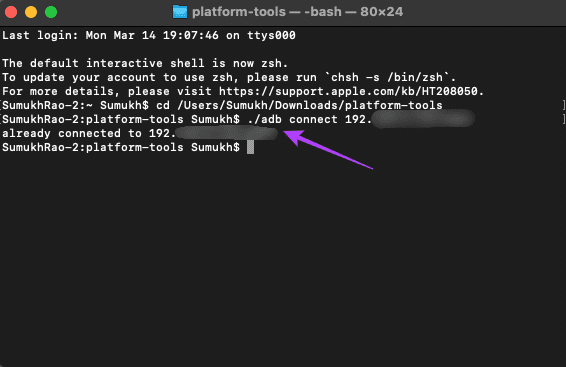
Step 2: In the terminal window opened earlier, type in ./adb connect . The IP address here is what you noted down earlier. The command would look like ./adb connect 192.168.1.325:5555.
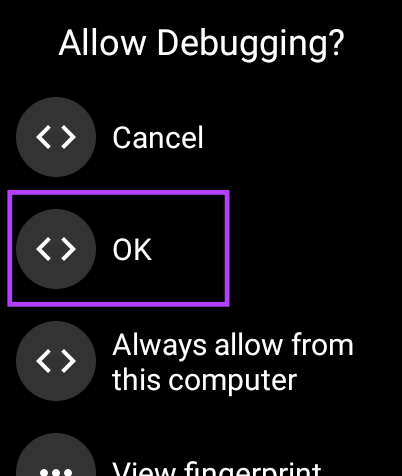
Step 3: You will now see a prompt on your watch to allow the ADB connection . Select OK.
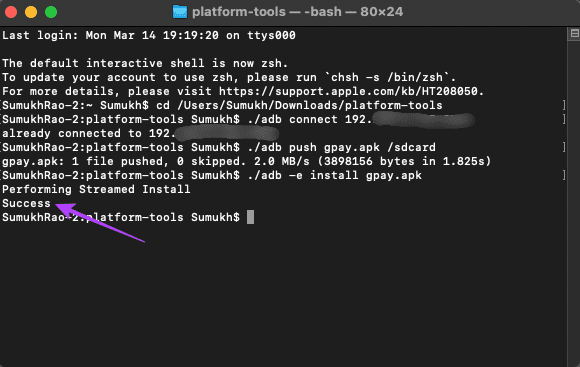
Step 4: The terminal window will now show that you are connected to the watch. Use the command ./adb push /sdcard/ to transfer the APK to the watch.
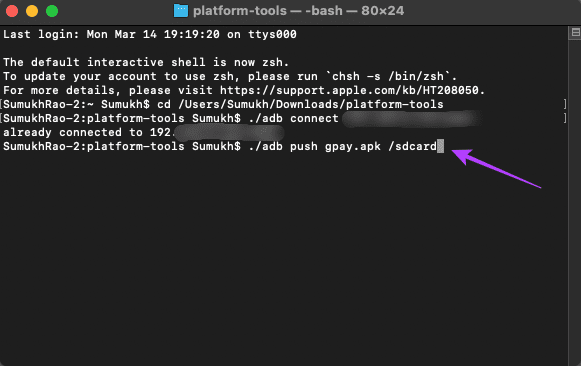
Step 5: The file will be pushed to your watch as confirmed by the terminal result.
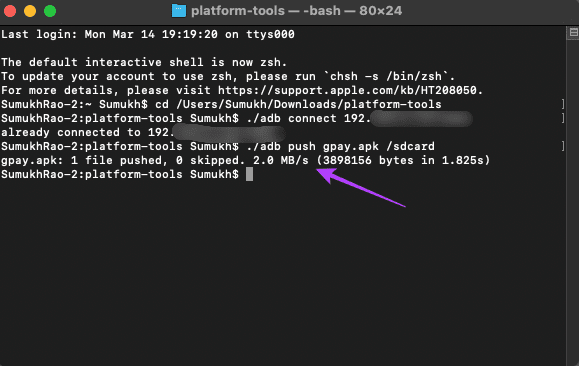
Step 6: It’s now time to install the app. Type this command, where the filename.apk should be the filename of the APK you want to install:
./adb -e install
Step 7: A Success message will now be displayed on the terminal indicating that the app has been installed on your watch.
Step 8: Head back to the Settings app on your watch and then go to Developer Options . Disable ADB Debugging to ensure it doesn’t consume the battery juice in the background unnecessarily.
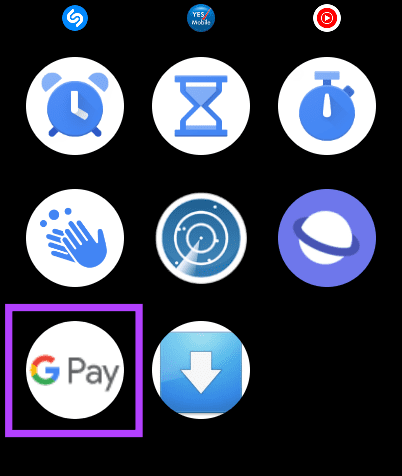
Step 9: Open the app drawer on your watch and you should see the app you installed listed there. Open it and you can use it like any other app.
If you wish to install multiple apps, repeat the process and then disable ADB Debugging in the end. This process is similar to installing apps on an Android phone via ADB. The only difference is that we’re using ADB over Wi-Fi instead of using a wired connection.
Was this helpful?
Submit Cancel
Thanks for your feedback!
Keep reading