Android
How to Make Group Video Calls on Telegram
Here's how you can use the group video calls feature on Android, iOS and Desktop (Windows and macOS)
By Sagar Naresh

Quick Tips
The noise suppression feature allows you to achieve better voice quality.
Video calling is only available on the mobile app.
You should be the admin of the group to use this feature.
Make a Group Video Calls on Telegram on Android & iOS
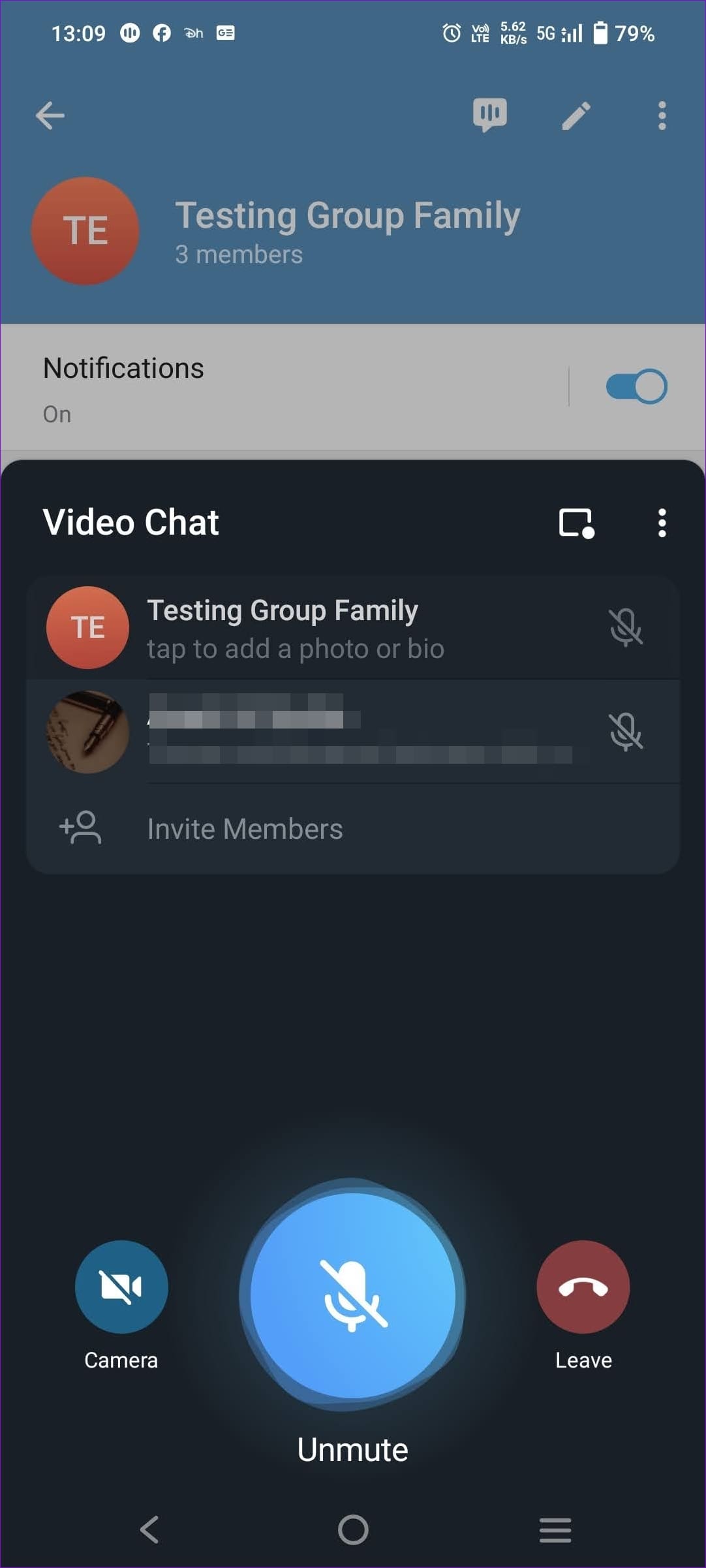
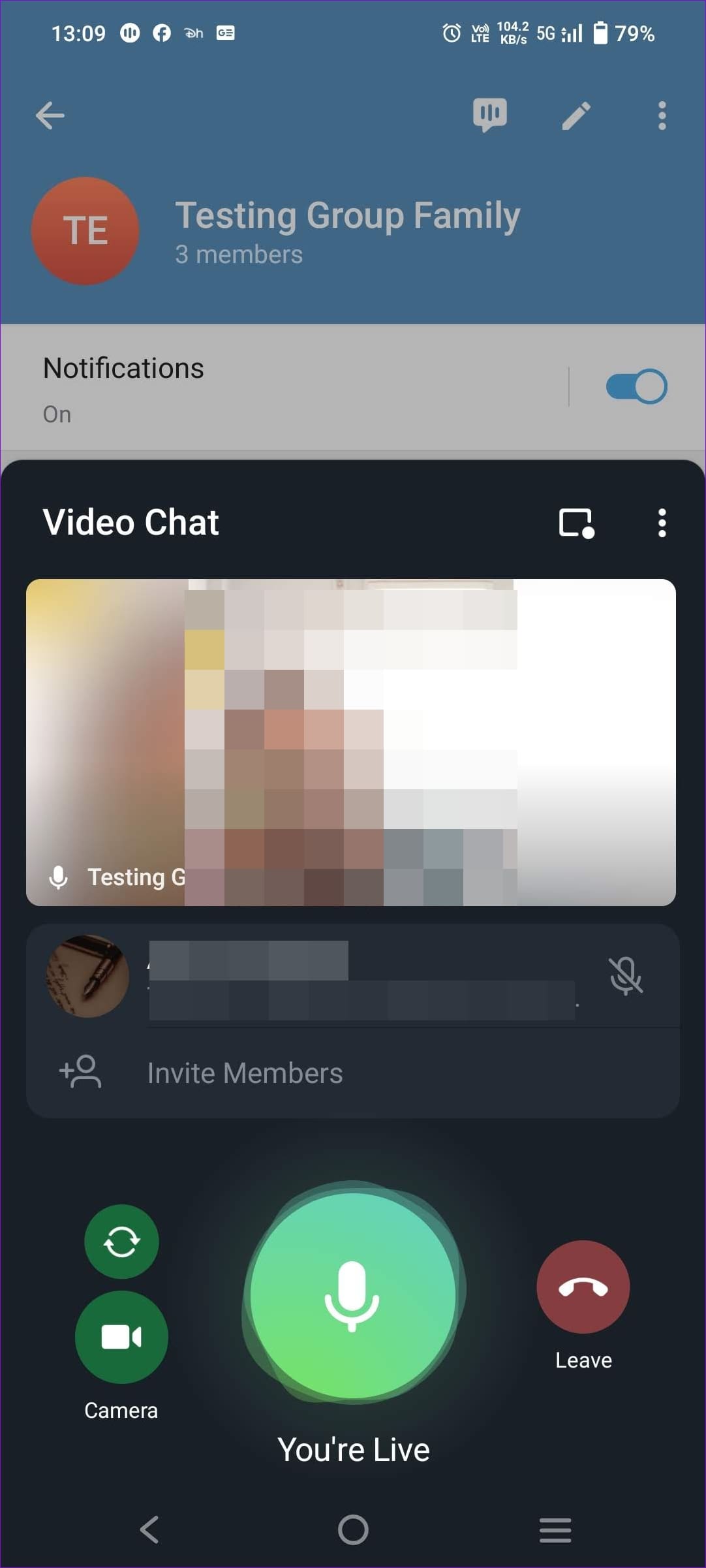
Step 1: Open your Telegram Android app’s existing group . Tap the group name to open the Group Info page. It will show you options, including starting Voice Chat.
Step 2: Tap the conversation-looking icon to start the audio call instantly. Once everyone joins, tap on the video call icon to get started.
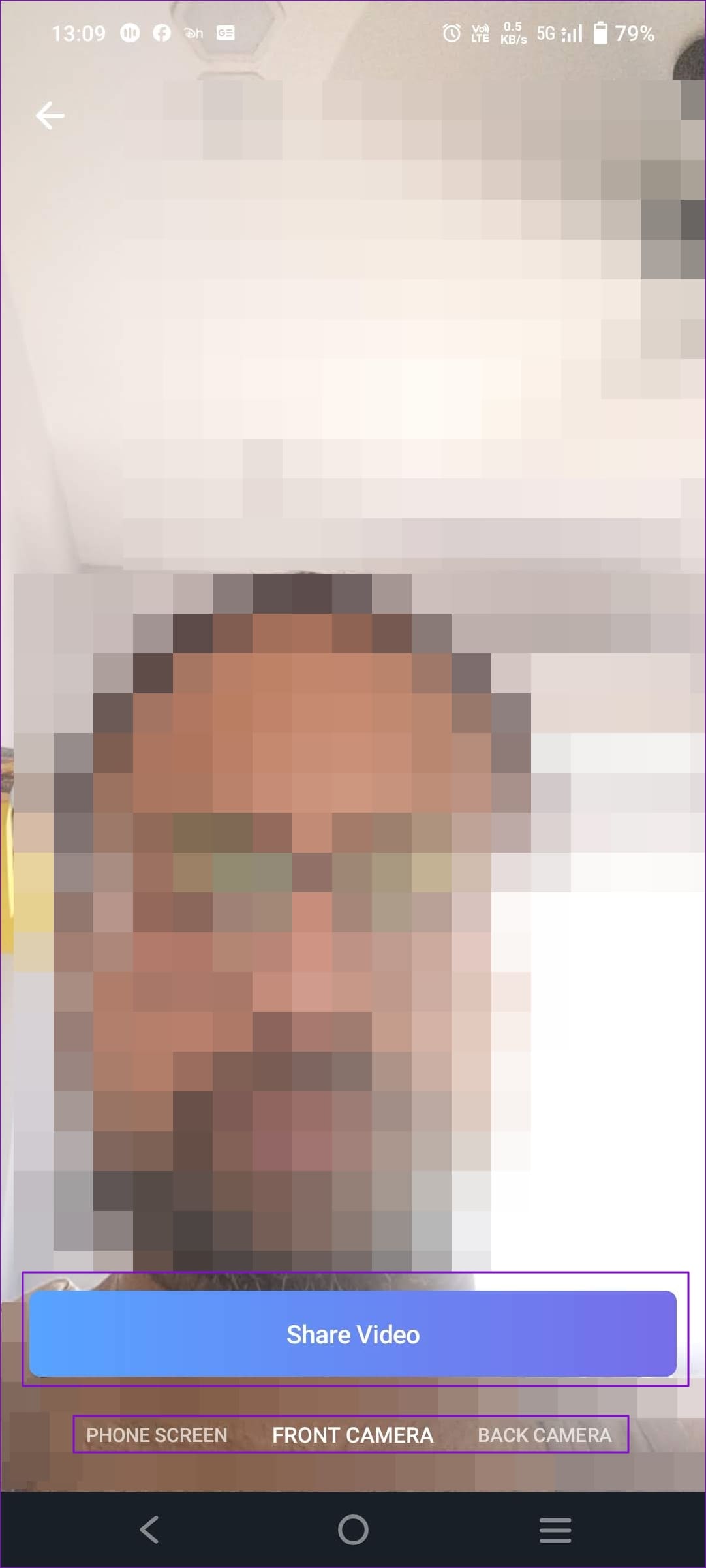
Step 3: Before you join the call, the pop-up window will ask you to tap on the Share Video button and then choose the camera (front or rear) to join the video call.
Make Group Video Calls on Telegram on the Desktop
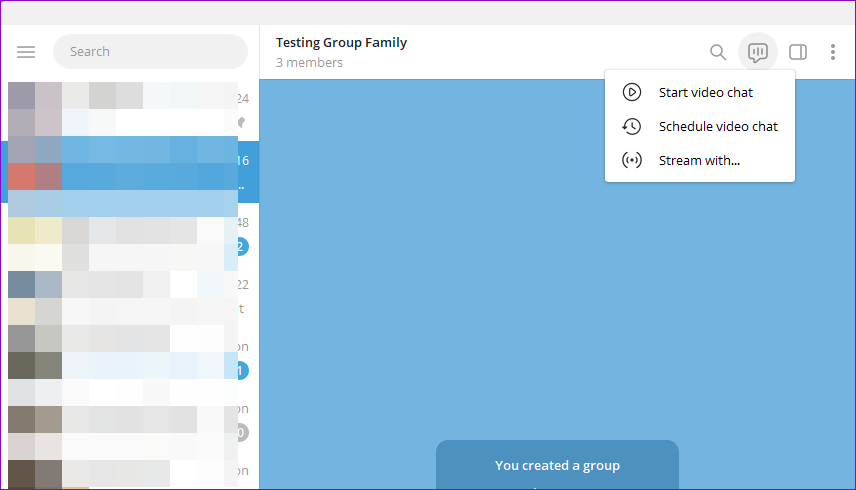
Step 1: Open the Telegram app and switch to the group. Then, click on the conversation or chat-looking icon at the top right of the group name and next to the search icon.
Step 2: It will open a fly-out menu. Click on Start video chat to instantly start the group video call. You can also use the Schedule video chat to do it later.
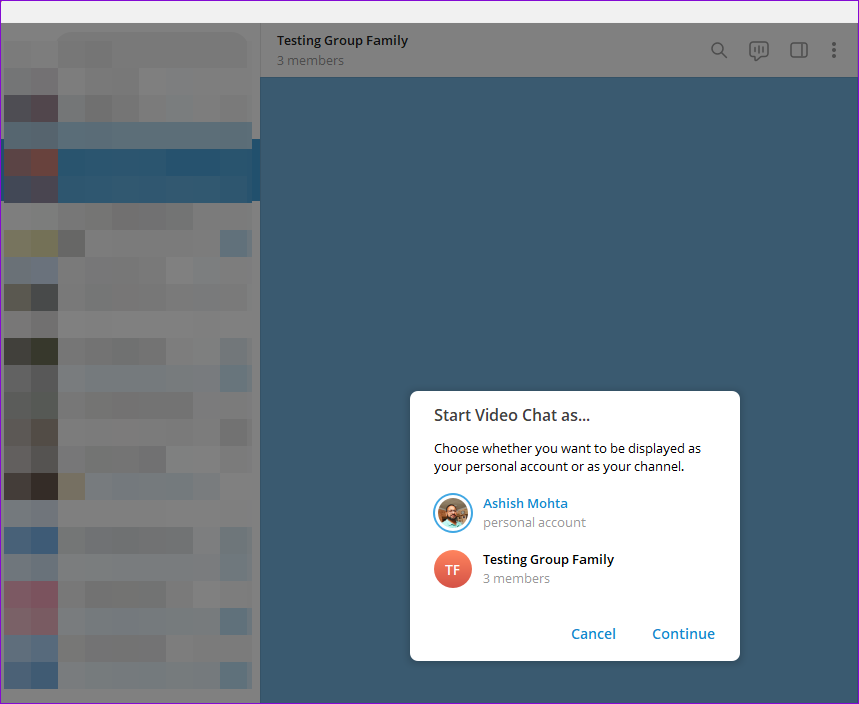
Step 3: When you click Start video chat , you can choose whether you want the video call displayed as the Channel, group, or your account.
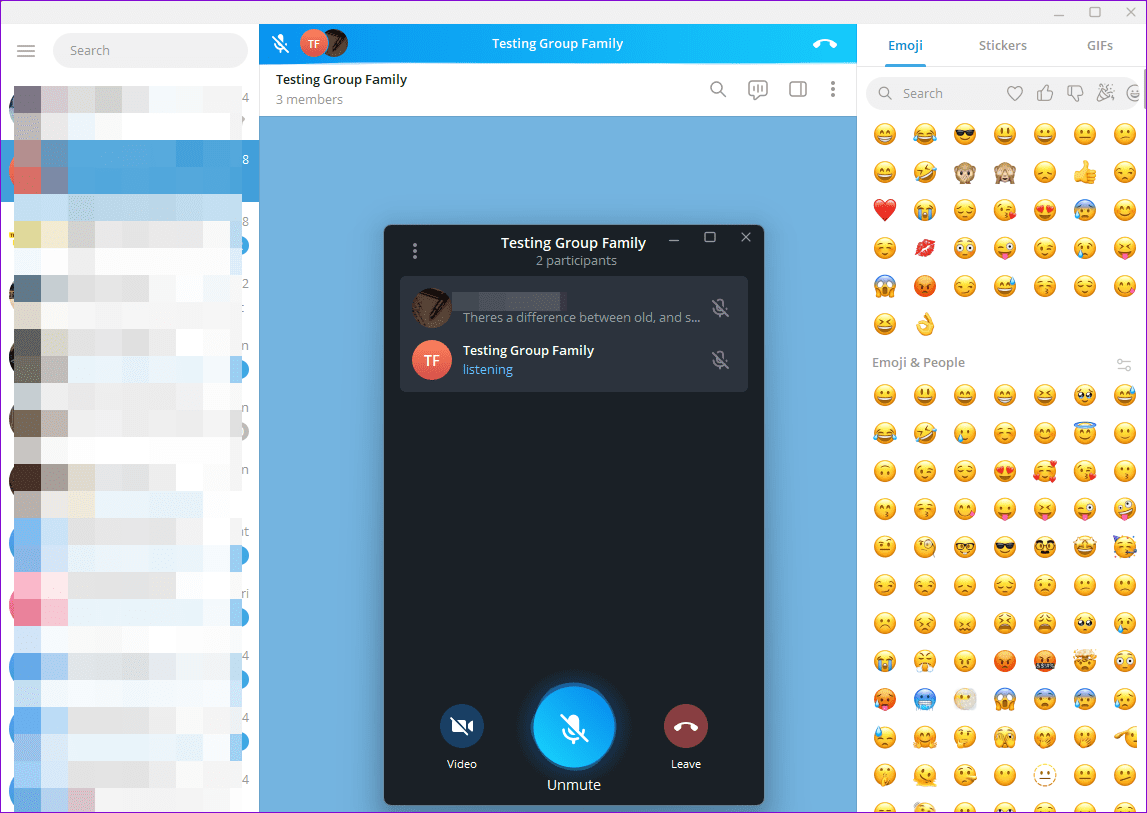
Step 4: You will then receive a pop-up window in which you can control the mic and leave and turn on the video camera. Once everyone joins, you can click on the video icon , which will be converted into a video call.
Was this helpful?
Submit Cancel
Thanks for your feedback!
Keep reading