Android
3 Ways to Manually Add New Passwords to Google Password Manager
Google now allows you to add new entries to the Chrome Password Manager. Here's how you can manually add new passwords to Google Password Manager on Android and iPhone.
By Parth Shah
Quick Tips
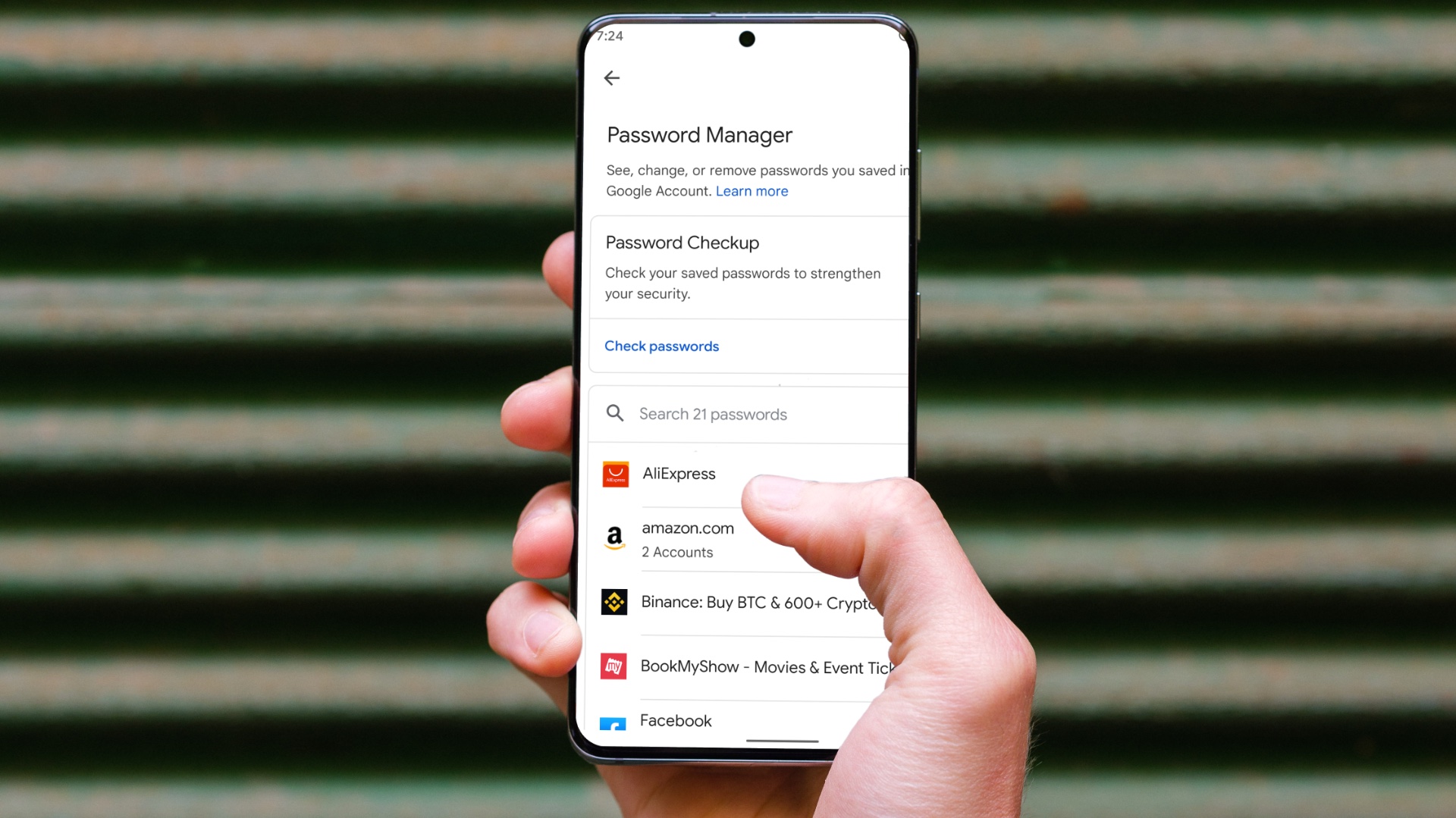
You can manually add a new password to the Google Password Manager via the Google app, Google Chrome app, or create its quick shortcut on your home screen.
Google Password Manager doesn’t allow manually adding new passwords if you access it online (web).
Method 1: Using the Google App
The Google Password Manager is nested in the Google app on your device. Here’s how to access it to manually add new passwords.
On Android
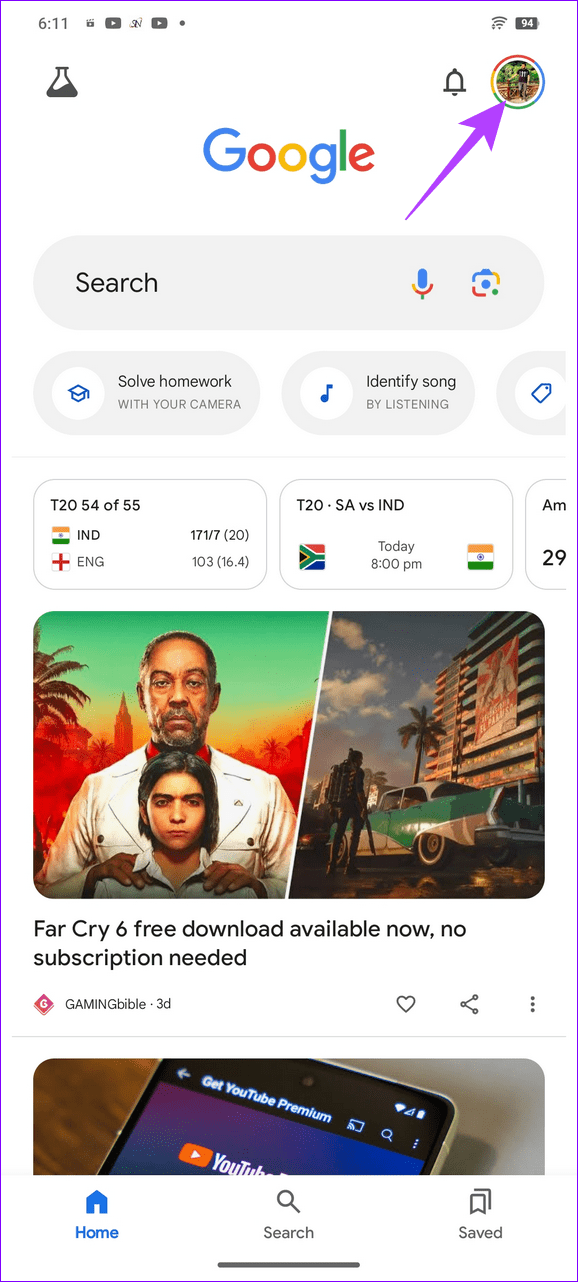
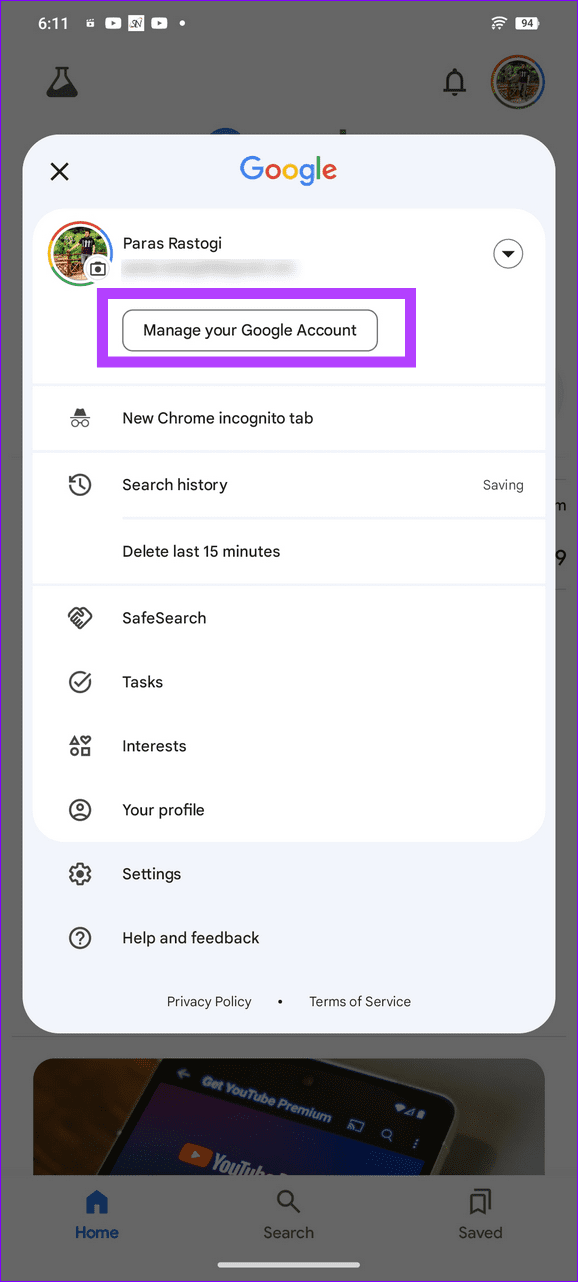
Step 1: Open the Google app, tap your profile icon at the top right, and select Manage your Google Account .
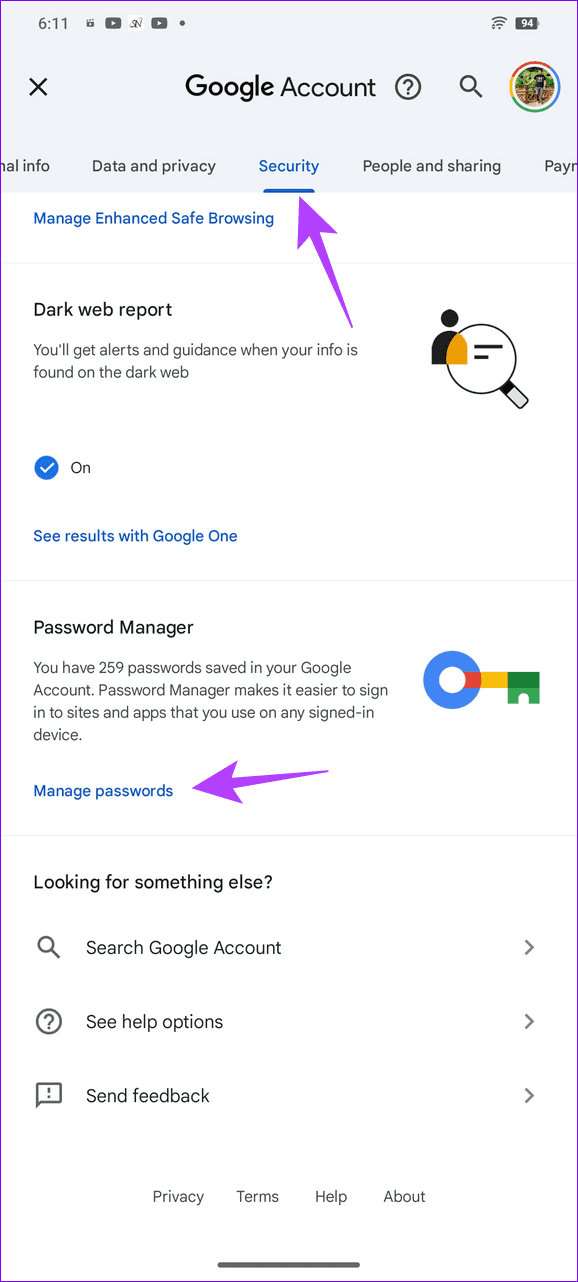
S tep 2: Open the Security tab, scroll down to locate the Password Manager , and tap Manage passwords .
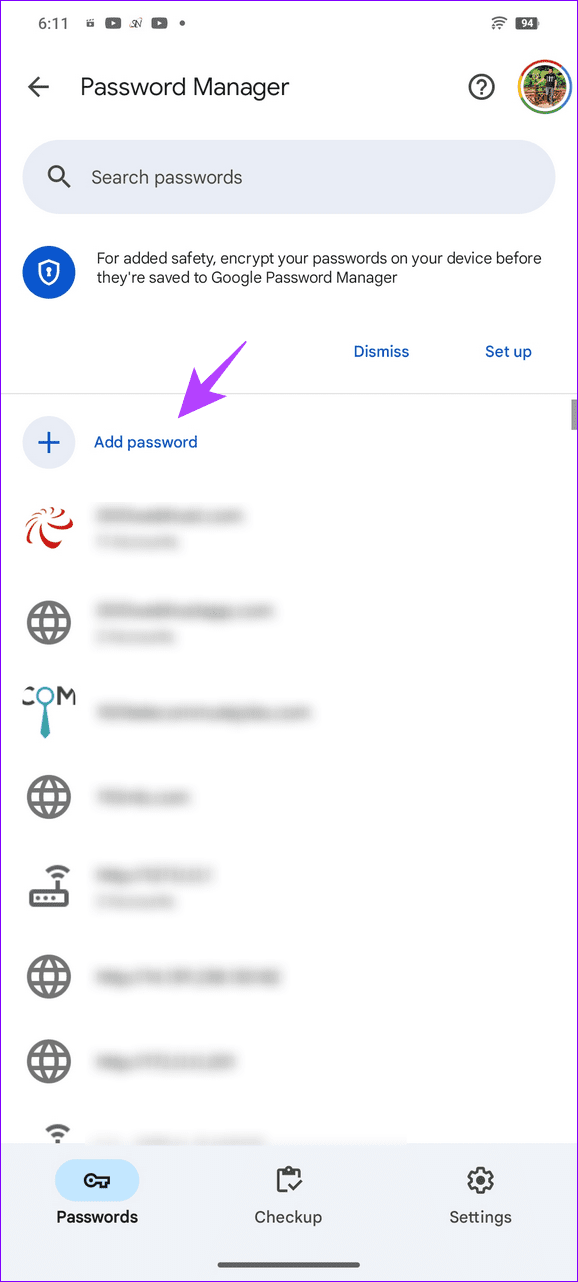
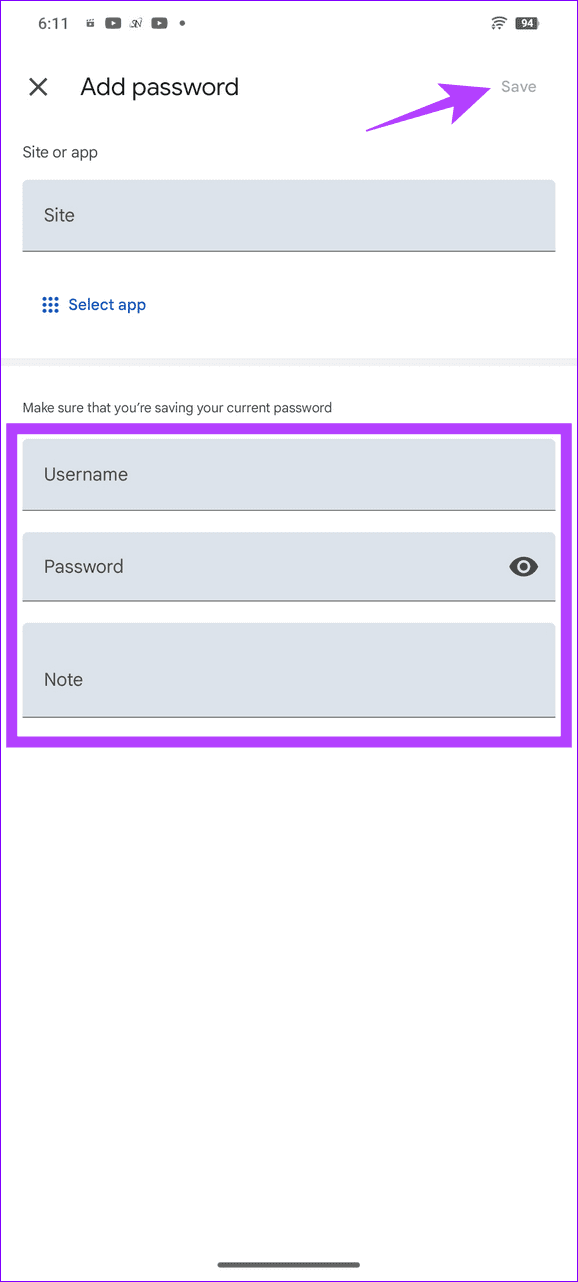
Step 3: Select Add password and type the site address or app name . You can also tap Select app to open all the installed apps on your Android phone.
Step 4: Fill in your desired Username and Password, and hit Save at the top right corner.
On iOS
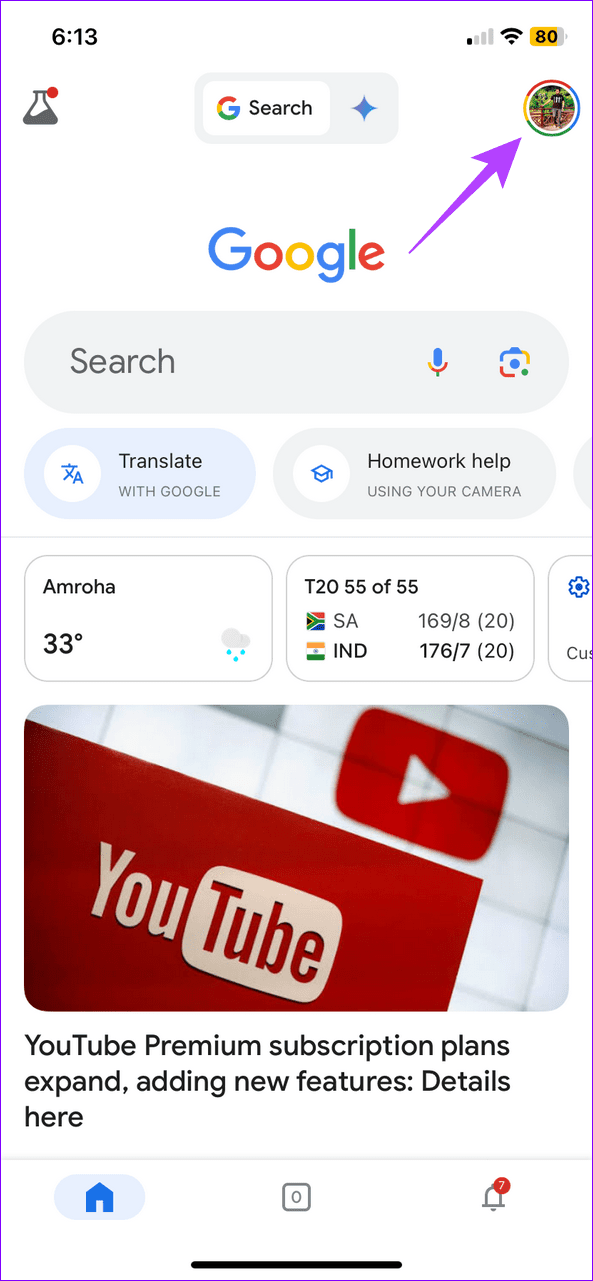
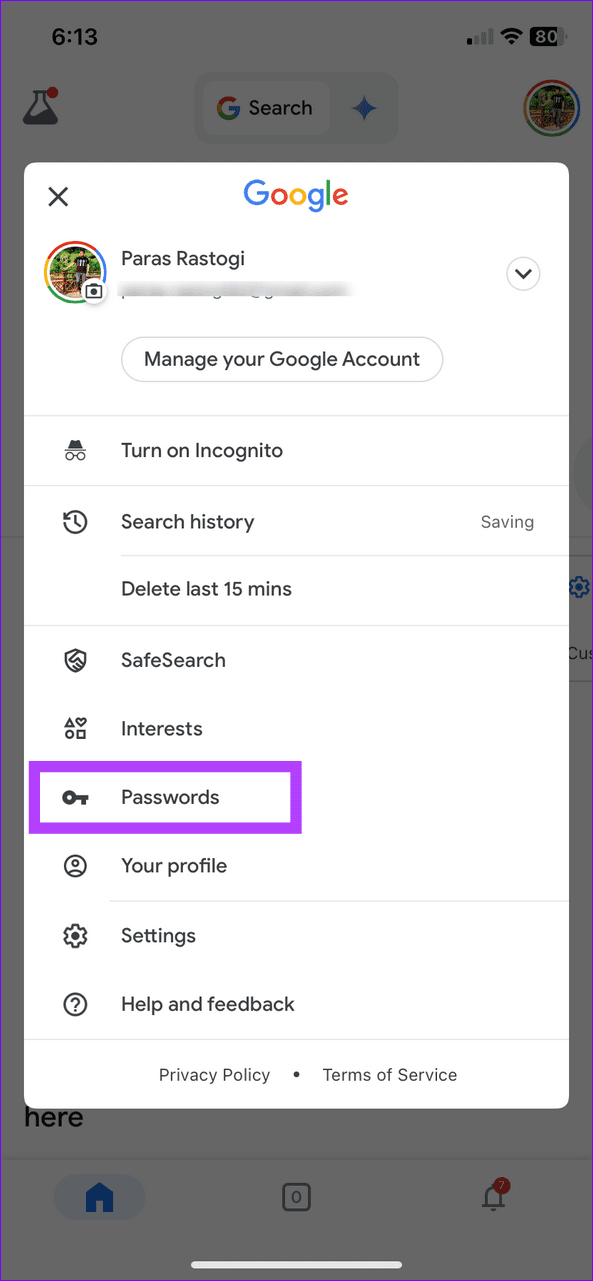
Step 1: Open the Google app, tap your account profile at the top right, and select Passwords .
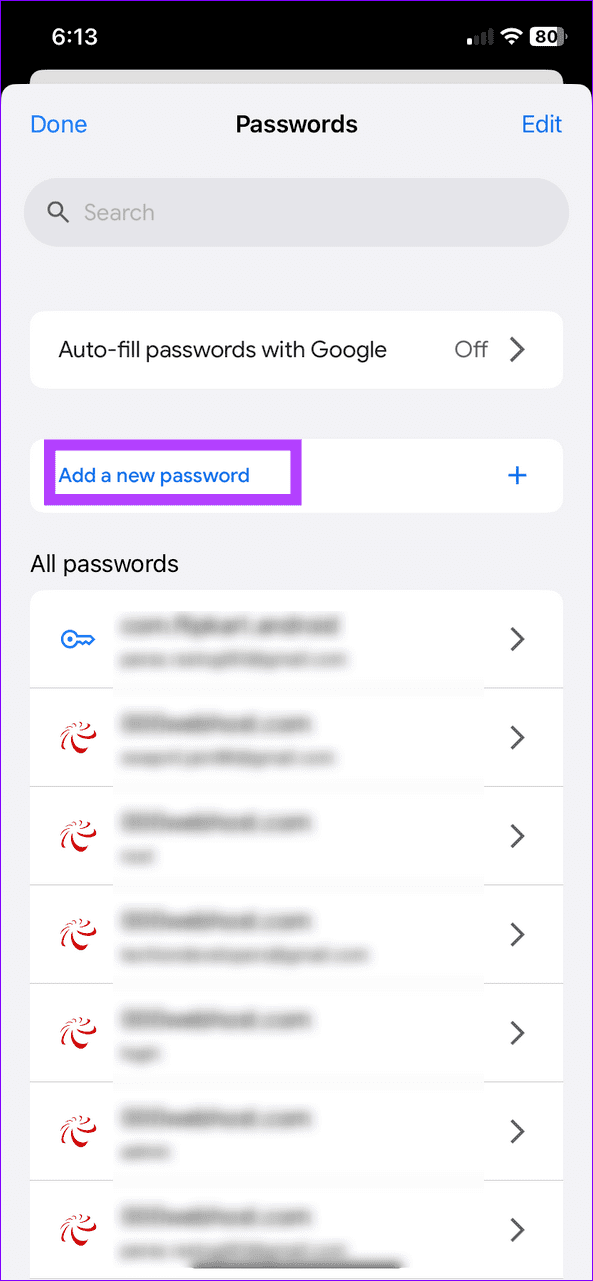
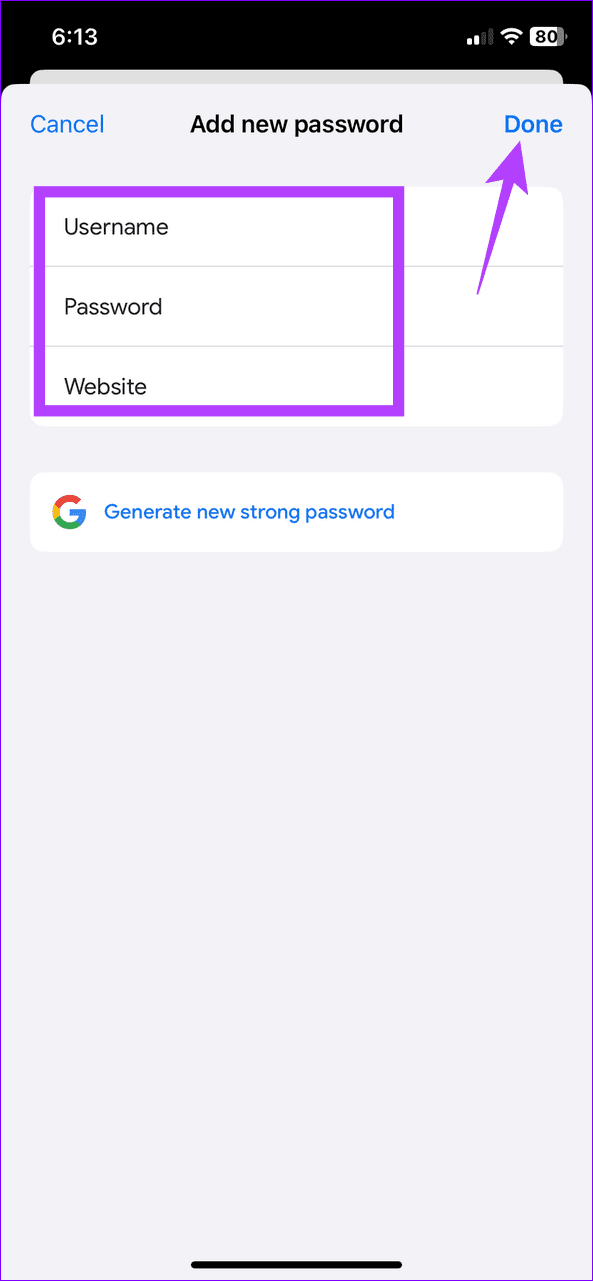
Step 2: Tap Add a new password and fill in your desired Username, Password, and Website. Hit Done at the top right to save it.
Method 2: Add New Passwords Manually From Google Chrome
In addition to the Google app, you can access the Google Password Manager from Google Chrome settings to manually add new passwords.
On Android
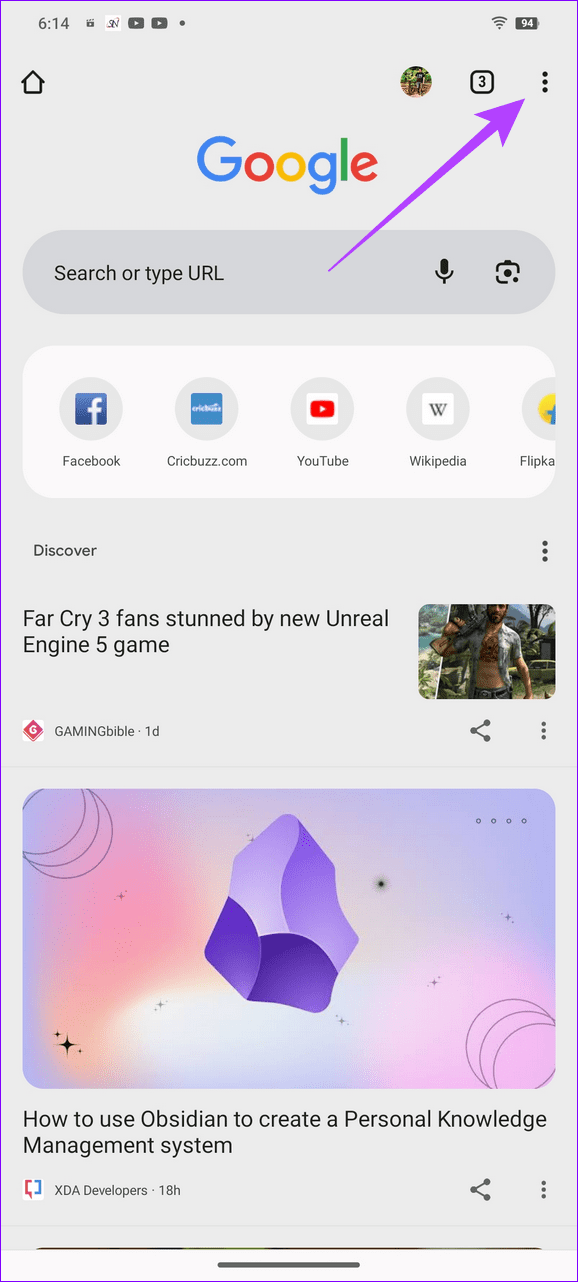
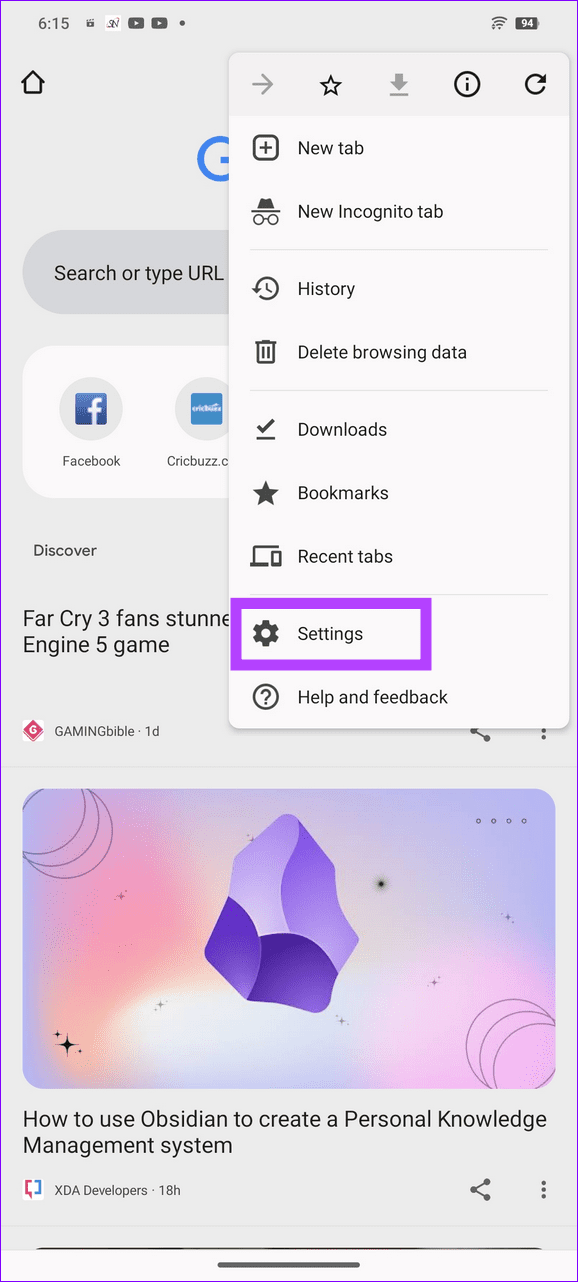
Step 1: Open Google Chrome , tap the three-dot menu at the top right, and select Settings .
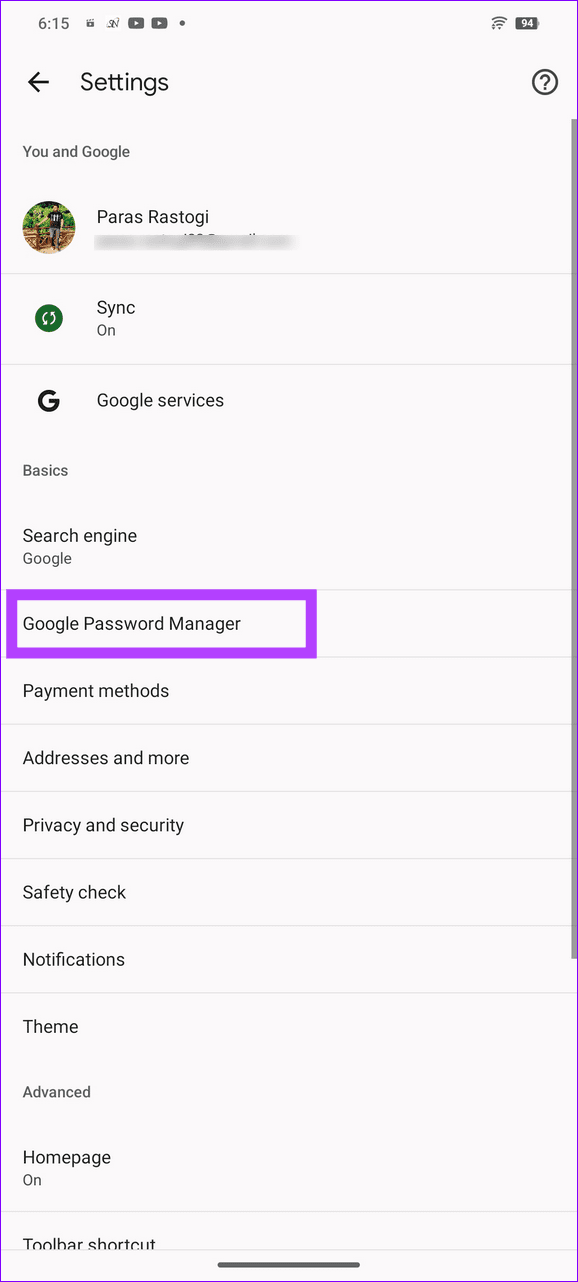
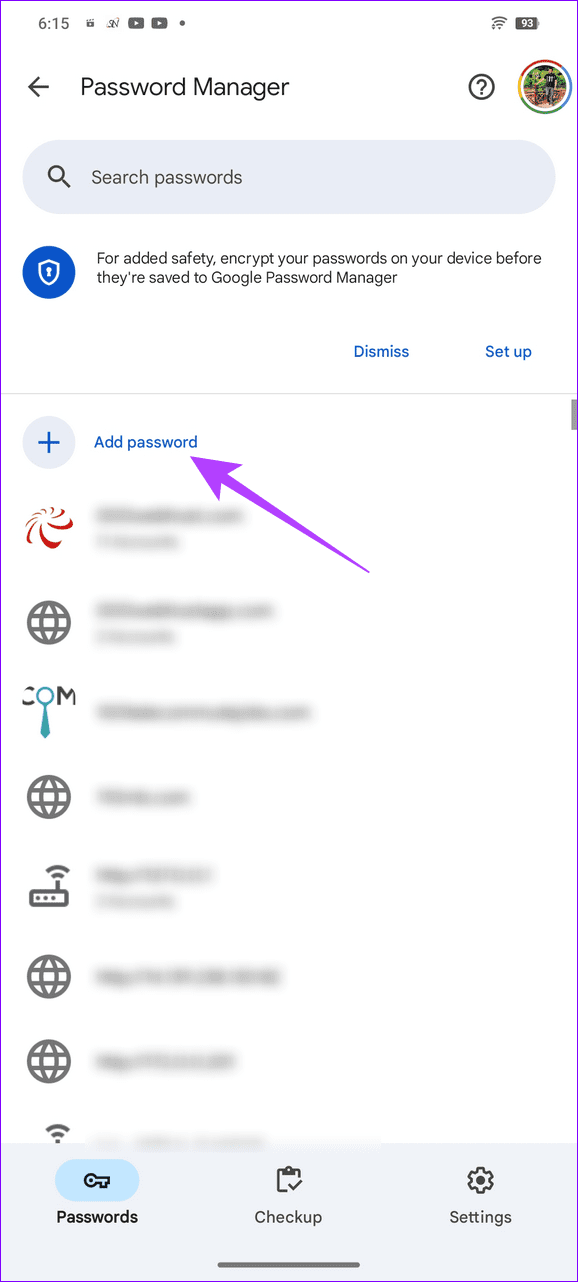
Step 2: Select Google Password Manager and tap Add password .
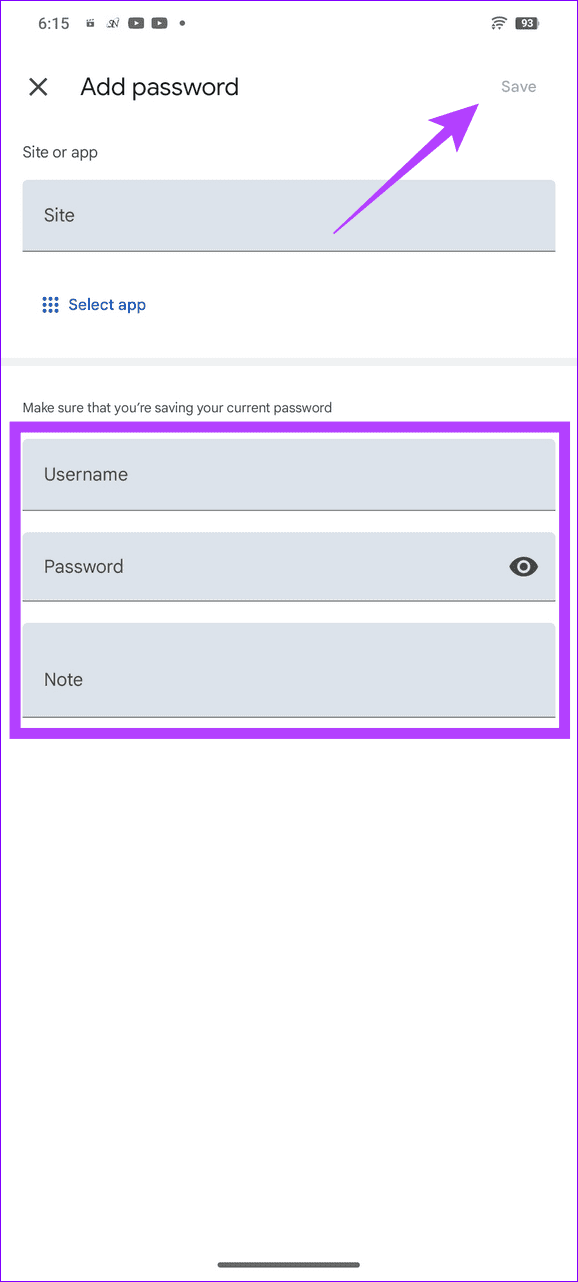
Step 3: Pick your desired Site or App, type your credentials, and hit Save at the top right to save changes.
On iOS
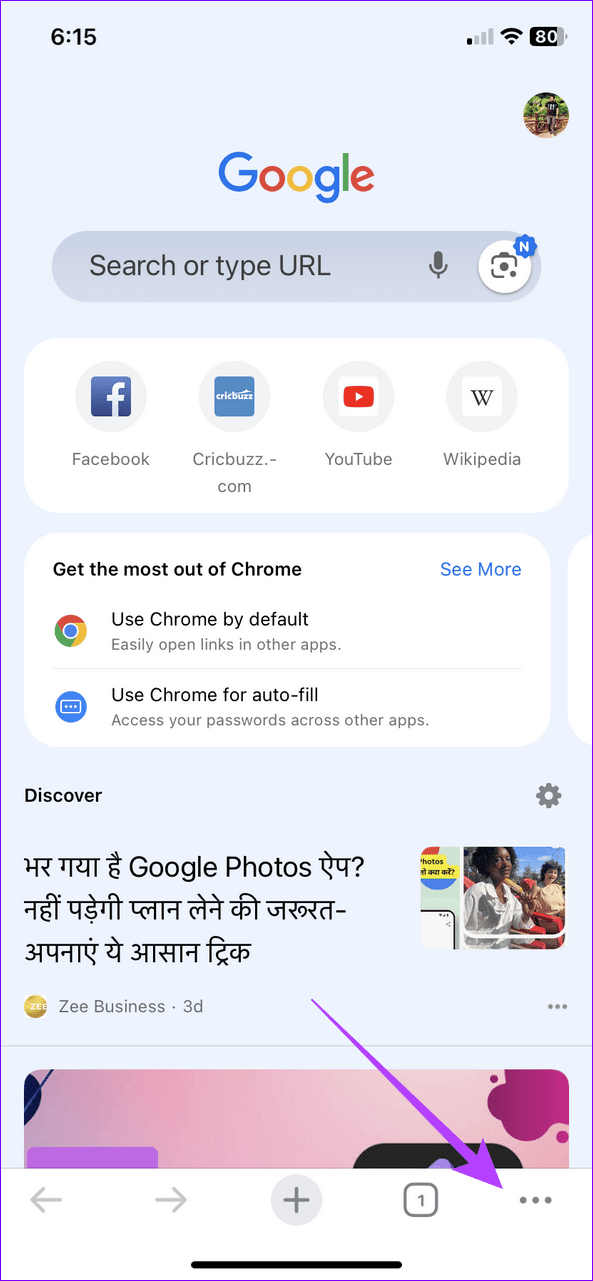
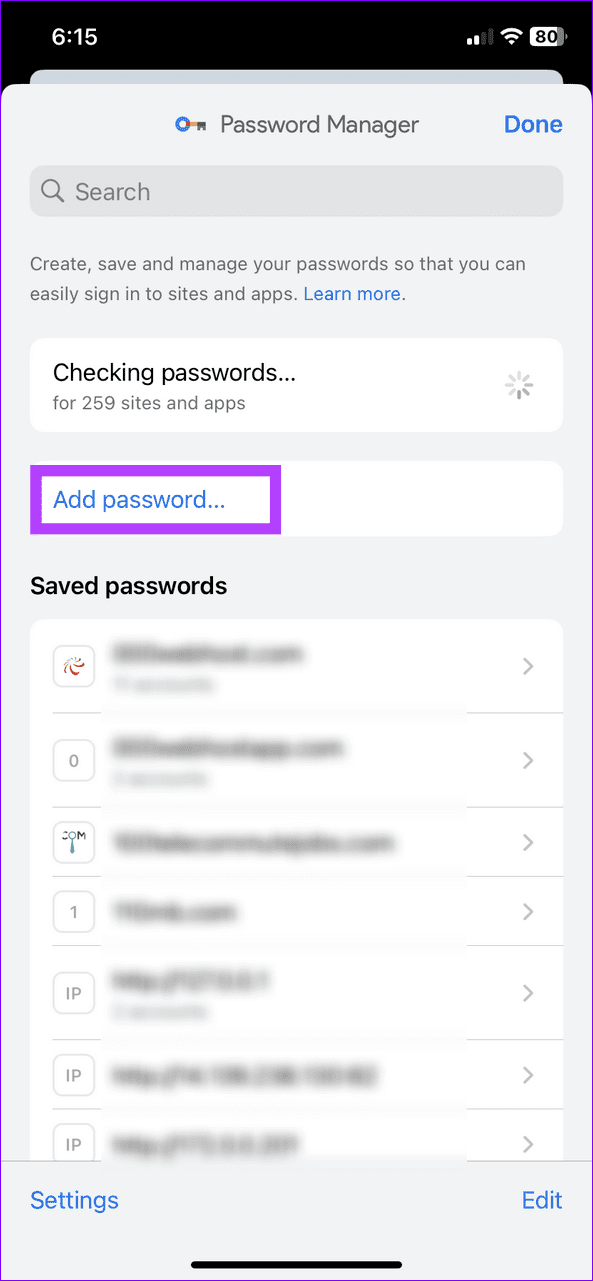
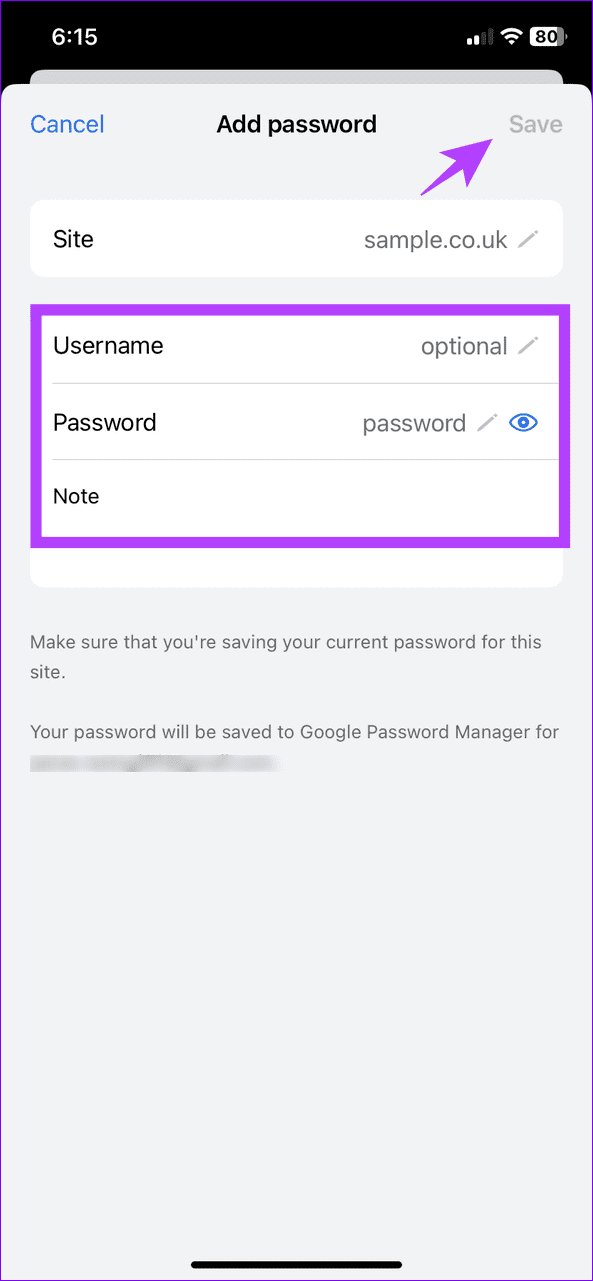
Step 1: Tap the three-dot menu at the bottom right of Google Chrome and select Password Manager .
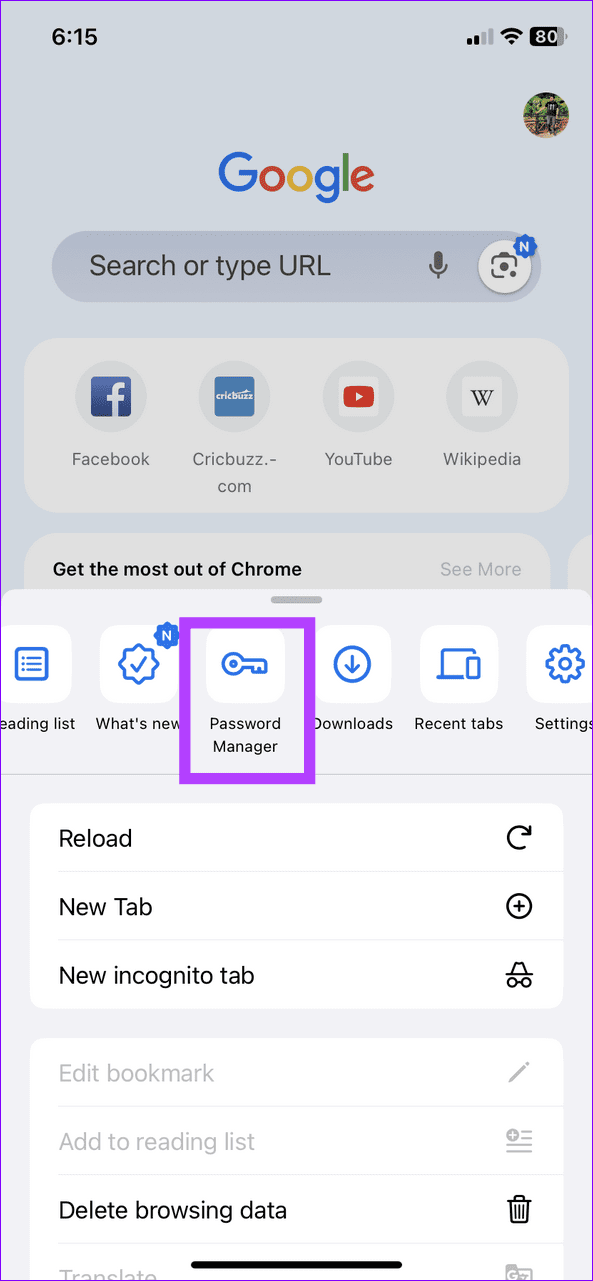
Step 2: Select Add password , type your desired Username and Password, and tap Save at the top right.
Method 3: Add a Google Password Manager Shortcut (Android)
If you frequently use the Google Password Manager, creating its shortcut on your device’s home screen will help you access it quickly. Here’s how to do it on Android smartphones:
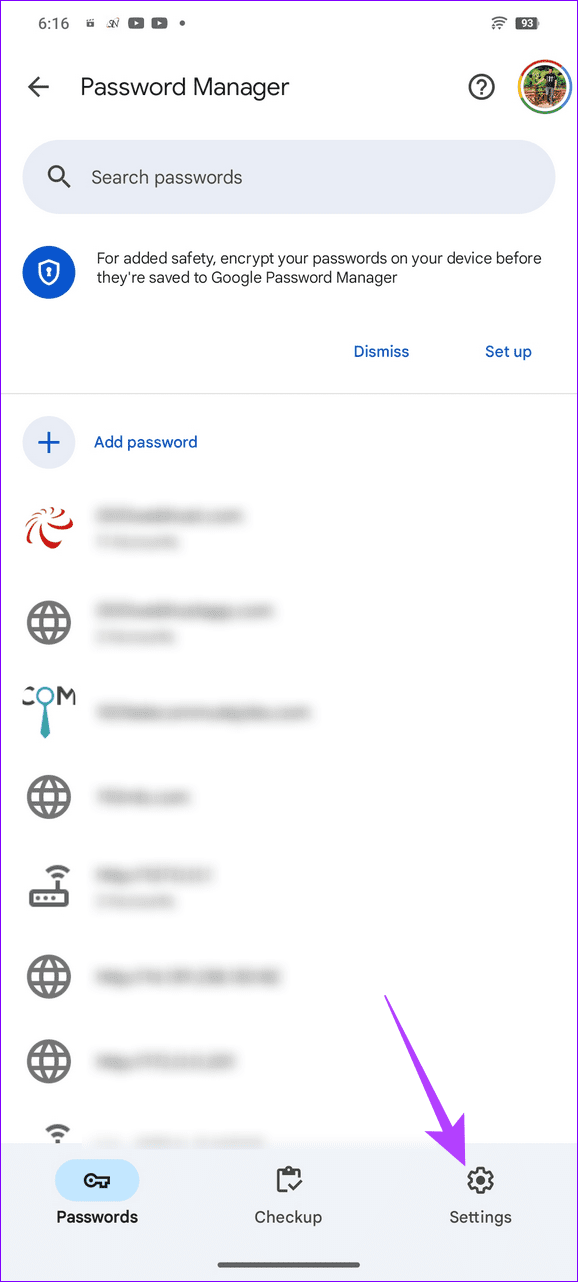
Step 1: Open the Google Password Manager page (check the above steps) and access its Settings from the bottom-right corner.
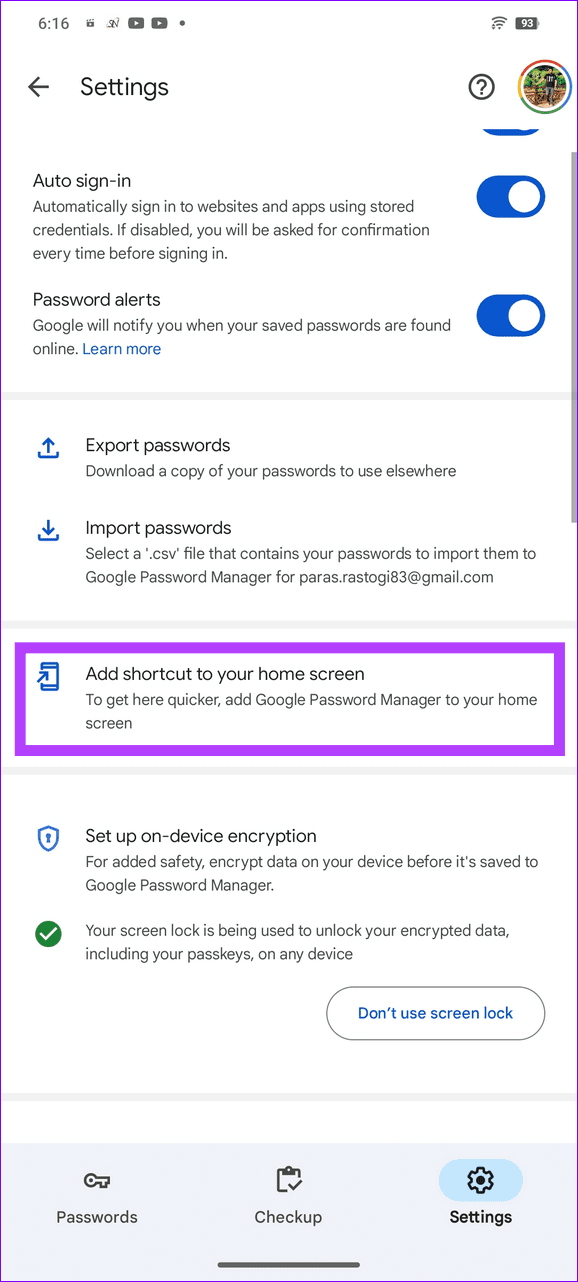
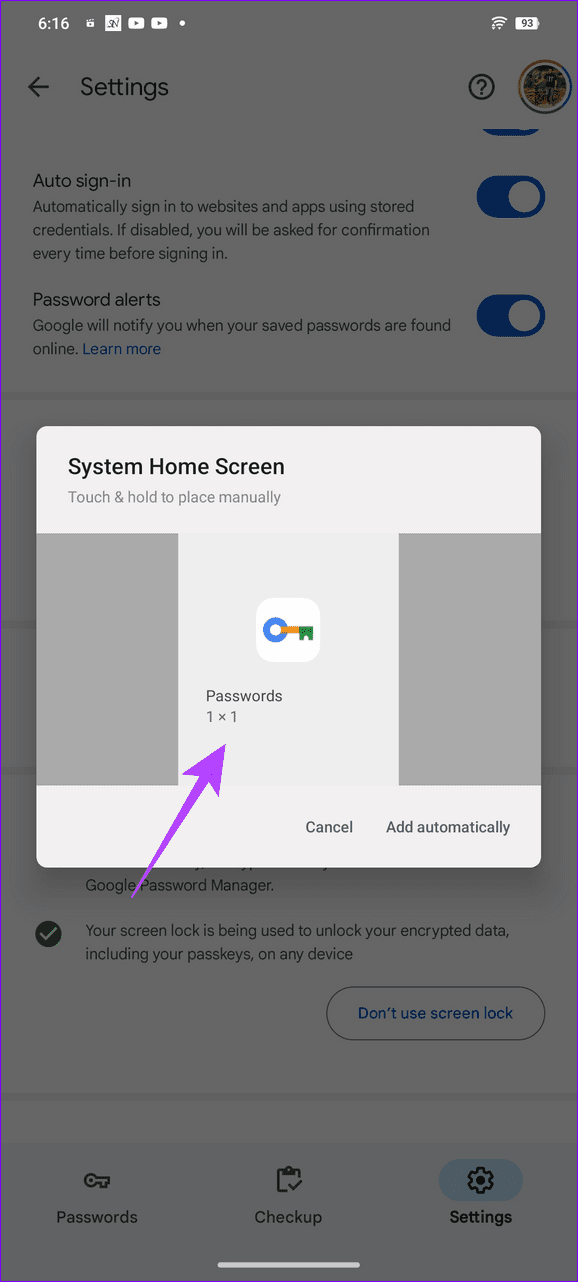
Step 2: Scroll down and select Add shortcut to your home screen .
Step 3: Drag the Passwords shortcut (colorful key icon) from the prompt that appears and place it anywhere on your home screen. Adding passwords is a tap away.
Was this helpful?
Submit Cancel
Thanks for your feedback!
Keep reading