Android
How to Record Calls on a OnePlus Phone
The default Phone app on OnePlus phones is Google dialer. Here's how you can record, delete, and share call recordings on OnePlus.
By Parth Shah
Quick Tips
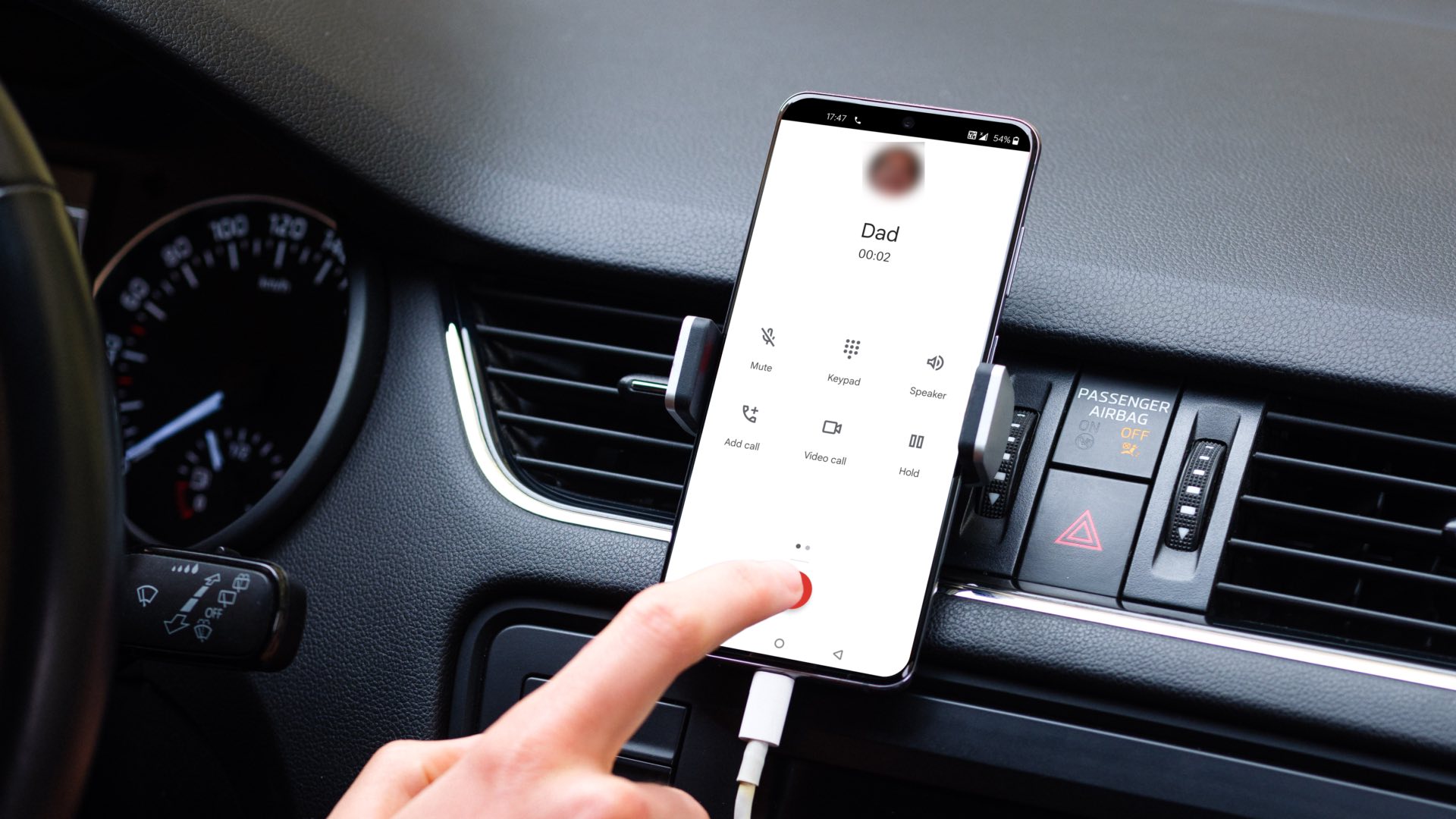
OnePlus phones no longer support native call recording. Instead, they use Google’s Phone app.
The OnePlus device records calls and notifies the recipient, but you can disable these recording announcements .
Recording calls without consent is illegal in some countries. So, read your local laws before using them.
Record Calls on OnePlus Phones
Step 1: Open the Google Phone app on your OnePlus device.
Step 2: Dial the phone number or select a contact from your address book.
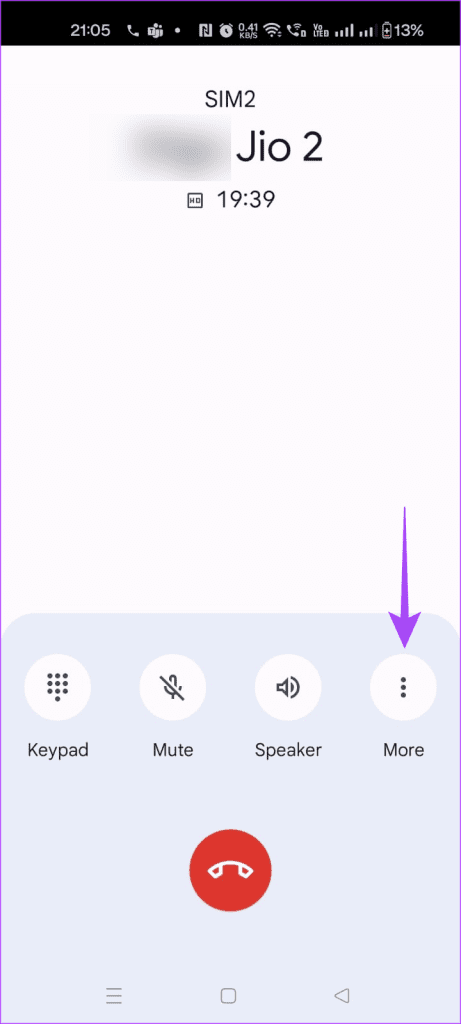
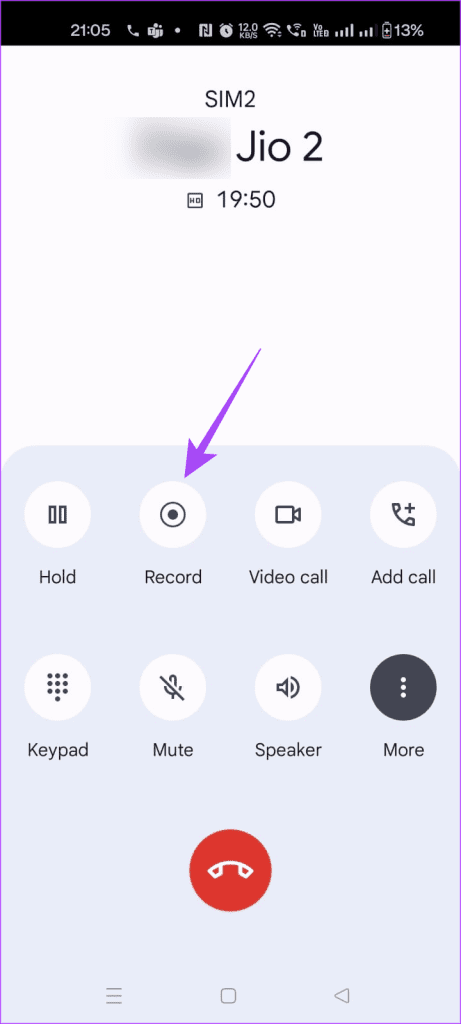
Step 3: Upon connecting, tap the three dots and select Record . This informs the receiver that the call is being recorded.
Step 4: To stop recording, tap on Stop recording or end the call.

Auto-Record Calls on OnePlus Phones
If you want to record incoming and outgoing calls automatically , do the following:
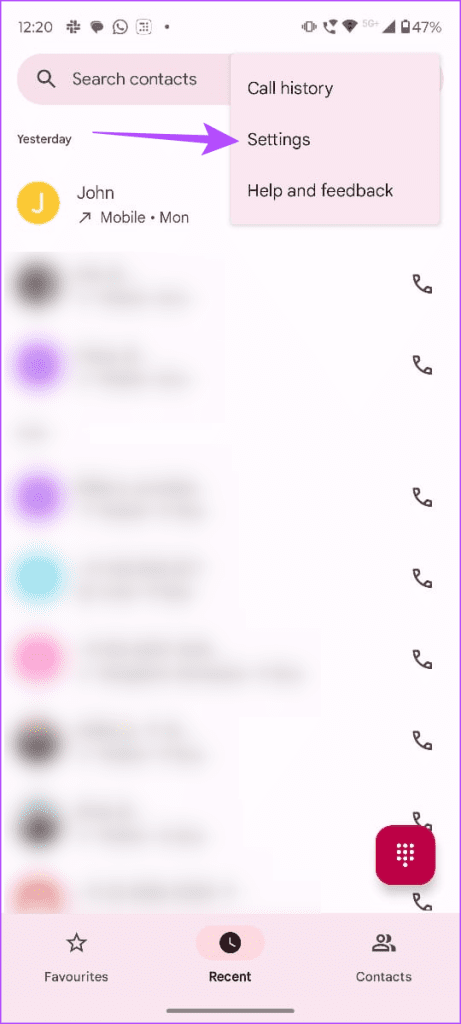
Step 1: Open Google Phone and tap the three dots (on top).
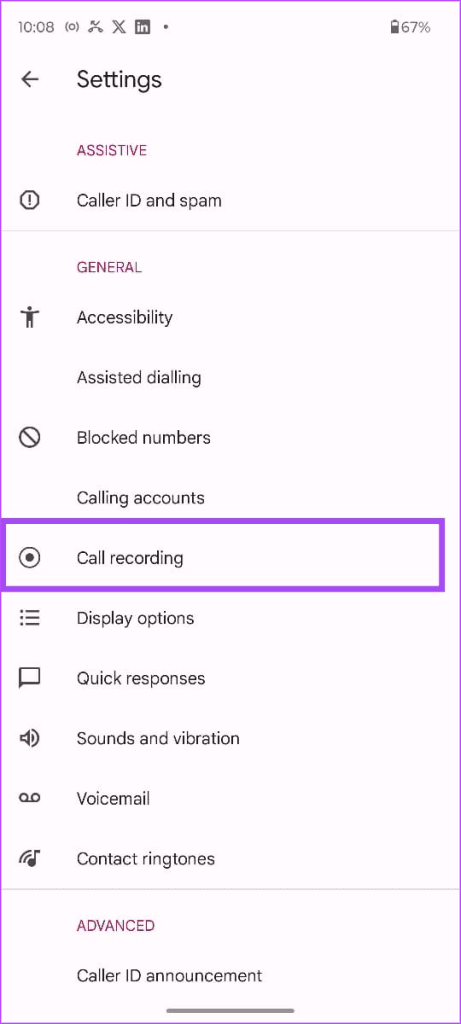
Step 2: Select Settings > Call recording .
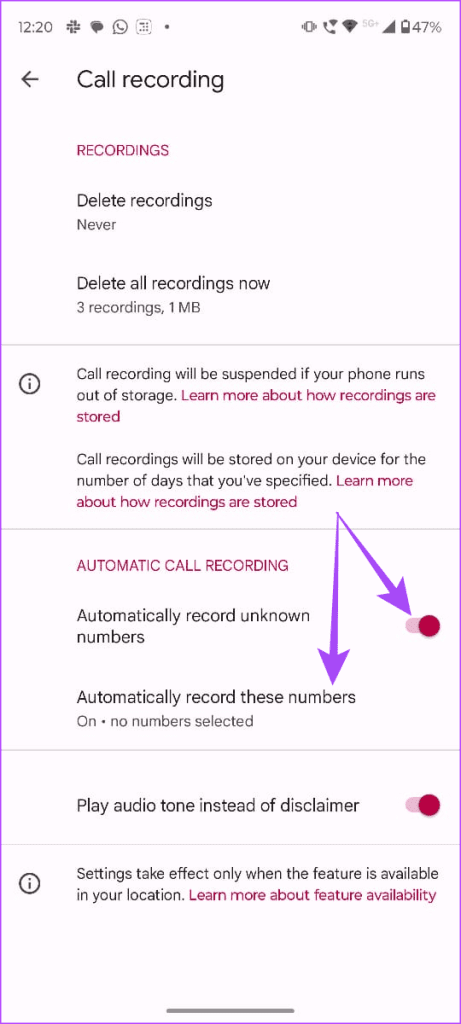
Step 3: Toggle on Automatically record unknown numbers . This will automatically record calls from numbers you don’t know.
Step 4: To record calls for specific contacts, tap Automatically record these numbers .
Step 5: Toggle on Always record selected numbers . Then, choose the contacts you wish to record.

Where Are Call Recordings Saved on OnePlus Phones
Once you record a call, it gets saved to your Google Phone app. To access them, do the following:
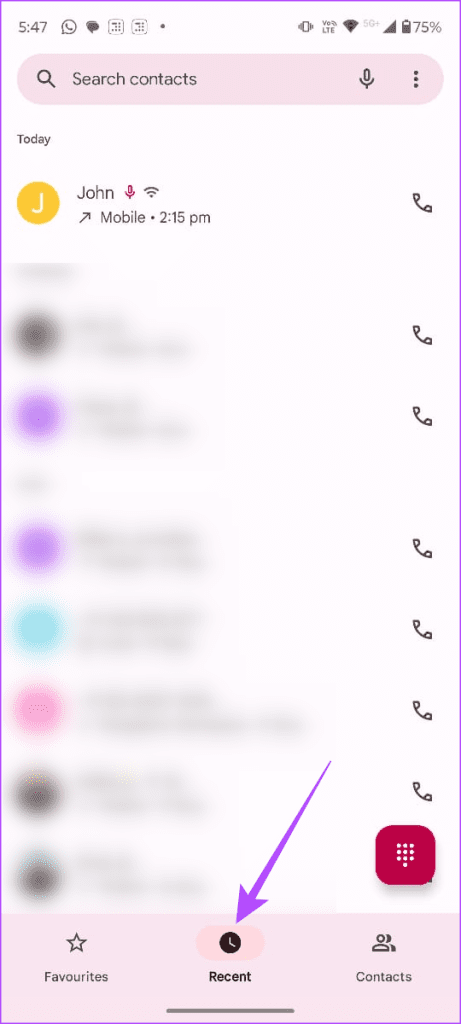
Step 1: Open Google Phone and go to Recent .
Step 2: Tap the call you recorded. A microphone icon will appear next to the recorded call.
Step 3: To listen, tap the play icon .
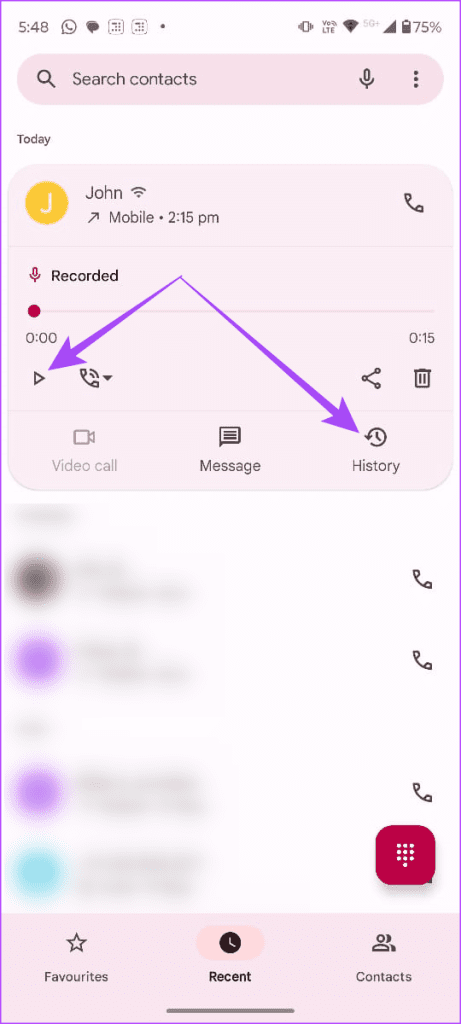
Step 4: Select History to view all your recordings.
Step 5: Tap the Bin icon to delete a recording.
Step 6: To share a recording, tap the Share icon.
Note: You can set up automatic recording deletion after a specific time. In Google Phone, navigate to Settings > Call recording > Delete recordings . Now, choose when to delete your recordings.
FAQs
1. Can I delete all call recordings in OnePlus at once? Sure, you can. In the Google Phone app, navigate to Settings > Call recording > Delete all recordings now.
2. How can I retrieve deleted recordings? Unfortunately, once you delete a recording, you can’t retrieve it. Always back up important recordings before deleting them.
3. Can I record video calls? No, Google Phone doesn’t support recording video calls at this time. It only records audio calls.
Was this helpful?
Submit Cancel
Thanks for your feedback!
Keep reading