Android
How to Reset Home Screen Layout on Android Including Samsung Phones
Want to get your phone's home screen back to default? Learn how to reset home screen layout on Android including Samsung phones.
By Mehvish
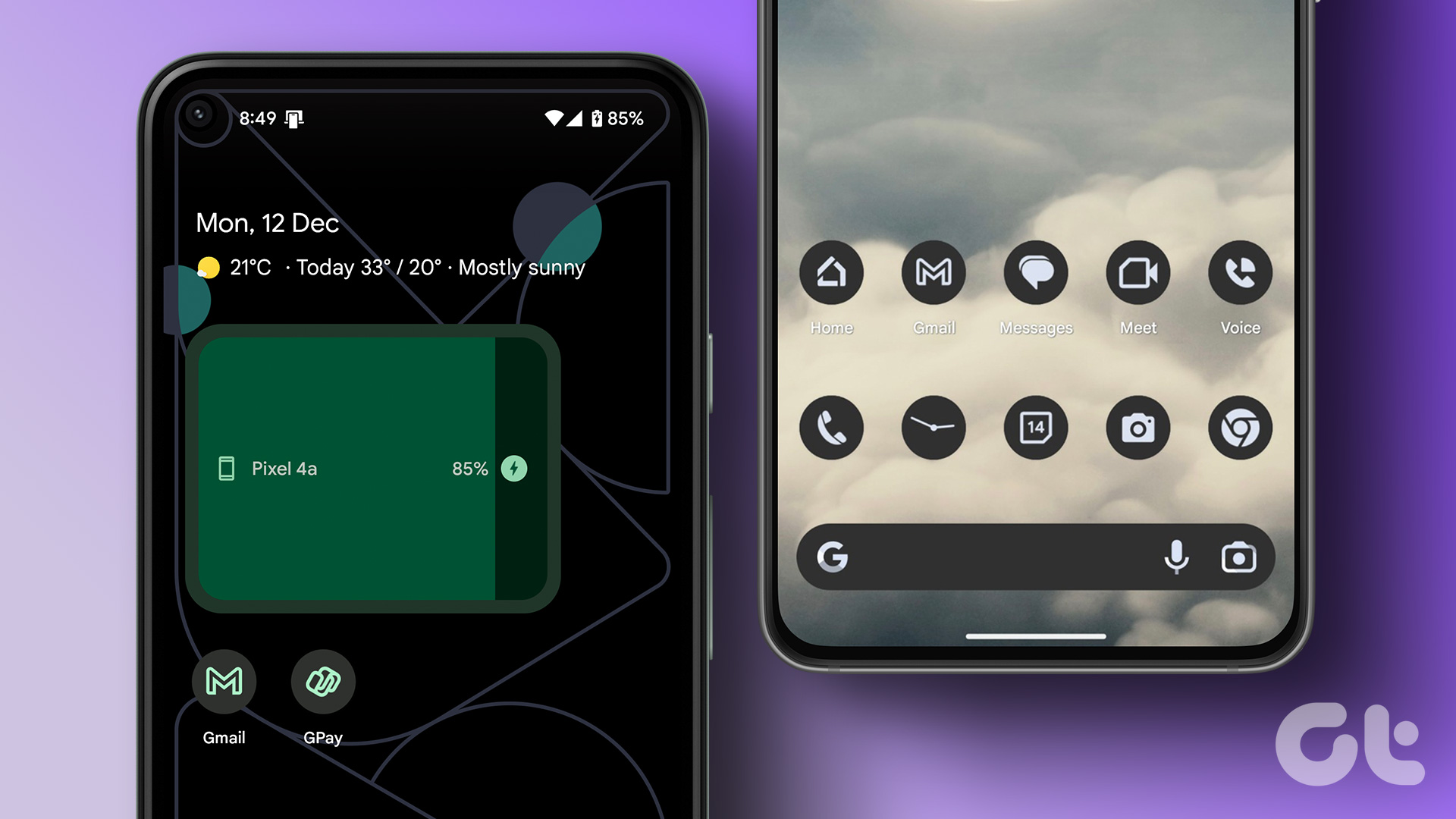
Is your Android phone’s home screen messed up? Or did someone ask you to reset the home screen layout of your Android phone to troubleshoot the home screen? Well, you have arrived at the right place. Let’s find out how to reset the home screen layout on Android phones including Samsung phones.
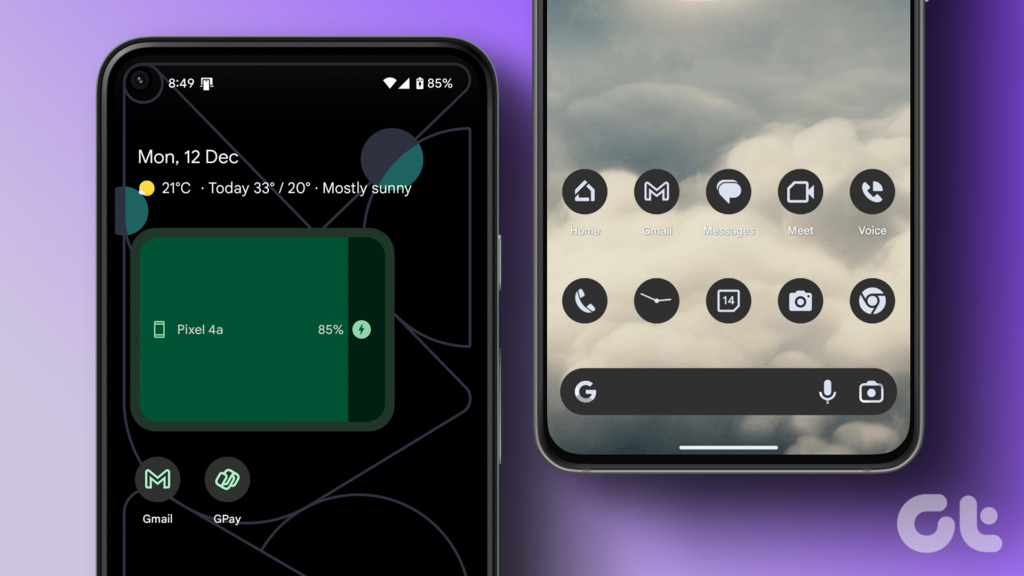
Before we jump to the steps, it’s important to know when to reset the home screen layout since it has major consequences. Let’s begin the journey.
Things to Know Before Resetting Home Screen Layout
Resetting the home screen layout will remove the app icons and widgets from the home screen and restore the original layout. It should be your last resort in troubleshooting home screen issues.
If you are facing any problem related to the home screen, you should try changing the home screen settings and other fixes first before resetting the home screen layout. For instance, if an app has disappeared from the home screen, learn how to add app icons back to home screen .
Similarly, if your home screen icons seem bigger or smaller than usual, you must change the home screen grid size. For that:
Step 1 : Long-press anywhere on the home screen and select Home screen settings.
Step 2 : Tap on the Home screen grid and change the number of app icons that appear in each row or column.
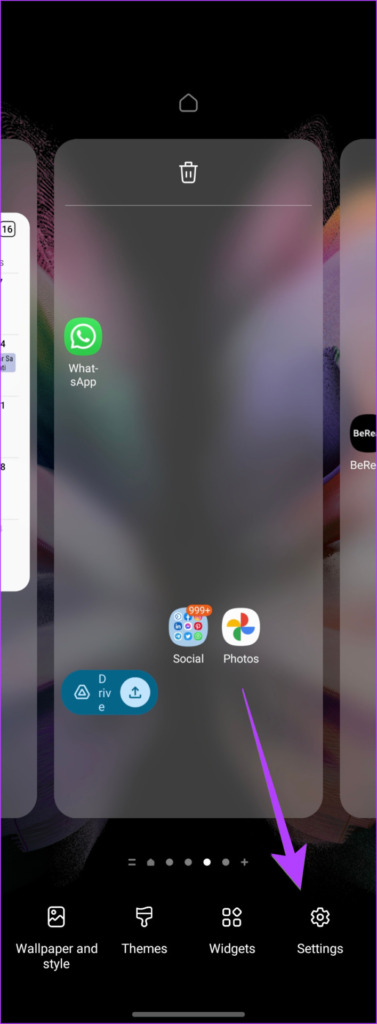
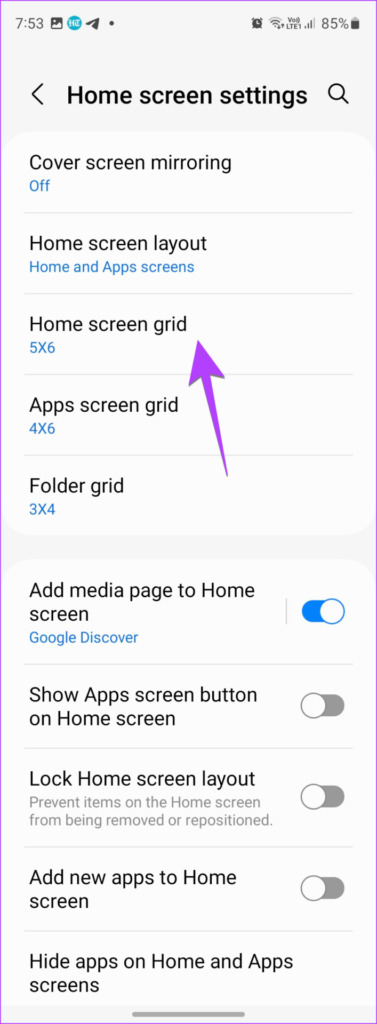
Moreover, if you just want to remove the clutter on the Android home screen, you can simply move multiple apps into a folder or remove the icons from the home screen.
If simply changing the home screen settings didn’t help, go ahead and reset the home screen layout on your Android device to default settings.
Tip: Learn how to remove the floating button from the home screen on Android and iPhone.
How to Reset Home Screen Layout on Samsung Galaxy Phones
Samsung Galaxy phones do not offer a native feature to reset the home screen layout. You have to clear the data of the Samsung launcher to restore the default home screen layout.
Follow these steps to get your home screen back to normal on Samsung Galaxy phones:
Step 1: Open the Settings app on your Samsung Galaxy phone.
Step 2: Go to Apps.
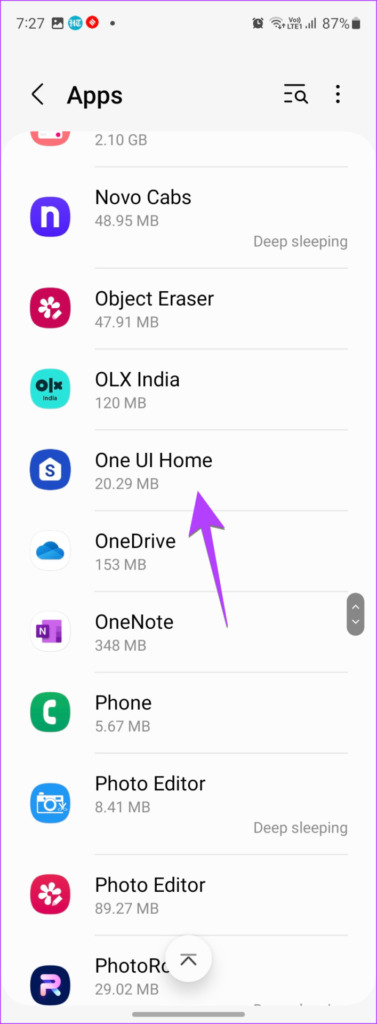
Step 3: Scroll down and tap on One UI Home (newer phones) or Samsung Experience Home (old phones)
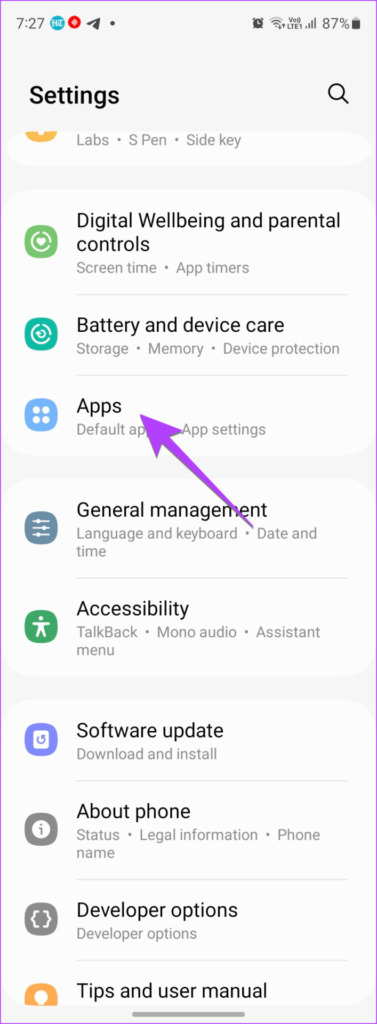
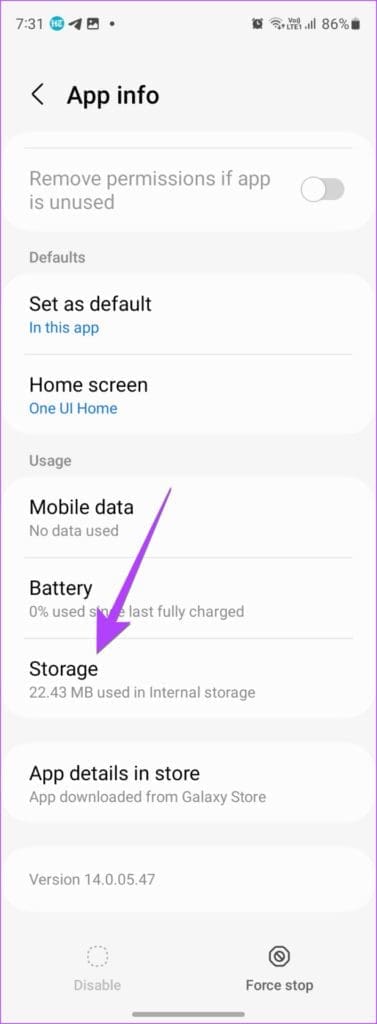
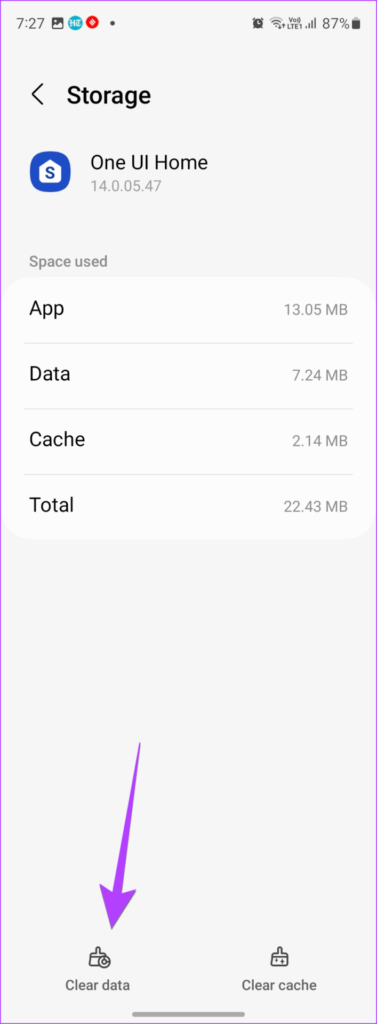
Step 4: Tap on Storage followed by Clear data on the next screen.
How to Reset Home Screen Layout on Android
Similar to Samsung Galaxy phones, other Android phones also do not offer a baked-in feature to reset the home screen. You must clear the data of the default launcher. The steps differ slightly for old and new Android phones.
Method 1: Get Original Home Screen Back on New Android Phones
Every Android phone comes with a different launcher. Therefore, you need to find out the name of the default launcher first and then clear its data. We have broken down the steps to get back your original home screen on an Android phone in two sections. In case you know the name of the launcher, you can jump to section 2 directly.
1. Find the Default Launcher of Your Phone
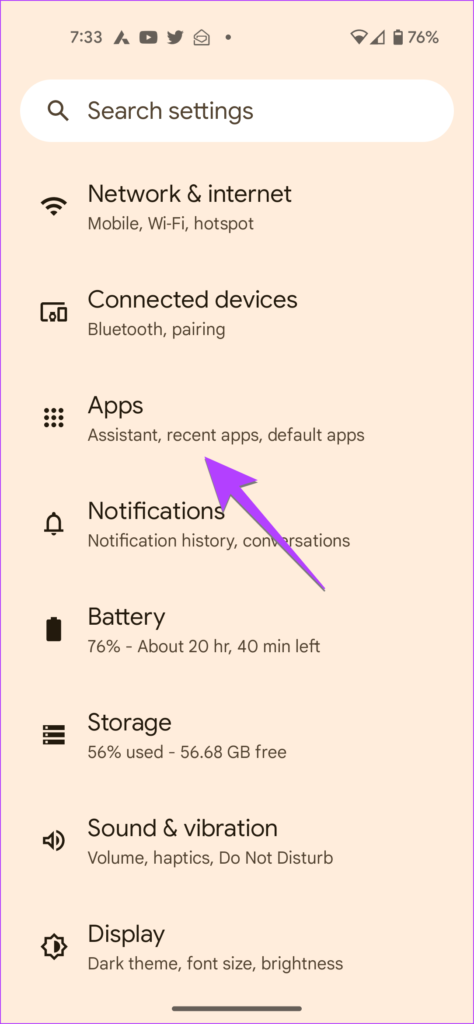
Step 1: Open Settings on your Android phone.
Step 2: Go to Apps followed by Default apps.
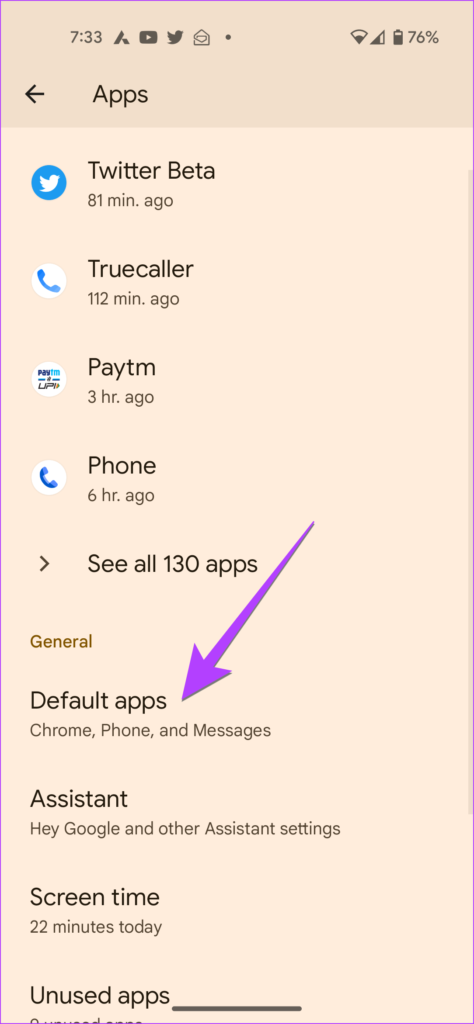
Step 3: Tap on Home app.
Step 4: The launcher that is selected is the default launcher of your phone. Remember its name.
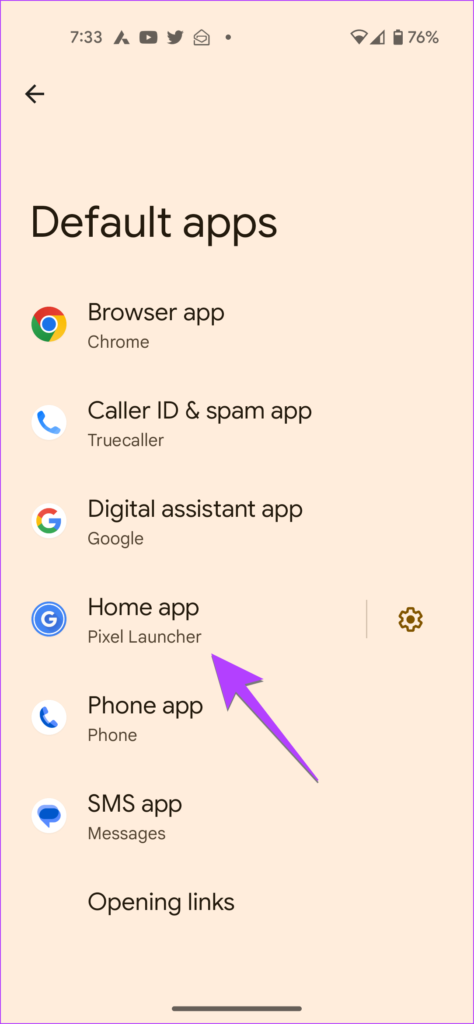
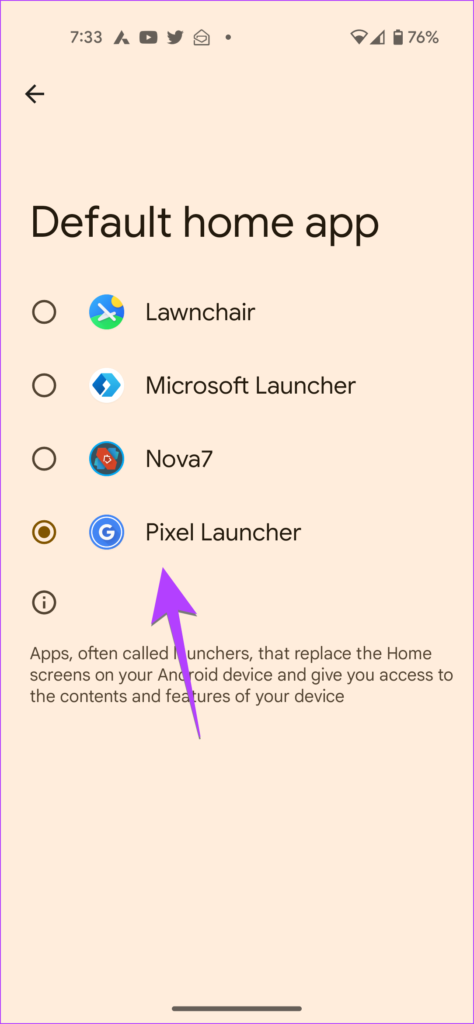
Now, follow the steps mentioned below to clear its data.
2. Clear Data of Default Android Launcher
Step 1: Open Settings on your phone.
Step 2 : Go to Apps.
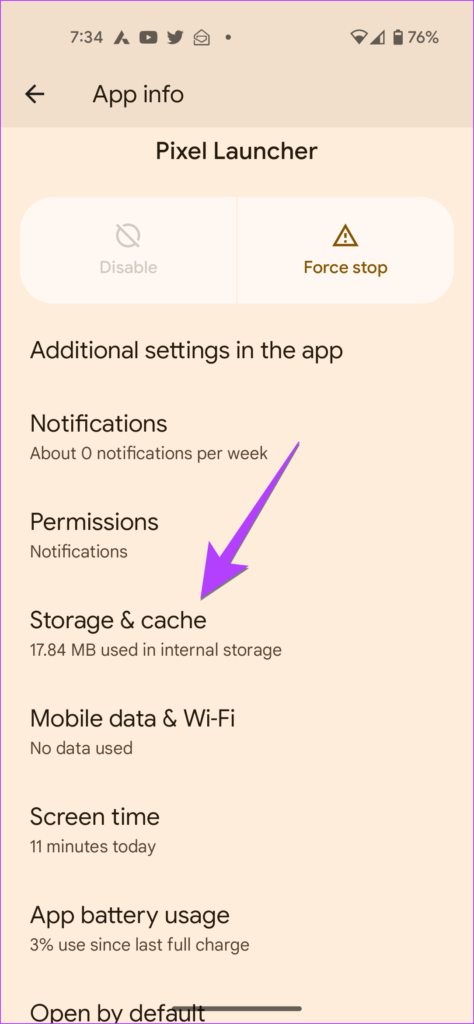
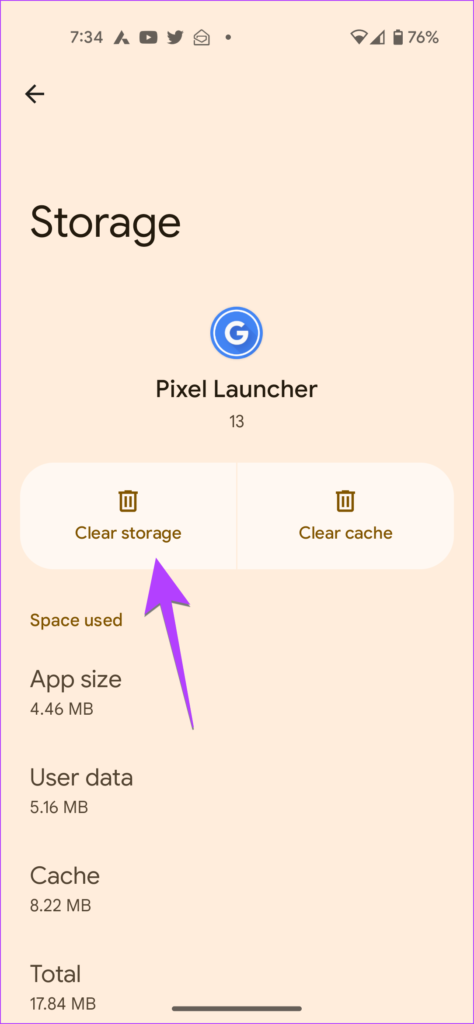
Step 3 : Look for the default launcher of your phone whose name you noted in section 1 above. Once you find it, tap on it.
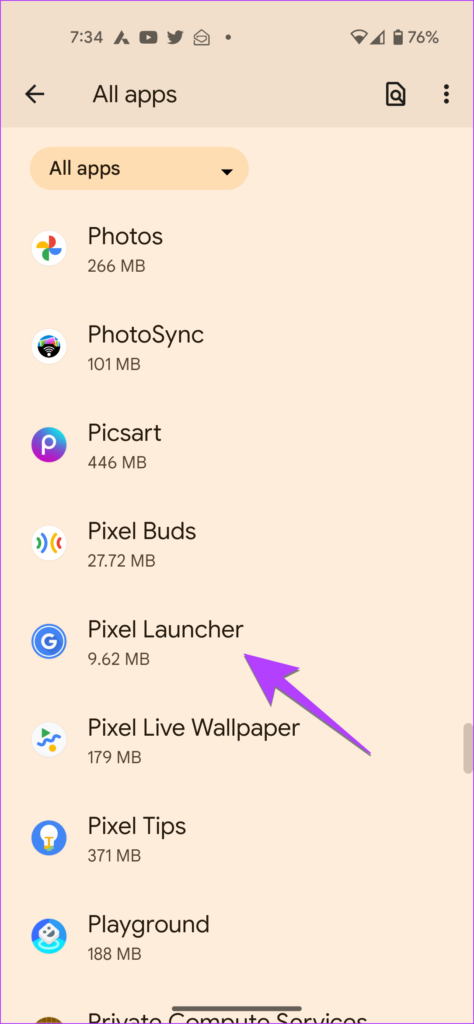
Step 4: Tap on Storage & Cache and hit the Clear data/storage button to reset the phone home screen layout.
Method 2: Reset App Layout on Old Android Phones
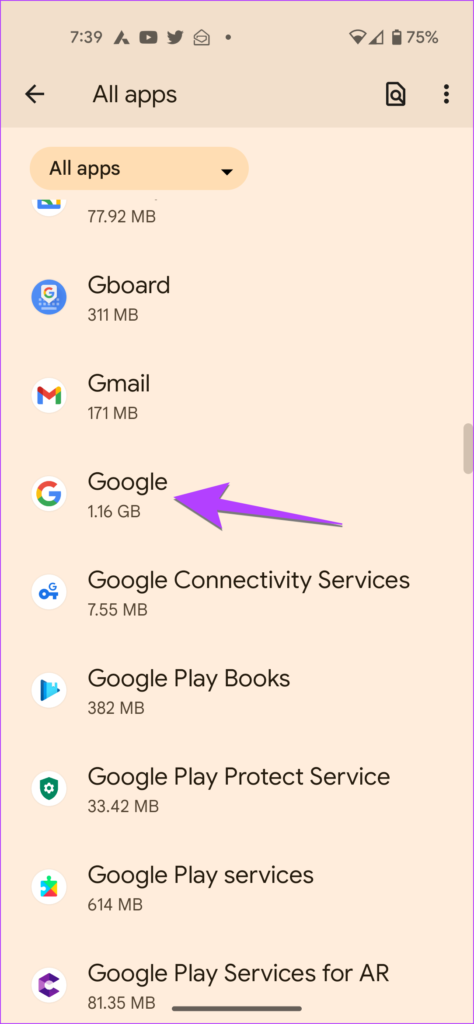
On older Android phones or if the above steps do not help in getting the home screen back to normal, you can reset the home screen layout by clearing the data of the Google app.
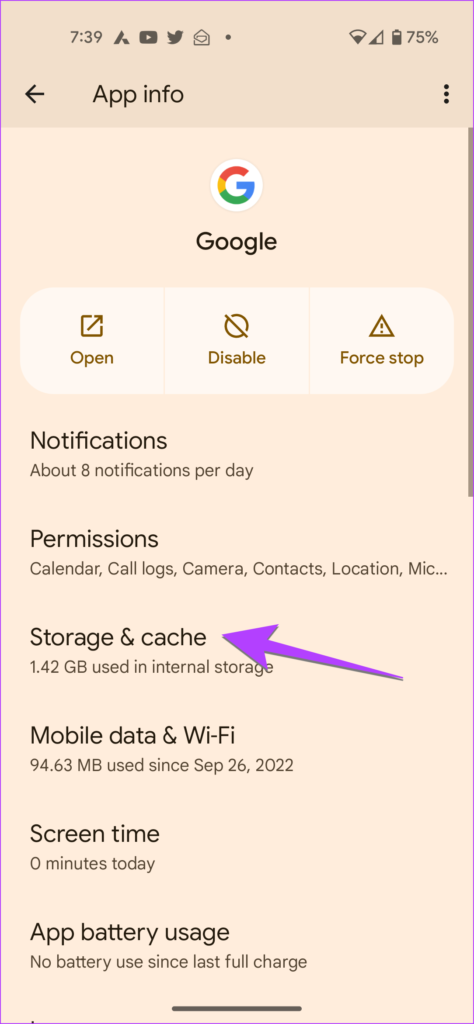
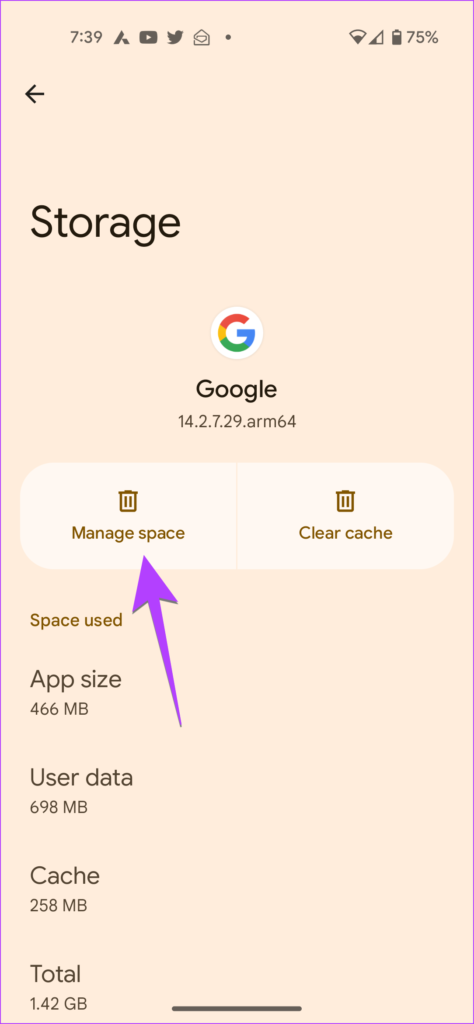
Step 1: Go to Settings > Apps > Google.
Step 2: Tap on Storage followed by Manage space.
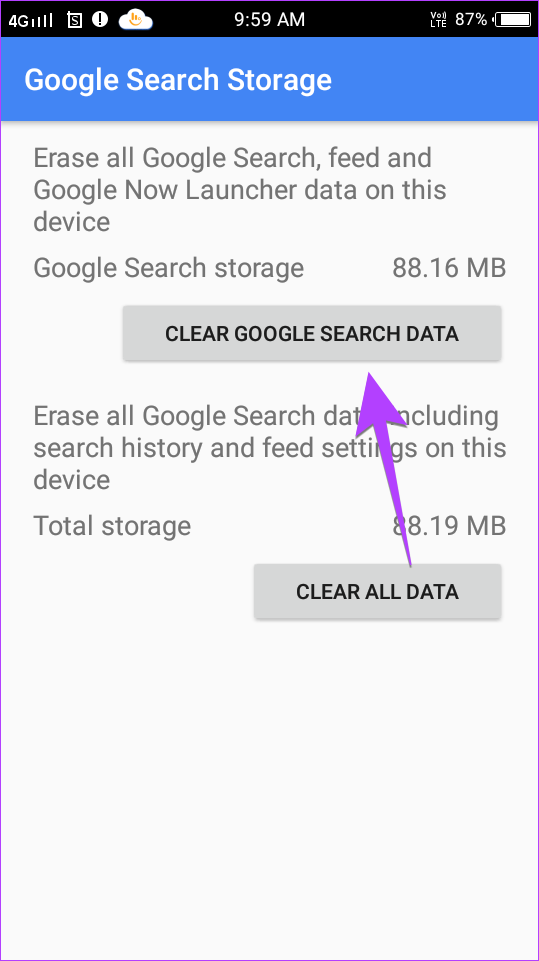
Step 3: Press the Clear launcher data button.
What Happens by Resetting the Home Screen Layout on Android Phones
When you reset the home screen by clearing the data of the launcher, it will delete any customizations that you have made on the home screen. That includes any new app icons or widgets that you had added, home screen pages, folders, etc. It will restore the original layout as present in new phones. So, you will only see the basic app icons on the home screen.
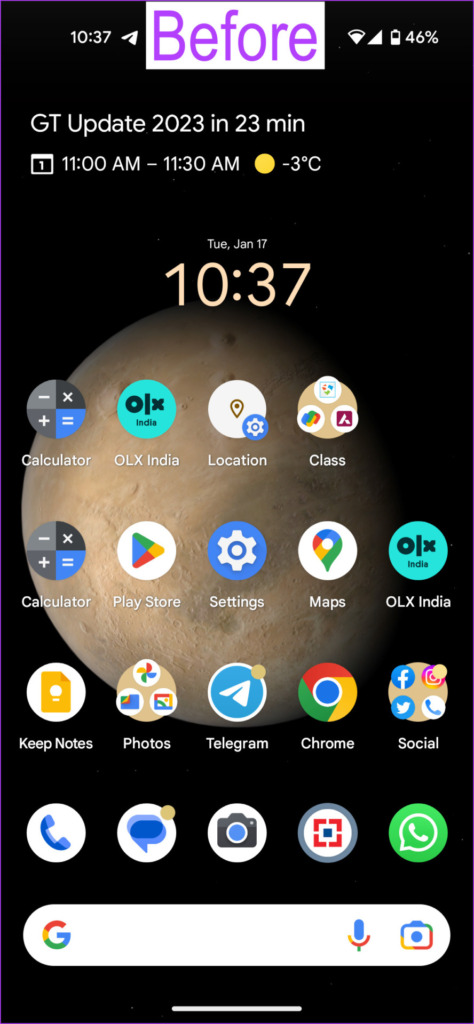
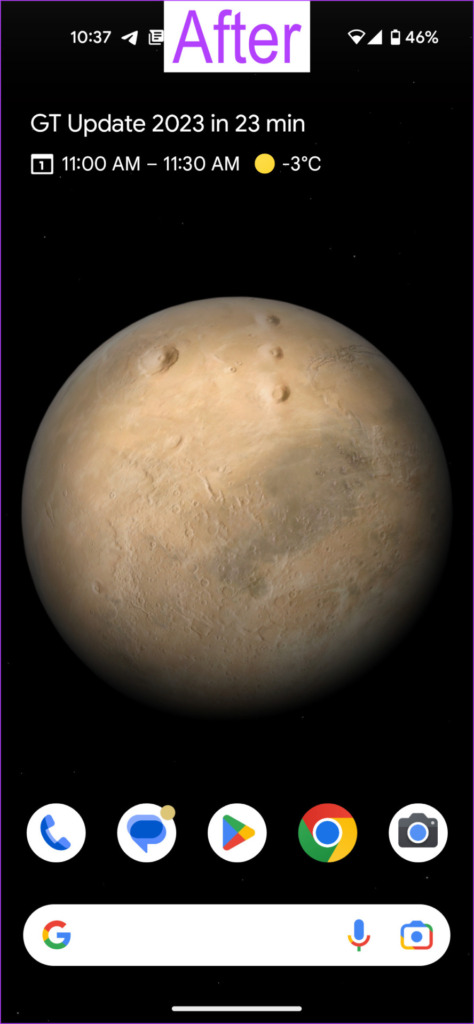
Please note resetting the home screen will not restore the home screen to the previous or the custom layout that you had created. It will restore it to the factory condition i.e., to the way it looked when you purchased the phone. Also, it doesn’t remove the wallpaper.
Tip: Learn how to add a Google search bar to the home screen .
FAQs About Resetting the Layout
1. Will the apps be deleted when you reset the home screen layout? No. The apps will only be deleted from the home screen. They will not be removed from your phone. You can still access the apps from the App Drawer .
2. Will resetting the home screen layout delete pictures and data on your phone? No. Resetting the home screen layout doesn’t have any impact on the pictures and data stored on your phone.
3. How to change the default launcher on Android? Go to Settings > Apps > Default apps > Home app. Select the custom launcher you want to set as default.
4. Can you reset the home screen layout on iPhone? Yes, you can reset the home screen on your iPhone and thankfully, iPhone has a native feature for that.
Customize Home Screen
After you have reset the home screen on your Android phone, you will have to customize it again. Learn how to make custom Android widgets . If you have further queries, feel free to drop them in the comments below.
Was this helpful?
Submit Cancel
Thanks for your feedback!
Keep reading