Android
How to Run Android Apps on Windows 11
Microsoft no longer offers the Windows Subsystem for Android. However, you can still run Android apps on Windows 11. This guide will teach you how.
By Lloyd Ingram
Quick Tips
There’s no official way to run all Android apps on Windows 11.
You can run Android games on Windows 11 officially.
The Phone Link app lets you use some Android apps on Windows devices.
Third-party Android emulators can run all Android apps on Windows 11.
When Windows 11 launched in 2021, Microsoft introduced the Windows Subsystem for Android. It allowed Windows users to run Android apps directly on their devices. However, the support for this feature will sadly end on March 5, 2025. But even after March 2025, you can still run Android apps on Windows 11. This guide will show you the best remaining options to do so.
How to Run Android Apps on Windows 11: The Official Methods
The Windows Subsystem for Android isn’t the only official feature that bridges the gap between Windows and Android. Here are two ways you can run Android apps on Windows 11 “officially.”
Google Play Games Beta
Mobile gaming is immensely popular. However, the little screen can seriously affect your experience. So, when a user wants to run Android app on Windows 11, it’s usually a game. They’re only looking for a bigger screen and smoother gameplay. This can be achieved by installing Google Play Games Beta on your Windows 11 device.
But first, you’ll have to set up virtualization on your Windows PC. This will allow your system to run the Android apps smoothly. Here’s how to enable virtualization in your BIOS/UEFI settings.
Step 1: Restart your computer.
Step 2: Enter the BIOS/UEFI menu. You can do this by pressing “F2,” “F12,” “Delete,” or “Esc” during boot-up. The exact key depends on your computer’s manufacturer.
Step 3: Look for a setting named Intel VT-X or AMD-V. Which setting you’ll see depends on the type of your processor.
Step 4: Enable this option.
Step 5: Save the changes before exiting the BIOD/UEFI menu.
Next, you’ll have to enable virtualization in Windows 11. Here’s how.
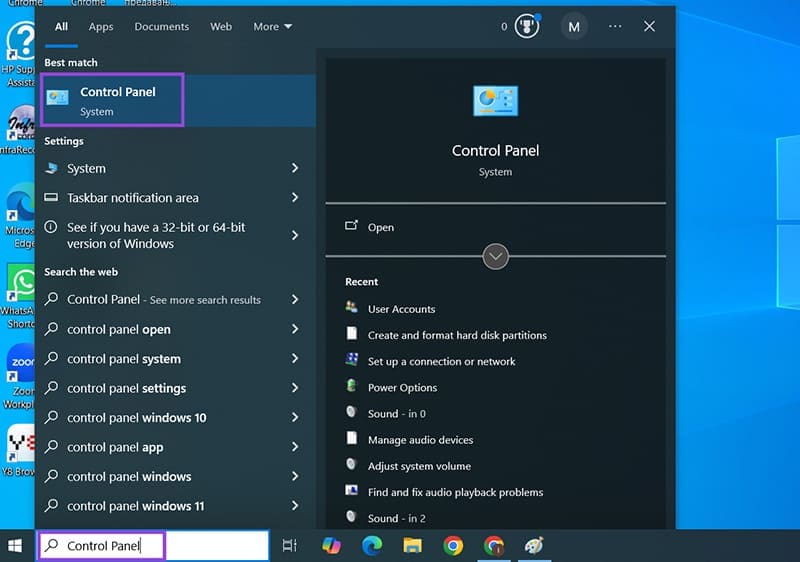
Step 1: Search for “Control Panel” in the “Start” menu.
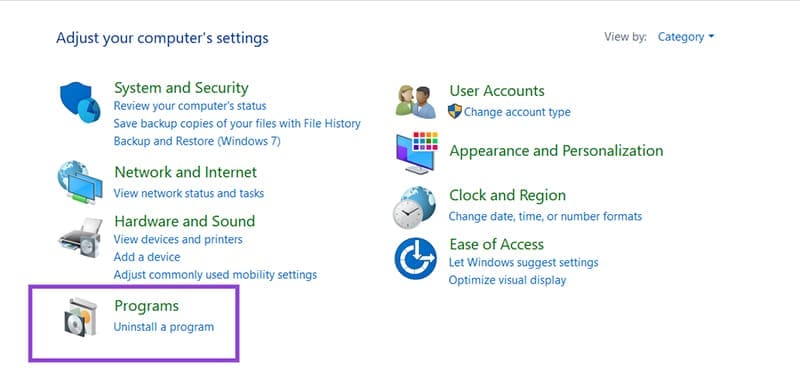
Step 2: Go to the “Programs” section.
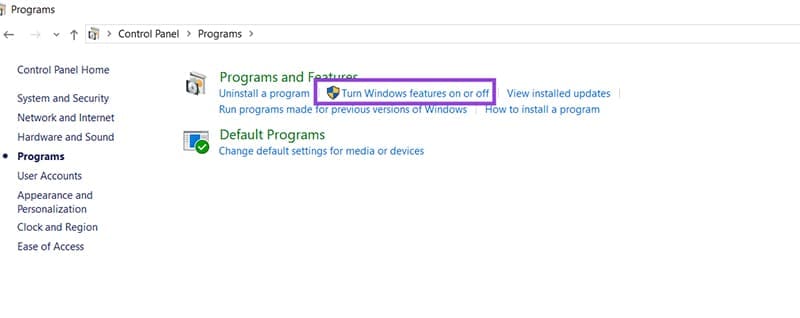
Step 3: Click on “Turn Windows features on or off.”
Step 4: Check the boxes next to “Virtual Machine Platform” and “Windows Hypervisor Platform.”
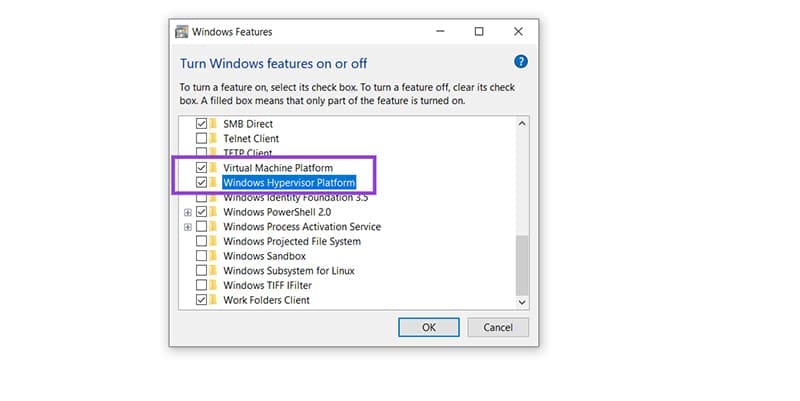
Step 5: Click on “OK.”
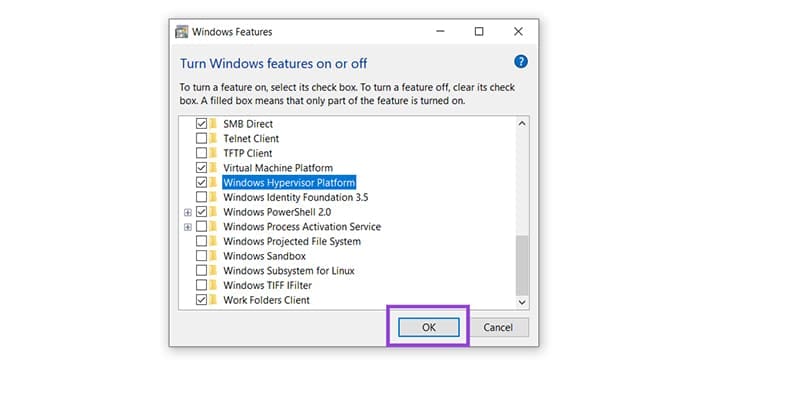
Step 6: Restart your device.
Now, you can install Google Play Games Beta.
Step 1: Make sure your PC meets the necessary requirements for this feature.
Step 2: Go to the Google Play Game Beta website .
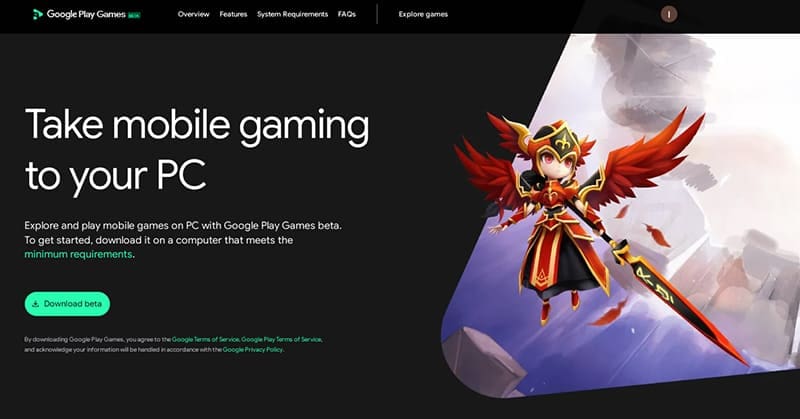
Step 3: Click on the “Download beta” button.
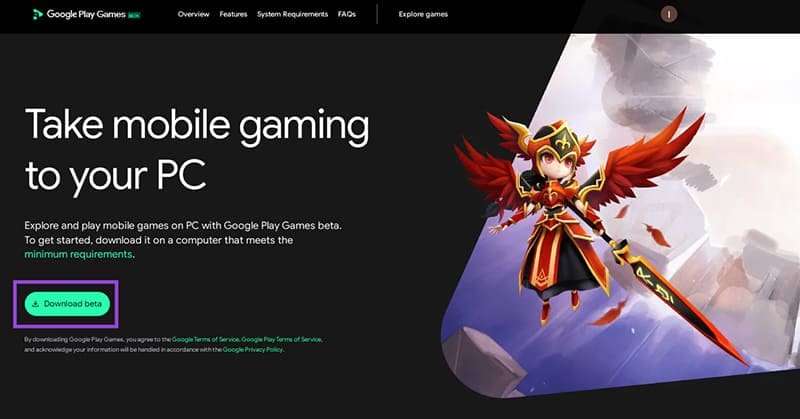
Step 3: Open the downloaded file.
Step 4: Follow the on-screen instructions to complete the installation.
All that’s left to do is sign in to your account. Make sure you’re using the same account on your Android and Windows devices. From there, you’ll be able to install and run Android games on your Windows 11 system.
The Phone Link App
The Phone Link app can connect your Android smartphone directly to your Windows 11 device. Then, you can use this device to run Android apps, as well as view photos, change device settings, and more. This app will work with select Microsoft Duo, HONOR, and Samsung phones. Here’s what to do.
Step 1: Download and install the Phone Link app to your Windows device.
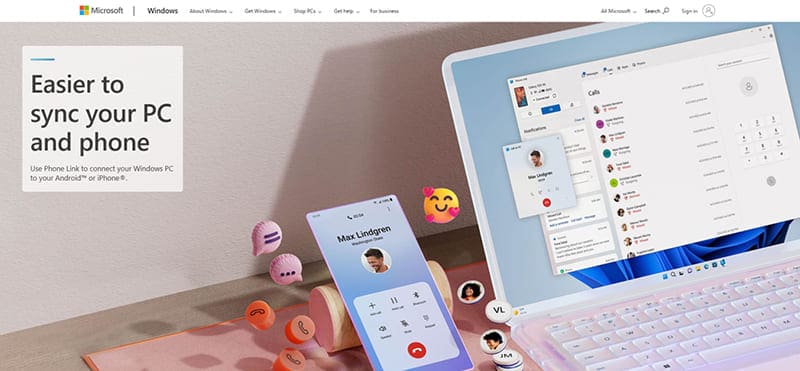
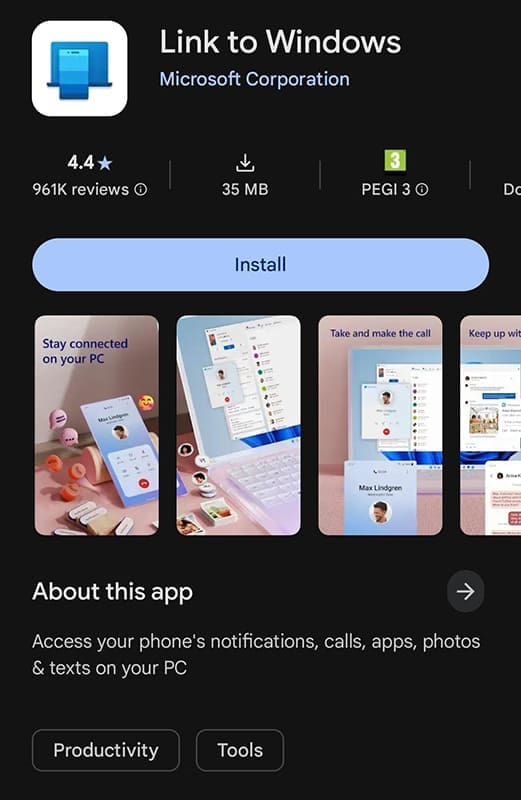
Step 2: Download and install the Link to Windows app on your Android phone.
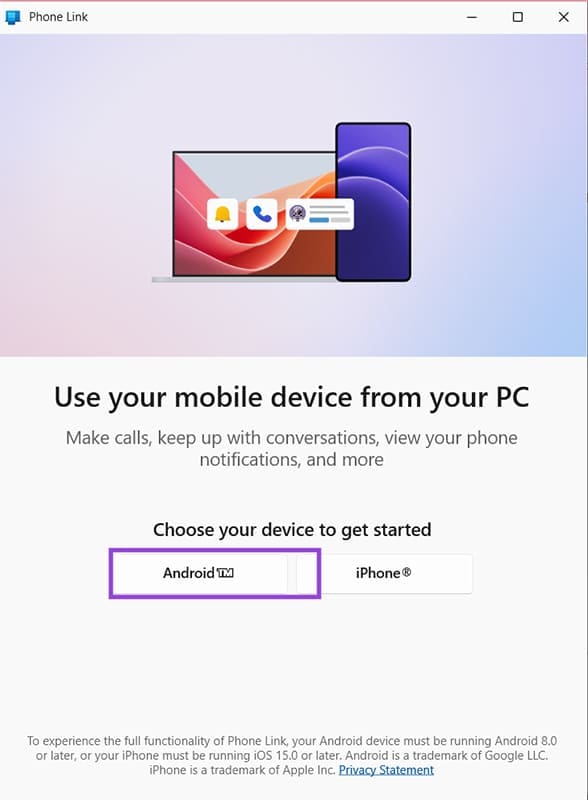
Step 3: Launch the Phone Link app and select “Android.”
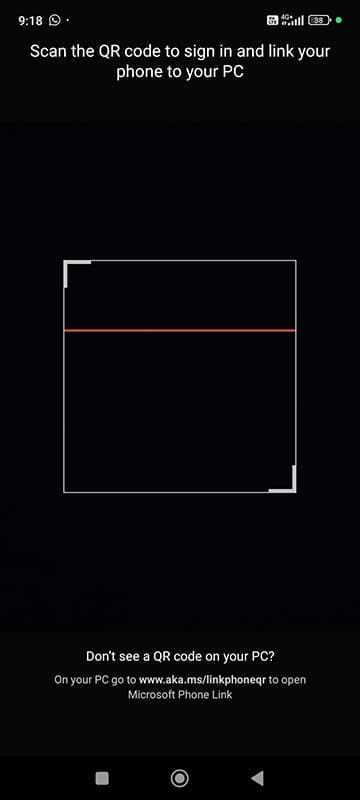
Step 4: Open the Link to Windows app and scan the QR code.
How to Run Android Apps on Windows 11: The Unofficial Way
By sunsetting the Windows Subsystem for Android, Microsoft took away the best way to run Android apps on Windows 11. This goes for all apps, not just games. That’s why you might need to go the unofficial route – install an Android emulator. You’ll still need to set up virtualization for these emulators to work. After completing those steps, you can download and install an Android emulator of your choosing. Our suggestion is BlueStacks.
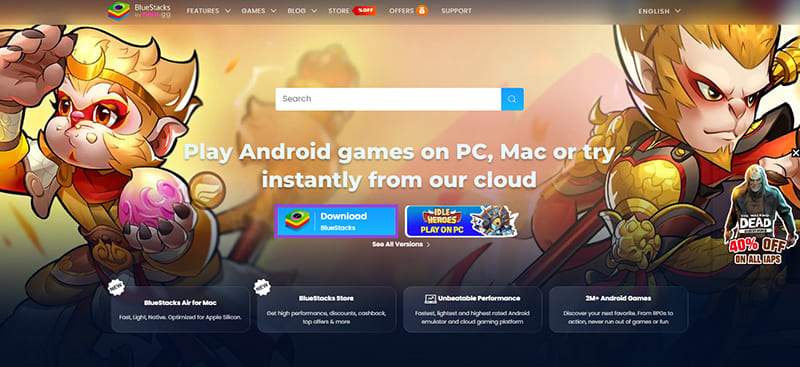
This emulator is widely considered the best in its category. This mainly has to do with its wide range of features, excellent compatibility with Android apps, and user-friendly interface.
Was this helpful?
Submit Cancel
Thanks for your feedback!
Keep reading