Android
How to Send Group Texts from Android and iPhone
Here's how to send group text messages to your family, friends, or offlice colleagues using your Android and iPhone.
By Pankil Shah
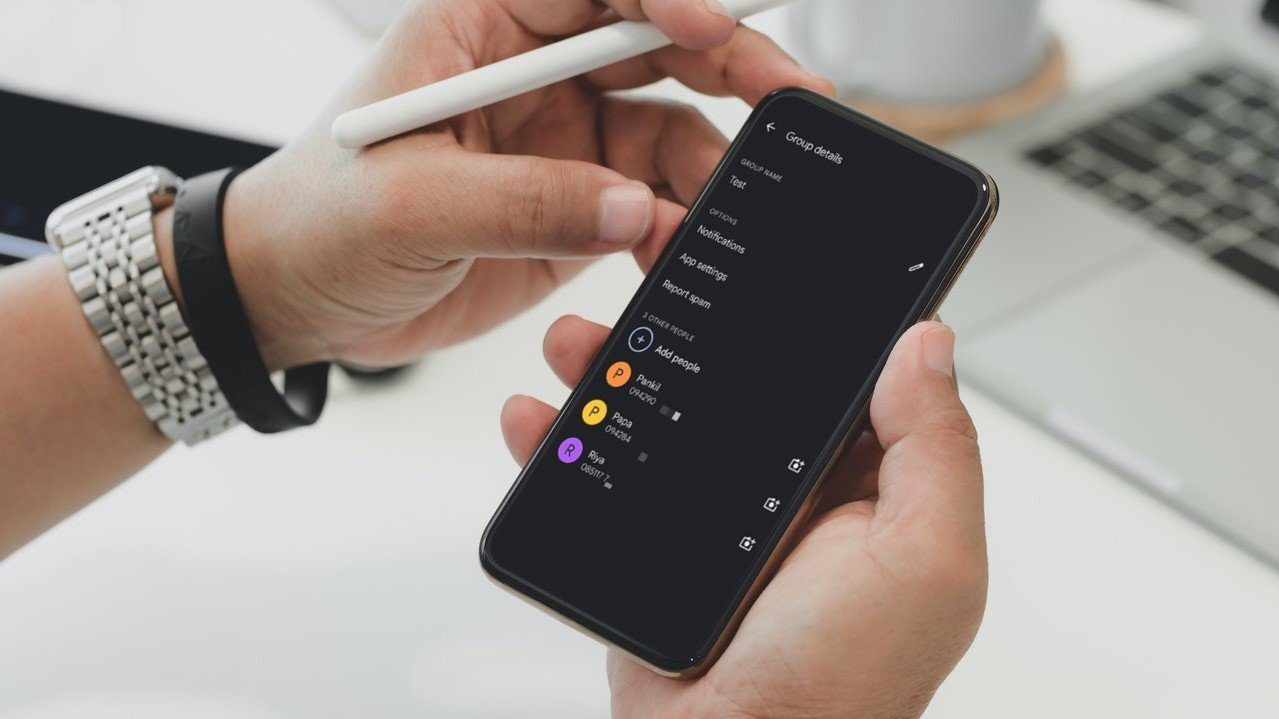
Quick Tips
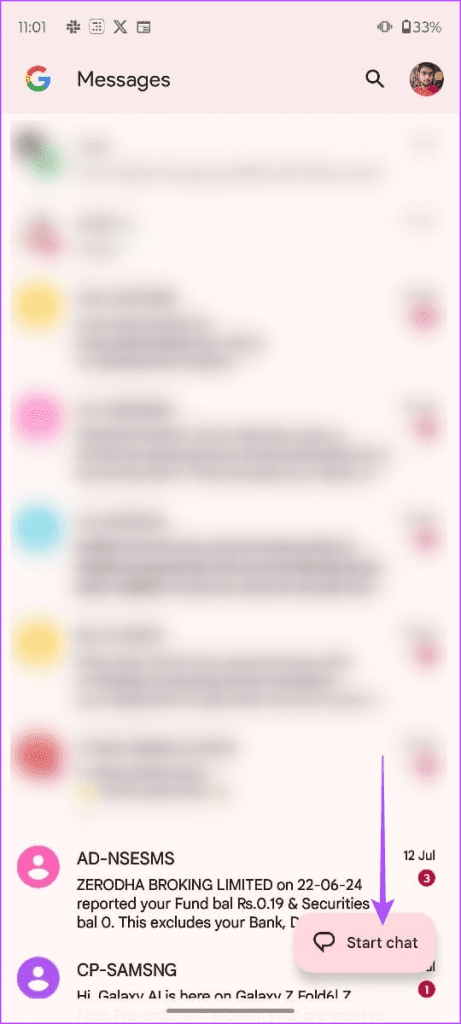
Open Google Messages and tap on Start chat > Create group. Name your group and add contacts to it.
For iPhone users, open Messages and tap Compose. Enter the contacts, type your message, and hit send.
If you’re using a Samsung device, launch Samsung Messages and tap Compose. Add your contacts and send a message.
How to Send Group Texts on iPhone
Sending group texts on an iPhone is easy and convenient with Apple’s Messages app . Here’s how.
Step 1: Open Messages and tap Compose (square with pencil icon).
Step 2: Enter the names or numbers of your contacts, or tap the plus sign (+) to add them.
Step 3: Type in your message and tap the green arrow to send.
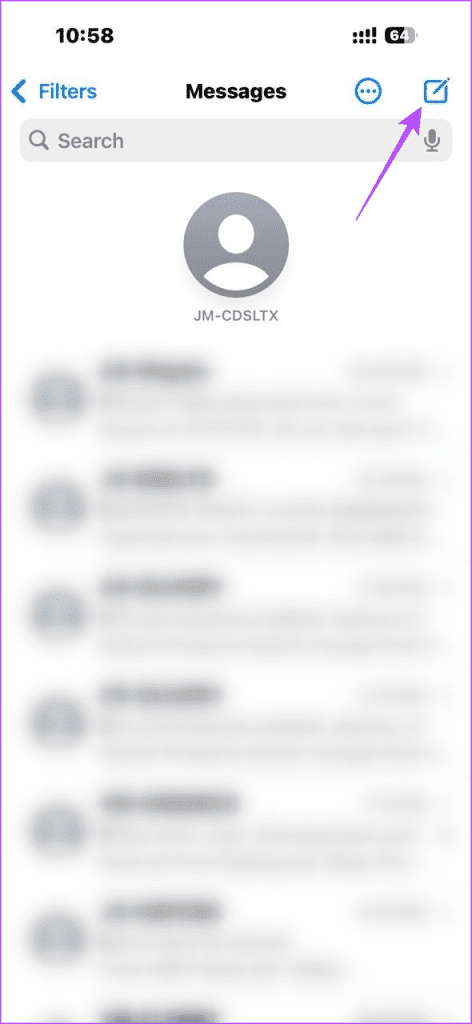
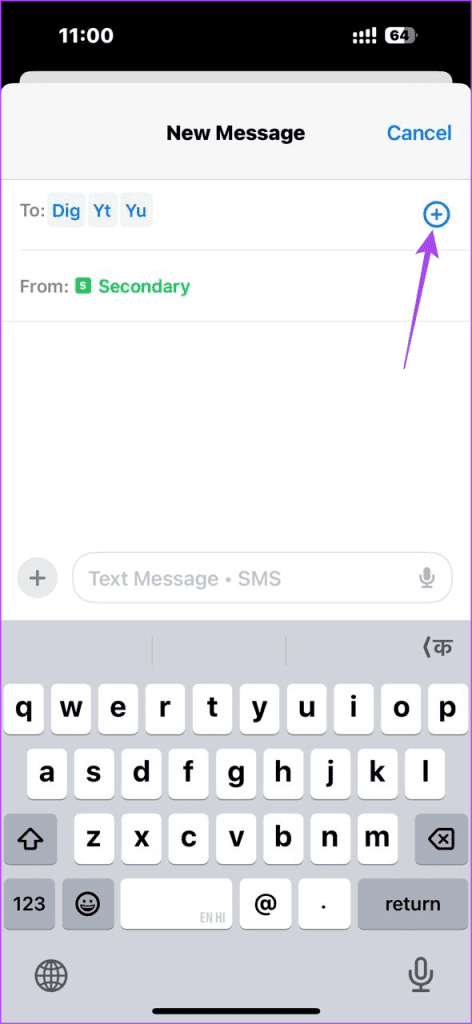
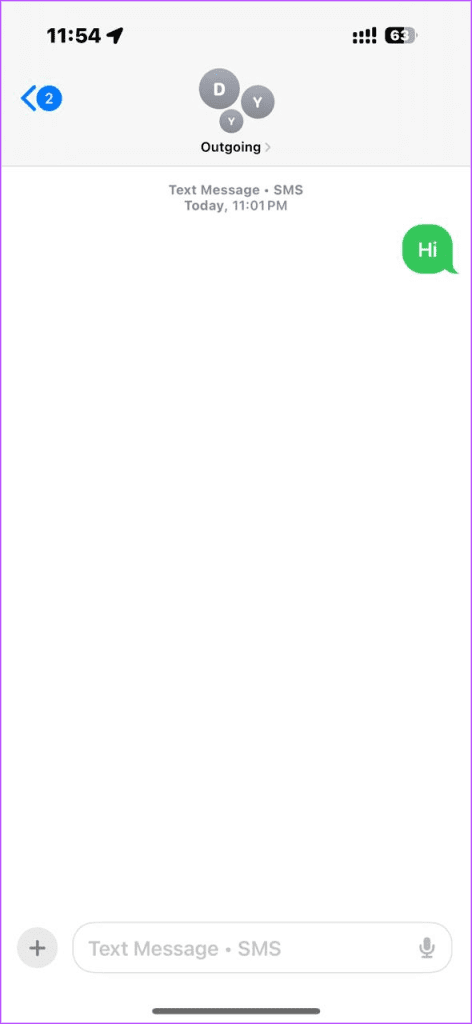
Your group text will be sent to all selected contacts.
How to Send Group Texts on Android
Most Android phones use Google Messages as the default app, and here’s how to send group texts using it.
Step 1: Open the Messages app and tap Start chat > Create group .
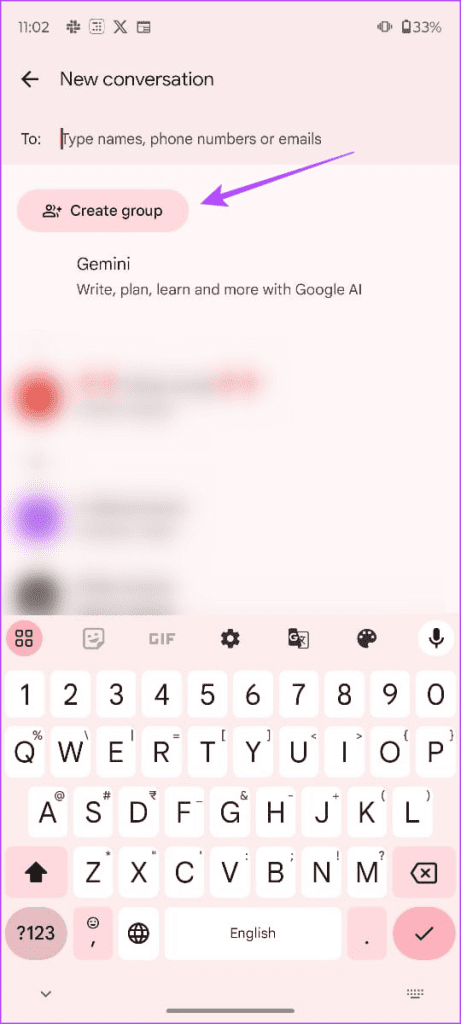
Step 2: Add your contacts to the group, then tap Next .
Step 3: Name your group and tap Done .
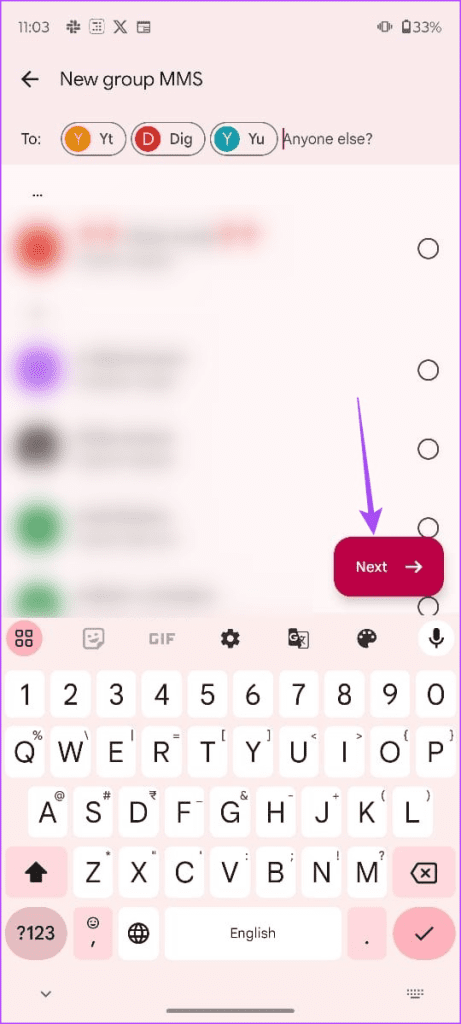
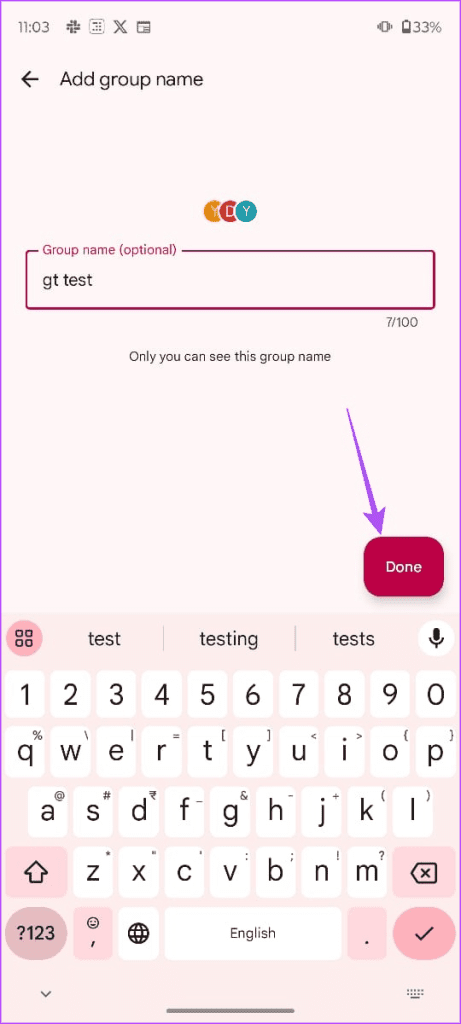
Your group chat is now created, and you can send group texts to all selected contacts.
How to Send Group Texts on Samsung
If you own a Samsung phone, Samsung Messages is the default messaging app. Sending group texts from your Samsung device is straightforward. Follow these steps.
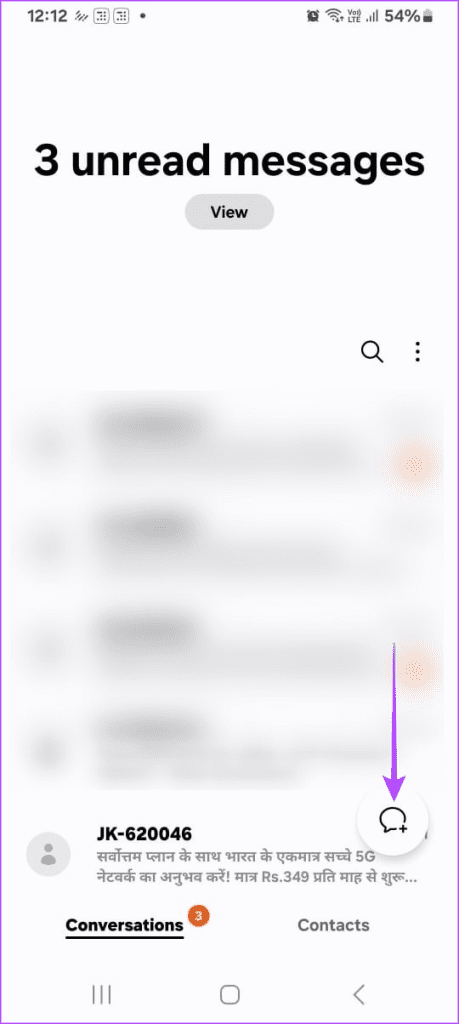
Step 1: Open the Samsung Messages app and tap the Compose button.
Step 2: Enter the names or numbers of your contacts, or tap the plus sign (+) to select them.
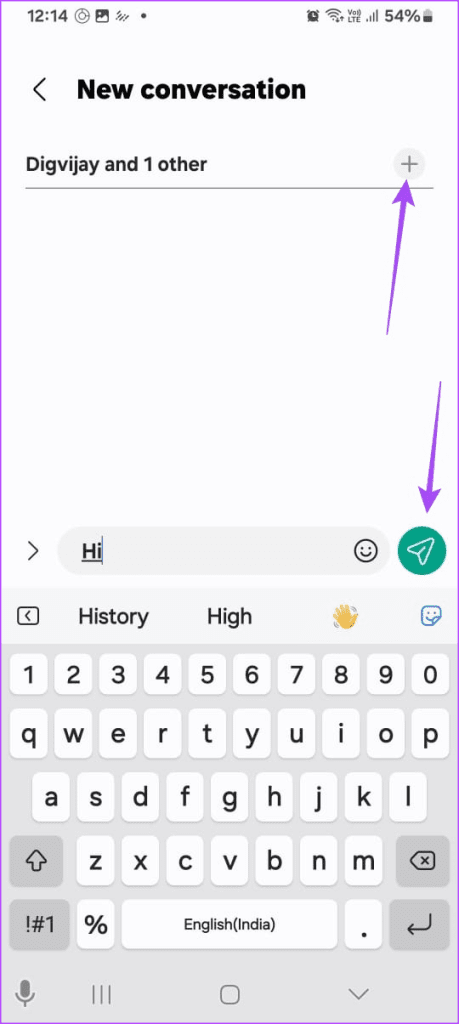

Step 3: Type your message and tap the send icon (typically a paper airplane).
All selected contacts will receive your group text.
Almost everyone uses instant messaging these days, but text messages are still popular because of their simplicity. These are the procedures to send group text messages from your Android, iPhone, or Samsung device.
Was this helpful?
Submit Cancel
Thanks for your feedback!
Keep reading