Android
How to Stop Google Translate From Popping Up in Apps
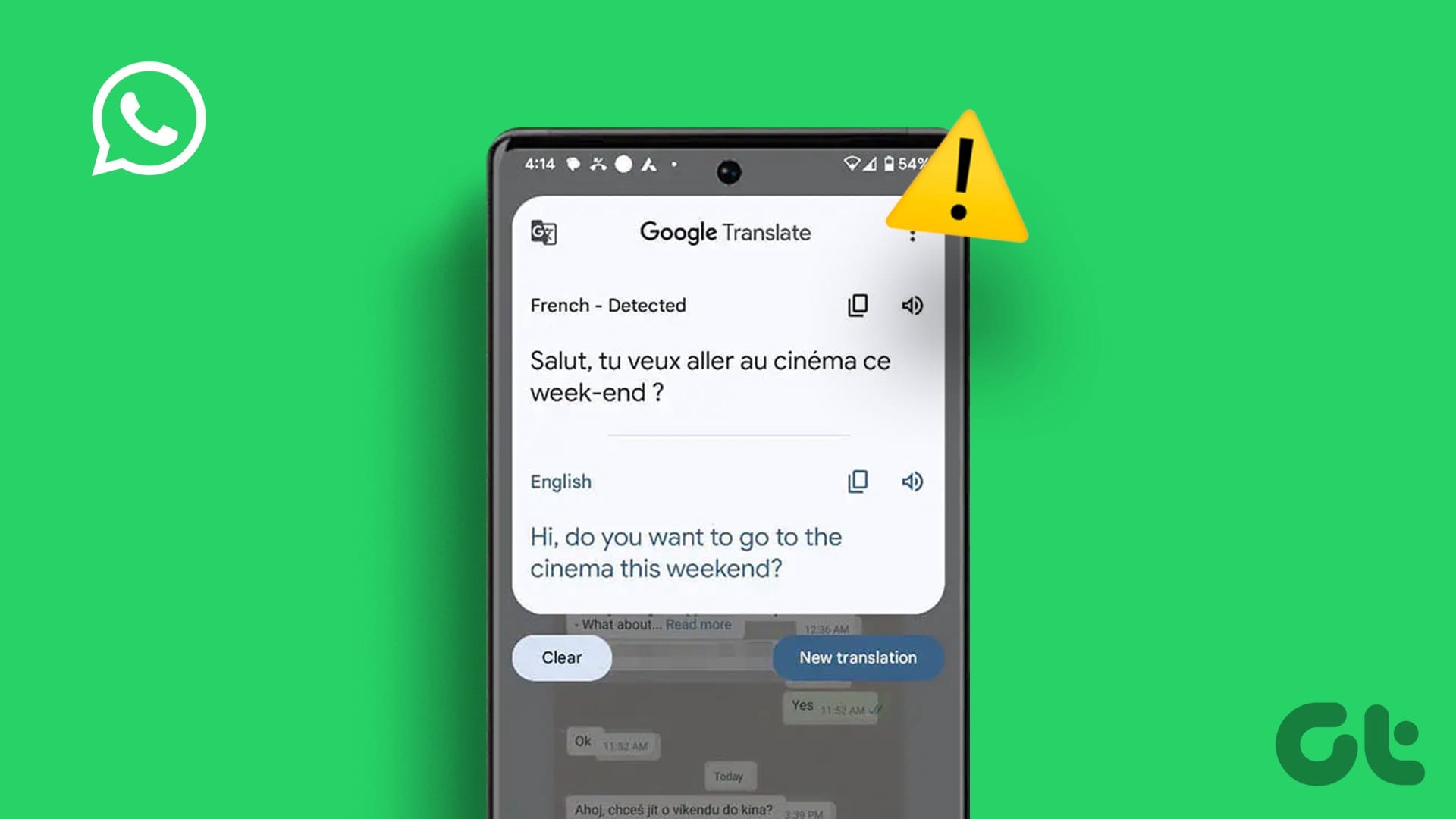
Does Google Translate keep popping up in apps like WhatsApp and Chrome? Here's how to stop Google Translate from appearing.
By Parth Shah
Quick Fixes
Disable Live Translation on Android from Settings > System > Live Translate .
Toggle off automatic Google translation in Chrome under Settings > Languages > Translation settings .
Stop Live Translation on Android
You can stop the Live Translation feature for a specific language or disable it entirely from popping up across different Android apps.
Remove Live Translation for Specific Language
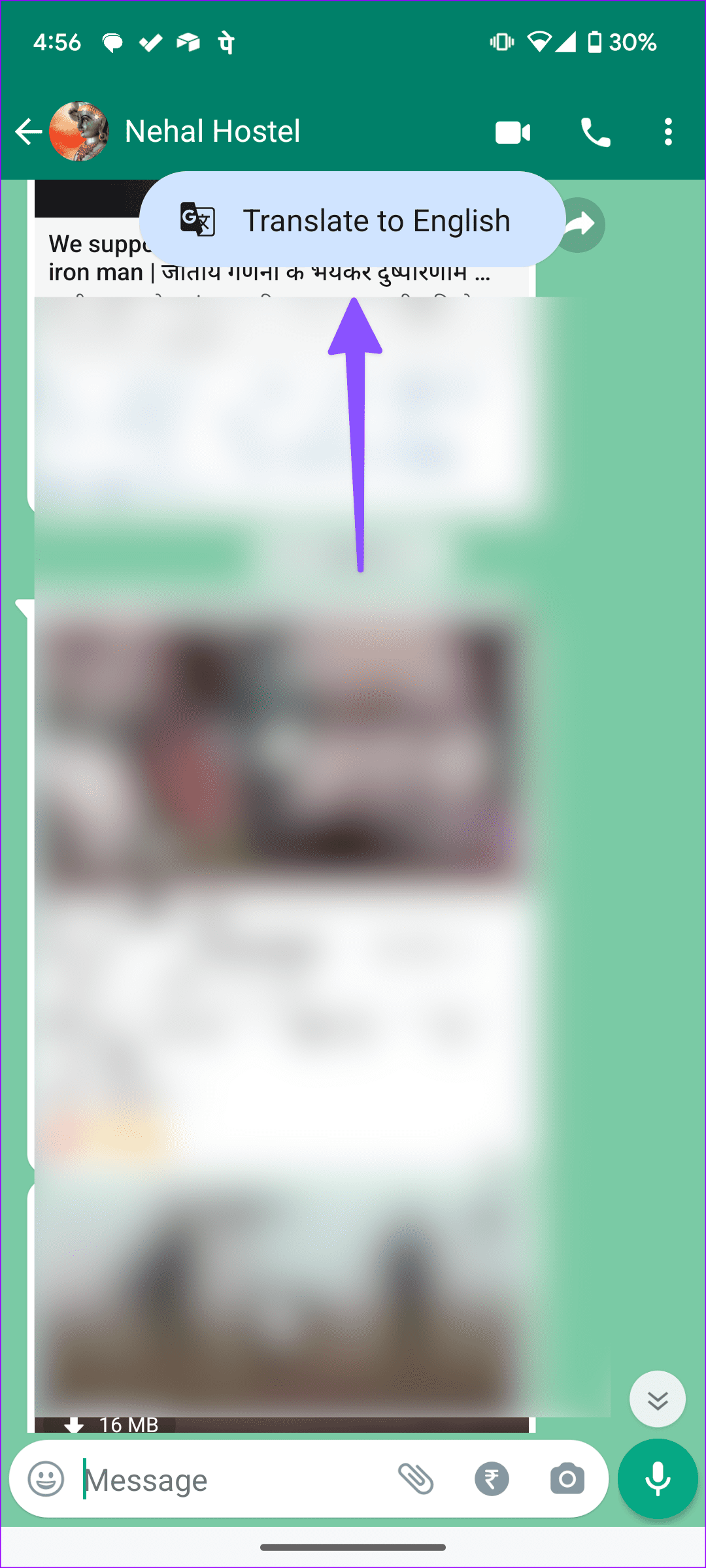
Follow these easy steps to stop Google Translate from triggering randomly inside apps. Let’s take WhatsApp as an example:
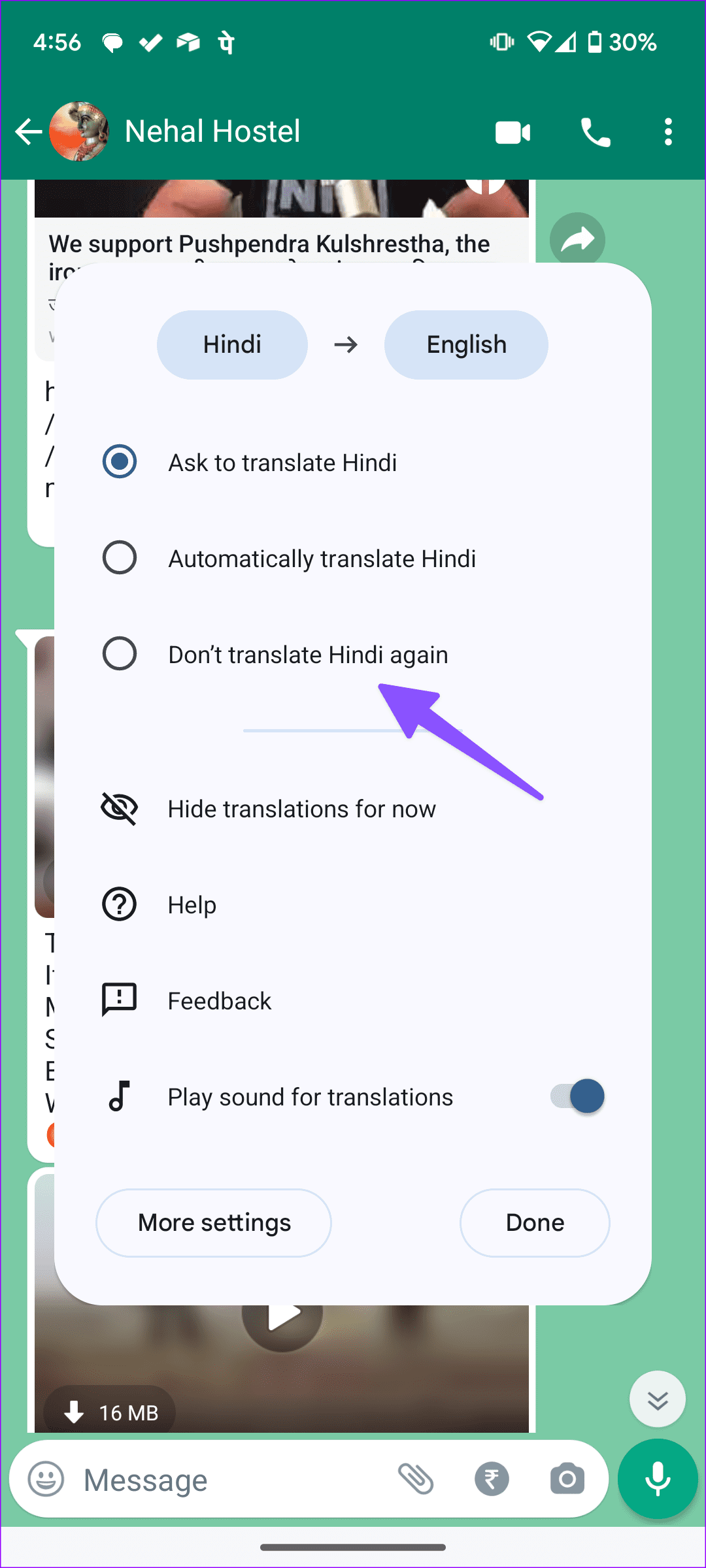
Step 1: Open the WhatsApp conversation containing unfamiliar text and tap the Translate to English pop-up.
Step 2: Enable the Don’t translate radio button to stop triggering it for a specific language.
Disable Live Translation Entirely
Alternatively, you can stop the Google Translate feature entirely by disabling the Live Translation on Android. Here’s how:
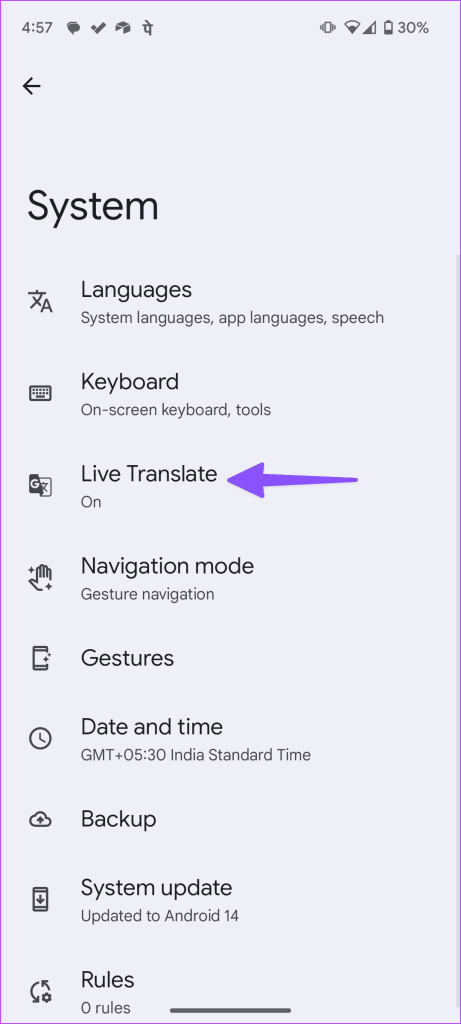
Step 1: Launch the Android Settings app and scroll down to press System .
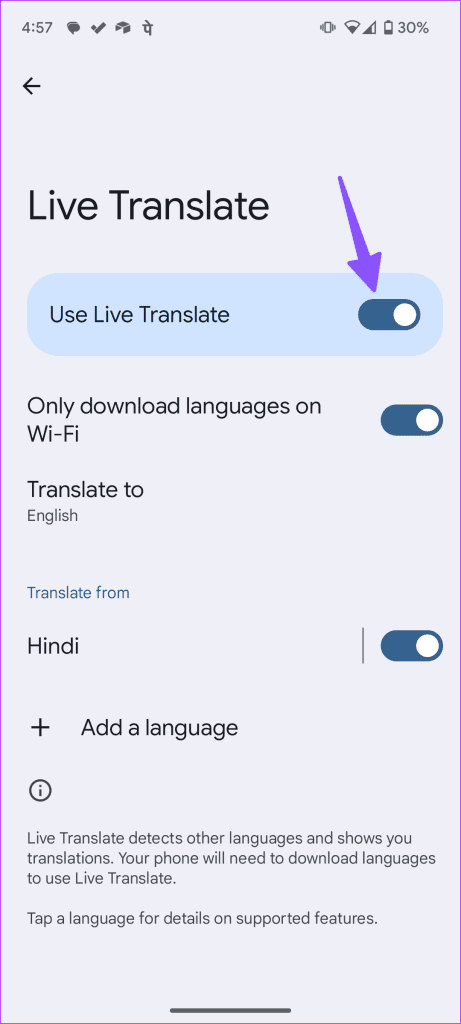
Step 2: Tap Live Translate and disable the Use Live Translate toggle.
Disable Google Translate in the Google Chrome Browser
Besides disabling live translation, Google Translate can continue to pop up in Google Chrome if you haven’t disabled its built-in translation feature . Alternatively, you can browse the web in incognito mode to avoid Google Translate from popping up randomly on your device’s screen. Follow these steps to stop Google Translate in Google Chrome across various platforms:
On Android
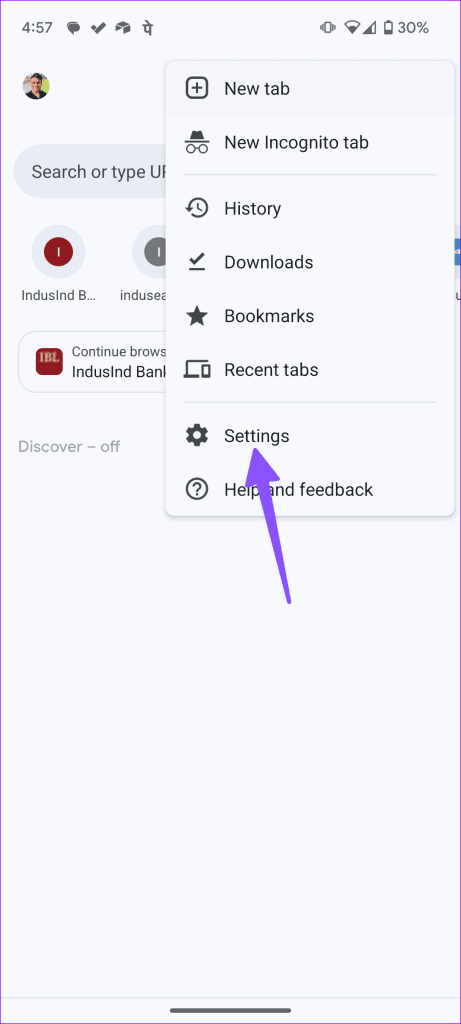
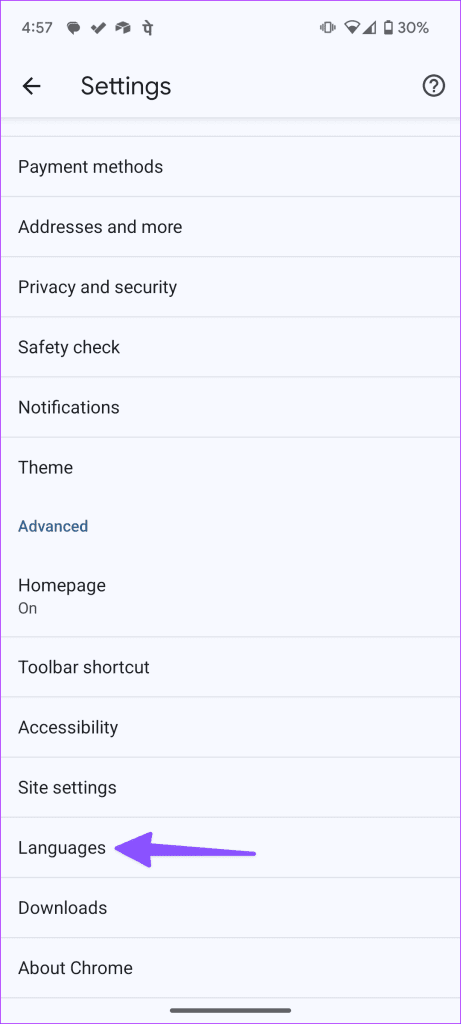
Step 1: Tap three vertical dots at the top right corner and select Settings .
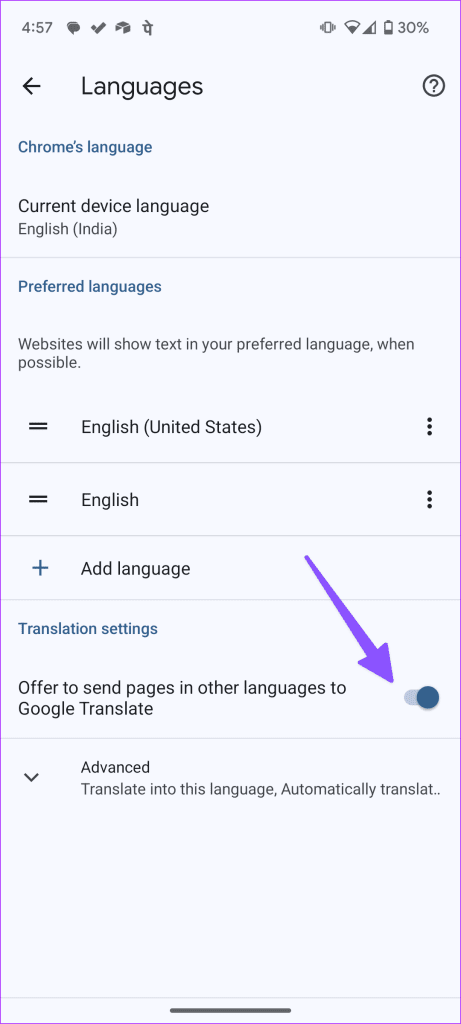
Step 2: Press Languages and disable the Offer to send pages in other languages to Google Translate toggle.
iPhone
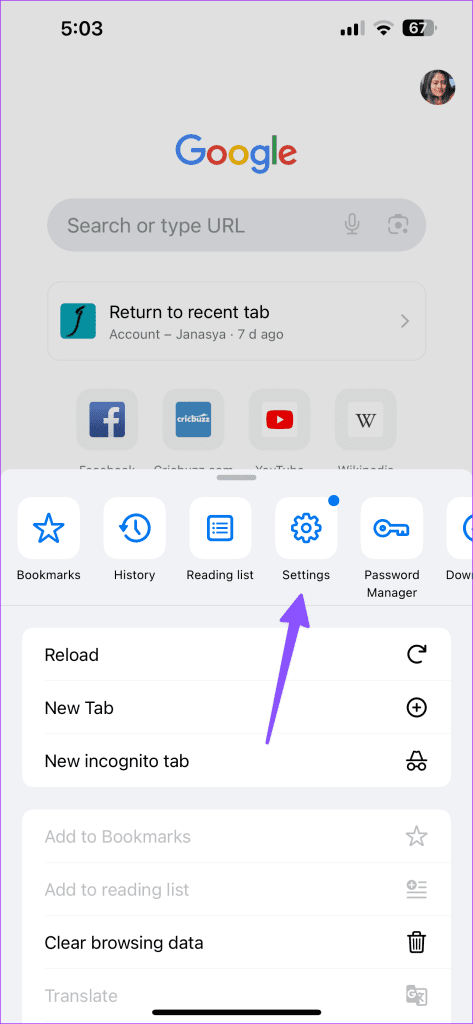
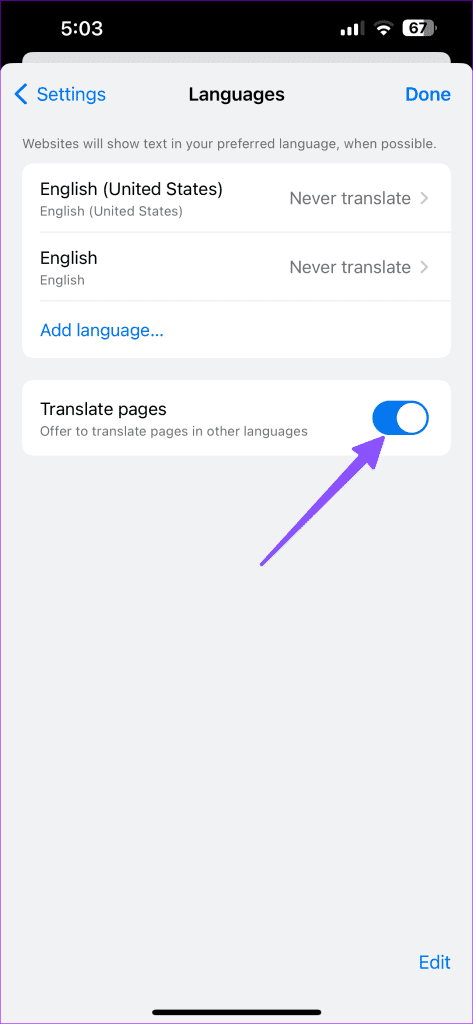
Step 1: Open Google Chrome, tap three horizontal dots at the bottom right, and select Settings .
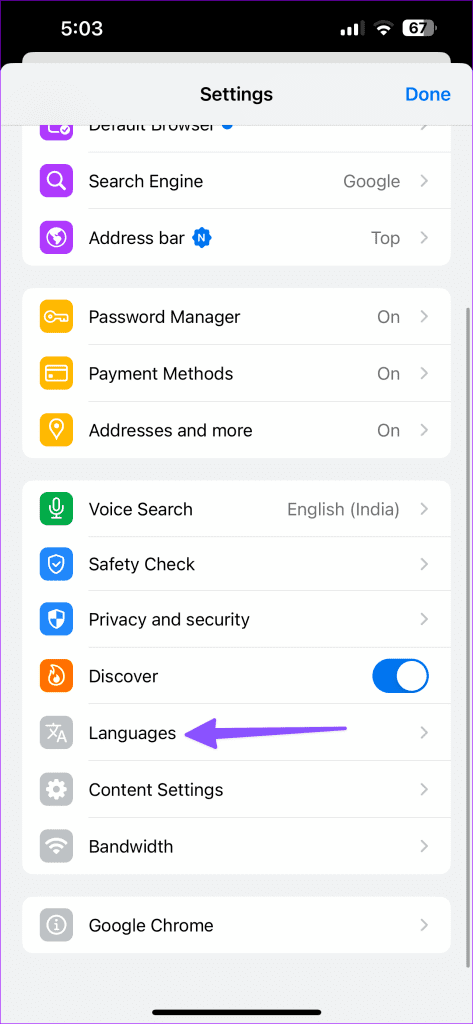
Step 2: Tap Languages at the bottom of the page and disable the toggle for Translate pages .
Desktop
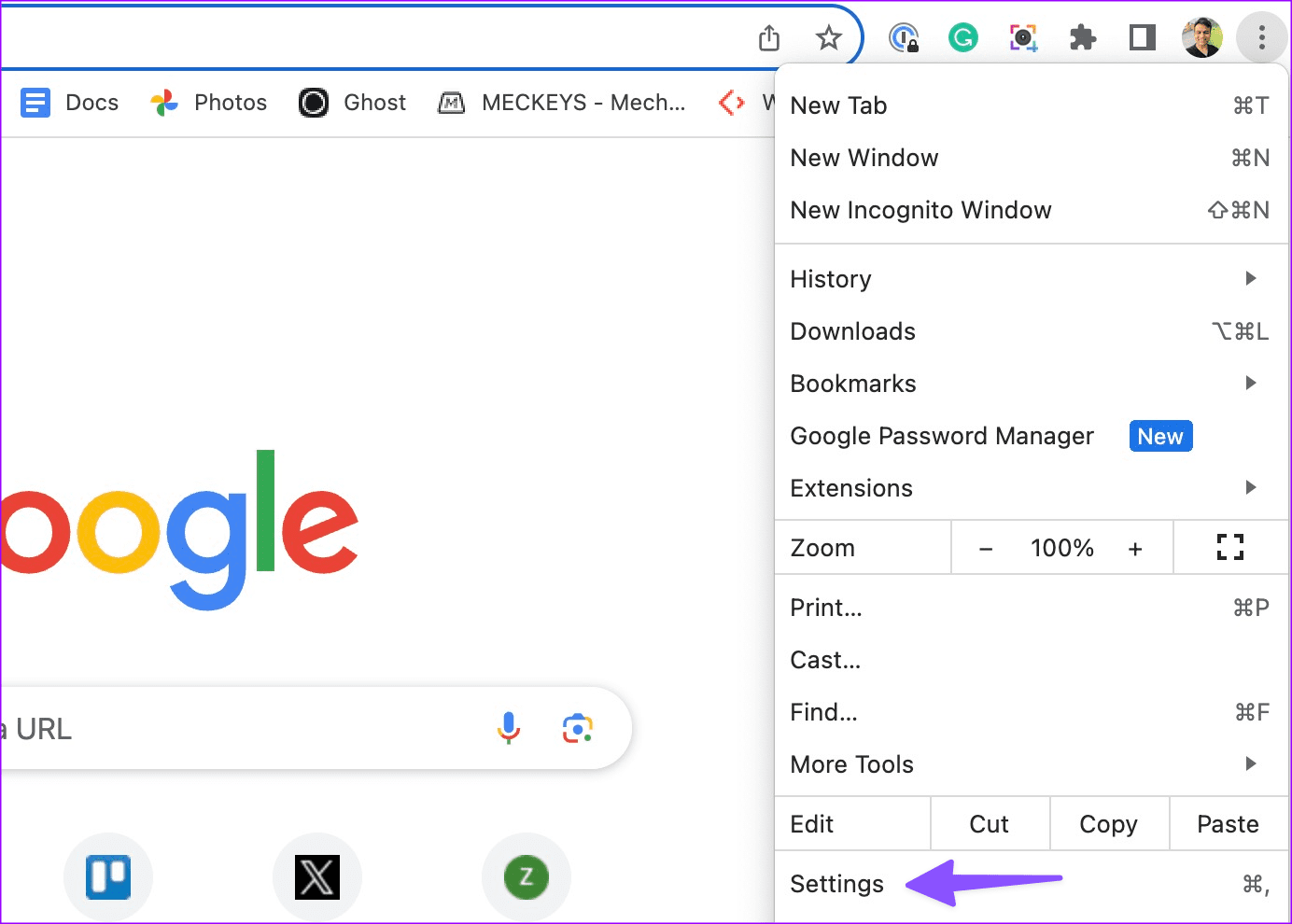
Step 1: Click three vertical dots at the top right and select Settings .
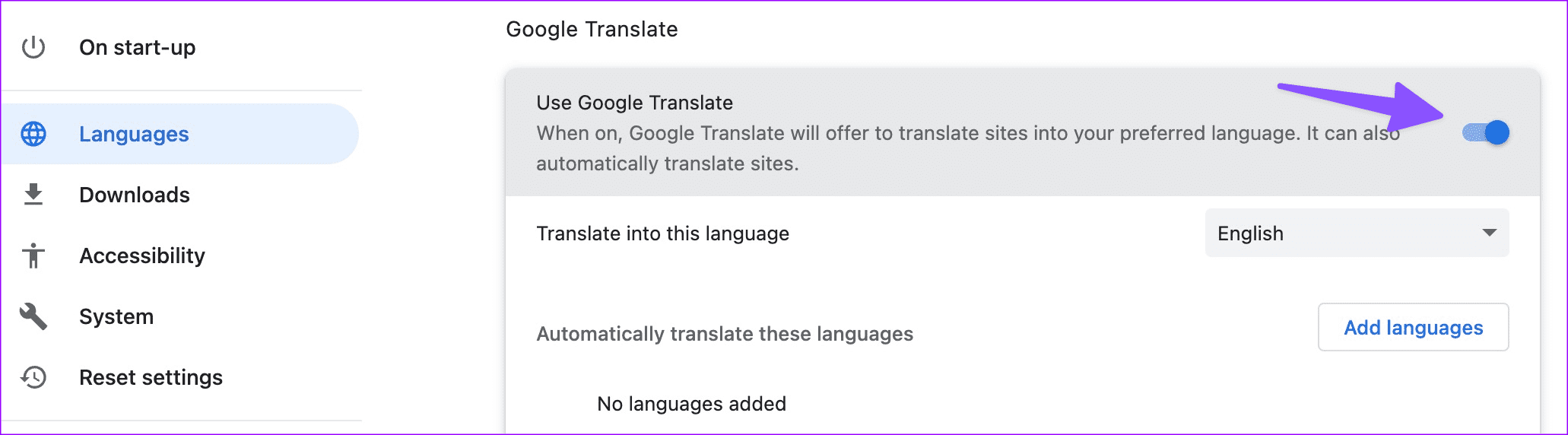
Step 2: Expand Languages in the left sidebar and disable the Use Google Translate toggle.
Was this helpful?
Submit Cancel
Thanks for your feedback!
Keep reading