Android
How to Stop Music From Automatically Playing in Apple CarPlay and Android Auto
Does your car start playing music when you enter? Here's how to stop music from automatically playing in your car on iPhone and Android.
By Sumukh Rao
Key Highlights
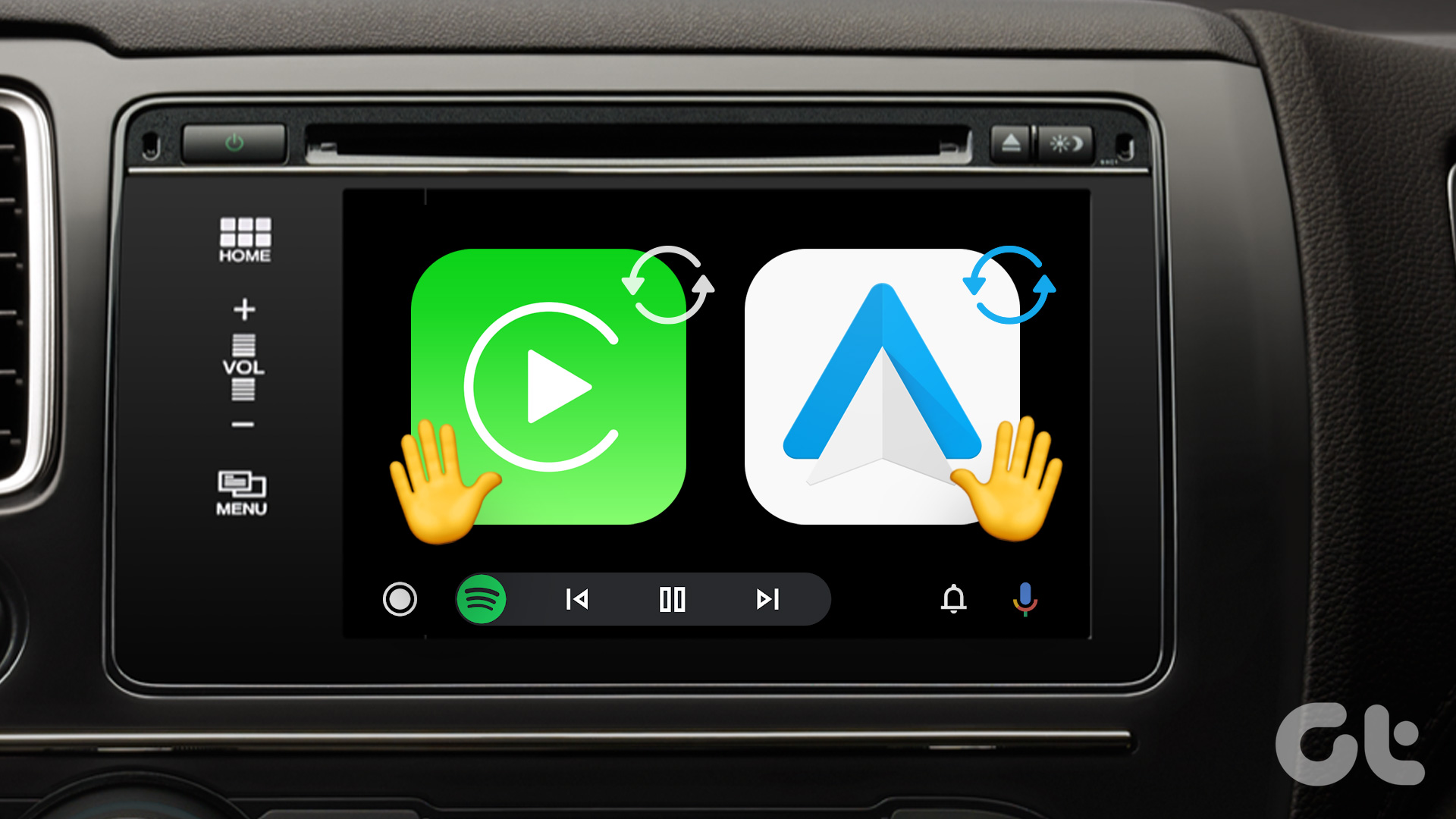
Both Android Auto and Apple CarPlay automatically start playing music as soon as they connect to your car.
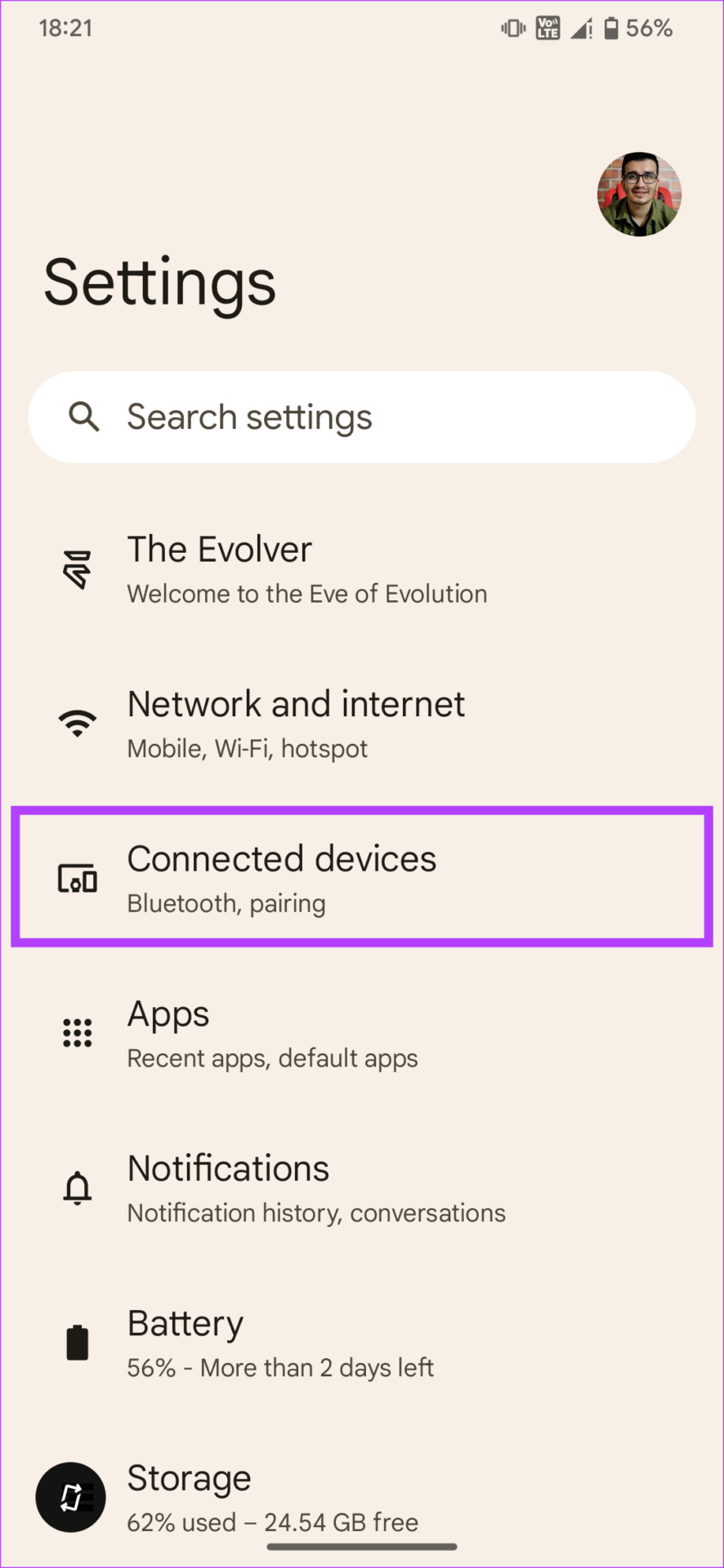
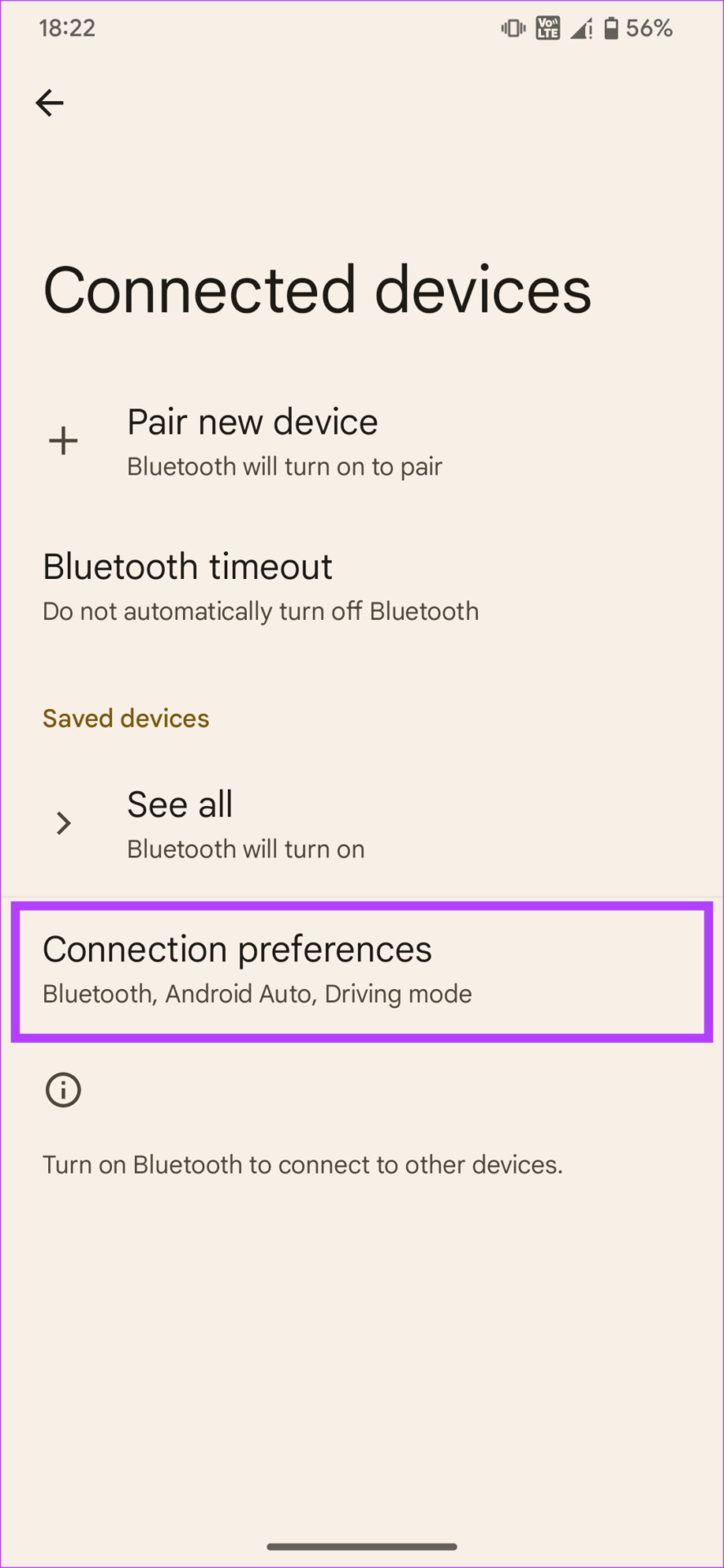
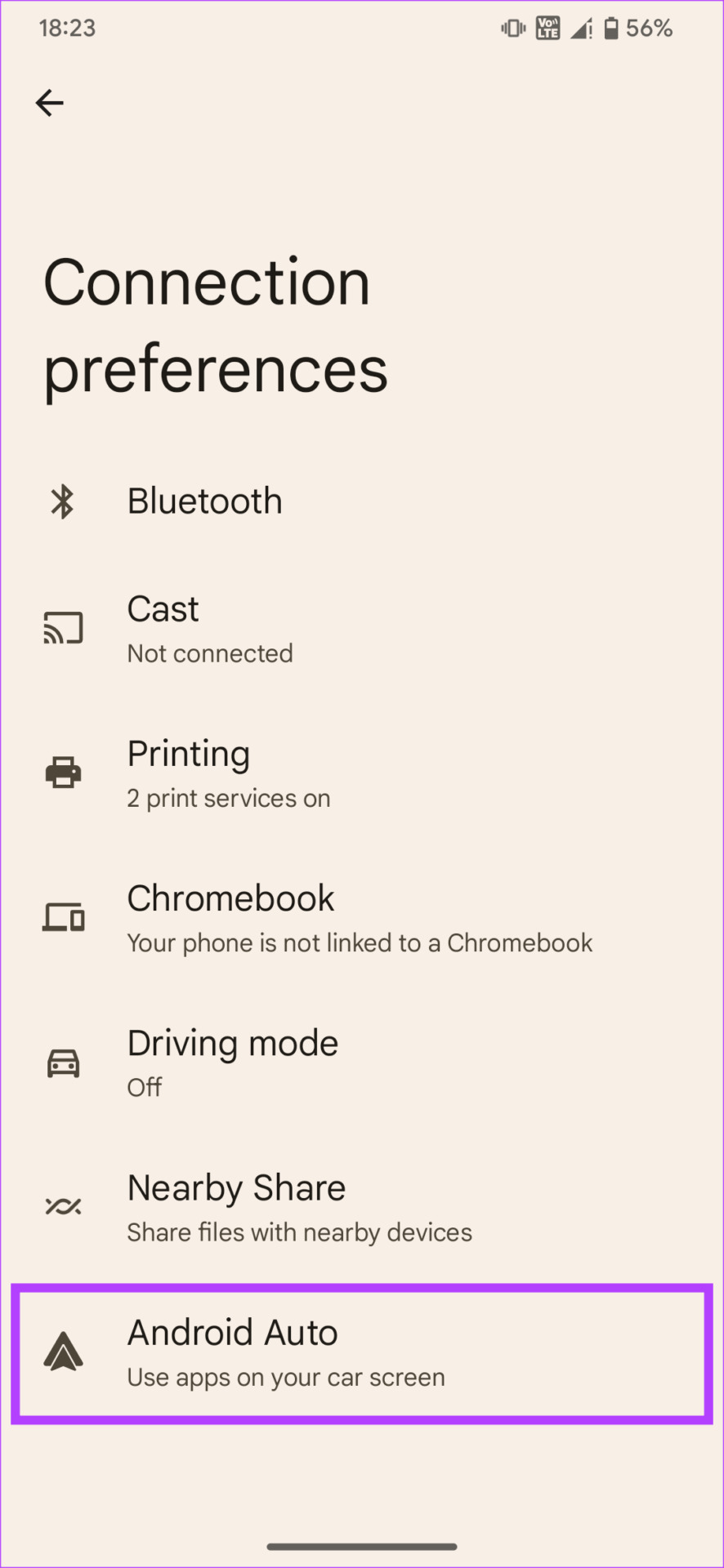
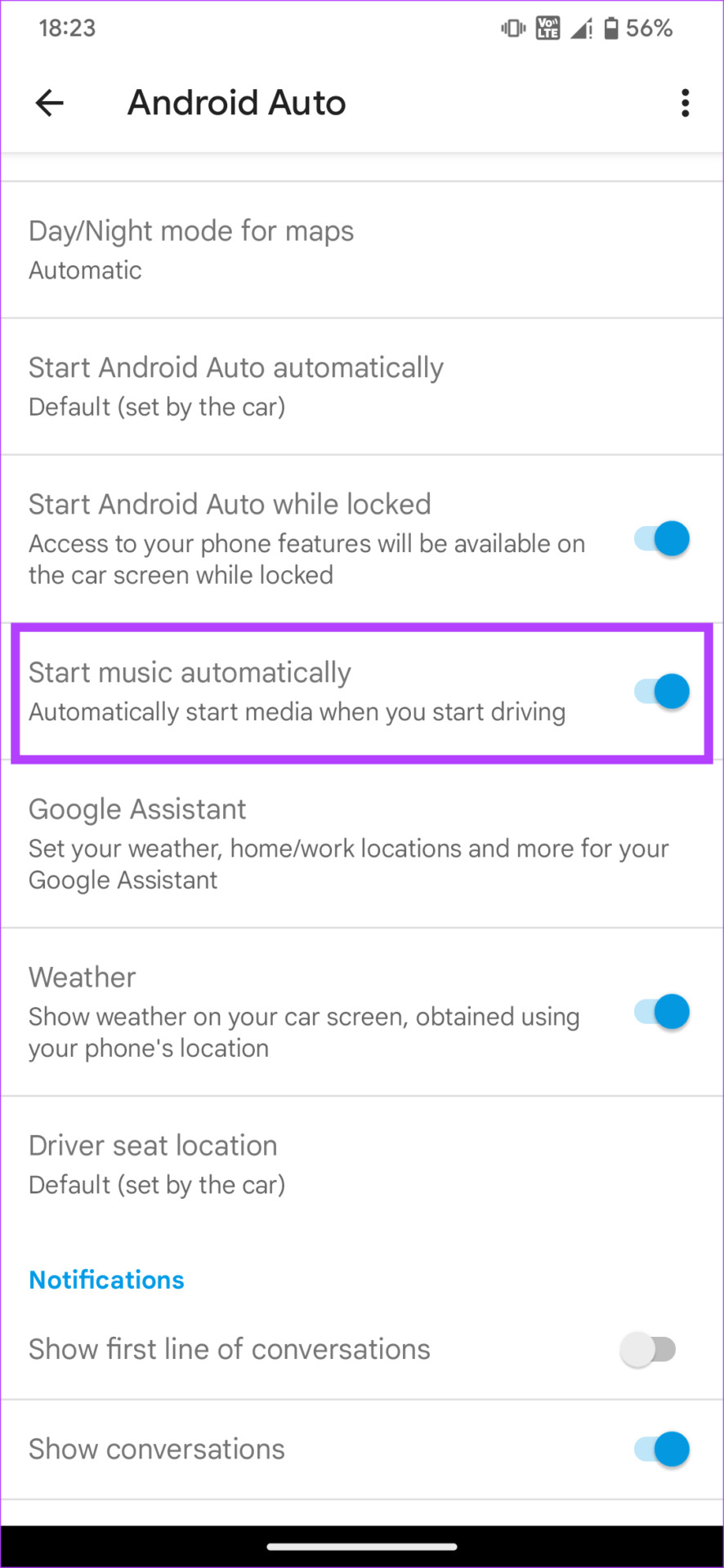
You can disable this feature on Android Auto by going to Settings > Connected Devices > Connection Preferences > Android Auto and disabling the toggle next to Start music automatically.
For Apple CarPlay, the process involves using automations via the Shortcuts app.
How to Stop Apple CarPlay From Automatically Playing Music
Unfortunately, there’s no toggle or option by default to stop Apple Music auto-play on iPhone. Instead, you will have to use a workaround.
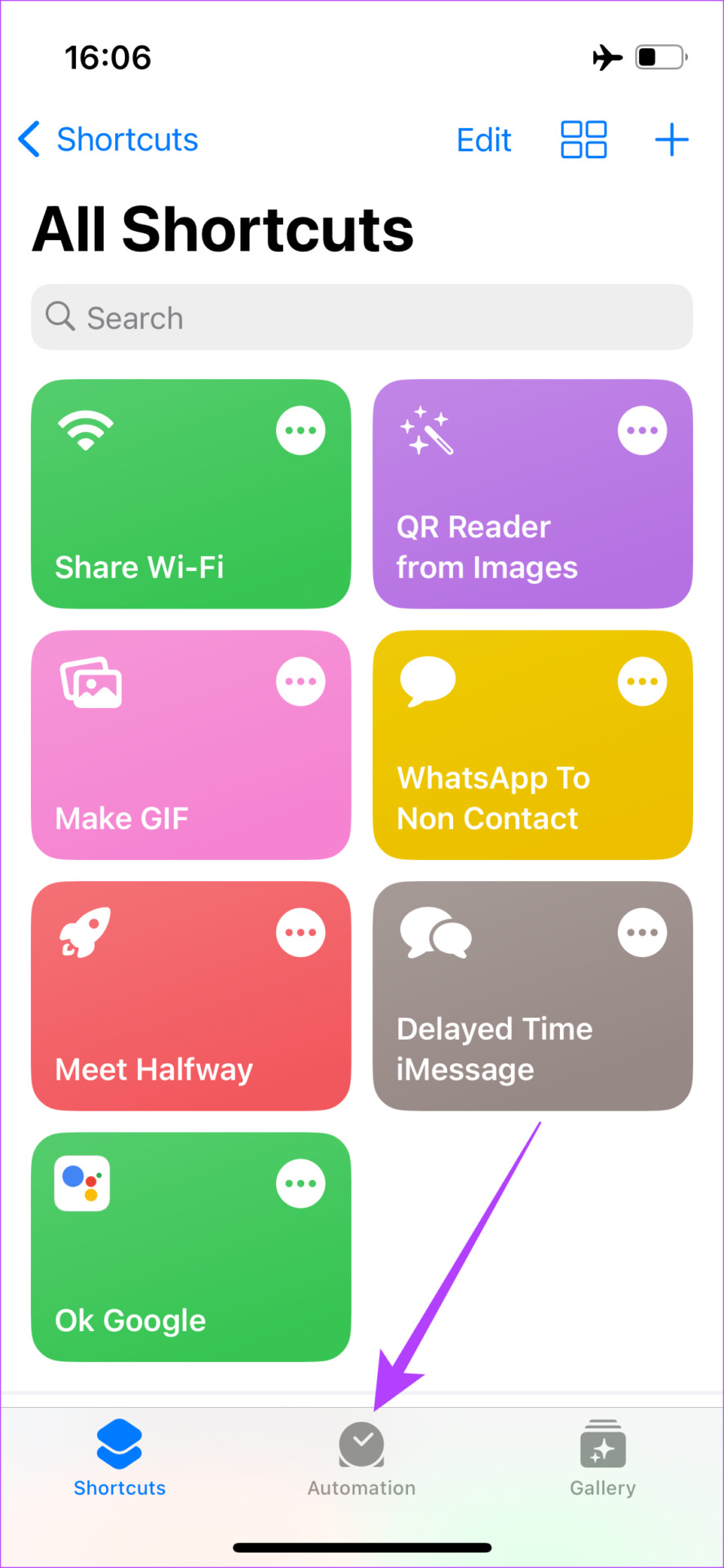
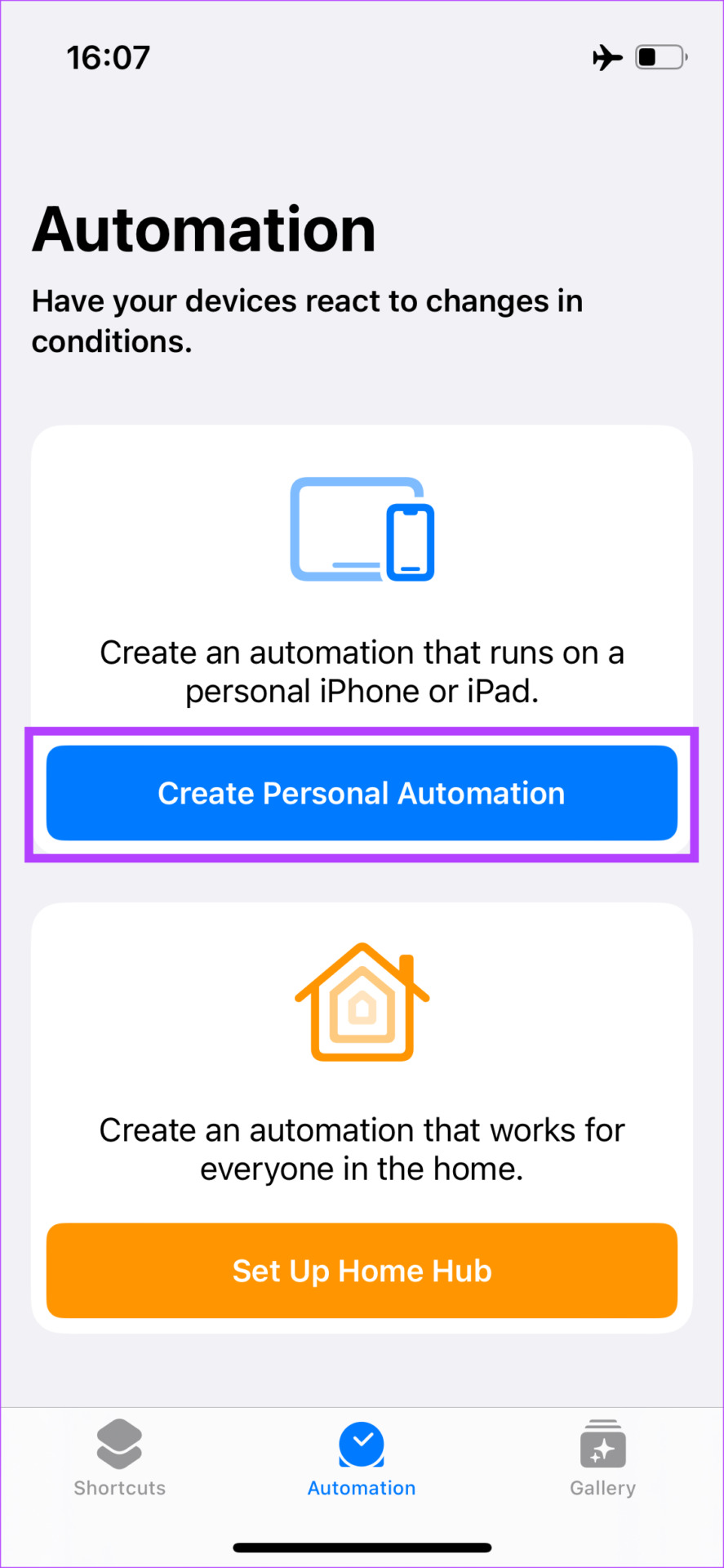
Step 1: Open the Shortcuts app and navigate to the Automation tab. Select Create Personal Automation .
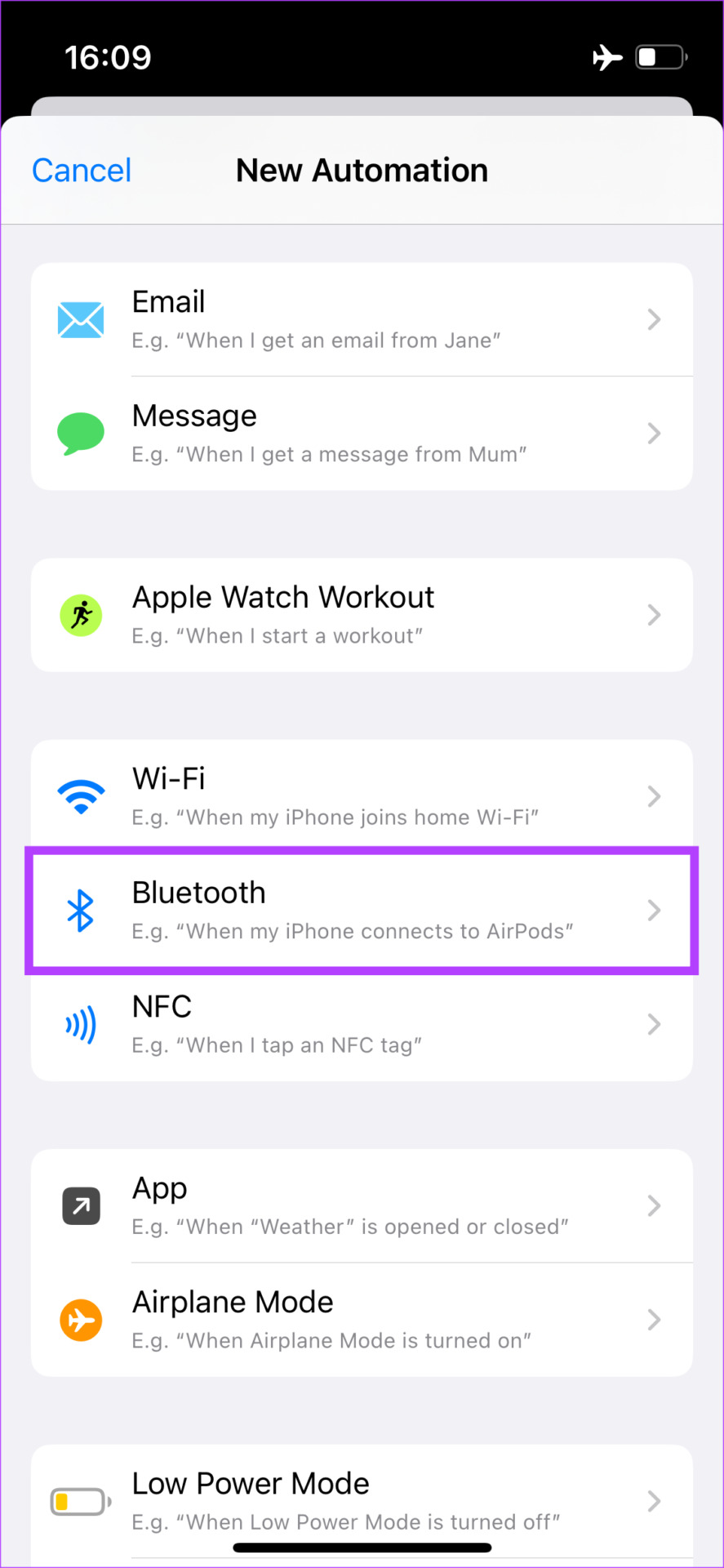
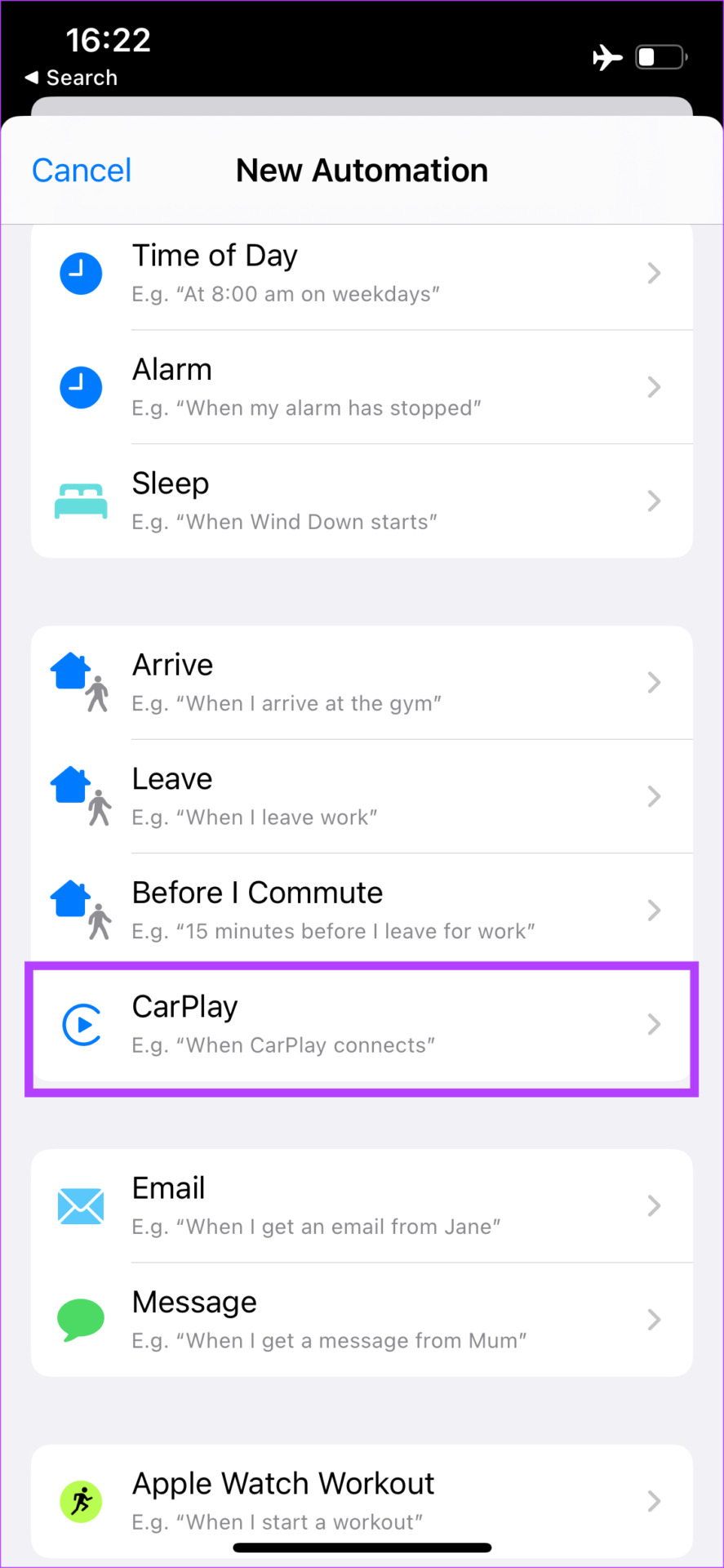
Step 2: If you connect your iPhone to your car via Bluetooth, select Bluetooth . If you use a cable instead, select CarPlay .
Step 3: If you selected the Bluetooth option, tap on the Choose button next to Device. Select your car’s Bluetooth name from the list of devices and tap on Done .
Use the Next button at the top-right corner to proceed to the next step. If you selected CarPlay , choose Connects and tap on Next .
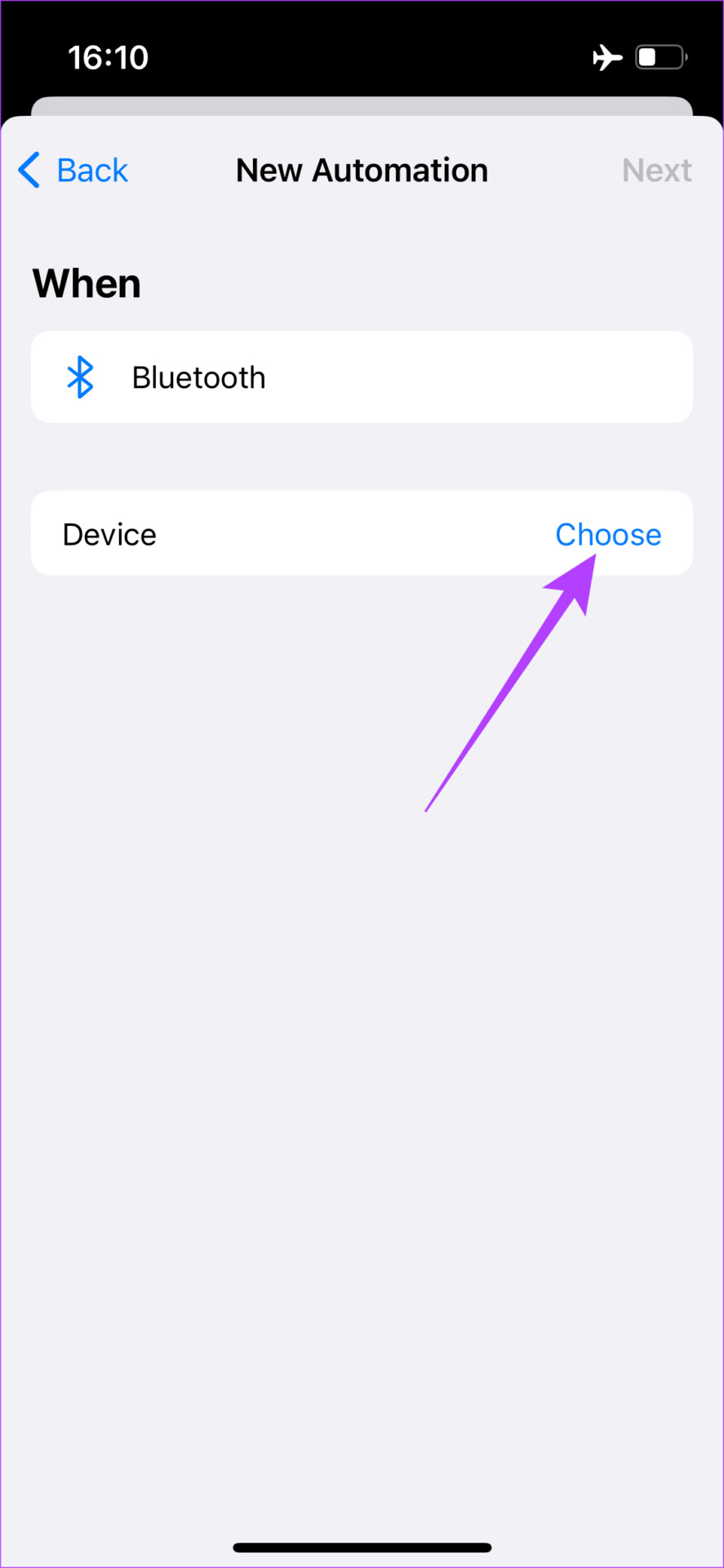
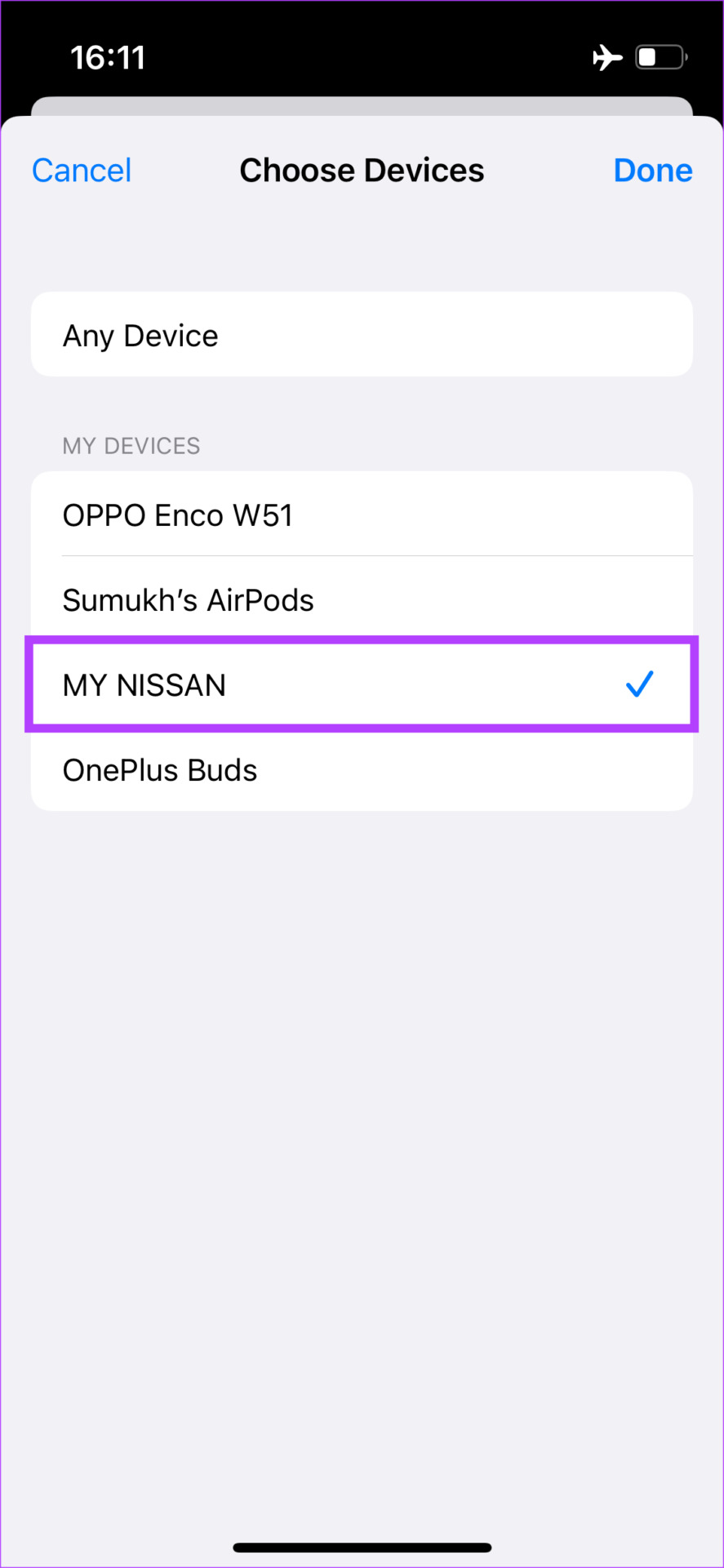
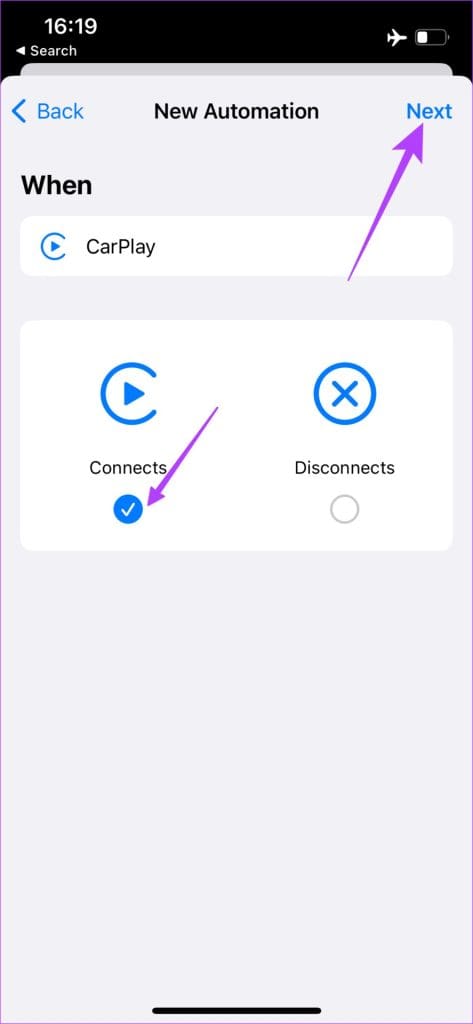
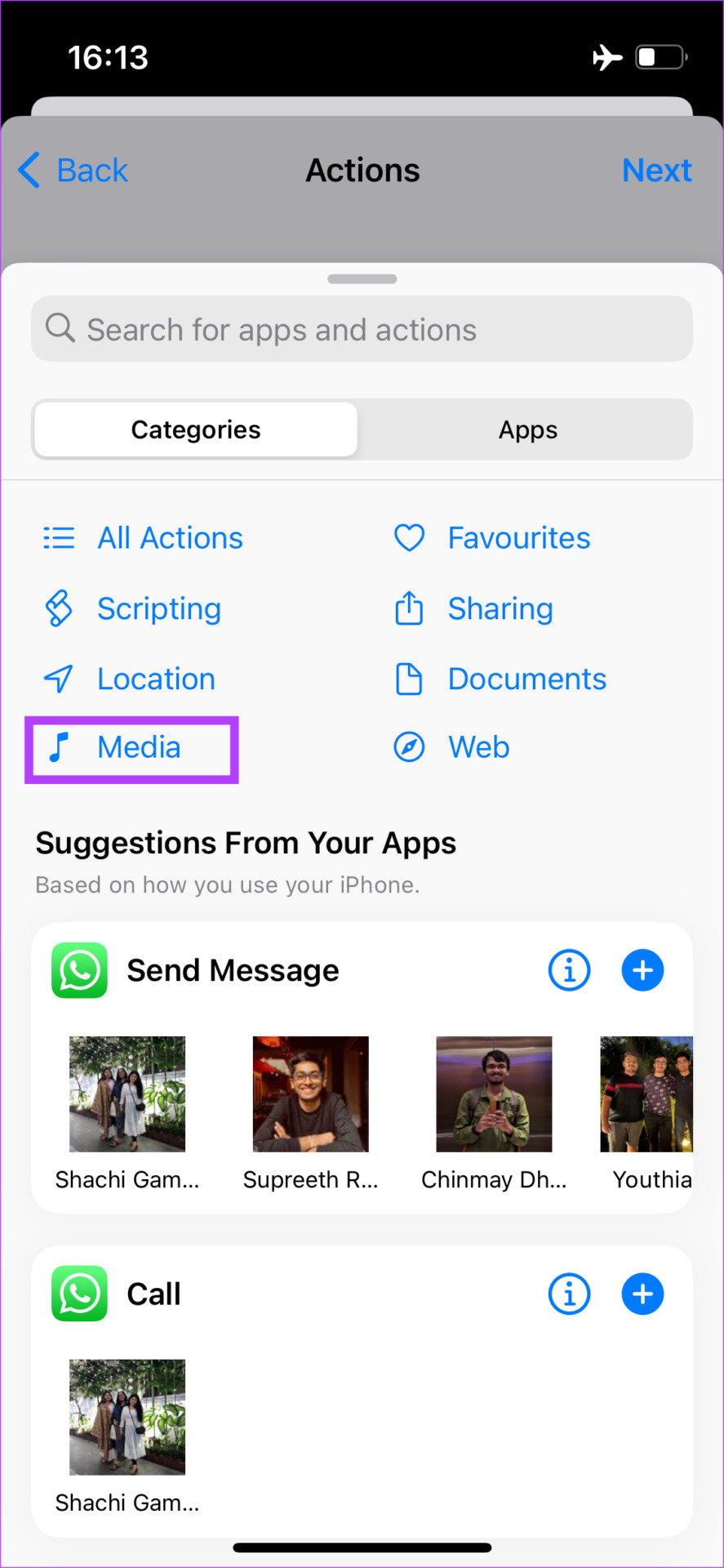
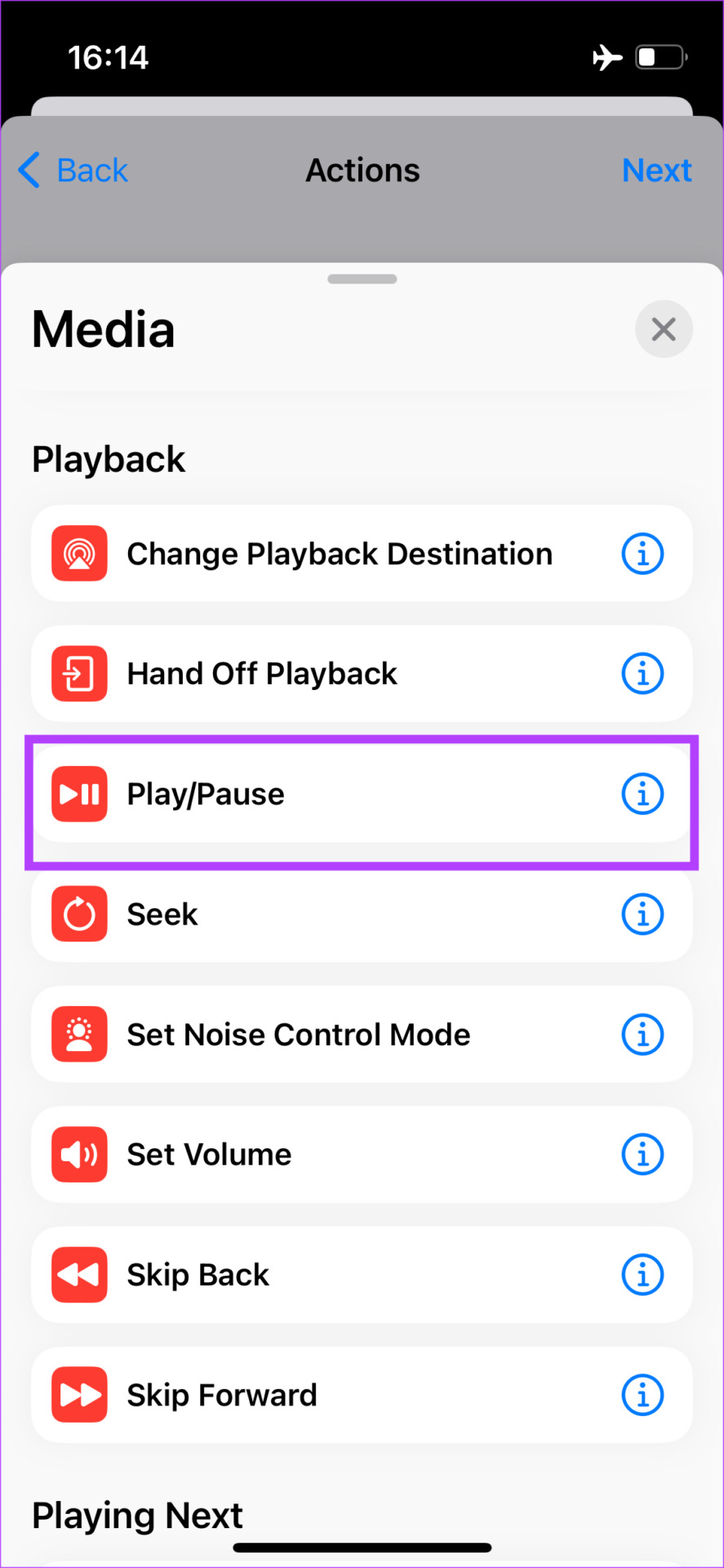
Step 4: Use the Add Action button and tap on Media . Then, scroll down to Playback and select the Play/Pause button.
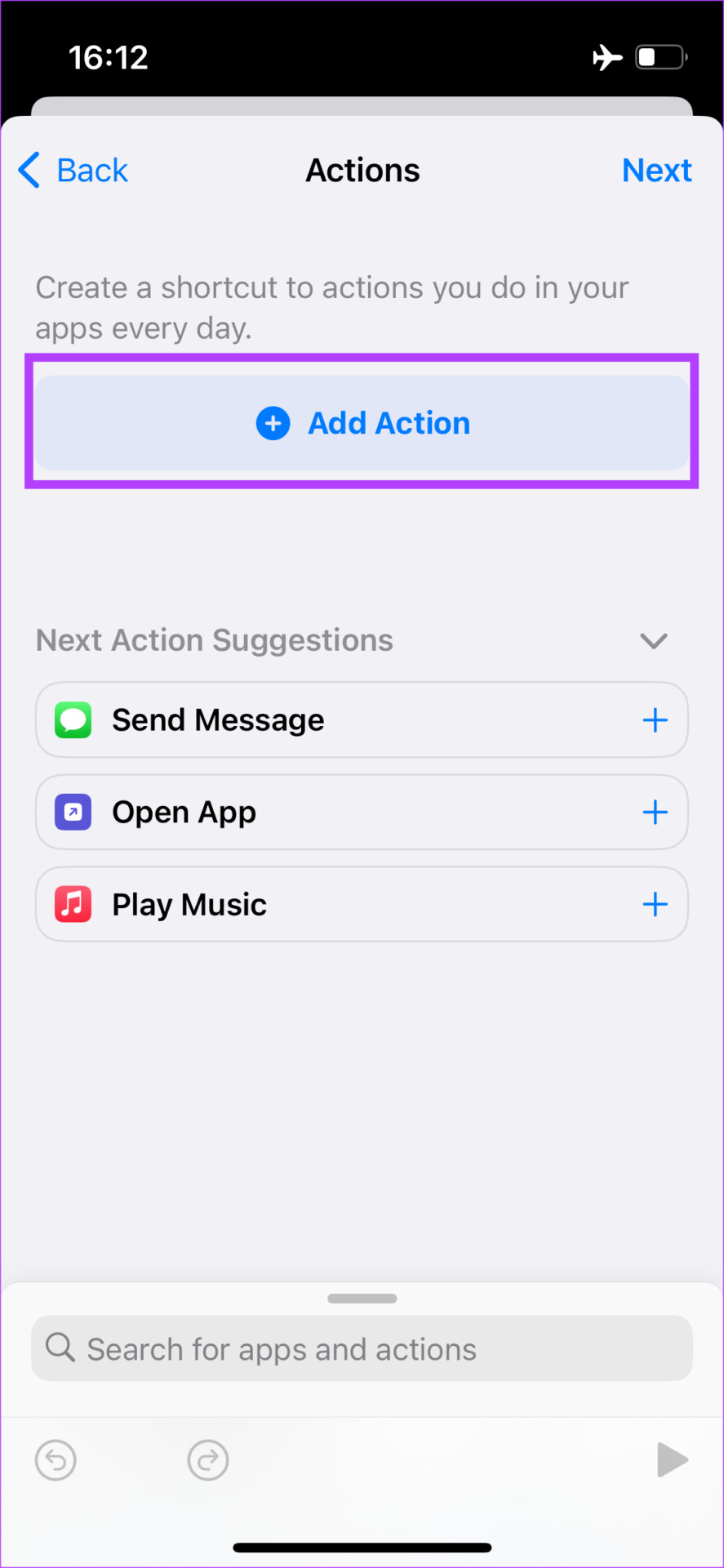
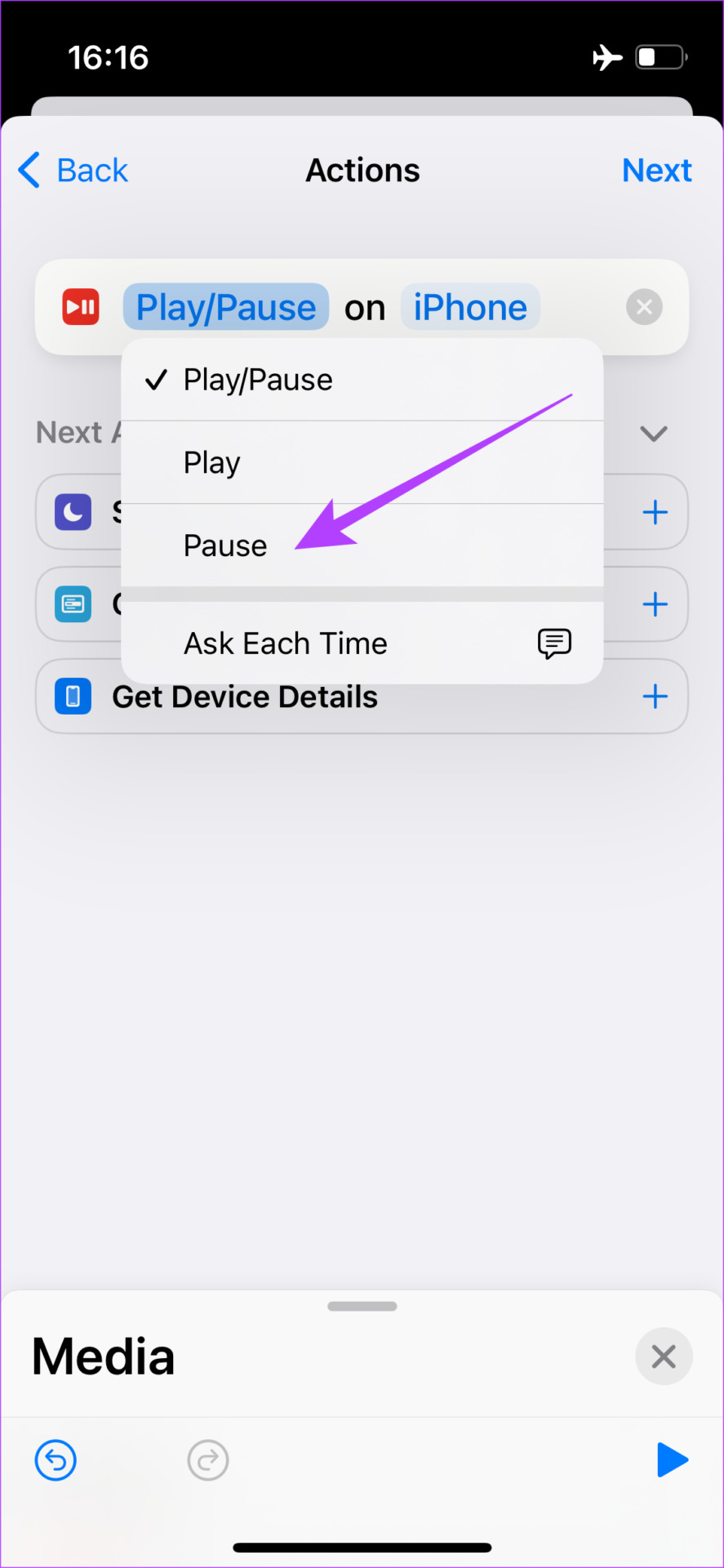
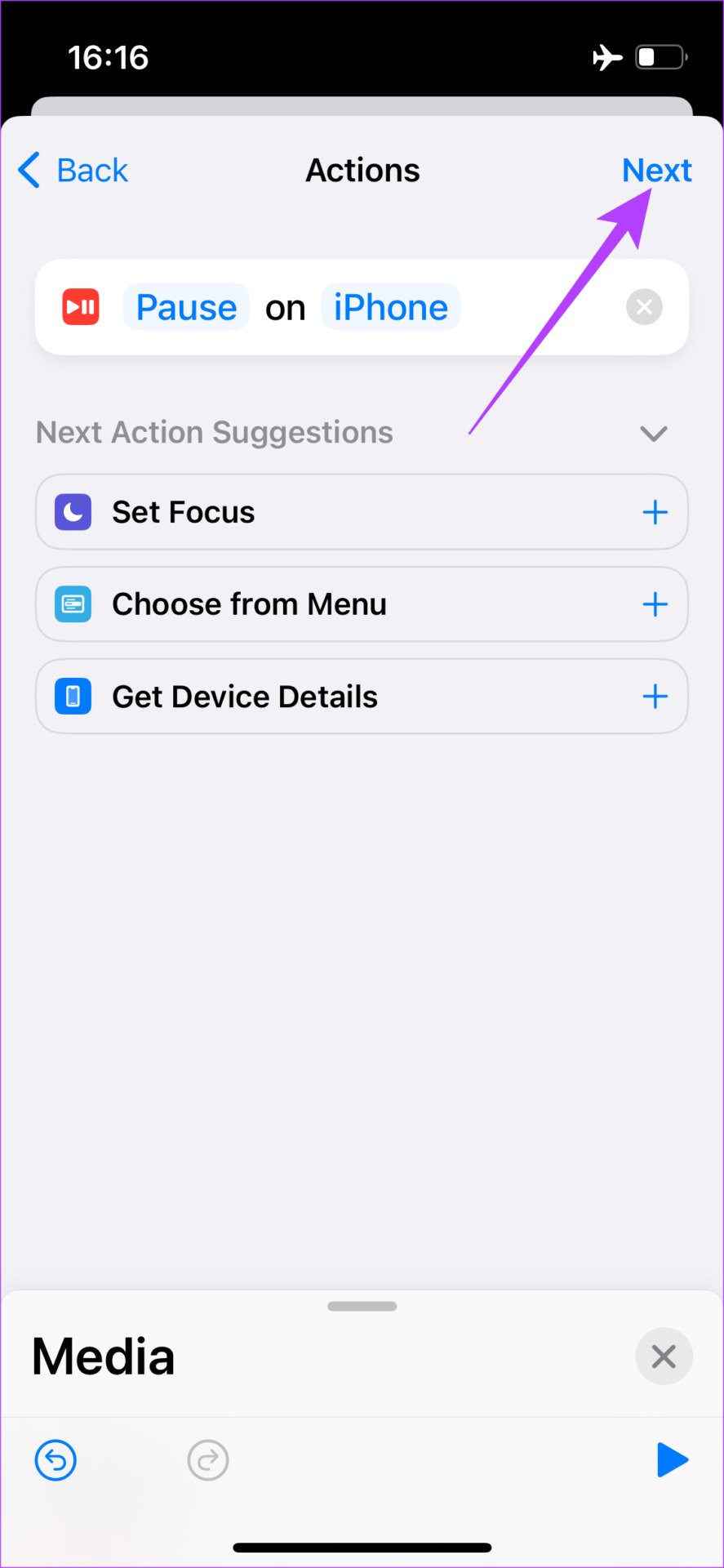
Step 5: Tap on the Play/Pause automation that was created and select Pause . Choose Next at the top-right corner and tap on Done to create the automation.
How to Stop Android Auto From Automatically Playing Music
Unlike iOS, Android has a built-in toggle to stop Android Auto from playing music automatically in your car. Here’s how to enable it.
Step 1: Open the Settings app and navigate to the Connected devices menu. Choose Connection preferences .
Step 2: Select Android Auto . Scroll down and turn off the toggle next to Start music automatically .
Was this helpful?
Submit Cancel
Thanks for your feedback!
Keep reading