Android
How to Translate Messages in Telegram
Did you know that you can easily translate messages in Telegram? Check out this guide to learn how to do so.
By Alexandra Arici

Quick Tips
The translation feature doesn’t require a Telegram Premium subscription. But you need it to translate entire chats.
Long-press a message and select Translate to receive a real-time translation.
This feature can be used on mobile and desktop apps.
How to Turn on Telegram’s Translation Feature
The Translate button needs to be enabled in the Telegram app to quickly translate messages in your chat.
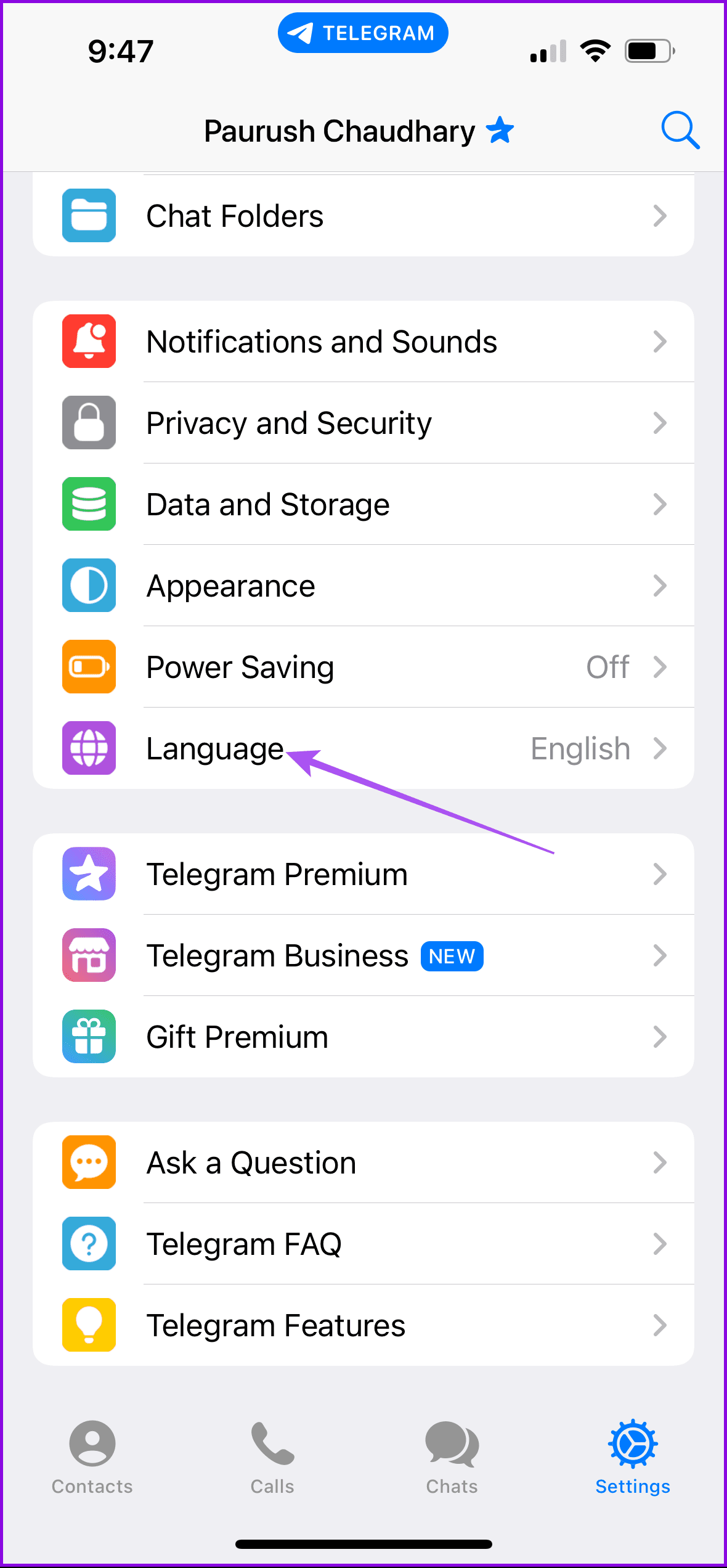
Step 1 : Open the Telegram app on your Android or iPhone and open Settings .
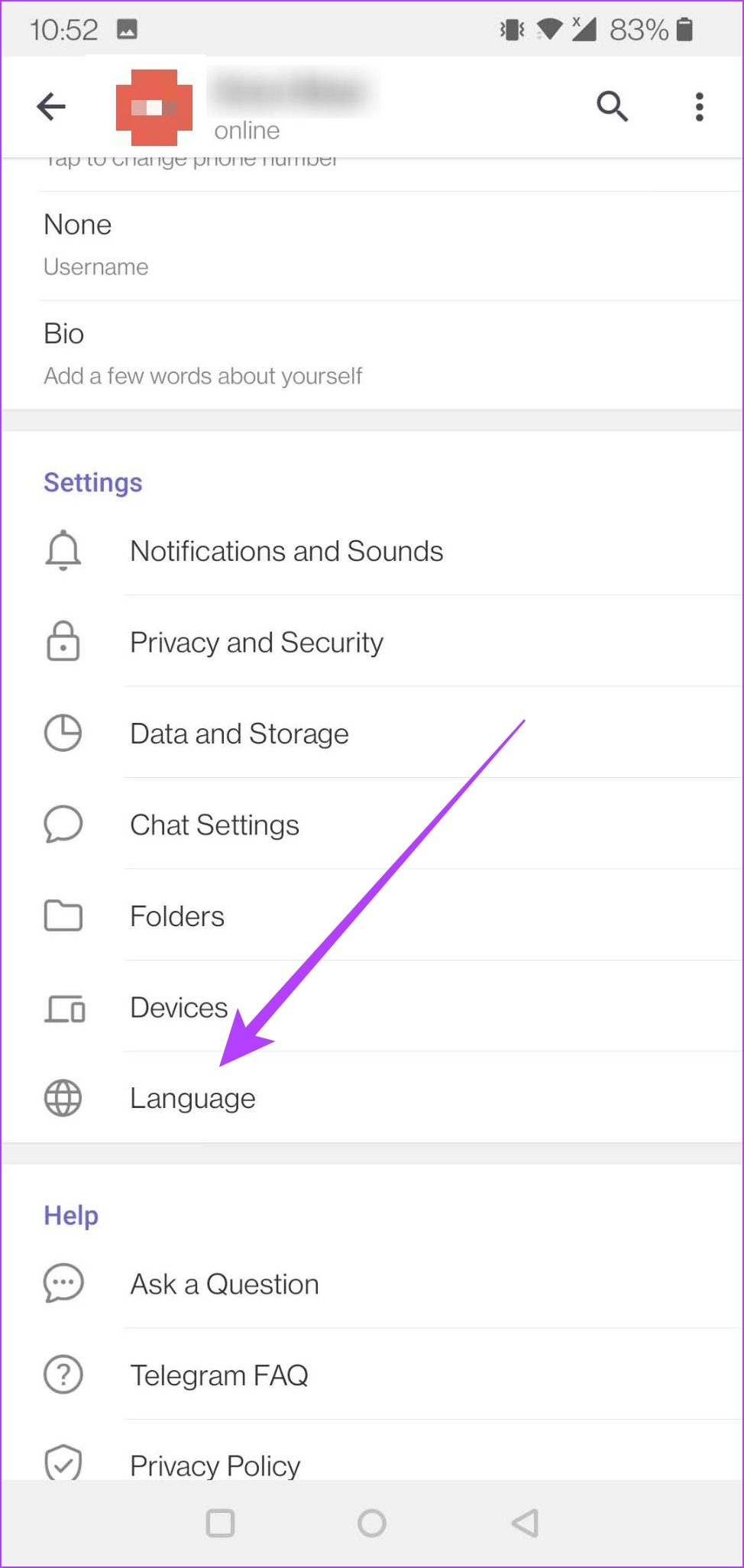
Step 2 : Scroll down to the Language option under the Settings section and enable the toggle for Show Translate Button .
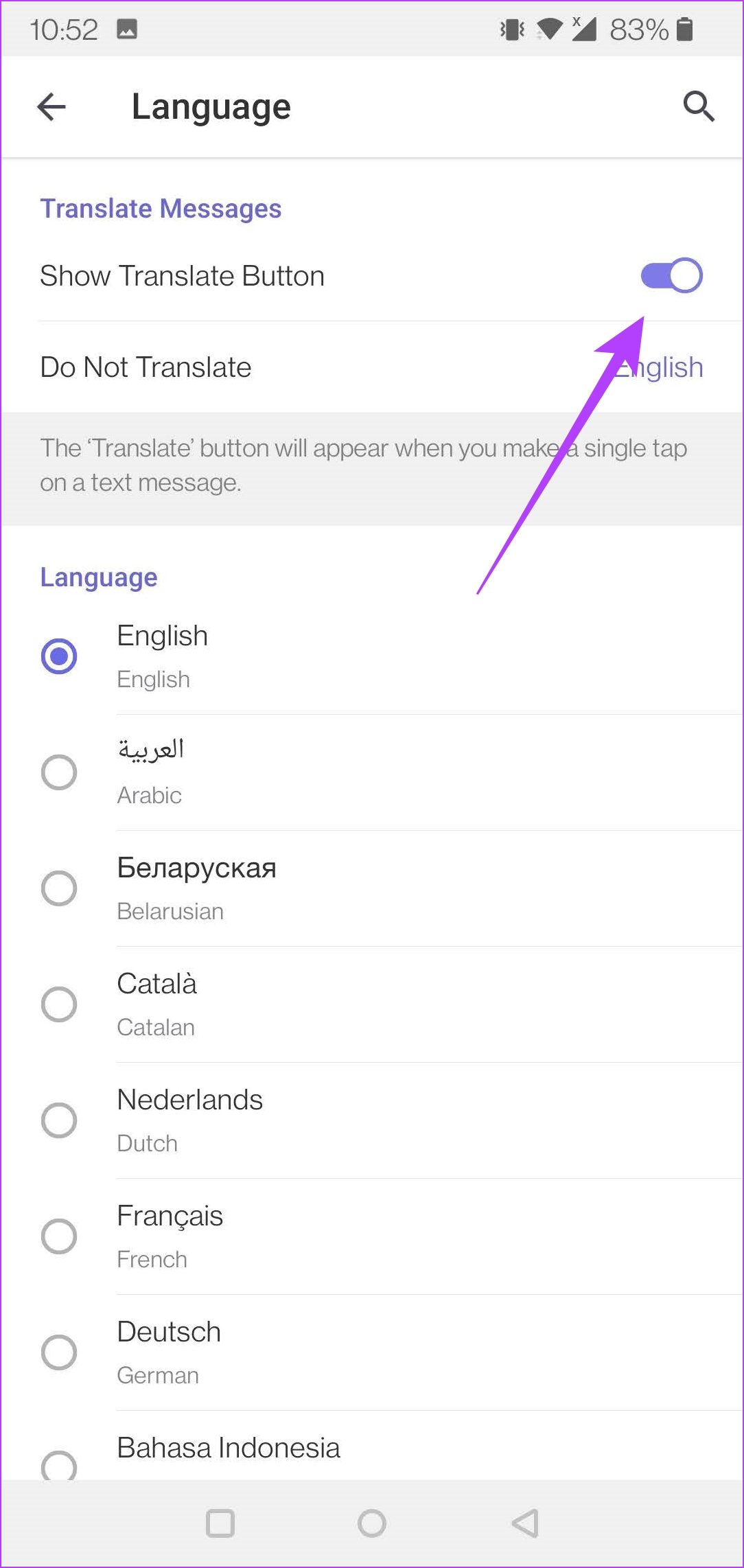
Step 3 : Now, Telegram will make the second option visible. It says Do Not Translate and is set to English if the app’s default is English .
Step 4 : To translate the messages you receive in a foreign language into another one, such as Dutch, you must change the app’s default language. Under the Language options in Settings, choose the available and supported languages – Dutch, French, German, Arabic, Belarusian, Catalan, etc.
How to Translate Individual Messages in Telegram
Telegram uses Google Translate to deliver the results. So, the translation may not be accurate. Hence, take it with a grain of salt. Also, the messages first travel to Google’s servers for interpretation, and then the translation appears in Telegram. So, avoid sending or conversing about sensitive information.
Step 1 : In Telegram, open a chat that contains a message in a foreign language.
Step 2 : Long-press the message > tap on Translate .
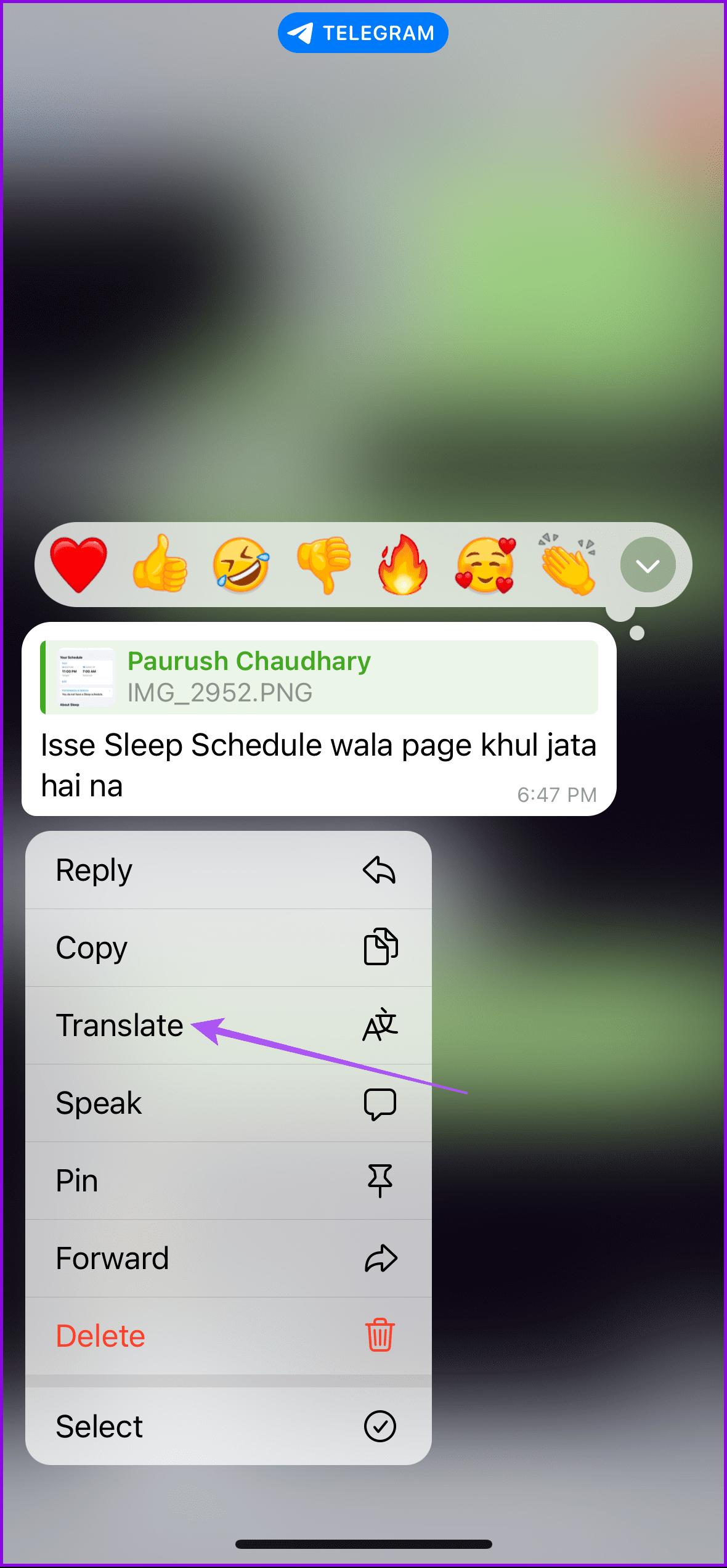
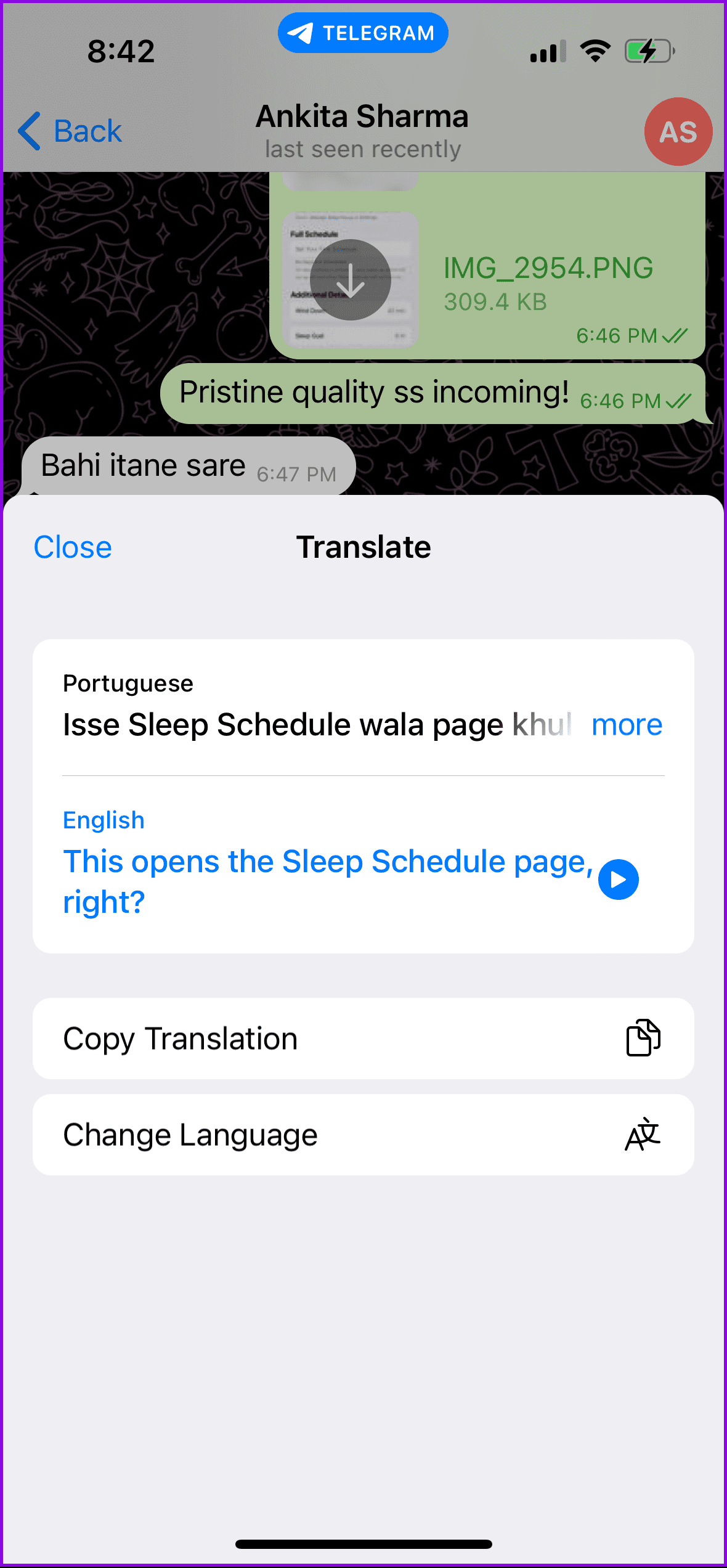
The translation will pop up at the bottom of the screen in the chosen language. You will also have the option of the Copy Translation and Change Translation Language.
Note : This option of translating individual Telegram messages is unavailable for desktop app users.
Translate Entire Conversation Using Real-time Translation
Real-time translation is possible only when you receive messages in a language not set as default in the Telegram app.
On Mobile
Step 1: Open Settings > select Language > enable the toggle for Translate Entire Chats .
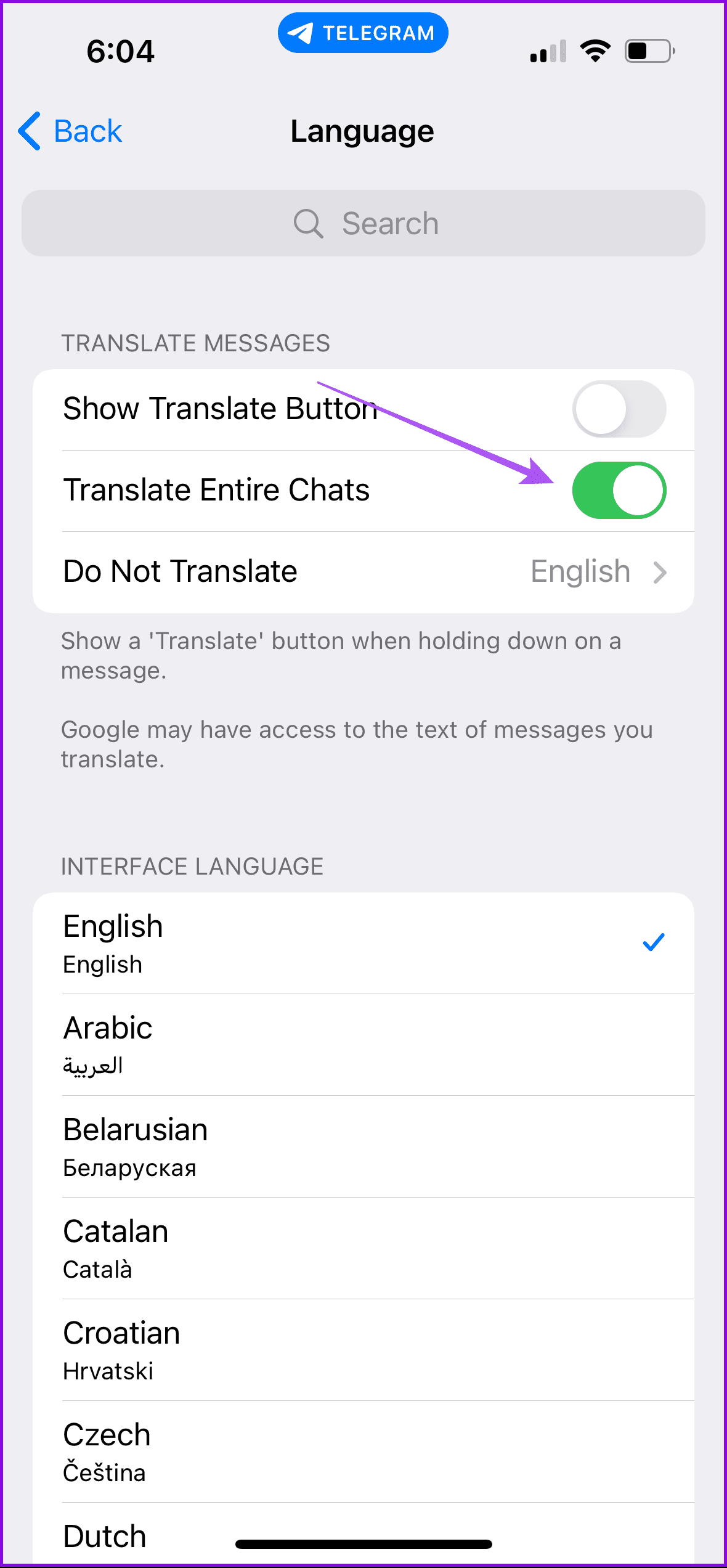
Step 2: You must also change the interface language to use this feature.
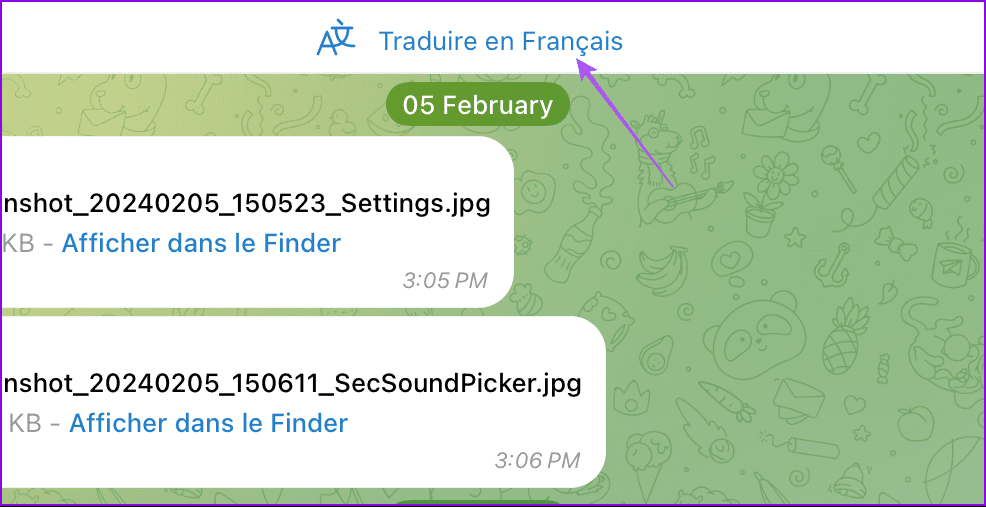
Step 3: Go back, open your chat, and tap the translate option at the top.
On Desktop
Step 1: Open the Telegram app > go to Settings.
Step 2: Click on Language from the left menu > enable Translate Entire Chats .
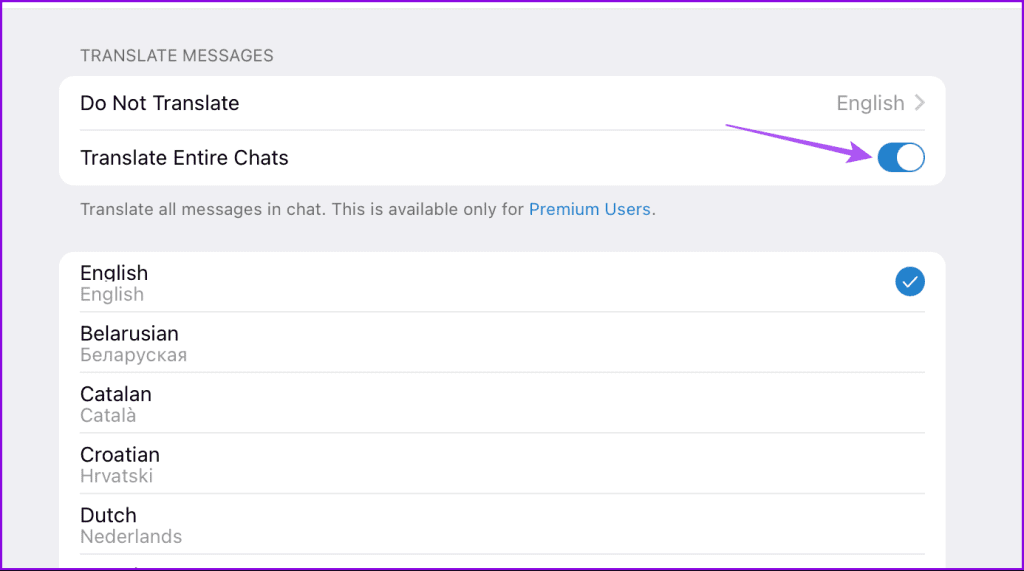
Step 3: Just like on mobile, you need to change the interface language for the desktop app.
Step 4: Once done, go back to your chat and click on translate at the top.
FAQs
1. Can I translate my messages sent on Telegram? Yes, you can. Just long-press on your message and select Translate.
2. Can I translate group messages on Telegram? Yes, the translation feature works for both individual and group chats.
Was this helpful?
Submit Cancel
Thanks for your feedback!
Keep reading