Android
How to Use WhatsApp on Two Phones With the Same Number
Wondering how to use the same WhatsApp account on two phones? Here's how you can do it using WhatsApp's Linked Devices feature.
By Sumukh Rao
Quick Tips
You can now link up to 4 devices to your WhatsApp number using the Linked Devices feature.
All of your linked devices can work independently of each other without an active internet connection required on the main device.
Linked Devices on WhatsApp
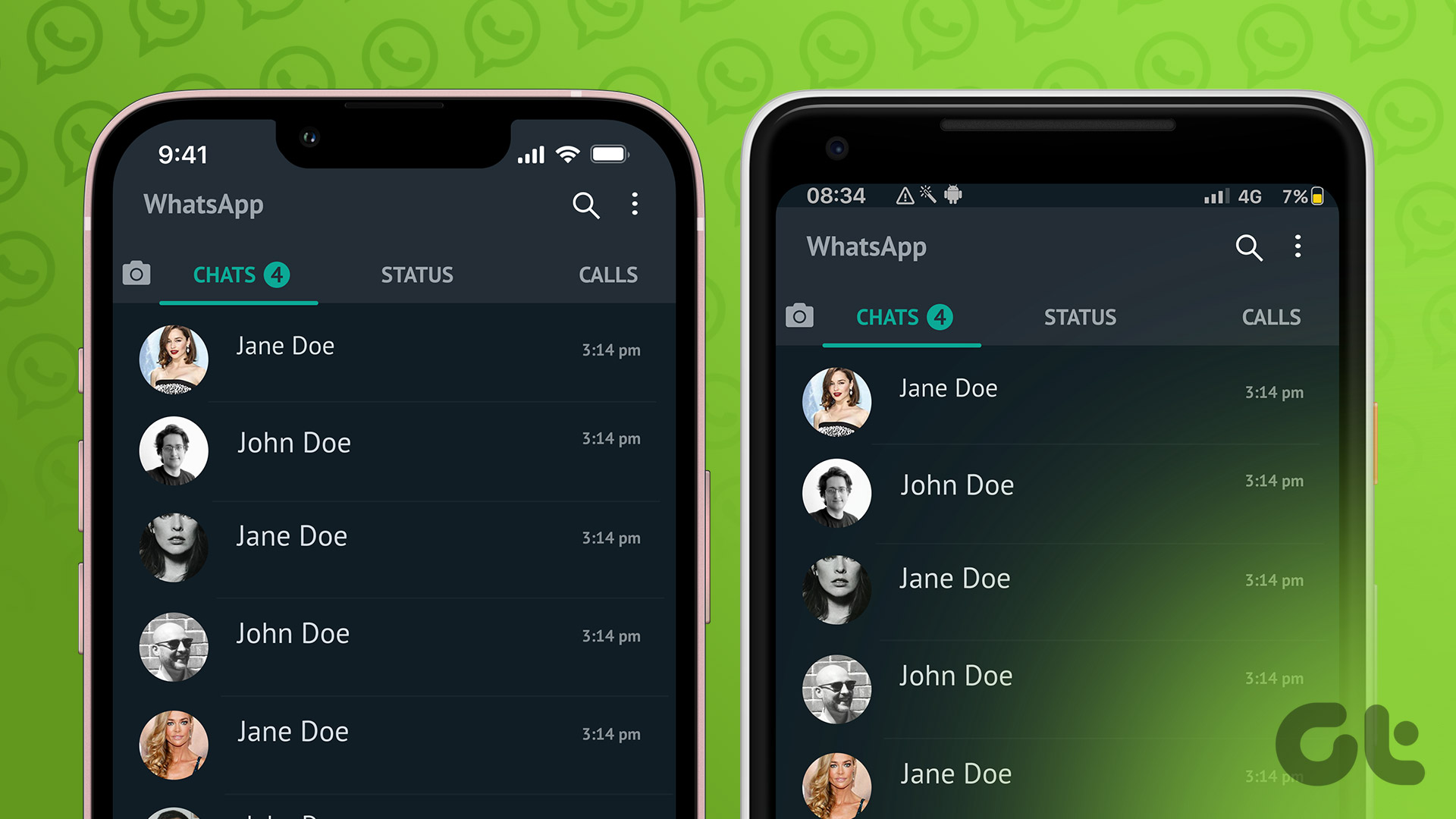
WhatsApp introduced Linked Devices, which replaced the old WhatsApp Web functionality. This feature lets you link up to 4 devices to your WhatsApp account. Once linked, you can use WhatsApp on these devices independent of your smartphone.
However, up until now, you could only use the Linked Devices feature with a computer or via a browser on a different phone. This wasn’t an ideal solution for those who wanted to use one WhatsApp account on two phones. That’s no longer an issue, thanks to the latest update to the app.
How to Install WhatsApp on Two Devices With the Same Number
Needless to say, you will need two phones for this to work. Once you have both of them with you, follow these steps.
Method 1: If Your Secondary Phone Runs Android
Step 1: Install and sign in to WhatsApp on your primary phone. If you’re already using WhatsApp on your phone, skip this step.
Step 2: Install WhatsApp from the Play Store on your secondary device. If you already have WhatsApp installed on this phone, uninstall and re-install it .
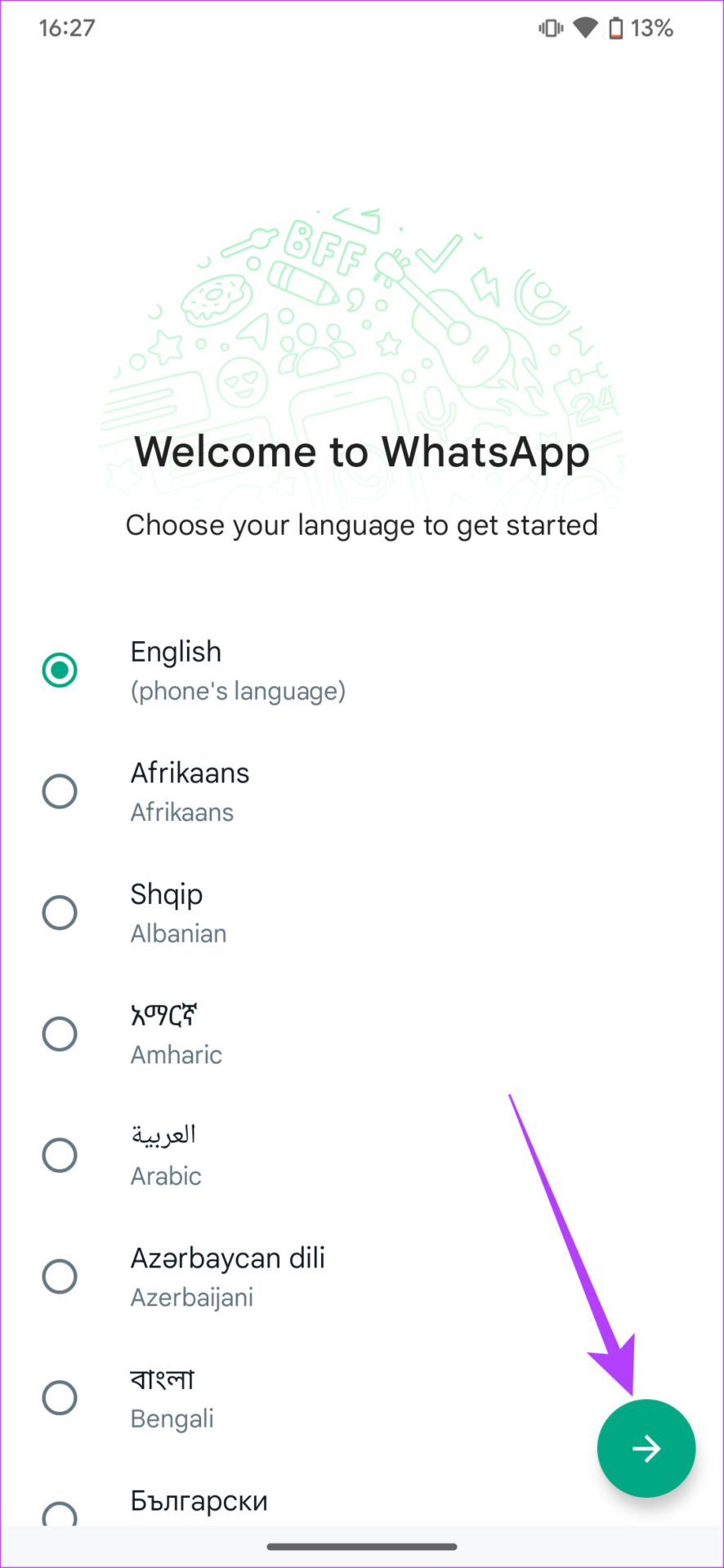
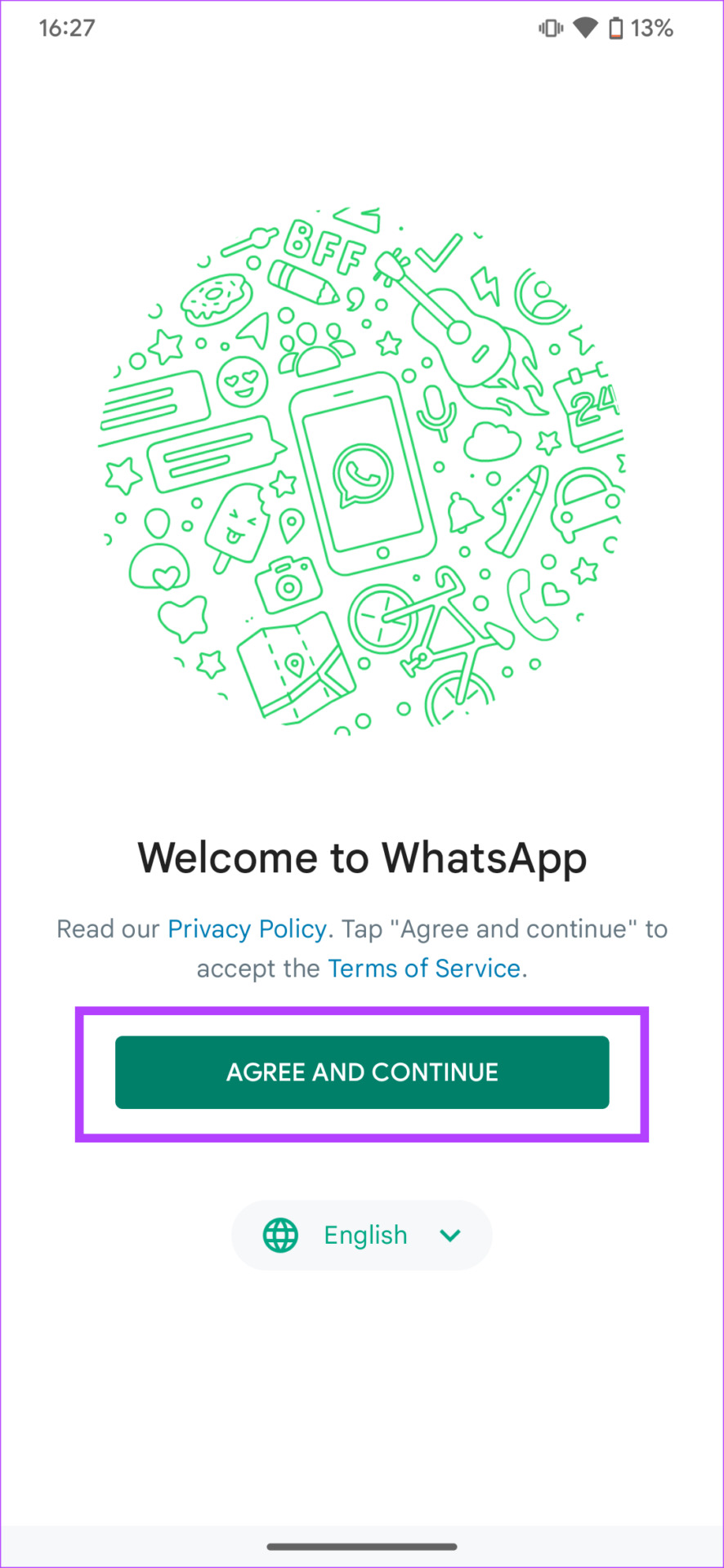
Step 3: Open WhatsApp on your secondary phone and select your language of choice. Then, tap on Agree and Continue .
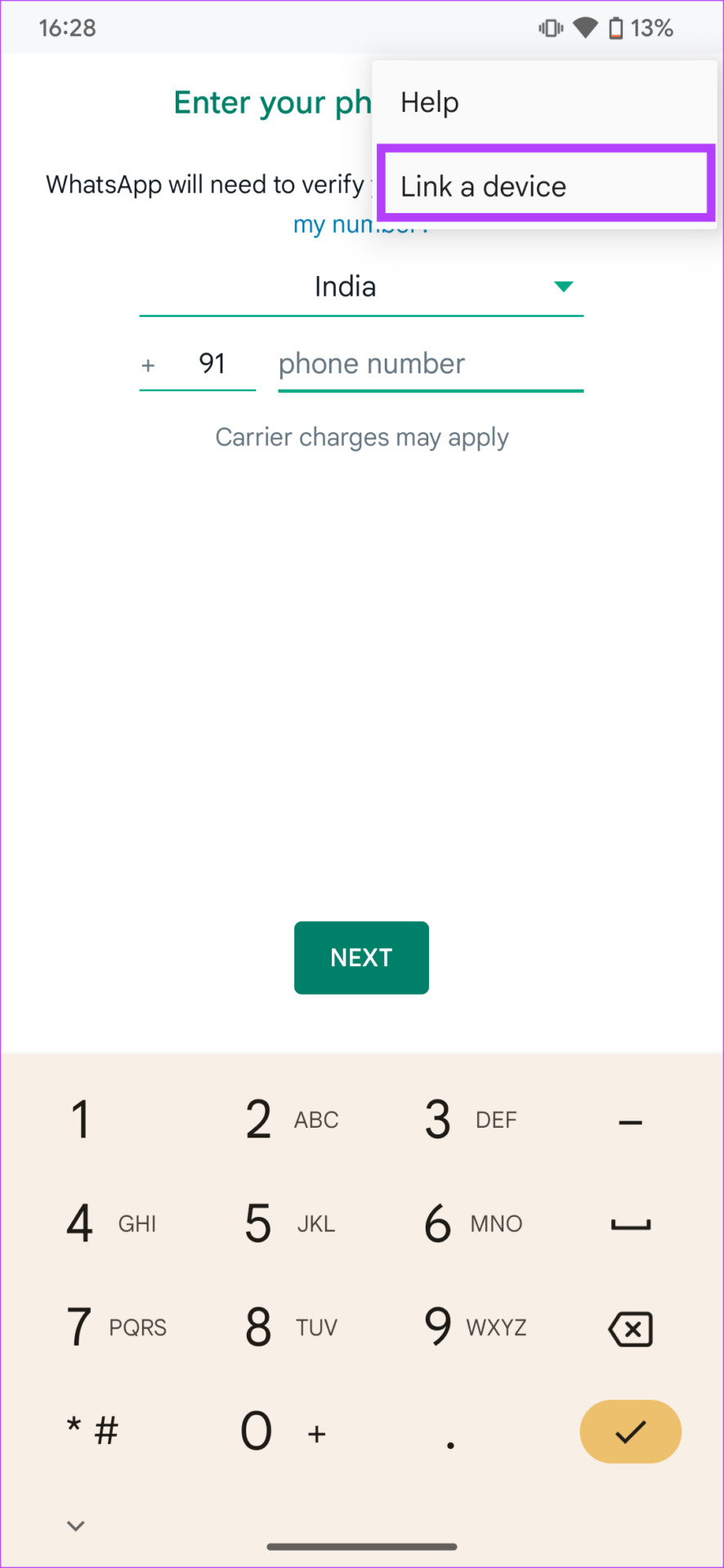
Step 4: Press the three dots at the top-right corner of your screen when prompted to enter your phone number. Then, tap on Link a device .
You will now see a QR Code displayed on your phone’s screen. Switch to your primary device to scan this code.
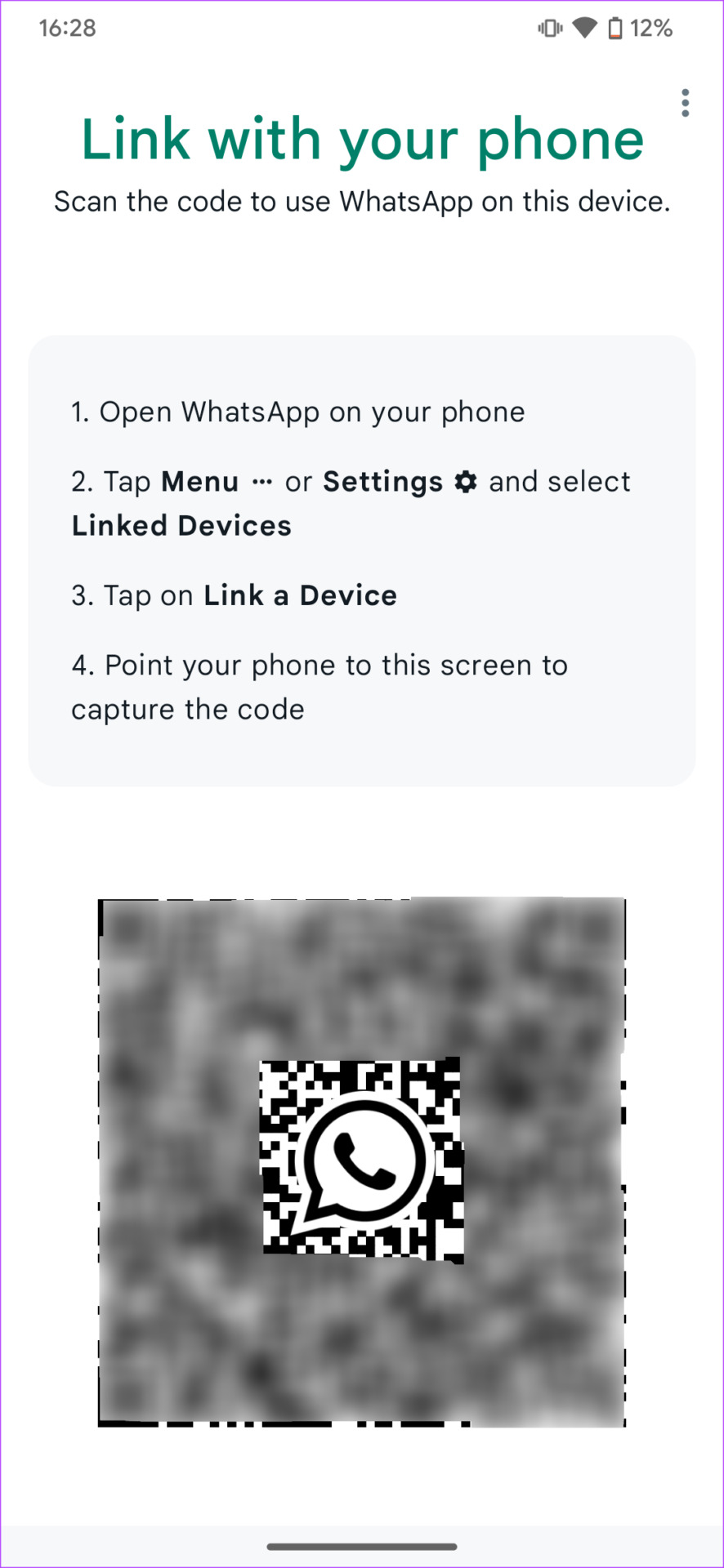
Follow the on-screen instructions to set up WhatsApp on the device.
Note: If you don’t see the ‘Link a device’ option, see how you can fix the issue of being unable to use WhatsApp on two devices .
Method 2: If Your Secondary Device Is an iPhone
Step 1: Install and sign in to WhatsApp on your primary phone. If you’re already using WhatsApp on your phone, skip this step.
Step 2: Install WhatsApp from the App Store on your secondary device. If you already have WhatsApp installed on this phone, uninstall and re-install it .
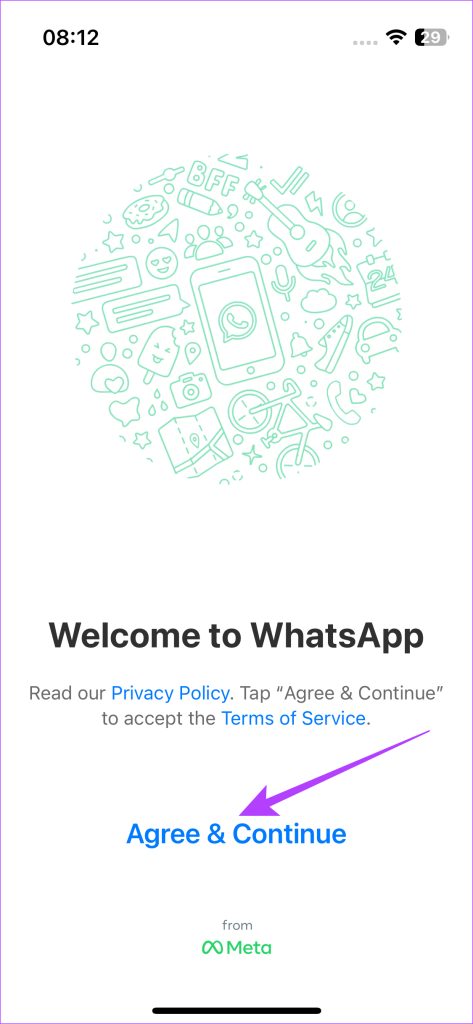
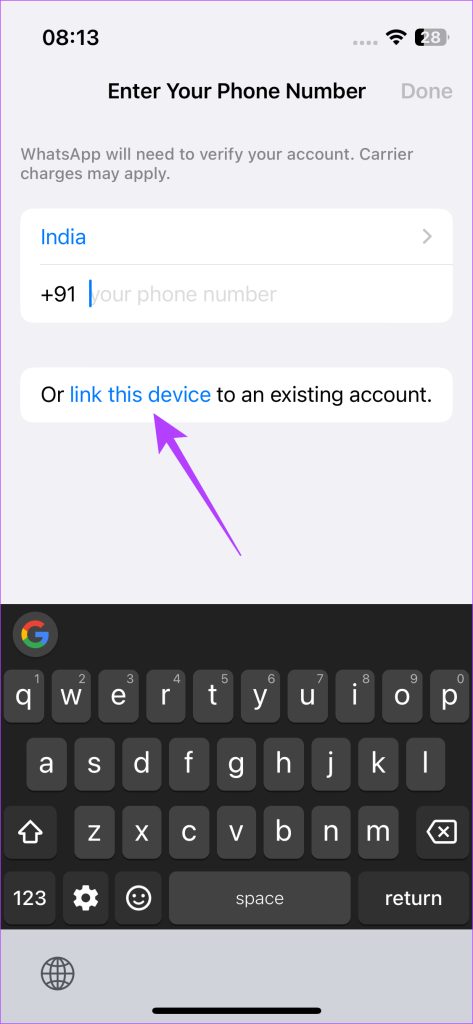
Step 3: Open WhatsApp on your secondary phone . Tap on Agree & Continue . Then, select the link this device option.
You will now see a QR Code displayed on your phone’s screen. Switch to your primary device to scan this code.
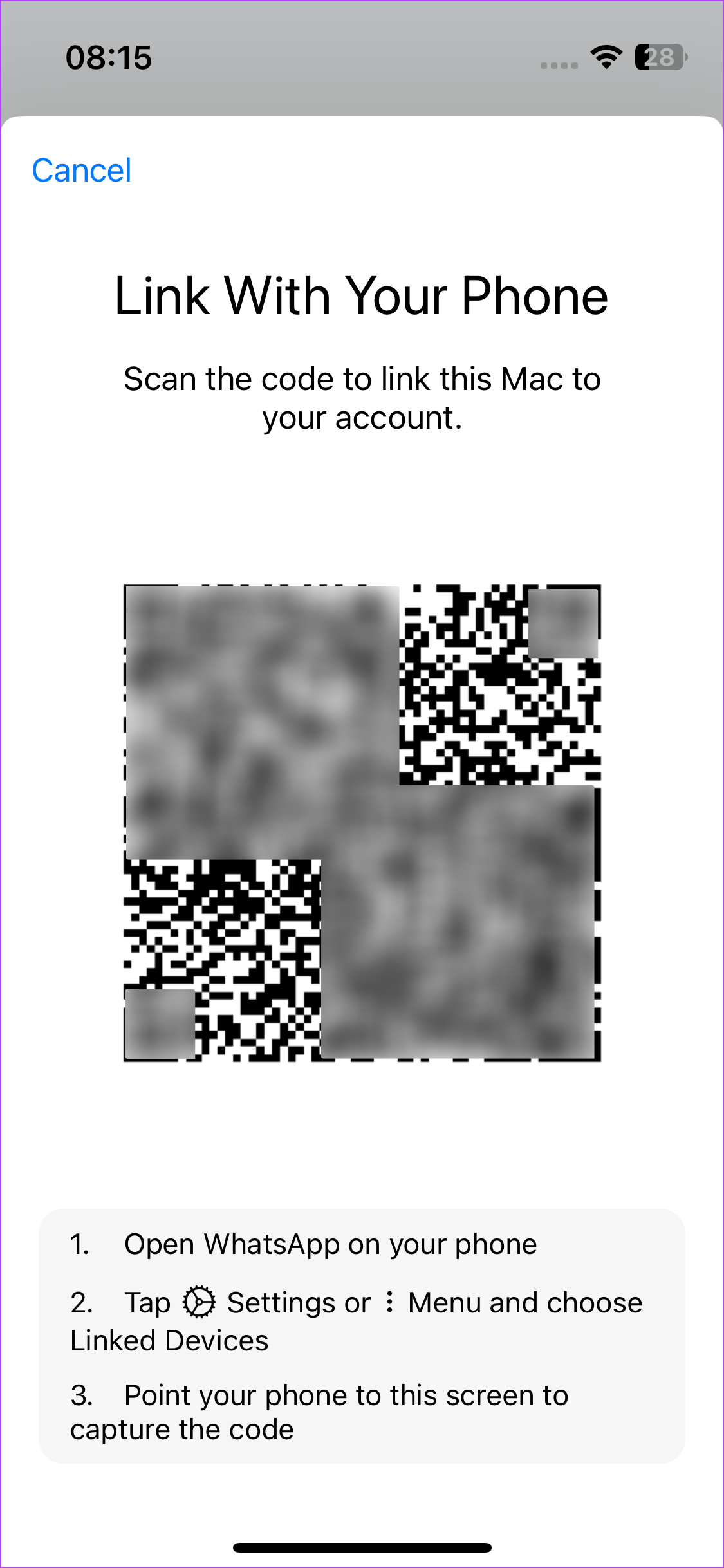
Follow the on-screen instructions to set up WhatsApp on the device.
Also Read: How to create polls in WhatsApp for desktop and mobile
FAQs on Using the Same WhatsApp Account on Two Phones
1. Can I use WhatsApp on more than two phones at a time? The Linked Devices feature allows you to link up to 4 different devices to the same WhatsApp account. So, if you’ve not linked any other devices like your computer, you can use WhatsApp on up to 4 phones at the same time.
2. Can I continue using WhatsApp Web while using WhatsApp on 2 phones? Yes, WhatsApp Web will continue to work without any issues as they work independently.
3. Do I need a SIM card to use WhatsApp on the secondary phone? No, you don’t need a SIM card on your secondary phone to use WhatsApp from your primary number. However, you do need an active internet connection.
Was this helpful?
Submit Cancel
Thanks for your feedback!
Keep reading