Android
How to Use Samsung Pay on Galaxy Watch in Unsupported Regions
Wondering how to use Samsung Pay on your Galaxy Watch in unsupported regions? Here's a detailed guide to help you enable it on your watch.
By Sumukh Rao
Quick Tips
Samsung Pay isn’t available in many regions across the globe.
However, you can use this workaround to make contactless payments irrespective of your location.
You’ll have to change the CSC on your watch to one of the supported countries to do this.
Pre-requisites to Use Samsung Pay on the Galaxy Watch
If Samsung Pay isn’t available in your region by default, the Samsung Pay app will not be present on your Galaxy Watch. However, we’ll show you how to get the Samsung Pay app on your Galaxy Watch first before setting it up and enabling it.
This method will specifically demonstrate how to enable Samsung Pay on the Galaxy Watch 4. You can also try this method to activate Samsung Pay on other Galaxy Watches.
It’s also important to note a few other points:
This guide involves changing the CSC (region) of your Galaxy Watch, which cannot be changed again later on.
If you have the LTE version of the Galaxy Watch, proceed with caution, as this can disable the ability to make and receive calls on the watch via a cellular connection. If you have the Bluetooth-only variant, you don’t have to worry.
This method will completely wipe the data on your Galaxy Watch and reset it to factory settings. So, it’s advisable to take a backup before proceeding.
You can use this method regardless of which phone you have. A Samsung phone isn’t mandatory.
With that out of the way, let’s quickly get to the steps.
How to Get Samsung Pay on the Galaxy Watch in Unsupported Regions
Step 1: Swipe up from the bottom of your Galaxy Watch to access the list of apps.
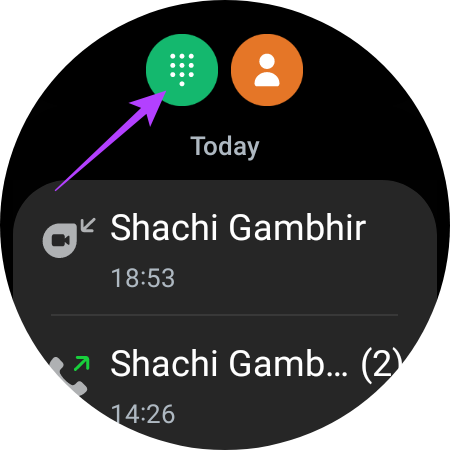
Step 2: Open the Phone app and tap on the dialer icon to bring up the keypad.
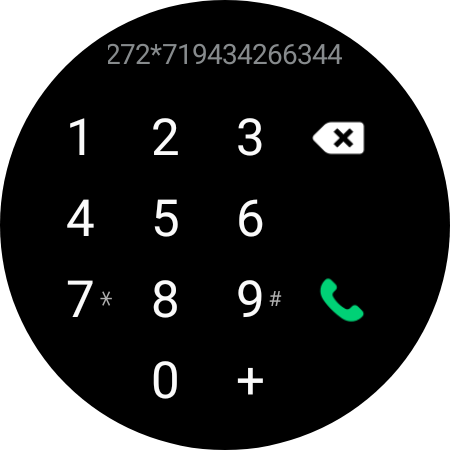
Step 3: Now, dial *#272*719434266344# and you will see a hidden menu. Tap on OK when prompted.

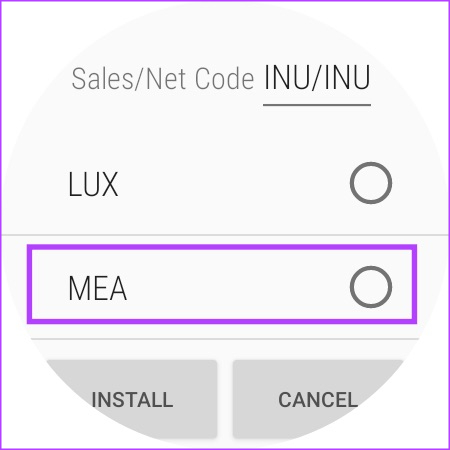
Step 4: Select the new region as MEA . Then, tap on Install and confirm by selecting OK .
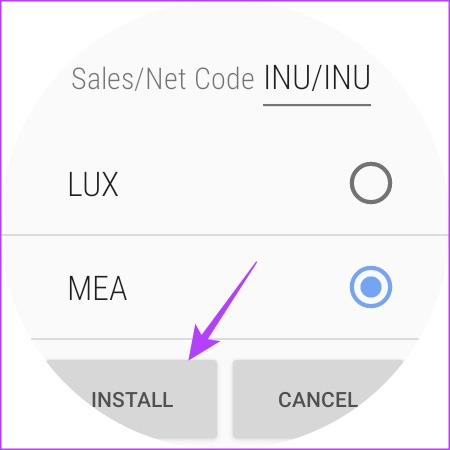
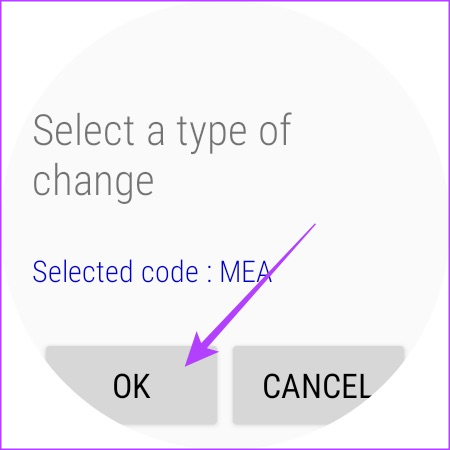
Your Galaxy Watch will now reset.
Step 5: Once the watch boots into the UI, select the language of your choice.
Step 6: Now, choose the United Arab Emirates option as your country. Finally, hit the Restart button.
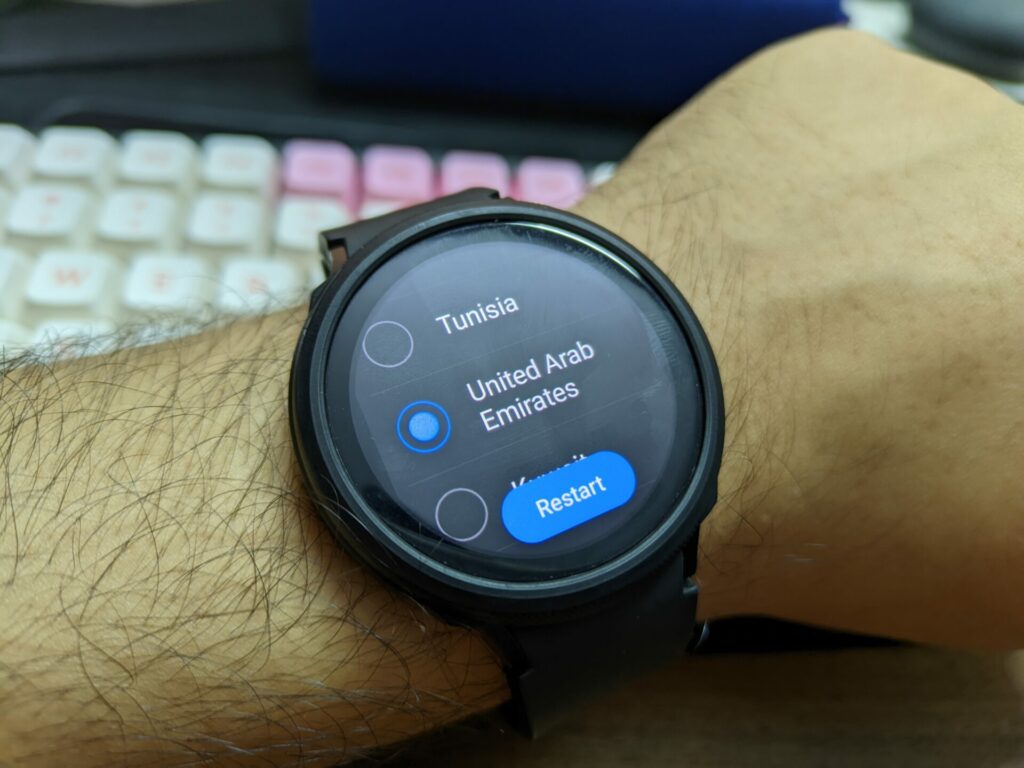
Your Galaxy Watch will now restart. To connect the watch to your smartphone, go through the standard setup procedure.
Once your Galaxy Watch is set up and ready to use, access the list of apps. You’ll see that the Samsung Pay app is now installed on your smartwatch.
How to Set Up Samsung Pay on the Galaxy Watch
Now that the Samsung Pay app has been enabled on your Galaxy Watch, it’s time to set it up and add your cards.
Step 1: Open the Samsung Pay app on your Galaxy Watch. Tap on the arrow and then on OK .
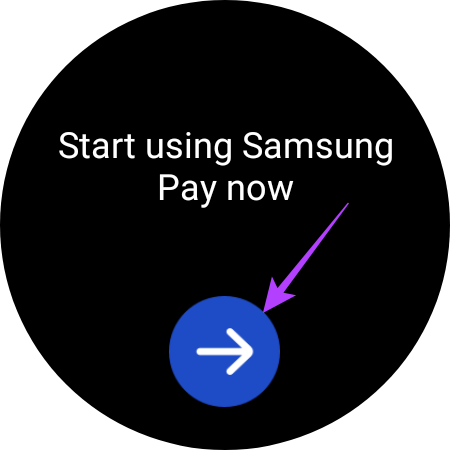
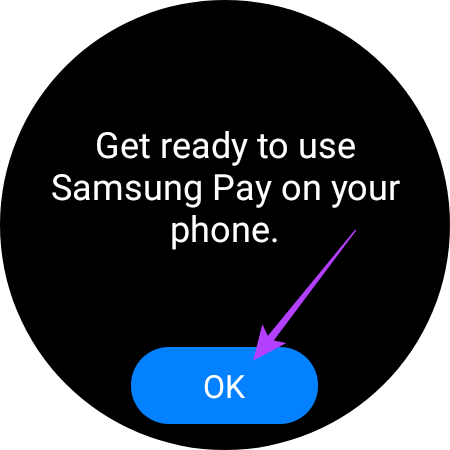
Check your phone now. A Play Store page with the Samsung Pay (Watch plug-in) should open up. However, you can’t download the app since it’s not supported in all regions. Don’t worry, there is a workaround for this too.
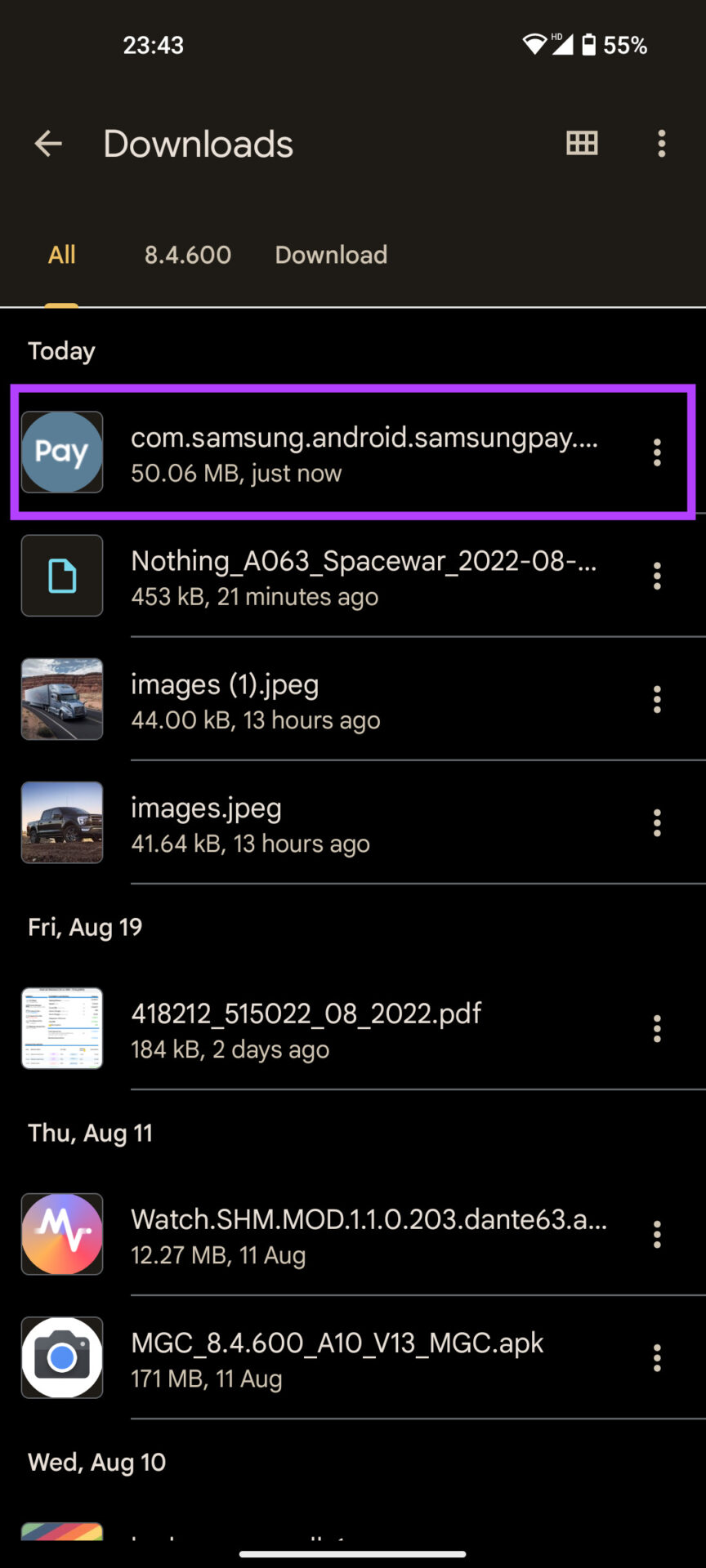
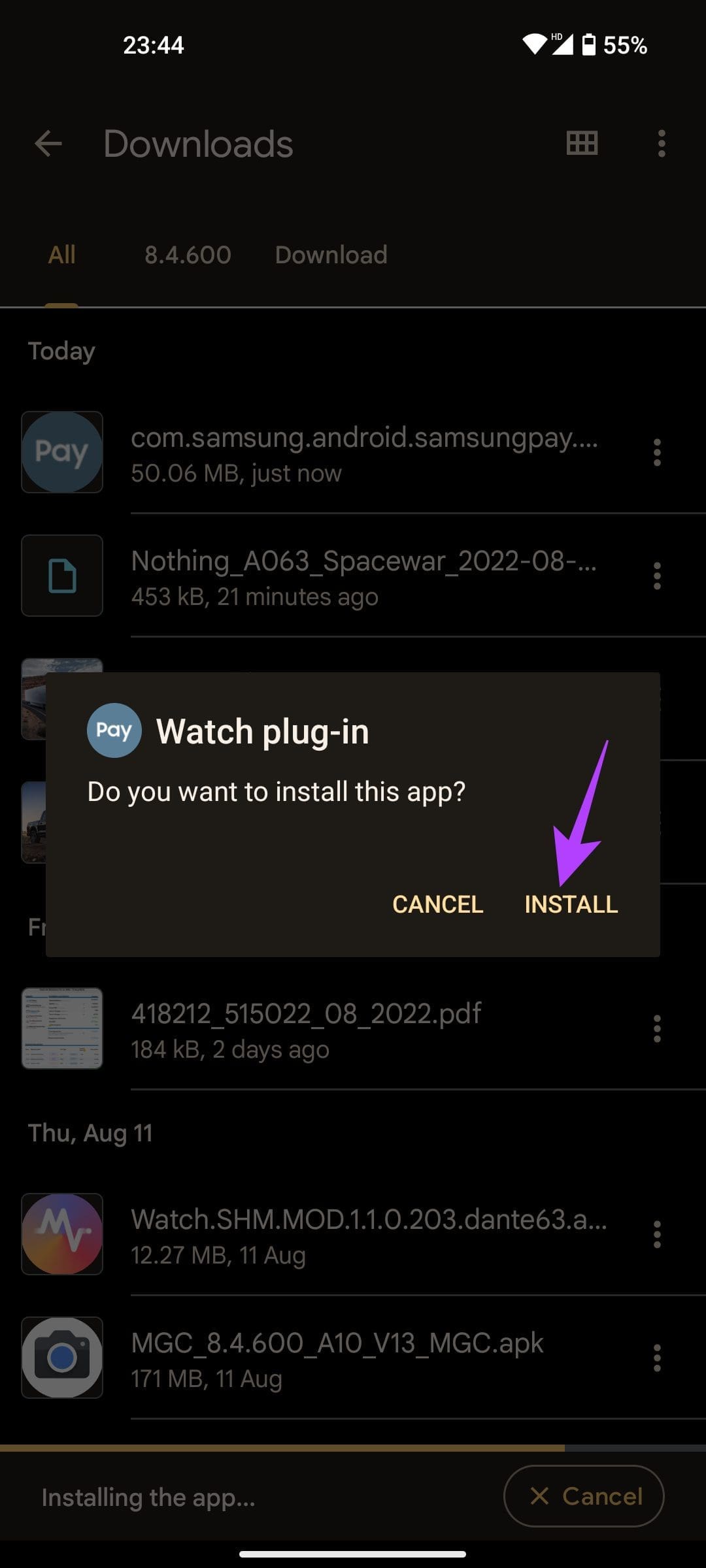
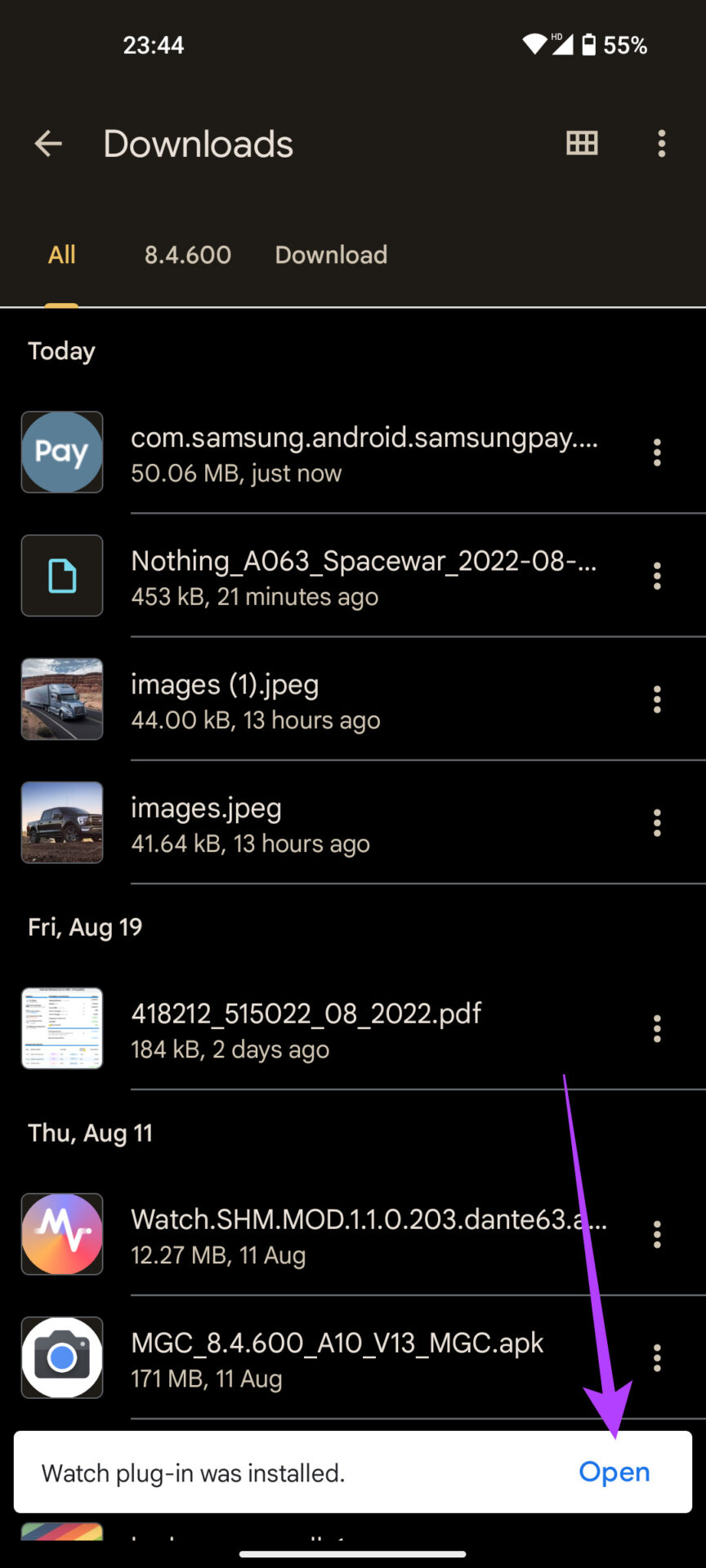
Step 2: Download the Samsung Pay (Watch plug-in) APK file on your smartphone. Tap on the APK to install it and choose Open .
Tip: You need to install this app to prevent sideloading the app to your smartwatch .
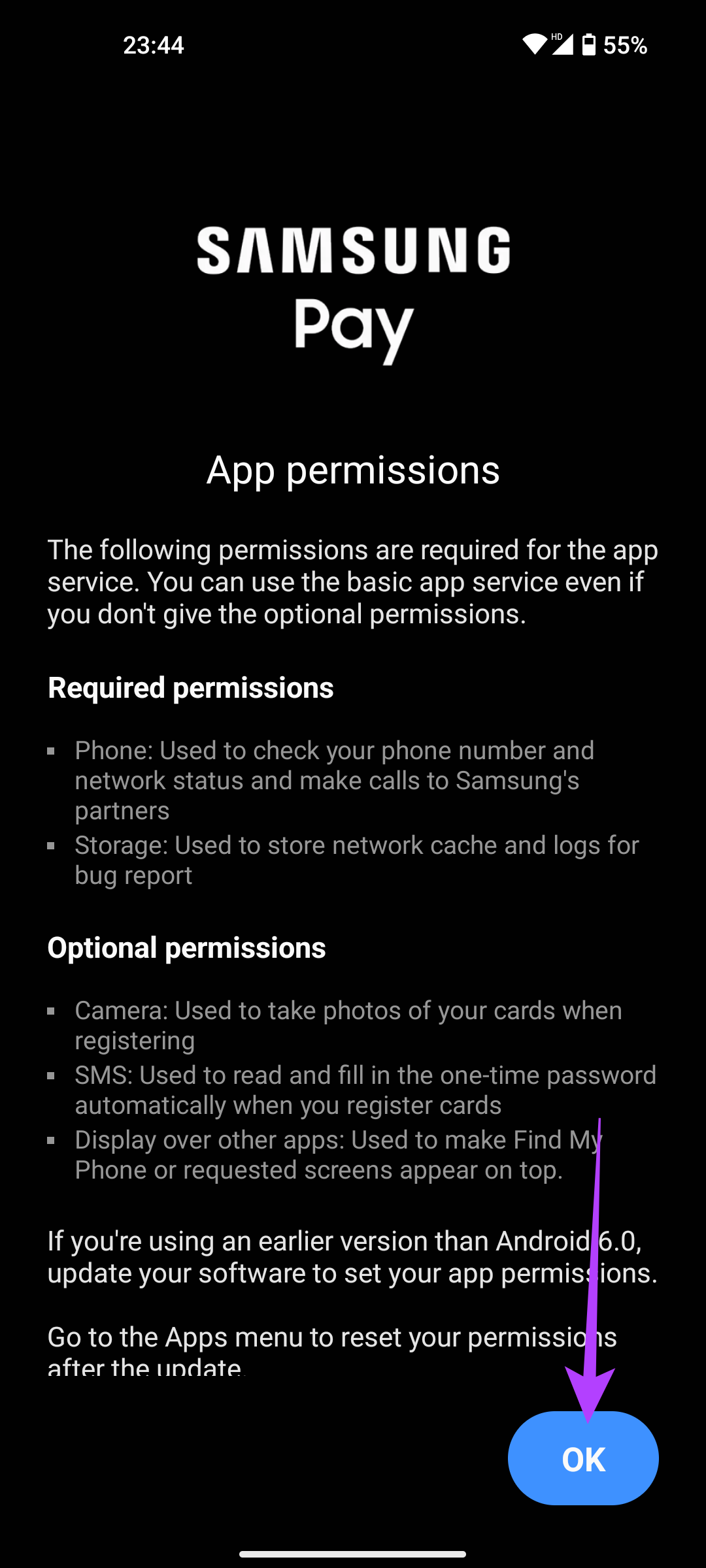
Step 3: Go through the permissions on the Samsung Pay app and tap on OK. Select Allow for all the permission prompts.
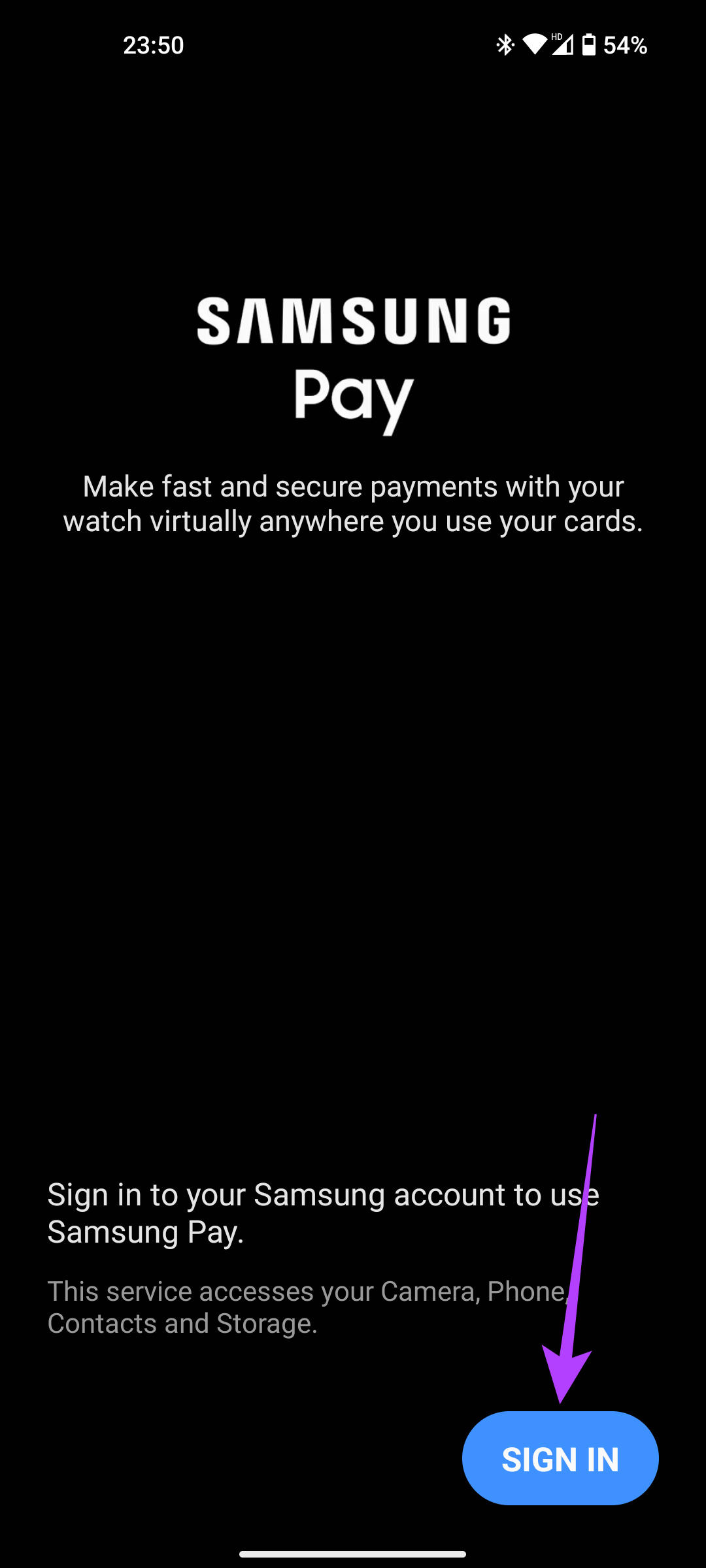
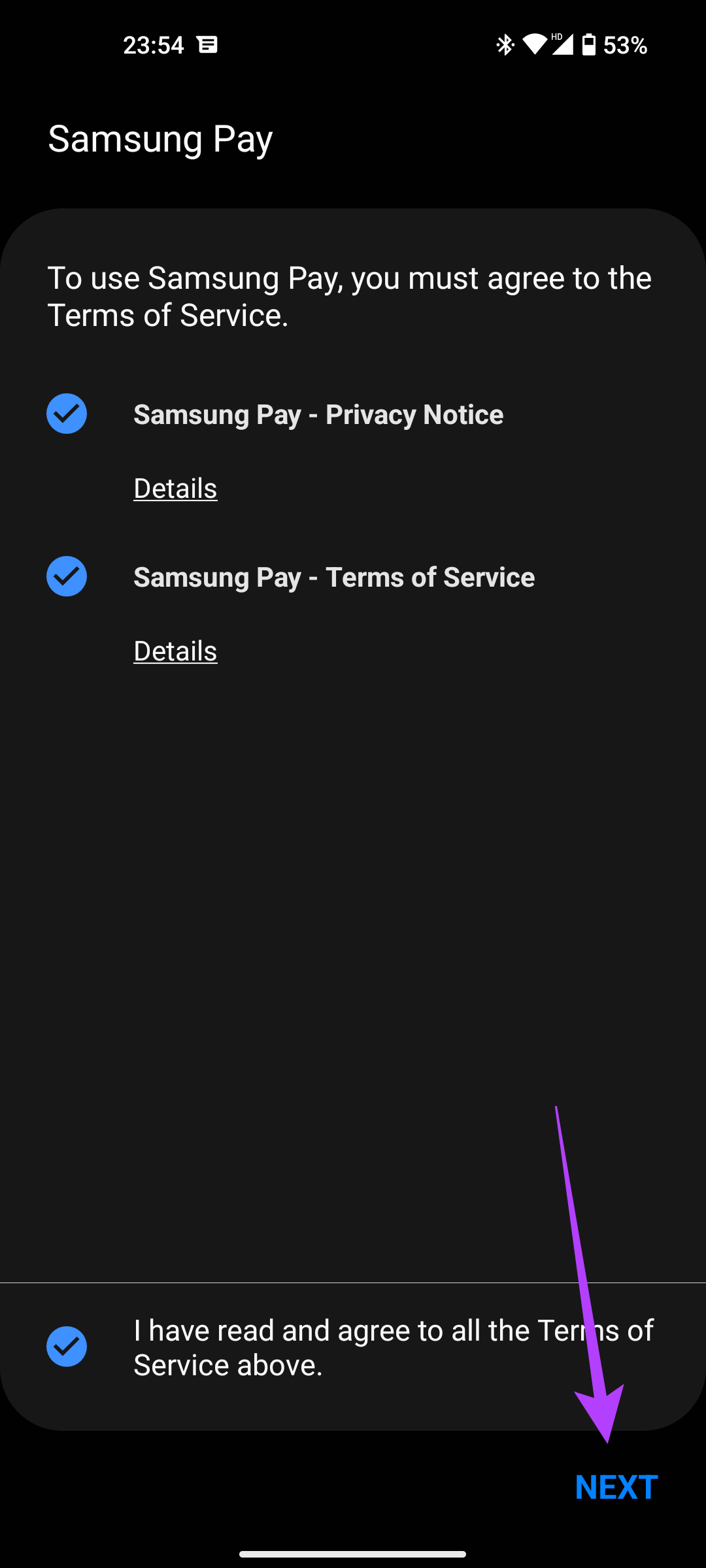
Step 4: Then, use the Sign In button to enter your credentials. Tick the checkboxes to agree to the terms of service and tap on Next .
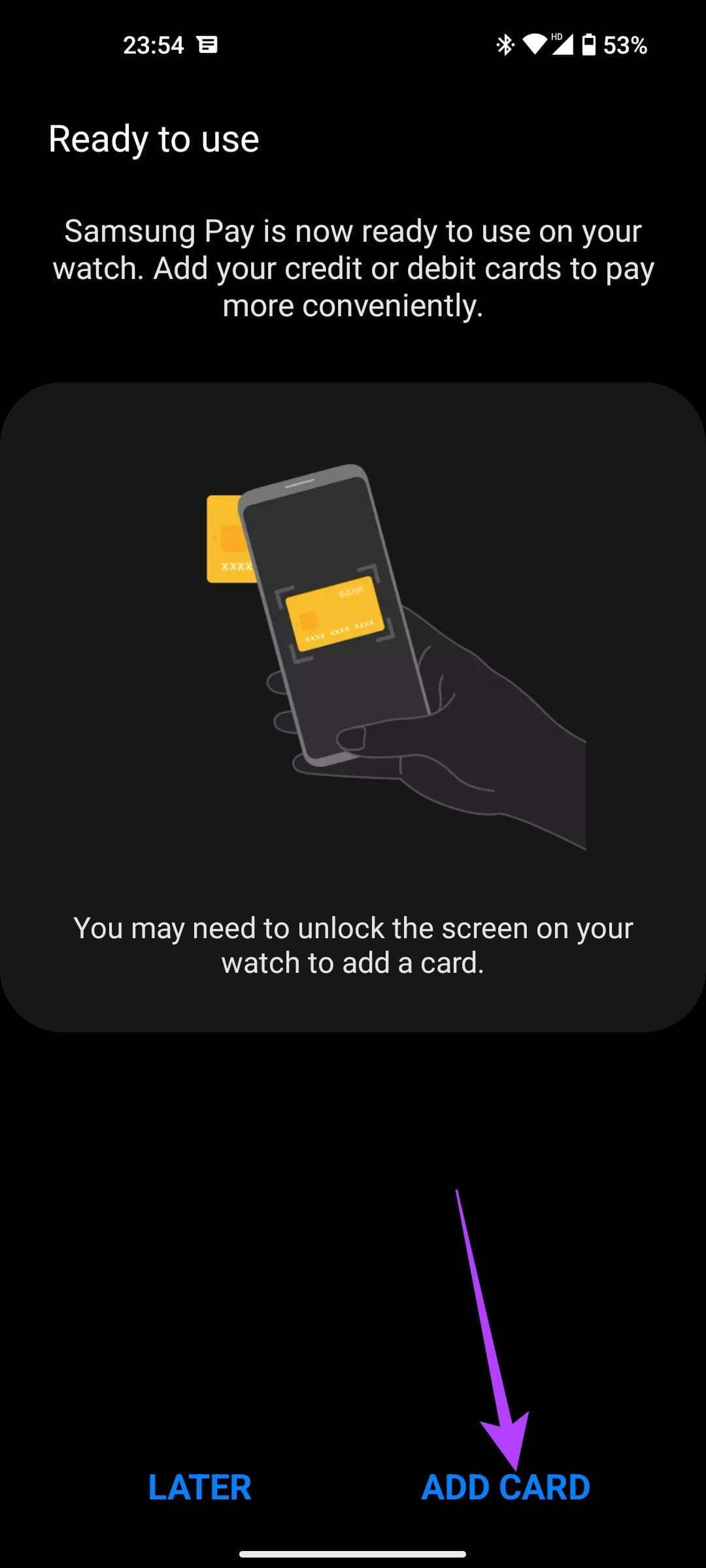
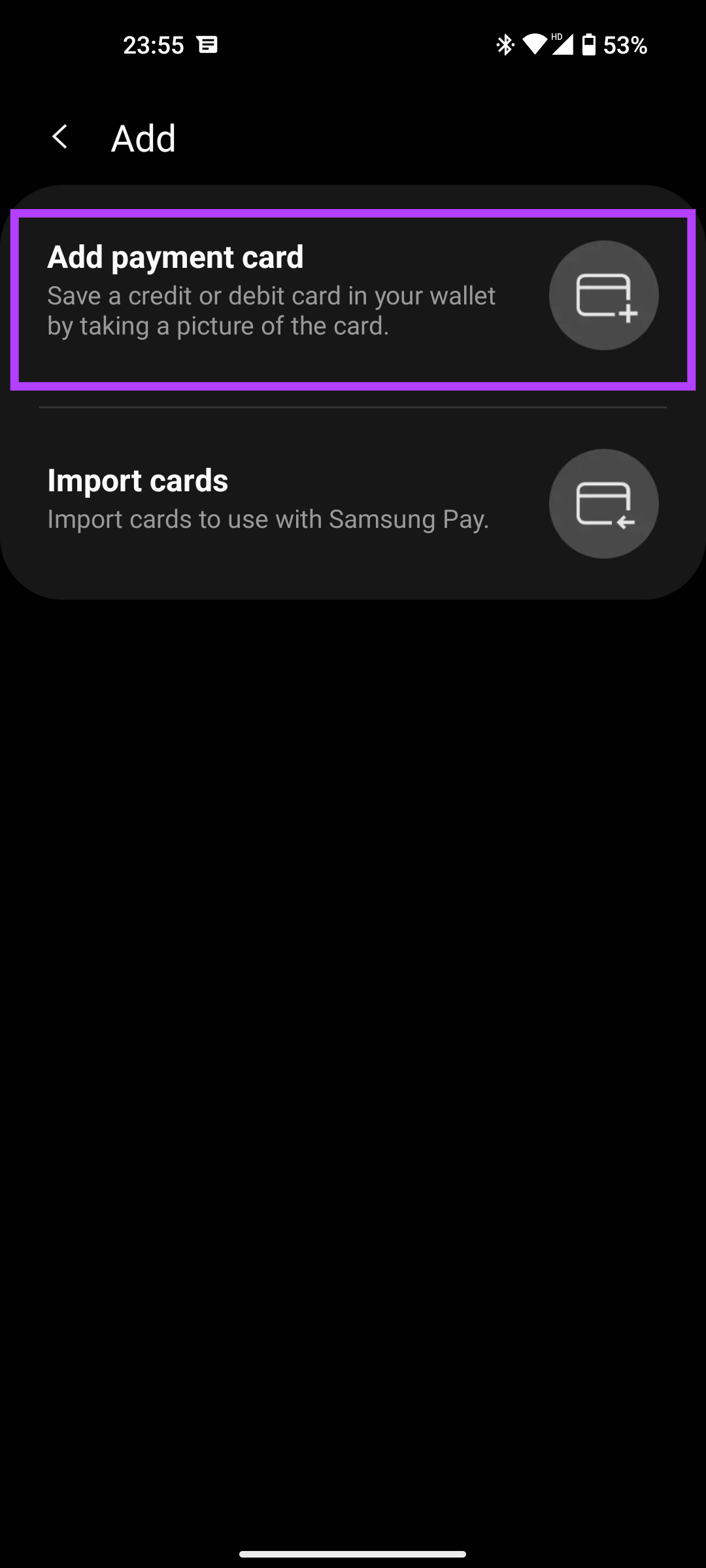
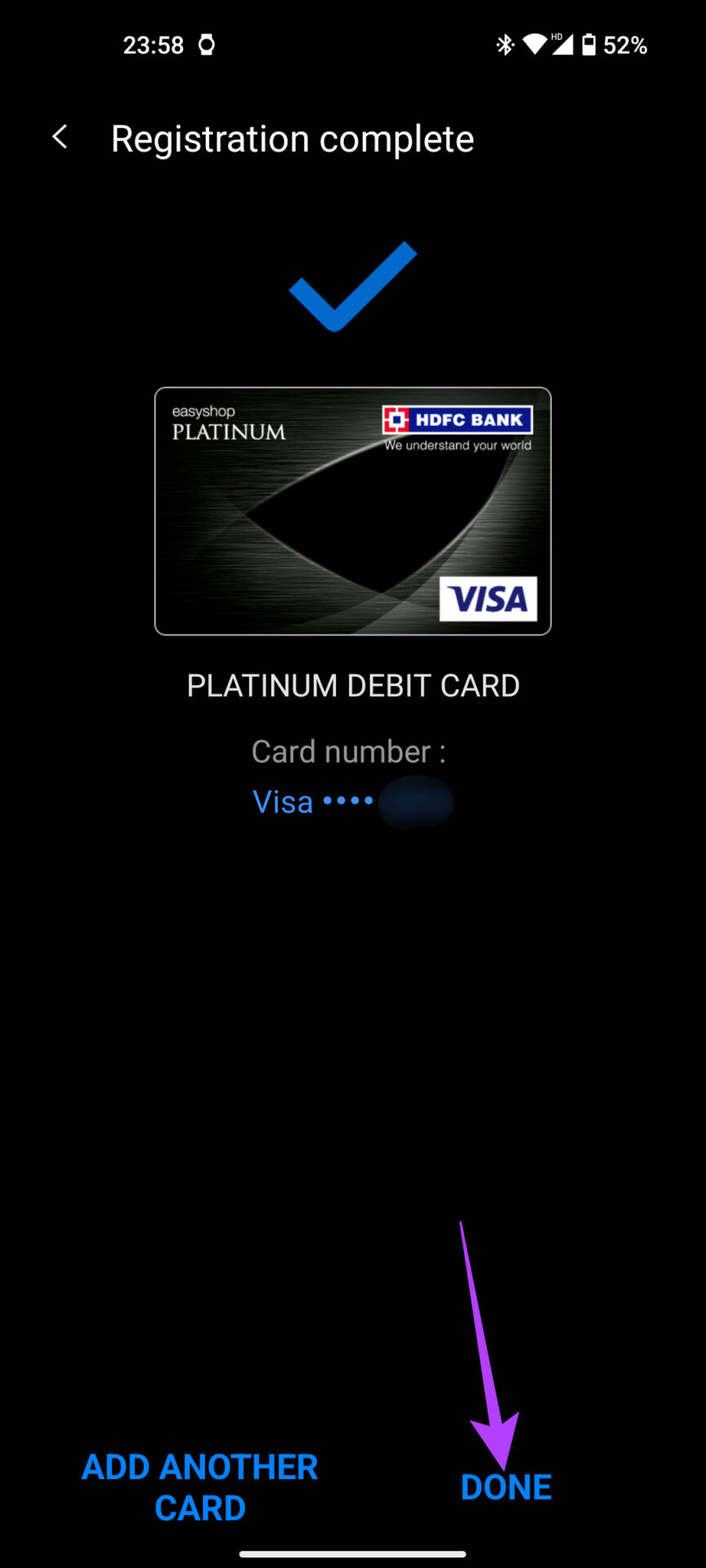
Step 5: Tap on Add Card to link your debit or credit card with Samsung Pay. Follow the on-screen instructions to add your card details.
How Do I Pay With My Samsung Galaxy Watch
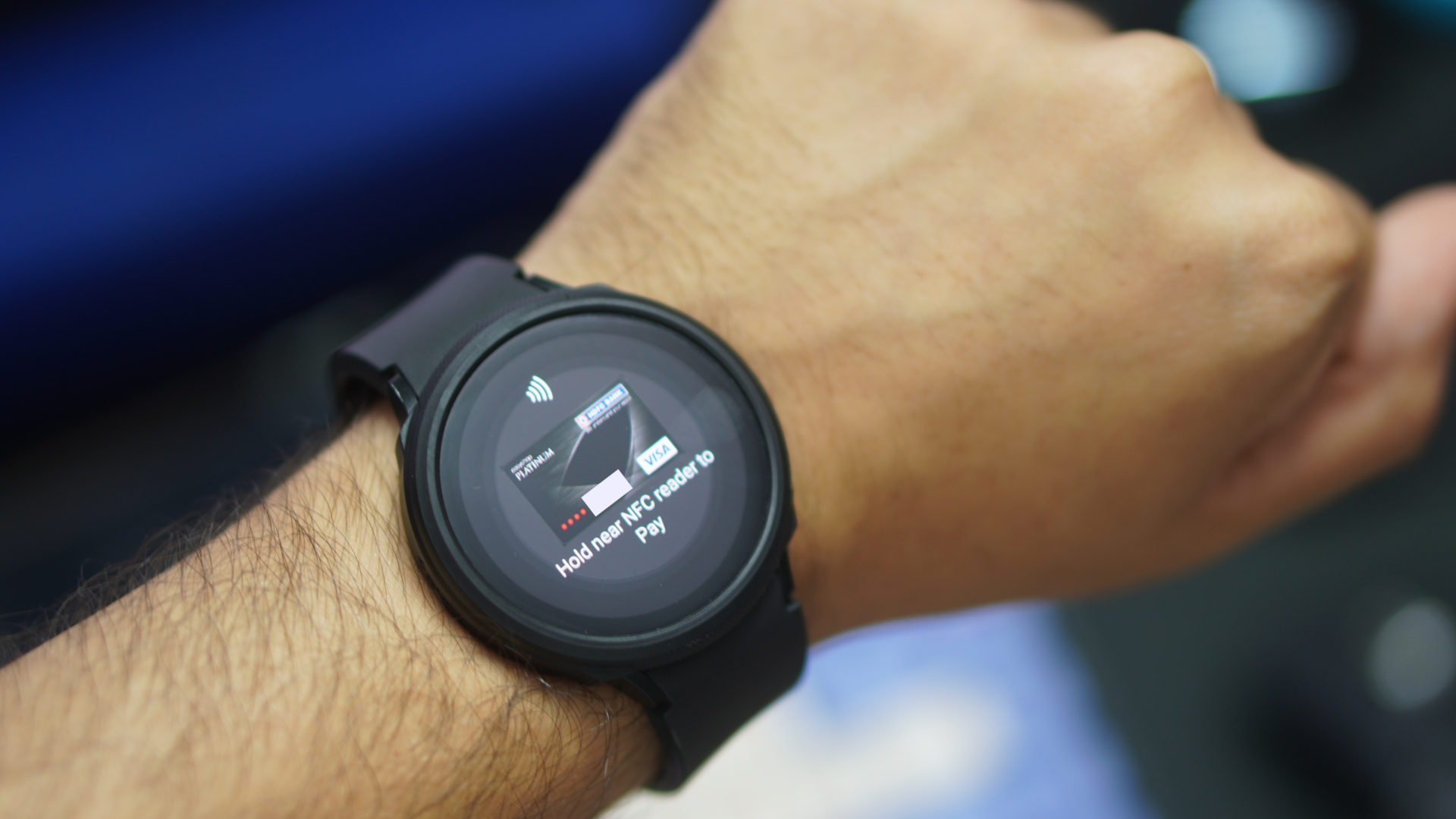
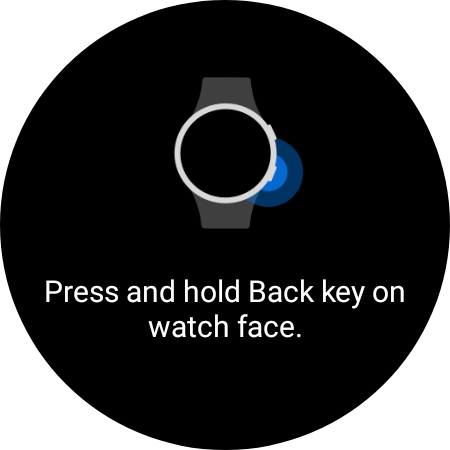
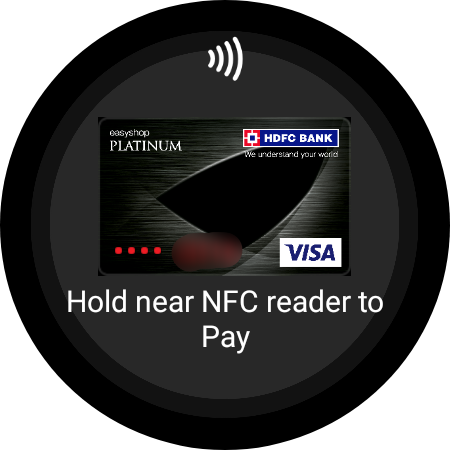
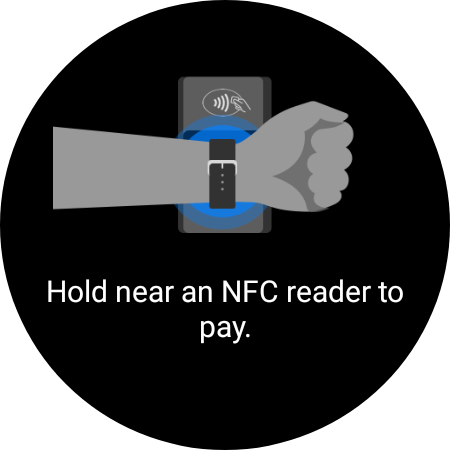
Once you’ve set up Samsung Pay and added your card, the payment process is simple. When you’re at a POS terminal, this is how you can pay via your Galaxy Watch.
Press and hold the back key (the one on the bottom) on the Samsung Galaxy Watch 4. Tap your watch on a POS machine to pay.
Frequently Asked Questions
1. Why can’t I find Samsung Pay on my Galaxy Watch? If you cannot find the Samsung Pay app, it probably means the CSC of your Galaxy Watch hasn’t been changed successfully. Repeat the process from the top once again to see if it makes a difference.
2. Can you use Samsung Pay on the Galaxy Watch without your phone? Yes, you only need your phone to set up Samsung Pay once. After that, you can continue using Samsung Pay even when the watch isn’t connected to the phone.
3. Is Samsung Pay free to use? Samsung Pay is completely free to use. Samsung does not charge any additional fee to use it.
4. Can I use Samsung Pay with a non-Samsung smartphone? Yes. For writing this guide, we set up Samsung Pay on the Galaxy Watch 4 linked to a Nothing Phone (1).
5. Can you use Google Pay on the Galaxy Watch? Yes, you can. However, Google Pay is available only in certain countries on a Wear OS smartwatch, and there’s no foolproof way to make it work outside those eligible countries as of now.
Was this helpful?
Submit Cancel
Thanks for your feedback!
Keep reading