Android
What Is Smart View on Samsung and How to Use It
Wondering what is Smart View on Samsung Galaxy phones? Read the tutorial to know its meaning and how to use it to mirror phone to TV.
By Mehvish
Quick Tips
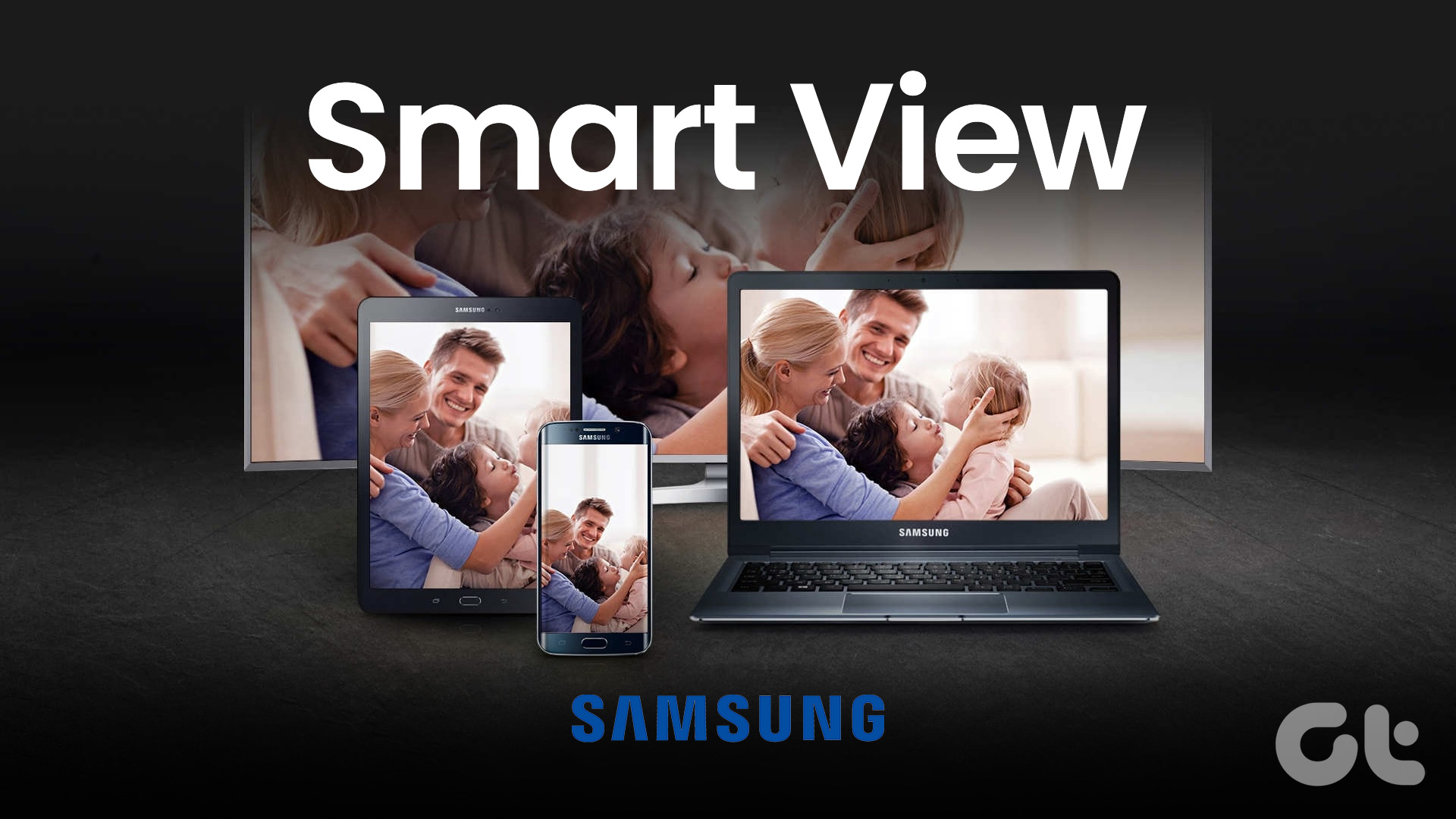
Smart View is a feature available on Samsung Galaxy phones that allows you to mirror your phone’s screen to a TV and vice versa.
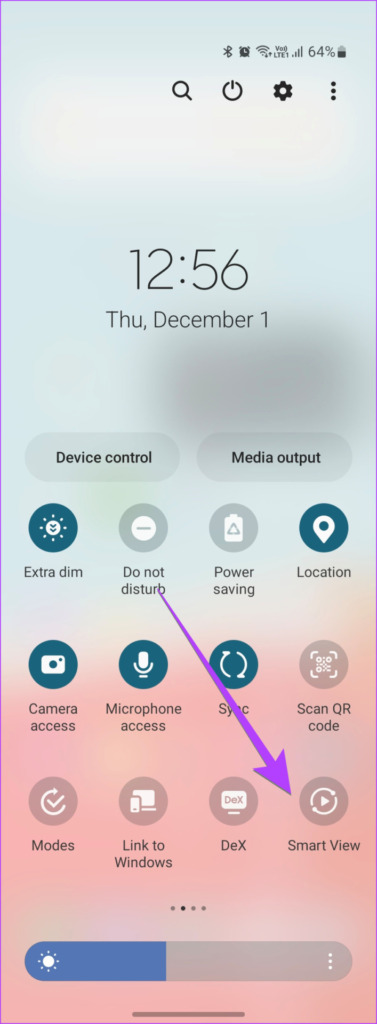
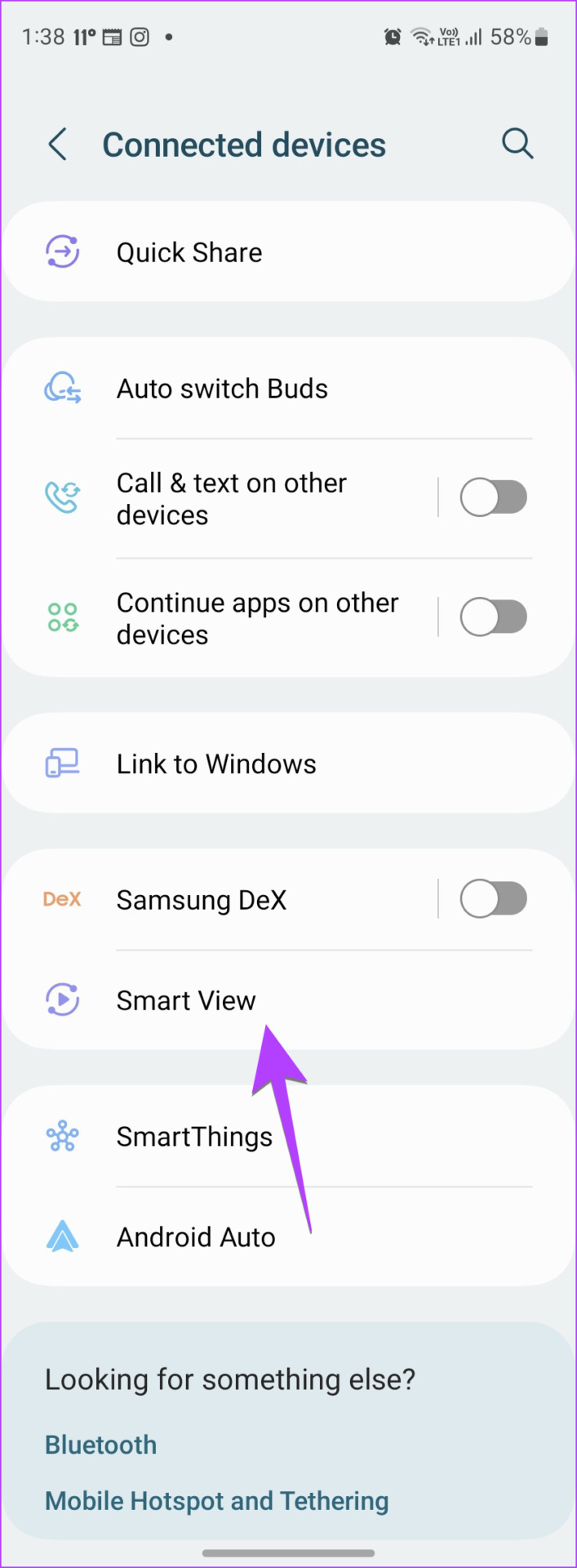
You can easily access Smart View by opening the Quick Settings panel or by going to Settings > Connected devices on your Galaxy phone.
Smart View can be used to control your TV and other smart devices, offering a seamless way to interact with your home entertainment system.
What Is Smart View on Samsung Phones and How Does It Work
Smart View is a feature in Samsung Galaxy phones that lets you mirror your phone to a bigger screen, like a smart TV, via a wireless connection. Mirroring the phone means whatever is visible on your phone’s screen will show on the TV.
The mirroring feature goes by different names on different devices. This screen mirroring feature is called Smart View on Galaxy devices and AirPlay on iPhones . For Smart View to work, your Samsung Galaxy phone and TV must be connected to the same Wi-Fi network. The Smart View feature will work with Samsung smart TVs, but it also supports TVs from other brands such as LG, Sony, etc., provided they support the Miracast wireless technology.
How to Use Smart View on Samsung Galaxy Phones
There are multiple ways to connect Samsung Smart View to your TV.
Method 1: Use Smart View to Mirror Phone to TV
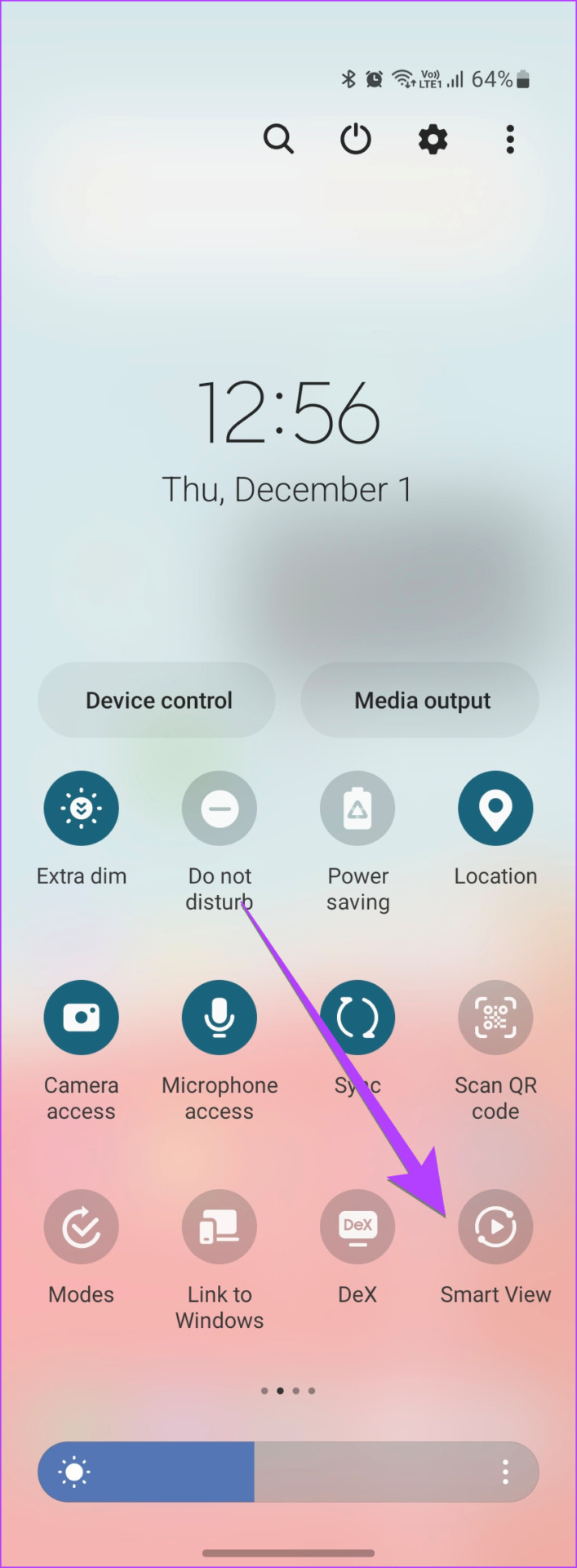
Step 1: On your Samsung Galaxy phone, swipe down twice to open the Quick Settings panel and tap the Smart View tile. Alternatively, go to Settings > Connected devices > Smart View .
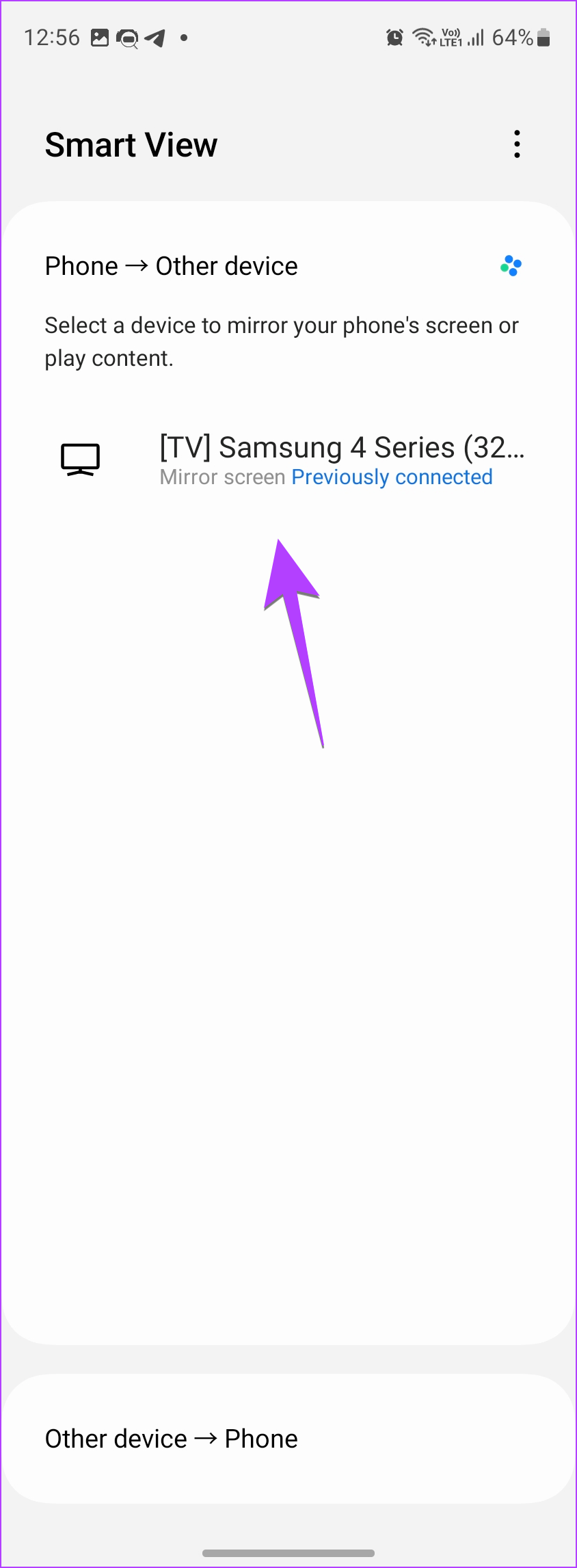
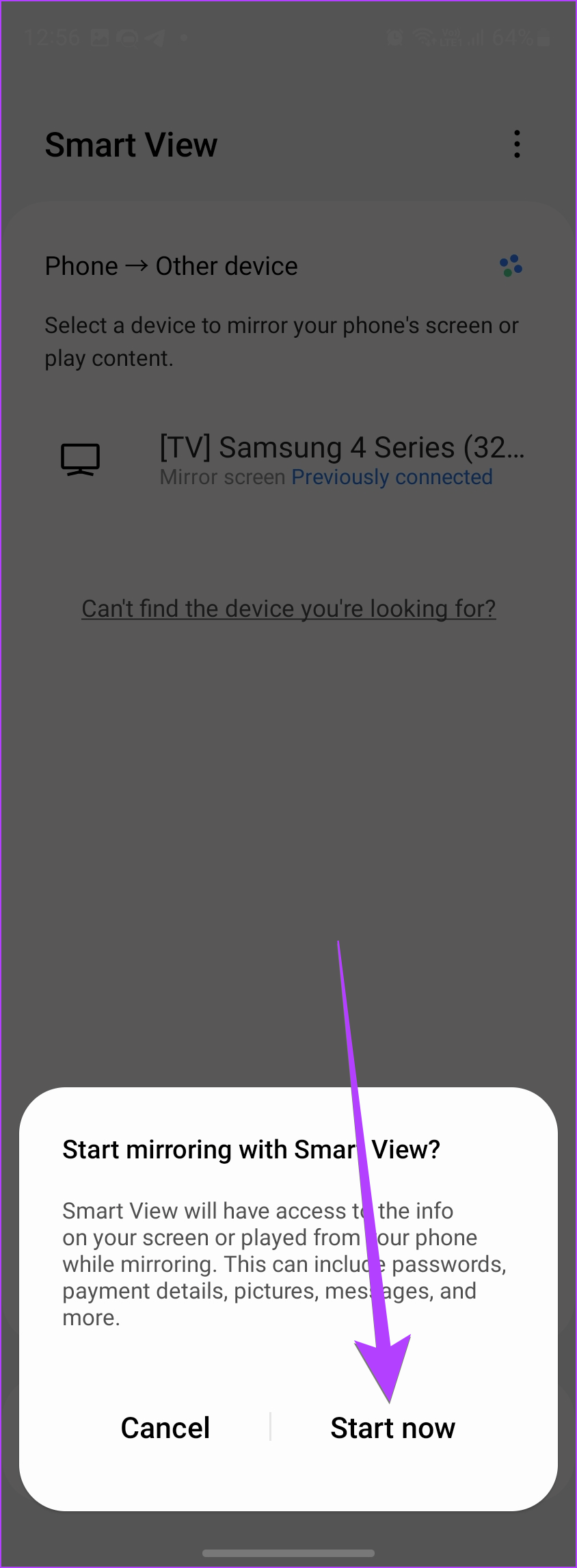
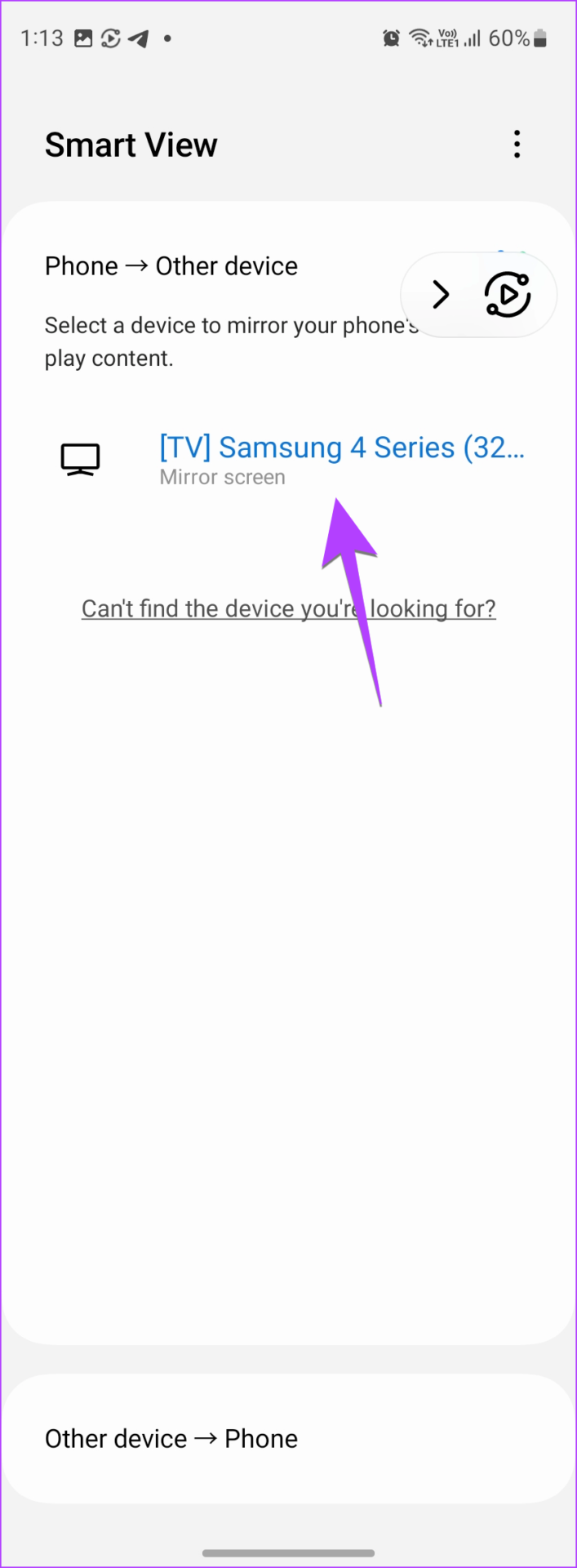
Step 2: Your phone will start looking for nearby supported devices. Once it finds your TV, tap on the TV’s name and hit Start Now .
Note: If you are using a steaming device like Fire Stick, Roku, etc., you might need to enable the screen mirror feature in its settings.
Method 2: Stream TV’s Screen to Samsung Galaxy Phone
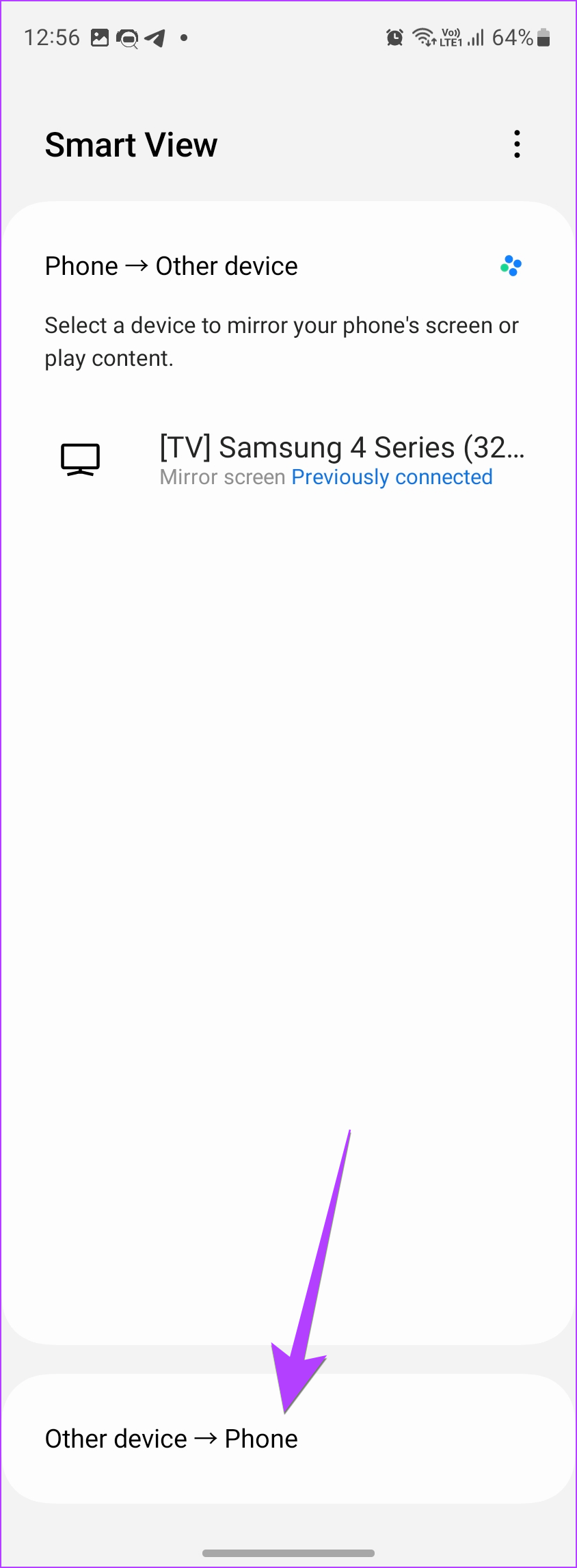
Open the Quick Settings panel and tap on Smart View . Then, tap on Other devices > phone and select your TV .
Method 3: View Photos on TV Using Smart View
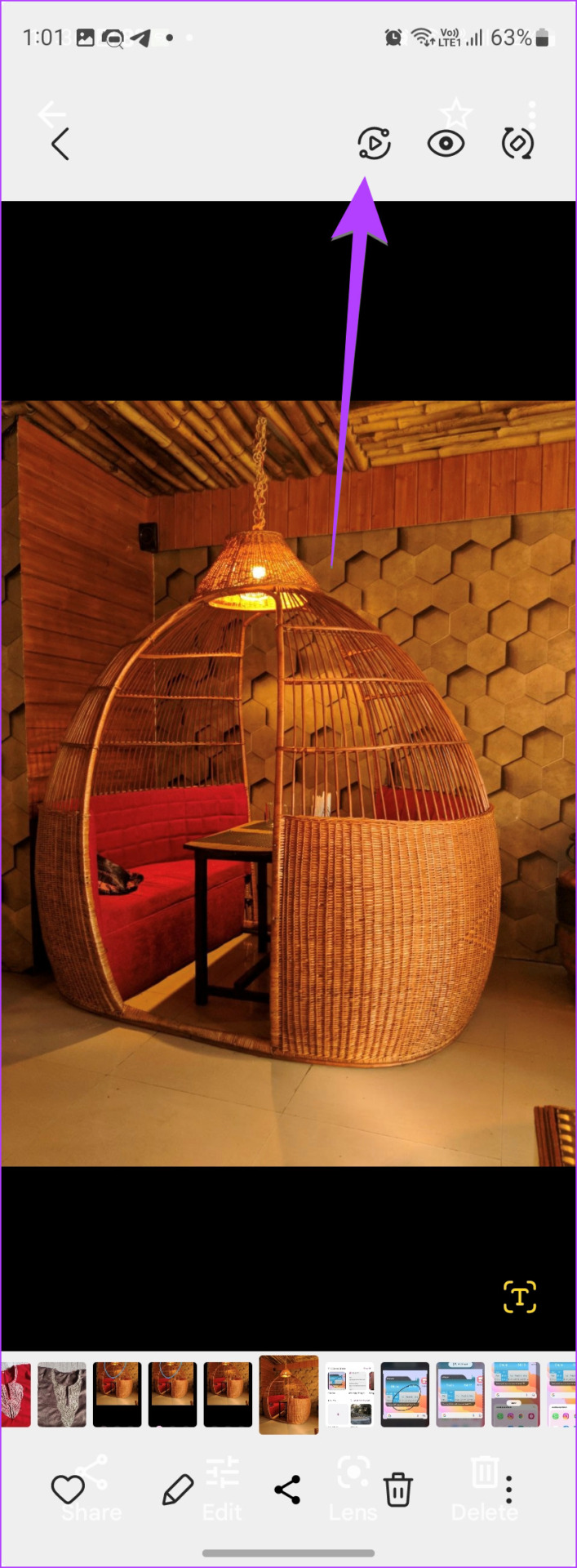
Step 1: Open the Samsung Gallery app and open the photo that you want to show on TV.
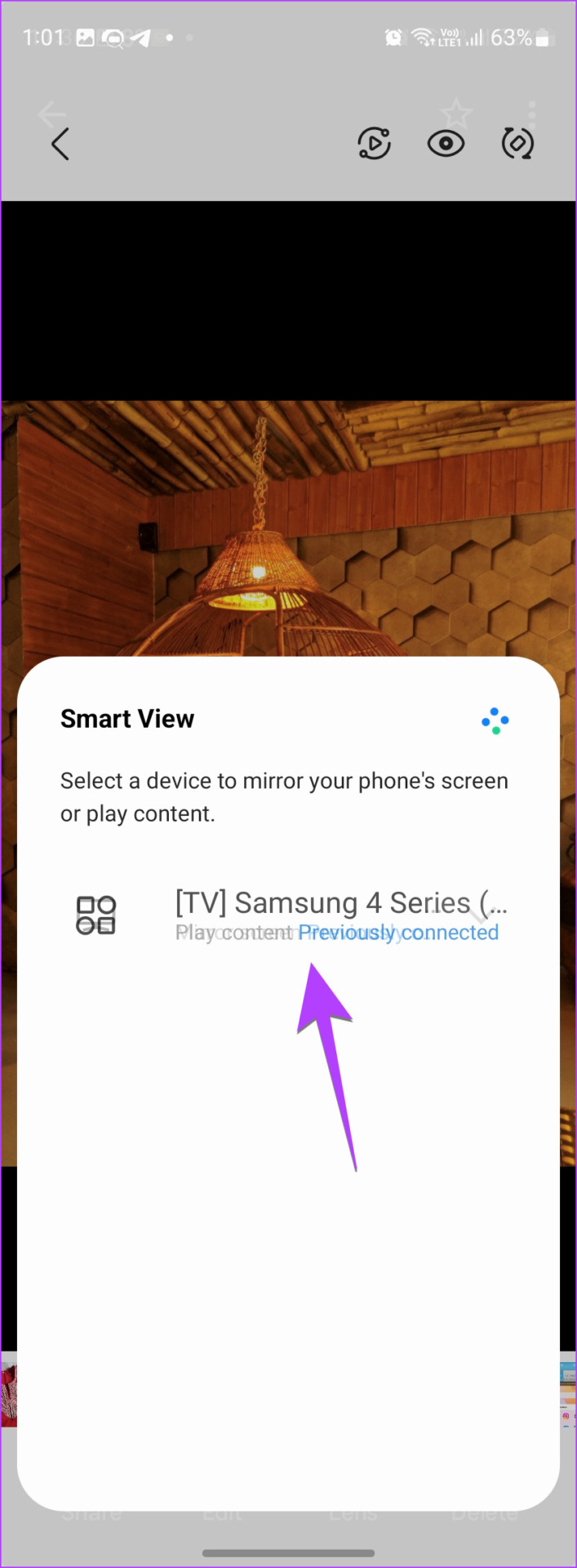
Step 2: Tap the Smart view icon at the top and select your TV.
Method 4: Use Smart View With the SmartThings App
The SmartThings app on your Galaxy phone can act as a remote for your TV and other smart home gadgets. The app also lets you mirror your phone to the TV using the built-in Smart View feature.
Step 1 : Install and open the SmartThings app on your Samsung Galaxy phone, in case it’s not pre-installed.
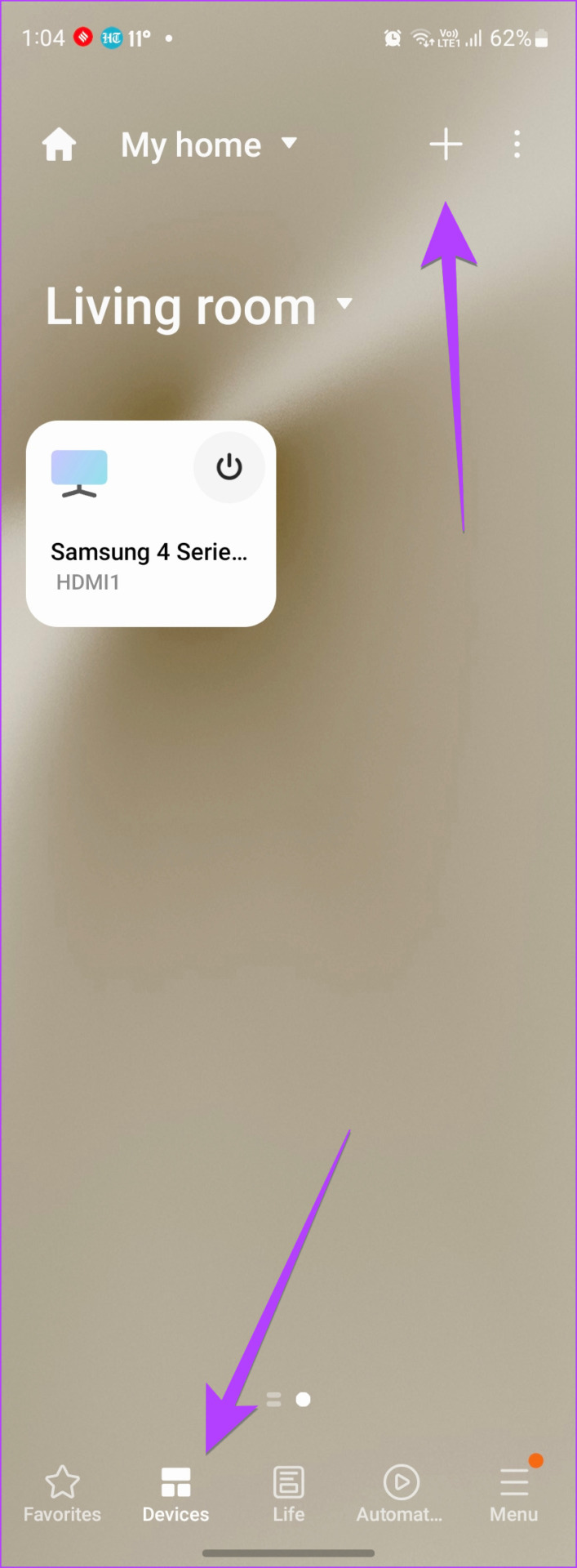
Step 2: Go to the Devices tab and tap the + button at the top.
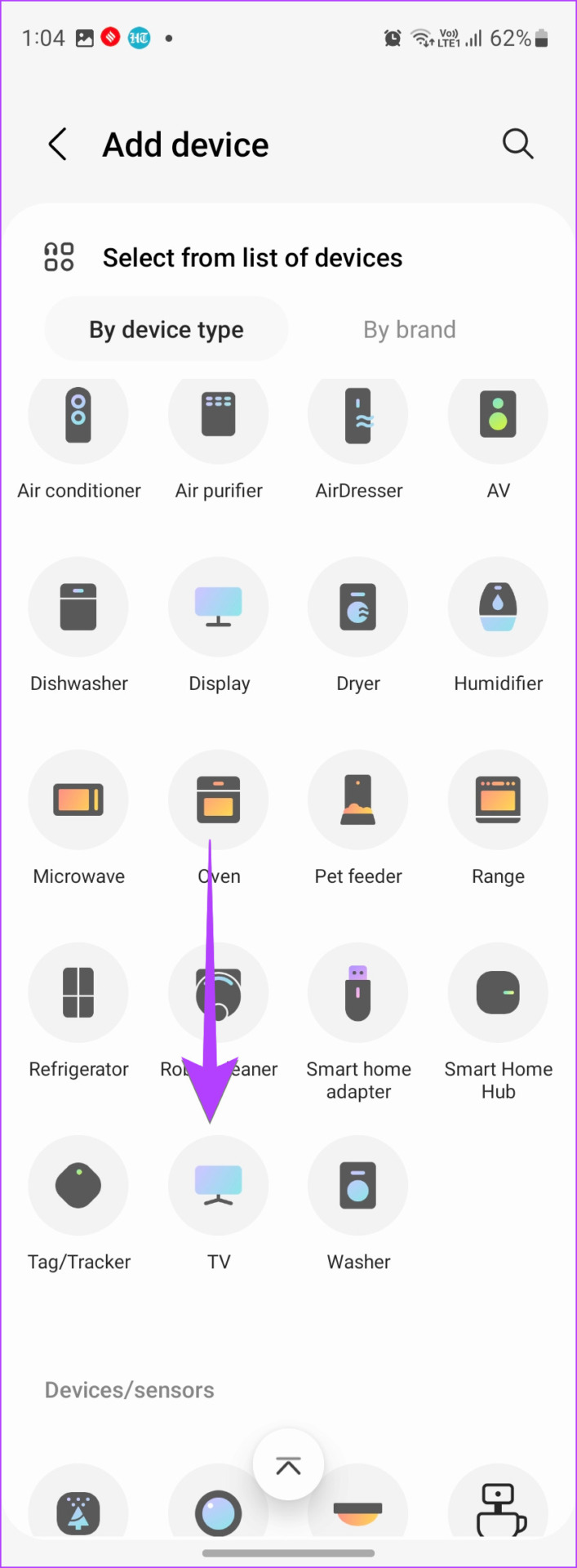
Step 3: Scroll down and tap on TV. Find your TV and follow the on-screen instructions to add the TV to the app.
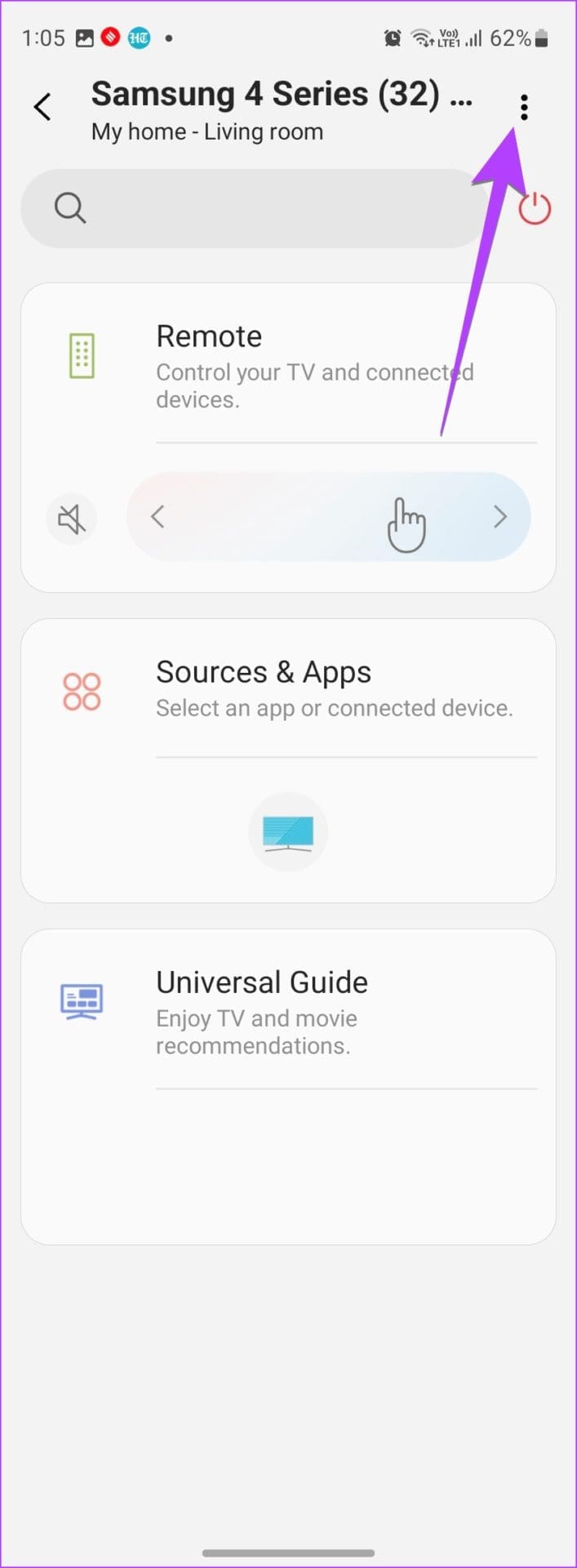
Step 4: Once the TV has been added, tap on it to view the available features, such as using the remote control, opening apps, and turning the TV on or off.
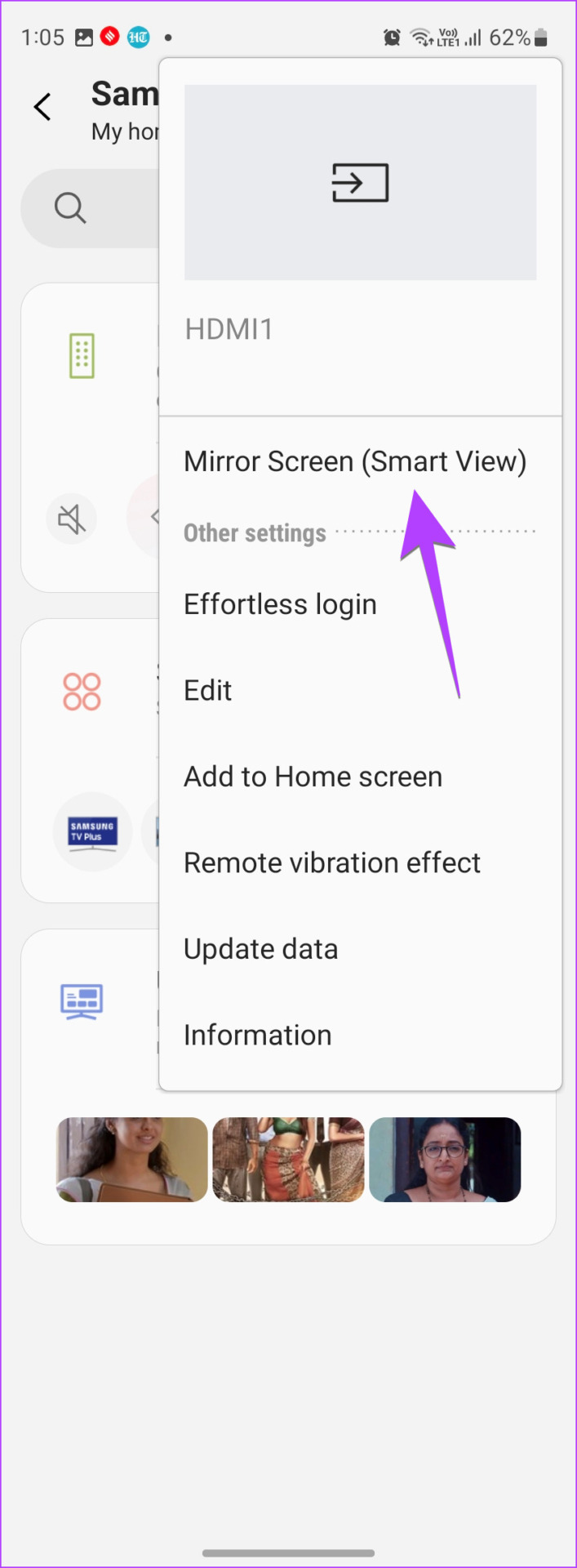
Step 5 : To use the Smart View feature, tap the three-dot icon and select Mirror Screen (Smart View) . Tap on Start Now in the pop-up.
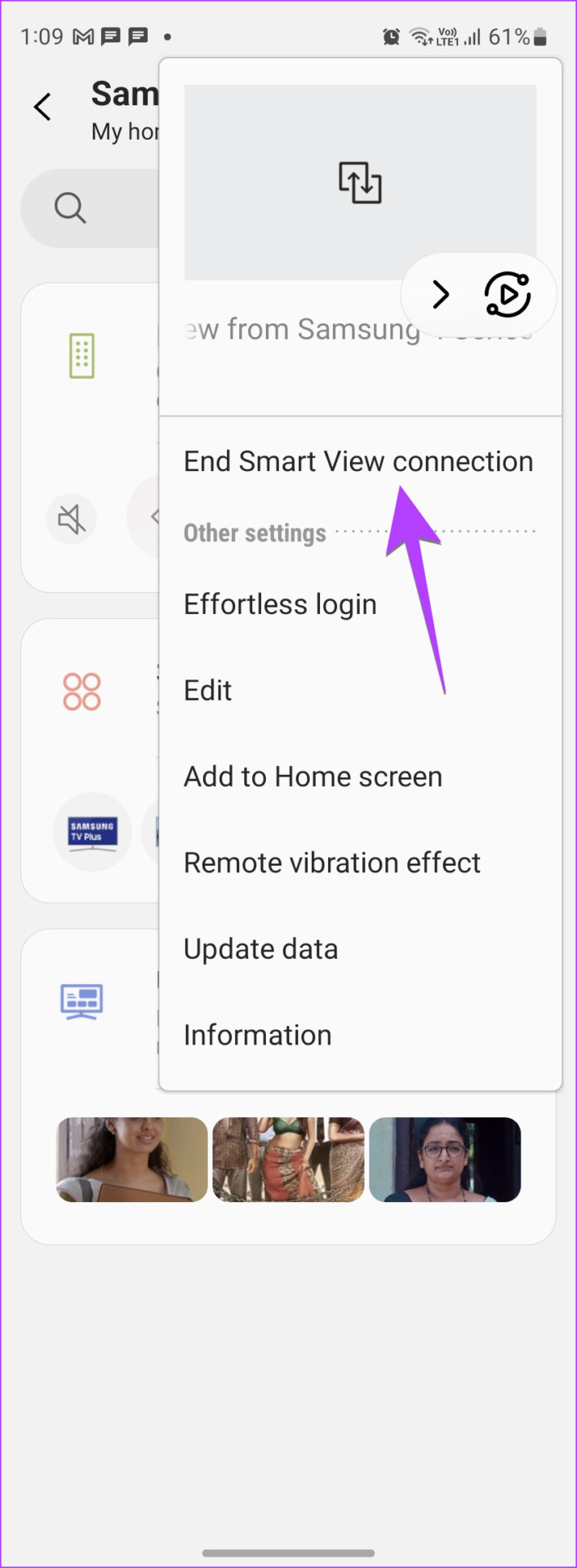
Step 6 : To disconnect Smart View, go to your TV from the SmartThings app and tap on the three-dot icon . Select End Smart View connection .
Method 5: Cast to the TV From a Samsung Galaxy Phone
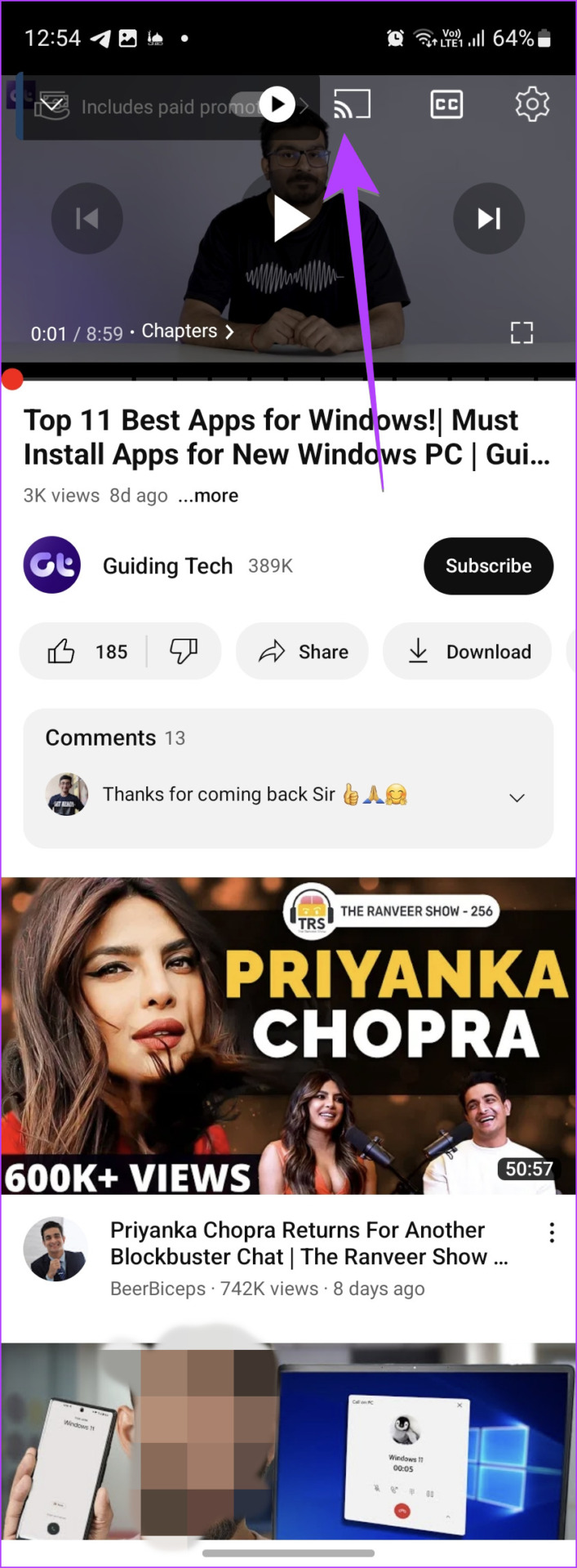
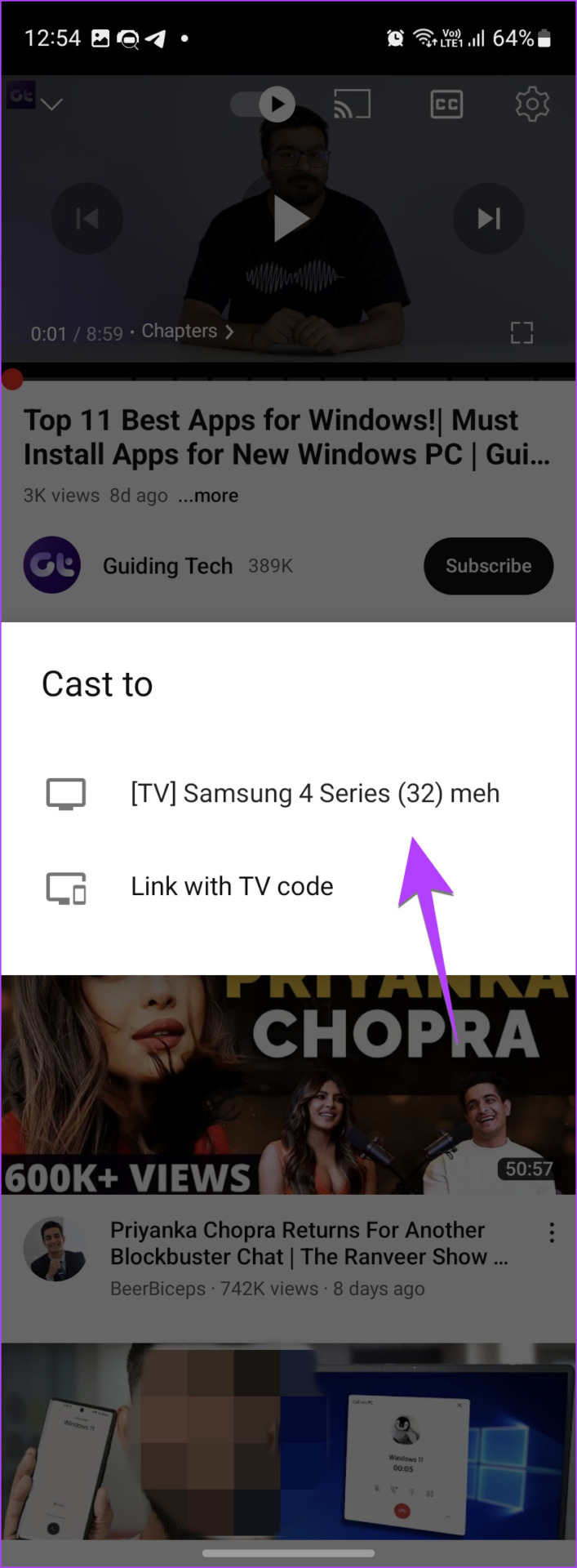
To only cast the app’s content to your TV, open the desired app. You will see the Cast icon . Tap on it and then select the TV to connect to it.
How to Change Aspect Ratio and Notification Settings in Smart View
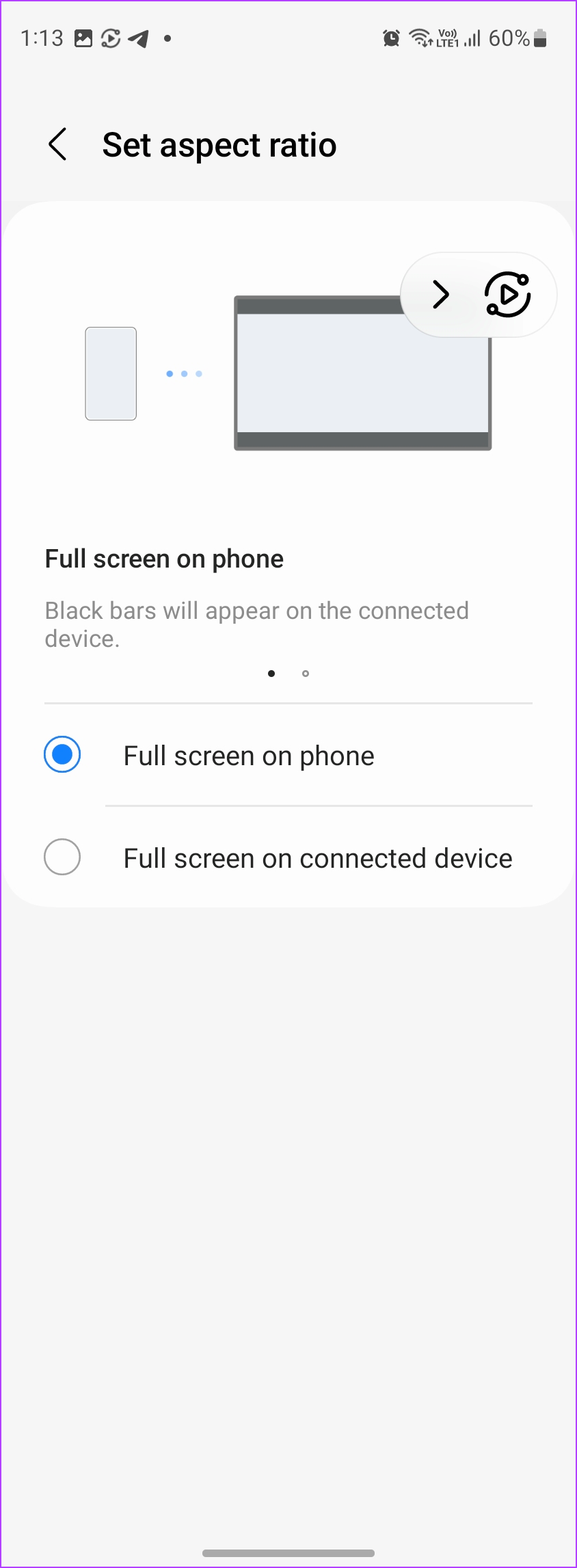
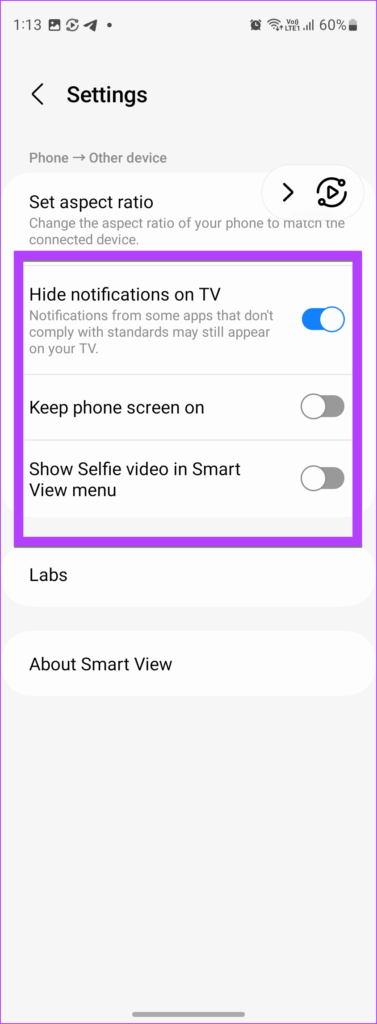
After connecting your Samsung Galaxy phone to the TV using Smart View, you can customize several features for a better viewing experience. These include adjusting the aspect ratio of the image on the TV, choosing whether to view or hide notifications while mirroring, and deciding whether to keep the phone screen on during the session.
Step 1: Connect your Samsung Galaxy phone to the TV using the Smart View feature. Then, long-press the Smart View tile in Quick Panel to open its settings.
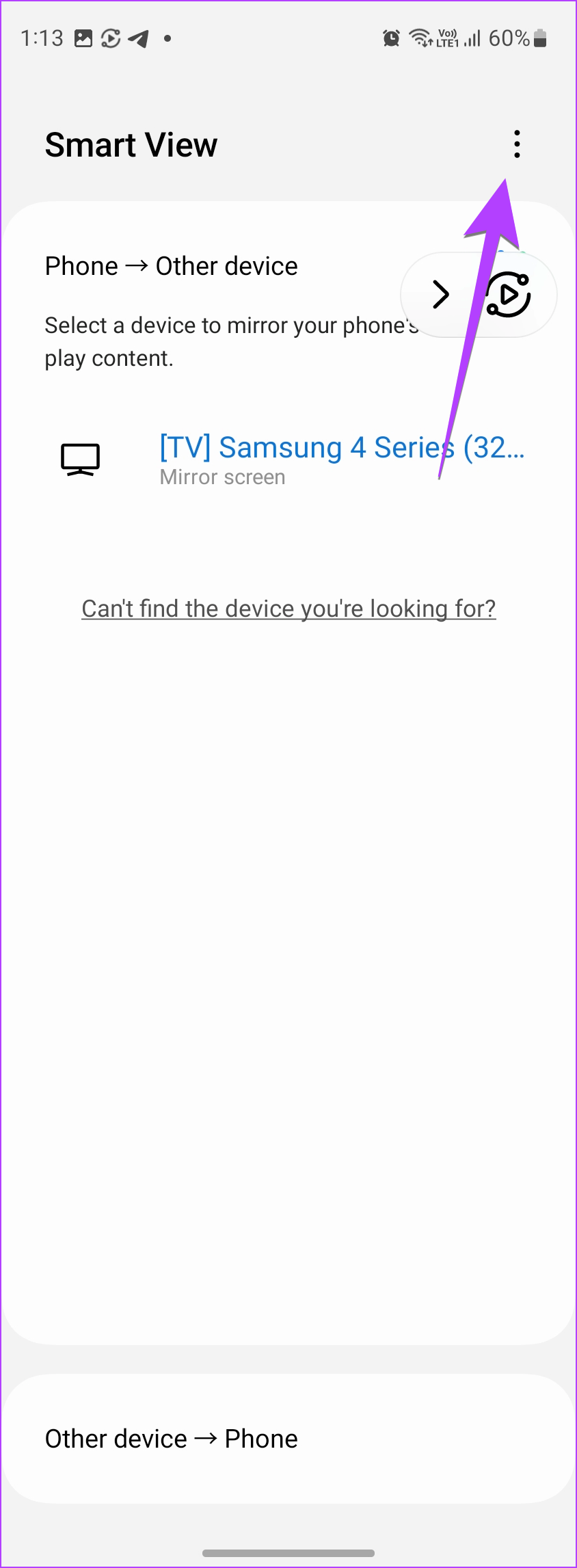
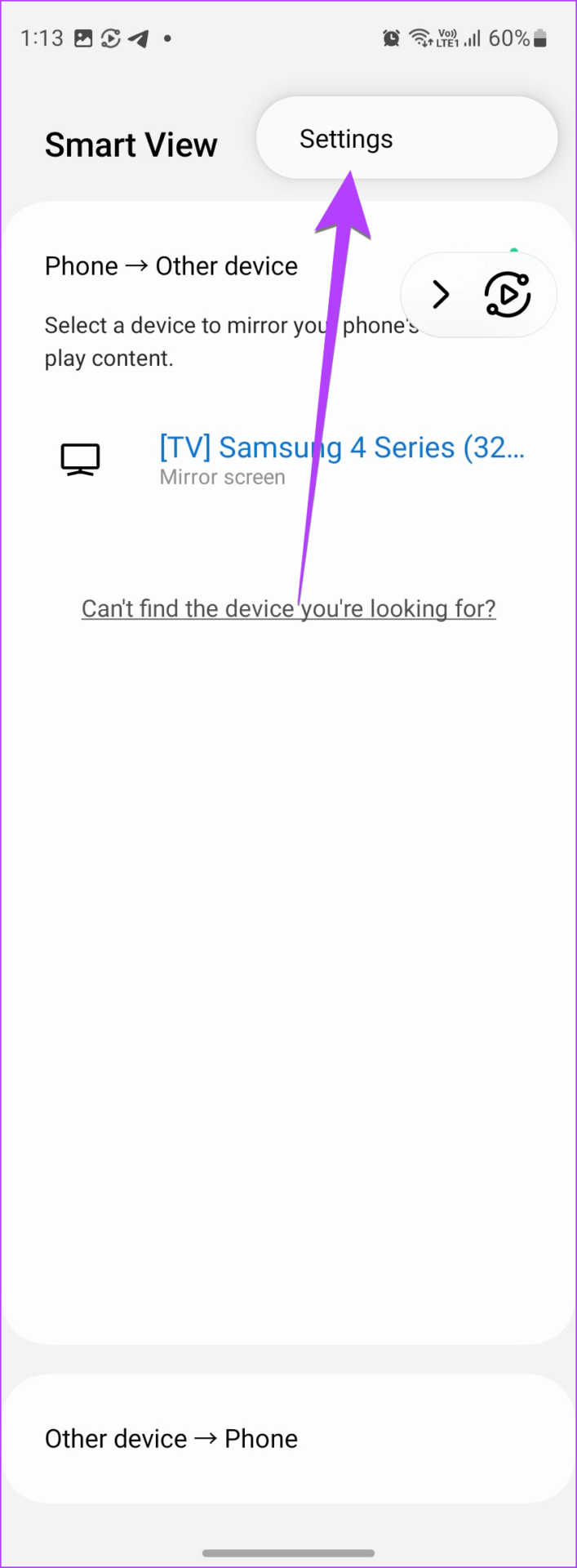
Step 2: Tap on the three-dot icon on the Smart view screen and select Settings .
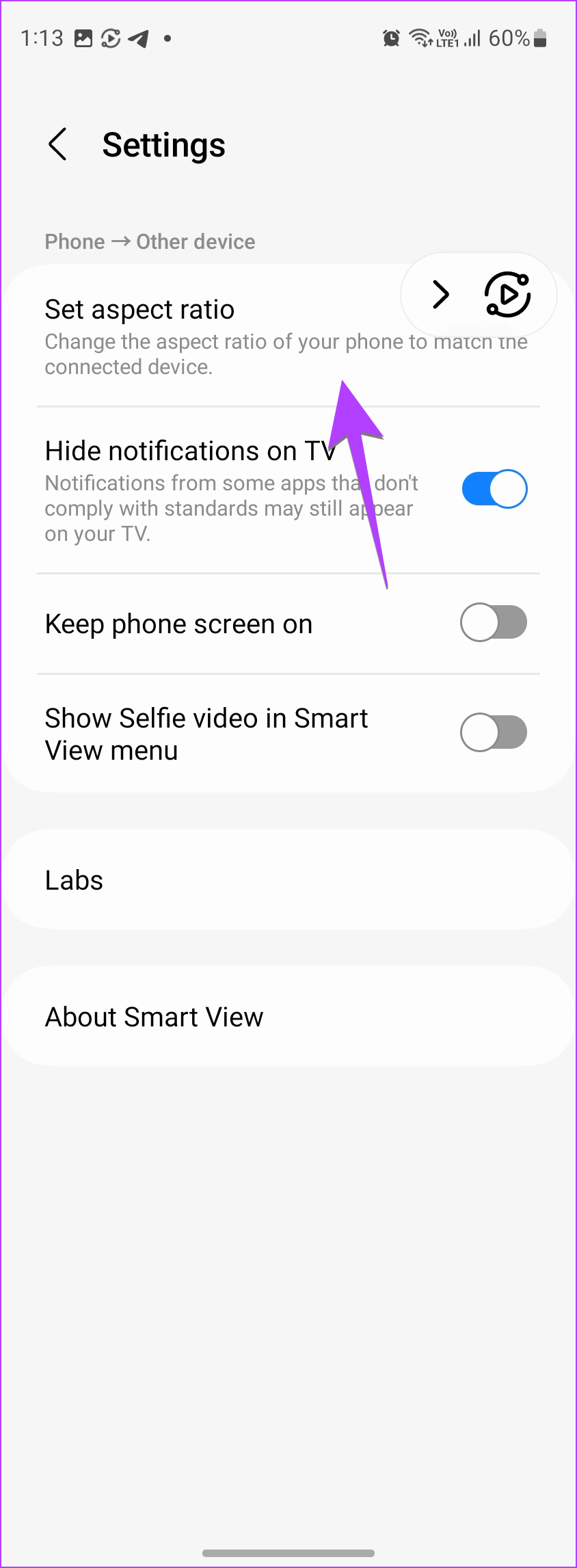
Step 3: Tap on Set aspect ratio and choose Full screen on connected devices. This will increase the size of the image on the TV.
Step 4: Similarly, use the toggles to hide notifications on TV or keep your phone screen on.
How to Disconnect Smart View From TV
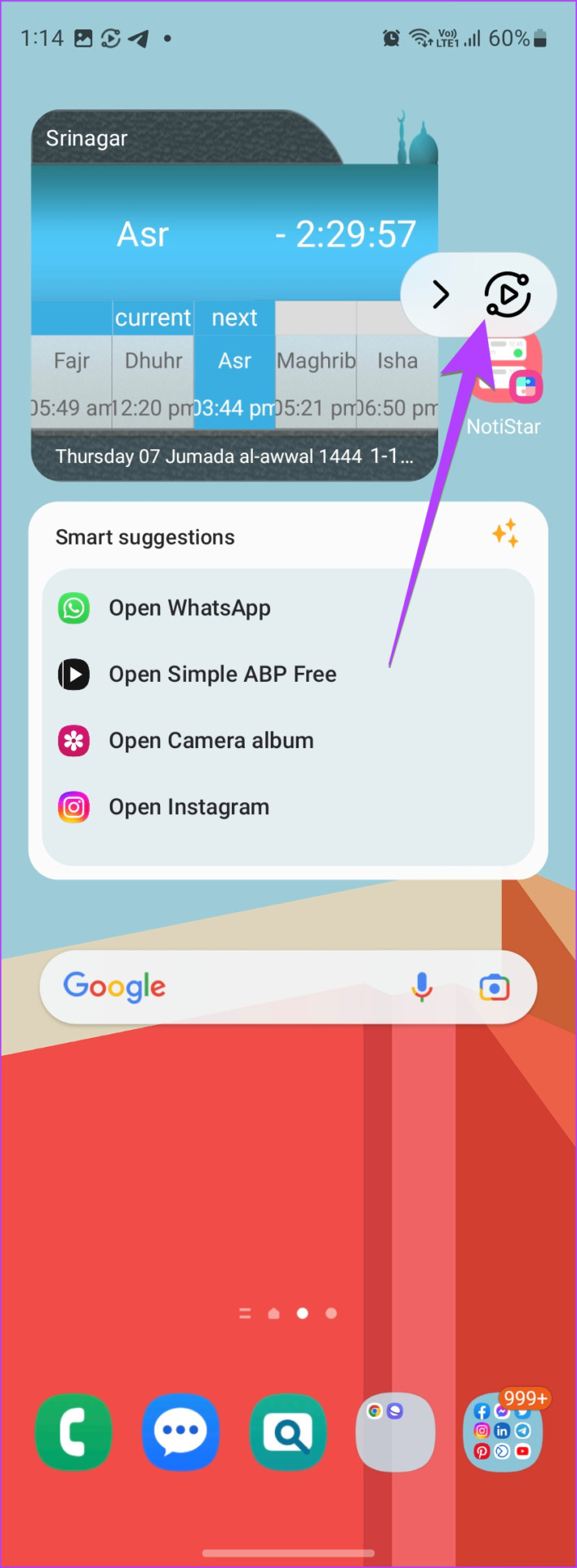
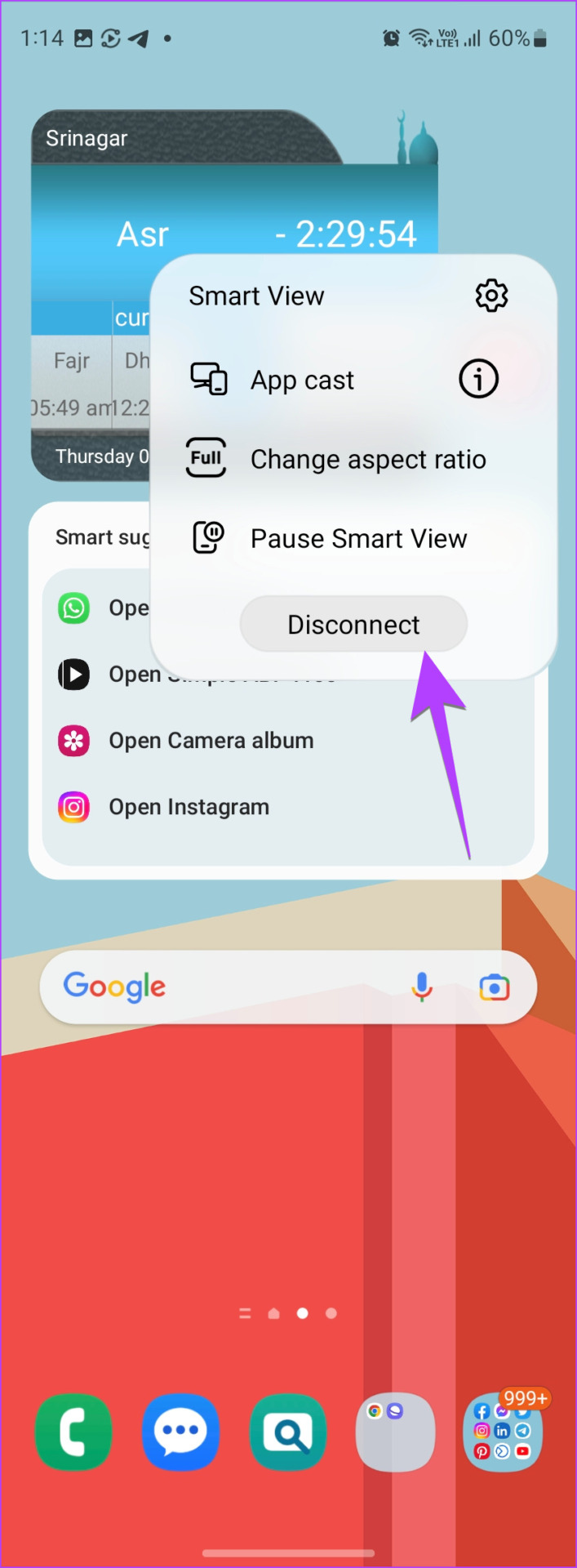
To disconnect Smart View from your TV, tap on the Smart view icon present on your phone’s screen and hit the Disconnect button.
You can also go to phone Settings > Connected devices > Smart View . Then, tap on your TV to disconnect it.
Was this helpful?
Submit Cancel
Thanks for your feedback!
Keep reading
![9 Pet Care Apps in 2024 [Free and Paid]](https://bcdn.seocloud.biz/seo-articles/82a3ce5485f5bc506feb1226aca9bcb4/cover.jpg)